

Page 1
1
OPERATING INSTRUCTIONS FOR THE
AUTHORISATION DEVICE DIGIPASS 700
D700/IN-S-JF-EN-0217.02-LV
Attention!
Immediately after receiving the new authorization device, and not having used the device for a long period, please, check
the correctness of the timer setup, which is important for generating correct electronic signature – see point 4.
DIGIPASS is an electronic authorization device used to generate electronic signature, which replace the Customer’s signature and seal in Customer’s
Order in the message to the Bank, as well as for Client’s authorization in Citadele Online Banking (authorization code).
The Customer may choose his DIGIPASS device with the English and the Latvian language or the English and the Russian language, and may change
the language in the device at his/her discretion.
Each generated
electronic signature
can be used only one time. E
lectronic signatures
are calculated on the basis of both essential parameters of
the Customer's message and time of generation of the
electronic signature
.
You can check the preciseness of the DIGIPASS timer – see section 4 “Timer Testing”.
Electronic signatures
for each Order are to be calculated using respective fields of the definite Order.
Each DIGIPASS device is authorized for operation with a certain Client’s account / accounts in the Bank. Also more than one authorization device may be
used to manage one account or all Customer’s accounts.
For generation of Citadele Online Banking Authorization codes and electronic signature different DIGIPASS devices can be used, if it is registered in the
program accordingly to Customer’s request.
A new or an additional authorization device may be issued on the basis the Customer’s application signed thereby, with rights to use one or more
Customer accounts.
The access to operation with DIGIPASS device is protected by PIN code consisting of five digits. DIGIPASS device can be used only after replacing the
initial PIN code, which Client receives at the moment of issue of DIGIPASS. The initial PIN code has to be replaced by the Client.
DIGIPASS device will be locked after five attempts of entering an incorrect PIN code (see section 2 “Warning about an incorrect PIN code”).
The Customer shall be responsible for the loss of the authorization device and for non-disclosure of his/her PIN code to other persons.
The battery in DIGIPASS device lasts for almost 3 years. If the token displays “BATTERY FAIL”, the device must be replaced by the Bank.
It is forbidden to keep DIGIPASS near a source of electromagnetic fields (for example, close to a mobile phone, loudspeakers, airport security gates etc.).
If the device has been exposed to temperatures below 0
0
C, it may only be used after it warms up under room temperature in 20 – 30 minutes.
DIGIPASS authorization device has keys from “0” to “9”, special keys (I, S, ENTER, ON/OFF, CC, F), and LCD screen. Using the “CC” key, the Customer
may return to the initial menu “SELECT I S F” and cancel any operation.
DIGIPASS is switched on by pressing the key “ON/OFF”. DIGIPASS will switch off after pressing the key “ON/OFF” repeatedly or in 60 seconds unless
any key is pressed.
By pressing the key “CC”, you can return to the previous action.
1. Entering and replacing the initial PIN code
You need to perform these steps once before using the device to generate the electronic signatures.
In order to replace initial PIN code, please act as follows:
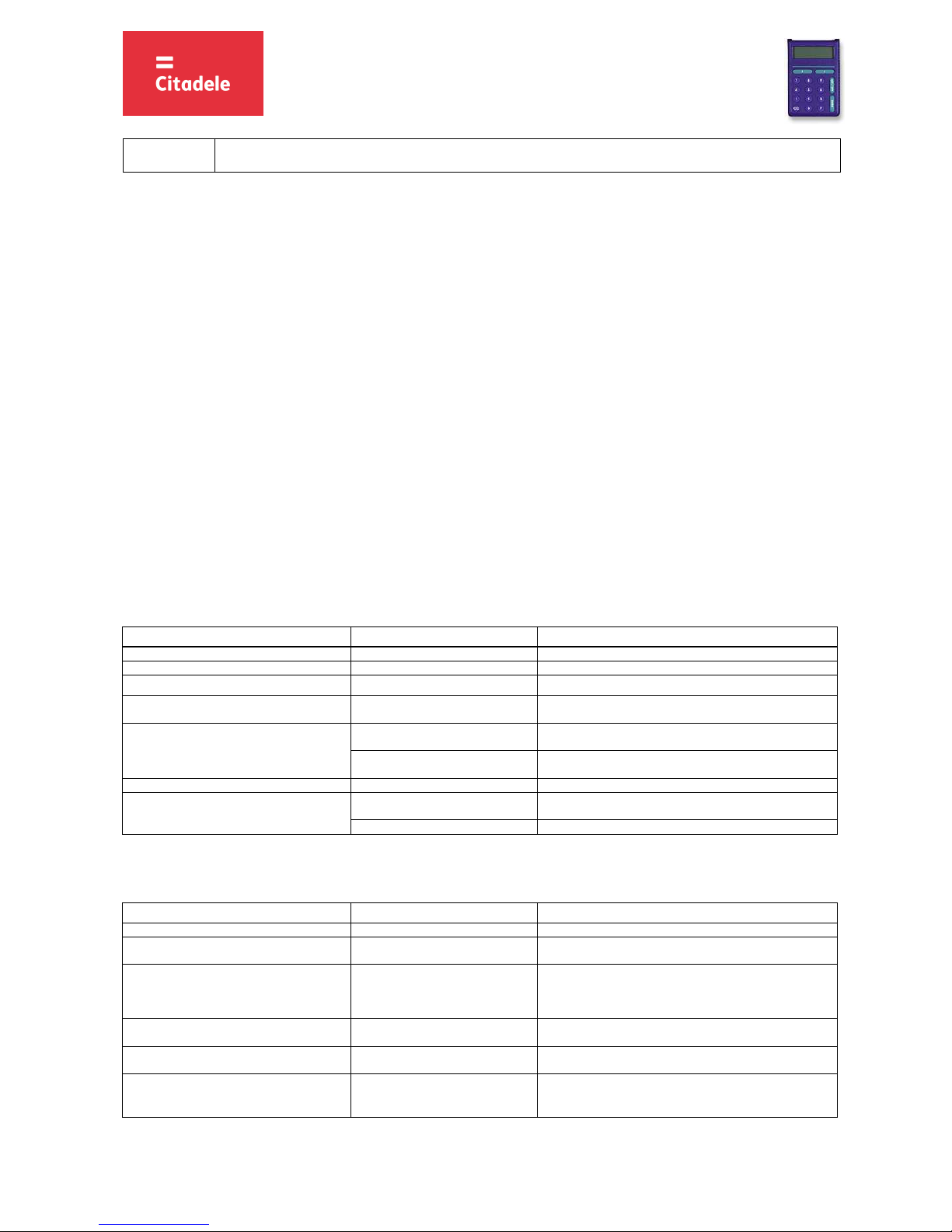
ACTIONS SCREEN MESSAGE NOTES
1. Press the “ON/OFF” key INIT PIN The message indicates that no one has used this device before.
2. Enter the initial PIN code - - - - - Provided by the Bank.
3. Press the “ENTER” key NEW PIN
4. Enter your PIN code - - - - - Enter your new PIN code that may consist of any 5 digits, except
for 5 similar digits or five consecutive digits.
5. Press the “ENTER” key
CONFIRM The code chosen by you has been a
ccepted. To confirm it, enter
your new PIN code again.
WEAK PIN New PIN code offers weak protection. The screen displays “NEW
PIN” in a few seconds. Repeat the actions starting with step 4.
6. Enter your new PIN code again - - - - -
7. Press the “ENTER” key PIN CHANGED Initial PIN code has been replaced with your new PIN code.
DIGIPASS device returns to the initial menu automatically.
PIN CHG FAIL The code you re-entered is different from that entered before.
Your new PIN code is to be used in further DIGIPASS operation.
2. Warning about an incorrect PIN code
ACTIONS SCREEN MESSAGE NOTES
1. Press the “ON/OFF” key “ENTER PIN”
2. Incorrect PIN code is entered “WRONG PIN” The PIN code you have entered is incorrect. In few seconds a
message about the next try will appear on the screen.
“PIN TRIAL 2 (or 3 or 4)”
The 2nd trial (or the
3
rd
or
4
t
h
).
If the DIGIPASS device is switched off after an incorrect PIN code
was entered, the message on the screen will appear again after
switching the device on.
3. After switching on DIGIPASS, press the key
“Enter”
“ENTER PIN” Enter PIN code
4. The PIN code is entered incorrectly for the 4th
time.
“LAST PIN TRY” Warning about the last attempt to enter PIN code.
5. The PIN code is entered incorrectly for the 5th
time.
“UNLOCK CHALL nnnnnn” Your DIGIPASS device is lo
cked. In order to unlock the DIGIPASS
device, you have to come to the Bank and bring your DIGIPASS
device with you.
Page 2
2
OPERATING INSTRUCTIONS FOR THE
AUTHORISATION DEVICE DIGIPASS 700
D700/IN-S-JF-EN-0217.02-LV
3. Changing the language
DIGIPASS device language may only be changed after the Customer has changed the initial PIN code of DIGIPASS device.
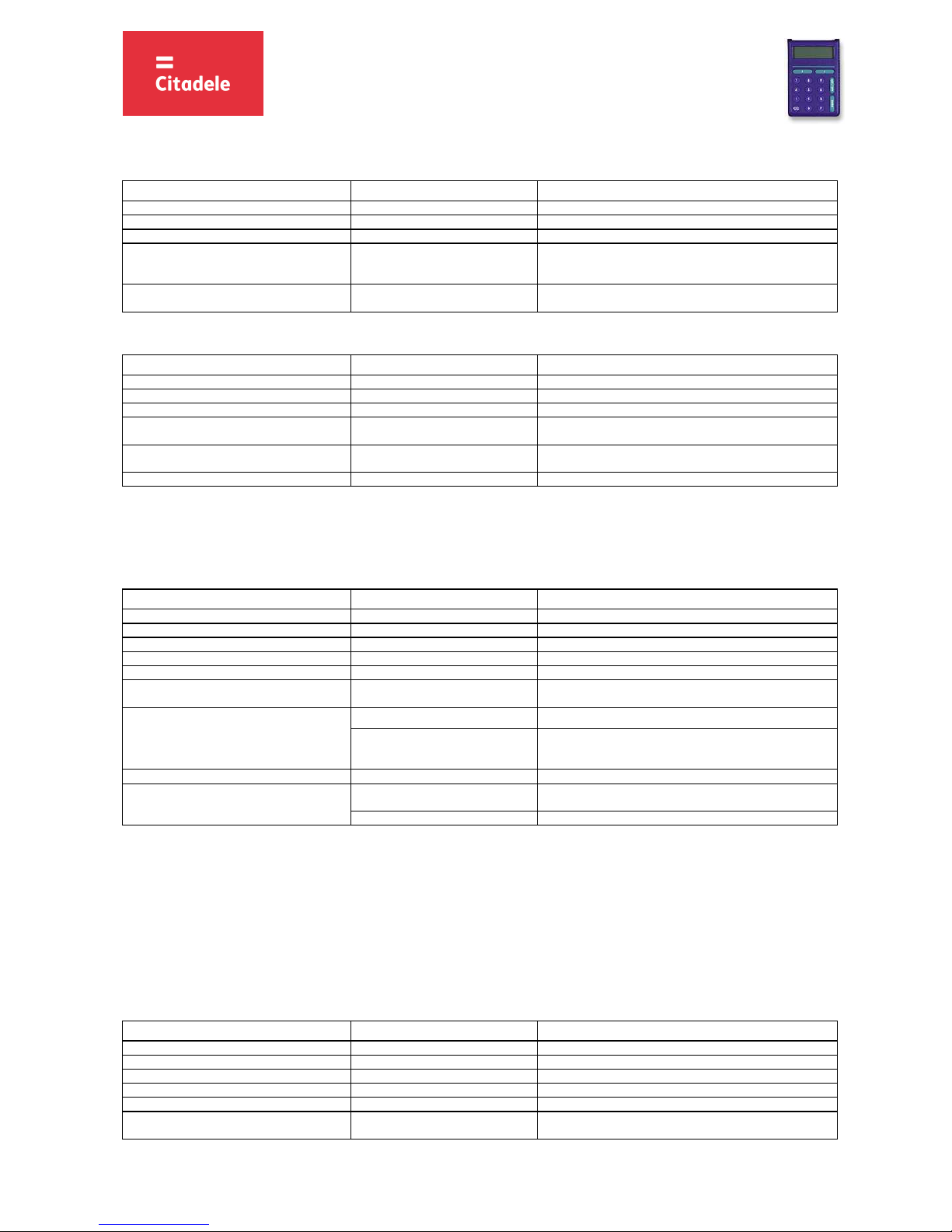
ACTIONS SCREEN MESSAGE NOTES
1. Press the “ON/OFF” key ENTE
R PIN
2. Enter PIN code digits - - - - -
3. Press the “ENTER” key SELECT I S F
4. Press the “F” key four times TO RUSSI
AN
TO ENGLISH
TO LATVIAN
The languag
e will change according to the screen message T
O
RUSSIAN – into the Russian language; TO LATVIAN – into the
Latvian language; TO ENGLISH – into the English language.
5. Press the “ENTER” key SELECT I S F The English language changes to the Russian or Latvian language
and vice versa.
4. Timer testing
ACTIONS SCREEN MESSAGE NOTES
1. Press the “ON/OFF” key ENTE
R PIN
2. Enter PIN code digits - - - - -
3. Press the “ENTER” key SELECT I S F
4. Press the “F” key twice GM
T DATE
dd.mm.yyyy
Date by Greenwich Mean Time (day, month, year)*
5. Press the “F” key once again GM
T DATE
hh.mm
Time by Greenwich Mean Time (hours, minutes)*
6. Press the “CC” key SELECT I S F
* In summer Riga’s time differs by 3 hours, in winter – by 2 hours. Authorization code for entering Citadele Online Banking is valid for 90 minutes, ie. if device’s time
plus 3 hours in summer (or 2 hours in winter) differs for more than 90 minutes from Riga’s time, the device cannot be used for generating Citadele Online Banking
authorization code. It is necessary to replace the device.
5. Changing the PIN code
In order to change your PIN code again, please act as follows:
ACTIONS SCREEN MESSAGE NOTES
1. Press the “ON/OFF” key ENTE
R PIN
2. Enter old PIN code digits - - - - -
3. Press the “ENTER” key SELECT I S F
4. Press the “F” key CHANGE PIN
5. Press the “ENTER” key NEW PIN
6. Enter your new PIN code digits - - - - - Here you enter your invented PIN code that may consist of any 5
digits, except for 5 similar digits or five consecutive digits.
7. Press the “ENTER” key CONFIRM You need to con
firm your ne
w PIN
code.
WEAK PIN New PIN code offers weak protection. You have to replace it with
another PIN code. The screen shows “NEW PIN” in a few
seconds. Repeat the actions starting with step 6.
8. Enter your new PIN code again - - - - -
9. Press the “ENTER” key PIN CHANGED Your old PIN
code has been replaced with your new PIN code.
DIGIPASS device returns to the initial menu automatically.
PIN CHG FAIL The code you re-entered is different from that entered before.
6. Generating electronic signatures
ATTENTION!!! In all cases data you use for electronic signature generation must coincide with that you specify in your order to the Bank. Please strictly observe the
following algorithms in filling in your payment orders and calculating test keys.
6.1. Signing the payment order or currency exchange order
Please note: if you operate the device in order to sign a document in Citadele online banking, all the parameters for generating the electronic signatures are
displayed on the document signature screen!
You may delete incorrect digit by pressing the key “CC”.
In order to generate electronic signatures, please act as follows:
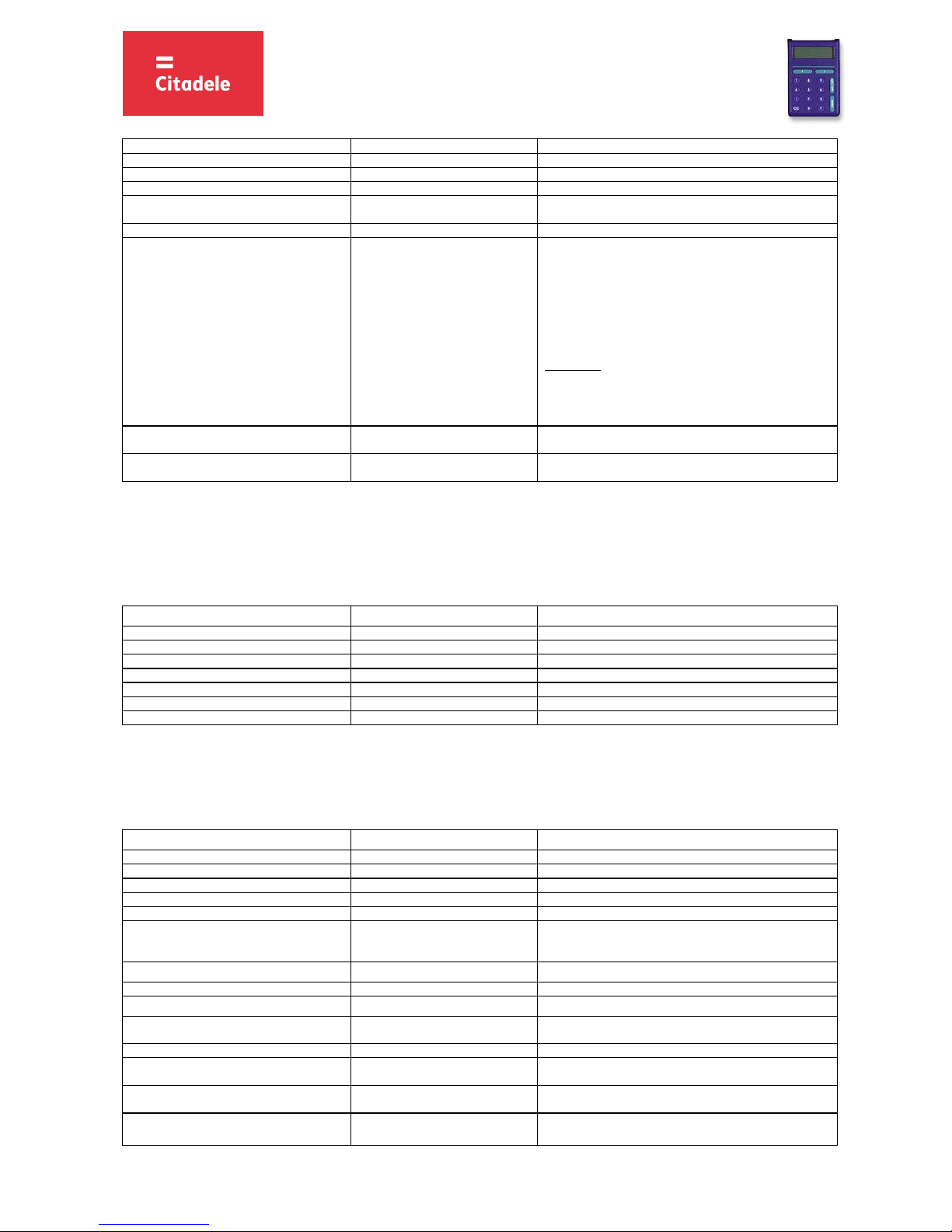
ACTIONS SCREEN MESSAGE NOTES
1. Press the “ON/OFF” key ENTE
R PIN
2. Enter PIN code digits - - - - -
3. Press the “ENTER” key SELECT I S F
4. Press the “S” key PAYMENT
5. Press the “ENTER” key ACCOUNT
6. Enter your account number The account number wit
h “Citadele banka
” consists of 21
characters (IBAN standard). The last 12 digits are used for
Page 3
3
OPERATING INSTRUCTIONS FOR THE
AUTHORISATION DEVICE DIGIPASS 700
D700/IN-S-JF-EN-0217.02-LV
calculation.
7. Press the “ENTER” key CURRENCY
8. Enter the currency code 3-digit code from the “Currency Codes” Table.
9. Press the “ENTER” key AMOUNT
10. Enter the payment amount Enter the amount up to the decimal separator (without cents
etc.)
11. Press the “ENT
ER” key BENEFICI
ARY
12. Enter the last 12 digits of the beneficiary’s
account number.
a) In case the a
ccount number consists of 12 digits, enter the
account number in full;
b) In case the account number consists of more than 12
characters, the last 12 digits are used for calculation;
c) In case the account number contains characters that are not
digits (letters, slashes, hyphens, etc.), digits only are to be
entered.
d) In case the account number contains no digits at all, enter
“0”.
For example:
00 099 0000 => 000990000
111222333444555 => 222333444555
11a22b33c44d55e => 1122334455
LV84LACB0000435195001 => 000435195001
13. Press “ENTER” the key KE
Y 1 ”XX” The first part of the electronic signature appears automatically,
possible value from 00 to 99.
14. Press the “ENTER” key without entering the
parameter
KEY 2 “XXXXXXXXXX” The 10-digit second part of the electronic signature.
6.2. Signing the payment order batch
Please note: if you operate the device in order to sign a payment order batch in Citadele online banking, all the parameters for generating the electronic signatures
are displayed on the payment order batch signature screen!
With a single electronic signature of the authorization device may be validated up to 50 payment orders.
Limit of the confirmation of several payment orders with one DIGIPASS electronic signature is EUR 142,300 (or equivalent amount in other currencies).
In order to generate electronic signatures, please act as follows:
ACTIONS SCREEN MESSAGE NOTES
1. Press the “ON/OFF” key ENTE
R PIN
2. Enter PIN code digits - - - - -
3. Press the “ENTER” key SELECT I S F
4. Press the “S” key four times ADDITIONAL
5. Press the “ENTER” key FIELD1 Enter the payment order batch ID.
6. Press the “ENTER” key FIELD2 Enter the payment order batch total amount.
7. Press “ENTER” the key KEY ”XXXXXXXXXX” The 10-digit electronic si
gnature.
6.3. Signing the cash withdrawal order
Please note: if you operate the device in order to sign a document in Citadele online banking, all the parameters for generating the electronic signatures are
displayed on the document signature screen!
In order to generate electronic signatures, filling in a Cash Withdrawal Order, please act as follows:
ACTIONS SCREEN MESSAGE NOTES
1. Press the “ON/OFF” key ENTE
R PIN
2. Enter PIN code digits - - - - -
3. Press the “ENTER” key SELECT I S F
4. Press the “S” key PAYMENT
5. Press the “ENTER” key
6. Enter your account number ACCOUNT The account number with “Citadele banka” consists of 21
characters (IBAN standard). The last 12 digits are used for
calculation.
7. Press the “ENTER” key CURRENCY
8. Enter the currency code 3-digit code from the “Currency Codes” Table.
9. Press the “ENTER” key AMOUNT
10. Enter the payment amount Enter the amount up to the decimal separator (without cents
etc.)
11. Press the “ENT
ER” key BENEFICI
ARY
12. Enter the beneficiary information. Enter all digits of the passport number, driver’s license or iden
tit
y
number.
13. Press the “ENT
ER” key KE
Y 1 ”XX” The first part of the electronic signature appears automatically,
possible value from 00 to 99.
14. Press the “ENT
ER” key without entering the
parameter
KEY 2 “XXXXXXXXXX” The 10-digit second part of the electronic signature.
Page 4
OPERATING INSTRUCTIONS FOR THE
AUTHORISATION DEVICE DIGIPASS 700
4
D700/IN-S-JF-EN-0217.02-LV
6.4. Signing the application of term deposit
Please note: if you operate the device in order to sign a document in Citadele online banking, all the parameters for generating the electronic signatures are
displayed on the document signature screen!
In order to generate electronic signatures, please act as follows:
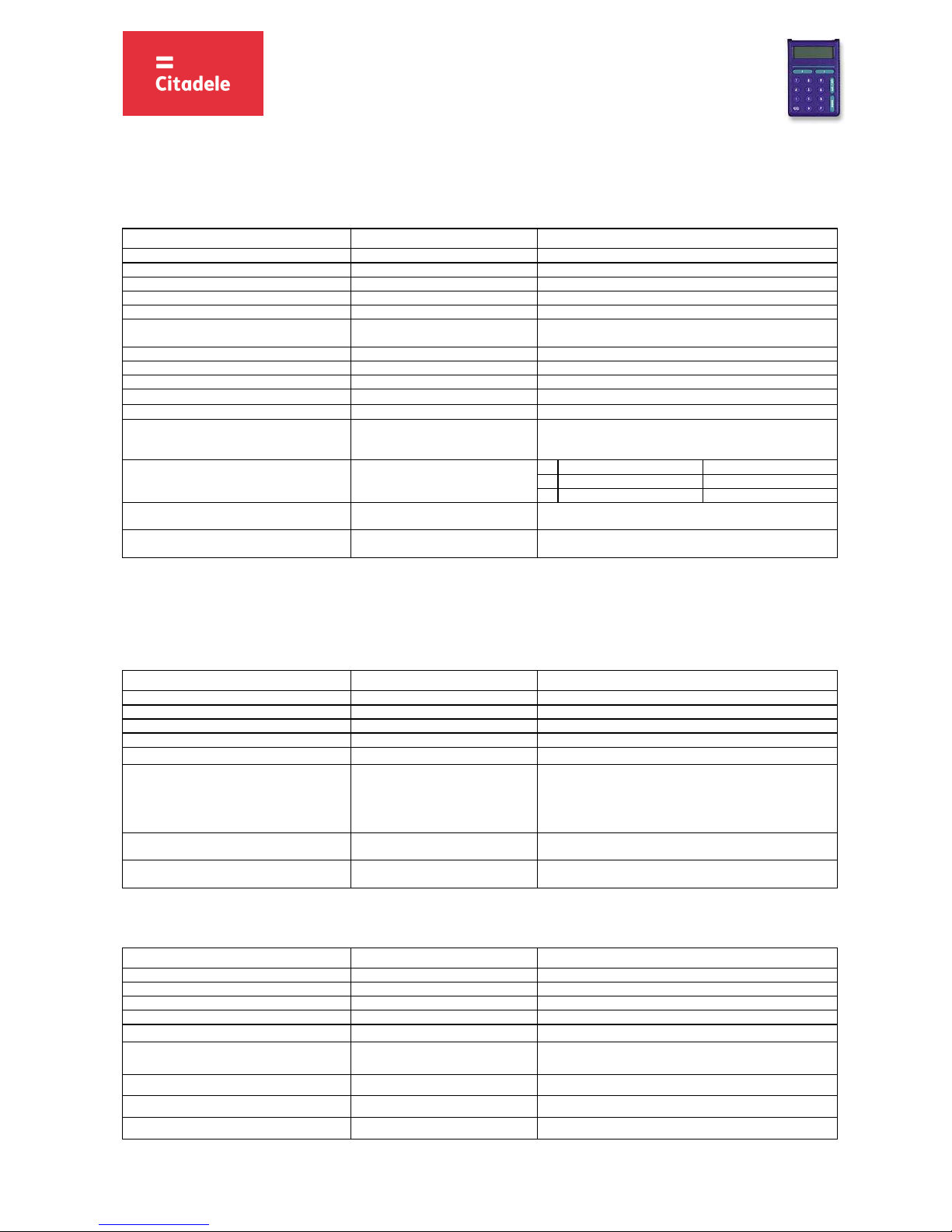
ACTIONS SCREEN MESSAGE NOTES
1. Press the “ON/OFF” key ENTE
R PIN
2. Enter PIN code digits - - - - -
3. Press the “ENTER” key SELECT I S F
4. Press the “S” key PAYMENT
5. Press the “ENTER” key ACCOUNT
6. Enter your account number The account number with Citadele Bank consists of 21
symbols.
The last 12 digits are used for calculation.
7. Press the “ENTER” key CURRENCY
8. Enter the currency code 3-digit code from the “Currency Codes” Table
9. Press the “ENTER” key AMOUNT
10. Enter the payment amount Enter the amount up to the decimal point (without cents etc.)
11. Press the “ENT
ER” key BENEFICI
ARY
12. Enter interest rate In this field enter the interest rate. Before entering the interest
rate, it has to be multiplied by 10 000.
Example:
Interest rate Input number
a 1,7% 17000
b 5,25% 52500
13. Press the “ENT
ER” key KE
Y 1 ”XX” The first part of the electronic signature appears automatically,
possible value from 00 to 99.
14. Press the “ENTER“ key without entering the
parameter
KEY 2 “XXXXXXXXXX” The 10-digit second part of the electronic signature.
6.5. Signing the free format message, client’s questionnaire or the Contract on financial instruments accounts and transactions
Please note: if you operate the device in order to sign a document in Citadele online banking, all the parameters for generating the electronic signatures are
displayed on the document signature screen!
In order to generate electronic signatures for the Contract on financial instruments accounts and transactions (signing the con t r a ct in Citadele online banking),
the free format message or client’s questionnaire, please act as follows:
ACTIONS SCREEN MESSAGE NOTES
1. Press the “ON/OFF” key ENTE
R PIN
2. Enter PIN code digits - - - - -
3. Press the “ENTER” key SELECT I S F
4. Press the “S” key twice FREE FORMAT
5. Press the “ENT
ER “ key FROM
6. Enter your account number for a free-form
order or your client ID in Bank in case of
composing the questionnaire or the Contract on
financial instruments accounts and transactions
The account number with “Citadele banka
” consists of 21
characters (IBAN standard). The last 12 digits are used for
calculation.
Client ID is a number that is allocated to client by the information
system of Bank.
7. Press the “ENTER” key KEY 1 ”XX” The first part of the electronic signature appears automatically,
possible value from 00 to 99.
8. Press the “ENTER” key without entering the
parameter
KEY 2 “XXXXXXXXXX” The 10-digit second part of the electronic signature.
6.6. Receiving MobileSCAN license and activation in the mobile device
In order to receive MobileSCAN license, please act as follows:
ACTIONS SCREEN MESSAGE NOTES
1. Press the “ON/OFF” key ENTE
R PIN
2. Enter PIN code digits - - - - -
3. Press the “ENTER” key SELECT I S F
4. Press the “S” key three times
ORDER
5. Press the “ENT
ER “ key TYPE Enter 732
6. Press the “ENTER “ key
ACCOUNT
Enter Client ID.
Client ID is a nu
mb
er that is allo
c
ated to
c
lient by the
information system of Bank.
7. Press the “ENTER “ key
CURRENCY
Enter 0
8. Press the “ENTER “ key
AMOUNT
Enter 0
9. Press the “ENTER “ key
BENEFICIARY
Enter 0
Page 5
OPERATING INSTRUCTIONS FOR THE
AUTHORISATION DEVICE DIGIPASS 700
5
D700/IN-S-JF-EN-0217.02-LV
10. Press the “ENTER” key KEY 1 ”XX” The first part of the ele
c
tronic signature appears automatically,
possible value from 00 to 99.
11. Press the “ENTER” key without entering the
parameter
KEY 2 “XXXXXXXXXX” The 10-digit second p
art of the electronic s
ignature.
In order to activate MobileSCAN in the mobile device, please act as follows:
ACTIONS SCREEN MESSAGE NOTES
1. Press the “ON/OFF” key ENTE
R PIN
2. Enter PIN code digits - - - - -
3. Press the “ENTER” key SELECT I S F
4. Press the “S” key twice FREE FORMAT
5. Press the “ENT
ER “ key FROM
6. Enter your account number for a free-form
order or your client ID in Bank in case of
composing the questionnaire or the Contract on
financial instruments accounts and transactions
The account number with “Citadele banka
” consists of 21
characters (IBAN standard). The last 12 digits are used for
calculation.
Client ID is a number that is allocated to client by the information
system of Bank.
7. Press the “ENTER” key KEY 1 ”XX” The first part of the electronic signature appears automatically,
possible value from 00 to 99.
8. Press the “ENTER” key without entering the
parameter
KEY 2 “XXXXXXXXXX” The 10-digit second part of the electronic signature.
7. Generating an authorization code:
7.1. for entering Citadele online banking
7.2.
for signing/ submission of orders by phone (According to Application for submission of telephonic orders
In order to generate an authorization code for entering Citadele Online Banking or submission of telephonic order, please act as follows:
ACTIONS SCREEN MESSAGE NOTES
1. Press the “ON/OFF” key ENTE
R PIN
2. Enter PIN code digits - - - - -
3. Press the “ENTER” key SELECT I S F
4. Press the “I” key CODE
6-digit code
Please enter the 6-digit authorization code in th
e “Authorization
code” field for logging in or call it to the Bank employee
CURRENCY CODES
AED Unite
d Arab Emirates Dirham 784 ILS Israeli Shekel 376 UAH U
krainia
n H
ryvna 980
AUD Australian Dollar 36 ISK
Icelan
d K
rona 352 USD US
Dollar 840
BGN Bulgarian Lev 975 JPY Japanes
e
Yen 392 UZS Uzbekista
n Sum 860
BYN Belarusia
n
Rubble 974 KZT K
azakhsta
n Tenge 398 ZAR Sout
h A
frican Rand 710
CAD Canadian Dollar 124 MDL M
oldovan Leu 498
CHF Swiss
Franc 756 NOK Norwegia
n K
rone 578
CZK C
zech Koruna 203 NZD New
Zealand Dollar 554
DKK Danis
h K
rone 208 PLN Polish Zloty 985
EUR Euro 978 RUR R
ussian Ruble 643
GBP Britis
h P
ound 826 SEK S
wedish Krona 752
HKD
Hong Kong Dollar
344
SGD Singapor
e
Dollar 702
HUF Hungary
Forint 348 TRL Turkish Lira 792
Other currencies 0
 Loading...