

Page 1
User Manual
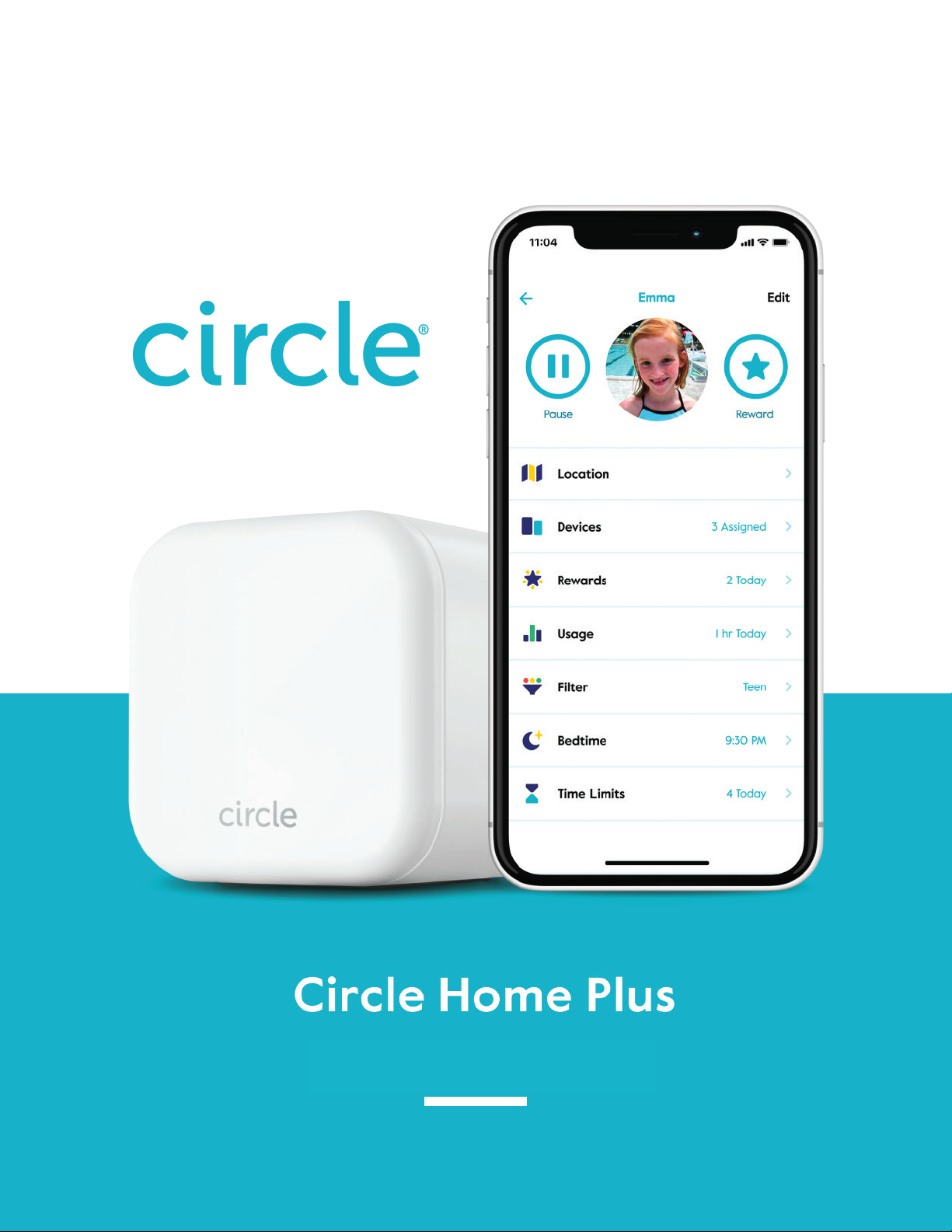
Circle Home Plus User Manual
1
Page 2
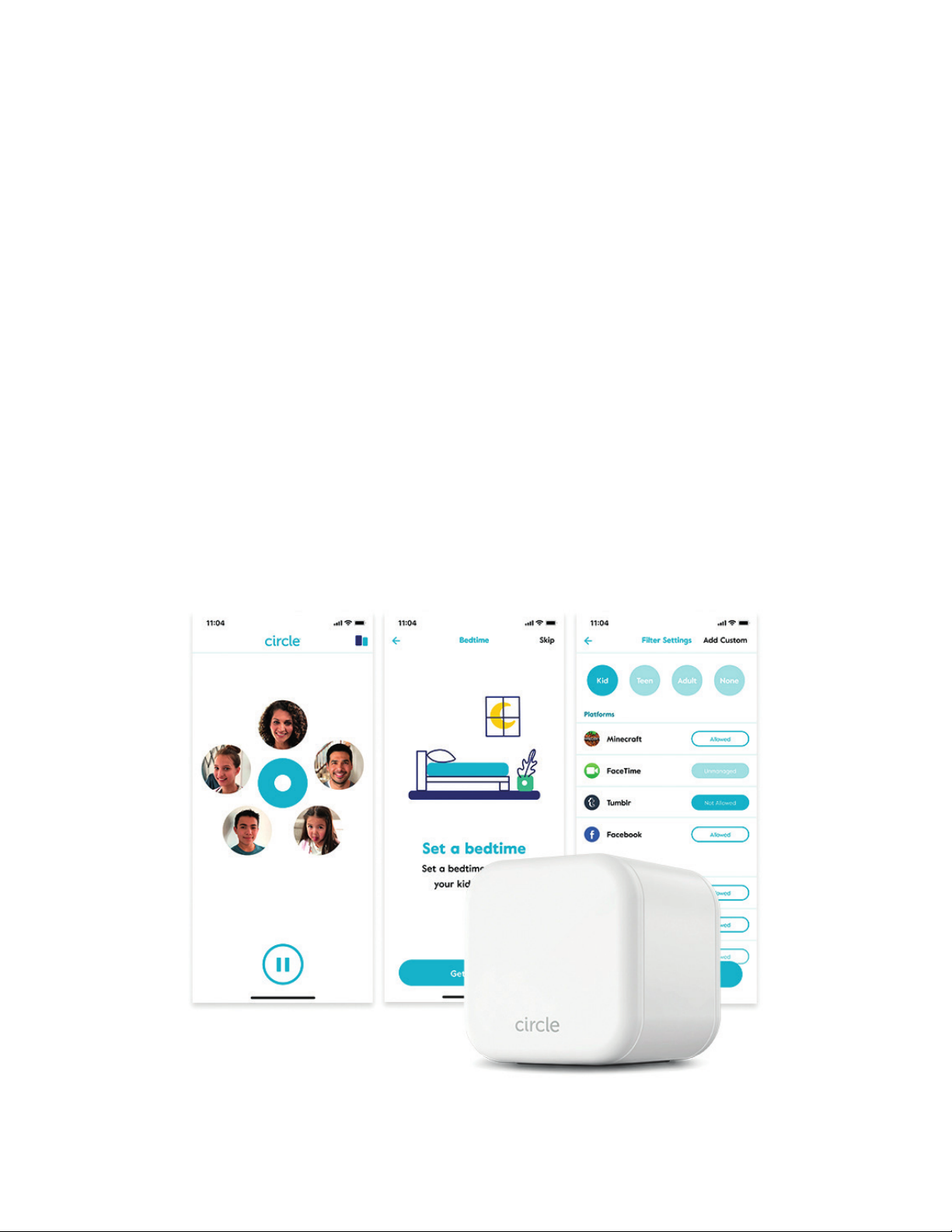
Welcome
Welcome to Circle. We’re excited to share this paradigm-shifting product with a
global community of families who are seeking better balance and management
of their time online. We look forward to having you discover how easy it is for
families to use Circle to manage their content and time online.
We welcome any questions or feedback you may have as you get started. We’re
here to assist you throughout your experience. Visit support.meetcircle.com for
help.
— The Circle team
Circle Home Plus User Manual
2
Page 3

Table of contents
0
02
03
04
Getting familiar with Circle 4
Getting started 7
Using the Circle App 8
The Home Screen
Proles
9
10
Devices
Dashboard
11
12
Features 3
Filter
Time Limits
Bedtime
O Time
Pause
14
18
19
20
21
Location
History
Usage
Rewards
22
23
24
25
05
Circle Home Plus device 26
Wi-Fi devices & Circle Home Plus
Troubleshooting
27
29
Circle Home Plus User Manual
3
Page 4

0
Getting familiar
with Circle
Here are some helpful denitions as you get started
Circle Home Plus User Manual
4
Page 5

Feature Description
Pause the Internet
Location
Rewards
Usage
®
Pause the Internet
Unpause
Resuming internet access after being paused
Keep track of your family and their mobile devices. See
where your family’s mobile devices are at a point in time
with the tap of a button. Kids get notied when you request
their location.
Provide extra online time for your family
Compare online time for each prole across
all devices
Platform
A popular online service made up of sites and apps
Site
An individual source of online content
Category
Collection of sites/platforms sharing a common purpose
®
with the push of a button
History
Bedtime
Time Limits
O Time
Detailed breakdown of every site visited by a prole across
all devices
Schedule overnight oline time for each family member to
make late-night scrolling a thing of
the past
Limit daily online time for platforms, categories, and total
online time across all devices
Schedule weekly oline times that pause a prole
Circle Home Plus User Manual
5
Page 6

Feature
Description
Filter
Ability to match each family member’s age and interests
with age—appropriate online content
Manage
Based on a set of pre-determined rules, network trac is
controlled
Unmanage
Online content can be freely accessed, even during use of
Circle’s premium and basic features, and it won’t contribute
to daily Time Limits or appear in Usage & History.
Allowed
Content is tracked and managed by Circle
Not Allowed
Content from this source is blocked by Circle
Term Description
Device
Any internet-connected equipment (smartphone, tablet,
laptop, etc.); plus smart home appliances (“IoT” devices):
smart TVs and thermostats
Proles
Network
Router
Kid device
Any internet-connected device that you manage with the
Circle App, not just your kids devices
Unassigned device
Devices not assigned to a prole are automatically
unmanaged by Circle
Circle settings are shared across all devices assigned to
a family member prole
Wi-Fi, ethernet, or cellular data source used
to access the internet
Device that distributes internet to multiple devices,
usually over Wi-Fi
Circle Home Plus User Manual
6
Page 7
02
Getting started
The Circle App
Install the Circle Parental Controls App
Apple iOS or newer
Android 6.0 (Marshmallow) or newer
To nd the app, search Circle Parental
Controls in the App Store (iOS) or Google
Play (Android).
Follow the in-app instructions to continue
Create your Circle Account
Set up the App
Set up Circle Home Plus
Circle Home Plus User Manual
7
Page 8
03
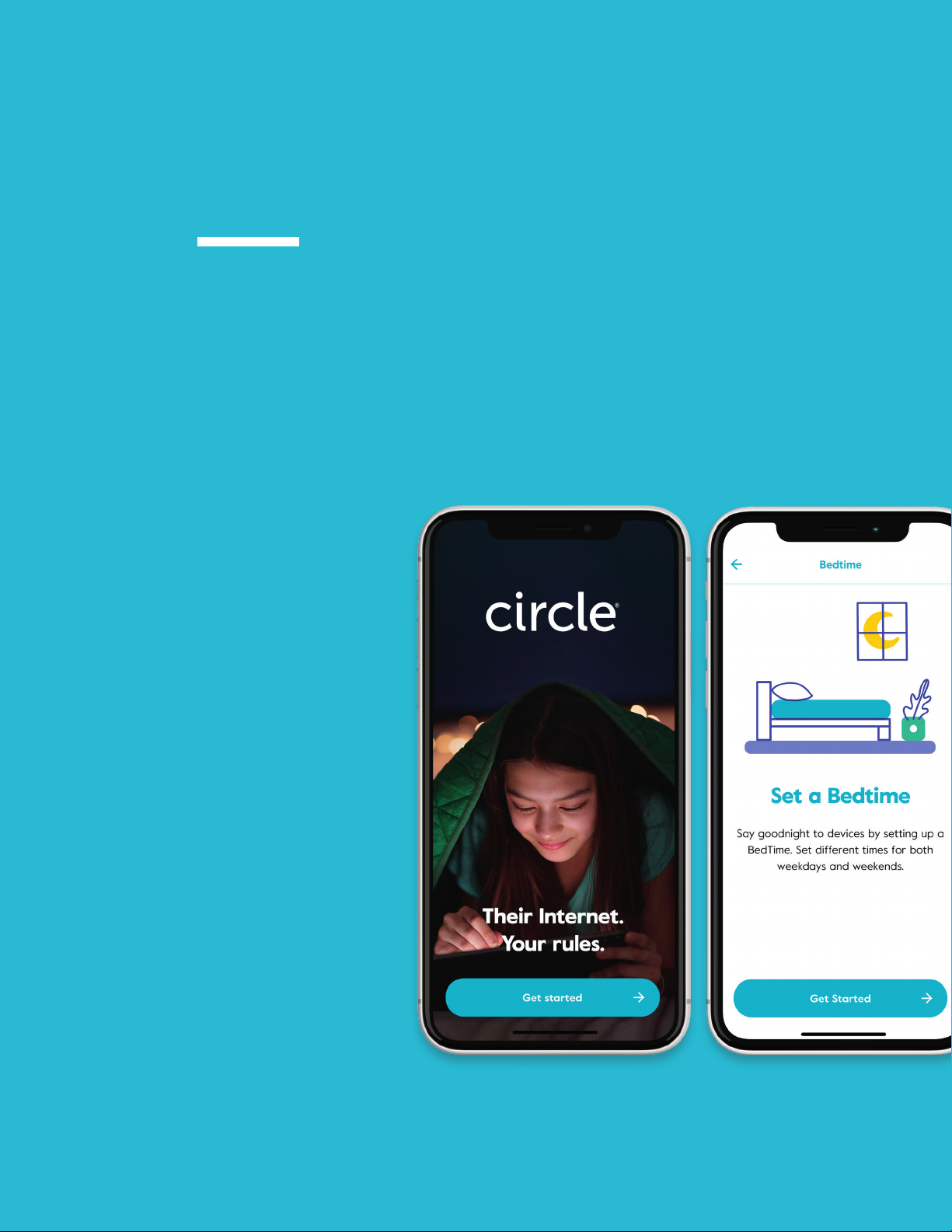
Using the
Circle App
Circle Home Plus User Manual
8
Page 9
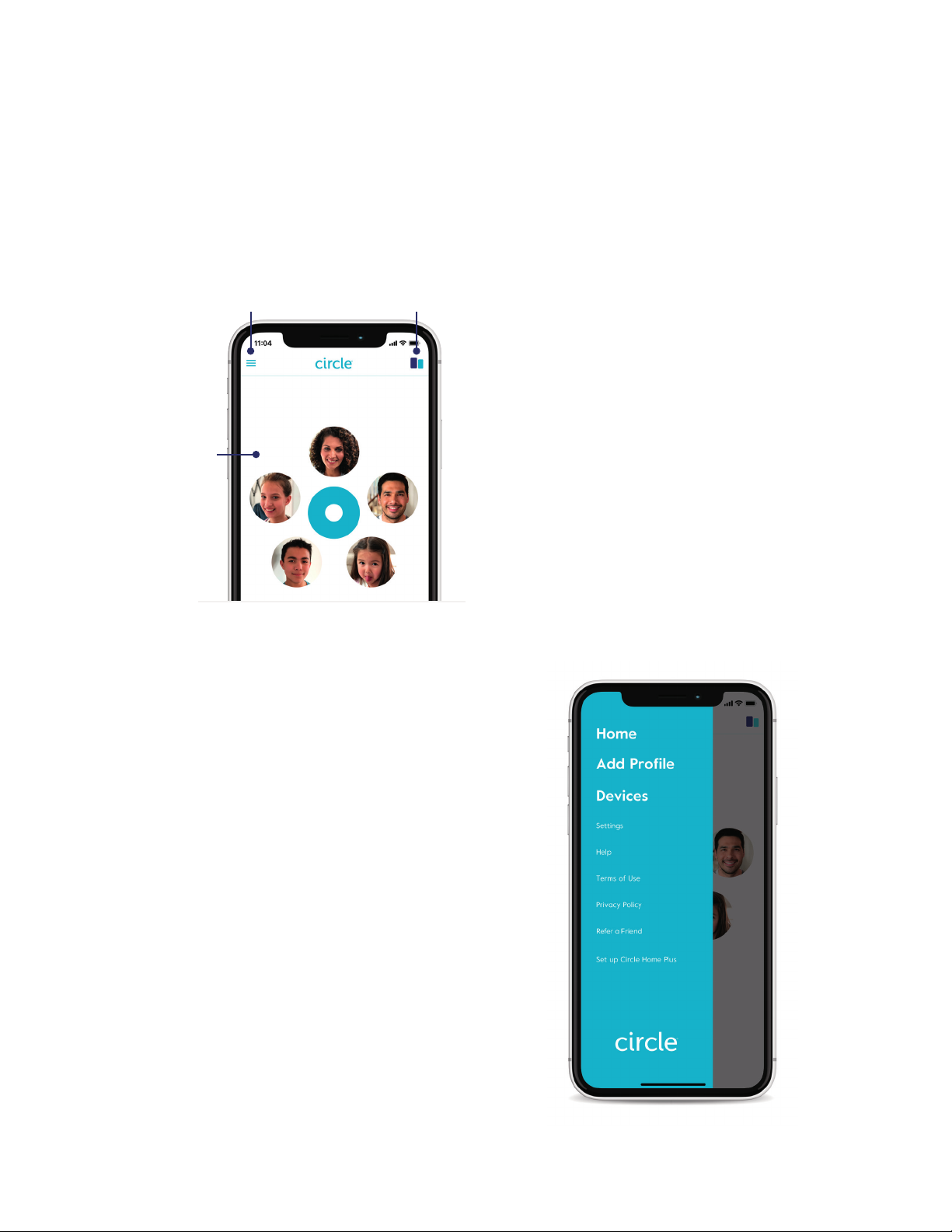
The Home Screen
Home Menu
Family
Prole
Device List
Menu
The Menu provides quick access to
additional account Settings for your Circle
login and hardware, access to Legal and
Help resources, and the opportunity to
tell your friends and family about Circle
through our Refer a Friend program.
Navigation
The Home Screen lets you see the family
member Proles you have set up, the
Devices that have been added to Circle,
and provides a Menu with more options
for your Circle account.
Circle Home Plus User Manual
9
Page 10
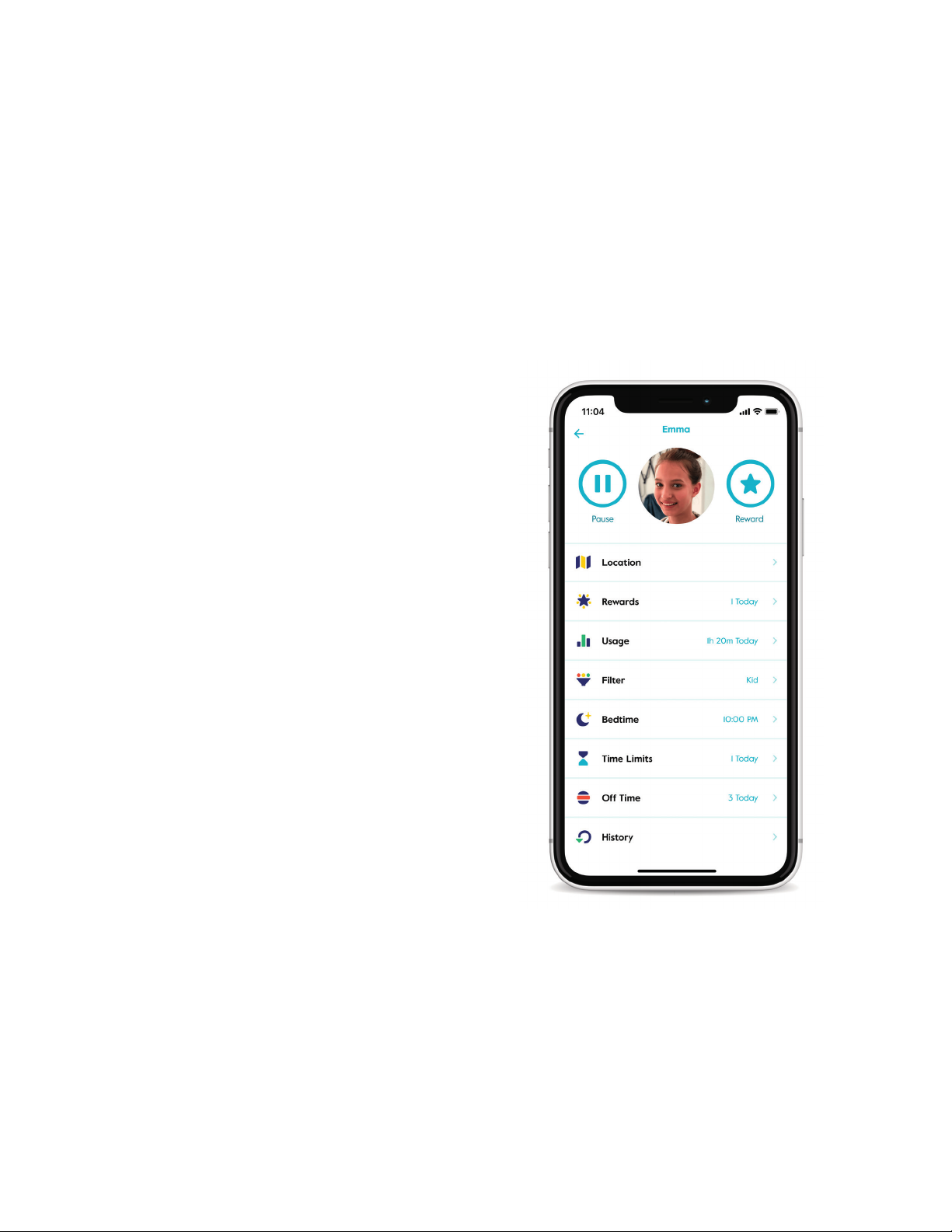
Proles
Create proles for every family member, so their Circle settings are shared across
all devices.
To view a prole
Tap on a prole from the home screen.
From here you can see their name, photo,
and a summary of their Circle settings.
Tap edit in the top right corner of the
screen to change the name or picture.
You can also delete the prole from
here.
Tap done to save changes or cancel
to go back without saving your
changes.
Prole features
To view or makes changes to the prole
settings, tap any of the features displayed
in the prole.
To learn about the features listed
on the prole screen, continue to
the next section.
Circle Home Plus User Manual
10
Page 11
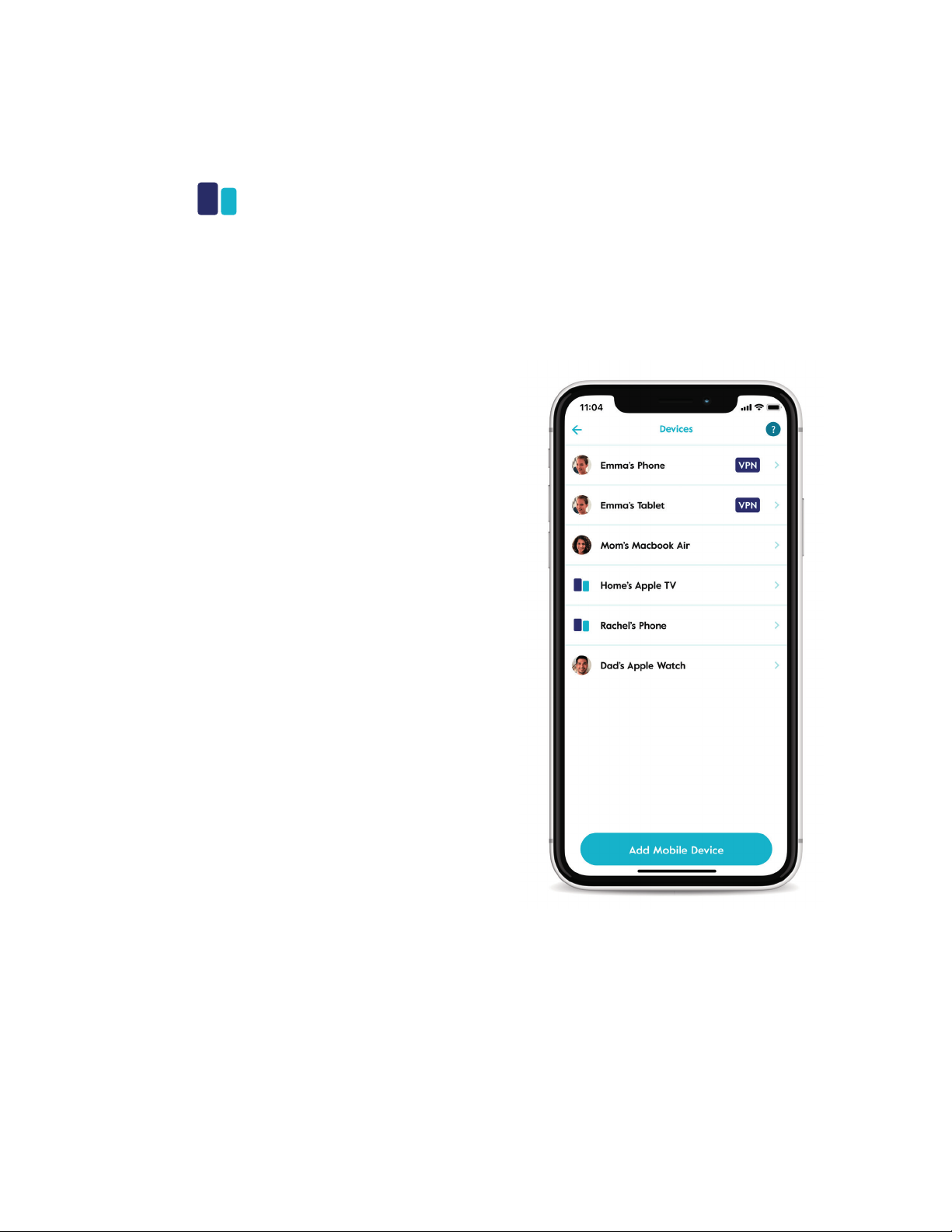
Devices
From the home screen, you can nd a list of all Circle devices by tapping the devices icon
in the top right portion of the screen. From the prole screen, you can nd a list of all
assigned devices by selecting devices.
Tap on any device from the
device list to see the device
settings, where you’ll nd:
The assigned prole (edit by tapping the
text)
The device name (edit by tapping the text)
The manufacturer and device ID — which
can help you identify the device if you can’t
gure out which is which
If it’s a kid device (with the Circle App
installed and congured), you’ll see the
VPN status.
The option to remove device, which
deletes this device from Circle
If you don’t want to manage this device
with Circle, set it to unmanaged.
A pause button, just for this single device
Circle Home Plus User Manual
11
Page 12
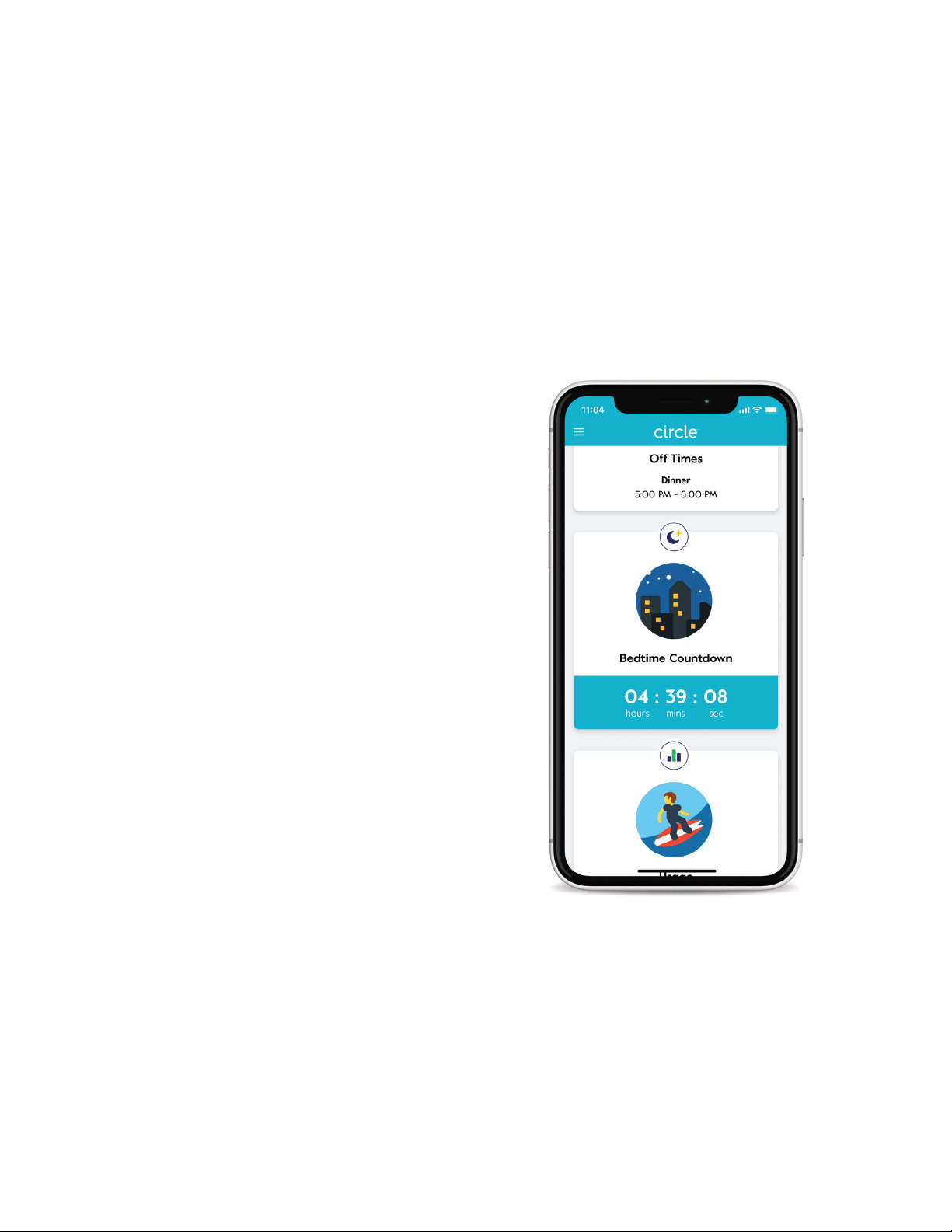
Dashboard
The dashboard is where your family can check their online time for the day, and nd other
helpful information.
Finding the dashboard
If you’ve assigned a family member’s device
to a prole, they can use the dashboard
from the Circle App or a web browser by
visiting
dashboard.meetcircle.com.
What’s on the dashboard
On the dashboard, you’ll see information
for the various Circle features you’ve
enabled for that family member. There’s
also a general prole card, where you
can see the device name associated with
Circle. Finding the device name can be
helpful for identifying devices if you’re not
sure which is which.
Dashboard push notications
Push notications let your family members
know about changes to their internet
access throughout the day from Circle.
They’ll be notied about Circle features
like Pause, Time Limits, O Times, Bedtimes,
and more.
Circle Home Plus User Manual
12
Page 13

04
Features
Circle Home Plus User Manual
13
Page 14

Parental controls, right at
your ngertips
Begin simplifying how you manage your family's online screen
time. Circle's features let you set limits, lter content, and
keep tabs on every connected device.
Circle Home Plus User Manual
14
Page 15
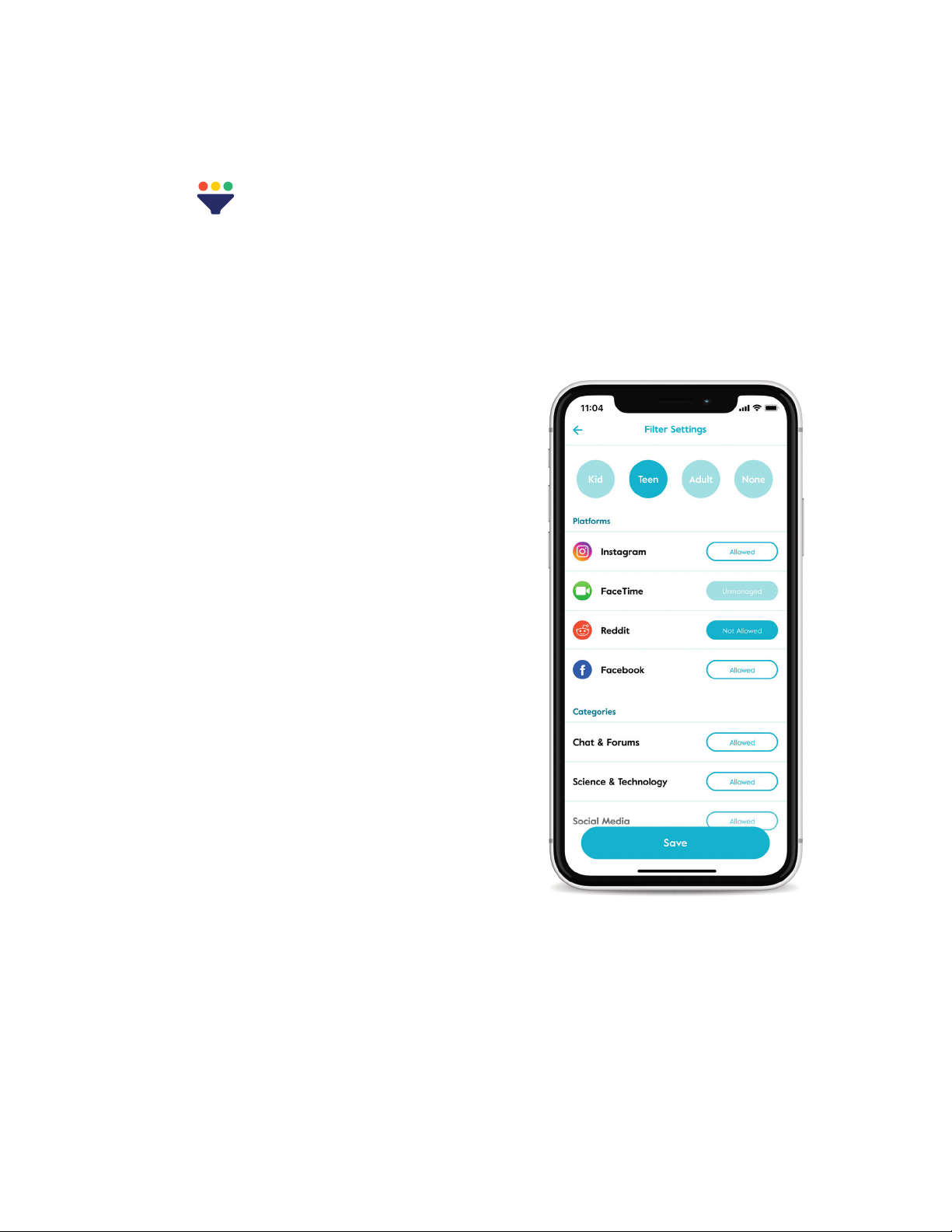
Filter
Set online content lters that match each family member’s age and interests. When
setting a lter, you rst must select a lter level as a starting place, which you can always
customize to be the right t for each family member.
To edit a family member’s lter, tap on their
prole, then select lter.
Filter levels
Kid
Grants access to kid-safe experiences,
like the education category, but lters out
content not appropriate
for children
Teen
Grants access to most general-use
platforms and categories, without mature
or adult-oriented content
Adult
Grants access to nearly all platforms,
categories, and apps, though explicit
content is ltered out by default
None
Means that Circle won’t lter content, track
usage or history, or limit time online for any
assigned devices
Circle Home Plus User Manual
15
Page 16

Filter
Filter settings
After you select a lter level, you can customize it by setting content to allowed, not
allowed, or unmanaged by tapping the text-box across from the platform or category
name.
Allowed
Not allowed
Unmanaged
Privacy & safety
Safe search
YouTube restricted
Content from this source is available and tracked by Circle
Content is restricted by the lter
Internet trac is allowed to freely come and go from this
site, even if Circle is set on Pause, Bedtime, or O Time.
Trac to any unmanaged site does not count toward Time
Limits.
Tapping custom lter lets you create a lter setting for an
individual site. Just type in the name of the site and pick a
lter setting for it.
Filters sexually-explicit content from search results in
Google and Bing
Blocks major content categories, including music
Circle Home Plus User Manual
16
Page 17

Filter
Categories
Category descriptions are intended to describe the types of content Circle will lter.
Entertainment
Arts & Entertainment
Visual arts, literature, humor, lm,
arts venues, and more
Music
Audio streaming and downloading,
artist sites, and more
Online Games
Video games and board game sites
Sports & Recreation
Sports media, professional teams,
and recreation
Video
Video streaming and downloading
School & work
Business
Employment, job postings, nance,
and industry services
Education
Instructional content, teaching,
educational institutions, and
career prep
Science & Technology
Physical and social sciences as well as
computers and articial intelligence
Social
Chat & Forums
Messaging services, online chat,
bulletin boards, and forums
Social Media
Personal and professional networking
communities
Lifestyle
Blogs & Personal Sites
Blogging platforms and sites with
personal content
Government & Politics
Government services, politics,
lobbying, and military
Health
Personal health and tness
Home & Family
Cooking, parenting, home-decorating,
and more
Issues & Lifestyles
Social issues, philosophy, religion,
and more
News
Journalism, commentary, and other
reporting
Online Shopping
Ecommerce retailers and classied ads
Tra vel
Maps, travel, and tourism
Photo
Photography information and sharing
Adult
Dating
Online dating and match-making
Explicit Content
Graphic and explicit adult content
Gambling
Betting sites, lotteries, casinos,
racetracks and more
Services
App Stores & Downloads
Digital software distribution for apps,
programs, and more
Email
Electronic mail providers
Mature
Adult-specic content (age 18+ or 21+)
VPNs & Proxies
Internet privacy and network
routing services
Circle Home Plus User Manual
17
Page 18
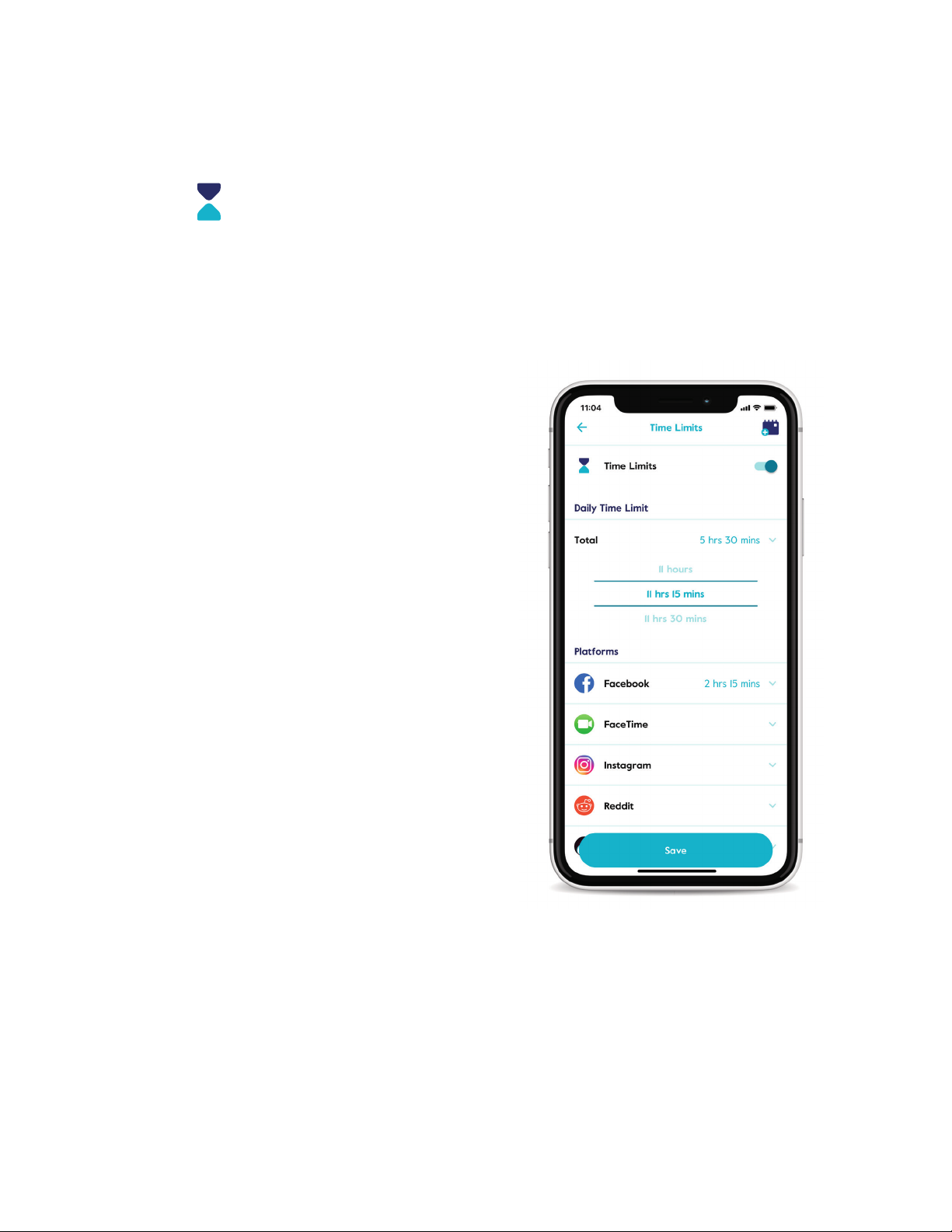
Time Limits
Limit online time for individual apps, sites, or categories. You can set limits by day,
category of content or for individual apps and sites.
To set Time Limits
Tap on a prole from the home screen,
then select Time Limits from the feature
list.
Turn Time Limits on by tapping the enable
switch in the top right.
Set an all-day cap by tapping
Daily Time Limit at the top of the list.
Tap the name of a platform or category to
set an individual limit.
Create an alternate schedule for certain
days of the week by tapping the add
weekend icon at the top of
the screen.
Circle Home Plus User Manual
18
Page 19
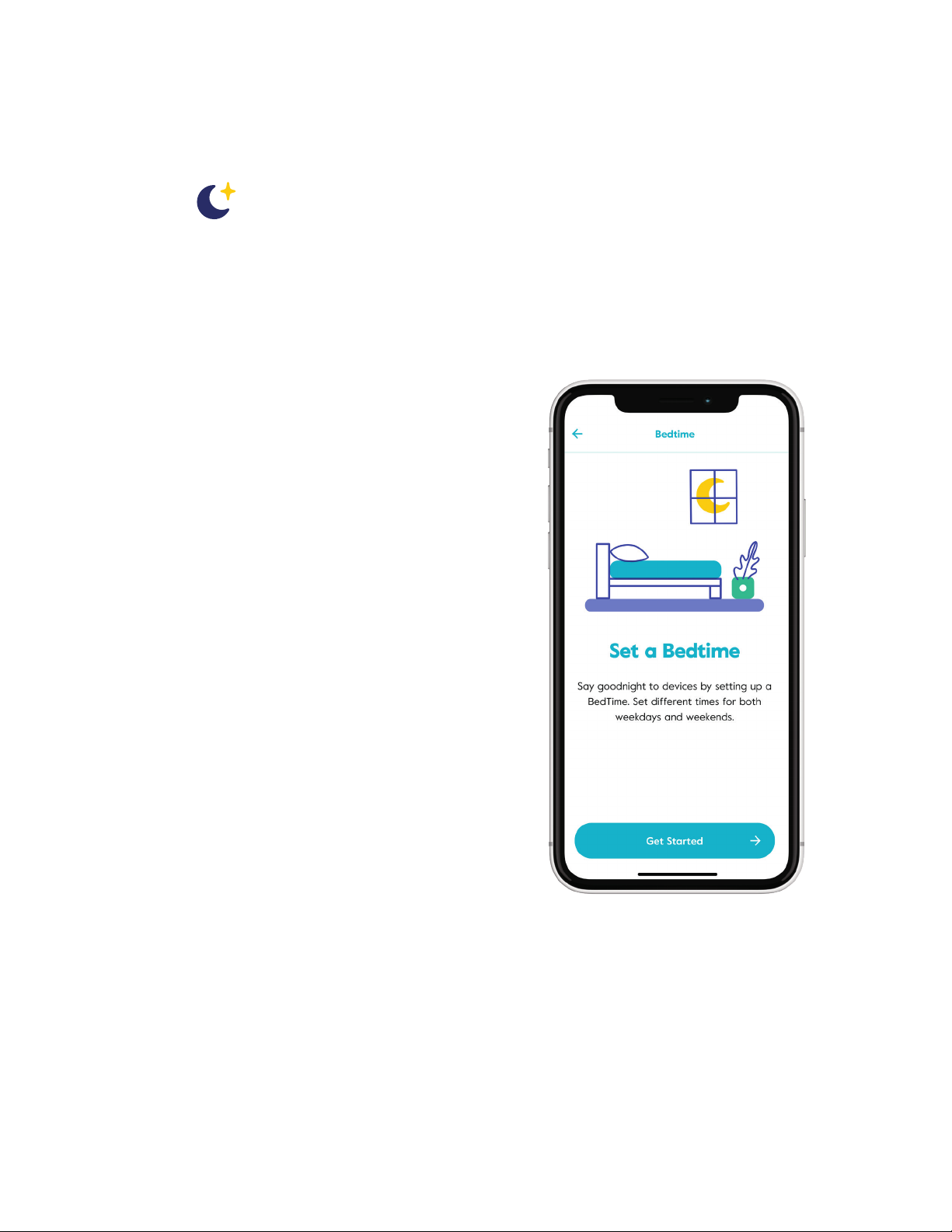
Bedtime
Make late-night scrolling a thing of the past. Bedtime shuts o internet access for every
device assigned to a prole through the night, so everybody in your family can get the
sleep they need without distraction. You can even set a separate weekend Bedtime!
When setting Bedtime, the day of the week
represents the night a Bedtime begins.
Typical weekday Bedtime spans Sunday to
Thursday, with weekend nights on Friday
and Saturday.
To set a Bedtime
Tap on a prole from the home screen,
then select Bedtime from the feature list.
Turn Bedtime on by tapping the enable
switch in the top right.
Set the Bedtime by tapping on the days
to toggle them on or o, and tap Bedtime
and Awa ke times to set
the clock.
Tap add weekend to set an alternate
Bedtime for certain days of the week.
Press save to nish.
Circle Home Plus User Manual
19
Page 20
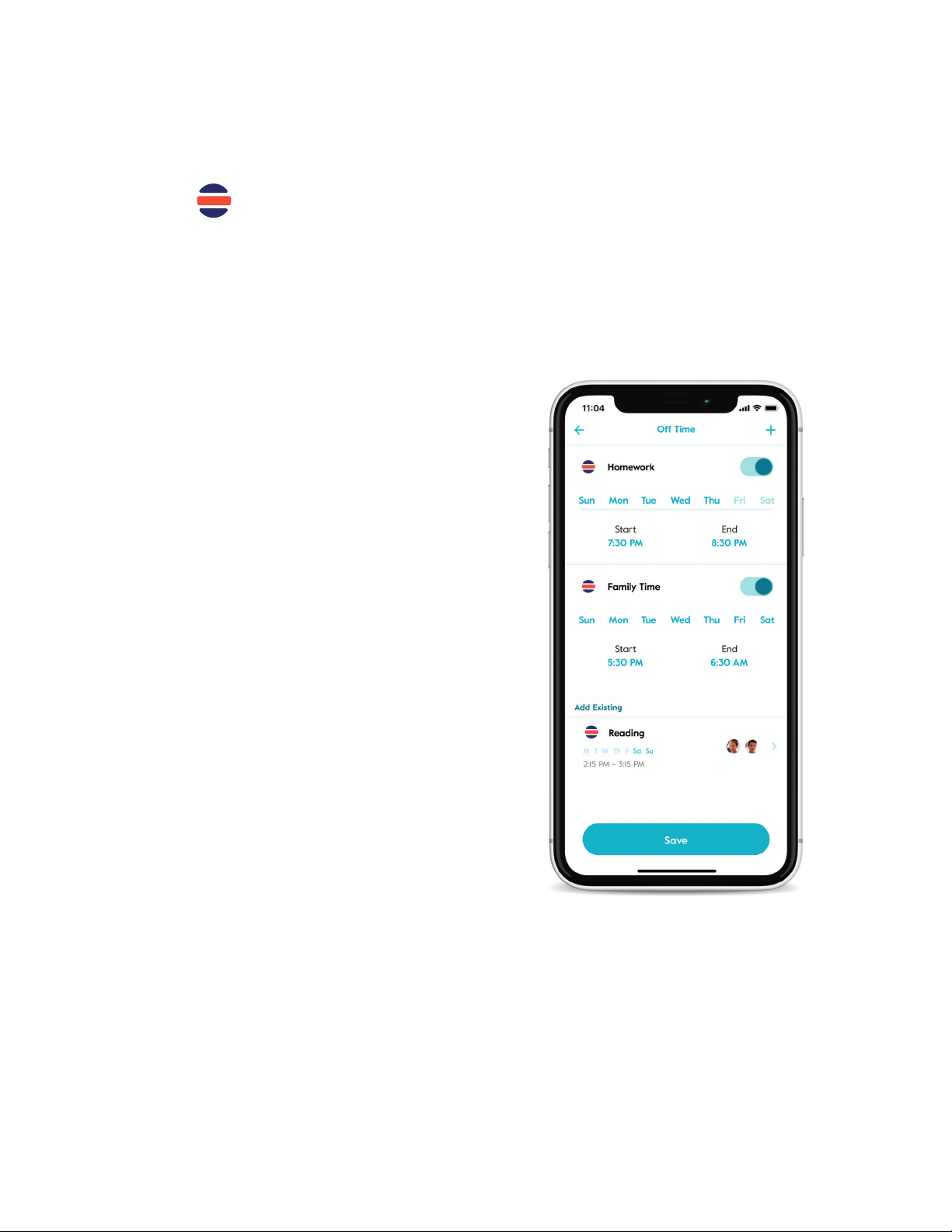
O Time
Schedule oline time in advance to get homework done, enjoy family dinners, and more.
O Time provides recurring breaks from the internet that are fully customizable.
To set an O Time
Tap on a prole from the home screen,
then select O Time from the feature list.
Tap add O Time, or select from your
existing O Time below.
Set the O Time by typing in a name for
the O Time, selecting which days you’d like
to activate, and scroll through the start
and end times to set the clock.
Press done to nish, then save to keep all
your changes for this prole.
Circle Home Plus User Manual
20
Page 21
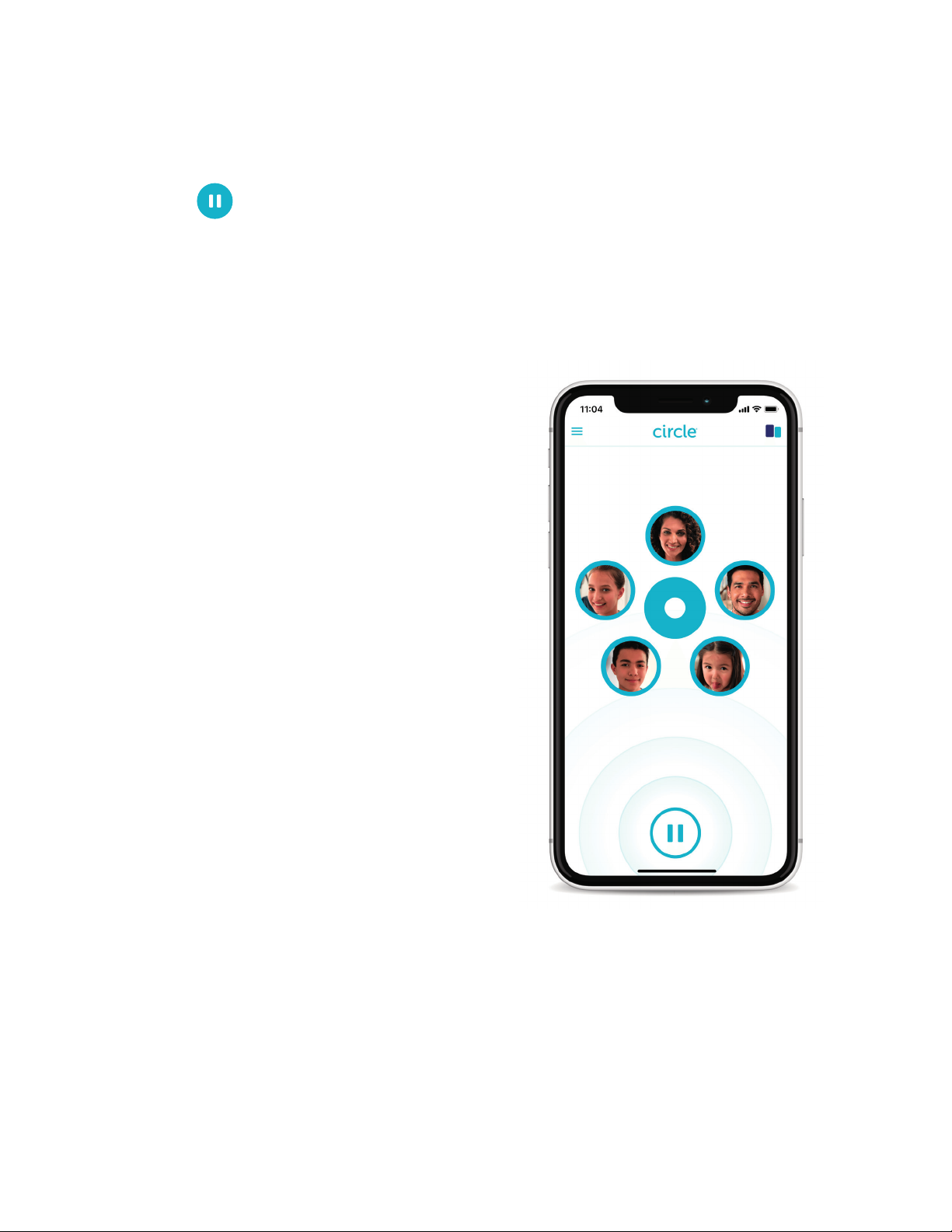
Pause the Internet
®
Pause the Internet
house. Tapping again will unpause to resume internet. Unmanaged devices will always
maintain internet access.
®
with the tap of a button for individual family members or the whole
Home Pause
To pause all Circle devices at once, press
the pause button on the home screen, then
conrm. Press the same button again to
unpause.
Prole Pause
To pause a family member, tap on their
prole from the home screen, then tap the
pause button in the top-left corner of the
screen. Press the same button again to
unpause.
Device Pause
To pause a single device, tap the devices
icon in the top-right of the home screen,
then tap on a device from the list, then
press the pause button on the bottom of
the screen. Press the same button again to
unpause.
Circle Home Plus User Manual
21
Page 22
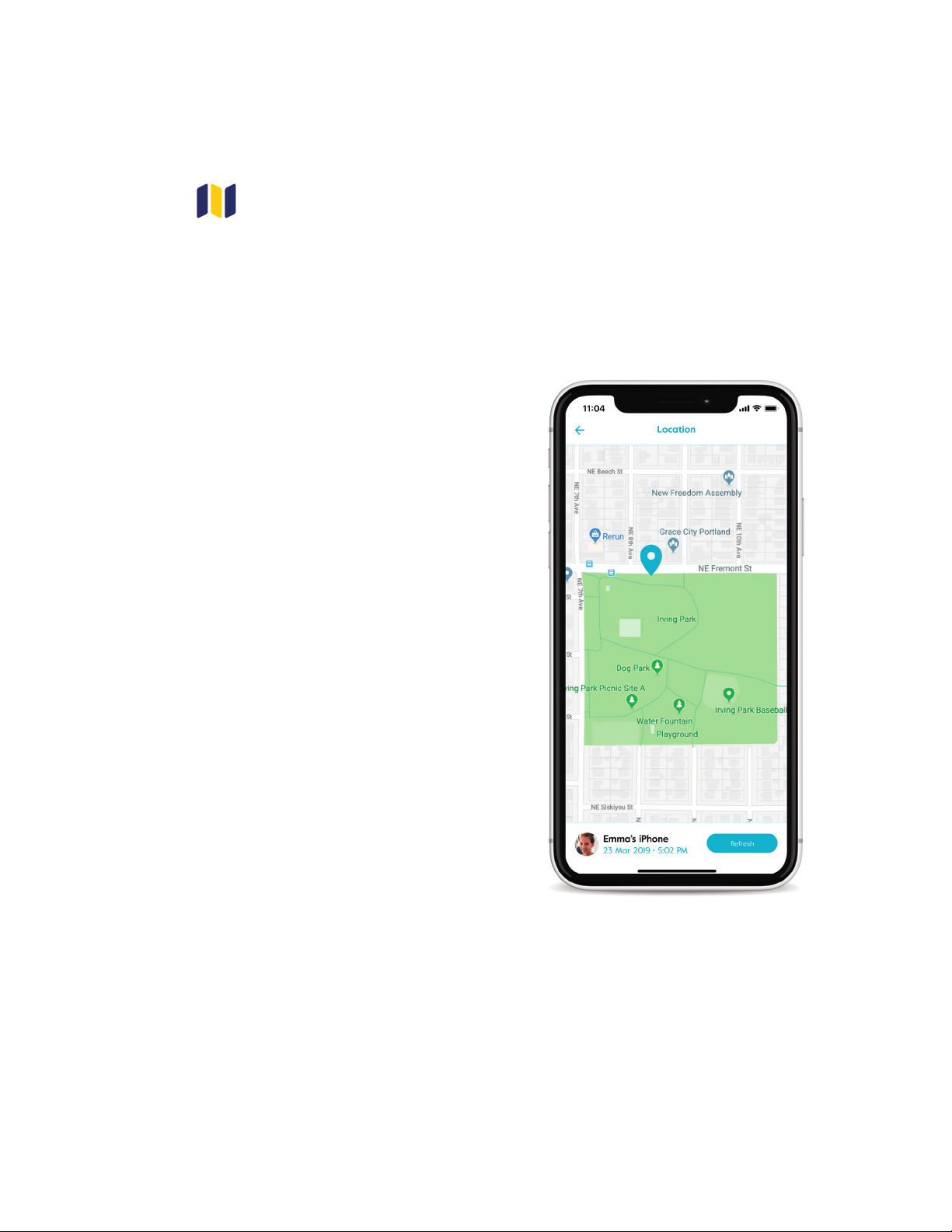
Location
Find the current location for a family member's mobile devices. To use Location, the
devices you want to locate must have the Circle App installed with location services
enabled. Notication services must also be enabled on the parents' and kids' devices.
To locate a family member's
device
Tap on a prole from the home screen,
then select location from the feature list.
You might have to pick from a list of devices
to locate.
Wait for Circle to locate the device (this
may take a minute or two).
When the device has been found, you’ll see
a marker on the map.
At the bottom of the screen, you’ll see the
time when the location was received.
Tap refresh to see their location again.
Locating a device will only work if location
services are enabled on the device you are
locating, and Circle will notify you if this is
the reason a device cannot be located.
Circle does not store a history of previous
locations.
Circle Home Plus User Manual
22
Page 23
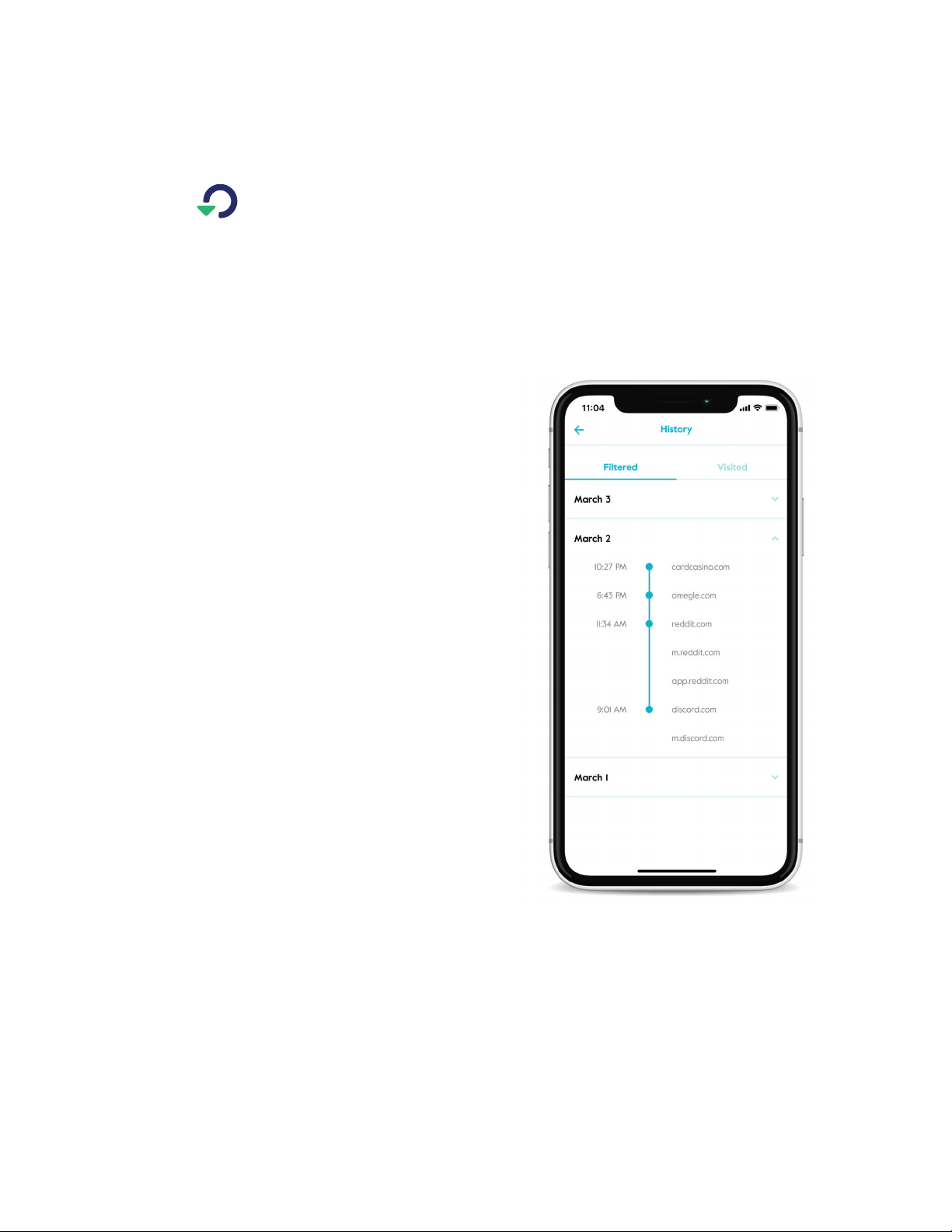
History
History displays a chronological list of sites viewed by a prole. Toggle between Filtered
and Visited to see which sites were prevented or accessed.
To see a family member’s
History
Tap on a prole from the home screen,
then select History in the feature list.
Select visited to see sites that a family
member accessed.
Toggle over to ltered to see sites
that Circle blocked because of a family
member’s lter settings.
To take action on a History
entry, tap on it and select from
the following options
Visit website, which opens your web
browser and takes you to the home page
of the site (not all sites support
this feature).
Set as allowed
Set as not allowed
Set as unmanaged
You can edit any of these custom lters by
selecting Filter from the prole features
list, then tapping custom lter on the
bottom of the screen.
Circle Home Plus User Manual
23
Page 24
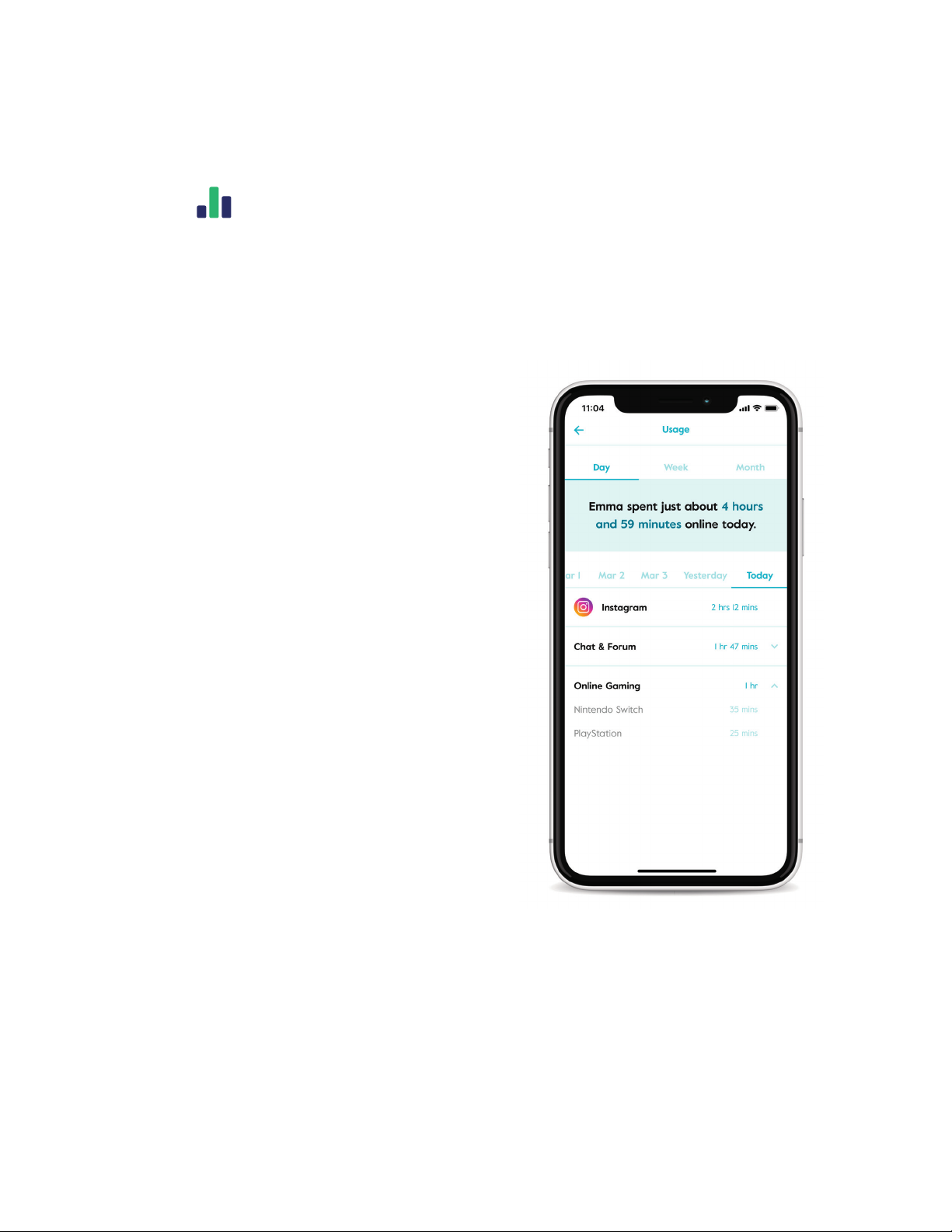
Usage
Compare time online today, last week, or months past while viewing the total time spent
online per category and platform.
See a list of sites and platforms by tapping on a category. A pop-up menu will allow you to
take action on a particular category that contributed total online time.
You may notice total online time does not
always match the sum of usage from visible
categories. This is because each platform's
algorithm is unique and may contribute
dierently to active screen time versus
background trac.
To see a family member’s
Usage
To see a family member’s Usage, Select
Usage in the feature list.
At the top of the screen, you can select
between usage by day, week, or month.
Next, you’ll see a summary of total time.
Below that, you can scroll from the current
period and into past usage.
Circle Home Plus User Manual
24
Page 25
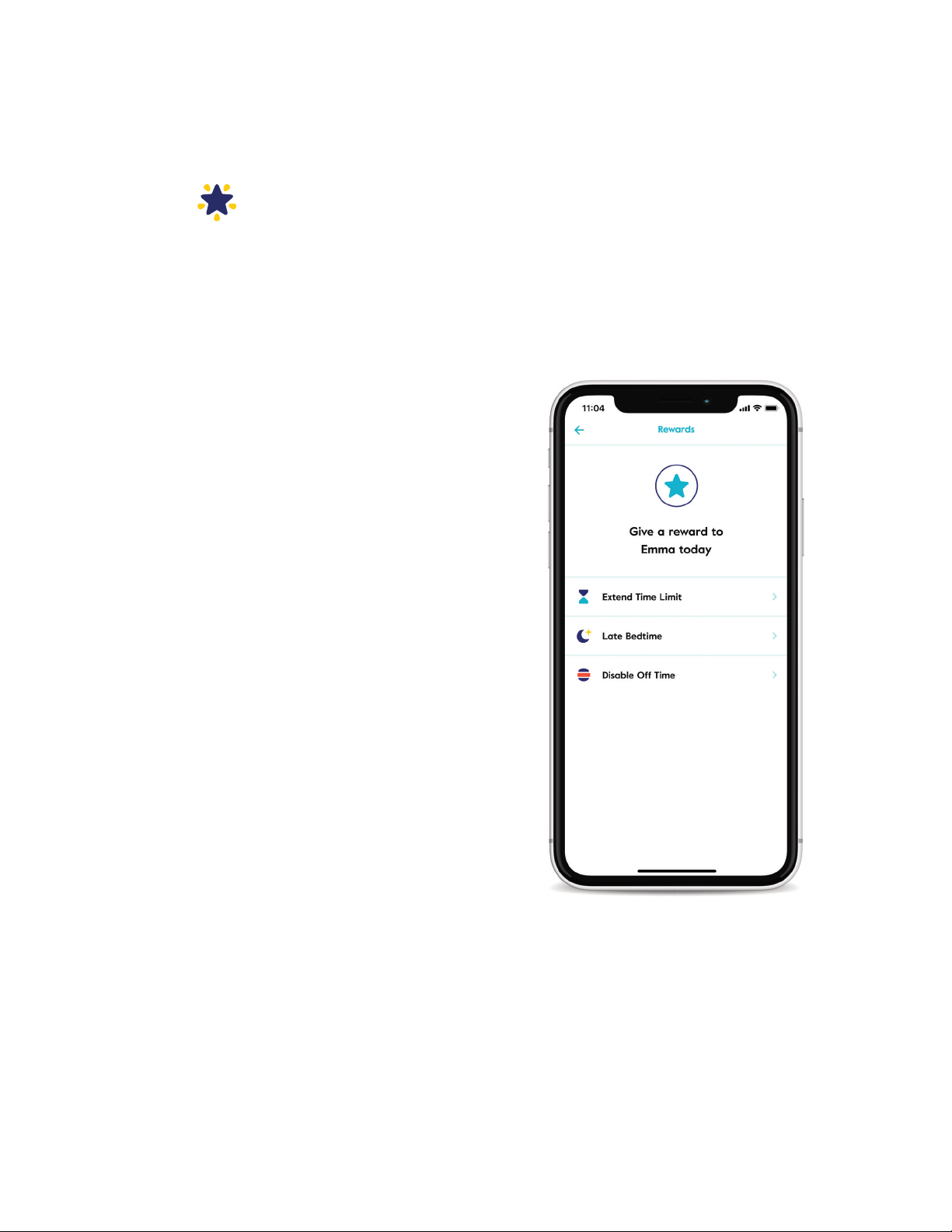
Rewards
Rewards are an easy way to send family members extra online time for an individual day.
Rewards expire at midnight, so original time limits are reset the following day.
To send a Reward
Tap on a prole from the home screen,
then tap the star in the top right corner, or
select Rewards from the feature list.
Pick from three types of rewards: Extend
Time Limit, Late Bedtime, or Disable
O Time.
Set the Reward based on the existing
settings, and press send to nish.
Types of Rewards
Extend Time Limit to add additional time
to an existing Time Limit
Late Bedtime to set a new start time for
that night's Bedtime
Disable O Time to remove a regularly
scheduled O Time
To edit or cancel a Reward
Tap on a prole from the home screen and
select Rewards from the feature list.
To edit a Reward, tap the edit existing
rewards button to make the appropriate
changes.
To cancel a Reward, tap the edit existing
rewards button and swipe
to delete it from the list.
Circle Home Plus User Manual
25
Page 26

05
Circle Home Plus
device
Circle Home Plus User Manual
26
Page 27
Wi-Fi devices & Circle Home Plus
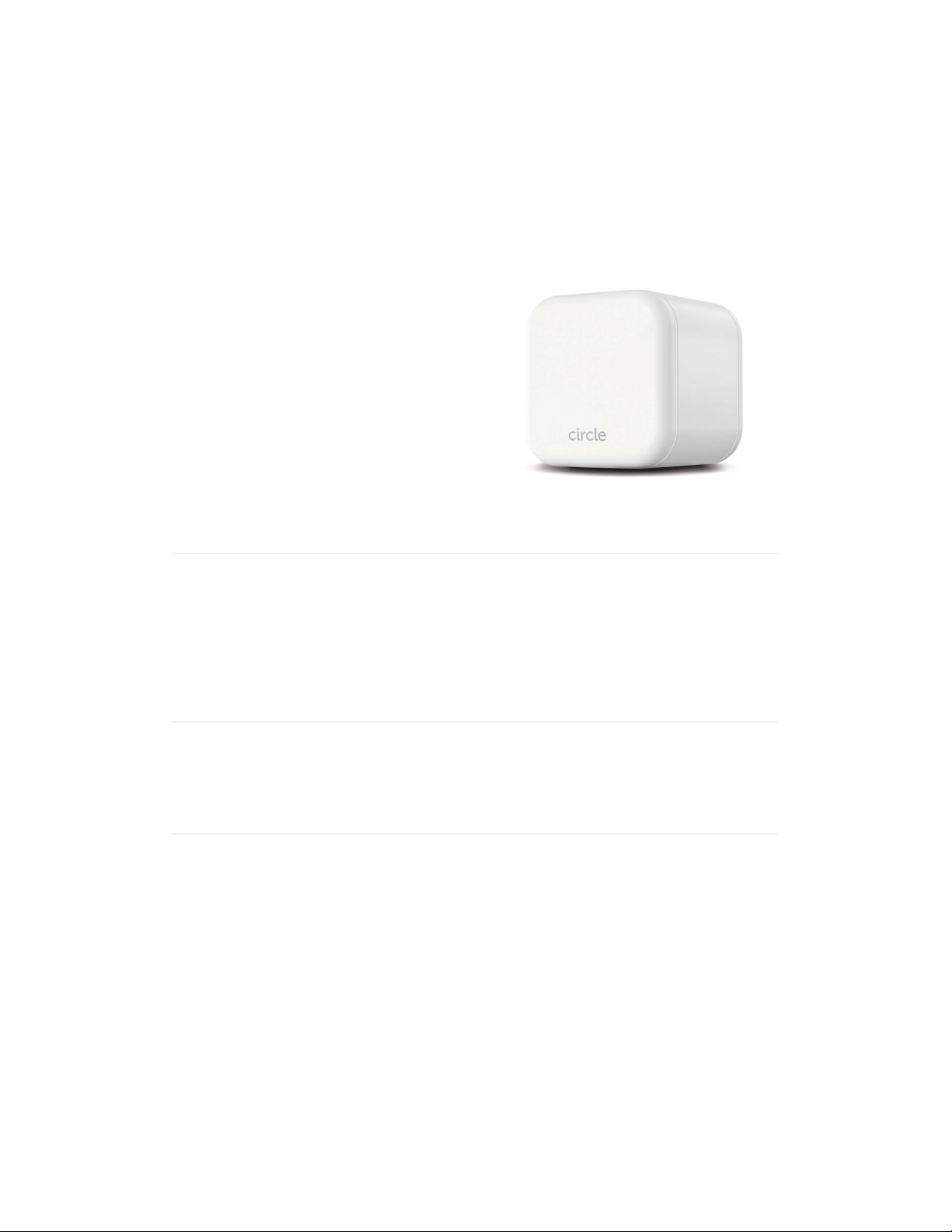
Circle Home Plus pairs directly with your
router and inspects all the non-encrypted
internet trac coming through your home
network. You won't need to install software
or adjust settings on your devices to
manage them.
LED
Power Button
Battery
Solid light
On & paired
Solid o
O
To power on
Press once
Internal battery keeps Home Plus
online when USB power is unavailable
Slowly blinking
On, but not paired
Quickly blinking
Resetting, low battery
or other internal error
To Power o
Hold for ten seconds,
or until
LED turns o
Circle Home Plus User Manual
27
Page 28
Wi-Fi devices & Circle Home Plus
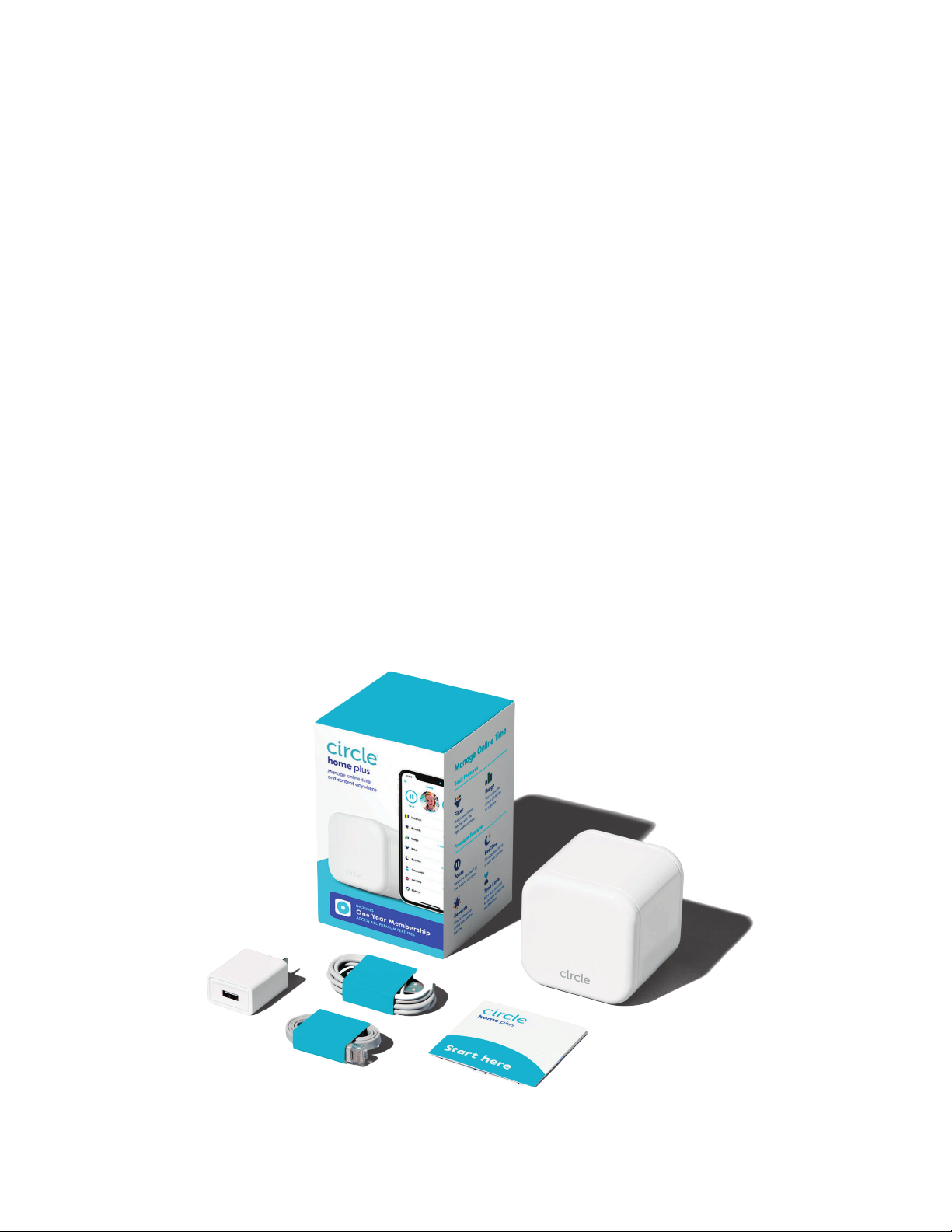
When you set up Circle Home Plus, you'll have access to a whole new group of connected
devices to mange with Circle: your family's Wi-Fi devices.
Wi-Fi devices are Unmanaged by default
Wi-Fi devices discovered by Circle Home Plus will be set to unmanaged when they join,
meaning Circle won't interact with their internet connection at any point. If you assign one
to a prole, it'll be managed just like your mobile devices on your home network.
The home prole
The home prole is where all shared family devices live. You set a baseline lter, plus any
O Times of Bedtimes to apply to all these devices. You can use this home prole any way
you'd like by assigning the devices that make sense for your home.
Network gear & smart home devices
Leave all network gear and smart home devices unmanaged. Any interference with Circle
Hone Plus may cause unexpeted issues with these utilities and services. Make sure mesh
Wi-Fi extenders and network fabric, as well as Internet of Things ("loT") devices, like smart
appliances, are never assigned to a prole.
Circle Home Plus User Manual
28
Page 29

Troubleshooting Circle Home Plus
If you don’t have a Circle Home Plus, open the Circle App and press get Circle Home Plus
from the home screen menu.
If Circle Home Plus isn’t pairing with your network via ethernet, make sure the mobile
device with the Circle App (most likely your smartphone) is connected to the network
created by your router. This way, Circle can verify that the Circle Home Plus you’ve plugged
in is associated with your Circle account.
If you don’t have a spare ethernet port in your router, just skip ethernet pairing by
tapping pair with Wi-Fi instead during setup.
If you skip ethernet pairing, you’ll have to connect your phone to the Circle Home Plus
hotspot. Follow the instructions in the app, and make sure that you stay connected to the
Circle Home Plus hotspot, even though you won’t have an internet connection on your
phone for the moment.
If Circle Home Plus isn’t pairing with your network via Wi-Fi, make sure that you’ve
connected to the Circle Home Plus hotspot (if the app required you to do so) before
continuing, or that you’ve correctly entered your Wi-Fi password credentials into the
Circle App.
If you paired Circle Home Plus over ethernet but don’t use Wi-Fi, or you’re unable to pair
wirelessly, just tap skip Wi-Fi pairing during setup.
If your Circle Home Plus seems to be creating problems for your home network, try
temporarily disabling it from the settings screen (found by tapping the menu button in the
top-left corner of the home screen, then settings, then disable Circle Home Plus).
If the problem goes away after you’ve disabled Circle Home Plus, check to make sure that
all networking equipment (like a mesh network extender or other network fabric) and
smart home devices (like smart thermostats and light bulbs) are set to unmanaged.
Circle Home Plus User Manual
29
Page 30
Thank you for choosing Circle Home Plus. We
hope Circle makes a positive impact on managing
screen time for your family. If you encounter
questions or issues please reach out to us. We're
here to help!
Circle Home Plus User Manual
30
 Loading...