

Page 1

http://www.cino.com.tw
Page 2
MBC-6890
Cordless Scanning Family
Quick Reference
International Edition, Rev. FSQR-A31204
Page 3

-i-
Table of Content
1. Getting Started............................................................................................ 1
1.1 FuzzyScan MBC-6890 ......................................................................... 2
2. Using Your MBC6890..................................................................................5
1.2 Install Your MBC6890........................................................................... 6
1.3 LED Display and Beeping Reference Table ............................................ 8
1.4 Uninstall / Pairing Command ................................................................. 9
1.5 Paging Command .................................................................................11
1.6 Interface Cable Setting..........................................................................12
3. Trouble Shooting....................................................................................... 15
4. Safety Precautions for Batteries................................................................ 15
5. Appendix ...................................................................................................16
Page 4

Federal Communications Commission (FCC) Statement
This equipment has been tested and found to comply with the limits for a Class B digital device, pursuant to part 15 of the FCC rules. These limits are designed to provide reasonable
protection against harmful interference in a residential installation. This equipment generates, uses and can radiate radio frequency energy and, if not installed and used in accordance
with the instructions, may cause harmful interference to radio communications. However, there is no guarantee that interference will not occur in a particular installation. If this
equipment does cause harmful interference to radio or television reception, which can be determined by turning the equipment off and on, the user is encouraged to try to correct the
interference by one or more of the following measures:
-Reorient or relocate the receiving antenna.
-Increase the separation between the equipment and receiver.
-Connect the equipment into an outlet on a circuit different from that to which the receiver is connected.
-Consult the dealer or an experienced radio/TV technician for help.
Regulatory information / Disclaimers
Install and use of this Fuzzy Scan device must be in strict accordance with the instructions included in the user documentation provided with the product. Any changes or
modifications (including the antennas) made to his device that are not expressly approved by the manufacturer may void the User’ authority to operate the equipment, The
manufacturer is not responsible for any radio or television interference caused by unauthorized modification Of this device, or the substitution of the connecting cable and equipment
other than manufacturer specified. It is the responsibility of the user to correct any interference caused by such unauthorized modification, substitution or attachment. Manufacture
and its authorized resellers or distributors will assume no liability for any damage or violation of government regulation arising from failing to comply with there guidelines.
FCC RF Radiation Exposure Statement:
1. This Transmitter must not be co-located or operating in conjunction with any other antenna or transmitter.
2. This equipment complies with FCC RF radiation exposure limits set forth for an uncontrolled environment. This equipment should be installed and operated with a minimum
distance of 20 centimeters between the radiator and your body. (for FCC ID: SBC-ADB100)
This device complies with Part 15 of the FCC Rules. Operation is subject to the follo wing two conditio ns:
(1) This device may not cause harmful interference.
(2) This device must accept any interference received, including interference that may cause undesired operation.
Page 5

-1-
Getting Started
Welcome to the FuzzyScan world Cordless Scanning Family, the most professional high quality cordless bar
code liner imagers available in the market. In order to work with various needs, the Long Distance and Short
Distance Bluetooth connections are available for both Long Range and High Density bar code linear imagers.
The FuzzyScan Cordless family is designed to read various poor-printing bar codes with superior tolerance.
Aside from the outstanding reading performance, the MBC6890 cordless linear imager is implemented with
the latest Bluetooth technology for the reliable as well as cost-effective cordless solution.
Page 6
-2-
FuzzyScan MBC-6890
The long distance/short distance, long-range/high-density bar
code linear imager for mobile reading or cable replacement
The Cordless Communication
MBC6890 achieves the real-time cordless data transmission to
the host through the most contemporary Bluetooth module.
The Maximized Freedom of Scanning
MBC6890 can free the operators from standing behind the desk,
so they can move around and scan the bar code labels on bulky
items without any difficulty.
The Reliable Plug & Play Solution
In order to guarantee the accuracy of data transmission, the
auto acknowledgement will feedback from the Smart Cradle to
scanner. Therefore, the bar code scanning can be processed
more freely, efficiently and correctly.
The Embedded “FuzzyScan” Scan Engine
Applied to the latest innovative linear imaging technology, the
FuzzyScan MBC-6890 linear imager is designed to capture
bar code image up to 12” in snapshot (300 scans per second).
Thanks to the ergonomic gun-shape and no moving part
designs, this reader is the best choice to replace traditional laser
scanner with lower cost.
Both “Long-range” and “High-density” models are provided
for reading alternatives of different resolution bar codes.
Usually, the long-range model can read most popular bar codes
up to 4-mil (0.01mm) resolution. Once the very fine resolution
bar code capture is needed, you may choose the high-density
model that is fully optimized to capture bar codes up to 3-mil
(0.075mm) resolution.
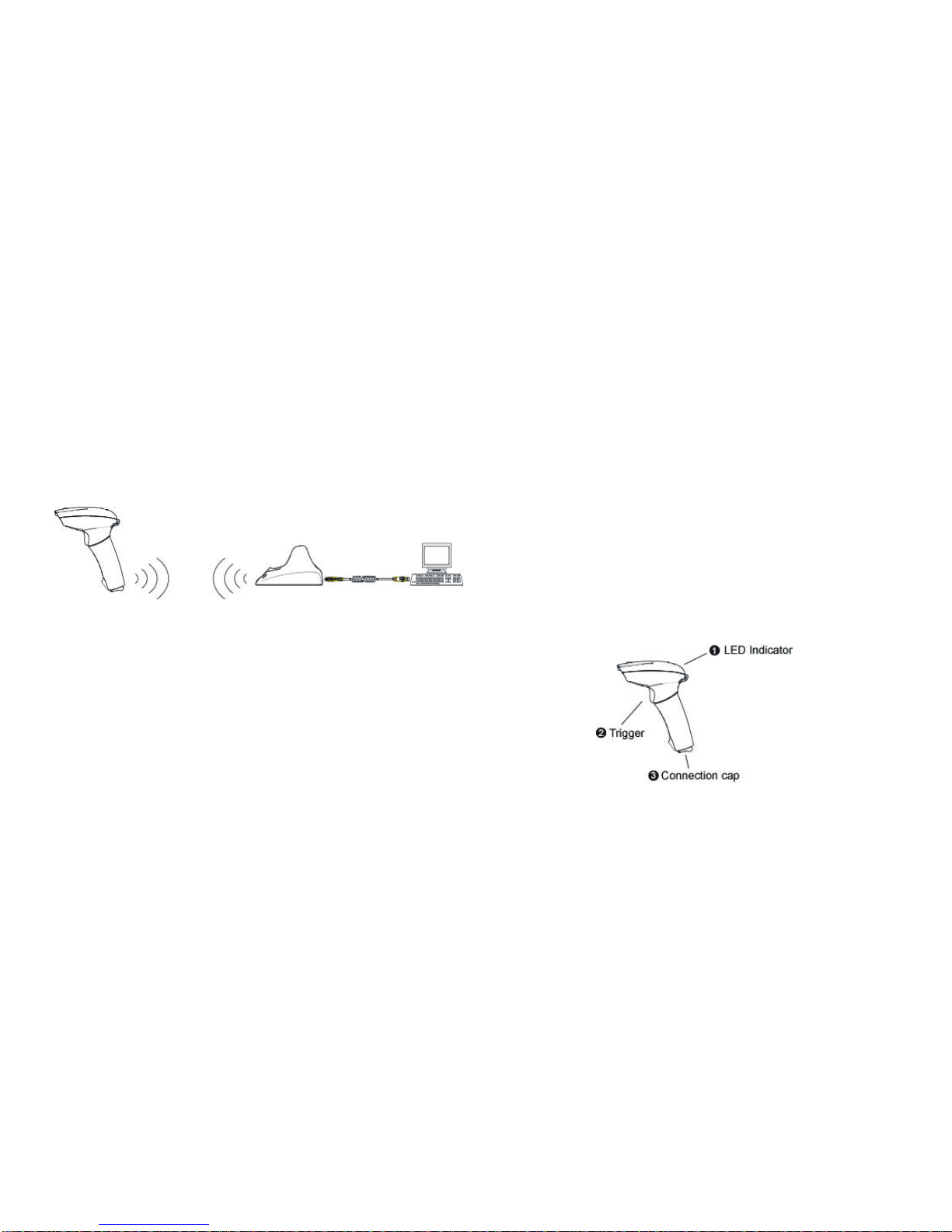
1. LED Indicator - 2 colors LED indicator shows scanner
status.
2. Trigger - scanning trigger.
3. Connection cap - the connection to smart cradle and
protection for scanner.
Page 7
-3-
The Smart Cradle for MBC6890
Interface Cable
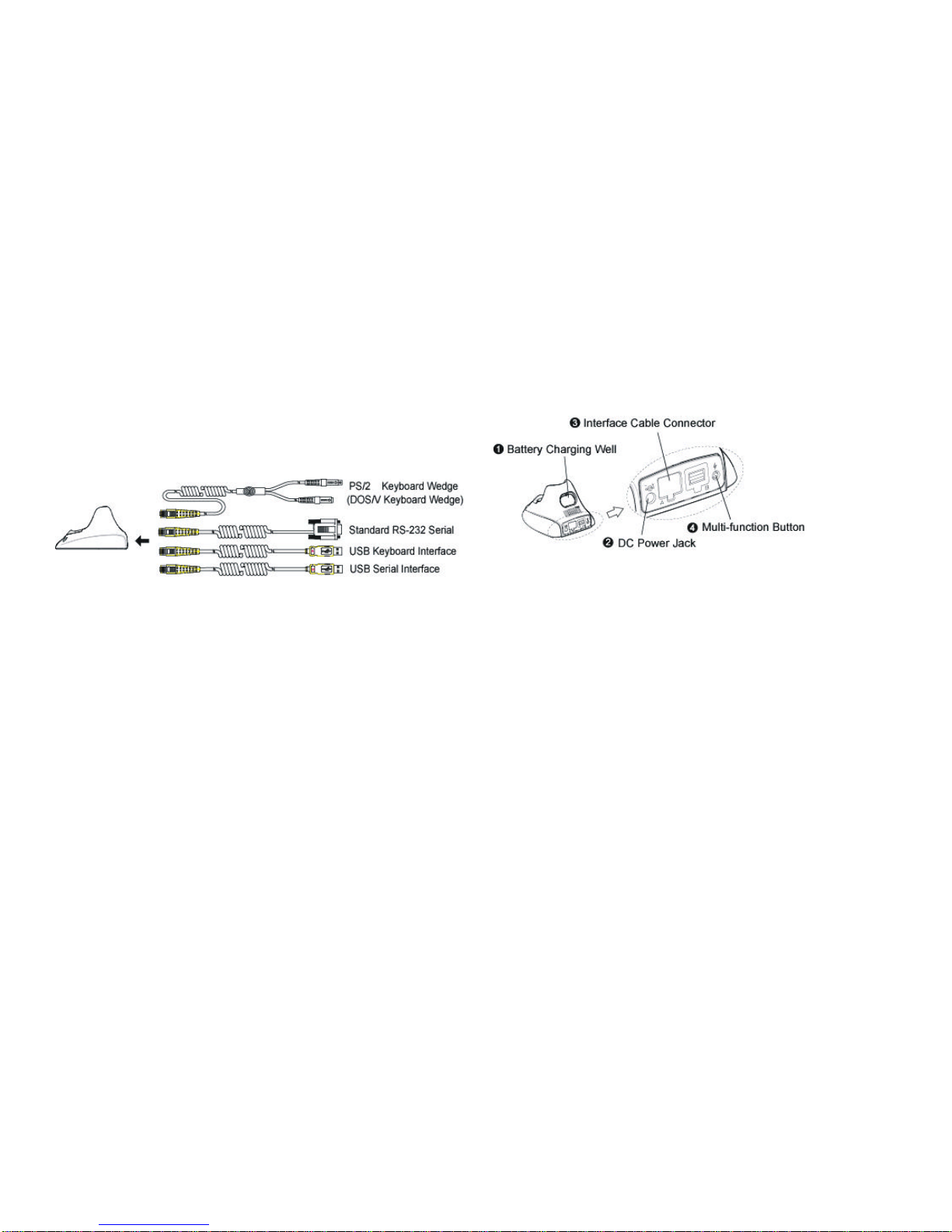
An improved Snap-in cable design allows user to change
whole interface cable with ease. Please refer to below for the
list of compatible interface cables.
Battery Charging & Multi-function Button
1. Battery Charging Well – for spare battery fast charge.
2. DC Power Jack – connect to the external power adaptor DC outlet.
3. Interface Cable Connector – supports PS/2 Keyboard, RS232 Serial,
USB Keyboard, USB Serial interface cables.
4. Multi- function Button:
(1) Short press (press and release immediately) for paging and
battery discharging functions – To page the paired scanner and
discharge the battery which loaded into battery charging well..
(2) Long press (press and hold for over 3 seconds) for “Uninstall”
and “Battery Discharge ” functions – To un-pair with the paired
scanner then turn both scanner and Smart Cradle into uninstall
state. At same time it will discharge the battery which loaded into
battery charging well.
Caution ! Both Short press and Long press will cause discharging
the battery which is loaded into battery charging well.
Page 8

-4-
Page 9

-5-
Using Your MBC6890
Before using the scanner, it should be already paired with a particular Smart Cradle and programmed. If not,
please refer to the following sections to understand how to set the scanner working with your existing system
within minutes. For most applications, the factory default setting and quick setting can meet your common
requirements. If not, consult the appropriate FuzzyScan Bar Code Programming Manual for your specific needs.
For further assistance, please contact your local supplier or visit our web site - www.cino.com.tw.
Page 10
-6-
Install Your MBC6890
To use your MBC6890, please follow the instruction step by step as below:
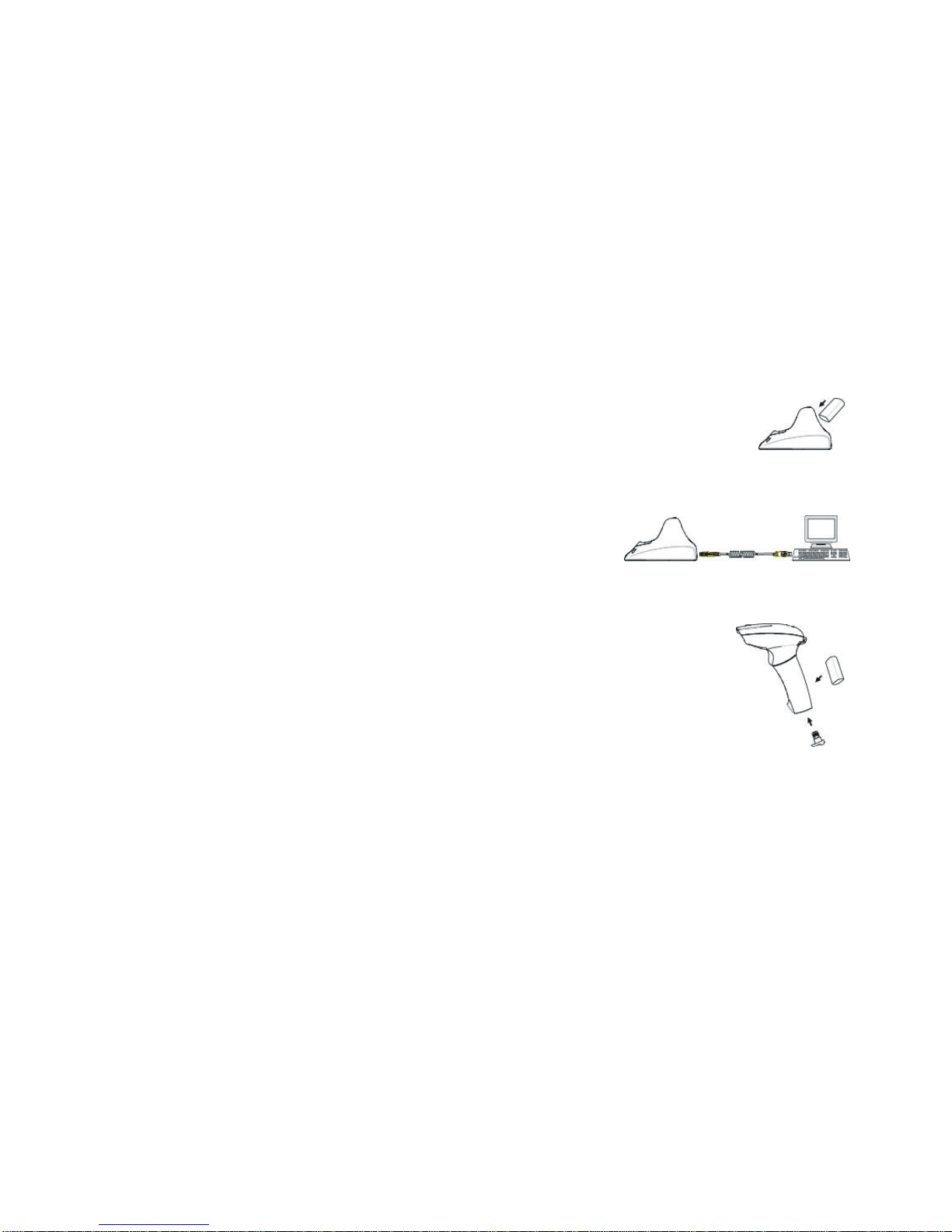
1. Charge battery for at least 4 hours for the first time.
n Connect the power to Smart Cradle.
n Load battery pack into the battery charging well for at least 4 hours. (for the first time only)
2. Install Smart Cradle
n Power off Host computer.
n Connect the power to Smart Cradle.
n Connect desired interface cable between Smart Cradle and host computer.
n Power on Host computer.
n Make sure the COM port is not occupied by other host application if RS232 Serial cable is used.
3. Install Scanner
n Place battery pack into scanner and close battery cover.
n Add connection cap at the end of scanner holder.
Page 11
-7-
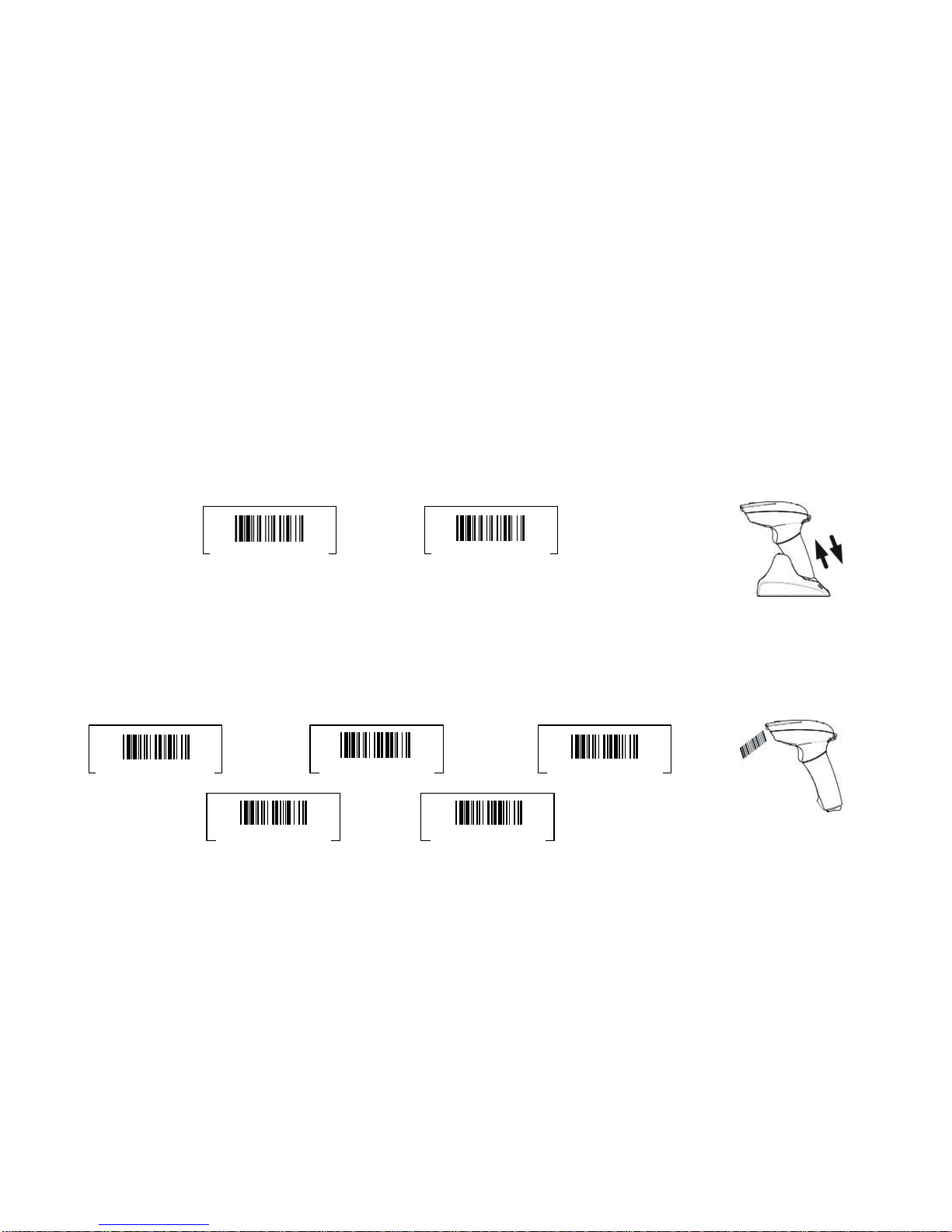
4. Pairing process
n Please inspect the scanner is doing red-green flashing which identify it is under “Uninstall” state. If the scanner is already
under “Uninstall” state, the next step can be by passed.
n Scan “Uninstall” barcode. The scanner will give 3 short beeps, then its LED gives red-green flashing.
n Scan “Pair Mode” barcode. The scanner will give 3 short beeps then its LED lights on red.
n Place the scanner on cradle within 10 seconds. The pairing process will automatically start.
n Scanner LED lights on red and gives continuous short beeps during pairing process.
n You will hear a special “pairing OK tone” and scanner LED goes off. Now the pairing process is completed.
Uninstall Command
Pair Mode Command
5. Interface Cable Setting
n Scan the “Quick Set Command” barcode in the end of this document to set up the desired type of interface cable . The LED
indicator will light on red during the setting, and goes off when the setting is completed.
n Ready to use.
PC/AT, PS/2 Keyboard Wedge
Quick Set Command
Keyboard Replacement
Quick Set Command
RS-232 Serial Interface
Quick Set Command
USB Keyboard Interface
Quick Set Command
USB Serial Interface
Quick Set Command
Page 12

-8-
LED Display and Beeping Reference Table
Please refer to the table below for the list of LED display and beeping in different conditions
Scanner Cradle
LED Light Beeping LED Light Beeping
Green Red Long Short Green Red Long Short
Battery low Flashing continues
Bluetooth Disconnect
2
(after triggered)
on 2
Bluetooth Re-Connect Flash once
2 Flash once 2
Transmission Error Flash once
1
(after triggered)
Flash once
Scan “Uninstall” barcode On 3
Un-pair condition Green-Red continues flashing
4 Green-Red continues flashing
4
Scan “pair” barcode On 3
Scanner on cradle 1 on 1
During Pairing process On continues
on
Pairing OK special
Scan Interface Cable Setting
“Quick Set command barcode”
On
(During setting)
special
Good Read Flash once
special
Scanner page Smart Cradle Flash once 1 5
Smart Cradle page Scanner Flash once 5 1
Page 13
-9-
Uninstall / Pairing Command
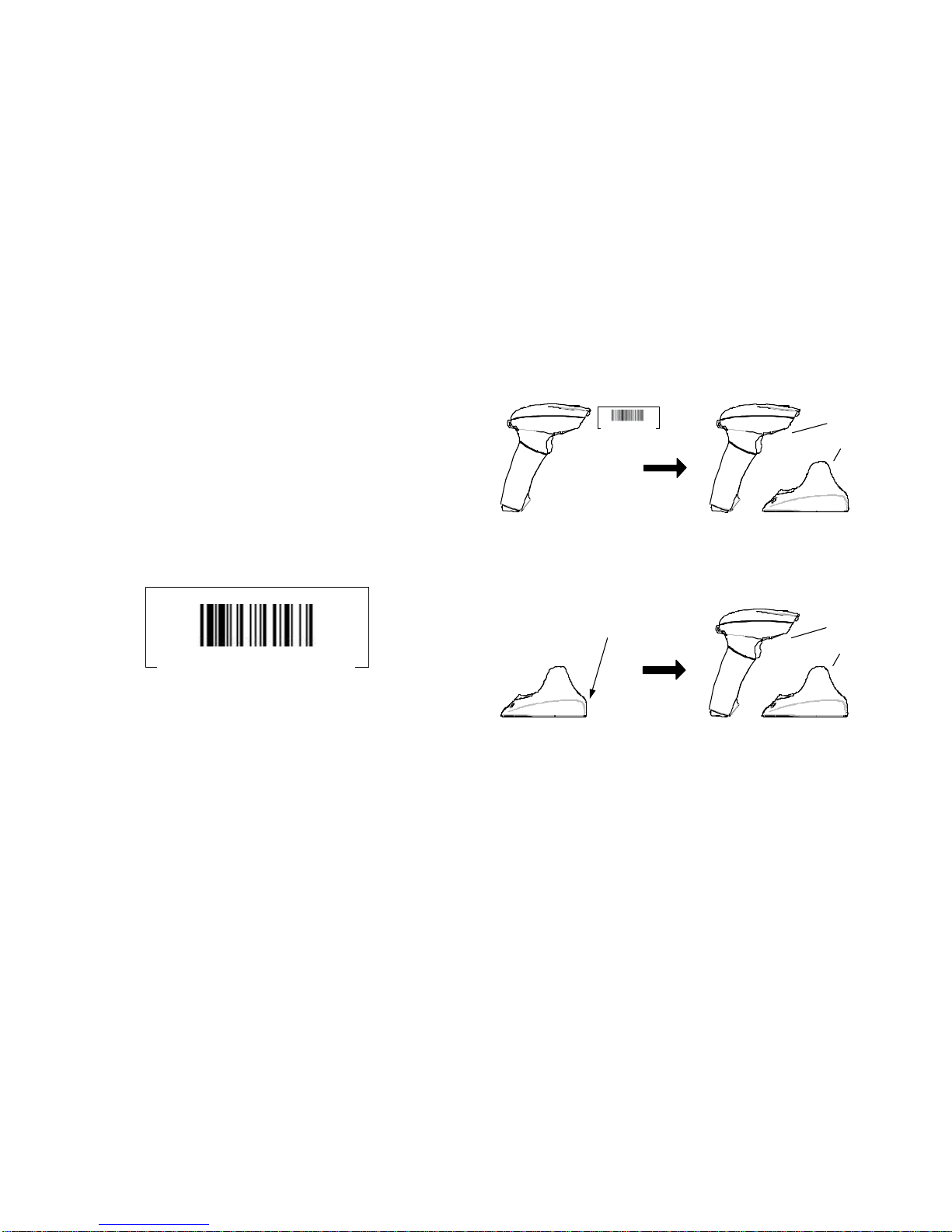
Uninstall
In order to make sure that a scanner can always connect to its
paired smart cradle, you will not be able to pair a cradle with
another scanner when that cradle is being connected to a
previously-paired scanner. Please scan “Uninstall” Quick Set
Command to stop the connection between scanner and smart
cradle, and turn both into “Uninstall” state. Afterwards, the
scanner can be paired with other cradle; the cradle can also be
paired with other scanner, without causing user any confusion.
Uninstall Command
Note:
The long press (press and hold for 3 seconds) of multi function button at
rear of paired Smart Cradle provides the same function of “Uninstall”.
Uninstall
Uninstall state
Uninstall
Quick Set Command
Uninstall state
OR
Uninstall
Long press on
multi function button
Uninstall state
Uninstall state
Page 14
-10-
Pair Mode Command
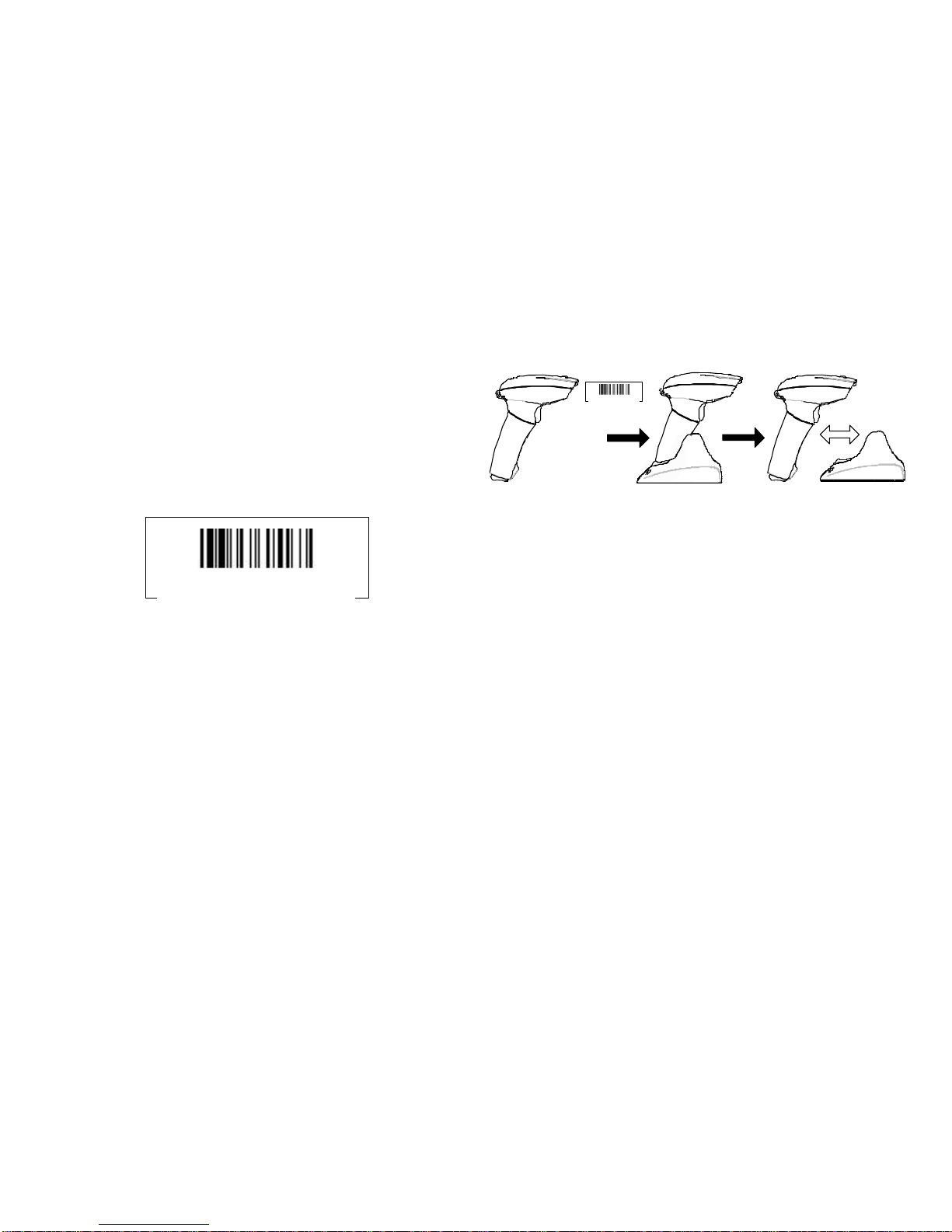
Before the scanner is able to work with the selected smart cradle,
you need to do the pairing process. Please scan “Pair Mode”
Quick Set Command then place the scanner on Smart Cradle
within 10 seconds. The pairing process will automatically start.
The pairing process is finished when the Red LED indicator
goes off and a special pairing OK tone is heard.
Pair Mode Command
Paired
On Cradle
Pairing OK
Pair Mode Command
Page 15
-11-
Paging Command
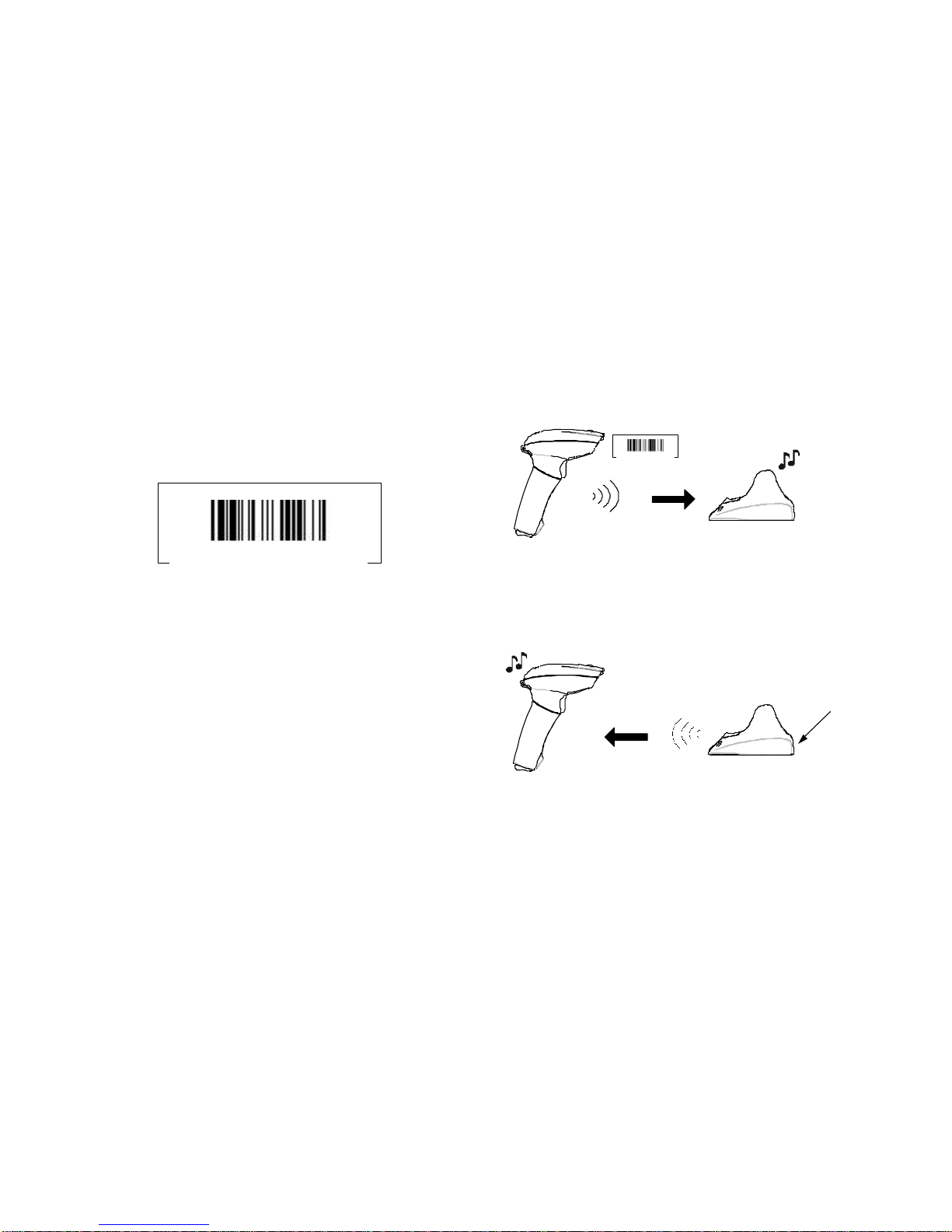
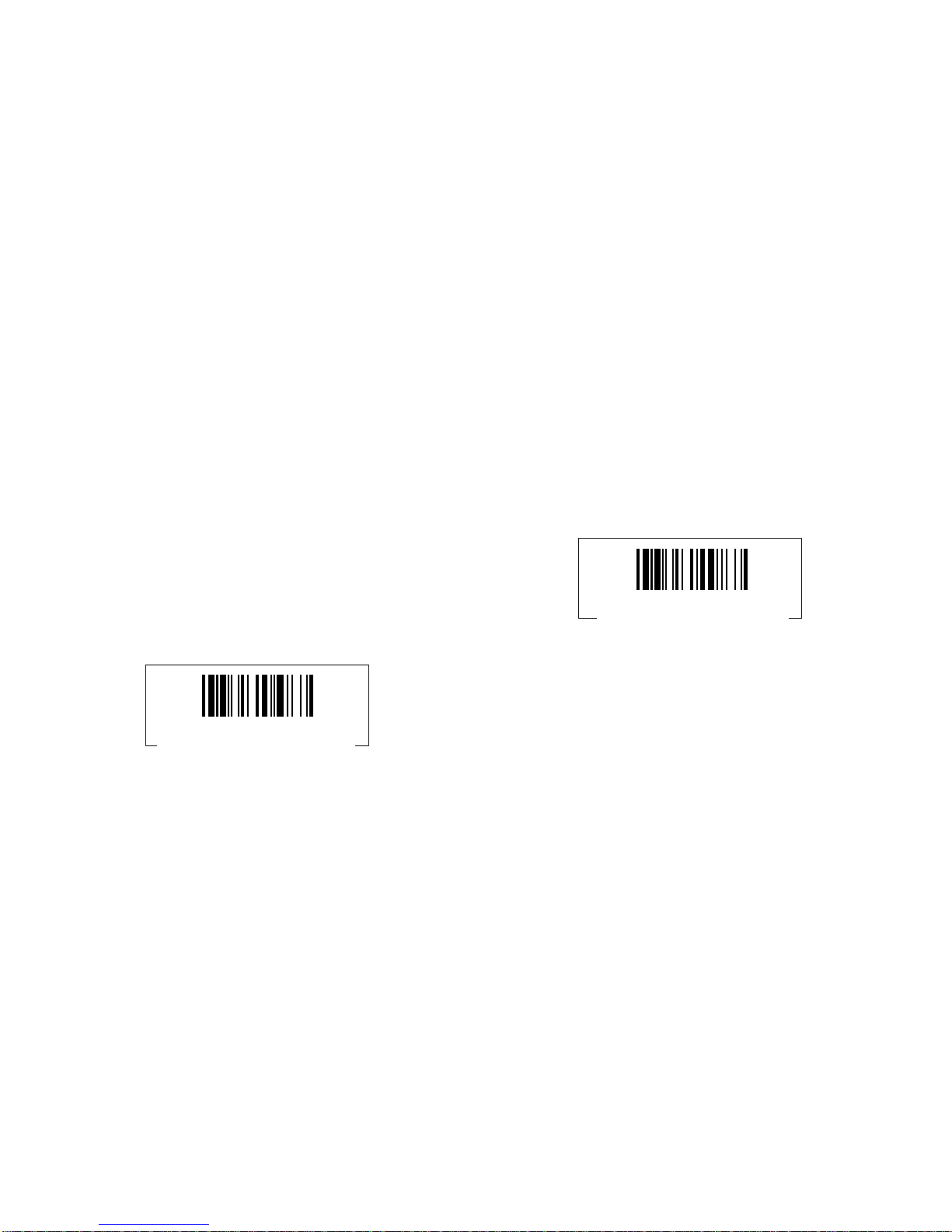
This Quick Set Command is specially designed for locating
paired Smart Cradle. After scan this barcode, the particular
paired Smart Cradle will give 5 short beeps. The user can
therefore easily find the specific paired Smart Cradle.
Note:
The Short press (press and release immediately) on multi function button
at rear of Smart Cradle will page the paired scanner. The scanner will gives
5 short beeps when paged by the paired Smart Cradle.
Scanner page Smart Cradle:
Paging
Paging Command
Smart Cradle page Scanner:
Short press on
multi function button
Paging
Paging Command
Page 16
-12-
Interface Cable Setting
Keyboard Wedge Setting
Keyboard wedge solution is the most popular and convenient
way to use bar code reading device. This solution allows data
transmission from the scanner to the host through the existing
keyboard port as traditional keyboard input. For keyboard
wedge application, the MBC6890 must work with the existing
keyboard concurrently. You may treat the reader or imager as
the second keyboard as well.
Among the various keyboard wedge interfaces, the PS/2
(DOS/V) keyboard wedge is the most popular one. To set or
recover all related parameters of keyboard wedge to factory
default value, you may scan the following bar code system
command for quick setting.
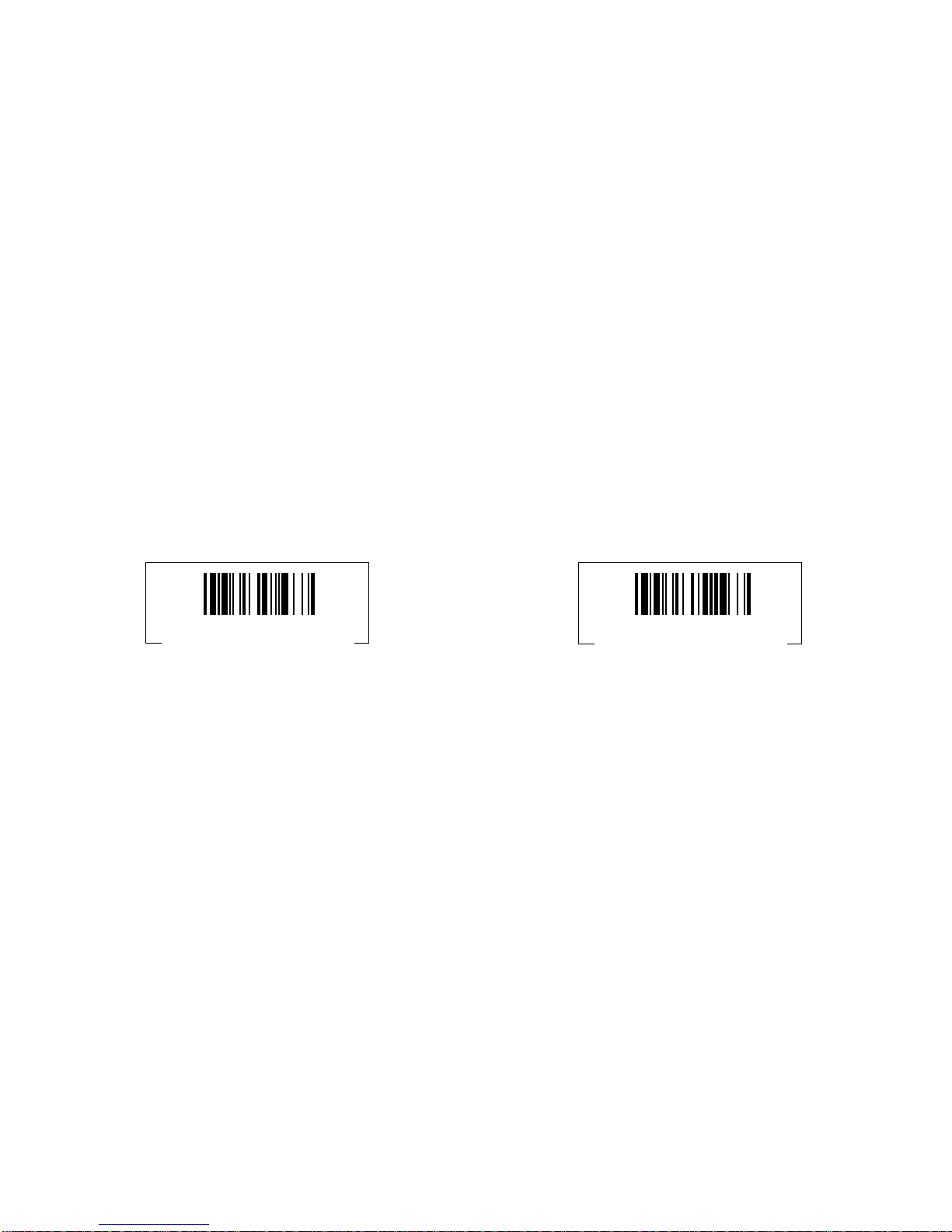
PS/2 Keyboard Wedge
Quick Set Command
If you want to link the MBC6890 to computer’s or notebook
PC’s keyboard port without the existing keyboard, please scan
the “Keyboard Replacement Quick Set Command” at the last
page.
Standard RS232 Interface Setting
Standard RS-232 serial interface is among one of the most
popular interface for applications of bar code scanners.
To set or recover all related parameters of standard RS-232
serial interface, you may scan the following bar code system
command for quick setting.
RS-232 Serial Interface
Quick Set Command
Page 17
-13-
USB Keyboard Interface Setting
The USB interface is one of the common and popular peripheral
interfaces for today’s computer system. All MBC6890 USB
keyboard models scanners have already implemented USB
Keyboard interface for host linking. Please refer the following
chart for the outlook of USB keyboard Interface cable.
To set or recover all USB keyboard interface related parameters,
you may scan the following bar code system command for
convenience.
USB Keyboard Interface
Quick Set Command
USB Serial Interface Setting
The USB Serial interface is one of the common standard
peripheral interfaces for today’s computer system. All
MBC6890 scanners have already implemented USB Serial
interface for host linking. Please refer the following chart for the
outlook of USB Serial Interface cable.
To set or recover all USB Serial interface related parameters,
you may scan the following bar code system command for
convenience.
USB Serial Interface
Quick Set Command
Page 18
-14-
System Information List
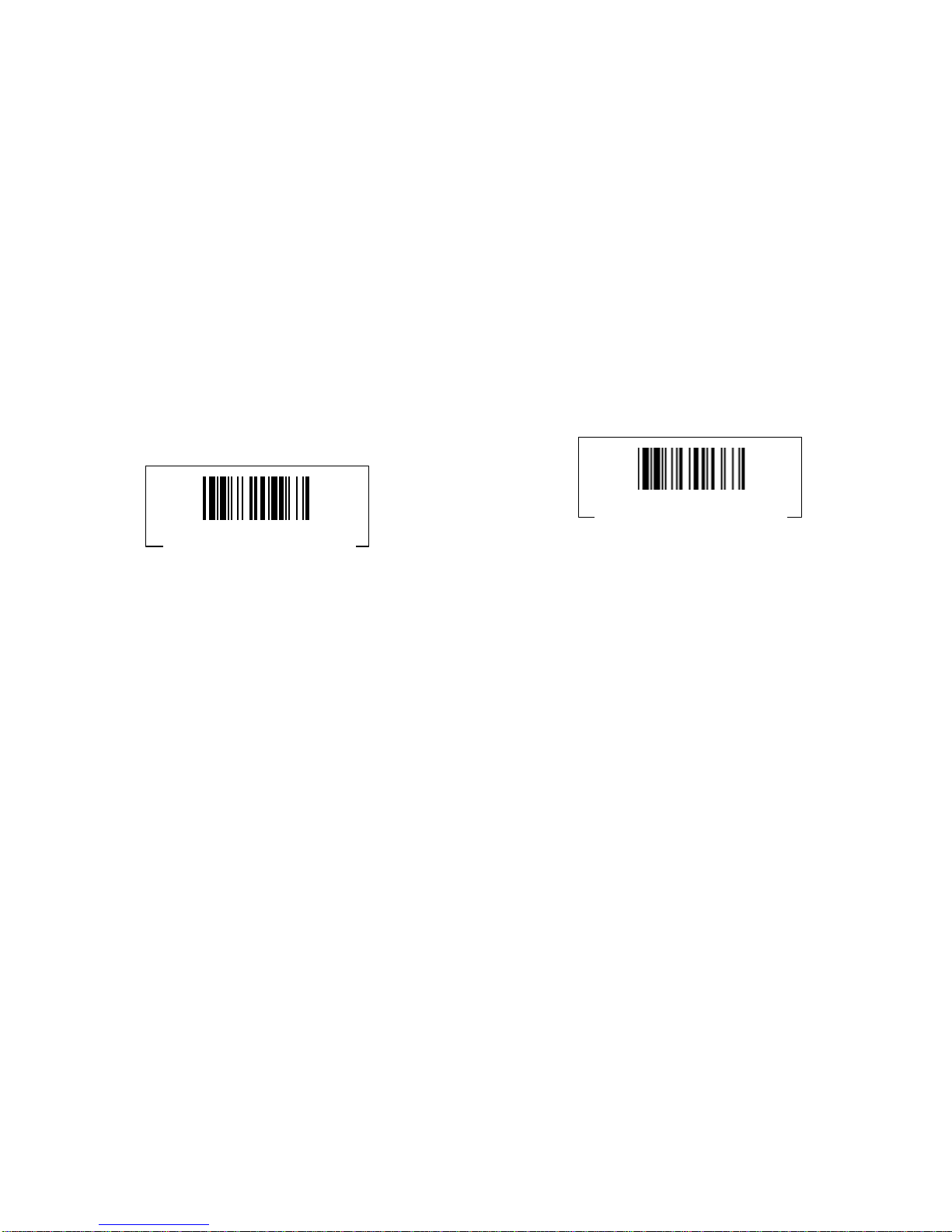
To scan this bar code command, the MBC6890 will output the
product related information for reference, including product
model no., revision no, and so on.
System Information List
Factory Default Setting
To scan this bar code command, the MBC6890 will reset all user settings
to factory default value.
Factory Default Setting
Page 19

-15-
Trouble Shooting
Please follow the operating instructions listed below when your
MBC6890 does not work:
1. Check the battery power. The battery need to be charged
if the scanner red light on and beeping continually.
2. Check for loose cable connections between smart cradle
and host computer.
3. Make sure the selected host interface is suitable for your
host machine connection.
4. Make sure the interface setting is correct.
5. Make sure the type of bar code you are trying to scan is
set correctly.
6. Make sure you are inside the Bluetooth working range.
If the MBC6890 still does not work, please contact the technical
person in charge of scanning or your local supplier.
Safety Precautions for Batteries
1. Do not place batteries in fire or heat the batteries.
2. Do not store batteries near fire or other high temperature locations.
3. Do not store or carry batteries together with metal objects.
4. Do not expose batteries to water or allow the batteries to get wet.
5. Do not connect (short) the positive and negative terminals, of the
batteries, to each other with any metal object.
6. Do not pierce, strike or step on batteries or subject batteries to strong
impacts or shocks.
7. Do not disassemble or modify batteries.
Caution !
Danger of explosion if batteries are incorrectly replaced. Replace only with
the battery supplied by manufactory.
Page 20
-16-
PC/AT, PS/2 Keyboard Wedge
Quick Set Command
USB Serial Interface
Quick Set Command
RS-232 Serial Interface
Quick Set Command
Keyboard Replacement
Quick Set Command
Appendix
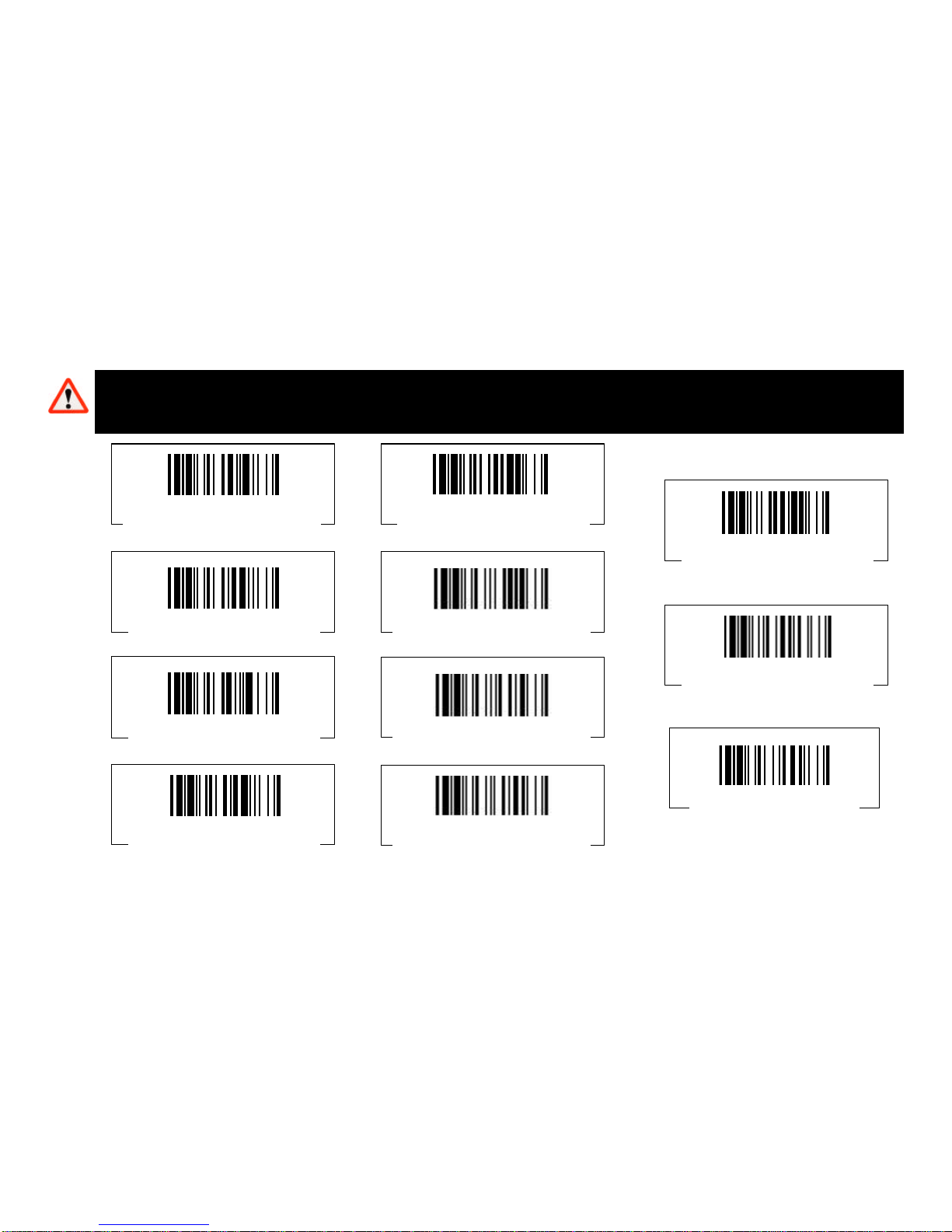
To scan following commands will reset related settings to factory default, which
may be different to your current settings.
Please consult the technical person in charge of scanning or your local supplier before scanning the following bar codes.
USB Keyboard Interface
Quick Set Command
Factory Default Setting
(M_DEFAULT)
System Information List
(SYSLIST)
FuzzyScan PowerTool
Host Link Command
Uninstall
Quick Set Command
Paging
Quick Set Command
Pair Mode
Quick Set Command
 Loading...