

Page 1
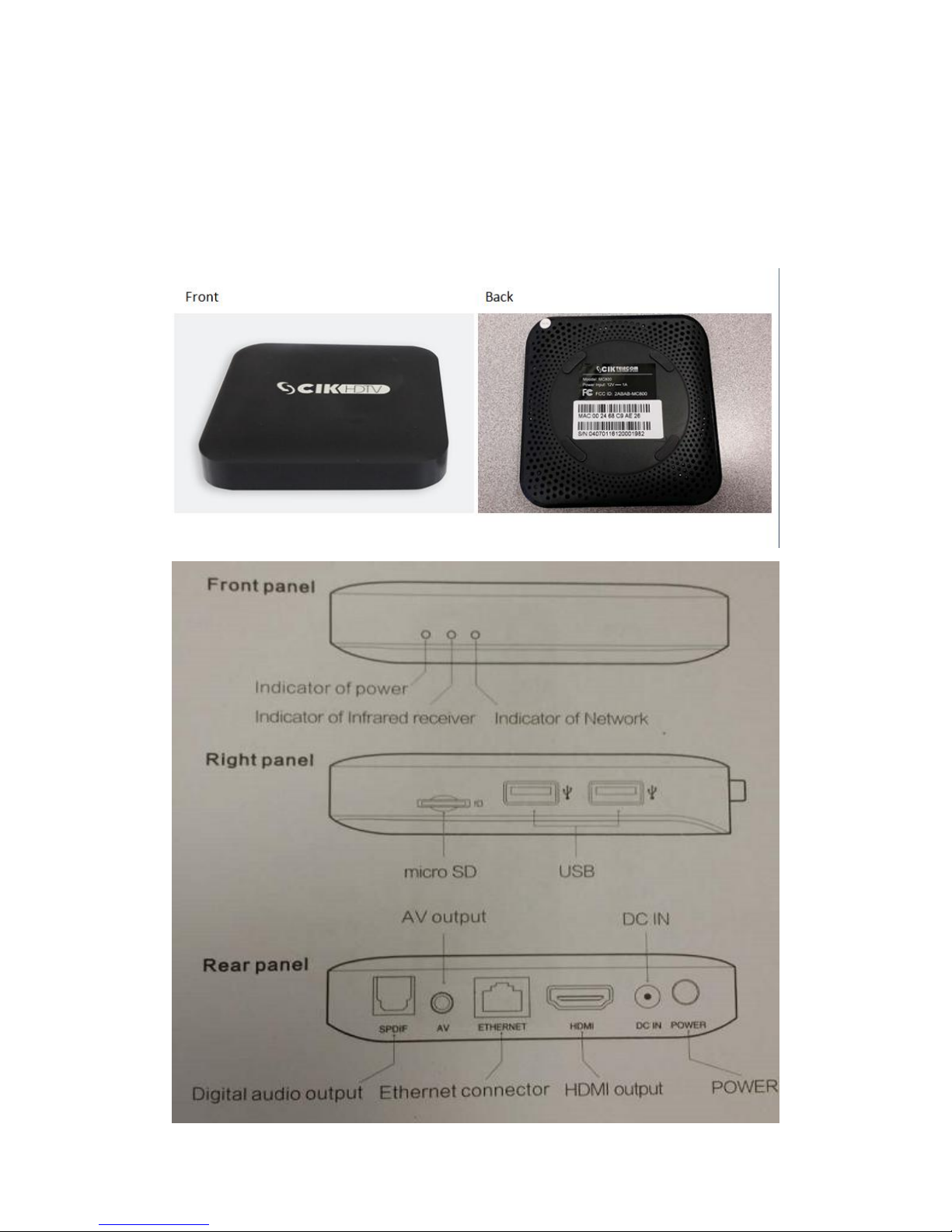
MC800 GUIDE
We are now pleased to introduce the Quad Core set top box MC800 with
best picture quality and faster navigation.
It looks like
Page 2
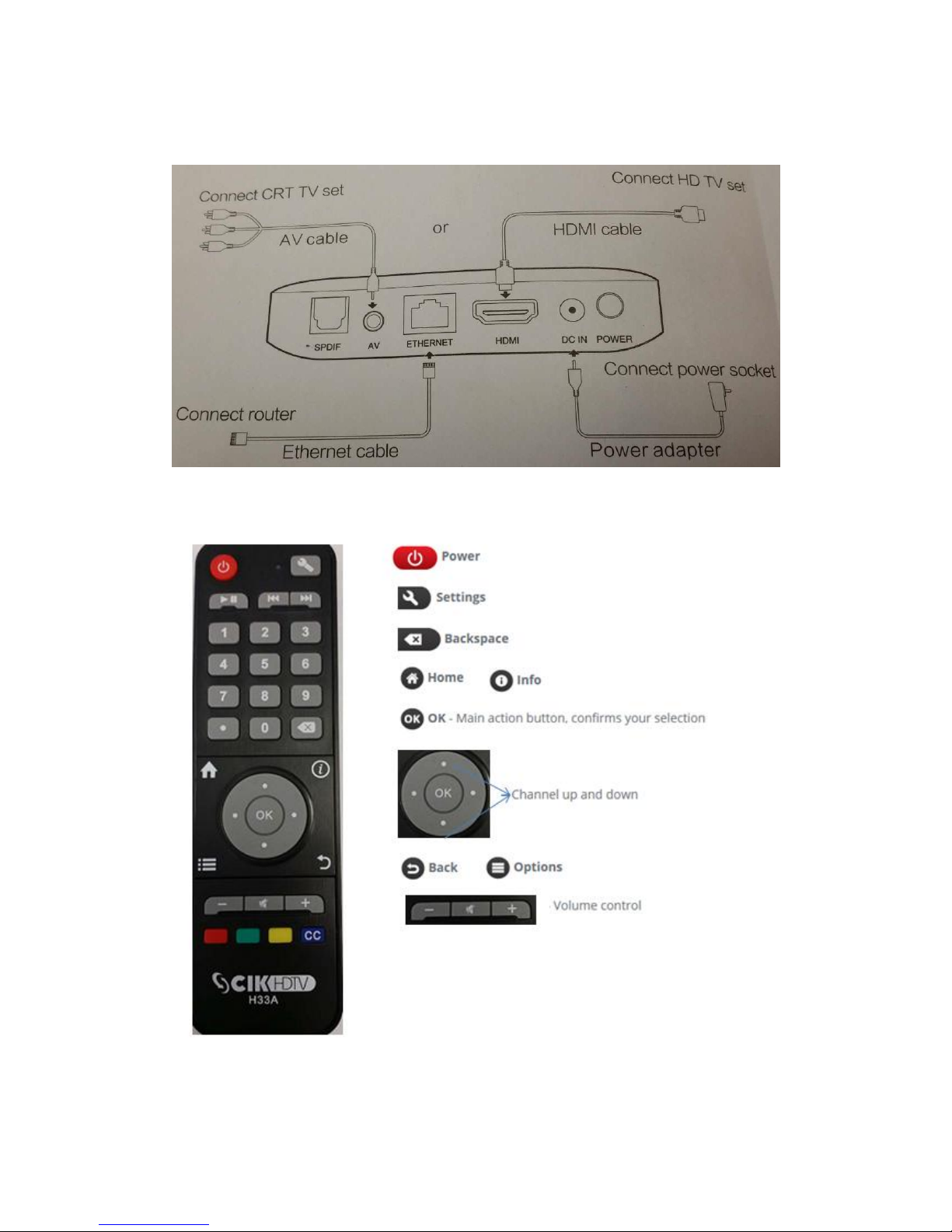
Connect TV Box
Remote Control
Page 3
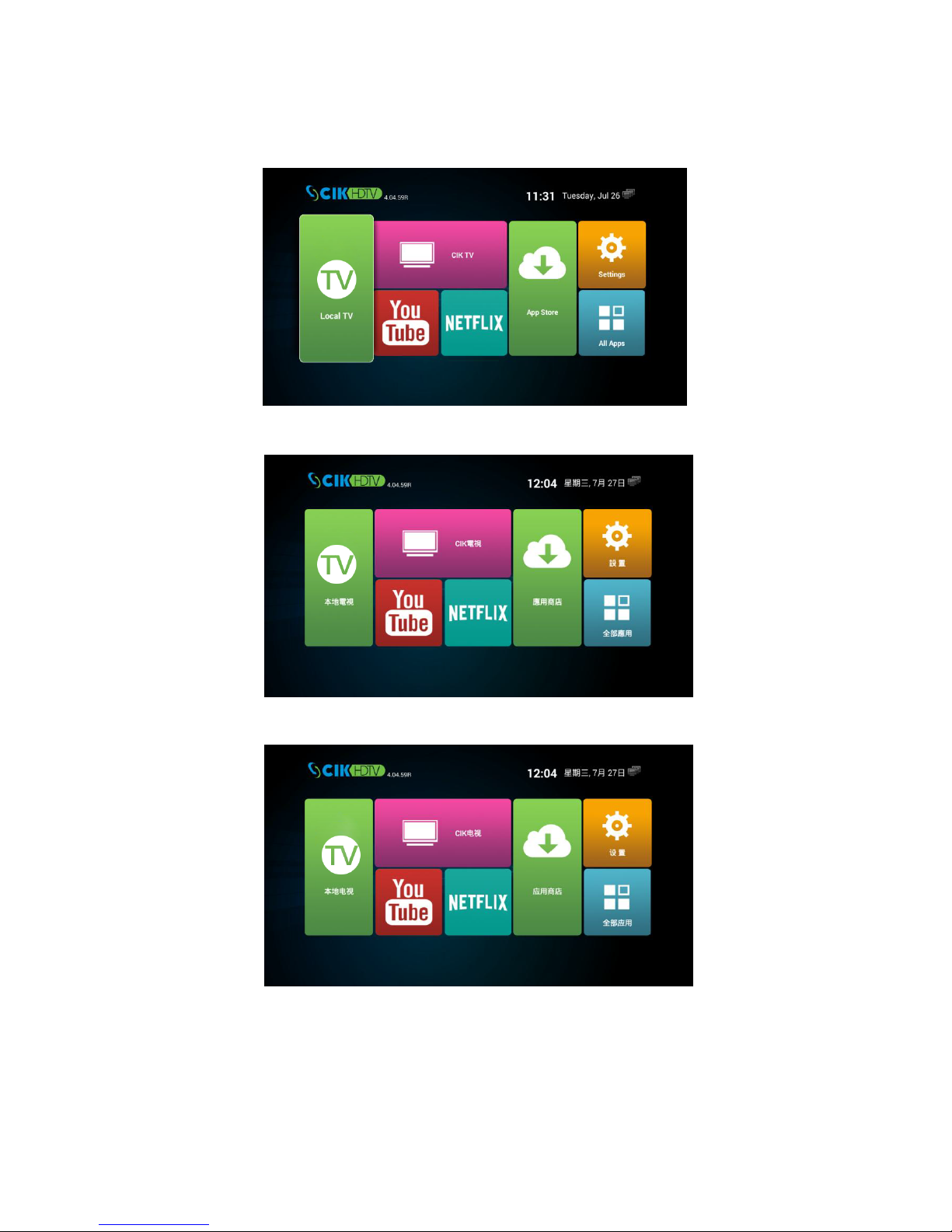
Main page
English
繁体中文
繁体中文
About Page
Page 4
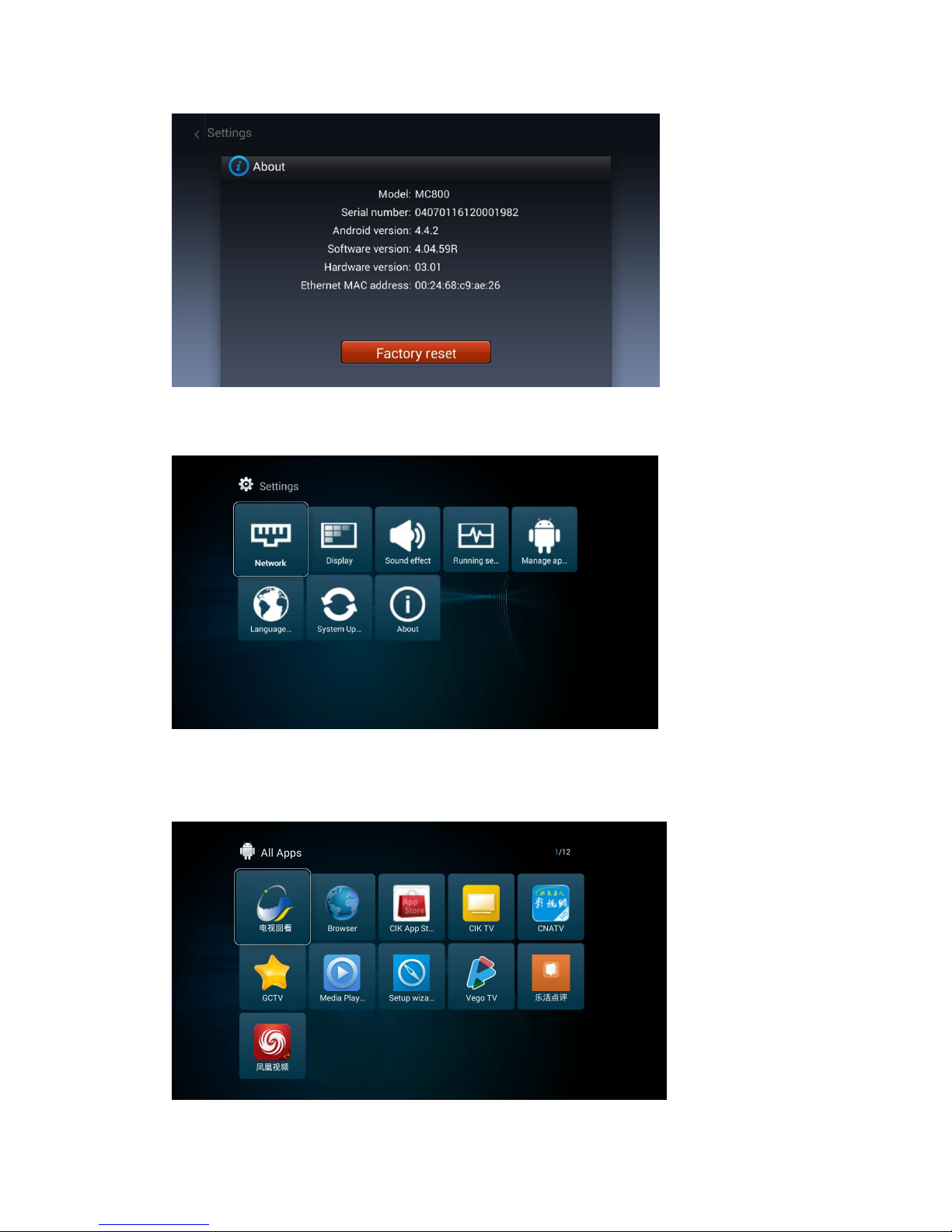
Setting Page
All apps Page
Page 5
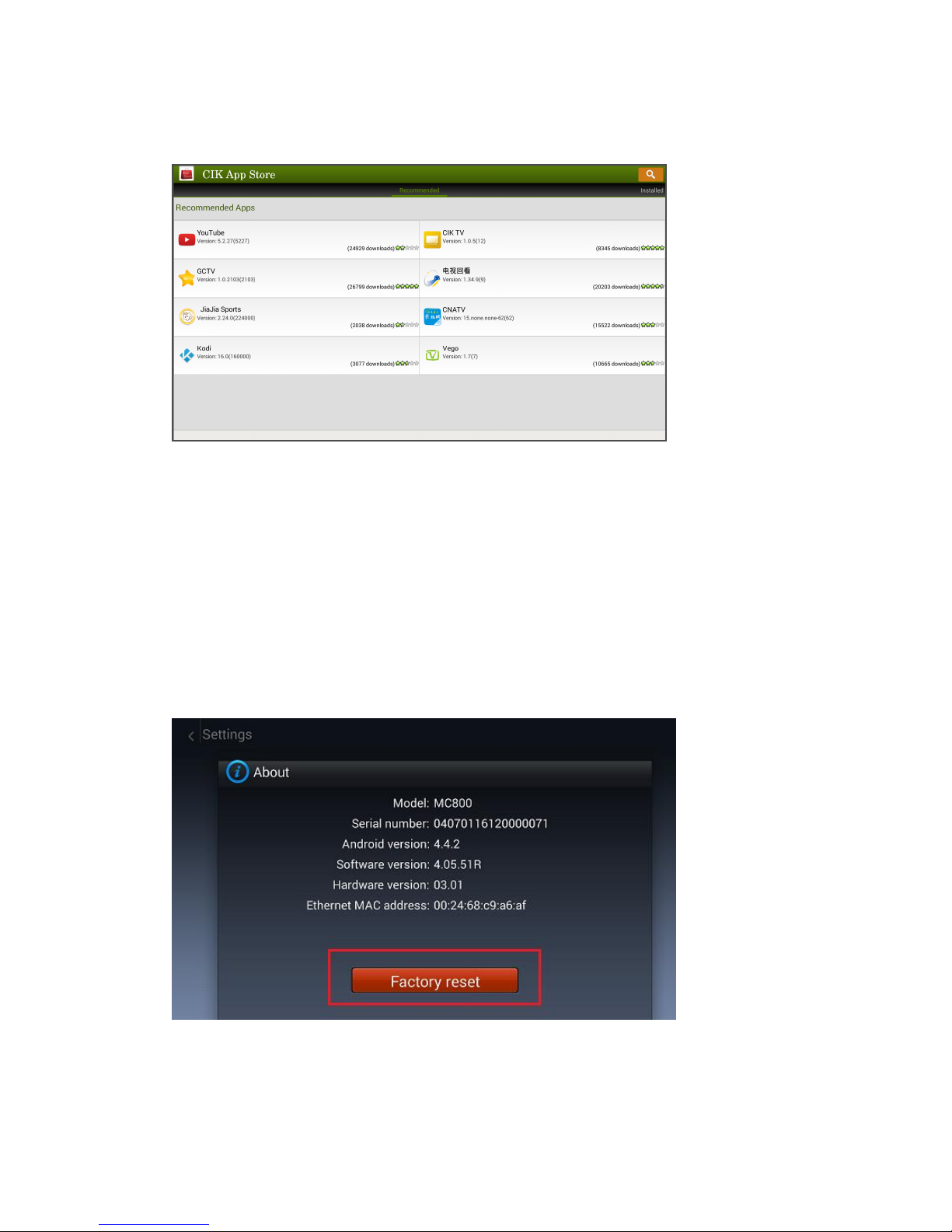
App store Page
How to do “Factory Reset”
If TV BOX can display Main page after power on, but it has some
other issues, we can try “Factory Reset” to resolve issues.
This wipes saved user data, formats internal storage and resets TV
BOX to factory settings. The firmware version will keep same as
before doing “Factory Reset”
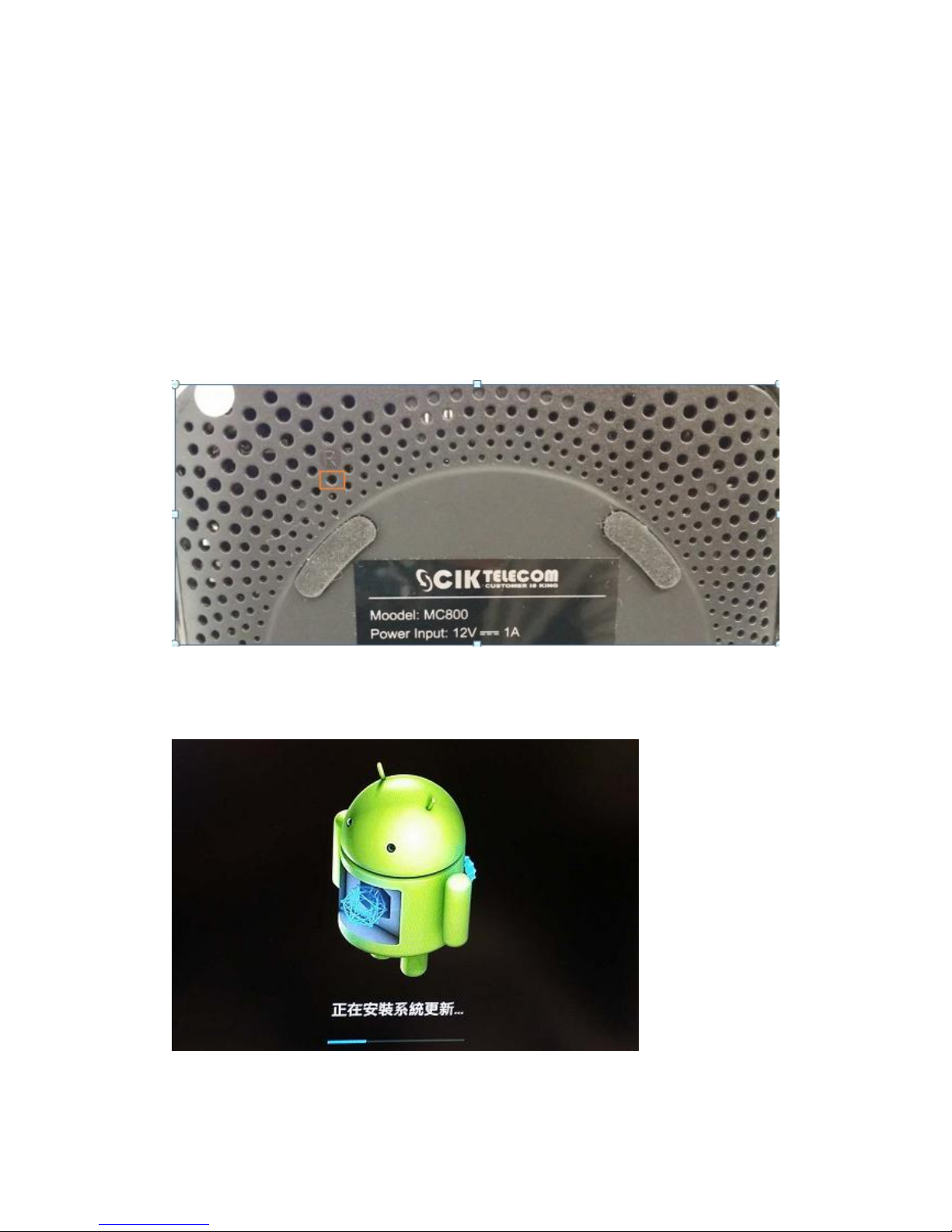
Go to Settings About Page, and choose “Factory reset”
How to do “HARD RESET”
Page 6
If TV BOX can’t work after power on, for example, freezing on the
AD page, black screen with no signal. We can try “HARD RESET”
way to resolve issue. After “HARD RESET”, TV BOX will wipe user
data, format internal storage and reset to factory firmware version
(4.02)
1. Unplug the TV BOX from the power source or Press Power on/off
button on the rear of TV box
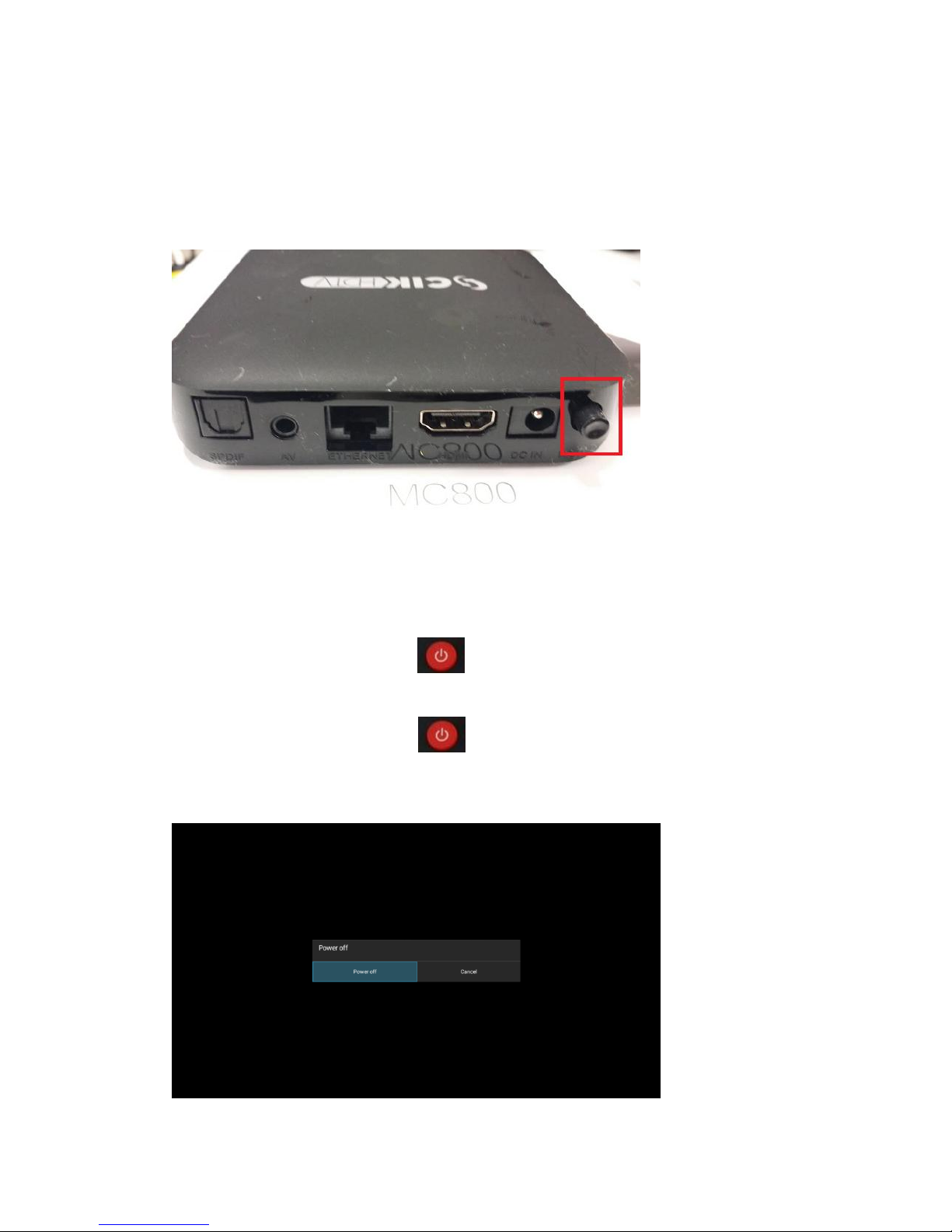
2. Locate the small reset button on the back of the TV BOX, which is
under the “R”
3. Press this reset button in using a pen or similar object and hold it
4. Connect the TV BOX to power while holding the reset button in
5. Wait until a green robot displayed on the screen then release
Page 7
Power on/off Button
MC800 had a power on /off button which is beside power adapter
port. User can easily cut the power of TV BOX by just press the
Power on/off Button instead of plug in/out the power adapter.
Turn on/off TV box remotely
User can easily turn on/off TV BOX instead of press power button
on TV BOX
1. Turn on TV BOX: Press on Remote control when TV BOX is
off status
2. Turn off TV BOX: Press on Remote control, then choose
“Power off”
 Loading...