

Page 1
S610A
Page 2
Bookings
Troubleshooting
Channel List
Basic Functions
Basic Settings
Set Top Box Connections
Remote Control Unit (RCU)
Rear View
Front View
Product Overview
Safety Instructions 3
4
4
5
6
7
8
11
11
12
13
14
15
Channel Bar
Electronic Program Guide (EPG)
Contents
2
Page 3
Safety Instruction
3
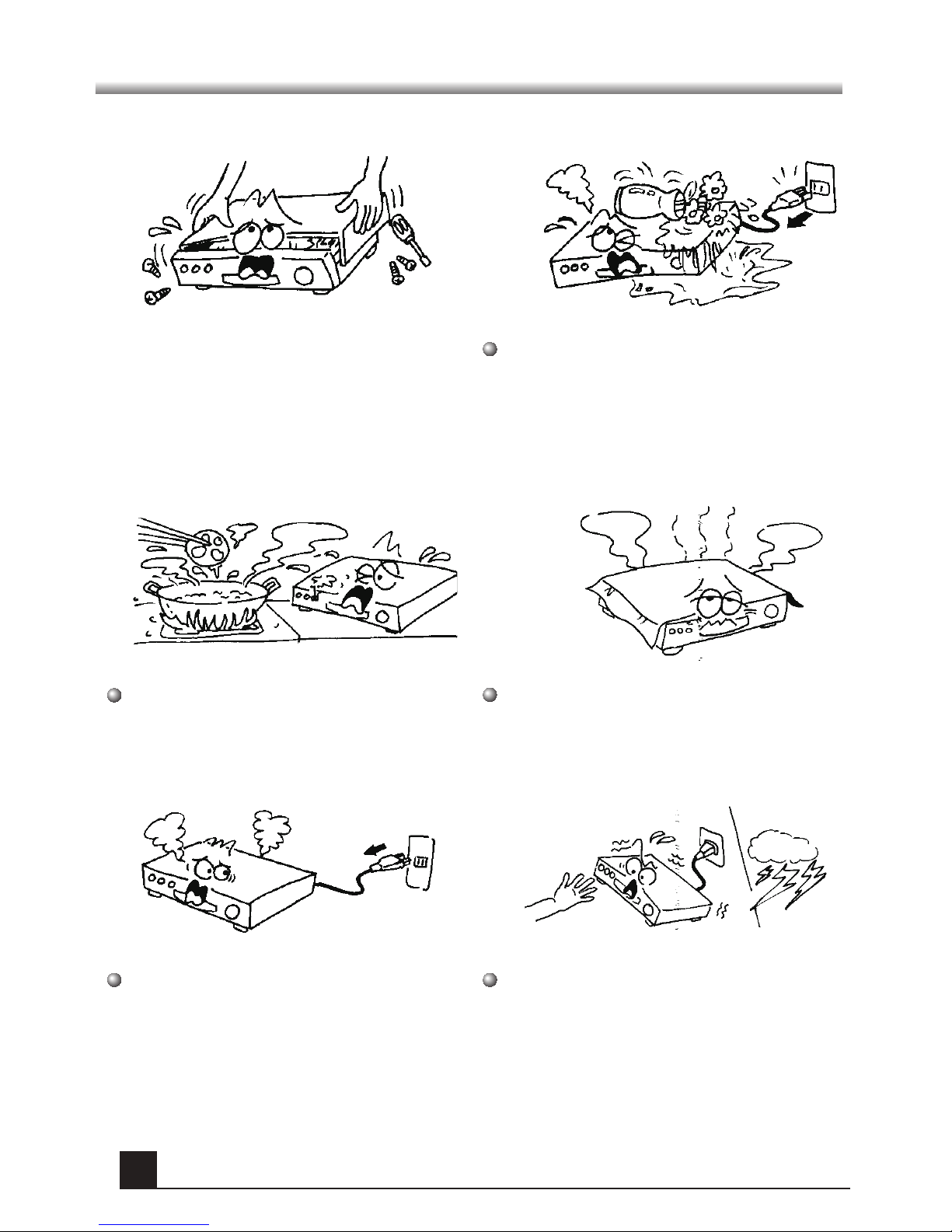
To avoid danger of electric shock or
damage to the
receiver,
do not remove
the cover of the receiver box. Any
servicing should be done by authorized
and qualified personnel only.
Do not place the receiver box near any
cooking applliance. Spills from food being
cooked may damage the receiver box.
Also, keep receiver box away from any
source of heat.
Do not block ventilation holes of the
receiver. This may result to
overheating and damage the receiver
box.
If the receiver unit malfunctions, unplug
the unit from the power source.
During thunder storms, refrain from
touching the receiver unit. There may
be instances of electric shock.
Refrain from spilling any liquids on the
receiver box to avoid damaging the
equipment. In the event this happens,
kindly unplug box from power source. Do
not use or store your receiver in cold, hot,
damp or dusty places and keep away from
all water sources and liquids.
Page 4
Product Overview
4
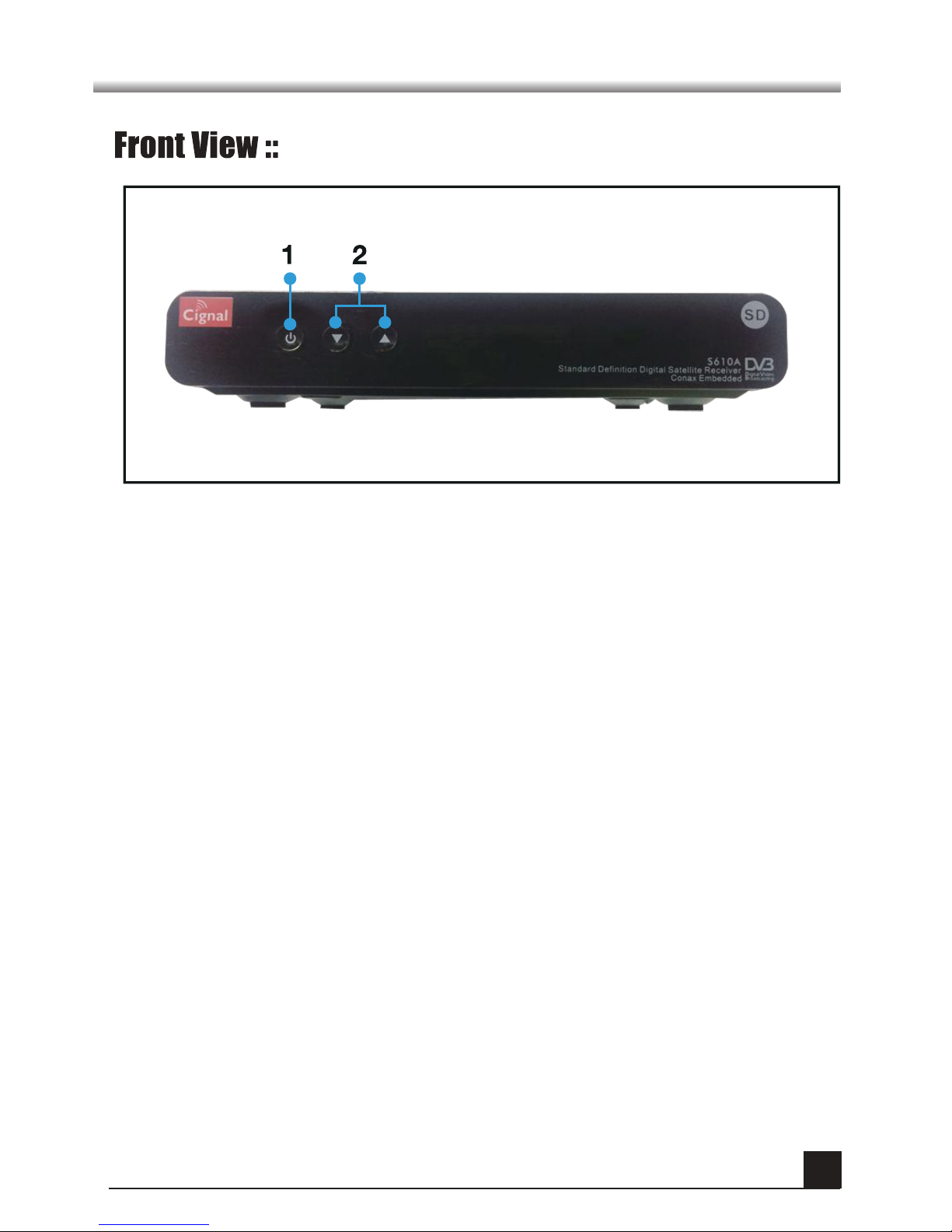
: In normal TV mode, these changes the channels.
When in the Main Menu, these will move the selector.
1. On/Standby
: Switch the STB to On or Standby.
2. CH ▼/▲
Page 5
Product Overview
5
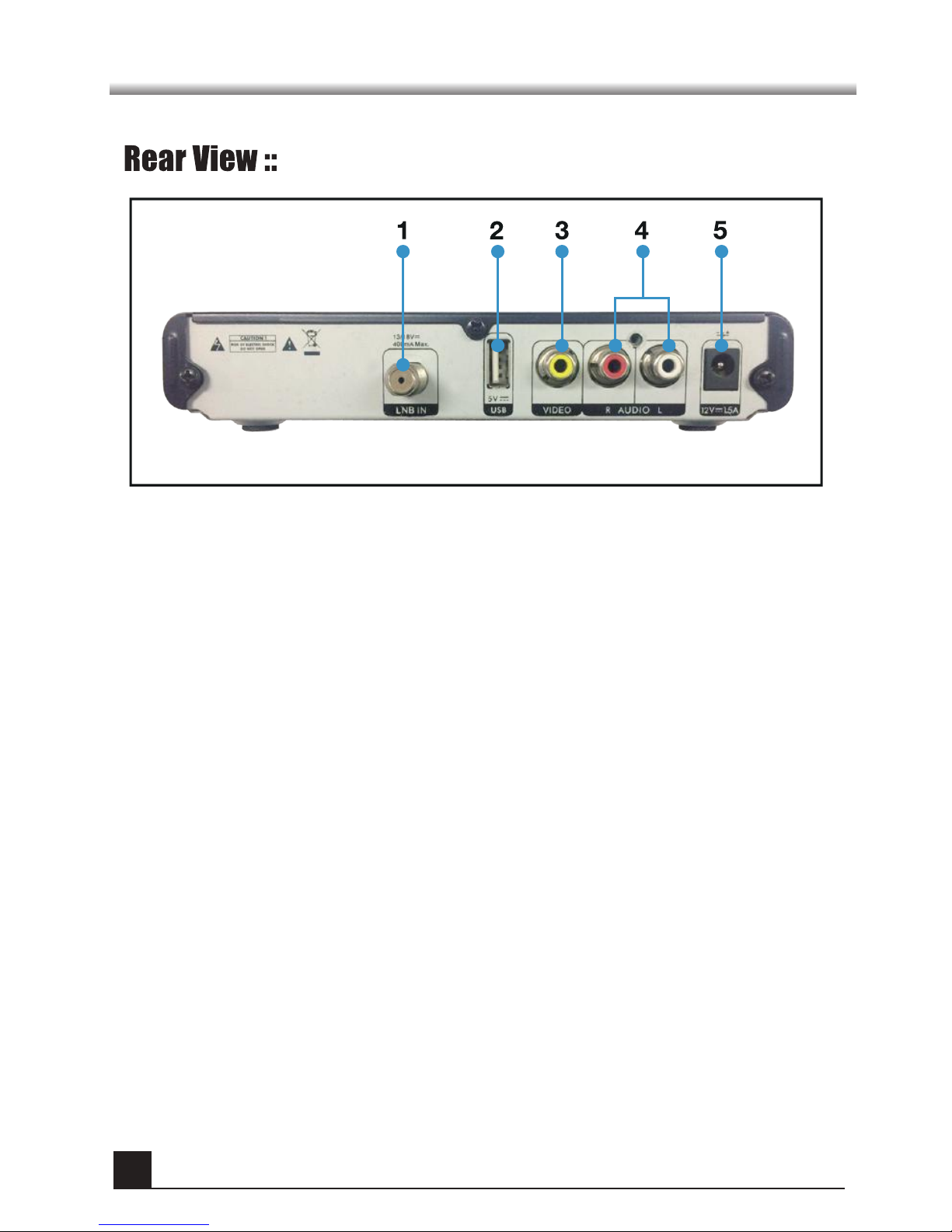
2. USB
: Used for Set Top Box software updates.
3. RCA Video Connector
: Connect this to the composite video input of the TV.
5. DC POWER
4. RCA Audio Connector
: Connect these to desired audio output system.
1. LNB IN
: Connect this to a dish antenna to receive the digital broadcast.
: Connect to the power supply.
Page 6
Remote Control Unit (RCU)
6
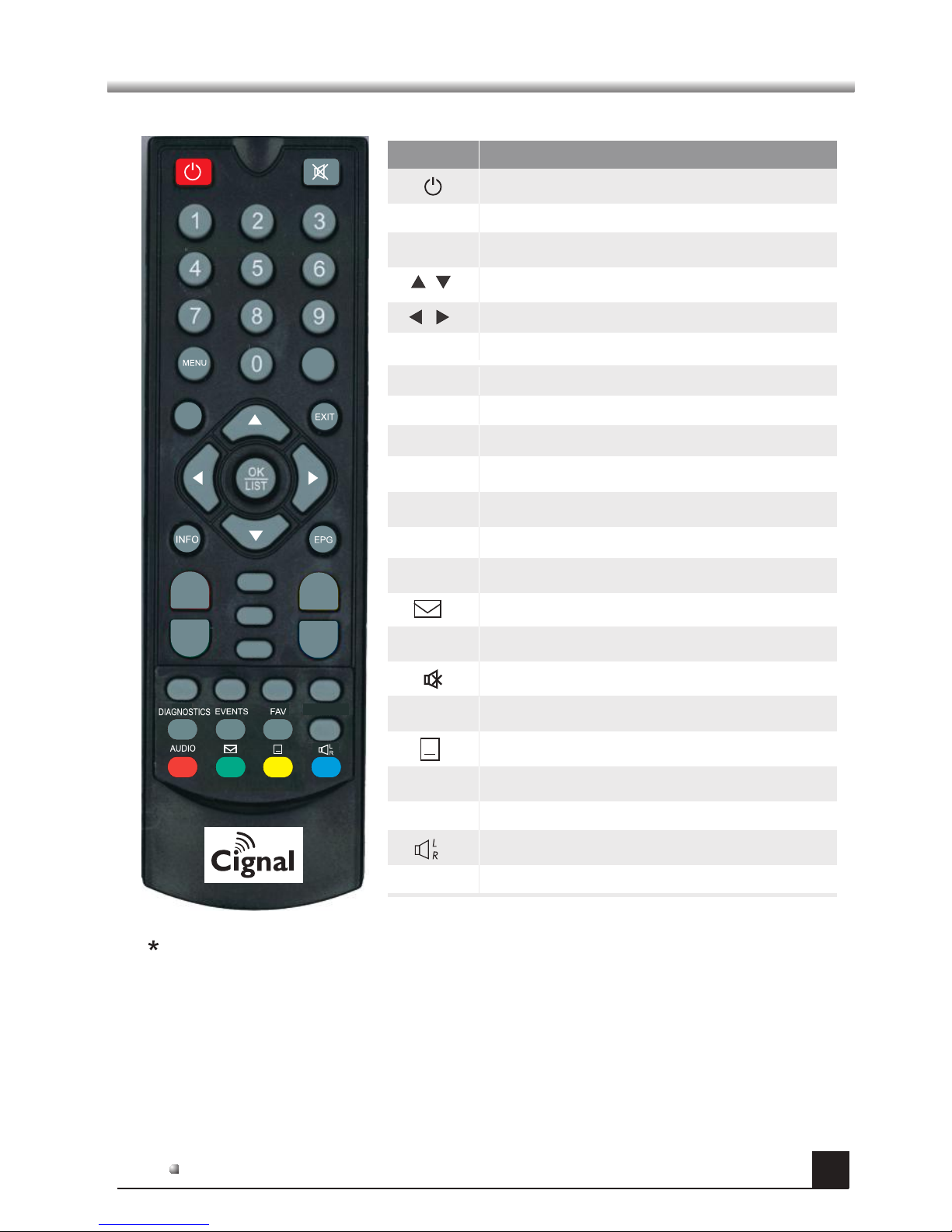
Please note, picture for reference only. Exact product details may vary.
Key
Fu n c t io n
Switch ON/OFF the STB
Mute the sound
Switch between TV mode and Radio mode
0~9
EXIT
OK
Channel number or number entry
Cancel or return from the menu
TV/RA DIO
Access the Fa vorites Channel lis t
Show the info rmat ion of current ch anne l
Access the Bm ail screen
FAV
INFO
Enter or sele ct item, or open ch anne l list
Display EPG information
EPG
AUDIO
CH+,CH-
Volume up/do wn
Volume up/down or move cursor left/right
Channel up/down or move cursor up/down
Channel up/down
VOL+,VOL-
Back to previ ous ch annel or menu
MENU
Access the Home menu
Switch on/o ff te letext or subti tle mo de
BACK
VOL+
VOL-
CH+
CH-
TV/RADIO
SETUP
BACK
EVENTS
DIAGNOSTICS
Display boo ked ev ents list
Display dia gnos tics list
Switch betw een au dio modes
Switch audi o trac ks
SETUP
Access user s etup menu
- Multiple langua ges, teletext and subtitles are d ependent on availability
*
*
Page 7
Set Top Box Connections
7
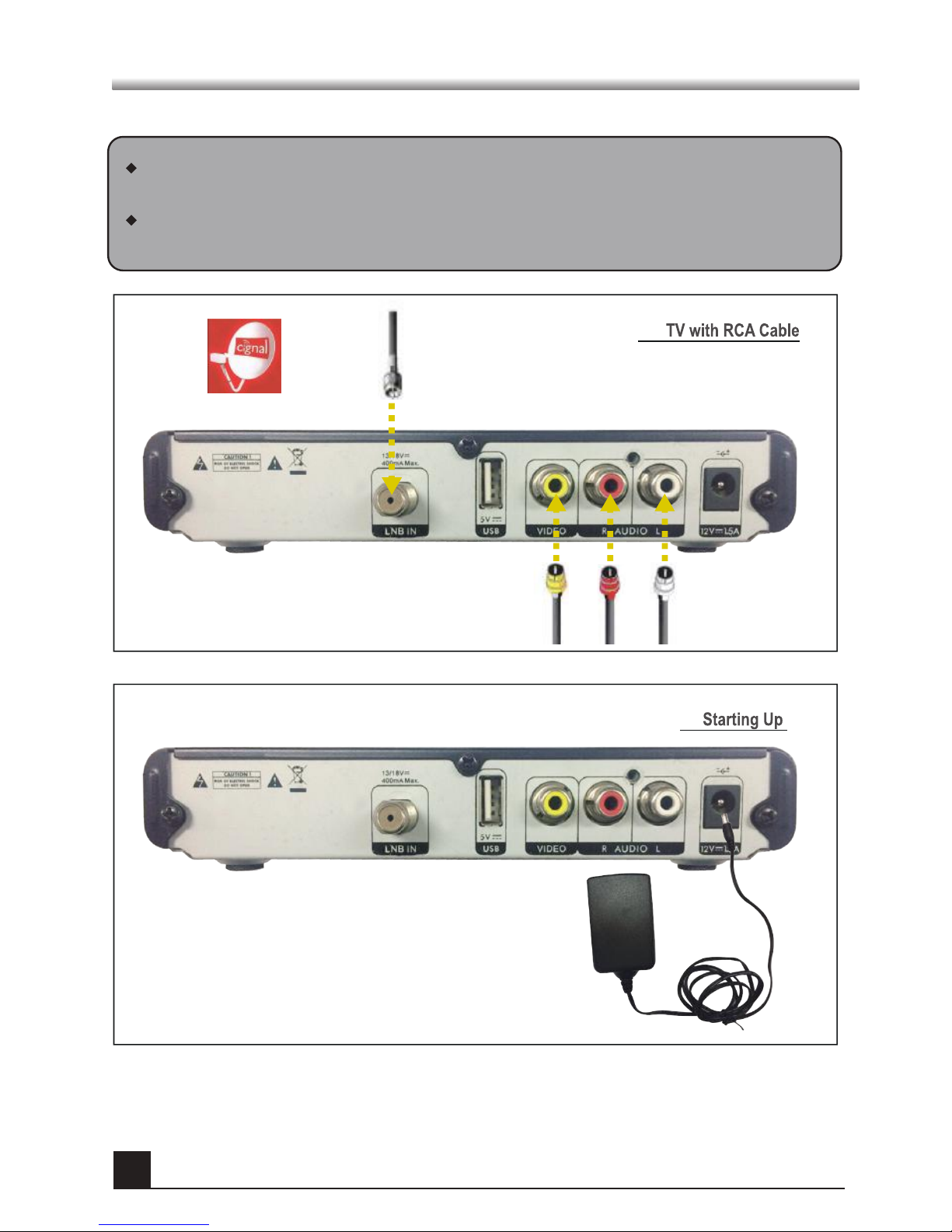
DO NOT PLUG the STB into the main power outlet until all the other cables
are connected to the STB.
Before connecting the cables, you should first connect the LNB IN connector
of the STB to the cables from the satellite.
DISH to LNB IN
Page 8
Basic Settings
8
WARNING
•
•
1.
For newly installed STB, check that all the cables are connected to the STB and
perform the setup procedure.
When using the STB for the first time, ensure that all cables are connected, as
per the instructions on page 7, and perform the following setup procedure.
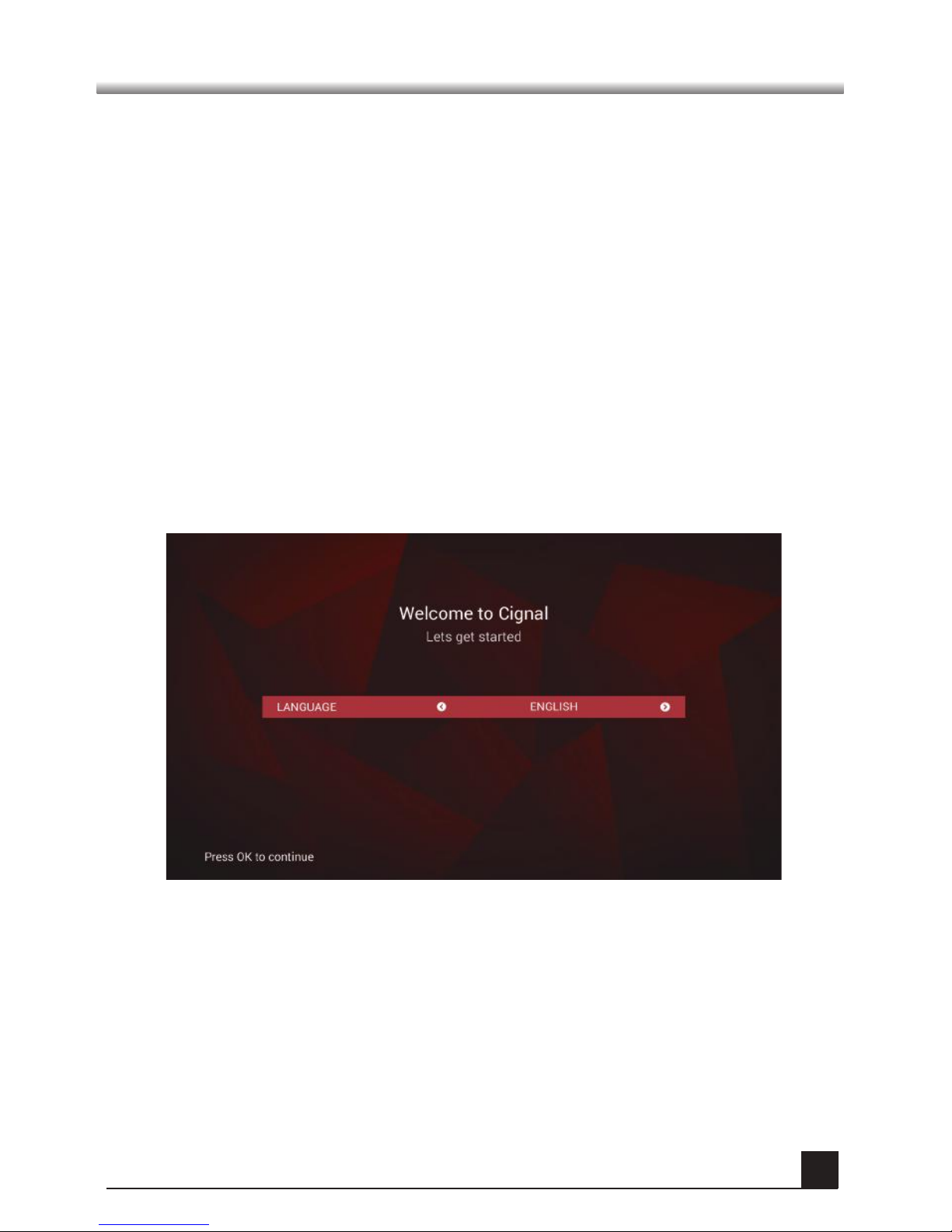
After turning on your TV and STB, follow the instructions on the screen. Press
OK button to start the basic setting.
Press MENU button to save previously input data and exit the basic settings.
If you are exiting the setup without first successfully completing the set-up
procedure, no TV and radio channels will be available.
Make sure that video display setting matches the TV type or else no video will
be seen.
To change the video format, go to SETTINGS > USER >VIDEO OUTPUT.
Page 9
Basic Settings
9
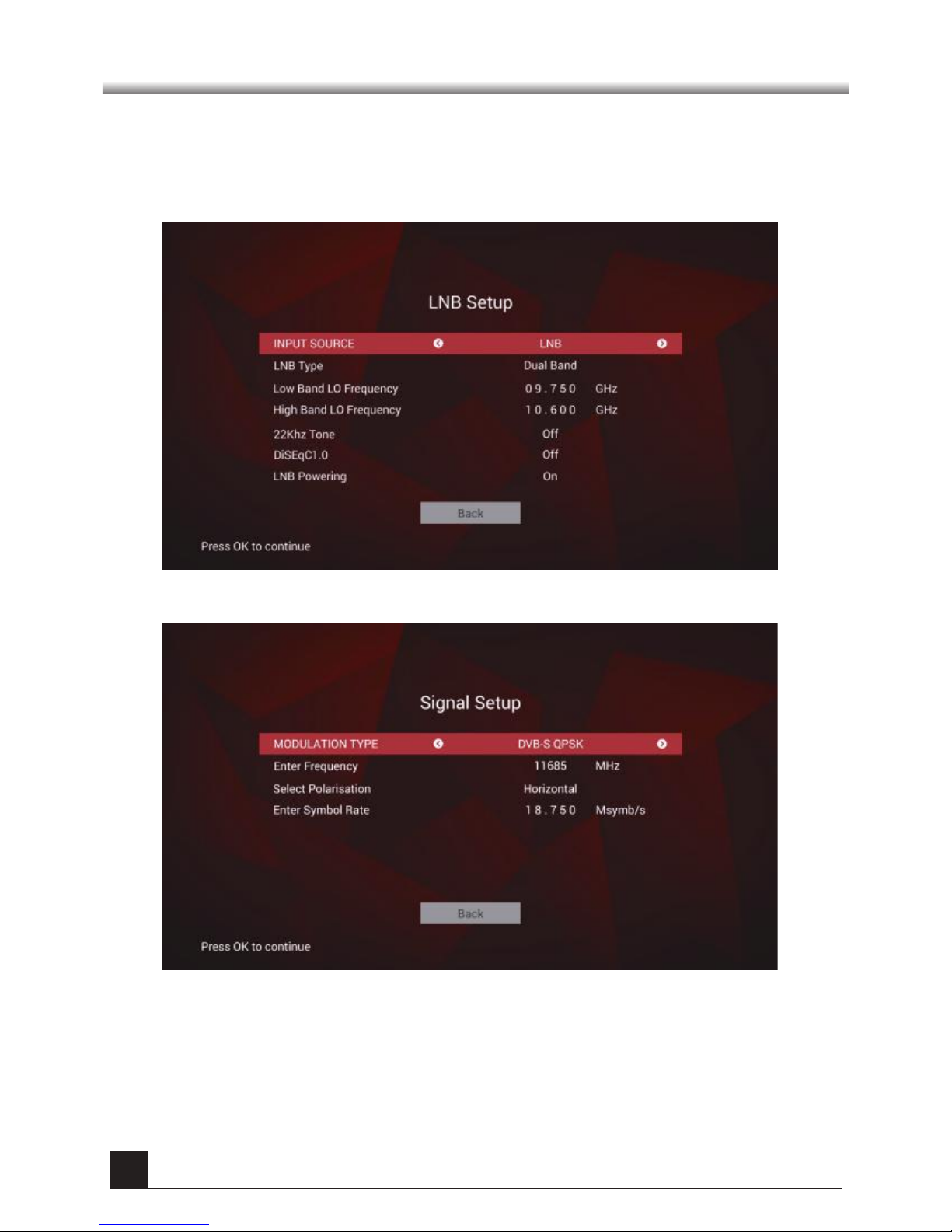
3. Select the required Transporter and press OK on the RCU.
2. The following LNB Setup menu appears after the welcome screen.
Use the ◄ / ► buttons to select the Input Source type and press OK
on the RCU.
Page 10
Basic Settings
10
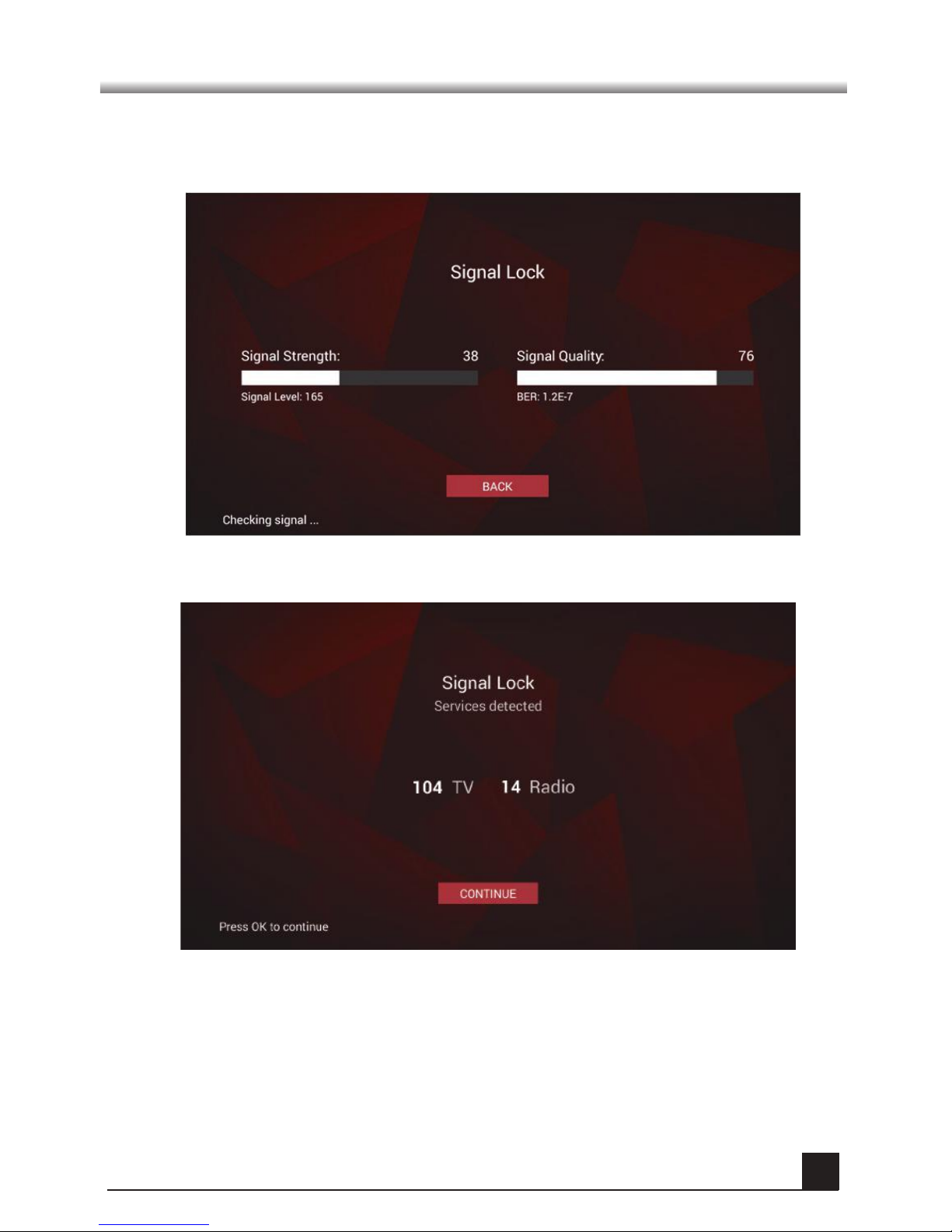
4. The Signal lock screen displays and the STB will scan all available service
channels.
All your TV and radio channels are available for selection in the EPG.
Page 11
11
Basic Functions
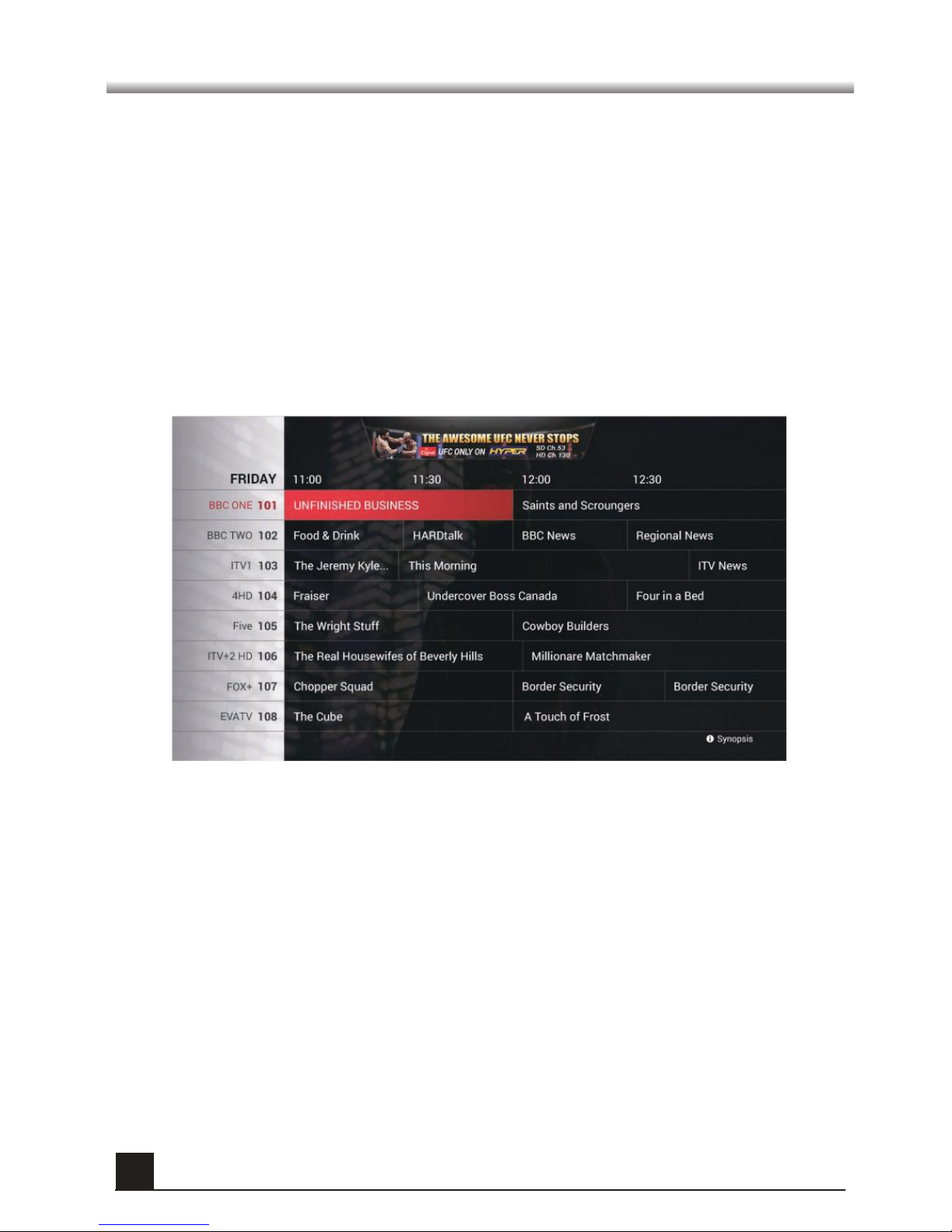
1. The EPG shows program information on each channel by date and time.
2. To activate the EPG, go to MENU > GUIDE or Press EPG key on the RCU.
3. Channels on display will have their channel numbers & channels are shown at a
time.
4. The Listings Grid shows 1 and a half hours’ worth of TV listings for the channels
shown in the Channel List.
5. Upon entering, the synopsis box on the right side will not be shown.
6. Press the INFO key on the RCU to show the synopsis.
Electronic Program Guide (EPG)
Page 12
12
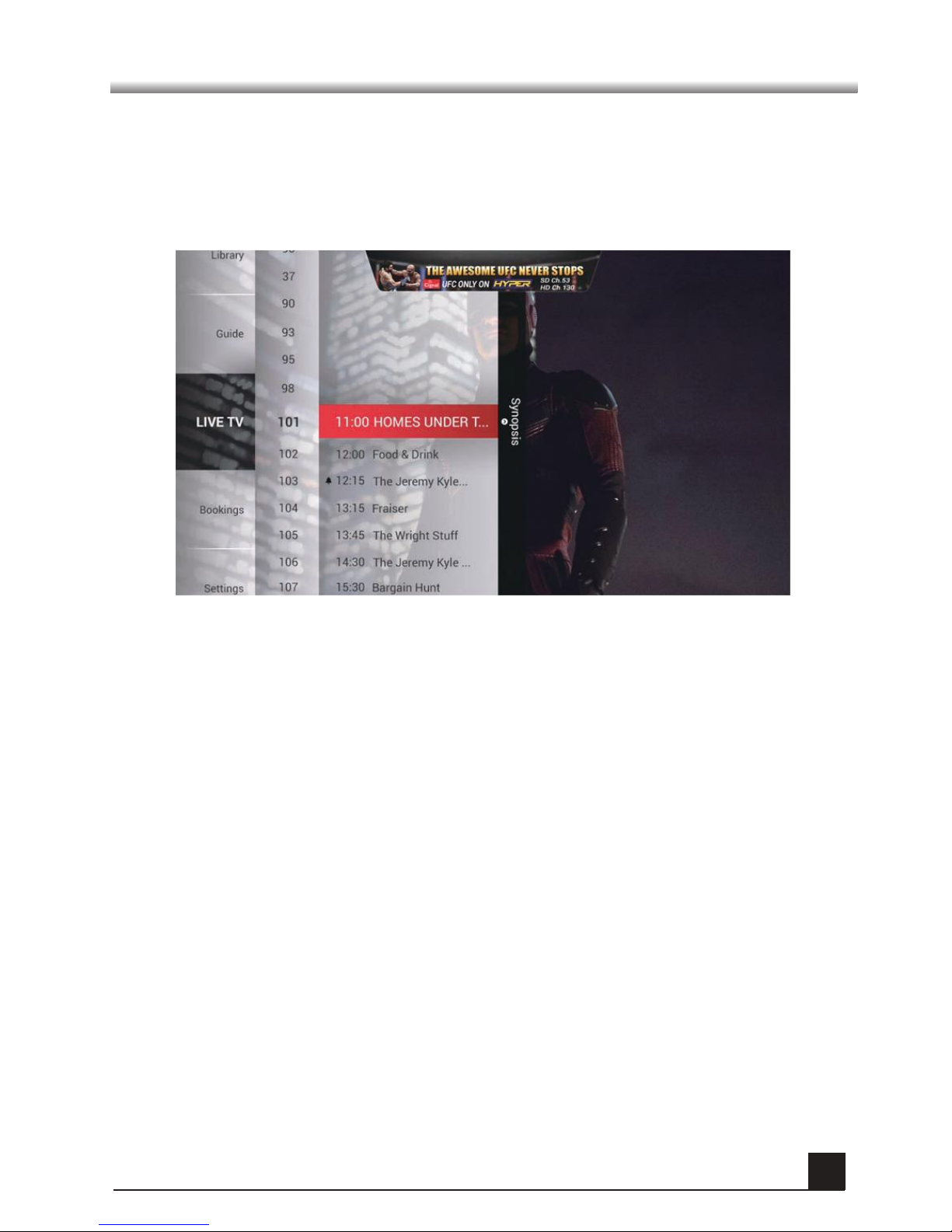
1. To access the Channel List, press MENU then go to LIVE TV. The list of
available channels with their respective channel number assignment and channel
name are displayed.
2. To see the program synopsis or book a program reminder, select a channel
then a prografrom the list and press OK.
Channel List
Basic Functions
Page 13
13
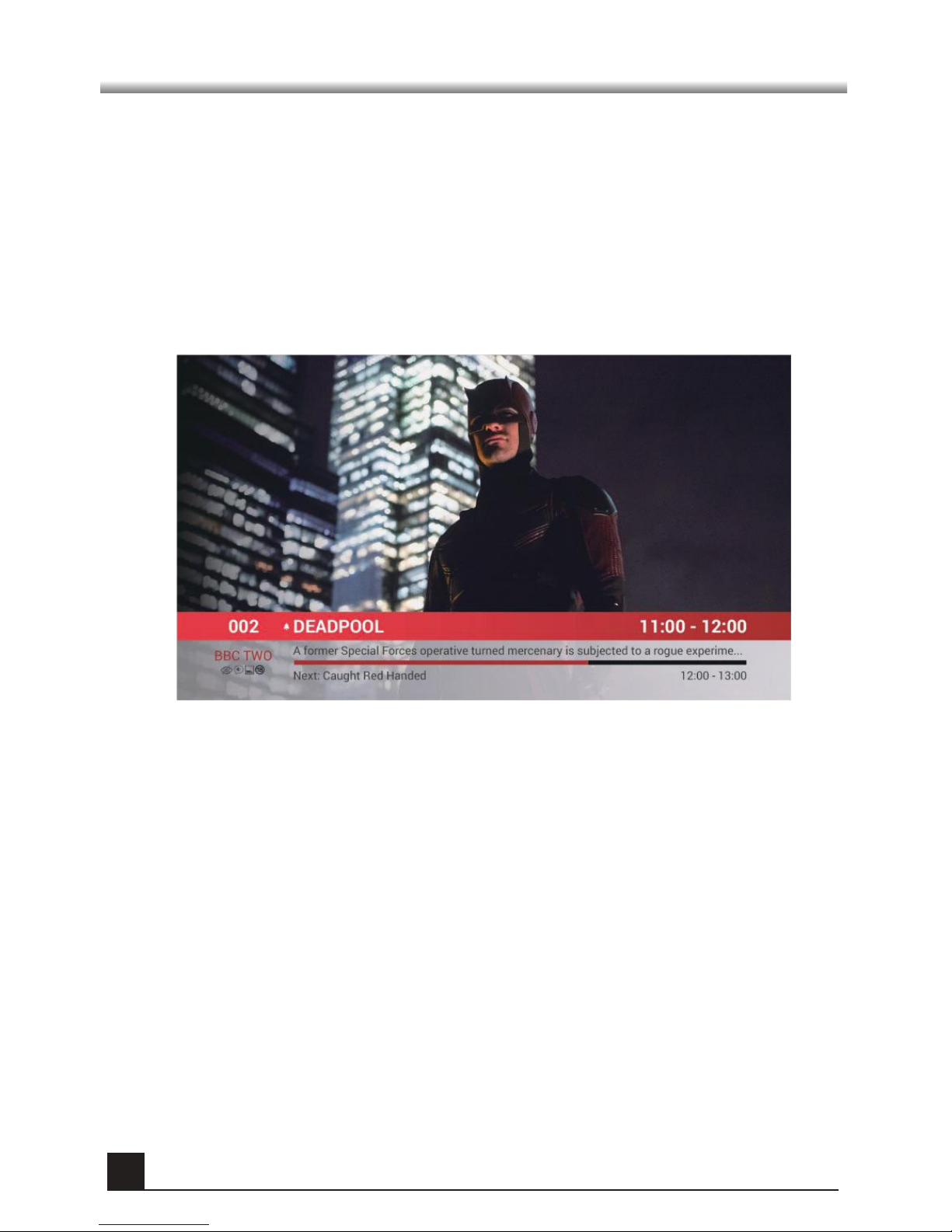
1. The Channel Bar displays basic information about the channel and its programsl.
The Channel Bar is displayed when zapping or by pressing the INFO button
while viewing a channel.
2. To access more information about the channel or program, press the INFO
button again.
3. Press the EXIT button to remove the Channel Bar or when in the channel
information view.
Channel Bar
Basic Functions
Page 14
14
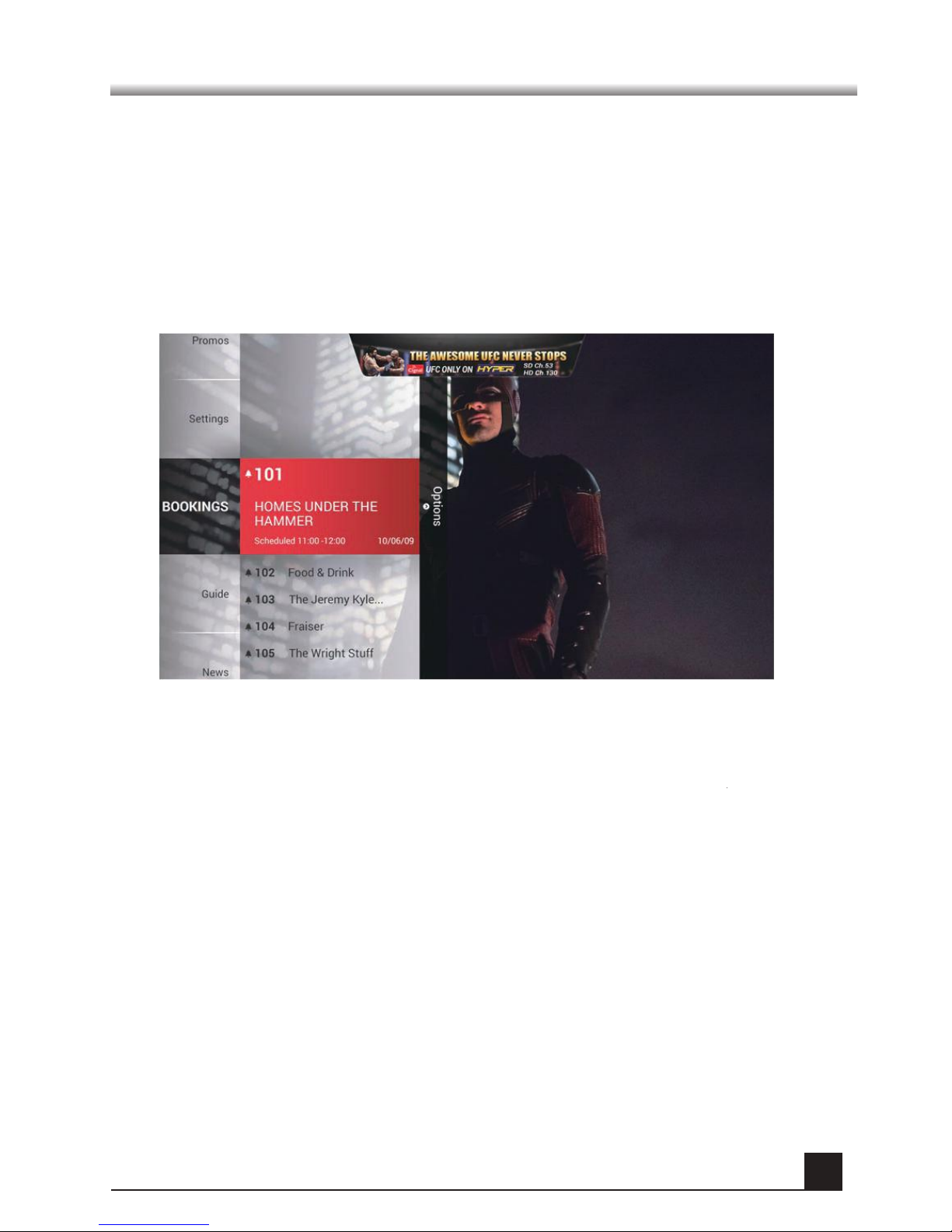
The Set Top Box allows you to manage channel-related events using the Timer
Event functions. You can set an alert to inform you when your favorite shows are
being broadcasted and turn the STB on or off depending on the schedules that
have been setup.
To access this feature, go to MENU > BOOKINGS.
Bookings
Basic Functions
Page 15
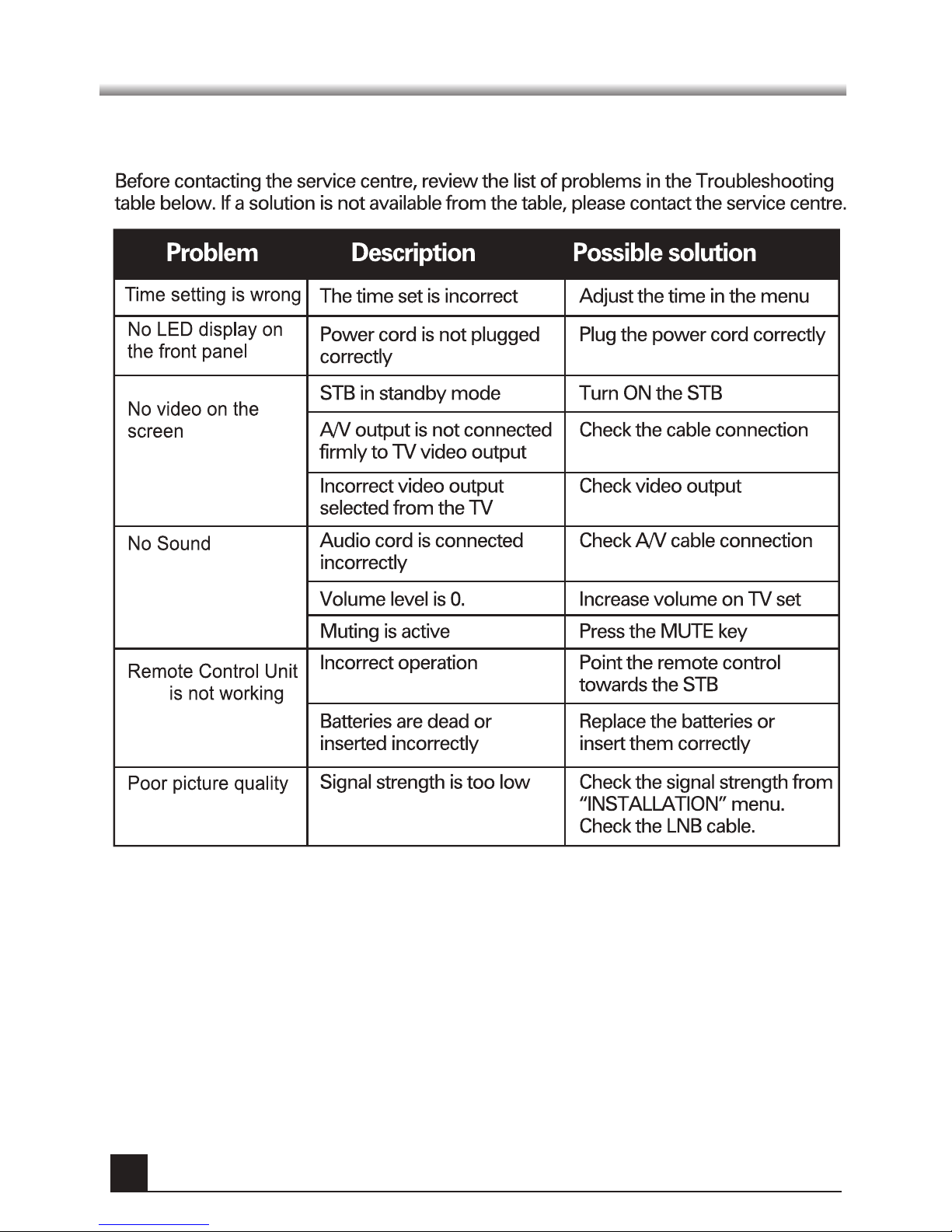
Troubleshooting
(RCU)
15
 Loading...