

Page 1
DisplayPort Repeater
Quick Installation Guide
The DisplayPort Repeater integrates a point-to-point connection DisplayPort Repeater to simpl i fy system equipments; and
lower cost for applications requiring single DisplayPort input and output device in personal computing system and other
emerging digital appliances.
Feature
Supports DisplayPort resolutions up to 4K 60Hz.
Compliant with DisplayPort specification 1.2, HDCP 2.2 & DPCP
Supports 4K 60Hz (max. length: 5m in; 5m out); 4K 30Hz (max. length: 15m in; 20m out); 2560 x 1600 60Hz (max.
length: 10m in; 20m out)
Supports DP++ Dual Mode, compatible with HDMI, DVI or VGA adapters.
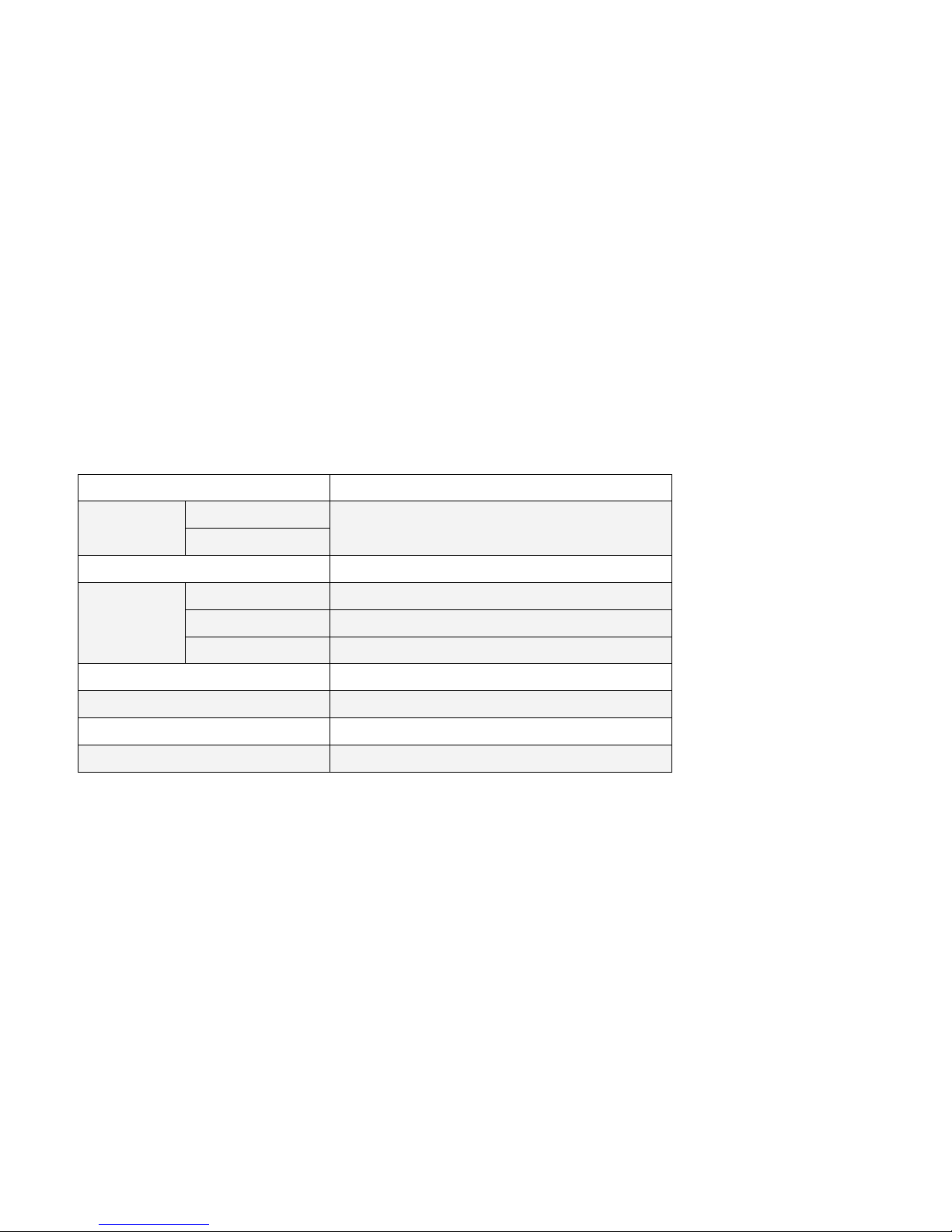
Specification
Package Contents
1. DisplayPort Repeater
2. 5VDC Power adapter
Model No. DP-R01-130
Connectors
Input
DisplayPort 20 Pin Female
Output
Resolution 4K @60Hz
Environment
Operating Temp. 5 ℃ ~ 40 ℃
Storage Temp. -20 ℃ ~ 60 ℃
Humidity 0~80% RH, Non-condensing
Power Supply DC 5V 1A
LED 1
Housing Plastic
Dimension ( L x W x H ) 55 x 54 x 20 mm
Page 2
Physical Diagram
Connecting
Typical Application
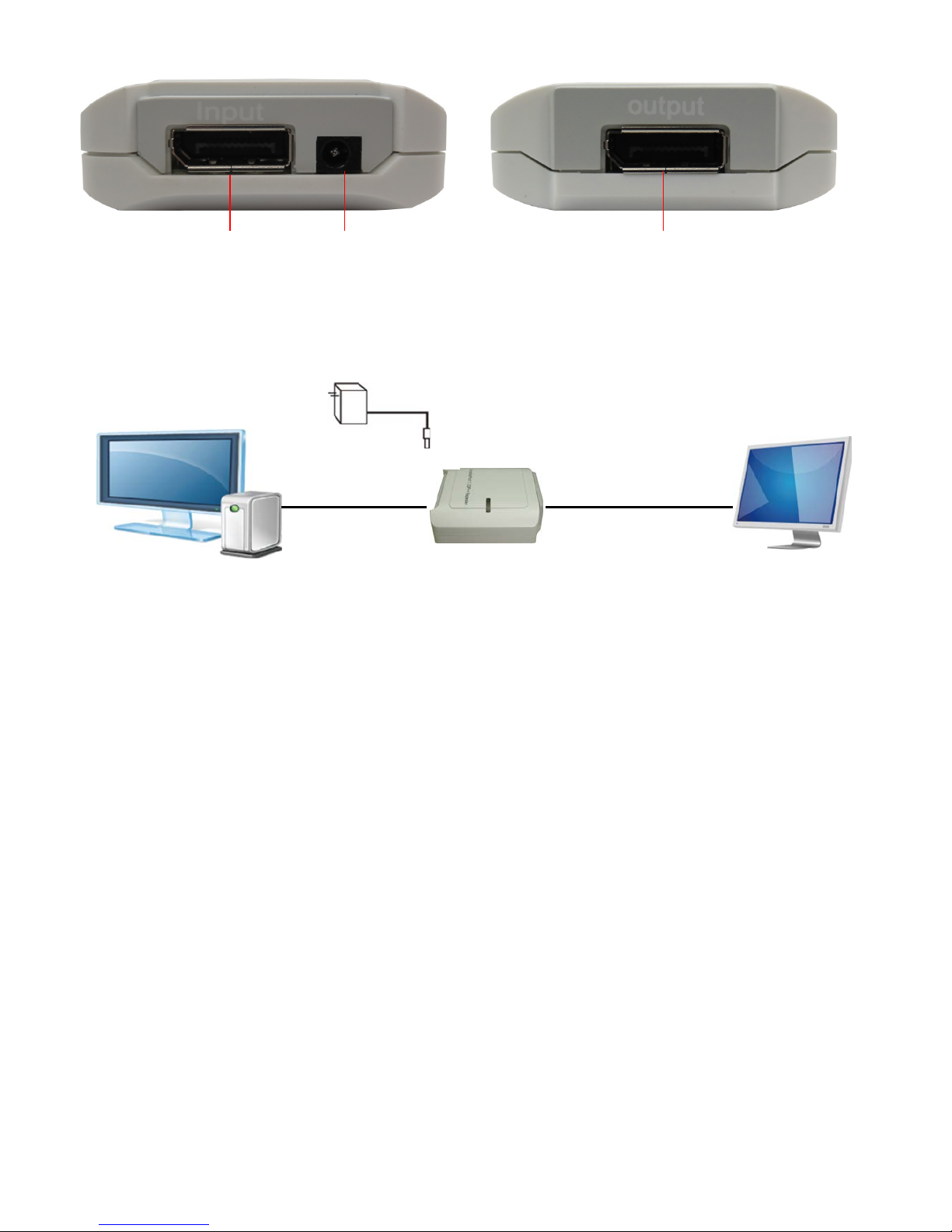
The DisplayPort Repeater is installed between the DisplayPort source and a connected Displa yPort monitor.
Installation
1. Connect the DisplayPort source (for example, a computer graphics source) to the Input connector.
2. Connect the Output connector to a DisplayPort acceptor (for example, a DisplayPort di splay).
3. Connect the 5V DC power adapter to the power jack on the DisplayPort Repeater and connect the adapter to the mains
electricity.
Note: The LED indicator should illuminate to implement successfully a proper power connection. If the LED indicator does
not illuminate, please verify the power connection.
4. Turn on the power to the video sources and connected monitor.
5. Use your video cards display setting s screen to ma ke adjustmen ts to the way v ideo is display ed on the conne cted monitor.
Note: The DisplayPort Repeater is backward compatible with most DisplayPort 1.2 equipment running current graphics
drivers, with the feature set being limited to that of your equipment (e.g. you may be limited to displaying in Clone /
Mirror mode only). Compatibility with older graphics cards is not guaranteed.
When displaying video resolutions is configured to 4K @60Hz, the distance between th e DisplayPort Repeater and the
monitor should be limited in 10m. (max . lengt h: 5m in; 5m out); 4K @30Hz, in 35m. (max. length: 15m in; 20m out). Or
to be limited in 30m (max. length: 10m in; 20m out) at resolution up to 2500 x 1600 @60Hz.
DisplayPort (Output)
DisplayPort (Input) Power port (DC5V)
DisplayPort cable DisplayPort cable
DisplayPort source
Display device
AC Power Adapter
Page 3

Troubleshooting
If you are unable to get an acceptable image after following the installation instructions, try the t roubleshooting tips below .
1. Is your equipment running the latest graphics driver ? If not, download the latest graphics drivers for your equipment.
Backward compatible with most DisplayPort 1.2 equipment running current graphics drivers, with the feature set being
limited to that of your equipment (e.g. you may be li m i ted to displaying in Clone / Mirror mode only). Compatibility with
older graphics cards is not guaranteed.
2. Is the external power supply that came with the product c onnected and plugged into a working power source? For the
product to function properly, it must be conne ct ed to and receiving power from the external power supply.
3. Were the power to the DisplayPort source turned off prior to installation? If not, restart your computer/video source.
4. What resolution are you trying to reac h? The Dis playPort Repeater is tested to support video resolutions up to 4K @60Hz.
If you are not able to get an acceptable image, try l owering your computer’s video resolution or adjusting the ref resh rate.
5. What length cables are you using? The m aximum cable lengths that can be used between the source and the DisplayPort
Repeater; and between the DisplayPort Repeater and the monitor, is limited in the Installation section of this manual.
6. What type of cabling are you using? Inferior cabling can result in poor performance, so it is important that you use cables
that can support the video resolution you are tryi ng to obtain.
7. Test your cables to ensure they are working properly. For example, connect your DisplayPort cables between a source
and monitor that you know works to see if the cable is functioning.
Page 4
Regulatory Compliance
Disclaimer
Information in this document is subject to change without notice. The manufacturer does not make any representations or
warranties (implied or otherwise) regarding the accuracy and completeness of this document and shall in no event be liable
for any loss of profit or any other commercial damage, including but not limited to special, incidental, consequential, or other
damages.
No part of this document may be reproduced or trans mitted in any form by any means, electronic or mechanical, including
photocopying, recording or information recording and retrieval systems without the express written permission of the
manufacturer.
All brand names and product names used in this document are trademarks, or registered trademarks of their respective
holders.
 Loading...