

Page 1
USER’S GUIDE
TABLE OF CONTENTS
About RFID Tags and Reader ..................................2
About the ViewIn App ............................................... 3
ViewIn: Initial Set-Up Instructions ......................... 4
Creating an Account ...............................................4
Logging on to ViewIn ............................................. 5
Bluetooth® Pairing Instructions ...........................6
Scanning a Seal ........................................................ 7
Managing Seals......................................................10
Frequently Asked Questions ..................................11
Page 2
User’s Guide
About RFID Tags
Your new Chesterton® mechanical seal has integrated
Radio Frequency Identification (RFID) tags, which contain
a unique serial number. Using both an RFID reader and
the Chesterton ViewIn web/mobile app, you can scan seals
with RFID tags at any time to access installation instructions,
device drawings, pressure test reports, materials of
construction, and supplementary items.* ViewIn facilitates
maintenance and can significantly simplify seal
identification.
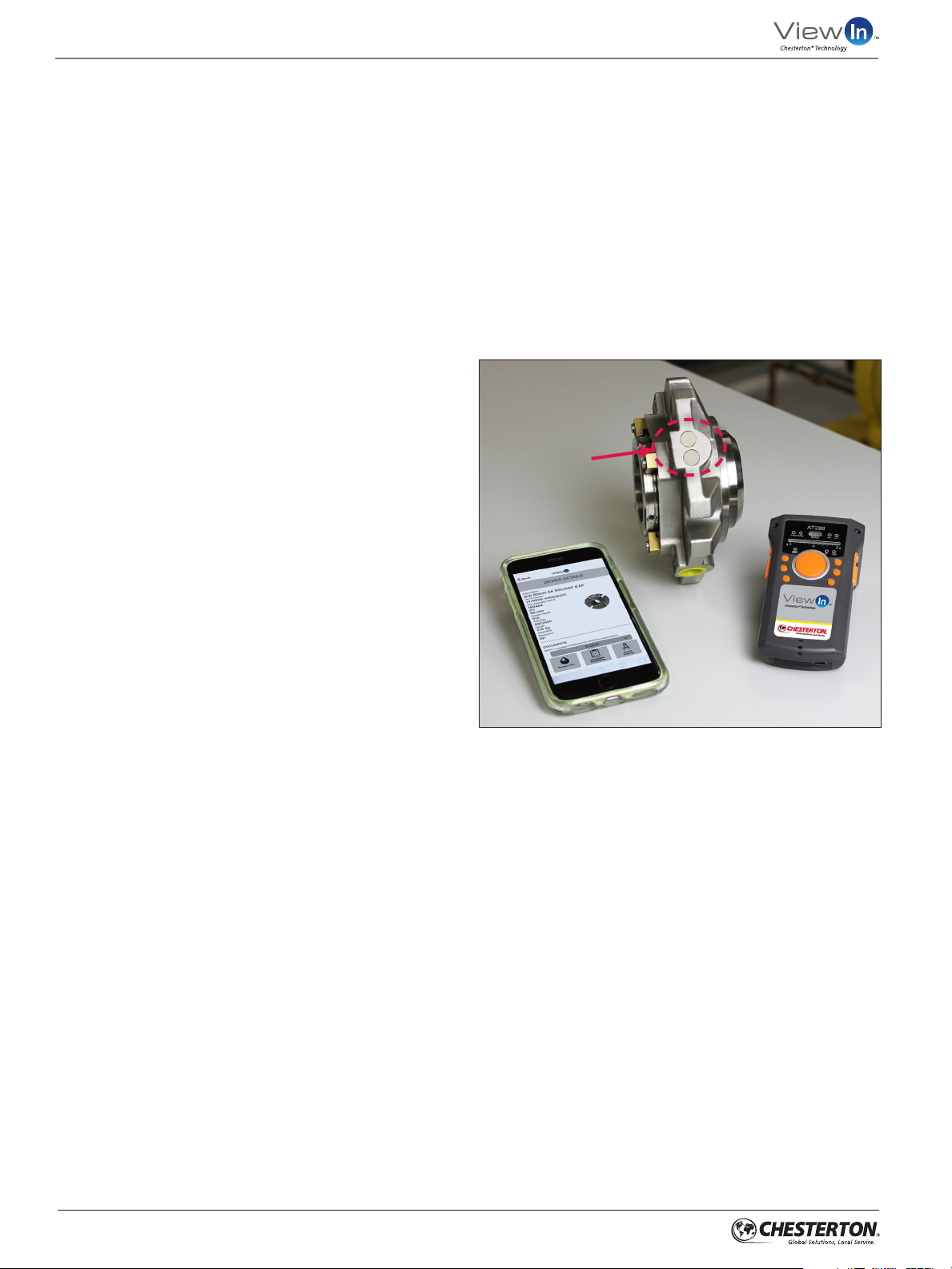
Each S10/S20 seal is equipped with PEEK encapsulated
UHF RFID tag which are globally compliant. The technology
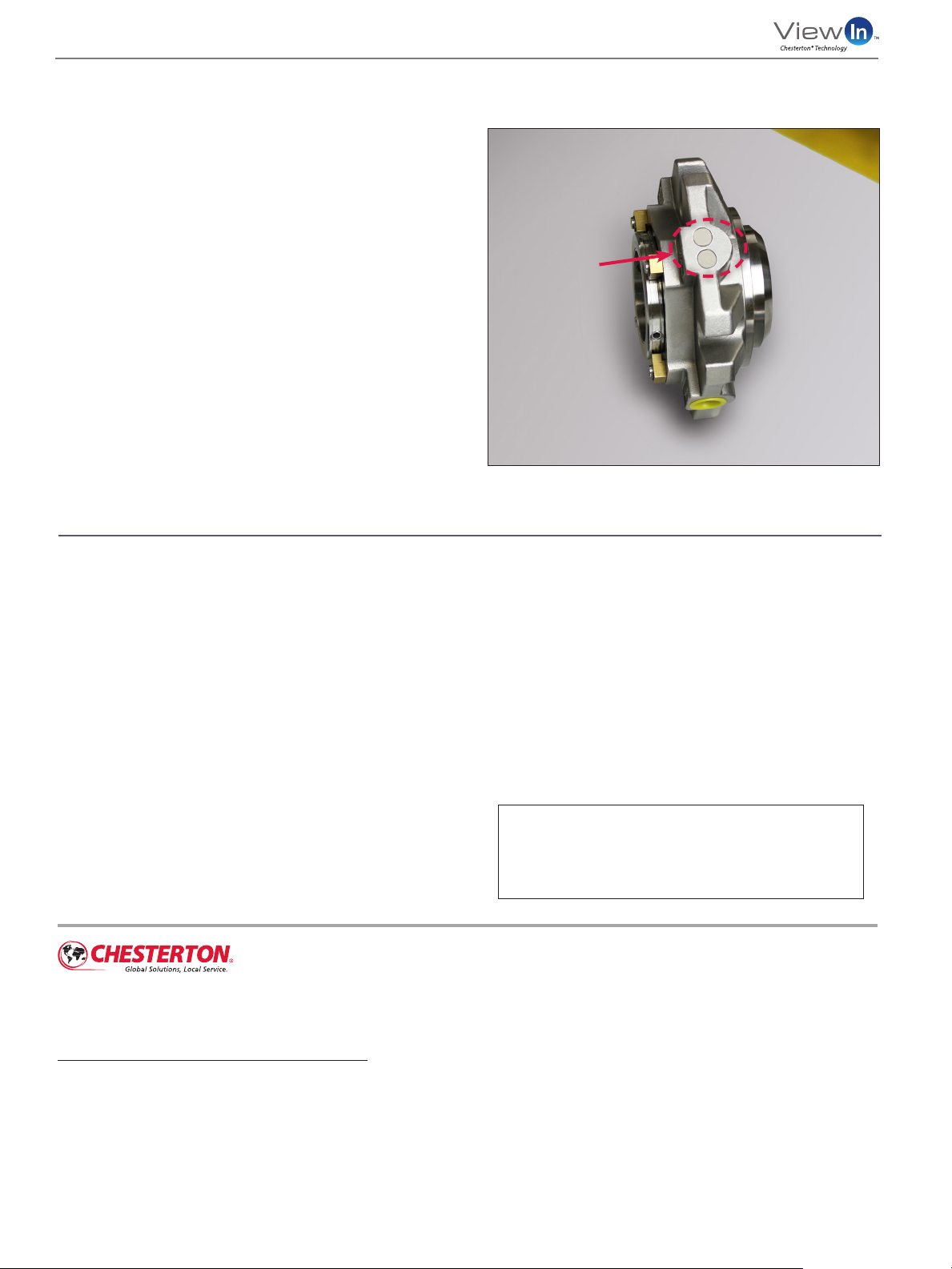
is on the outer edge of the mechanical seal gland as indicated
in Figure 1.
RFID READER
You must use an RFID reader, connected to an Internetcapable mobile device on which the ViewIn mobile/web
app is loaded to scan and log each seal. ViewIn validated
RFID readers can be purchased from your local Chesterton
Sales Distributor.
Please verify that the reader meets all local regulatory and
licensing requirements in the country of use.
NOTES REGARDING RFID TAGS
Note the orientation of the RFID tag prior to installation
to ensure a direct line of sight for optimal scanning.
RFID tags meet the same chemical and temperature
compatibility requirements as the seal.
The tags are capable of being read up to 200°C (390°F),
but cannot be read above this temperature.
The tags can be read once the gland temperature has
cooled below the previously stated temperature limit.
ViewIn RFID
Technology
Figure 1
RFID Reader
*The Chesterton ViewIn app requires Internet connectivity.
2
Page 3
About the ViewIn App
/9/18
User’s Guide
Chesterton’s ViewInApp is a web/mobile application which
canbe used to identify and retrieve information about
Chesterton mechanical seals with embedded RFID tags.*
Prepare your RFID reader for scanning either by manually
connecting to a mobile device, turning on the display
screen, or activating Bluetooth (see the FAQs for more
detailed Bluetooth instructions).
Use an RFID reader to scan the embedded ViewIn technology
and record the seals unique serial number in the ViewIn
App. Whenever you’re connected to the internet you can
recall pertinent information in the ViewIn App including:
Installation instructions
Device drawings
Pressure test reports
Materials of construction
Supplementary items
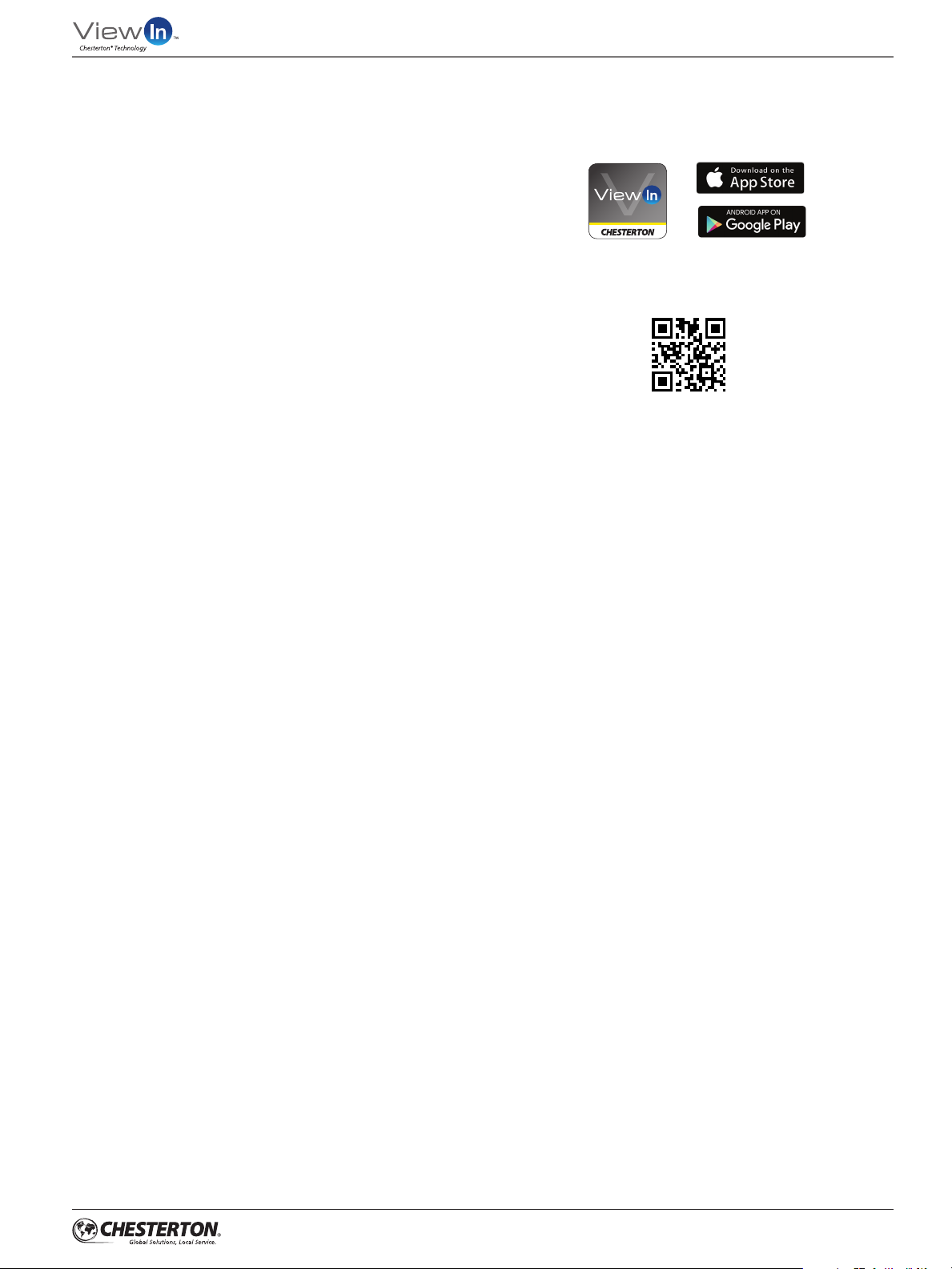
The ViewIn mobile App is available as a free download:
The ViewIn web App, is also available by scanning here:
viewin.chesterton.com
*The Chesterton ViewIn app requires Internet connectivity.
3
Page 4
User’s Guide
ViewIn: Initial Set-Up Instructions
CREATING AN ACCOUNT
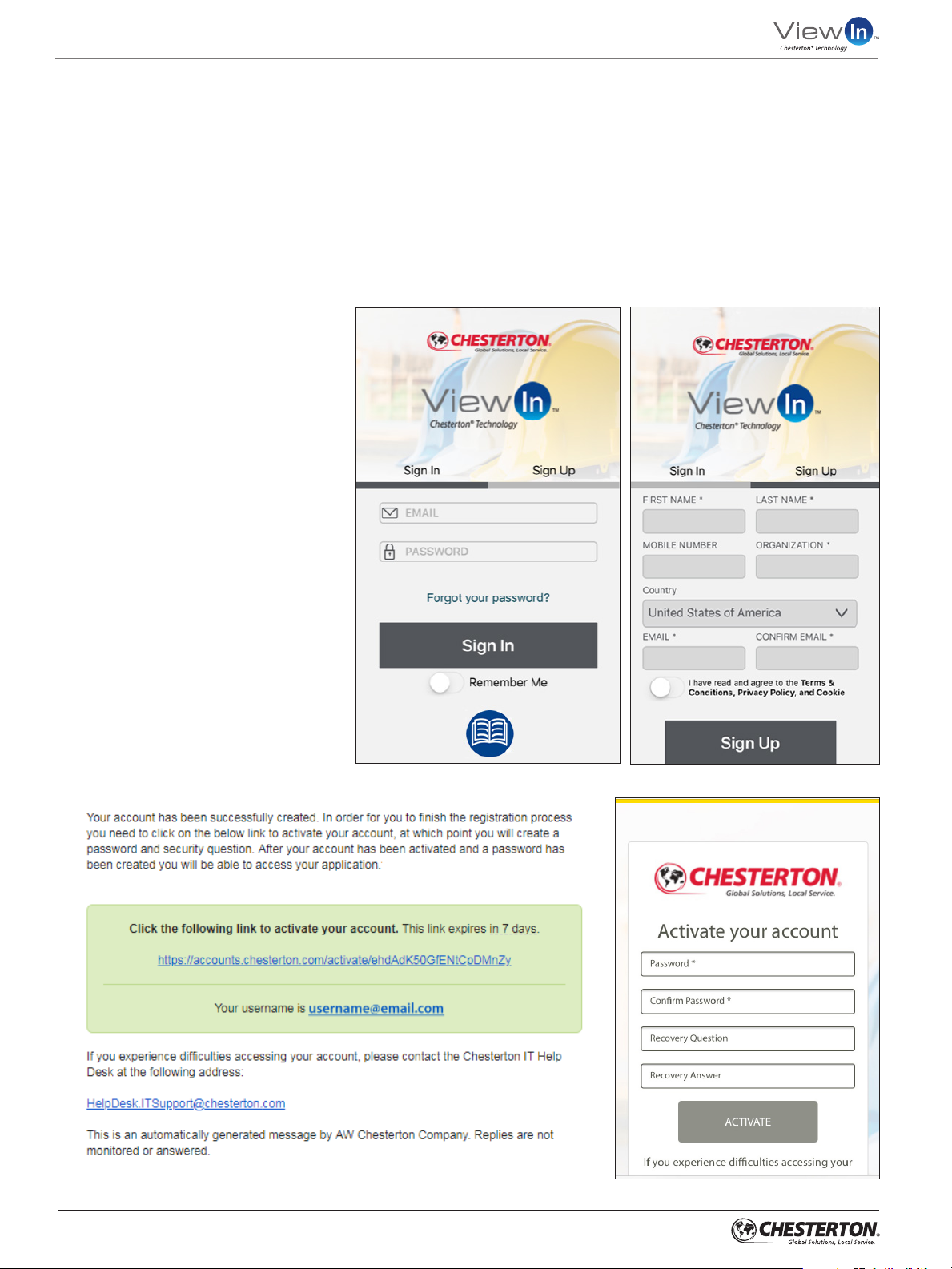
Go to ViewIn and press Sign Up on the main page (Figure 2).
Complete the required fields: Name, Organization, Country,
and email (Figure 3).
The email address must be an active email address to which
the user has access.
Your email address will be used to
log into the application.
After completing this information,
an email is sent to your email address
for verification and to set up a security
question. You must access the link
(Figures 4 and 5) in the account activation
email on the device you will be using.
See the steps below for additional details.
Figure 4
4
Figure 2
Figure 3
Figure 5
Page 5
ViewIn: Initial Set-Up Instructions
LOGGING IN TO VIEWIN
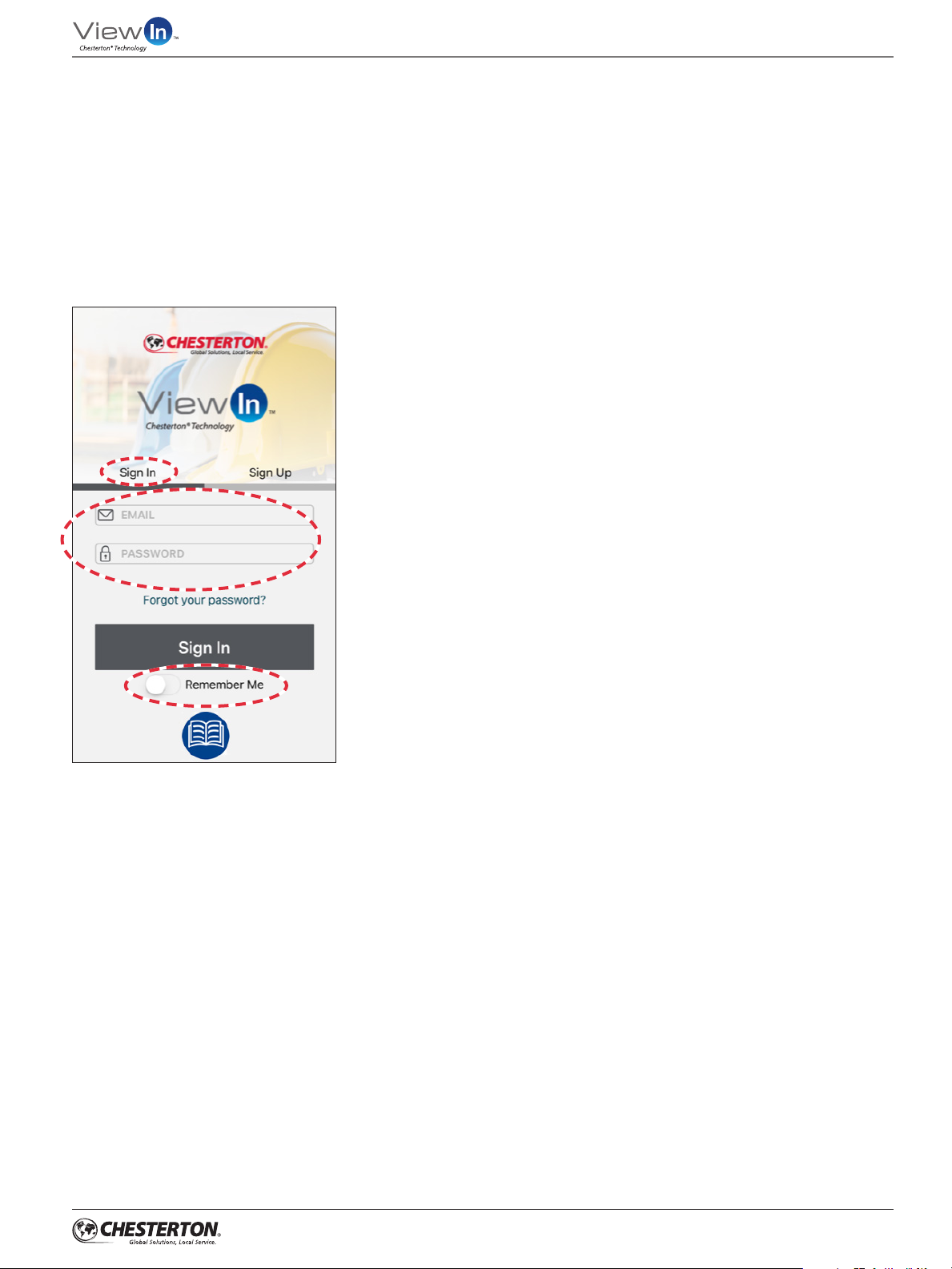
Open the ViewIn App; you will automatically be brought
to the sign-in screen.
Enter your email and password.
Press Remember Me to keep your account logged
in (Figure 6).
User’s Guide
Figure 6
5
Page 6
User’s Guide
ViewIn: Initial Set-Up Instructions
BLUETOOTH PAIRING INSTRUCTIONS
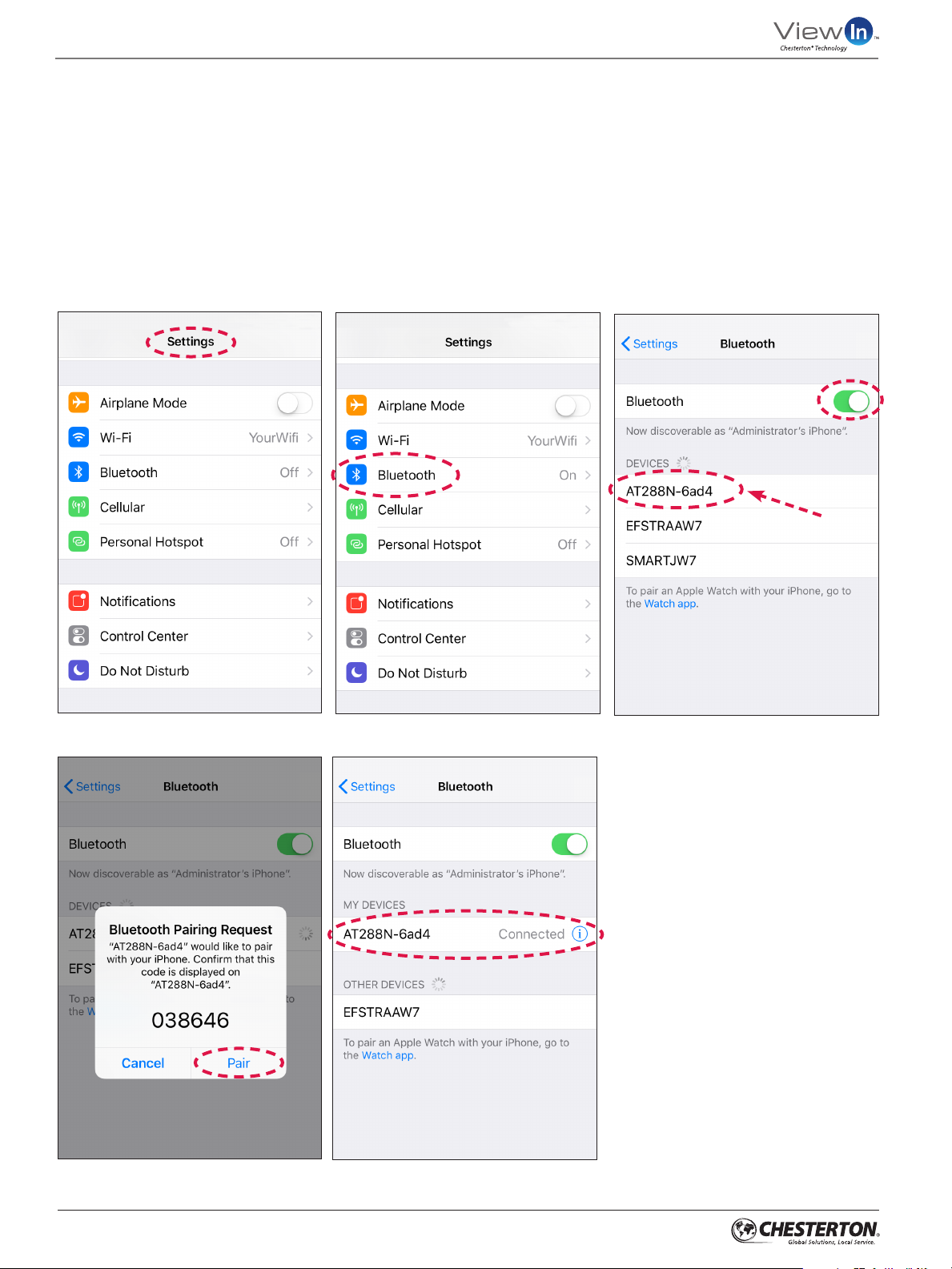
Pairing a reader to your mobile device is dependent on the
mobile device you are using and the reader. The following
(Figures 7–11) describes how to connect an iPhone to a
Chesterton RFID reader. A similar process is used for other
Bluetooth-enabled readers; refer to your reader owner’s
manual for bluetooth-pairing instructions.
Figure 7 - Access settings on your phone
Figure 8 - Press Bluetooth
Sample
Figure 9 - Turn on Bluetooth and press
your reader under “Devices”
Figure 10 - Pair the reader to your phone
6
Figure 11 - Verify the reader and your
phone are connected
Page 7
ViewIn: Initial Set-Up Instructions
SCANNING A SEAL
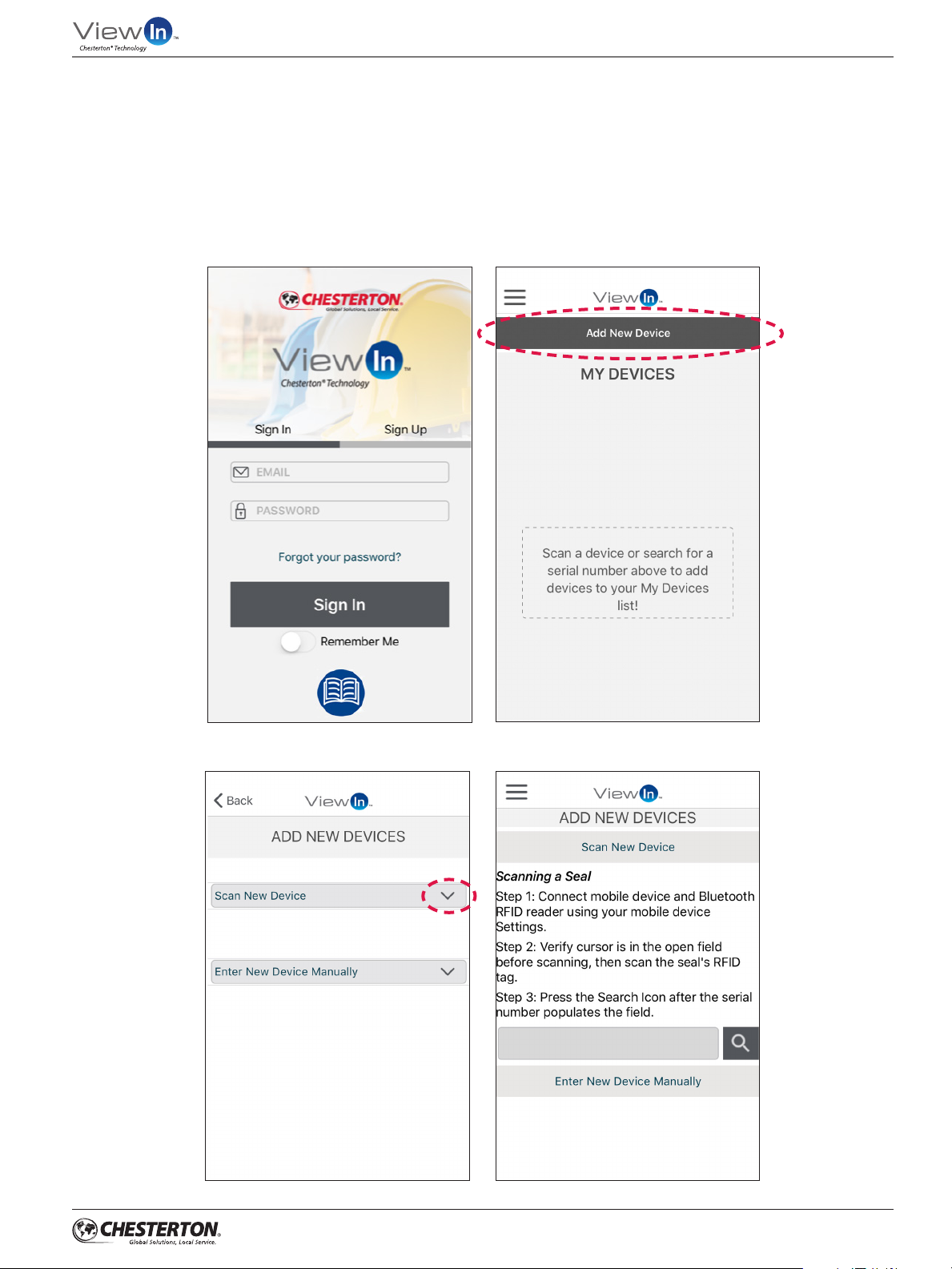
1.
Log in to the ViewIn App (Figure 12).
2.
Ensure your reader is connected to your computer or
Bluetooth-enabled mobile device.
3.
From the My Devices page, press Add New Device.
(Figure 13).
User’s Guide
4.
Press on Scan New Device (Figure 14). This action will
provide scanning instructions and show an empty
entry field (Figure 14a).
Figure 12
Figure 14
Figure 13
Figure 14a
7
Page 8
User’s Guide
ViewIn: Initial Set-Up Instructions
SCANNING A SEAL CONTINUED
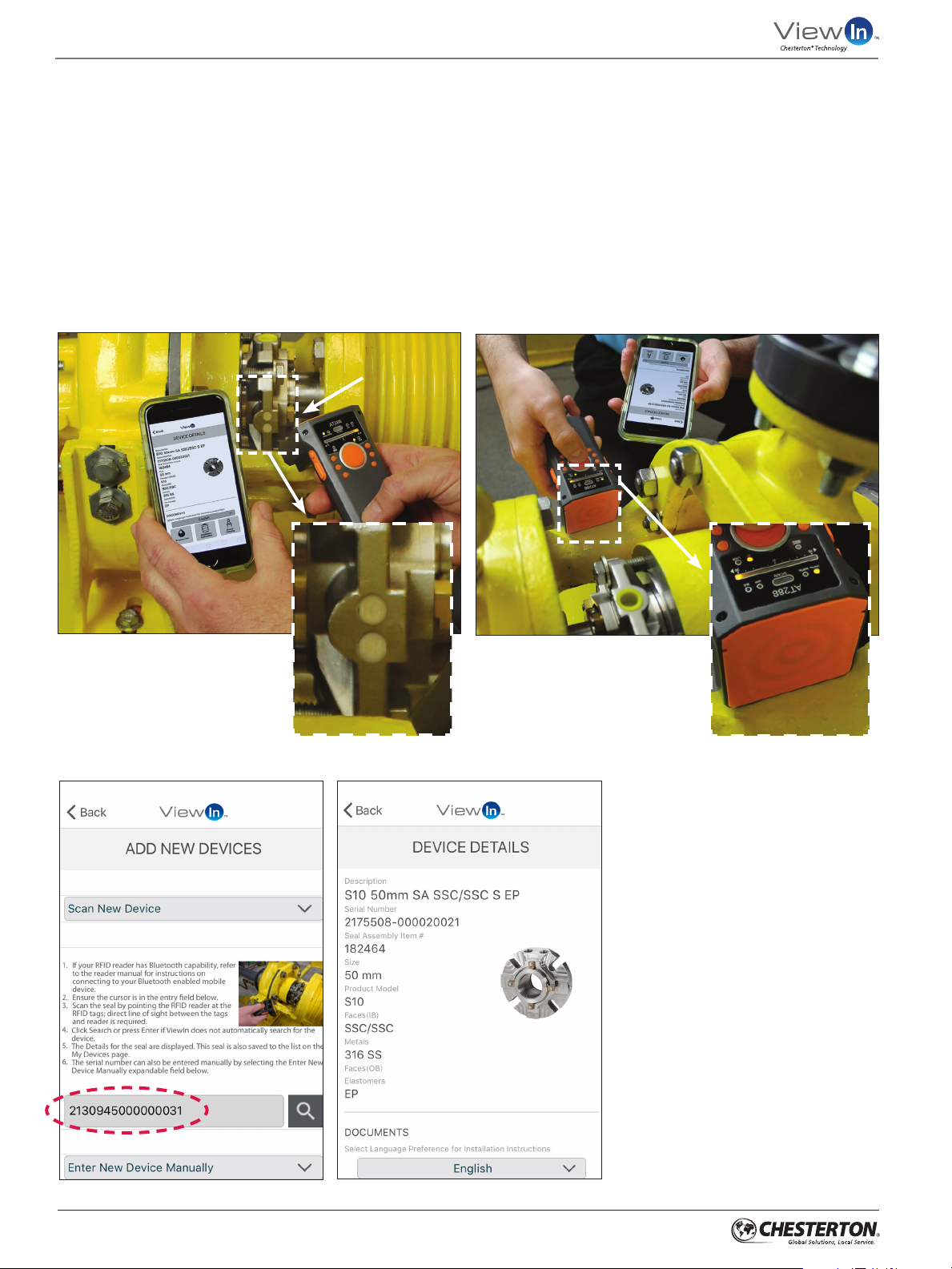
5.
Make sure that the RFID reader antenna is pointed at the
RFID tag; a direct line of sight between the tag and reader
is required (Figure 15, 15a, 15b, and 15c). Follow all local
regulatory requirements and appropriate safety
precautions when removing metallic objects from the
scanning path and scanning your RFID-equipped seals.
Line of sight
6.
When scanned, the seal serial number field will populate
automatically in the ViewIn app in the cursor field (Figure
16). The seal serial number can also be found on the seal
box label and can be entered manually at any time.
7.
Press the Search icon or press Enter.
8.
The details for the seal will be displayed (Figure 17). This
seal is now saved to the list on the My Devices page.
Figure 15 - Front view
Figure 15a - RFID tag
Figure 15b - Opposite view
Figure 15c - RFID reader
antenna
Figure 16
8
Figure 17
Page 9
User’s Guide
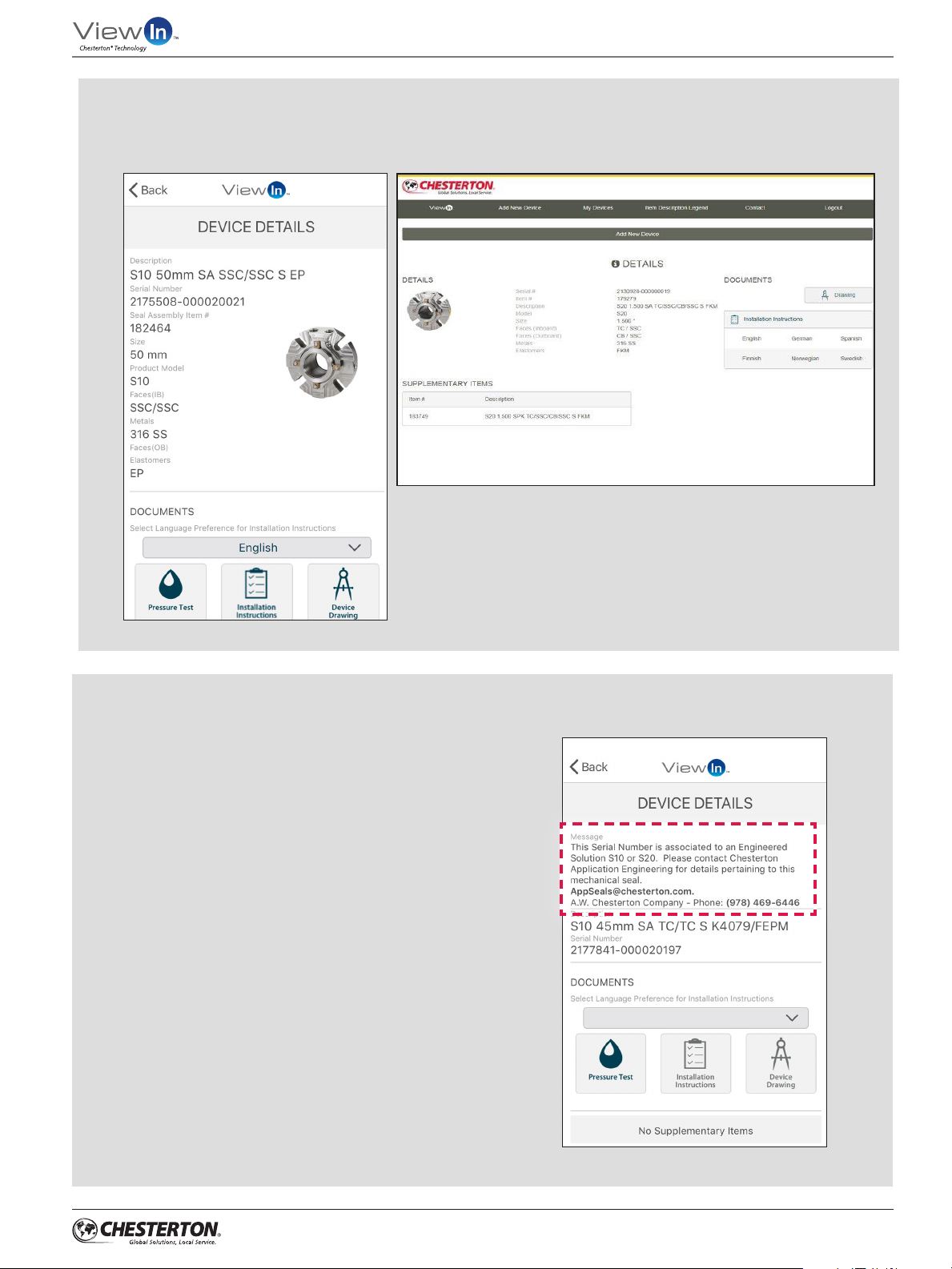
VIEWIN: DEVICE DETAILS
You can now access your scanned seal’s pressure test reports, installation instructions, or device drawings.
Figure 18 - Desktop view*
Figure 18 - Mobile view
ENGINEERED SOLUTION SEALS CUSTOM SEALS
If a scanned seal is an Engineered Solutions (ES) custom
seal, the following message is displayed (Figure 19). Please
follow the instructions and contact Application Engineering
at [email protected]
*Computer is not included with purchase
Figure 19
9
Page 10
User’s Guide
ViewIn: Initial Set-Up Instructions
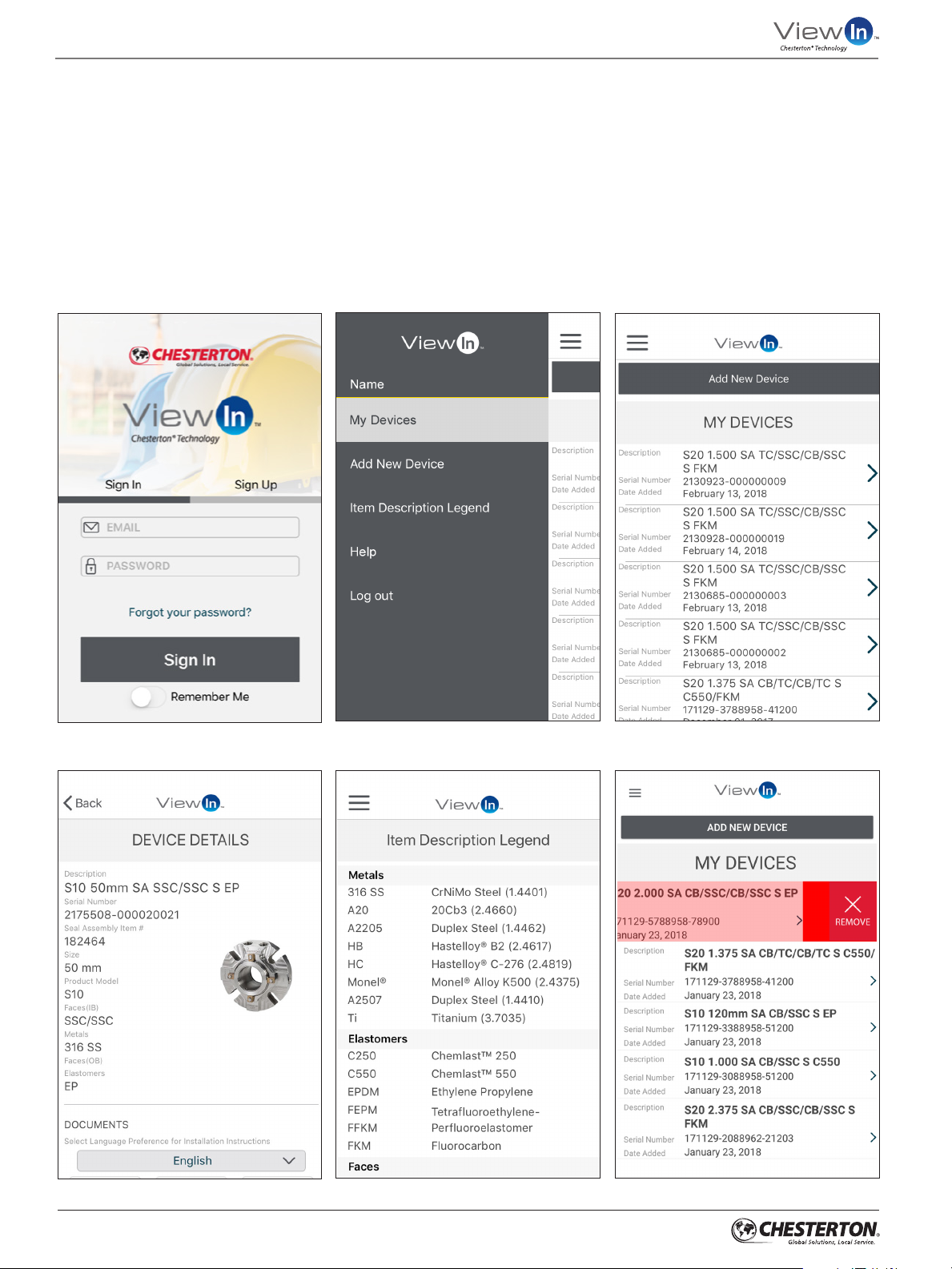
MANAGING SEALS
1.
Log in to ViewIn App (Figure 20).
2.
Press on My Devices (Figure 21).
3.
All of the seals you have scanned in will be displayed
here (Figure 22).
4.
Press the seal you are interested in to view
its details (Figure 23).
5.
Item Description Legend, accessible from the ViewIn
menu (see Figure 21), provides all material codes, material
descriptions, and respective components (Figure 24).
6.
Seal devices that are removed from service can be
deleted from the ViewIn application. If you are using the
Android or Apple mobile application, swipe left to see the
Remove icon (Figure 25).
Figure 20
Figure 23
Figure 21 - ViewIn App Menu
Figure 24
Figure 22
Figure 25
10
Page 11

FREQUENTLY ASKED
QUESTIONS
TABLE OF CONTENTS
Web Browsers/Mobile Apps ..................................12
User Account ..............................................................13
Pairing RFID Reader to Phone ..............................13
ViewIn Validated RFID Readers ............................14
RFID Tags ......................................................................16
Scanning/Troubleshooting ....................................16
Page 12

User’s Guide
Web Browser/Mobile Applications
1.
For the web application, what browsers can be used?
ANSWER: The web application has been developed
in the following browsers: Internet Explorer (version 11
or later), Google Chrome (version 57 or later), Firefox
(version 47 or later), and Safari (version 10 or later).
2.
How do I access the web application?
ANSWER: visit https://viewin.chesterton.com
3.
How do I download the application on my iPhone?
ANSWER: Go to Apple App Store on your iPhone and
search for ViewIn. Proceed with installing the application
on your phone.
4.
How do I download the application on my
Android phone?
ANSWER: Go to Google Play on your phone and search
for ViewIn. Proceed with installing the application on
your phone.
5.
Which versions of the iOS operating system support
the ViewIn app?
ANSWER: ViewIn is developed for use on iOS version
10 and later.
7.
Can I use a variety of devices with ViewIn?
ANSWER: Yes. ViewIn was verified on the following
devices (see below); however, the look and feel may
vary between platforms:
Android
• Google Pixel - Android 7
• Google Pixel - Android 8
• Motorola Nexus 6 - Android 7
• Samsung Galaxy S6 Edge - Android 7
• Samsung Galaxy S7 - Android 7
• Samsung Galaxy S8 - Android 7
Apple
• iPhone 5s - iOS 11
• iPhone 6 - iOS 10
• iPhone 6 - iOS 11
• iPhone 6s - iOS 11
• iPhone 6s Plus - iOS 11
• iPhone 7 - iOS 11
• iPad mini - iOS 9
• iPhone X - iOS 11
• iPad Pro (12.9 inch) iOS 11
6.
Which versions of the Android operating system
support the ViewIn app?
ANSWER: ViewIn is developed for use on Android
version 6 (Marshmallow) and later.
8.
What is the difference between the mobile applications
and the web application? Why should I use one versus
the other?
ANSWER: The applications for Android/iPhone and
the web application all access the same data regarding
the seal. Your account works regardless of the device
and platform. Therefore, it does not matter which
application you use.
9.
Do I have to be connected to the Internet
to use ViewIn?
ANSWER: Yes.
12
Page 13
User Account
1.
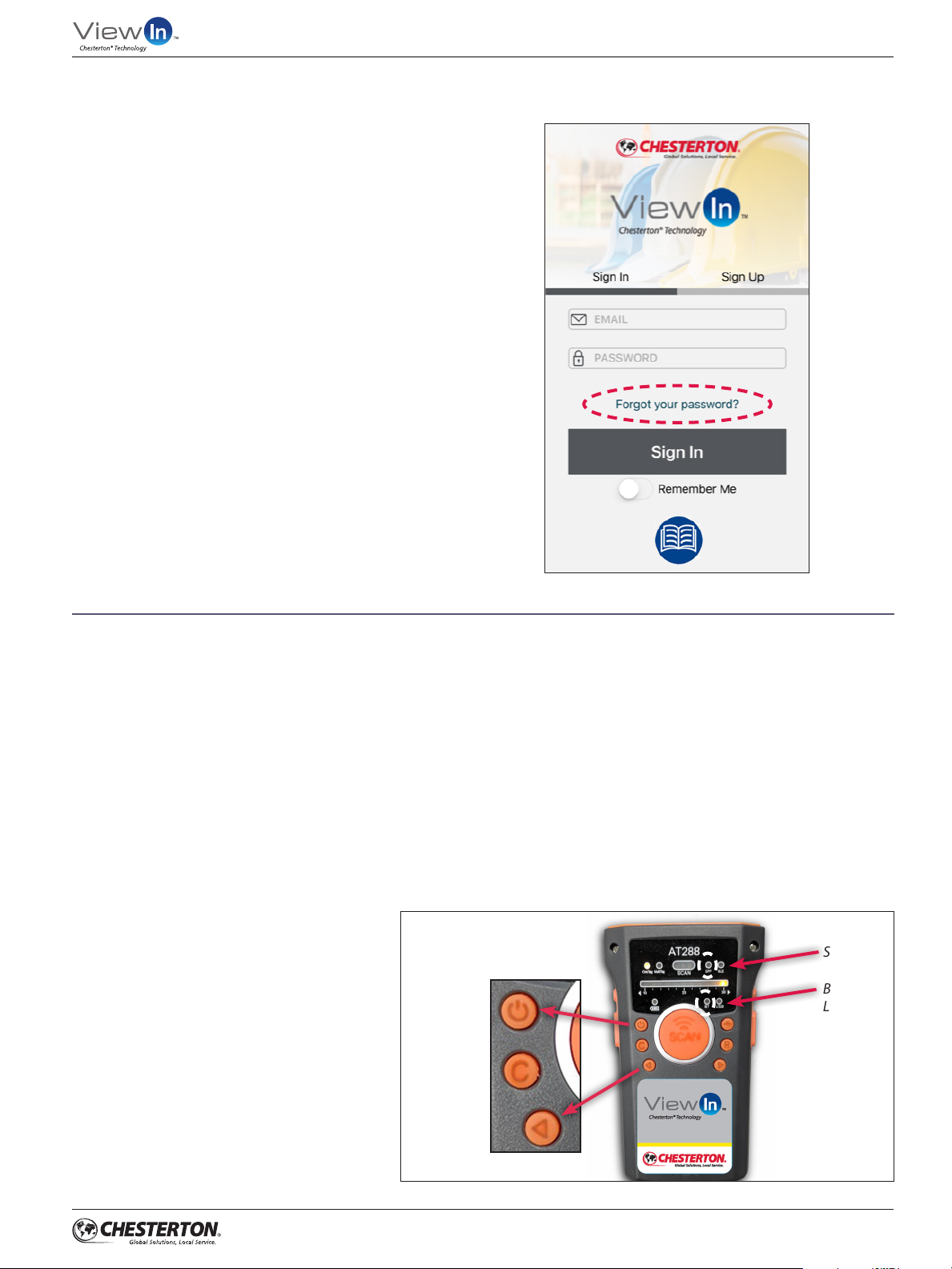
I forgot my password. What do I do now?
ANSWER: Go to the application, enter your email and
click Forgot your password. An email is sent to your email
address and a link is provided so that you can update
your password. You need to use the security question/
answer that you entered when you signed up for your
account (Figure 26).
2.
Why can’t I log in?
ANSWER: After 10 attempts to log in, your account
is locked. You have the option to wait 60 minutes to try
again, or you can enter your Email address and click
Forgot your password. This will reset your account and
allow you to create a new password (Figure 26).
User’s Guide
Pairing Chesterton RFID Reader to Phone
1.
Can I use the reader with more than one mobile device?
ANSWER: Yes. Please note, only one mobile device
can be used to scan at a time.
2.
My phone recognizes the reader, but I can’t pair my phone
to the reader. Why?
ANSWER: You may need to remove the reader and then
re-add it to your Bluetooth devices. Make sure that there
is not another mobile device paired to the reader that is in
close proximity. Additionally, check the reader to ensure the
Bluetooth Serial Port Protocol (SPP) option is not active on
your reader. Turn off SPP by pressing and holding the Left
Arrow Signal button on the reader for three
seconds until the lights flash (Figure 27).
Power
Button
Figure 26
SPP LED
Bluetooth
LED
Left Arrow
Signal
Button
Figure 27
13
Page 14
User’s Guide
ViewIn Validated RFID Readers
1.
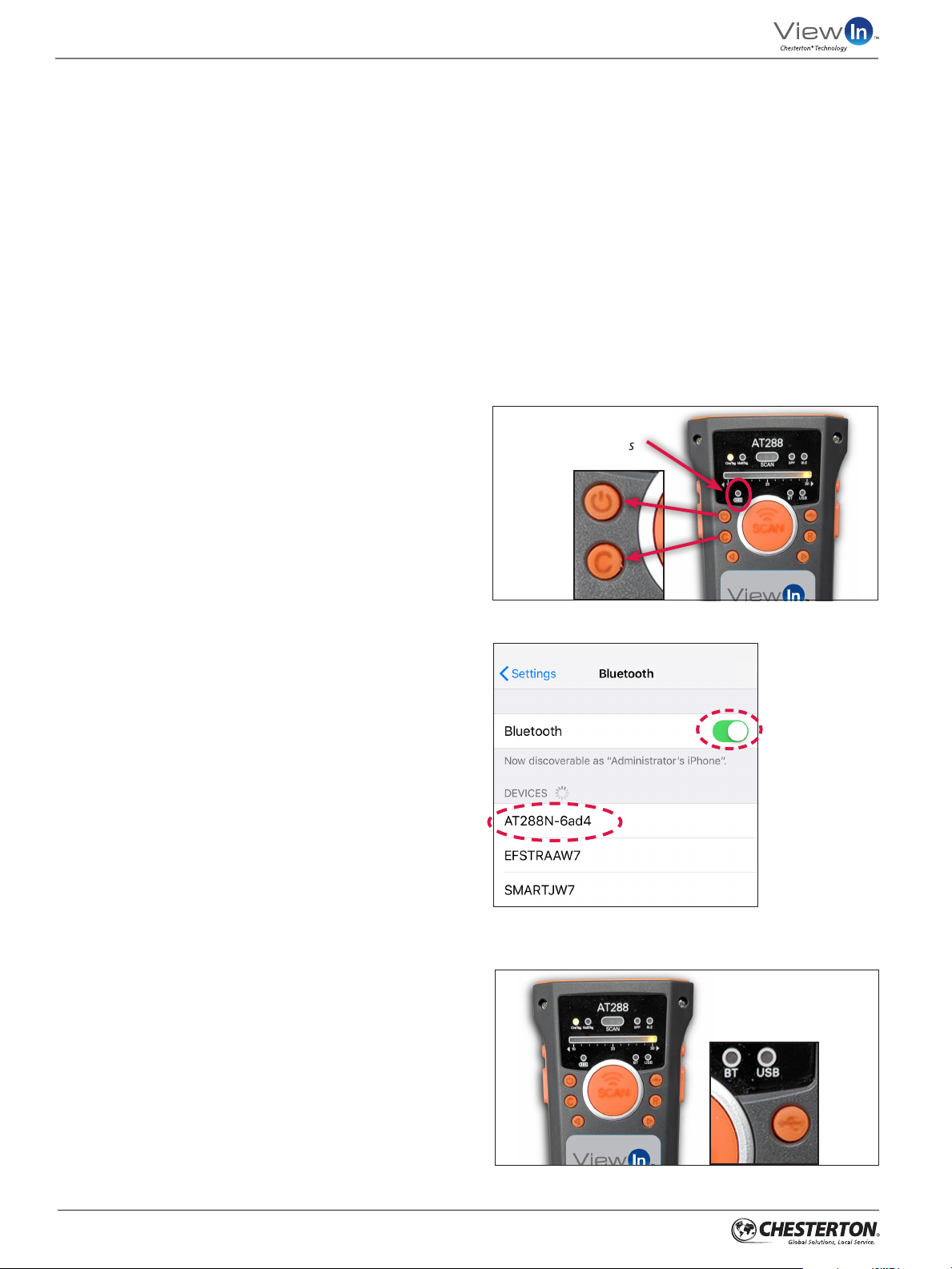
How do I turn off the sound?
ANSWER: Press and hold the “C” button on the reader
for at least three seconds. Do the same to reactivate
sound on your reader (Figure 28).
2.
How do I know which reader my phone is paired
to (if I have multiple AT288 readers)?
ANSWER: Each AT288 reader has a unique Bluetooth
identifier (e.g.: AT288N-6ad4; see Figure 29). Turn off
the power on each reader and turn on the power to the
reader you want to use. That device will pair and be
ready to use. If the reader and your mobile device do
not automatically connect, you may need to unpair the
reader from your mobile device and re-establish the
Bluetooth connection.
3.
Can I connect the reader to my mobile device
or PC via USB?
ANSWER: Yes, however you may need to purchase
a different cable to connect the reader to your mobile
device. The cable supplied with the reader uses
a mini-USB connector for the reader, and a standard
USB 2.0 connector for a computer or tablet with USB
slots. With the USB cable connected to the reader and
your device, ensure the USB light is flashing and active
by pressing the USB button on the reader. When
connected, the reader will act like a keyboard or Human
Interface Device (HID). See Figure 30.
Reader Settings: There are multiple settings on the
ATID AT288 reader.
• Use BT for your Bluetooth connection to a phone
or mobile device.
• The USB option should be used if you are connecting
via USB cable; Bluetooth will not work with this
setting. See Question 3, above, on how to change
or select these settings (Figure 30).
If the issue remains, it is possible that there is
a problem with the configuration of the reader.
Please contact your local Chesterton Sales Distributor
if you have purchased a reader through a Chesterton
sales office; otherwise please refer to your reader’s
manual or contact the reader manufacturer directly.
Battery
Status
Power
Button
Multi/One
Button
Figure 28
4.
The reader won’t turn on. Why?
ANSWER: Be sure to hold down the power button
for three seconds (Figure 28). If it still does not turn on,
check the battery status light on the reader as it may
need to be charged.
5.
Why won’t the reader read my serial number?
ANSWER: There are a few possibilities:
Distance: The reader needs to be within 30 cm (12")
of the RFID tag when the scan is initiated.
Line of Sight: The reader must have line-of-sight
to the RFID tag. Nearby metal surfaces can be used
to reflect the signal, but a direct line of sight provides
the greatest read range.
Environment: Metallic obstructions in the RFID tag’s
line of sight interfere with RFID signals. If safe to do
so, move the reader closer to the tag. However, the
RFID reader may not read your serial number as long
as there is a metallic object in the scanning path.
Follow all local regulatory requirements and
appropriate safety precautions when removing
metallic objects from the scanning path and
scanning your RFID-equipped seals.
Figure 29 - Turn on Bluetooth and press
your reader under “Devices”
Bluetooth and
USB LEDs
USB
Button
14
Figure 30
Page 15
ViewIn Validated RFID Readers
6.
Why can’t I use my keyboard on my mobile device when
the reader is paired to the device?
ANSWER: If you have paired the reader to an iOS device,
the mobile device treats the reader as the keyboard. The
mobile device is expecting the input to come from the reader.
If you need to use your keyboard, you need to disable your
connection to the reader (unplug USB cable or disable
Bluetooth connection).
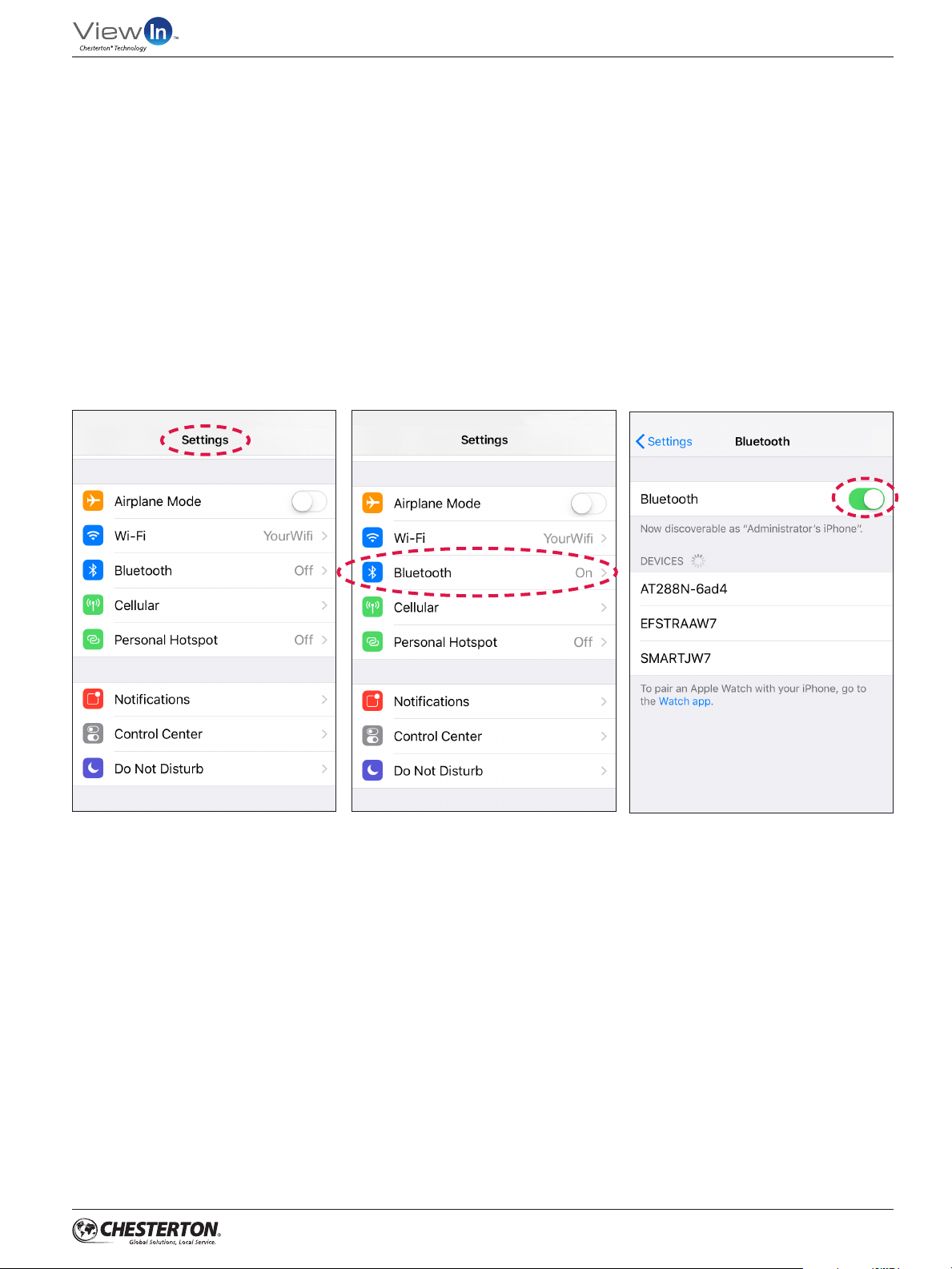
Disable Bluetooth by either turning off the reader power,
or turning off Bluetooth on your phone (Figures 31–33).
Non-iOS devices may continue to provide keyboard access
to the user even when paired to a reader.
User’s Guide
Figure 31 - Access settings on your phone
Figure 32 - Press Bluetooth
Figure 33 - Turn off Bluetooth and press
your reader under “Devices”
15
Page 16
User’s Guide
RFID Tags
1.
How do I identify the North America tag versus the
European Union tag?
ANSWER: The entire tag may be dyed black or the
letters “EU” are laser etched on the exposed face
of the European Union tag.
2.
Where is the RFID tag located on the seal?
ANSWER: The RFID tag is located on the outer edge of
the mechanical seal gland (Figure 34). Typically, the tag
is placed 180° from the flush/barrier ports on the gland,
but the actual position may vary based on the location
of ports, bolt patterns, and other factors.
3.
These seals are exposed to severe chemicals and
temperatures. Will this affect the RFID tags?
ANSWER: No. RFID tags meet the same chemical and
temperature compatibility requirements as the seal.
The tags are capable of being read up to 200°C (390°F),
but cannot be read above this temperature. The tags
can be read once the gland temperature has cooled
below the previously stated temperature limit.
RFID Tag
Figure 34
Scanning
1.
I’m reading a number but it is not being found
in the app. Why?
ANSWER: The reader may be reading a nearby RFID
tag that is not from Chesterton. Ensure there are no
obstructions to the tag’s line of site and that the tag
is not damaged.
2.
I am certain this is the only tag being scanned,
and it is still not showing up in the app.
ANSWER: If the displayed format of the tag does not
match any of the configurations identified in “Scanning/
Troubleshooting” Question 1, your reader may not be
reading the EPC section of the RFID tag. The serial number
Cell phone and computer are not included with purchase
iPhone® is a registered trademark of Apple, Inc.
Android™ is a trademark of Google Inc.
Bluetooth® is a registered trademark of Bluetooth SIG.
ViewIn is a trademark of A.W. Chesterton Company.
860 Salem Street
Groveland, MA 01834 USA
Telephone: 781-438-7000
Fax: 978-469-6528
chesterton.com
© 2018 A.W. Chesterton Company
Registered trademark owned by A.W. Chesterton Company in USA and other countries,
®
unless otherwise noted.
is only stored on this section. Please contact your local
Chesterton Sales Distributor if you have purchased a reader
through a Chesterton sales office; otherwise refer to your
reader’s manual or contact the manufacturer directly.
NOTE: Serial numbers are available on the Seal Box.
If you still have questions please contact Chesterton
at 833-677-7343 (833-677-RFID) +1 83 367 77343
Chesterton ISO certificates available on chesterton.com/corporate/iso
Technical data reflects results of laboratory tests and is intended to indicate general characteristics
only. A.W. Chesterton Company disclaims all warranties express or implied, including warranties of
merchantability and fitness for a particular purpose. Liability, if any, is limited to product replacement
only. Any images contained herein are for general illustrative or aesthetic purposes only and are not
intended to convey any instructional, safety, handling or usage information or advice respecting any
product or equipment. Please refer to relevant Safety Data Sheets, Product Data Sheets, and/or Product
Labels for safe use, storage, handling, and disposal of products, or consult with your local Chesterton
sales representative.
Form No. 036495 ViewIn User’s Guide - English 09/18
 Loading...