

Page 1
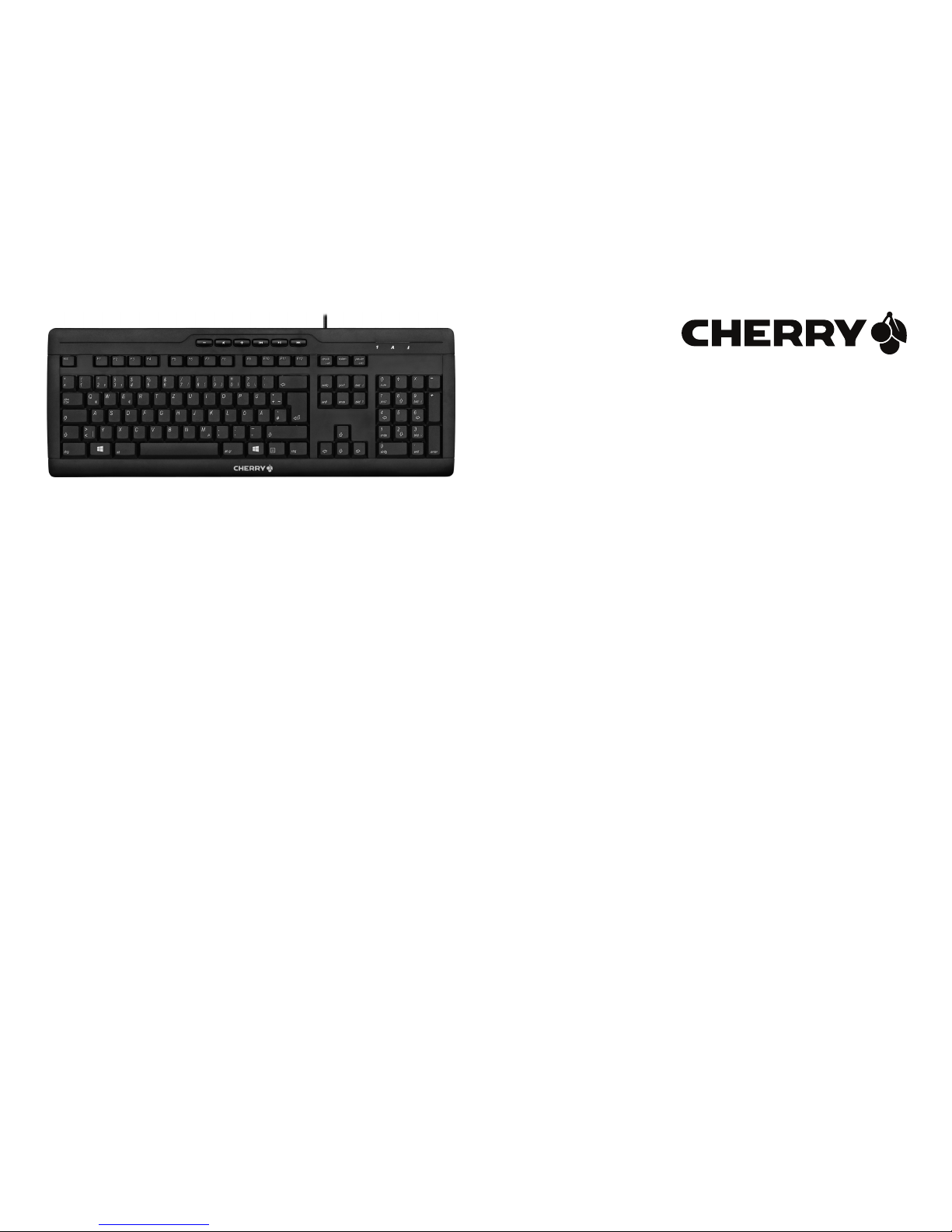
CHERRY STREAM XT
Corded Keyboard
Bedienungsanleitung ................................. 3
Operating Manual....................................... 5
Mode d’emploi ............................................ 7
Manual de instrucciones............................ 9
Istruzione d'uso ........................................ 11
Gebruikshandleiding ................................ 13
Instruções de utilização ........................... 15
6440544-02 DE, US, FR, ES, IT, NL, PT, Aug 2012 (G85-23100 = Mod. G230)
Page 2
2
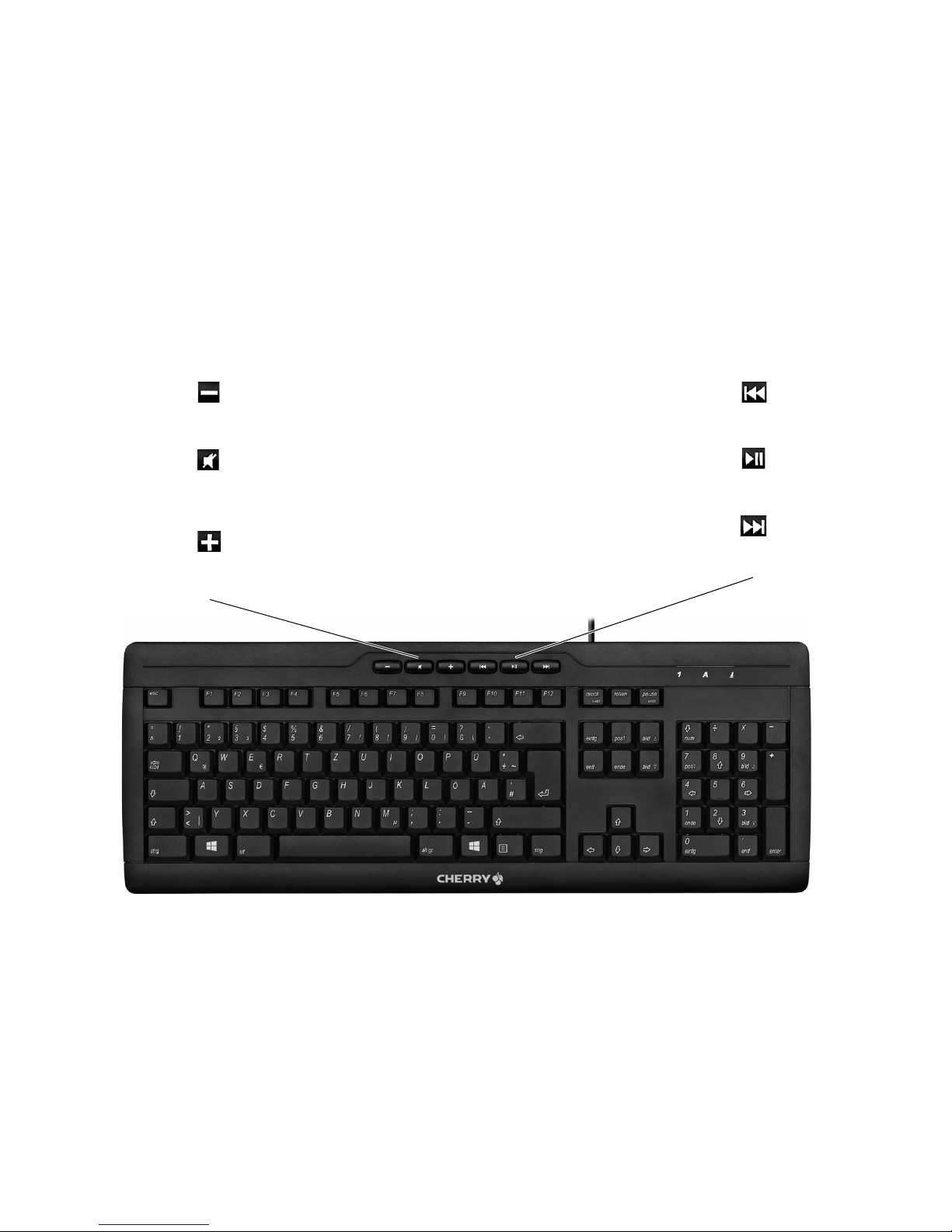
Tastenbelegung / Button function / Programmation des touches / Asignación de teclas /
Assegnazione dei tasti / Toetstoewijzing / Ocupação das teclas
Ton leiser
Volume down
Volume plus bas
Ton an/aus
Sound on/off
Activer/désactiver le son
Ton lauter
Volume up
Volume plus fort
Título anterio
Titolo precedente
Vorige titel
Título anterior
Inicio/Pausa
Start/Pausa
Start/Pauze
Iniciar/Pausa
Título siguiente
Titolo successivo
Volgende titel
Próximo título
Bajar volumen
Diminuzione volume
Geluid zachter
Som mais baixo
Activar/desactivar el sonido
Attivazione/disattivazione
dell'audio
Geluid in-/uitschakelen
Som ligado/desligado
Subir volumen
Aumento volume
Geluid harder
Som mais alto
Voriger Titel
Previous title
Titre précédent
Start/Pause
Play/pause
Lecteur/pause
Nächster Titel
Next title
Titre suivant
Page 3

3
Herzlichen
Glückwunsch ...
CHERRY entwickelt und produziert seit 1967 innovative Eingabe-Systeme für Computer. Den Unterschied in Qualität, Zuverlässigkeit und Design
können Sie jetzt mit Ihrem neuen Lieblingsstück
erleben.
Bestehen Sie immer auf Original CHERRY.
Für Informationen zu weiteren Produkten, Down-
loads und vielem mehr, besuchen Sie bitte
www.cherry.de
1 Tastatur an den PC
anschließen
1.1 Tastatur an die USB-Schnittstelle
anschließen
1 Entfernen Sie ggf. den beiliegenden USB-PS/2-
Adapter vom USB-Kabel der Tastatur.
2 Stecken Sie die Tastatur am USB-Anschluss des
PCs an.
1.2 Tastatur an die PS/2Schnittstelle anschließen
1 Schalten Sie den PC aus.
2 Stecken Sie ggf. den beiliegenden USB-PS/2-
Adapter auf das USB-Kabel der Tastatur.
3 Stecken Sie die Tastatur am PS/2-Anschluss des
PCs an.
4 Schalten Sie den PC ein.
2 Tipps
2.1 Reinigen der Tastatur
1 Schalten Sie den PC aus.
2 Reinigen Sie die Tastatur mit einem leicht feuch-
ten Tuch und etwas mildem Reinigungsmittel
(z. B.: Geschirrspülmittel).
3 Trocknen Sie die Tastatur mit einem fussel-
freien, weichen Tuch.
VORSICHT: Beschädigung durch
aggressive Reinigungsmittel oder
Flüssigkeit in der Tastatur
• Verwenden Sie zur Reinigung keine Lösungsmittel wie Benzin oder Alkohol und keine
Scheuermittel oder Scheuerschwämme.
• Verhindern Sie, dass Flüssigkeit in die Tastatur gelangt.
• Entfernen Sie nicht die Tastkappen der Tastatur.
2.2 RSI-Syndrom
2.3 Hilfe im Problemfall
• Um sicherzustellen, dass kein Defekt der Tastatur vorliegt, testen Sie diese nach Möglichkeit an
einem anderen PC/Notebook.
• Bei Anschluss der Tastatur am PS/2-Anschluss:
Entfernen Sie den Adapter und schließen Sie die
Tastatur am USB-Anschluss des Rechners an.
• Bei Anschluss der Tastatur am USB-Anschluss:
Schließen Sie die Tastatur mit Hilfe des Adapters am PS/2-Anschluss des Rechners an.
Siehe Kap. 1.2 "Tastatur an die PS/2-Schnittstelle anschließen".
"Repetitive Strain Injury" = "Verletzung
durch wiederholte Beanspruchung".
RSI entsteht durch kleine, sich ständig
wiederholende Bewegungen.
Typische Symptome sind Beschwerden in den
Fingern oder im Nacken. Weitere Informationen
finden Sie unter: www.cherry.de/deutsch/
service/service_rsi.htm
• Richten Sie Ihren Arbeitsplatz ergonomisch
ein.
• Positionieren Sie Tastatur und Maus so, dass
sich Ihre Oberarme und Handgelenke seitlich
vom Körper befinden und ausgestreckt sind.
• Machen Sie mehrere kleine Pausen, ggf. mit
Dehnübungen.
• Ändern Sie oft Ihre Körperhaltung.
BEDIENUNGSANLEITUNG
CHERRY STREAM XT – Corded Keyboard
DE
Page 4
4
• Bei Anschluss der Tastatur am USB-Anschluss:
Verwenden Sie einen anderen USB-Anschluss
am PC/Notebook.
• Bei Anschluss der Tastatur am USB-Anschluss:
Setzen Sie im BIOS des PCs die Option "USB
Keyboard Support" bzw. "USB Legacy Mode" auf
enabled.
3 Entsorgung
Entsorgen Sie das Altgerät über eine Sammelstelle für elektronischen Abfall oder
Ihren Händler.
4 Technische Daten
Bezeichnung Wert
Versorgungsspannung 5,0 V/DC ±5 % SELV
Stromaufnahme Typ. 20 mA
Lagertemperatur –20 °C ... +60 °C
Betriebstemperatur 0 °C ... +40 °C
5Kontakt
ZF Friedrichshafen AG
Electronic Systems
Cherrystraße
91275 Auerbach
Internet: www.cherry.de
E-Mail: [email protected]
Telefon – Vertrieb:
+49 (0) 180 5 243779*
(0180 5 CHERRY*)
Telefon – Technischer Support:
+49 (0) 180 5 919108*
*14 Cent/Min. aus dem deutschen Festnetz, abwei-
chende Preise für Anrufe aus Mobilfunknetzen
möglich.
Bitte halten Sie bei Anfragen an den Technischen
Support folgende Informationen bereit:
• Artikel- und Serien-Nr. des Produkts
• Bezeichnung und Hersteller Ihres Systems
• Betriebssystem und ggf. installierte Version
eines Service Packs
6 Allgemeiner
Anwenderhinweis
Technische Änderungen, die dem Fortschritt dienen, behalten wir uns vor. Unsachgemäße Behandlung und Lagerung können zu Störungen und
Schäden am Produkt führen.
Die Gewährleistung erlischt komplett, sofern unautorisierte Änderungen am Produkt durchgeführt
worden sind. Führen Sie eigenmächtig keine Reparaturen durch und öffnen Sie das Produkt nicht. Die
vorliegende Anleitung ist nur gültig für das mitgelieferte Produkt.
7 Gewährleistung
Es gilt die gesetzliche Gewährleistung. Bitte wenden Sie sich an Ihren Händler oder Vertragspartner. Nähere Informationen zur Gewährleistung
finden Sie unter www.cherry.de
8 Hinweis zum GS-Zeichen
Aufgrund der Position der Nulltaste des Nummernfelds ist die Tastatur für Saldiertätigkeiten, die
überwiegend blind erfolgen, in Deutschland nicht
anzuwenden. Eine Tastatur mit nicht-deutscher
Tastenknopfbelegung ist in Deutschland aufgrund
der Zeichenbelegung (DIN 2137 Teil 2) nicht für den
Dauereinsatz an Bildschirmarbeitsplätzen zu verwenden.
DE
Page 5
5
Congratulations ...
CHERRY has developed and produced innovative
input systems for computers since 1967. You can
now experience the difference in quality, reliability
and design with your new favorite accessory.
Always insist on original CHERRY products…
For information on other products, downloads and
much more, visit us at www.cherry.de
1 Connecting keyboard
1.1 Connecting keyboard to the USB
port
1 If necessary, remove the accompanying USB-
PS/2 adapter from the USB cable of the keyboard.
2 Connect the keyboard to the USB port of the PC.
1.2 Connecting keyboard to the PS/2
port
1 Switch off the PC.
2 If necessary, plug the accompanying USB-PS/2
adapter on to the USB cable of the keyboard.
3 Connect the keyboard to the PS/2 port of the PC.
4 Switch on the PC.
2Tips
2.1 Cleaning the keyboard
1 Switch off the PC.
2 Clean the keyboard with a slightly damp cloth
and some mild cleaning agent (e.g. dishwashing
liquid).
3 Dry off the keyboard with a soft, lint-free cloth.
2.2 RSI syndrome
CAUTION: Damage may be caused by
harsh cleaning agents or liquids in the
keyboard
• Do not use solvents such as gasoline or alcohol and scouring agents or scouring sponges
for cleaning.
• Prevent liquids from entering the keyboard.
• Do not remove the keycaps of the keyboard.
RSI stands for "Repetitive Strain
Injury". RSI arises due to small movements continuously repeated over a
long period of time.
Typical symptoms are discomfort in the fingers or
neck. For further information see:
www.cherry.de/english/service/
servicedownload_rsi.htm
2.3 Troubleshooting
• To make sure that the keyboard is not defective,
test it if possible with another PC/laptop.
• If the keyboard is connected to the PS/2 port:
Remove the adapter and connect the keyboard to
the USB port of the computer.
• If the keyboard is connected to the USB port:
Connect the keyboard using the adapter to the
PS/2 port of the computer. See chapter
1.2 "Connecting keyboard to the PS/2 port".
• If the keyboard is connected to the USB port:
Use another USB port on the PC/laptop.
• If the keyboard is connected to the USB port: Set
the option "USB Keyboard Support" or "USB
Legacy Mode" to enabled in the BIOS of the PC.
3 Disposal
Dispose of the used device at an official
collection point for electronic waste or at
your local dealer.
• Set up your workspace ergonomically.
• Position the keyboard and mouse in such a
manner that your upper arms and wrists are
outstretched and to the sides of your body.
• Take several short breaks, with stretching
exercises if necessary.
• Change your posture often.
OPERATING MANUAL
CHERRY STREAM XT – Corded Keyboard
US
Page 6

6
4 Technical data
5Contact
ZF Friedrichshafen AG
Electronic Systems
Cherrystraße
91275 Auerbach
Germany
Internet: www.cherry.de
E-mail: [email protected]
Please provide the following information about the
device when you make an enquiry:
• Item and serial no. of the product
• Name and manufacturer of your system
• Operating system and, if applicable, installed
service pack version
Designation Value
Supply voltage 5.0 V/DC ±5 % SELV
Current consumption Typ. 20 mA
Storage temperature –20 °C ... +60 °C
Operating temperature 0 °C ... +40 °C
6 General user information
We reserve the right to make technical modifications which serve the development of our products.
Improper use and storage can lead to faults and
damage to the product.
The warranty expires completely once unauthorized modifications to the product have been carried out. Do not carry out any unauthorized repairs
and do not open up the product. These instructions
are only valid for the supplied product.
7Warranty
The statutory warranty applies. Please contact your
specialist dealer or contractual partner. You can
find more information on the warranty under
www.cherry.de.
8 Certifications
8.1 For UL
For use with Listed Personal Computers only!
8.2 Federal Communications
Commission (FCC) Radio
Frequency Interference
Statement
Information to the user: This equipment has been
tested and found to comply with the limits for
Class B digital device, pursuant to Part 15 of the
FCC Rules. These limits are designed to provide
reasonable protection against harmful interference in a residential installation. This equipment
generates, uses and can radiate radio frequency
energy and, if not installed and used in accordance
with the instructions, may cause harmful interference to radio communications. However, there is
no guarantee that interference will not occur in a
particular installation. If this equipment does cause
harmful interference to radio or television reception, which can be determined by turning the equipment off and on, the user is encouraged to try to
correct the interference by one or more of the following measures:
• Reorientate or relocate the receiving antenna.
• Increase the separation between the equipment
and receiver.
• Connect the equipment into an outlet on a cir-
cuit different from that to which the receiver is
connected.
• Consult the dealer or an experienced radio/TV
technician for help.
Caution: Any changes or modifications not
expressly approved by the party responsible for
compliance could void the user's authority to operate the equipment.
US
Page 7

7
Félicitations...
Depuis 1967, CHERRY développe et produit des
systèmes de saisie innovants pour ordinateurs. Nos
produits se distinguent par leur qualité, leur fiabilité et leur design. Le dernier né de notre gamme
en est la preuve vivante.
Exigez toujours un produit CHERRY d'origine.
Pour obtenir des informations sur d'autres pro-
duits, sur les téléchargements et bien d'autres
choses, consultez le site www.cherry.de
1 Raccorder le clavier
1.1 Raccorder le clavier à l’interface
USB
1 Enlevez le cas échéant l’adaptateur USB-PS/2
joint du câble USB du clavier.
2 Raccordez le clavier via la connexion USB du PC.
1.2 Raccorder le clavier à l’interface
PS/2
1 Mettez le PC hors service.
2 Connectez le cas échéant l’adaptateur USB-PS/2
joint au câble USB du clavier.
3 Raccordez le clavier via la connexion PS/2 du PC.
4 Allumez votre PC.
2Conseils
2.1 Nettoyage du clavier
1 Mettez le PC hors service.
2 Nettoyez le clavier avec un chiffon légèrement
humide et un produit de nettoyage doux (p. ex.
détergent vaisselle).
3 Séchez le clavier avec un chiffon doux non pelu-
chant.
2.2 Syndrome LMR
ATTENTION: Détérioration en cas d’utilisation de produits de nettoyage
agressifs ou de pénétration de liquide
dans le clavier
• Pour le nettoyage, n’utilisez pas de solvants
tels que l’essence ou l’alcool ni aucun produit
ou éponge abrasif.
• Empêchez tout liquide de pénétrer dans le clavier.
• N’enlevez pas les capuchons des touches du
clavier.
LMR signifie "Lésion due aux mouvements répétitivs". Le syndrome LMR
apparaît suite à de petits mouvements
se répétant en permanence.
Des symptômes typiques sont des douleurs dans
les doigts ou la nuque. Pour plus d'informations
visitez: www.cherry.de/french/service/lmr.htm
2.3 Aide en cas de problème
• Afin de s’assurer de l’absence de défaut du clavier, testez celui-ci si possible sur un autre PC/
portable.
• En cas de raccordement du clavier à la connexion PS/2: Enlevez l’adaptateur et raccordez le
clavier via la connexion USB de l’ordinateur.
• En cas de raccordement du clavier à la connexion USB: Raccordez le clavier via la connexion PS/2 de l’ordinateur à l’aide de
l’adaptateur.
Voir chapitre 1.2 "Raccorder le clavier à l’interface PS/2".
• En cas de raccordement du clavier à la connexion USB: Utilisez une autre connexion USB
du
PC/portable.
• En cas de raccordement du clavier à la connexion USB: Dans le BIOS du PC, réglez l’option
"USB Keyboard Support" ou "USB Legacy Mode"
sur enabled.
• Organisez votre poste de travail de manière
ergonomique.
• Positionnez le clavier et la souris de telle façon
que vos bras et vos poignets se trouvent latéralement par rapport au corps et soient étendus.
• Faites plusieurs petites pauses, le cas échéant
accompagnées d’exercices d’étirement.
• Modifiez souvent votre attitude corporelle.
MODE D’EMPLOI
CHERRY STREAM XT – Corded Keyboard
FR
Page 8
8
3Elimination
Confiez votre appareil usagé à une structure spécialisée dans le recyclage des
déchets électroniques ou à votre revendeur.
4 Caractéristiques
techniques
5Contact
ZF Friedrichshafen AG
Electronic Systems
Cherrystraße
91275 Auerbach
Allemagne
Internet: www.cherry.de
E-mail: [email protected]
En cas de questions, veuillez indiquer les informations suivantes concernant l'appareil:
• N° d'article et n° de série du produit
• Désignation et fabricant de votre système
• Système d'exploitation et le cas échéant version
installée d'un Service Pack
Désignation Valeur
Alimentation 5,0 V/DC ±5 % SELV
Consommation de courant En général 20 mA
Température de stockage –20 °C ... +60 °C
Température de fonctionnement
0 °C ... +40 °C
6 Notice générale
d'utilisation
Sous réserve de modifications techniques. Un traitement et un stockage non conformes peuvent
entraîner des dysfonctionnements et des dommages du produit.
La garantie devient complètement caduque si des
modifications non-autorisées sont effectuées sur le
produit. N'effectuez aucune réparation de votre
propre chef et n'ouvrez pas le produit. La présente
notice est valable uniquement pour le produit avec
lequel elle est fournie.
7 Garantie
La garantie légale s'applique. Veuillez contacter
votre revendeur ou votre partenaire contractuel.
Pour tout complément d'information concernant la
garantie, veuillez consulter notre site
www.cherry.de.
FR
Page 9

9
¡Felicidades!
Desde 1967 CHERRY viene desarrollando y produciendo innovadores sistemas de introducción de
datos para ordenadores. Su nuevo teclado le hará
notar la diferencia en calidad, fiabilidad y diseño.
Exija siempre un CHERRY original.
En la dirección www.cherry.de podrá, entre otros,
encontrar y descargar información sobre los productos.
1 Conecte el teclado al PC
1.1 Conecte el teclado a la interfaz
USB
1 Si fuera necesario, desconecte el adaptador
USB-PS/2 del cable USB del teclado.
2 Conecte el teclado al conector USB del PC.
1.2 Conecte el teclado a la interfaz
PS/2
1 Desconecte el PC.
2 Si fuera necesario, conecte el adaptador USB-
PS/2 al cable USB del teclado.
3 Conecte el teclado a la conexión PS/2 del PC.
4Conecte el PC.
2Consejos
2.1 Limpieza del teclado
1 Desconecte el PC.
2 Limpie el teclado con un paño ligeramente
humedecido y un poco de producto de limpieza
suave (p. ej. lavavajillas).
3 Seque el teclado con un paño suave sin pelusa.
2.2 Síndrome RSI
ATENCIÓN: El teclado se daña con productos de limpieza agresivos o con
líquidos
• Para su limpieza, no utilice disolventes como
gasolina o alcohol, ni medios abrasivos o
esponjas abrasivas.
• Evite que entre líquido en el teclado.
• No extraiga las teclas del teclado.
"Repetitive Strain Injury" = "Síndrome
del túnel carpiano". El RSI se origina
por movimientos pequeños, repetidos
continuamente.
Los síntomas típicos son molestias en los dedos
o en la nuca. Encontrará más información en:
www.cherry.de/spanish/service/service_rsi.htm
2.3 Solución a problemas
• Para asegurarse de que el teclado no tiene ningún defecto, pruébelo cuando sea posible en
otro PC/Notebook.
• Al conectar el teclado a la conexión PS/2: desconecte el adaptador y conecte el teclado al conector USB del ordenador.
• Al conectar el teclado al conector USB: conecte
el teclado a la conexión PS/2 del ordenador con
ayuda del adaptador.
Véase el capítulo 1.2 "Conecte el teclado a la
interfaz PS/2".
• Al conectar el teclado al conector USB: utilice
otro conector USB en el PC/Notebook.
• Al conectar el teclado al conector USB: marque
la opción "USB Keyboard Support" (Soporte del
teclado USB) o "USB Legacy Mode" (USB en
modo legado) en el BIOS del PC como enabled
(activada).
• Organice su puesto de trabajo de forma
ergonómica.
• Coloque el teclado y el ratón de modo que los
brazos y las muñecas se encuentren a los
lados del cuerpo y estirados.
• Haga varias pausas cortas, cuando sea
necesario con ejercicios de estiramiento.
• Cambie con frecuencia la postura corporal.
MANUAL DE INSTRUCCIONES
CHERRY STREAM XT – Corded Keyboard
ES
Page 10

10
3Gestión
Cuando se quiera desahacer del aparato
usado, entréguelo en su establecimiento
comercial o en un punto de recogida para
residuos electrónicos.
4 Datos técnicos
5Contacto
ZF Friedrichshafen AG
Electronic Systems
Cherrystraße
91275 Auerbach
Alemania
Internet: www.cherry.de
Correo electrónico: [email protected]
Si realiza alguna consulta, indique la siguiente
información sobre el dispositivo:
• Nº de artículo y de serie del producto
• Denominación y fabricante del PC, Notebook o
placa base
• Sistema operativo y, en su caso, versión instalada de un paquete de servicios
Denominación Valor
Suministro de tensión 5,0 V/CC ±5 % SELV
Consumo de corriente Normalmente 20 mA
Temperatura de almacenamiento
–20 °C ... +60 °C
Temperatura de funcionamiento
0 °C ... +40 °C
6 Indicacines generales
para el usuario
Nos reservamos el derecho de realizar modificaciones técnicas destinadas a la mejora del producto. Un manejo o almacenamiento inadecuados
pueden provocar averías o desperfectos en el producto.
La garantía pierde su validez tan pronto como se
introduzcan modificaciones no autorizadas. No
lleve a cabo ninguna reparación por su cuenta ni
abra el producto. Las presentes instrucciones solo
rigen para el producto suministrado.
7 Garantía
Rige la garantía legal. Póngase en contacto con su
distribuidor o parte contratante. Encontrará más
información acerca de la garantía en
www.cherry.de
ES
Page 11

11
Congratulazioni ...
Dal 1967 CHERRY sviluppa e produce innovativi
dispositivi di input per computer. Grazie al vostro
nuovo dispositivo potrete sperimentare la differenza di qualità, affidabilità e design.
Scegliete sempre Original CHERRY.
Per informazioni su ulteriori prodotti, download e
molto altro ancora, visitate la pagina web
www.cherry.de
1 Connettere la tastiera al
PC
1.1 Connettere la tastiera
all'interfaccia USB
1 Se necessario, rimuovere l'adattatore esistente
USB-PS/2 dal cavo USB della tastiera.
2 Collegare la tastiera alla presa USB del PC.
1.2 Connettere la tastiera
all'interfaccia PS/2
1 Spegnere il PC.
2 Se necessario, collegare l'adattatore esistente
USB-PS/2 al cavo USB della tastiera.
3 Collegare la tastiera alla presa PS/2 del PC.
4 Accendere il PC.
2 Suggerimenti
2.1 Pulizia della tastiera
1 Spegnere il PC.
2 Pulire la tastiera con un panno leggermente inu-
midito e una piccola quantità di detergente delicato (ad es. detergente per piatti).
3 Asciugare la tastiera con un panno morbido che
non lasci pelucchi.
2.2 Sindrome RSI
ATTENZIONE: Detergenti o liquidi
aggressivi possono danneggiare la
tastiera
• Per la pulizia non utilizzare solventi come benzina o alcol né sostanze o spugne abrasive.
• Evitare l'ingresso di liquidi nella tastiera.
• Non rimuovere i tasti dalla tastiera.
RSI è l'acronimo di "Repetitive Strain
Injury", ovvero sindrome da tensione
ripetuta. La sindrome RSI è causata da
piccoli e continui movimenti ripetuti.
Sintomi tipici sono dolori alle dita e alla nuca. Per
ulteriori informazioni: www.cherry.de/italian/
service/servicedownload_rsi.htm
2.3 Aiuto in caso di problemi
• Per garantire che la tastiera non presenti difetti,
controllarne il funzionamento su un altro PC/
Notebook.
• In caso di collegamento della tastiera alla presa
PS/2: rimuovere l'adattatore e collegare la
tastiera alla presa USB del computer.
• In caso di collegamento della tastiera alla presa
USB: con l'aiuto dell'adattatore, collegare la
tastiera alla presa PS/2 del computer.
Vedere Cap. 1.2 "Connettere la tastiera all'interfaccia PS/2".
• In caso di collegamento della tastiera alla presa
USB: utilizzare un'altra presa USB del PC/Notebook.
• In caso di collegamento della tastiera alla presa
USB: nel BIOS del PC, attivare l'opzione "USB
Keyboard Support" o "USB Legacy Mode" selezionando enabled.
• Allestire la postazione di lavoro in modo
ergonomico.
• Posizionare la tastiera e il mouse in modo tale
che l'avambraccio e l'articolazione del polso si
trovino ai lati del corpo e siano distesi.
• Fare piccole pause, eventualmente praticando
esercizi di allungamento.
• Cambiare spesso posizione.
ISTRUZIONE D’USO
CHERRY STREAM XT – Corded Keyboard
IT
Page 12
12
3 Smaltimento
Smaltire il vecchio apparecchio presso un
apposito centro di raccolta per rifiuti
elettronici o presso il proprio rivenditore.
4 Dati tecnici
5 Contatti
ZF Friedrichshafen AG
Electronic Systems
Cherrystraße
91275 Auerbach
Germania
Internet: www.cherry.de
E-Mail: [email protected]
In caso di richieste, indicare le seguenti informazioni sull'apparecchio:
• N° di articolo e di serie del prodotto
• Denominazione e produttore del PC, notebook o
scheda madre
• Sistema operativo ed eventualmente versione
installata di un service pack
Denominazione Valore
Tensione di alimentazione 5,0 V/DC ±5 % SELV
Corrente assorbita Tip. 20 mA
Temperatura di
magazzinaggio
–20 °C ... +60 °C
Temperatura d'esercizio 0 °C ... +40 °C
6 Indicazione generale per
l'utente
Ci riserviamo il diritto di effettuare modifiche tecniche che consentano un miglioramento del prodotto. Un uso e uno stoccaggio del prodotto non
appropriati possono causare guasti e danni al prodotto.
La garanzia decade completamente qualora sul
prodotto siano state apportate modifiche non autorizzate. Non effettuare riparazioni in modo arbitrario e non aprire il prodotto. Il presente manuale
vale solo per il prodotto in dotazione.
7 Garanzia
L'apparecchio è coperto dalla garanzia legale. Per
qualsiasi informazione, contattare il proprio rivenditore o parte contraente. Ulteriori informazioni
sulla garanzia sono riportate all'indirizzo
www.cherry.de
IT
Page 13

13
Van harte
gefeliciteerd ...
Al sinds 1967 ontwikkelt en produceert CHERRY
innovatieve invoersystemen voor computers. Het
verschil in kwaliteit, betrouwbaarheid en
vormgeving ondervindt u nu met uw nieuwe
invoersysteem.
Ga altijd voor een originele CHERRY.
Informatie over verdere producten, downloads, etc,
vindt u op www.cherry.de
1 Toetsenbord op de pc
aansluiten
1.1 Toetsenbord op de USB-poort
aansluiten
1 Koppel indien nodig de meegeleverde USB-
PS/2-adapter los van de USB-kabel van het toetsenbord.
2 Sluit het toetsenbord op USB-aansluiting van de
pc aan.
1.2 Toetsenbord op de PS/2-poort
aansluiten
1 Schakel de pc uit.
2 Sluit indien nodig de meegeleverde USB-PS/2-
adapter aan op de USB-kabel van het toetsenbord.
3 Sluit het toetsenbord op PS/2-aansluiting van de
pc aan.
4 Schakel de pc in.
2Tips
2.1 Het toetsenbord schoonmaken
1 Schakel de pc uit.
2 Reinig het toetsenbord met een licht vochtige
doek en een kleine hoeveelheid mild schoonmaakmiddel (zoals afwasmiddel).
3 Droog het toetsenbord af met een pluisvrije,
zachte doek.
VOORZICHTIG: Beschadiging door
agressieve schoonmaakmiddelen of
vocht in het toetsenbord
• Gebruik voor het schoonmaken geen oplosmiddelen zoals benzine of alcohol en geen
schuurmiddelen of schuursponsjes.
• Voorkom dat er vocht in het toetsenbord
terechtkomt.
• Verwijder niet de toetsdoppen van het toetsenbord.
2.2 RSI-syndroom
2.3 Hulp bij problemen
• Als u er zeker van wilt zijn dat u geen defect
toetsenbord hebt, test u het toetsenbord zo
mogelijk op een andere pc of een andere notebook.
• Bij aansluiting van het toetsenbord op de PS/2poort: verwijder de adapter en sluit het toetsenbord aan op de USB-poort van de computer.
RSI staat voor "Repetitive Strain
Injury" = "Pijnklachten door
herhaaldelijke overbelasting".
RSI ontstaat door kleine, zich voortdurend
herhalende bewegingen.
Typische symptomen zijn klachten in de vingers
of in de nek. Meer informatie vindt u op:
www.cherry.de/english/service/
servicedownload_rsi.htm
• Richt uw werkplek ergonomisch in.
• Plaats het toetsenbord en de muis op zo'n
manier dat uw bovenarmen en polsen zich aan
de zijkant van het lichaam bevinden en zijn
gestrekt.
• Las meerdere kleine pauzes in en doe
eventueel een aantal rekoefeningen.
• Wijzig uw lichaamshouding zeer regelmatig.
GEBRUIKSHANDLEIDING
CHERRY STREAM XT – Corded Keyboard
NL
Page 14

14
• Bij aansluiting van het toetsenbord op de USBpoort: sluit het toetsenbord met behulp van de
adapter aan op de PS/2-poort van de computer.
Zie hoofdstuk 1.2 "Toetsenbord op de PS/2-poort
aansluiten".
• Bij aansluiting van het toetsenbord op de USBpoort: gebruik een andere USB-poort op de pc/
notebook.
• Bij aansluiting van het toetsenbord op de USBpoort: stel in de BIOS van de pc de optie "USB
Keyboard Support" of "USB Legacy Mode" in op
enabled.
3Afvoer
Voer het oude apparaat af via een verzamelplaats voor elektronisch afval of uw
handelaar.
4 Technische gegevens
Aanduiding Waarde
Voedingsspanning 5,0 V/DC ±5 % SELV
Stroomverbruik Gemidd. 20 mA
Opslagtemperatuur –20 °C ... +60 °C
Bedrijfstemperatuur 0 °C ... +40 °C
5Contact
ZF Friedrichshafen AG
Electronic Systems
Cherrystraße
91275 Auerbach
Duitsland
Internet: www.cherry.de
E-mail: [email protected]
Vermeld bij aanvragen de volgende informatie over
het apparaat:
• Artikel- en serienummer van het product
• Naam en fabrikant van uw pc, notebook of moederbord
• Besturingssysteem en eventueel geinstalleerde
versie van een Service Pack
6 Algemene gebruikerstip
Technische wijzigingen, die voor de verbetering dienen, behouden wij ons voor. Verkeerde behandeling en opslag kunnen tot storingen en schade aan
het product leiden.
De garantie vervalt volledig, als er ongeautoriseerde wijzigingen aan het product zijn uitgevoerd.
Voer geen eigenmachtige reparaties uit en open het
product niet. Deze gebruiksaanwijzing is alleen geldig voor het meegeleverde product.
7 Garantie
De wettelijke garantie is van toepassing. Neem
contact op met uw handelaar of verdragspartner.
Nadere informatie over de garantie vindt u op
www.cherry.de
NL
Page 15

15
Muitos parabéns ...
A CHERRY desenvolve e produz desde 1967 sistemas de introdução inovadores para computadores.
Com o seu novo dispositivo de eleição, pode agora
comprovar a diferença entre qualidade, fiabilidade
e design.
Opte sempre por um CHERRY original.
Para informações relativas a outros produtos,
downloads e muito mais, visite-nos em
www.cherry.de
1 Ligar o teclado ao PC
1.1 Ligar o teclado à interface USB
1 Se necessário, retire o adaptador USB-PS/2 for-
necido do cabo USB do teclado.
2 Encaixe o teclado na ligação USB do PC/portátil.
1.2 Ligar o teclado à interface PS/2
1Desligue o PC.
2 Se necessário, encaixe o adaptador USB-PS/2
fornecido no cabo USB do teclado.
3 Encaixe o teclado na ligação PS/2 do PC.
4 Ligue o PC.
2 Recomendações
2.1 Limpeza do teclado
1Desligue o PC.
2 Limpe o teclado com um pano ligeiramente
humedecido e um pouco de detergente suave
(por ex. detergente da loiça).
3 Seque o teclado com um pano suave e que não
largue pêlo.
2.2 Síndrome RSI
CUIDADO: Danos devido a detergentes
ou líquidos agressivos no teclado
• Para a limpeza, não utilize quaisquer solventes, como benzeno ou álcool, nem agentes
abrasivos ou esfregões.
• Não permita que qualquer líquido entre para o
teclado.
• Não retire as teclas do teclado.
RSI significa "Repetitive Strain Injury"
= "Lesão por esforço repetitivo". O RSI
surge devido a movimentos repetidos
constantemente durante um longo período de
tempo.
Os sintomas comuns são dores nos dedos ou no
pescoço. Poderá encontrar mais informações
em: www.cherry.de/english/service/
servicedownload_rsi.htm
2.3 Ajuda em caso de falhas
• Para assegurar que não existe qualquer avaria
no teclado, se possível, teste-o num outro PC/
portátil.
• Se o teclado for ligado na ligação PS/2: retire o
adaptador e ligue o teclado à ligação USB do
computador.
• Se o teclado for ligado na ligação USB: ligue o
teclado à ligação PS/2 do computador com a
ajuda do adaptador.
Ver cap. 1.2 "Ligar o teclado à interface PS/2".
• Se o teclado for ligado na ligação USB: utilize
uma outra ligação USB no PC/portátil.
• Se o teclado for ligado na ligação USB: na BIOS
do PC, ajuste a opção "USB Keyboard Support"
ou "USB Legacy Mode" para enabled (activado).
• Disponha o seu local de trabalho de forma
ergonómica.
• Posicione o teclado e o rato de modo a que os
seus antebraços e os pulsos se encontrem ao
lado do corpo e estejam esticados.
• Faça diversas pequenas pausas, se necessário, com alongamentos.
• Altere frequentemente a posição do seu corpo.
INSTRUÇÕES DE UTILIZAÇÃO
CHERRY STREAM XT – Corded Keyboard
PT
Page 16

16
3 Eliminação
Entregue o equipamento antigo num centro de recolha para desperdício electrónico ou no revendedor local.
4 Dados técnicos
5Contacto
ZF Friedrichshafen AG
Electronic Systems
Cherrystraße
91275 Auerbach
Alemanha
Internet: www.cherry.de
E-mail: [email protected]
Em caso de dúvidas, por favor, indique as seguintes informações sobre o aparelho:
• N.º do artigo e de série do produto
• Designação e fabricante do seu PC/portátil ou
motherboard
• Sistema operativo e, se necessário, versão instalada de um service pack
Designação Valor
Tensão de alimentação 5,0 V/DC ±5 % SELV
Consumo de energia Norm. 20 mA
Temperatura de
armazenamento
–20 °C ... +60 °C
Temperatura operacional 0 °C ... +40 °C
6 Nota geral para o
operador
Reservamos-nos alterações técnicas que sirvam
para o progresso. Tratamento ou armazenamento
inadequado podem causar avarias e danos no produto.
A garantia expira totalmente assim que sejam
efectuadas alterações não autorizadas no produto.
Não faça reparações por iniciativa própria e não
abra o produto. Este manual apenas é válido para o
produto juntamente fornecido.
7 Garantia
Concede-se a garantia determinada na lei. Consulte o seu revendedor ou representante autorizado. Para mais informações sobre a garantia,
consulte a www.cherry.de
PT
 Loading...