

Page 1
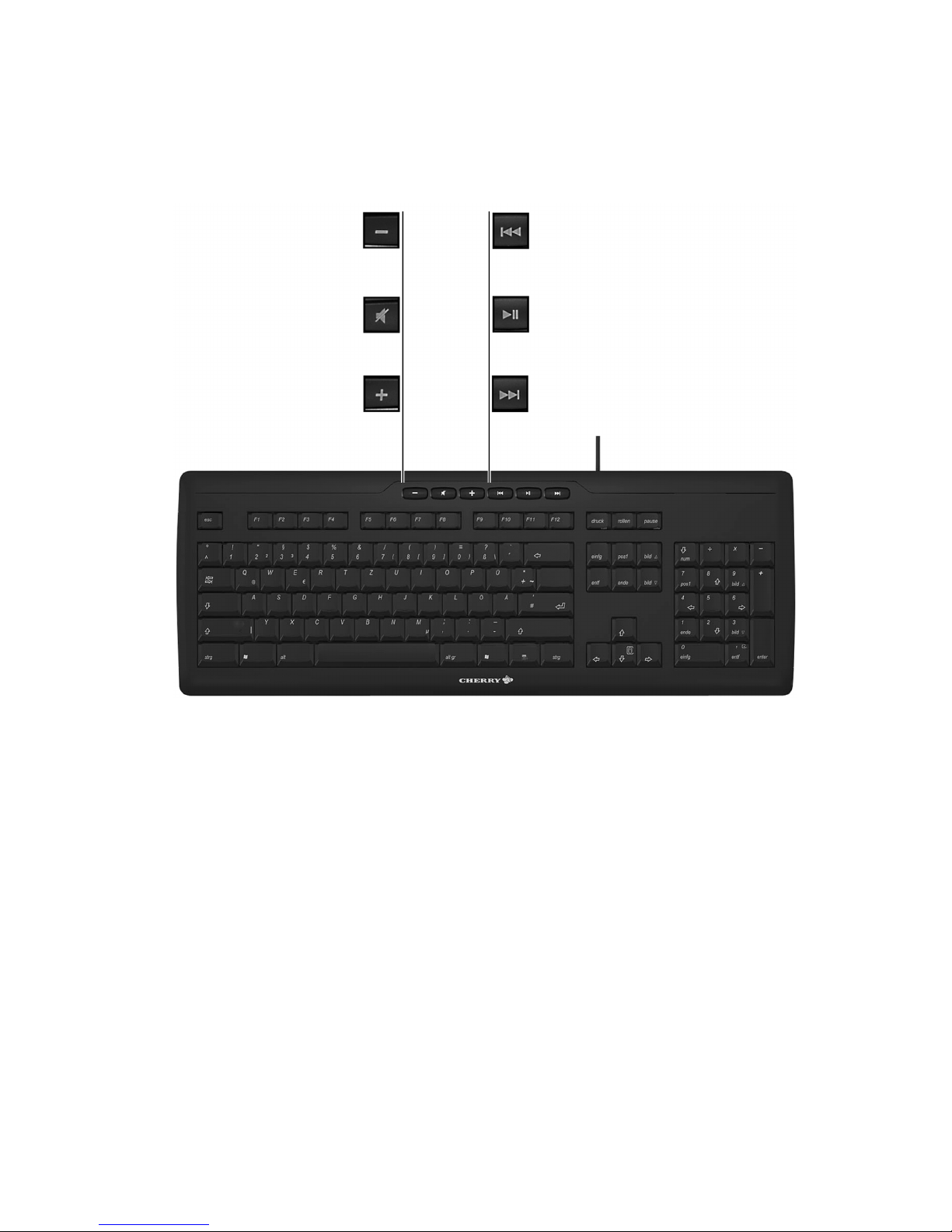
Voriger Titel
Previous title
Titre précédent
Start/Pause
Play/pause
Lecteur/pause
Nächster Titel
Next title
Titre suivant
Ton leiser
Volume down
Volume plus bas
Ton aus
Mute
Coupure du son
Ton lauter
Volume up
Volume plus fort
Page 2
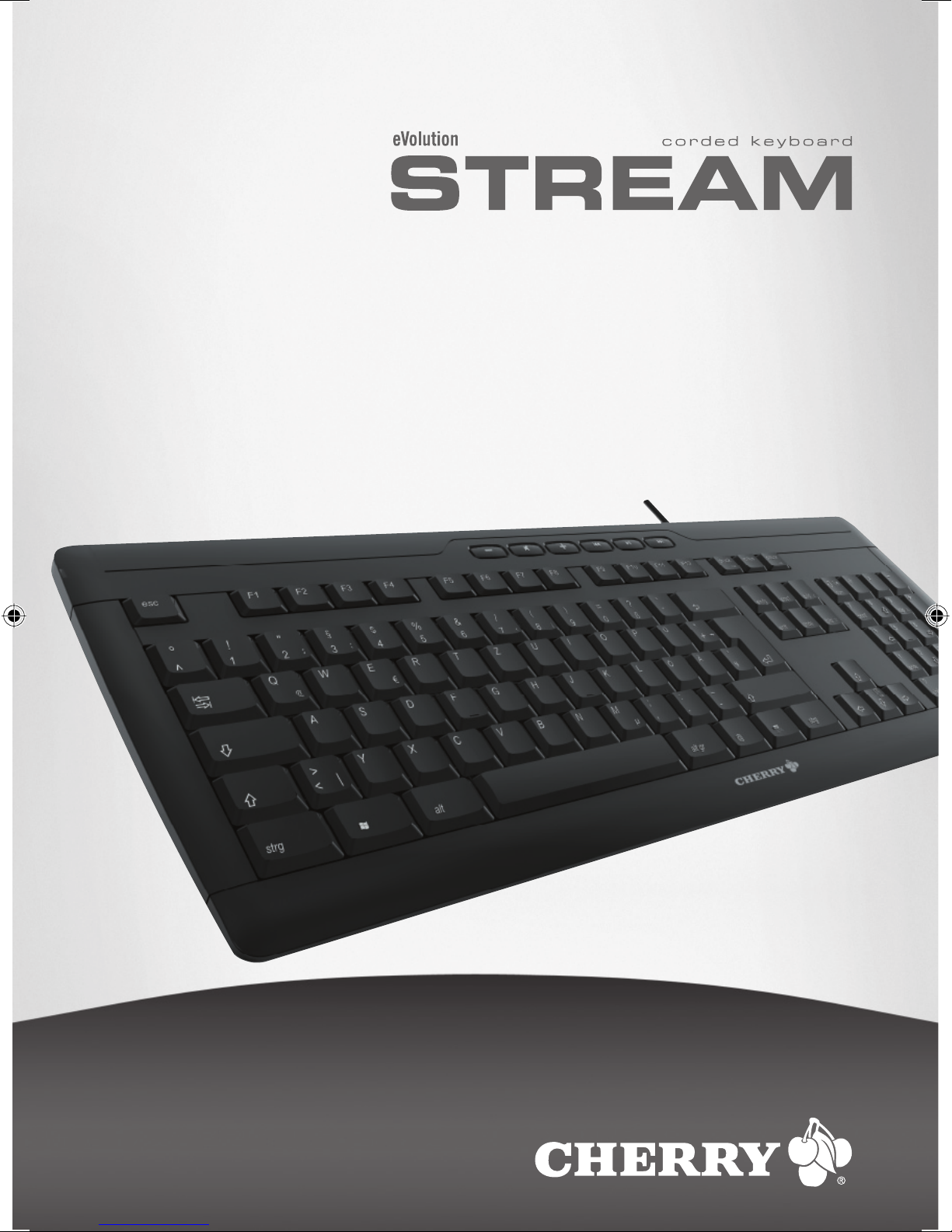
eVolution STREAM
corded keyboard
G85-23000
1 Tastatur an den PC anschließen
1.1 Tastatur an die USB-Schnittstelle
anschließen
1 Entfernen Sie ggf. den beiliegenden USB-PS/2-
Adapter vom USB-Kabel der Tastatur.
2 Stecken Sie die Tastatur am USB-Anschluss des
PCs an.
1.2 Tastatur an die PS/2-Schnittstelle
anschließen
1 Schalten Sie den PC aus.
2 Stecken Sie ggf. den beiliegenden USB-PS/2-
Adapter auf das USB-Kabel der Tastatur.
3 Stecken Sie die Tastatur am PS/2-Anschluss des
PCs an.
4 Schalten Sie den PC ein.
2 Hilfe im Problemfall
2.1 Tastatur funktioniert nicht
• Um sicherzustellen, dass kein Defekt der Tastatur
vorliegt, testen Sie diese nach Möglichkeit an
einem anderen PC/Notebook.
• Bei Anschluss der Tastatur am PS/2-Anschluss:
Entfernen Sie den Adapter und schließen Sie die
Tastatur am USB-Anschluss des Rechners an.
• Bei Anschluss der Tastatur am USB-Anschluss:
Schließen Sie die Tastatur mit Hilfe des Adapters
am PS/2-Anschluss des Rechners an.
Siehe Kap. 1.2 "Tastatur an die PS/2-Schnittstelle
anschließen".
• Bei Anschluss der Tastatur am USB-Anschluss:
Verwenden Sie einen anderen USB-Anschluss am
PC/Notebook.
• Bei Anschluss der Tastatur am USB-Anschluss:
Setzen Sie im BIOS des PCs die Option "USB
Keyboard Support" bzw. "USB Legacy Mode" auf
enabled.
3 Tipps
3.1 Reinigung der Tastatur
Vorsicht!
Beschädigung durch aggressive Reinigungsmittel
oder Flüssigkeit in der Tastatur
1 Verwenden Sie zur Reinigung keine Lösungsmittel
wie Benzin oder Alkohol und keine Scheuermittel
oder Scheuerschwämme.
2 Verhindern Sie, dass Flüssigkeit in die Tastatur
gelangt.
3 Entfernen Sie nicht die Tastkappen der Tastatur.
1 Schalten Sie den PC aus.
2 Reinigen Sie die Tastatur mit einem leicht feuchten
Tuch und etwas mildem Reinigungsmittel
(z. B.: Geschirrspülmittel).
3 Trocknen Sie die Tastatur mit einem fusselfreien,
weichen Tuch.
3.2 RSI-Syndrom
RSI-Syndrom
RSI steht für "Repetitive Strain Injury" = "Verletzung
durch wiederholte Beanspruchung". RSI entsteht
durch kleine, sich ständig wiederholende Bewegungen über einen längeren Zeitraum.
Typische Symptome sind Beschwerden in den Fingern oder im Nacken. Weitere Informationen finden
Sie unter: www.cherry.de/deutsch/service/
service_rsi.htm
1 Richten Sie Ihren Arbeitsplatz ergonomisch ein.
2 Verändern Sie die Neigung der Tastatur durch die
hinteren Stellfüße.
3 Positionieren Sie Tastatur und Maus so, dass sich
Ihre Oberarme und Handgelenke seitlich vom Körper befinden und ausgestreckt sind.
4 Machen Sie mehrere kleine Pausen, ggf. mit Dehn-
übungen.
5 Ändern Sie oft Ihre Körperhaltung.
3.3 Entsorgung
Entsorgen Sie das Altgerät über eine
Sammelstelle für elektronischen Abfall
oder Ihren Händler.
Page 3

4 Technische Daten
5 Kontakt
Cherry GmbH
Cherrystraße
91275 Auerbach
www.cherrycorp.com
www.cherry.de
Vertrieb:
Tel.: +49 (0) 1805 243779 (01805 CHERRY),
(12 Cent/Min.)
E-Mail: [email protected]
Technischer Support:
Tel.: +49 (0) 1805 919108 (12 Cent/Min.)
E-Mail: [email protected]
Bitte halten Sie bei Anfragen an den Technischen
Support folgende Informationen bereit:
• Artikel- und Serien-Nr. des Produkts
• Bezeichnung und Hersteller Ihres PCs/Notebooks
oder Motherboards
• Betriebssystem und ggf. installierte Version eines
Service Packs
6 Allgemeiner Anwenderhinweis
Cherry optimiert seine Produkte ständig im Zuge der
Entwicklung von neuen Technologien. Technische
Änderungen behalten wir uns deshalb vor. Die Ermittlung der Zuverlässigkeit sowie die Definition von technischen Angaben erfolgen gemäß Cherry-interner
Prüfung, um international anerkannte Vorschriften
bzw. Normen zu erfüllen. Davon abweichende Anforderungen können durch gegenseitige Zusammenarbeit erfüllt werden. Unsachgemäße Behandlung,
Lagerung und äußere Einflüsse können zu Störungen
und Schäden im Einsatz führen.
Wir übernehmen keinerlei Gewährleistung für Mängel, die auf einer anwenderseitigen Veränderung des
Produkts beruhen, und haften nicht im Falle unbefugter Veränderungen. Alle Reparaturen müssen durch
Cherry oder eine offiziell berechtigte Person oder
Organisation durchgeführt werden.
Etwaige Schadensersatzansprüche gegen Cherry
oder seine eingesetzten Vertreter – gleich aus wel-
Bezeichnung Wert
Versorgungsspannung 5,0 V/DC ± 5 % SELV
Stromaufnahme typ. 20 mA
Lagertemperatur –20 °C bis +60 °C
Betriebstemperatur 0 °C bis +40 °C
chem Rechtsgrund (einschließlich stressbedingte körperliche Schäden) – sind ausgeschlossen, soweit uns
nicht Vorsatz, grobe Fahrlässigkeit oder die Nichtbeachtung zwingender Produkthaftungsbestimmungen
treffen oder bei Verletzungen von Leben, Körper oder
Gesundheit. Die vorliegende Anleitung ist nur gültig
für das mitgelieferte Produkt.
Weitere Informationen darüber sind bei den jeweiligen Cherry-Distributoren oder direkt über die
Cherry GmbH erhältlich.
7 CE-Konformitätserklärung
Wir, Cherry GmbH, erklären, dass das Produkt
eVolution STREAM (G230) mit folgenden Anforderungen übereinstimmen:
• Niederspannungsrichtlinie 73/23/EWG, geprüft
nach EN 60950
• EMC-Richtlinie (Richtlinie zur elektromagnetischen Verträglichkeit) 89/336/EWG, geprüft nach
EN 55024 und EN 55022
Getestet gemäß Cherry-Standard-Testverfahren.
8 Hinweis zum GS-Zeichen
Aufgrund der Position der Nulltaste des Nummernfelds ist die Tastatur für Saldiertätigkeiten, die überwiegend blind erfolgen, in Deutschland nicht
anzuwenden. Eine Tastatur mit nicht-deutscher
Tastenknopfbelegung ist in Deutschland aufgrund der
Zeichenbelegung (DIN 2137 Teil 2) nicht für den
Dauereinsatz an Bildschirmarbeitsplätzen zu verwenden.
Page 4
eVolution STREAM
corded keyboard
G85-23000
1 Connecting keyboard
1.1 Connecting keyboard to the USB port
1 If necessary, remove the accompanying USB-PS/2
adapter from the USB cable of the keyboard.
2 Connect the keyboard to the USB port of the PC.
1.2 Connecting keyboard to the PS/2 port
1 Switch off the PC.
2 If necessary, plug the accompanying USB-PS/2
adapter on to the USB cable of the keyboard.
3 Connect the keyboard to the PS/2 port of the PC.
4 Switch on the PC.
2 Troubleshooting
2.1 Keyboard does not work
• To make sure that the keyboard is not defective,
test it if possible with another PC/laptop.
• If the keyboard is connected to the PS/2 port:
Remove the adapter and connect the keyboard to
the USB port of the computer.
• If the keyboard is connected to the USB port:
Connect the keyboard using the adapter to the
PS/2 port of the computer.
See chapter 1.2 "Connecting keyboard to the PS/2
port".
• If the keyboard is connected to the USB port: Use
another USB port on the PC/laptop.
• If the keyboard is connected to the USB port: Set
the option "USB Keyboard Support" or "USB
Legacy Mode" to enabled in the BIOS of the PC.
3Tips
3.1 Cleaning
Caution!
Damage may be caused by harsh cleaning agents or
liquids in the keyboard
1 Do not use solutions such as gasoline or alcohol
and scouring agents or scouring sponges for
cleaning.
2 Prevent fluids from entering the devices.
3 Do not remove the keycaps of the keyboard.
1 Switch off the PC.
2 Clean the keyboard with a slightly damp cloth and
some mild cleaning agent
(e.g.: dishwashing liquid).
3 Dry off the devices with a soft, lint-free cloth.
3.2 RSI syndrome
RSI syndrome
RSI stands for "Repetitive Strain Injury". RSI arises
due to small movements continuously repeated over a
long period of time.
Typical symptoms are discomfort in the fingers or
neck. For further information see: www.cherry.de/
english/service/servicedownload_rsi.htm
1 Set up your workspace ergonomically.
2 Change the angle of the keyboard using the rear
supports.
3 Position the keyboard and mouse in such a man-
ner that your upper arms and wrists are out-
stretched and to the sides of your body.
4 Take several short breaks, with stretching exer-
cises if necessary.
5 Change your posture often.
3.3 Disposal
Dispose of the old unit via a collecting
point for electronic scrap or via your
dealer.
Page 5

4 Technical data
5 Contact
Cherry GmbH
Cherrystraße
91275 Auerbach
Germany
www.cherrycorp.com
www.cherry.de
Sales:
Tel.: +49 (0) 1805 243779 (01805 CHERRY),
(0.12 €/min.)
E-mail: [email protected]
Technical support:
Tel.: +49 (0) 1805 919108 (0.12 €/min.)
E-mail: [email protected]
Please have the following information on hand when
contacting technical support:
• Item and serial no. of the product
• Name and manufacturer of your PC/notebook or
motherboard
• Operating system and, if applicable, installed
service pack version
6 General advice
Cherry continuously optimizes products as new
technologies are developed. For this reason we
reserve the right to make technical alterations. The
evaluation of product reliability and the definition of
the product’s technical performance are carried out
according to Cherry’s own requirements in order to
meet internationally recognized regulations and
standards. Requirements in addition to these can be
met through mutual cooperation. Improper usage,
handling, storage and external influences could lead
to faults and defects during use.
We do not accept warranty for defects caused by
alterations to our product by the user and shall not be
held liable for unauthorized modifications. All repairs
must be made by Cherry or an officially appointed
organization or person. Possible compensation claims
against Cherry or its nominated officers – whatever
the legal justification including physical or stress
related injuries – are excluded. Exceptions to this exist
in the case of intent or gross negligence on the part of
Cherry, infringements of Product Liability Law or in
cases of injury, bodily harm or risk to health. These
operating instructions only apply to the accompanying
product.
Designation Value
Supply voltage 5.0 V/DC ±5 % SELV
Current consumption typ. 20 mA
Storage temperature –20 °C to +60 °C
Operating temperature 0 °C to +40 °C
Full details can be obtained from your local Cherry
dealer or direct from Cherry GmbH.
7 Certification
7.1 Federal Communications Commission
(FCC) Radio Frequency Interface
Statement
Information to the user: This equipment has been
tested and found to comply with the limits for Class B
digital device, pursuant to Part 15 of the FCC Rules.
These limits are designed to provide reasonable
protection against harmful interference in a residential
installation. This equipment generates, uses and can
radiate radio frequency energy and, if not installed
and used in accordance with the instructions, may
cause harmful interference to radio communications.
However, there is no guarantee that interference will
not occur in a particular installation. If this equipment
does cause harmful interference to radio or television
reception, which can be determined by turning the
equipment off and on, the user is encouraged to try to
correct the interference by one or more of the
following measures:
• Reorientate or relocate the receiving antenna.
• Increase the separation between the equipment
and receiver.
• Connect the equipment into an outlet on a circuit
different from that to which the receiver is
connected.
• Consult the dealer or an experienced radio/
TV technician for help.
Caution: Unauthorized changes or modifications could
void the authority to operate the equipment.
7.2 Canadian Radio Interference
Regulation
Notice of Industry Canada Standard ICES-003
This Class B digital apparatus complies with Cana-
dian ICES-003.
Cette appareil numérique de la classe B est conforme
à la norme NMB-003 du Canada.
7.3 CE Declaration of Conformity
We, Cherry GmbH, hereby declare that the product
eVolution STREAM (G230) fulfills the following
requirements:
• Low-Voltage Directive 73/23/EEC tested in
accordance with EN 60950
• EMC Directive 89/336/EEC (directive on
electromagnetic compatibility), tested in
accordance with EN 55024 and EN 55022
Tested according to the standard Cherry testing
procedures.
7.4 For UL
For use with Listed Personal Computers only!
Page 6
eVolution STREAM
corded keyboard
G85-23000
1 Raccorder le clavier
1.1 Raccorder le clavier à l’interface USB
1 Enlevez le cas échéant l’adaptateur USB-PS/2 joint
du câble USB du clavier.
2 Raccordez le clavier via la connexion USB du PC.
1.2 Raccorder le clavier à l’interface PS/2
1 Mettez le PC hors service.
2 Connectez le cas échéant l’adaptateur USB-PS/2
joint au câble USB du clavier.
3 Raccordez le clavier via la connexion PS/2 du PC.
4 Allumez votre PC.
2 Aide en cas de problème
2.1 Le clavier ne fonctionne pas
• Afin de s’assurer de l’absence de défaut du clavier,
testez celui-ci si possible sur un autre PC/portable.
• En cas de raccordement du clavier à la connexion
PS/2: Enlevez l’adaptateur et raccordez le clavier
via la connexion USB de l’ordinateur.
• En cas de raccordement du clavier à la connexion
USB: Raccordez le clavier via la connexion PS/2
de l’ordinateur à l’aide de l’adaptateur.
Voir chapitre 1.2 "Raccorder le clavier à l’interface
PS/2".
• En cas de raccordement du clavier à la connexion
USB: Utilisez une autre connexion USB du
PC/portable.
• En cas de raccordement du clavier à la connexion
USB: Dans le BIOS du PC, réglez l’option "USB
Keyboard Support" ou "USB Legacy Mode" sur
enabled.
3 Conseils
3.1 Nettoyage
Attention!
Détérioration en cas d’utilisation de produits de
nettoyage agressifs ou de pénétration de liquide dans
le clavier
1 Pour le nettoyage, n’utilisez pas de solvants tels
que l’essence ou l’alcool ni aucun produit ou
éponge abrasif.
2 Empêchez tout liquide de pénétrer dans les
appareils.
3 N’enlevez pas les capuchons des touches du
clavier.
1 Mettez le PC hors service.
2 Nettoyez le clavier avec un chiffon légèrement
humide et un produit de nettoyage doux
(p. ex.: détergent vaisselle).
3 Séchez les appareils avec un chiffon doux non
peluchant.
3.2 Syndrome LMR
Syndrome LMR
LMR signifie "Lésion due aux mouvements répétitivs". Le syndrome LMR apparaît suite à de petits
mouvements se répétant en permanence.
Des symptômes typiques sont des douleurs dans les
doigts ou la nuque. Pour plus d'informations visitez:
www.cherry.de/french/service/lmr.htm
1 Organisez votre poste de travail de manière ergo-
nomique.
2 Positionnez le clavier et la souris de telle façon que
vos bras et vos poignets se trouvent latéralement
par rapport au corps et soient étendus.
3 Faites plusieurs petites pauses, le cas échéant
accompagnées d’exercices d’étirement.
4 Modifiez souvent votre attitude corporelle.
3.3 Elimination
Eliminer l’appareil usé via un point de
collecte pour déchets électroniques ou
via le point de vente.
Page 7

4 Caractéristiques techniques
5 Contact
Cherry GmbH
Cherrystraße
91275 Auerbach
Allemagne
www.cherrycorp.com
www.cherry.de
Distribution:
Tel.: +49 (0) 1805 243779 (01805 CHERRY),
(12 cents/min.)
E-mail: [email protected]
Support technique:
Tél.: +49 (0) 1805 919108 (12 cents/min.)
E-mail: [email protected]
Lors de demandes, veillez à disposer des
informations suivantes à portée de main:
• N° d’article et n° de série du produit
• Désignation et fabricant de votre PC/portable ou
de la carte-mère
• Système d’exploitation et le cas échéant version
installée d’un Service Pack
6 Généralités
Cherry optimise continuellement ses produits en
fonction des progrès technologiques. Par conséquent,
nous nous réservons le droit de faire des modifications techniques. L’évaluation de la fiabilité ainsi que
la définition des détails techniques sont le résultat des
tests internes conformes aux normes internationales
en vigueur. D’autres spécifications peuvent être
appliquées suite à une coopération mutuelle. Des
mauvaises conditions d’utilisation, de stockage, ou
d’environnement peuvent entraîner des
dysfonctionnements ou des dommages lors de
l’utilisation.
Nous insistons sur le fait que nous ne pouvons accorder quelque garantie que ce soit causée par une
modification du matériel par l’utilisateur. Ceci est valable également pour d’éventuels travaux de réparation
Désignation Valeur
Alimentation 5,0 V/DC ±5 % SELV
Consommation de
courant
en général 20 mA
Température de
stockage
–20 °C à +60 °C
Température de
fonctionnement
0 °C à +40 °C
ou de maintenance effectués par des personnes non
agréées. Toute demande d’indemnisation éventuelle
contre Cherry ou ses représentants – quoi que soit la
cause (ainsi que des dommages corporels dus a une
réaction émotionnelle) – sera rejetée dans la mesure
où elle n’est pas la conséquence d’une négligence de
notre part. Les restrictions ci-dessus ne s’appliquent
pas dans le cadre de la loi sur la Responsabilité Produit allemande ainsi qu’en cas de blessures corporelles ou d’atteintes à la santé. Les conditions
d’utilisation ci-dessus ne sont valables que pour le
produit livré avec cette notice.
Pour tout complément d’information, veuillez contacter
votre revendeur Cherry ou directement Cherry GmbH.
7 Certifications
7.1 Canadian Radio Interference
Regulation
Notice of Industry Canada Standard ICES-003
This Class B digital apparatus complies with Cana-
dian ICES-003.
Cette appareil numérique de la classe B est conforme
à la norme NMB-003 du Canada.
7.2 Déclaration de conformité CE
Nous, Cherry GmbH, déclarons que le produit
eVolution STREAM (G230) est conforme aux
exigences suivantes:
• Directive basse tension 73/23/CEE, contrôle
suivant EN 60950
• Directive CEM (directive sur la compatibilité
électromagnétique) 89/336/CEE, contrôle suivant
EN 55024 et EN 55022
Testé suivant procédure de test standard Cherry.
Page 8
G85-23000
Bedienungsanleitung
Operating Manual
Mode d´emploi
644-0437.01 DE, US, FR Jul 2006 (G85-23000 = Mod. G230)
 Loading...