

Page 1

Operating Manual for Display Controller IBDC Chemito
OPERATING MANUAL
FOR
DISPLAY CONTROLLER
I B D C
Document No. CS / BDS / MNL / 015 Rev 1.0
CHEMITO INFOTECH PVT. LTD.
PLOT NO.30, PANVEL CO-OP IND. EST.,
OPP AMAR DHAM, MUMBAI PUNE HIGHWAY,
PANVEL (W) 410 206
Email: [email protected]
Toll Free Service No.: 1800 1234355
Page 2
Operating Manual for Display Controller IBDC Chemito
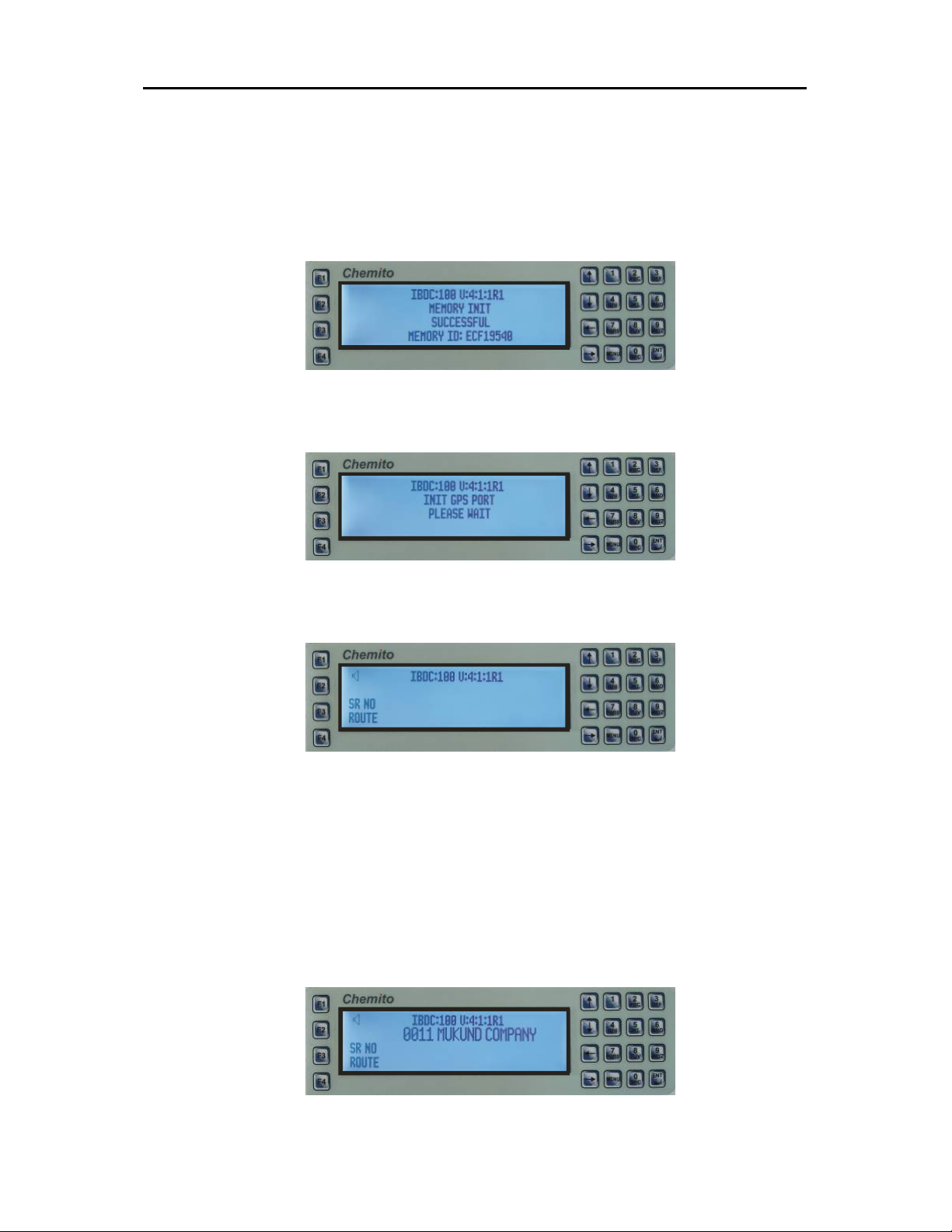
Power ON IBDC, the LED display controller.
IBDC will carry out internal memory and other system check-up at power on and will
show following screens on the LCD display.
Once IBDC is started successfully. It will show the last selected route on the controller
screen.
___________________________________________________________________________
Page 1 / 4
Page 3
Operating Manual for Display Controller IBDC Chemito
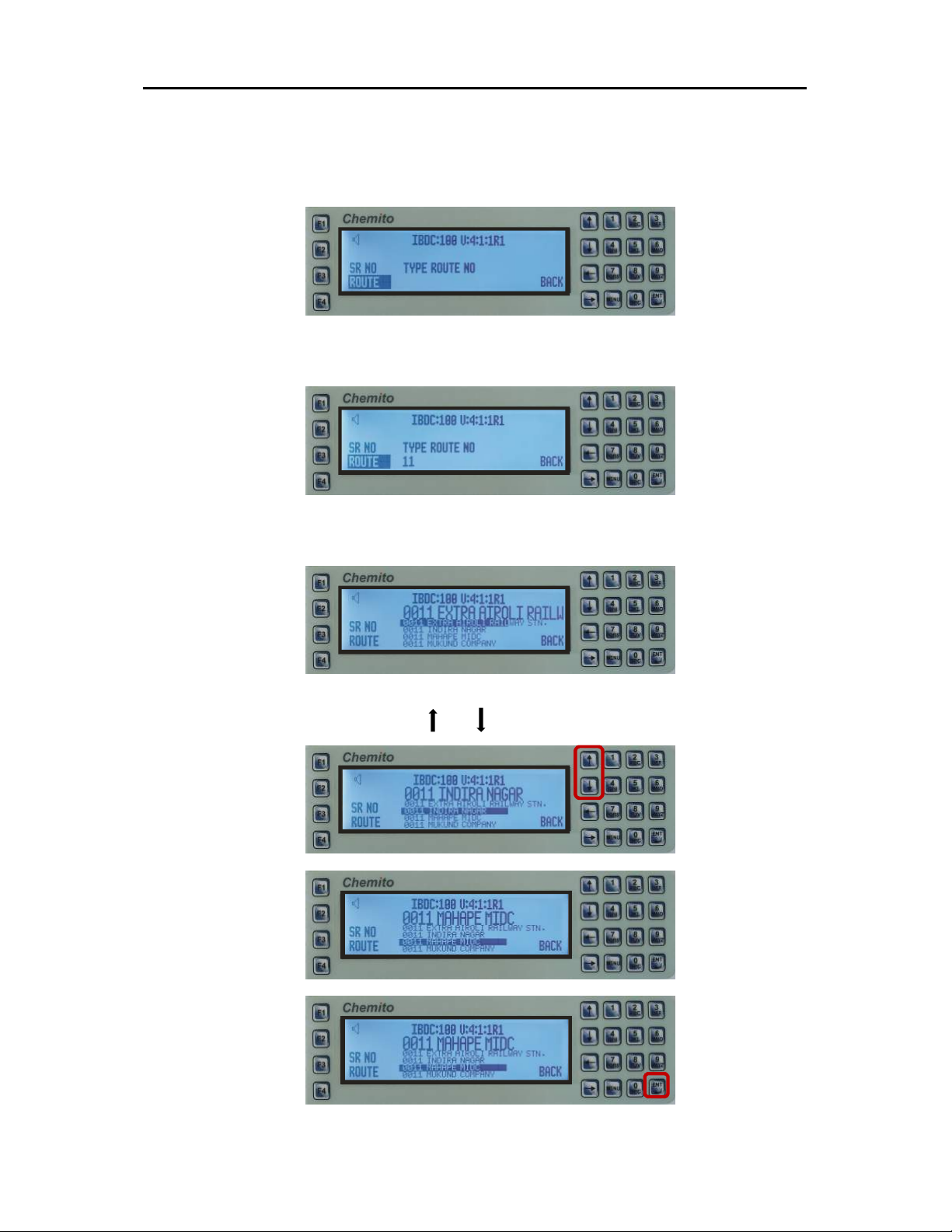
Procedure for Route Selection
Press F3 (SERIAL) or F4 (ROUTE) for selecting a destination by Serial or Route number.
Enter your desired Route Number with the help of numeric keypad, and press ENT key.
List of Routes assigned to a particular route number will be shown on screen.
Scroll UP and DOWN the list using and Keys
Press ENT key selecting desired destination.
___________________________________________________________________________
Page 2 / 4
Page 4
Operating Manual for Display Controller IBDC Chemito
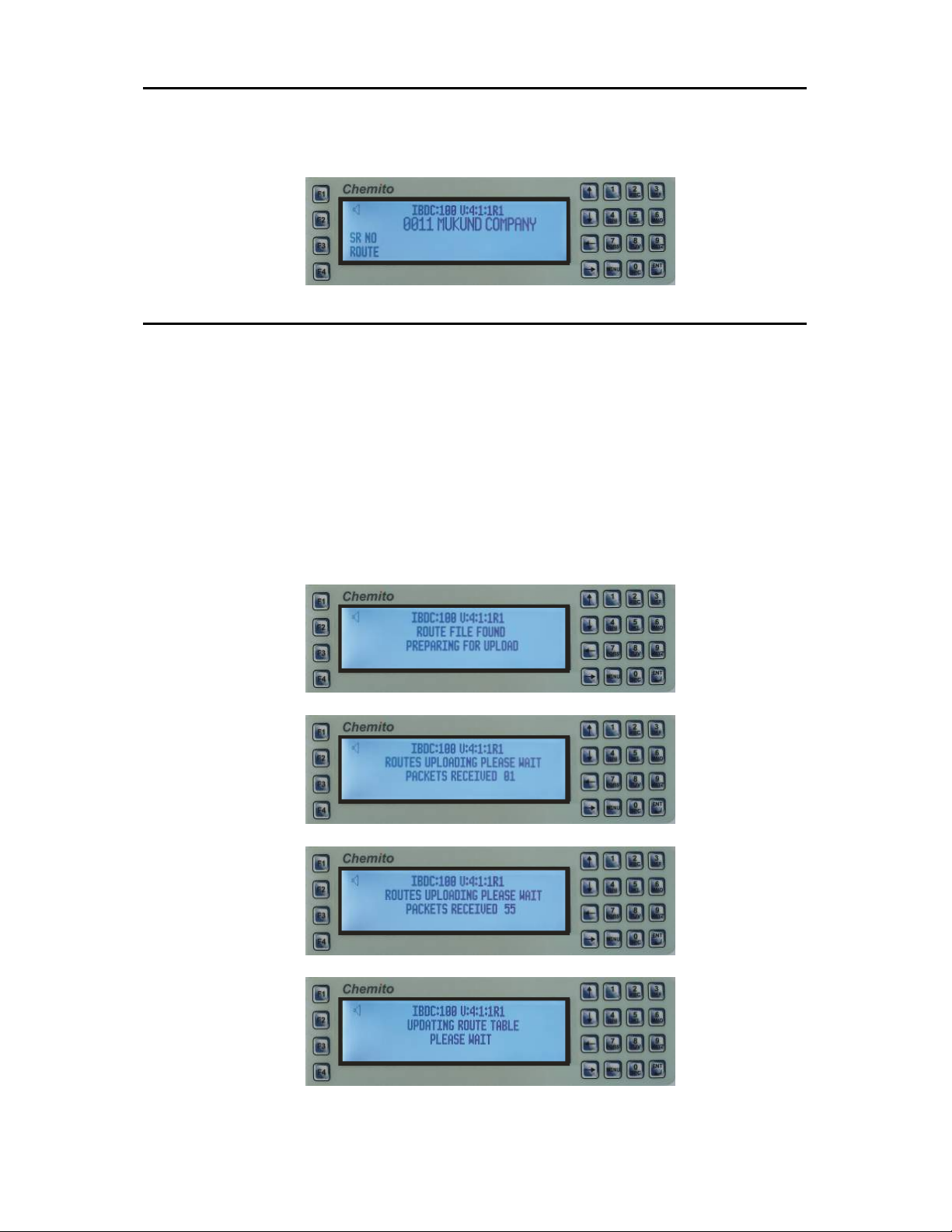
Selected route will be shown on IBDC screen.
Procedure for Uploading Routes in IBDC
Copy the IBDC folder (Route file) from your PC / Laptop in the USB Pen drive.
Connect the Pen drive to the USB socket of the IBDC.
Once Pen drive is connected to the IBDC, it will auto detect the pendrive and initiate the
process of uploading the route file. IBDC will show following messages.
___________________________________________________________________________
Page 3 / 4
Page 5
Operating Manual for Display Controller IBDC Chemito
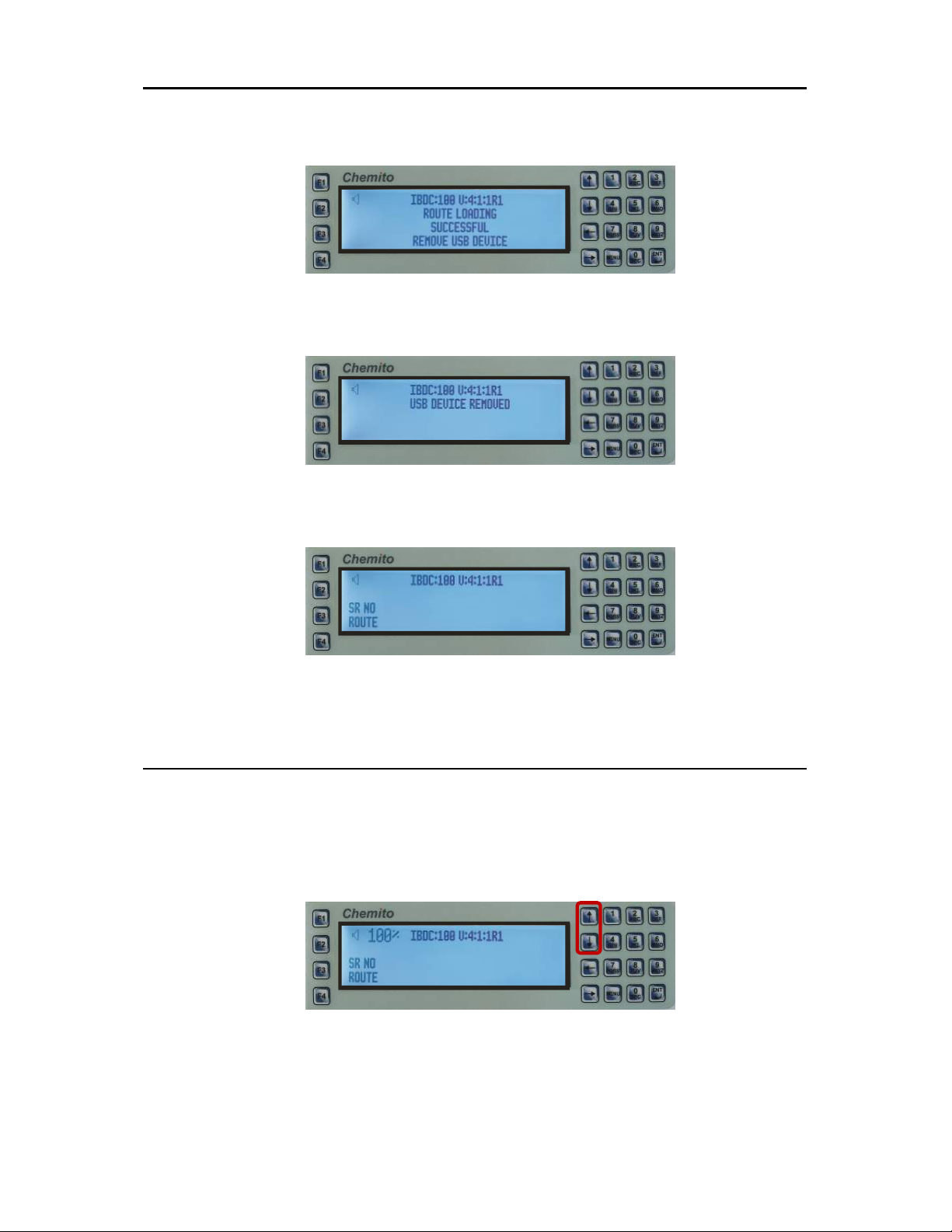
Once the route loading is successful, below message will be displayed, prompting to remove
the pen drive.
Below message will be displayed after removing the pen drive.
Route loading process successfully completed, and IBDC will screen will show as follows
We can start the procedure of selecting the route as per procedure already mentioned
above.
Controlling the Volume of Announcement
Use F1 and F2 keys to increase and decrease the volume.
___________________________________________________________________________
Page 4 / 4
 Loading...