

Page 1
C5033 User Manual
Please read this user manual and follow the necessary safety
guidelines before using this equipment.
This symbol is intended to alert you to the presence
of un-insulated dangerous voltage within the
product’s enclosure that might be of sufficient
magnitude to constitute a risk of electric shock. Do
not open the product’s case.
!
This symbol is intended to inform you that important
operating and maintenance instructions are included
in the literature accompanying this product.
1/10
Manufacturer:
Charisma Communication Inc.
Head quarter: 1645A S. Main Street, Suite 212, Milpitas, CA 95035,U.S.A.
Web-site: www.charisma-usa.com
Tel: +1-408-941-0088
Fax: +1-408-941-0088
Product Related Inquiry: [email protected]
2/10
Features:
USB 1.0/2.0 Compatible
PC Plug and Play (Windows-XP)
USB 2-key Mouse fully compatible
USB Keyboard 40 key available, programmable to be extended to mimic the most frequently
used key strokes as your PC keyboard and media player functions
TV mode switch for direct TV control
FCC electronic regulation compliant
Support over 70 PC multimedia programs with default keymaps, user may add his own
Smart input software, downloadable Studio Input, module includingEnglish, Spanish,
Traditional Chinese, Simplified Chinese, Japanese, Korean, Thai, Malaysian,Frenchand
many other languages to provide text input almost as fast as your PC keyboards
2 AA Batteries Required
Studio Commander C5033
4-in-1 Complete PC Controller on your Hand
Mouse+Keyboard+Laser Pointer+Media Remote Control
WARNING: To reduce the risk offire orshock hazard,
do not expose this product torain ormoisture.
CAUTION
Risk of Electric Shock.
Do not Open.
!
CAUTION : To reduce the risk of
electric shock , do not remove cover or
back . No user-serviceable parts inside .
Refer servicing to qualified personnel.
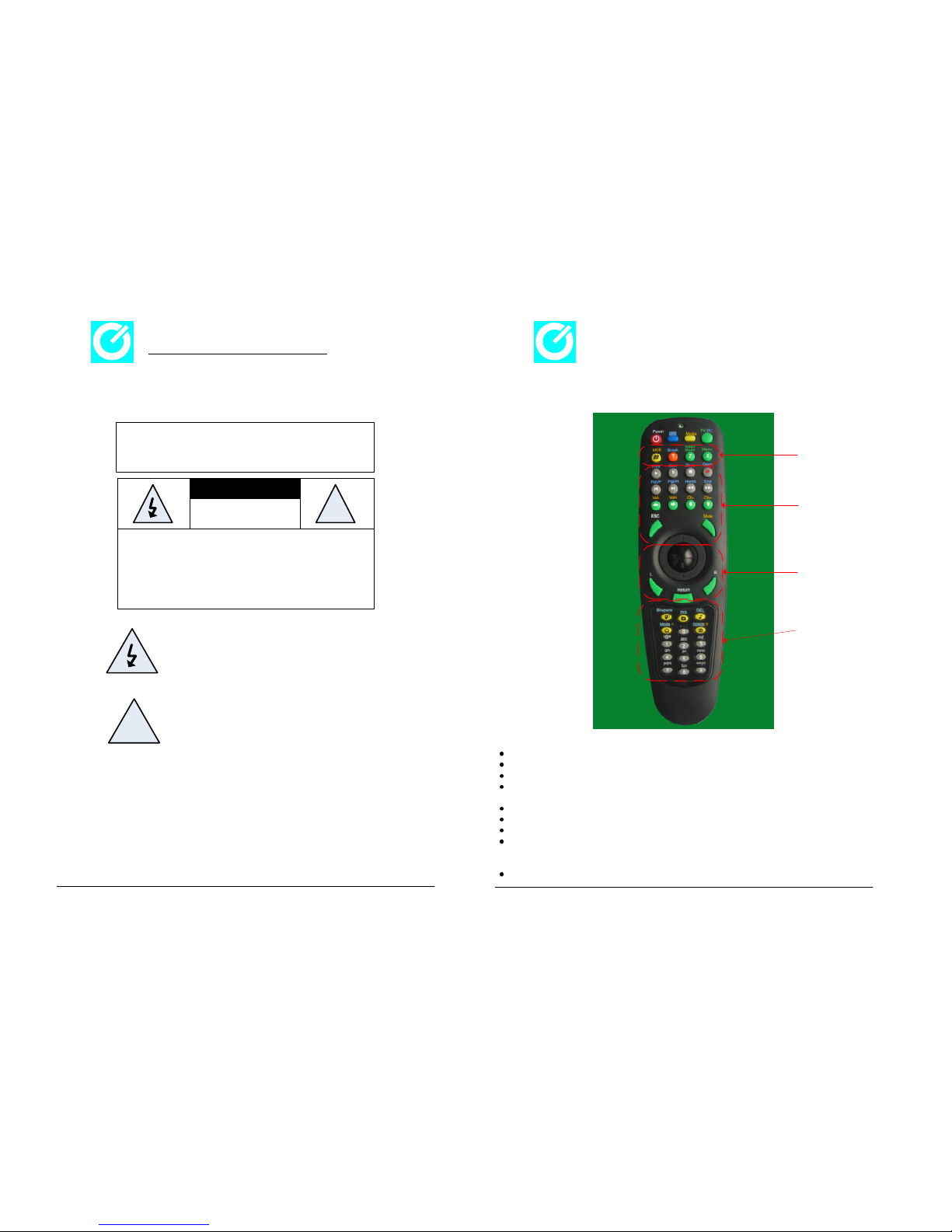
Functional Keys
Media Section Keys
Mouse Section Keys
Text Input Keys
Page 2
3/10
4/10
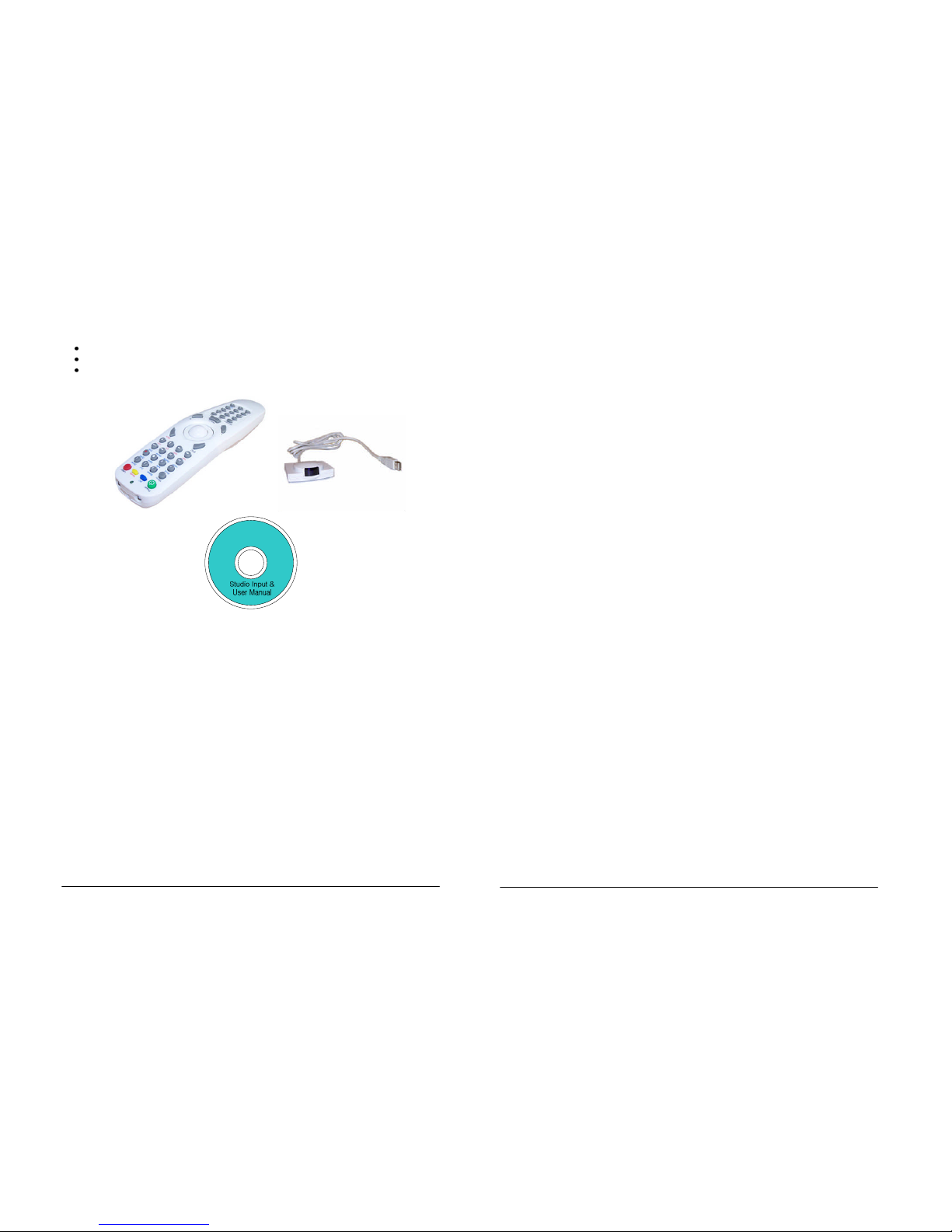
Items in Package:
Studio Commander (IR-based remote control unit)
USB-Compatible IR receiver unit.
Studio Input software and User Manual CD
Specification for Studio Commaner Unit:
(1) Length X Width X Height: 192mm X 55 mm X 42 mm
(2) Current Consumption: Leakage Current < 60 mA. (DC 3V Temp 25°C, Non-active)
(3) Frequency: FOSC 3.64MHz +/- 2kHz (DC 3V)
(4) Distance: >= 7M (At least)
(5) Operation Life: 100,000 cycle operations at a rate of 20-30 cycle/minute without load
(6) Hot Proof: Remote testing being kept in the conditions at 60+/- 2°C in temperature for 96
Hours and in a normal ambient condition for one hour, then to be measured within one hour.
(7) Resistence to Humidity: Remote for testing being kept in the conditions at 40+/-2°C in
temperature and 90-95 RF for 48 hours, and in a normal ambient condition for one hour,
then to be measured within one hour. Drop of water being taken away.
(8) Cold Proof: Remote for testing being kept in the conditions at -30+/- 2°C in temperature
for 96 hours, and in a normal ambient condition for one hour, then to be measured within one
hour. Drops of water being taken away.
Specification for Receiver Unit:
(1) Receiver Box (Length X Width X Height): 54.1mm X 57.3mm X 15.6 mm
(2) USB Cable: 4 feet
(3) Current Consumption: standby current < 20 mA (DC 5V, temp. 25°C non-active)
(4) Receiver carry frequency: 38+/- 1 kHz (DC 5V)
(5) Receiving Distance: On axis distance >= 7M, Off axis distance >= 5M, use forward
remote control in another IR source
(6) Cold Proof: Receiver for testing being kept in the conditions at -20+/-2°C in
temperature for 96 hours, and in a normal ambient condition for one hour, then to be
measured within one hour. Drops of water being taken away.
(7) Hot Proof: Receiver for testing being kept in the conditions at 60+/- 2°C in temperature
for 96 hours, and in a normal ambient condition for one hour. Then, to be measured within
one hour.
(8) Resistence to humidity: Receiver for testing being kept in theconditions at 40 +/- 2°C
in temperature and 90-95 RH for 40 hours, and in a normal ambient condition for one
hour. Then, to be measured within one hour. Drops of water being taken away.
Studio Input Software:
(1) Download Site: http://www.charisma-usa.com/html/main_download.htm
Please check the download site for the newest version of StudioInput program.
(2) System requirements:
(2.1) O.S.: Microsoft Windows XP Home/Professional/MCE, Windows 2000
PC linux (to be supported)
(2.2) Memory Size: At least 256 MB
(2.3) Disk space: At least 10 MB free space
(3) Language pack: the product will be shipped with at least an IME of its installdation
language. Other languages packs will be made available based on Charisma’s
development schedule. Charisma assume no responsibility for IME for other langauges
except for its installation langauge. Charisma will be providing new language packs once
they are ready. It will be made accessible through new software update from web-site.
The default installation package from current product version is English.
(4) Software function: without Studio Input software, the basic hardware setup will allow
user to use mouse function, presenter function under PC mode, and media remote control
function under Microsoft software environments. The Studio Commander is plug-and-play
even without Studio Input software.
User Manual:
User Manual Site: http://charisma-usa.com/html/manual/C5033/C5033_manual.pdf
Please check the download site for the newest version of usermanual for Studio
Commander hardware. The user manual version on the web-site will be the newest. The
user manual version on the installation CD will be usefuland may not be the newest
version.
Page 3

5/10
Special Function Keys: (Blue: PC mode/Yellow: Media mode/White:both)
Power (Red): Automatically power off the computer
PC (Blue): Change the studio commander to PC Mode
Media (Yellow): Change studio commander to Media Mode
TV/PC (Green): Show Laser Diode Pointer.
Mouse Keys:
Big Nub: Mouse movements.
L (Left): Same as left click for mouse
R (Right): Same as right click for mouse.
Text-Input Keys:
1, 2, 3, 4, 5, 6, 7, 8, 9, 0: Same as the number keys on keyboard.
* (Mode): Same as * key (Shift+8) for keyboard. For input method editor, it may be used for
input mode change.
# (Space): Same as # key (shift+3) for keyboard in media mode. For PC mode, it is the
same as space key.
Backspace: Same as backspace key on keyboard.
INS: Same as Insert key on keyboard.
DEL: Same as: delete key on keyboard.
UP (Ch+/Fast): Same as Up arrow (Up-key) on keyboard. For media mode, it may be used
for channel up or speed up depending on the application.
Down (Ch-/Slow): Same as Down arrow (Down-key) on keyboard. For media mode, it may
be used for channel down or speed down depending on the application.
Left (Vol-): Same as left arrow (Left-key) on keyboard. For media mode, it may be used for
volume down depending on the application.
Right (Vol+): Same as right arrow (Right-key) on keyboard. For media mode, it may be
used for volume up depending on the application.
Media Playback and Control Keys: (Default Setting: Microsoft Media Player Hot-
Key in media mode and power-point for PC mode)
Play(Print): Play the media player. For PC mode, it will activate print function.
Pause(New): Pause the media player. For PC mode, it will activate new function.
Stop (Save): Stop and reset media player. For PC mode, it is the same as ESC key.
Rec. (Open): Open a media file. For PC mode, it will active file open function.
Mute: Mute the media player. For some language input, it may be used for phrase pick.
Rewind (Pgdn): Rewind the media player. For PC mode, it is the same as Page Down key.
Forward (Pgup): Forward the media player. For PC mode, it is the same as Page Up key.
Previous (Home): Previous track for media player. For PC mode, it is the same as Home
key.
Next (End): Next track for media player. For PC mode, it is the same as END key.
Menu: Find the File location on the menu bard (equal to Alt+F key).
Info(Break): Help key or info key in media mode. Equal to Ctrl+Alt+Del (Break) key in PC
mode.
Zoom_in Z(Full): Zoom-in key in media mode. Full screen (F11) for power-point in PC
mode.
Zoom_out z(Show): Zoom-out key in media mode. Show design (F5) for power-point in PC
mode.
6/10
Operation Procedure:
(1) Plug the IR receiverto theUSB port.
(2) Put 2 AA batterieson yourStudio Commander.
(3) Turn up your computer.
Start enjoy your studio commander. (Easy plug and play)
Check your mouse for mouse movement. Ifthere isno reaction, check the
receiver or the cable plug. Makesure the connection is correct. Make sure
there is no obstacle blocking the IR transmission.
(4) To enjoy fast 10-keyinput or application-driven keymap management,
download Studio Input software from http://www.charisma-usa.com to
maximize the performance of your studio commander. A CD forthe
professional version of Studio Input may comewith your Studio
Commander® .
Hardware Defaults:
Studio Commander C5033 model can directly controlTV functionsand the
personal computer functions. For personal computer control, thereare two
hardware preset modes for this studiocommander: PC mode and Media mode.
PC mode is reserved for text-editingor text entry purpose. Media mode is
reserved for application playback purposes. In TVmode, you may control the TV
function just like normal TV remoteunit.
With Studio Input, PC mode will feed all keystrokes into Studio input’s input
method editor to perform text editingfunctions. TheStudio Input softwarecan
provide almost all possible text symbolsyou needfor normaltext editingtasks.
Detailed information regarding the input method editorsand studio input
software, please check Charisma’s web-site. Please keepin mindthat you need
Studio Input in order to input text to apersonal onStudio Commander.
When Studio commander is in Media modeand withthe help of Studio Input
software, an application-specific will automatically be activated bystudio inputat
your best convenience. Without Studio Input software,you maystill enjoy this
studio commander for most of mediaplayer files, power point slide presentation
and many other applications. Mouse keysand functionkeys arealways
functional, therefore, you can still enjoymost ofyour programswithout any issue.
Just relax with a peacefulmind that Studio Commander can help yourmedia
players with the wireless mouse featureeven withoutStudio Input.
Studio Input provides keymaps for most ofthe frequently used programs. User
may use keymap editor to compilea keymapfor hisfavorite application program.
If you feel the keymapis verygood andwould like to share with other people,
please do not hesitate to contractCharisma at [email protected].
You may set your StudioInput software at PC mode 9 language (normal
langauge). This is considered a by-passmode. Yourcomputer willbe functioning
like no Studio Input isthere. Therefore, we suggest you to quit Studio Input
before un-plug your USB receiver orto setthe Studio Input at 9 modebefore
leaving.
Page 4
7/10
8/10
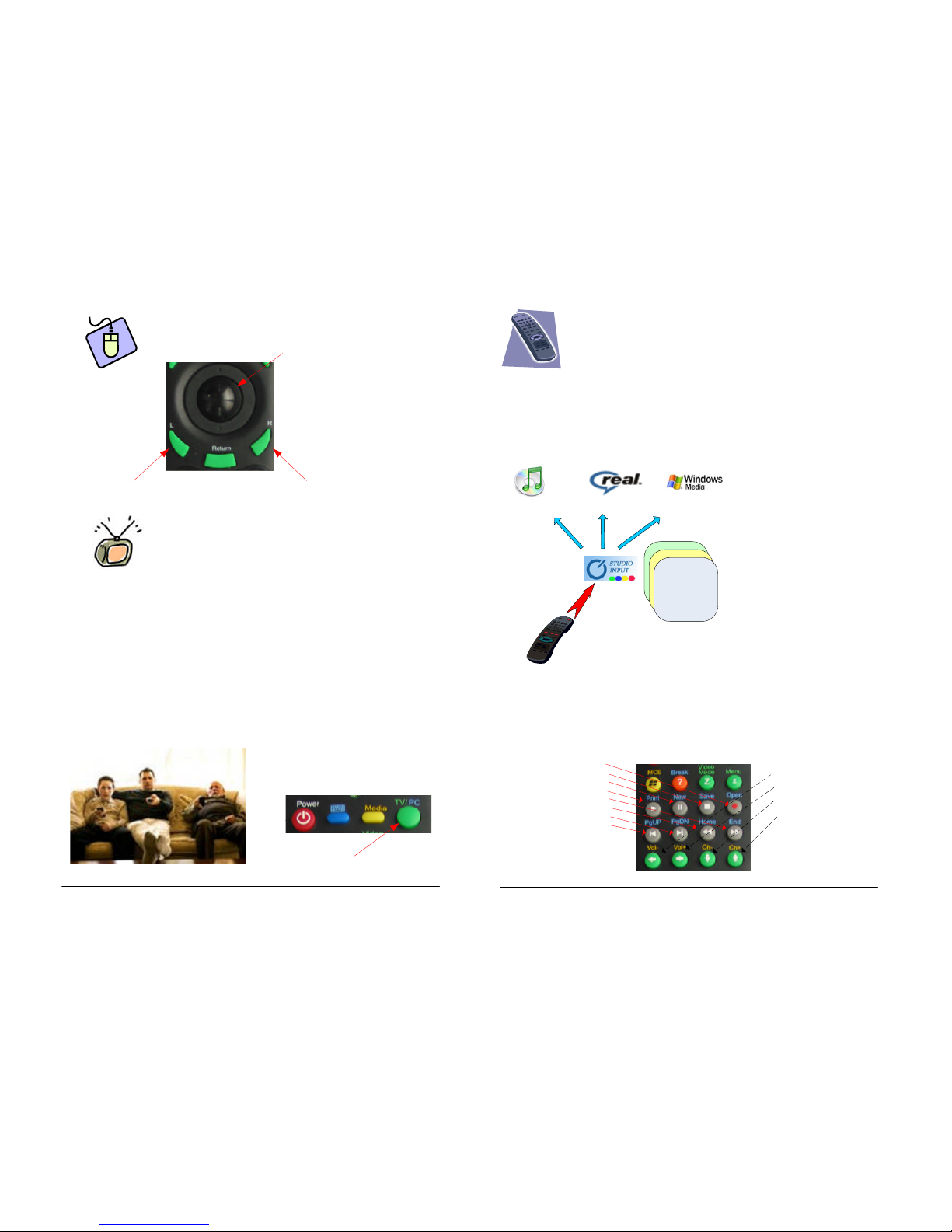
TV mode and PC(Computer) mode Switch
Mouse Operations
Same as the Left key for a mouse Same as the Right key for a mouse
Traceball Button for mouse all movements.
Toggling switch between TV and Computer
control.
Media Mode: Functional Control Interface for
all Applications
Media mode is activated by pressing the yellow button. After that, the studio commander will
be set for a default key map designed for Microsoft Media Player. If a user does not install
Studio Input software, the media mode interface setting for the keys can only play for the
media player. If Studio Input software is installed, studio comannder will be switched to a
proper control panel according to your active window. Users will not notice it because the
whole operations are done in the system.
(Note: iTune® is registered trademark of Apple Computer® , Real Player® is a registered trademark of Real Networks Inc.,
and Media Player® isa registered trademark of Microsoft® .)
Apple iTune®
Real Player®
Media Player®
(Default Setting)
Keystrokes from Studio Commander
Codebook
Media Player
Codebook
Media Player
Codebook
Media Player
For Applications:
More than 45 Applications supported. If you
found an application which is worthy of our
support, you are welcome to contact us at
[email protected]. Your input
is always our number one interest. The
supported software is continuing to increase.
For Codebooks:
Default setting are provided for your
convenience. There is also tool that
you may customize the codebook
for your best convenience.
User Manual of Studio Input can be downloaded
from www.charisma-usa.com
In Media mode, all of the yellow buttons provide a one-button hotkey to a certain MCE function.
In Media Mode, the studio commander will accept the key stroke definition for each individual
application. At the top of the studio commander, there are 16 keys for the media section. This
we call it the media section keys. On the bottom this section, you may also see, four cursor
control keys. These cursor control keys may also carry some media player controlling function
in media mode. Some of the software may use the number keys as well.The number key’s
definition is obvious. The studio commander keypad carries the following default meaning:
Cursor Control Section
Channel Up/Fast
Channel Down/Slow
Volume Decrease
Volume Increase
Media Section
Play
Stop
Rec.
Rewind
Forward
Previous
Next
Pause(New)
It is just one button away from enjoying your TV remote function. Simply, click on the Green
TV/PC button, you will be ready to control your TV function using the same Studio
Commander remote control. If you wish to go back to computer remote control mode for
PC(keyboard) mode or Media mode, you can simply to click on the same TV/PC switch key
to go back to PC control. This TV/PC is actually a toggling switch between TV mode and
computer mode.
All of the TV-related buttons are using Green colors. It include the following keys:
(1) Video mode: control the video source for TV;
(2) Menu: menu function for TV settings;
(3) vol-: volume down,
(4) vol+: volume up;
(5) ch-: channel down;
(6) ch+: channel up;
(7) return: return function for TV mode;
(8) Mute: mute function for TV mode.
The ESC/L/R are in green color but are not related to TV function for the time being.
Page 5
9/10
10/10
PC Mode: Full control of your
personal computer through
compact keyboard
Support input of all the text you can do using a normal keyboard
on a personal computer.
Provide cross-platform multi-language input method editor that
you can use on personal computer, cellphones, linux machine,
mac, PDA, and etc. with proper software installation.
Remove the need for a keyboard. Surf the internet while sitting on
your sofa at your living room in fully relaxed mood.
If no Studio Input software installed, all of the keys will function just like your normal
keyboard’s keys. The number keys can only provide entry for numbers. In order to
input more text symbols into your system, Studio Input is needed. Studio Input can be
downlowd from our web-site: www.charisma-usa.com through the download button.
The basic operation of the PC mode for studio input is that you can pick a language,
an input method and input mode to input the proper text. After you pick a specific
language, input mode and input method, the studio input will provide you a very user
friendly user interface to pick up your target letter or target word at veryshort time.
There are even hot-keys for you to pick some graphic symbols that may be even more
convenience than normal 101-key PC keyboard.
The input method editor for Studio Input software provides Five Element Input Method
for both traditional Chinese and simplified Chinese, Zhuyin input method for traditional
Chinese, Pinyin method for simplified Chinese, Six Element Input method for Korean,
Direct Typing and Modified Five Element Input Method for Japanese. For all European
languages such as English, French, Italian, German, Spanish, and etc. We provide
Direct Typing method, table look-up method and 999 hot-key inputs. To learn more
about these input methods and solutions, please check with our web-site at
www.charisma-usa.com. There are free simulator, freetutorials, free documents to
help you understand the input methods and get trained at shortest time possible. If
there is any issue or suggestion, you are more than welcome to contact us with email
to [email protected].
If Studio Input software is installed, on your computer, a media mode logo should appear
if media mode is in action. The logo will change to keyboard logo for PC mode if the blue
button is pressed. The two mode can be used inter-chagneably for a same application to
maximize your total control on your computer through studio commander. You may
really enjoying a real integrated internet-connected multimedia environment with Studio
Commander.
PC mode is activated when the blue button is pressed. When Studio Input is installed,
a keyboard logo should be shown on you computer. The keypad of Studio commander
is not trying to fully replace normal keyboard but topick up the most frequently used
keys on a personal computer so that you may effectively do without your keyboard.
This is very important in your living room environment where keyboard seems to be
too bulky.
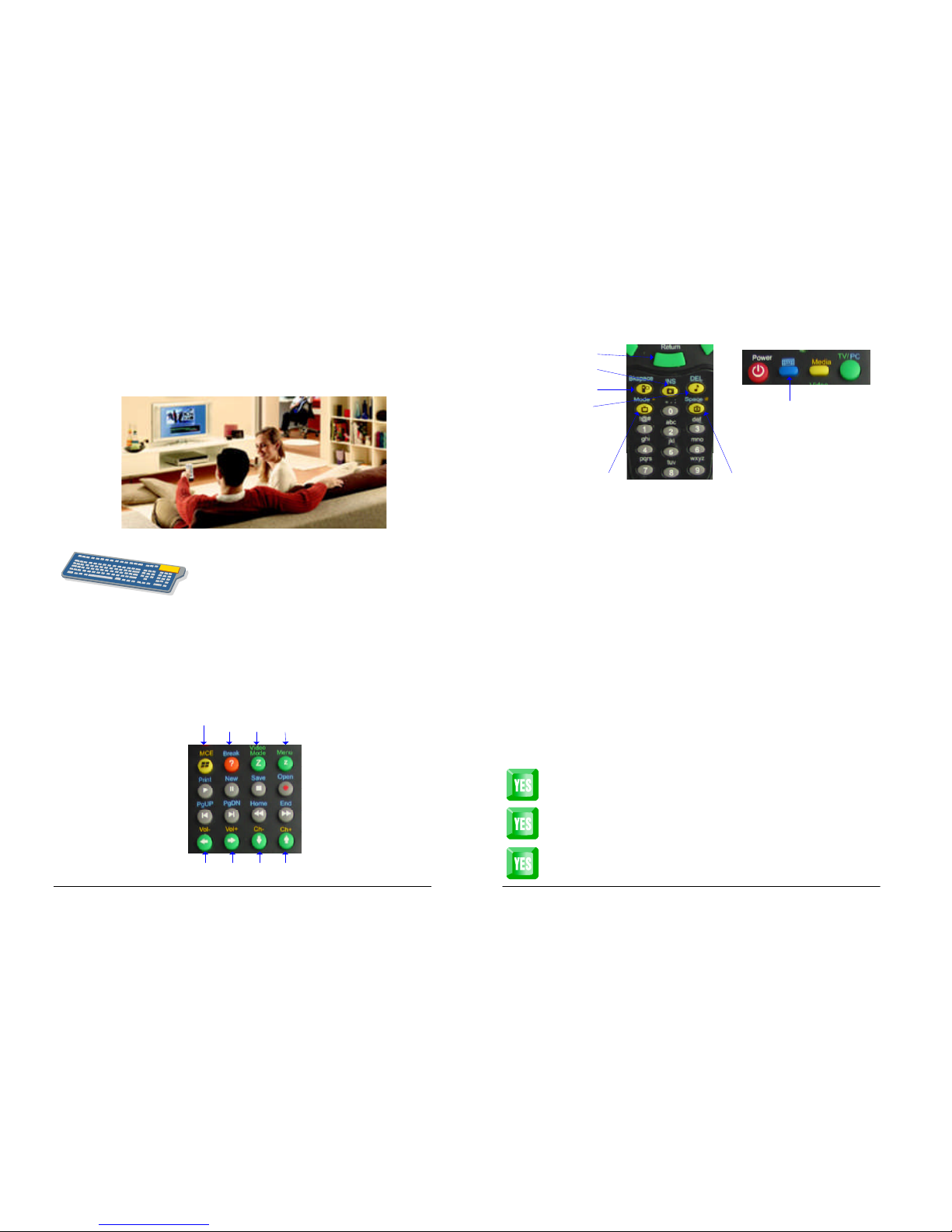
In PC mode, there are cursor control functions, file operation functions, and text
section with text editing keys and number keys as the text entry keys.
Cursor Control
UPDOWNRIGHTLEFT
File Operations
Ctrl+Alt+Del
TEXT section
Text Entry Keys
Input Mode Change
en: lowercase
En: leading uppercase
EN: uppercase
Space
Re-hit PC mode key for PC
language change
9 mode (Normal language) is
a by-pass mode
Enter (word pick in IME)
INS (phonetic combination
pick in IME)
Backspace (back-delete an
input code in IME)
Delete (delete an input
code in IME)
Cursor Control
System Functions
Alt+f
F5
F11
Up/Down for choosing word candidate
Left/Right for choosing syllable candidate
Home/End for choosing phrase candidate
 Loading...