

Page 1
Chanun Pegasus+ User’s Guide
1
User’s Manual
SEMISOLUTION INC. | CAMSOLUTION
Car DASHCAM video drive recorder
Suite 2005, Heungdeok U-Tower, 120, Heungdeokjungang-ro, Giheung-gu, Yongin-si, Gyeonggi-do, 16950, Korea
TEL : +82-31-627-5300 FAX : +82-31-627-5303
2CH
Page 2
Chanun Pegasus+ User’s Guide
2
Purpose of the product and warrant and scope of responsibility of video recordings
1. Distributors and users should be noted that this product has completed an electromagnetic compatibility registration for business use
(Class A) and is thus intended for use in places other than homes.
2. This product is an auxiliary device for safe driving that is intended to record the driver’s view with the purposes of raising his/her
awareness about safe driving, preventing accidents, and providing the circumferential information material when an accident takes place.
3. This product does not warrant recording of all the image of an accident. Furthermore, it should be noted that it may not be able to detect
a minor impact that does not trigger the operation of its impact sensor, in which case the moment is not recognized as an event and
consequently does not record it.
4. We are not responsible for all the damages including, but not limited to, loss of recorded image and loss of related driving information,
that may result from the mechanical failure of the product occurring at the time of an accident or under any other circumstances.
5. Precautions when using a constant power cable for parking recording. All the models on CHANUN Dashcam Series are developed to be
basically used on a vehicle’s power terminal (DC 12V~24V). If you are planning to use a constant power cable for recording in the parking
mode, you need to consult an expert, for you may have good chances of experiencing any of the following problems. We are not liable for
any and all the damage to the product arising therefrom or in connection thereof, especially to the vehicle, for which the user is fully
responsible.
Problems may be caused by using constant power cable from fuse box.
① Shorten the lifetime of dash cam and serious failure ② Discharge car battery and decrease it’s lifetime ③ Serious defectiveness on electric
system of the car ④ Shorten the lifetime of electric generator on the car ⑤ Car fire caused by overheat and short circuit of wires and battery
Page 3
Chanun Pegasus+ User’s Guide
3
Warnings for Safe Use
1. Do not manipulate or stare at the product while driving.
It may cause accident. When you need to manipulate the product please park your car.
2. Do not disassemble, repair or remodel the product at your discretion.
Which may lead to an electric shock, damage to the product, and/or loss of recorded images
and data. Contact our Customer Service Center for consultation if you find out that the product has
developed any failure.
3. When water gets into the product, do not dry it forcefully with a heating device.
(such as a heater, a hair dryer, or a microwave oven)
Which may result in explosion, deformation, or an mechanical failure. Contact our Customer Service
Center for repair service. Furthermore, do not use liquids such as water, benzene, and alcohol
when your clean the product; instead, clean it with a soft dry cloth.
4. Avoid using any components other than those included in the package set.
Use of any parts other than those provided by us may give rise to a failure or an accident.
This sign refers to a warning
a violation of which
may result in death or severe
personal injury.
Warning
This “Warnings for Safe Use” is intended to provide you with all the safety precautions and notes for the purposes of promoting
your safe use and protecting you against personal injury and property damage. And, you are advised to keep this User Manual at
a place clearly visible and readily accessible
Page 4
Chanun Pegasus+ User’s Guide
4
Warnings for Safe Use
6. Do not use power that is not specified for this product.
Be sure to connect this product to a vehicles’ rated voltage (12~24V) power supply and observe all the
instructions for installation. Use or installation of the product with any voltage other than specified ones
may result in explosion, fire, or failure.
7.
Separate the product from inside the vehicle in hot summer or cold winter and keep it in a different place.
Long storage of the product in the closed vehicle in hot summer or in cold winter may lead to malfunction or
failure. When the vehicle is meant to be parked for a long time, separate the product and store it in other
place.
※ This product is designed to trigger the high-temperature operation shutoff and automatically comes to a stop
when the temperature rises above the product’s operating temperature range due to the ambient temperature.
The product will resume its operation when the temperature decreases below its operating temperature range.
7. Precautions when using a constant power cable.
All the models on CHANUN Dashcam Series are developed to be basically used on a vehicle’s power terminal
(DC 12V~24V). If you are planning to use a constant power cable for recording in the parking mode, you need
to consult an expert, for you may have good chances of experiencing any of the following problems.
We are not liable for any and all the damage to the product arising therefrom or in connection there of,
especially to the vehicle, for which the user is fully responsible.
This “Warnings for Safe Use” is intended to provide you with all the safety precautions and notes for the purposes of promoting
your safe use and protecting you against personal injury and property damage. And, you are advised to keep this User Manual at
a place clearly visible and readily accessible
This sign refers to a warning
a violation of which
may result in death or severe
personal injury.
Warning
Page 5
Chanun Pegasus+ User’s Guide
5
Warnings for Safe Use
1.
Avoid installing the product on an area of the windshield coated with a thick tinting film or a place
where foreign matter (such as a sticker) or an obstacle blocks view.
This may deteriorate the video quality or make the GPS connection (limited to GPS devices) unstable.
2. Be sure to keep the camera lens clean at all times.
When the lens is contaminated by foreign matter, it reduces the quality of recorded videos.
Clean the lens with a soft cloth periodically.
3. When a big accident causes damage to the product or when power is cut off, conduct an inspection
on the product before it is put into operation again.
Use without examination may result in malfunction of the product, causing it to be unable to record events.
4. When the product is attached at a different location, be sure to re-check the angle of the camera
before it is put to use.
The camera is likely to lose its preset angle when it is unused for a long time or it is exposed to severe vibration
after driving on unpaved roads; so, check it regularly.
This “Warnings for Safe Use” is intended to provide you with all the safety precautions and notes for the purposes of promoting
your safe use and protecting you against personal injury and property damage. And, you are advised to keep this User Manual at
a place clearly visible and readily accessible
This sign refers to a warning
a violation of which
may result in death or severe
personal injury.
Warning
Page 6
Chanun Pegasus+ User’s Guide
6
Warnings for Safe Use
5. The quality of recorded images may vary depending on recording locations and lighting.
This product adopts a camera to record images; therefore, its quality may be reduced in a situation
in which your car experiences sudden changes in brightness such as entering or exiting a tunnel,
driving in full sunlight that produces strong backlight or in the nighttime environment without any
light sources.
6. The automatic event recording may not be enabled in case of a very weak impact,
in which case an arbitrary impact can be exercised to cause the product to record the event.
7.Check recorded videos regularly.
You are recommended to inspect recorded videos periodically to check if the product and the SD memory card
function normally. When you find any abnormality, stop using the product and contact our Customer Service
Center for service.
This “Warnings for Safe Use” is intended to provide you with all the safety precautions and notes for the purposes of promoting
your safe use and protecting you against personal injury and property damage. And, you are advised to keep this User Manual at
a place clearly visible and readily accessible
This sign refers to a warning
a violation of which
may result in death or severe
personal injury.
Warning
Page 7
Chanun Pegasus+ User’s Guide
7
Safety Precautions- SD Memory Cards
1. SD memory cards are *consumables. Accordingly, perform regular inspections and replace defective cards with new ones.
*Consumables: The warranty period for SD memory cards is 6 months, as is warranted by makers.
A SD memory card becomes obsolescent as it continues to record images. Accordingly, you are advised to conduct regular inspections and
replace it with a new product when it has difficulty in being verified. Formatting a SD memory card regularly can extend its service life
(recommended to format it once every two weeks). Be sure to have a backup of important video files before it is subjected to formatting.
2. Use only genuine SD memory card provided by our company.
You are advised to use or purchase genuine SD memory cards specified by us. Use of unspecified SD memory cards may give rise to
such problems as short service life and compatibility, resulting in inability to perform recording properly.
3. Be sure to disconnect power before you separate the SD memory card from the product.
In the event the memory card is taken out while power is connected, data stored in it may be damaged, lost, or the product can develop
a mechanical failure. Make sure that you should turn off power before you separate the card.
4. Do not disassemble or alter SD memory cards at your discretion.
Arbitrary disassembly or alteration may result in the loss of the data in them or damage to this product.
5. Care should be exercised not to let SD memory cards be exposed to moisture, dust, and heat during separate storage.
Long-term exposure to moisture, dust, and heat may cause memory cards to be deformed or to be unable to perform properly.
6. Be sure to make a backup of important data in other storage media in addition to the SD memory card.
You are recommended to make a backup of important data that need storing safely for a long time using a separate storage medium
(such as a hard disk or CD). Especially, attention should be paid to accident-related images which had better be stored in a separate
medium, for continued recording after the accident can cause the accident data to be deleted permanently.
Page 8
Chanun Pegasus+ User’s Guide
8
Safety precautions- GPS (limited to model with a GPS receiver)
The Global Positioning System (GPS) is a sophisticated, satellite-based, navigation system that receives data from more than 3 dedicated satellites that
provide accurate time and distance to calculate the current location. This product makes use of the GPS technology to record the vehicle’s location
and driving speed at the time of recoding images, thus enabling it to offer additional circumferential information along with the recorded image. Furthermore, the technology allows the user to combine the location information with a map serviced on the Internet to keep track of his/her travels.
1. GPS signals are influenced by weather, satellite condition, and geographic features.
The antenna mounted in this product receives signals from communications satellites revolving on their orbits above the Earth; therefore,
the reception quality may become unstable when there are such factors as affect the communication between two ends as weather conditions
(cloudy days with thickening clouds and rainy days) and surrounding topography (around high-rises, under elevated roads, in tunnels and under
ground roadways, and underground parking lots).
2. Reception of GPS signals has no effect on the product’s ability to record images.
Even though GPS signals are lost halfway, the product normally records images without writing the location and driving information.
3.
When the product is first used or it has been unused for a long time, it can take about 5~30 minute to receive satellite signals properly.
That is because it takes longer time to search for the locations of satellites and receive signals from them.
4. Optimum temperature for a GPS receiver to operate ranges from 0℃ to 50℃.
GPS signals are unstable or take longer time to reach a receiver in hot summer or in cold winter; therefore, it is desirable to keep stable the
temperature inside the vehicle.
5. A GPS receiver can be influenced by such element as metal coating on the vehicle’s window or dark tinting.
It is advised that you should avoid installing the product on such part.
6.
A GPS receiver can be affected by items of equipment that generate electromagnetic waves that interfere with GPS signals in the vehicle.
Such GPS devices include some wireless starters and alarms, some MP3 and CD players, and GPS-based security alarms, which produce radio
waves that can interfere with reception by a device of GPS signals.
Page 9
Chanun Pegasus+ User’s Guide
9
Contents
Constitution of the Product
··················
10
Name of each part
······················
11
Installation
···························
12
Installing the PC Viewer
····················
14
How to use PC Viewer
····················
16
PC Viewer Configuration
···················
18
How to separate video
····················
21
LCD configuration
·······················
22
Playback
····························
23
How to display Front/Rear screen
···············
24
Video player
··························
25
PC Viewer Program
······················
26
REC Time
···························
27
Voice Guide
··························
28
Points to be checked before asking for repair service
····
29
FAQ
······························
30
Specification
··························
31
Product warranty
·······················
32
Page 10
Chanun Pegasus+ User’s Guide
10
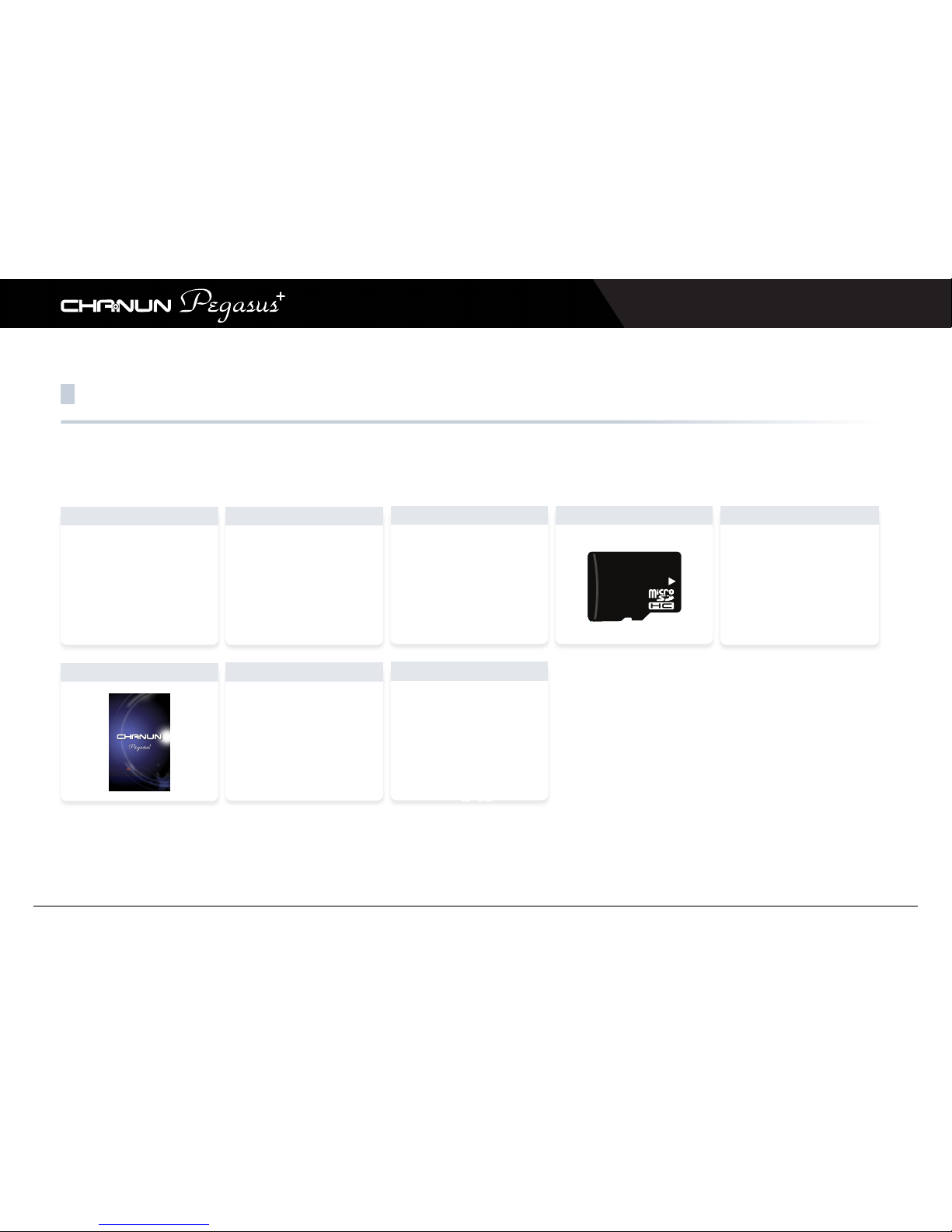
Main body
Rear view camera / Cable
Cigar jack Memory Card
GPS (Optional)
Quick guide
Quick Manual
제품 상세 매뉴얼 및 전용뷰어 프로그램은 당사 홈페이지에서 다운로드 받으시기 바랍니다.
www.camsolution.co.kr
Cradle
Constitution of the Product
Check if all of the following components are delivered when you purchase the product.
(The parts provided in the package may vary in appearance and color depending on models)
▶ The components of this product are subject to change without prior notice for the purpose of improving their performance.
You need to purchase additional parts other than those provided in the basic bundle as well as other accessory items.
Programs & User’s manual
Programs and User’s Manual
Download them from the
archive of our website at
www.camsolution.co.kr
Page 11
Chanun Pegasus+ User’s Guide
11
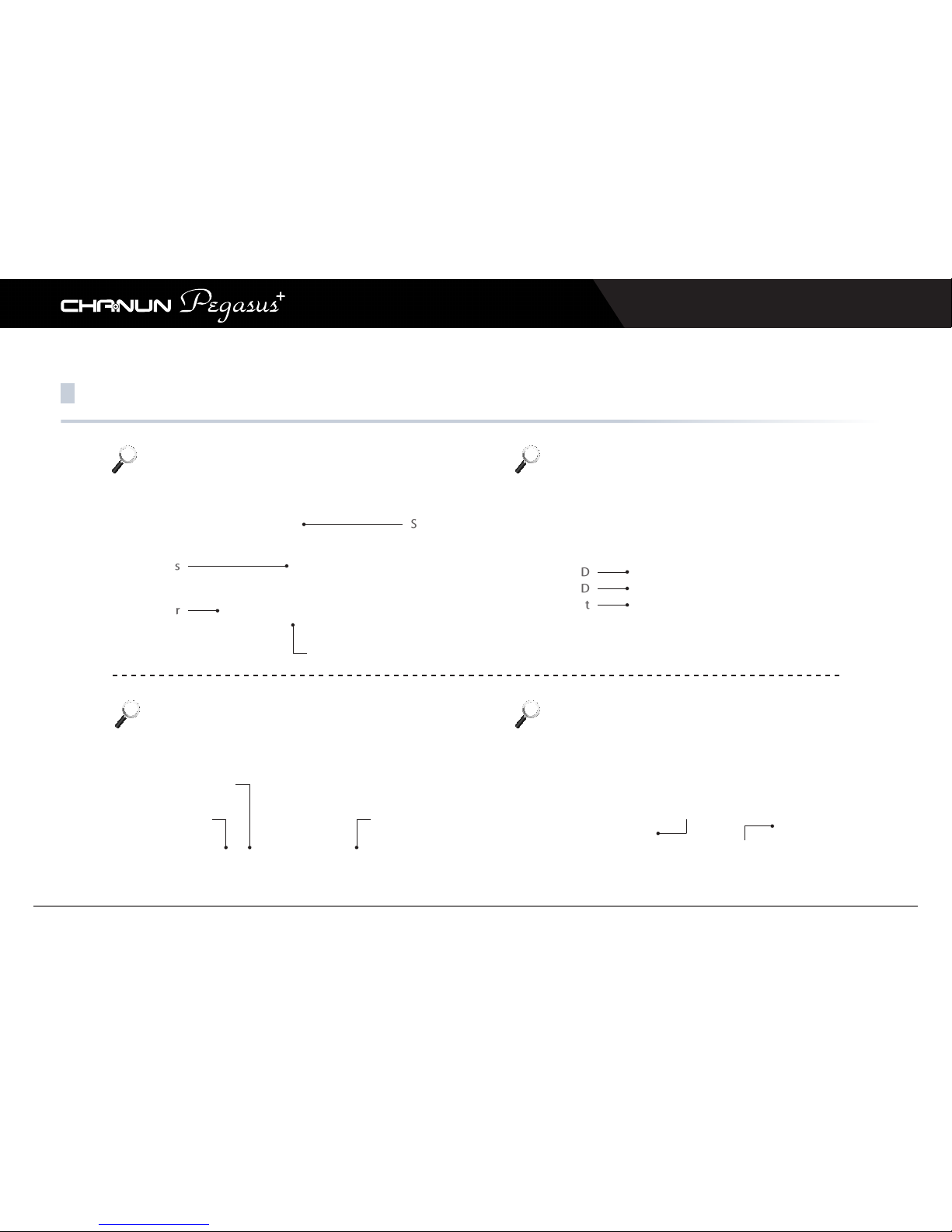
Name of each part
Security LED
MIC
Bottom
Speaker
GPS LED
REC LED
Reset
Side
Front Rear
Lens
GPS portPower port
Rear view camera port
Power button
SD card slot
Page 12
Chanun Pegasus+ User’s Guide
12
Installation
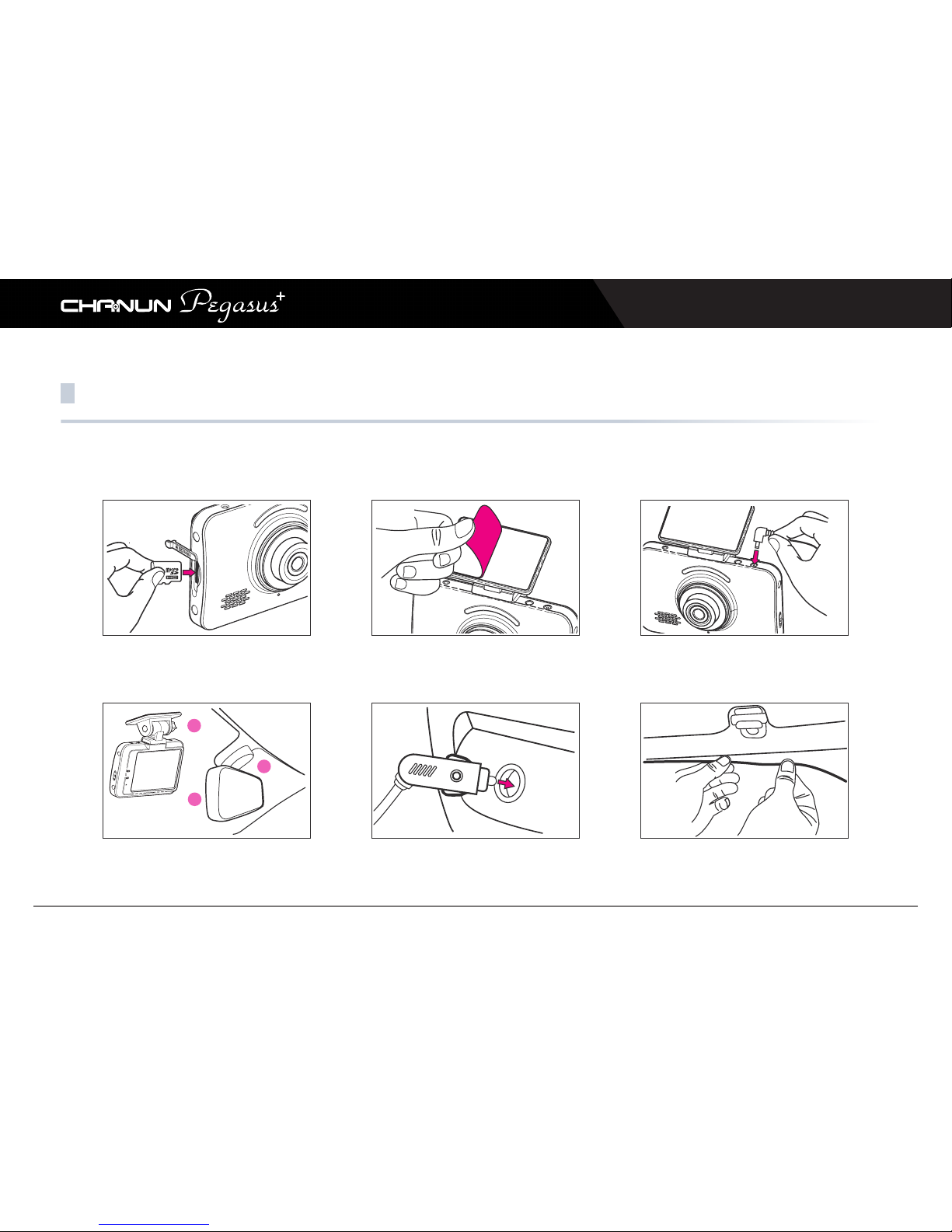
1. Front Camera Installation
1) Insert Micro SD card to SD card slot of
the device.
(Check the defection of SD card.)
4) Attach the bracket on the windshield
of the left of center behind the rear
view mirror.
5) Plug the cigar jack cable into car
power socket.
6) Arrange the wire by using the cable
clip.
2) Remove the protective tape from the
cradle.
3) Connect the cigar jack cable to DC-IN
of the device.
▶ Please power off a vehicle and PEGASUS+ before installation.
Page 13
Chanun Pegasus+ User’s Guide
13
Installation
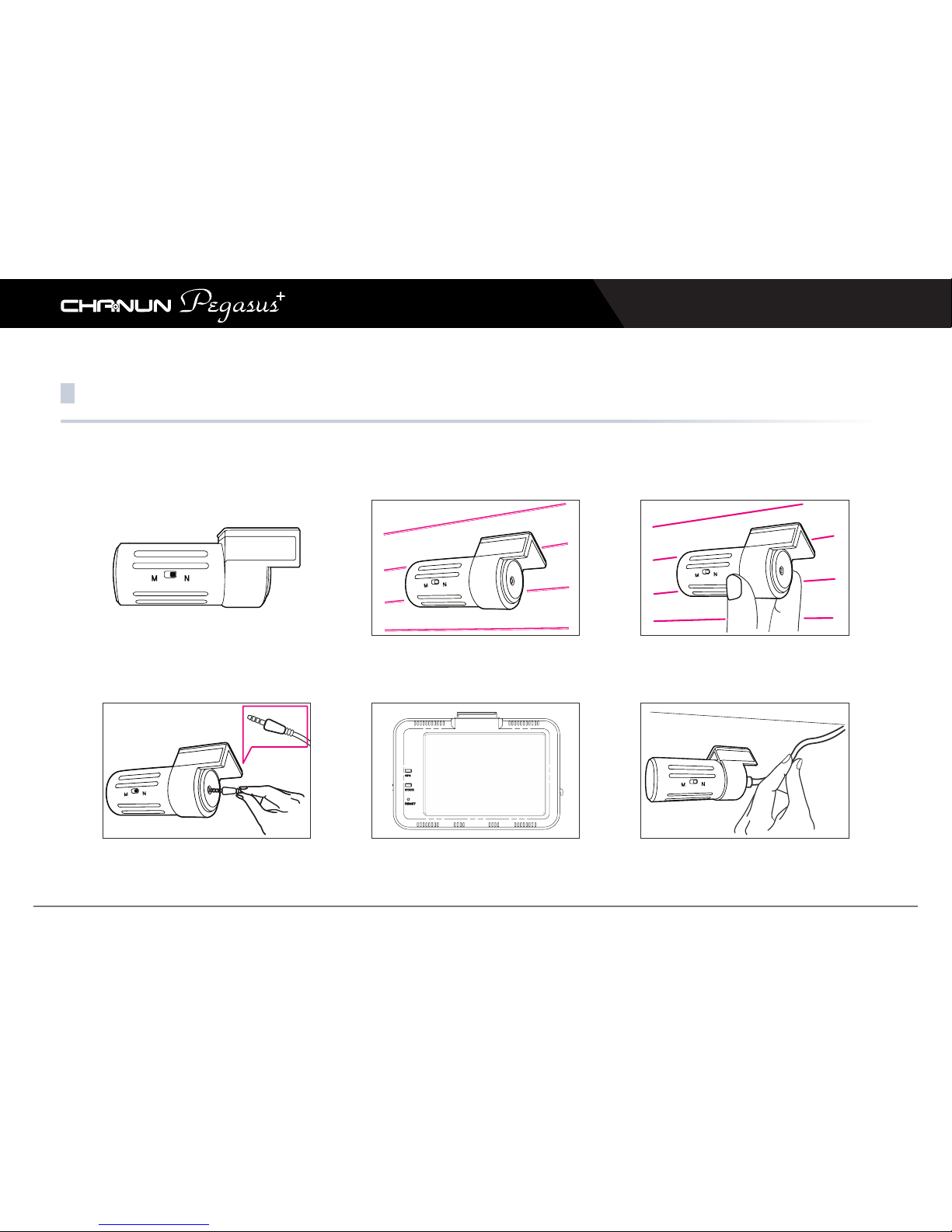
2. Rear view camera installation
1) Turn the ignition and the device off
before installation.
※Available to reverse left and right side.
N(Normal), M(Reversal of left, right)
4) Plug (ㅡ) shape’s rear end of the plug
to the camera connection, (ㄱ) shape’s
one to the device.
5) Turn the device on and check whether
to record properly.
6) Arrange the wire by using the cable
clip.
2) Remove the protective tape from the
rear camera and attach the camera in
the proper place.
3) Adjust the camera angle and fix it.
(To adjust the angle, the horizon is seen
above the right center of the screen.)
▶ Please power off a vehicle and PEGASUS+ before installation.
Page 14
Chanun Pegasus+ User’s Guide
14
Installing the PC Viewer
1. Executing installation files
Download the latest version of Chanun PEGASUS
+
Program.
※ File location: www.camsolution.co.kr > Support > DOWNLOAD
2. Install (Compatible OS: Window XP, 7, 8, 8.1, 10)
Unzip the downloaded files and double click to start installation.
Chanun
PegasusPlus
Setup
The recorded video files are stored in the SD memory card in AVI format, which can be played in normal video players that
support AVI files. However, in order to make best use of various optimized additional functions, file management, and
configuration in addition to basic image playback, you are recommended to install the Player provided by us.
Page 15
Chanun Pegasus+ User’s Guide
15
Installing the PC Viewer
3. Specify the location for installation
Select the path for saving the Player and click the Next button to continue installation.
4. Installation completed
The installation is completed. Click the Finish button to bring the installation to an end.
The recorded video files are stored in the SD memory card in AVI format, which can be played in normal video players that
support AVI files. However, in order to make best use of various optimized additional functions, file management, and
configuration in addition to basic image playback, you are recommended to install the Player provided by us.
Page 16
Chanun Pegasus+ User’s Guide
16
How to use PC Viewer
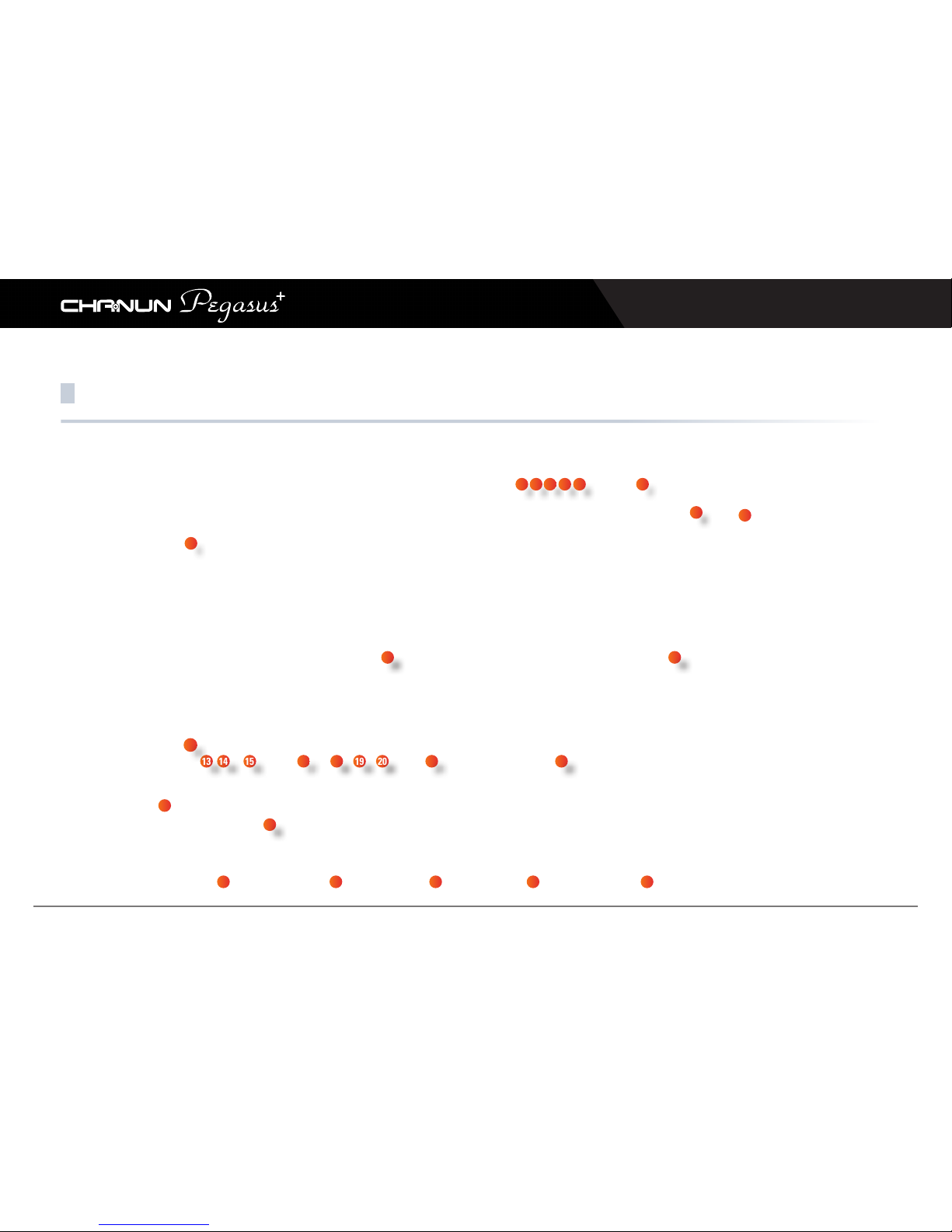
1
2 3 4 5 6 7
8
9
10
222120191817151413
12
16
23 24 25 26 27
11
28
Page 17
Chanun Pegasus+ User’s Guide
17
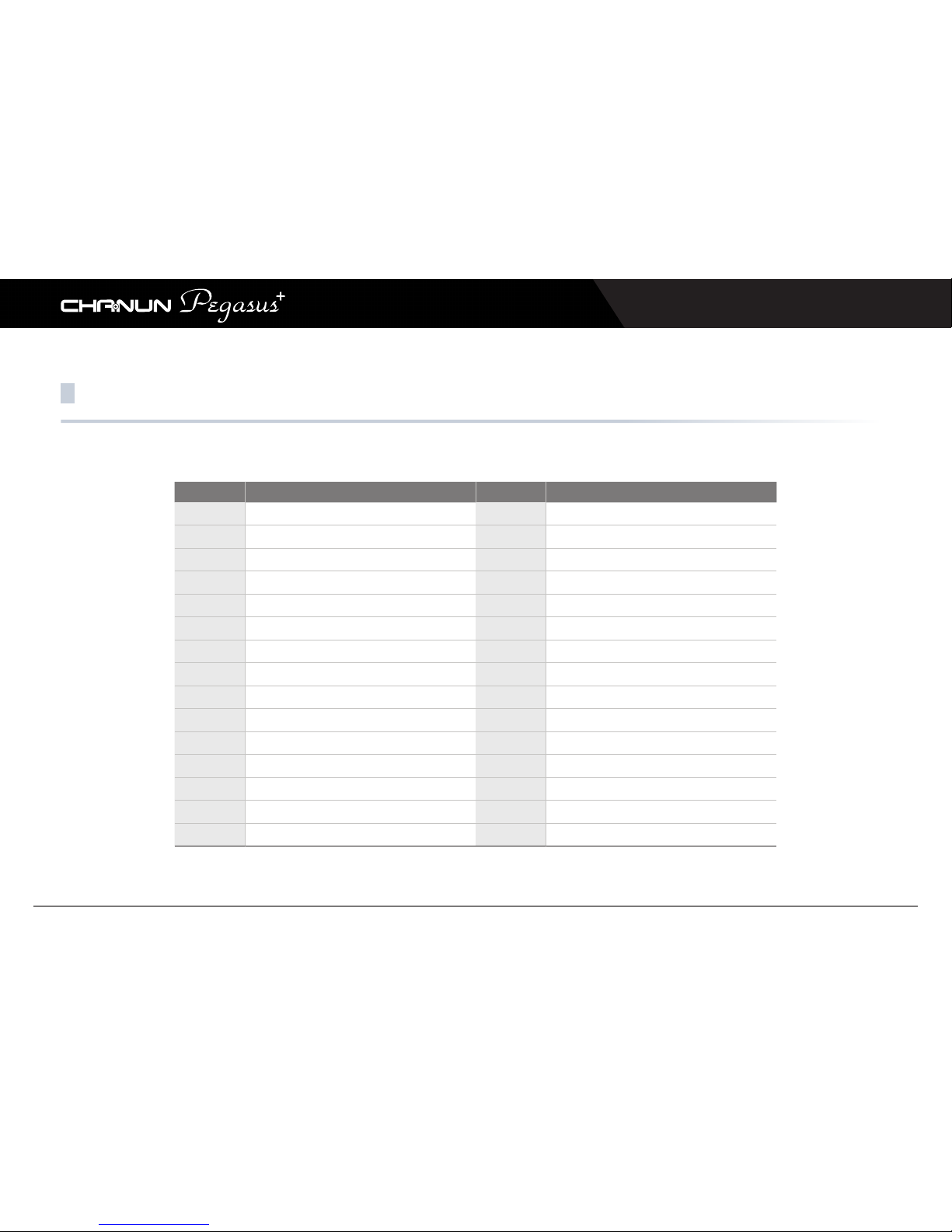
How to use PC Viewer
Item Function Item Function
1
1CH / 2CH View
16
Rewind 5 sec
2
Viewer Configuration
17
Playback or Pause
3
System Configuration
18
Stop
4
Print
19
Forward 5 sec
5
Screen Capture
20
File Skip
6
Zoom
21
Control Volume
7
Play List / Map Button
22
Total File Time / Playback Time
8
File Location Search
23
Brightness / Contrast
9
Split Image
24
GPS Signal Condition
10
REC File List / Map Display
25
Driving Speed
11
Playback Control
26
Latitude / Longitude
12
Full Screen
27
G-sensor Information
13
Flip Horizontal
28
Playback Video Image
14
Flip Vertical
15
File Skip Back
Page 18
Chanun Pegasus+ User’s Guide
18
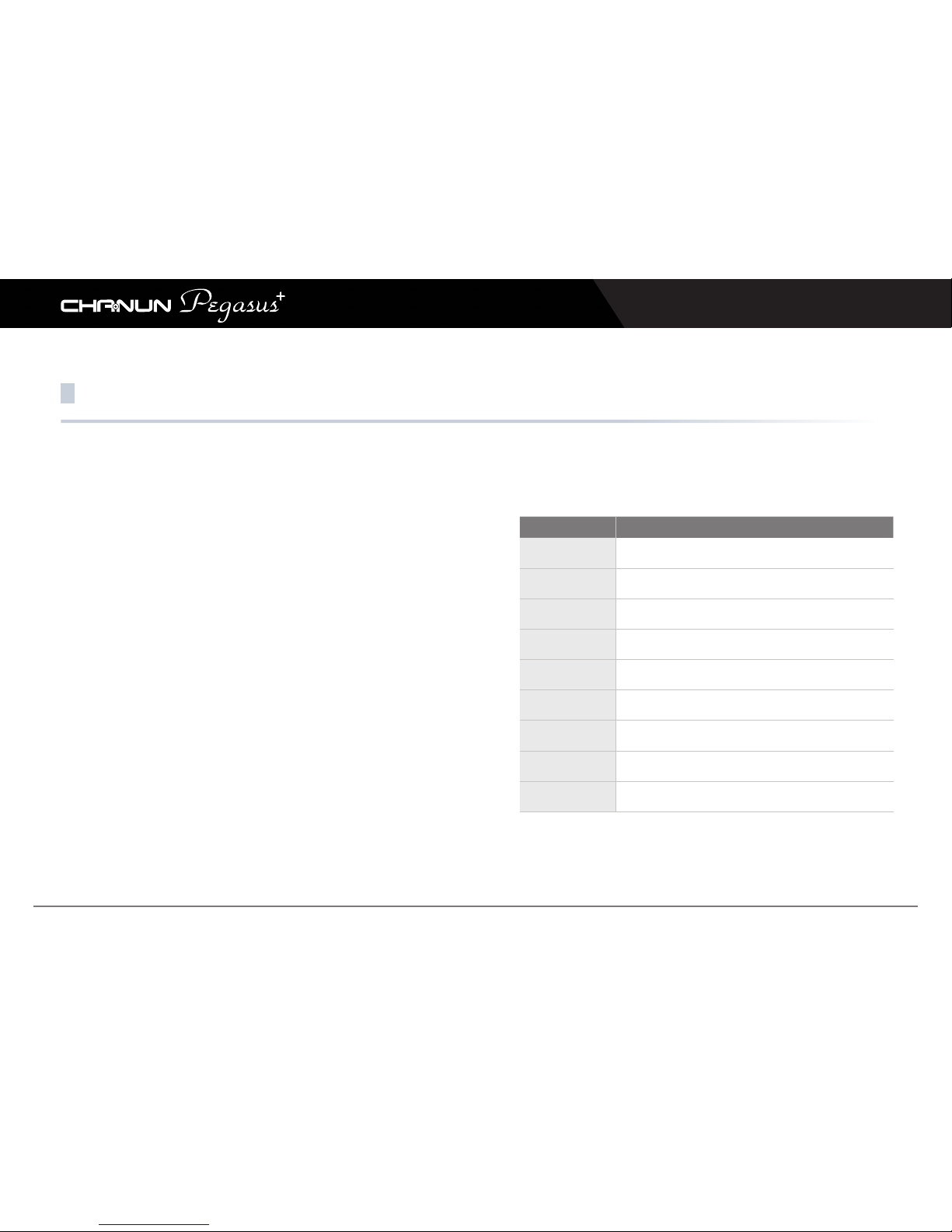
PC Viewer Configuration
Item Function
JPEG Storage
Location
Set location for captured JPEG image.
Language
Select language.
Playback Mode
Select display channel.
Repeat
Select repeated playback.
App Always Top
Select App is always the top of another window.
Video Reverse
Video can reverse from side to side and up and down.
Product Model
Select the model.
Video Adjustment
Control playback speed.
Volume
Control recording volume level.
Page 19
Chanun Pegasus+ User’s Guide
19
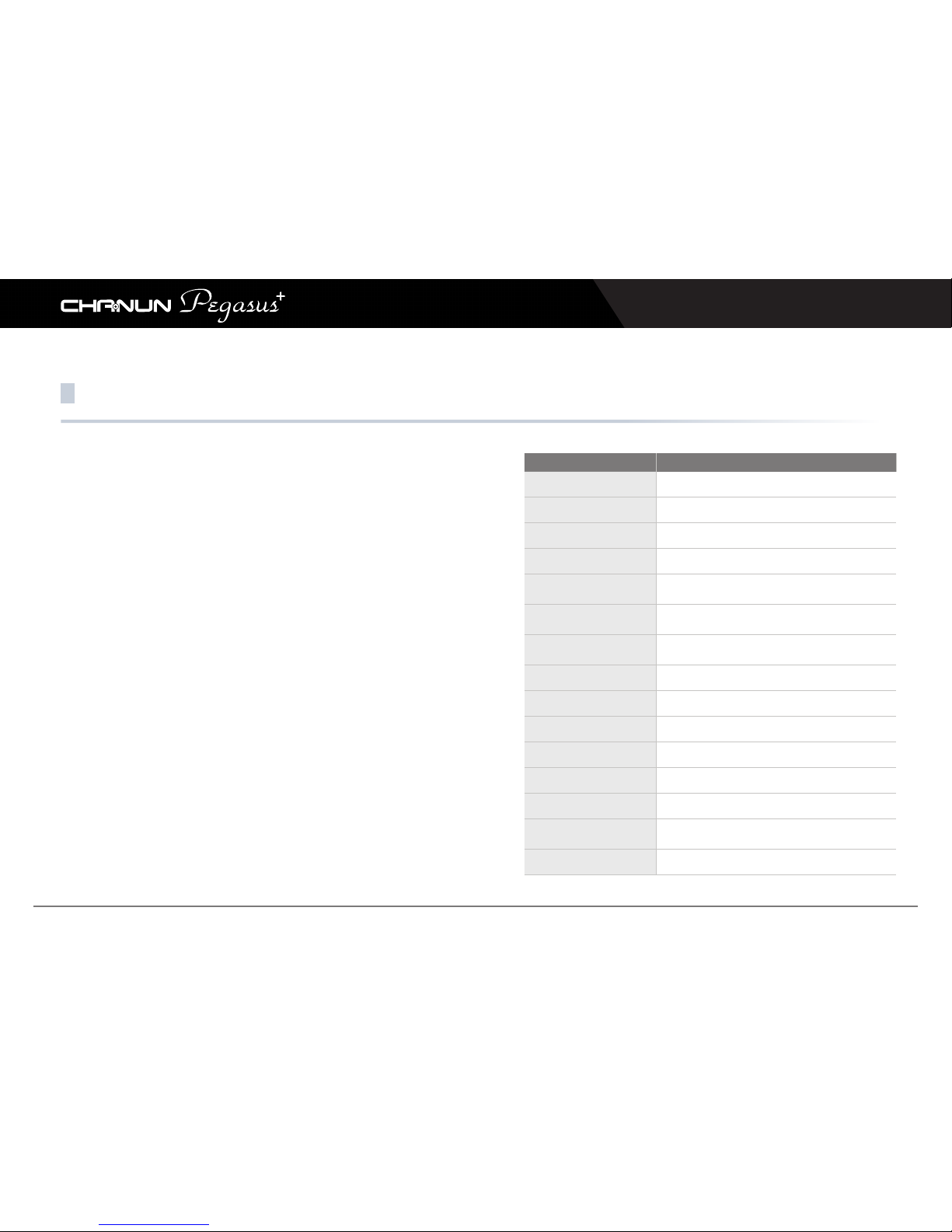
PC Viewer Configuration
Item Function
REC Mode Setting
Select the recording mode.
Front Camera Video Quality
Select video quality in a front camera.
Rear Camera Video Quality
Select video quality in a rear camera.
REC Time
Select recording time for each file.
Motion Sensitivity
Select a motion sensitivity level during parking
mode. (Level 1 is the most sensitive)
Driving Mode G-Sensor
Select a shock sensor sensitivity level on nor-
mal mode.
Parking Mode G-Sensor
Select a shock sensor sensitivity level on
parking mode.
Voice Guide Volume Level
Select voice guide volume level.
REC Volume Level
Select a recording auto level.
Parking Mode Change
Select a parking mode auto-change function.
LCD Screen Saver
Select LCD screen saver function.
OSD Setting
Select OSD out on LCD.
Front LED Setting
Select front security LED function.
Breaking Voltage
Select a breaking voltage for a constant power
discharge production function.
REC Channel
Select a recording channel.
Page 20
Chanun Pegasus+ User’s Guide
20
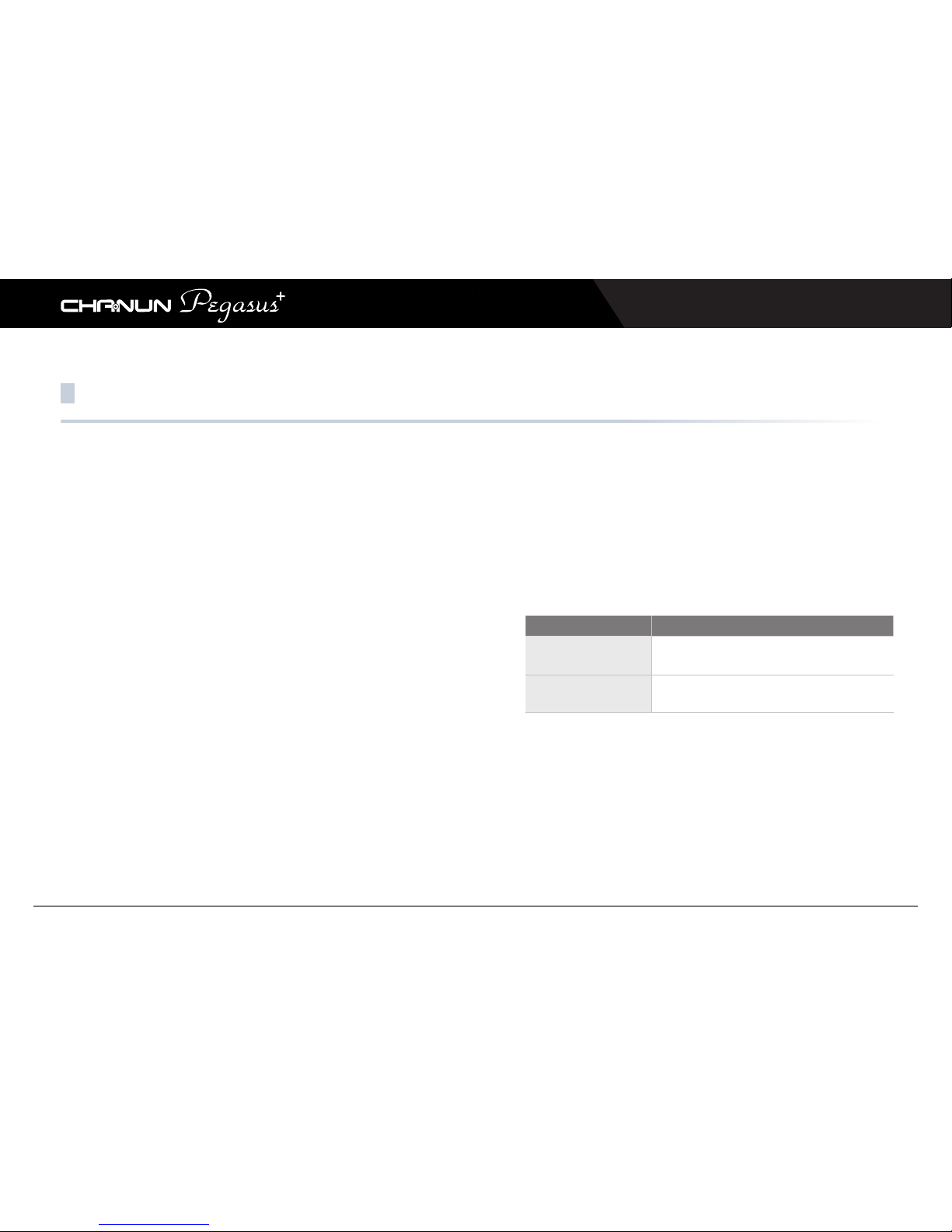
PC Viewer Configuration
Item Function
Camera Sensor
Select Brightness, Chroma. Back to default
value after click sensor initialization.
SD Card Folder Capacity
Adjustment
Select the capacity of each
recording mode in SD card.
Page 21
Chanun Pegasus+ User’s Guide
21
How to separate video
1. Press “Front & Rear Extract” button on the original PC viewer program.
2. Select a video file to separate and click “OK” button.
3. Stored separated file in “C:\Program Files\Chanun Pegasus plus\Video”
Page 22
Chanun Pegasus+ User’s Guide
22
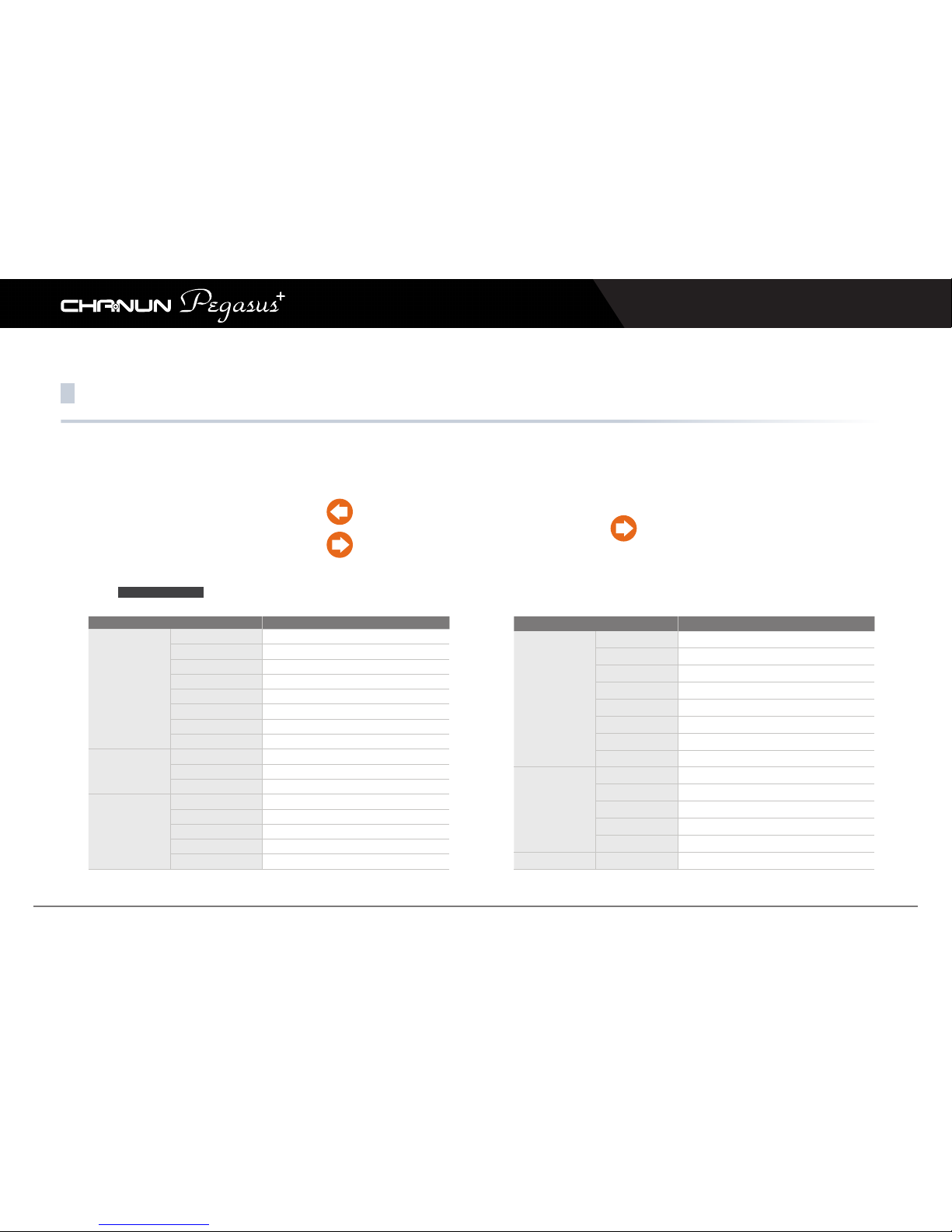
LCD Configuration
Menu Function
Quick Menu
Live
Live Image
Menu
Setting Menu
Mute
Voice REC ON/OFF
Voice Guide
Speaker ON/OFF
Play List
Playback List
Driving/Parking REC
N(Driving), P(Parking) REC
OSD
OSD On/Off
Front LED
LED On/Off
Time Set
Time Set
Set Time on Winner
Standard Time Set
Set Standard Time
Summer Time
Set Summer Time
System Set
Cut Off Voltage
Set voltage for car constant power discharge
Auto LCD Off
Normally off after 30sec / on 60sec
TV-OUT
Set TV our format (OFF/NTSC)
High Temp Cut off
Set High Temperature Cut off
Speaker Volume
Set Speaker Volume
Menu
Function
REC Set
Driving/Event REC
Set REC Mode
Front Video Quality
Set Front Video Quality
Rear Video Quality
Set Rear Video Quality
REC CH
Set REC Channel
Mic Volume
Set REC Volume
Motion Level
Set Motion Sensor Level
Shock Level(N)
Set Shock Sensor Level (Driving)
Shock Level(P)
Set Shock Sensor Level (Parking)
Others
System Info
Display System Information
Memory Adjustment
Adjust REC Folder Capacity Rate
Touch Calibration
Calibrate Touch Screen
SD Card Format
Format Micro SD Card
Factory Init
Initialize Configuration
Camera Set
Camera Set
Adjust Brightness, Contrast, Chroma on Camera
2017/01/04 12:30:36
Page 23
Chanun Pegasus+ User’s Guide
23
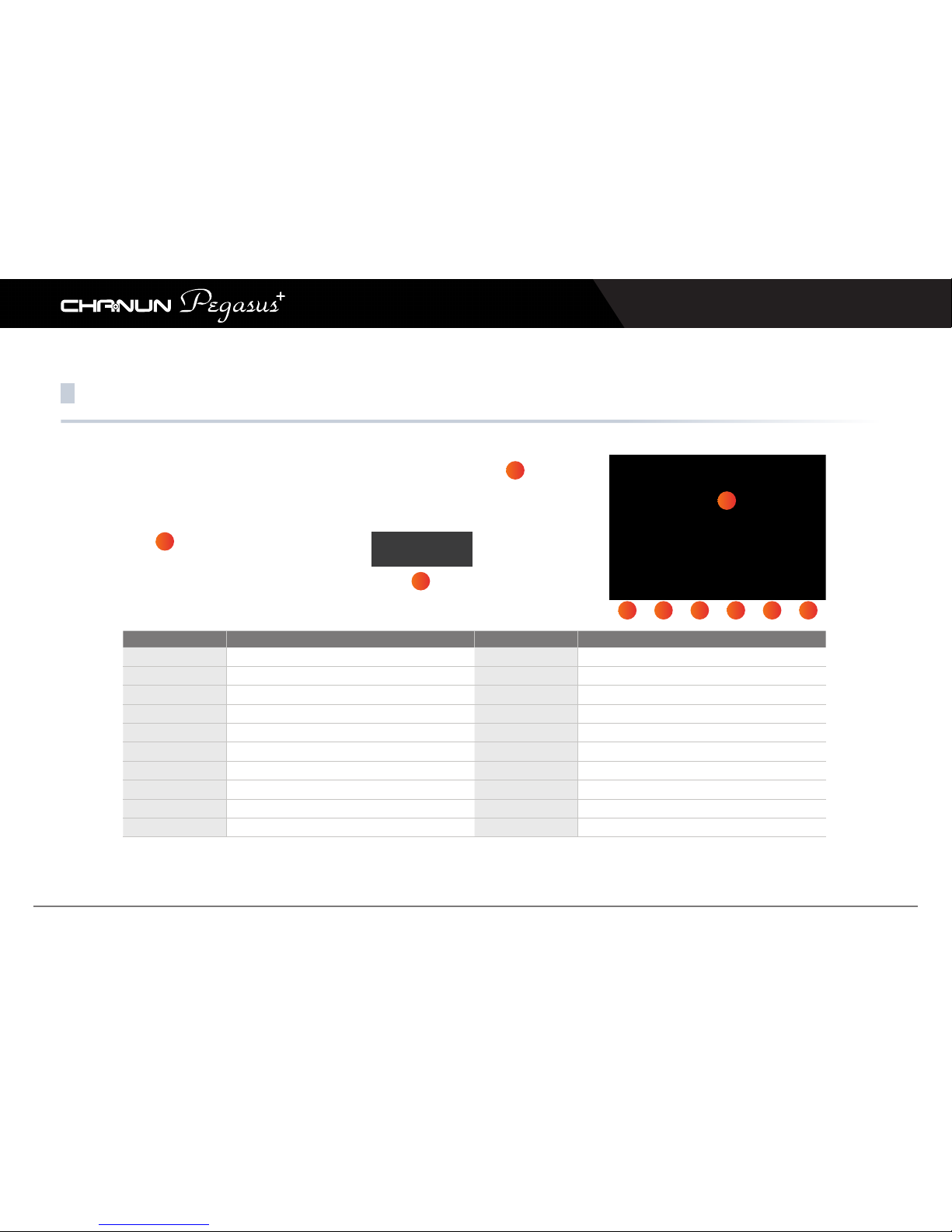
Playback - Vehicle Drive Recorder
No. Item Display Description
1
Play List
Icon
Display REC List
2
Normal / Event / Motion
Tab
Each REC file list display tab
3
REC File list
List
REC File list that is selected tab
4
Playback REC
Window
REC video playback window
5
LIVE
Button
Back to list
6
Front / Rear
Button
Toggle Front / Rear video diplay
7
Former File
Button
Playback Former file
8
Playback
Button
Playback REC file
9
Next File
Button
Playback Next file
10
Back
Button
Back to list tab
1
4
5 6 7 8 9 10
2
3
2016/12/06 18:11:08
2016/12/06 18:11:12
2016/12/06 18:12:08
※ Audio does not sound when video playbacks in Dash cam. When audio playback is needed, you can check audio through PC viewer.
Page 24
Chanun Pegasus+ User’s Guide
24
How to display Front / Rear screen
1. When you touch in the upper-right-hand corner of the screen (1/4 of whole screen), LCD Screen will change automatically
Front/Rear, only Front, only Rear.
2. Only LCD Screen looks different, 2CH images will be recorded when rear camera is connected.
Front Front RearRear
Page 25
Chanun Pegasus+ User’s Guide
25
Video Player
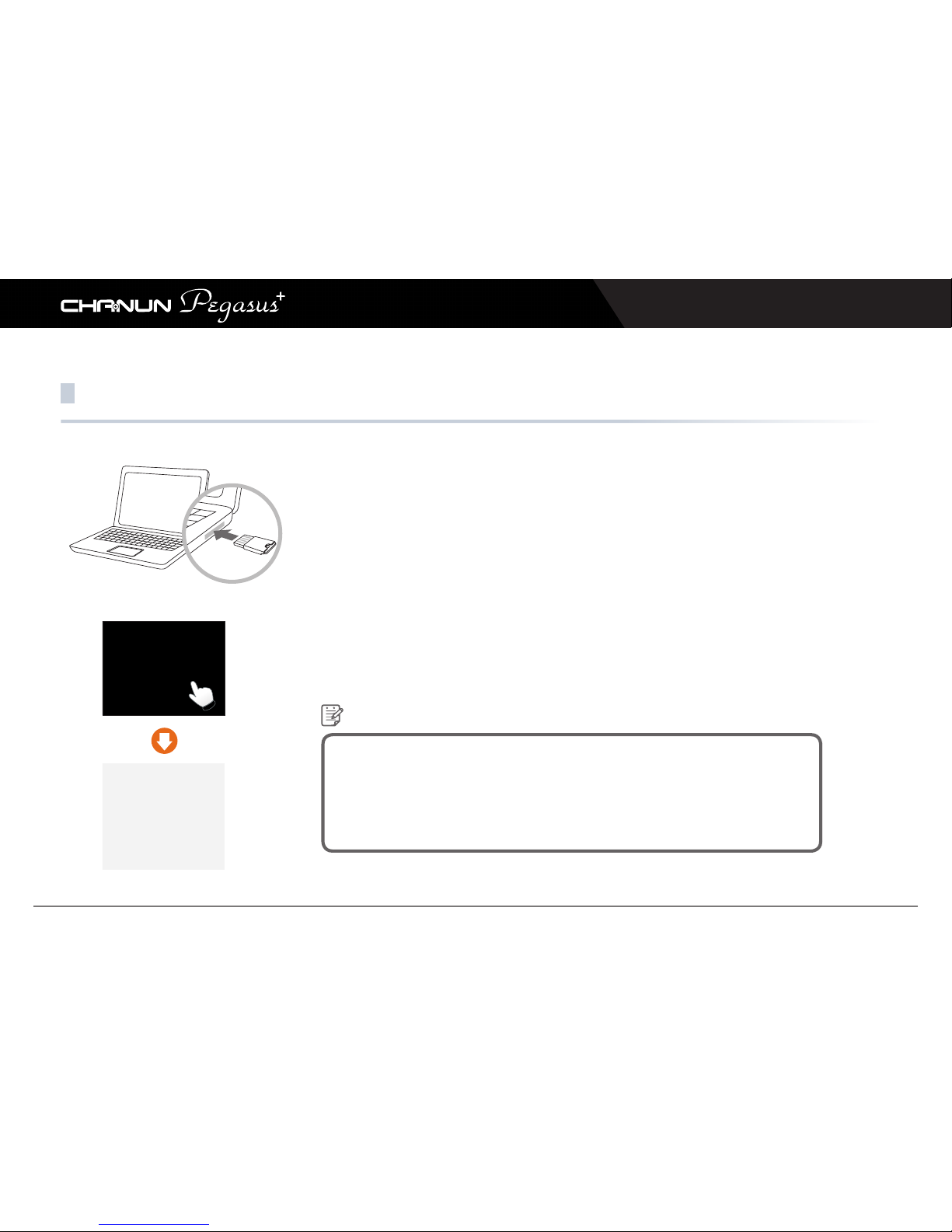
1. Remove the SD Card from the device
Open a SD Card slot cover and press softly, then a SD Card can be removed easily.
2. Connect a SD Card to PC
Insert a SD card to SD Card Reader or to adapter, and connect it to PC.
3. Playback
Open a removal disc, you can see each folders. And click files to playback which is stored
in each folders.
infxx : Normal record.
moexx : Motion record which is detected by motion detection sensor. (Parking mode)
evtxx : Event record which is detected a shock by shock sensor.
*GPS Information is displayed in the original viewer.
*You can check only front REC when playing by a video player.
Reference
Page 26
Chanun Pegasus+ User’s Guide
26
PC Viewer Program
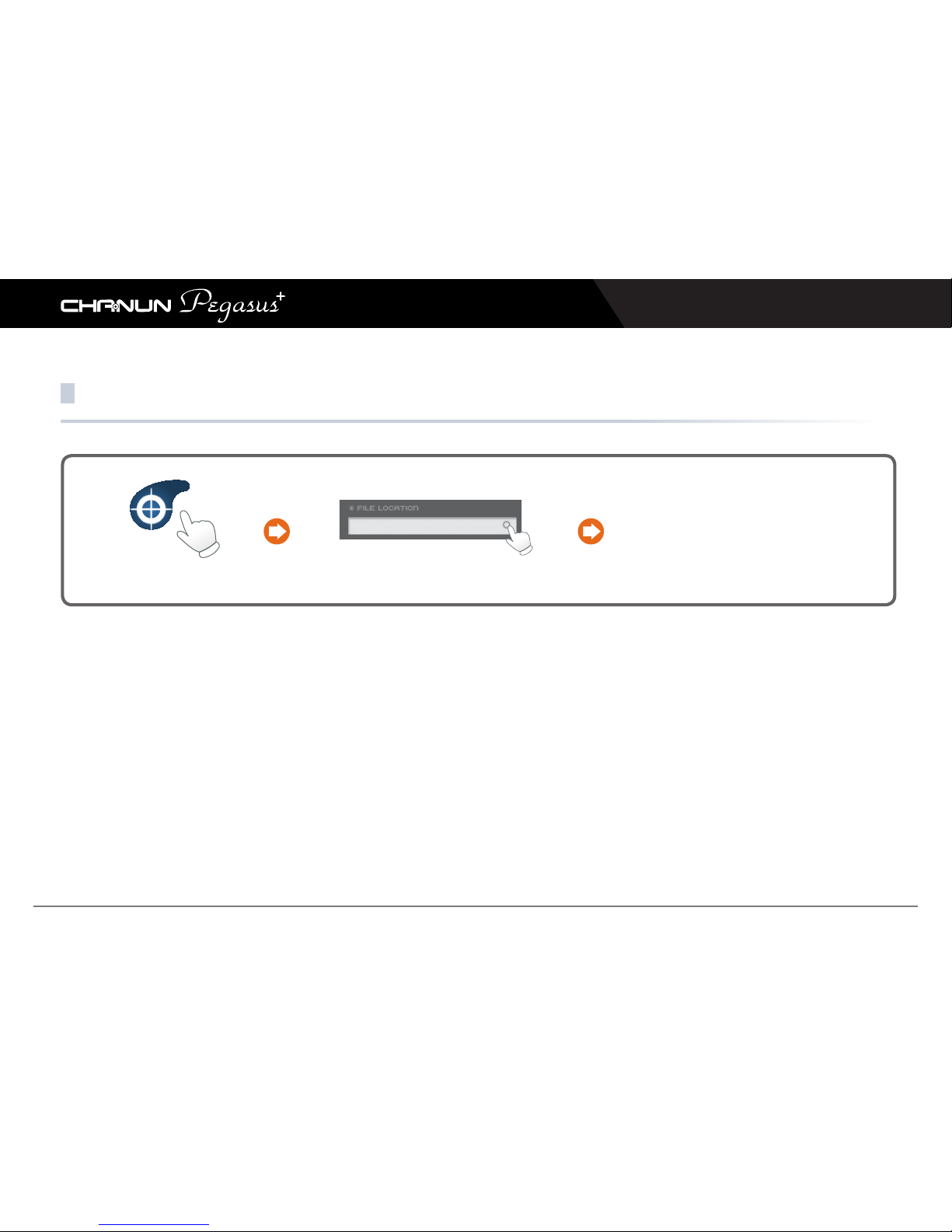
1. PC Viewer Program
Click the icon to operate the viewer program.
2. Find a REC file location
Click “FILE LOCATION” in the viewer program on upper right.
3. Playback
※Click
N : Constant(normal) REC file list
E : Event REC file list
P : Parking REC file list
Chanun
Pegasus+
Player
Page 27
Chanun Pegasus+ User’s Guide
27
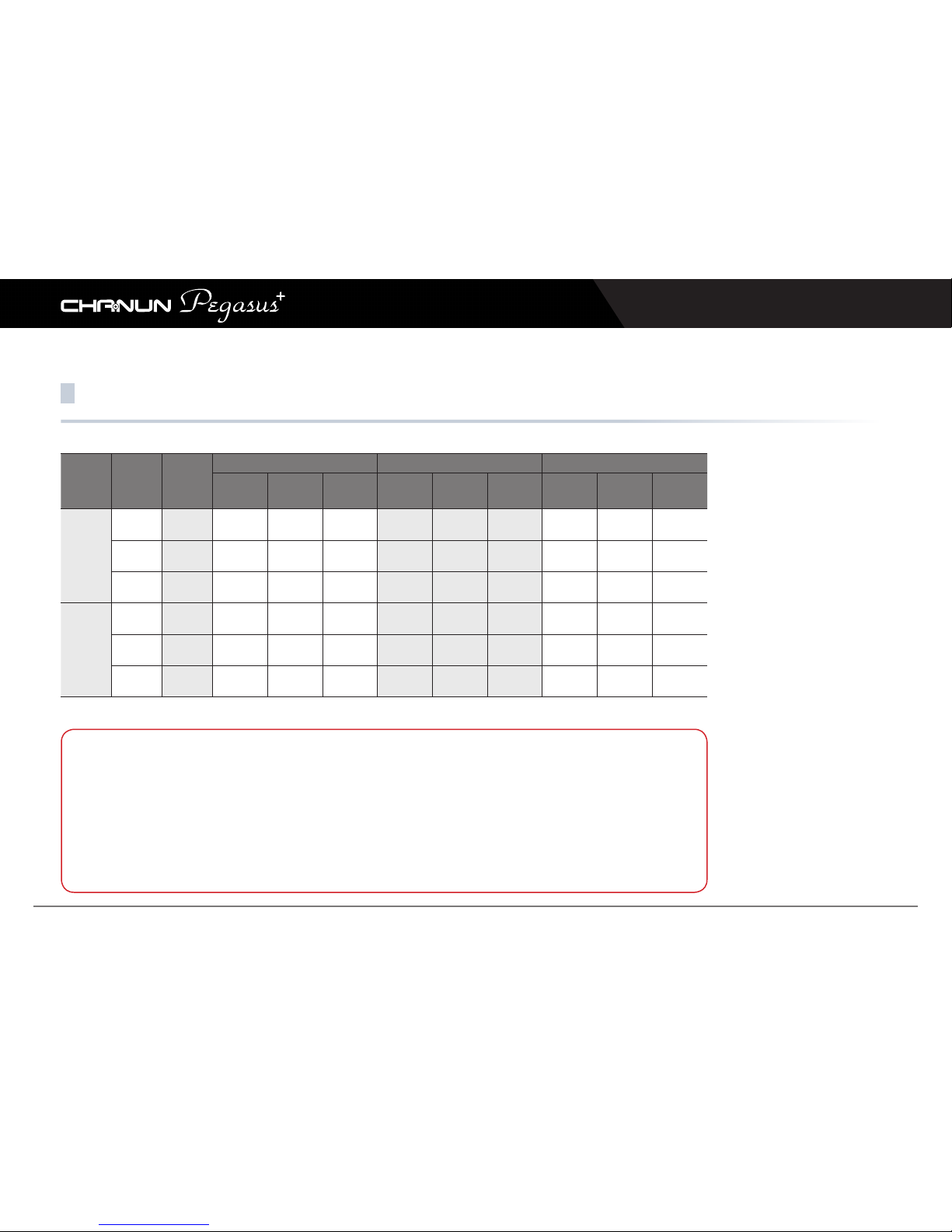
REC Time
CH
Video
Quality
Camera
16GB 32GB 64GB
Normal
(50%)
Motion
(20%)
Event
(30%)
Normal
(50%)
Motion
(20%)
Event
(30%)
Normal
(50%)
Motion
(20%)
Event
(30%)
1CH
Super
High
Front 96 39 58 196 78 117 394 158 236
High Front 118 47 71 239 96 143 482 193 289
Normal Front 151 61 91 307 123 184 619 248 372
2CH
Super
High
Front/Rear 62 25 37 127 51 76 255 102 153
High Front/Rear 76 30 45 154 61 92 310 124 186
Normal Front/Rear
96 39 58 196 78 117 394 158 236
Caution
[ By time ]
When the SD card is full, the oldest file will be automatically deleted.
[ By mode ]
Total record files are stored by your setting rate on “SD card Folder Capacity Adjustment”.
When memory is full on a particular recording mode, the oldest file will be automatically deleted on particular
recording mode. Stored file may also be deleted.
(Unit : Minute)
Page 28
Chanun Pegasus+ User’s Guide
28
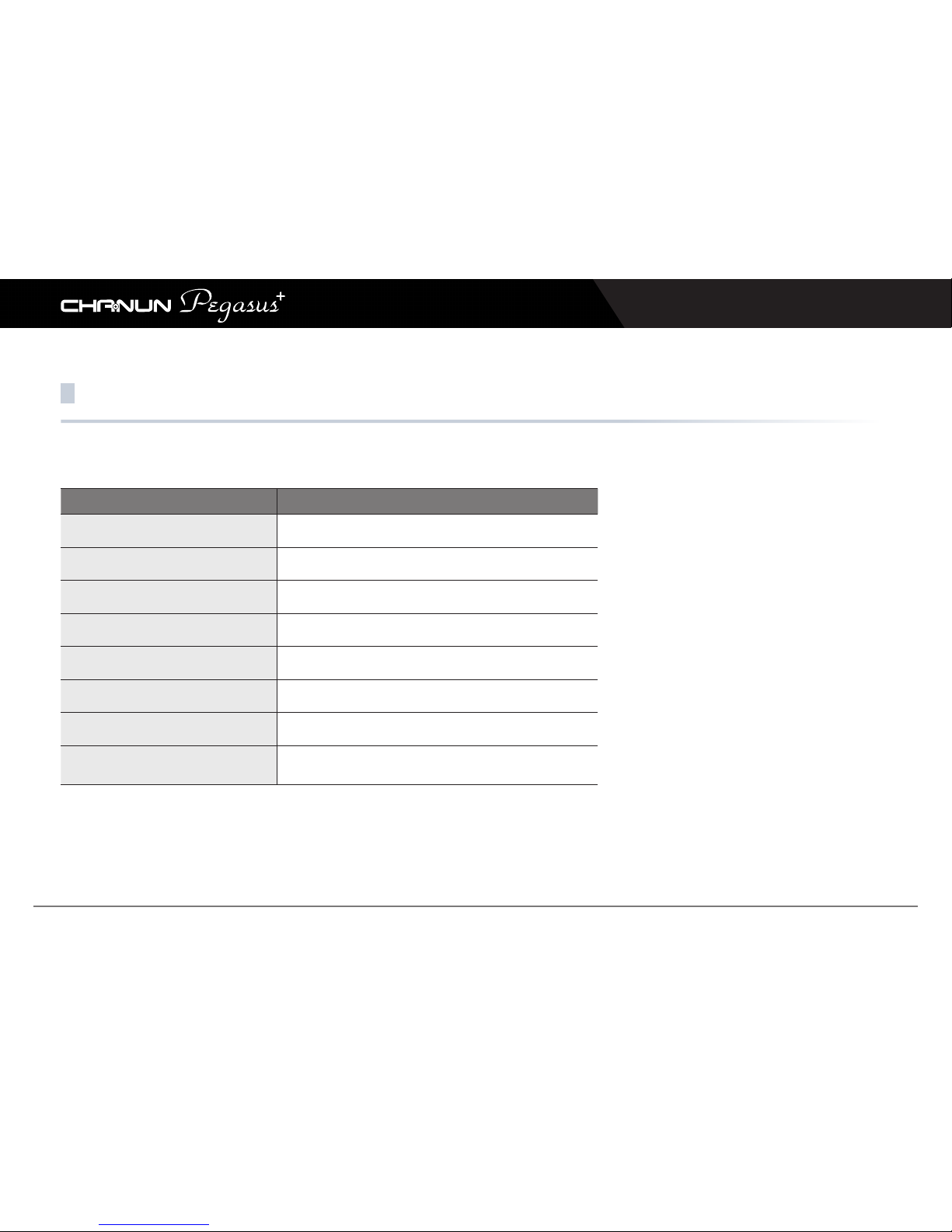
Voice Guide
Situation Voice Guide
Remove SD card / SD card Error
“ Please check your SD card. ”
Firmware Update Start
“ The firmware update is starting. ”
Firmware Update Completed
“ The firmware update has been completed.”
Constant (Normal) Recording Start (In booting)
“ Constant Recording will start. ”
Event Recording Start (In booting)
“ Event Recording will start. ”
Parking Recording start
“ Parking Recording will start.”
Recording end
“ The Recording will end. ”
Alarm tone in a Rear Camera disconnect
(the error for 2CH REC)
“ Ding-Dong ”
※ Only when event REC mode is set in the configuration, the voice guiding “event recording will start” will announce.
Page 29
Chanun Pegasus+ User’s Guide
29
Points to be checked before asking for repair service
※ Premium black box “CHANUN” models are entitled to receive A/S only when they used voltage output terminals (such as cigar jack) supplied by automobile.
1. The product does not function at all.
- Check if the product is correctly connected to a power source.
- Check if the genuine cable provided by us is used.
2. The video quality of recorded files
is in poor condition.
- Check with the camera lens for any foreign matter on it.
- Check with the front windshield for any obstacle (tinting film) or foreign matter.
- As the quality may be lost depending on the surrounding conditions at the time
when a file is recorded, you need to take them into consideration when you view it.
3. Video files are not stored in the
Micro SD memory card.
- Remove the Micro SD memory card being used and insert again and use it.
- Try to format the Micro SD memory card before using it.
- Replace the long-used Micro SD memory card with a new one.
4.
There is a difference between the time
when an event actually took place and
the time the file was recorded.
- Change current time in the Time setting using the PC Player.
5. The GPS can’t receive data.
- Check if the GPS tracking device has been influenced by such factor as metal coating on the vehicle’s
window or dark tinting. When the device is first used or it has been unused for a long time, it can take
about 5~30 minute to receive signals properly. The GPS tracking system may be influenced by such
factors as weather, satellite state, and surrounding geographical features so, move your car to a differ
ent place and check the state again.
Page 30
Chanun Pegasus+ User’s Guide
30
FAQ
Where can I download the Player?
- You can download the viewer at our website (www.camsolution.co.kr) -> Support -> DOWNLOAD.
Can I play files on any viewer other
than this PC Player?
- The recorded video files are saved in MP4 format; therefore, they can be played in general video players
such as Gom Player and KMPLAYERS.
Does a SD memory card continue to
record events even if it becomes full?
- The recording process continues to record even after the SD memory card is all used up, erasing the
previously recorded material at the end of the card.
Can I use any SD memory card?
- You are recommended to use genuine SD memory card provided by us; however, if you are forced to do
so, you are advised to use SDHC products, Class10 or higher.
In case an LED lamp is used when
video is recorded, the light continues
to flash during playback.`
- Although LED light seems to come on continuously to the human eye, it continues to flash several
thousand times a second. Accordingly, the light seems to flash in videos that are recorded in a given
number of frames.
Page 31
Chanun Pegasus+ User’s Guide
31
Specification
Product
CHANUN Pegasus
+
Camera
Front: FULL HD image sensor / Lens angle: 120° (Diagonal)
Rear: HD image sensor / Lens angle: 130° (Diagonal)
Front frame: 25fps (Max), Rear frame: 30fps (Max)
Resolution
Front: FHD (1920 x 1080)
Rear: HD (1280 x 720)
Storage
Micro-SD memory card (16GB / 32GB / 64GB)
Recording
Normal
Event
Manual
Parking record (It can be supported by “Chanun power” of optional purchase)
Streaming
Front (FHD), Rear (HD) 2CH streaming
G Sensor
G-Sensor (3D, ±8G)
Storage hour
2CH - Max 3 Hours 30minutes (16GB base)
GPS
External GPS (Optional)
Power
Input: DC 12V / DC 24V
Power consumption: 4.68W
Super capacitor
Interface
Micro SD slot
GPS input port
DC input port
Video & Audio
Video: AVI
Audio: PCM(G.711)
ETC
Voice guidance (Built-in MIC)
Security / Status LED
Operating temperature: -20℃ ~ +70℃
Store temperature: -20℃ ~ +85℃
※ Design and specifications may changed without prior notice for product improvement.
Page 32
Chanun Pegasus+ User’s Guide
32
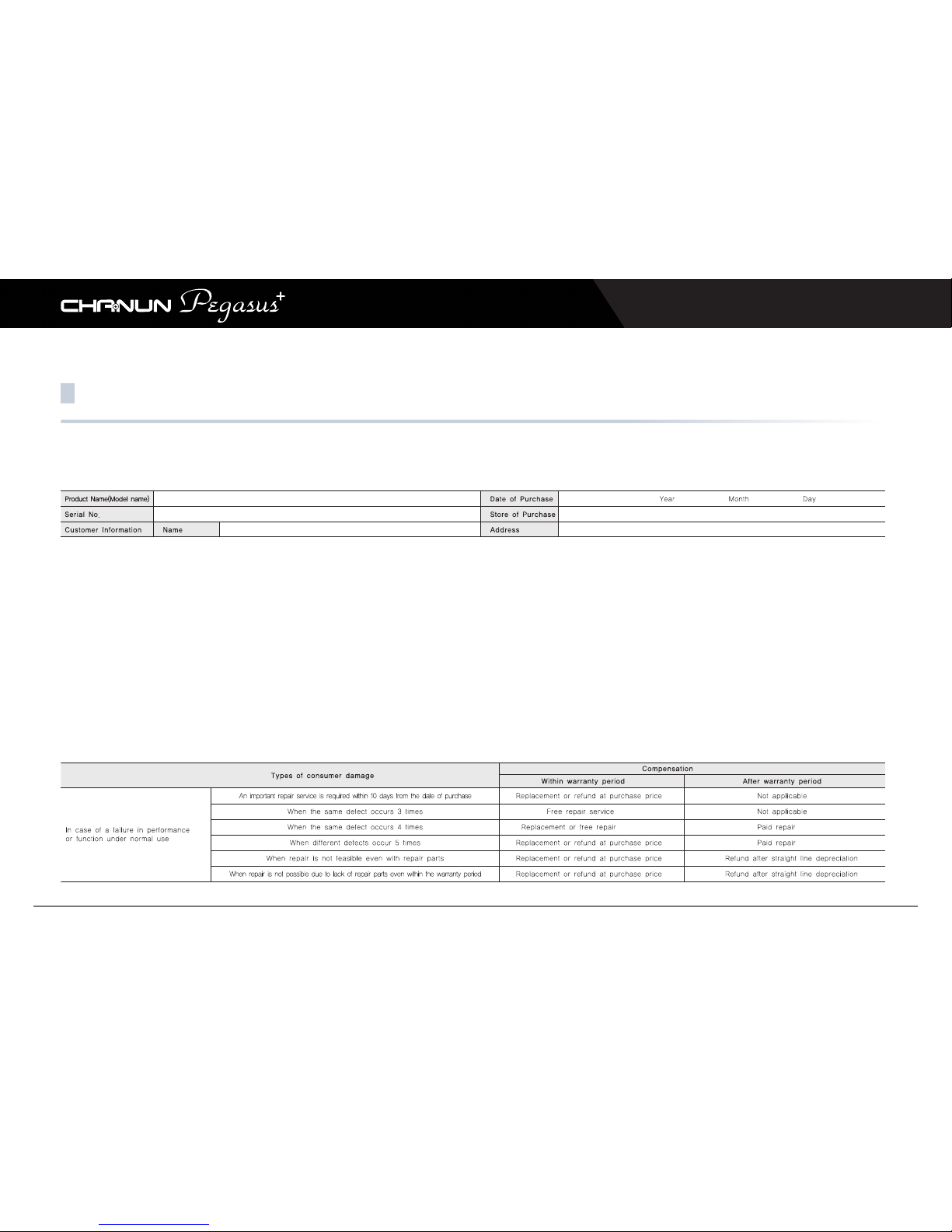
Product warranty
Free-of-charge service
· When the product is found to be defective in materials and workmanship within 1 year (warranty period) from the date of purchase
(except for cases in which the use of a constant power cable is involved, in which case the defect shall be treated by paid service)
· When the product is found to become defective in its performance and functions during normal use within the warranty period
(except for the memory card, which is regarded as a consumable and has a warranty period of 6 months)
This product will be warranted pursuant to the Consumer Damage Compensation Regulation as follows. Please contact the store of purchase or our Consumer
Service Center when the product is found to be defective.
※ The above information is useful when you apply for after-sale service be sure to fill in the form after you purchase the product and keep it.
※ Make sure that the date of purchase should be entered as the free-of-charge warranty begins from the date of purchase.
※ This product is subject to the following services in accordance with the Product-specific Consumer Damage Compensation Regulation.
※ In the event a general product is converted to businessA use, the warranty period becomes shortened by half the original period.
※ Refund or replacement is not possible when the sealing sticker is damaged or opened.
Page 33
Chanun Pegasus+ User’s Guide
33
Product warranty
Paid Service
· When the warranty period expires.
· When the defect is attributable to the user (even within the warranty period).
- When the defect is caused by careless handling on the user’s side or by a repair or an alteration made by the user.
- When the defect is caused by a repair by a person other than the dealer or a technician from our service center.
- When the defect or damage is caused by an event such as a fall after the product is installed.
· Other events
- When the defect occurs from a natural disaster (such as lightning bolt, fire, seawater, or flood).
- When power is supplied from an unstable source that is not protected against impulse voltages.
- When foreign matter (such as coffee, milk, drink, or water) gets into the product leading to a failure.
- When a consumable part passes its service life.
- When the defect is related to the use of wrong voltage power.
SEMISOLUTION Customer Service Center; Zip code: 446-982, Room 2005, 120, Heungdeok Jungang-ro, Giheung-gu, Yongin-si, Gyeonggi-do, Korea
Tel: +82-31-627-5300 Fax: +82-31-627-5303 http: www.camsolution.co.kr
 Loading...