

Page 1
Chaam Tech
Model No. COP-170HB
17inches High Bright TFT-LCD LCD Monitor
User Manual
- ChaamTech High Bright TFT LCD Panel
- High performance up-Scaling characteristic
- Automatic Scanning
- Wide Viewing Angle, High Speed Response
- Enhanced Video Quality
- Slim Type Design
- Test Pattern for Burn-in & Self Check
Model No. :COP170HB Engineering Specification Page: 1of 11
Approval No.:17-SS Revision No.:1.1 Issue Date: Aug.19.2004
Page 2

FCC RF
INTERFERENCE STATEMENT
NOTE :
This equipment has been tested and found to comply with the limits for a
Class B digital device, pursuant to Part 15 of the FCC Rules. These limits
are designed to provide reasonable protection against harmful interference
in a residential installation.
This equipment generates, uses and can radiate radio frequency energy and,
if not installed and used in accordance with the instructions, may cause
harmful interference to radio communications. However, there is no
guarantee that interference will not occur in a particular insta llation.
If this equipment does cause harmful interference to radio or television
reception which can be determined by turning the equipment off and on,
the user is encouraged to try to correct the interference by one or more of
the following measures.
- Reorient or relocate the receiving antenna.
- Increase the separation between the equipment and receiver.
- Connect the equipment into an outlet on a circuit different from
that to which the receiver is connected.
- Consult the dealer or an experienced radio, TV technical for help.
- Only shielded interface cable should be used.
Finally, any changes or modifications to the equipment by the user not
expressly approved by the grantee or manufacturer could void the users
authority to operate such equipment,
Page 3
Chaam Tech
1. GENERAL DESCRIPTION
1-1. Overview
1-2. Quick reference table of Characteristics
2. USER CONTROL & OSD
2-1. Key Control Board
Table of Contents
2-2. Key Name and Function
2-3. OSD Adjustment
2-4. OSD Menu Screen
3. CONNECTOR PIN DESCRIPTIONS
3-1. DC Input
3-2. DVI-D Input (Option Available)
3-3. S-Video Input (Option Available)
3-4. CVBS Input (Option Available)
3-5. Analog RGB Input
3-6. Output to Key Control
4. STANDARD DISPLAY MODE
5. MECHANICAL STRUCTURE
Model No. :COP170HB Engineering Specification Page: 2of 11
Approval No.:17-SS Revision No.:1.1 Issue Date: Aug.19.2004
Page 4
Chaam Tech
1. GENERAL DESCRIPTION
1-1. Overview
Chaam Tech open frame LCD Monitor COP -170HB is a high performance TFT LCD monitor
providing high quality image from the analog RGB, DVI-D, composite VIDEO and S-videoinput.
This monitor supports wide range signal input from VGA to SXGA resolution at vertical refresh
rate of 60 to 75Hz. It includes integrated signal processing unit, named LSP(LCD Signal Processor),
which had all electronic function for user application.
It is designed for industrial use with Auto power on, up scaling performance adequate for lowresolution application and enhanced design margin for reliability
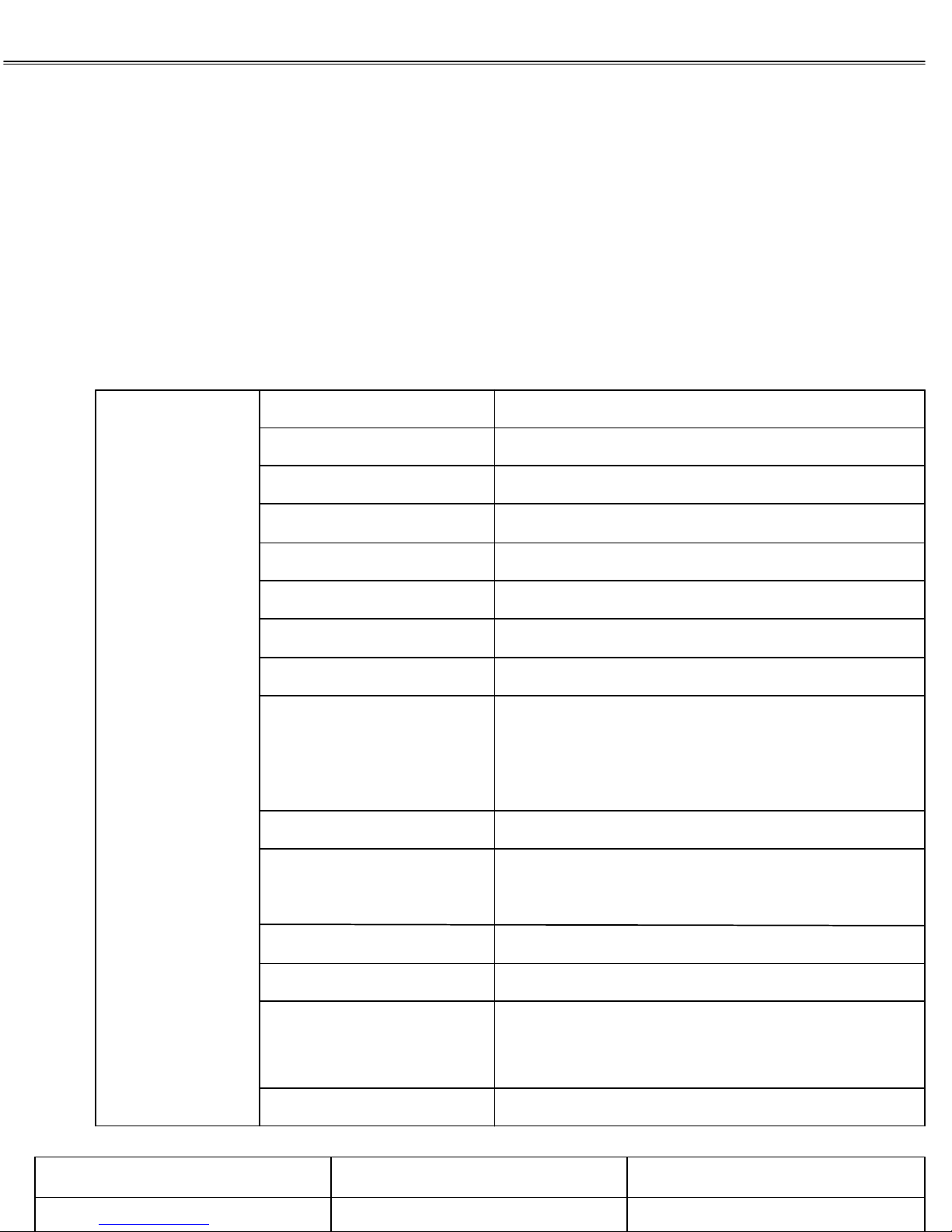
1-2. Quick reference table of Characteristics
Panel
(Chaam Tech)
Size
Active Display Area
Type No.
Number of Pixels
Pixel Arrangement
Pixel Pitch
Color Depth
Surface Treatments
Viewing Angle
(CR≥10)
Contrast Ratio
17” Diagonal
337.9x270.3 mm
Chaam Tech OP170BK,OP170WH
1280 (H) x 1024 (V)
RGB Vertical Stripe
0.264mm x 0.264mm
16.7M True Color
Hard Coating (3H),Haze 44%
170BK(L,R,H,L)--- 89/89/89/89
170WH(L,R,H,L)---75/75/75/60
Typ. 500:1
Response Time( Typ.)
Average Brightness
Frame Rate
Panel Dimension(WHD)
CCFL
Model No. :COP170HB Engineering Specification Page: 3of 11
Approval No.:17-SS Revision No.:1.1 Issue Date: Aug.19.2004
Rise time(tr) :15ms/10ms (170BK/170WH)
Rise time(tr) :10ms/ 3ms (170BK/170WH)
Typ. 170BK-750cd/㎡ , 170WH -1,000cd/㎡
Typ. 60Hz , Max. 70Hz
170BK : 358.5 x 296.5 x 24.80mm
170WH : 358.5 x 296.5 x 24.80mm
12Lamp
Page 5
Chaam Tech
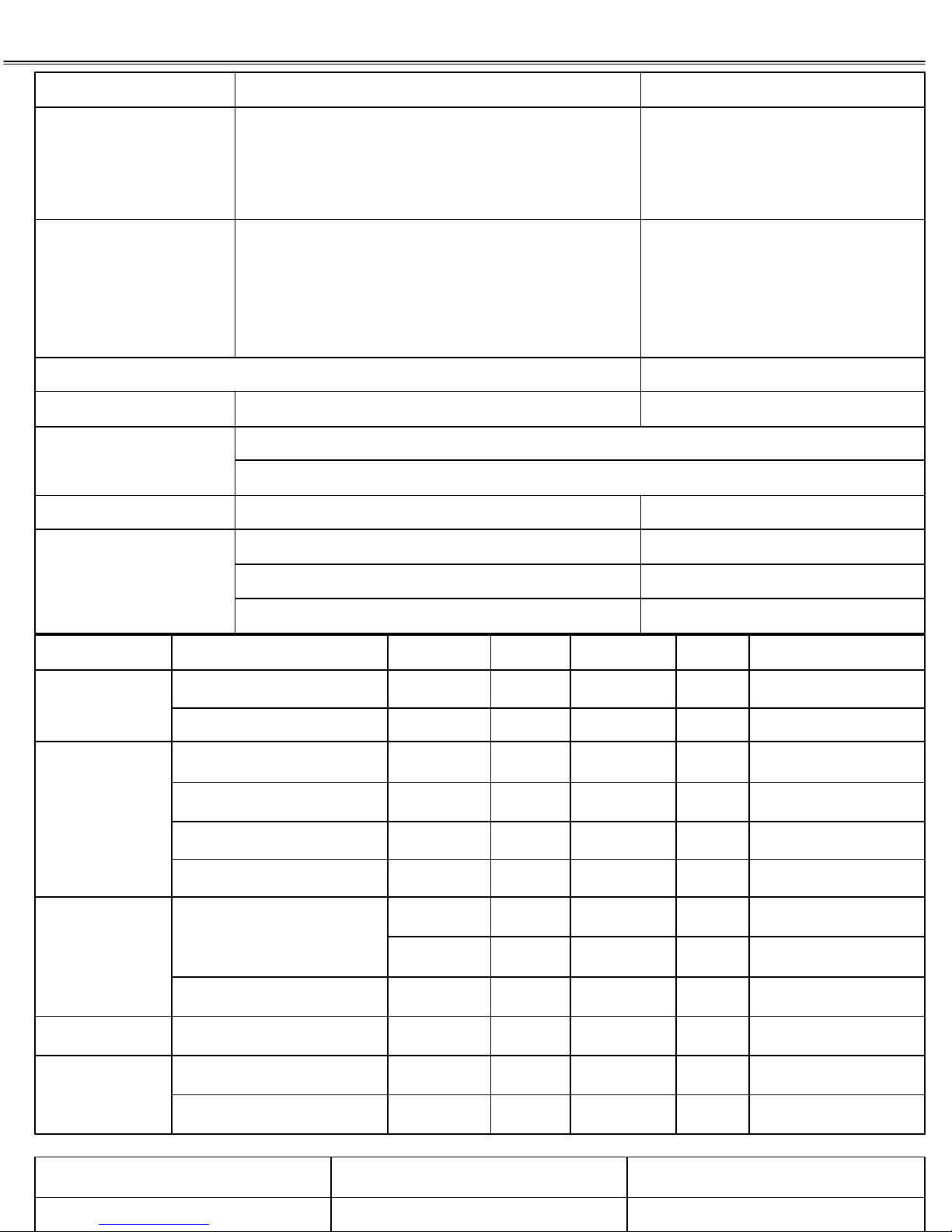
REMARKSDESCRIPTIONITEM
Input Signal
Resolution
Regulation (Safety , Ergonomics , EMC)
Conditions
Power
Analog RGB
DVI-D
Composite Video & S-Video
DC 15V/4.5A
Hor : 15 to 80 KHz
Ver : 50 to 77 Hz
Analog RGB : VGA/SVGA/XGA/WXGA/SXGA
DVI-D : VGA/SVGA/XGA/WXGA/SXGA
CVBS & S-VIDEO : NTSC/PAL/SECAM
DC Power Jack, D-SUB, DVI-D, VHS, SVHSReceptacle
Operating : Temperature : 10 to 50℃ / Humidity : 8 to 80%Environmental
Storage : Temperature : -20 to 60℃ / Humidity : 5 to 90%
More than 20,000 hoursDemonstrated MTBF
Option Available
Option Available
Special timing available
1280 X 1024 @ 75Hz Max
1280 X 1024 @ 60Hz Max
AC100~240V @60/50HzAC Input (Universal)
DC input
15Pin D-Sub
DVI-D
60W attsMax. Power dissipation
15V 4.5AAdapter Rating
RemarksMaxTypicalMinUnitDescriptionInput Signal
181512VdcDC Voltage
for full Option504543WattsPower Consumption
75ΩTerminated0.714(1.0)Vp-pVideo (SOG)
5.0Vp-pSync Voltage
Depends on Mode806415kHzHorizontal Frequency
Depends on Mode777550HzVertical Frequency
1560150mVp-p
Digital RGB
1260150mVdc
Depends on Mode13025MHzDot Clock
S-VHS
Model No. :COP170HB Engineering Specification Page: 4of 11
Approval No.:17-SS Revision No.:1.1 Issue Date: Aug.19.2004
1.0Vp-pVideo + SyncCVBS
0.9610.339Vp-pLUMA Signal Input
0.9610.339Vp-pCHROMA Signal Input
Page 6
Chaam Tech
2. USER CONTROL & OSD
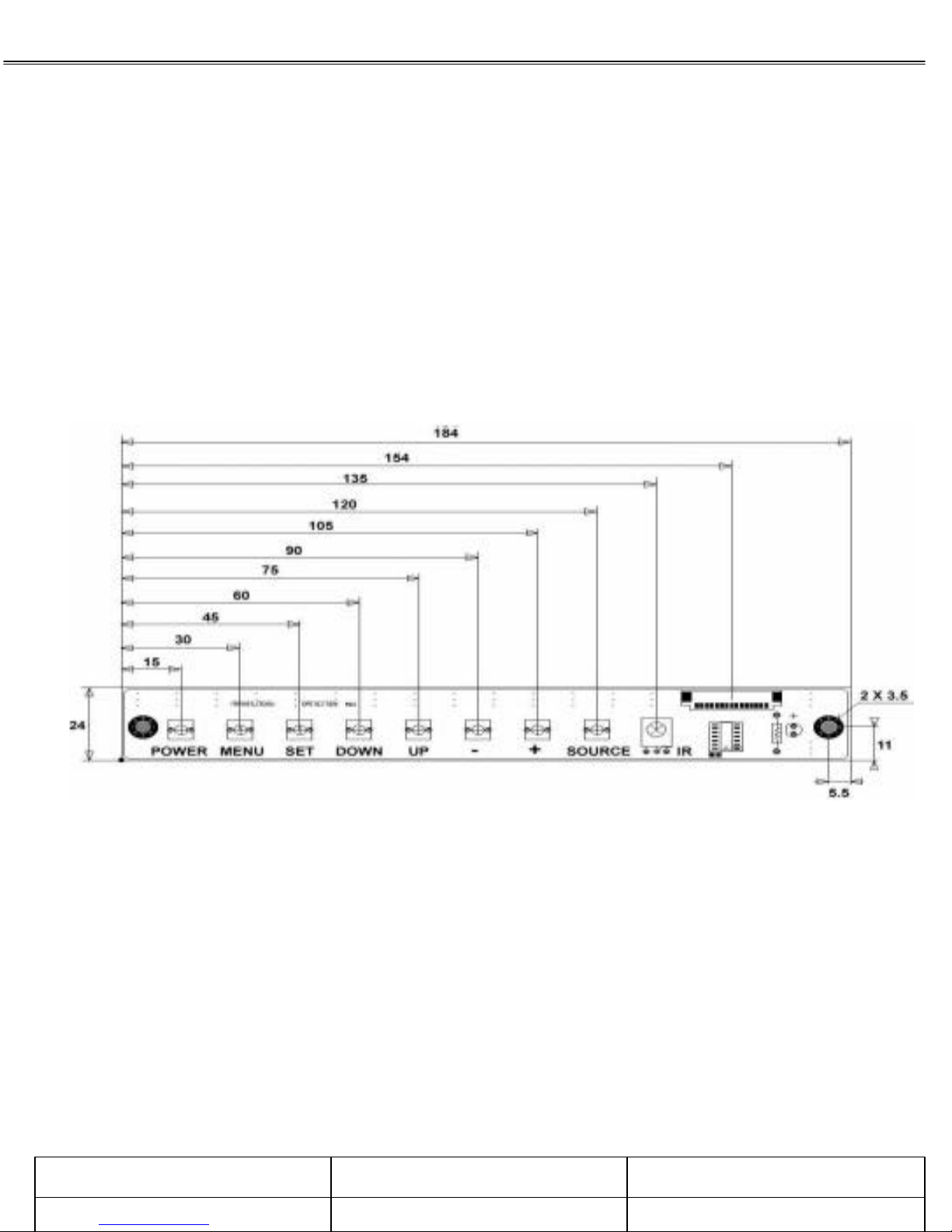
2-1. Key Control Board
Model No. :COP170HB Engineering Specification Page: 5of 11
Approval No.:17-SS Revision No.:1.1 Issue Date: Aug.19.2004
Page 7
Chaam Tech
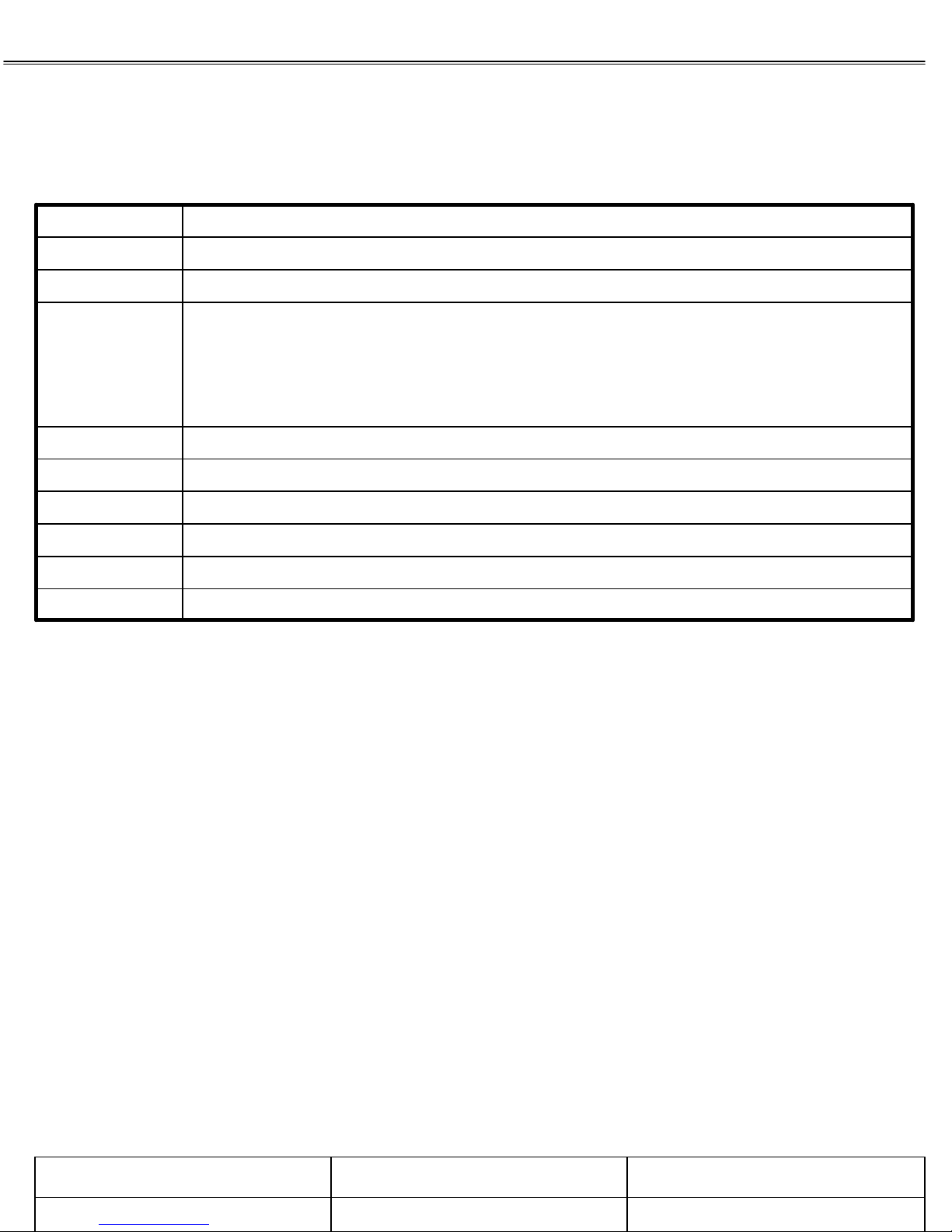
2.2 Key Name and Function
Turns ON/OFF the systemPower
Activates the OSD menu or goes to previous menuMenu
DescriptionKey Name
set
Accessing the menu system
1.With the OSD off, push the Menu button to activate the main OSD menu.
2. Use the Up or Down buttons to move from one function to another. As you move from one icon to
another, the function name changes to reflect the function or group of functions represented by that icon.
Please refer to the following clause on the next page to view a complete list of all of the functions
available for the driver board.
-When the OSD menu is off, press more than 3 seconds
: Performs "Auto-adjustment" function
-When the OSD menu is on
: Selects the highlighted icon that user wants
Moves the highlight icon up to the function that user wantsDown
Moves the highlight icon down to the function that user wantsup
Decreases the adjustment of the selected functionIncreases the adjustment of the selected function+
Selects the Input Signal among analog RGB, Digital DVI, CVBS and S-VHSSource
Receives the signal from Remote ControlIR
3. Press the Set button once to activate the highlighted function, use the Up or Down buttons to select the
functions
4. After selecting a function, use the - or + buttons to make optimum adjustments. The setting bar moves
and the numeric value indicator changes to reflect your adjustments.
NOTE: The numeric value indicator is provided as a point of reference only and has nothing to
do with a real measurement.
5. Press the Menu button once to return to the main menu to select another function or press twice to exit
from the OSD.
Model No. :COP170HB Engineering Specification Page: 6of 11
Approval No.:17-SS Revision No.:1.1 Issue Date: Aug.19.2004
Page 8
Chaam Tech
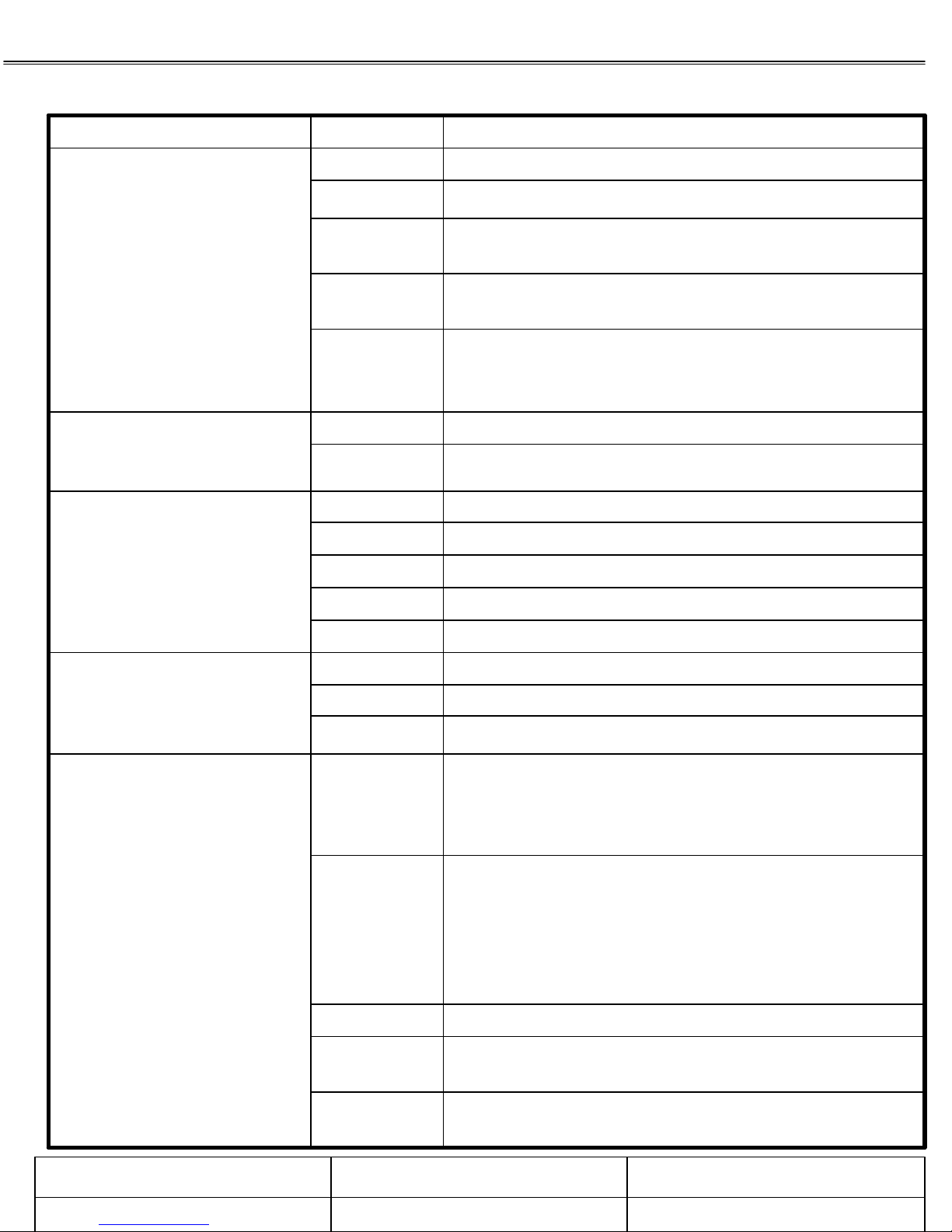
2.3 OSD Adjustment
Adjustment(PC)
Adjustment is used to
fine tune and get the best
image by removing noises
that creates unstable images
with jitters and
Shimmers.
This function is active if you
select a digital DVI source
Clock
Phase
Auto Adjust
Function DescriPtionsSub - menusmenus
Adjusts the brightness of video. Brightness
Adjusts the contrast of video.Contrast
Removes the noises. When frequency value is wrong, the
image has horizontal lines especially in 1 dot on and off.
Removes the noises. When phase value is wrong,
the image has vertical lines especially in 1 dot on and off
"Auto adjustment" allows the monitor to self-adjust to
the incoming video signal. The value of phase, frequency
and position are adjusted automatically.
Adjusts the contrast of image.ContrastAdjustment(DVI)
Adjusts the brightness of image.Brightness
This function is active if you
select an input source
other than PC.(DVD,VCR)
The color can be changed
from redish to bluish white.
Setup is used to adjust
OSD menu information
and image.
ImageSetup
OSD
Adjusts the brightness of video.BrightnessAdjustment(Video)
Adjusts the contrast of video.Contrast
Changes the richness of color.Color
Changes the tone of color.Tint
Adjusts the sharpness of video image.Sharpness
Redish white.6500°KColor
Bluish white.9300°K
User customizable.User
-H Position : Adjusts the horizontal position of the image.
-V Position : Adjusts the vertical position of the image.
-GAMMA : Bypass
-Information : Displays current display mode.
-Language : English, Germany, French, Italy, Spanish.
-Color : Changes the opaqueness of the OSD background.
-Position : Moves the OSD Window.
-Duration : Indicates time until the OSD Menu will
disappear after adjusting the menu.
-OSD Lock : Avoids OSD control except HOT key.
Model No. :COP170HB Engineering Specification Page: 7of 11
Approval No.:17-SS Revision No.:1.1 Issue Date: Aug.19.2004
Backlight
Auto sleep
Changes the image information to factory outgoing status.Mode Recall
Changes the brightness of image by controlling the
backlight of panel.
Goes to soft power off after 10 minutes when input cable
is disconnected.
Page 9
Chaam Tech
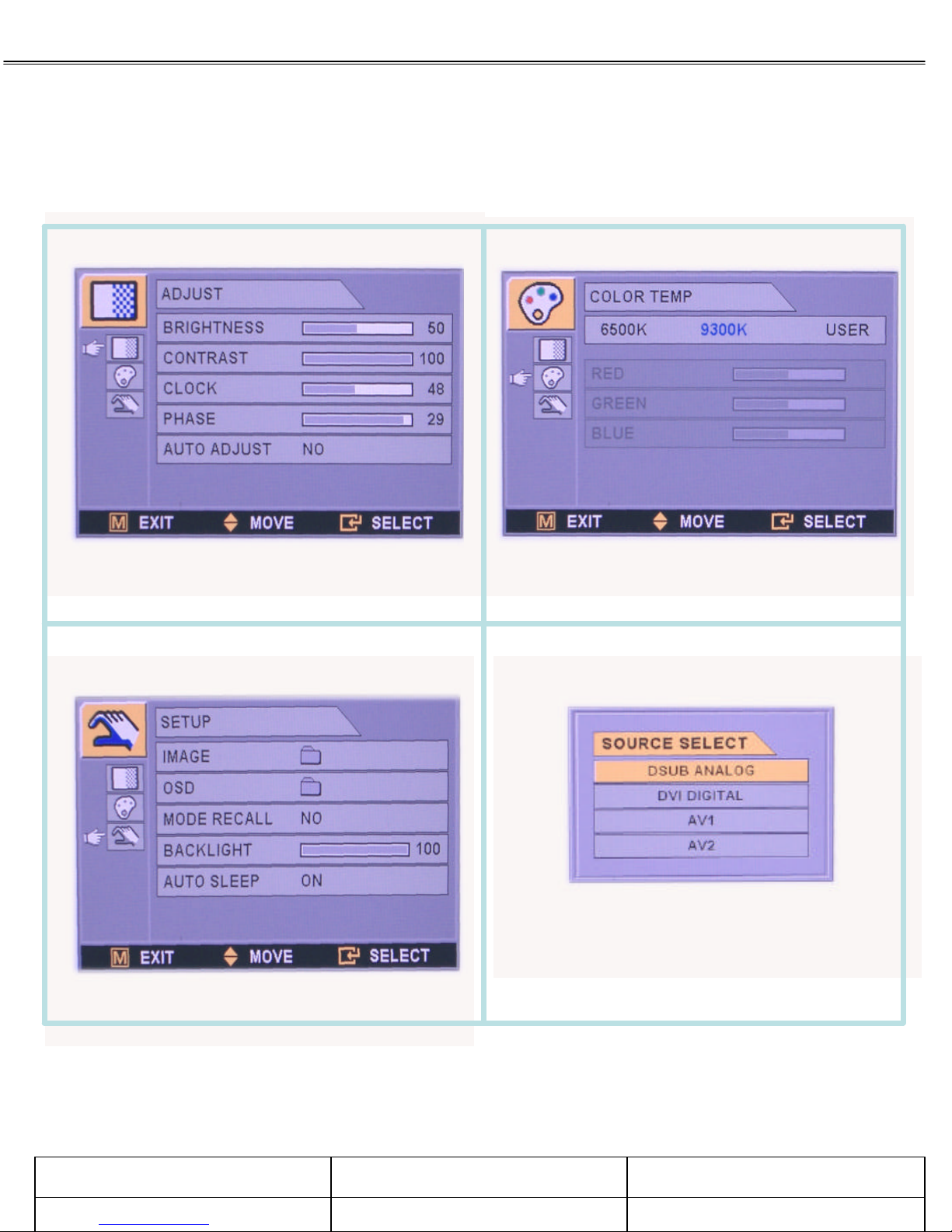
2-4. OSD Menu Screen
Model No. :COP170HB Engineering Specification Page: 8of 11
Approval No.:17-SS Revision No.:1.1 Issue Date: Aug.19.2004
Page 10
Chaam Tech
3. CONNECTOR PIN DESCRIPTIONS
3-1. DC Input
RemarksDescriptionPin No.Part No.
DJ023
3-2. DVI-D Input (Option Available)
SD74320-003
(MOLEX)
1
2
3
1
2
3
4
5
6
7
8
9
10
11
12
13
14
15
16
17
18
19
20
21
22
23
24
Vcc(15V/4.5A)
GND
GND
RemarksDescriptionPin No.Part No.
TMDS DATA 2 -
TMDS DATA 2+
TMDS DATA 2/4 Shield
TMDS DATA 4 - (NC)
TMDS DATA 4+ (NC)
DDC Clock
DDC Data
NC
TMDS DATA 1 -
TMDS DATA 1+
TMDS DATA 1/3 Shield
TMDS DATA 3 - (NC)
TMDS DATA 3+ (NC)
5V
GND
Hot Plug Detect
TMDS DATA 0 -
TMDS DATA 0+
TMDS DATA 0/5 Shield
TMDS DATA 5 - (NC)
TMDS DATA 5+ (NC)
TMDS DATA Clock Shield
TMDS Clock+
TMDS Clock-
3-3. S-Video Input (Option Available)
DJ-M404
Model No. :COP170HB Engineering Specification Page: 9of 11
Approval No.:17-SS Revision No.:1.1 Issue Date: Aug.19.2004
1
2
3
4
5
RemarksDescriptionPin No.Part No.
GND
GND
CHROMA
LUMA
GND
Page 11
Chaam Tech
3-4. CVBS Input (Option Available)
RemarksDescriptionPin No.Part No.
DC003Y
3-5. Analog RGB Input
DB15HD
10
11
12
13
14
15
1
2
3
1
2
3
4
5
6
7
8
9
Composite Video
GND
GND
RemarksDescriptionPin No.Part No.
RED
GREEN
BLUE
GND
GND (DDC RETURN)
GND-RED
GND-GREEN
GND-BLUE
NC
GND-SYNC/SELF TEST
GND
DDC DATA
HORIZONTAL SYNC
VERTICAL SYNC
DDC CLOCK
3-6. Output to Key Control
12505WR15P
(Yeonho)
10
11
12
13
14
15
RemarksDescriptionPin No.Part No.
1
2
3
4
5
6
7
8
9
5V
POWER
MENU
SET
DOWN
UP
MINUS
PLUS
SOURCE
LED
NC
IR
GND
GND
GND
Option
Model No. :COP170HB Engineering Specification Page: 10of 11
Approval No.:17-SS Revision No.:1.1 Issue Date: Aug.19.2004
Page 12
2.462
Chaam Tech
4. STANDARD DISPLAY MODE
Resolution
Timing Item
-Hor Frequency(kHz)
-Period(us)
-Active time(us)
-Front porch(us)
-Sync width(us)
-Back porch(us)
-Ver Frequency(Hz)
-Period(ms)
-Active time(ms)
-Front porch(ms)
-Sync width(ms)
-Back porch(ms)
640x350
@70Hz
25.175
P/N
Progressive
31.468
31.778
25.418
0.638
3.823
1.909
70.090
14.268
11.122
0.381
0.064
1.111
720x400
@70Hz
31.469
31.780
25.420
0.640
3.810
1.906
70.082
14.270
12.710
0.413
0.064
1.080
640x480
@60Hz
31.469
31.778
25.422
0.636
3.813
1.907
59.940
16.683
15.253
0.064
0.064
0.794
640x480
@75Hz
37.500
26.667
20.317
0.508
2.032
3.810
75.000
13.333
12.800
0.027
0.080
0.427
800x600
@60Hz
37.879
26.400
20.000
1.000
3.200
2.200
60.317
16.579
15.840
0.026
0.106
0.626
800x600
@75Hz
46.875
21.333
16.162
0.323
1.616
3.232
75.000
13.333
12.800
0.021
0.064
0.448
1024x768
@60Hz
ProgressiveProgressiveProgressiveProgressiveProgressiveProgressiveScaning Type
65.00049.50040.00031.50025.17528.324Pixel Clock (MHz)
N/NP/PP/PN/NN/NN/PSync Polarity(H/V)
48.363
20.677
15.754
0.369
2.092
60.004
16.666
15.880
0.062
0.124
0.600
Resolution
Timing Item
-Hor Frequency(kHz)
-Period(us)
-Active time(us)
-Front porch(us)
-Sync width(us)
-Back porch(us)
-Ver Frequency(Hz)
-Period(ms)
-Active time(ms)
-Front porch(ms)
-Sync width(ms)
-Back porch(ms)
1024x768
@75Hz
78.750
P/P
Progressive
60.023
16.660
13.003
0.203
1.219
2.235
75.029
13.328
12.795
0.017
0.050
0.466
1280x1024
@60Hz
63.974
15.631
11.797
0.590
1.180
2.065
60.013
16.663
16.006
0.016
0.047
0.594
1280x1024
@75Hz
79.976
12.504
9.481
0.119
1.067
1.837
75.025
13.329
12.804
0.013
0.038
0.475
1152x864
@60Hz
54.348
18.400
14.400
0.400
1.200
2.400
60.053
16.652
15.898
0.017
0.055
0.681
1152x864
@75Hz
108.0080.000135.00108.50Pixel Clock (MHz)
P/PP/PP/PP/PSync Polarity(H/V)
ProgressiveProgressiveProgressiveProgressiveScaning Type
67.500
14.815
10.667
0.593
1.185
2.370
75.029
13.333
12.800
0.015
0.044
0.474
Model No. :COP170HB Engineering Specification Page: 11of 11
Approval No.:17-SS Revision No.:1.1 Issue Date: Aug.19.2004
 Loading...