

Page 1
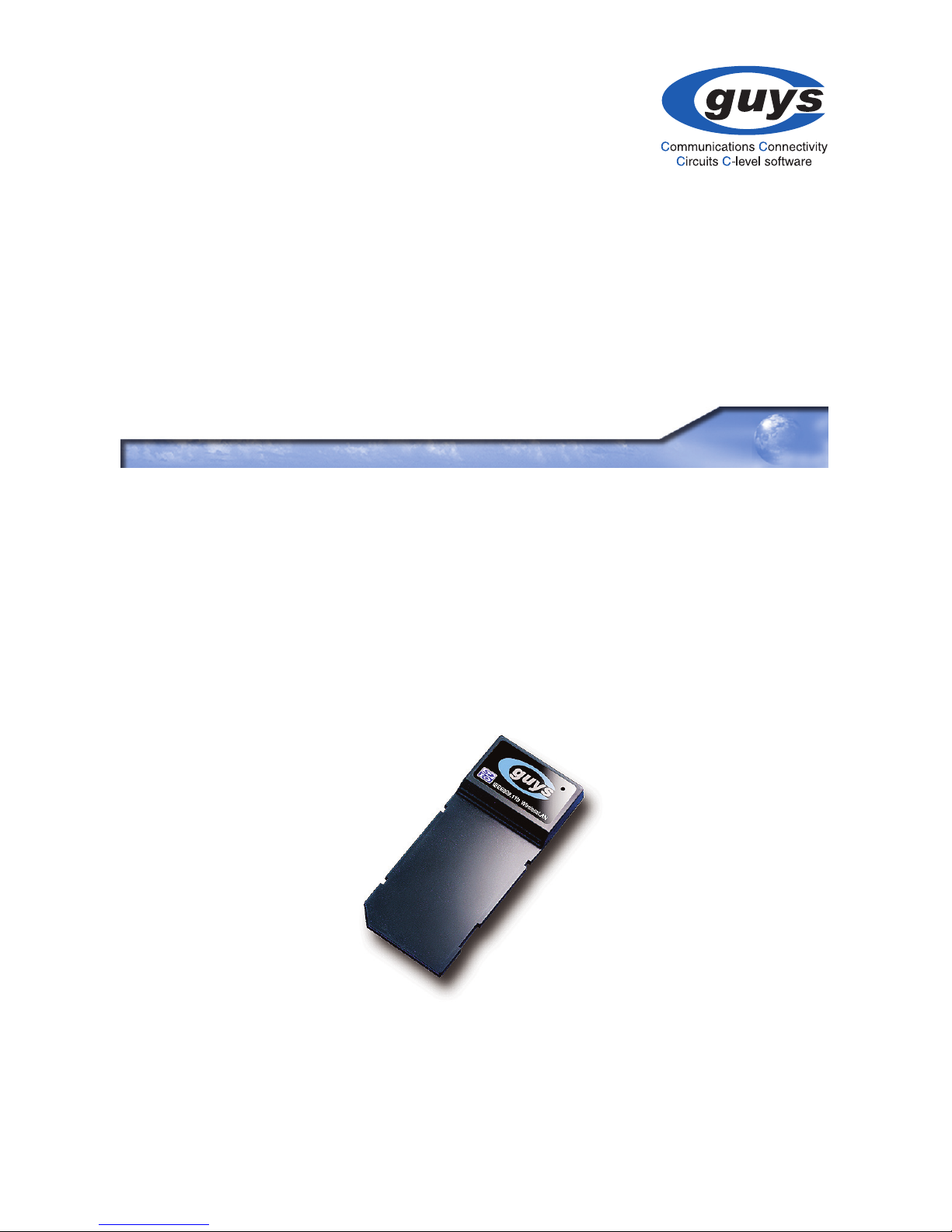
SDIO Wireless LAN Card
SD-Link11b
User's Manual
Page 2
SD-Link11b Manual
-2-
This section explains the symbols, signs and terminology used in
this manual.
• A device with the C-guys Wireless SD-Link11b installed is called
the Wireless LAN device.
• The following terminology is used in this manual to distinguish
between an Ethernet 10/100BASE-T LAN and a Wireless LAN
and should not be construed as generally accepted terminology
outside this context.
Ethernet LAN : A LAN connected by cables
Wireless LAN : A LAN connected by radio signal
For your safety be sure to read, understand and follow the instructions below thoroughly before using the product.
This manual contains instructions concerning general operation of
the computer to which the product is connected in addition to those
concerning the product itself.
Strongly recommended : Follow the warning and caution instructions
which are issued by the PC and peripheral manufactures.
Prohibit : Do not attempt to disassemble or repair the SD-Link11b.
This may result in fire or electric shock.
Strongly recommended : Install this product away from children. Failure to do so may result in injury.
The instructions with this sign indicate prohibited actions. Failure to follow the instructions shown with this sign may result in
death or serious injury to the user.
Failure to follow the instructions shown with this sign may result
in injury to the user or property damage.
WARNING
WARNING
CAUTION
Page 3

SD-Link11b Manual
-3-
Prohibit : Do not handle the equipment with wet hands while it is in
operation. This may result in electric shock.
Prohibit : Do not insert SD-Link11b to Non-compliant Equipment with
SD/SDIO.
Please take note that our warranty will not cover any failures and
problems of the computer, any losses and failures of data, or failures
and problems of the product caused by misuse.
Strongly recommended : To prevent damage due to the static electricity touch a metal object such as a door handle or metal window
before touching the device. Static electricity may result in damage to
the equipment.
Strongly recommended : For usage of the PC and peripheral, refer
to the product manual.
Strongly recommended : Remove the dust from all connectors. Dust
may result in failure in performance.
Prohibit : Do not locate this product in the following locations. Doing
so may result in electric shock or fire, or may adversely affect this
product.
- Locations with strong magnetic fields or static electricity (may
result in failure)
- Locations prone to vibration (may result in injury or damage)
- Locations in direct sunlight (may result in failure or deformation)
- Locations close to fire, or subject to heating (may result in fail-
ure or deformation)
- Locations with water leakage or current may result in failure or
electric shock
- Locations with excessive dust (may result in failure)
CAUTION
Page 4

SD-Link11b Manual
-4-
We recommend that dual backup before and after updating of original data be created for unrecoverable important data in the device.
Data in the card may be damaged or lost in the following cases.
When the device is used incorrectly
When the device receives static electricity or electrical noise
When the device breaks down or is repaired
When the power is turned on immediately after the PC is turned
off
When the device is damaged by natural disasters
Please note that C-guys, Inc. shall not be liable for any expenses
incurred due to the damage or loss of hard disk data that may arise
in the above cases or in any other case.
Page 5

SD-Link11b Manual
-5-
Page 6

SD-Link11b Manual
-6-
Table of Contents
1. Package Contents & System Requirements .......... 8
Package ........................................................................................8
System Requirements...................................................................9
2. Introducing SD-Link11b Card ............................... 10
SD-Link11b features and benefits...............................................10
SD-Link11b Wireless Network
Scenarios ....................................................................................11
Peer-to-Peer (Ad-hoc) Workgroup ........................................................ 11
Home Networking.................................................................................. 12
Enterprise Networking........................................................................... 12
About the SD-Link11b CD-ROM .................................................12
3. Installing your SD-Link11b Driver......................... 13
Installation of the SD-Link11b Driver to the Pocket PC using
Microsoft Active Sync
®
...............................................................13
4. SD-Link11b Configuration Utility .......................... 16
Basic Setup.................................................................................16
Advanced Setup..........................................................................17
5. SD-Link11b Specifications ................................... 26
6. Troubleshooting.................................................... 27
Introduction .................................................................................27
Common Troubleshooting Tips...................................................27
LED Activity........................................................................................... 27
Page 7

SD-Link11b Manual
-7-
Cannot Connect To Network................................................................. 28
Cannot Edit Configuration Profile.......................................................... 29
Cannot Find the AP............................................................................... 29
The System is Very Slow ...................................................................... 29
It Takes a Long Time to Shutdown ....................................................... 30
SD-Link11b Does Not Operate After Returning From the Stand-by or
Sleeping Mode ...................................................................................... 30
Upgrading Tips............................................................................30
Upgrading the SD-Link11b Driver ......................................................... 30
Removing the Driver ............................................................................. 32
7. Warranty............................................................... 34
Page 8

SD-Link11b Manual Package Contents & System Requirements
-8-
1 Package Contents & System
Requirements
• One C-guys SD-Link11b (wireless LAN
card)
• Manual (this document)
• Drivers and configuration utilities on CDROM
• Quick setup guide
If you miss any of these items please contact your reseller.
1-1 Package
SDIO Wireless LAN Card
SD-Link11b
User's Manual
<--text space-->
Page 9

SD-Link11b Manual Package Contents & System Requirements
-9-
• PDA with Windows
®
Pocket PC 2002 and 2003 with at least 32
MB memory
• Secure Digital (SD) slot (Assuming SDIO host controller and
driver are already installed)
•Microsoft
®
Active Sync® should be installed
• An IEEE802.11b or Wi-Fi approved Access Point/Base station
1-2 System Requirements
Page 10

SD-Link11b Manual Introducing SD-Link11b Card
-10-
2 Introducing SD-Link11b Card
The SD-Link11b is a wireless network card that complies with the
IEEE 802.11b standard on wireless LANs (Revision B).
• Wi-Fi (Wireless Fidelity) certified (Expected in Q2/04).
• Supports data rates up to 11 Mbps.
• Fully compatible with any other wireless LAN system based on
Direct Sequence Spread Spectrum (DSSS) radio technology that
complies with the “IEEE 802.11b standard on wireless LANs
(Revision B)”.
• Automatic Transmit Rate Select mechanism in the transmit range
of 11, 5.5, 2 and 1 Mbps.
• 128 bit Wired Equivalent Privacy (WEP) data encryption and WPA
support (WPA will be optionally supported in Q2/04).
• Efficient Power Management.
• Roaming over multiple channels.
• Working range up to 400 meters in an open environment.
• Supports Ad-hoc and infrastructure modes for easy wireless communication.
2-1 SD-Link11b features and benefits
Page 11

SD-Link11b Manual Introducing SD-Link11b Card
-11-
The SD-Link11b enables you to:
- Connect your computer to a Peer-to-Peer workgroup of wire-
less computing devices
- Connect your computer to a Small Office/Home Office (SOHO)
network that includes Wi-Fi access points.
- Connect your computer to a Local Area Network (LAN) Infra-
structure that includes the SD-Link11b, or other IEEE 802.11b
compliant LAN systems
Wireless stations can be equipped with the SD-Link11b, but also
with other WLAN PC Cards. Both the SD-Link11b and the WLAN PC
Card share the same wireless functionality.
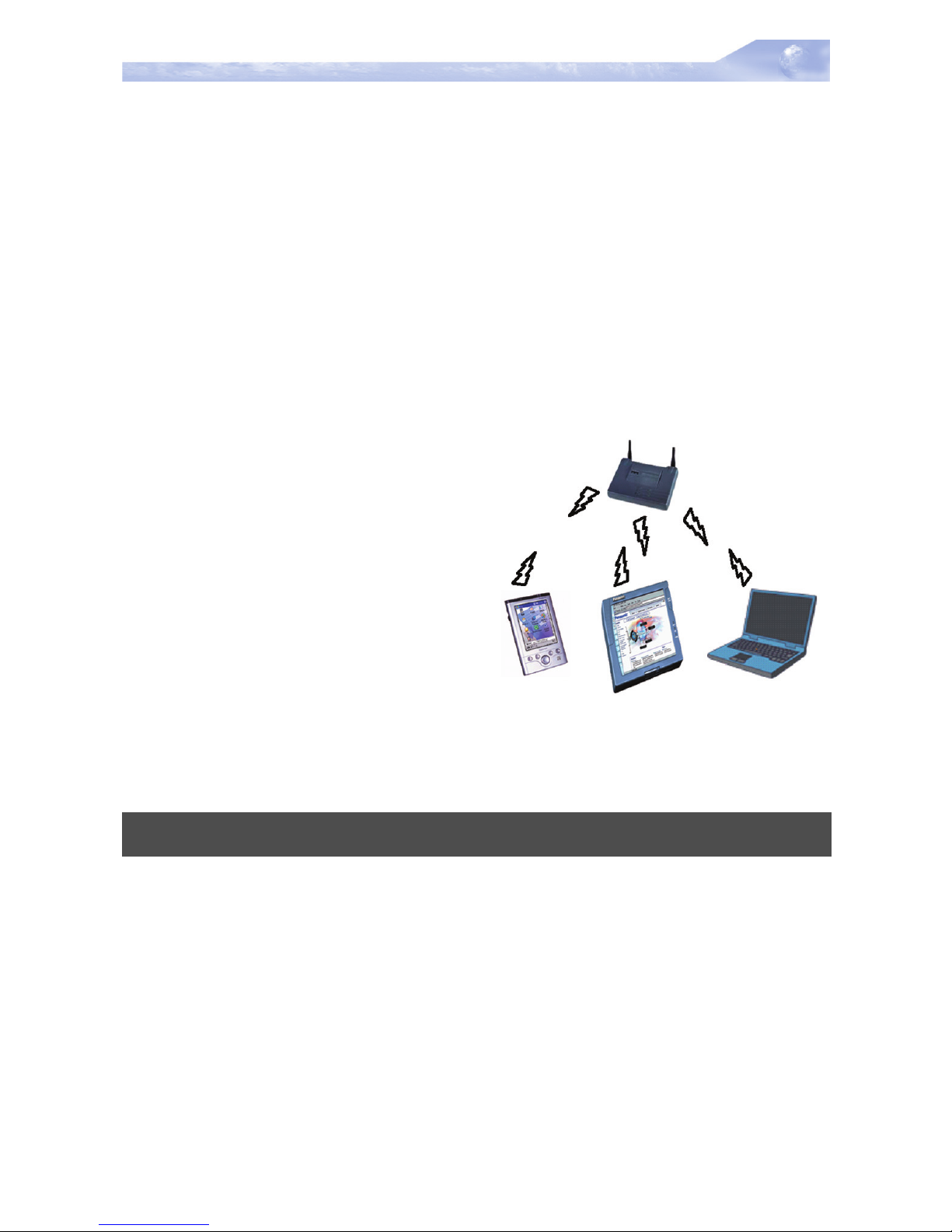
2-2-1 Peer-to-Peer (Ad-hoc) Workgroup
The Peer-to-Peer workgroup configuration enables you to quickly
set up a small wireless workgroup, where the workgroup participants can exchange files using
features like “Files and Printer
Sharing” as supported by
Microsoft
®
Networking.
You can use this option to setup a
temporary or Ad-hoc network in
environments where no access points are available (for example in
Small Office/Home Office “SOHO” environments). As long as the
stations are within range of one another, this is the easiest and least
expensive way to set up a wireless network.
2-2 SD-Link11b Wireless Network
Scenarios
Page 12
SD-Link11b Manual Introducing SD-Link11b Card
-12-
2-2-2 Home Networking
With C-guys’ SD-Link11b, wireless access to the Internet or other
devices is at your fingertips. All you need to do is connect the SDLink11b to an existing access point that may be connected to the
external Cable TV or xDSL modems and you are ready to :
- Share files and printers, and
- Access the Internet.
2-2-3 Enterprise Networking
With the Wi-Fi certified Access
Point in the corporate network
system, you can connect to a corporate Local Area Network (LAN)
infrastructure to have wireless
access to all network facilities.
LAN Infrastructures may either
be:
- Stand-alone wireless LANs.
- Wireless network infrastruc-
tures connected to an existing Ethernet network.
The SD-Link11b CD-ROM contains both software and documentation for the SD-Link11b card.
If you wish to install the SD-Link11b Driver software, turn to Chapter
3 “Installing your SD-Link11b Driver” and follow the instruction.
2-3 About the SD-Link11b CD-ROM
Page 13
SD-Link11b Manual Installing your SD-Link11b Driver
-13-
3 Installing your SD-Link11b
Driver
In this section, the most popular method to install the driver is mentioned. Other methods to install the driver is similar to the driver
update and it is explained in section 6.3.
1 Connect your PDA to your computer and make sure Active-
Sync
®
has established for a connection between the two
devices.
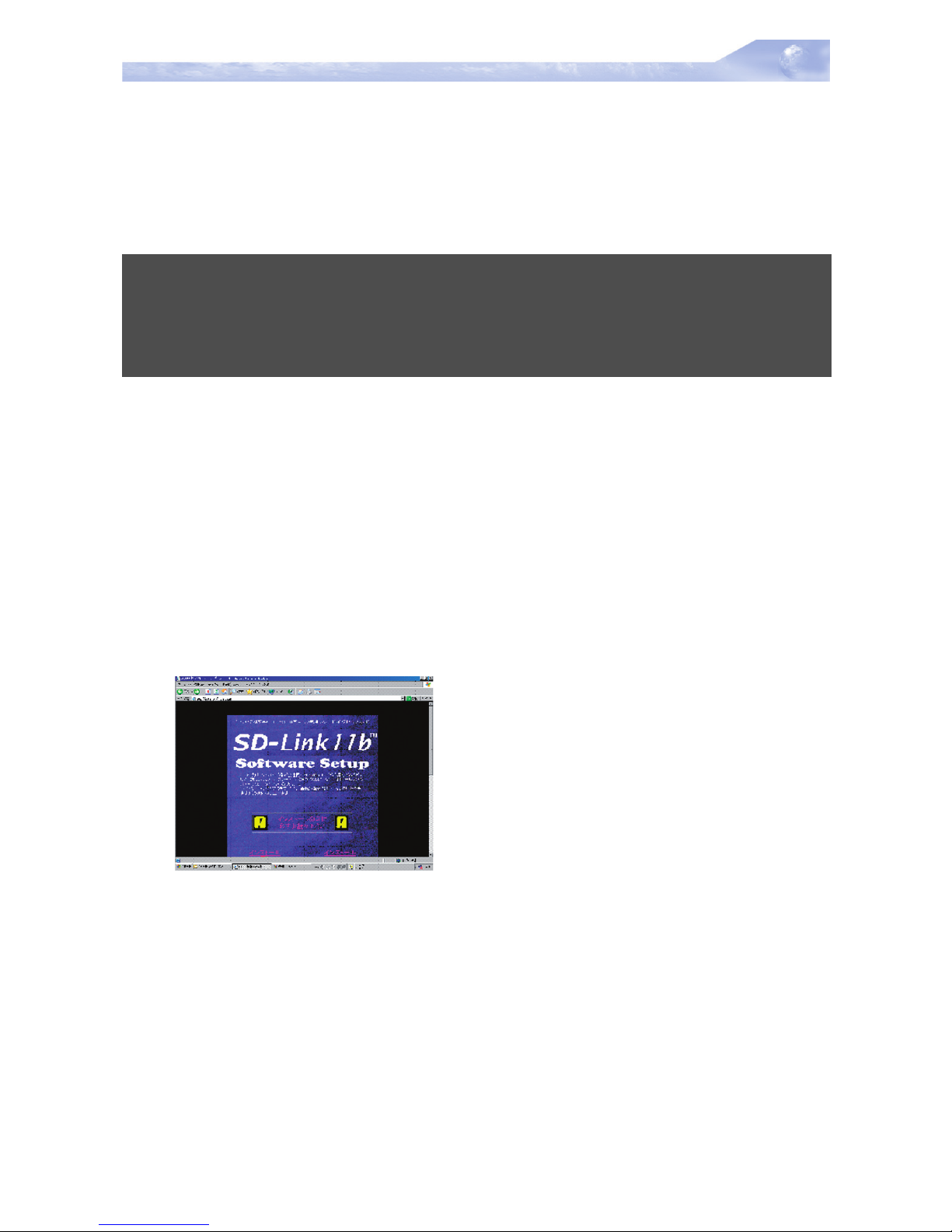
2 Insert the CD ROM to your PC. Installation wizard will pop up to
choose the operating system.
3 Please select the operating system from the list below
For PocketPC 2002
→
click “Setup_us_eng_ppc2002.exe” file
For PcoketPC 2003
→
click “Setup_us_eng_ppc2003.exe” file
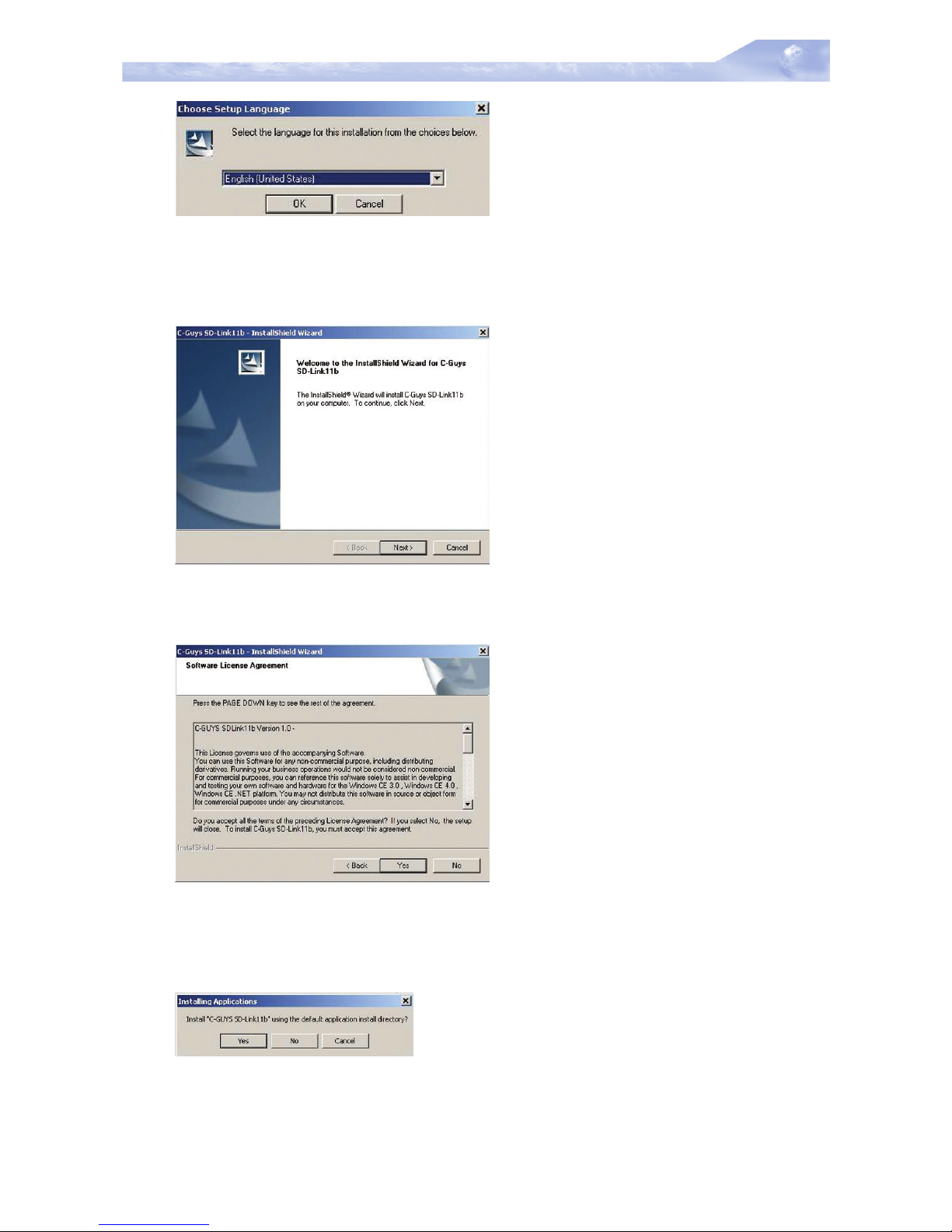
The language selection window will pop up as shown below.
3-1 Installation of the SD-Link11b Driver
to the Pocket PC using Microsoft
Active Sync
®
Page 14
SD-Link11b Manual Installing your SD-Link11b Driver
-14-
4 Click “OK” to proceed the installation. The following window
should open.
5 Click “Next”. Please read the following License Agreement.
6 Click “Yes” if you agree to the condition. You will see the follow-
ing window.
7 Click “Yes” to begin transferring files to the PDA. The final win-
dow should pop up like below.
Page 15
SD-Link11b Manual Installing your SD-Link11b Driver
-15-
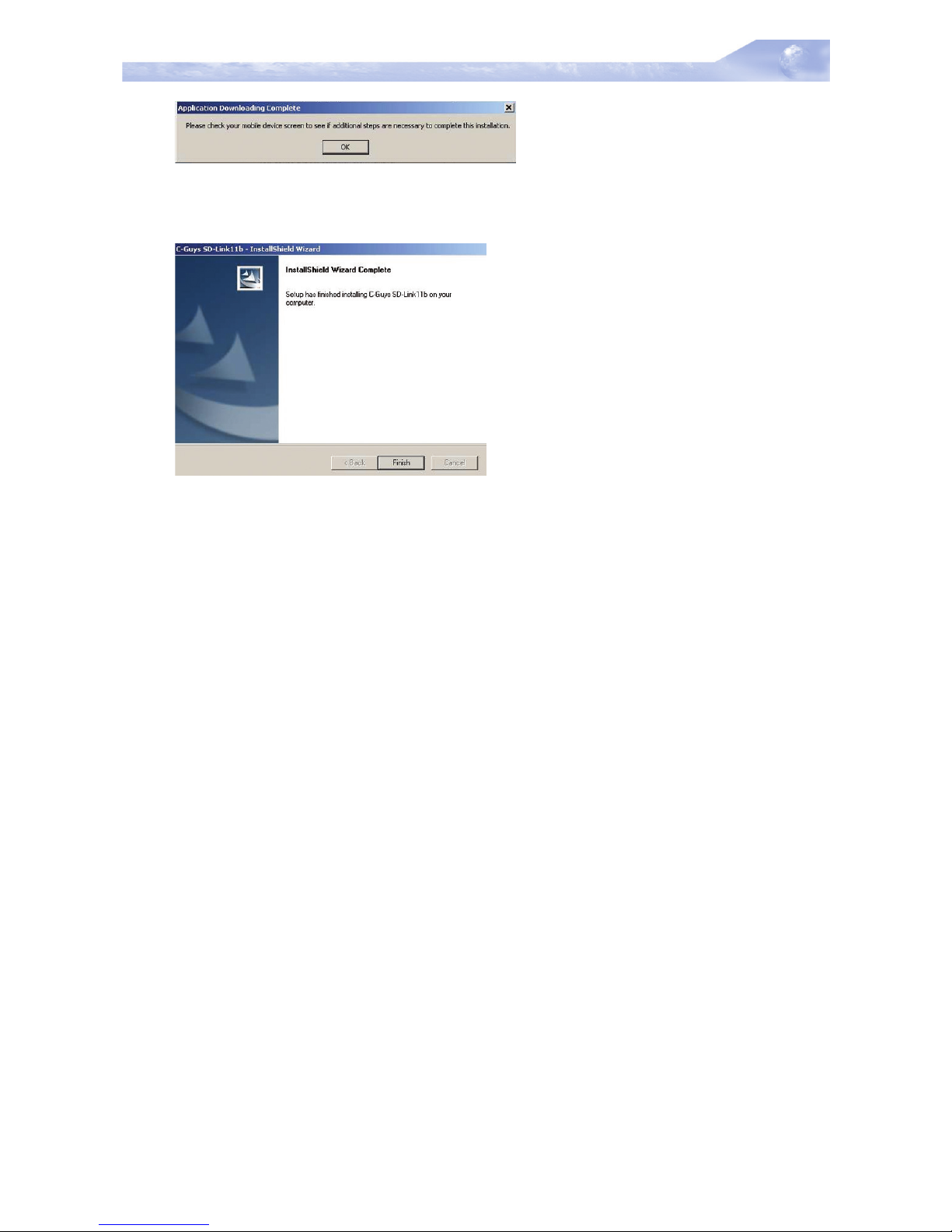
8 After completing the file transferrer, Click “OK”.
9 Click “Finish” to complete the driver installation.
To verify if the installation of the driver was completed successfully :
- Soft reset the PDA (push Soft-reset Button of PDA)
* Some PDA may not require resetting but it should be safer to
reset.
- Insert the SD-Link11b into the PDA
- Check the LED on the SD-Link11b. If steady red light is seen,
the SD-Link11b is active.
- (Optional) To check the quality of the network connection, you
should use the SD-Link11b configuration utility program as
described in the next section
Page 16
SD-Link11b Manual SD-Link11b Configuration Utility
-16-
4 SD-Link11b Configuration
Utility
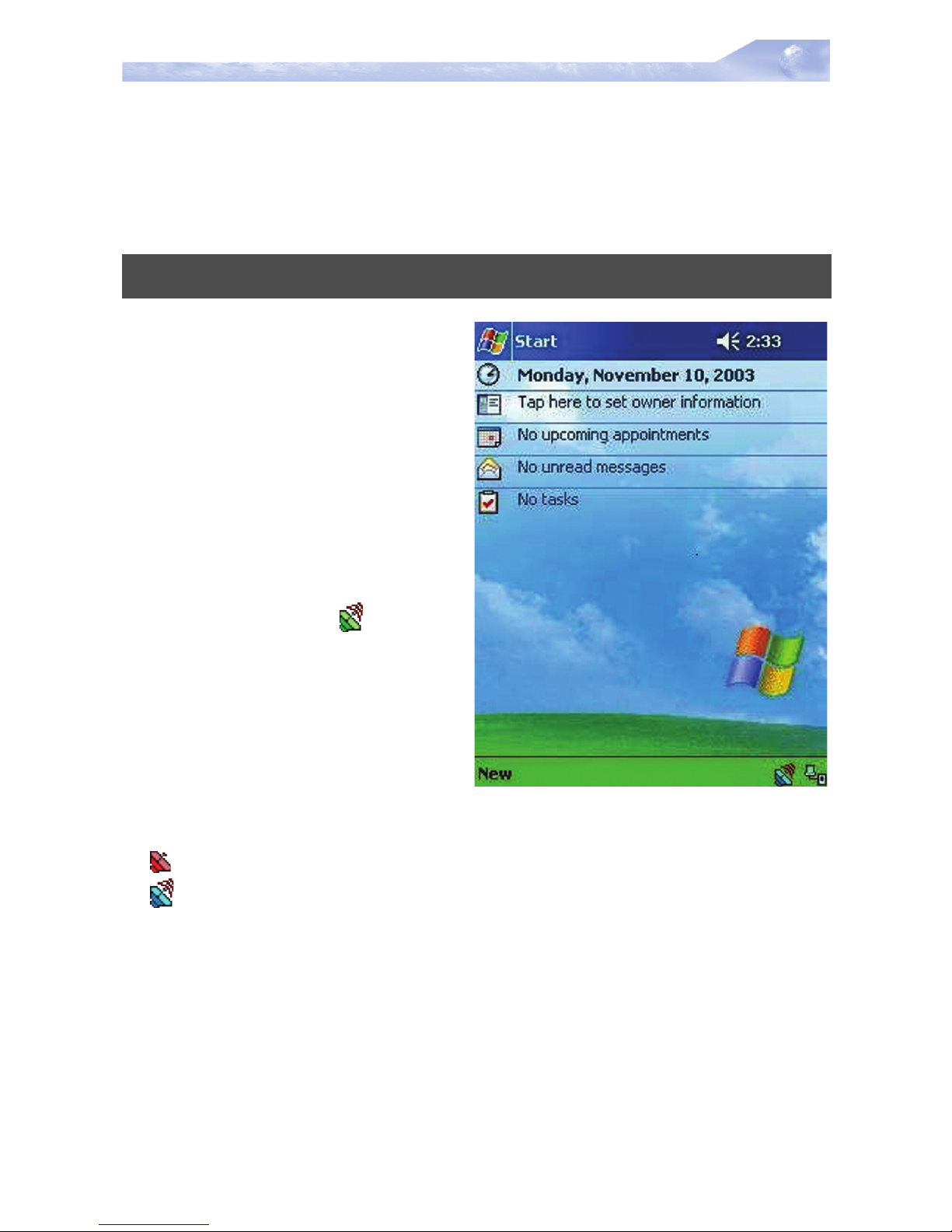
For the infrastructure operation
without WEP, once the SDLink11b card is inserted it
should connect to the available
AP automatically. If more than
one AP is available then the
driver should connect to the AP
which has stronger signal
strength. When the driver is
loaded and if it is working normally Green Icon is displayed on the lower right of the
PDA screen. Once it is
observed, you are ready to connect to the Internet. Click Internet Explore icon to enjoy
surfing. Other icons have different meaning and they are :
(Red) icon indicates the network is not established.
(Blue) icon indicates that the card is scanning for the nearest
AP.
4-1 Basic Setup
Page 17
SD-Link11b Manual SD-Link11b Configuration Utility
-17-
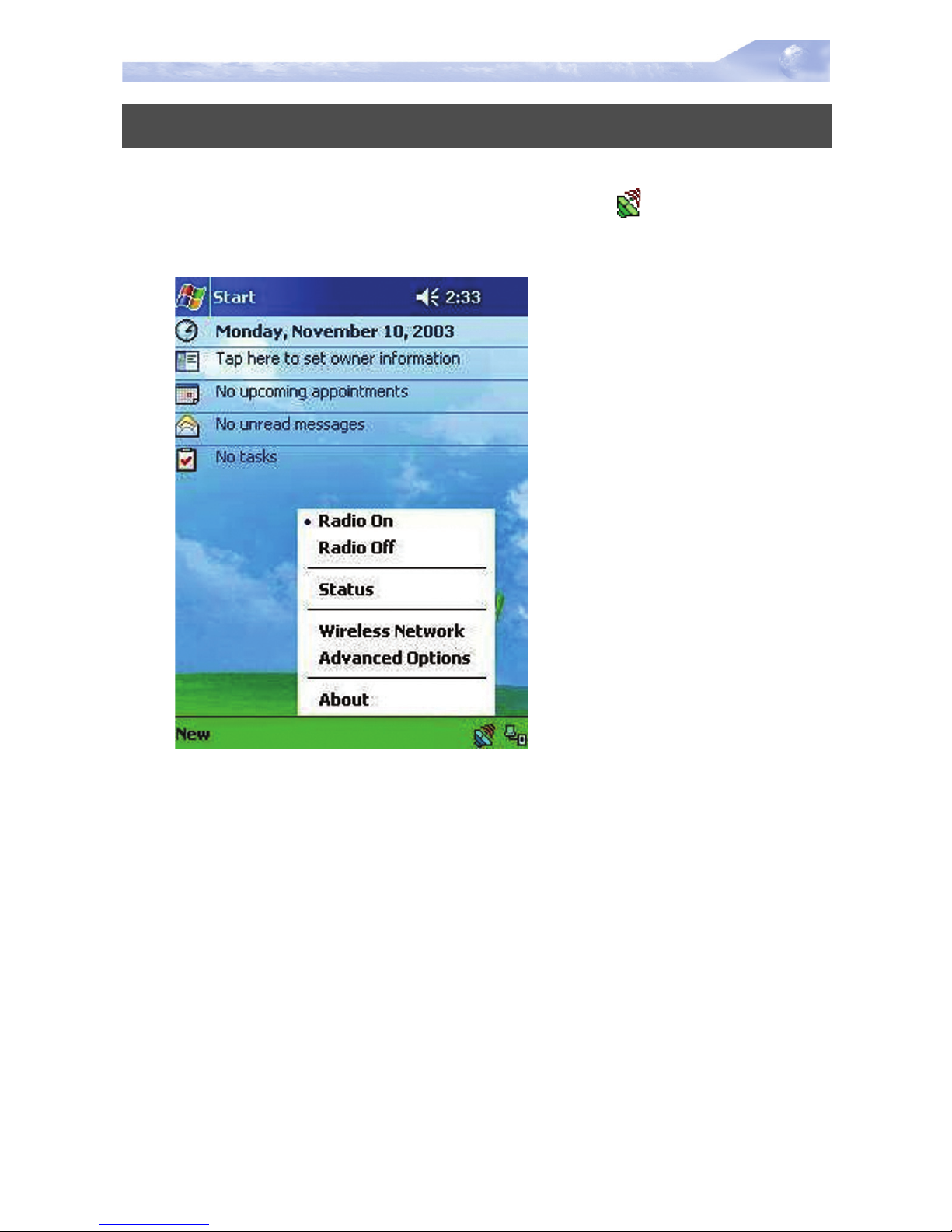
If the user requires specific set up, select menu and proceed. For
obtaining the advanced setup menu, click icon, (Green) to access
the pop-up utility shown below.
Fig 1. Top menu.
The menu options are :
• Radio on
• Radio off
•Status
• Wireless Network
• Advanced Options
• About
Radio on : turns the wireless radio on. LED of the card will be flick-
ering for few seconds to establish the connection.
4-2 Advanced Setup
Page 18
SD-Link11b Manual SD-Link11b Configuration Utility
-18-
Radio off : turns off the radio. A pop-up window will ask for your
confirmation. If confirmed, the Status Icon will be changed to look
like this (Red) Then SD-Link11b card will stop functioning.
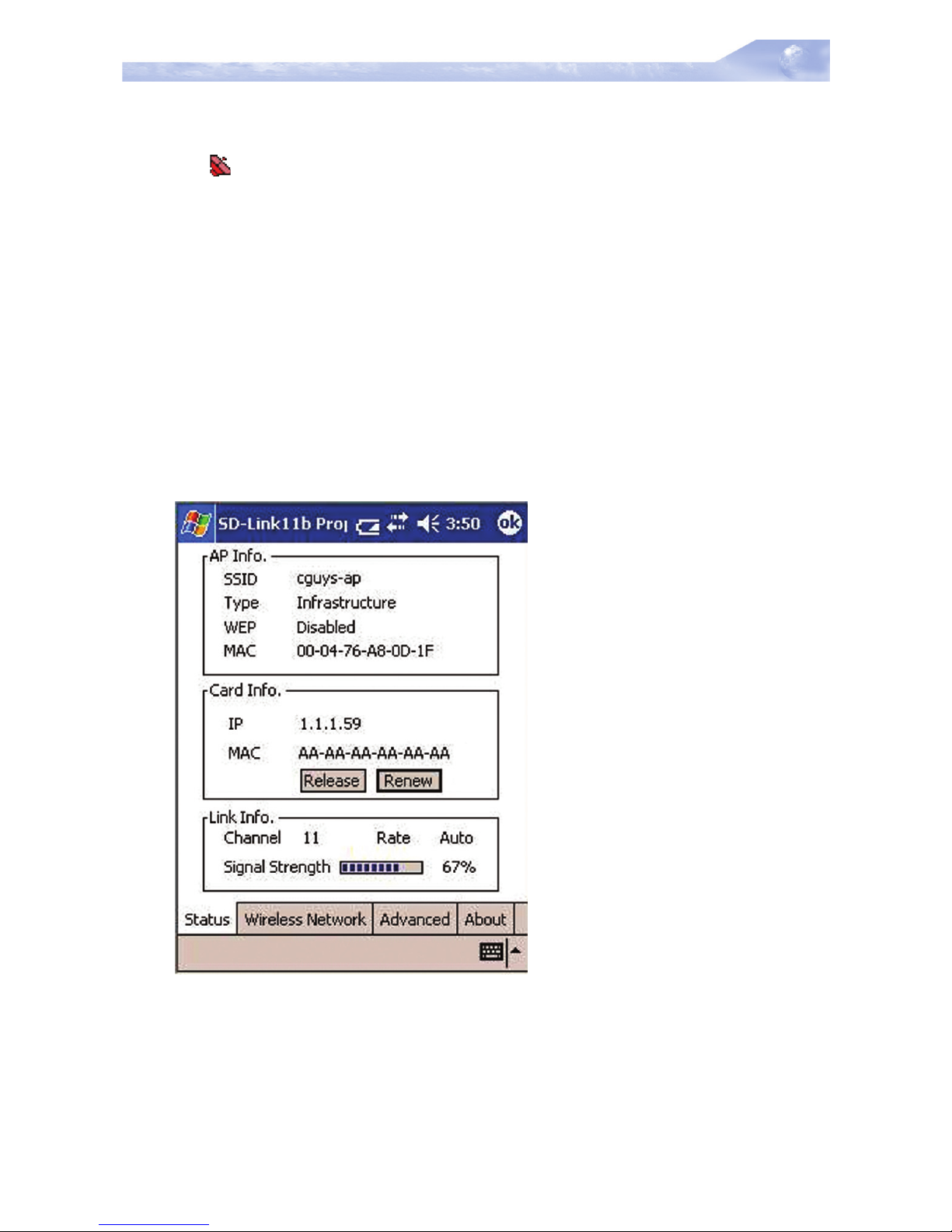
Status : shows the current wireless network status like shown in Fig
2. The status screen also shows parameters about the wireless con-
nection.
Wireless Network : shows the currently available networks.
Advanced Options : show the advanced configuration such as
WEP and power save mode.
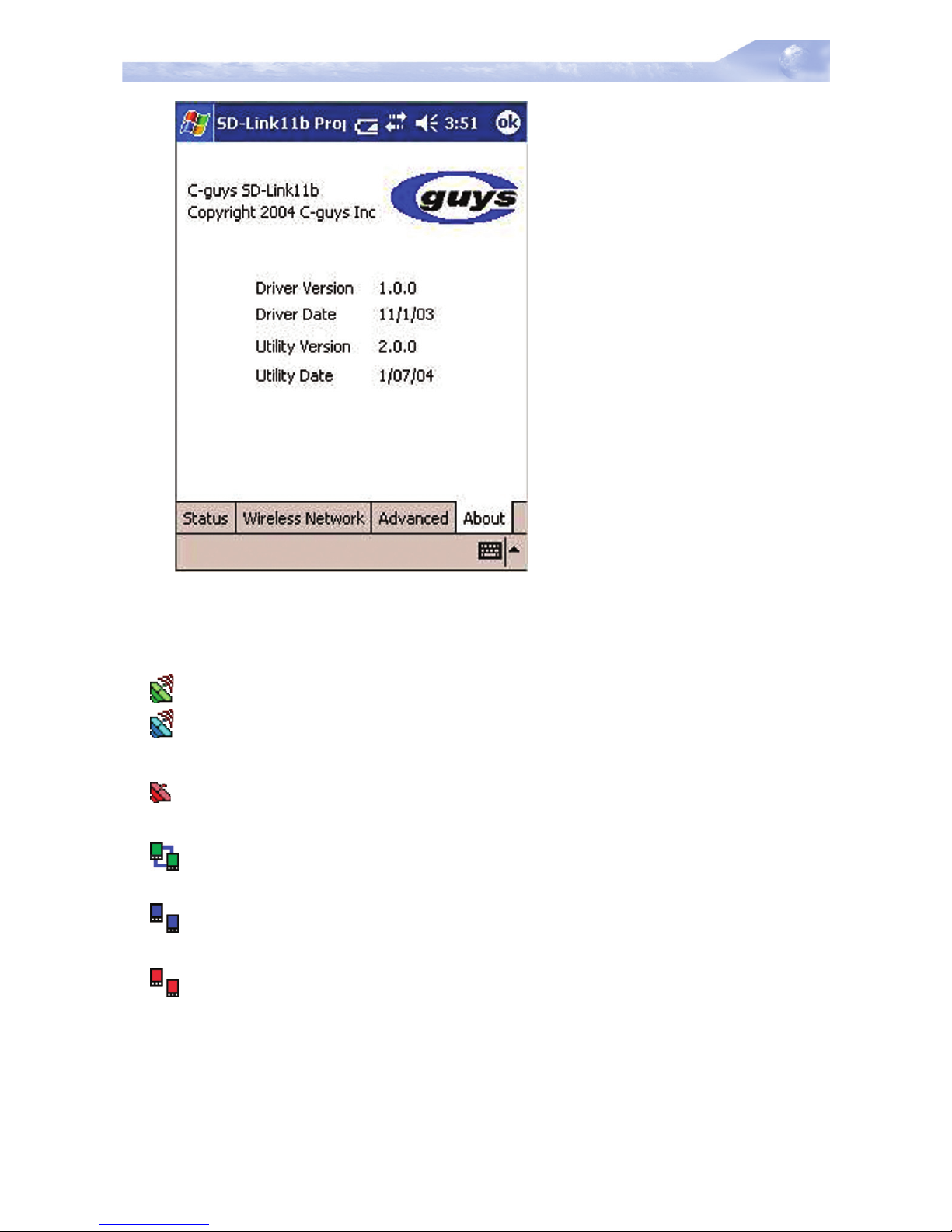
About : shows the driver version and the setup utility software version. As shown in Fig 7
Fig 2. Status and information.
AP INFO : shows the current access point relevant information.
SSID : shows the current access point name (ESS ID).
Type : shows the current connection mode.
Page 19

SD-Link11b Manual SD-Link11b Configuration Utility
-19-
WEP (Wired Equivalent Privacy) : shows the current WEP used
in the AP. WEP can be enabled or disabled.
MAC : Shows the AP’s MAC address that this card is communicating.
CARD INFO : shows the information about SD-Link11b card
inserted such as,
IP - IP address of the card,
MAC - MAC address of the card.
Release Button : Releases the Current IP address
Renew Button : Renews the IP address
LINK INFO : shows the current wireless link information
Channel : shows the wireless radio channel currently used by the
card.
Rate : shows the current transmit rate. This can be 1 Mbps, 2
Mbps, 5.5 Mbps, or 11 Mbps. Auto is automatic selection.
Signal Strength : gives signal strength of the received signal.
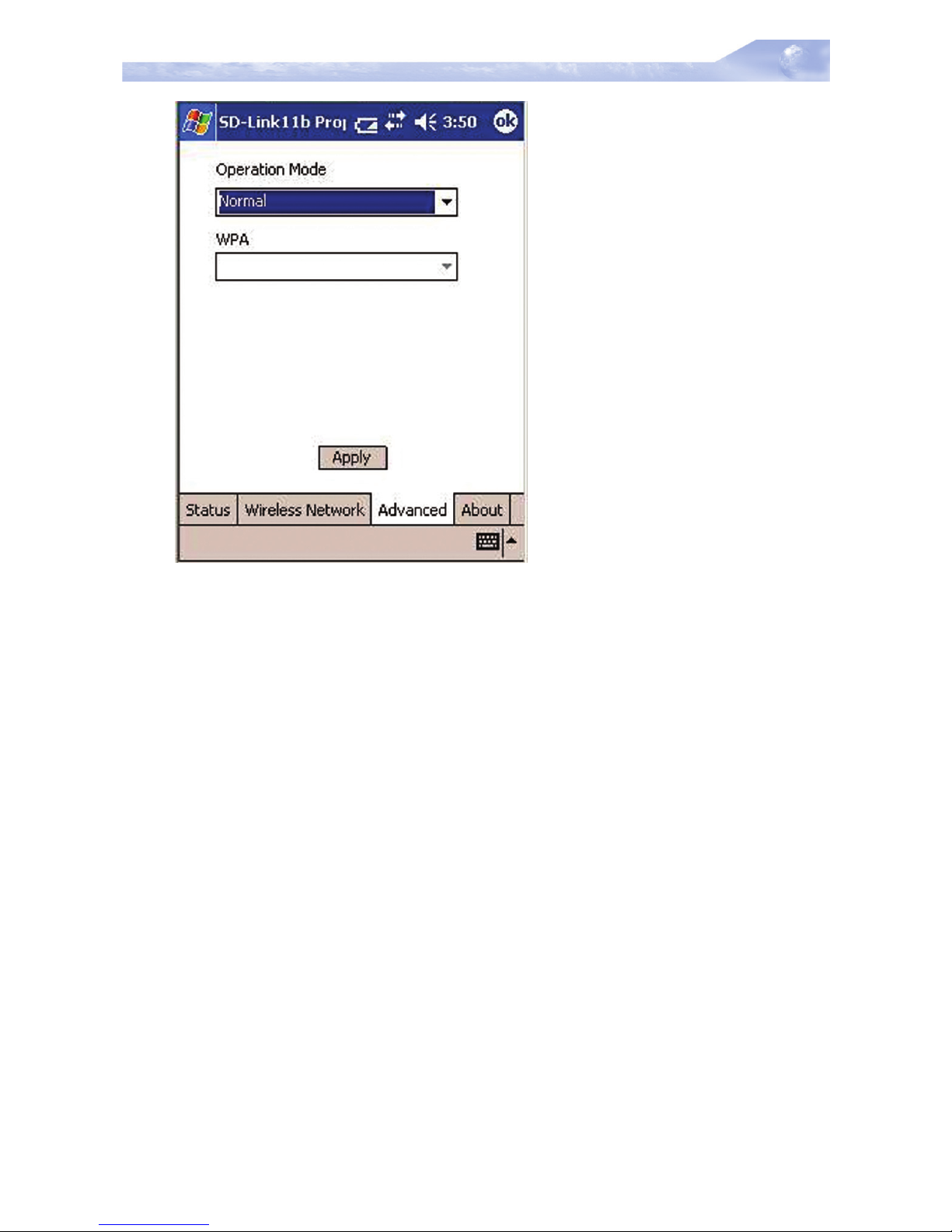
Advanced Options : shows advanced configuration settings avail-
able for SD-Link11b card.
Page 20
SD-Link11b Manual SD-Link11b Configuration Utility
-20-
Fig 3. Advanced setup configuration
Operation Mode : shows 3 different operational options depending
on applications. They are:
Normal - This is the default mode and power level and performance level are automatically selected.
Max Power Save - This option will give the best power savings
but less emphasis on the performance.
Max performance - This option will give the best performance.
WPA : provides Wi-Fi protected access security measure (in the
future optional). It can be either Enabled or Disabled.
User can change the settings by clicking Apply button.
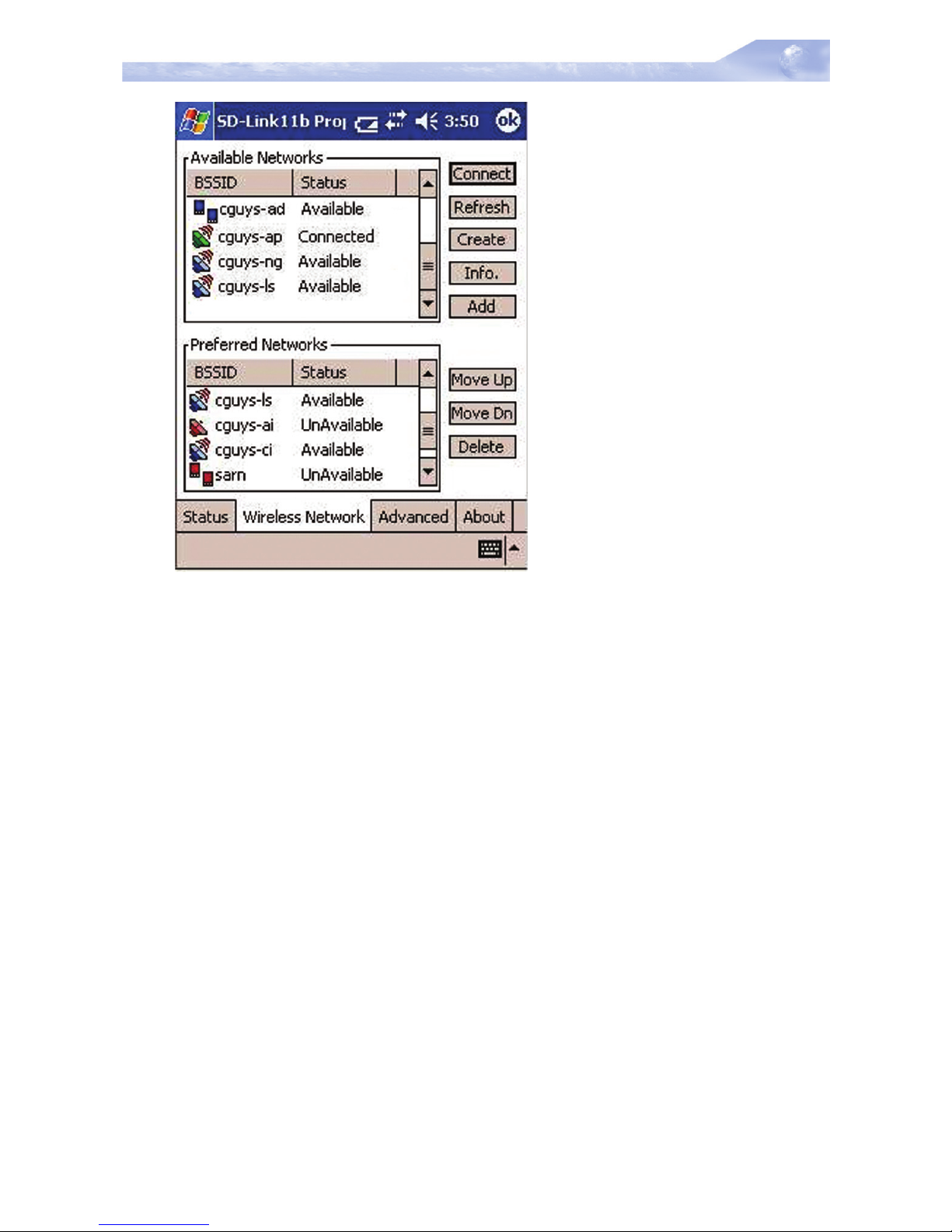
Wireless Network : shows wireless networks available in the neighborhood. It is shown in Fig 4.
Page 21
SD-Link11b Manual SD-Link11b Configuration Utility
-21-
Fig 4. Wireless Network information
Available Networks : displays all the active infrastructure and Adhoc modes in the neighborhood. For the infrastructure mode's AP
display, the currently communicating AP is listed first.
- Connect Button : Selects an AP and connect to the AP. Once
the connection is established the AP requires user's information
and the Fig 5. window will appear. Users must input required
WEP key and click Connect to communicate. If multiple WEP
keys are required, the index will show the requirement. If no
WEP input is required, click Connect to connect without
inputting the WEP key. Once Connect button is pressed, Fig 6
window will popup.
- Refresh Button : starts a new search for all available APs or
peer-to-peer stations in the vicinity.
- Create Button : creates a new network and it will open the win-
dow shown in Fig 5. The user has to input all the information that
is required to create new wireless network (e.g. Ad-hoc Network).
Page 22
SD-Link11b Manual SD-Link11b Configuration Utility
-22-
- Info Button : selects an AP and its relevant information regard-
ing the AP.
- Add Button : Adds the currently selected AP from the Avail-
able Networks to Preferred Networks.
The user can also select an AP from the preferred Networks list.
Once this is set, user can use the same name for quick connection or it is connected automatically.
Preferred Networks : displays the preferred wireless networks
available.
Move Up - Moves the highlighted profile one line up to increase
the association priority.
Move Down - Moves the highlighted profile one line down to
decrease the association priority.
Delete - Deletes the selected profile.
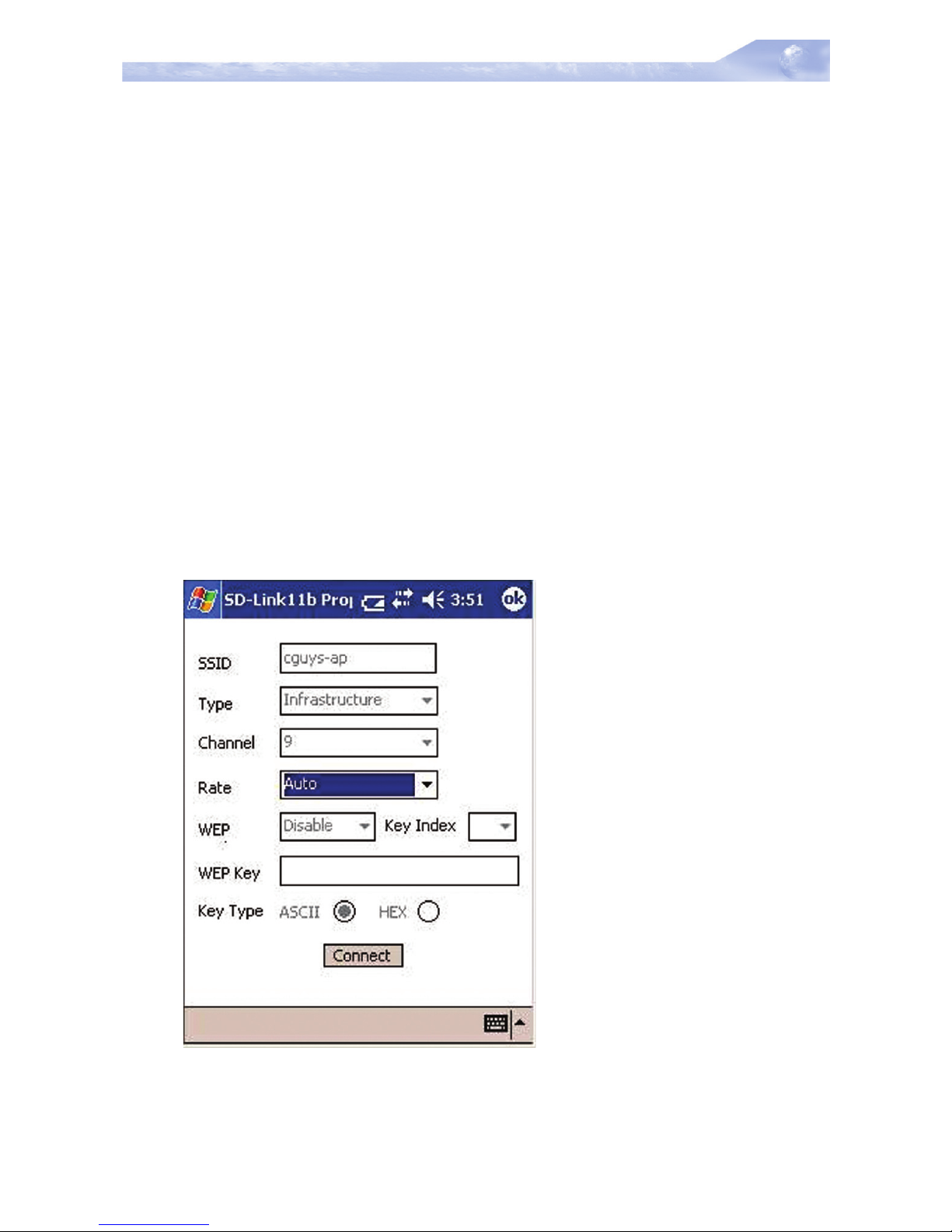
Fig 5. Connect Window
Page 23

SD-Link11b Manual SD-Link11b Configuration Utility
-23-
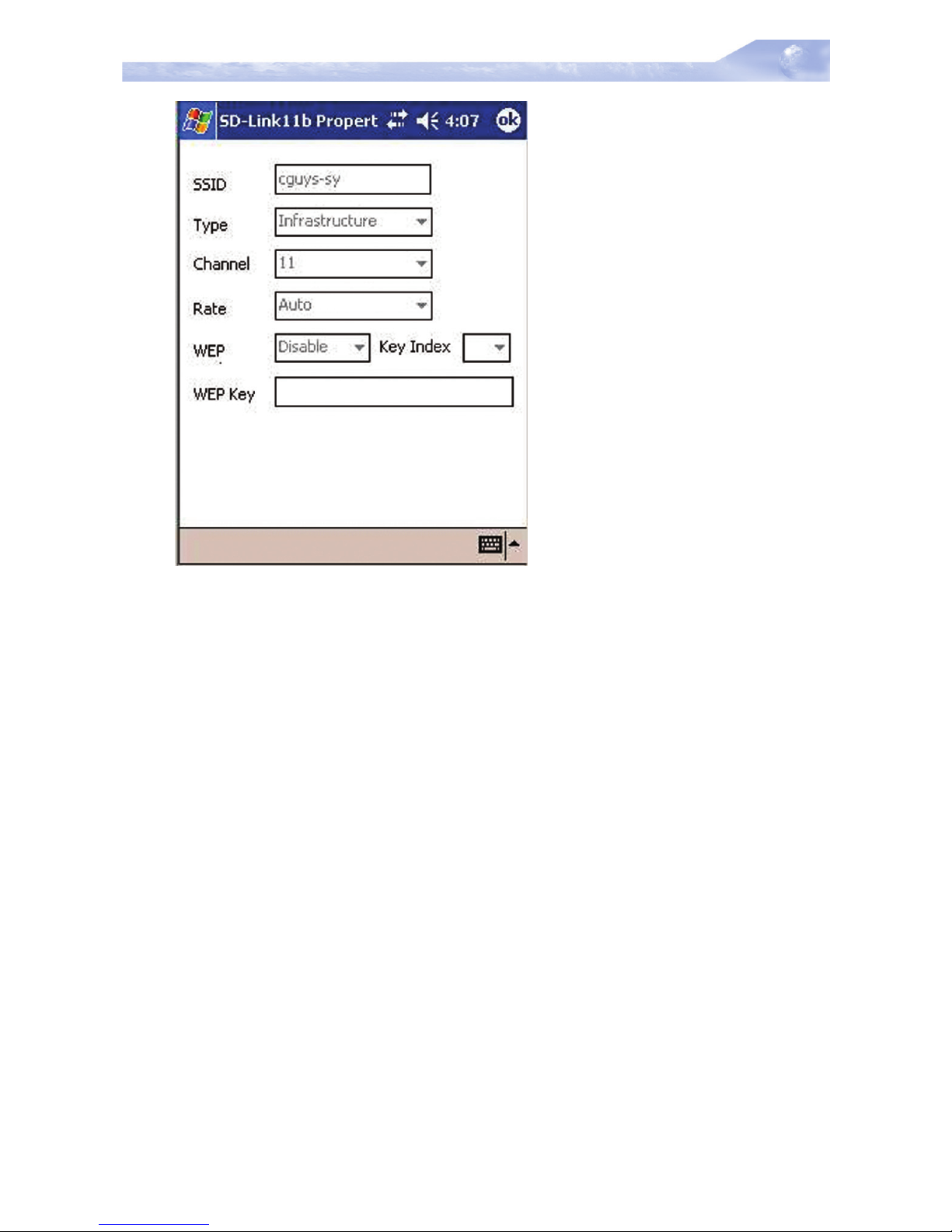
SSID : enters the SSID, this can be the Network ID or Access Point
name.
Type : is network type, either Ad-hoc or Infrastructure will be
selected.
Note : Ad-hoc (or Peer-to-Peer) mode is connection between
two or more cards.
Infrastructure mode is connection between cards and an AP.
Channel : In Ad-hoc mode, select the channel in which user wants
to create/join the network. In infrastructure mode, user can leave it
blank or can enter AP's channel number. The default is auto.
Rate : sets the transmission data rate in the pull down menu. The
default is auto which defines the rate automatically.
WEP : selects either Enabled or Disabled of the data encryption.
The default is Disabled.
WEP Key
When WEP mode is Enabled, the user need to enter WEP key as
shown.
64 bit (HEX) ....... Maximum of 10 characters in Hexadecimal for-
mat
64 bit (ASCII) ..... Maximum of 5 characters in ASCII format
128 bit (HEX) ..... Maximum of 26 characters in Hexadecimal for-
mat
128 bit (ASCII) ... Maximum of 13 characters in ASCII format
Key Index : allows to select multiple WEP keys (Currently, only “0”
is available. In the future upgrades)
Click Connect Button after entering all the necessary info to create new wireless network
Click on Info Button will bring the following window Fig 6
Page 24
SD-Link11b Manual SD-Link11b Configuration Utility
-24-
Fig 6. Connected network information
About page content is shown in Fig 7.
Page 25
SD-Link11b Manual SD-Link11b Configuration Utility
-25-
Fig 7. SD-Link11b card version information
Summary of Important Icons
(Green) icon indicates the current AP is connected
(Blue) icon indicates the current AP is available for wireless
connection
(Red) icon indicates the current AP is not available for wireless connection
(Green) icon indicates Ad-hoc mode is established with current wireless connection
(Blue) icon indicates Ad-hoc mode is on with current wireless
connection
(Red) icon indicates Ad-hoc mode is off with current wireless
connection
Page 26
SD-Link11b Manual SD-Link11b Specifications
-26-
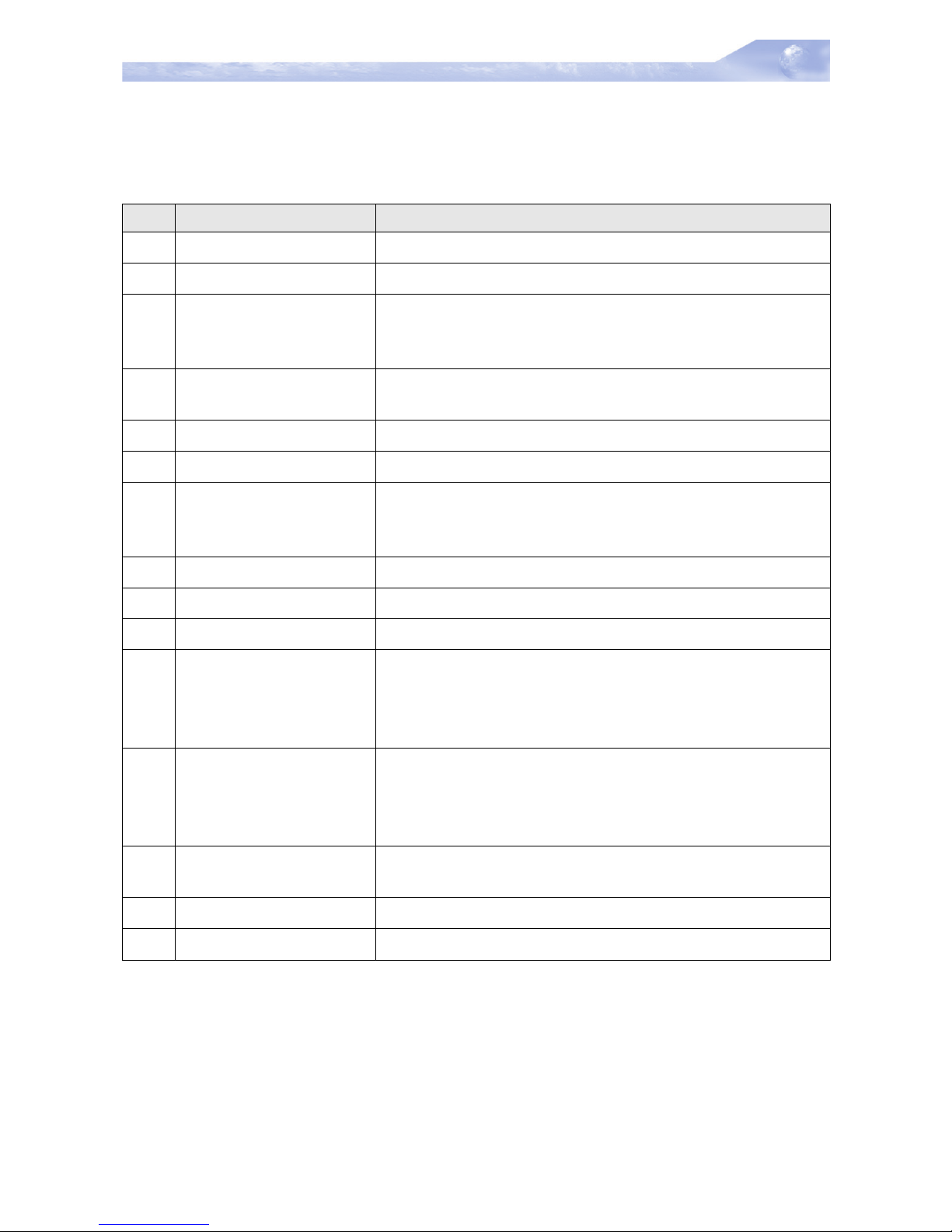
5 SD-Link11b Specifications
NO Item Specification
1
Frequency Range 2412 – 2484 MHz (ISM band)
2
Tx Modulation Direct Sequence Spread Spectrum, DSSS
3
Coding Modulation DBPSK (1Mbps),
DQPSK (2Mbps),
CCK (5.5 & 11Mbps)
4
Media Access
Control Method
CSMA/CA
5
Bus Type SD (by CG-100 SDIO controller)
6
Standard IEEE802.11b
7
Approval FCC, part 15.247 (USA)
EN 300.328 (Europe)
TELEC STD-T33 / ARIB STD-T66 (Japan)
8
Antenna Single
9
Input Power 3.3 VDC ± 0.2V
10
Tx Output Power 12dBm ± 2 dB
11
Power
Consumption
< 250 mA typical
< 280 mA receive
< 10 mA power save mode
< 1.5 mA deep sleep mode
12
Rx Sensitivity -87 dBm @ 11 Mbps
-91 dBm @ 5.5 Mbps
-94 dBm @ 2 Mbps
-96 dBm @ 1 Mbps
13
Temperature 0 - 55°C (operational)
-20 - 80°C (storage)
14
Dimension in mm 55(L) x 24(W) x 2.1(T)
15
Weight 7g
Page 27

SD-Link11b Manual Troubleshooting
-27-
6 Troubleshooting
This chapter provides typical problems with their own specific troubleshooting tips.
6-2-1 LED Activity
If you encounter difficulty using and/or installing your SD-Link11b
product, the error may be related to various causes :
- Out-of range situation, which prevents the SD-Link11b from
establishing a wireless connection with the network.
- Configuration mismatch, which prevents the SD-Link11b from
establishing a wireless connection with the (correct) network.
- Absence of, or conflict of the SD-Link11b Driver .
- A problem or conflict with the SD-Link11b socket from powering
on.
- A conflict of the SD-Link11b hardware with another device.
The starting point to troubleshoot problems with your SD-Link11b is
looking at the LED activity of the SD-Link11b.
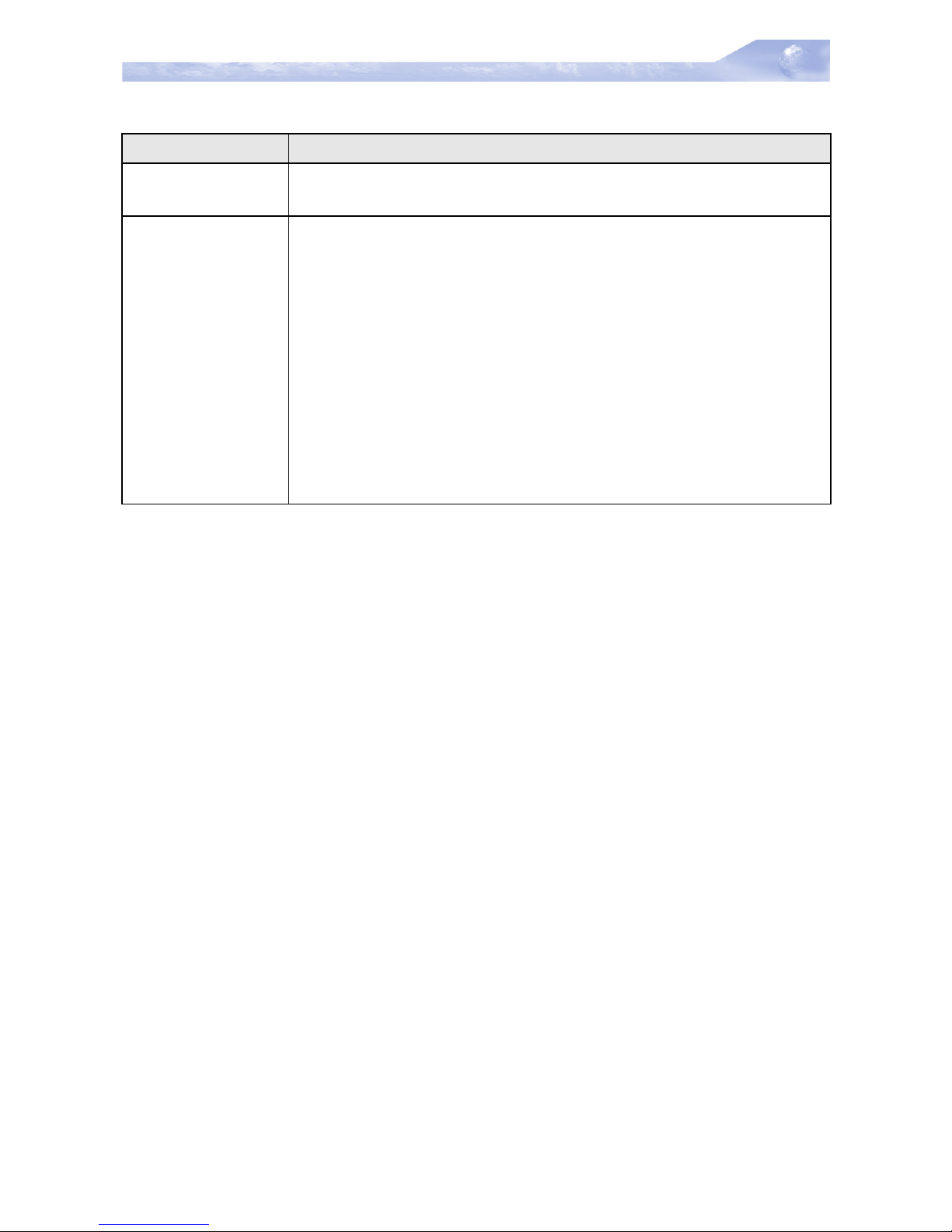
Table 6.2.1 below provides an overview of the various modes of
operation and the associated LED activity. Table 6.2.1 also includes
a number of troubleshooting hints, if required, that may help you
solve the problem.
6-1 Introduction
6-2 Common Troubleshooting Tips
Page 28
SD-Link11b Manual Troubleshooting
-28-
Table 6.2.1 LED Activity Table
6-2-2 Cannot Connect To Network
If your SD-Link11b seems to be working fine, but you are not able to
connect to the network, this error might be due to a configuration
mismatch.
For example if LED of your SD-Link11b lights, the problem is likely to
be caused by a configuration mismatch of :
- Network Name (The SD-Link11b Network Name is case-sensi-
tive).
- Encryption Key
Other causes may be :
- No driver loaded.
- Station not authorized to access network.
- SD-Link11b defect.
The most common cause is simple mistake. First check whether the
card is inserted properly or not. If the card is inserted properly, the
connection icon (antenna) should be displayed. If you see the icon,
Power LED Description/Action
Continuous Red Standard operational mode
No action is required
Off SD-Link11b power is not on, so it cannot transmit/receive
data. The SD-Link11b may not be connected properly.
Actions :
- Check SD-Link11b connection.
- Verify the device settings of the SD-Link11b to determine
the conflict with other devices. If so, change the settings
of either your SD-Link11b or the conflicting device to
resolve the problem.
- Verify the versions of the driver.
- Consult the SD-Link11b
website at: http://www.c-guys.com to see if newer versions are available and if so, upgrade the driver.
Page 29

SD-Link11b Manual Troubleshooting
-29-
click that icon and check the status by clicking the status tab on the
pop-up menu. Check whether any APs are available or not. If you
see many APs, select any of one those APs and click connect. If you
don't see any APs click Refresh Button. If you still don’t see AP list
after refreshing it is possible that no active AP is nearby. You may be
in the dead zone. Move around or change the PDA orientations. It
may help.
6-2-3 Cannot Edit Configuration Profile
If you want to add/edit the Configuration Profile of your SD-Link11b
but the Client Manager icon is not visible, you may do the following :
- Insert the SD-Link11b card into the device. The Client Manager
should pop-up. If nothing happens, the driver is not installed.
Install the driver and restart the device. You should see the SDLink11b icon in the lower right side.
6-2-4 Cannot Find the AP
Check the available access point in the neighborhood by clicking the
wireless network tab in the utility. If the access point requires WEP
key, input the same WEP key then try to connect again. If you do not
know the WEP key, contact the system administrator to obtain the
appropriate key.
For identifying the specific AP check the wireless networks available
in the neighborhood. If the AP shows ESSID, use the same ESSID
to connect the AP. ESSID is assigned to the specific AP for that purpose.
6-2-5 The System is Very Slow
Some devices with non-powerful CPU may suffer their performance
significantly. If the system is very slow, check
- If you are opening many windows, close them
- Change the antenna orientation for better signal reception
Page 30

SD-Link11b Manual Troubleshooting
-30-
- Check the signal strength if it is weak move toward the AP.
6-2-6 It Takes a Long Time to Shutdown
Unplug the SD-Link11b from the HP iPAQh2215 and View sonic V37
after turn off the host device will pop-up the Windows again. Similarly when the card is inserted while the system is off will pop-up
Windows. This is because SD-Link11b card in or out triggers the
system to wake up. If this happens, plug out the card and keep
switch off for a few times until the system is completely off.
Leaving the SD-Link11b card in the system will not shut down the
device (it is in hibernated condition).
6-2-7 SD-Link11b Does Not Operate After Returning
From the Stand-by or Sleeping Mode
This may happen when the driver is not functioning. Reinstall the
SD-Link11b driver again. If you have the same problem, please contact C-guys.
6-3-1 Upgrading the SD-Link11b Driver
Upgrading the SD-Link11b Driver may be required in one of the following situations :
- You would like to use new features that have become available
for your SD-Link11b.
- You installed a newer version of the Client Manager tool.
- Your Client Manager “Card Diagnostics” reported a Driver/Firmware mismatch.
6-3 Upgrading Tips
Page 31

SD-Link11b Manual Troubleshooting
-31-
CAUTION :
Upgrading the SD-Link11b Driver should be easy. But if you do not
feel comfortable, please done it by a skilled LAN Administrator or
support engineer who has a working knowledge of the Microsoft
®
operating systems.
A. Install from PC through USB cable.
1. Connect the PC and PDA via an USB cable.
2. Make sure the SD-link11b card is plugged out from PDA.
3. Login to http://www.c-guys.com/ by the PC, first.
4. Download the latest driver/updates as instructed and save it
to your PC.
5. Open the Active Sync
®
(by Microsoft®) program at both
devices.
6. Double click the application which you saved.
7. The application will open and Active Sync
®
will start to trans-
fer the driver.
8. The application will install the latest driver to your PDA.
9. When prompted for overwriting your files, click “YES”.
10.Your new driver is ready.
B. Install wirelessly using the SD-link11b card.
1. Connect to the http://www.c-guys.com/ on your PDA.
2. Download the latest driver and save it.
3. Plug out your SD-link11b card from the PDA
4. Double click the application which you saved.
5. The application will install the latest driver
6. When prompted for overwriting your files click “YES”.
7. Your new driver is ready.
Page 32

SD-Link11b Manual Troubleshooting
-32-
C. Install using the SD-memory card.
1. Connect to the http://www.c-guys.com/ on your PC.
2. Download the latest driver and save it in the SD memory
card.
3. Insert the SD memory into your PDA.
4. Double click the application which you saved.
5. The application will install the latest driver
6. When prompted for overwriting your files click “YES”.
7. Your new driver is ready.
6-3-2 Removing the Driver
1. In your PDA, go to Start, then Settings.
2. Click on system Tab.
3. Click on Remove Programs Icon.
4. A new window will open and showing the Installed programs
in your PDA.
5. Select on “C-guys SD-Link11b” and then click Remove button.
6. Click “YES” when prompted.
The driver is removed.
CAUTION :
Prior to deleting the files from your hard disk, it is important to
remove the drivers as described above.
Failing to do so prevents the Windows operating system from cleaning the Windows Registry, which might lead to complications if you
try to re-install the SD-Link11b Driver in the future.
Page 33

SD-Link11b Manual Troubleshooting
-33-
If deleting the SD-Link11b Driver files was part of an “Upgrade
Driver” routine, you can now (re-)install the new SD-Link11b Driver
as described in Chapter 2 “Installing your SD-Link11b”.
For more detail information:
http://www.c-guys.com/
Page 34

SD-Link11b Manual Warranty
-34-
7 Warranty
C-guys’ 1 Year Warranty
C-guys, Inc. will repair or replace this SD-Link11b Card free of
charge if it ever fails within 1 year from the date of purchase, subject
to the conditions set forth below. The warranty applies only to the
extent this SD-Link11b Card is used in devices that are compliant
with the specifications of the appropriate standards organization.
This warranty applies only to the original purchaser of the C-guys
SD-Link11b Card who has proof of purchase, if requested.
This warranty is void if the SD-Link11b Card is not used in accordance with the product instructions or if C-guys determines that any
failure has been caused by misuse, neglect, improper installation,
repair, alteration or accident. C-guys bears no responsibility for failure or defect caused by any third party product or components
whether authorized or not. C-guys does not recommend the use of
its products in life support applications where in a failure or malfunction, the product may directly threaten life or injury. This product is
intended for consumer end-use only; it is not intended for nor warranted for commercial applications.
If a product fails under the terms of this warranty C-guys will inspect
the product and at its option, repair or replace the product. C-guys
will ship out a product with equal to or greater capacity. C-guys' sole
liability, and the exclusive remedy, for any acknowledged defect(s)
shall be the repair or replacement of the product in question. C-guys
may, at its sole option, replace the product with a refurbished product.
ALL STATUTORY OR IMPLIED WARRANTIES ARE HEREBY DISCLAIMED TO THE FULLEST EXTENT. C-GUYS SHALL NOT BE
LIABLE UNDER ANY CIRCUMSTANCES FOR ANY INDIRECT,
INCIDENTAL OR CONSEQUENTIAL DAMAGES OR LOST DATA.
Page 35

CG11BMNE-01
©2004 C-guys, Inc. All rights reserved
(First Edition March 2004)
 Loading...