

Page 1

MainStream TTU & STB Pairing
TTU & STB BT Pairing - Instructions for factory BT pairing TTU & STB by GeniaTech
Created by Certus 2018-05-23 for GeniaTech PVT3 build
Page 2
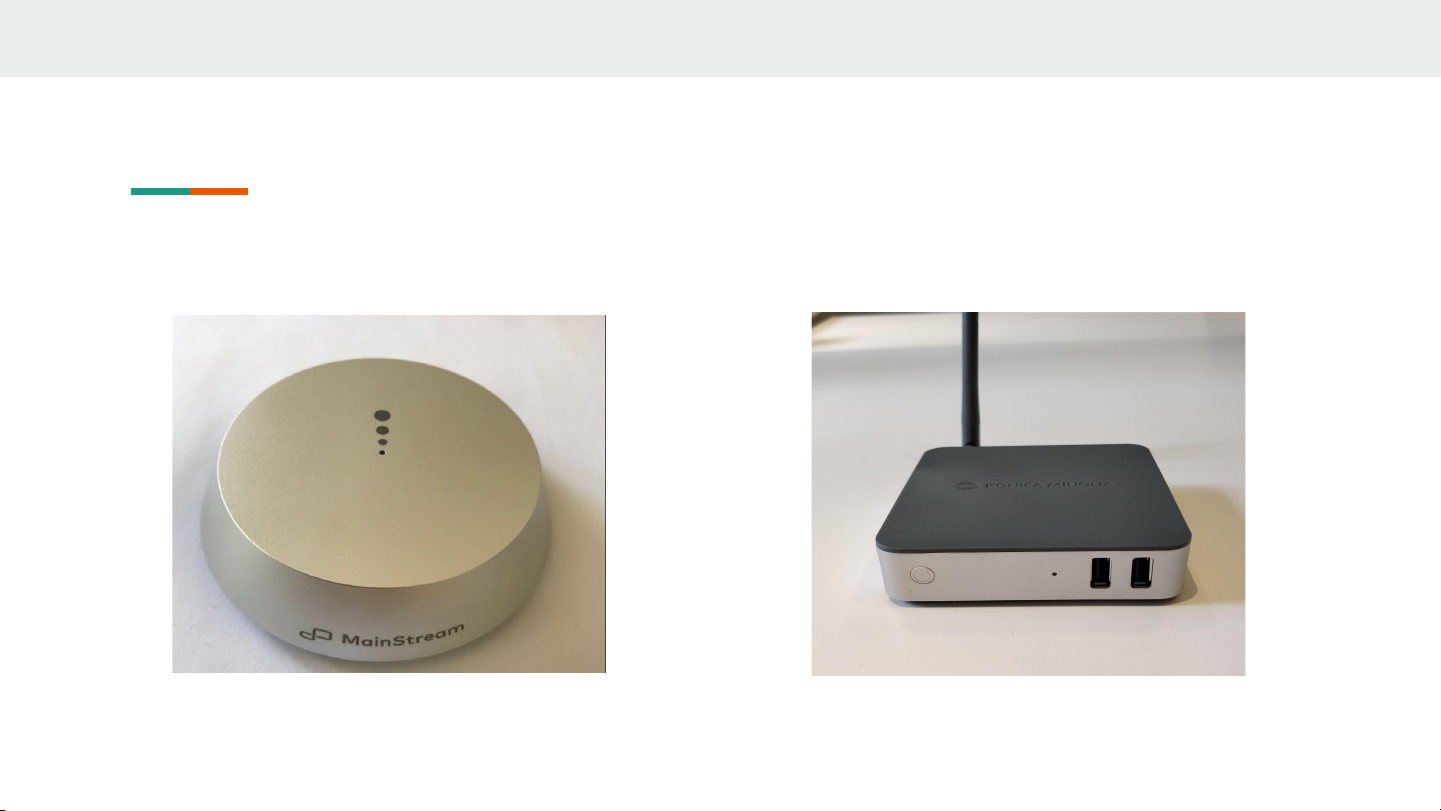
Terminology
TTU - Table Top Unit
MU - Main Unit (STB - Set Top Box)
Page 3
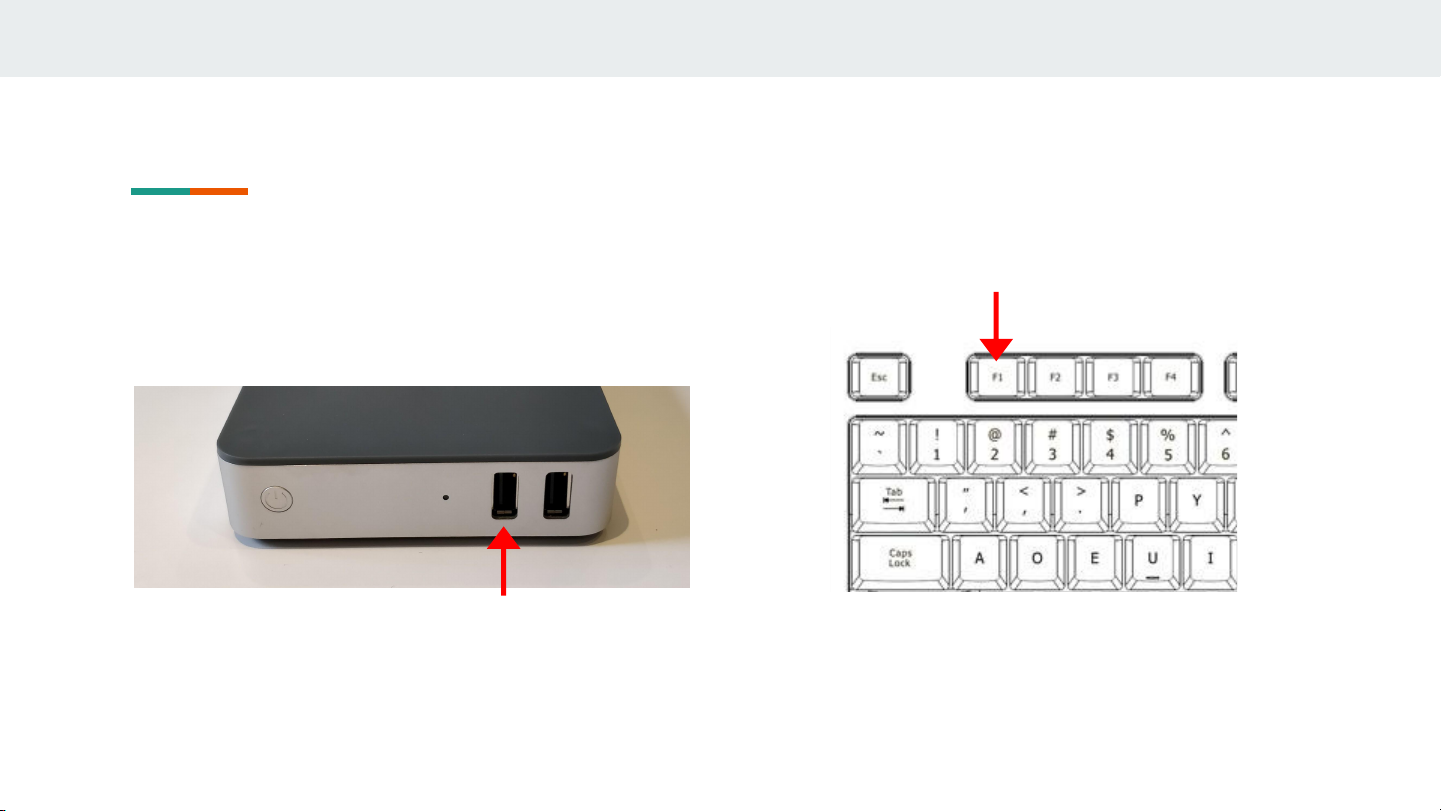
Access MainStream Settings
1. Connect a standard USB keyboard via one of
the front ports of the STB
2. Press the F1 key on the connected keyboard
Page 4
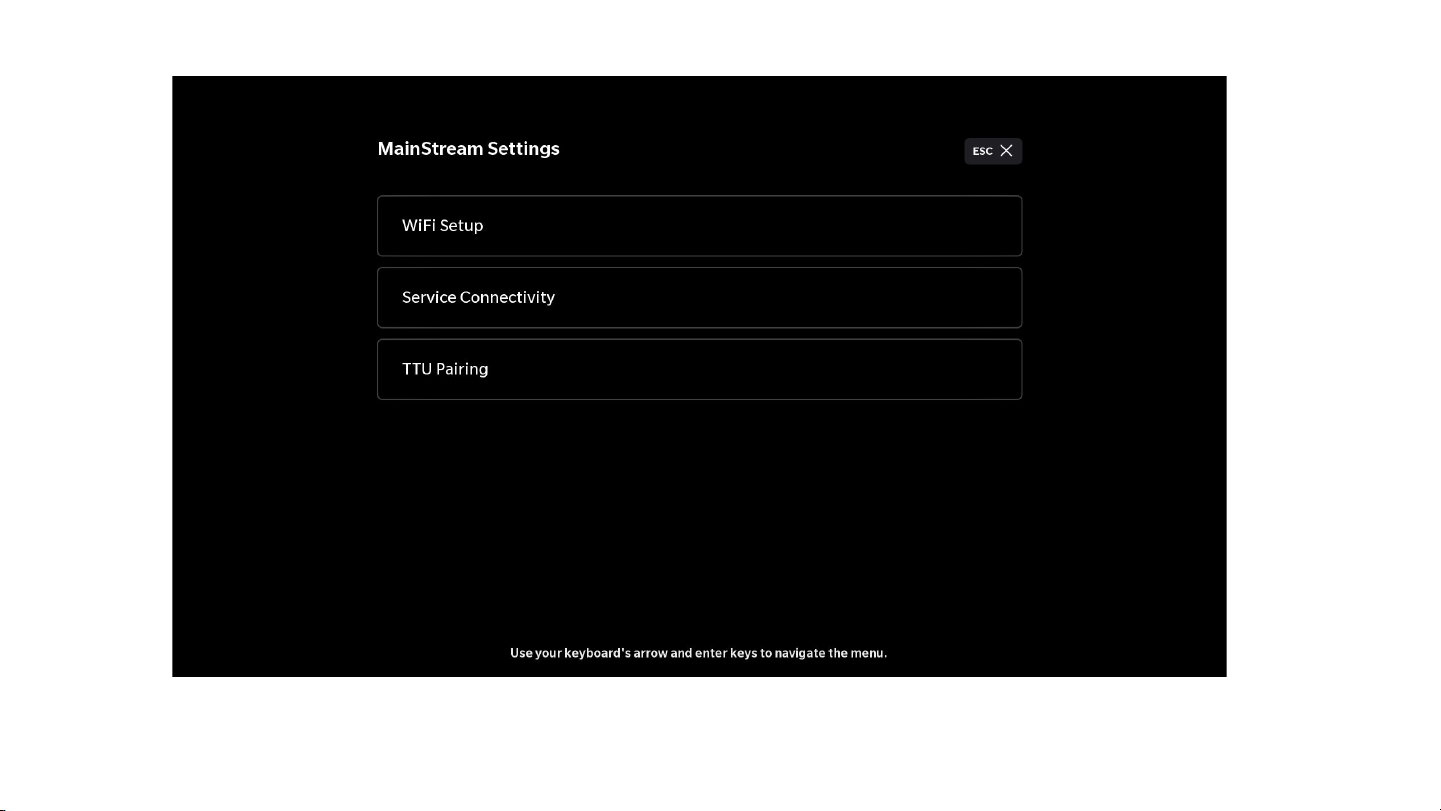
3. The Mainstream Settings should now be shown on the TV screen
Page 5
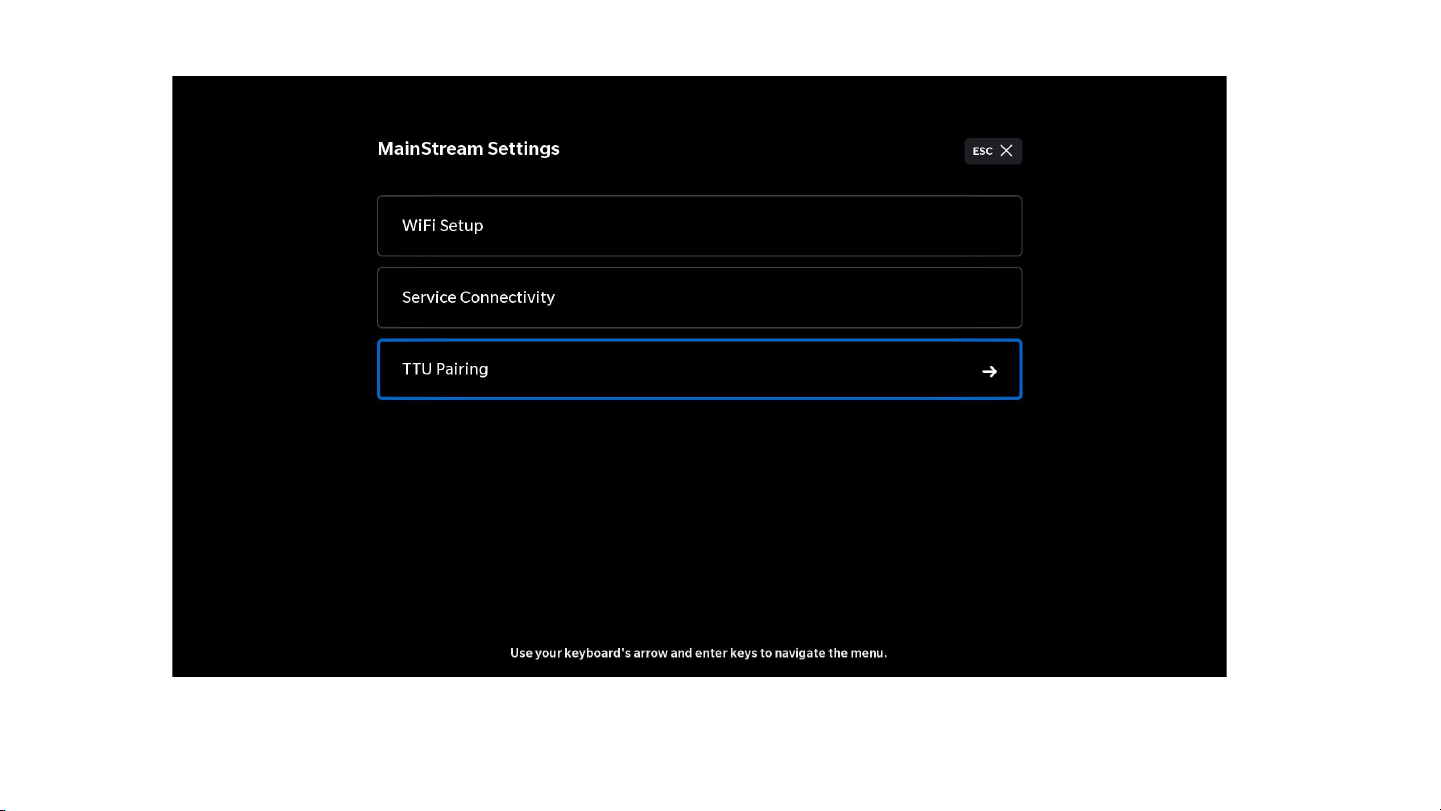
4. Use the up(↑) and down(↓) arrow keys on the connected keyboard to select TTU Pairing.
When TTU Pairing is selected (blue), press ENTER(⏎) on the keyboard.
Page 6
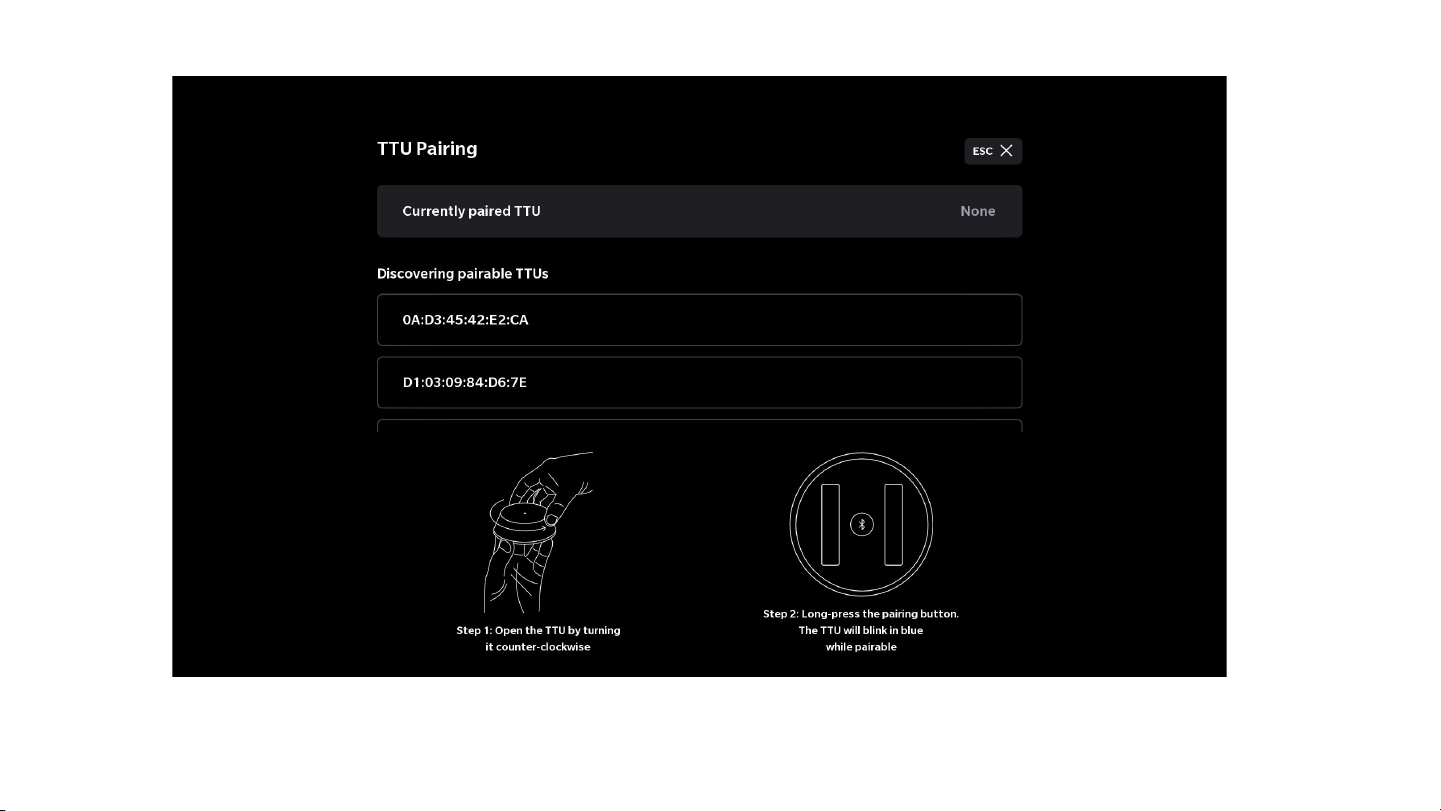
5. The page for pairing the TTUs will appear.
Page 7
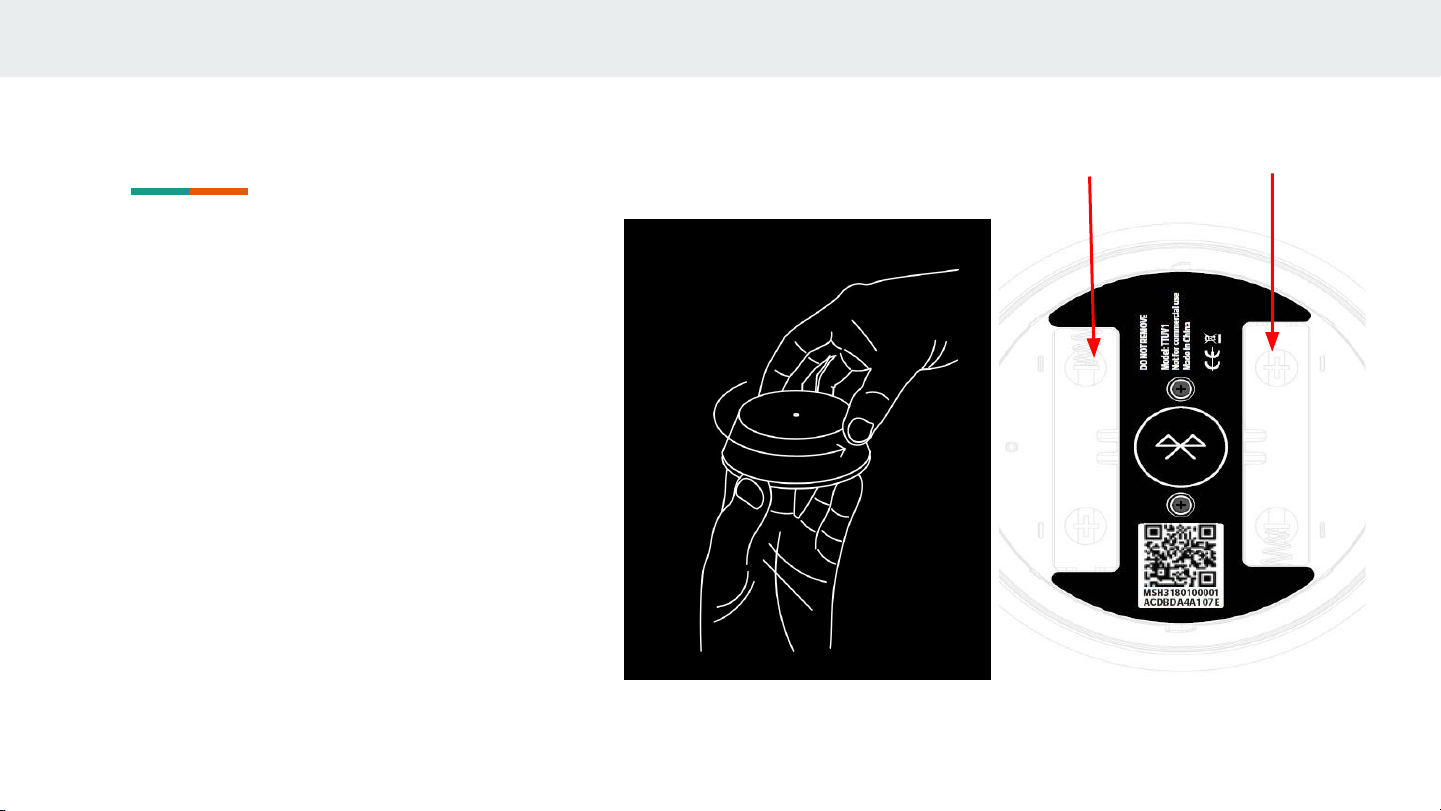
Set up the TTU to start BT pairing
1. Open the TTU by grabbing the aluminium lid
and the grey plastic bottom and rotating the
top counter clockwise (Figure 1.1)
2. Flip the TTU around so that the bottom is
revealed (Figure 1.2)
3. Insert two AAA Batteries (Red arrows in
Figure 1.2
4. The TTU led shall be blinking/briefing
red-/amber light, showing it is NOT PAIRED
and TTU is ready to start pairing process. Go
to 4.
Figure 1.1 Figure 1.2
Page 8
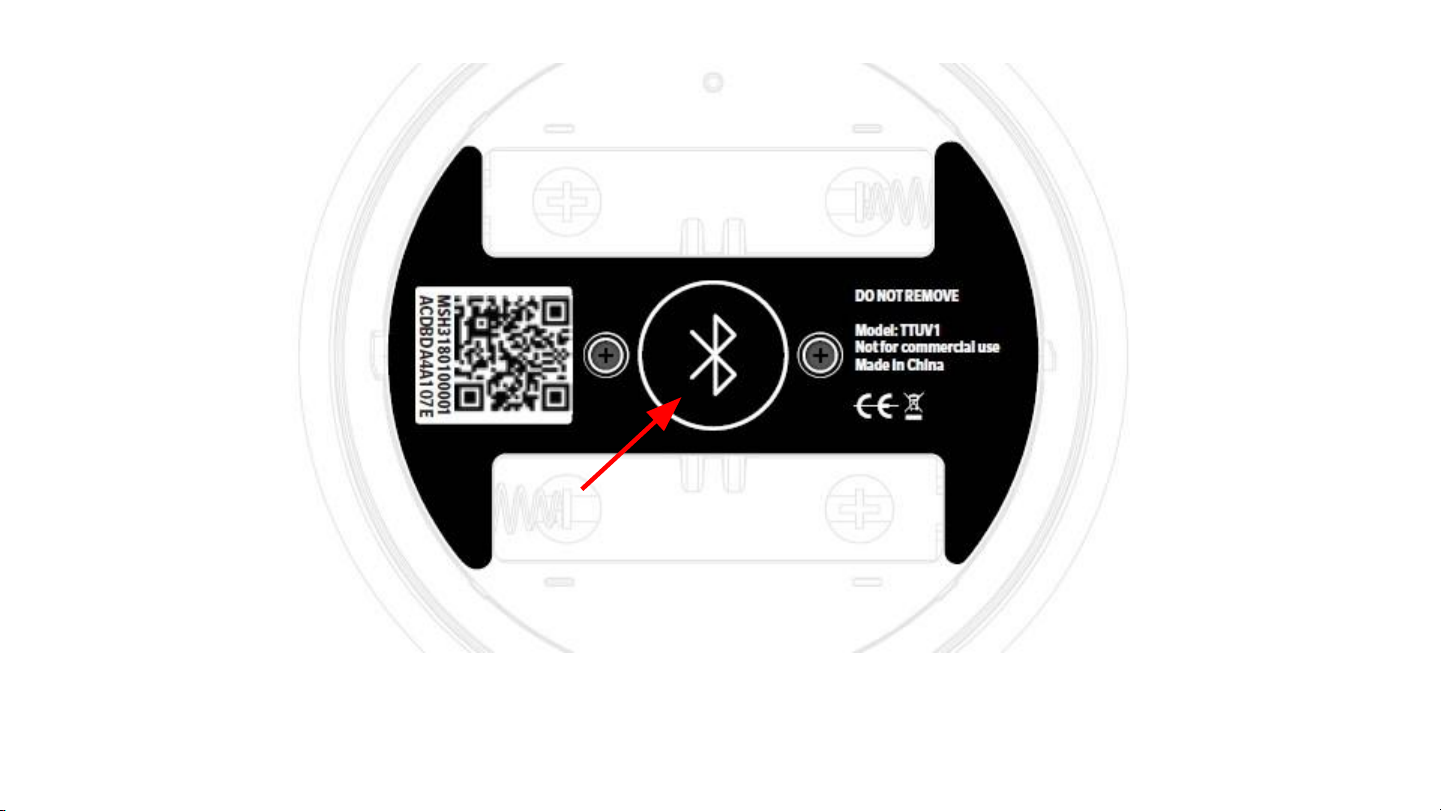
4. Start pairing process by Press and hold the Bluetooth Pairing button for a few seconds.
The TTU-led shall be blinking blue-light
Page 9
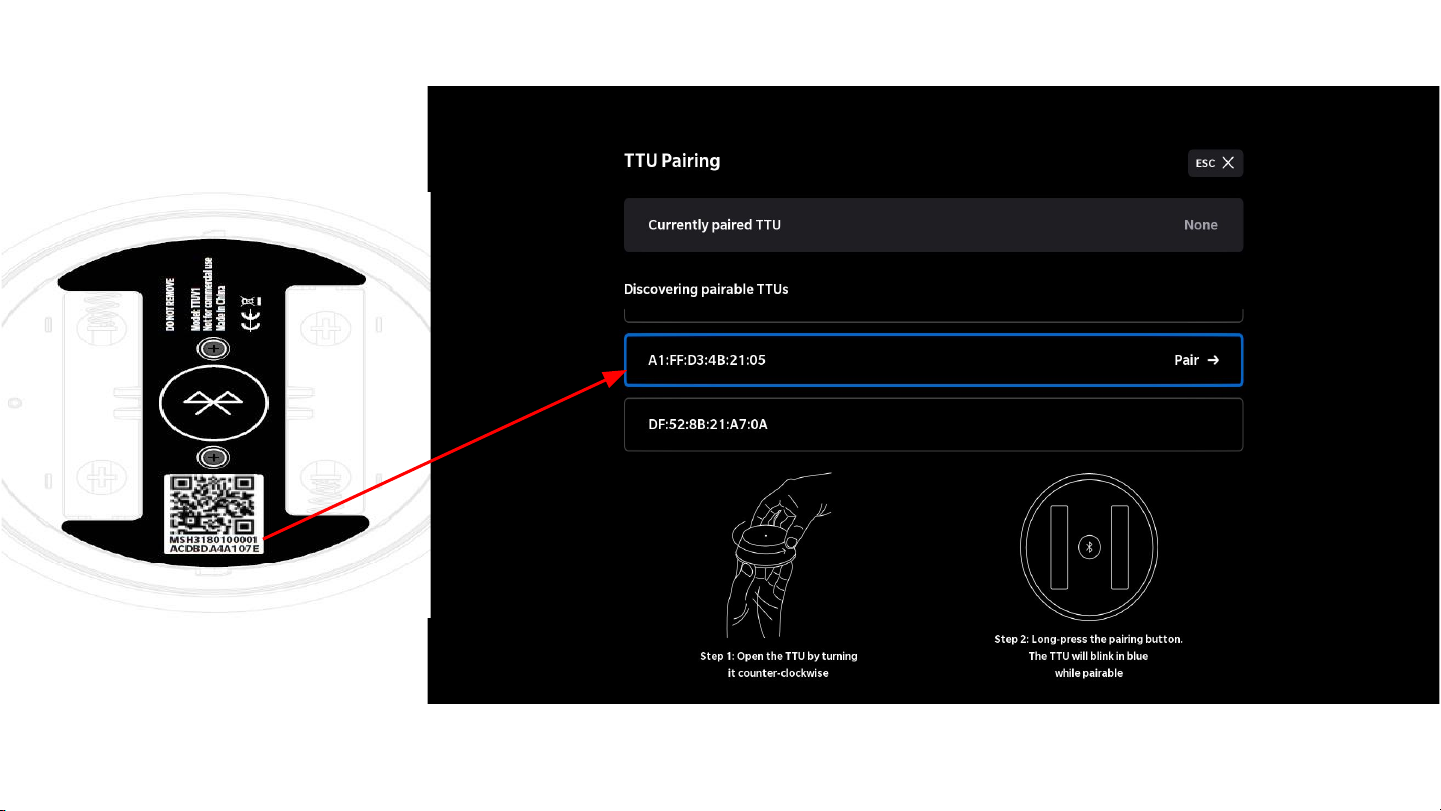
5a. Find the correct TTU in the list of Pairable TTUs using the up(↑) and down(↓) arrow keys on the
keyboard. The last 6 digits of the TTUs MAC address will be shown on the sticker under the TTU.
Page 10
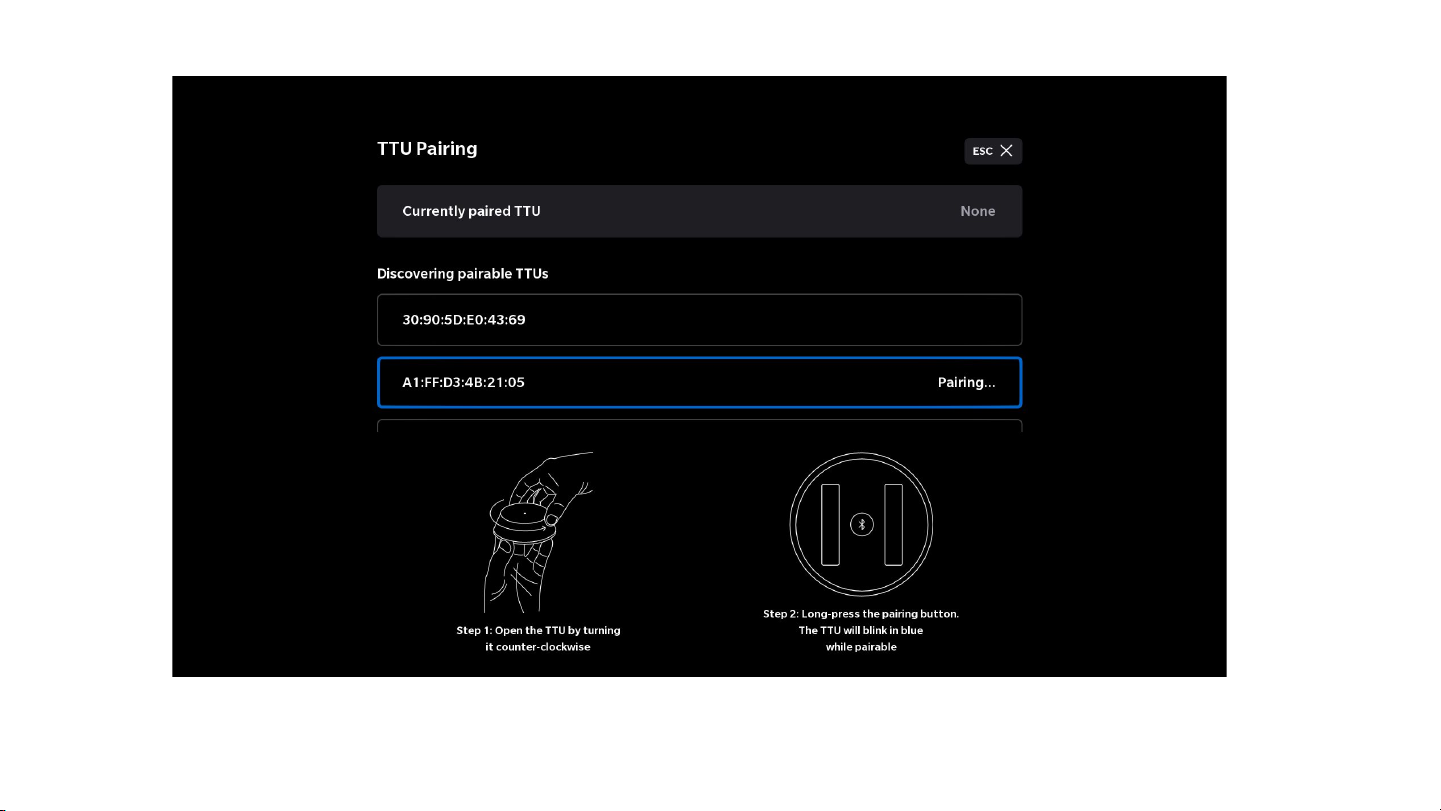
6a. When the correct TTU is selected (blue), press ENTER(⏎) on the keyboard. The text will change to
“Pairing...” as seen in the image above and the TTU-led shall be blinking green-light during the pairing
Page 11
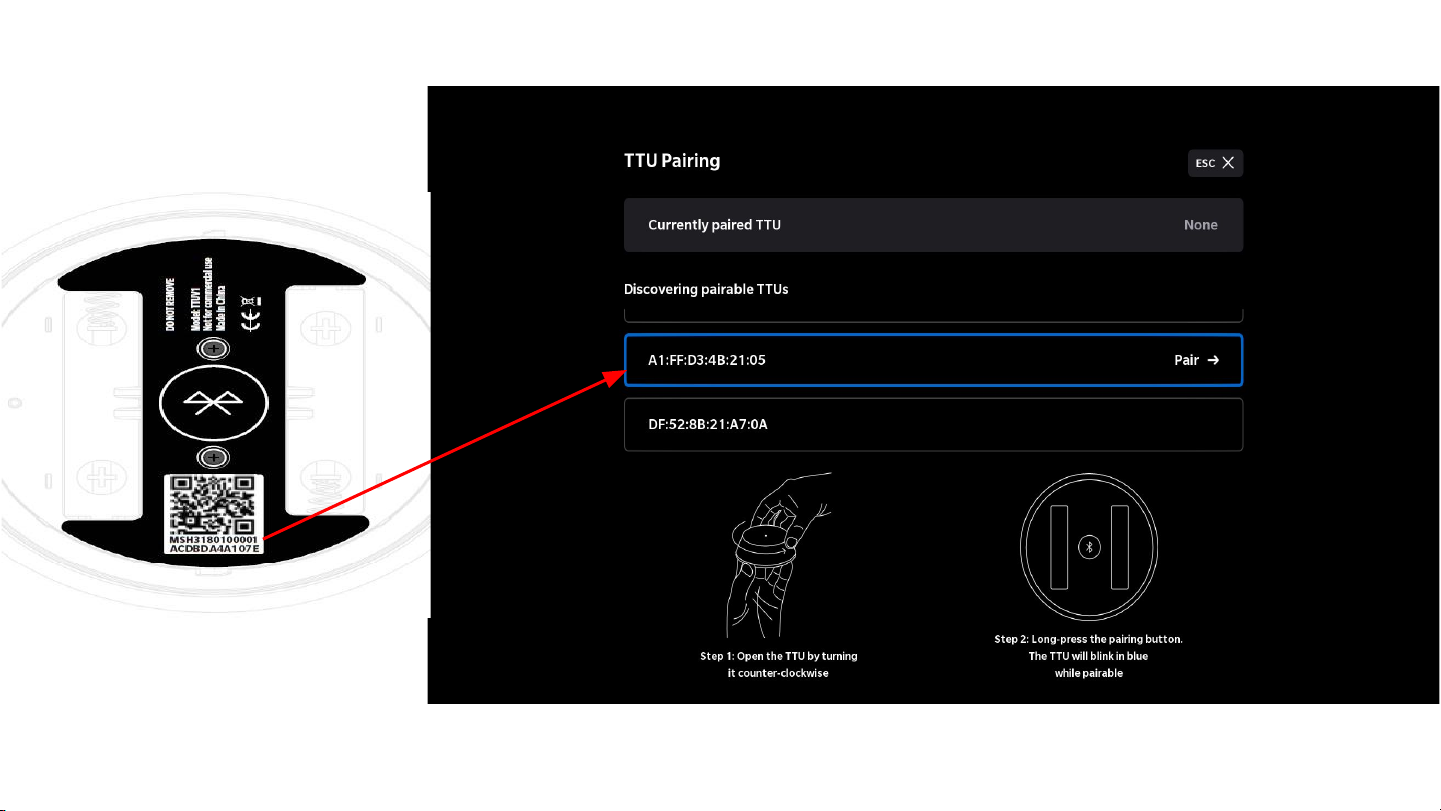
5b. If the TTU cannot be found in the list, try repeating step 4.
Make sure to scroll up/down since the item you are looking for may not be visible on the screen.
Page 12
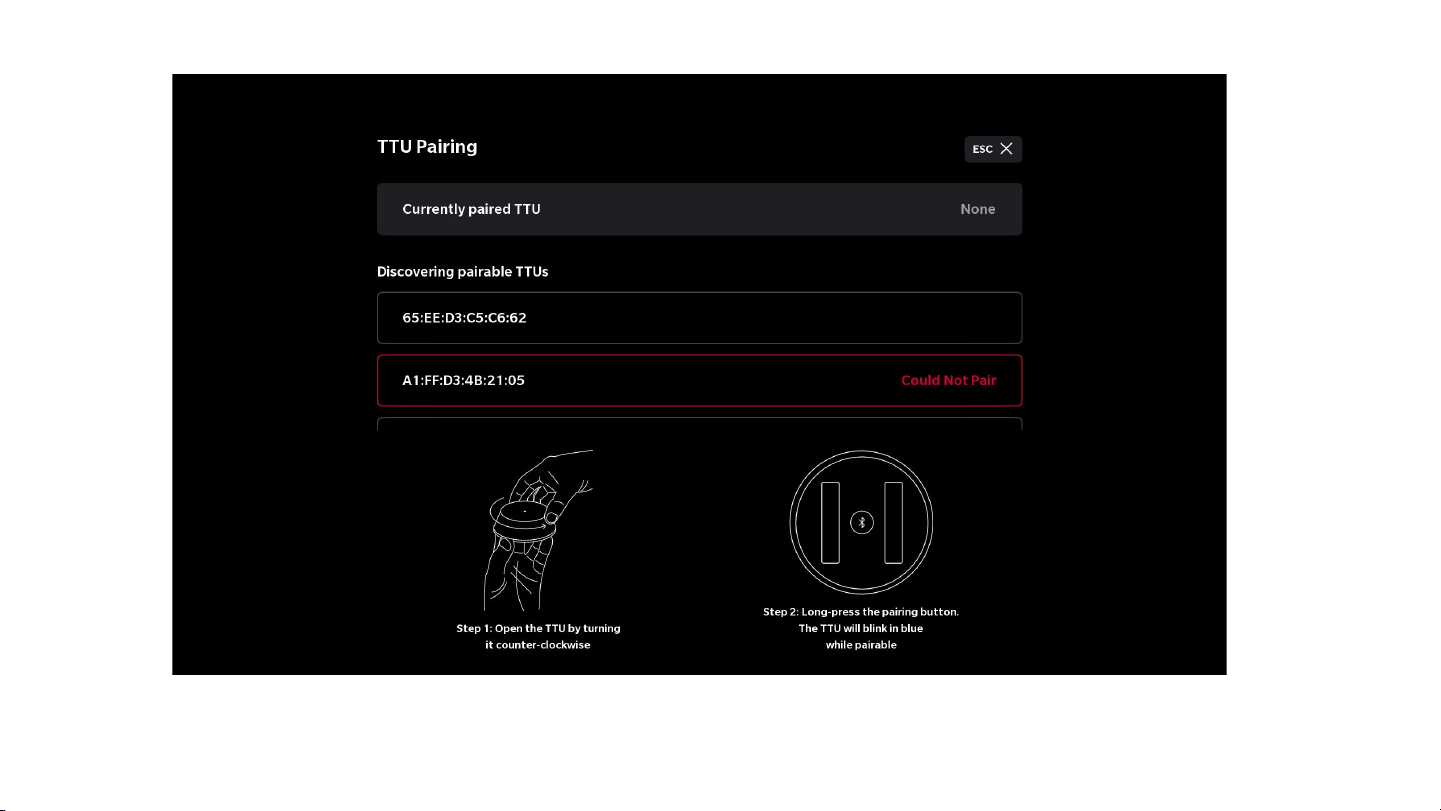
6b. If the pairing FAILS, the TTU will be outlined in red with the text “Could Not Pair”. If this
happens, go to 6c. Else, go to step 7.
Page 13
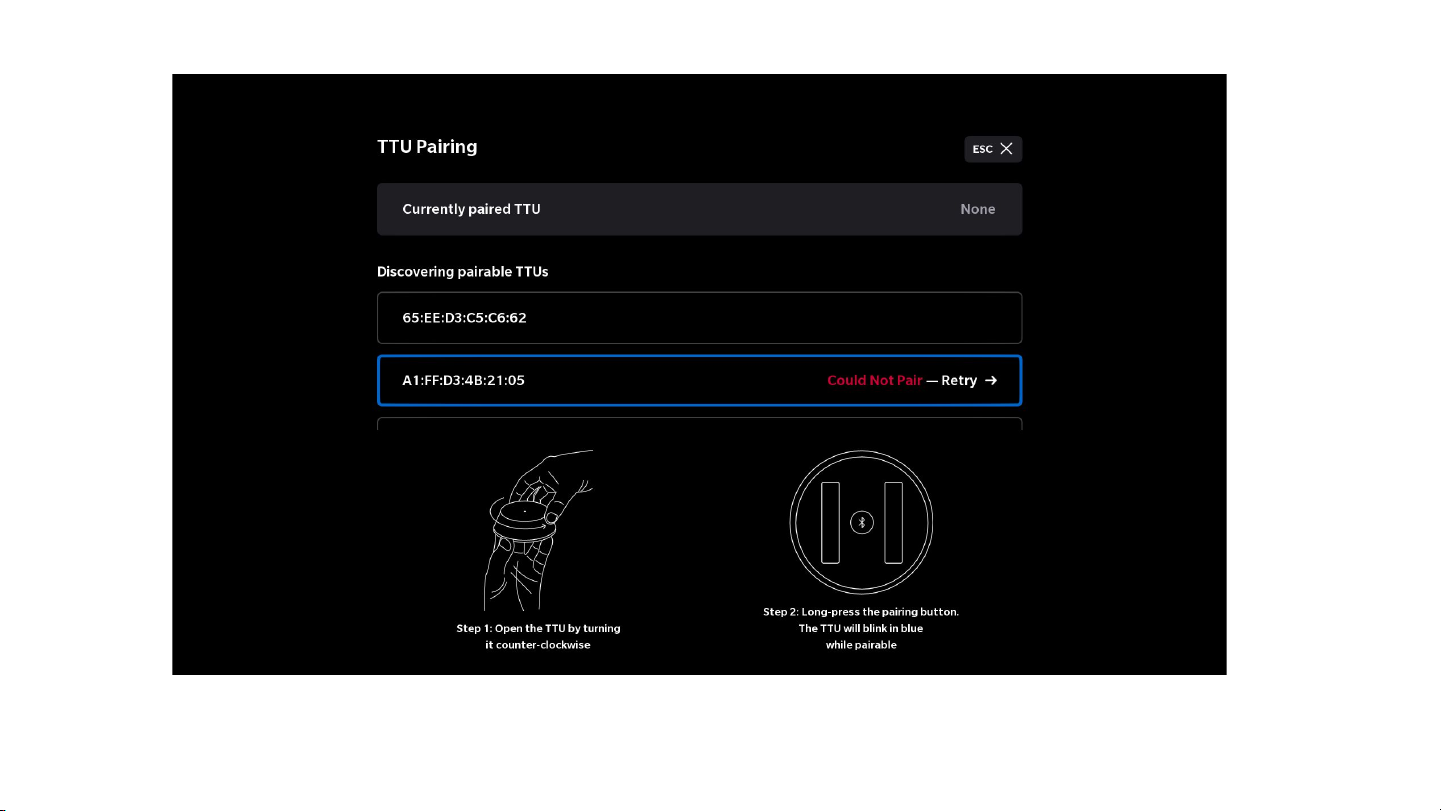
6c. Navigate to the TTU again with the arrow keys, until it is selected (blue) as shown in the
picture. Press ENTER(⏎) to retry the pairing, and continue as from step 6a.
Page 14
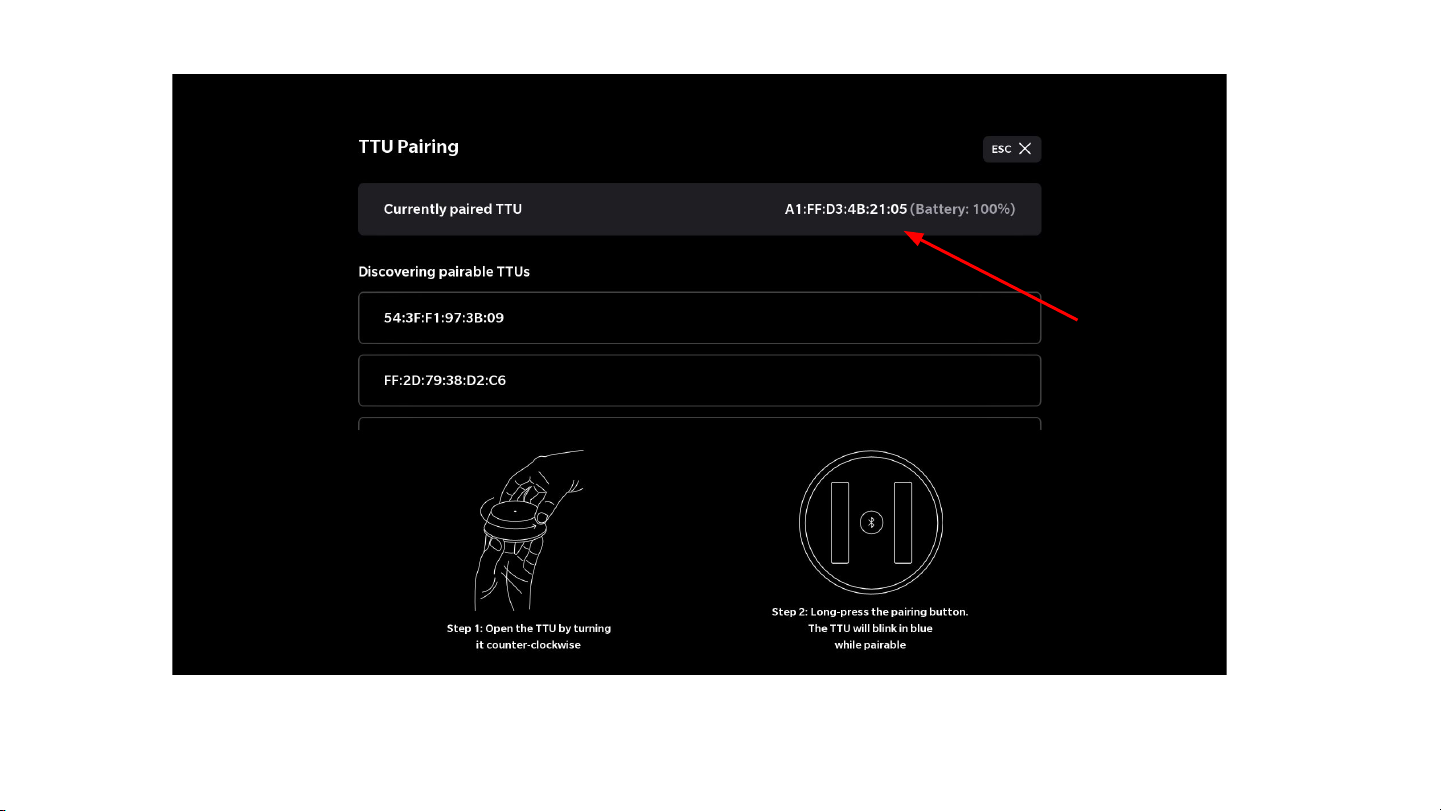
7. The MAC address of the TTU should now appear in the top of the screen as “Currently
paired TTU” (see red arrow). If not, repeat the procedure from “Setting up the TTU”.
Else, close down the settings page by pressing the ESC key.
Page 15
Testing after Successful Pairing, and Packing
1. Test the TTU and STB are paired properly and functional:
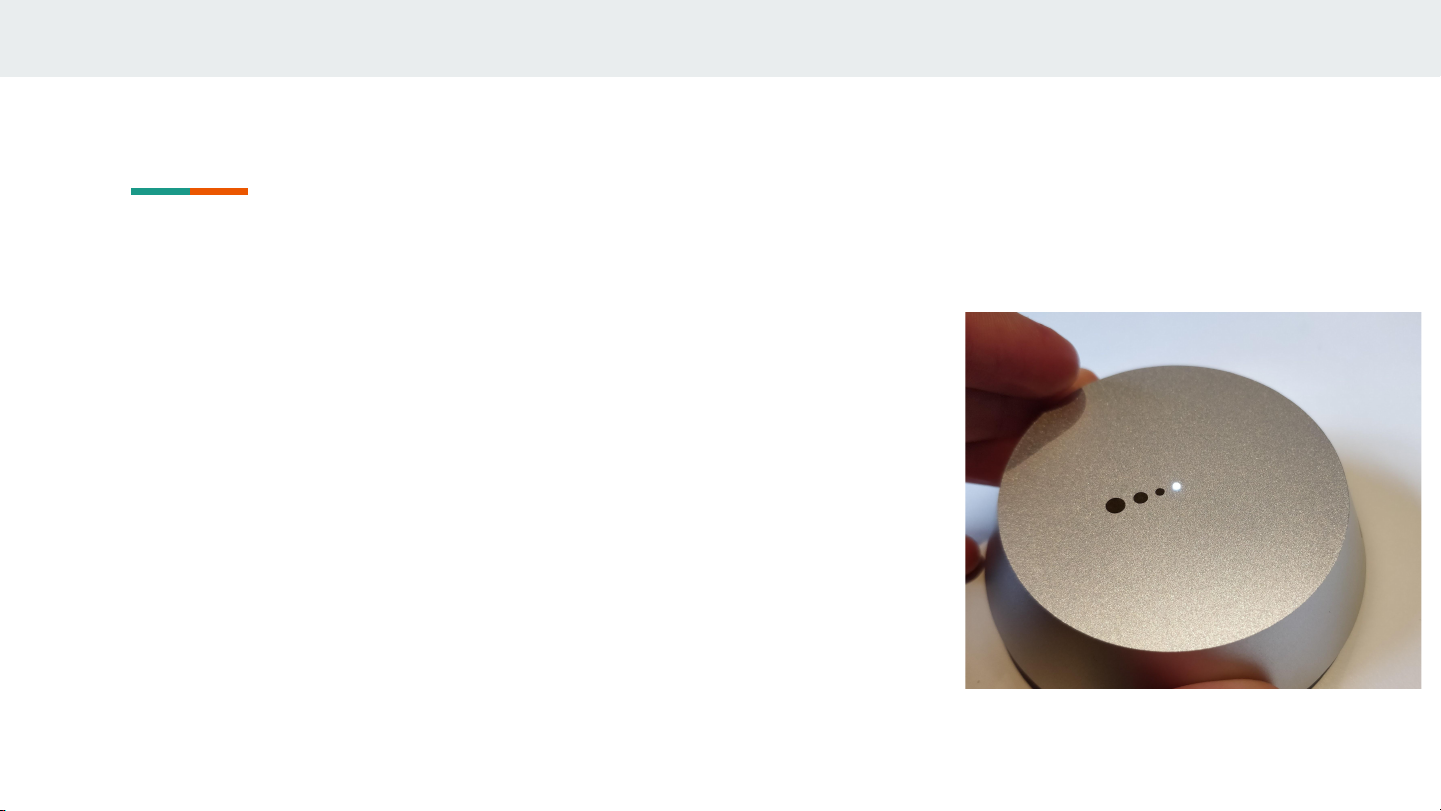
○ Press the TTU button, make sure the LED indicator
on the top will become ON when the TTU is
pressed down (Figure 2)
○ Make sure you can see the notification on the TV
(“Hold to power off”), or that the device is being
rebooted.
2. Remove the 2 AAA batteries from the bottom of the TTU
3. Screw on the bottom by again
4. Pack the Paired devices TTU and STB to its correct
Product GB together
○ With labels MAC addresses and S/N
5. Make inventory file update with the paired TTU and STB
MAC addresses and S/N
Figure 2 - Make sure that the light on
top of the TTU lights up when the TTU
is pressed
Page 16

FCC Statement
15.19
1. This device complies with Part 15 of the FCC Rules. Operation is subject to the following two
conditions:
(1) This device may not cause harmful interference.
(2) This device must accept any interference received, including interference that may cause
undesired operation.
15.21
Note: The grantee is not responsible for any changes or modifications not expressly approved by
the party responsible for compliance. Such modifications could void the user’s authority to operate
the equipment.
15.105(b)
NOTE: This equipment has been tested and found to comply with the limits for a Class B digital
device, pursuant to part 15 of the FCC Rules. These limits are designed to provide reasonable
protection against harmful interference in a residential installation.
This equipment generates uses and can radiate radio frequency energy and, if not installed and
used in accordance with the instructions, may cause harmful interference to radio communications.
However, there is no guarantee that interference will not occur in a particular installation. If this
equipment does cause harmful interference to radio or television reception, which can be
determined by turning the equipment off and on, the user is encouraged to try to correct the
interference by one or more of the following measures:
- Reorient or relocate the receiving antenna.
- Increase the separation between the equipment and receiver.
-Connect the equipment into an outlet on a circuit different from that to which the receiver is
connected.
-Consult the dealer or an experienced radio/TV technician for help
 Loading...