

Page 1
certgate GmbH
AirID 2 Mini - CE, FCC User Manual
Trademarks
(C) Copyright 2018-2019 by certgate
The information contained in this document is subject to change without prior notice.
FCC Referrence
Contains Transmitter Module FCC ID: QOQ13
Content
1. About This Guide
1.1. Who Should Read This Guide
1.2. Typographical Conventions
2. Device Layout
2.1. Overview
2.2. Package Contents
2.3. Hardware Features
3. Menu Layout
3.1. AirID
3.2. Connection
3.3. Pairing Code
3.4. Settings
3.5. AirID Info
3.6. Card Info
3.7. Prefered Device
4. Firmware Update
5. Using AirID
5.1. Windows
5.1.1. Installation and Pairing
5.1.2. Deleting the Connection
5.1.3. AirID Central App on Windows
5.2. iOS
5.2.1. Pairing
5.2.2. Deleting the Connection
5.3. Android
5.3.1. Pairing
6. Technical Specification
7. Safety Instructions
8. Disposal and Recycling
9. Maintenance and Care
10. Warranty/ License/ Technical Support
5.3.2. Deleting the Connection
Thank you for purchasing the AirID Smart Card Reader in the mini format. Befor using the AirID, please take the time to read this manual, to learn about all
the features and capabilities of your new AirID.
Package Content
AirID Mini smart card reader
USB cable
ReadMe First
Intended Use
AirID is a wireless smart card reader that you can carry with you at all times. The AirID reader communicates via a secure Bluetooth Low Energy (BLE)
connection with your device and makes the inserted smart card available for cryptographical operations such as data encryption or authentication.
Support / Questions
Information about AirID can be found online at and on our service and support page .https://certgate.com/en/ AirID Support
certgate GmbH
Germany
Tel.: +49 (0) 911 93523 0
Email: [email protected]
1 / 17
Page 2
certgate GmbH
Website: https://certgate.com/en/
certgate GmbH 2019, all rights reserved
1. About This Guide
This guide provides step-by-step instructions to help customers using the AirID on Windows and iOS and contains also all the necessary information for
application developers needed to use certgate's AirID Bluetooth reader with their apps.
1.1. Who Should Read This Guide
The guide is intended for users of the AirID on Windows and for app developers who want to integrate AirID in their smart card aware environment or
software.
1.2. Typographical Conventions
The following kinds of text formatting and icons identify special information in the document:
Code
Code and or command line examples
Menu, Buttons
Items you must select, such as menu options, command buttons, or items in a list. Example: Go to the tab.System
Parameters
Parameter and attribute names
2. Device Layout
2.1. Overview
Device Description
AirID is a wireless smart card reader that you can carry with you at all times. The AirID reader communicates via a secure Bluetooth Low Energy (BLE)
connection with your device and makes the inserted smart card available for cryptographical operations such as data encryption or authentication.
Warning
Warnings mark situations where loss of data or misconfiguration of the device is possible if the instructions are not obeyed
Note
Notes provide additional information on a topic and emphasize important facts and considerations
Tip
Tips provide best practices and recommendations
2 / 17
Page 3
certgate GmbH
AirID is powered by a rechargeable Li-Po battery and can't be changed by the user. The battery is charged by plugging the AirID into either a computer or
external USB wall adapter using the USB cable provided. The LCD display shows all setting information and status of the reader. The user-friendly 2button system helps you to navigate through the settings of the device.
Bluetooth Connected Mode Usage
With the AirID it is possible to protect Apps with smart card based-security via Bluetooth Low Energy (BLE).
Note: Because of the sandbox architecture of , the AirID driver needs to be integrated into an app to use AirID with this specific app.iOS and Android
Examples of apps with AirID integration:
cgPhone for iOS
SecurePIM for iOS
your company specific apps*
*contact your company administrator!
If you would like to integrate AirID into your app, contact our support at and get our .[email protected] AirID SDK for iOS
USB Connected Mode Usage
AirID can be used as a standard on almost all PCs with an common operanting system (Windows, OS X and Linux).USB CCID reader
2.2. Package Contents
Check the product box for the :following items
AirID Mini smart card reader
USB cable
ReadMe First
2.3. Hardware Features
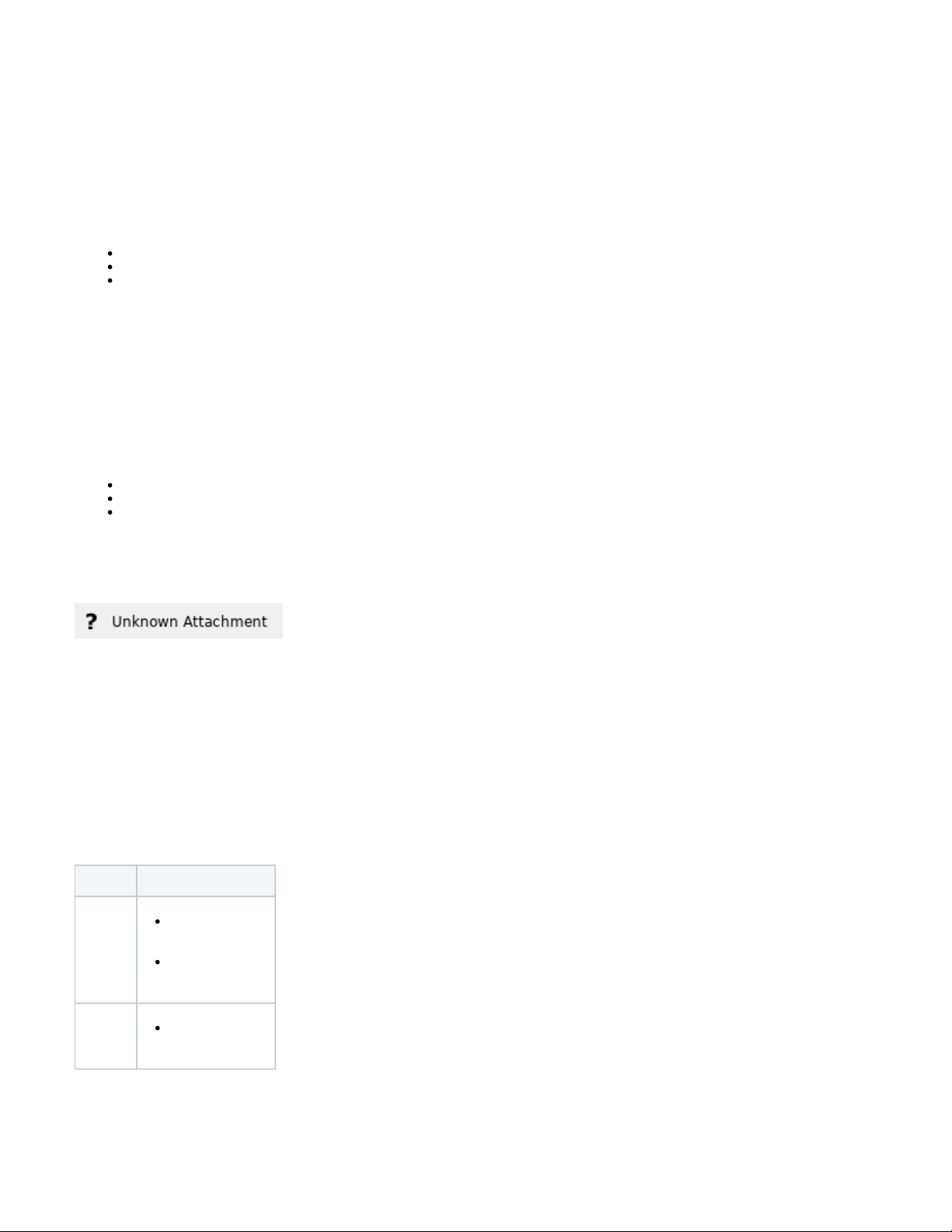
Device Features
1 Keychain
2 Low Power LCD Display
3 2-Button logic
4 LED indicator
5 USB interface
Control Element
AirID Mini is designed for easy menu
navigation using a 2-button system.
Button Function
left
button
Long keypress:
switching the
device On / Off
Short keypress:
scrolling down
right
button
Short keypress:
confirm / select
Status Indicator
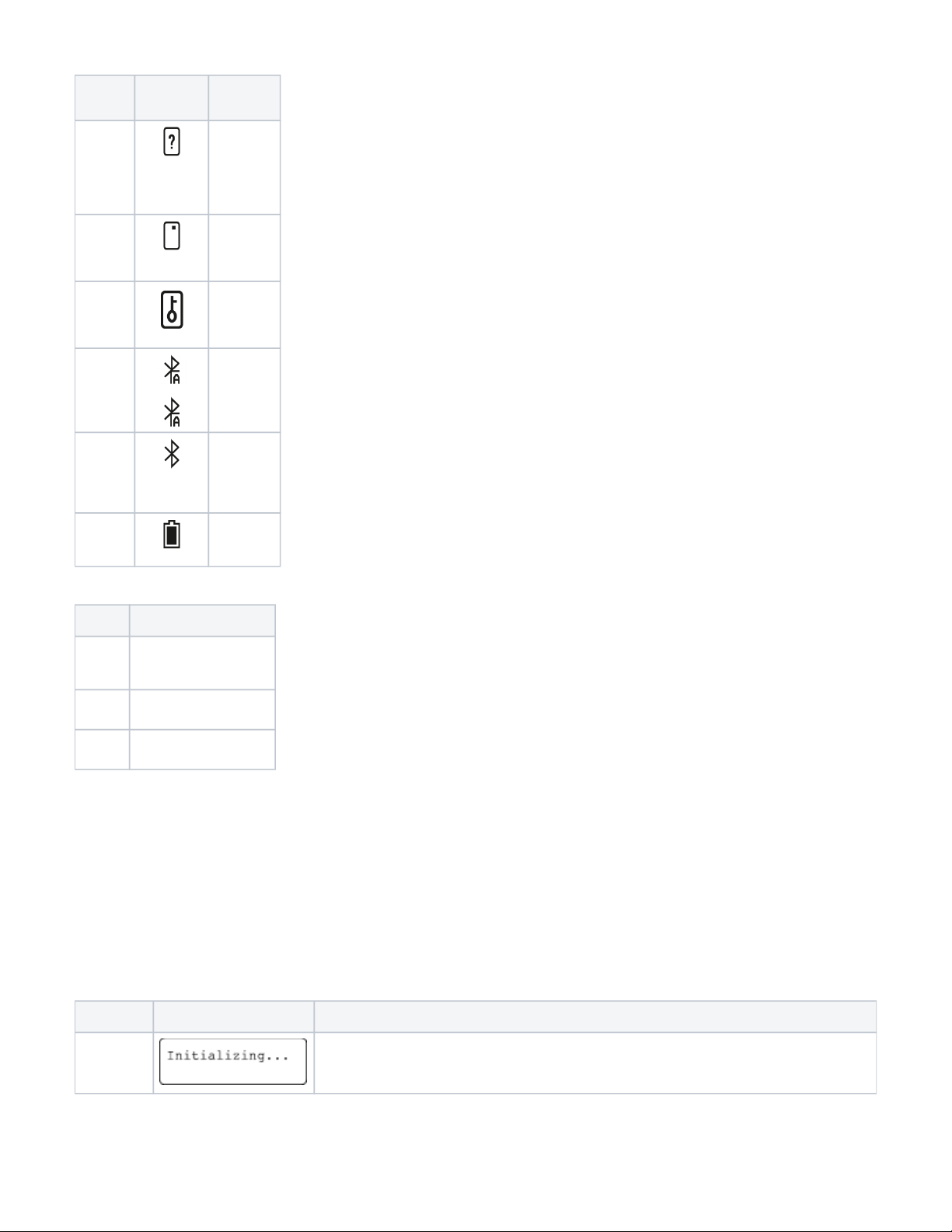
Following status indicators exists on
AirID
3 / 17
Page 4
certgate GmbH
Status Status
Indicator
Meaning
Smart
card
status
card not
inserted, c
ard not
supported
or
damaged
card
inserted
and card
supported
card
access
blocked
(coverage)
Connecti
on status
Bluetooth
and
advertising
activated
Bluetooth
activated
and
connected
to host
Battery
status
remaining
battery
capacity
LED Indicator
Color Meaning
red on while battery
charging; off when
battery charging is done
blue on while bluetooth
communication activities
green on while smart card
activities
3. Menu Layout
In the AirID device menu you can make various settings. You can access the different setting menus by navigating with the buttons.
3.1. AirID
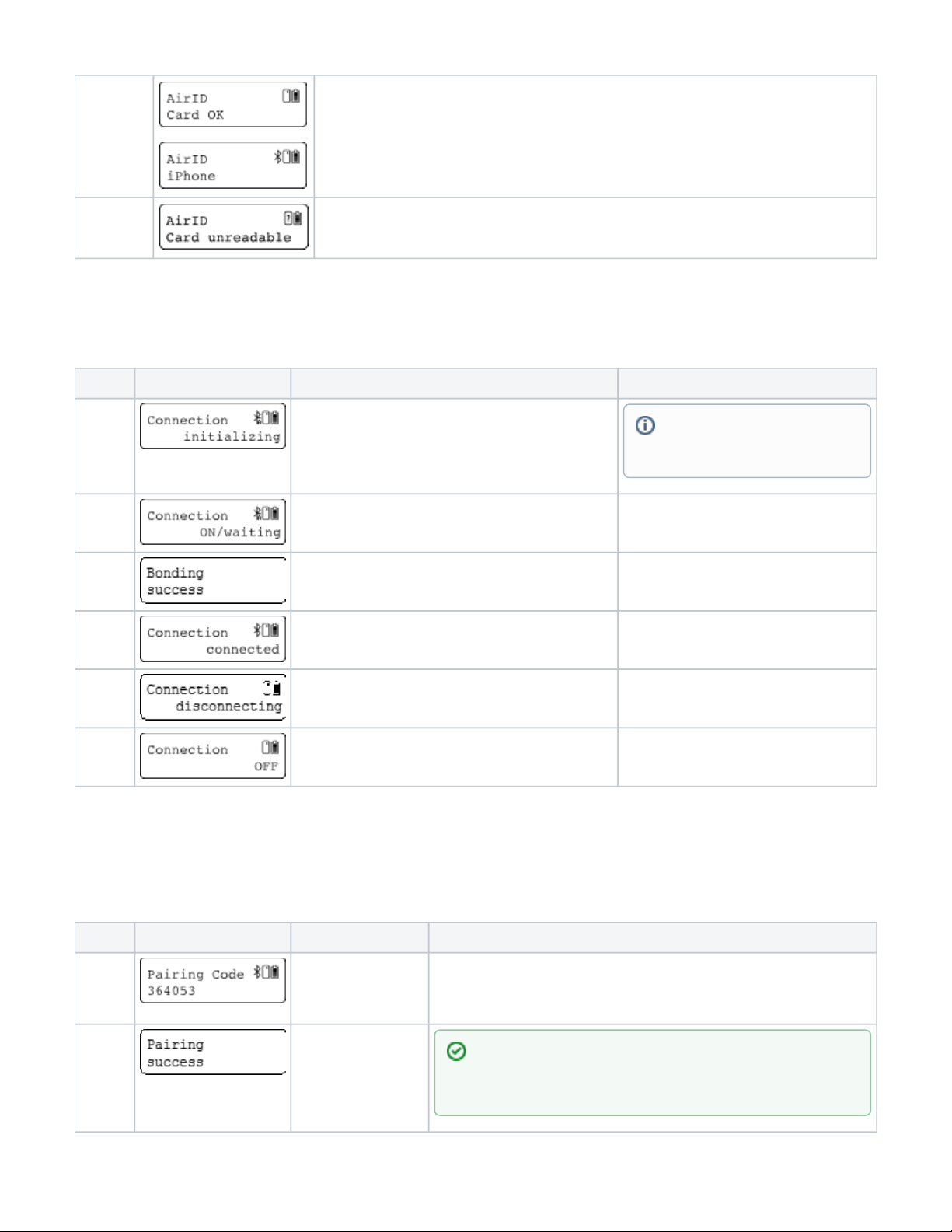
The menu is displayed in the main window and shows the smart card status.AirID
Setting Display Meaning
Initialize AirID initialized the smart card. This message appears only very shortly
4 / 17
Page 5
certgate GmbH
Card OK The smart card is inserted and it is recognized.
When AirID is paired with a device, the device name is displayed here.
Card
unreadable
The inserted smart card is not readable or not inserted. Please ensure that there is a properly inserted
card and that the smart card is supported
3.2. Connection
The menu is the second setting when you scroll down. This is used to activate the Bluetooth connection or to terminate the connection.Connection
Setting Display Meaning
Initializing AirID initializes Bluetooth and activates the advertising mode. This
message appears only very shortly.
ON/
waiting
AirID has activated Bluetooth and advertising mode and is waiting
for the connection to be established. After pressing the right button,
Bluetooth and the advertising mode will be disabled.
Bonding AirID has successfully connected to a device. This message
appears only very shortly.
Connected AirID is connected to a device.
Disconnec
ting
When the right button is pressed, the connection is terminated.
OFF Bluetooth and the advertising mode are disabled. Pressing the right
button activates Bluetooth and the advertising mode.
3.3. Pairing Code
This item is only shown during the first connection setup with a device and is used to display the pairing code and connection status.
Setting Display Meaning
Pairing
Code
This menu is only shown
the first time a connection
is established with a
device and is used to
display the connection key.
Pairing
success
Connection successful
In the advertising mode, the AirID sends
a Bluetooth signal making it detectable
by devices. Requests must be checked
and confirmed.
Pairing defines the establishment of a connection between an Bluetooth device
and the AirID Bluetooth reader. Since the pairing information is retained even if
the devices are turned off, it is not necessary to pair the same devices again. To
pair, the device prompts you to read a code from the AirID and enter it into the
connected device or compare it with the code displayed on the device.
5 / 17
Page 6
certgate GmbH
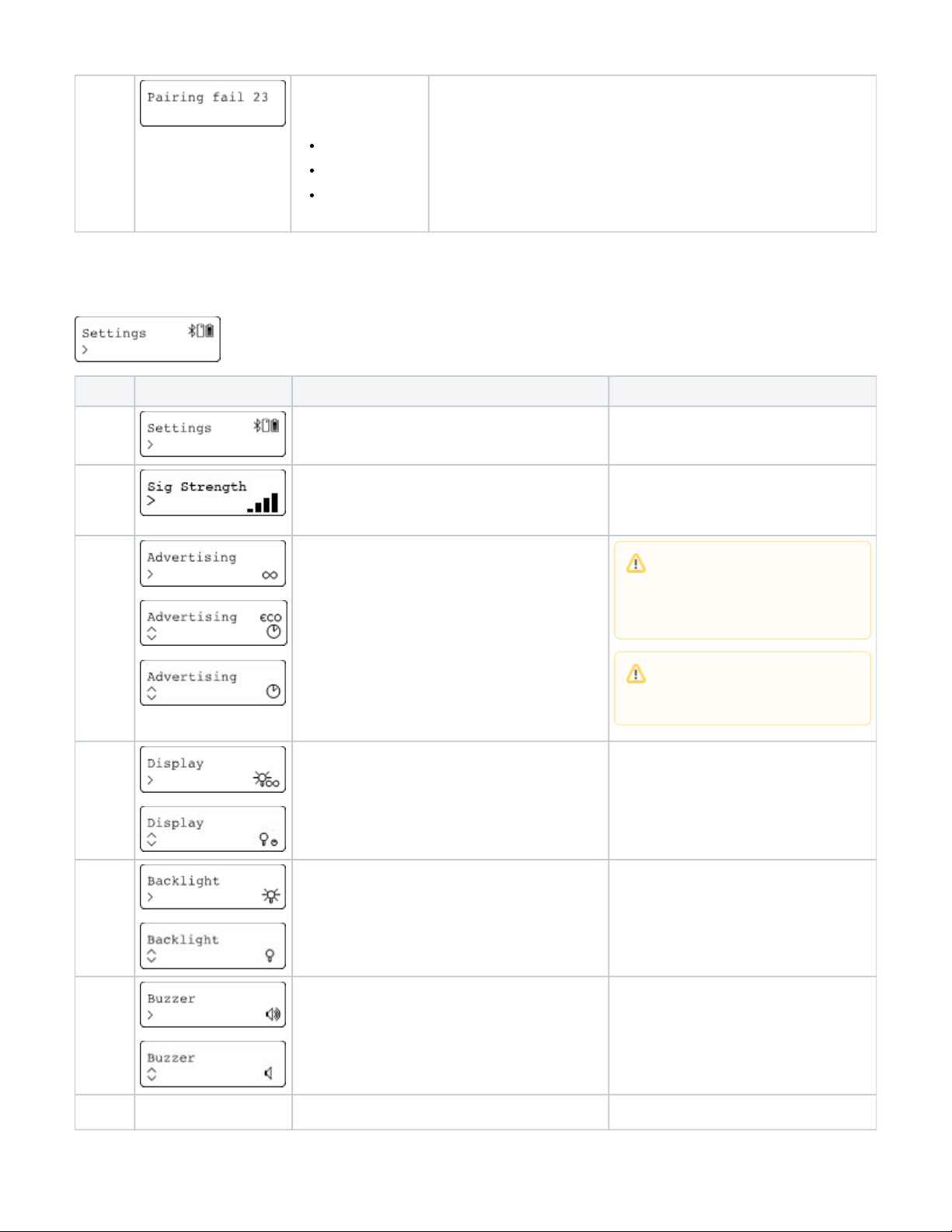
Pairing
failed
Connection failed.
The following errors may
occur:
Pairing fail 1:
Pairing canceled
Pairing fail 4:
Pairing code wrong
Pairing fail 23: Time
out
3.4. Settings
Under the menu , you can configure settings for your AirID . Use the right button to select and confirm the settings.Settings
Setting Display Meaning
Settings Main window
Sig
Strenght
Select the signal strenght of the AirID.
Possible configurations are:
1-4 bars
Advertising Use the right button to set the advertising mode (Connection via
Bluetooth) to permanent or EcoMode
Display Indicates the lenght of time the display will remain on. Select
whether the display is on permanently or turns off after a while.
LEDs Select whether the LEDs are enabled or disabled.
Buzzer Activate or deactivate the acoustic feedback of the AirID.
Force
256bit
Select if you want to force the AES 256-bit encryption of the
connection between AirID and the work device
If during the active advertising mode
(EcoMode) no connection to a device is
established, the advertising mode
switches off automatically to save battery
power. Therefore, a manual reconnection
is necessary afterwards.
To save energy, a work schedule can be
created via AirID Central APP. If the
working hours are exceeded, the
advertising mode remains deactivated.
6 / 17
Page 7
certgate GmbH
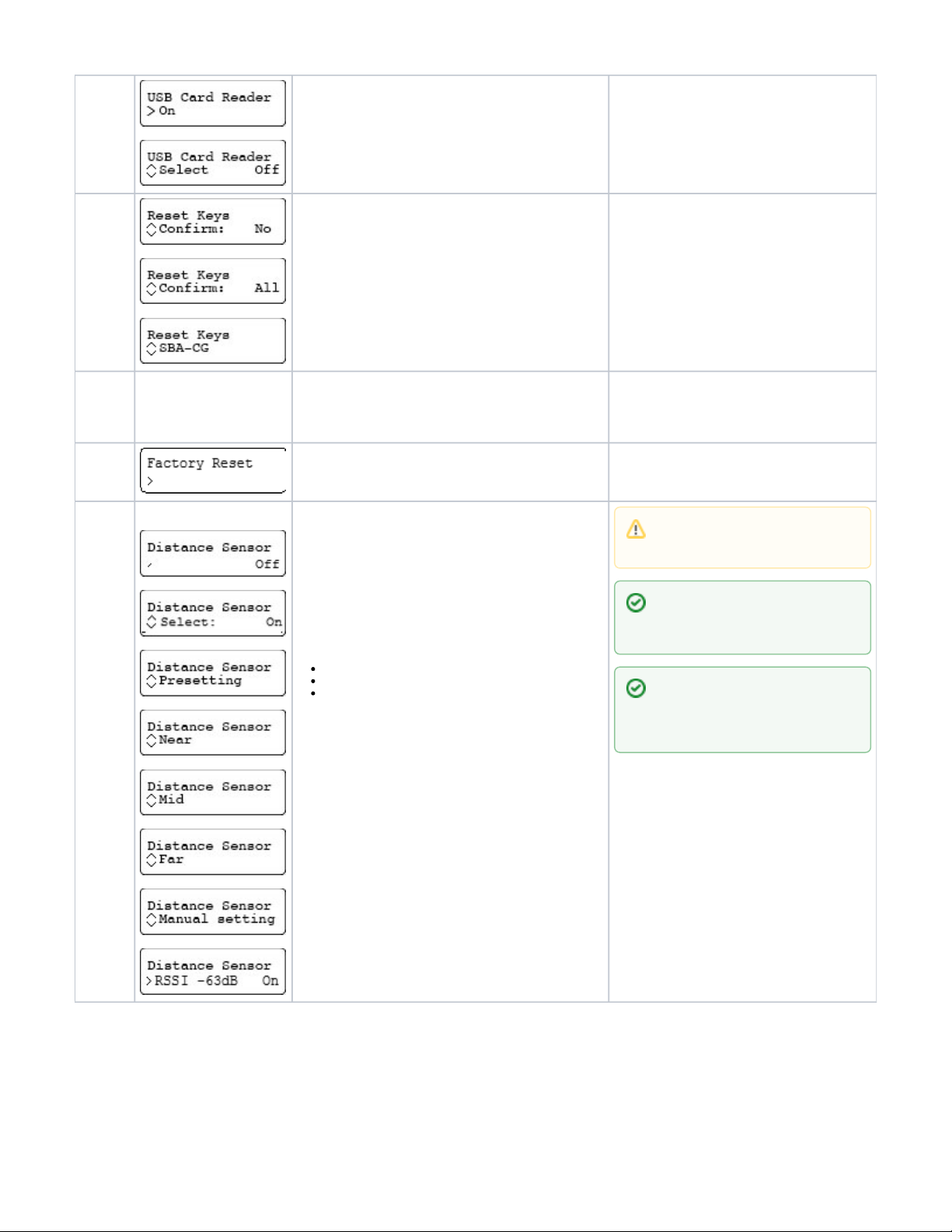
USB
Card
Reader
If the AirID is connected via USB to the working device, you can
select whether the AirID should be used as a USB card reader
(CCID) or not. If the AirID is not used as USB reader, the AirID is
only supplied with power via USB and thus charged.
Reset
Keys
This setting deletes the saved keys (LTK and SK). You have the
option to delete all keys or only the keys for a specific device.
Remove
Pairing
This setting deletes the saved pairing information and the keys.
This is recommended when passing AirID to third parties. You
have the option to delete all keys or only the keys for a specific
device. After the removal, a new pairing is necessary to reestablished a connection.
Factory
Reset
This setting reset the AirID to factory settings. All pairing keys
are also deleted.
Distance
Sensor
oder
Coverage
AirID 2
The AirID reader can lock your WINDOWS or mobile (iOS or
Android) apps (if configured) automatically, if a (preset) distance
between your computer and your AirID has been exceeded. The
"Distance Log-Out" is managed in AirID settings using "Distance
".Sensor
This setting is optional and can only be configured if there is an
active Bluetooth connection to the a device.
You can use pressetings or set the distance manually.
Following pressetings are available:
Near (~ 65 dB)
Mid (~ 75 dB)
Far (~ 80 dB)
In comparasion to the possible pressetings, the manual setting
allows an individual fine adjustment.
If the manual setting is selected, the curent RSSI value is shown
in the display. Slowly walk around in the area you want your
device to remain unlocked. Press the jog dial at the preferred
distance to confirm the coverage area and activate the Distance
Sensor function.
Settings can only be changed with an
active Bluetooth connection between your
computer and AirID reader.
To avoid unintended disconnects, keep in
mind that the minimum distance for the
automated log-out is about three meters
between your computer and AirID reader.
The distance value for the "Distance
Sensor" feature represents a relative
value. It depends on the signal strength of
the AirID, on the environment and on other
interferencing signals.
7 / 17
Page 8
certgate GmbH
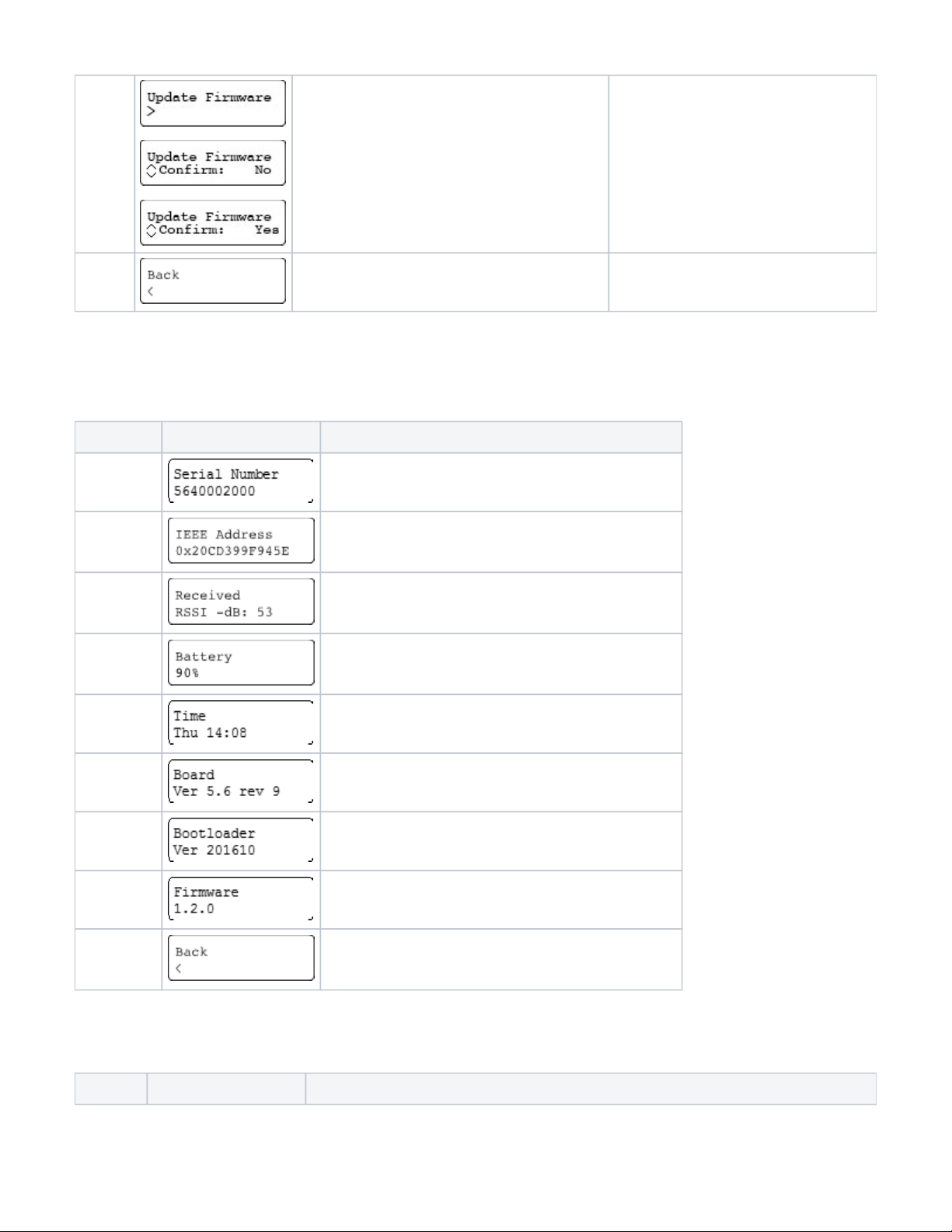
Update
Firmware
Select this setting to enable the bootloader mode for flashing a
new firmware. An USB connection to your Windows PC or Mac is
required.
Back
Select Back to return to the main menu.
3.5. AirID Info
Under AirID Info you will find further information about the AIrID.
Setting Dispaly Meaning
Serial Number Serial number of the AirID
IEEE Adress Bluetooth address of the AirID
Received The received signal strength (only with active Bluetooth connection)
Battery Battery percentage indicator
Time Current time and day
Board Version of the AirID board
Bootloader Version of the AirID bootloader
Firmware Version of the AirID firmware version
Back
Select Back to return to the main menu
3.6. Card Info
Setting Display Meaning
8 / 17
Page 9
certgate GmbH
1.
2.
3.
4.
5.
6.
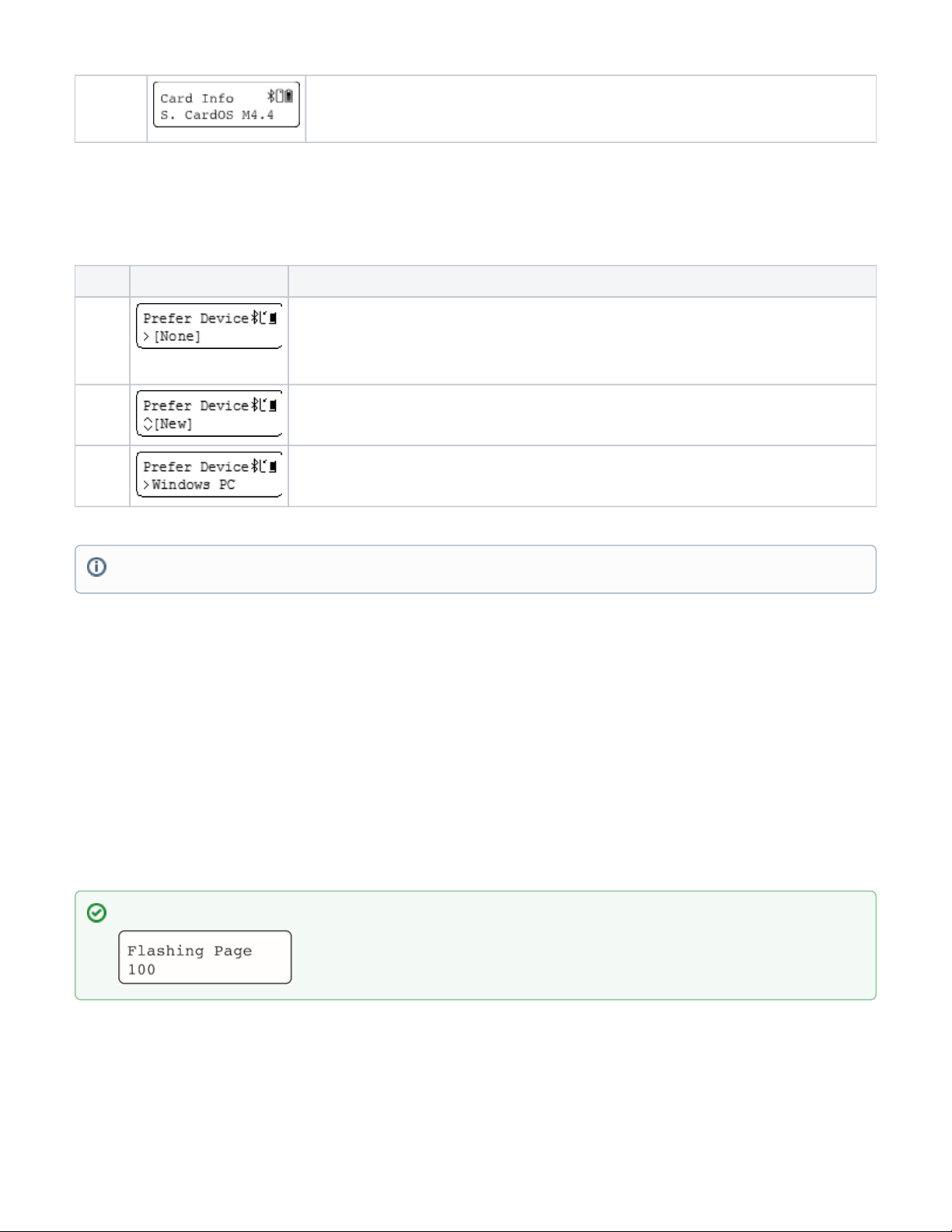
Card Info
only on
AirID 1
Displays information about the inserted smart card. These information is only displayed if the smart card is
correctly inserted and recognized/ supported.
3.7. Prefered Device
Under "Prefer Device" the pairing information of the AirID with the already connected devices are stored. From these information you can select to which
device the AirID should preferably be connected in the future. All other devices will be ignored.
Text Anzeige Bedeutung
None If no device is selected, a BLE connection to any of the surrounding devices is possible.
New
Select the option New to connect AirID to a new, not yet paired device. All other devices paired with AirID will
be ignored.
"device
name"
If your AirID was already paired with several devices, you choose the device name to select which device the
AirID should preferably be connected to in the future. All other devices will be ignored.
4. Firmware Update
certgate is constantly working to make AirID even more reliable and faster. Therefore we provide firmware updates for our wireless smartcard readers
under from time to time. Please install a firmware update as soon as it is available as it improves the reliability of the reader.AirID Software, Driver & SDK
The AirID firmware can be updated via USB on Windows or MacOS Pcs. Download the latest firmware from our website and unzip the file. Below you will
find the necessary steps for the update.
Under , select and navigate to and select itSettings Update Firmware Confirm: Yes
Connect your AirID with USB-cable to a Windows computer or Mac.
The AirID should display: "Send update or unpower to exit"
On a PC running WINDOWS operating system
Open the folder with the firmware and click on " " fileflash_gecko.bat
On a MacOS
Open the folder with the firmware and click on the " " fileflash-gecko.command
After the update the AirID will reboot automatically.
The AirID restarts and has been updated. You can use it with your smart card.
5. Using AirID
AirID supports various operating systems like Windows, MacOS, Linux, iOS and Android. The basic requirement is the Bluetooth Low Energy functionality
of the device. When AirID is successfully paired and the driver is installed, the inserted smart card is available to be used for cryptographical operations
such as authentication or data encryption. This requires an applet on the smart card and the corresponding middleware for the operating system . used
The AirID software consists of two components:
The pairing information with up to 10 different devices can be stored at the same time.
If the update fails, the update process is intrerrupted or the AirID doesn't start anymore, go to Step 2 and repeat the process.
9 / 17
Page 10
certgate GmbH
1.
2.
1.
2.
3.
4.
5.
6.
7.
8.
AirID Central App - a management software for your AirID forming the basis for usage of the device. The tool provides you with information and
setting options for your AirID when your reader is connected to your device.
AirID drivers, which ensures the communication between the AirID and the operating system, must be installed additionally depending on the
platform or is already integrated in the Apps and solutions of third party vendors.
AirID can be used with different terminals and platforms, but not in parallel operation.
5.1. Windows
The use of AirID under Windows is only possible as of Windows 8.1 due to the Bluetooth Low Energy functionality required. For use under Windows 7, an
is additionally required.ONEKEY BRIDGE
5.1.1. Installation and Pairing
Download the latest installer (zipped .msi file) for Windows at .AirID - Software, Driver & SDK
Unzip and double click on the .msi installer file.
Follow the instructions in the installation wizard.
The AirID Windows driver and the AirID Central App are now installed.
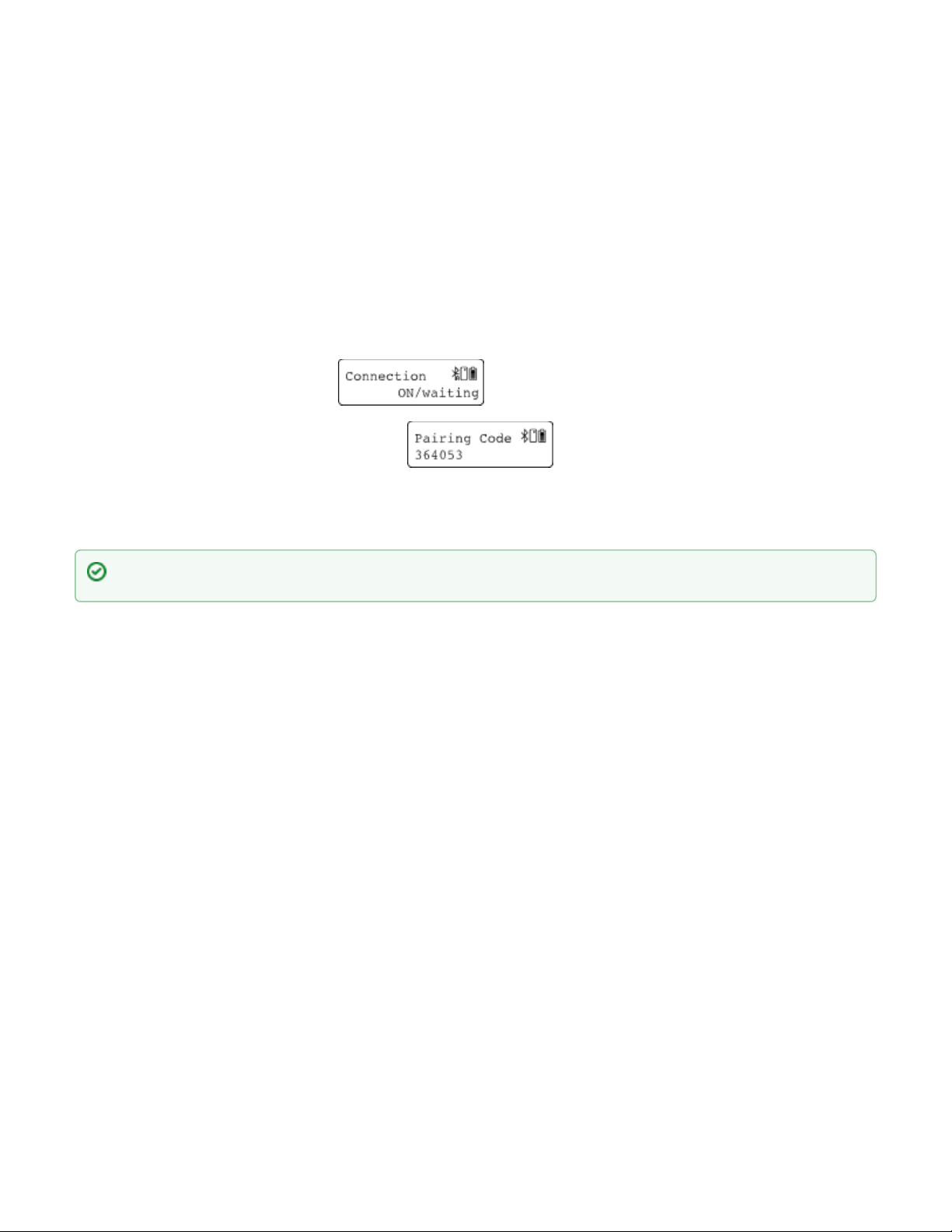
Insert your smart card to power on the AirID reader and activate Bluetooth at the AirID reader by navigating to the connection menu and pressing
. the right button The AirID should display:
Open Windows " ". Your AirID should be listed with its serial number. Press " "Settings Devices Bluetooth Pair
Compare the 6 digit pairing key shown on AirID display with the pairing key on the Windows 10 PC. If the PIN
matches press on the Windows 10 system and choose on the AirID Connect Yes by scrolling down in the menu and pressing the right button
After succesful pairing, " " and the AirID serial number will be displayed on the Windows system and the device name Your device is ready to go!
of the paired device will be displayed on the AirID.
The AirID can now be used.
If there are any problems with the pairing process, restart the process. If necessary, delete the stored pairing information (see 5.1.2 "Deleting
the Connection")
10 / 17
Page 11
certgate GmbH
1.
2.
3.
5.1.2. Deleting the Connection
The pairing information are stored on both the Windows system and AirID. To terminate the connection , the information on both sides must be completely
deleted.
On Windows
Open the Bluetooth settings on Windows ( )Settings- Devices - Bluetooth
Select the corresponding AirID using the displayed serial number and click on " "Remove Device
Click " " to confirm the removal of the device.Yes
On AirID
Delete All Pairing Information
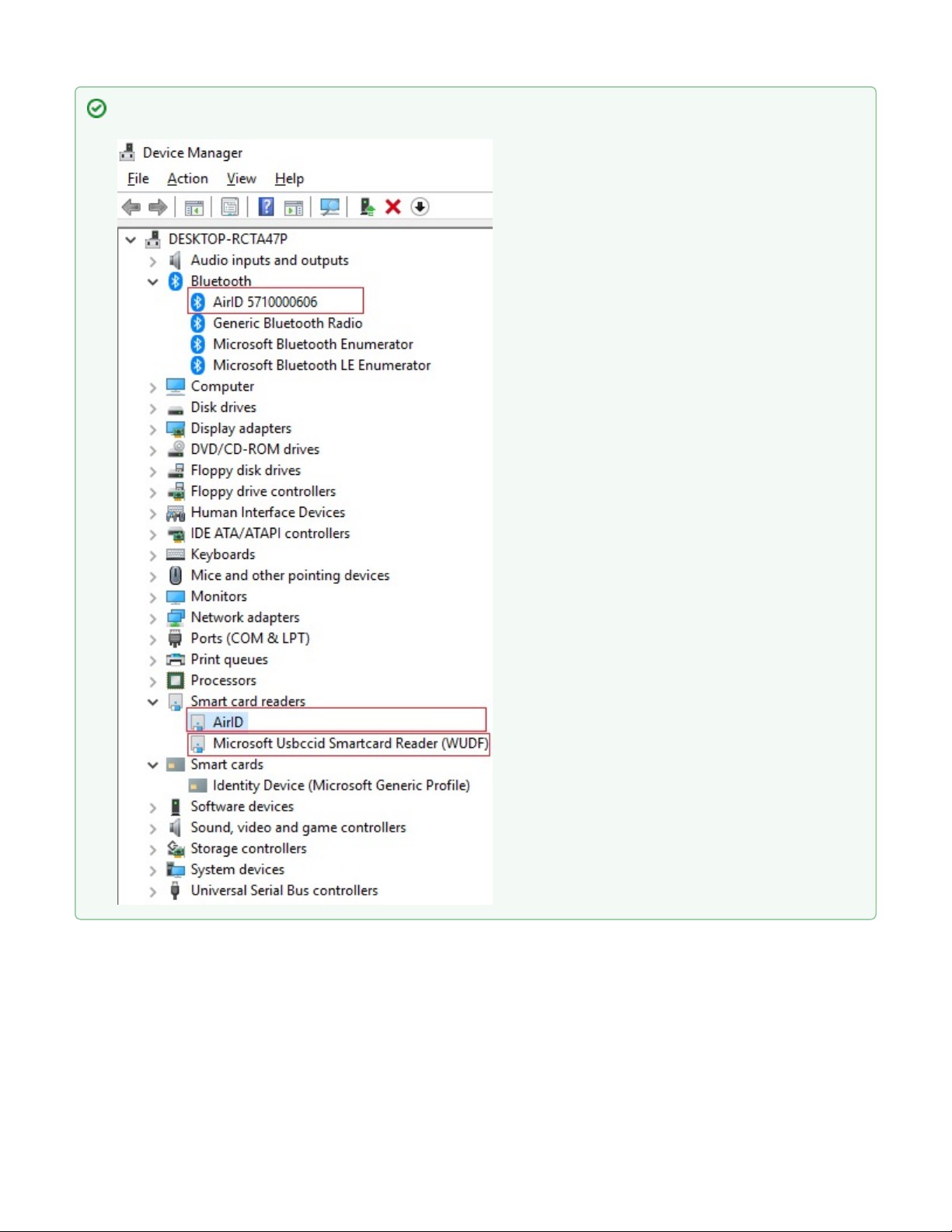
After the driver has been succesfully installed and paired, AirID is displayed as follows under AirID is detected as "Microsoft Device Manager.
USBCCID Smartcard Reader" if it is connected via USB.
11 / 17
Page 12
certgate GmbH
To delete all stored pairing information from AirID a " " can be performed in the menu.Remove Pairing Settings
Delete Specific Pairing Information
To delete specific pairing information from AirID a " of the Windows workstation can be performed in the menu."Remove Pairing Settings
The pairing information can also be deleted via AirID Central App. To do this, go to the paired devices view, select the corresponding device from the list
and click Delete.
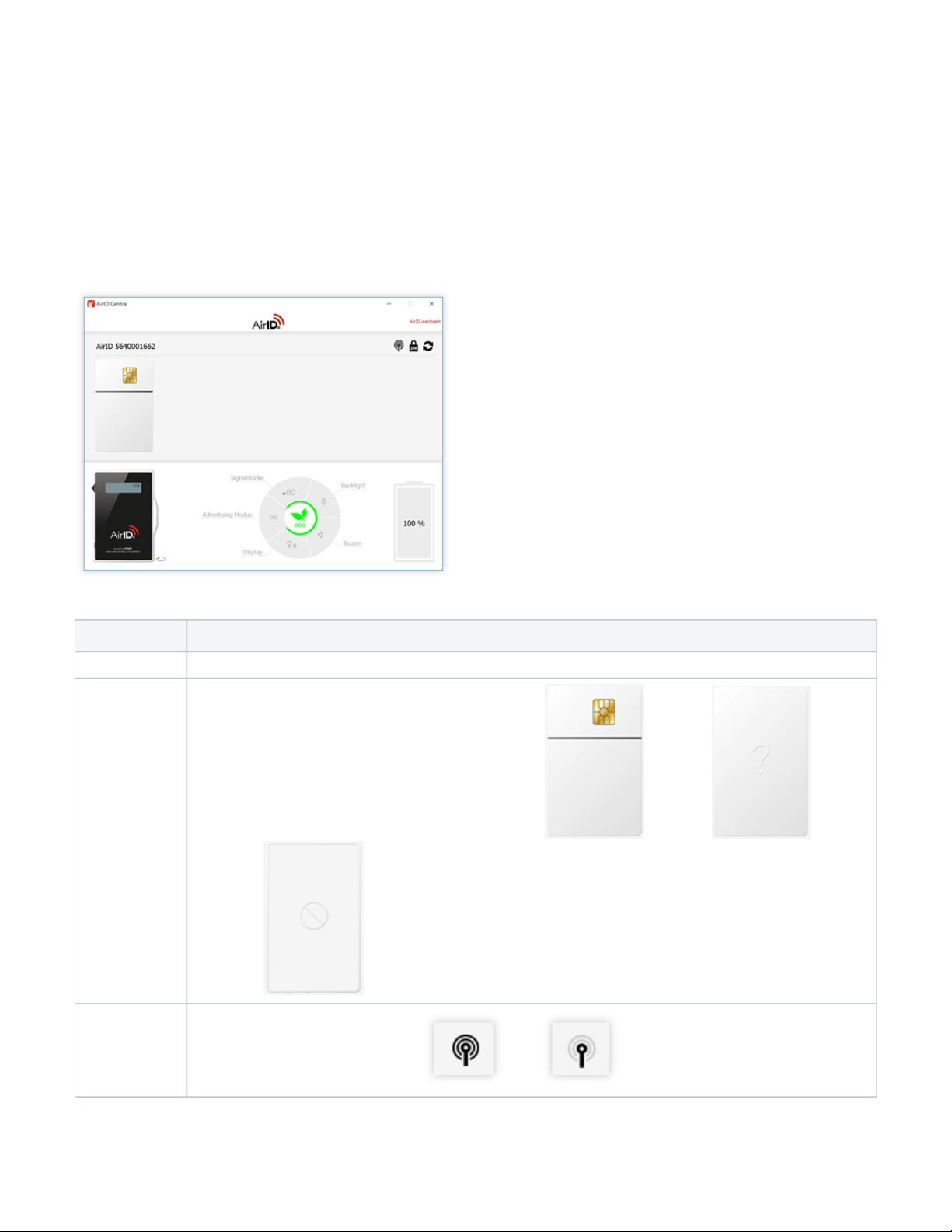
5.1.3. AirID Central App on Windows
AirID Central provides information and setting options for your AirID once your AirID is connected to your Windows device. If there is no connection, "No
" is displayed in the AirID Central.device
AirID Central as an AirID management software, provides an overview of:
Function Description
Serial Number
Displays the serial number of the connected AirID
Card Status
Displays the status of the inserted smart card. This can be readable , unreadable or no
card inserted
Distance Sensor
or Coverage
Feature
Displays if the coverage feature is activated or not
12 / 17
Page 13
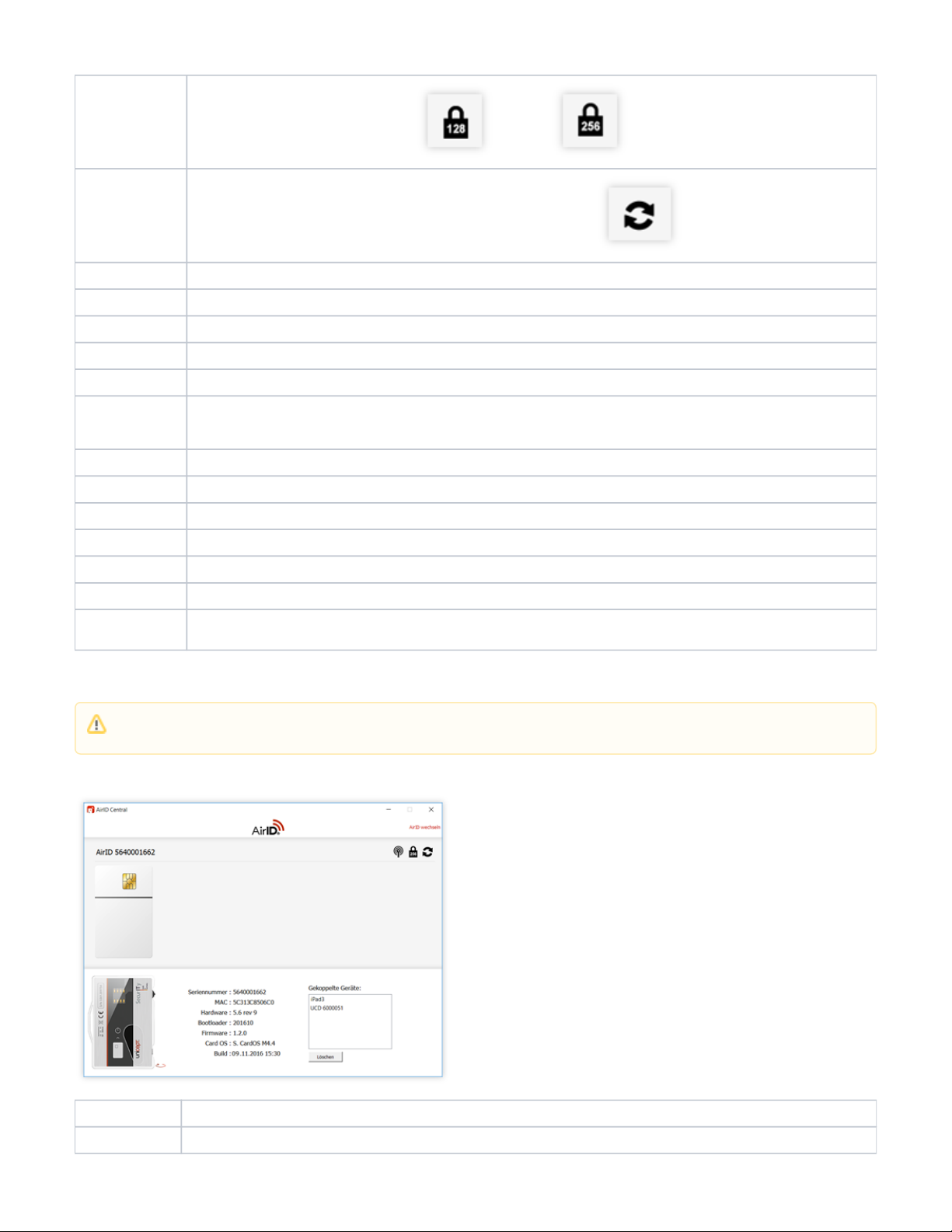
Encryption
Displays if the AES encryption is set to 128 or 256-bit
Refresh
Checks if there is an older firmware and offers a firmware update if necessary.
Change AirID
Displays the list of the connected AirID readers from which you can select one.
Battery Status
Displays the battery level in percent. The green flash symbol indicates an active charging process.
Signal Strenght
Select the signal strength of the AirID
Buzzer Select if an acustic feedback is required
Display
Select if the display should always be on or only for a certain time
Advertising
Select if the advertising mode for the connection to a device should always be on or only for a certain time.An individual work
schedule to save energy can also be created with AirID Central. The advertising mode remains deactivated after the defined
working hours.
Serial Number
Shows the serial number
MAC
Shows the MAC-address
Hardware
Shows the boardversion
Bootloader
Shows the bootloader version
Firmware
Shows the firmware version
Card OS
Card OS of the inserted smart card
Connected
devices
Shows a list of devices for which AirID stores connection information. The connection information can be deleted by deleting the
device from the list.
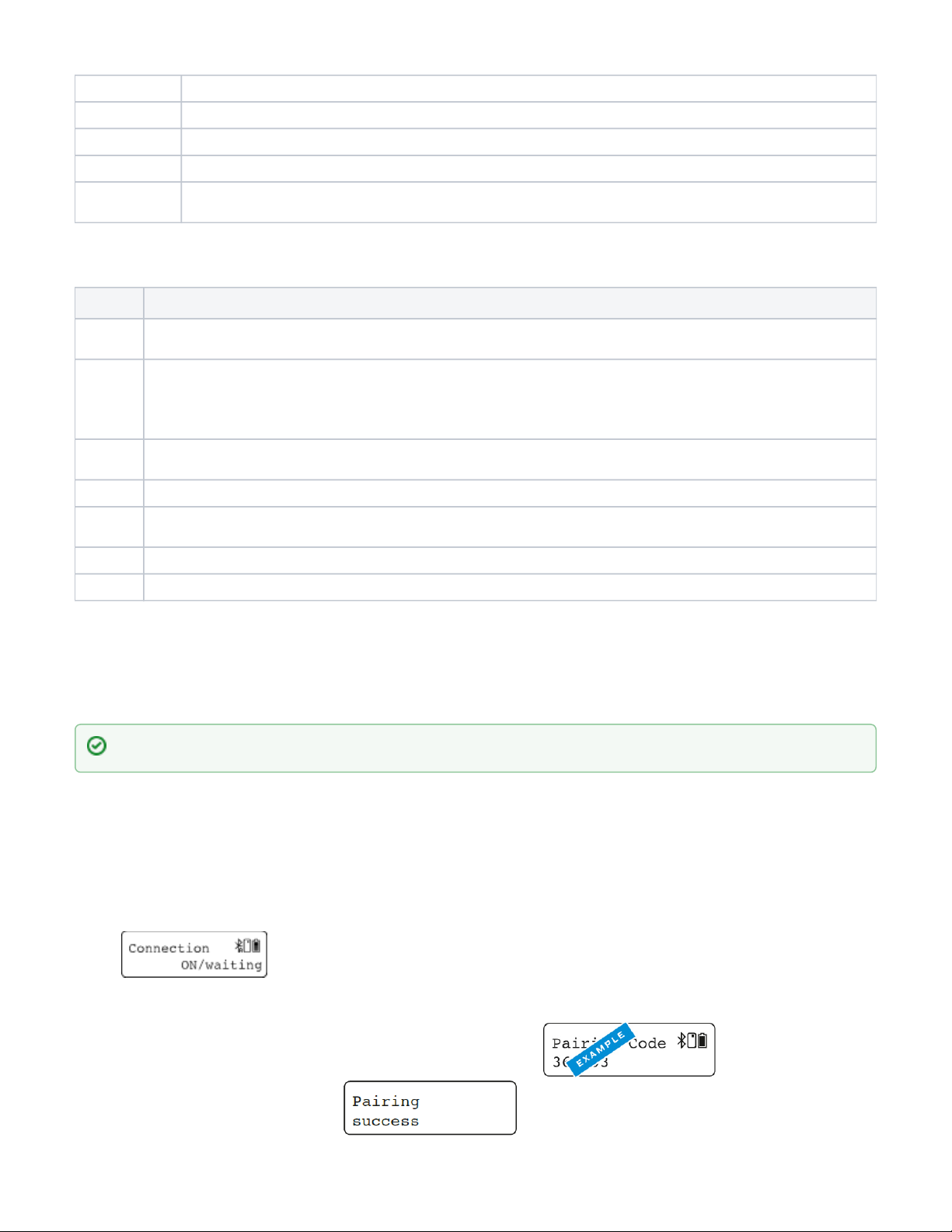
The following information is displayed when clicking on the AirID device displayed in the AirID Central App:
Function Description
Serial Number
Serial number
If during the active advertising mode (EcoMode) no connection to a device is established, the advertising mode switches off automatically to
save battery power. Therefore, a manual reconnection is necessary afterwards.
certgate GmbH
13 / 17
Page 14
certgate GmbH
1.
2.
3.
4.
5.
6.
7.
8.
9.
MAC
MAC-Address
Hardware
Boardversion
Bootloader
Bootloader Version
Firmware
Firmware Version
Connected
devices
Shows a list of devices for which AirID stores connection information. The connection information can be deleted by deleting the
device from the list.
A right click on the AirID Central icon in the Windows notification area opens a menu with the following application functions:
Menu Meaning
Reestabli
sh
Opens the AirID Central App window in the foreground
Settings
If the AEM is used, enter the URL of the AEM server in the corresponding field.
Select whether to lock your computer when the smart card is removed from the AirID.
Note: Please note that the computer lock configuration has a higher priority in the Windows Policy and therefore this option cannot be
selected via AirID Central.
System
Log
Displays a log of the system log entries that you can use to track activities and processes
Bridge
Displays the ONEKEY Bridge and the settings you can do.
Change
PIN
PIN change function for the inserted smart card
About
Shows the AirID Central version and the developer information
Close
Closes the AirID Central App
5.2. iOS
Under iOS system-wide support of smart cards and card readers is not possible. Therefore, the AirID driver needs to be integrated into an app to use AirID
with this specific app. These apps usually interact with the available AirID Central App via extension or keychain.
The connection to the the iOS device is active when the app is open. As soon as the app goes into the background, the Bluetooth only in foreground
connection to the AirID is released again.
5.2.1. Pairing
Go to the App Store on your iOS device and search for AirID Central
Install the AirID Central App on your iOS device
Insert your smart card to power on the AirID reader
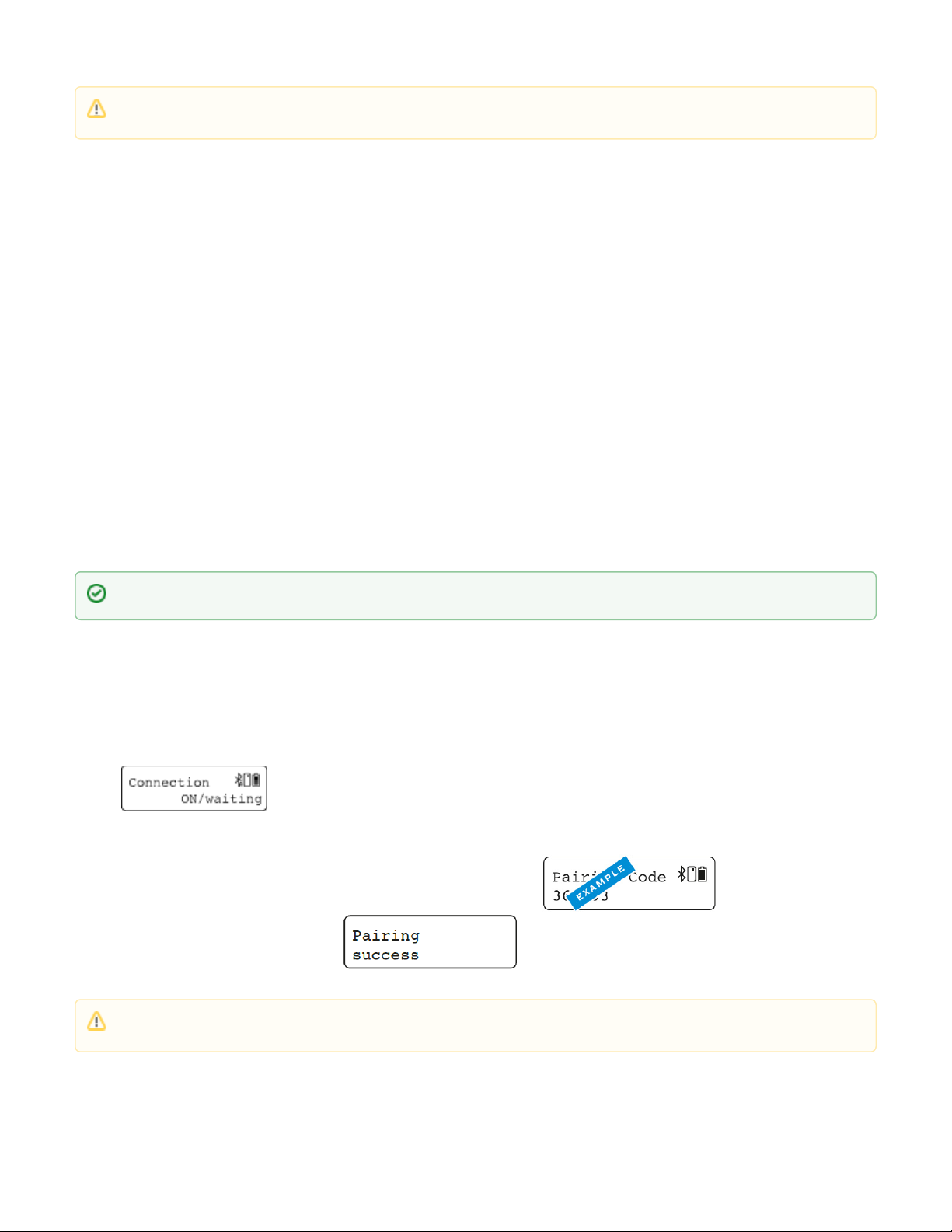
Activate Bluetooth at the AirID reader by navigating to the connection menu and pressing the jog dial control element. The AirID should display:
Make sure that Bluetooth is activated on your iOS device ( )Settings > Bluetooth > On
Open the AirID Central App
Select the AirID (serial number) in the shown device list
Compare the 6 digit pairing code shown on AirID display and confirm it to connect
After a successful pairing, the AirID shows:
The AirID Central App, as well as other AirID Sample Apps, is available in the App Store.
14 / 17
Page 15
certgate GmbH
1.
2.
3.
4.
1.
2.
3.
4.
5.
6.
7.
8.
9.
5.2.2. Deleting the Connection
The pairing information are stored on both the iOS device and AirID. To terminate the connection completely, the information on both sides must be
deleted.
On iOS
To delete the device information from the AirID Central App, first select the function " " in the AirID CentralForget AirID
Then open the iOS Bluetooth settings on the iOS device ( )Settings Bluetooth
Select the AirID using the displayed serial number and tap the blue Info button
Tap on " " to delete the pairing informationIgnore this device
On AirID
Delete All Pairing Information
To delete all stored pairing information from AirID a " " can be performed in the menu.Remove Pairing Settings
Delete Specific Pairing Information
To delete specific pairing information from AirID a " of the Windows workstation can be performed in the menu."Remove Pairing Settings
5.3. Android
Under Android system-wide support of smart cards and card readers is not possible. Therefore, the AirID driver needs to be integrated into an app to use
AirID with this specific app. These apps usually interact with the available AirID Central App via keychain.
The connection to the the Android device is only active when the app in foreground is open. As soon as the app goes into the background, the Bluetooth
connection to the AirID is released again.
5.3.1. Pairing
Go to the Play Store on your Android device and search for AirID Central
Install the AirID Central App on your Android device
Insert your smart card to power on the AirID reader
Activate Bluetooth at the AirID reader by navigating to the connection menu and pressing the jog dial control element. The AirID should display:
Make sure that Bluetooth is activated on your Android device ( )Settings > Bluetooth > On
Open the AirID Central App
Select the AirID (serial number) in the shown device list
Compare the 6 digit pairing code shown on AirID display and confirm it to connect
After a successful pairing, the AirID shows:
5.3.2. Deleting the Connection
The pairing information are stored on both the Android device and AirID. To terminate the connection completely, the information on both sides must be
deleted.
If you already paired AirID with another device that are switched on and close to you, please navigate to " " in the AirID menu Prefer Device
press the jog-dial and choose " ". Then press the jog-dial again to confirm. New
The AirID Central App, as well as other AirID Sample Apps, is available in the Play Store.
If you already paired AirID with another device that are switched on and close to you, please navigate to " " in the AirID menu Prefer Device
press the jog-dial and choose " ". Then press the jog-dial again to confirm. New
15 / 17
Page 16

certgate GmbH
1.
2.
3.
4.
On Android
To delete the device information from the AirID Central App, first select the function " " in the AirID CentralForget AirID
Then open the Android Bluetooth settings on the device ( )Settings Bluetooth
Select the AirID using the displayed serial number and tap the blue Info button
Tap on " " to delete the pairing informationCancel pairing
On AirID
Delete All Pairing Information
To delete all stored pairing information from AirID a " " can be performed in the menu.Remove Pairing Settings
Delete Specific Pairing Information
To delete specific pairing information from AirID a " of the Windows workstation can be performed in the menu."Remove Pairing Settings
6. Technical Specification
Item AirID2 Mini
Enclosure
Shape similar to a car key
Dimension 72 x 38 x 15 mm
Weight in g 40
Human interface
Display type LCD, 128x128
Display size ca. 25 x 25 mm
Control element 2 button logic
USB port USB-2.0-Micro-B
LED visible 3 LEDs
red: on while charging
blue:on while active Bluetooth connection
green: on while smart card powered on
Acoustic feedback Buzzer
Bluetooth
Bluetooth Version 4.2
Battery
Battery type Built-in rechargeable lithium-polymer battery
Capacity ca. 500mAh
Battery charging via USB
Smart card interface
smart card size ID000, contact interface (ISO7816)
smart card type 3V
Smart chip protocol T=0, T=1
NFC antenna NFC antenna for NFC enabled dual interface ID-000 card via C4 and C8 ISO7816
Update
16 / 17
Page 17

certgate GmbH
Firmware update via USB
7. Safety Instructions
Protect the device from dirt, dust, moisture, chemicals and extreme temperatures and use it only in dry rooms.
Use only original, approved accessories intended for this purpose for the device.
Do not use the product in the immediate vicinity of heating, other heat sources or in direct sunlight.
Do not expose the device directly to magnetic sources.
Do not drop the product and do not expose it to violent shocks, drops, shocks or vibrations of any kind.
Do not attempt to service or repair the product yourself or have it serviced or repaired by an unauthorized service or person.
Do not make any unauthorized modifications to the software or hardware.
Do not open or operate the product if damaged.
Improper use may damage the product or connected devices.
To charge the battery, use only standardized charging cables and power sources (5V DC) to avoid overcharging. This could damage the battery.
8. Disposal and Recycling
The device must not be disposed of with household waste. B2B equipment must be returned to the manufacturer.
9. Maintenance and Care
Clean the device only with a soft, clean and dry cloth. Do not expose the device to harsh chemicals, cleaning solutions or strong cleaning agents. Do not
allow liquid to penetrate the product.
10. Warranty/ License/ Technical Support
Please note our regulations at Terms and Conditions & Legal Documents
Please note that only customer with a valid support and maintance agreement are authorized to get free support services.
1. This device complies with Part 15 of the FCC Rules. Operation is subject to the following
two conditions:
(1) This device may not cause harmful interference.
(2) This device must accept any interference received, including interference that may cause
undesired operation.
2. Changes or modifications not expressly approved by the party responsible for compliance
could void the user's authority to operate the equipment.
NOTE:
This equipment has been tested and found to comply with the limits for a Class B digital
device, pursuant to Part 15 of the FCC Rules. These limits are designed to provide reasonable
protection against harmful interference in a residential installation.
This equipment generates uses and can radiate radio frequency energy and, if not installed
and used in accordance with the instructions, may cause harmful interference to radio
communications. However, there is no guarantee that interference will not occur in a
particular installation. If this equipment does cause harmful interference to radio or television
reception, which can be determined by turning the equipment off and on, the user is
encouraged to try to correct the interference by one or more of the following measures:
-Reorient or relocate the receiving antenna.
-Increase the separation between the equipment and receiver.
-Connect the equipment into an outlet on a circuit different from that to which the receiver
is connected.
-Consult the dealer or an experienced radio/TV technician for help.
This device was tested typical body-worn operation, to comply with RF exposure rquirements,
a minimum separation distance of 5mm must be maintained between the user's body and
including the antenna, third-part-belt-clips, holsters, and similar accessories used by this deivce
AirID
ishould not contain any metallic components.
17 / 17
 Loading...