

Page 1
ember
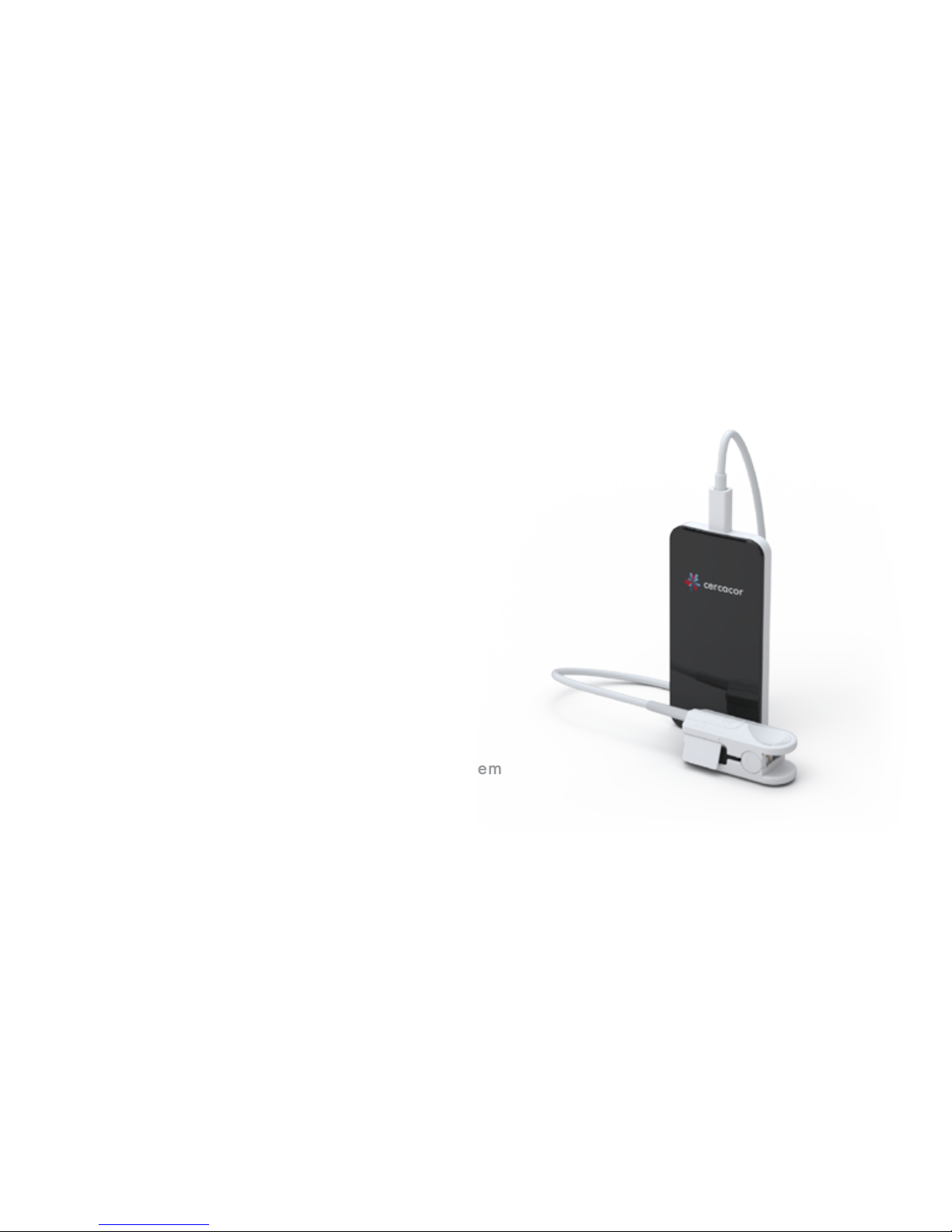
non-invasive hemoglobin tracking system
user guide
Page 2

We are very excited you have chosen Ember to fulfill your training and
exercise needs. If at anytime you have questions, please feel free to reach
out to us at Cercacor . We are committed to doing what we can to ensure
you become an advocate of Ember and Cercacor technology.
Sincerely,
The Ember Team at Cercacor
Welcome!
TM
TM
2
Cercacor, the Cercacor logo and Ember are trademarks of Cercacor Laboratories, Inc. Apple, the Apple logo, iPhone and iPod
touch are trademarks of Apple Inc., registered in the U.S. and other countries. App Store is a service mark of Apple Inc. The
Bluetooth® word mark and logos are registered trademarks owned by Bluetooth SIG, Inc.
Page 3

Contents
Indication for Use ....................................................................................
4
Safety ....................................................................................................
6
Getting Started ..........................................................................................
8
Taking a Measurement ..............................................................................
12
Parameter Descriptions .................................................................................
18
In App Purchase and Parameter Unlock ....................................................
27
Reviewing Features ....................................................................................
29
Cleaning ................................................................................................
39
Specifications ..............................................................................................
40
3
Page 4

Indication for Use
4
Ember is intended for use by athletes or their trainers to help measure and track hemoglobin, pulse rate, perfusion index, oxygen saturation, oxygen content, respiration rate or
pleth varability index. It is intended to be used by individuals 13 years or older with a
finger width of 22mm or less. This product is not a medical device.*
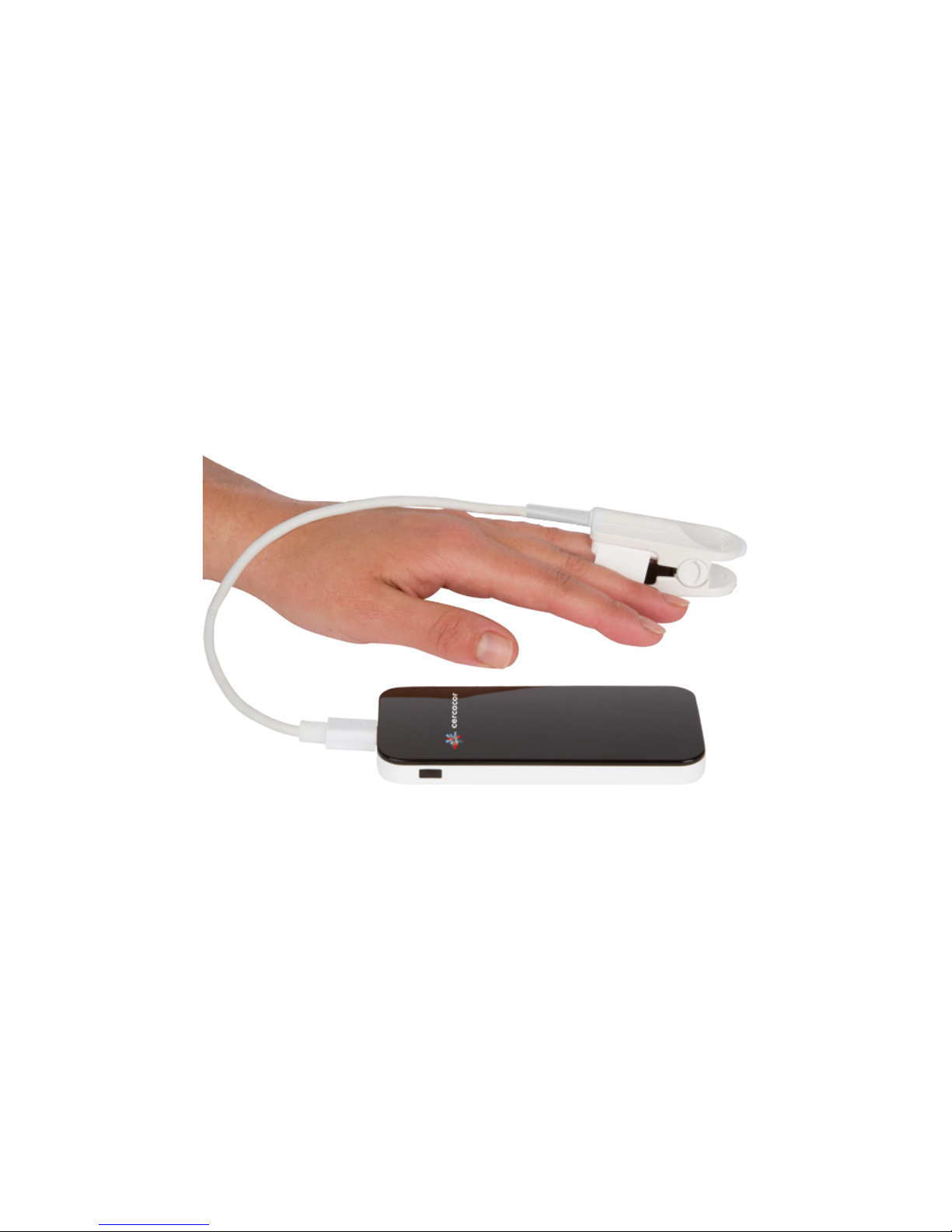
The Ember system consists of the device, sensor, and mobile app. The Ember device
requires a smartphone with Bluetooth 4.0 capabilities to operate, running iOS 8.2 or
newer. For a list of devices and operating systems that the Ember system works with, please
visit www.cercacor.com.
*This product is not intended to monitor or alleviate a physiological condition or disease state. Individuals who need a device to monitor a
medical condition should contact their physician. Ember is not meant to replace laboratory measurements nor is it intended for medical use. If
you want more accurate hemoglobin assessments, please use invasive methods using properly conducted Cyanmethemoglobin assay or
properly conducted and calibrated Coulter Counter testing.
Page 5
5
Page 6

WARNING:
•
•
•
•
•
Safety
6
Reduce possibility of entanglement or strangulation when using and storing sensor
cable.
Explosion hazard. Do not use Ember in the presence of flammable substances in
combination with air, oxygen-enriched environments, or nitrous oxide.
Avoid risk of an electric shock by only plugging in the Ember sensor into the device
sensor port. Also, do not plug the Ember sensor into any other equipment except
Cercacor devices.
Only use a UL Listed power adapter that meets LPS or Class 2 limits rated 5V,
minimum 0.5A.
Do not incinerate battery.
Page 7

CAUTION:
•
•
•
•
•
•
7
Do not lift the Ember device by the cable or sensor.
Discontinue use of the product if it appears to be damaged in any way. Immediately
contact customer support.
Do not attempt to adjust, repair, open, or disassemble the device and/or sensor in
order to avoid injury or damage to device.
Do not submerge device and/or sensor under water or cleaning solution, which will
cause severe damage.
To prevent electric shock, avoid placing device on surfaces with visible liquid spills.
Do not soak or immerse the device in liquids, and only use cleaning solutions
sparingly.
The Ember device and sensor should be properly disposed as electronic waste.
Page 8
Getting Started
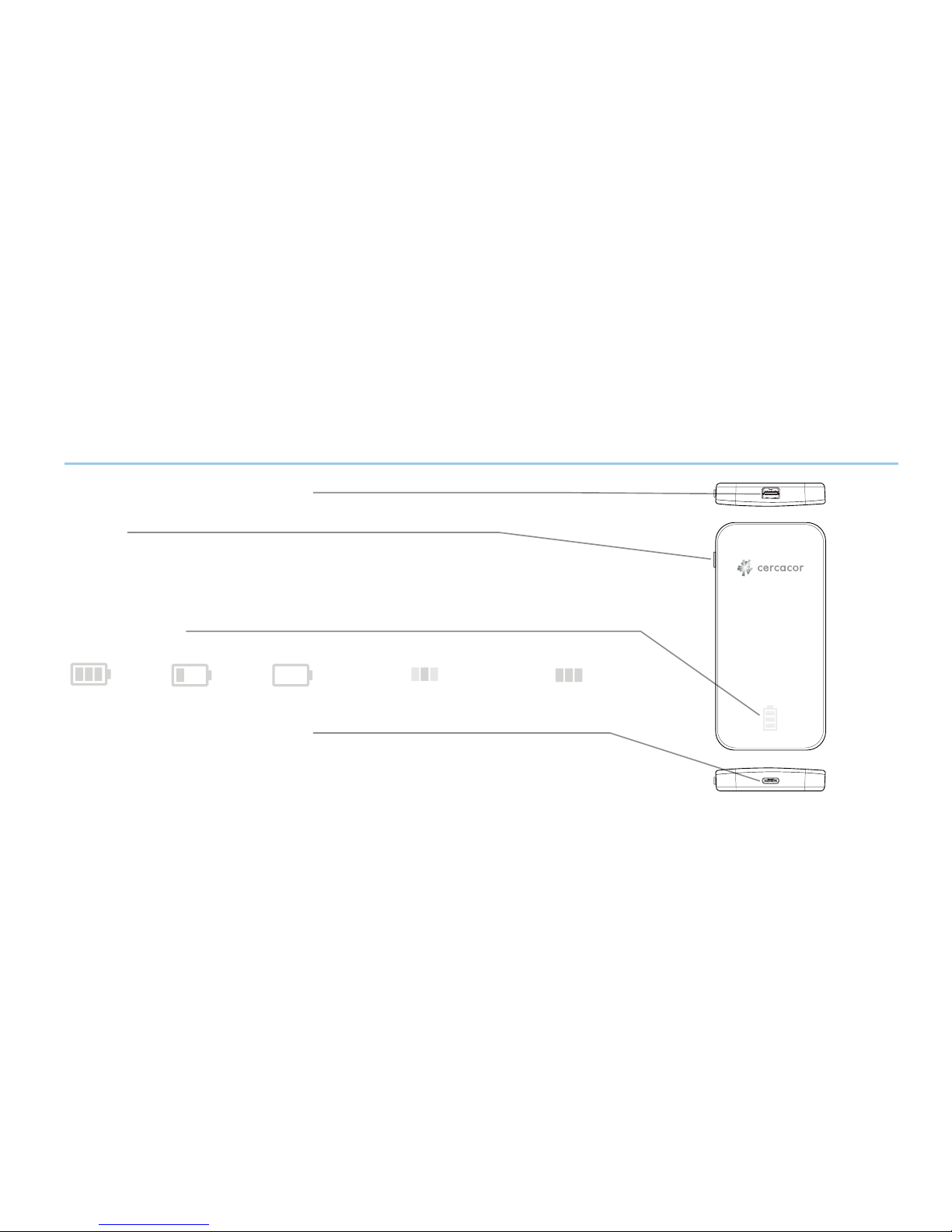
Sensor Port: Mini DP 20 Pin
Button
Press once for Battery Status
Status Lights
Charging Port:
USB Type C
full battery low battery
needs charging bluetooth connecting
(blinking sequence) (displayed for 3 seconds)
bluetooth connected
Press and hold for 3 seconds for Bluetooth pairing
Press and hold for 6 seconds for a Hard Reset
8
Charge the battery by connecting the Ember device to your computer
using the included USB Type C cable, or connecting the Ember device
to a power outlet using a UL Listed power adapter (LPS or Class 2)
Page 9

Create an Account (Creating an account is optional, but highly recommended)
• Download the free “Ember by Cercacor” app from the Apple App Store.
• After you open the app, tap the “Sign Up” text at the bottom of the page to
create an account. Follow the screen prompts until your account is created.
•
Connecting Ember to your smartphone
•
9
Congratulations! You have now created an account. Next letʼs connect Ember to
your smartphone.
The Ember device is shipped in sleep mode when you first receive it. To wake it up
press the button for 3 seconds and then a series of blinking rectangles will appear.
Now it is visible to the “Ember by Cercacor” app.
Page 10

Troubleshooting your connection to the Ember device
• Check your battery level by pressing the button on the side of the Ember device
to check if there is sufficient charge.
•
•
•
10
If your Ember device does not show within the “find device list”, press and
hold the Ember button for 3 seconds until the LED lights blink in a sequence from
the center out.
If prior steps do not work, try force quitting the app. To force quit the app, double
click the home button on your iPhone then swipe up to close the app.
Make sure your Ember device is within a close range (approx. 50ʼ) of your
smartphone.
Page 11

•
11
If prior steps do not work and your Ember device does not connect to the app or is
still having trouble taking measurements, then press and hold the button on the side
of the Ember device for 6 seconds. This will enable a hard reset of the Ember device.
If problem persists, contact [email protected]. Be sure to include a complete
description of the problem.
Page 12
Taking a Measurement
•
•
•
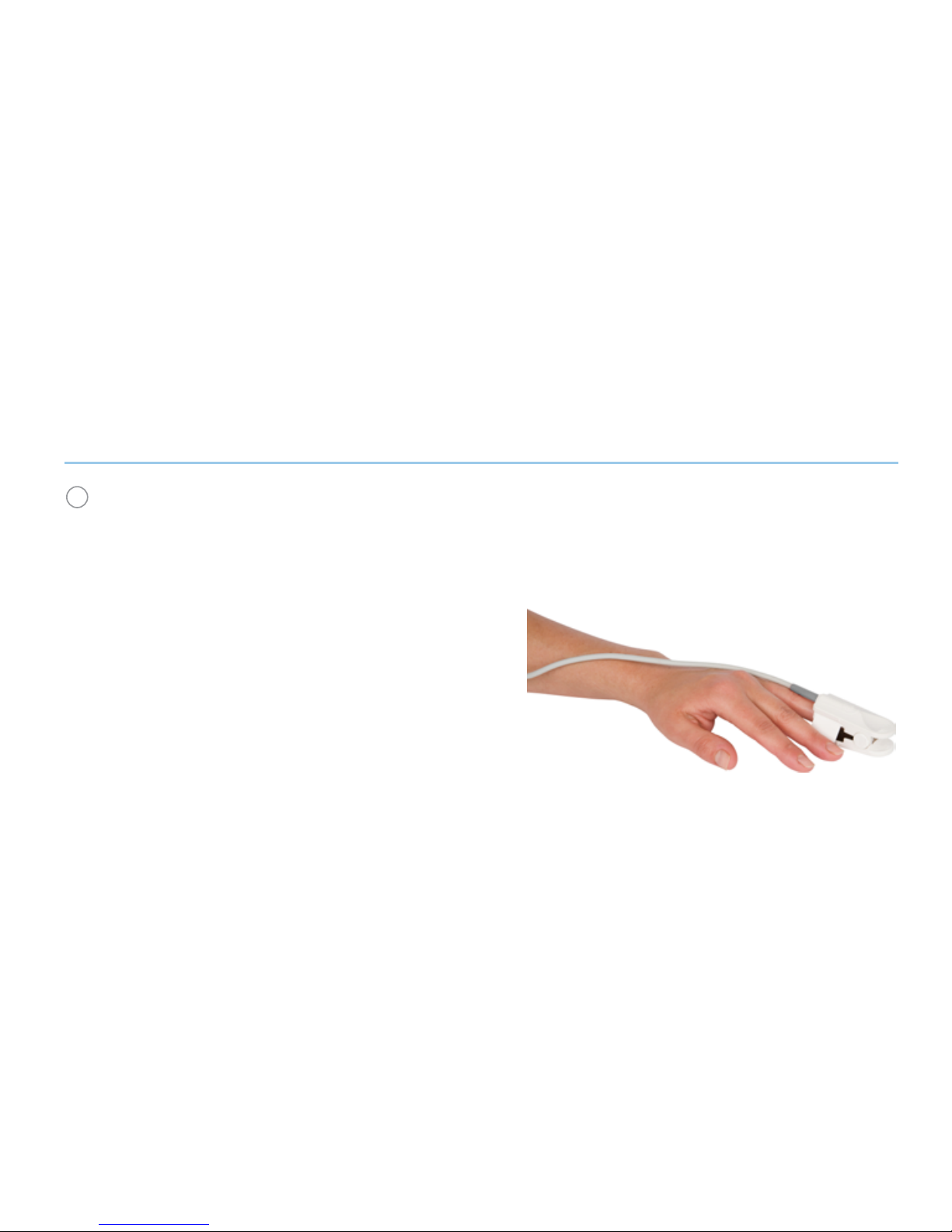
The cable should be on top of your hand
in a straight line as far as possible.
Always use the same finger for every
measurement. Ensure your finger is all
the way into the sensor.
Use the same posture and remain still
during measurement.
Begin by placing the sensor on a finger free of deformities. It is best to use the ring or
middle finger of your non-dominant hand. It is recommended to not use nail polish for best
accuracy and repeatability of measurements. Blue or green nail polish significantly affect
the accuracy of the measurement.
1
12
Page 13

Once you are ready, tap the “Start” button within the app. The measurement time
varies and can be as fast as 30 seconds. Be patient, the system will ask you to try again
if it cannot get a result within 90 seconds.
Your measurement results will be displayed on the screen. When you tap the
“Capture” button, the numbers displayed will be saved in your history. The gauge to the
right of the display tells you your target range based on your age and biological sex
(must have an account for gauges to be enabled). You can customize the target range
based on your individual goals by accessing the “Options” tab of the app.
Be sure not to move around during the measurement.
Refrain from talking, coughing, or sneezing during the measurement.
During the measurement, a question related to the activity will be displayed.
Please be sure to answer this question to get more value from your graphs.
2
•
•
•
3
13
Page 14
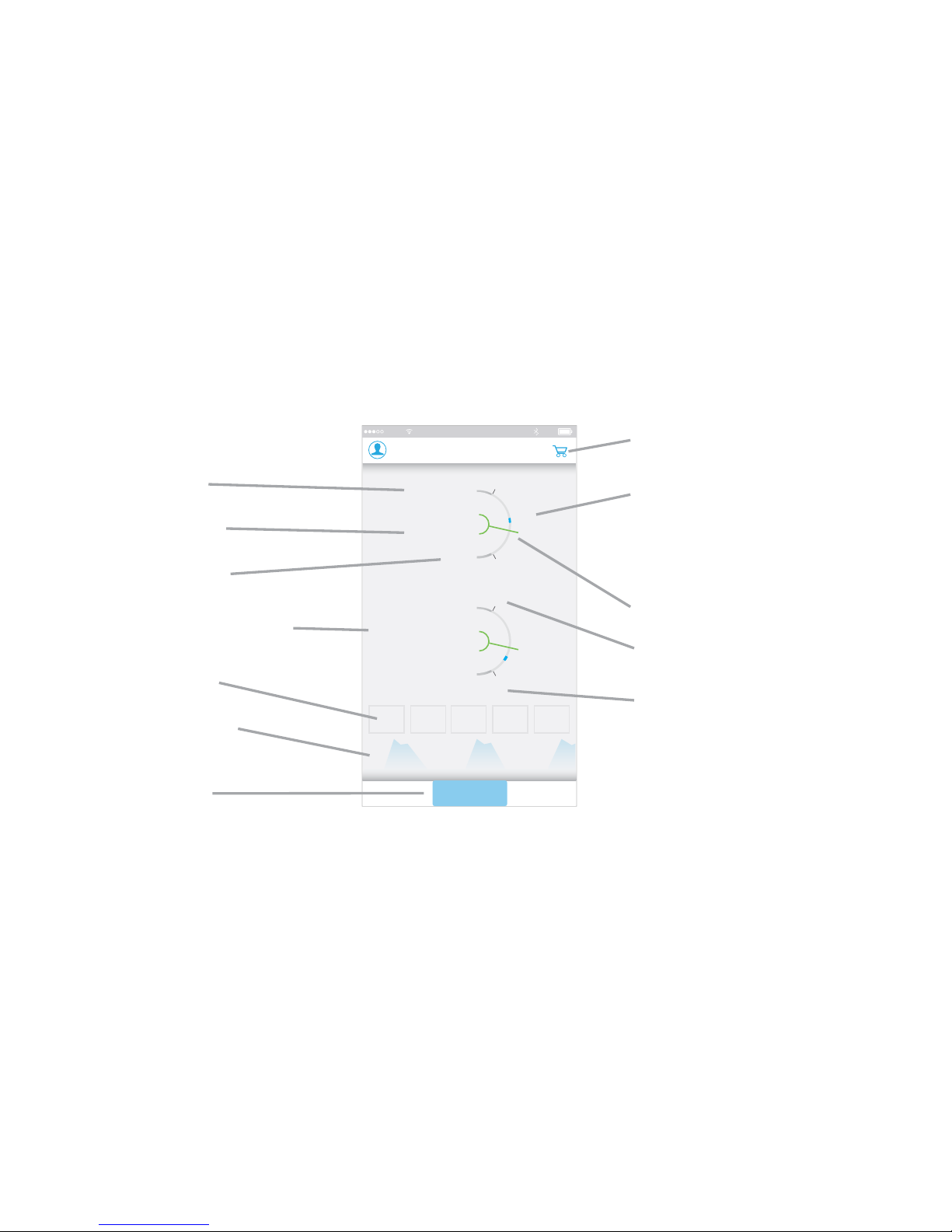
Parameter title
Units of measure
Measured value
Measurement needle
Upper limit target range*
Lower limit target range*
Parameter well
Parameter display area
Plethesmography
waveform (Pleth)
Capture button
*Target ranges and averages are
only available if you create an
account.
Average value of your
measurements for last 30
days with the same
activity*
Measurement credits
remaining
Live Results
14
Adam Wilson
Hemoglobin
15.2
g/dl
12
20
15.8
Avg
Pulse Rate
62
bpm
50
85
58
Avg
PI
5.2
Capture
200
Cell 12:23 PM 99%
Page 15
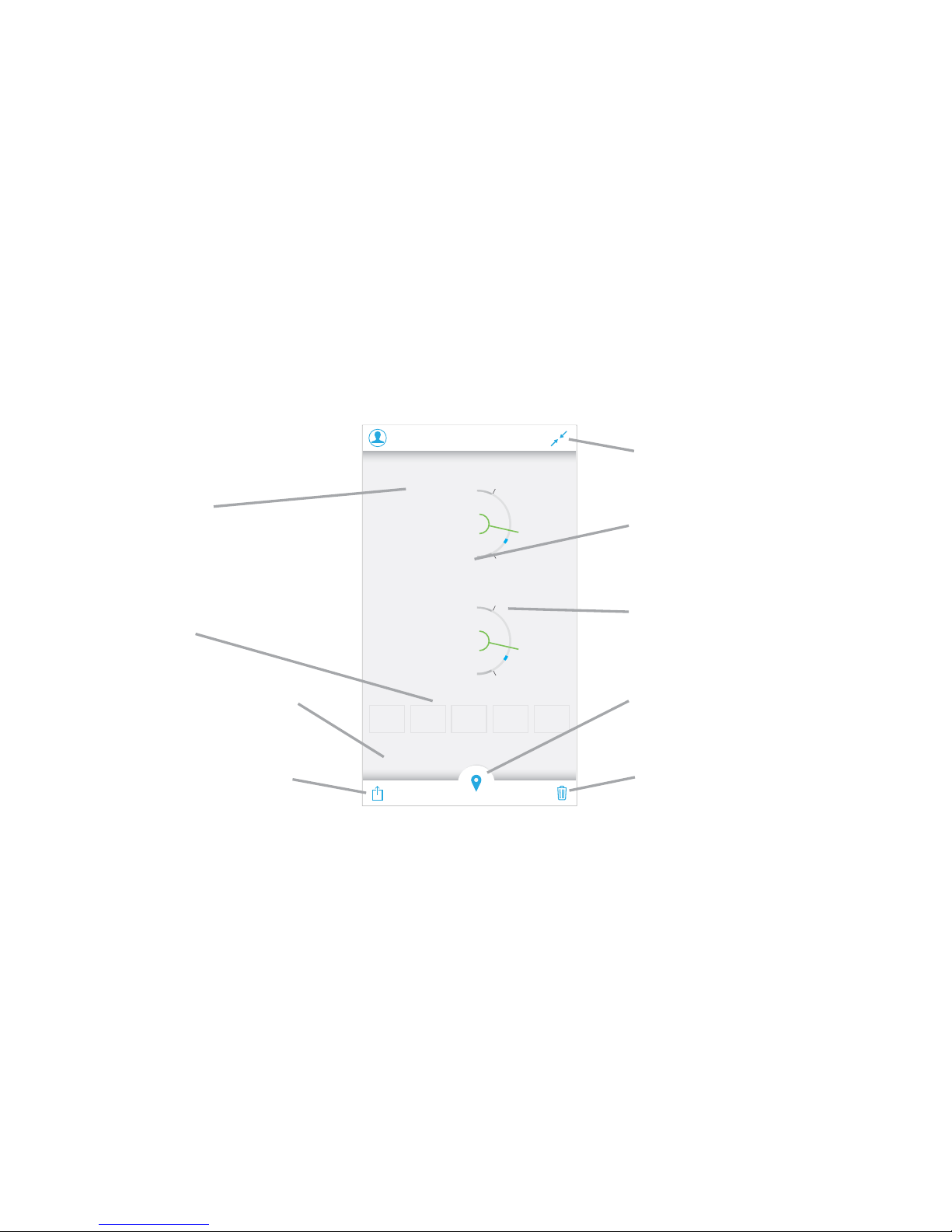
Tap to learn more about
the parameter
The ranges can be
adjusted in the “Options”
tab
Tap to see your
measurement location and
environmental data
Tap and hold to rearrange
parameters onto the
display area
Tap to change or set the
type of activity
Tap to share your result
Tap to delete this
measurement
Units of measure can be
adjusted in the “Options”
tab
Tap to minimize view and
return to the “Measure”
tab
Captured Results
15
Adam Wilson
12:23 PM
Hemoglobin
15.2
g/dl
12
20
14.1
Avg
Pulse Rate
62
bpm
Activity Notes
First of Day None
50
85
58
Avg
PI
5.2
Details...
Page 16
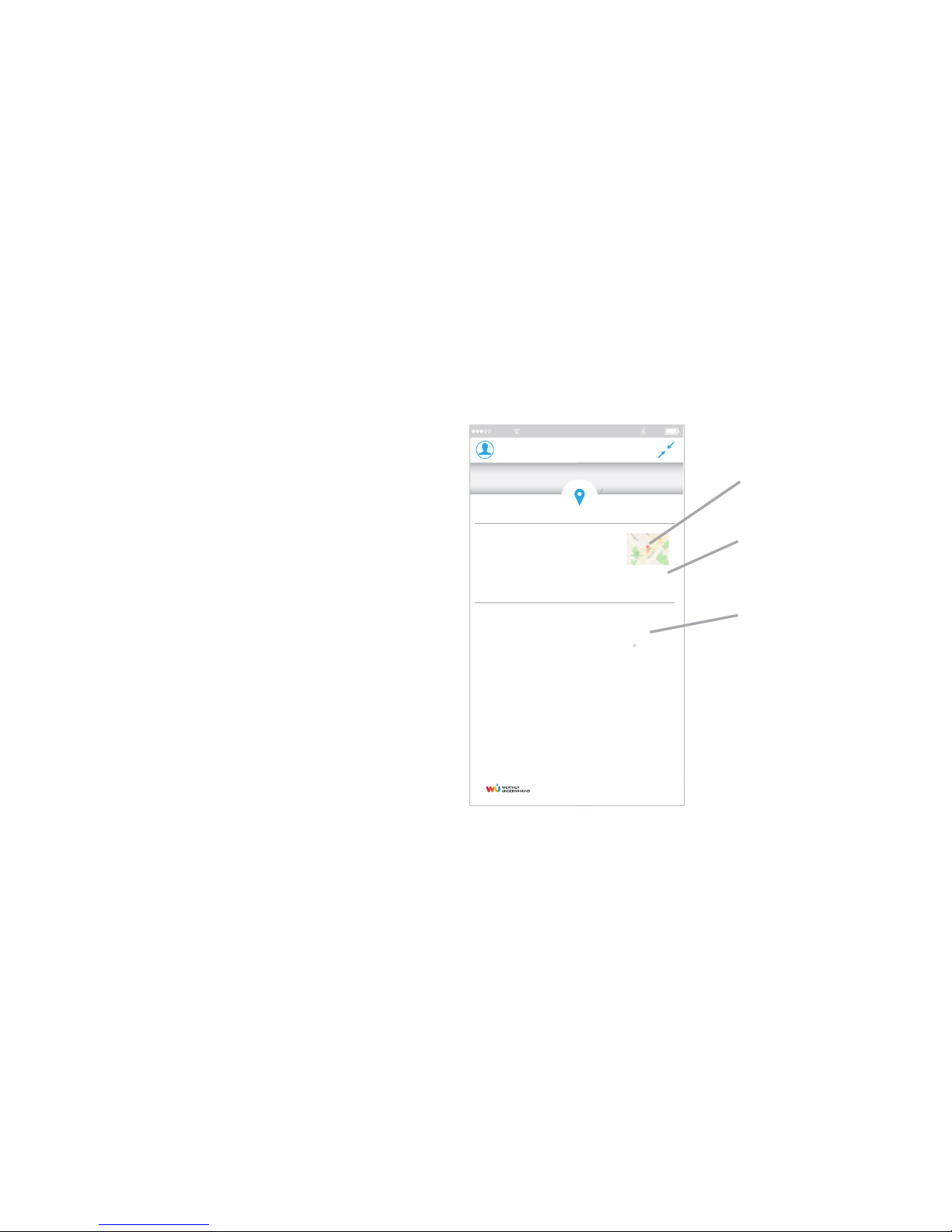
Measurement Details
Location map
Elevation
Outdoor
climate data
When you enable the Ember by
Cercacor app to track GPS location,
each measurement you take will log
the location and capture the outdoor
climatic details where your measurement was taken.
16
Adam Wilson
12:23 PM
Hemoglobin
15.2
g/dl
12
20
16.2
Avg
Pulse Rate
62
bpm
Activity Notes
First of Day None
150
85
58
Avg
PI
5.2
Details...
Pulse Rate
15.2
g/dl
bpm
62
12
50
85
58
Avg
16.2
Avg
PI
4.2
Activity
Resting
Notes
None
Details...
Temperature
Humidity
Barometric Pressure
Weather Condition
Precipitation
UV Index
78 F
15%
29.95
Partly Cloudy
5%
4
Data provided by:
Climate
220’ MSLElevation
Irvine, CA
Cell 12:23 PM 99%
Page 17
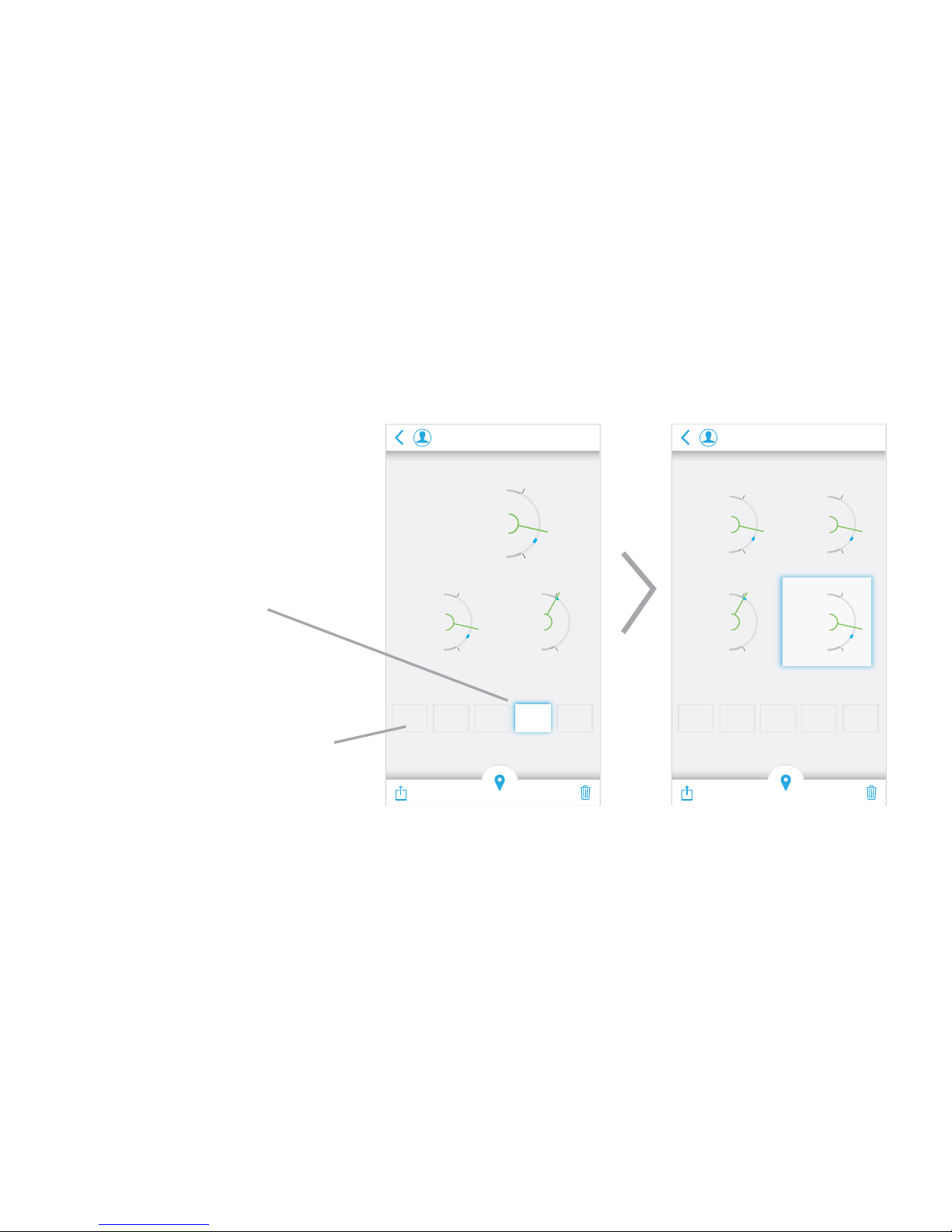
Rearranging Layouts
Tap and hold on any
parameter to rearrange its
location in the display area or
move from the parameter well
into the display area
Swipe left or right to reveal
more parameters
(if installed)
17
Wednesday
Nov. 2, 2016
12:23 PM
PI
5.2OC12
Activity Notes
First of Day None
Wednesday
Nov. 2, 2016
12:23 PM
OC
12
ml/dl
10
15
11
Avg
Pr
62
bpm
50
85
58
Avg
Hgb
15.2
g/dl
150
85
14.1
Avg
SpO2
99
%
150
100
98
Avg
PI
5.2
Activity Notes
First of Day None
Hemoglobin
15.2
g/dl
12
20
14.1
Avg
Pr
62
bpm
50
85
58
Avg
SpO2
99
%
150
100
98
Avg
Details... Details...
Page 18

18
Your Ember device is capable of measuring numerous parameters depending on your
model or the number of parameter upgrades that you have installed.
Hemoglobin (Hgb)
The protein contained in red blood cells that is responsible for delivery of oxygen to
the tissues. The range of hemoglobin values can vary based on your age and biological sex. For adults 18 years and over at rest, hemoglobin values can be between
12-15.5 g/dl for females and 13-17.2 g/dl for males. Tracking your Hgb first of day
and Pre/Post specific activities such as workouts or hydration may help you understand the intensity of your workouts and the fluid volume shifts and/or recovery times.
Additionally, you may be able to learn the extent to which elevation training increases
your Hgb and how long the effect lasts after returning to sea level.
Parameter Descriptions
Page 19

Pulse Rate (Pr)
1
11
Perfusion Index (PI)
The strength of blood flow/circulation at your finger tip measured as a percentage
(%). Values for PI range from 1-20%. When selecting your measurement finger for the
first time, it is good to use the ring or middle finger with a higher PI value.
19
The number of beats your heart takes per minute (bpm) as detected from the pulsation
at your finger tip. At rest values range between 50-85 bpm however fit individuals
typically have lower resting heart rates. This is because their heart is more efficient and
effective with each beat that it requires fewer beats per every minute. Tracking your
pulse rate first of day and pre and post work out is a great benefit of using Ember to
get an understanding of the intensity of your workouts as well as the impact over time
to your fitness level on your first of day pulse rate.
Page 20

Oxygen Content (OC)
1
11
The amount of hemoglobin that is saturated with oxygen expressed as a percentage
(%). At rest you should be greater than 95% oxygen saturated and after an intense
workout you may go less than 85%. The lower your SpO the less effective your
muscles and tissues are for performance. Tracking your SpO with specific activities
throughout the day with Ember may help you understand the quality of your oxygen
exchange.
20
The total amount of oxygen bound to hemoglobin. This value is derived from your
hemoglobin and oxygen saturation levels in millilitres per decilitre of oxygen (ml/dl).
At rest values can range between 15.2 - 23 ml/dl. By tracking this number with Ember,
you may discover that you have better endurance and performance when your OC is
trending higher.
2
2
Oxygen Saturation (SpO )
2
Page 21

Respiration Rate (RR)
Pleth Variability Index (PVI)
1
11
21
The number of respiratory cycles you complete per minute (rpm). A respiratory cycle
is the entire inhalation (breathing in) and exhalation (breathing out) from your lungs.
Values can range from 15-20 respiratory cycles at rest. Tracking your RR multiple
times per day with Ember may help you understand the impact exercise has on your
respiratory cycle and provide feedback on how effective your breathing becomes
over time.
A measure of the dynamic changes in the perfusion index that occur during the
respiratory cycle. In mechanically ventaliated patients PVI has been correlated as an
indicator for how well patients respond to fluids. If you track PVI multiple times per
day we are excited to hear from you how this helps your training, planning or
wellness.
Page 22

22
It is suggested to establish your baseline PVI by measuring it over several days, at the
same time, in the same body position, at the same breathing rate and depth of breathing. An ideal time to measure PVI is in the morning before you get out of bed. An
increase in PVI compared to your baseline PVI may indicate increased dehydration,
increased breathing effort, or other factors. A decrease in PVI compared to your
baseline PVI value may indicate greater levels of hydration, decreased breathing
effort, or other factors. Multiple factors other than hydration and breathing effort can
affect PVI, including breathing rate, depth of breathing, body position, body
movement, vascular tone, blood flow to the finger, and cardiovascular abnormalities.
Page 23
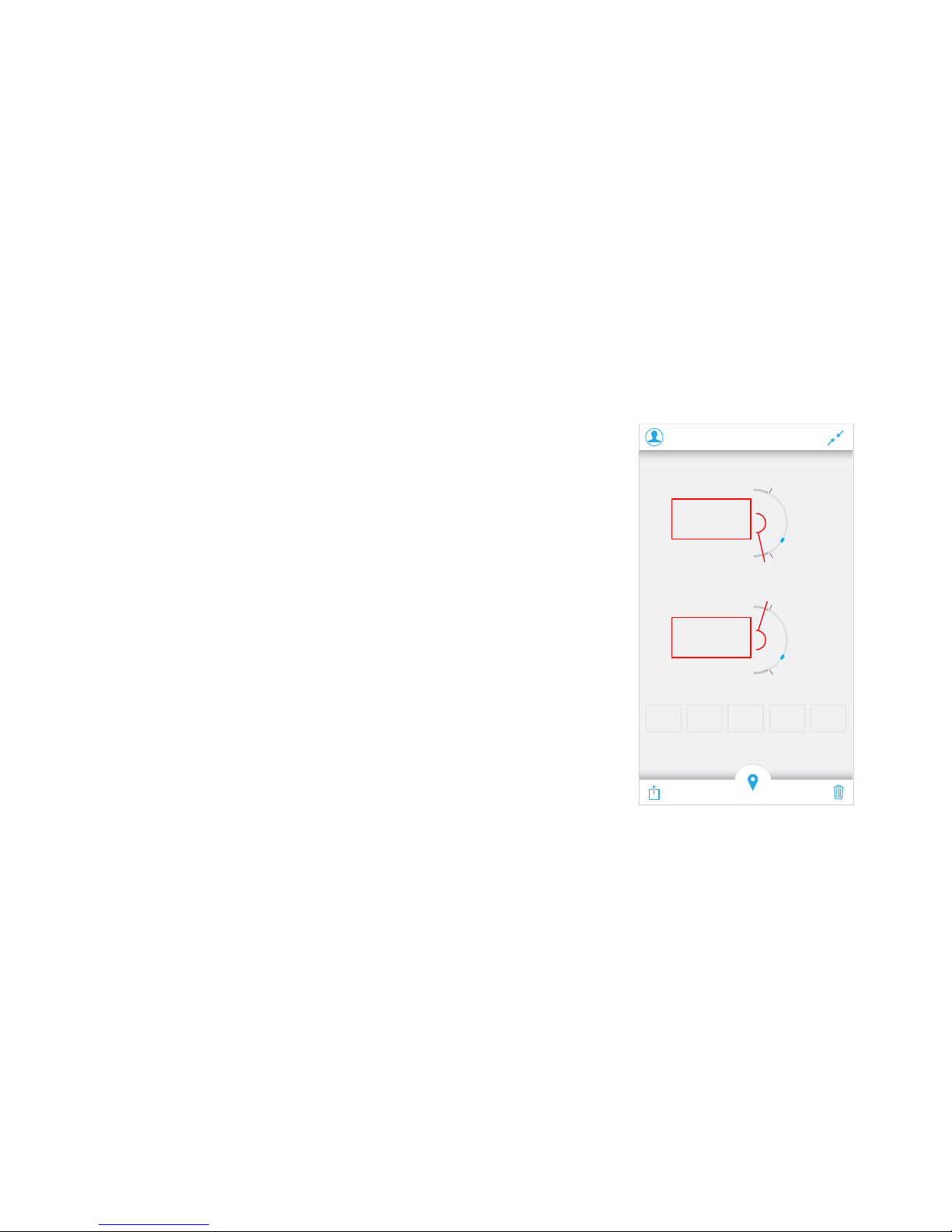
Out of Range Results
23
If you take a measurement and receive the phrase
“Low” instead of a numeric value for hemoglobin, it
indicates that your value was below 10 g/dl and is too
low to present a number. If you receive the phrase
“High” instead of a numeric value, it indicates that your
value was above 24 g/dl and is too high to present a
number.
If your measurement value has a red box behind it, the
value is out of your set ranges. These ranges can be
adjusted to your specific needs in the “Options” tab of
the App.
Adam Wilson
12:23 PM
Hemoglobin
Low
g/dl
12
20
14.1
Avg
Pulse Rate
92
bpm
Activity Notes
First of Day None
50
85
58
Avg
PI
5.2
Details...
Page 24
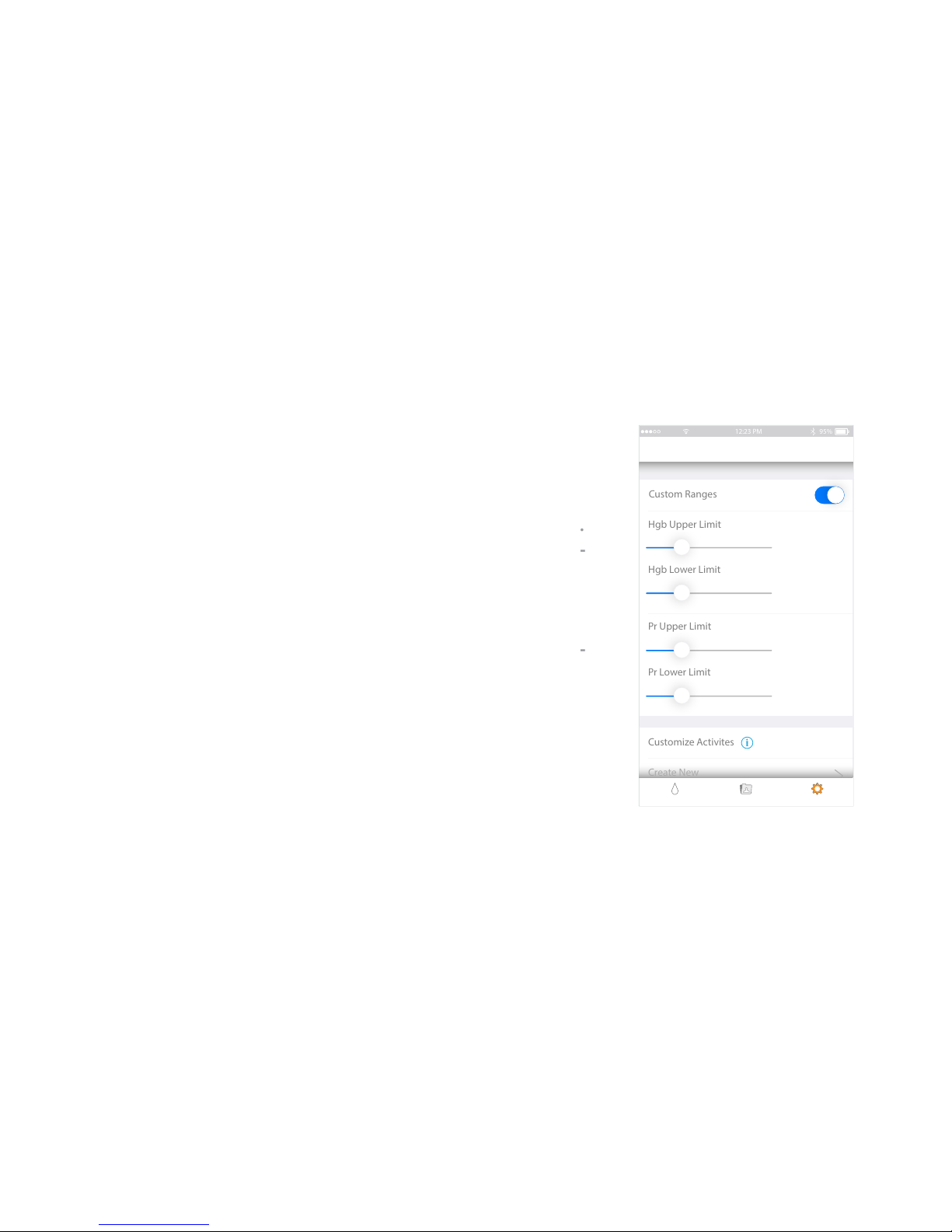
Range Adjustment
24
The normal ranges displayed on your results screen can
be adjusted within the “Options” tab of the Ember app.
The default values are from published sources on gener-
al population ranges based on biological sex and age.
We recommend you set your own custom ranges based
on input from your trainer or your own personal knowl-
edge and goals.
Cell 12:23 PM 95%
Measure History Options
Options
Custom Ranges
Hgb Upper Limit
15 g/ dl
12 g/ dl
85 bpm
65 bpm
Hgb Lower Limit
Pr Upper Limit
Pr Lower Limit
Customize Activites
Create New
i
Page 25

User Factors
•
•
•
•
•
Other Factors
•
•
•
Note: Some of these may cause incomplete measurements see pg. 27.
Inaccurate readings can be caused by:
25
Using the sensor on a deformed finger or placing it incorrectly.
Moving or talking during a measurement.
Electromagnetic Interference (EMI) from items such as computer displays and/or
LCD TVs.
High intensity lights (including pulsating strobe lights or sunlight) directed on the
sensor.
Externally applied coloring (such as nail polish).
Hemoglobin synthesis disorders, Hemoglobinopathy, or Vascular disease.
Elevated Bilirubin, Carbon Monoxide and/or Methemoglobin.
Low arterial perfusion or low arterial oxygen saturation levels.
Page 26
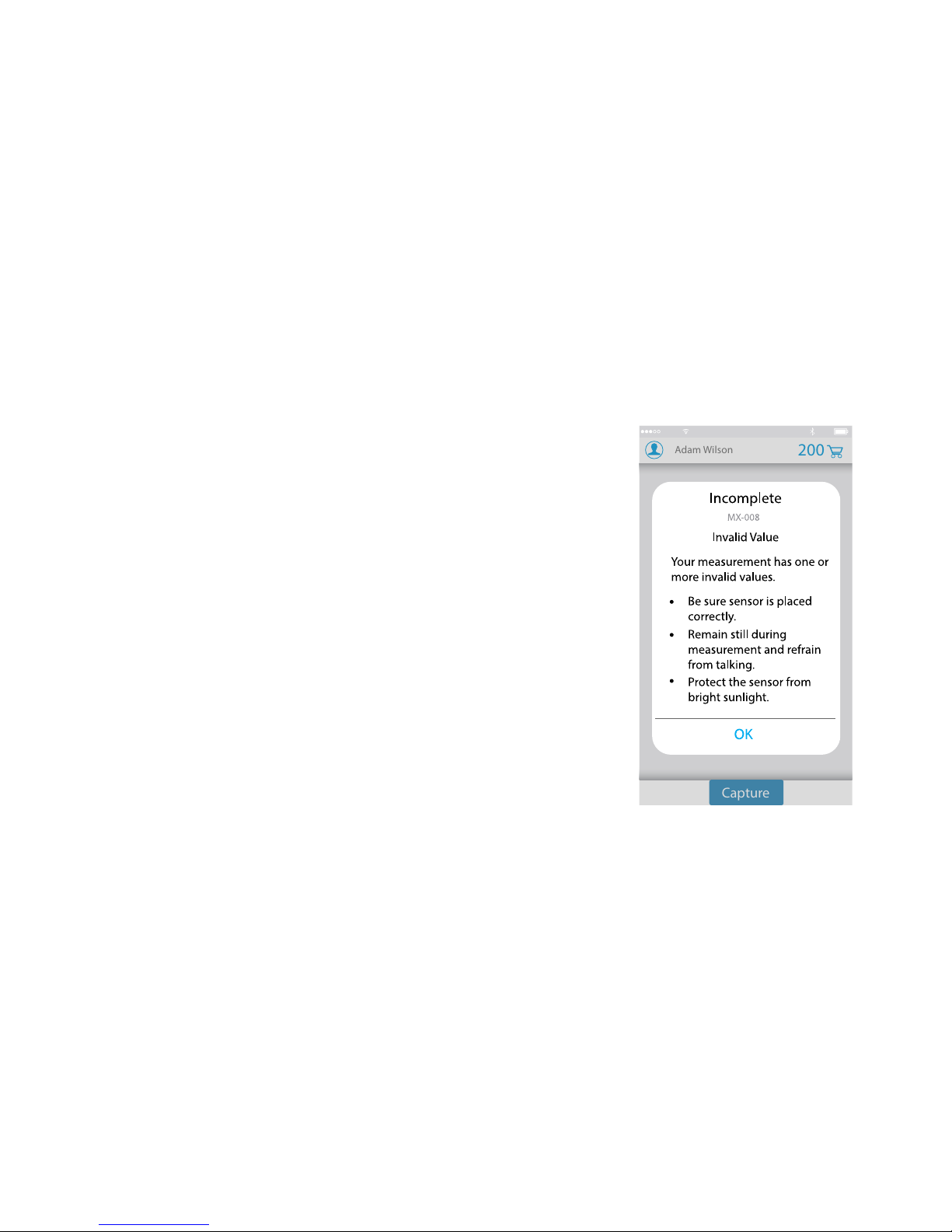
26
If you take a measurement and receive the “Incomplete” pop-up dialogue, please check the following and
try your measurement again.
Reduce excessive motion or interference to the
device and sensor during measurement.
Check sensor placement, reduce ambient light,
and remove nail polish if present.
Use a finger with no deformities or nail abnormalities and always use the same finger.
Make sure your hands are not cold by rubbing
your hands together vigorously for 10 seconds.
Adam Wilson
19
Capture
200
Cell 12:23 PM 99%
Incomplete Measurement
•
•
•
•
Page 27
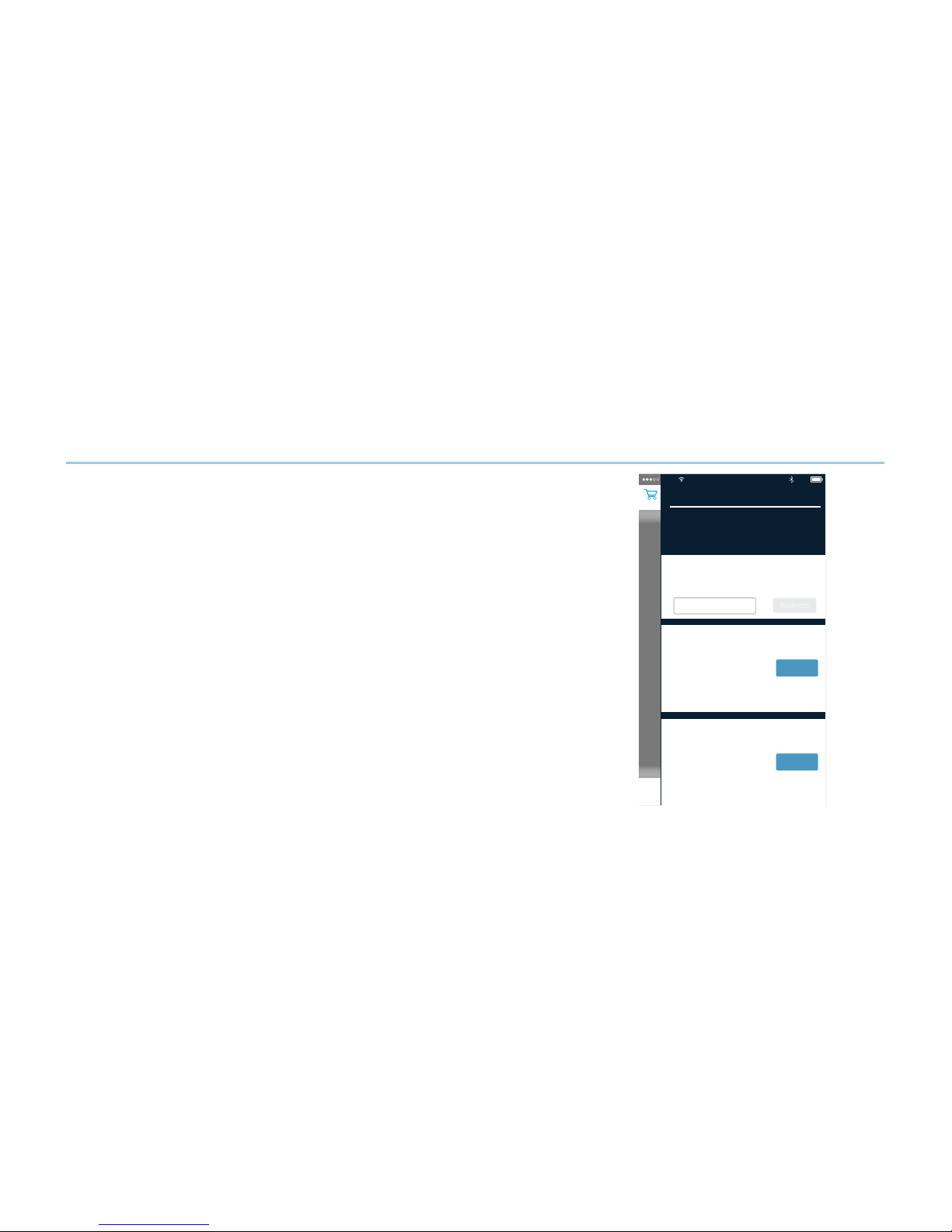
In App Purchase and Unlocking Parameters
27
Hemoglobin requires a per use charge. Each Ember
device comes preloaded with 200 hemoglobin credits.
Credits are iOS device specific so if you are buying
credits they are only applicable on that specific iOS
device and they can not be transferred or replaced if
your device is lost, damaged, or stolen.
Credits are used immediately after each measurement
and cannot be saved for use at a later date. If you run
out of credits, your Ember device will still measure all
other parameters except hemoglobin and oxygen
content. Both hemoglobin and oxygen content will only
display when you have sufficient hemoglobin credits.
Ember
Unlimited
Cell 12:23 PM 63%
Redeem
Unlock Parameter
$24.99
$49.99
Buy
Buy
25
Credits
50
Credits
Type unlock code...
25 credits to be used for
hemoglobin (Hgb)
measurements.
50 credits to be used for
hemoglobin (Hgb)
measurements.
Learn More...
Learn More...
Credits remaining 23
Parameters Unlocked 2
Sensor ID: 5555
Page 28

Unlocking Parameters
28
Depending on the Ember model you have, you may need to unlock parameters to enable
more measurement values. If you would like your Ember to measure additional parameters the unlock code can be purchased online at www.cercacor.com.
When you purchase an unlock code, a one-time-use code will be sent to you to unlock
the additional parameters. The code used to unlock additional parameters is specific to
your Ember sensor and not your iOS device. This means that the new measurement
parameters once unlocked are available anywhere that your Ember sensor is used. As
long as the iOS device has sufficient measurement credits then Hemoglobin and
oxygen content will display as well.
Page 29

Reviewing Features
29
A very exciting feature about the Ember device is the ability to review your historical
data in different ways. The more you participate, by measuring frequently and choosing
activities associated with each measurement, the more powerful your graphs become.
We recommend you measure 3 times per day using these activities: First of day, Pre
Workout, and Post Workout.
Explore and enjoy graphs by using pinch to zoom, pan and even rotate your device to
take advantage of landscape view. Graphs can be shared via SMS, email, and popular
social networking sites to share your progress with friends, coaches, trainers, and
teammates.
Page 30
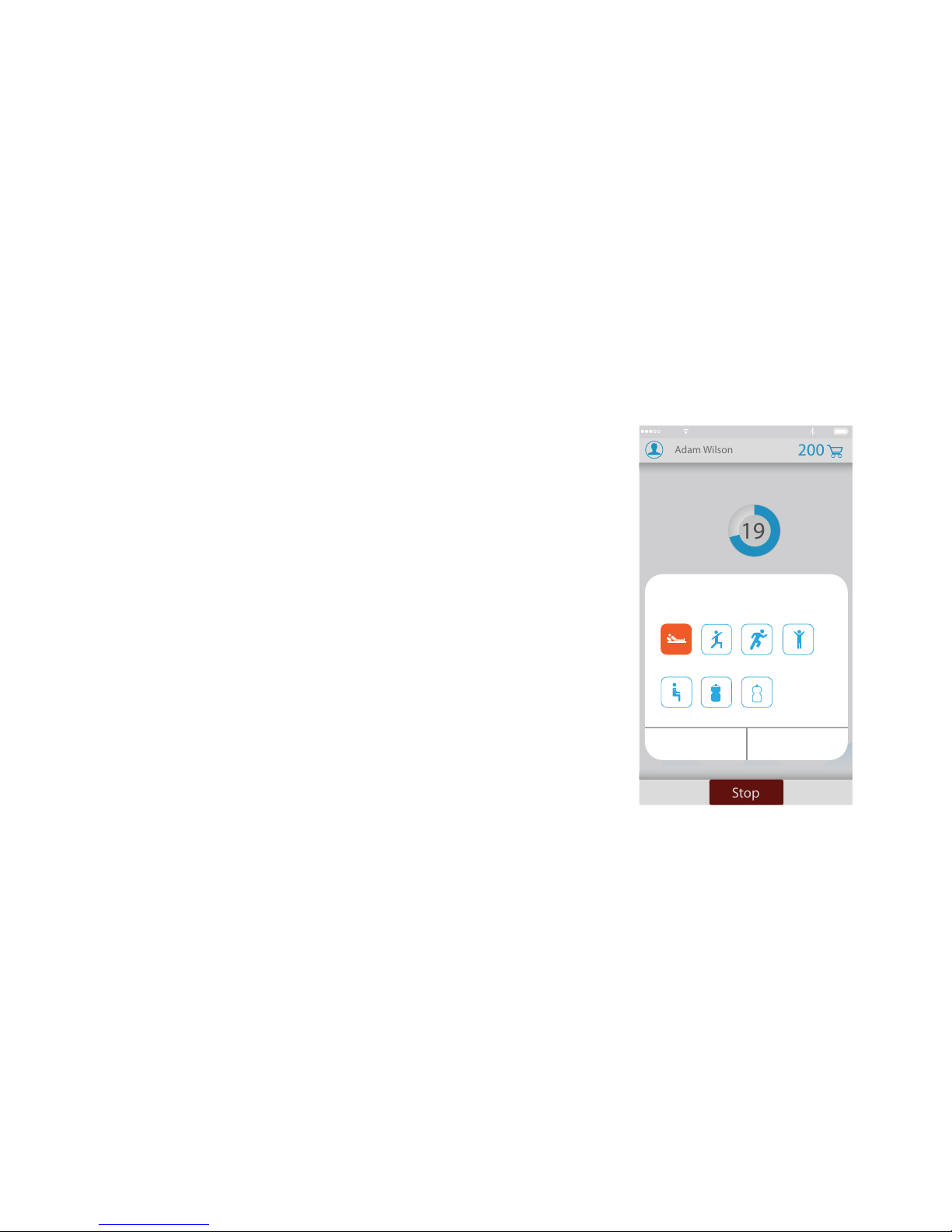
Activities
Every time you take a measurement, the app will ask
you to associate an activity. By using the same finger,
same posture, same time of day, and associating the
measurement to a specific activity you will have a more
powerful and precise historical review of your data.
Consistency is important to get reliable trends in
hemoglobin.
We recommend measuring the first thing every day
before you get out of bed. We also recommend
measuring 5 minutes before a workout and then within
1 minute after you wrkout for the best comparison of
exercise on your baseline.
30
Adam Wilson
PI
5.2
19
Stop
200
Cell 12:23 PM 99%
Use
Type of Activity
Skip
First of Day Pre Workout Between Sets
Resting Post HydrationPre Hydration
Post Workout
Page 31
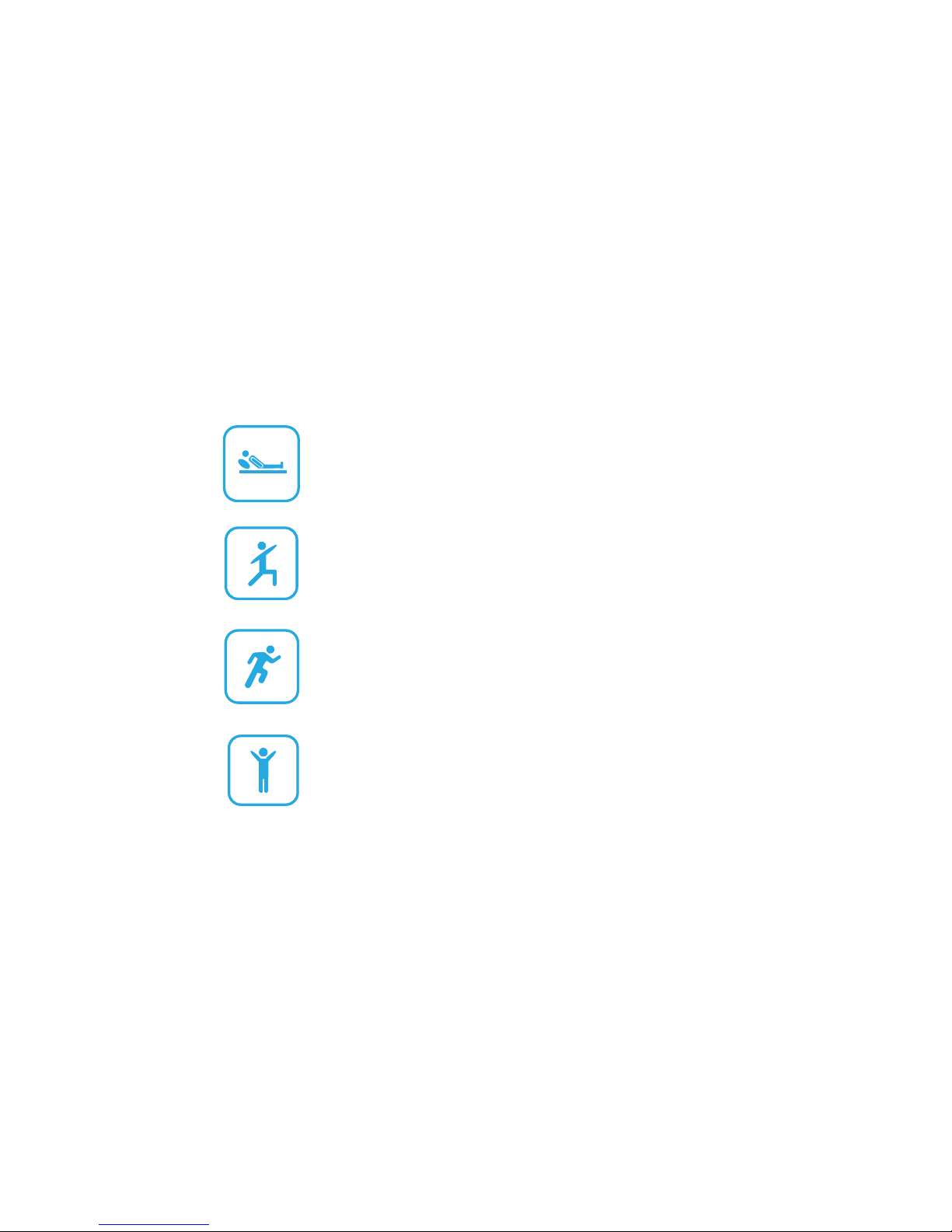
This should be performed when you first wake up before
your feet touch the ground.
First of Day
Bewteen Sets
Select this activity for measurements taken within 5 minutes
before you begin a workout.
Select this activity if you are between any sets or intervals
of your training.
Pre Workout
Select this activity for measurements that are taken within 1
minute after you stop your workout.
Post Workout
31
Page 32
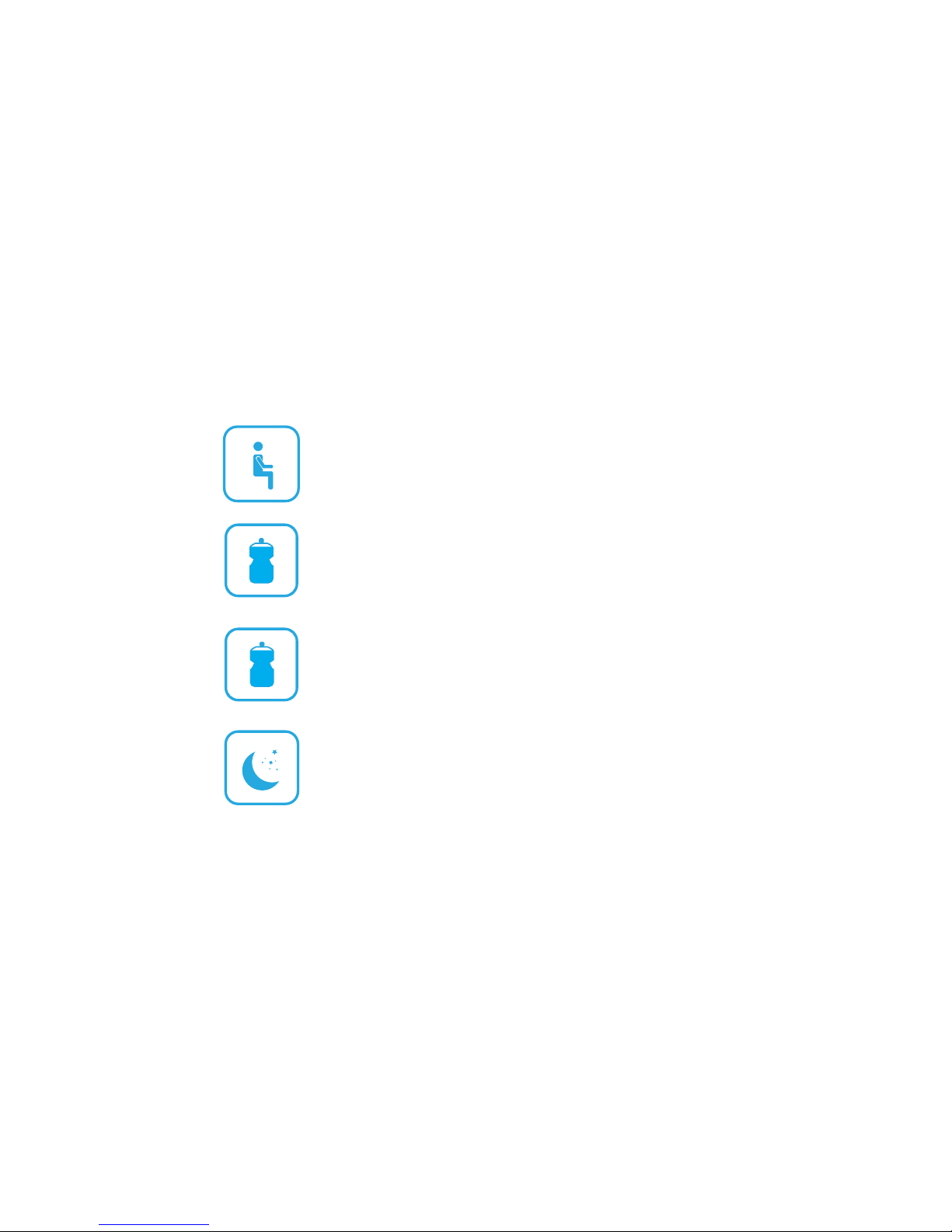
Select this activity for your last measurement of the day. Be
sure to measure this in a consistent posture and around the
same time each day.
End of Day
Select this activity within a few minutes before you drink at
least 6 oz. of fluid or have a meal.
Pre Hydration
Select this activity for measurements at rest, where you
have not exercised or hydrated for at least an hour.
Resting
32
Select this activity when you take a measurement 30
minutes after drinking at least 6 oz. or eating a meal.
Post Hydration
Page 33
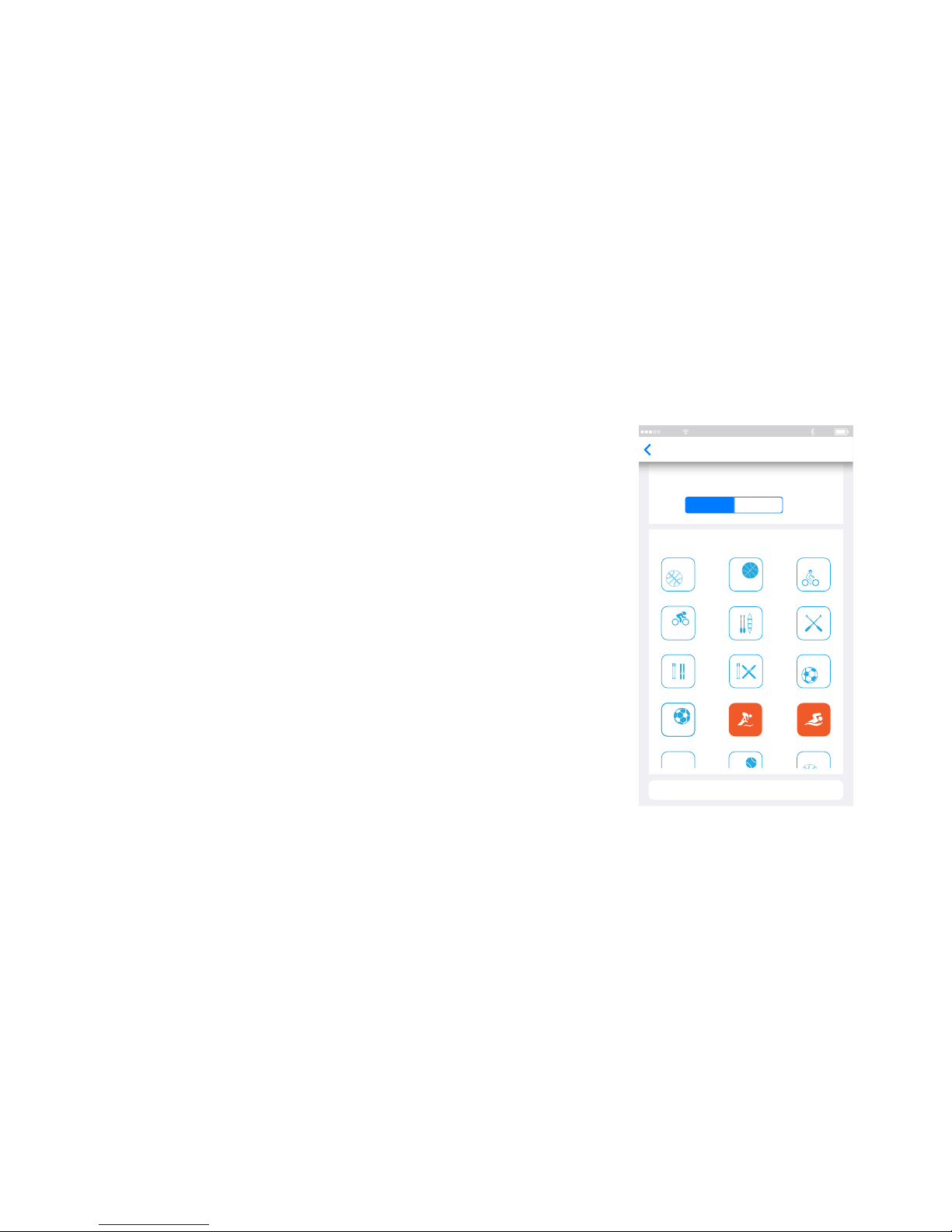
Custom Activities
If you want to create specific custom activities you can
do so in the “Options” tab. New activities can be
General or they can be a Pre/Post combination.
Pre/Post activities are designed for measurements
where you want to track your Ember results before and
after a sport or training activity. For example you may
want to track how swimming impacts your hemoglobin.
Pre/Post combinations are available to be viewed
within the Daily Ranges graph to see comparisons
throughout the day while General activities can not. All
other graphs support filtering of General or filtering of
Pre/Post custom activities.
33
Cell 12:23 PM 95%
Done
Back
Create New Activity
Activity type
Pre/ Post General
Choose an icon
Pre Basketball Post Basketball Pre Cycling
Pre Basketball Post Basketball Pre Cycling
Pre Skiing Post Skiing Pre Soccer
Post Soccer Pre Swimming Post Swimming
Page 34
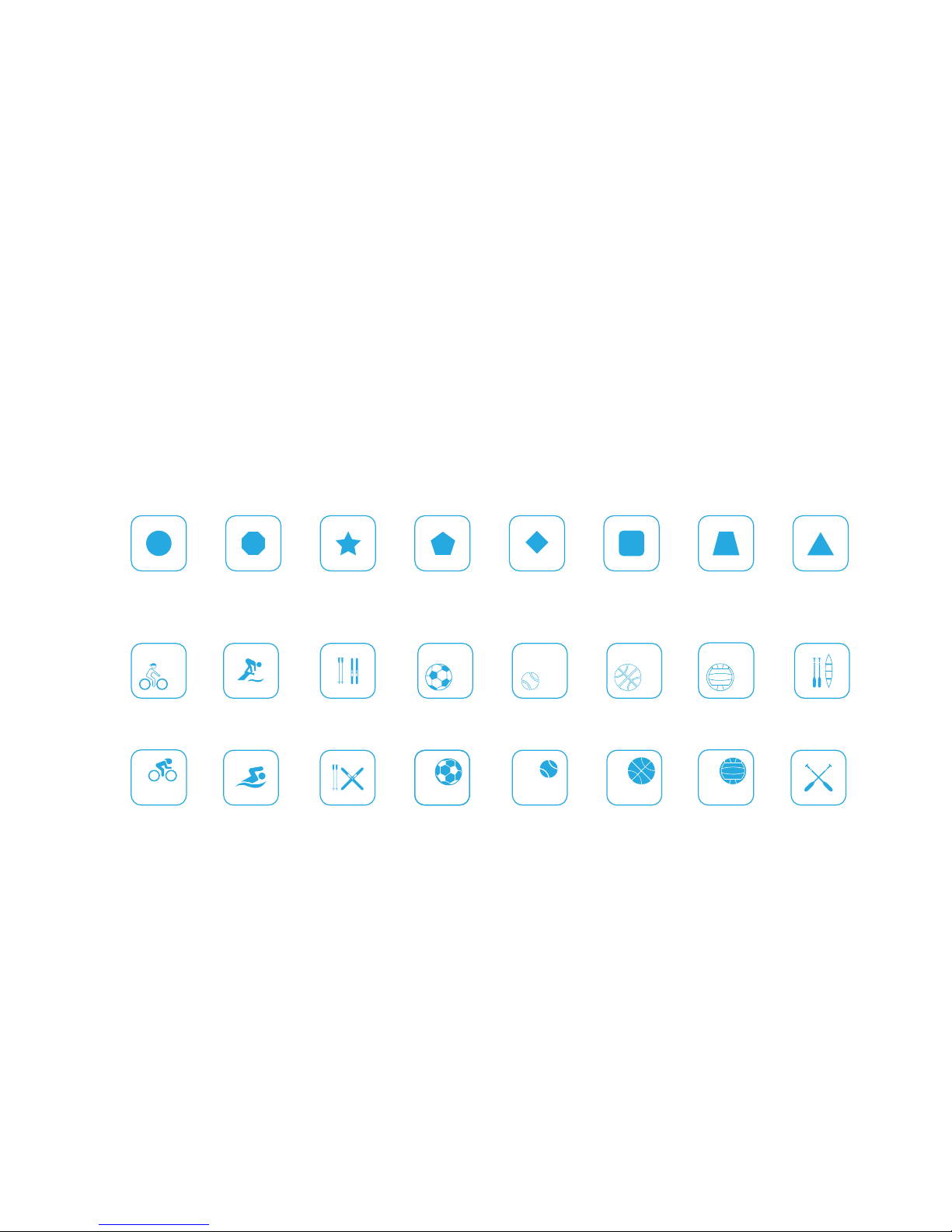
General Activity Icons
Pre Activity Icons
Post Activity Icons
The available choices for General and Pre/Post custom activity icons.
34
Page 35
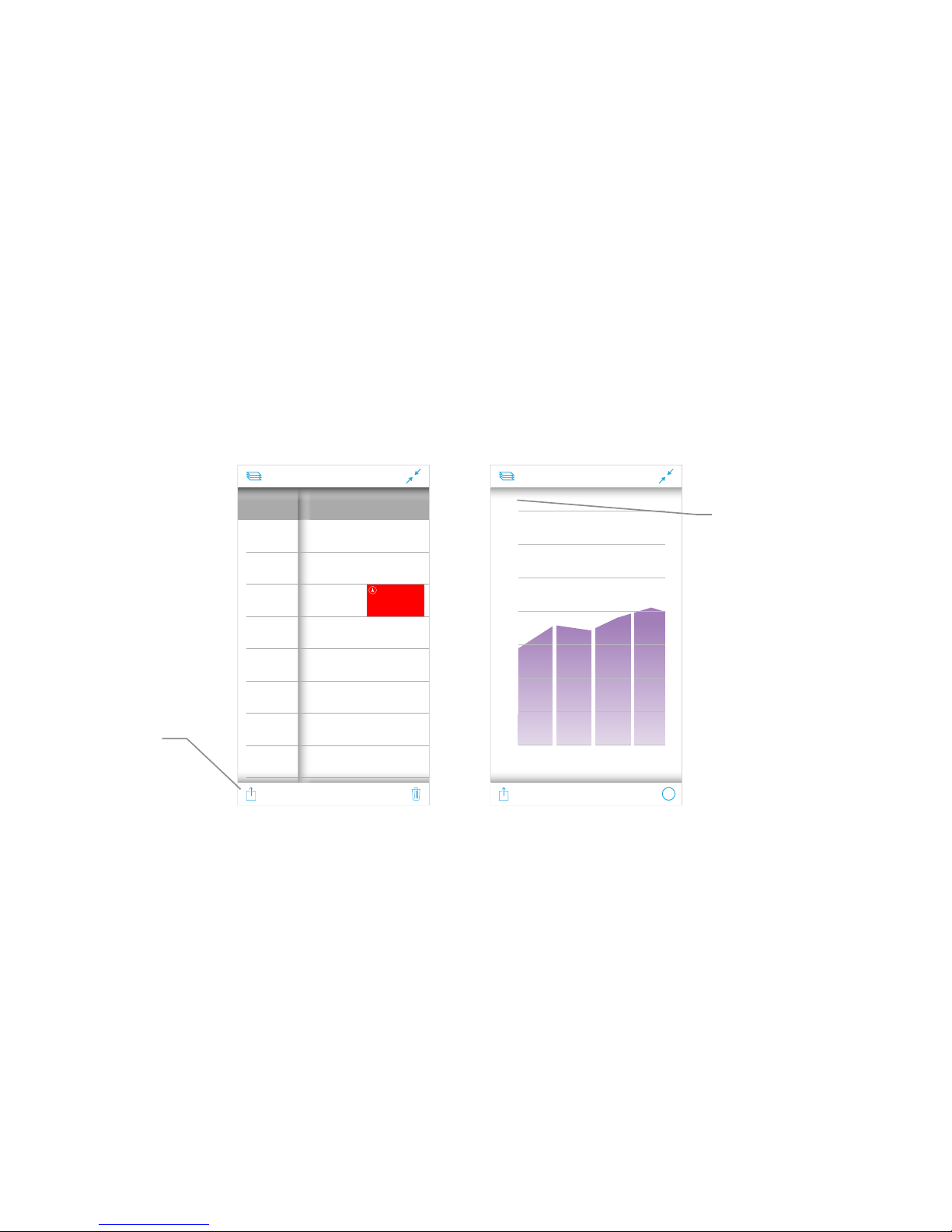
History
Results Table
Trend Graph
A list view of all
measurement
results. Swipe to
the left to reveal
more data.
Tap share icon to
export all
measurements as
a csv file.
Vertical (Y-axis)
displays the units
of measure for
the parameter
you are viewing.
35
Results Table - 27
Day
Oct 14
15.5 68
61
110
70
62
98
60
60
15
.1
16.8
16.0
15.7
15.9
16.2
15.4
6:30 PM
Oct 14
7:00 AM
Oct 13
5:30 PM
Oct 13
4:30 PM
Oct 13
7:04 AM
Oct 12
5:32 PM
Oct 12
4:37 PM
Oct 12
6:58 AM
Time
Hgb Pr
g/dl bpm
Trend - Hgb
i
August Sept
12
13
14
15
16
17
18
g/dl
19
Oct
2016
Nov
Page 36
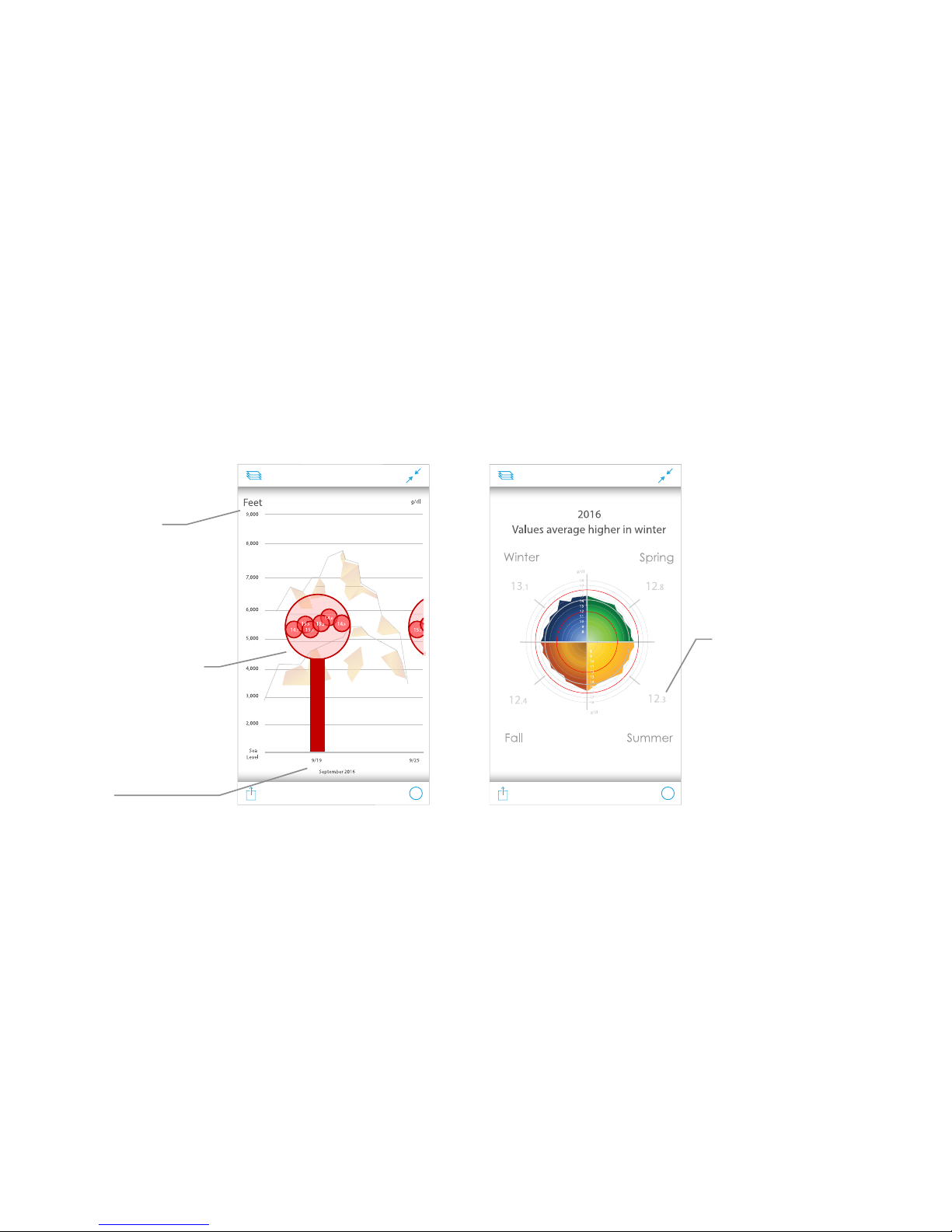
Elevation Graph
Seasonal Graph
The vertical,
Y-axis,
represents the
elevation.
Each large
bubble
contains about
a week of
measurements.
The horizontal
(X-axis)
represents
time.
This graph reads
like a clock.
Each degree is
about one day of
measurements.
The seasonal
quadrants have
an averaged
value presented.
36
Seasonal - Hgb
i
Elevation - Hgb
i
Page 37
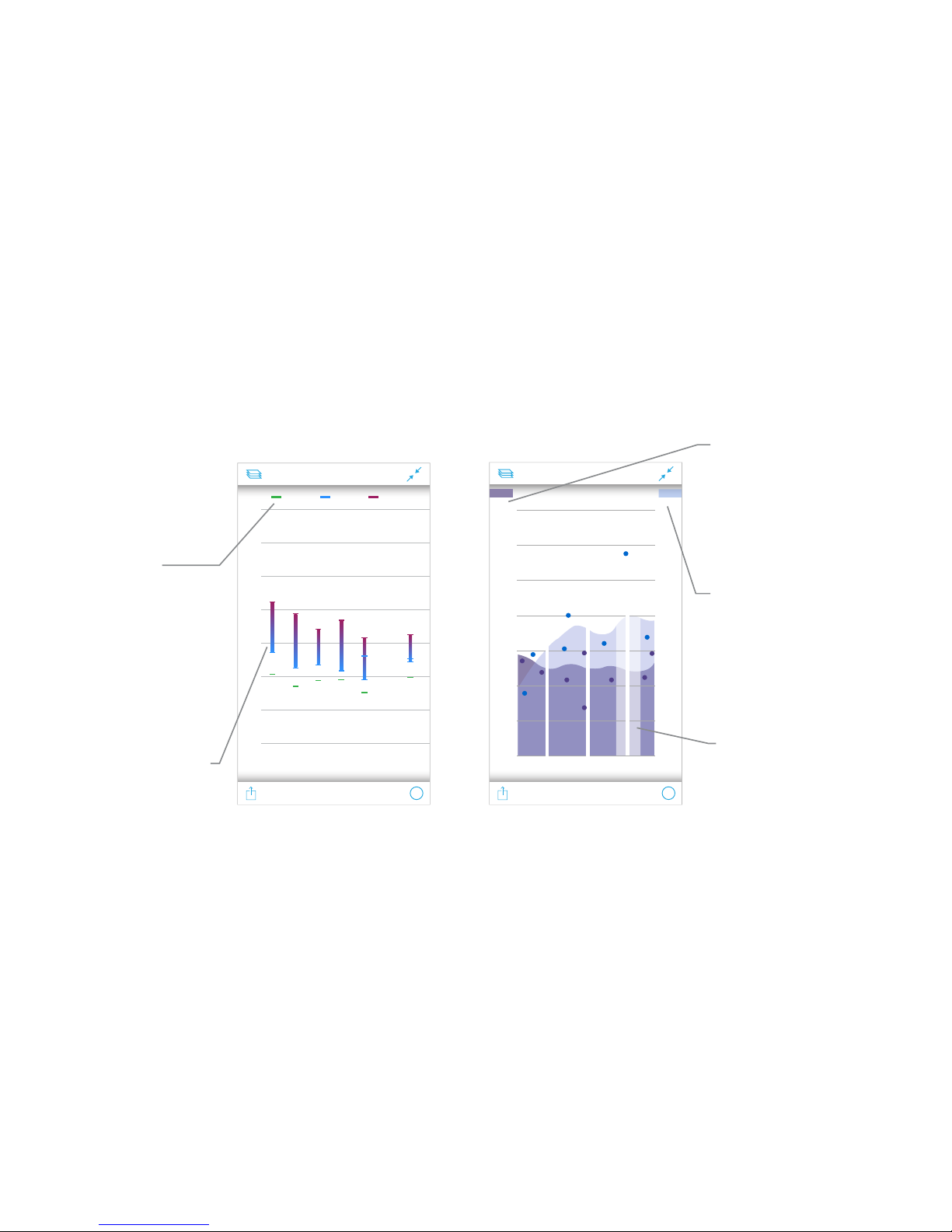
Daily Ranges Multiparameter
View the
legend for First
of Day, Pre
and Post
Workout.
Pre and Post
Workouts are
connected to
show any
impact
workouts have.
The left vertical,
Y-axis, is blue
and represents
your first
parameter.
The right vertical,
Y-axis, is purple
and represents
your second
parameter.
Trend color fades
when no data
present.
37
Daily Ranges - Hgb
i
S S M T W T F
12
13
14
15
16
17
18
19
g/dl First of Day Pre Workout Post Workout
Sep 5. - 12, 2016
Daily Ranges - Hgb, Pr
i
bpmg/dl
17
16
15
14
110
90
70
50
40
60
80
100
9/139/6 9/20 9/27
Sept. 6 - 27, 2016
PrHgb
Page 38

38
All measurements are stored locally on your iOS device. We recommend you create a
Cercacor account so that your data is safely backed up and stored in the cloud automatically when your phone is connected to the Internet.
Since your physiology is affected by environmental factors, your measurements will
automatically capture various details based on your location, for example, the weather
and elevation.
Note: The Cercacor privacy policy can be viewed online at http://privacypolicy.cercacor.com or within the Cercacor
app under the “Options” tab.
Collected Data
Page 39

39
The outer surface of the device can be cleaned with a soft cloth dampened with a mild
detergent and warm water solution or isopropyl alcohol.
Do not allow liquids to enter the interior of the device.
Do not soak or immerse the device or sensor in any liquid.
Use the cleaning solution sparingly. Excessive solution can flow into the device
or sensor and cause damage to internal components.
Do not touch, press, or rub, the Ember device or sensor with abrasive cleaning
compounds, such as: devices, brushes, or rough-surface materials.
Do not use pertroleum-based or acetone solutions, or other harsh solvents, to
clean the Ember device. These substances erode the deviceʼs materials and
device failure can result.
Cleaning
•
•
•
•
•
Page 40
40
For more information on Regulatory and Safety Notices open the “Options” tab in the Ember app and then
go to “Regulatory”section.
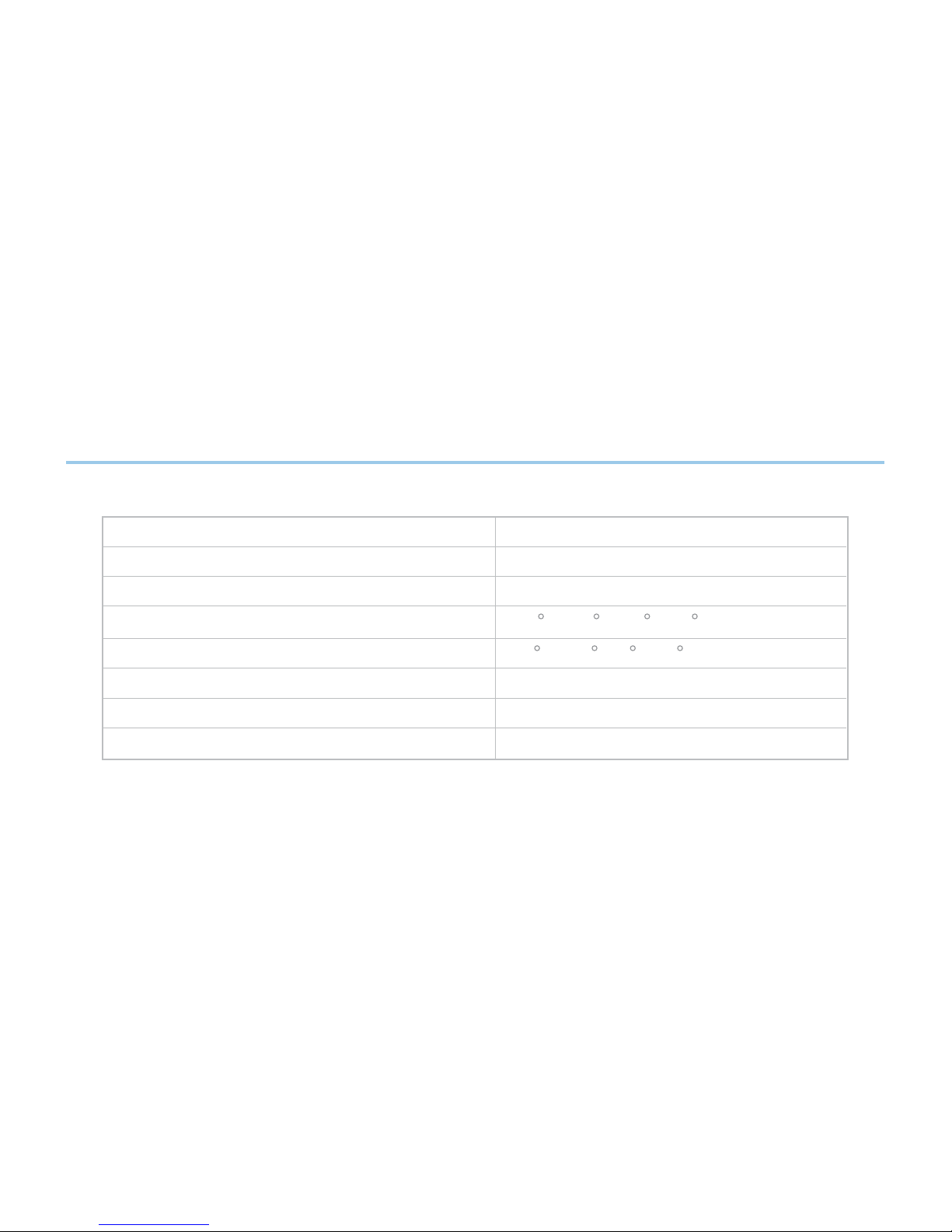
Specifications
Battery Type
Hours of Operation, Charging Time
Standby Power Mode
Storage Temperature Range
Operating Temperature Range
Operating Humidity Range
Dimensions
Approx. Weight
3.7V nominal, 500mAh
120 measurements, 2.5 hours
20 days
-40 to 149 F (-40 to 65 C)
41 to 113 F (5 to 45 C)
20 - 95% (non-condensing)
115mm x 56mm x 12.9mm
75g
Ember Device
Page 41

41
Note: For further information on Hgb accuracy, trend, or precision, please see page 18-19
or visit http://accuracy.cercacor.com.
Parameter Specifications
Note: For further information on pulse rate accuracy, please see page 20.
Display Range
Hemoglobin
Accuracy
Trend
Precision
10 - 24 g/dl (grams/deciliter)
1 g/dl at 1 SD (Standard Deviation)
0.7 g/dl at 1 SD
0.4 g/dl at 1 SD
Measurement Range
Pulse Rate
Accuracy
25 - 240 bpm (beats per minute)
3 bpm at 1 SD
Page 42
42
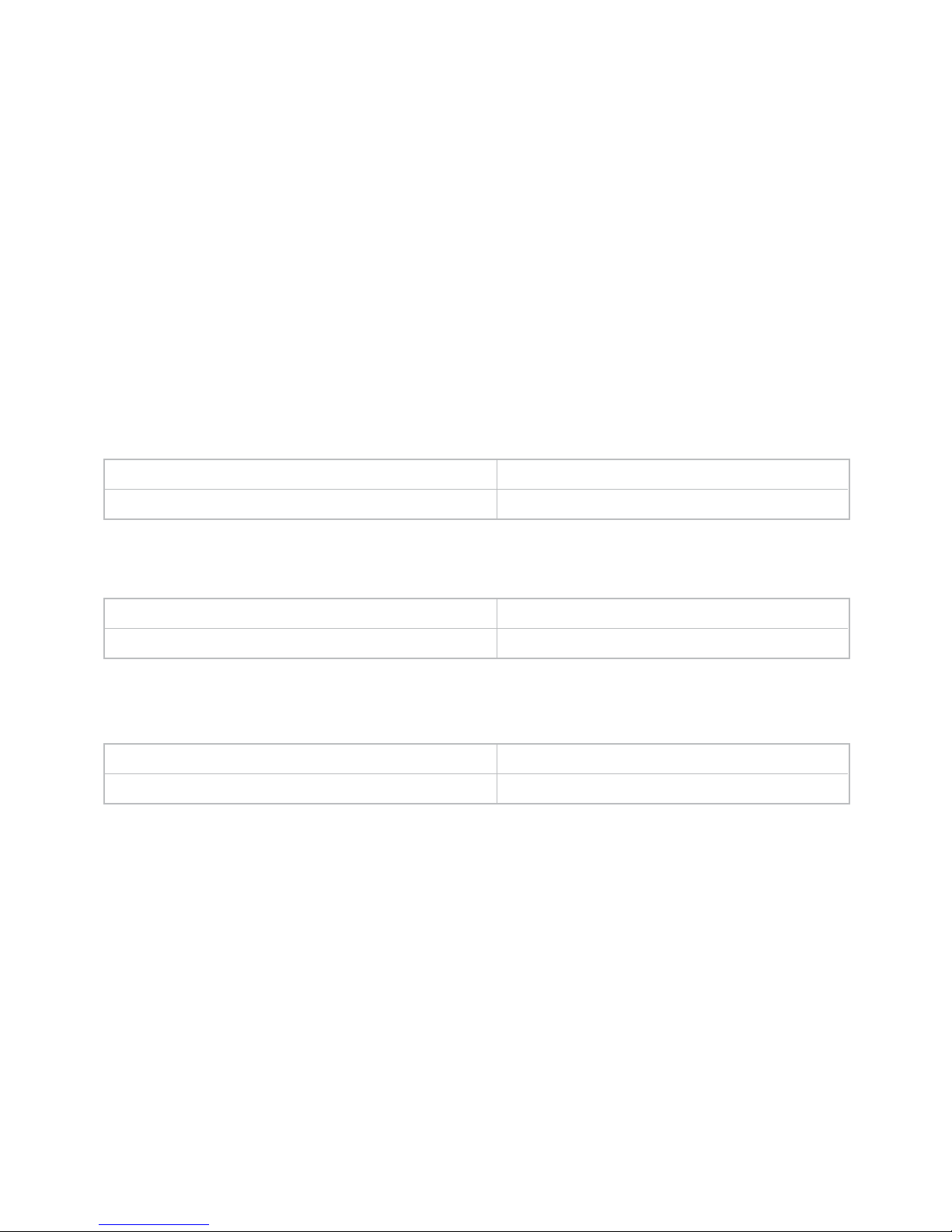
Perfusion Index
Measurement Range
Oxygen Saturation
Accuracy (between 70 - 100%)
0 - 100 %
Measurement Range
Oxygen Content
Accuracy
0 - 35 ml/dl
Measurement Range
Accuracy
0.05- 20 %
+/- 10 % of the displayed value
2 % at 1 SD
Dependent on Hgb and SpO
2
Page 43
43
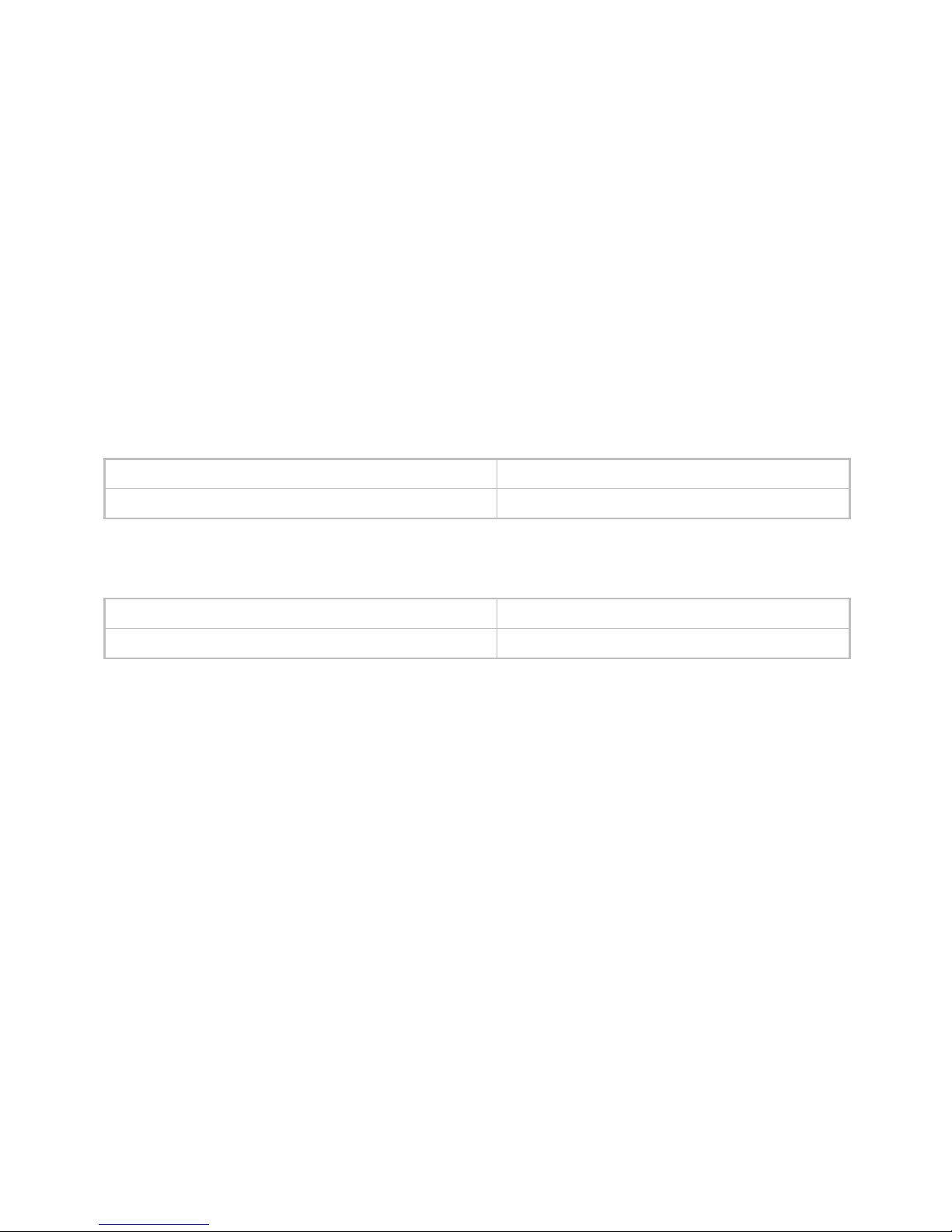
Respiration Rate
Measurement Range
Pleth Variability Index
Accuracy Not applicable
0 - 100 %
Measurement Range
Accuracy
0 - 150 rpm (respirations per minute)
< 1 rpm at 1 SD
Page 44

44
The accuracy of Ember in measuring Hgb has been shown in controlled studies to be 1 gram per
deciliter (g/dl) at one standard deviation. This means that under the specific controlled conditions of
those studies, 68% of the Hgb values measured on the Ember device fell within +/- 1 g/dl when
compared to a calibrated and properly used invasive laboratory reference method used to measure
Hgb. The protocols for the accuracy testing of the device are available from Cercacor. Please note
that such testing isolates, as well as possible, the accuracy of the device from other sources of error.
Usability and repeatability are separate measures from accuracy, but are frequently confused with
accuracy, and the error contribution from these other measures can create an impression about
device accuracy that does not reflect actual device accuracy.
An internal study was conducted to evaluate the effectiveness of non-invasive Hgb to detect changes
in Hgb and the precision of measurements from the device. The trend accuracy in this study, defined
as its ability to detect changes in Hgb values was shown to be +/- 0.7 g/dl at one standard deviation.
The precision, defined as the closeness of two or more measurements to one another, was shown to
be +/- 0.4 g/dl at one standard deviation. This was a controlled study designed to isolate measure
Accuracy notes:
Page 45

45
The accuracy of Ember in measuring pulse rate in the range of 25 – 240 beats per minute is +/- 3
beats per minute at one standard deviation, under no motion condition. This accuracy is for plus or
minus one standard deviation, which encompasses 68% of the measurements. This accuracy was
measured using bench top testing against a Biotek Index 2 simulator. This does not reflect testing on
people or in a user setting.
ment of the trend accuracy of the device, rather than measures of usability and repeatability.
Page 46

 Loading...