

Page 1
Page 2
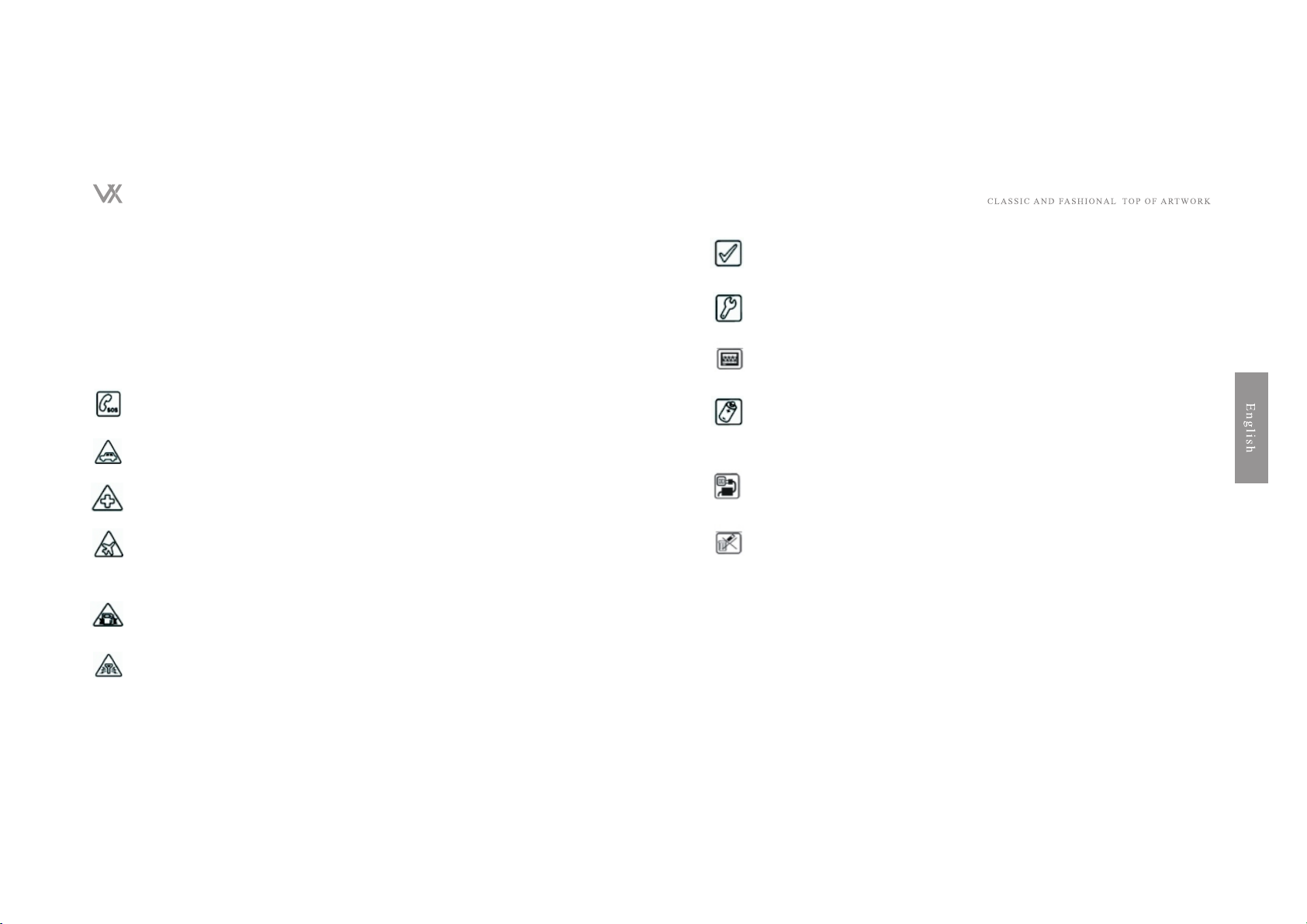
Table of Contents
Some Attentions of Emergency Services and Security Before Using Mobile Phone.
Please carefully read the Attention in order to protect your own safety and for
environmental protection; In case that you had not followed up the using methods,it may
cause some functions of mobile phone lost or be involved illegal.
Important Warning to Parents:
Please read the Instruction hereof carefully and explain the relevant norms to your
children.
SOS
Even in the areas where non-mobile phone services is covered, you still can dial
SOS from your mobile phone.
Road safety
Please do not use mobile phones in the car, find first a safe stall stop your vehicle
and then use mobile phone.
Shut off at Hospital
Using mobile phone at hospitals may lead some medical equipment lost their
normal operation, please shut off your mobile phone at the hospital.
Shut off on Aircraft
Using mobile phone on aircraft may cause a danger to the flight interference
communications that may touch an offence.
Sing Carefully
Please do not turn on amplifier when bell is ringing otherwise if the phone is closed
to your ear it may cause a long-term harm to your ear.
Replacement
Open mobile phone to replace batteries or SIM Card, however it is strictly
prohibited to attempt to open battery itself in any circumstances.
Attention to Interference
When mobile phone is closed to televisions, radios or computers, it may cause an
interference phenomenon.
Safety Caution
Mobile Phone Accessories
Please use parts or accessories recognized by manufacturer, otherwise it may cause
health injury or serious damages to mobile phones, for example, using batteries
produced by the other company may cause an explosive.
Voltage
User's Guidance for voltage is on the Power Supply Device please run it abiding
by its regulation, otherwise it may cause a damage to the equipment.
Waste Disposal
Please deal with discarded batteries in accordance with the regulations on Waste
under each local government.
SHUT OFF AT FILLING STATIONS OR THE PLACE PILED
Exploding Matrials
Switch off your mobile phone at filling stations,any mobile phone should also note
the rule that no any of wireless communication devices might be used at filling station.
Shut off in Surgical Area
It is forbidden to use mobile phone or any other wire less communication devices
in surgical area which may cause a danger or interference to the equipments please
switch off your mobile phone in such area.
2
Rechargeable batteries
Do not connect the battery end with metal, which may causeshort circuit and liquid
leaking and damage battery or cause a fire.
Do not put battery under too low or too high temperature, either replace battery near stove
or automobile 's dashboard.
Do not open, pierce battery or destruct it. Do not put battery into a fire to burn.
3
Page 3
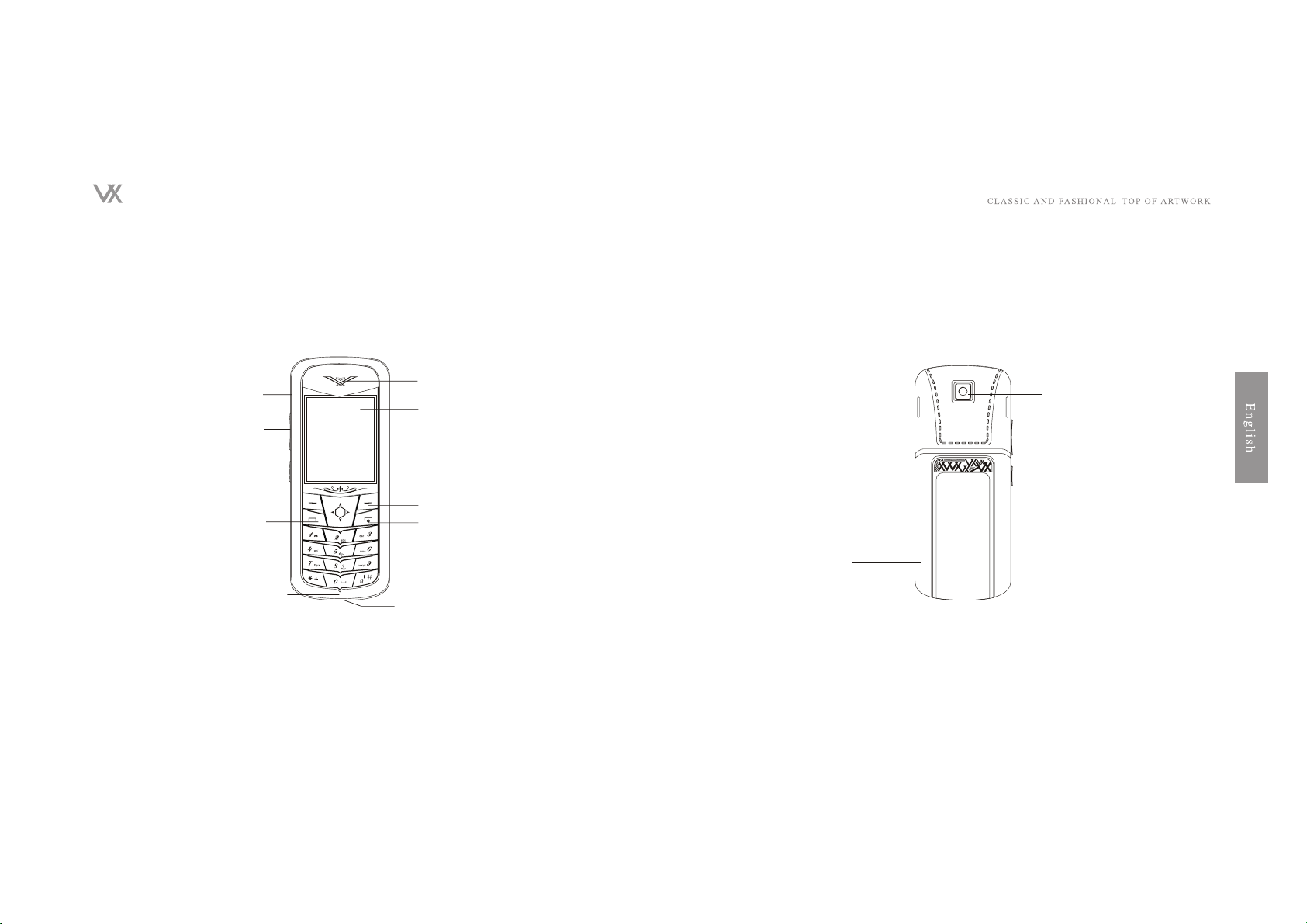
Description of Mobile phone ( Front )
Description of Mobile phone ( Back)
Inside Antenna
Earphone Jack
Screen
Speaker
Camera
Volume Coutrd
Trumpet
Left Select Coutrd
Calling Answering
Select
On Off Hang up
Battery Cover
Microphone
USB Transmission/Recharge Slot
4
5
Page 4
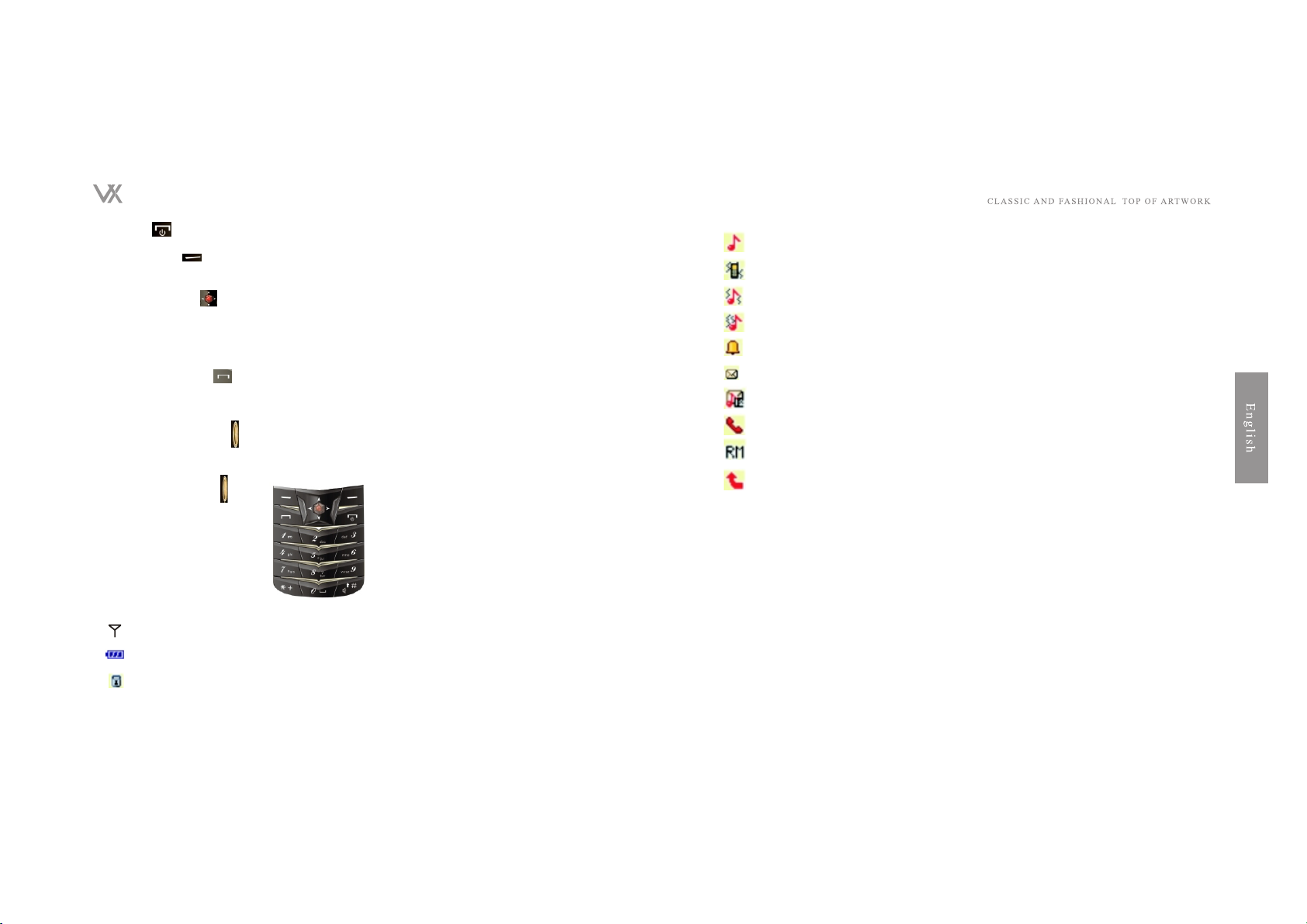
A. On/Off
Using On/Off to end a call or and stop any function to return main tableau.
B. Select Keys
1. Left Selecting Key : Menu
2. Right selecting key : Address Book
C. Direction Keys
1. Up to Music
2. Left to Short Message
3. Blow to Hotkey
4. Right to Game
5. Middle to Confirmation
D. Call / Answer key
To look up recent calls, press Call/Answer to return main
screen.
Telephone enquiries may recently have been allocated.
E. Photograph Hotkey
Entering shooting directly in awaiting model.
F. 0-9 Typing numeral and letter.
G. Aside Volume Key
Using LCD screen to adjust voice volume and display signs.
Displaying strength of incoming signal.
Displaying battery power.
Displaying mobile phone keyboard has been locked.
6
Displaying bell ringing for call.
Displaying vibration for call.
Displaying first vibration and following up bell ringing for call.
Displaying only light shining for call.
Displaying that alarm clock has been set up.
Displaying current state of roaming.
Displaying phones not answered.
Displaying short messages not answered.
Displaying MMS Message not read.
Displaying call transferring has been set up.
Inserting Memory Card
Only compatible multimedia cards T- Flash Cards can be usedUsing non-compatible
memory cards may damage the memory card and phone, and more the stored data in
the card may bedeleted.
Opening T-Flash rubber of Memory Card at the right bottom.Inserting multimedia card
(T - Flash Card )into slot. Please confirm your inserting is correct, the golden contact
is downward.
Closing rubber.
List of Functions of the Main Menu
Information ( Menu 1)
1. Short message
2.MMS
3. Chatting
5. Voice message
6. Broadcast message
7
Page 5

Phone records(Menu 2)
1. Calls not answered
2. Answered calls
3. Dialed calls
4. Deleted records
5. Airtime
6. Call fee
7. Counter for short messages
Address Book(Menu 3)
1. Quick search
2. Increase name
3. Reproduction
4. Delete
5. Calling groups
6. My name
7. Rapid dial
8. Setting
Setting(Menu 4)
1.Sight model
2.Set up ringing
3. Set up awaiting model
4. Set up time and Date
5. Set up Mobile Phone
6. Set up talking
7. Set up network
8. Set up security
9. Firewall
10. Restore factory default setting
AV&SAR(Menu 5)
1. Cameras
2. Pal
3. VCR
4. Animation Player
5. Music
6. Recording
7. Self-editing rings
Multimedia files(Menu 6)
1. D:\
Tool Kit( Menu 7)
1. Alarm clock
2. Calendar
3. Dictionary
4. Memorandum
5. World Time
6. Calculators
7. Unit conversion
8. Currency conversion
Entertainment ( Menu 8)
1. Java
2. Games
3. Health management
4. Java setting
5. Entertainment
Services ( Menu 9)
1. SIM Card tools
2. WAP
3. Account information
Getting Started
At the beginning of the use of mobile phones : Insert SIM card before battery installed,
then put battery into battery box, then start charging, then press switching on the
machine.
On/Off Models
Keeping pressing on may switch on and switch off.
PIN
PIN ( Personal authentication passwords ) helps you prevening your phone or SIM card
embezzled by the others.
You need to input your PIN each time after inserted SIM Cardinto slot.
If you input wrong PIN for three times, the phone shall be
locked in any function, then you need the product provider's assistance, they will unlock
the PIN by PUK and recover the operation.
8
9
Page 6

SIM Card and Battery
Insert SIM Card
SIM should be inserted into battery slot on the phone back. To take off battery box cover,
press on the cover and draw it down, then remove battery, and insert SIM with the
golden link inter face downward.
Insert battery Push battery into battery box and recover the cover.
Charging
Connect Mobile Phone Charger with charging socket at the bottom of the phone, and
insert connecter into power supply socket, the phone will soon show charging icon if
phone is on.
If battery is at the state of complete no energy, the icon on screen may delay to show in
few minutes, and also the phone could be used in a few minutes later.
Electricity shortage Warning
When the remaining battery power is lower, icon of Low power is shown on screen, at the
same time a short alarm is raised, and the phone will be soon off automatically. In low
power when mobile phone is in low power, please immediately charge it.
Check state of battery.
Check charging screen on the upper part of the phone.
Mobile Phone state
Full Power
Some Power
Inadequate Power
Completely Exhausted Power
Basic Call and How to use
Make a Phone Call
Confirm that mobile phone is on, name of the ice provider on the screen, and signal
showing the location is within the service region.
Input phone number (including area code). Press on
Delete" to Clean Away the contents if wrong occurred.
10
Press on to dial the numbers
Press on to end the call
Answer a Phone
Outgoing and incoming of phone is available only when phone is on and signal shows
within service area.
Press on to answer a call.
l refusing an incoming call
Press on to refuse a call when the bell is ringing.
Ending a Call
Press on to end a call.
Awaking for Call not answered
All the call that have not been answered is displayed on the screen
To show all calls not answered,
Select Read and Confirm reading incoming calls.
Call Options
In the process of a call you may press Select to select each
option as follows:
Reservation: Temporarily keep the call.
Ending: Ending the call.
Getting starting a new call: Starting a new call after a callended
Address Book: Hotkey to Address Book
Short Message : Hotkey to Short Message.
Recording: Hotkey to Recording.
Muting Sound/Resumption :Set muting sound during the process of a call.
DTMF : Set Turn On and Turn Off of DTMF
Adjust Voice Volume during a Call
To adjust voice volume during the process of a call, press the right key to do so.
Making a Record in the Process of Call
You may make a voice record during a call, to do so you can follow up the steps bel
To make a voice record during a call, keep pressing on the right key . the recording
icon will be displayed on the status.
To end a recording, press function key and select pause or stop.
11
Page 7

Pause a Call
To pause a call, press on and select Pause. This function allows you to make another
call when receiving an inserting call or you need the call is not hanged up.
Making Another New Call During a Call
You may make a new call without hanging up the running call.
To do so, press on key and select Pause to hold back the running call, then press
Select to choice New Call and input phone numbers and dial.
To reserve the second call and return the first call, press Se
lect to select Switch, and vice versa.
Also you may select a number from Address Book, to do so,
select New Call and press Back to Menu to find number in
Address Book.
Multi-call
You can choose to have a two-party call or a multi-call.
First dial number of the first talker.
Then select the participator, to do so you run the way above mentioned Making another
New Call during a Call.
To invite all the running talker participating in the multi-phone talk, press on to
select Meeting Model.
Repeat Steps 2 and Step 3 to add new parties into the multi call talk.
Press Select key and select End Call or directly press thekey.
Any party in the multi-call talk may End a One Party Call by pressing Select and select
End Call.
Insert a Call
Pressing Select will temporarily hold the first party call.
To switch two-party call, press Select and select Switch.
To end a call, press on the key . If need to end two-party call at the same time, press
Select and move to End All and then press Confirm.
Lock / Unlock keyboard
In Awaiting Model:
Press the key for a long time to lock keyboard.
Press + for a long time to unlock keyboard.
Camera
The mobile phone has a cameras inside that may take pictures for your desktop or
screen protection.
12
To use camera rapiddly,you may press the key at the right side. After having prepared,
press the same key to start a shooting. The further instruction is in the section of
Camera.
Enjoy Music
You may simply press Up key of which is a hotkey to start
music and it is unnecessary to select in the menu . to see the further instruction, please
read Music Playing.
MMS
The mobile phone can transmit message that composted by letters and pictures, also
can receive photo, letter and voice.
You can store such information and ringing and keep an indi vidual feature. To know of
more information about it , see contents in the section Me sage/MMS .
GPRS
GPRS technology for mobile phones allows each mobile one transmitting data among
the network such as Internet.
GPRS has applied Data Packets technology which files is ivided into small packets
and delivered discontinuously rather than a continuous transmission. Under such
method, the system
busy is only occurred during delivering and receipt of data packets, so it has a more
effective power in communications network, the data transmission speed can reach a
higher rate.
Please contact your service suppliers on the application for PRS and consulting the
price for using, also the price on the other functions of network such as WAP and the
kind.
Personalized Setting for Your Mobile Phone
Time and Date Setting
Displaying of Time and Date
The mobile phone can display time and date, you may set
Time and Date Display in Menu when the phone awaiting. To set up so, open the display
from Awaiting Displaying Setting of Setting, then re-enter Mobile Phone Setting of
Setting toselect Time and Date. Also you can set your local time as 12 hours system
or 24 hours system. See the Manual.
Language Setting
Which language is displayed may be set up in the Menu of
Mobile Phone Setting of Setting.
Greeting Words Settin
Greeting Contents
13
Page 8
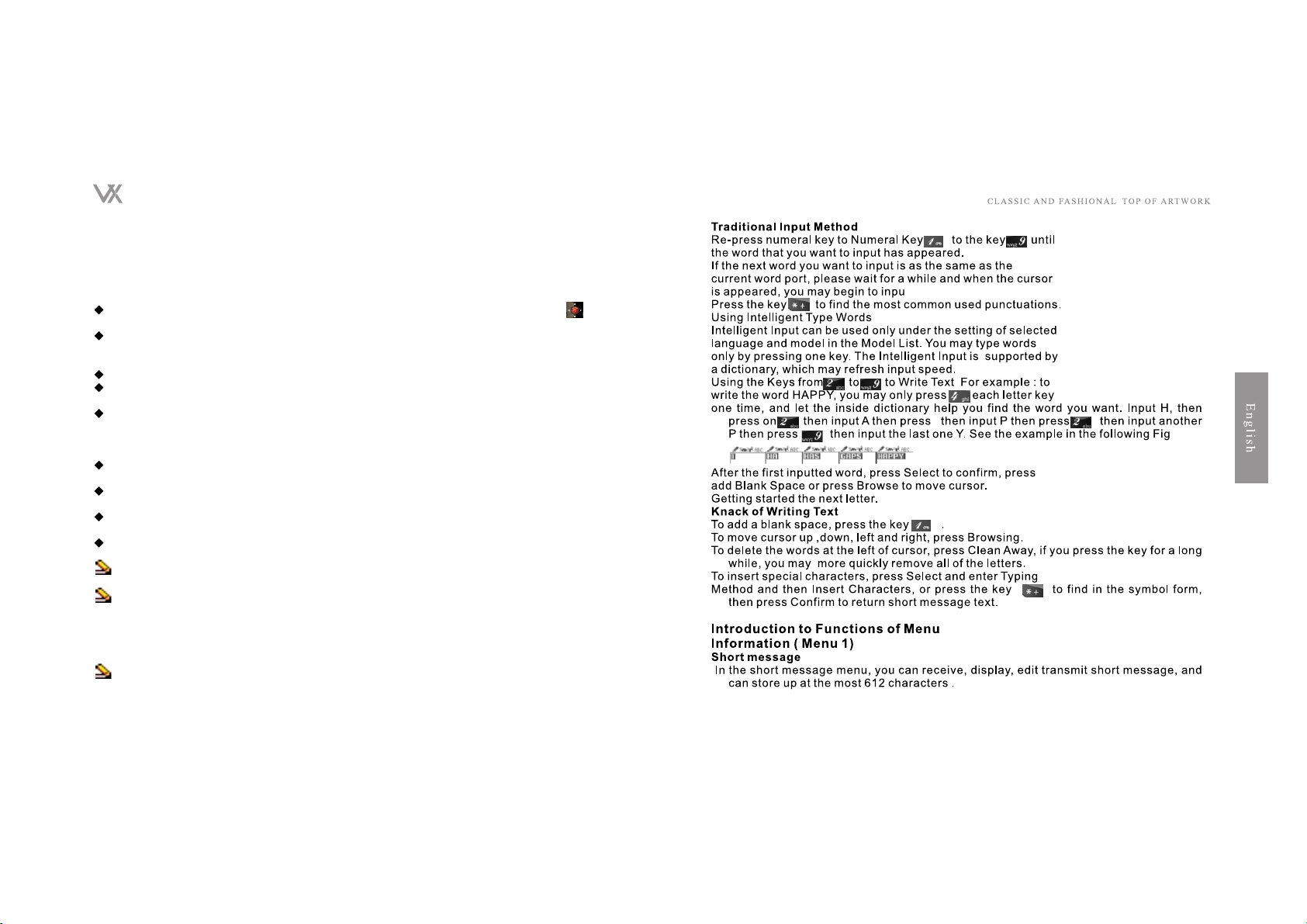
You may edit the greeting content under Greeting Words in
Menu, which will be appeared for a short time each time when
you switch on you phone.
Using Menu Browsing
Browsing by Sliding Scroll
Select Main Menu to the func tional options. Browsing options by pressing the key ,
for example, to select Address Book and press Confirm.
If Functional Table has sub-option menu, you may keep on selecting your desired
content, for example , to select Add
Number to Address Book.
Selecting Setting Contents
Press Back pumping up Menu Back options.
Using Menu by Numeral
After having entered Main Menu, you may input numerals which are agents of the
functions above the screen and sub
functions.
Writing Text Input Method
You may write text in Address Book or Short Message by traditional input methods or
intelligent typing.
When using Intelligent Typing, you may find most common used words from the
inside established dictionary.
When you have input one word, you may select words from the list, which is well to
save your time.
Display of input includes Options In the following form:lette Input Model:
Capital Letter Input Method
ABC
Lowercase Letter Input Method
Abc
Smart English Capital Letter Input Method
eZiABC
eZiabc
Smart English Lowercase Input Method
Numeral Input
123
14
15
Page 9

Message Setting
Setting mobile phone in message transmittal model avail able
Before you start to write text, you must confirm the number in Short Message Center
Number has set up. The setting is in Message Setting in Menu. You service provider
would provide you the Center Number.
Short Message Center Number also may be set up in SIM Card. Short Letter center
numbers may have been set in advance SIM Card Setting Information Center
Number To do so, select Found New Message and Message Setting in sub-menu of
Short Message, then enter Message Setting Group to select a short message file and
input Short Message Cen
ter Number as inputting international phone numbers note,
Short Message File has been started using.
Short Message Service
New Message
How to write a text, please see Writing Letters on page 24.
You may insert the pre-set contents into your editing text, to do so, press Select to
select Samples in the sub-menu of New Message. You may select the content that
you want.
You may add pictures, animation, music or sound into Short Message, and edit it by
EMS.
Press Select in Short Message to select Insert Object.
Inserted objects include the followings:
Pictures
My Pictures
Animation
Pre-set Animations
My Animations
Rings
My Rings
Pre-set Music
Press Confirm after having selected.
You may selectAlignment or Paragraphs in Model of Select
Table in Short Message.
To send Short Message, press Select to select send ways includ-ing Send, Send and
Save, Save, Group Sending, Sendto Many and the kind, then press Confirm, then
input the phone numbers or chose from Address Book, then press Confirm to send
the message.
When you select Send and Save, the message will stored in Outgoing Box.
Selecting List includes Send, Store, Revise and so on.
Inbox
Read Unread Message:
Select Inbox in Short Message Menu and press Confirm
Move information to Reading and press Confirm to read thow content. The message will
be stored in Inbox after your reading.
Message Front icon and respectively show read messag and unread message.
Icon and in the content of short message respectively show that the message is
unable to identified or has been damaged.
When reading, press Select and select Options in form, and press Confirm to confirm.
Selecting List includes Answer, Delete, Transmit, Edit, Extract Number, Save and the
kind.
Outbox
Select Outbox in Short Message Menu and press Confirm.
Move to reading and press Confirm to have it reaIcon and respectively show read
Short Message and unread Short Message.
Option includes Send, Edit, Delete, and Extract Number and so on.
Sample Message
You may edit and revise the samples.
Message Setting
You have to have completed the setting of Short Messag Center Number before you can
use the mobile phone.
Setting Models.
Short Message Folder If your SIM Card could support a few Short Message Files please
select one of them. Short Message Center Numbers should be stored in your SIM Card.
Service Number. Here you may input the Short Message Center Number.
Term of Validity: In this part you may set the storage time for Short Message, and before
the term the Short Message keep on sending until expired time.
Status Setting
In the following Message Setting you may set for all outgoing message.
Against all outsourcing is done by setting the short messages.
Information Report
You can open or close this function in order to decide whether the Short Message Center
will send status of sending to you or not.
.
16
17
Page 10

Reply Route
You may choose the same Message Service Center to reply the short message you
received.
Save Status
you may check how much space the phone and SIM Card has taken
Automatic alarm message will be shown when your memory of mobile phone or SIM
Card is close to the full.
Save Setting
You can choose how to save the message according to the memory space state.
Select the save target and then press Confirm.
If one of the space of phone and SIM Card is full, the save will
automatically entered into
Messaging Delivering Setting
You can set your preferences of transmission way.
transmission way includes:
GPRS Priority
GSM Priority
Use only GPRS
Use only GSM
Delete
Delete message in incoming box.
Delete message in outgoing box
Delete all message
MMS
Attention : MMS is available only under your system servicehas provided such service
and your mobile phone has the com patible function for MMS.
MMS can include text, voice and pictures, and the maximum of transmission is 50kb.
If surpass such size, the receiver might not receive your message, you mayreceive a
text short message that tell you visiting some certain website and receive your short
message there.
The following format is available for MMS
Picture: GIF, BMP, JPEG
Sound: MIDI (SP-MIDI), AMR , iMelody Audio, monophonic Ring,etc.
Mobile phone itself is able to support formats, if receiving the other format message,
Alarm Format not Supported will be displayed from files
New Message
18
You can find a detailed instruction for how to Write Text in Page 24.
To add data to Recipient, press Edit and select Add Numbers or Add E-mail, then input
numbers or e-mail and save. In MMS Editorial Content, you may selectAdd Text,
Add Pictures,Add Voice Attachment, etc.
In Editorial screen, to add files to message, press Edit then Select. If option is appeared ,
you may open folder to select files saving, and press Confirm. The attached file will
be displayed in the screen.
Mobile phone can send or receive a few-pages content of MMS,each of which may
includes text, one picture and one voicefile.
To send message, press Select and select Finish, and then select your selected way
including Send, Save and Send, Saveto Draft, Remove, then Confirm, the message
is sent. When you choose Save and Send Or Save to Draft, the mes sage will be
saved in Outgoing Box or Draft.
Incoming Box
Read message not read:
Select Incoming Box of MMS Menu and press Confirm.
Move to message you want read and press Confirm to read it
After you have read, the message will be saved in IncomingBox.
Message Front icon and respectively shows unread message and read
message.The icon and in Message respectively shows messageis at
unidentified model or the message has been damaged and is not able to be
displayed.
While reading message, press Select and select from Form and then press Confirm to
confirm.
The Select includes Answer, Edit, Delete, Clean Away,
Transform, Using Numeral, Save, etc.
Outgoing Box
To read sent MMS, select Outgoing Box from MMS Menu and press Confirm.
Move to message you want to read and press Select to read it.
The Select includes Answer, Edit, Delete, Clean Away Transform, Details, Using
Numeral, etc.Draft Keep on going
message:
Select Confirm from Draft
Move to message you want to read and press Select to read it.
The Select includes Read, Details, Send, Edit, Clean Away, Using Numeral, etc.
Message Sample
19
Page 11

In template, you may use pre-message for you editing content.
To use sample, press Select in Message Sample Template. SettingThe following setting
is for the setting of all outgoing message including In Sending, Receiving, Filter,
Edition Memory etc.
In sending
In term of usage: In this part you may set the term of saving message in Short Message
Center, before the setting all message will try to send until expiration.
Terms for message saving is divided into thefollowings:
Maximum Value / 1 Hours / 12
Hours / 1 Day / 1 Week
Return of Sending
You can choose to open or close this function in order to if you
want get sending report from provider or not.
Read Return Report
You can choose to open or close this function in order to if you
want get sending report from provider or not.
Priority
You can set the importance level of your message including Normal, High, Low , etc.
Interval
You can choose display time according to your personal preferences.
Delivering Time
Delivering Time is divided into the following models:
Instant / Within 1 hour / Within 12 hours
/Within 24 Hours
Receiving Setting
Main network
Downloading information from the local network can be divided
into the followings:
Immediately receiving
Delayed receiving
Restricted receiving
Network Roam:
Under Roam status, the receiving can be divided into the followings:
Same as the main network
Delaying receiving
Answering reading report can be run in the following ways:
20
Providing Reading Report while sending( Delivering Providing
Reading Report after sending ( Delivering).
Not to provide Reading Report (Not delivering )
Allow to deliver RepoYou can choose to open or close the function in order to decide
whether service provider
sending report or not.
Filter :
Largest Reception Capacity :
Limit MMS size
Anonymous sender
Options in Filter include the followings:
Permit
Return
Advertising Informatio Options in this part include the followings:
Permit
Return
Editing Setting:
You can deliver MMS message through certain network or se
vice provider. After getting started, press Confirm.
Memory Status
You can check how much space has been covered in phone
memory and SIM memory.
When the memory is close to the full, alarm message will be automatically shown on
your phone.
Chatting
Press Menu to select Chatting in Message
Chat Room Setting:
Phone number of other side
Getting started chatting :
Edit chatting messages and send
[voice message]
Before using voice message, you must apply for this service to the system service, the
center number of voice messageand other message, please contact with system
provider.press menu and select voice message in message in the second ary menu
of voice message, you can use these option including
edit: Edit the normal numberdelete: Delete the number of voice message connecting to
21
Page 12

Ivoice message: call the voice message number to get the leave words.
select[option], then press[yes]to store this number in waiting mode, pressing the key for
some time can directly connect to the main engine of the voice message.
[broadcast message]
This is one of the mobile services that send message to the users in the same area. You
can start or close this function according to your own interesting to receive the
special message or not.
broadcast message
In [receiving mode]you can select whether to receive lasted broadcast messages.
Read messaging broadcast message
Using browser key , browse all the messages press[yes]key
or[return]to enter the message reading or return.
Language
You can select to open or close whether to accept [all languages]broadcast messages.
Channel setting
You can select the channel you want in the channels list.
You can add the message channels you like from the chan nels list
Meanwhile, this function can provide you with [select] [add] [edit] and [delete] setting
Call record (menu 2)
[missed call]
In secondary menu, you can inquiry the recent call number to you.
If it is missed call, you can press yesto display the information.According to the
counterpart information you can
delete
save
sending a message
dial
edit
[answered call]
In the secondary menu, you can inquiry the recent call number
you answered. press¸yes to display the call information.
In the answered call list, you can
Delete
save
sending a message
Dial
22
Edit
[called number]
In the secondary menu, you can inquiry the recent called or tried to call numbers
Press[yes] to display call information
Entering dialed numbers list you can
delete
save
sending a message
dial
edit
Remark In the waiting picture, press to enter call record list you can view the information
about recent missed calls, an swered calls and dialed calls.
[delete speaking record]
in the secondary menu, press yes to display these options in
the mobile
missed call
received call
ialed call
[call duration]
This function can record the total time of all your income and outcome calls, total hours,
minutes and seconds.
Last call duration Display the last call time.
Dialed calls duration: Display duration time for all out coming calls.
Received call duration: Display the duration time for all incom ing calls. Clears timers:
clear all the time records
[call cost]
This system can help you to calculate last and all
call cost, the cost will be recorded in SIM card.
You can set last call cost to make mobile display the cost of last call; you must use
PIN2 password to enter the system and set the rate and cost unit, please contract
with the system producer about enforcing his function.
All calls cost: you can set to make the mobile display all the calls cost. You must first set
the cost and unit in the option.
You must use the PIN2 password to enter the system and set the rate and the charging
unit. Please contract with your system service producer about this function.
clear counter You can use this option to clear the counter,and you must use PIN2
password to enter the system and reset the data.
23
Page 13

Cost limit: you can set the call cost limit b yourself, You must first set the cost and cost
unit in the selection and then in the limit you can use the mobile freely, the left call
time will be displayed in the waiting picture, you must use PIN2 password
to enter the system and make limit for the call.
Price and rate: This is set according to the system service provider call charge in each
time unit. To make this setting,you also need to input PIN2 password.
[message counter]
This function can display how many messages you have sent
and received.
[GPRS data counter]
Using this function, you can view the size of lat sent or received data, or the whole size
in some time. You can clear thecounter to 0 for the next use. The unit for he counter is
bytes
Address list (menu3)
[quick search]
You can input the stored name to search the numbers in the contracts, the first record
according with the requirement will display.
In this function, you can view the name and numbers of each record.
press[option] edit the function of create message view [edit] [delete] copy [move de
add to fire wall etc.
[add name]
you can store the telephone numbers in two places
store the number in the SIM card
store the numbers into the mobile
store the number in SIM
from waiting picture press[master selector]to enter [address list] in the secondary menu
of[add new mane ]you can select the store mode, the press[yes]
You can store hundreds of numbers in SIM cards.
You can select [store to SIM card] then press [yes] the amount your SIM can store is
decided
by your system provider meanwhile, please refer to the content in Page 24[writing] input
the name and numbers press[yes] or you can store this number in your mobile select
[to mobile] press[yes] You can select to store 500 names and numbers in your mobile.
input name and number press[yes]
Address list stored in the mobile will provide you with personal
record ways.you can set each call record by your self
Name
Number
family Number
Company Name
E-mail
Company Number
Fax
photo
ringing selection
group
[copy]
You can copy all the record in the memory of the mobile to the SIM card, or copy the
records in the SIM card to mobile.
You can copy the records in the mobile to the SIM card one by one or copy the records in
SIM card to mobile one by one.
[delete]
you can use this function to delete all the call records.
In contracts menu, select [delete]then press[yes]
select[delete from mobile] or [delete from SIM card] then press
[yes]
In [delete from SIM card]or [delete from mobile], press [yes] key
In the secondary menu of [delete]you can delete the contracts one by one.
[coming call group]
You can set the special ring and picture displayed in the screen when a call comes
according to the special names and numbers. To do this setting, first store the special
names and numbers in to call group then set ring, picture and flash for this group; if you
want to start this function, please store the names and numbers in to the memory of the
mobile.
Entering[coming call group], use browser key to change [group name][picture] [coming
call ring]and [group members] etc.
You can use group name to set friends, family members, VIP, colleagues and others etc.
After setting press[yes] key to finish setting.
[my business card]
Users number and personal data
Delivery business card
You can delivery the business card to message, multimedia message and archive to
archive management.
24
25
Page 14

[quick dial]
This function is for quick dialing.
You can set the number key from 0 to 9 as the quick dial key. You must first set the
quick key pointing to which number.
use the secondary menu of [quick dial] to select open or close this function.
select [setting numbers] then select number from contracts ,press[edit]then press[yes]
After pointing the quick dial key, you can quick dial the number or you can also re-set or
delete the quick key setting.
after finishing setting quick dial function, you can dial the number in the following ways:
If [quick setting] is started in the function setting, you can directly press the quick dial
key until the number automati cally dialed.
[Setting]
Owner number
You can set the own number and name or mobile searched owner number in this
function. Service number cannot be supported now.
[store status]
You can view the left space in the mobile anytime, and you can also inquiry how many
names and numbers can be stored into mobile and SIM card.
[store setting]
You can select to store the name and numbers into mobile or SIM card.
select[SIM card]or[mobile] to storethen press[yes]
[business card setting]
This mobile can make you set the contracts content, in the secondary menu of [setting],
entering content setting to select your favorite display mode.
application of content setting includes
family Number
company name
E-mail
company number
Fax number
photo
ringing selection
coming call group
After setting, press start or close key.
setting menu4
[Profiles]
Normal mode/ meeting mode/ outdoor mode / indoor mode/ Earphone mode / silent mode
can be selected.
In the master selector of operation mode you can adjust and edit different events,
environment and coming call group voices, You can select following any status.
personal setting
in the secondary menu of status, select following any status and then press option key
ringing voice setting incoming call Decide to use which way to inform you when there is
a coming call.
alarm cloak Decide the mobile to take which voice to alert.
switch on Decide the mobile ring when the mobile switch on switch off Decide the ring
when the mobile switch of.
message Decide the mobile ring when there is a new me sage
keypad tones Setting any option and starting voice.
voice volume key is used to adjust to the ringing and keyboard tone.
ringing mode To set when there is a new call or a new message how to alert the user.
these options include
ringing
vibrating
vibrating & ringing
vibrating then ringing
Silent
only lights
Alert mod e is to set mobile ring types when a call or new message comingthese options
includes
once
continuous
crescendo
Alert voice can also set warning voice wrong
voice connecting voice and call connecting voice special
voices For example, after setting additional voice the battery is almost endless, the mobile
will give out warning voice.
answering setting can set to press any key to answer the call.
LCD background light
screen background light Setting the twinkling frequency of the background light.
There are 4 selections
5seconds
26
27
Page 15

15seconds
30seconds
45seconds
[incoming call light]
is the light color when there is an incoming call.
incoming call light setting the colors there are six colors to select
Color one
Color Two
Color Three
Color Four
Color Five
Color Six
you can also set to open or close
[ring setting]
You can set your favorite ring as the coming call, alarm clock switch on, switch off,
message and keypad voice.
[waiting display setting]
background tablecloth
You can select a background picture or a tablecloth when set
ting your mobile waiting mode. In the secondary menu of[system], there are some
default pictures. In addition, you can also download the tablecloth and store them in
the master
selector through WAP and EMS. This mobile can support JPEG GIF BMP and PNG
forms picture.
select a tablecloth picture press¸master selector keyselect setting waiting display
setting hen background tablecloth
screen protection
When in the waiting mode of the mobile and no any function of the mobile is in use, the
screen protection picture will be started. Press any key can cancel the screen
protection picture.
start setting picture to open screen protection function
using [select] key you can select the picture or the flash as the
picture for the screen protection.
Select the time, and the screen protection picture will be started
at that time.
background topic
background colors can be selected : Blue / pink /purple / Orange / gray
28
change background: press [master selecto] key to select [setting] [waiting display
setting] then
background tablecloth
Date and time display
You can open or close this function to display or hide the date and time.
display the mobile number
You can open or close this function to display or hide the num
ber of the user.
display network name
You can open or close this function to display or hide the name
of the service provider.
[time and date]
time setting
setting time date
time mode: hour Minute
date mode: year month day
time mode setting
You can change the time display mode. only press using key
and then press yes key to change the mode.
automatic update time
If the system provider supplies this service, it can make you to
open and close the auto scan the local time.
[phone setting]
language
two languages English simplified Chinese
default input way
you can choose the input way you like
greeting words
If you open this function, the mobile switches on, the words you input will display on the
screen for a short time.
press[master selector]key select [setting][ mobile setting]then[greeting words] Input the
words and press yes key About
further explanation on words input, please refer to writing in
There are 12 quick ways in screen, user can set by himself.
You can edit some special function in the original list as your personal quick way list and
then start this function.
29
 Loading...