

Page 1
USER MANUAL
1.3 MegaPixel
Auto Focus Webcam
2516524
Page 2

Industry Canada - ICES-003
CAUTION
To comply with the limits for a Class B digital device, pursuant to Part
15 of the FCC Rules, this device must only be installed on computer
equipment certified to comply with the Class B limits.
This Class B digital apparatus complies with Canadian ICES-003.
Page 3

1
Contents
Introduction ............................................................2
System Requirements ...........................................2
Package Contents .................................................3
PC Camera Introduction ........................................ 3
Set Up PC Camera ................................................4
Driver Instllation for Snap Shop Function ...........4-5
How to Use Snap Shop .........................................5
Software Installation
ArcSoft VideoImpression 2.0 ..........................6-7
ArcSoft PhotoImpression 5.0 ..........................8-9
ArcSoft Magic-i ...........................................10-11
Snapshot by ArcSoft PhotoImpression 5.0 .........12
Live Video Playing
ArcSoft VideoImpression 2.0 .....................13-14
View PC Camera on MSN Messenger/
AOL/ICQ/Yahoo! Messenger .....................15-16
Specifications .......................................................17
Warranty .........................................................18-19
Page 4

2
Introduction
Welcome to the world of digital imaging. The following
information will help you to use your camera to its full
capabilities.
For viewing pictures or video, the camera must first be
connected to your personal computer.
This camera supports Microsoft Video Class and
plug & play directly without the need of a driver.
System Requirements
• Pentium P4 1.2G CPU
• Free USB 2.0 port
• Minimum 256 MB RAM
• 500 MB free hard disk space
• Internet connection
• CD-ROM drive
• Windows compatible sound card and speakers
• Windows XP Service Pack II/ Vista
N
ote: If your system is Windows XP Service Pack I,
please go to www.microsoft.com . It’s free to update
your system to Windows XP Service Pack II.
Page 5
3
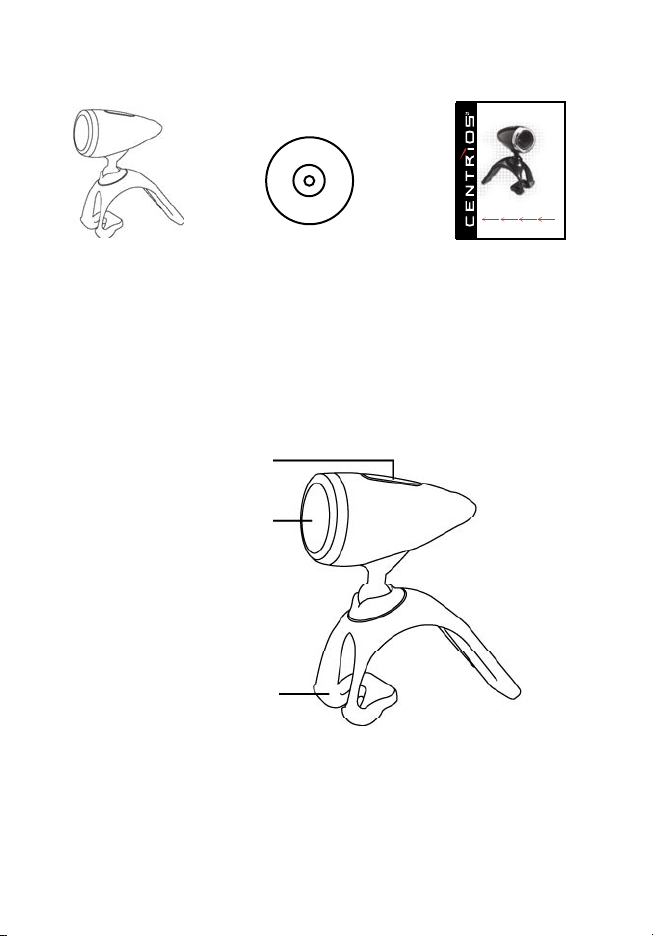
Package Contents
PC Camera Driver
Installation CD
PC Camera Introduction
Snap Shot Button
(install driver before using)
Auto Focus Lens
Stand
User manual
USER MANUAL
1.3 MegaPixel
Auto Focus Webcam
2516524
Page 6
4
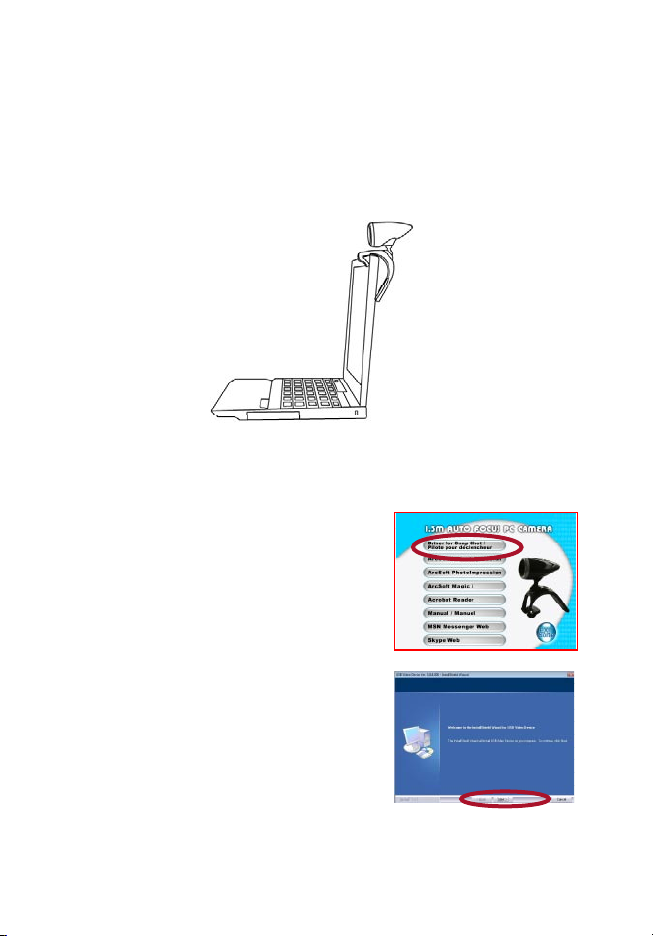
Set Up PC Camera
Mount the PC camera to your laptop, LCD monitor,
or stand it on the desk. Plug the PC camera into the
laptop or PC’s USB port. The camera’s focus adjusts
automatically to a moving subject.
Driver Installation for Snap Shot Function
1. Connect the PC camera to the
computer. Turn on the
computer and insert the CD
installation disc into your
CD-ROM drive. Select and
click “Driver for Snap Shot”.
2. Click “Next” to continue.
Page 7

5
3. Click “Finish” to complete
the installation.
4. Restart computer if requested.
How to Use Snap Shot
Function 1: After driver installation, press the
snapshot button to activate AMCAP-> press snapshot
button to capture still image -> file -> “save as” image.
Function 2: Activate VideoImpression-> click “create
a new slide show”-> click “scan image” -> select
device and click “OK” -> click “snapshot ”.
Refer to the user guide on CD for further details.
Page 8
6
Software Installation
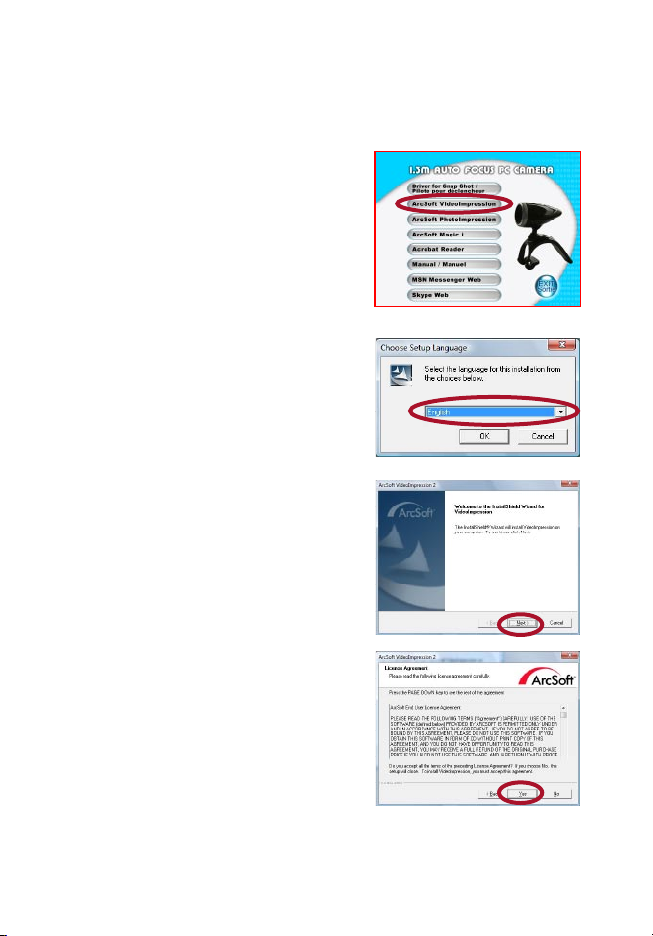
ArcSoft VideoImpression 2.0
1. Turn on the computer and
insert the CD installation Disc
into your CD-ROM drive.
Select and click “ArcSoft
VideoImpression 2.0”.
2. Choose Setup Language.
3. Click “Next”.
4. Click “Yes”.
Page 9
7
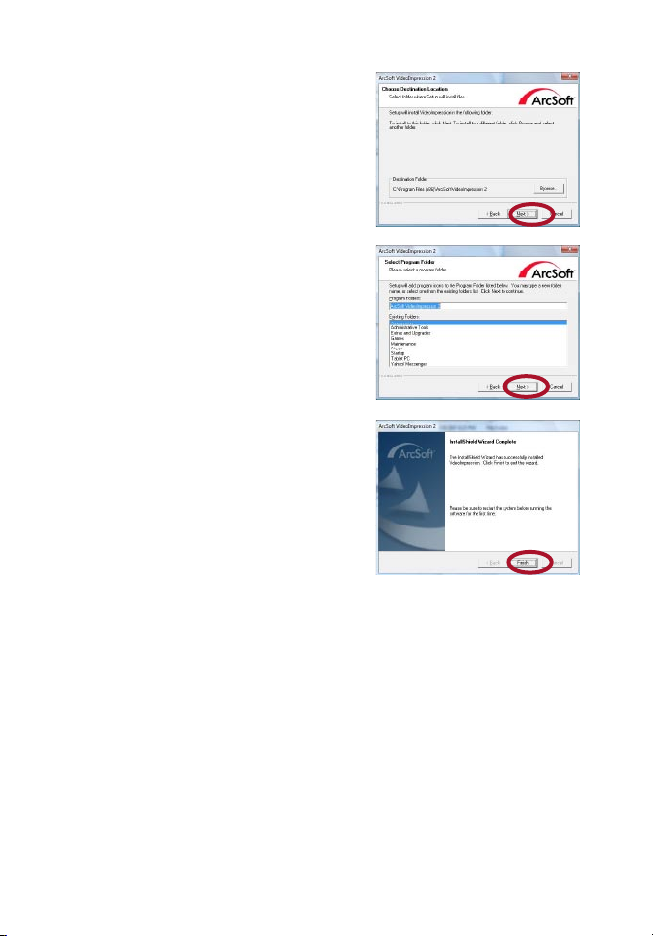
Software Installation
AcrSoft VideoImpression 2.0
5. Click “Next”.
6. Click “Next”.
7. Click “Finish”.
Refer to the user guide on CD for further details. Select
the manual icon in the CD auto-run screen pop up.
Page 10
8
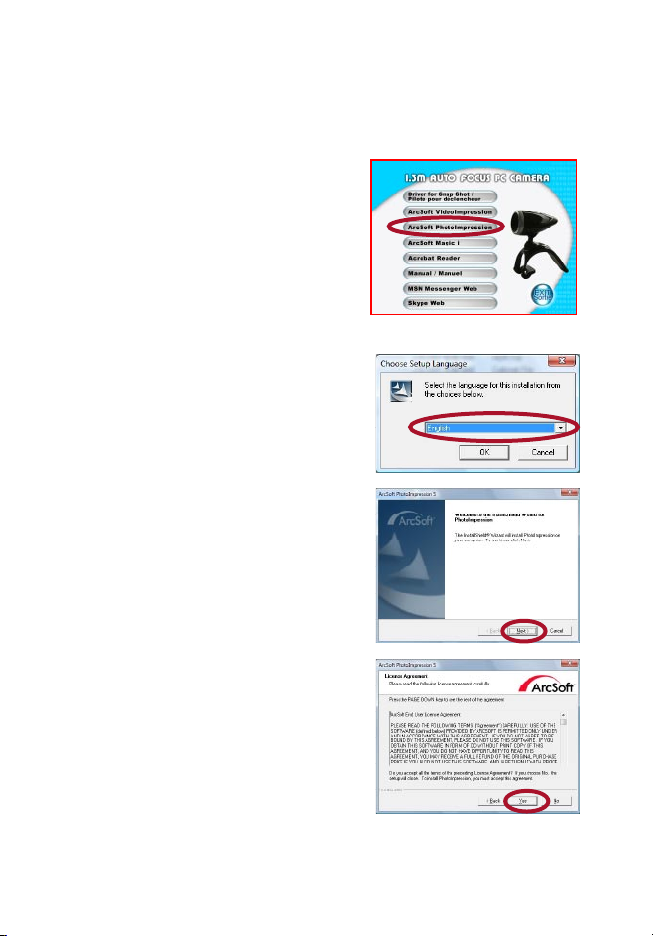
Software Installation
ArcSoft PhotoImpression 5.0
1. Turn on the computer and
insert the CD installation Disc
into your CD-ROM drive.
Select and click “ArcSoft
PhotoImpression 5.0”.
2. Choose Setup Language.
3. Click “Next”.
Page 11
9
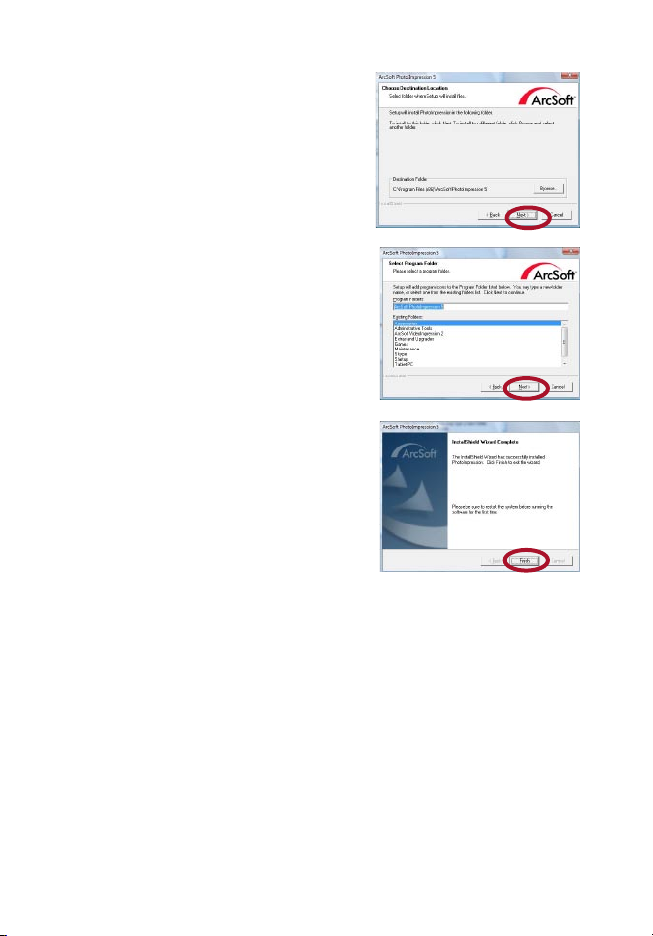
Software Installation
AcrSoft VideoImpression 2.0
5. Click “Next”.
6. Click “Next”.
7. Click “Finish”.
Refer to the user guide on CD for further details. Select
the manual icon in the CD auto-run screen pop up.
Page 12
10
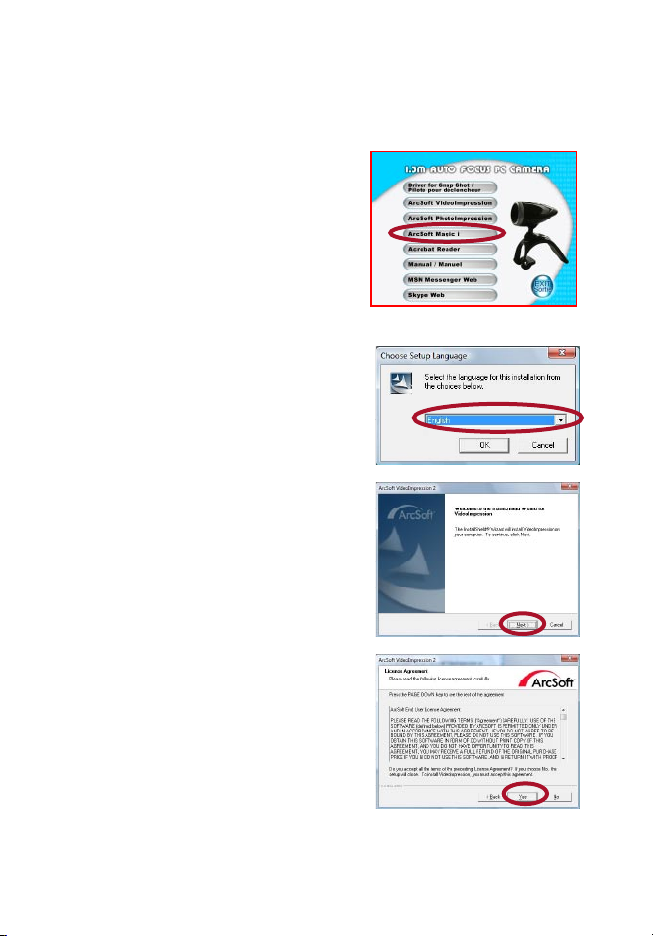
Software Installation
ArcSoft Magic-i
1. Turn on the computer and
insert theCD installation Disc
into your CD-ROM drive.
Select and click
“ArcSoft Magic-i”.
2. Choose Setup Language.
3. Click “Next”.
4. Click “Yes”.
Page 13
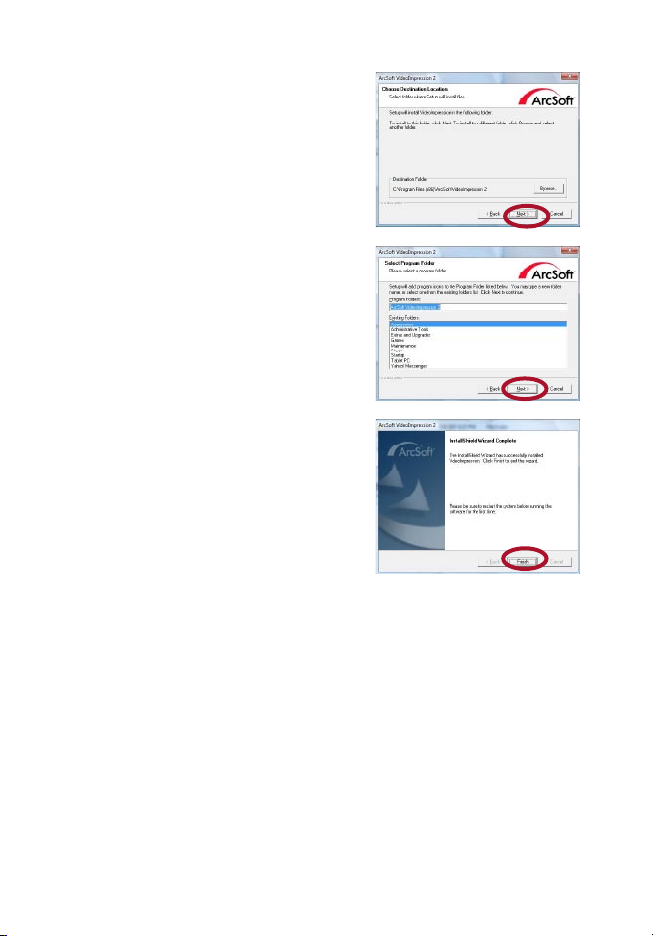
11
Software Installation
AcrSoft VideoImpression 2.0
5. Click “Next”.
6. Click “Next”.
7. Click “Finish”.
Refer to the user guide on CD for further details. Select
the manual icon in the CD auto-run screen pop up.
Page 14
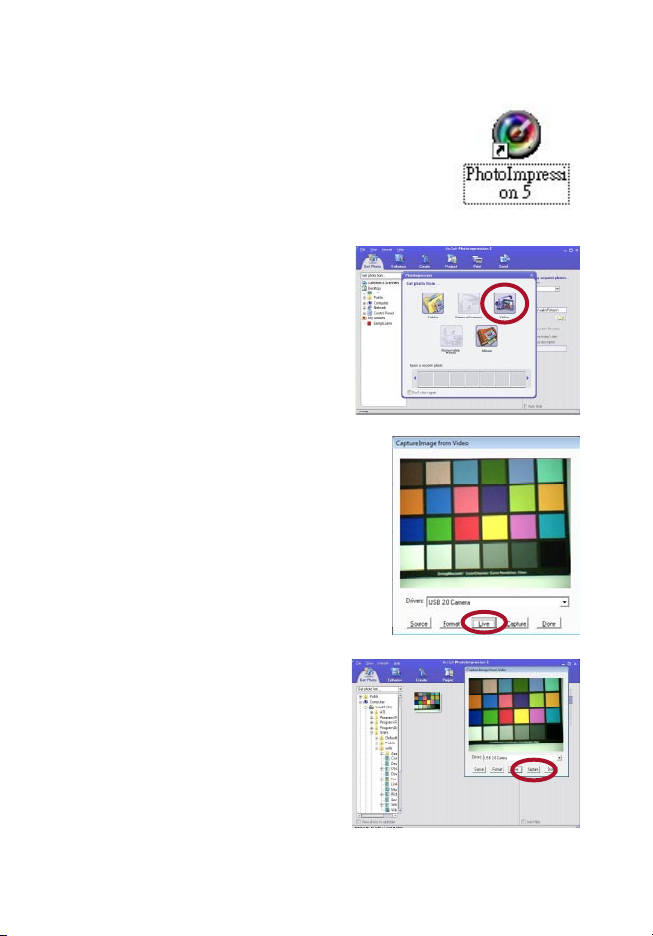
12
Snapshot by
ArcSoft PhotoImpression 5.0
1. Click on the PhotoImpression 5.0”
icon on the desktop.
2. Click “Video” from
“Get Photo”.
3. Click “Live”.
4. Click “Capture” tor
capture your selected
image and save it as a
picture.
Page 15
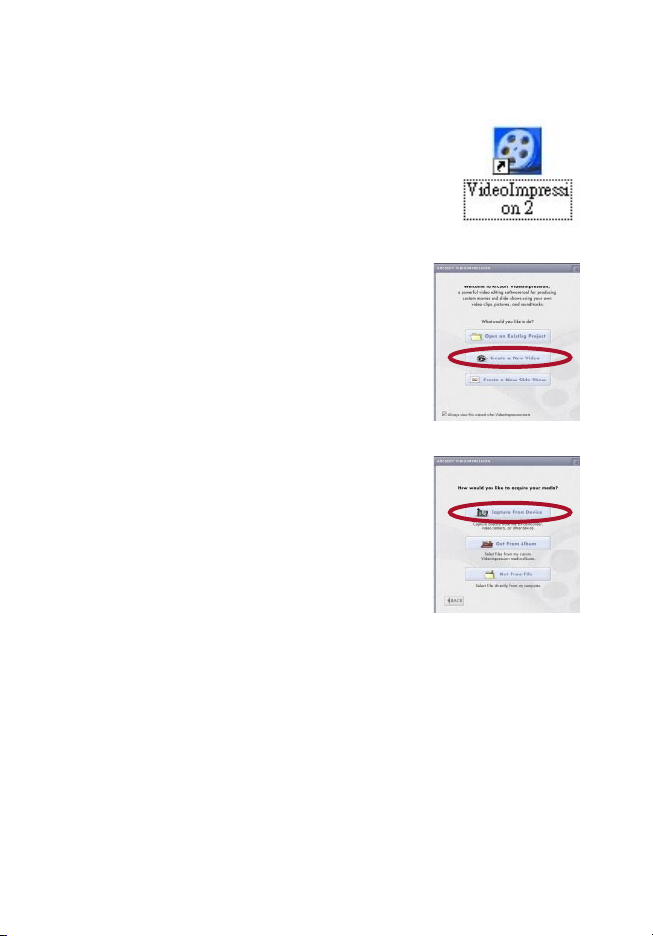
13
Live Video Playing
ArcSoft VideoImpression 2.0
1. Click on the “VideoImpression 2.0”
icon on the desktop.
2. Click “Create a New Video”.
3. Click “Capture From Device”.
Page 16
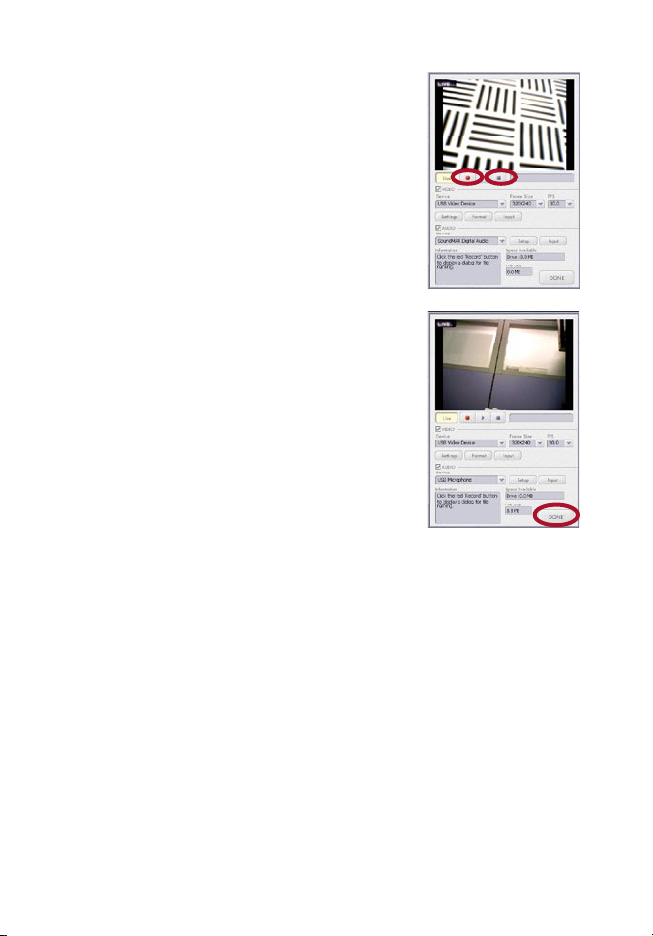
14
Snapshot by
ArcSoft PhotoImpression 5.0
4. Click “Record”, save video
name and then click “Stop”.
5. Click “Done” to finish.
Now you can play the video.
Refer to the user guide on CD for further details. Select
the manual icon in the CD auto-run screen pop up.
Page 17
15
View PC Camera on MSN Messenger /
AOL / ICQ / Yahoo! Messenger
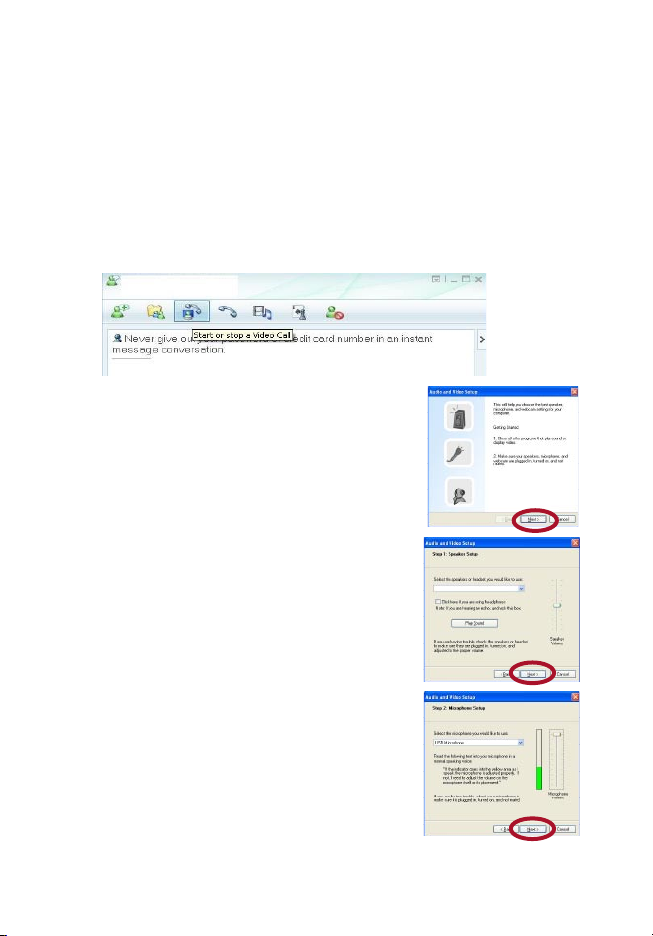
Installation example for MSN Messenger V.8.1 in
Windows XP SP2.
1. Plug the PC Camera into your computer’s USB
port. Initiate the MSN Messenger, and click
“Start a Video Call”.
2. This will help you to choose best
speaker, microphone and webcam
setting to your computer.
Click “Next” to continue.
3. Set up the speaker or headset
you would like to use.
Click “Next” to continue.
4. Set up the microphone you would
like to use, and adjust speaker
volume, Click “Next” to continue.
Page 18
16
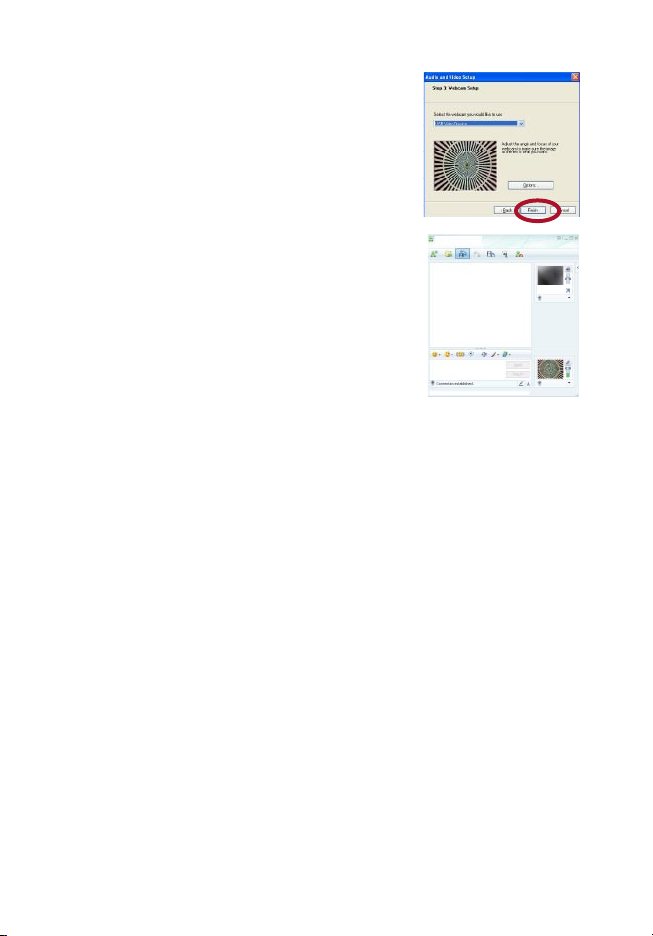
5. Set up the webcam
(USB Video Device).
Click “ Finish” to exit the wizard.
6. Now you can preview the image,
the focus will adjust automatically
to the moving subject.
Page 19

17
Specifications
Image Sensor 1/4” color progressive CMOS,
1280 X 1024 pixels
Lens Specification F2.8, f=4.02mm, Auto Focus Lens
White Balance Auto
Exposure Auto
Frame Rate 1280 x 1024 pixels @ 8~10fps
640 x 480 pixels @ 30fps
Focus Range Auto focus, 7cm to infinity
Depth of Field 50cm to infinity
PC Interface USB 2.0
Video Format AVI
Audio Built-in mic
Video Capture Res. 1.3 mega /640x480/ 320x240 pixels
System Requirements Support Microsoft Video Class
Window XP Service Pack II / Vista,
without driver
Snapshot Software
Still Capture Res. Up to 1.3M pixels
Power From USB port
Bundled Software ArcSoft VideoImpression 2.0,
PhotoImpression 5.0 and Magic-i
Specifications are subject to change without prior notice.
Page 20

18
Who is Providing This Warranty?
• Orbyx Electronics, LLC (“Orbyx”), as the distributor of this Centrios
TM
product (your “Product”).
What Does This Warranty Cover?
• This warranty covers defects in materials or workmanship in your Product under normal use and
conditions.
What is the Period of Coverage?
• This warranty covers your Product for 90 days from the original purchase date.
Who Is Covered?
• This warranty covers the original consumer purchaser. Coverage terminates if you sell or otherwise
transfer your Product.
What Will We Do To Correct Problems?
• We will repair your Product or replace your Product with a new or reconditioned equivalent product,
at our option.
How Do You Get Service?
• Call Orbyx TOLL FREE at 1-866-363-3059 for instructions for obtaining warranty service from Orbyx’s
authorized service providers.
• Or, return your Product directly to the retail store from which you purchased the Product.
• When you obtain service for your Product, you must provide a purchase receipt (or other proof of
the original purchase date) and a description of the defect(s).
What Does This Warranty Not Cover?
• This warranty DOES NOT COVER:
• damage due to misuse, abuse, alteration, unauthorized repair, or accident (such as improper
electrical current);
• damage due to “acts of God” (such as lightning) or other contingencies beyond our control;
• cosmetic damage;
• externally generated static, signal reception or antenna problems not caused by your Product; or
batteries.
• This warranty also DOES NOT COVER, and in no case will we be liable for, any incidental damages
(such as transportation costs to and from an authorized service provider, or loss of time) or
consequential damages (such as costs of repairing or replacing other property which is damaged,
including tapes, discs, speakers not included with your Product or other accessories, or external
electrical systems) resulting from the use of your Product. Some states do not allow the exclusion
or limitation of incidental or consequential damages, so the above limitation or exclusion may not
apply to you.
• Defacing the serial number, or using your Product for commercial or institutional purposes, voids
this warranty.
Are There Other Warranties?
• There are no express warranties other than those expressed herein. Neither the sales personnel
nor any other person is authorized to make any other warranties or to extend the duration of any
warranties.
• ANY I MPLIED WARRANTIES, INCLUDING ANY IMPLIED WARRANTY OF ME RCHANTABILITY (AN
UNWRITTEN WARRANTY THAT A PRODUCT IS FIT FOR ORDINARY USE), ARE LIMITED TO 90
DAYS. Some states do not allow limitations on how long an implied warranty lasts, so the above
limitation may not apply to you.
How Does State Law Apply?
• This warranty gives you specific legal rights, and you may also have other rights which vary from
state to state.
Page 21

19
Limited Warranty/Garantie Limitée
U.S.A & Canada
© 2005 ORBYX Electronics. All Rights Reserved.
Distributed by Circuit City Stores, Inc.
9950 Mayland Drive
Richmond, VA 23233
Manufactured in China
For product support please contact www.orbyxelectronics.com or 1-866-363-3059
Imported in Canada for/Importé au Canada pour
Orbyx Electronics,
Concord, Canada, L4K 4M3
ORBYX ELECTRONICS WARRANTY
ORBYX Electronics warrants that this product will be free from defects in materials and
workmanship for a period of ninety (90) days from the date of purchase. Within this
period, simply take the product and your proof of purchase to any ORBYX Electronics
store or dealer and the product will be repaired without charge for parts and labour.
ORBYX Electronics reserves the right to charge for transportation. Any product which
has been subject to misuse or accidental damage is excluded from this warranty.
This warranty is only applicable to a product purchased through ORBYX Electronics’
company owned stores and dealers and to a product that is presented for repair in a
country where ORBYX Electronics offers the product for sale. While this warranty does
not confer any legal rights other than those set out above, you may have additional
statutory rights which will vary under the laws of the various countries, states,
province and other governmental entities in which ORBYX Electronics operates. This
warranty is subject to all statutory rights you may have in the country of purchase.
 Loading...