

Page 1

1
CTR-180 M2M Router Manual
CELOT WIRELESS
CTR-180 User Manual
V1.3
SEP 2012
Page 2

2
CTR-180 M2M Router Manual
CELOT WIRELESS
Contents
1. Introduction
1.1 Feature
1.2 Package Contents
2. Name of each section and features description
2.1 Name of each section
2.2 LED Display
2.3 Getting Started.
3. Using Configuration Menu
Connecting CTR-180 to PC
3. 1 OverView
3. 2 Internet
3.2.1 Internet > WAN
3.2.2 Internet > LAN
3.2.3 Internet > DHCP Clients
3.2.4 Internet > Advanced Routing.
3.3 Wireless Setting
3.3.1 Wireless > Basic
3.3.2 Wireless > Advanced
3.3.3 Wireless > Security
3.3.4 Wireless > AP Client
3.3.5 Wireless > WPS
3.3.6 Wireless> Station List
3.3.7 Wireless> Statistics
3. 4 Firewall
3.4.1 Firewall > MAC/IP/Port Filtering Settings
3.4.2 Firewall > Port Forwarding Settings
3.4.3 Firewall > DMZ
3.4.4 Firewall > System Security
3.4.5 Firewall > Contents Filtering
3.5. Administration
3.5.1 Administration>Status
3.5.2 Administration>Statics
3.5.3 Administration>Management
3.5.4 Administration>Upload Firmware
3.5.5 Administration>Settings Management
3.5.6 Administration> Reboot Settings
3.5.7 Administration>System log
3.6.1 Service> Direct Serial
3.5.8 Service> Serial Test
Page 3

3
CTR-180 M2M Router Manual
CELOT WIRELESS
1. Introduction
This manual is for users who use CTR-100 as 3G Wi-Fi Router.
For the pursoe of 3G M2M appliction, please contact to Celot Wireless.
1.1 Feature
CTR-180 provides functions as follows;
● CTR-180 enables you to access to the internet by using wireless network
(CDMA REV.A network).
● CTR-180 supports multi-interfaces including USB, Full UART (RS232C /RS485),
Lite-UART, I2C and RJ.
● CTR-180 supports direct serial works as if a serial device is directly connected
to a remote server by server mode or client mode.
● DATA back-up during the operation of direct serial.
● 3G wireless network always connection mode or on demand mode.
● Auto-reset based on pre-defined schedule.
● DDNS manual setting
● USB host
● CTR-180 displays the status of the operation with 4 LEDs.
● IEEE802.11b/g/n support : up to150Mbps built-in wireless AP.
● Browser-based configuration and easy set-up wizard.
● NAT, VPN Pass-Through function.
● Industry-leading firewall security.
● Automatic receipt of IP address with DHCP server.
● CTR-110W can be powered by back-up battery
●
SMA Antenna Connector.
●
GPS Module can be connected trough Lite-UART
Page 4
4
CTR-180 M2M Router Manual
CELOT WIRELESS
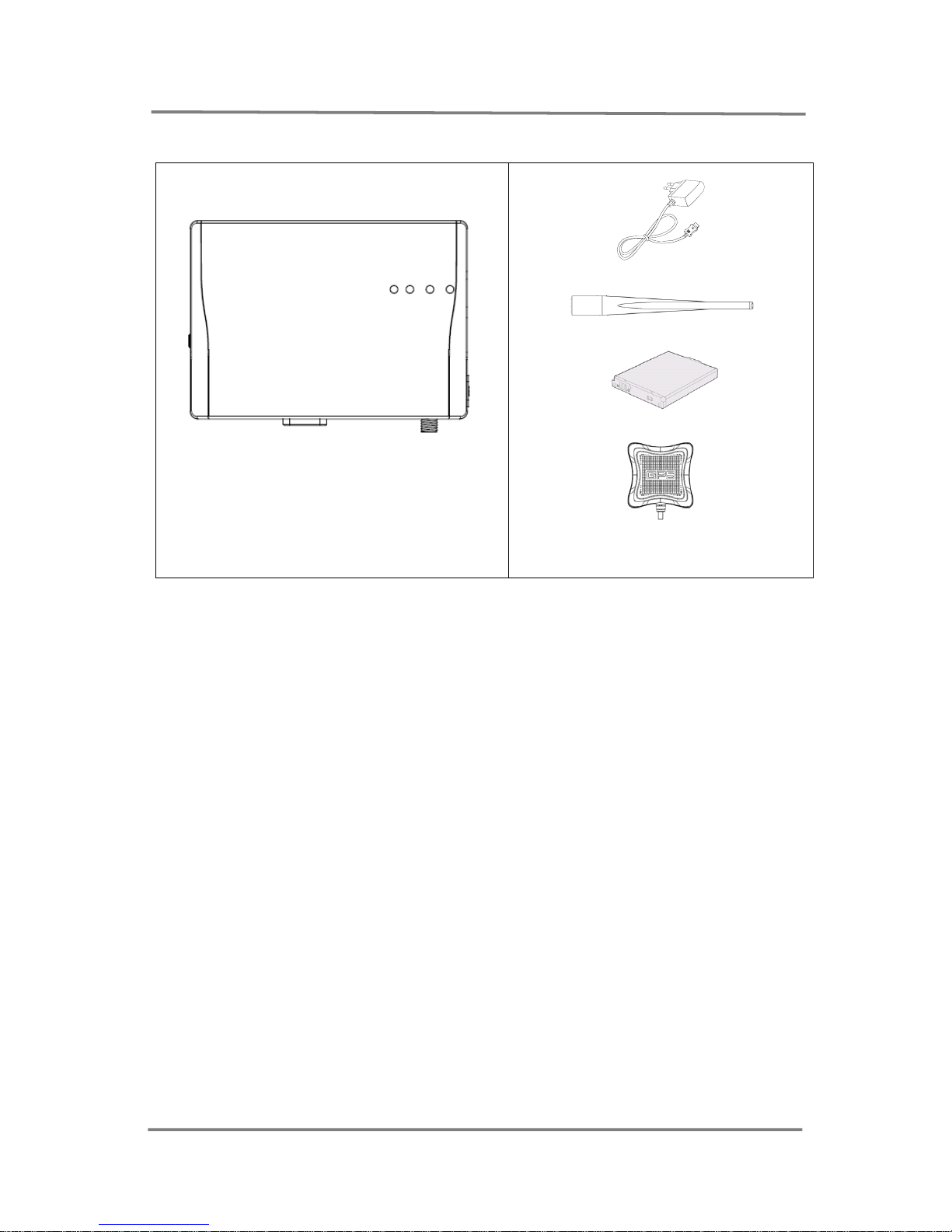
1.2 Package Contents
CTR-180
5V DC Power Adaptor
CDMA Antenna
Battery Pack (optional)
GPS Module (optional)
※
Note
Pictures in User Manual might be different from the actual product you purchased.
Furthermore, some of the components might be changed for better performance
without any prior notice.
Page 5
5
CTR-180 M2M Router Manual
CELOT WIRELESS
2. Name of each section and features description
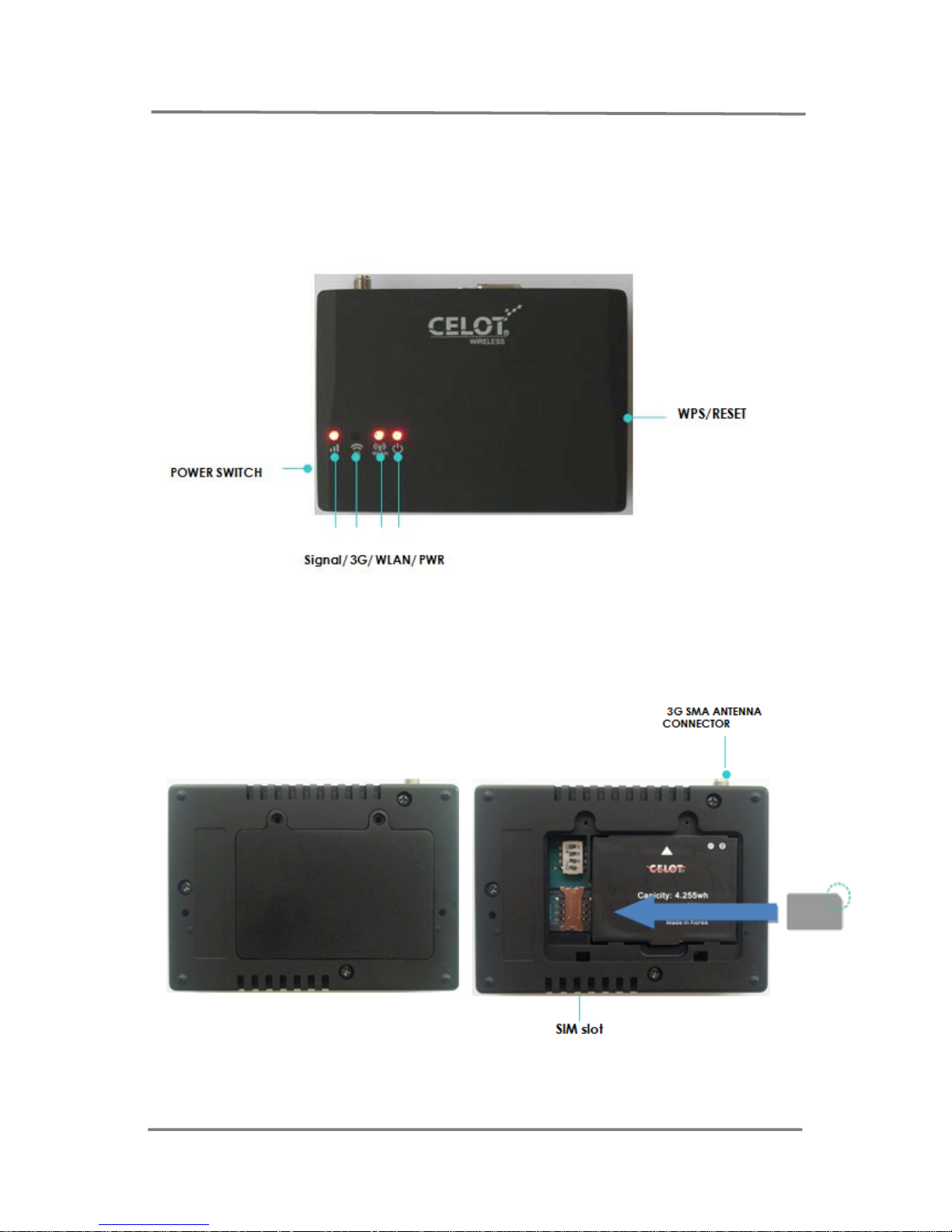
2.1 Name of each section
■ Front View
■ Rear View
Page 6
6
CTR-180 M2M Router Manual
CELOT WIRELESS
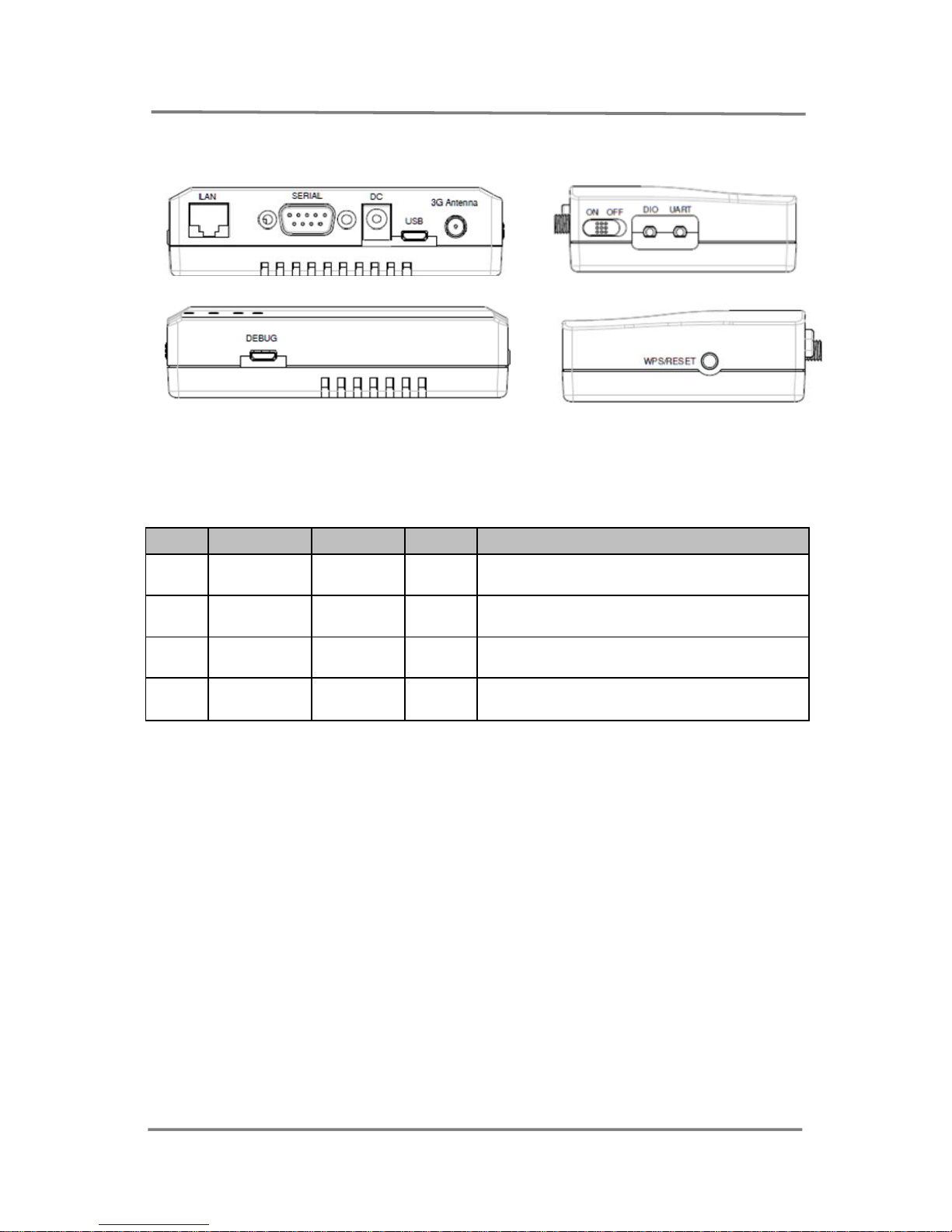
※ External Interface
2.2 LED Display
No. Assignmen
t
Color Status
Remarks
LED1 3G RSSI Various ON
Yellow Green -> Orange -> Red
(
from Strong to week signal)
LED2 3G RED ON
When the device is connected to 3G
network.
LED3 WLAN RED ON When WLAN is activated.
LED4 POWER RED ON When the device is power on.
2.3 Getting Started.
1). Open Rear Cover and Insert SIM Card
2). Insert Battery and Close the Rear Cover
3). Connect Power adaptor to the device.
4). Switch ON to turn on the device.
5). All LEDs shall be ON when the device is ready for service.
6). When WLAN LED and 3G LED are on, you can access the device for internet
connection through LAN Port or WIFI.
Page 7
7
CTR-180 M2M Router Manual
CELOT WIRELESS
3. Using Configuration Menu
Connecting CTR-180 to PC
1). Connect CTR-180 to PC through LAN cable or WIFI
2). For WIFI connection, the default Network ID (SSID) from the factory is CTR-180
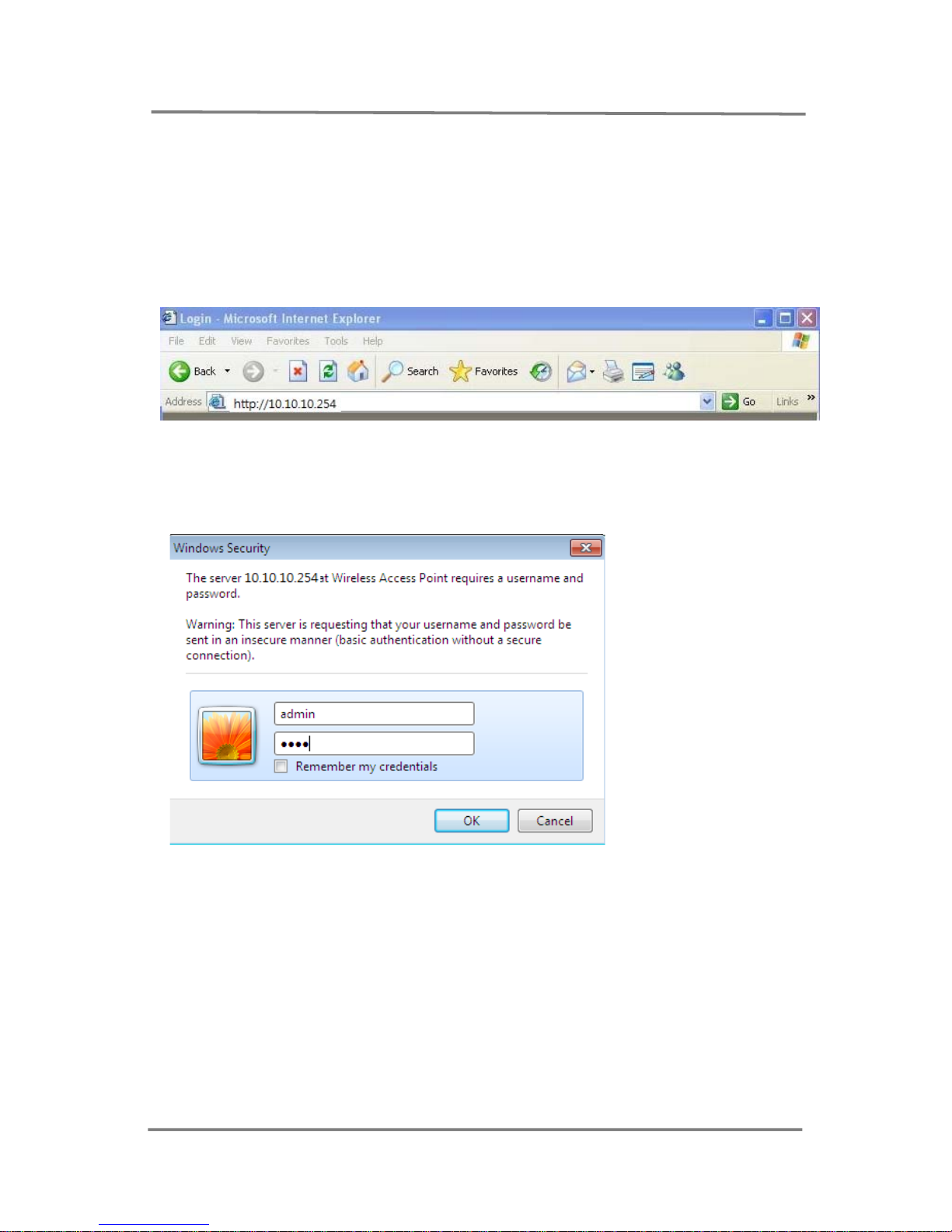
3). To access to Web UI page, Input http://10.10.10.254 in the address window
as shown below and press Enter Key
4). User Name and Passwords are required to access adimin web page.
Plesae input “ admin” for User Name and “admin” for Password when you
acess the Web UI first time.
5). After press ENTER key, System Status will be displayed as shown in the
overview below
Page 8
8
CTR-180 M2M Router Manual
CELOT WIRELESS
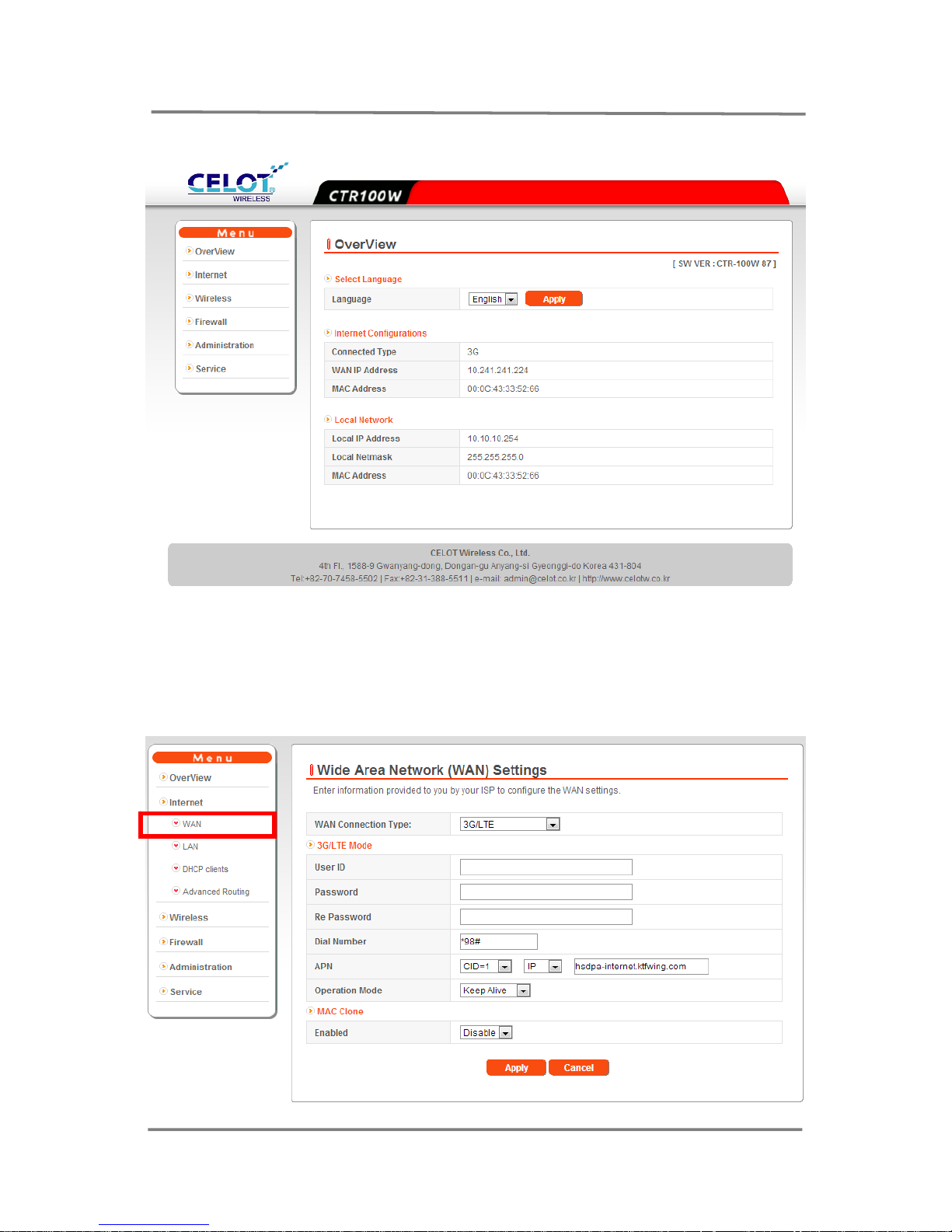
3. 1 OverView
Basic network information can be displayed.
● Select Language: Supported languages can be selected.
3. 2 Internet
3.2.1 Internet > WAN
Page 9

9
CTR-180 M2M Router Manual
CELOT WIRELESS
WAN connection mode for CTR-180 is “3G/LTE” as default but other types of WANs
can be selected as follow,
1) STATIC (Fixed)
2) DHCP (Auto Config)
3) PPPoE(ASDL)
4) L2TP
5) 3G/LTE Mode
● Provided User ID, Password, Dial Number and APN should be input.
6) CDMA
※ Note
You must input correct user ID, Password, and Dial Number from the wireless
network provider (ex. Skylink etc) otherwise, the device is not able to access
the wireless network.
(ex.) User N a m e: Mobile
Password: internet
Dial Up Number: #777
● Operation Mode [Keep Alive / On Demand]
You can select to keep CTR-110W connected to the network or just it
connected on demand only. In case of “Keep Alive” mode, CTR-110W will
not get into sleep mode and it will keep being always connected to the
network.
3.2.2 Internet > LAN
Page 10
10
CTR-180 M2M Router Manual
CELOT WIRELESS
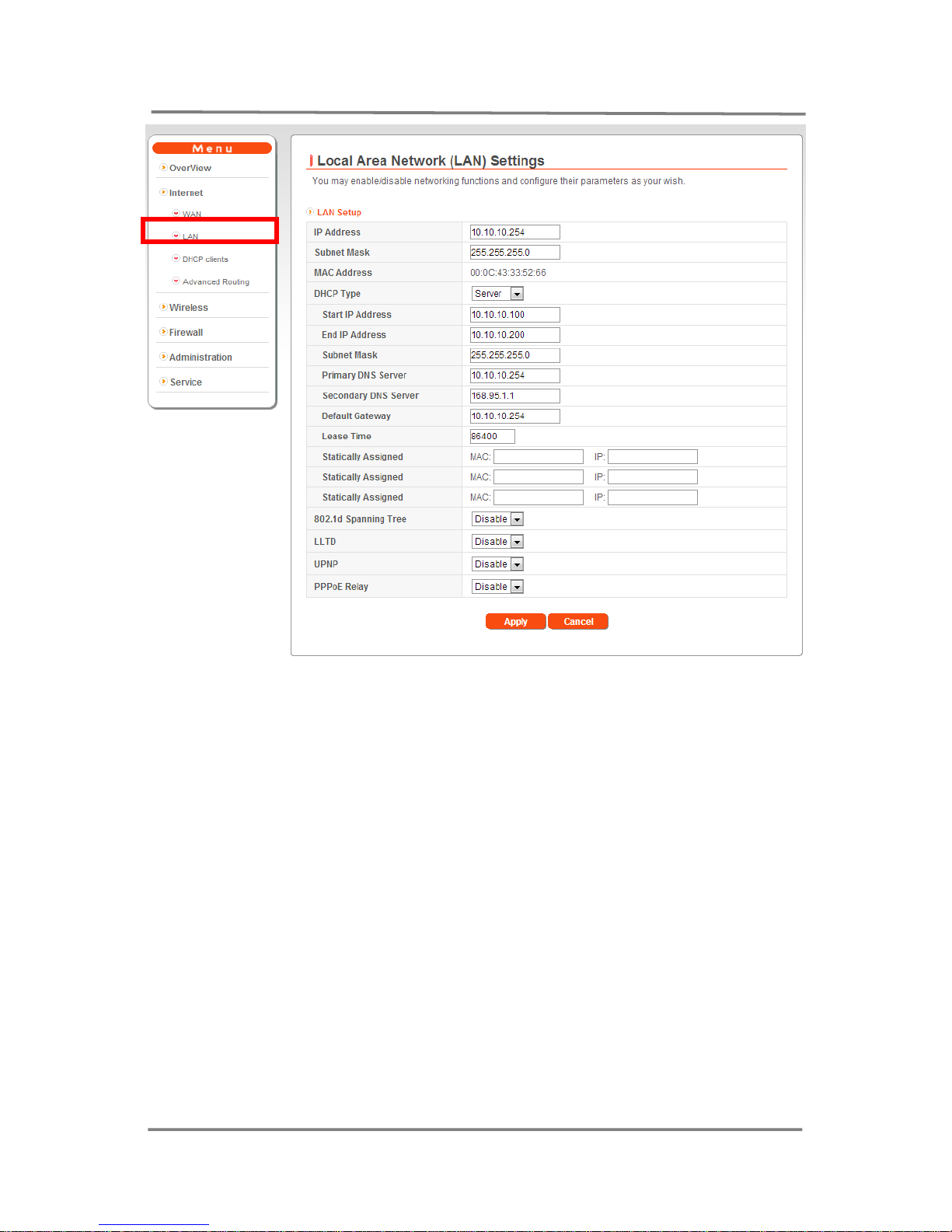
This page is to configure the parameters for local area network which connects to
the LAN port of your Access Point. Here yo u may change the setting for IP address,
subnet mask, DHCP, etc..
● IP Address: The basic IP address for CTR-100 is “10.10.10.254”. IP address
for CTR-180 can be changeable on this menu.
● Subnet Mask : You can change Subnet Mask
● Default Gateway : You can change Default Gateway.
● DHCP
- Enable: IP address can be automatically allocated to Client PC.
- Disable: IP address should be manually input to Client PC.
● DHCP Client Range:
The range of IP address can be defined when IP address is automatically
allocated to Client PC.
In case of clicking Show Client icon, all of client PC can be displayed.
- Statically Assigned (Static DHCP):
Page 11
11
CTR-180 M2M Router Manual
CELOT WIRELESS
- You need to Input IP address and MAC address for the client PC and
then click Apply Changes.
- Up to 3 Static IP can be available.
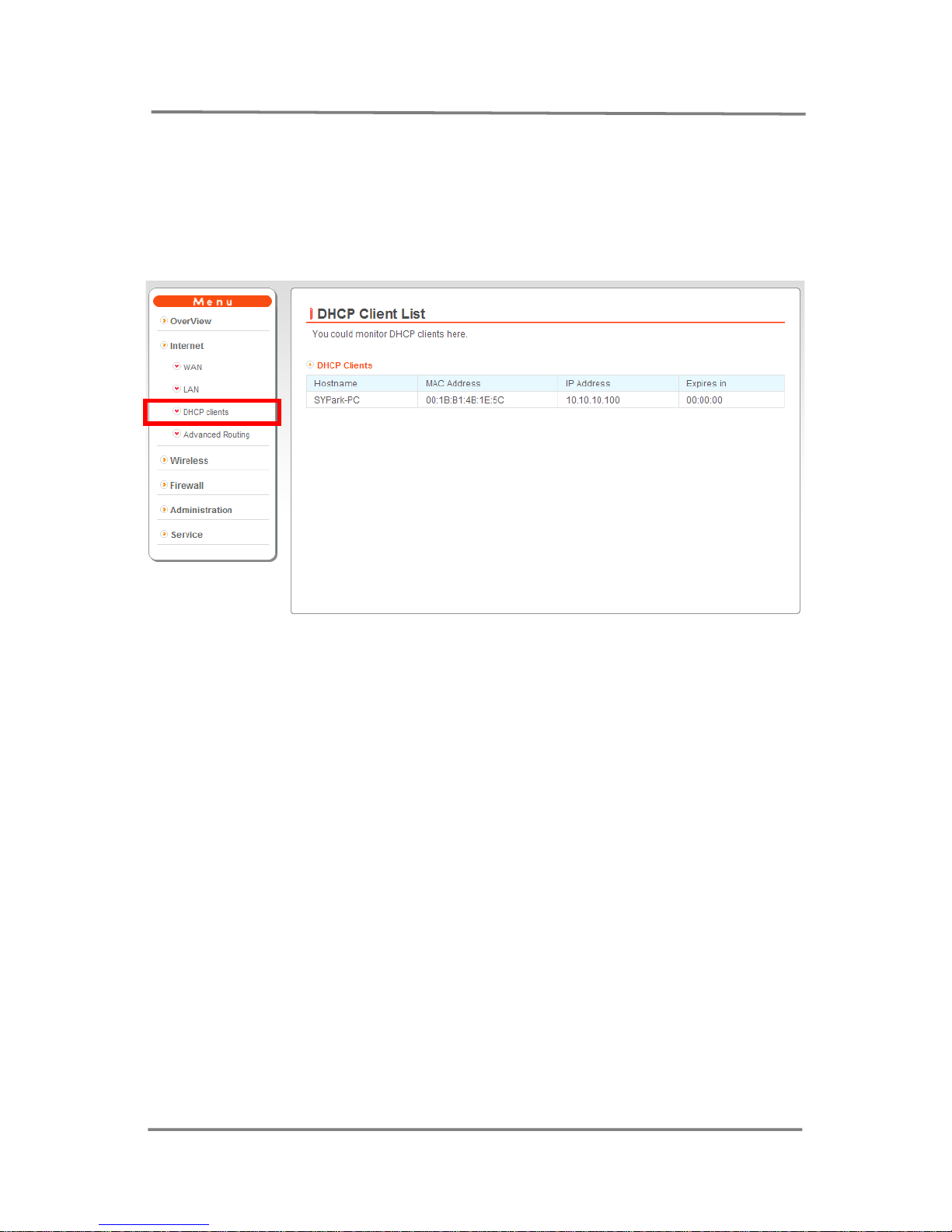
3.2.3 Internet > DHCP Clients
DHCP Clients connected to CTR-180 can be monitored on this page.
3.2.4 Internet > Advanced Routing.
Page 12
12
CTR-180 M2M Router Manual
CELOT WIRELESS
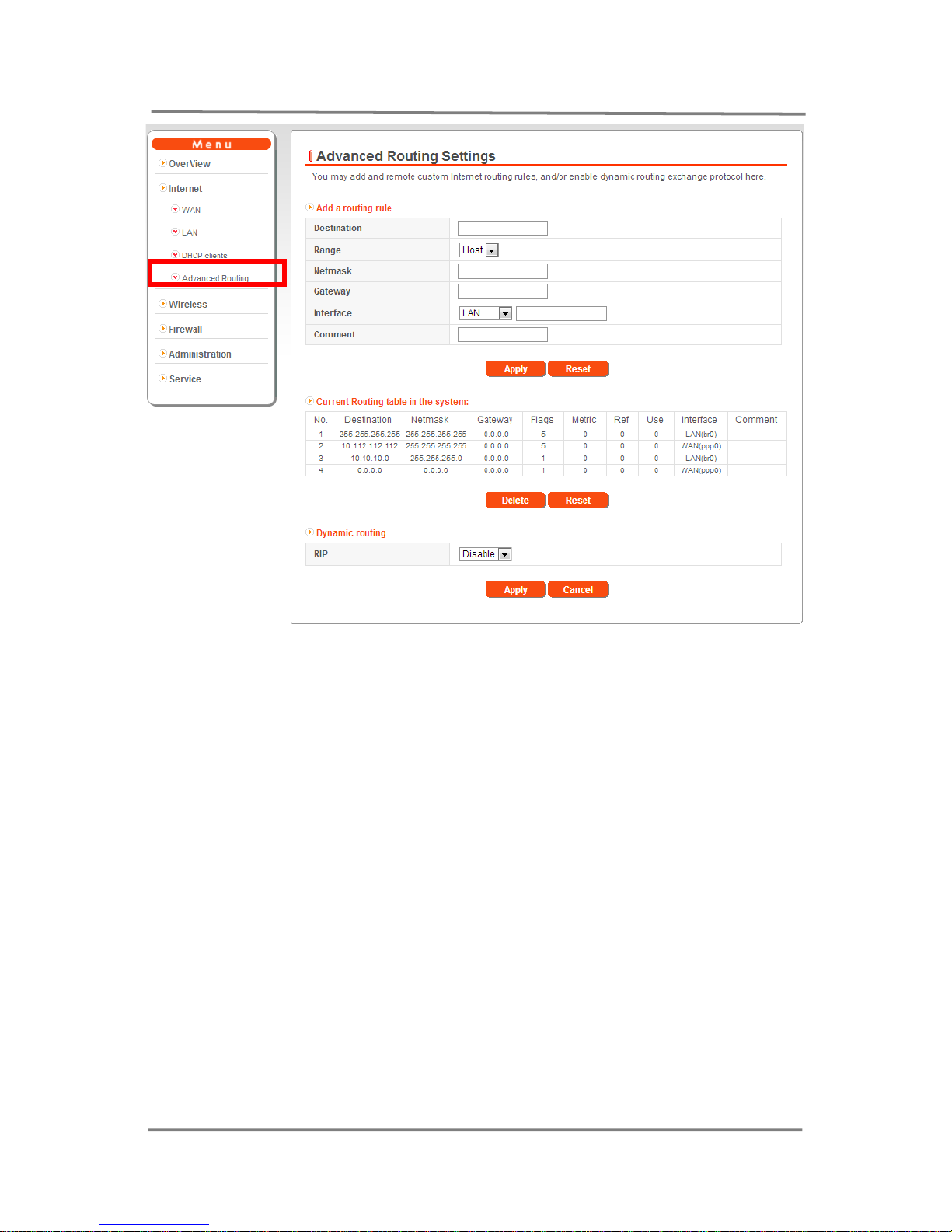
CTR-180 can add and remote custom internet routing and enable dynamic routing
exchange protocol.
● ADD a routing rule
- Input IP range for “Destination”,
- Select Range (HOST/NET)
- Input value for ”Netmask”,
- Input IP for ”Gateway”
- Select Interface (LAN/WAN/Custom) and input IP
● Dynamic Routing
- You can select Disable/Enable
3.3 Wireless Setting
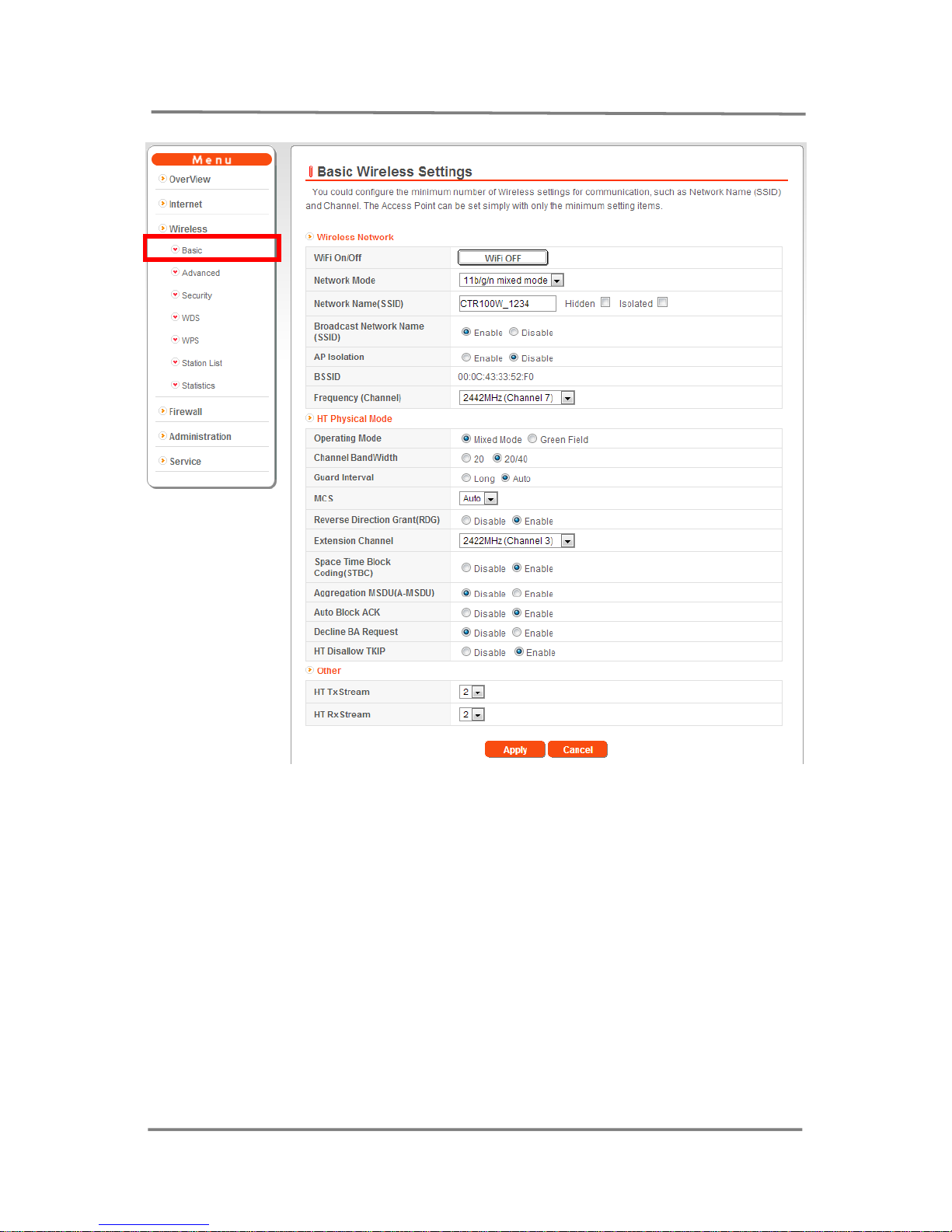
3.3.1 Wireless > Basic
1). CTR- 180 was released from the factory without any wireless security for user’s
convenience. You can easily set up wireless security and network setting in
Setup Wizard.
2). Click Wireless > Basic then the window below will be displayed.
Page 13
13
CTR-180 M2M Router Manual
CELOT WIRELESS
This page is to configure the parameters for wireless LAN clients whi ch may connect
to your Access Point. You can change wireless encryption settings as well as wireless
network parameters.
1). WIFI OFF : WIFI shall be OFF by clicking it.
2). Net work Mode : You can select Wireless Standard of CTR-180
x 11b/g/n mixed mode- 2.4GHZ(B+G+N) Using 802.11b/g/n.(Recommended)
x 11b/g mixed mode- 2.4GHZ(B+G) Using 802.11b/g.
x 11b only -2.4GHZ(B) Using 802.11b
x 11g only-2.4GHZ(G) Using 802.11g
x 11n only(2.4G) -2.4GHZ(N) Using 802.11n
★ In case of b&g, b, g or n only mode, only relevant Wireless Client can
access. 11 b/g/n mixed mode is recommended.
Page 14
14
CTR-180 M2M Router Manual
CELOT WIRELESS
3). Network name SSID: You can change Network SSID, up to 30 characters can
be input based on ASC II type. Also you can select Hidden or Isolat ed not to
show the SSID to other clients.
4). Channel Number : You can sele ct channel numbers for wireless network.
The channel number is to be set up as factory default.
If you select Auto, it will search for proper channel.
※
Note
Wireless Basic Settings, most of the values except SSID are preset to provide users
with the optimized performance from the factory. So please do not change any
settings, unless you face any inconvenience.
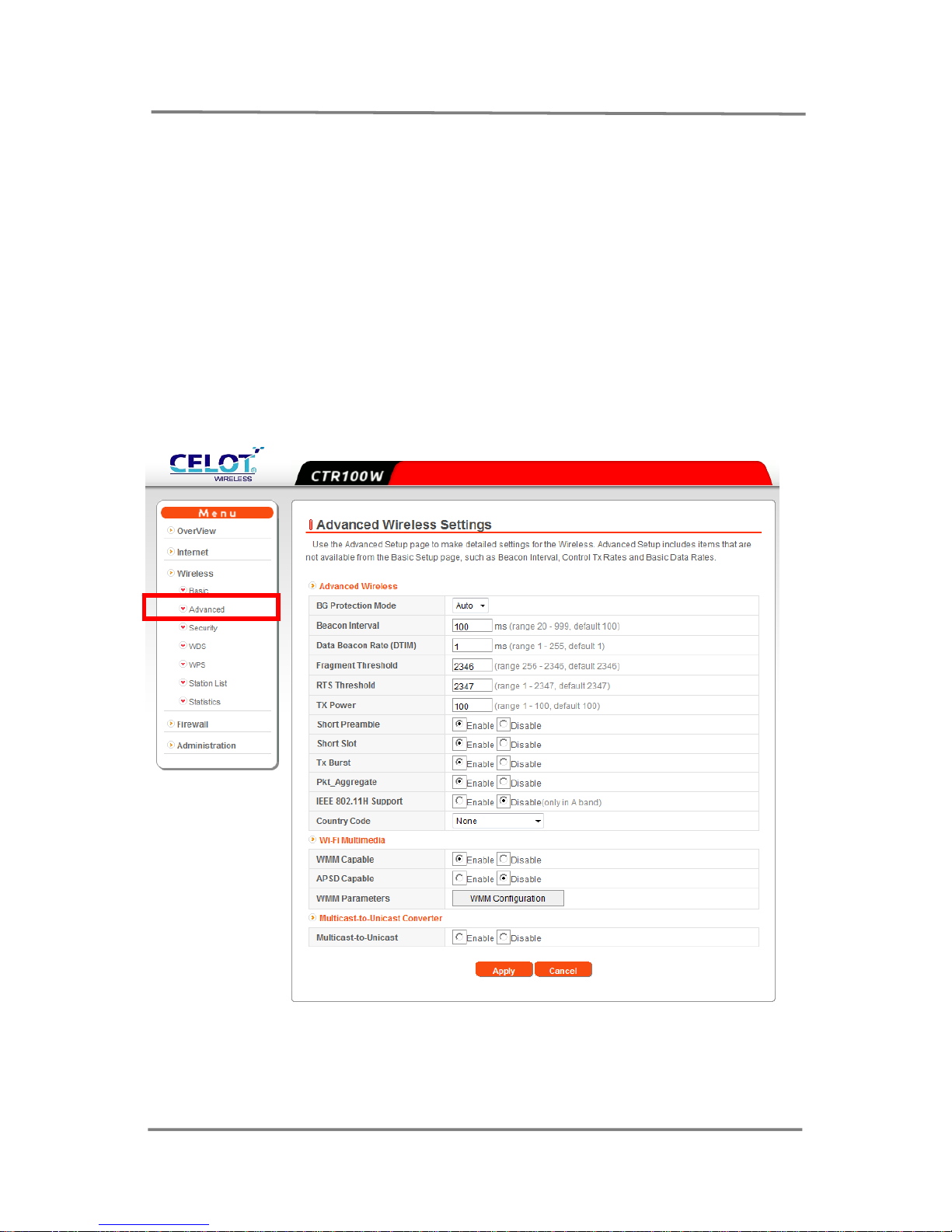
3.3.2 Wireless > Advanced
.
1). Use the Advanced Setup page to make detailed settings for the Wireless.
Advanced Setup includes items that are not available from the Basic Setup
page, such as Beacon Interval, Control Tx Rates and Basic Data Rates
Page 15
15
CTR-180 M2M Router Manual
CELOT WIRELESS
※ Note
We do not recommend any changes on the advanced setup if you are not
aware of these features or you are not an expert
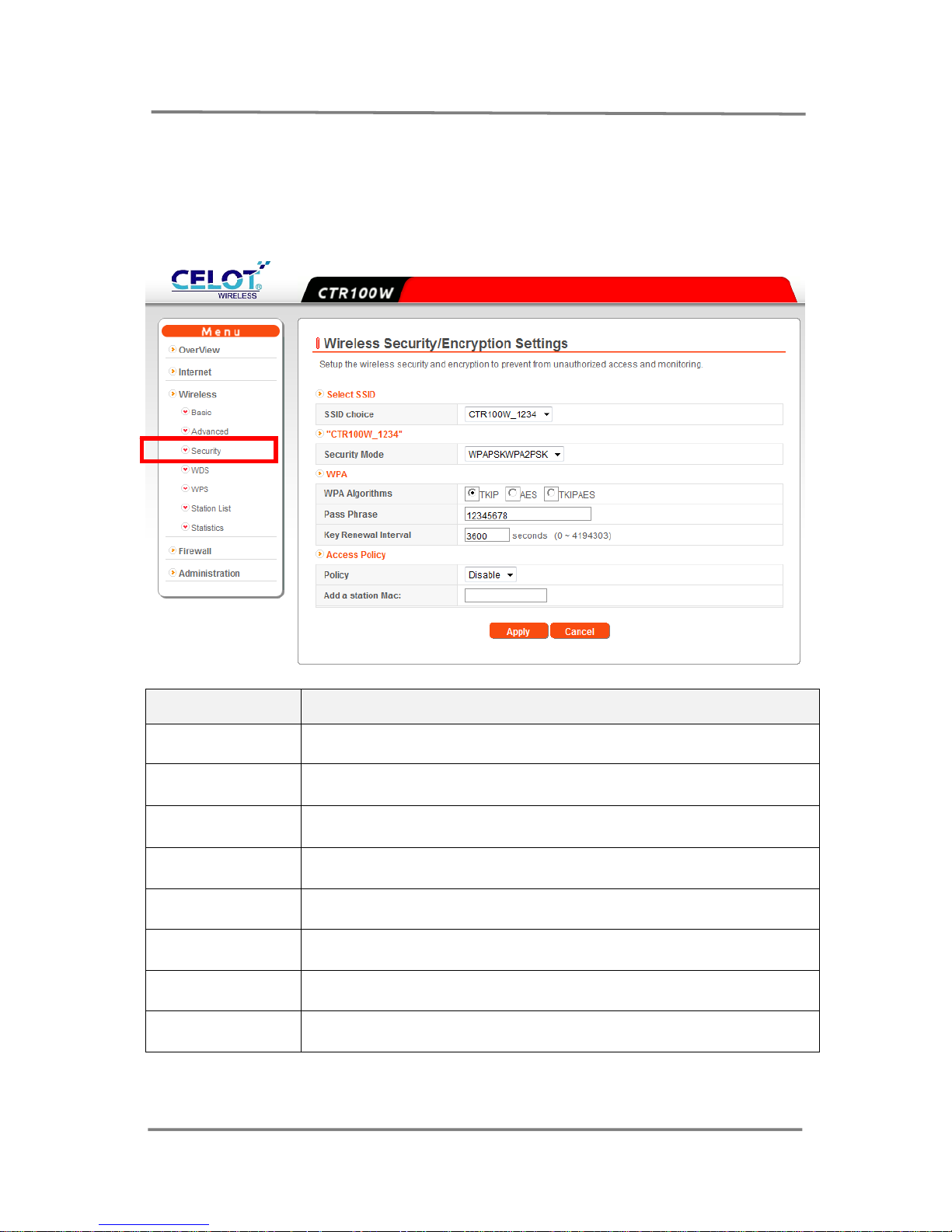
3.3.3 Wireless > Security
Encryption Type Description
Disable No use of Encryption.
OPEN/WEP
WLAN client need not provide its credentials to the Access Point during
authentication
SHARED/WEP
the WEP key is used for authentication in a four step challengeresponse handshake
WPA Stronger Encryption type than WEP using Passphrase.
WPA2 Stronger Encryption type than WPA using Passphrase.
WPA-PSK
Two security protocols and security certification programs to secure
wireless computer networks.
WPA2-PSK
The method of securing the network using WPA2 with the use of the
optional Pre-Shar ed Key (PSK) authentication
WPAPSK/WPA2PSK WPA-PSK and WPA2-PSK mixed mode
1). Y ou can Sel ect WPA, WP A2, WPA-P SK, WPA2- PSK, WPAPSK/WPA2PSK or others
for Security mode.
Page 16
16
CTR-180 M2M Router Manual
CELOT WIRELESS
2). And chose one of types from TKIP, AES and TKIPAES for WPA Cipher Type.
3). Input passwords which you want to set in Pass Phrase, if required.
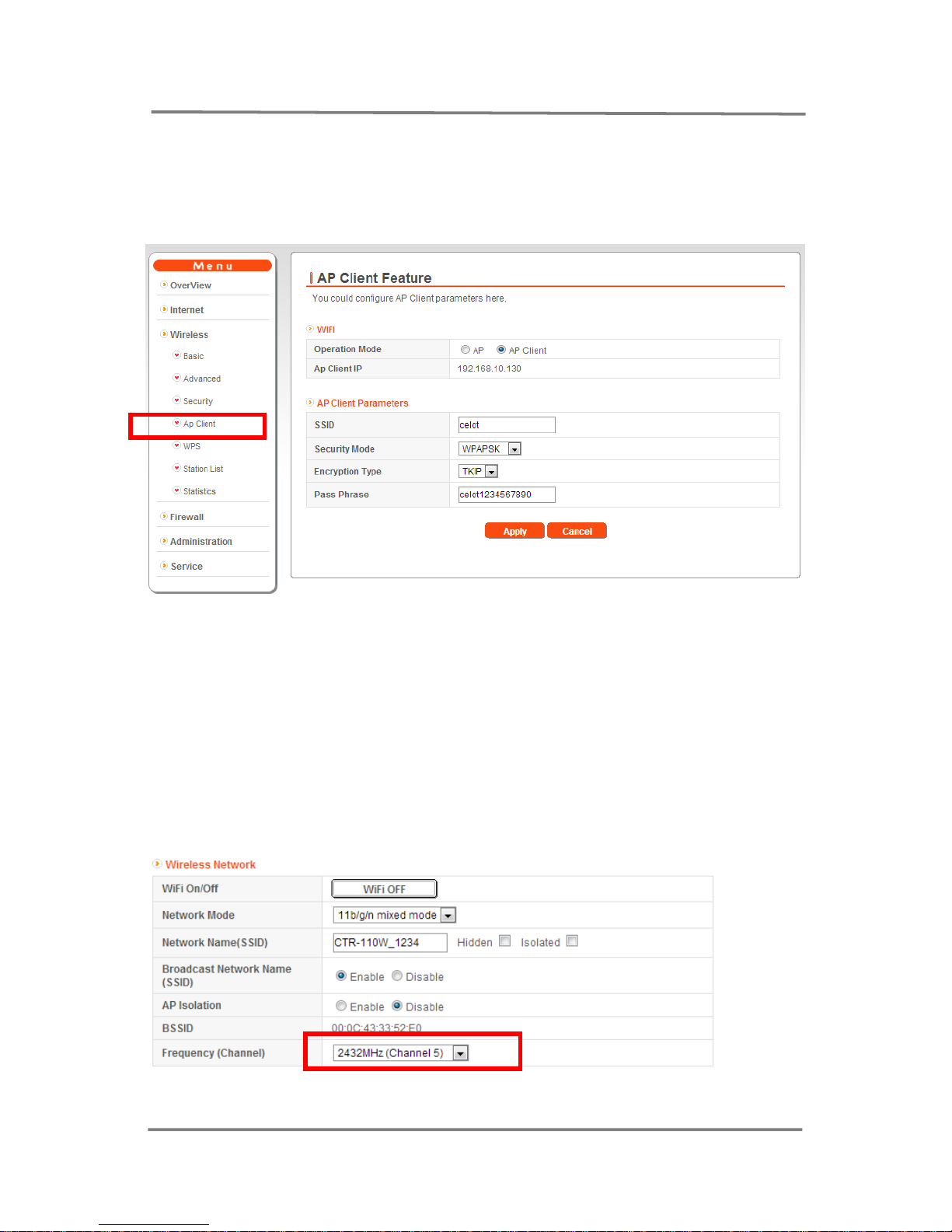
3.3.4 Wireless > AP Client
CTR-110 can be used as an AP client.
1) You need to check the followings for the AP which you want to connect to
- SSID
- Security Mode
- Encryption Type
- Password
2) For AP client setting, , go to Wireless > Basic
- Select the same channel with the channel for AP.
- Click [Apply]
3) Go to Wireless > AP Client
Page 17
17
CTR-180 M2M Router Manual
CELOT WIRELESS
- Select AP Client
- Input SSID for AP
- Select Security mode for AP
- Select Encryption Type for AP
- Input Password for AP.
- Click [Apply]
4) If AP Cli ent IP is di splayed as t he pi cture abov e, CTR-12 0 W works as an AP client .
If not, “Disconnected” is shown instead of IP address.
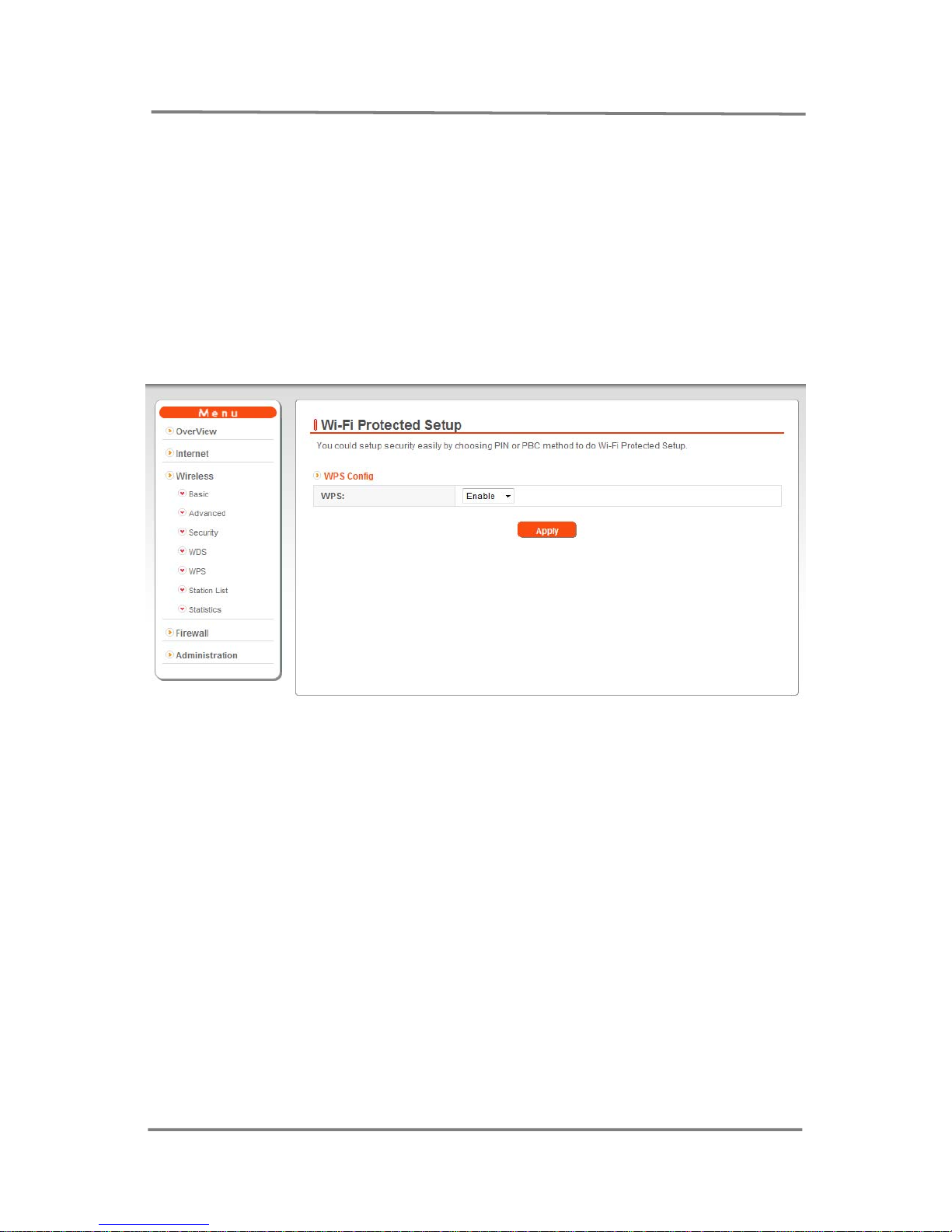
3.3.5 Wireless > WPS
1) WPS function can be enabled on this menu.
2) You can set WPS function after enabling it from this page and then
press WPS Key on the device.
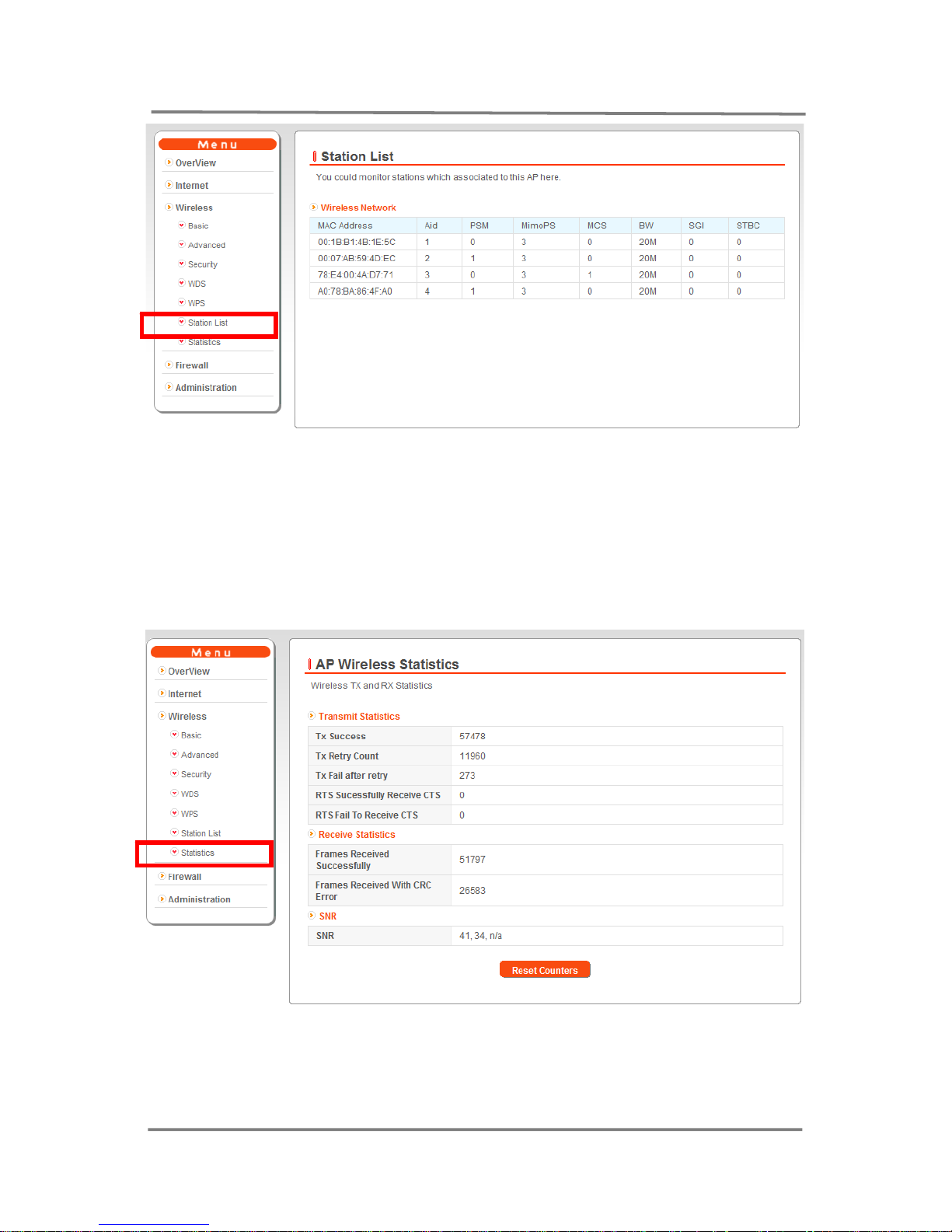
3.3.6 Wireless> Station List
Page 18
18
CTR-180 M2M Router Manual
CELOT WIRELESS
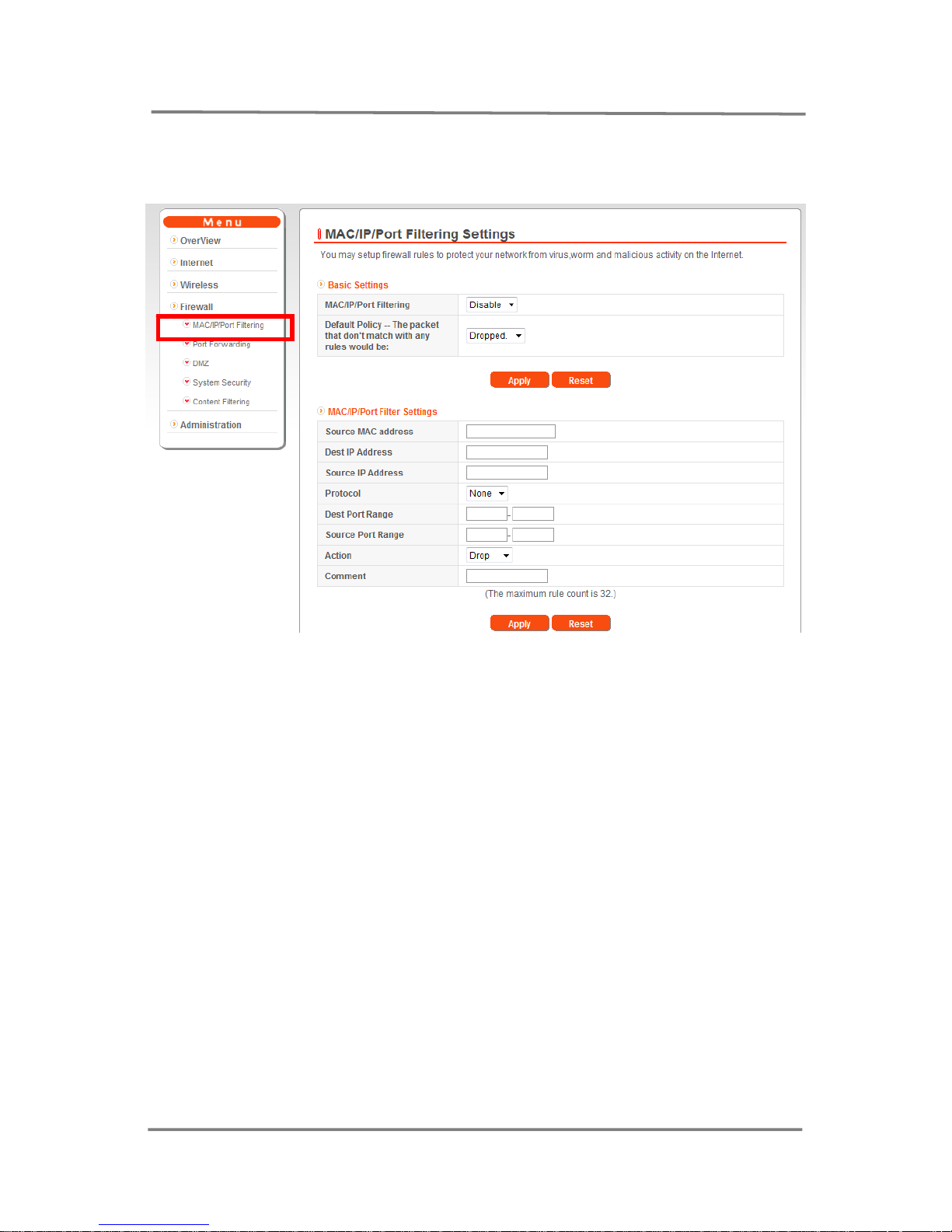
3.3.7 Wireless> Statistics
Wireless LAN TX & TX DATA is available on this menu.
Page 19
19
CTR-180 M2M Router Manual
CELOT WIRELESS
3. 4 Firewall
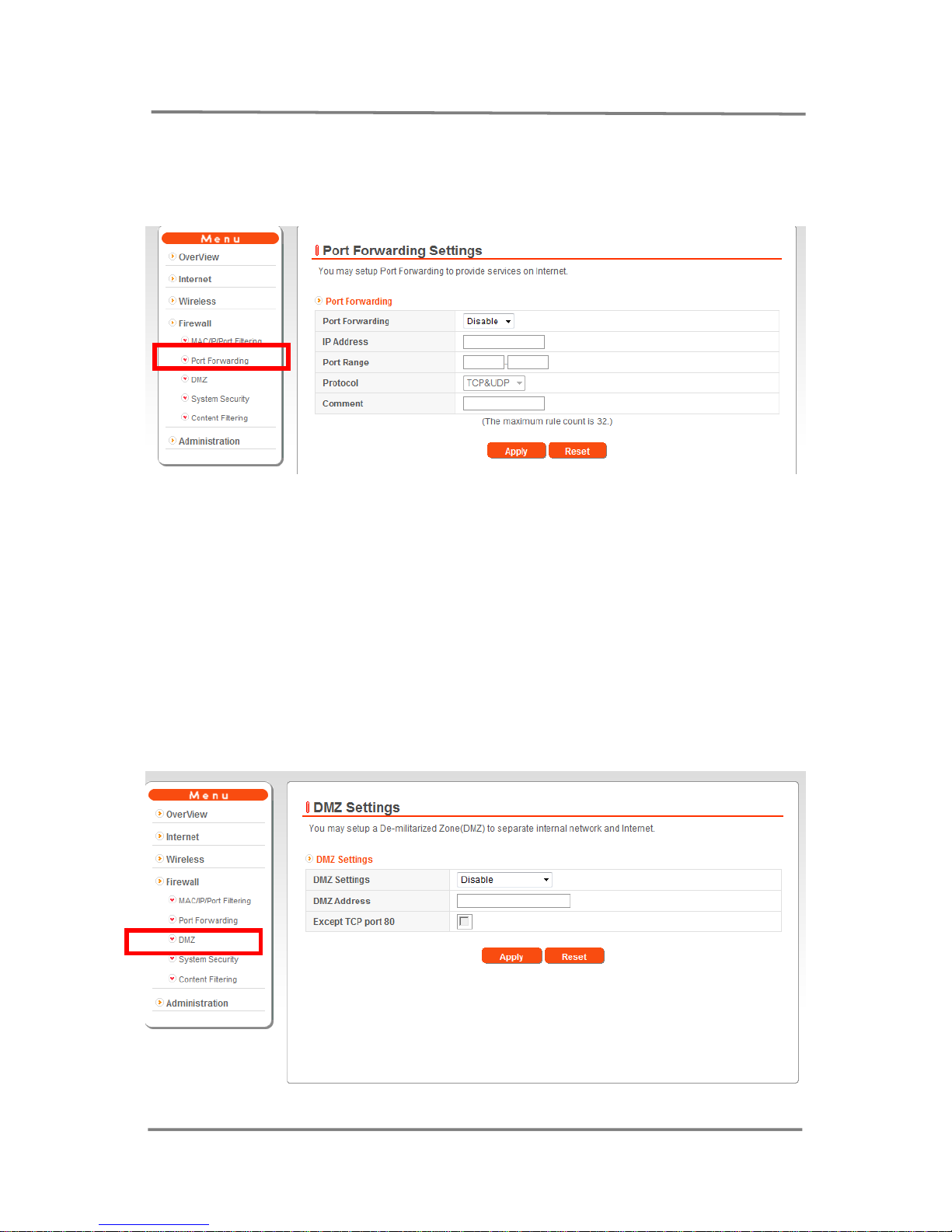
3.4.1 Firewall > MAC/IP/Port Filtering Settings
1). Basic Settings:
● MAC/IP Port Filtering : If Enabled, Filtering will be available.
● Default Policy :
● Dropped : Only allowed MAC/IP Port (listed) in the “MAC/I P/Port Filtering
Settings” window can access to the router.
● Accepted : Only listed MAC/IP Port in the “MAC/IP/Port Filtering Settings
window restricted to access to the router.
2). MAC/IP Port Filter Settings
● Source MAC address : Input MAC address for Client PC which you want to
filter.
● Dest. IP Address: Input IP for server or WEP which you want to filter.
● Source IP address : Input IP for client whi ch you want to filter
● Action : Basic setting shall be changed according to Default Policy.
Page 20
20
CTR-180 M2M Router Manual
CELOT WIRELESS
3.4.2 Firewall > Port Forwarding Settings
It will allow Client PC to be used for specific service or server.
● IP Address: IP address for server needs to be input and the server PC should
operate by server S/W.
● Port Range: Input Port range for service.
※ 80 port is not allowed in Port. This port is only for remote admin.
● Protocol : Input one form TCP, UDP, TCP&UDP.
3.4.3 Firewall > DMZ
Page 21
21
CTR-180 M2M Router Manual
CELOT WIRELESS
It will allow the PC to be open for every internet user. PC with DMZ enabled can
communicate all of internet users and servers.
● Select Enable DMZ Setting to use DMZ.
● DMZ IP Address: Input client IP address.
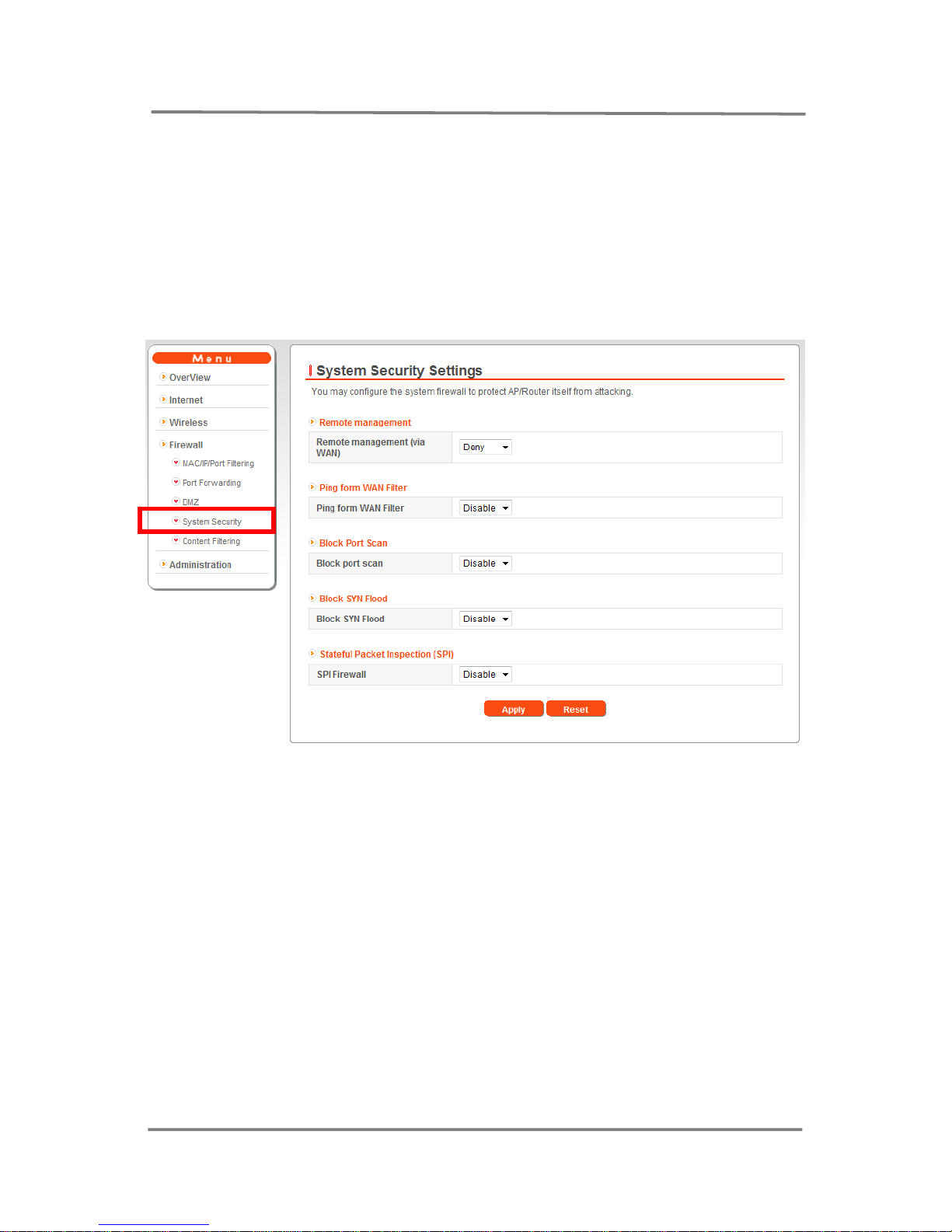
3.4.4 Firewall > System Security
You may configure the system firewall to protect AP/Router itself from attacking
With the following options
● Remote Management
● Ping from WAN Filter
● Block Port Scan
● Block SYN Flood
● Stateful Packet Inspection
Page 22
22
CTR-180 M2M Router Manual
CELOT WIRELESS
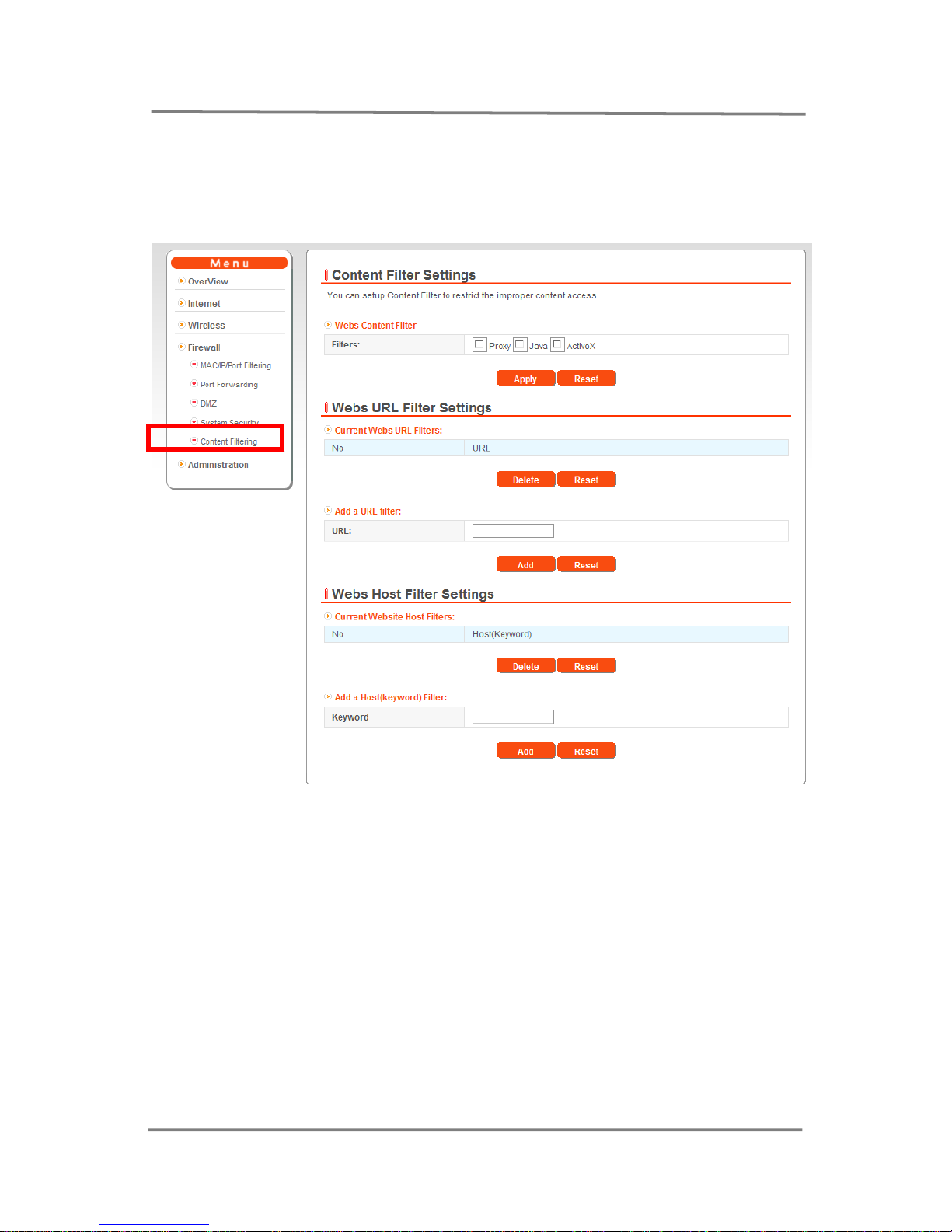
3.4.5 Firewall > Contents Filtering
● Contents Filter Settings
You can set certain contents of WEB to be restricted.
● Webs URK Filter Settings
You can set certain Web sites to be restricted to access.
Input URL address and click [ADD] then it will be shown in the “Current Webs
URL Filter” and also the listed URLs are restricted.
● Wes Host Filter Setting
You can restrict WEB URL containing certain words.
Input URL keyword (ex: google, MSN) and click [ADD] then the information will
be shown in the “Current Website Host Filter” and listed Web URL will be
restricted.
Page 23
23
CTR-180 M2M Router Manual
CELOT WIRELESS
3.5. Administration
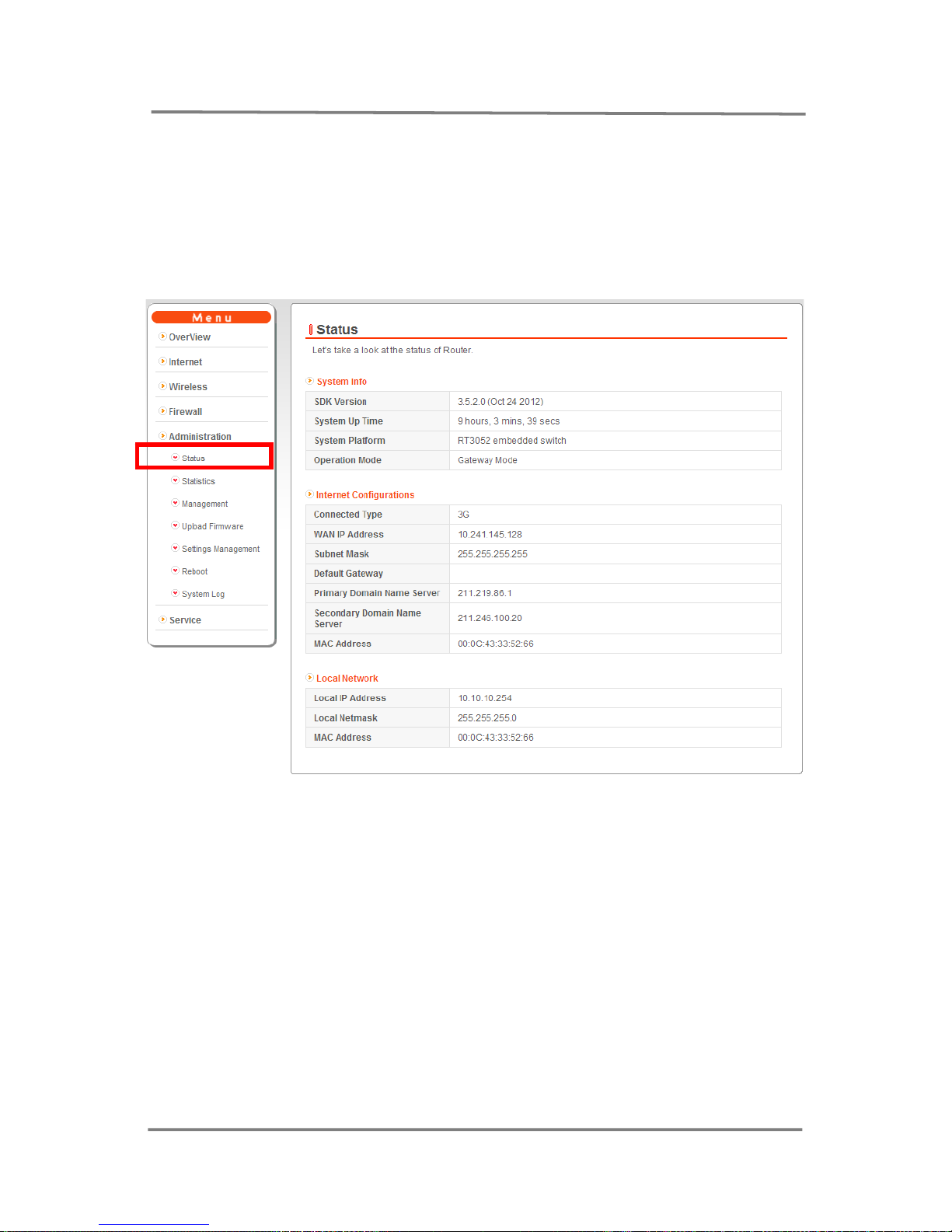
3.5.1 Administration>Status
You can check the current status of CTR-180
Page 24
24
CTR-180 M2M Router Manual
CELOT WIRELESS
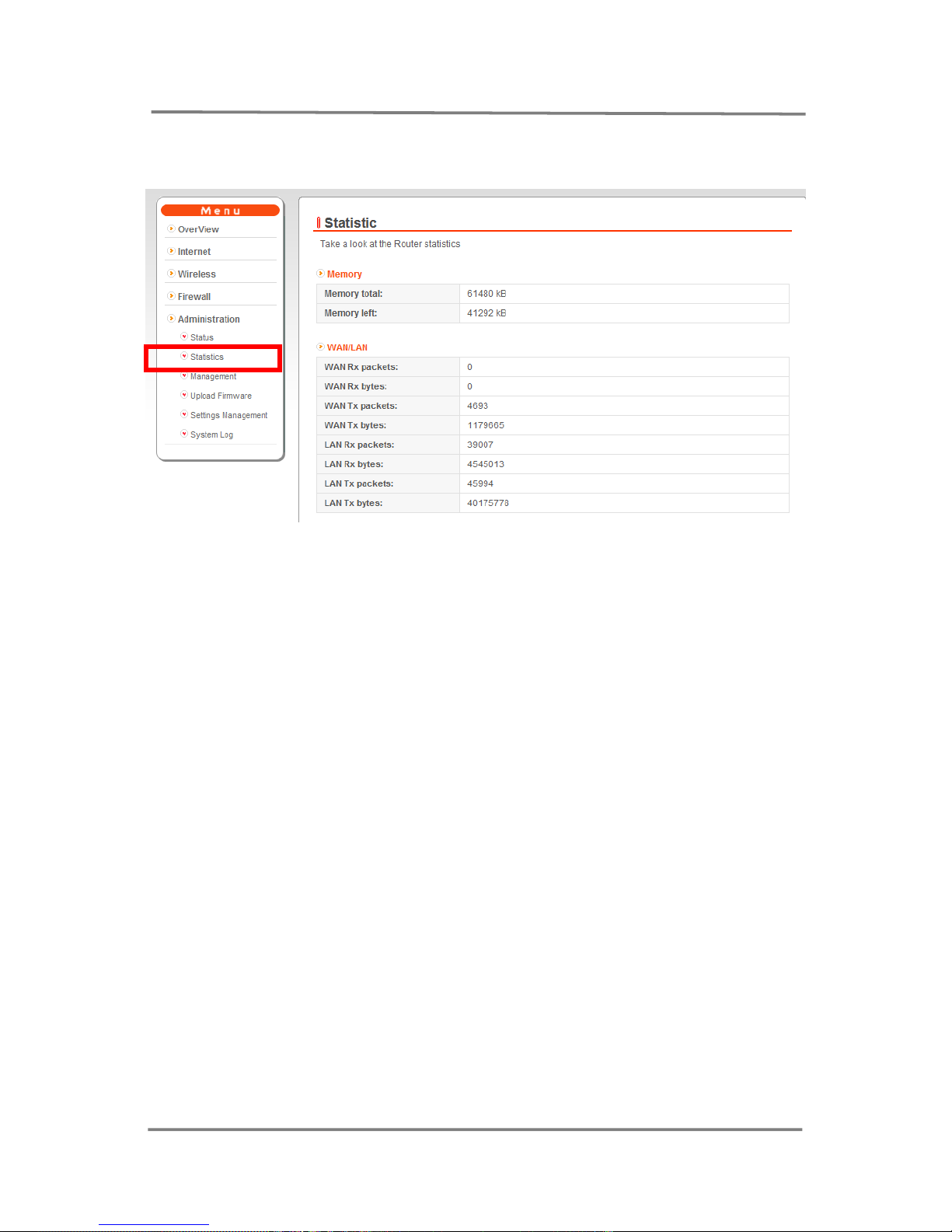
3.5.2 Administration>Statics
You can check all of Statistics information for CTR-180 including Memory, WAN/LAN
and Clients DATA
Page 25
25
CTR-180 M2M Router Manual
CELOT WIRELESS
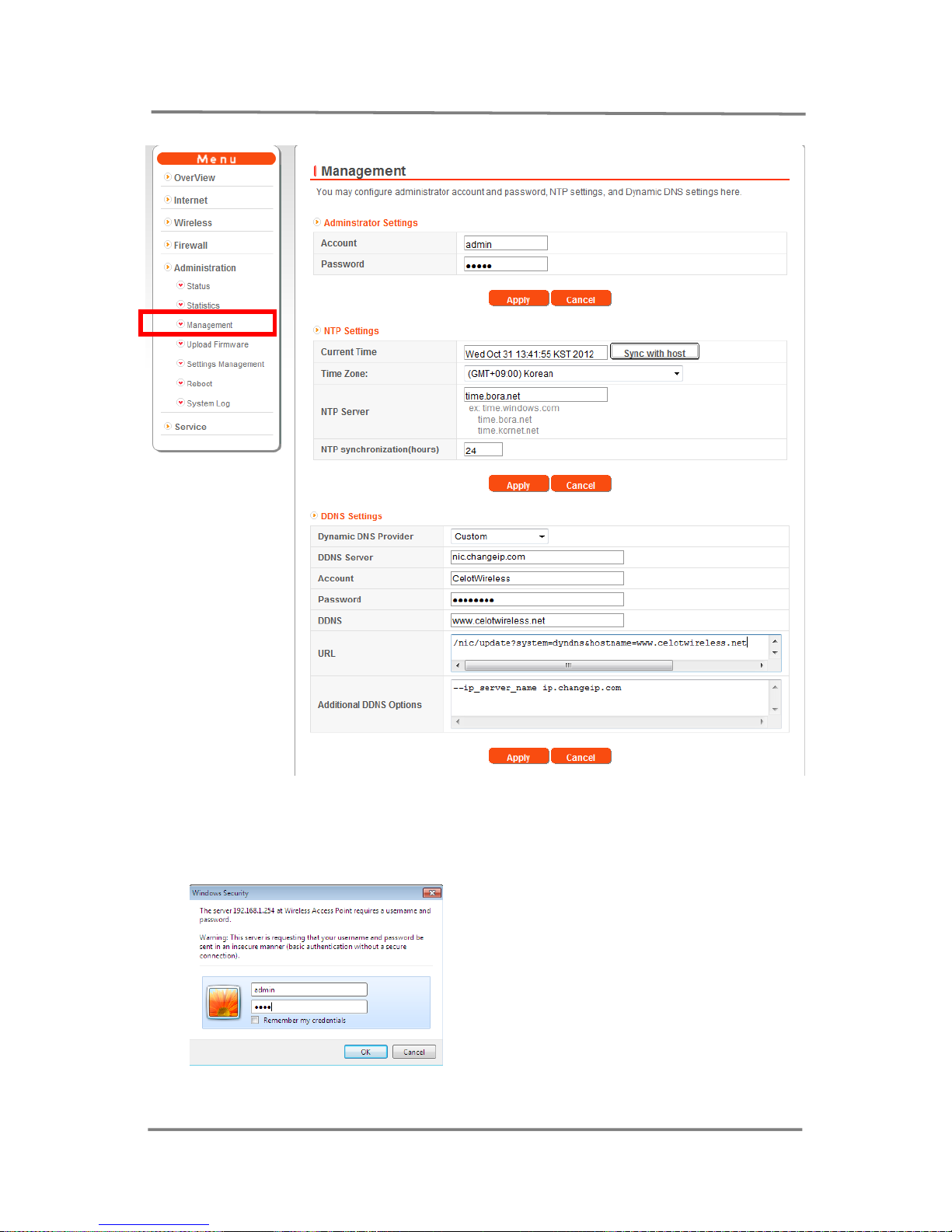
3.5.3 Administration>Management
● Administrator Setting
This menu is to change Account (User name) and Password for the first log in
page. Factory default for administrator settings is “admin” for User name and
“admin” for password as shown below.
(The picture above is for Windows 7 security picture so other OS will display
different security screen)
Page 26
26
CTR-180 M2M Router Manual
CELOT WIRELESS
● NTP Setting
● Sync with NTP server to set Current time
● Select Time Zone
● Input NTP Server
● Input time for NTP Sync time (hours)
● DDNS Setting
-
CTR-180 will update the DNS server with its IP addresses when a network
supports Dynamic DNS (DDNS).
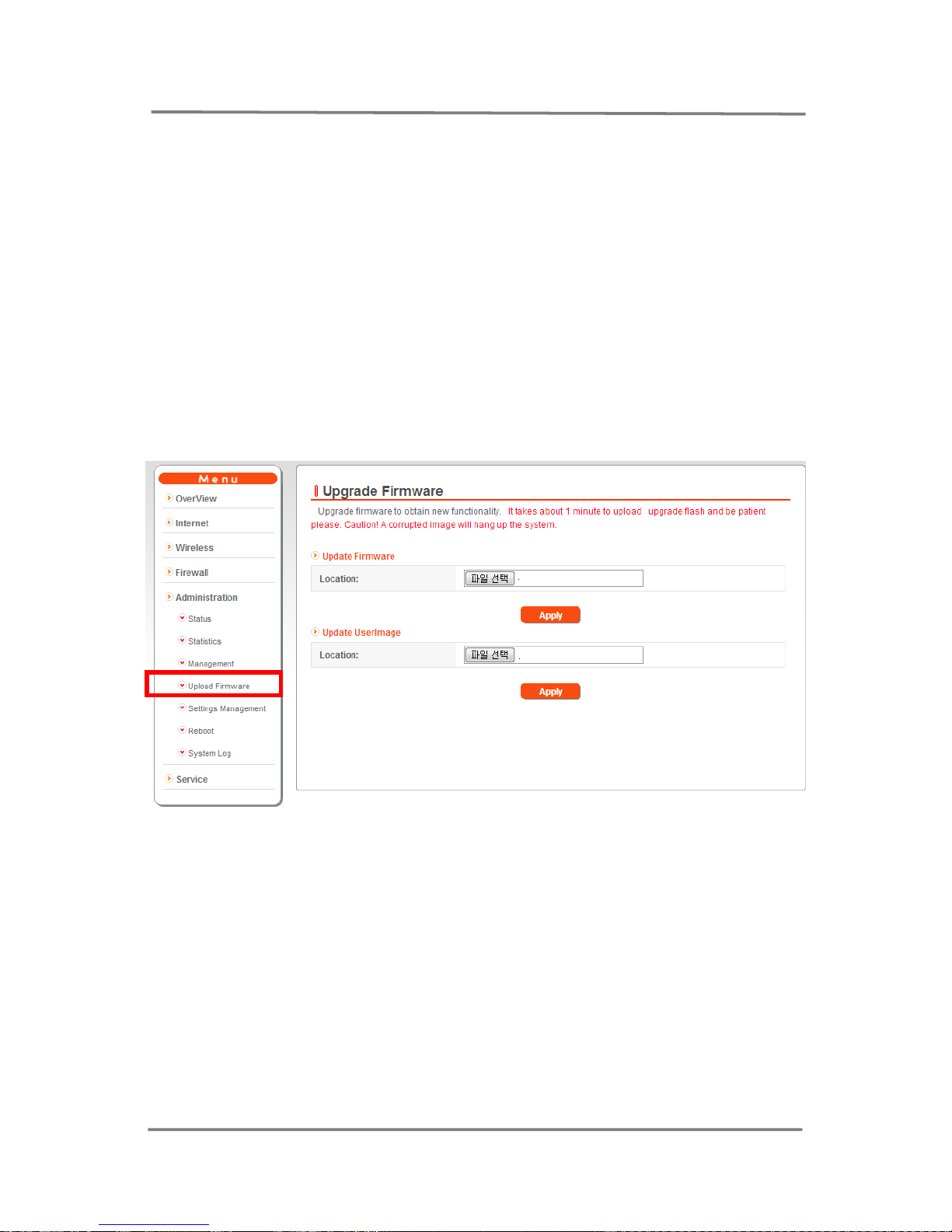
3.5.4 Administration>Upload Firmware
This page is to upgrade Firmware and boot loader
● To Upgrade the SW of CTR-180, click [Browsing] Icon, choose the right BIN file
and click [APPLY] Icon. Then, the SW upgrade will start.
※
Note
If you choose the wrong BIN file to upgrade CTR-180, it will cause an error or
malfunction and CTR-180 will be out of order. So please make sure to use the
BIN file officially released from CELOT Wireless only!
3.5.5 Administration>Settings Management
Page 27
27
CTR-180 M2M Router Manual
CELOT WIRELESS
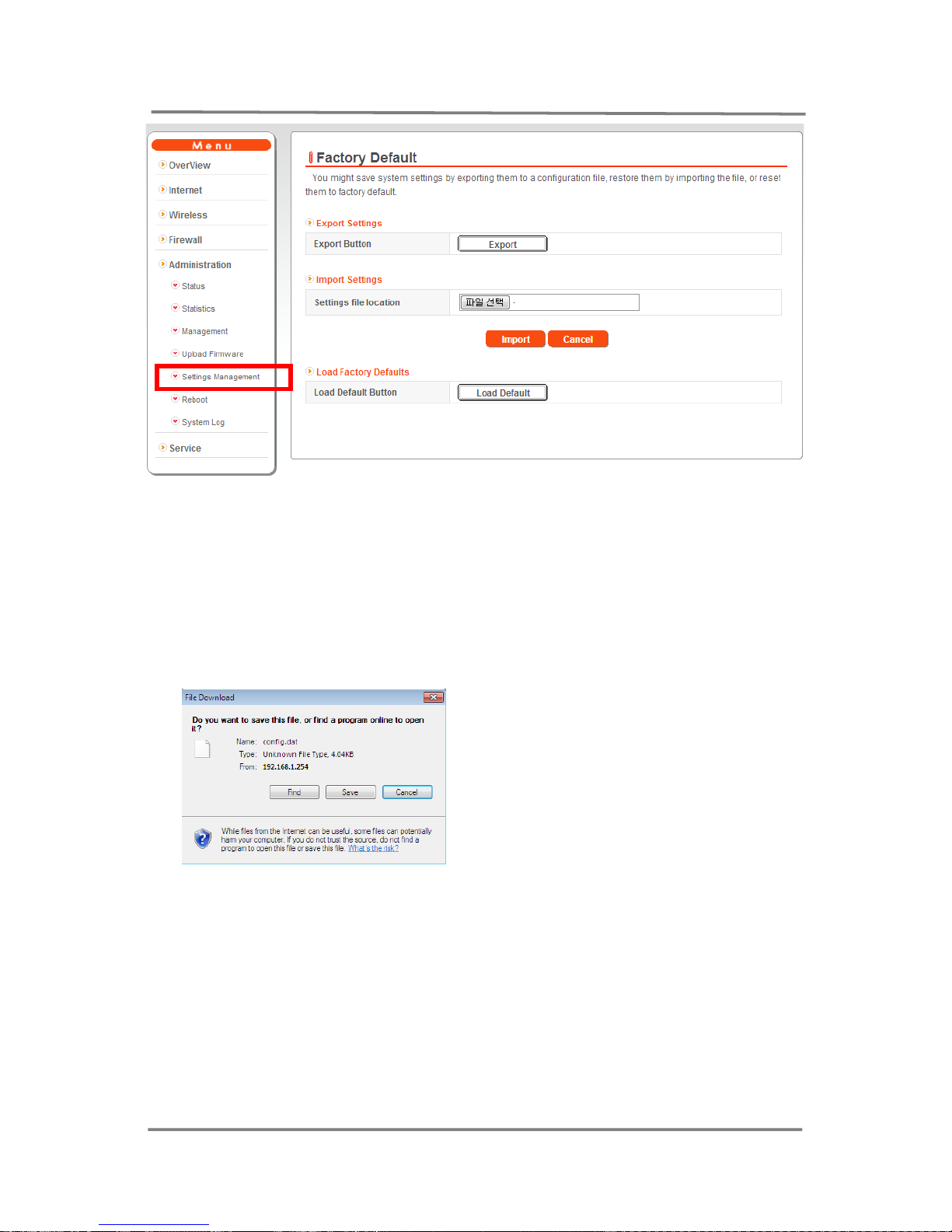
This page is to save current settings on a file or reload the settings from any file which
was saved previously. Besides, you could reset the current configuration to factory
default.
1). Export Settings
To sav e the current setting Click [Export] button and below picture will be
displayed. Then click [Save] button and save[Config.dat file] in the desired path.
2). Import Setting
When changing the setting of CTR-180 by using the already saved [Config.dat
File]
In Import Settings page, click [Browse] button, select the saved [Config.dat File]
and click [Upload] button. Then, the setting of CTR-180 will be changed to the
saved [Config.dat file]
※
Note
If you upload the wrong dat file, it will cause error or malfunction of CTR-180.
You must use [Config.dat file] of CTR-180.
3). Load Fact ory setting
.
Page 28
28
CTR-180 M2M Router Manual
CELOT WIRELESS
In order to return Factory Default Settings window, click [Load Default] button,
then the new message window will be displayed. Then, click [OK] button and
CTR-180 will be changed to the factory setting
.
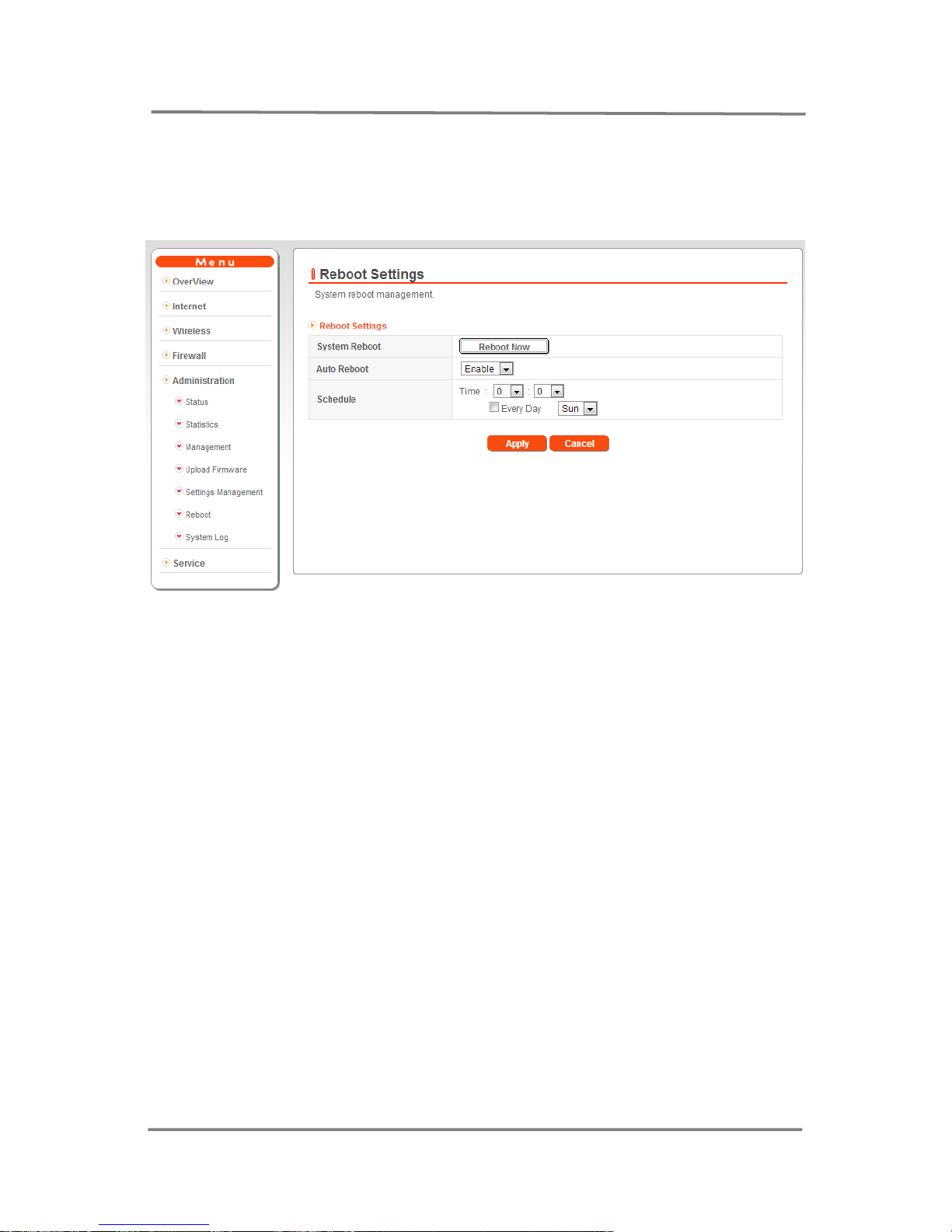
3.5.6 Administration> Reboot Settings
You can manage CTR-180 system reset in this menu.
1) Auto Reboot
In case Auto Reboot is enable, CTR-180 can be reset based on pre-defined
schedule.
Page 29
29
CTR-180 M2M Router Manual
CELOT WIRELESS
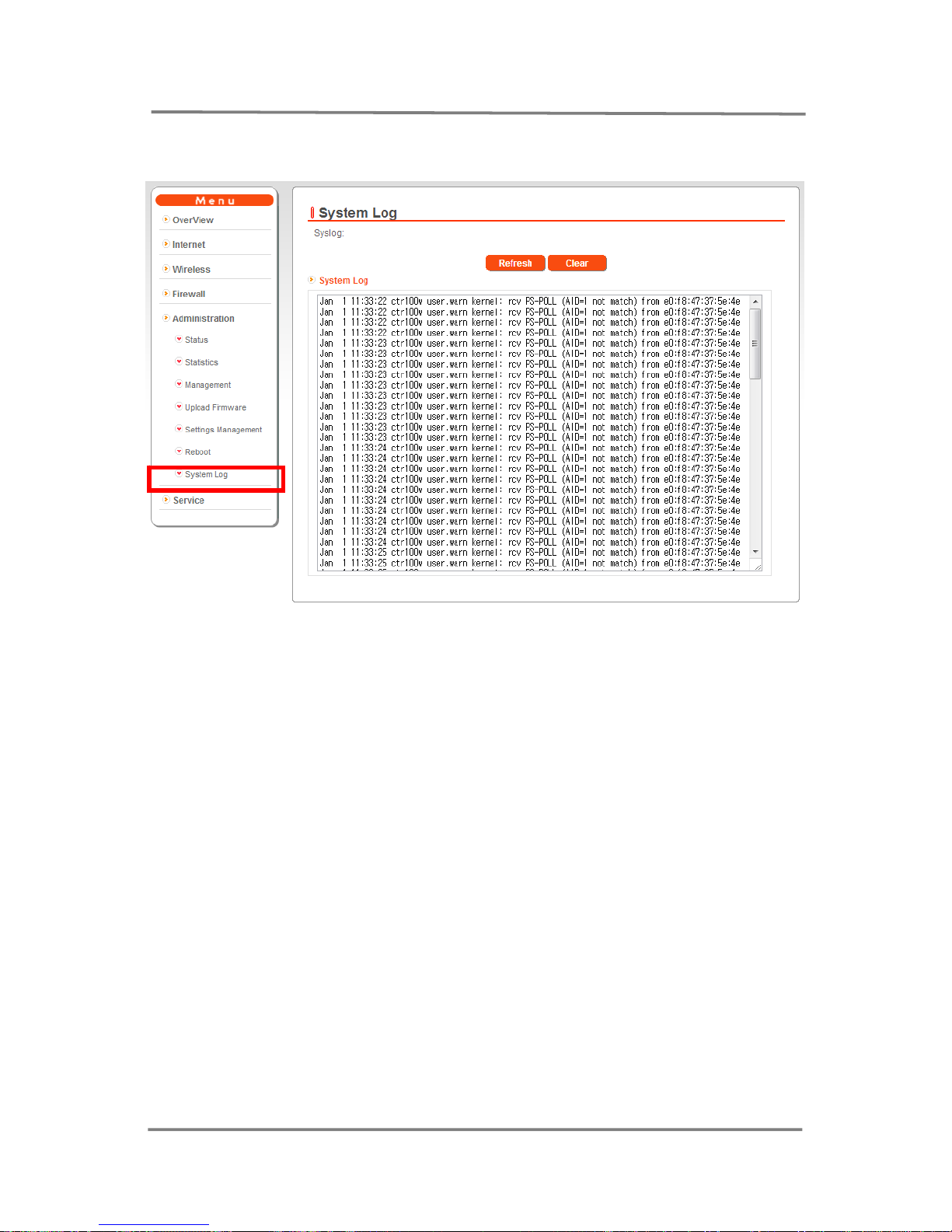
3.5.7 Administration>System log
This page is to set remote log server and show the system log.
Page 30
30
CTR-180 M2M Router Manual
CELOT WIRELESS
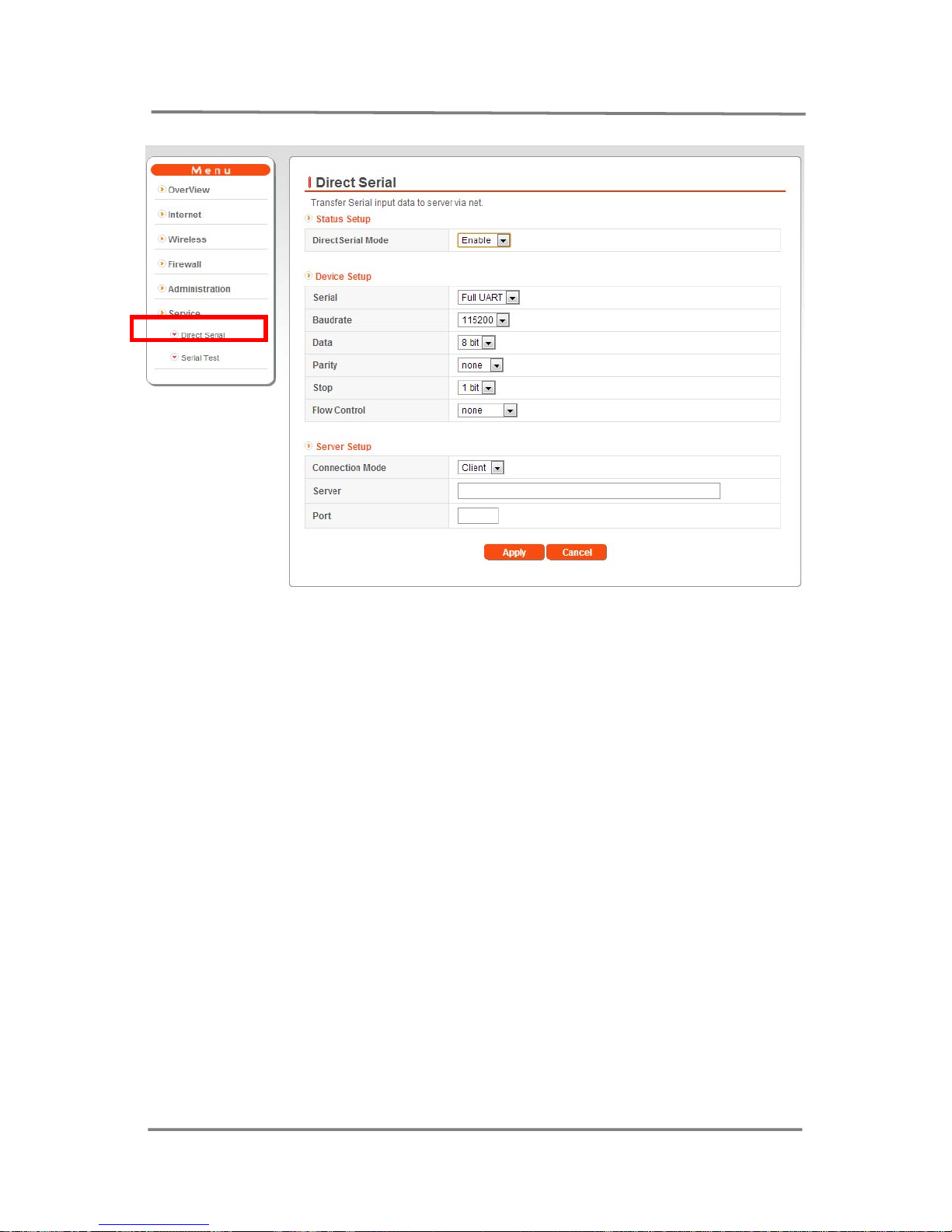
3.6.1 Service> Direct Serial
CTR-180 supports “Direct Serial” via Full UART and Lite UART to transfer Serial raw
DATA from a device to a server. The Serial device can work as if it is connected to
the server directly.
● Status Setup : Select “Enable”
● Device Setup : Select Serial port, Baudrate, DATA bit, Party, Stop bit and Flow
Control etc
● Server Setup : Input server IP and its Port.
Page 31
31
CTR-180 M2M Router Manual
CELOT WIRELESS
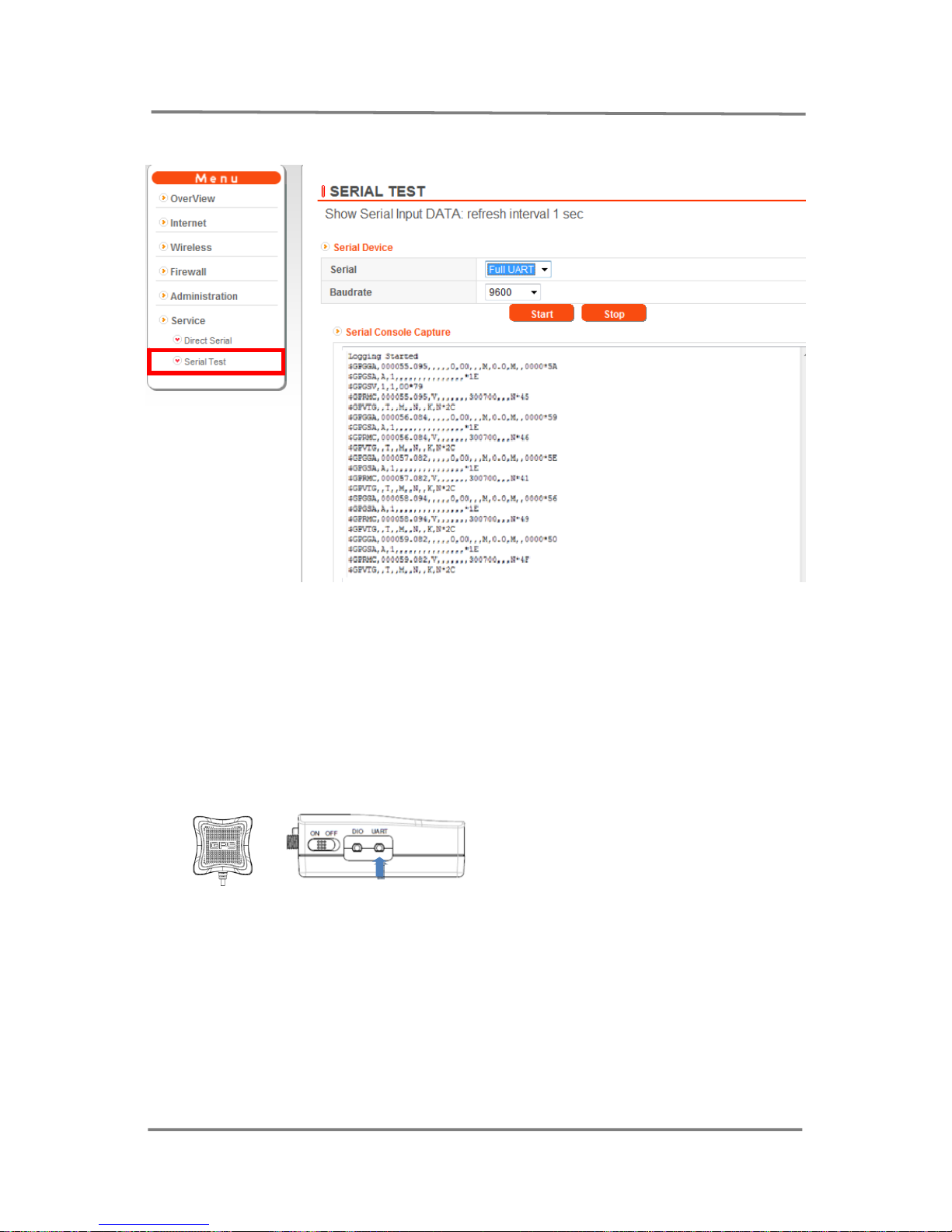
3.5.8 Service> Serial Test
CTR-180 supports Full UART and Lite UART for interface with other device.
This menu is to test Full UART and Lite UART and to see the DATA from the devices
connected to CTR-180 via Full UART or Lite UART.
● Serial Device
● Select Serial port [Lite UART or Full UART] and right baud rate for the
device.
※ GPS module & antenna
Serial port for GPS is Lite-UART and baud rate is 9600.
Page 32

32
CTR-180 M2M Router Manual
CELOT WIRELESS
Page 33

33
CTR-180 M2M Router Manual
CELOT WIRELESS
● Standards : IEEE 802.11g ,IEEE 802.11b, ,IEEE 802.11b
● Security : 64/128-bit WEP, WPA-PSK, WPA-PSK2
● WLAN Frequency Range : 2.4GHz to 2.483GHz
● Memory : RAM 64MB, Flash Memory 8MB (4MB is reserved for customer S/W)
● CDMA Standard : IS-95 A/B, IS-98A, IS-637A, IS-707A, IS-2000 , IS-835, IS-856,
IS-866, IS-890
● CDMA Frequency Range :
A Band : RX : 462.5 ~ 467.475 MHz / TX : 452.5 ~ 457.475 MHz
L Band : RX420.000 ~ 424.975 MHz /TX :410.000 ~ 414.975 MHz
● CDMA REV.A Data Rate : 3.1Mbps for download, 1.8Mbps for upload.
● External Interface
● RJ 45
● Full UART (D-9pin) RS232C/RS485
● UART Lite
● Micro USB
● Digital I/O
● I2C
● 4 LED : SINGAL,3G,WLAN,PWR
● Operating temperature : -30 °C ~ +75 °C
● Storage temperature : -35 °C ~ +90 °C
● Humidity : 5 ~ 95%
● Dimension : 105mm x75mm x 28mm without bracket
● Antenna : Internal Chip Antenna for WLAN x 2
External SMA type for 3G Antenna.
● Battery : 3.7V, 1,100min Li-ion
●
Battery Operating time : Working time: 2 hours
● AC Adaptor : AC 110~240V, 50~60Hz, DC 9.0`24V / 2.0A
Technical Specification
Page 34

34
CTR-180 M2M Router Manual
CELOT WIRELESS
CELOT Wireless CO., Ltd
4Fl.,NongHyup Bldg.,#1588-10 Gwanyang-Dong,
Dongan-Gu, Anyang City, Gyeonggi-Do, Korea
(Postal Code : 431-727)
Tel : +82 70 7458 5501
Fax: +82 31-388 5501
http://www.celotw.co.kr/
 Loading...