

Page 1
CL850 Manual
Page 2

CL850 MANUAL
Safety Precautions
Avoid long time expose to the direct light or heat.
Faults may occur if kept in extreme of temperatures.
May become damaged if dropped or knocked.
Problems may occur if exposed to humid and/or dusty conditions.
Do not use if power cable or plug are damaged.
Use only dedicated cable/adapter.
Do not disassemble.
Do not look directly at the light source, as this can cause
damage to the eye.
2
Page 3

CL850 MANUAL
Regulatory Information
FCC compliance Information
This device complies with part 15 of FCC Rules.
Operation is subject to the following two conditions:
1. This device may not cause harmful interference.
2. This device must accept any interference received, including
interference that may cause undesired operation.
Information to User
This equipment has been tested and found to comply with the
limits for a Class B digital device, Pursuant to part 15 of the FCC
Rules. These limits are designed to provide reasonable protection
against harmful interference in a residential installation.
This equipment generates, uses and can radiate radio Frequency
energy and, if not installed and used in accordance with the
instructions, may cause harmful interference to radio
communications. However, there is no guarantee that
interference will not occur in a particular installation. If this
equipment does cause harmful interference to radio or television
reception, which can be determined by turning the equipment off
and on, the user is encouraged to try to correct the interference
by one or more of the following measures:
3
Page 4

CL850 MANUAL
- Redirect or reposition the receiving antenna
- Increase the separation between the equipment and receiver
- Connect the equipment to a socket on a circuit different from
that to which the receiver is connected.
- Consult the dealer or an experienced radio/TV technician for
help.
FCC WARNING: This equipment may generate or use radiofrequency energy. Changes or modifications to this equipment may
cause harmful interference, unless such modifications are
expressly approved in the instruction manual. The user’s license to
operate this equipment may be revoked if an unauthorized change
or modification is made.
RF Exposure Information: The antenna used for this transmitter
must not be co-located or operated in conjunction with any
other antenna or transmitter.
CE :
EN300328
EN301489
EN60950
4
Page 5

CL850 MANUAL
Laser Safety:
Product is certified by the manufacturer to comply with DHHS
Rules 21 CFR Subchapter J. Applicable at the date of
manufacture.
Environmental Notice
This product does not any materials specified harmful to the
human body. At the end of this product’s service life, please
separate with the life waste and discharge or go to the Celluon
service center for environmental protection.
5
Page 6

CL850 MANUAL
Battery Information
Battery service life: 200 minutes continuous use (max)
Capacity: 830mAh (max) @ 3.7V
Charging the Battery
Use the adapter supplied for connection to the power
supply. The battery will now start charging.
Charging time: 180 min
Caution
- Use of any other adapter may cause the battery to
explode.
- After purchasing the product, charge the battery before
use.
- Charging time is dependent on ambient temperature i.e.
it may be longer or shorter in extreme heat or cold.
- It is possible that the battery is not fully charged even
when the charging indicator is illuminated.
- Since battery belongs to expendable supplies, service
life gradually shortens after several uses.
6
Page 7

CL850 MANUAL
Table Contents
1. FEATURES...................................................................................9
2.PARTS AND THEIR FUNCTIONS ............................................100
3.HOW TO OPERATE..................................................................111
4.1 IN USB MODE .......................................................................11
4.2 IN BLUETOOTH MODE............................................................11
4. HOW TO INSTALL, REMOVE AND USE SOFTWARE.............12
4.1 System Requirements
4.2 Installation/Upgrading/Uninstalling the Driver
4.3 Connection Method
4.4 Disabling the Projection Keyboard Sound
5.5 PK Settings Application
5.6 Tutorial
5.7 Shortcut Icon Keys
5.8 Function Key and Ctrl Key
5. KEYBOARD LAYOUT................................................................33
6. TYPING LATIN LETTERS AND ADDITIONAL CHARACTERS.34
7. ADJUSTING KEY SENSITIVITY................................................36
7
Page 8

CL850 MANUAL
8. SAFETY PRECAUTIONS ..........................................................38
9. TROUBLESHOOTING...............................................................40
10. SPECIFICATIONS AND DEMENSIONS..................................42
8
Page 9
1. Features
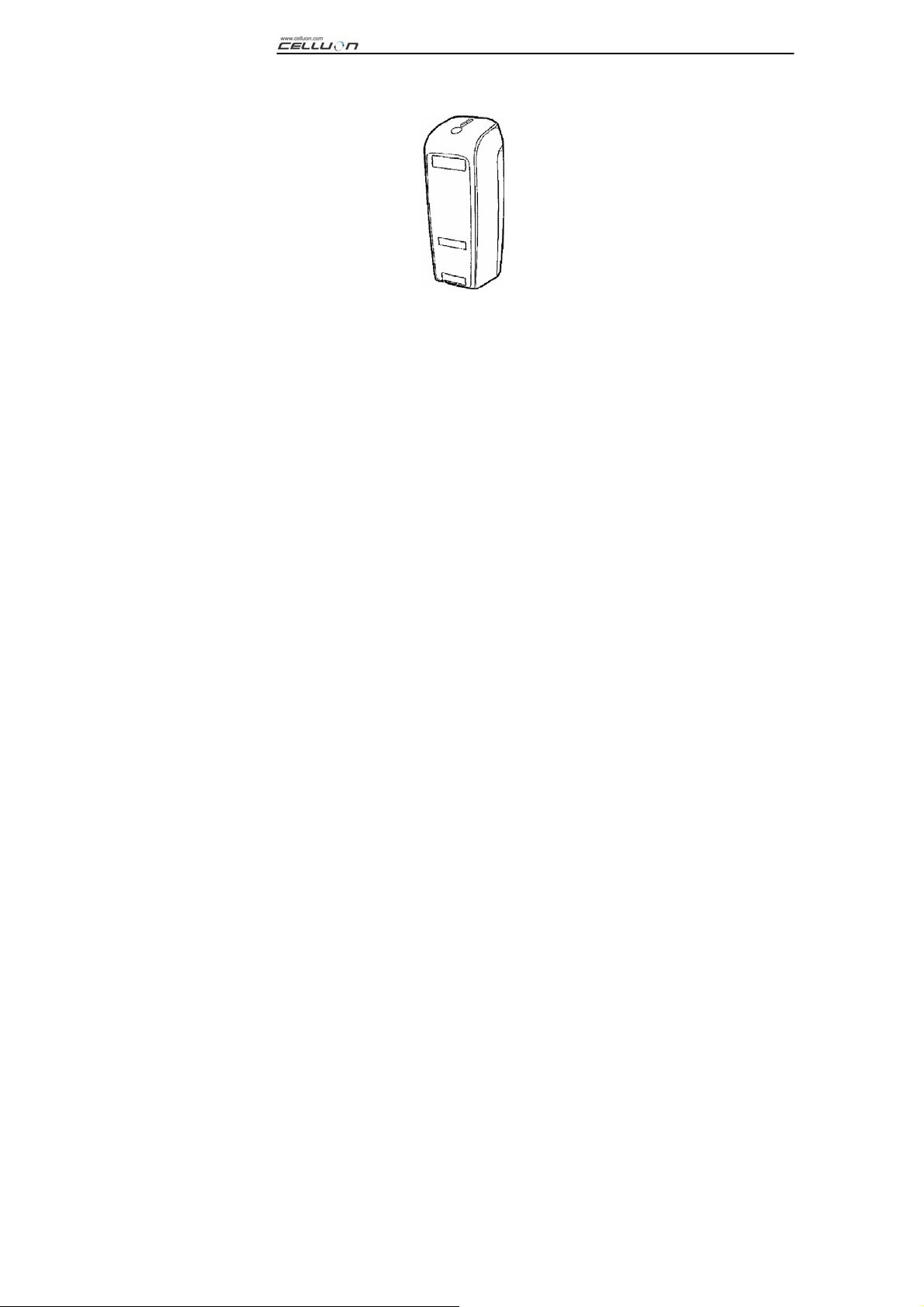
Uses normal QWERTY keyboard layout.
Compact size (convenient to carry).
Includes function and shortcut icon keys.
Robust and durable, uses optical technologies
Bluetooth and serial port interface connections.
Rapid entry keys.
Economical, uses an integrated, rechargeable lithium
battery.
Compatible with Pocket PC, Palm OS and Windows.
CL850 MANUAL
9
Page 10
2. Parts and their Functions
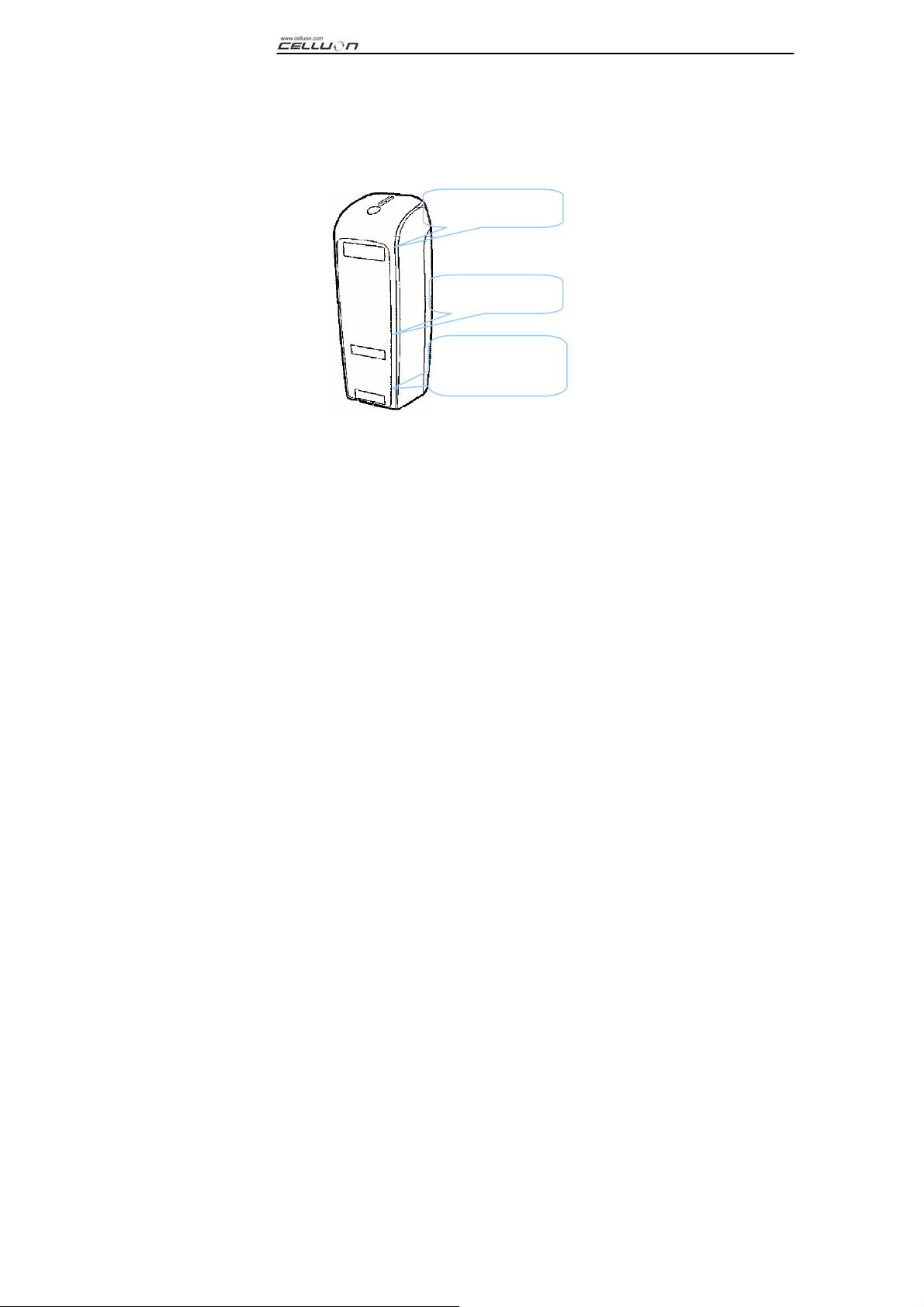
Pattern Projector
Sensor Module
Infra Red Light
Source
Projector: projects the keyboard image.
Infra Red Light Source: supplies the light source to
allow the Sensor Module to recognize key strokes.
Sensor Module: recognizes key strokes and transmits
them to the processing device.
CL850 MANUAL
10
Page 11

CL850 MANUAL
3. How to Operate
3.1 In USB Mode
1. Turn power on.
2. Connect device to computer via cable.
3. Use laser keyboard.
3.2 In Bluetooth Mode
1. Install software as described in “Manual 4”.
2. Turn power on.
3. Set up Bluetooth environment as described in “Manual 4”.
4. Use laser keyboard.
11
Page 12

CL850 MANUAL
4. How to install, remove and use software
4.1 System Requirements
1. Microsoft Windows 2000/XP operating system.
2. Microsoft ActiveSync 3.6 or above.
3. Pocket PC based on Microsoft Windows Mobile 2003, with
Bluetooth (Widcomm or Microsoft).
4.2 Installation/ Upgrading/ Uninstalling the Driver
For serial port drivers please refer to http://www.celluon.de.
12
Page 13

CL850 MANUAL
1. Installation
1) Connect PC to Pocket PC via ActiveSync.
2) Insert installation CD into the CD-ROM drive of your PC to
start the installation program.
3) Follow installation program instructions.
2. Upgrading
Download and install a new driver from http://www.celluon.de
3. Uninstalling
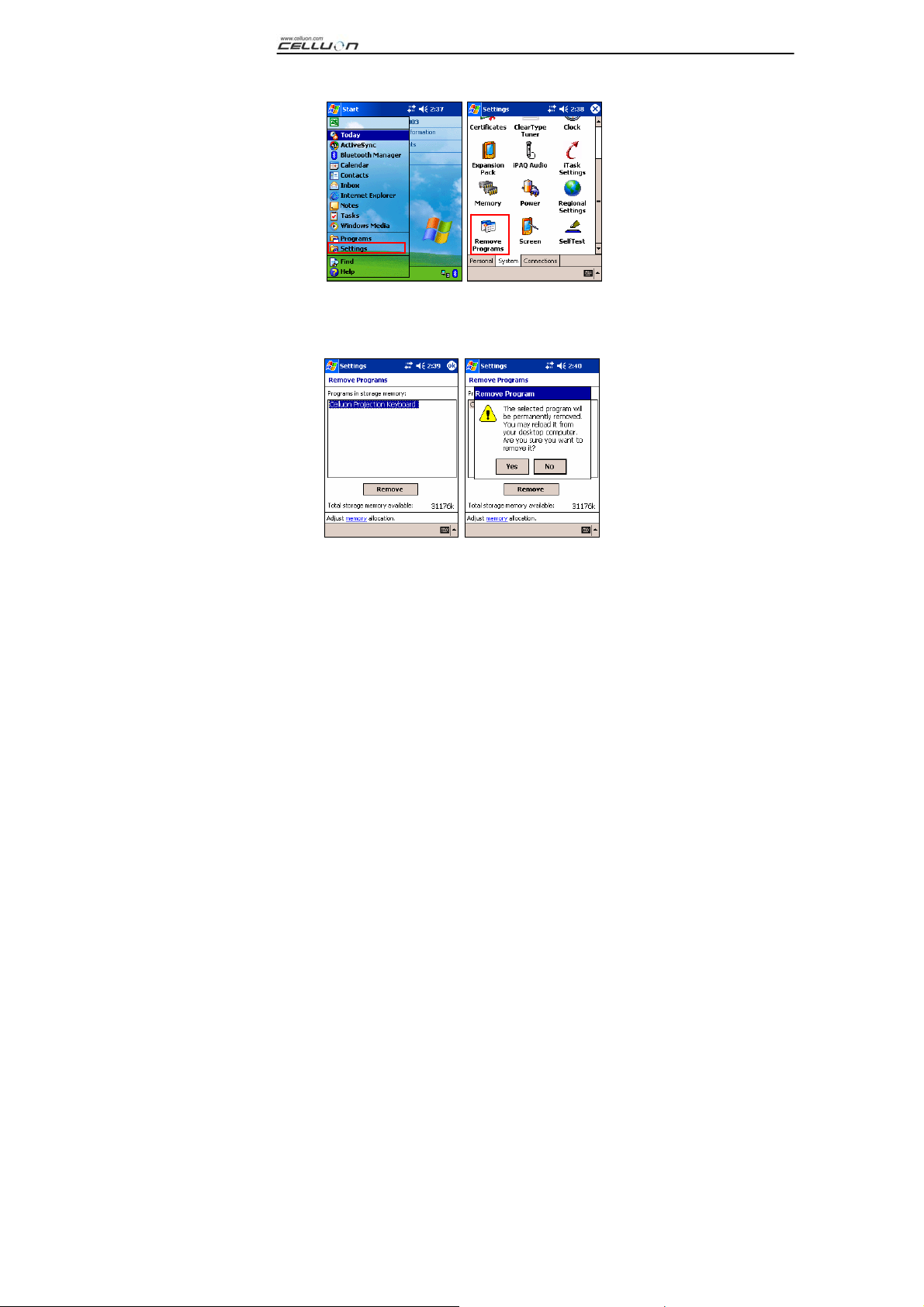
1) Select Today Æ Settings Æ System Æ Remove
Programs as shown in Figure 1.
.
13
Page 14
CL850 MANUAL
Figure 1. Uninstalling the Driver
2) Choose Projection Keyboard and click Remove, as shown
in Figure 2. Follow the on-screen instructions.
Figure 2. Uninstalling the Driver
14
Page 15

CL850 MANUAL
4.3 Connection Method
To connect a Pocket PC to the Projection Keyboard follow the
instructions below.
1. Turn on power to Pocket PC and Projection Keyboard.
Note: Verify that sufficient battery power is supplied to the
Projection Keyboard device
2. Run the program required to enter the keyboard as shown in
Figure 3 (e.g. Note).
Figure 3. Running the Program
15
Page 16

CL850 MANUAL
3. Select Projection Keyboard from the options, as shown in
Figure 4.
Figure 4. Selecting a Device
16
Page 17

CL850 MANUAL
4. When the Bluetooth Browser is open, choose CL850, as
shown in Figure 5.
Figure 5. Selecting a Bluetooth Device
17
Page 18

CL850 MANUAL
5. You are now ready to use the Projection Keyboard. To
change the Projection Keyboard’s set values, click on the
Projection Keyboard icon to view the control panel, as shown
in Figure 6.
This icon
Figure 6. Projection Keyboard Control Panel
18
Page 19

CL850 MANUAL
4.4 Disabling the Projection Keyboard Sound
When the user clicks the keyboard sound icon, a clicking
sound is emitted from the Pocket PC. To turn off the sound,
click the keyboard sound button once; click again to turn it
back on, as shown in Figure 7.
This icon
Figure 7. Keyboard Sound Icon
19
Page 20
CL850 MANUAL
4.5 PK Settings Application
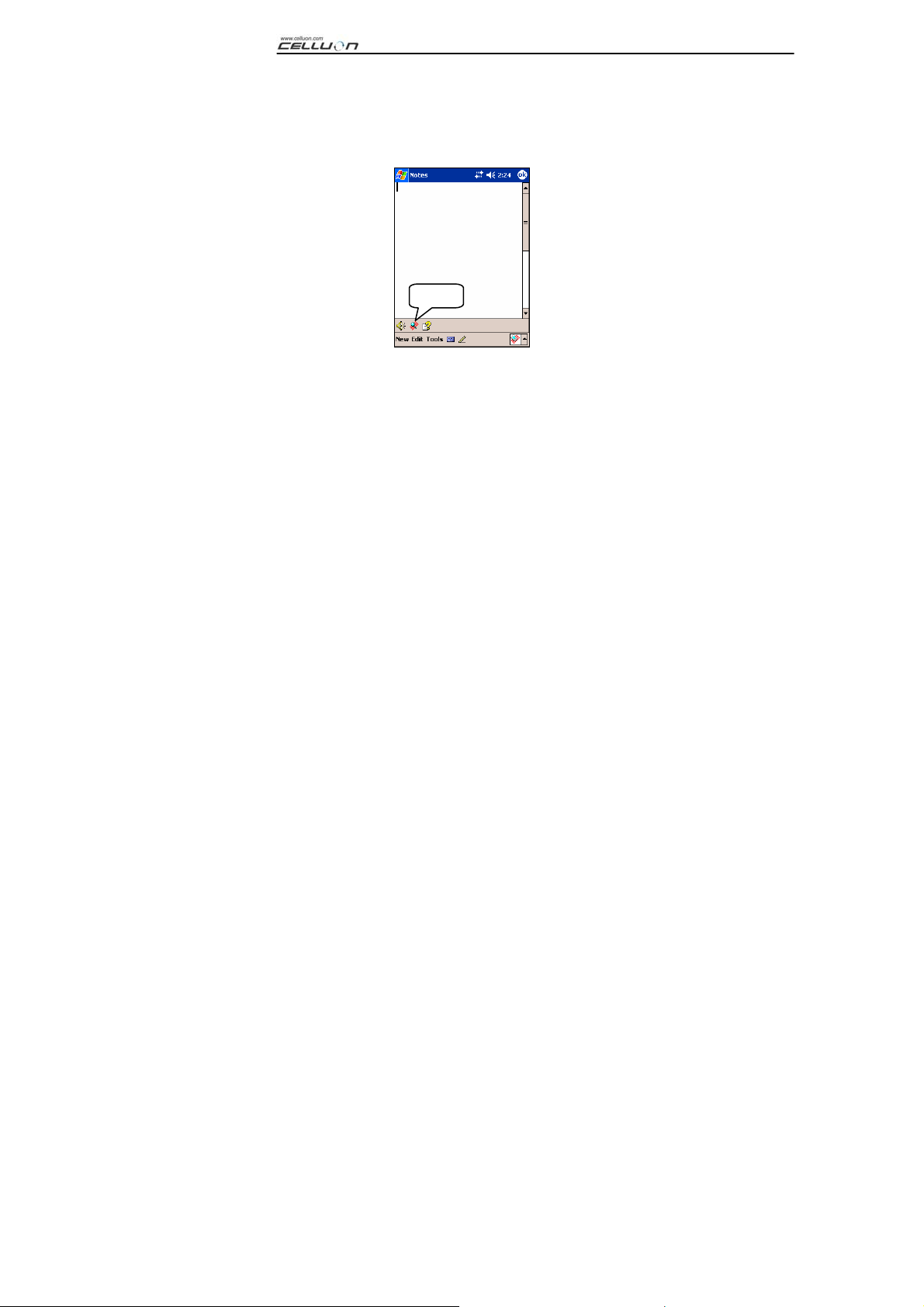
Click on the settings icon to change the different setting values
on the Projection Keyboard, as shown in Figure 8.
This icon
Figure 8. PK Settings Icon
Click the settings icon to view the Change Settings screen, as
shown in Figure 9. These settings enable the user to adjust
key repeat, key sound and key sensitivity.
20
Page 21

CL850 MANUAL
4.5.1 Main Change Settings Tab
Fi gur e 9. Main Change Settings Tab
Key Repeat
By using Key Repeat, continuously pressing a key causes the
value to be entered repeatedly. Select the Key Repeat
checkbox to use the key repeat function or deselect to disable
the function.
21
Page 22

CL850 MANUAL
Keyboard Sound
Clicking the Keyboard Sound function causes a clicking sound
to be emitted from the Pocket PC. Select the Keyboard Sound
checkbox to turn on the key sound function or deselect it to
disable the function.
Sensitivity
If the Projection Keyboard has a problem with key sensitivity,
adjust the setting using the slider.
For details, see “8. Adjusting Key Sensitivity”.
Restoring Defaults
To restore all functions to their default values, click the Restore
Defaults button.
22
Page 23

CL850 MANUAL
4.5.2 Power Save Mode
Adjust the Power Save Mode from the Power tab on the
Change Settings screen.
Power Save Mode On
Click on the Power Save Mode On checkbox to use this
function, as shown in Figure 10.
Fi gur e 10. Power Save Mode
23
Page 24

CL850 MANUAL
Standby
Change the Standby setting value to alter the time elapsed
before the system enters Standby mode. In Standby mode, if
no keys are pressed within a given period of time the device
will enter a low power mode until a key is pressed again.
Fi gure 11. Standby Mode
24
Page 25

CL850 MANUAL
Wakeup Response
To use the keyboard again, press any key or area of the
keyboard. Change the Wakeup Response settings to adjust
the speed for switching between Standby and normal mode, as
shown in Figure 12.
Figure 12. Wakeup Response
25
Page 26

CL850 MANUAL
Turning Off the Projection Keyboard
Once in Standby mode, if no keys are pressed within the time
specified in the Turn Off After field, the device will enter Power
OFF mode, as shown in Figure 13. To use the keyboard from
Power OFF mode, turn the Projection Keyboard on again.
Fi gur e 13. Power OFF Mode Time Setting
Restoring Defaults
To restore the settings in the Power tab to their default values,
click the Restore Defaults button.
26
Page 27
CL850 MANUAL
4.5.3 Projection Control
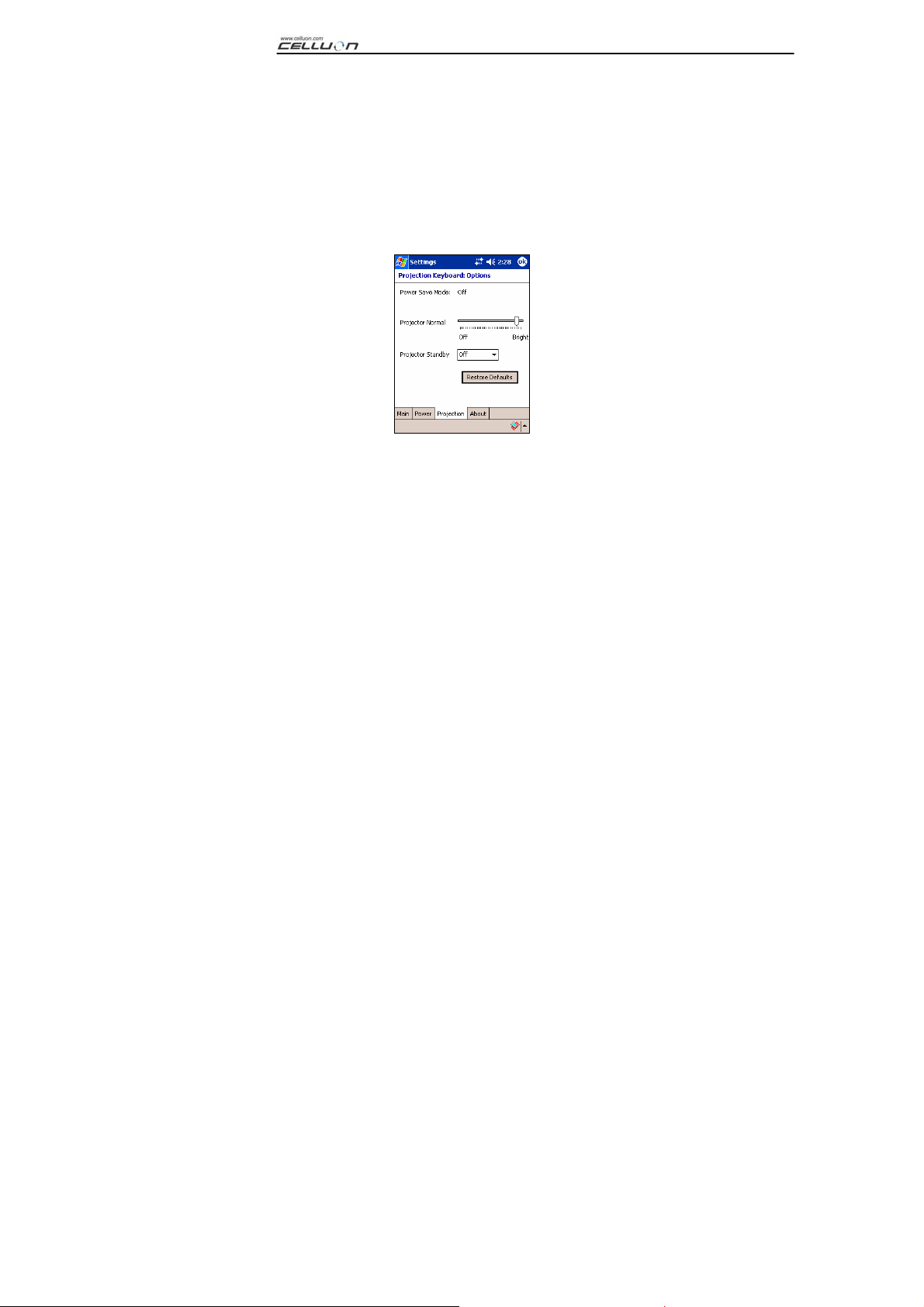
Adjust keyboard brightness using the settings in the
Projection tab.
Projector Normal
Adjust the keyboard brightness using the slider for the
Projector Normal setting, as shown in Figure 14
Figure 14. Projector Normal
27
Page 28

CL850 MANUAL
Projector Standby Mode
Change the settings in the Projector Standby box to set the
keyboard brightness in Standby mode, as shown in Figure 15.
Fi gure 15. Projector Standby
Restoring Defaults
To restore the settings in the Power tab to their default values,
click the Restore Defaults button.
28
Page 29

CL850 MANUAL
4.5.4 Driver Information
Driver information for the Projection Keyboard is located under
the About tab in the Settings screen, as shown in Figure 16.
Figure 16. Driver Information
29
Page 30
CL850 MANUAL
4.6 Tutorial
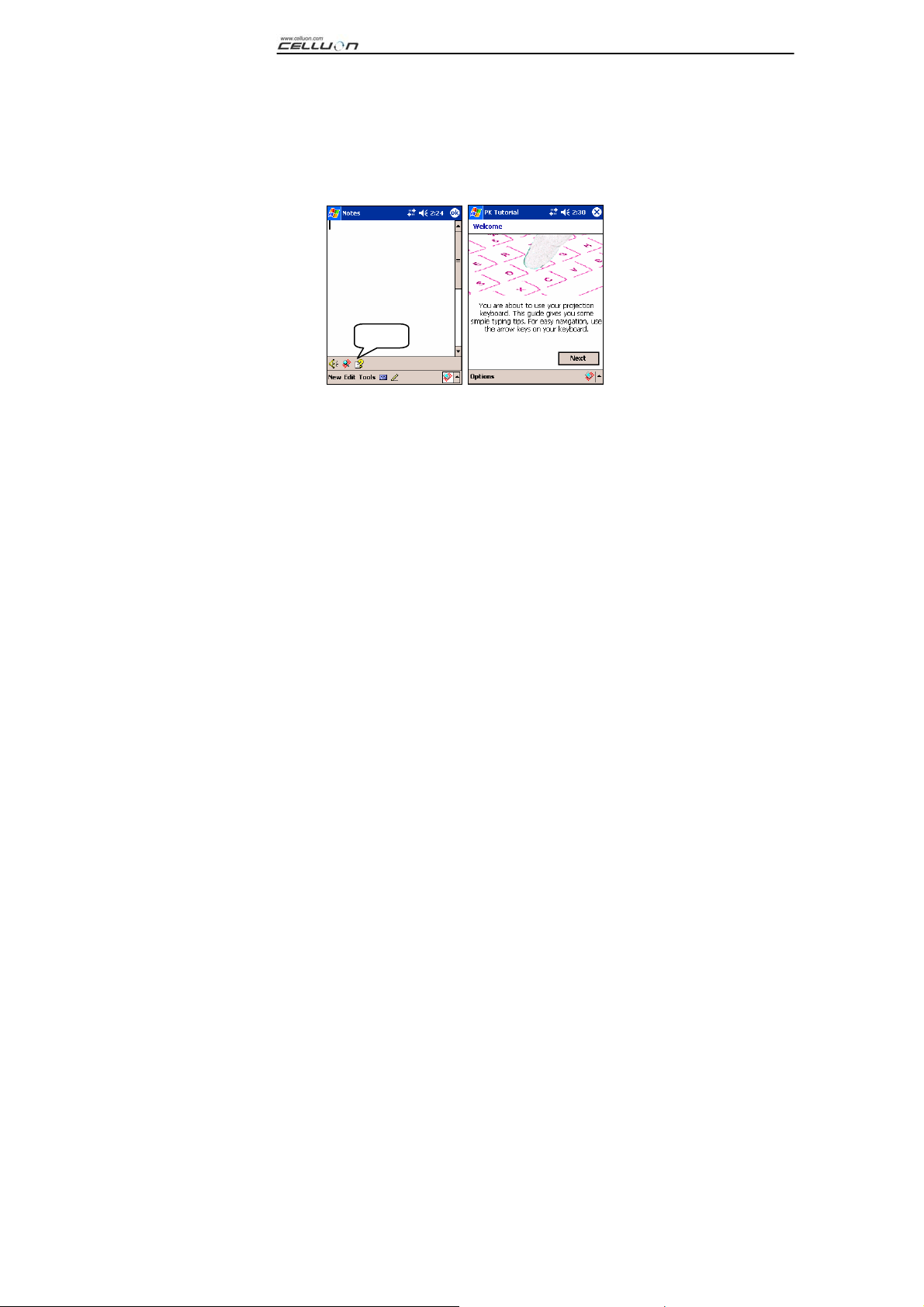
Click the Tutorial icon in the Projection Keyboard control panel
to launch the Projection Keyboard Tutorial, as shown in Figure
17. The Tutorial offers information on how to use the Projection
Keyboard.
This icon
Figure 17. Projection Keyboard Tutorial
30
Page 31

4.7 Shortcut Icon Keys
Table 1.1 below shows the description for each icon.
Icon Functions
Switch to Today screen
Run To Do program
Run Mail program
Run Find program
Run Web Browser
Run Calculator program
Run Calendar program
CL850 MANUAL
Run Address program
Table 1.1 Shortcut Icon Keys
31
Page 32
4.8 Function Key and Ctrl Key
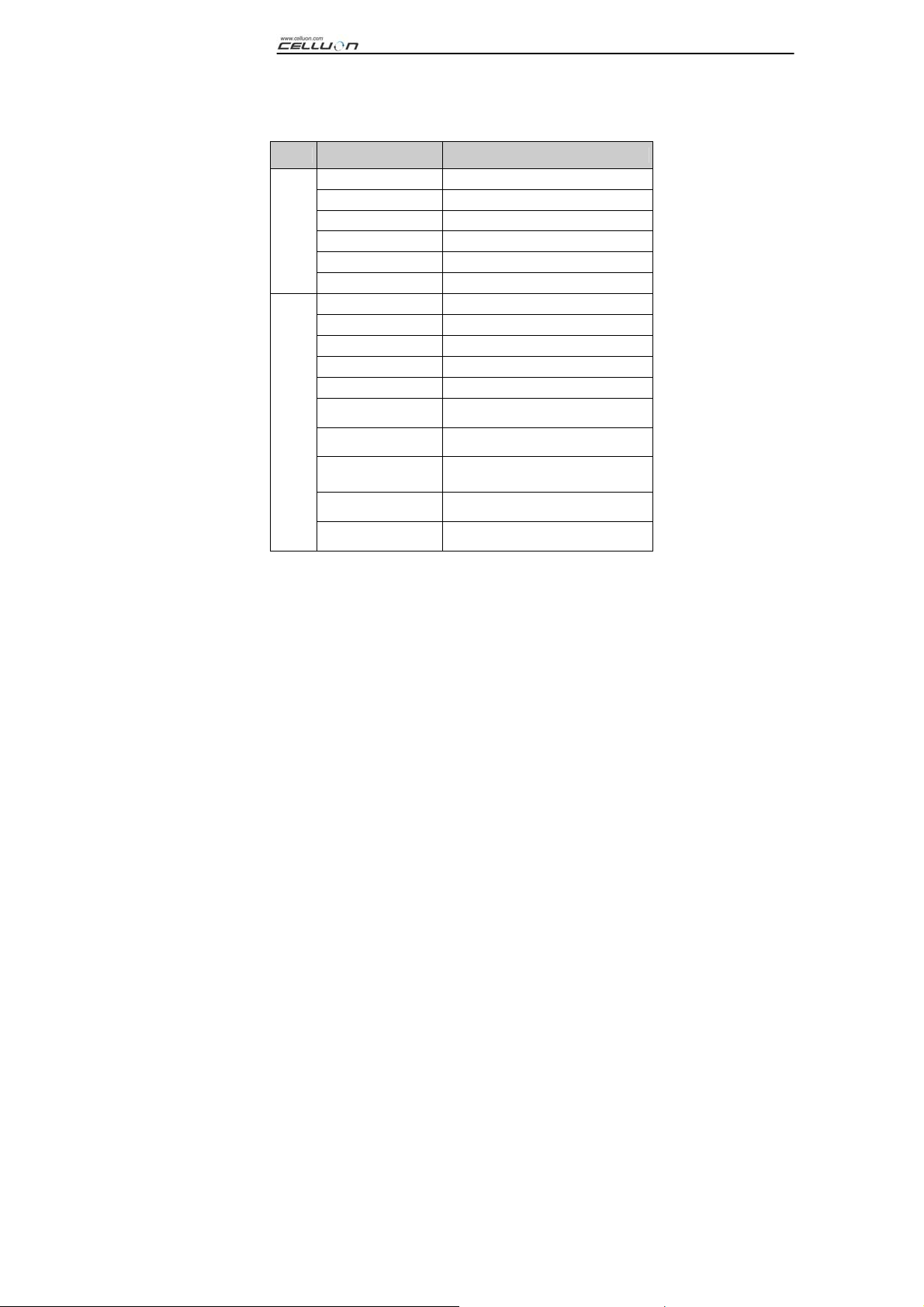
Table 1.2 shows FN and CTRL key combinations.
Key Shortcut Key Functions
FN - 1 Run Note program
FN
FN - ENTER Close the current program
FN - ← (Left Arrow)
FN - → (Right Arrow)
FN - ↑(Up arrow)
FN - ↓(Down Arrow)
CTRL
CTRL - Z Undo
CTRL - X Cut
CTRL - V Paste
CTRL - C Copy
CTRL - A Select All
CTRL - U
Home
End
Page Up
Page Down
Underline
CL850 MANUAL
CTRL - N
CTRL - S
CTRL - F
CTRL - Q
Application Specific
Application Specific
Application Specific
Application Specific
Table 1.2 Key Combinations
32
Page 33

5. Keyboard Layout
Key layout of Projection Keyboard is as follows.
CL850 MANUAL
33
Page 34
CL850 MANUAL
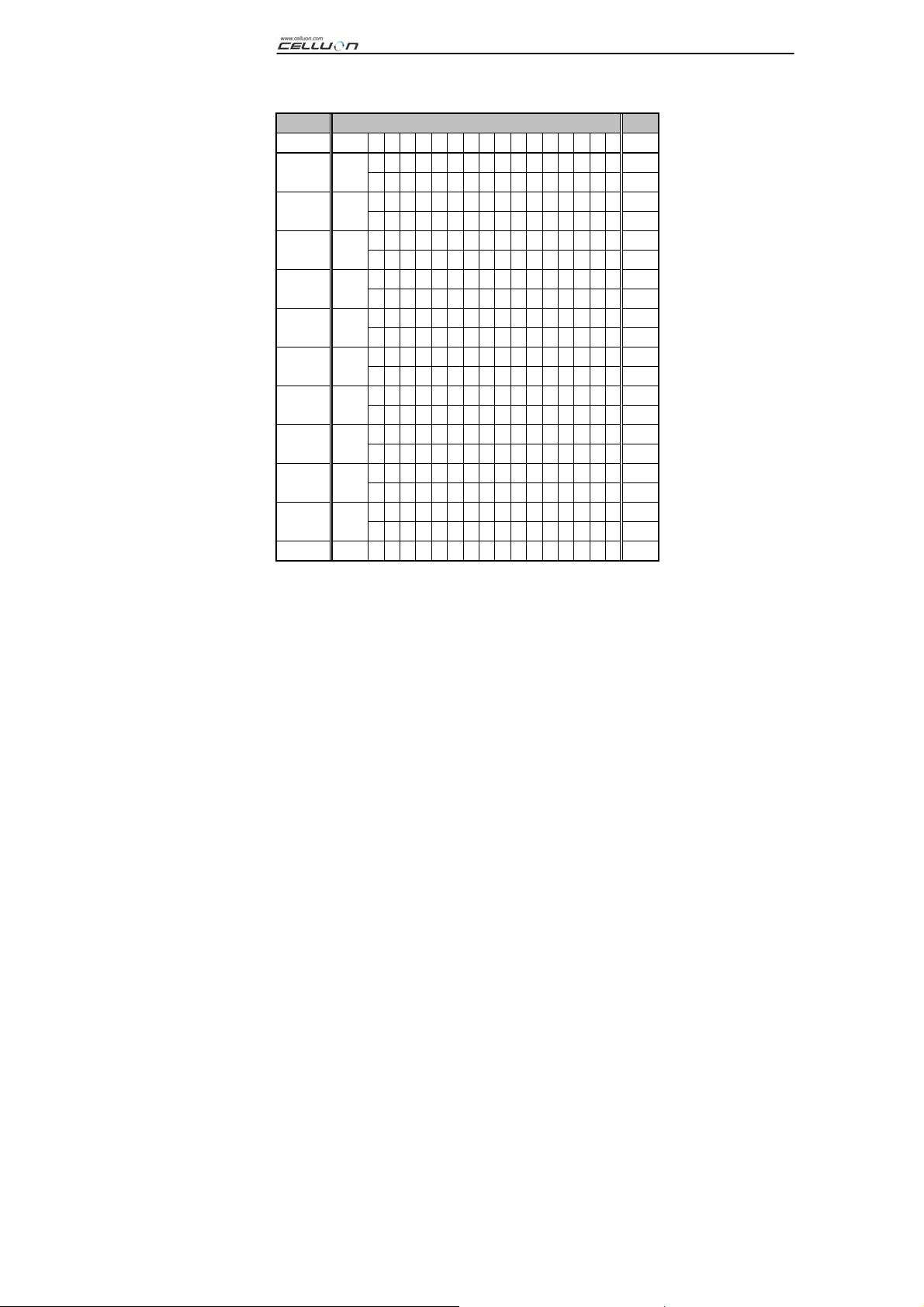
6. Typing Latin Letters and Addition al Characters
FIRST SECOND Remark
FN - '
FN - SHIFT - 6
FN - SHIFT - ;
FN - `
FN - SHIFT - `
FN - O
FN - ,
FN - /
FN - E
FN - S
FN - C
A E I OUYNBC/ PSTD+R
Á É Í Ó Ú Ý
SHIFT
á é í ó ú ý
Â Ê Î Ô Û
SHIFT
â ê î ô û
Ä Ë Ï Ö Ü Ÿ
SHIFT
ä ë ï ö ü ÿ
À È Ì Ò Ù
SHIFT
à è ì ò ù
Ã Õ Ñ
SHIFT
ã õ ñ
Å
SHIFT
å
Ç
SHIFT
ç
Ø
SHIFT
ø
Æ Œ
SHIFT
æ œ
¶ Symbol
SHIFT
µß©¿§™˚ ±®
€ ¥ ¢ £ Currency
34
Page 35

Key input e.g. 1) to input "Á" character:
Press FN key and ' key simultaneously.
Release both keys.
Press SHIFT and A simultaneously.
Key input e.g. 2) to input " ñ " character:
Press the FN key, SHIFT key and ` key simultaneously.
Release keys.
Press N.
Key input e.g. 3) to input "€" character:
Press FN key and C key simultaneously.
Release both keys.
Press E.
CL850 MANUAL
35
Page 36

CL850 MANUAL
7. Adjusting Key Sensitivity
The Projection Keyboard determines key input based on the
amount of light reflected from the finger. Since the perceived
amount of light changes depending on the surrounding
environment, key sensitivity should be set according to userspecific conditions.
How to Adjust Key Sensitivity
1. Click Sensitivity on the settings screen.
2. Adjust the Sensitivity slider. Check if a key stroke is
recognized by pressing the center of the space bar key.
Key Sensitivity Setting Factors
Skin color
Thickness of fingers
Typing habit (leaning on keys)
Finger accessories (manicure etc.)
Surrounding environment
36
Page 37

CL850 MANUAL
Caution
- Key sensitivity must be adjusted each time a new user
accesses the keyboard according to the new user’s
requirements.
- To ensure correct operation, avoid extreme light sources.
- Relevant environmental factors include:
- Direct sunlight, artificial light, Infra Red Data Association
(IrDA), remote control devices.
37
Page 38

8. Safety Precautions
Never look directly at the light source.
Avoid direct sunlight or high levels of infrared rays.
Do not use in extreme brightness.
Do not use under very bright incandescent light.
Do not insert conductive material into the device, or
damage the power or communication ports.
Do not strike or knock the device as this may cause
damage or operational failure.
Do not disassemble the device. (After Sales Service will
not be available)
Only use the cable/charging adapter supplied.
High pressure or heat may cause the lithium battery to
explode.
Remove all objects on the surface between the device
and the keyboard.
Use on a flat surface.
Avoid glass or transparent surfaces.
Fingers should not be positioned less than 5 mm from
the surface.
Do not operate or store in high temperature or humidity.
Do not submerge in water.
It is not possible to get After Service for battery failure
CL850 MANUAL
38
Page 39

CL850 MANUAL
caused by water. (Determined by color on the
attached sticker.)
39
Page 40

CL850 MANUAL
9. Troubleshooting
The device will not turn on.
Cause: Discharged battery.
Solution: Charge the battery fully.
Key strokes not recognized even though the keyboard is
connected.
Cause: Sensitivity set too low.
Solution: Reset to higher sensitivity and restart the device.
Keyboard image is not visible even though the keyboard
operates.
Cause:
1. When brightness is set low, standby or off
2. The device is not charged.
Solution:
1. Set brightness high, normal or on
2. Charge the device.
Cause: The device is overheated.
Solution: Move it to cooler surroundings and wait for a short
time before restarting.
Cause: The device was not positioned on a flat surface.
40
Page 41

CL850 MANUAL
Solution: Move to a flat surface.
Incorrect keys are recognized when typing.
Cause: Sensitivity is set too high.
Solution: Reset to lower sensitivity and restart the device.
Cause: The device was not positioned on a flat surface.
Solution: Move to a flat surface.
41
Page 42
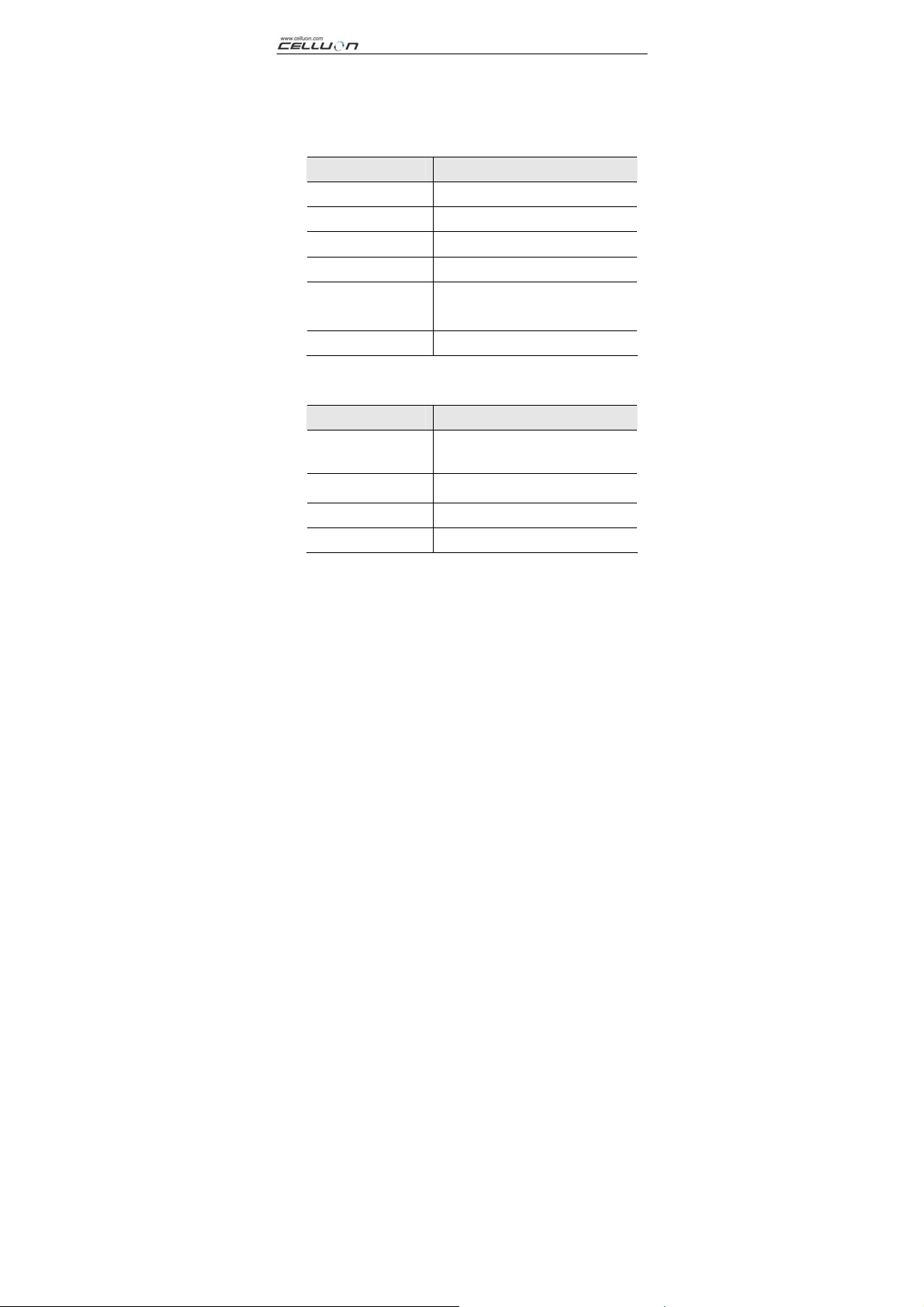
10. Specifications and Dimensions
Keyboard Project
Items Specifications
Light source Red diode laser
Keyboard layout 19mm QWERTY layout
Keyboard size Approx. 241mm*106mm
Keyboard position Approx. 100mm from keyboard device
Projection surface Non-reflective,
opaque flat surface
Visibility Visible in 1000-5000 lux ambient light
Keyboard Sensor
Items Specifications
Illumination Visible in incandescent light of 1800
lux or more
Detection rate Up to 400 characters per minute
CL850 MANUAL
Effective key stroke Approx. 2mm
Operating surface Any flat surface
42
Page 43
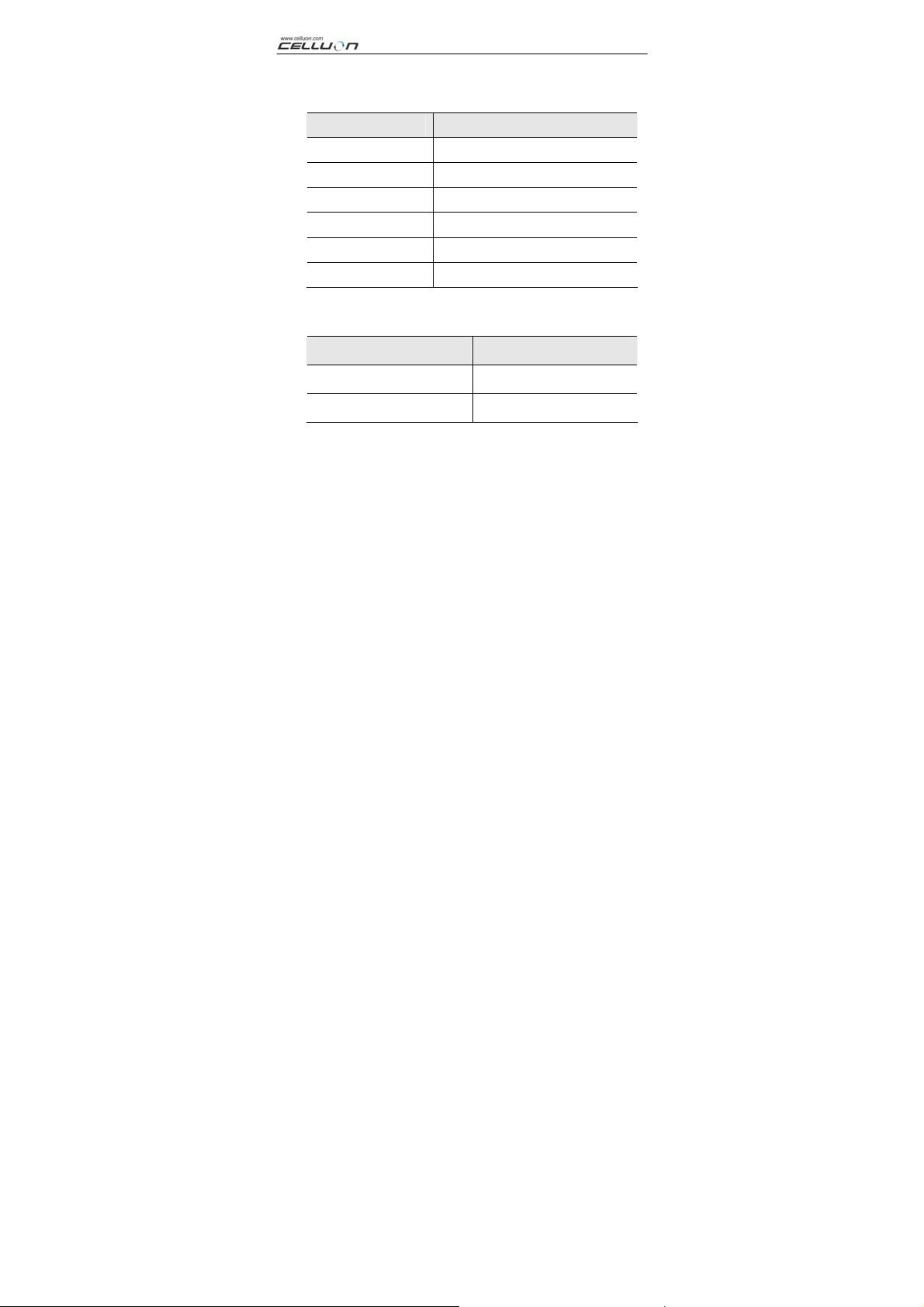
Electrical Condition
Items Specifications
Power source Integral lithium battery
Battery capacity 830mAH(Max)@3.7V
Adapter Rating 1A @ 5V
Interface USB
Bluetooth v1.1 class 2
Power consumption Max. 3W@5V
Environmental Condition
Items Specifications
Operating temperature 0~40°C
Storage temperature -20~50°C (including battery)
CL850 MANUAL
43
Page 44

CL850 MANUAL
Compatible Operating Systems
Microsoft Windows Mobile 2003
Palm OS 5.x
Microsoft Windows XP
Size (mm): 93 * 39 * 37.5
Weight: 109g
For information on device and driver compatibility, please
refer to http://www.celluon.
com
44
 Loading...