

Page 1

Wireless MAP1600
User Guide
1
Page 2

Product Overview
MAP1600 is a wireless Access Point based on the latest
IEEE802.11n standard while at the same time being
backwards compatible with IEEE802.11b/g devices. Adopting
the advanced “Multiple in and Multiple out” (MIMO)
technology, it can provide a maximum of 300Mbps stable
transmitting rate for wireless users. With appropriate Power
over Ethernet (POE) support, you only need to run one cable
to the AP to deliver both data and power. Ceiling mounted
design and POE technology make it couldn't be easier for
family, enterprise, and hotel users to extend wireless
networks indoors. Unique Watchdog technology makes AP
working more stably and wireless network running normally
for a long time.
Wireless AP and WDS working modes support wireless AP,
wireless Repeater, wireless Point-to-Point (P2P) Bridge, and
wireless Point-to-Multipoint (P2MP) Bridge functions. Firstly,
it can be used as a wireless Hot Spot to enable the accesses
of wireless users when in AP mode. Secondly, it can be used
as a Bridge to connect two or more wired networks when it is
in P2P or P2MP mode. Thirdly, it can also be used as a
wireless Repeater to expand your wireless network coverage
area.
Furthermore, 64/128-bit Wired Equivalent Privacy (WEP),
WPA-PSK, WPA2-PSK, WPA&WPA2, 802.1X authentication,
and MAC Address filter are all supported to protect your data
and privacy. Gigabit LAN port provides you higher LAN
transmission rate. SNMP and Web-based management
interface make configuration easier than ever.
1.1 Product Features
¾ Complies with the latest 802.11n and 802.11b/g
2
Page 3

standards
¾ Supports AP and WDS working modes
¾ Provides 300Mbps receiving and transmitting rate
¾ MIMO technology uses signal reflections to increase 8
times transmission distance of 802.11g standard and
efficiently reduce “dead spots”
¾ One Gigabit Auto-negotiation LAN port supported for
LAN connection
¾ POE and external power supported
¾ SNMP and Web-based management interface
¾ 64/128-bit WEP encryption
¾ WPA-PSK, WPA2-PSK, WPA&WPA2 encryption
methods
¾ Auto MDI/ MDIX
¾ Wireless VLAN divisible for managing clients
conveniently
¾ Client's access limited
¾ Watchdog designed to make device run stably
¾ Supports auto wireless channel selection
¾ Software controls the wireless signal on/ off and
remotely controls the wireless coverage area.
1.2 Package Contents
Please unpack the package and find the following items:
¾ One MAP1600 Wireless AP
¾ One User Guide
3
Page 4
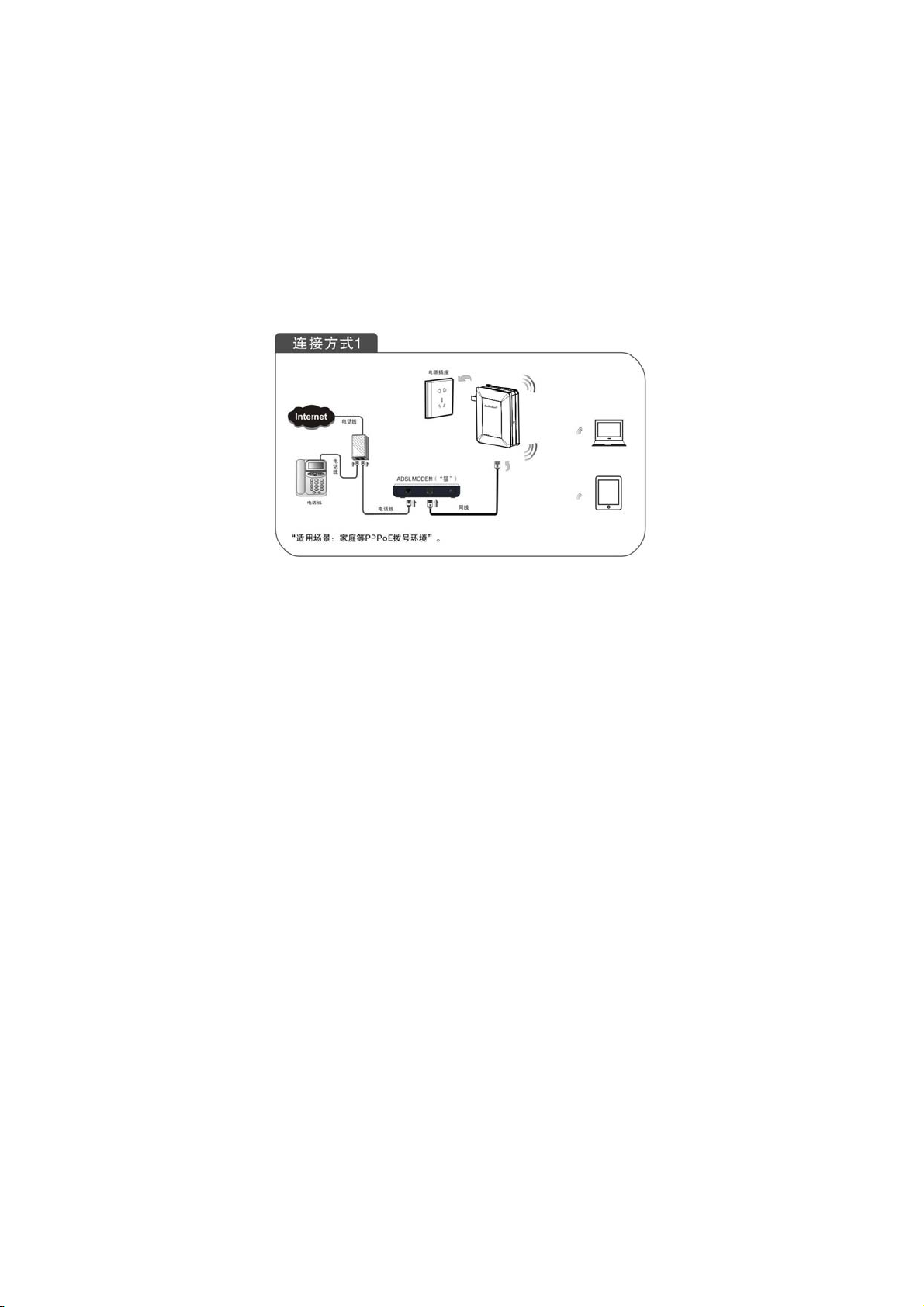
Product Installation
You are recommended to install the product after configuring
the settings of MAP1600 according to the guide in chapter 3.
The following steps take AP mode for example.
1. Use the included power adapter to power on the AP.
2. Connect one end of the network cable to the LAN port of
MAP1600, and another end to your Ethernet broadband,
switch or PC.
3. Connect wireless adapter to MAP1600.
Please refer to the topology below:
4
Page 5
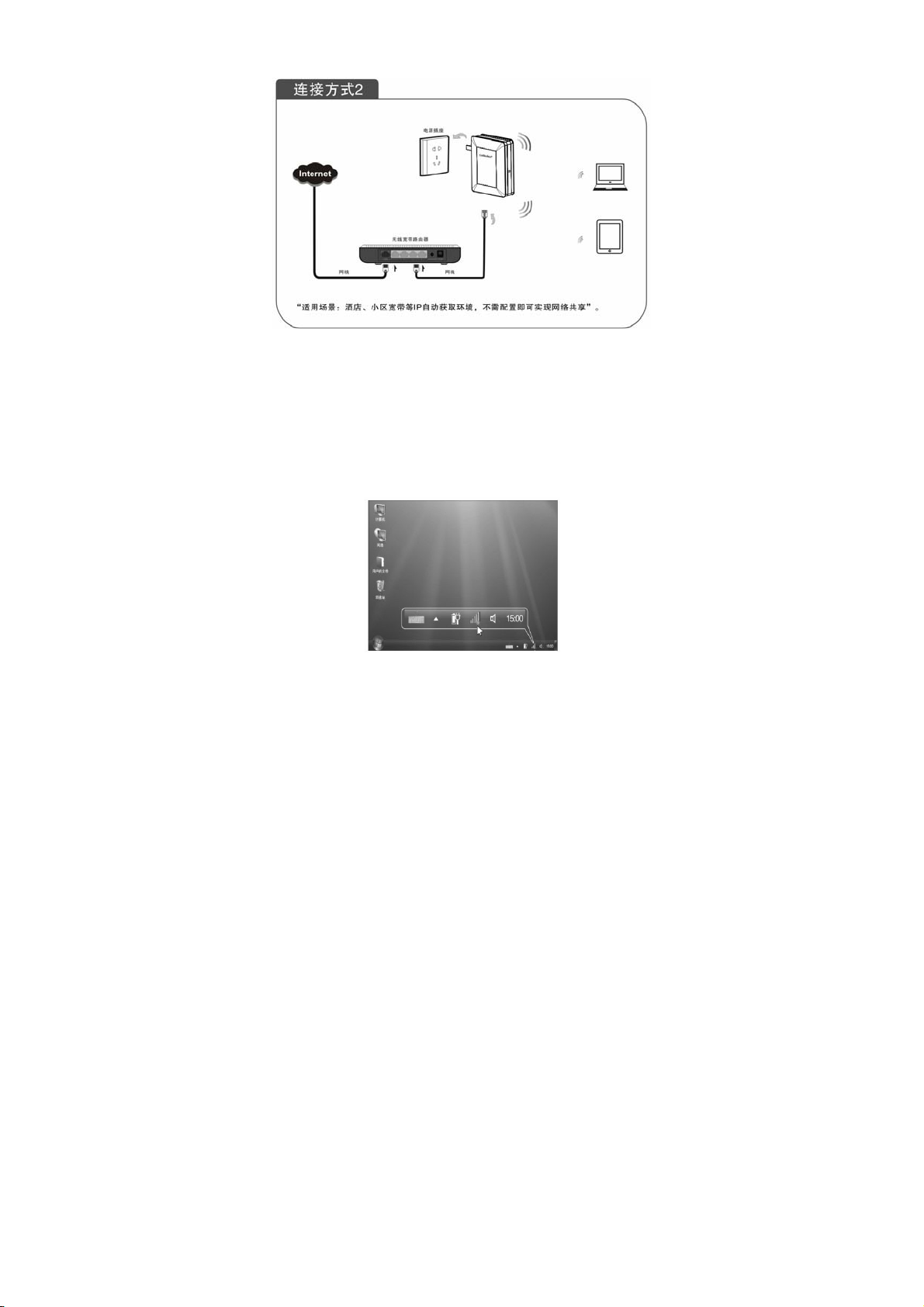
The topology plan of AP mode connection
3 TCP/IP Address Setting
Win7
3.1
1,click the network mark
2,selecting the wireless network
5
Page 6
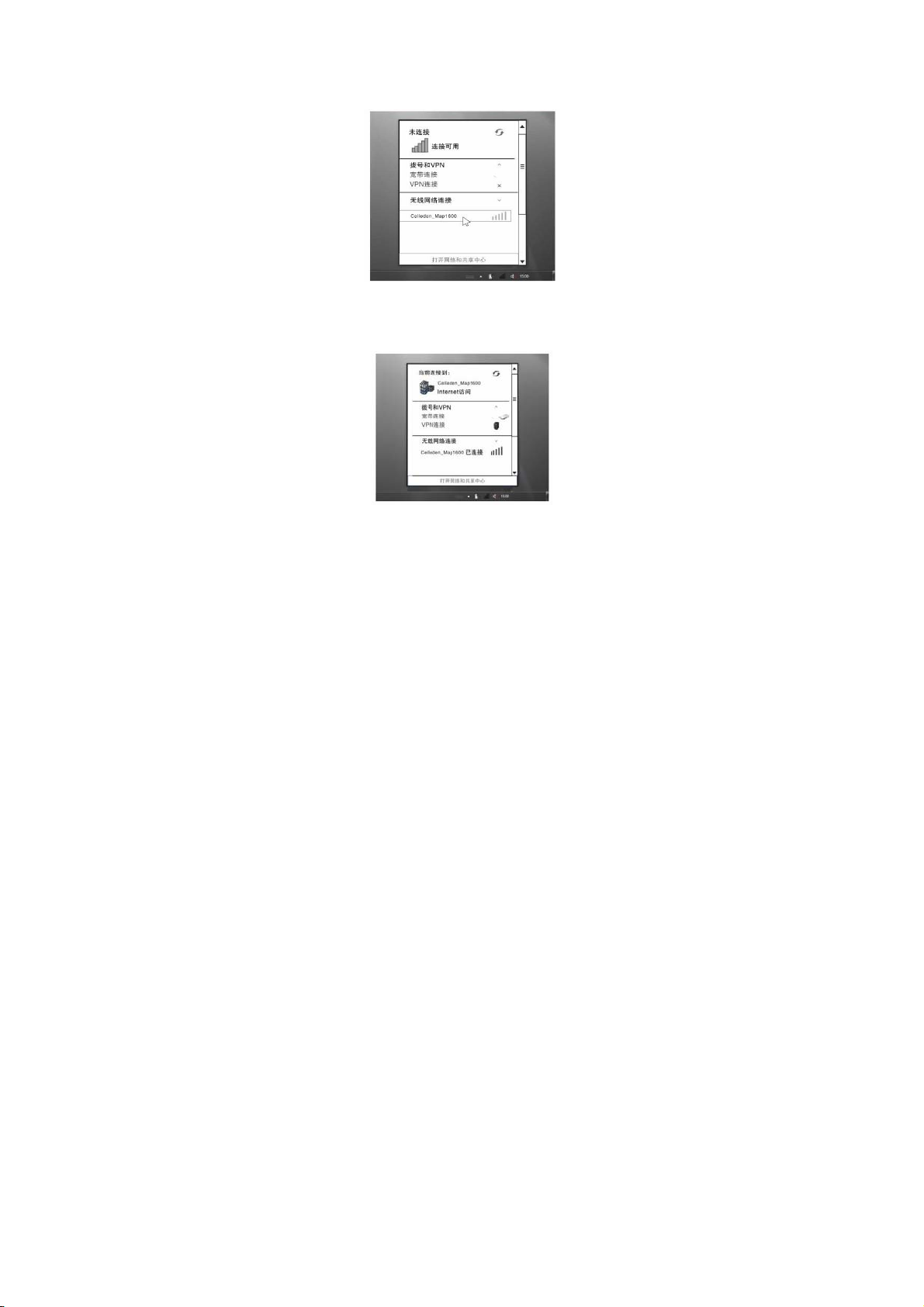
3,connecting successfully
3.2 WinXP
Click the “Start—>Settings—>Control Panel”
6
Page 7
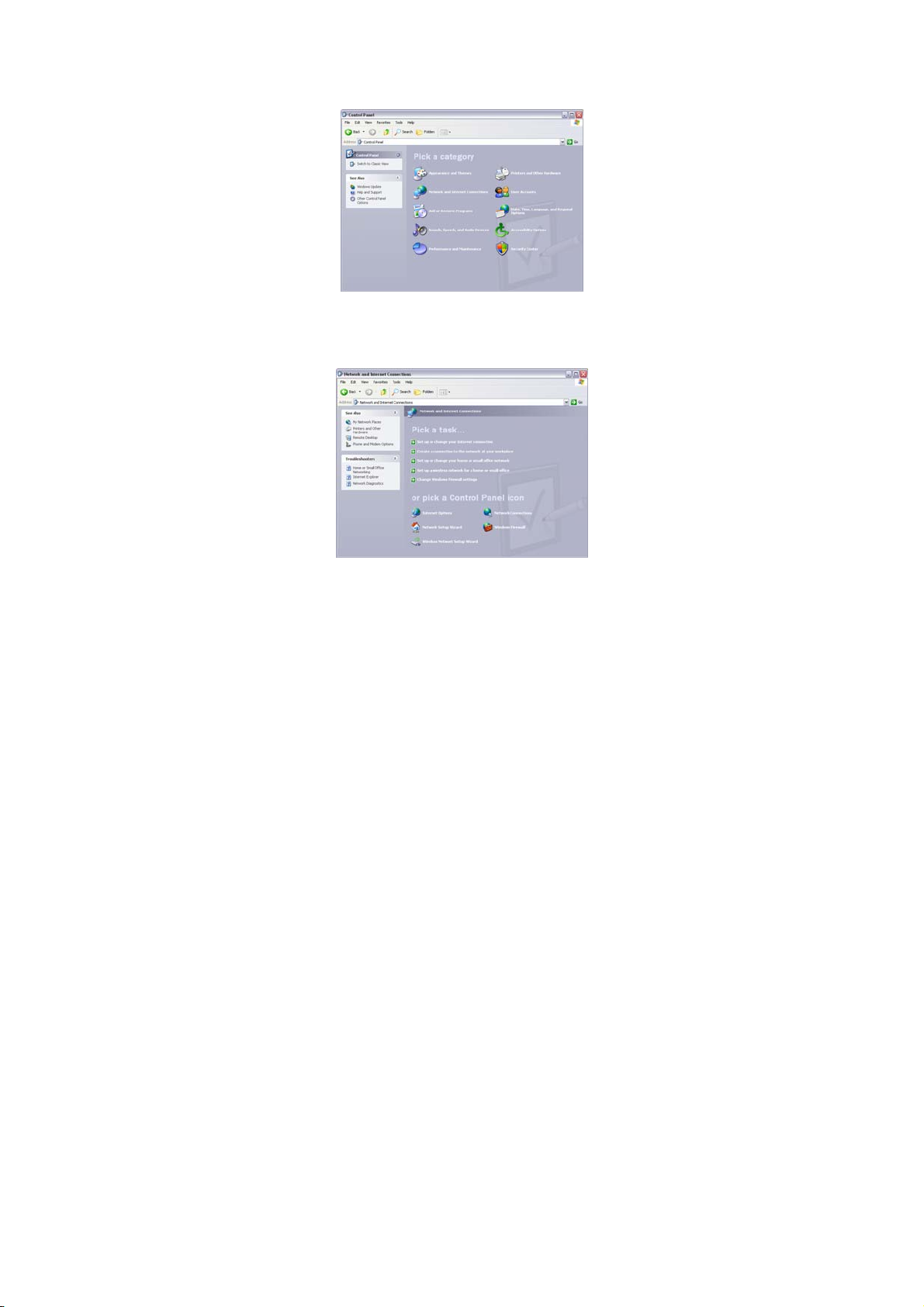
Click “Network and Internet Connections”, the windows as
below will appear
Click the “Network Connections”,
7
Page 8
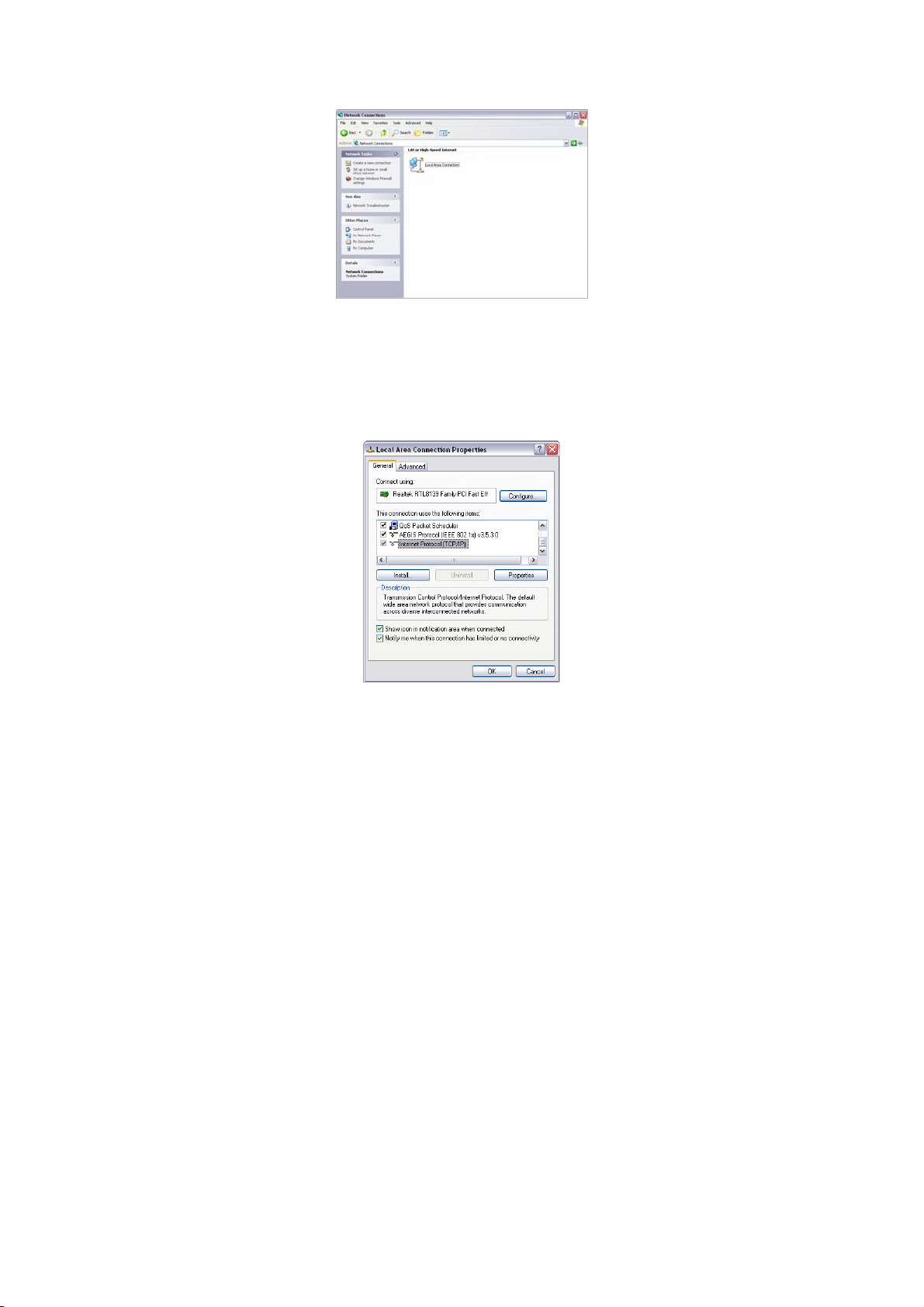
Choose “Local Area Connection”, right-click on the icon,
choose the “Properties”, then the “Local Area Connection
Properties”windows appear, choose the “Internet Protocol
(TCP/IP)” in the “This connection uses the following items”,
click the “Properties”.
8
Page 9

Choose the “Obtain an IP address automatically”
Click “OK” to apply and return to the “Local Area Connection
Properties” windows.
Continue click “OK” to exit the setting windows.
Router Setting
4 Web page setting
4.1 Launch Internet Explorer. In the address bar, enter the
AP’s default IP address, 192.168.2.1.
9
Page 10
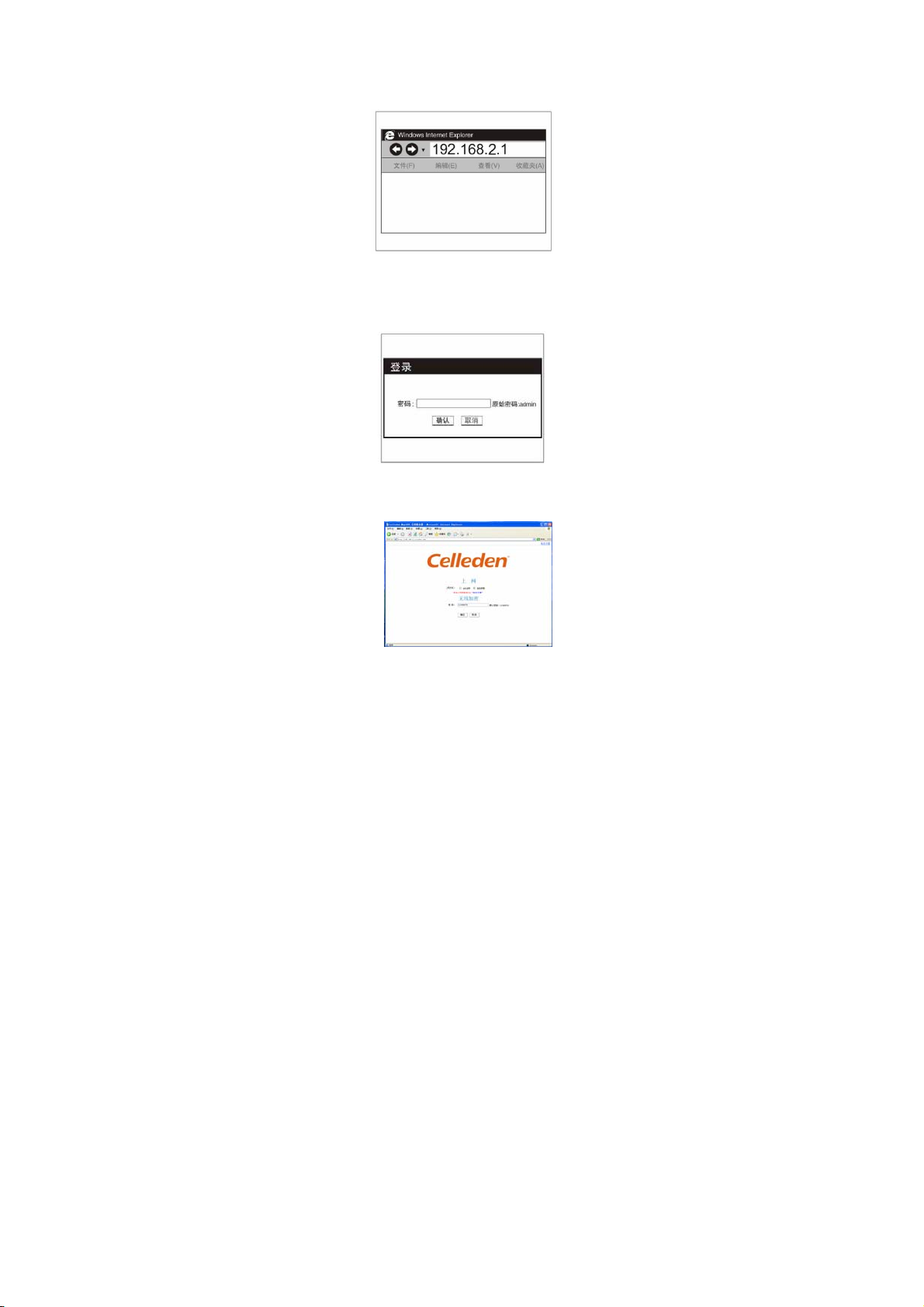
4.2 Press Enter key and the login scree n will appear. Enter
admin both in the user name and password field.
4.3 lick OK to enter the welcome page of the device
10
Page 11

FCC Warning:
This device complies with Part 15 of the FCC Rules.
Operation is subject to the following two conditions: (1)
this device may not cause harmful interference, and (2)
this device must accept
any interference received, including interference that
may cause undesired operation.
NOTE: changes or modifications not expressly
approved by the party responsible for compliance
could void the user's authority to operate the
equipment.
This equipment has been tested and found to comply
with the limits for a
Class B digital device, pursuant to Part 15 of the FCC
Rules. These limits are
designed to provide reasonable protection against
harmful interference in a
residential installation. This equipment generates, uses
and can radiate radio
frequency energy and, if not installed and used in
accordance with the
instructions, may cause harmful interference to radio
communications. However,
there is no guarantee that interference will not occur in
a particular installation.
If this equipment does cause harmful interference to
radio or television reception,
which can be determined by turning the equipment off
11
Page 12

and on, the user is
encouraged to try to correct the interference by one or
more of the following
measures:
-- Reorient or relocate the receiving antenna.
-- Increase the separation between the equipment and
receiver.
-- Connect the equipment into an outlet on a circuit
different from that to which the receiver is connected.
-- Consult the dealer or an experienced radio/TV
technician for help.
Install the device at least 20cm from a person to insure that
the product is
operated in accordance with the RF Guidelines for Human
Exposure adopted
by the Federal Communications Commission.
12
 Loading...