

Page 1
OPERATING
MANUAL
Page 2
CELLGYM Technologies GmbH
Knesebeckstraße 68/69
10623 Berlin
Deutschland
Tel.: +49 (0) 30 577 095 832
Fax: +49 (0) 30 577 095 839
www.cellgym.de
CELLAIR® GECKO DOCUMENTATION
2SITE
All rights reserved. No part of this documentation may be reproduced in any form (print, photocopy or any other method) or processed, duplicated or distributed using electronic systems without the written permission of CELLGYM
Technologies GmbH.
Company and product names mentioned in this documentation may be subject to trademark, brand or patent protection.
04/2018
Page 3
TABLE OF CONTENTS
SITE
Introduction..............................................................................
Safety regulations ....................................................................
Scope of delivery......................................................................
System requirements .............................................................
Installation / Set-up .................................................................
Initial commissioning ..............................................................
Application & functions ..........................................................
Menu navigation......................................................................
Creating users ..........................................................................
Hypoxia and breath holding test ...........................................
Creating & modifying programs ............................................
Start training session...............................................................
Training implementation........................................................
Training evaluation ................................................................
Performing a backup...............................................................
Troubleshooting ......................................................................
Cleaning & maintenance ........................................................
Technical data ..........................................................................
Declaration of conformity ......................................................
4
5
6
7
9
10
12
13
14
15
16
17
18
20
21
22
24
25
26
CELLAIR® GECKO DOCUMENTATION
SITE 3
© 2017 - CELLGYM Technologies GmbH
Page 4
Dear user,
We are pleased that you have chosen the CellAir® Gecko. This microprocessor-controlled hypoxicator is an excellent choice for carrying out interval hypoxic-hyperoxic training (IHHT) with the Made in Germany quality
rating!
Please read these operating instructions carefully before using the
CellAir® Gecko for the fi rst time. Keep this manual carefully for future
reference, make it available to other users and follow the instructions
below.
With kind regards,
Your CELLGYM-Team
INTRODUCTION
Interval hypoxic training restores
vitality!
More energy, more out of life
Interval hypoxic-hyperoxic training (IHHT) works in a similar way to the
proven altitude training for athletes and improves your performance.
In contrast to altitude training, CellAir® Gecko uses a controlled training
hypoxia (17% - 9% oxygen) and a hyperoxia (32% - 34% oxygen) at intervals at normal air pressure.
This means that, during your training, you sometimes breathe air with
more oxygen and sometimes with less. Unlike altitude training, the entire
training session is carried out comfortably when lying down or half-sitting,
in complete relaxation.
The CellAir® Gecko automatically determines the optimal training stimulus
for you using a programmed test system, so that optimum results are
achieved and the side eff ects of a period spent at high altitude are comple-
tely avoided.
The average duration of a training session is 40 minutes. A course of 15 to
20 training sessions is recommended.
Interval hypoxic-hyperoxic training (IHHT)
Basics
CELLAIR® GECKO DOCUMENTATION
4SITE
04/2018
Page 5
SAFETY REGULATIONS
Important information
Please observe the following
instructions very carefully.
Prerequisites
General
information
Before switching on the CellAir® Gecko for the fi rst time, this manual must
be carefully read and understood. In case of improper use or maintenance
of the system, the manufacturer is not responsible for direct or indirect
damage to the material or persons involved. If required, we can off er
appropriate training. Please contact us directly or register at http://cellair-
gecko.de/welcome or use the “Info Portal” menu item in your CellAir®
Gecko app.
The CellAir® Gecko is a sophisticated training device whose production is
subject to constant quality controls. Careful handling and regular maintenance is essential to ensure safe use of the device. The manufacturer
recommends that the equipment and accessories are inspected both on
receipt and before each use to ensure that the equipment is in good condition and safe use is guaranteed.
Before commissioning the system, make sure that:
•
The CellAir® Gecko is standing on a fl at, stable surface and the air
circulation is not restricted by a carpet or similar;
•
The CellAir® Gecko is put into operation in a room where constant
temperatures of more than 10 degrees Celsius are prevalent;
•
The power supply is plugged into the wall socket and the power cable
is connected to the CellAir® Gecko. If a power outlet switch is
present, make sure that it is switched on;
• You have switched on the CellAir® Gecko. The switch is located on
the back of the unit.
The CellAir® Gecko must not be stored below 0 degrees Celsius!
The CellAir® Gecko may only be operated with original parts off ered by
the manufacturer of this unit. There is a high safety risk if unsuitable accessories are used.
Storage
Accessories
CELLAIR® GECKO DOCUMENTATION
SITE 5
© 2017 - CELLGYM Technologies GmbH
Page 6
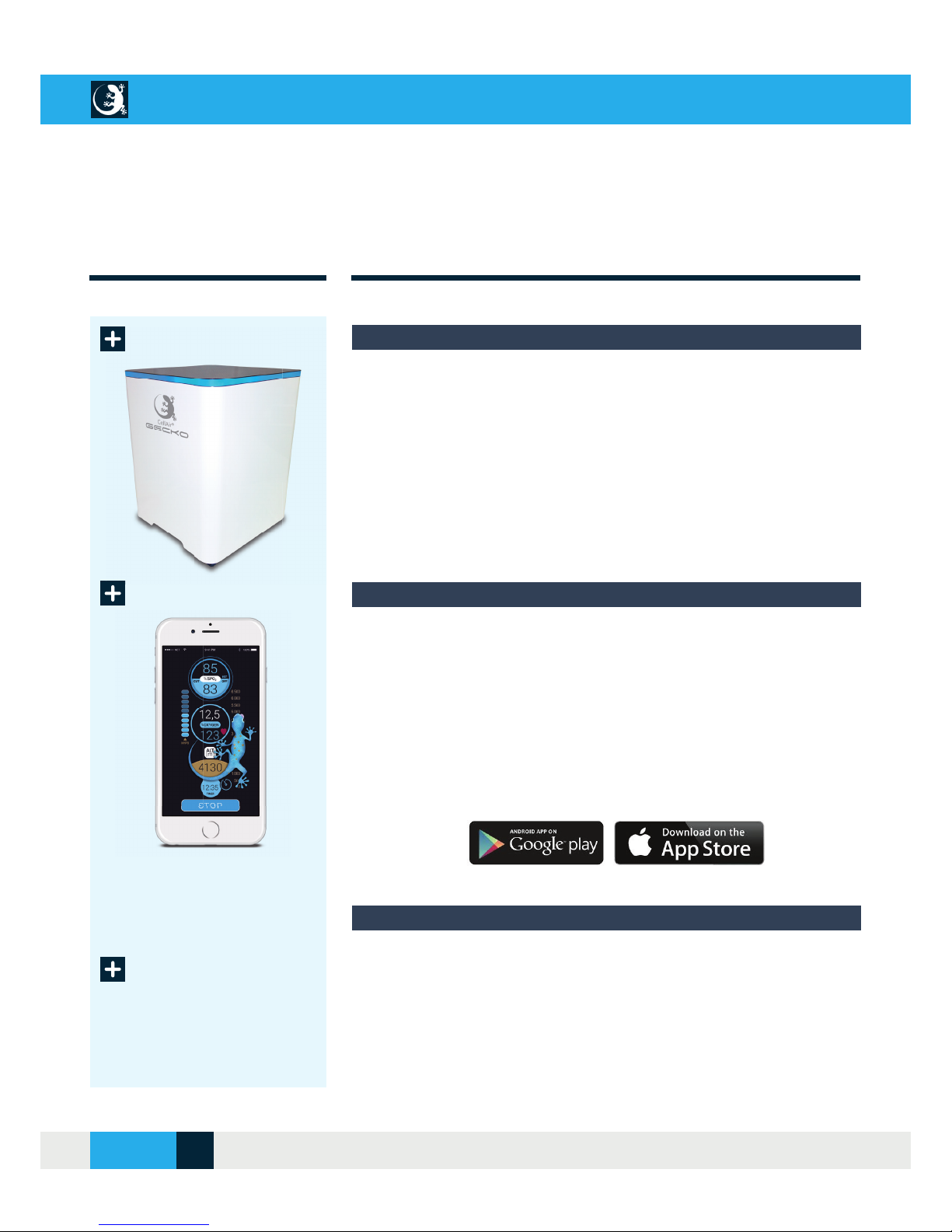
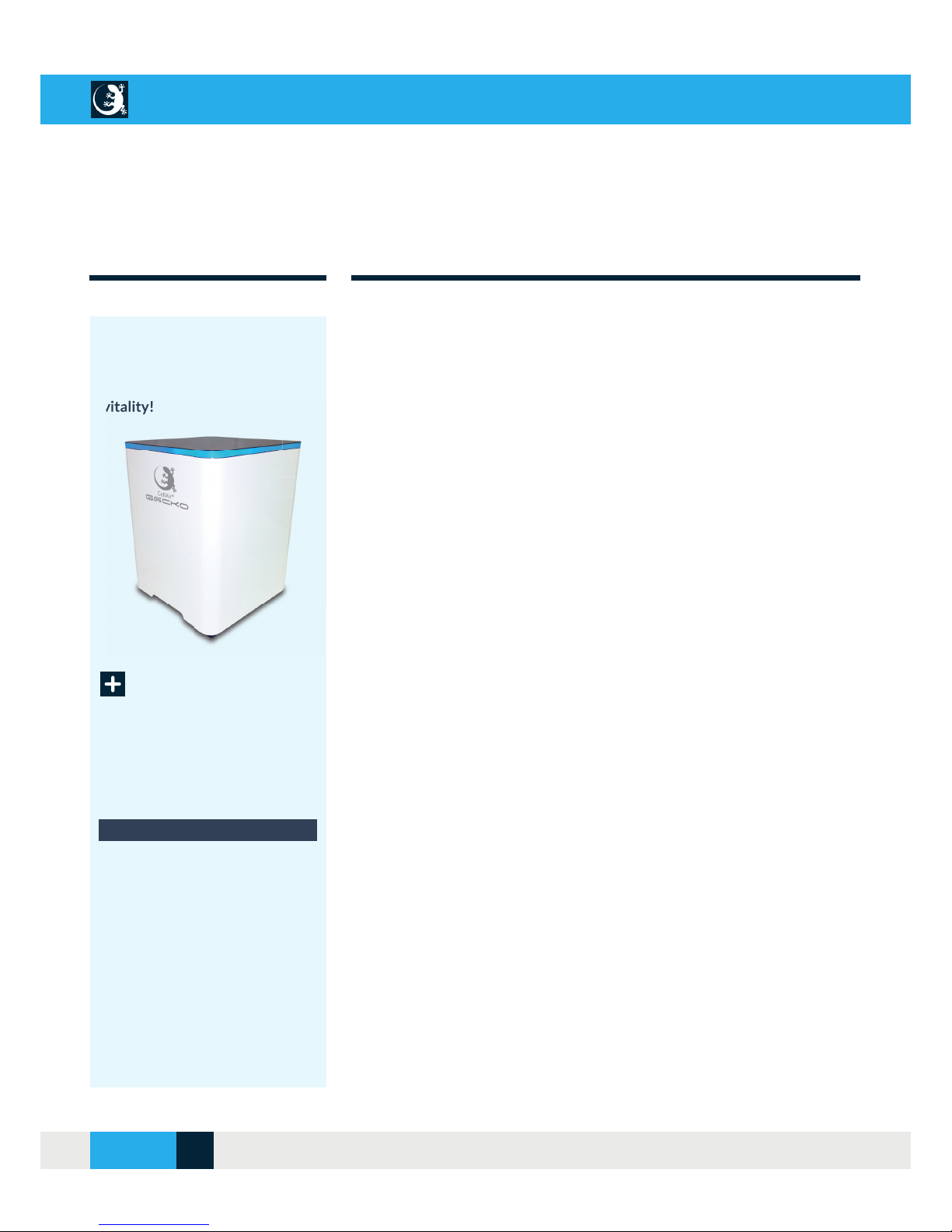
The CellAir® Gecko hypoxicator is the innovative “heart” of your training system. It produces breathing air with different concentrations of
oxygen and can enrich the ambient air (20.9% O2 content = normoxia)
with oxygen, so that the breathing air provided has an oxygen level of
up to 34% (= hyperoxia). It also produces breathing air that is comparable to the oxygen intake at different sea levels and corresponds to
an oxygen concentration of between 9-17% (= hypoxia).
SCOPE OF DELIVERY
Included in delivery is a brand name tablet with pre-installed CellAir®
Gecko app to control the CellAir® Gecko hypoxicator.
If required, you can install the CellAir® Gecko app on other devices (e.g.
smartphone or your own tablet). To do so, you can download the CellAir®
Gecko app from the Google Play Store or App Store. To fi nd the app, sim-
ply enter “CellAir” or “Cellgym” as a search term.
Tablet
Hypoxicator
Accessories
•
Power cable
•
Breathing tube
•
Finger sensor (pulse oximeter)
•
5 double-port masks
•
Handbook
(Symbolic image: Delivery with
an up-to-date brandname tablet)
CellAir® Gecko microprocessor-controlled hypoxicator
Tablet with CellAir® Gecko App (iOS & Android)
Accessories
(Coming soon)
CELLAIR® GECKO DOCUMENTATION
6SITE
04/2018
Page 7
SYSTEM REQUIREMENTS
Direct mode or WLAN router (home network)
Prerequisites
Hardware
For automatic software updates, you must connect your terminal device to
the Google Play Store or iTunes App Store.
If you don’t already have a Google account (e.g. Gmail), you’ll need to cre-
ate one fi rst. You can do this either on the Google website (fi rst click on
“Sign in” and then on “Register”) or directly on your Android smartphone or
tablet. When you use the tablet/smartphone for the fi rst time, the Confi gu-
ration Wizard should start automatically. Otherwise, proceed as follows:
1. Open the app drawer (the overview of all installed apps) on your
tablet/smartphone and select “Settings”
2. Select the entry “Accounts & Synchronisation” and then “Add account”
at the bottom of the screen.
Software
Create a new PlayStore account (Google Account):
The CellAir® Gecko app can communicate with the CellAir® Gecko hypoxicator in 2 ways. In direct mode, the CellAir® Gecko hypoxicator serves as
an access point (base station) and communicates directly with your end
device (tablet/smartphone). However, the preferred connection is integra-
tion in your WLAN network. Please have your WLAN access password
ready for integration in your WLAN network. This is usually located on the
housing of your WLAN router.
Android and iOS operating systems
Android 4.0 or higher must be installed on your Android tablet or smart-
phone.
iOS 7.0 or higher must be installed on your iOS tablet or smartphone.
CELLAIR® GECKO DOCUMENTATION
SITE 7
© 2017 - CELLGYM Technologies GmbH
Page 8
SYSTEM REQUIREMENTS
3. Select “Google” as the account type. Now you will be asked whether
you want to add an existing account or create a new one. Click on “New”.
4. Now enter your fi rst and last name in the corresponding fi elds. Then
select “Next”.
5. Enter your desired e-mail address. You can freely select the part be-
fore the @ sign only. Then press “Next”.
6. Now choose a password for your new account. This must be at least
eight characters long. Repeat your password in the second input fi eld.
7. Enter an existing e-mail address to which you have access. Select a
security question and enter the appropriate answer in the corresponding
fi eld.
8. Now you will be asked if you also want to sign in to Google+. If you do
not want to do this, you can skip this step using “Not now”.
9. The last step is to enable Web History for your account. This function
customises search results based on your search queries and sites you’ve
visited. If you do not want this, remove the corresponding tick mark. Press
“I agree” to accept Google’s Terms of Use and Privacy Policy.
Software-Updates
Create an Apple ID (App Store):
You can create your Apple ID when you set up a new device or log into
iTunes or iCloud for the fi rst time. You can also visit the Apple ID account
page (https://appleid.apple.com) and select “Create your Apple ID”.
Prerequisites:
•
A valid e-mail address that serves as your Apple ID username
•
A secure password
•
Your date of birth
•
Three security questions and answers to verify your identity and one
recovery email address. You can also use this data to reset your password.
CELLAIR® GECKO DOCUMENTATION
8SITE
04/2018
Page 9
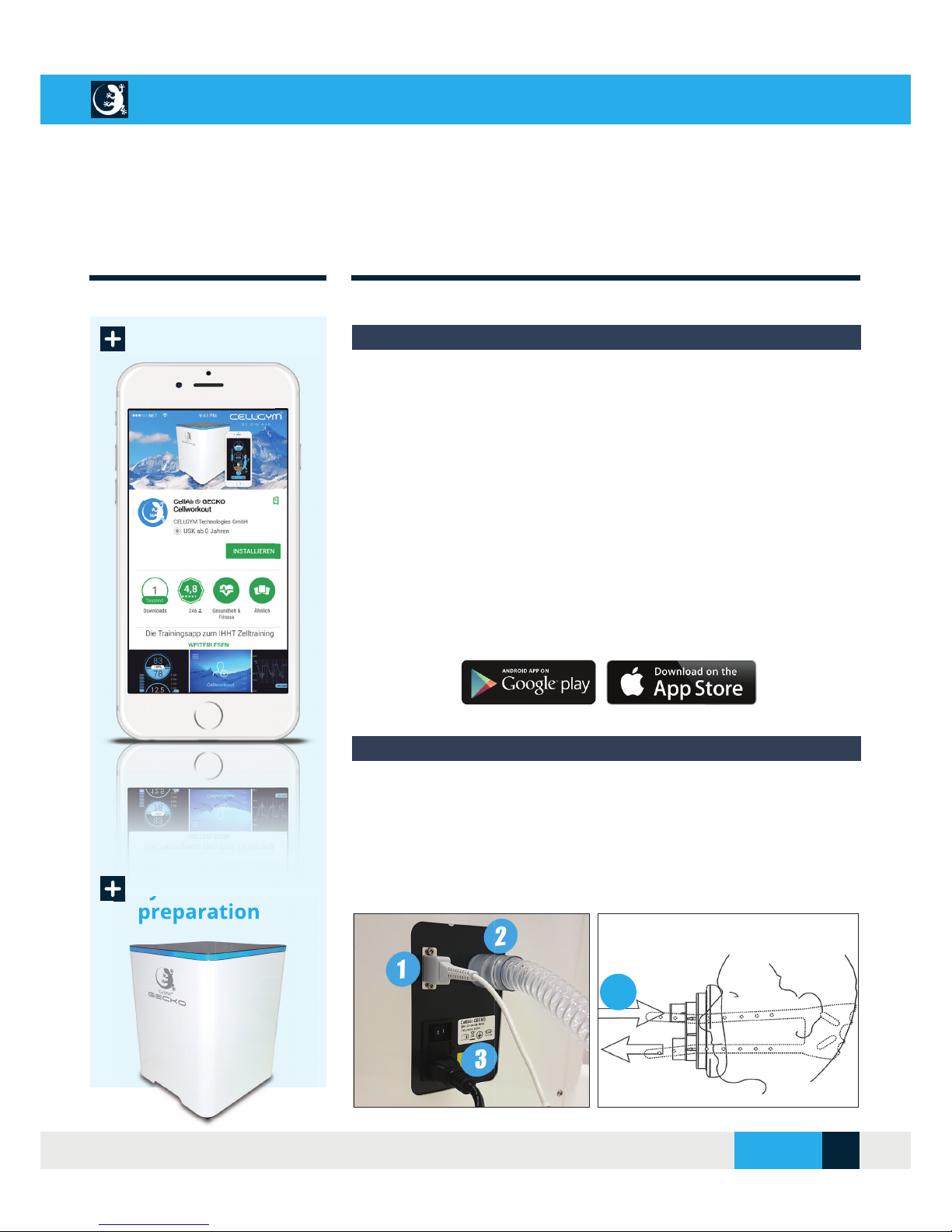
The CellAir® Gecko app is already installed and preconfi gured on the tab-
let included in delivery. Available updates are automatically displayed.
If required, you can also install the CellAir® Gecko app on other devices
(e.g. smartphone or your own tablet). To do so, you can download the Cel-
lAir® Gecko app from the Google Play Store or App Store. To fi nd the app,
simply enter “CellAir” or “Cellgym” as a search term.
Tips: Under “Settings” and “Display” on your terminal device, select a
“Screen timeout” of at least “After 5 minutes of inactivity”.
INSTALLATION - SETUP
App Store
System
preparation
Before using the CellAir® Gecko, please regularly check the correct connection and tightness of the following connections:
•
Cable for fi nger sensor (pulse oximeter) [1]
•
Breathing tube [2]
•
Power cable [3]
CellAir® Gecko app - Download & installation
Hypoxicator connections
System
2
(Coming soon)
CELLAIR® GECKO DOCUMENTATION
SITE 9
© 2017 - CELLGYM Technologies GmbH
Page 10
INITIAL COMMISSIONING
Step 1: Login to WLAN router (home network)
Connection via
WLAN home net-
work
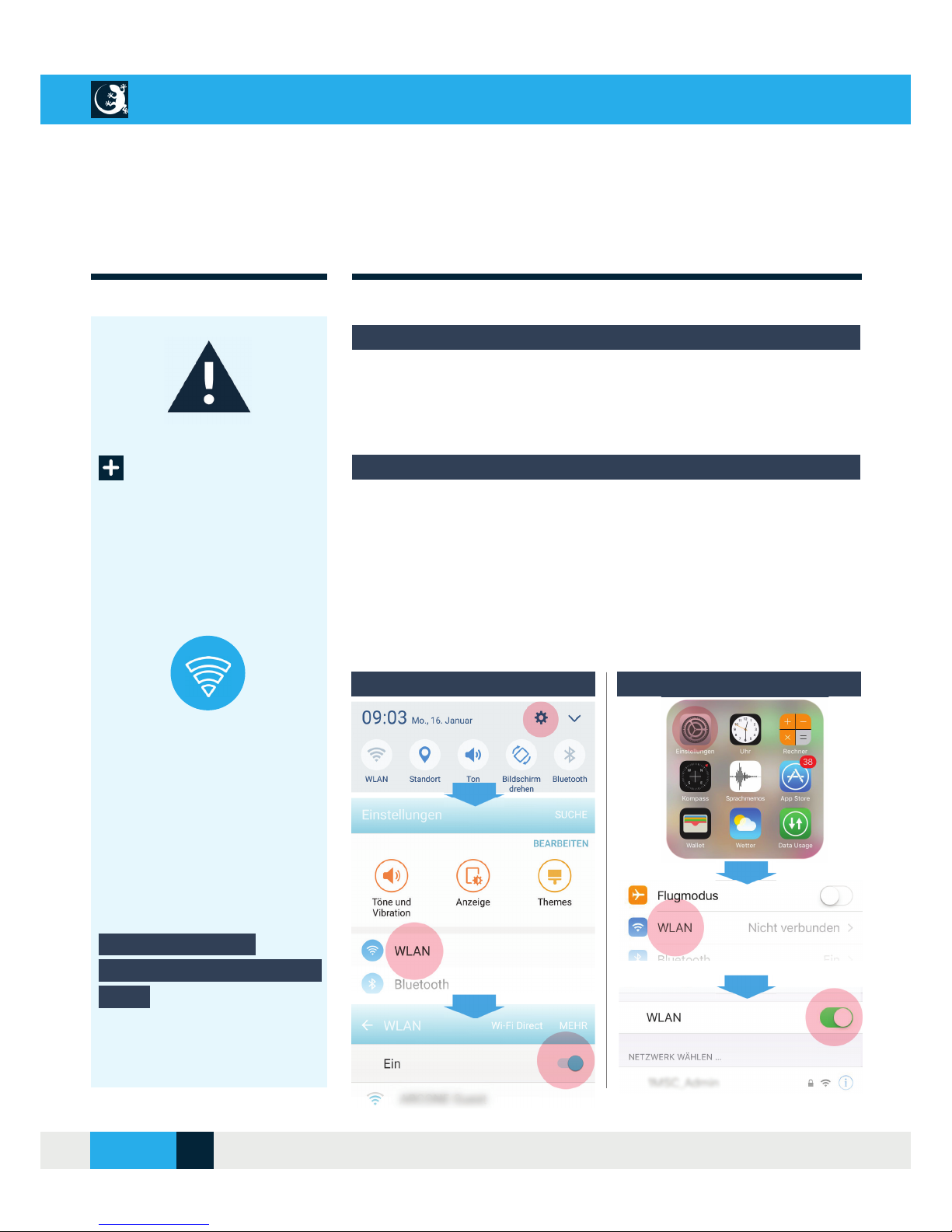
First, switch on your terminal device (tablet, smartphone). Before you start
the CellAir® Gecko app, log into your WLAN home network with your terminal device. Please have your router password ready.
Login to WLAN router:
Activate the WLAN connection on your terminal device via the “Settings”
menu item and enter the WLAN access password.
Android iOS
Important notes for initial operation
For smooth communication between CellAir® Gecko hypoxicator and your
terminal device (tablet, smartphone), please proceed as described below
the fi rst time you use your system.
Setting up a WLAN
connection on the terminal
device
CELLAIR® GECKO DOCUMENTATION
10SITE
04/2018
Page 11
INITIAL COMMISSIONING
Direct connection
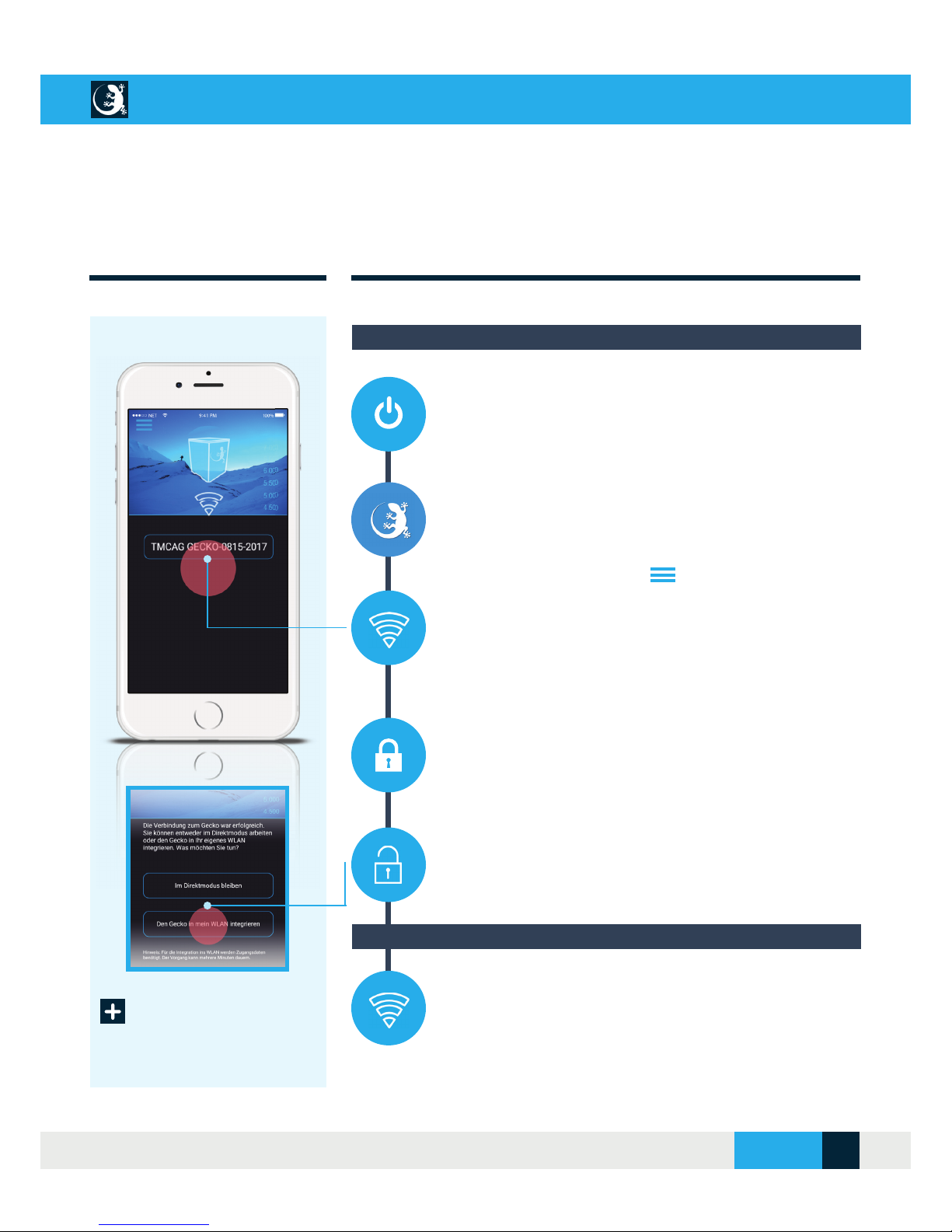
1. After successfully connecting your terminal device (tablet,
smartphone) to the router on your home network (see step 1),
turn on the Gecko hypoxicator at the power switch on the back of
the system. Please wait until the LED display of the hypoxicator
lights up GREEN.
2. Open the CellAir® Gecko app on your terminal device. If you
are starting the app for the fi rst time, you will be asked to select
the desired language fi rst.
3. Now go to the main menu and select the “Establish
connection” menu. The CellAir® Gecko app automatically searches
for the Gecko hypoxicator in the next step. This process can take
several minutes. The search result is then shown on the display.
To establish the connection, please select the identifi cation of your
Gecko hypoxicator.
4. Once connected to the Gecko hypoxicator, it becomes the
access point (base station). The disadvantage of this connection
method is that you do not receive automatic notifi cations about
updates to your app.
5. The preferred connection between your device and the Gecko
hypoxicator should always be the connection via the faster WLAN
home network. To do this, select the function “Integrate the Gecko
into my WLAN”. It may then be necessary to re-enter your WLAN
password.
6. Optionally, or if no WLAN home network is available, you can
also operate the CellAir® Gecko hypoxicator in direct mode. In
this case, after carrying out steps 1. - 4, select the function “Stay in
direct mode”.
Step 2: Logging in to the Gecko hypoxicator
Optional: Remain in direct mode
CELLAIR® GECKO DOCUMENTATION
SITE 11
© 2017 - CELLGYM Technologies GmbH
Page 12
APPLICATIONS & FUNCTIONS
CellAir® Gecko app
Language
selection
Commissioning and functions of the CellAir® Gecko app
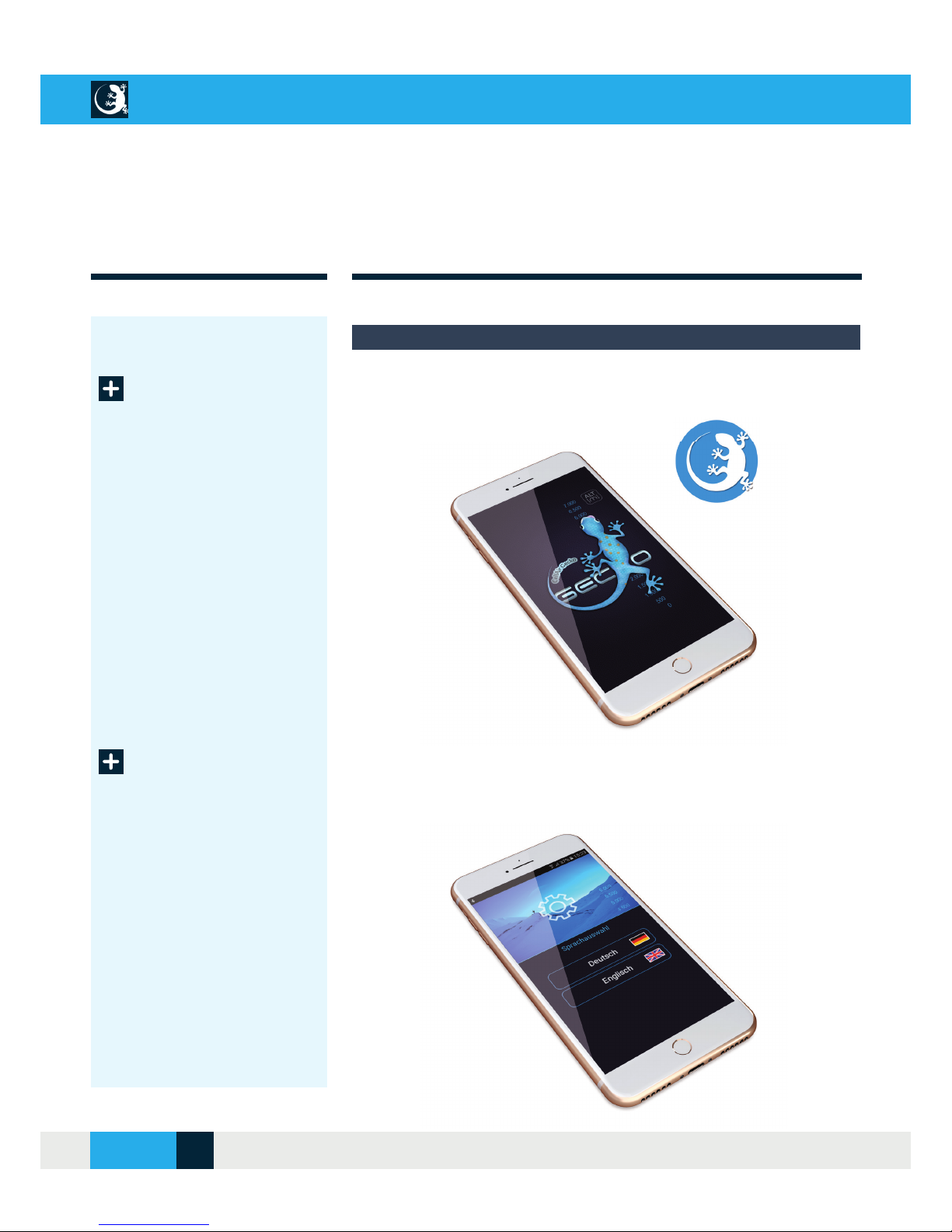
Start the application via the app icon on your tablet or smartphone.
When you launch the CellAir® Gecko app for the fi rst time, you will auto-
matically be prompted to select your preferred language. Continue with
the chapter entitled “Initial commissioning”.
CELLAIR® GECKO DOCUMENTATION
12SITE
04/2018
Page 13
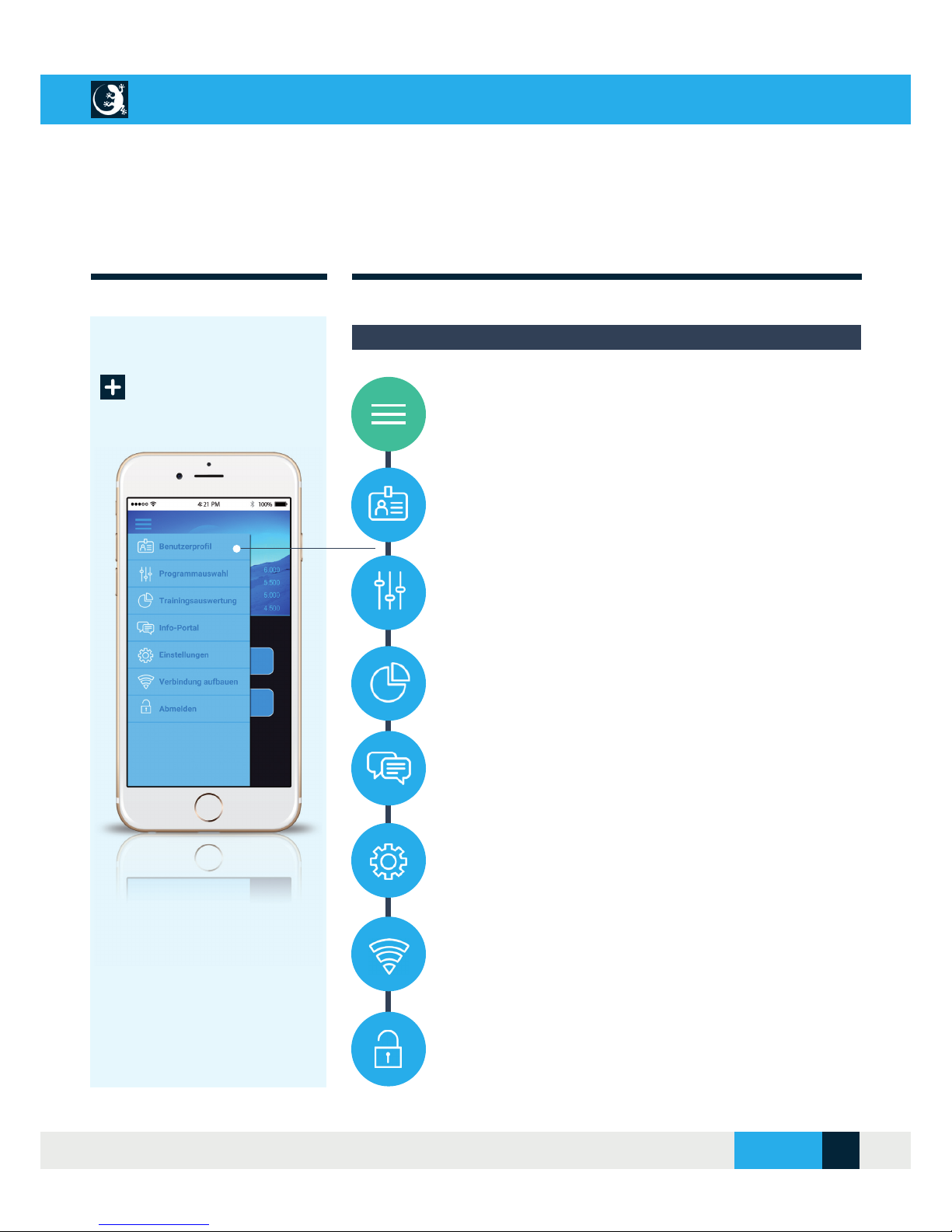
MENU NAVIGATION
Main menu
1. Use the main menu icon to open the menu list and navigate
to the submenus.
2. User profi le: Under this menu item you can create, change or
delete new users.
3. Program selection: This area contains the hypoxic test, the
breath holding test and allows you to create, modify and delete your
own training programs.
4. Training evaluation: As soon as your training session starts,
you will receive an overview of your current training parameters
and your training progress will be displayed in this area.
5. Info portal: The info portal provides you with further news
and information on cell training and much more.
6. Settings: In the “Settings” section, you can reset the WLAN
connection to your CellAir® Gecko and select your preferred language.
7. Establish connection: Use this menu item to establish the
connection to the CellAir® Gecko. Refer to the chapter entitled
“Initial Commissioning”.
8. Logging off : To end your training and close the CellAir®
Gecko app, you can log off here.
Overview: Main menu
CELLAIR® GECKO DOCUMENTATION
SITE 13
© 2017 - CELLGYM Technologies GmbH
Page 14
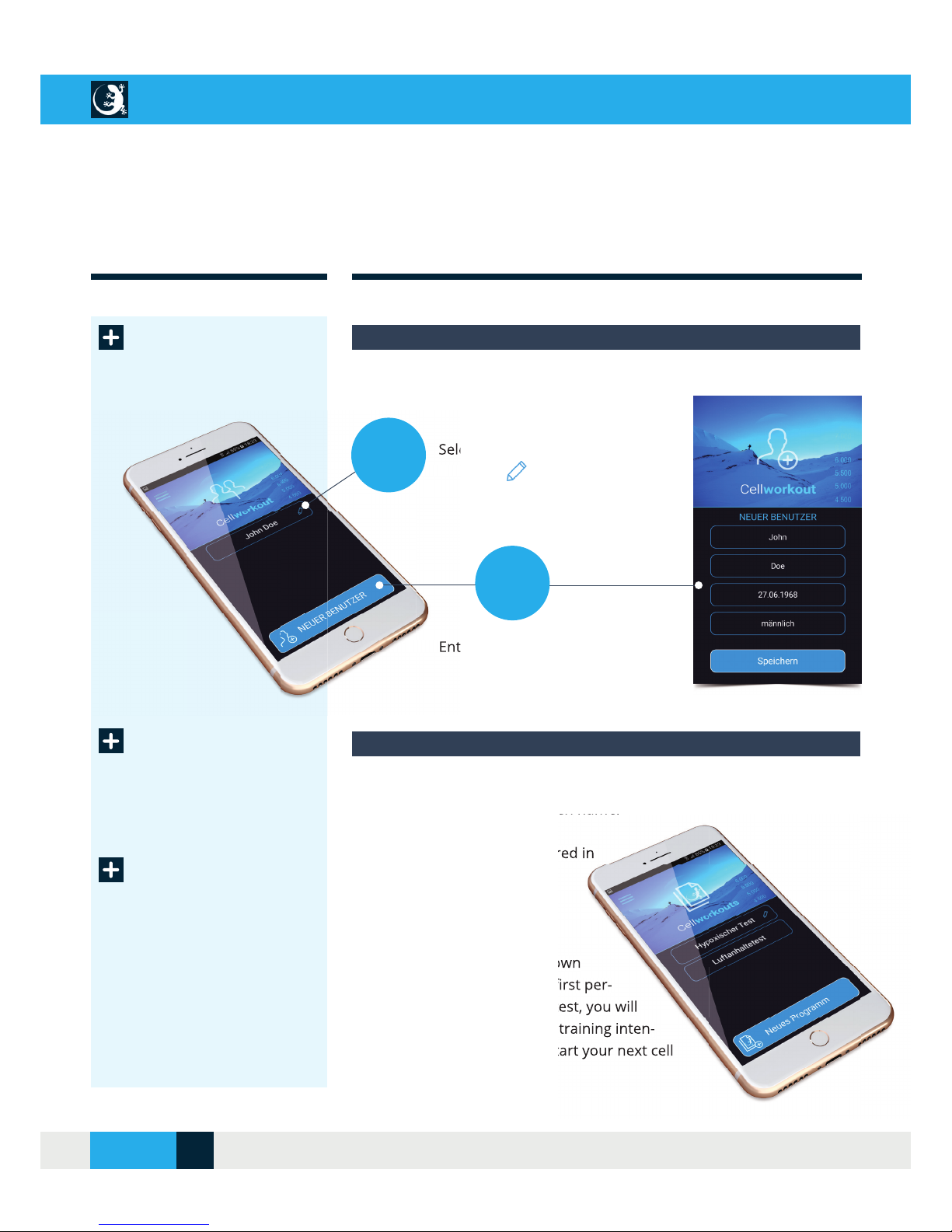
CREATING USERS
Create new user
Program selection
Selecting or creating a new user
In the “User Profi le” menu, you can:
Select or change existing users
with
Enter and save a new user
In the CellAir® Gecko app you can create your own training programs and
save them under a freely chosen name.
Two programs are already stored in
the app:
1. Hypoxic test
Before carrying out your fi rst own
training program, you should fi rst per-
form a hypoxic test. After the test, you will
receive a statement about the training inten-
sity which you should use to start your next cell
training.
with
Enter and save a
1.
2.
Selection or creation of a new training program
Hypoxia test
or
CELLAIR® GECKO DOCUMENTATION
14SITE
04/2018
Page 15
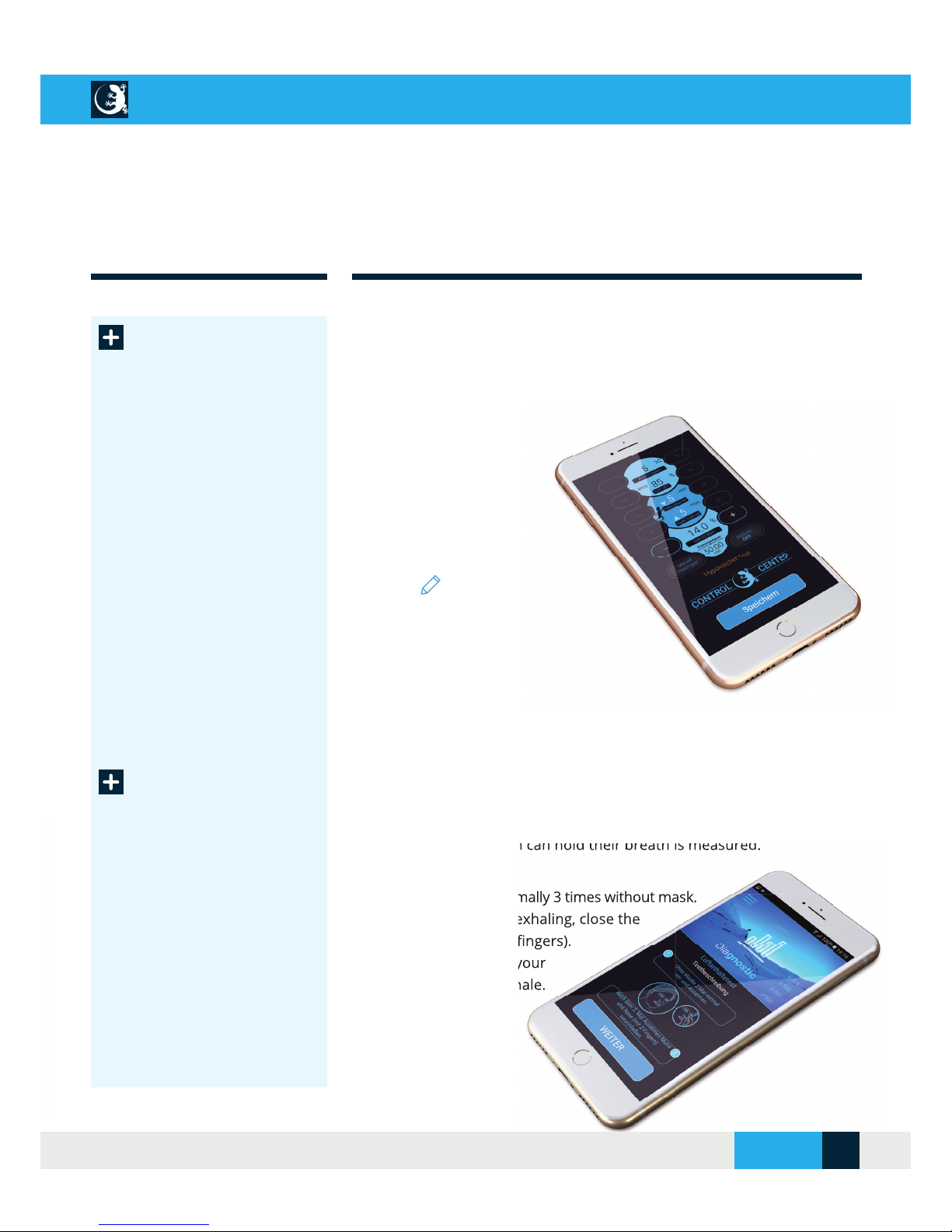
The task of the hypoxia test is to determine the current O2 concentra-
tion of the hypoxic air at which the O2 saturation in the blood of this
user is 85%. This value depends on the user, the fi tness level of the user
and may or will change over time for the same user.
It is, therefore, recommended to repeat
the hypoxia test at regular intervals.
By selecting the “Hypoxic
test” button, the program
starts fully automatically.
The icon takes you to the Gecko
Control Center where you can change
and save the initial O2 concentration in
the inhaled air with the “-” and “+” keys.
Further information on the hypoxia test is
available via the “Info Portal” menu of the CellAir
Gecko app.
HYPOXIA- & BREATH HOLDING TEST
Hypoxia test
2. Breath holding test
The breath holding test serves to document the progress of the training.
How long the test person can hold their breath is measured.
Test procedure:
Inhale and exhale normally 3 times without mask.
After the 3rd time of exhaling, close the
mouth and nose (with 2 fi ngers).
Start the timer. Hold your
breath until forced to inhale.
Stop the timer.
The result is saved in
the app.
Breath holding
test
CELLAIR® GECKO DOCUMENTATION
SITE 15
© 2017 - CELLGYM Technologies GmbH
Page 16
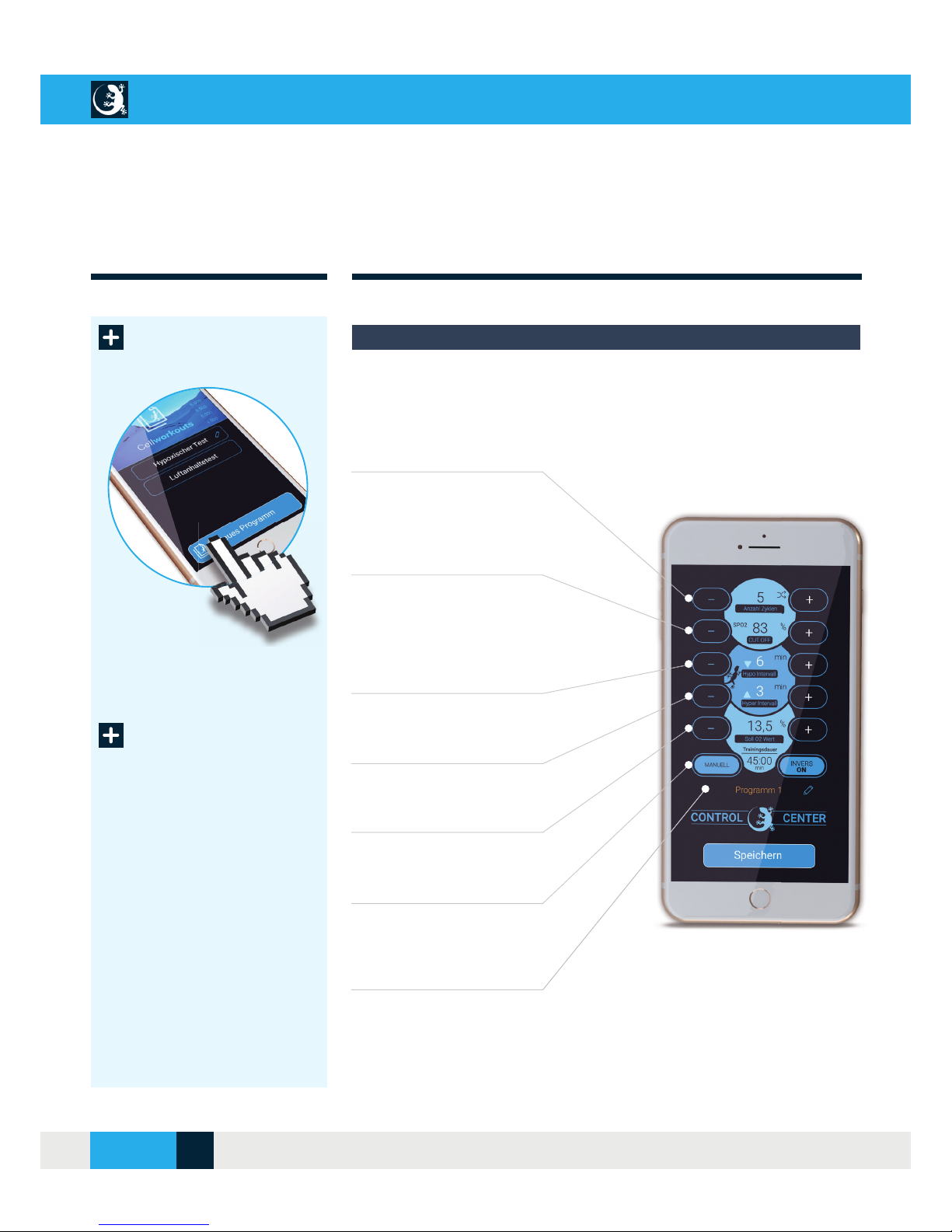
Oxygen saturation
CUT-OFF range (SpO2)
Number of cycles
CREATING & MODIFIYING PROGRAMS
Creating a new
program
To create a new training program:
Select the “New Program” button in the “Program Selection” menu and you
will be taken to the Control Centre. The following settings can be changed
with the “-” and “+” keys:
The safety CUT-OFF value is a limit value of
the O2 saturation (SpO2) in the blood. If this
value is not reached for a defi ned period, the
system automatically switches to an O2 concentration of 34%.
In conjunction with the phase length of hy-
poxia/hyperoxia, the total program length
results from the number of cycles.
Length of the hypoxia phase
The length of the phase with a “low” O2 concentration in the air.
Length of the hyperoxia phase
The length of the phase with an O2 concentration in the inhaled air of 34%.
Set O2 value
O2 concentration in the inhaled air during
hypoxia phases.
Program run modes
Buttons for the program run are multifunctional (see function keys).
Control Centre
You can manually change the O2 concentration in the inhaled air during hypoxia phases and the SpO2 CUT-OFF during the “live” program.
Program name
The name of your training program can be
freely selected and saved.
CELLAIR® GECKO DOCUMENTATION
16SITE
04/2018
Page 17
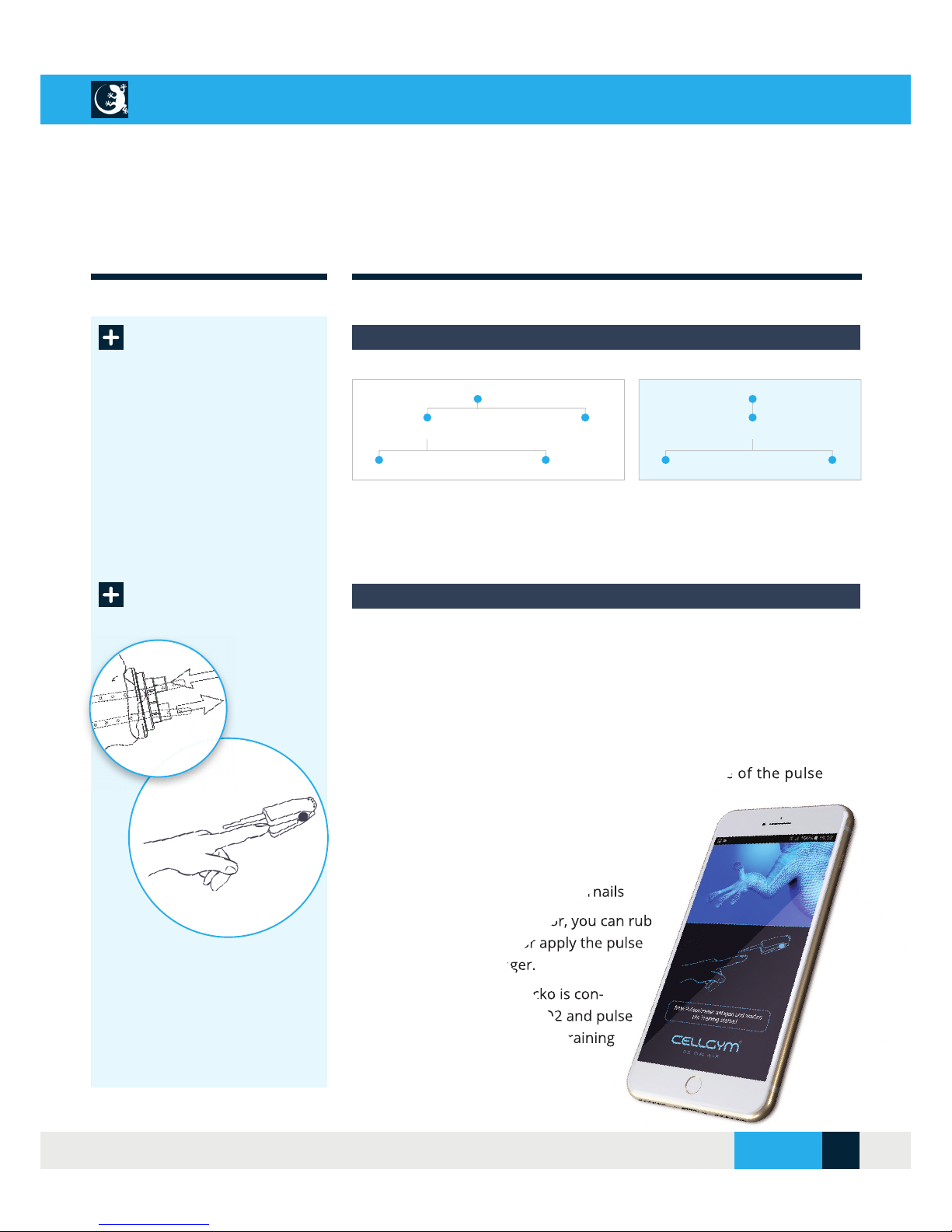
START TRAINING SESSION
Function keys
After putting on your respiratory mask and calling up a training program,
the CellAir® Gecko app prompts you to put on the pulse oximeter.
The pulse oximeter is designed for use on the fi ngers (not the thumb). The
recommended application point is the index fi nger.
The following conditions may affect the performance of the pulse
oximeter:
•
Weak pulse quality (weak blood circulation)
•
Flickering or very bright light
•
Low haemoglobin level
•
Nail polish and/or artifi cial fi ngernails
If your blood circulation is poor, you can rub
your fi nger to improve it or apply the pulse
oximeter to another fi nger.
As soon as the CellAir® Gecko is con-
nected and receives your SpO2 and pulse
values, the previously selected training
program starts automatically.
Program run modes by combining the function keys:
Manual mode Biofeedback
Hypo (variable) / Hyper (34% O2) Hypo / Normo (21% O2)
Inverse ON (start with hyperoxia phase) Inverse OFF
Hypo (automatic control) / Hyper (34% O2)
Inverse ON (start with hyperoxia phase) Invers OFF
Start training
session
Put on the pulse oximeter to start the training session
After defi ning the desired training parameters and assigning a unique
name, you can save your program.
CELLAIR® GECKO DOCUMENTATION
SITE 17
© 2017 - CELLGYM Technologies GmbH
Page 18
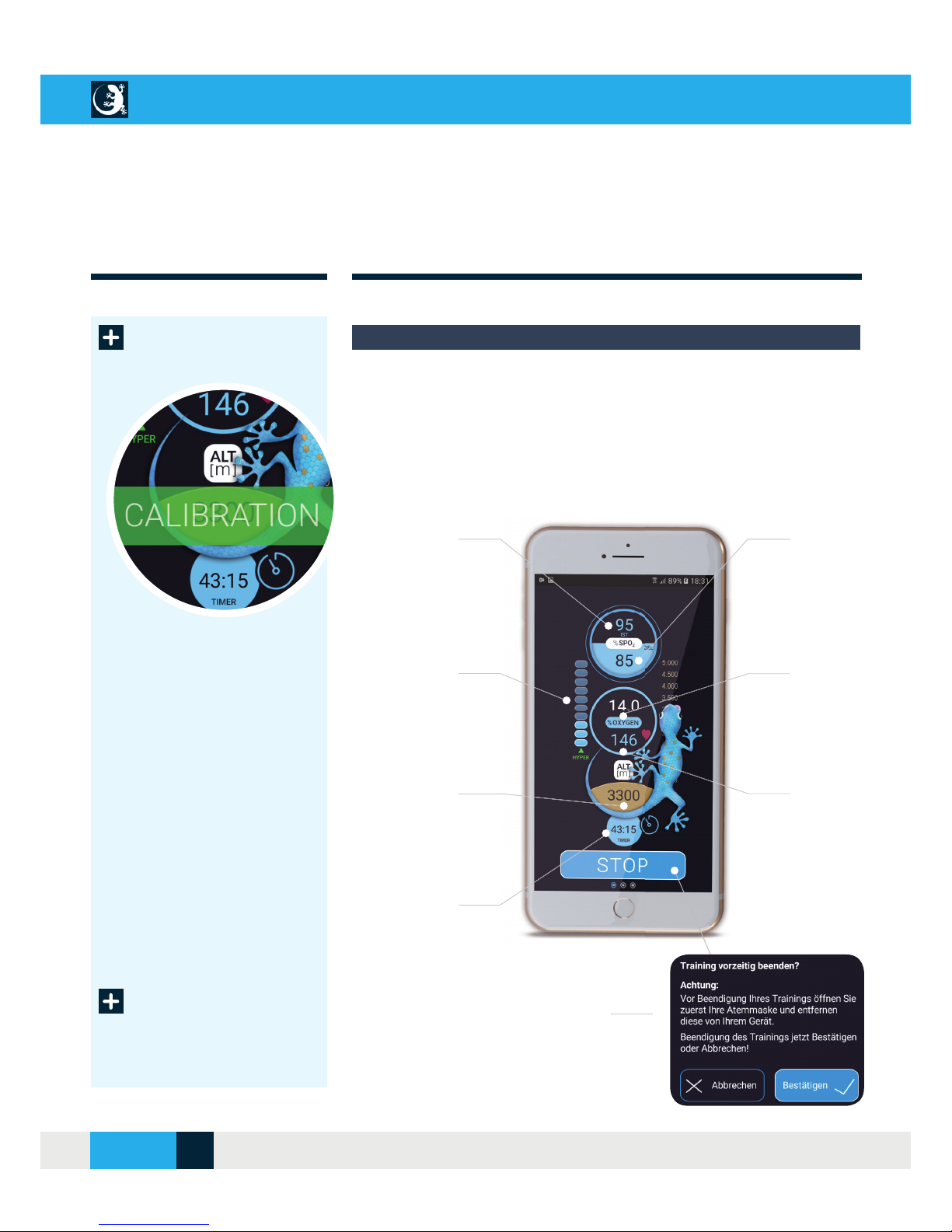
TRAINING IMPLEMENTATION
Calibration
Display views during training
At the beginning of the training session the CellAir® Gecko performs a
calibration for approx. 30 seconds and then changes to an overview with
the most important training parameters.
Display view
Ending a training
session prematurely
ACTUAL SpO2 (%)
Display of the current oxygen
saturation in the blood
TARGET SpO2 (%)
Lowest training zone and
safety CUT-OFF zone
Status indicator
Display of the duration of hypoxia
and hyperoxia phase
O2 (%)
Current oxygen content in
the air breathed
STOP button
Premature termination of
the training program
Altimeter
Display of the current
altitude in metres
Pulse (bpm)
Currently measured pulse
in beats/min
Timer
Display of the remaining
training time
CELLAIR® GECKO DOCUMENTATION
18SITE
04/2018
Page 19
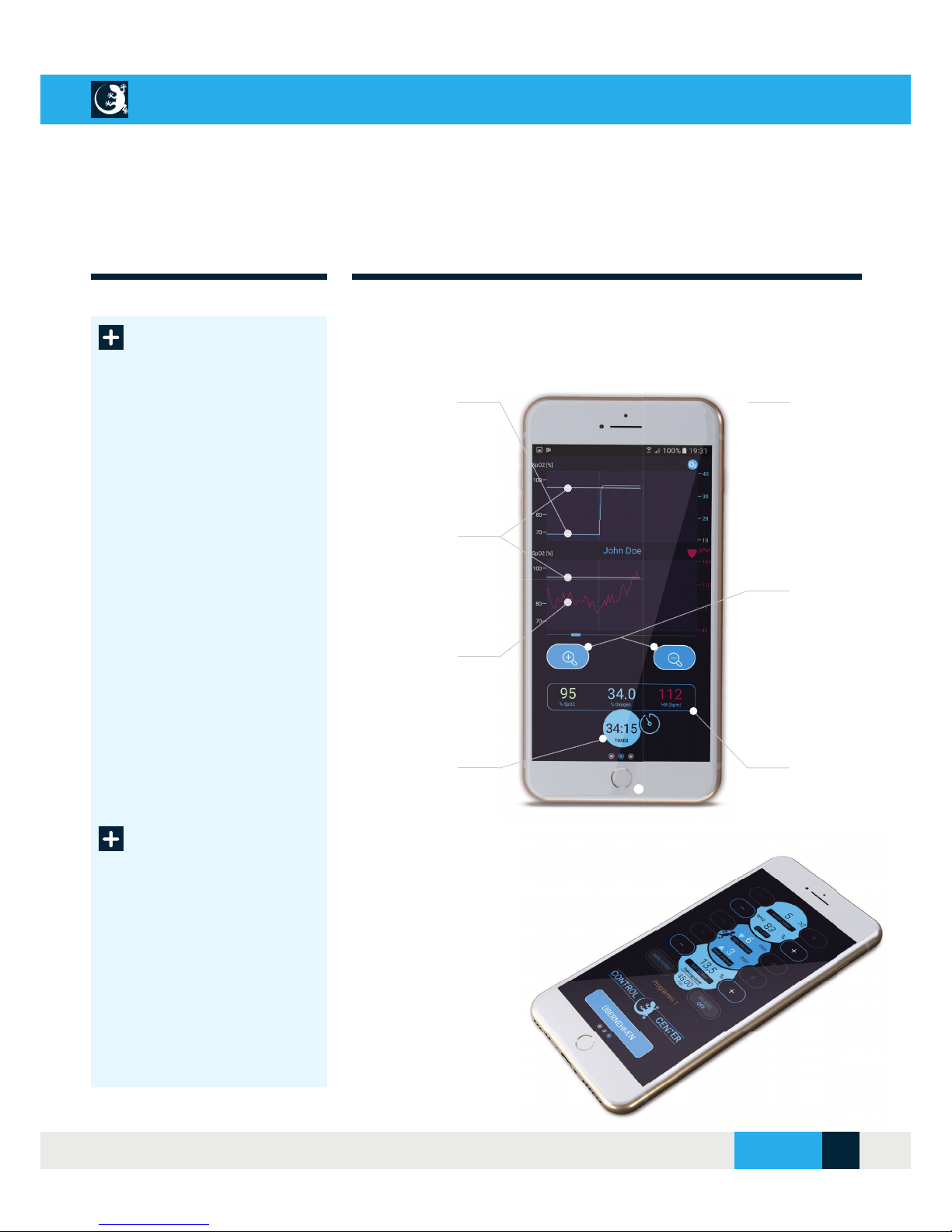
TRAINING IMPLEMENTATION
Diagram view
Display view
O
2
(%) line
Current oxygen content in the
air breathed
Screenshot
Screenshot of the session
by simultaneously pressing
keys
+
for approx. 1 second
SpO2 (%) line
Display of the current oxygen
saturation in the blood
Zoom in/out
Zoom function for detailed
view of line charts
Pulse line
Currently measured pulse
in beats/min
Live values
Display of the current
values SpO2, O2 und pulse
Timer
Display of the remaining
training time
Change program
while session is
running
Display view
During an ongoing training session, display 3
takes you to the Control Centre.
To correct your training program, you can change the
O2 value in the air you
breathe and the target
SpO2. Confi rm your entry
with the “Apply” button.
CELLAIR® GECKO DOCUMENTATION
SITE 19
© 2017 - CELLGYM Technologies GmbH
Page 20
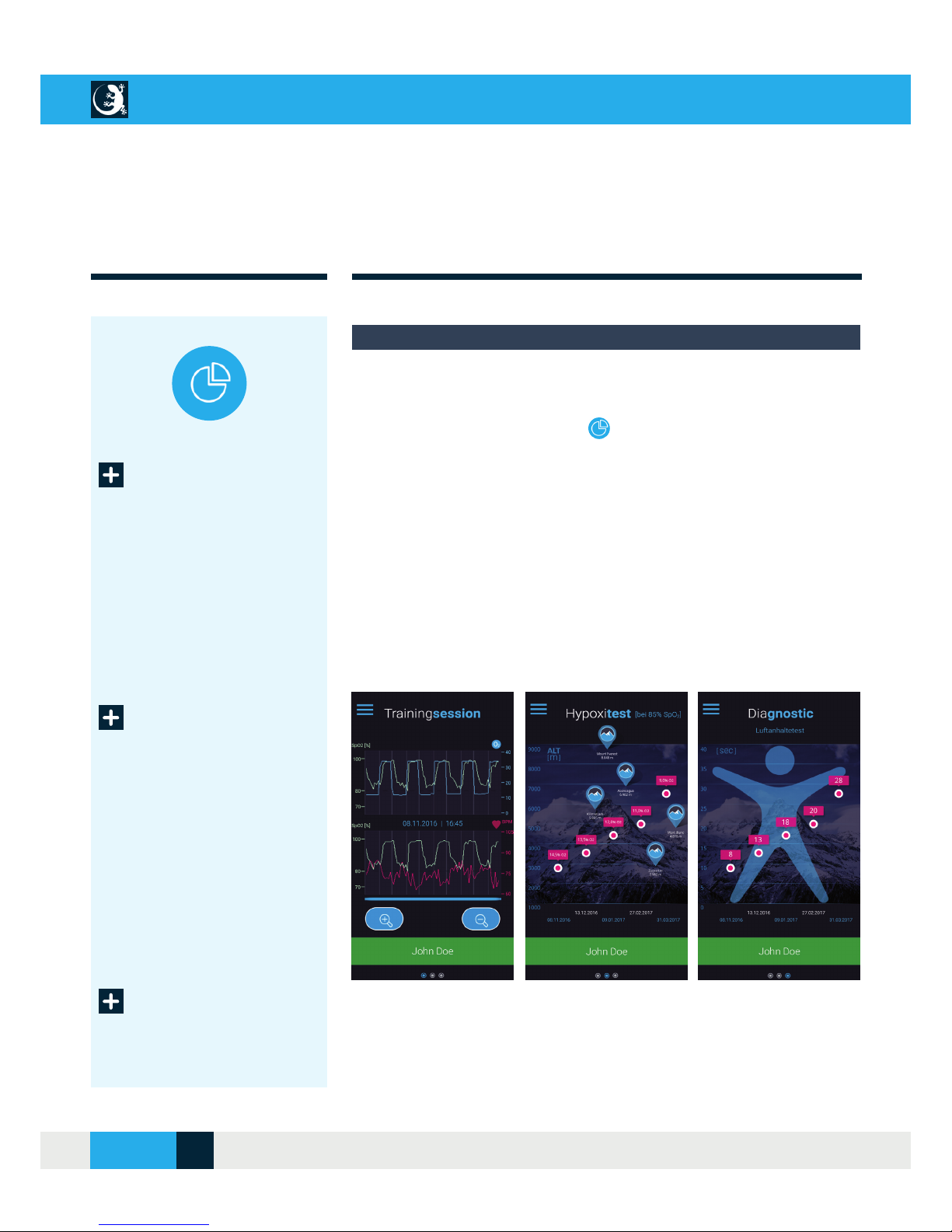
To see the results of a training session, you must fi rst select a user in the
“User Profi le” menu. You can then access the evaluation of your training
via the “Training evaluation” menu.
By swiping to the right or left you get to display views 1-3.
Three views are available to all users:
The SpO
2
and pulse lines of your last training session
The last 5 results of the hypoxia test and the recommended O2 values
for your training
A comparison of the last 5 results of the breath holding test
For more information on the hypoxia and breath holding test, see page 15,
or use the “Info Portal” menu of your CellAir® GECKO app.
TRAINING EVALUATION
Last training
session (1)
Hypoxia test
result (2)
Display views for the evaluation of your training
Breath holding
test result (3)
Display view
Display view
Display view
CELLAIR® GECKO DOCUMENTATION
20SITE
04/2018
Page 21
PERFORMING A BACKUP
Backup menu
Backup settings
Backup and import of your data
In most cases, data loss occurs without any warning and causes a lot of
work if the data cannot be recovered or transferred to an alternative terminal device. For this reason, all your user and training data is automatically backed up at regular intervals.
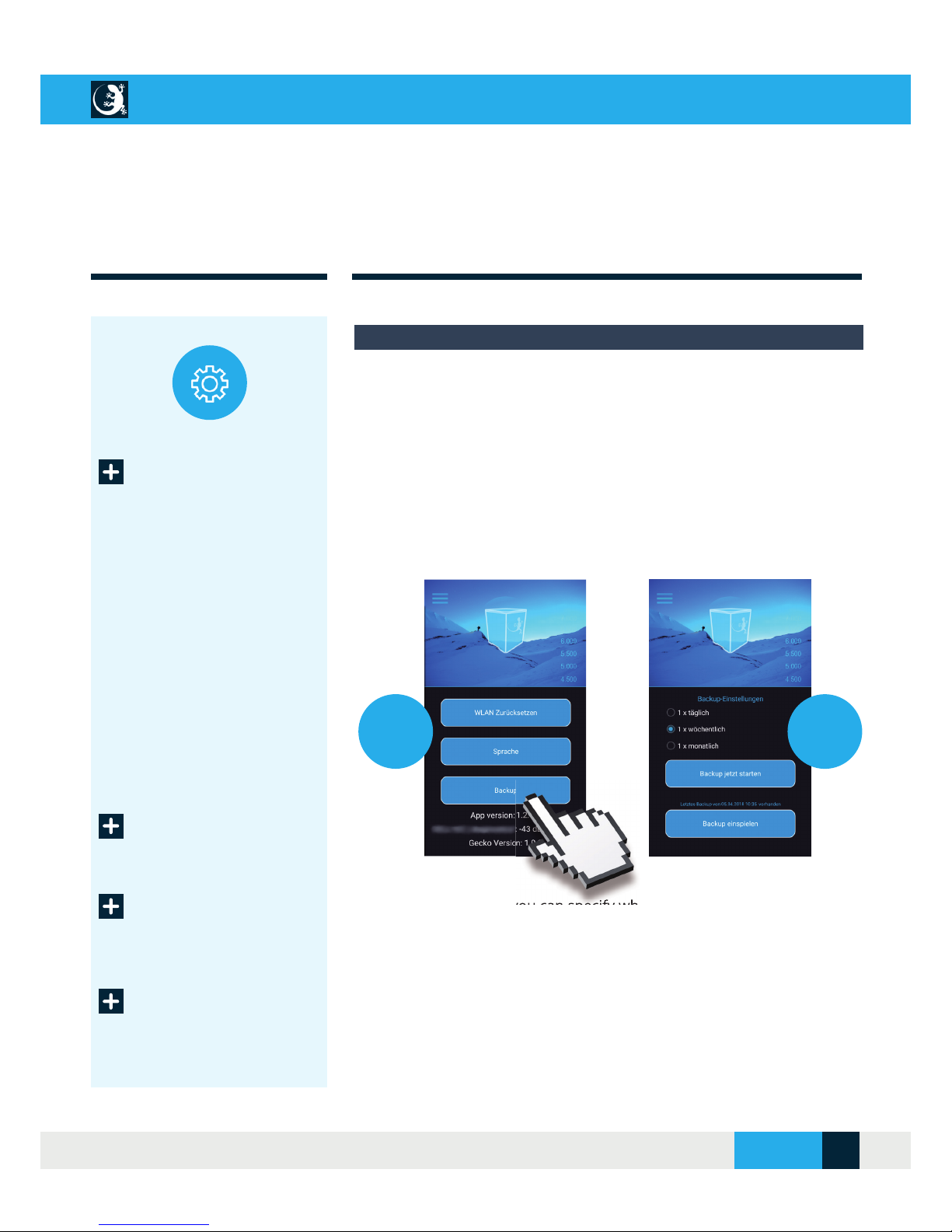
Open backup menu [1.]
To create a backup, open the “Settings” menu and open the function by
pressing the “Backup” button.
Backup settings [2.]
In the backup settings, you can specify whether the automatic data backup
is to take place once a day, once a week or once a month. With the “Start
backup now” button, you can manually start a backup of your data.
Click on the “Import backup” button to import your data from the last
available backup to restore your data.
Backup fi les are stored in the following folder:
Folder > My Documents > Device Storage > Documents > Gecko >
backup_x_x.bak.
Start backup
Import backup
1.
2.
CELLAIR® GECKO DOCUMENTATION
SITE 21
© 2017 - CELLGYM Technologies GmbH
Page 22
TROUBLESHOOTING
CellAir® Gecko
app without
connection to the
hypoxicator
Troubleshooting
If you encounter a problem while establishing the connection between
CellAir® Gecko app and hypoxikator, fi rst look for a solution in the chapter
entitled “Initial Commissioning”.
If this does not solve the problem, please proceed as follows:
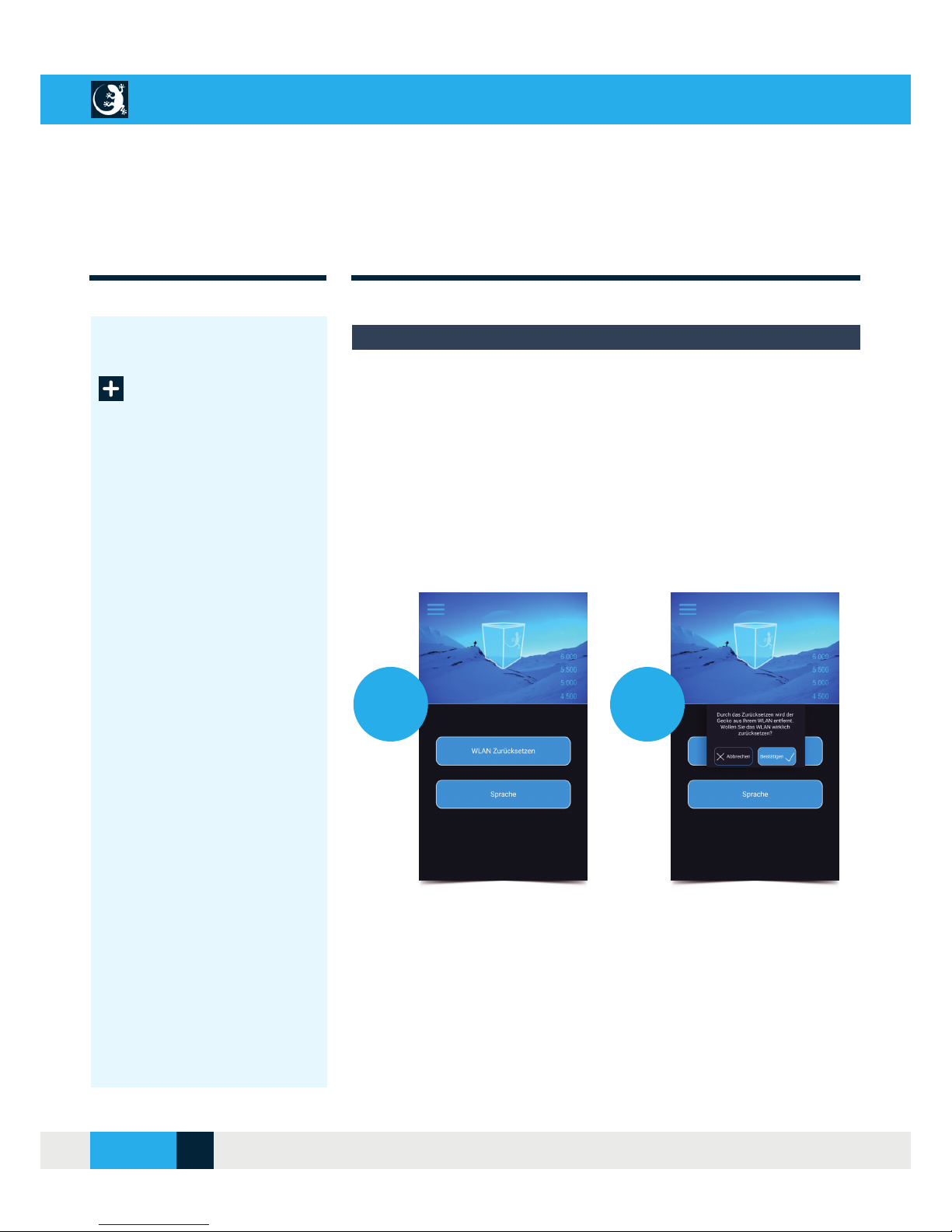
Go to the “Settings” menu and select “Reset WLAN” [1.] and confi rm the
message [2.] to remove the Gecko from the WLAN network.
1.
2.
Close the CellAir® Gecko app and turn off the hypoxicator. Wait 30 sec-
onds before switching on the hypoxicator again. To establish the connection, follow the instructions in the chapter entitled “Initial Commissioning”.
If no connection is established again, connect your tablet or smartphone in
direct mode (see “Initial Commissioning”).
CELLAIR® GECKO DOCUMENTATION
22SITE
04/2018
Page 23
TROUBLESHOOTING
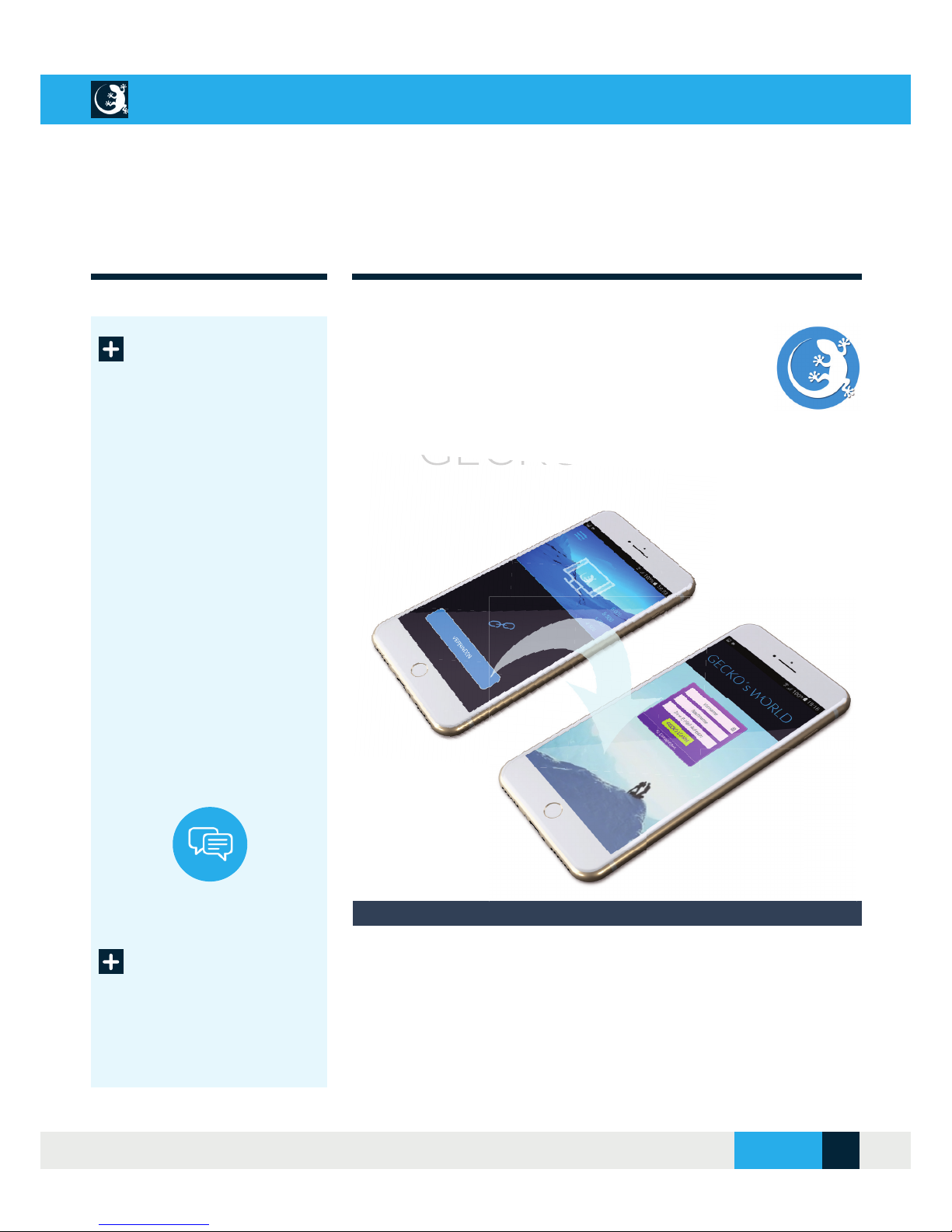
Current information on troubleshooting, FAQs, news, video tutorials, sci-
entifi c backgrounds are available via the “Info Portal” menu or via the URL
address http://cellair-gecko.de/welcome
On this page, log in with your access data and follow the instructions
when you fi rst register. To register, you need Internet access and an
e-mail address.
Info Portal
Current information about the Info Portal
Welcome to
GECKO´s WORLD
Gecko´s World
CELLAIR® GECKO DOCUMENTATION
SITE 23
© 2017 - CELLGYM Technologies GmbH
Page 24
CLEANING & MAINTENANCE
Cleaning
Maintenance
Cleaning your CellAir® Gecko
Hypoxicator
Before each cleaning and disinfection, switch off the system and discon-
nect the mains plug. The outside of the unit can be damp wiped with warm
water using a soft cloth. Make sure no liquid enters the unit through the
housing slots.
Pulse oximeter
Wipe the surfaces, sensor and contact surfaces with a soft cloth moistened
with a mild soap solution. Klenzyme is recommended as a cleaning agent.
To disinfect the sensor, wipe off the sensor and contact surfaces with 70%
isopropyl alcohol.
Breathing tube
Clean the hose with mild soapy water and rinse it with plenty of clean
water. Then hang it up to dry. The hose may only be cleaned with cold or
lukewarm water.
To ensure safe use and full performance of your hypoxicator, the system
should be serviced regularly.
You will automatically receive a maintenance note via the CellAir® Gecko
app.
CELLAIR® GECKO DOCUMENTATION
24SITE
04/2018
Page 25
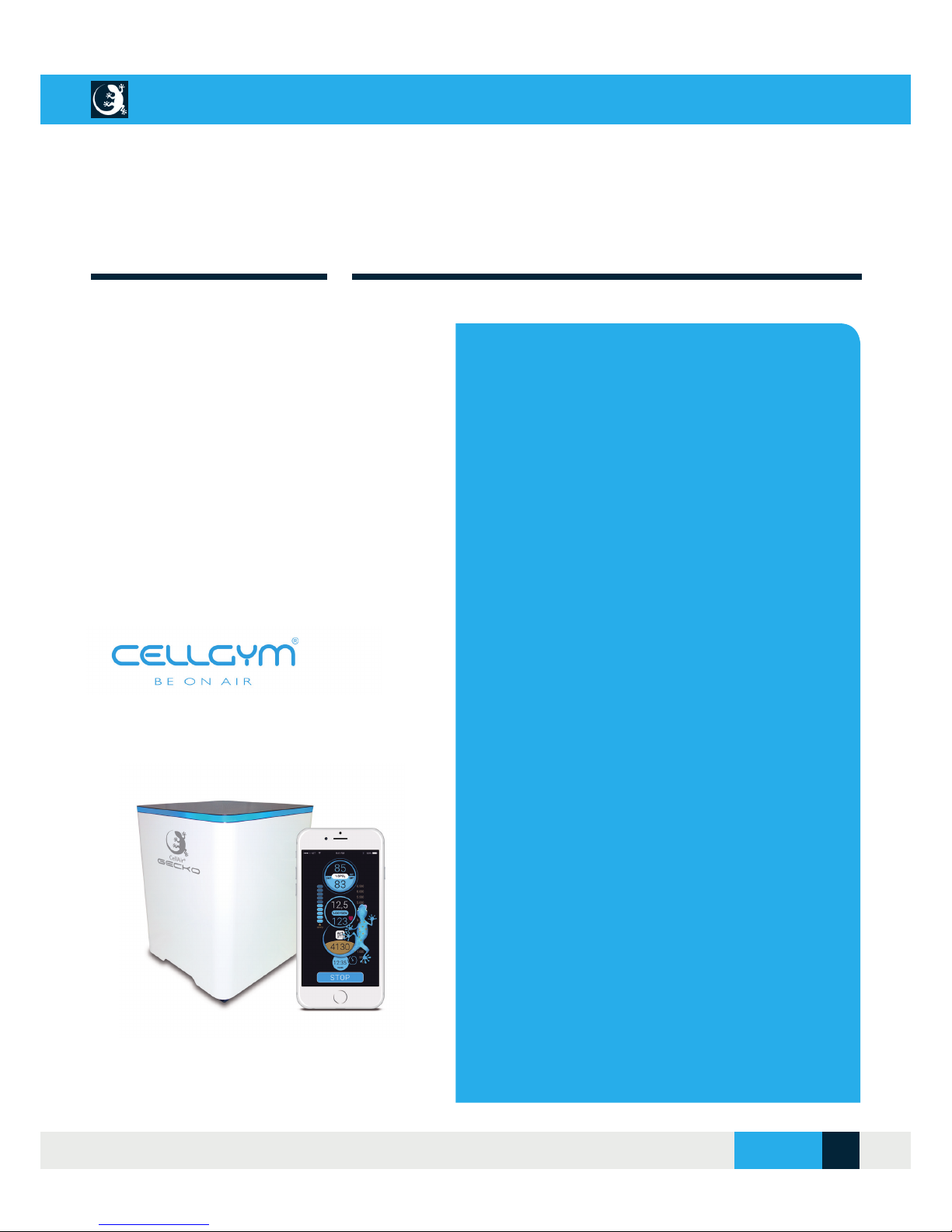
TECHNICAL DATA
CELLGYM
®
CellAir® Gecko
“non-medical-product”
Number of simultaneous users: 1 user
Variation of the O2 concentration:
Hypoxia: 9 - 17 %
Normoxia: 20,9 %
Hyperoxia: 34 %
Dimensions (W x H x D) / Weight:
Gecko: 40 x 57,5 x 47cm / 41,5 KG
Gecko T: 40 x 72 x 47cm / 47,5 KG
Humidity of air breathed in:
at least as humid as or up to 5% more humid than the
ambient air in the room
Sound level measurement:
pprox. 62dBa
Power consumption during operation:
up to 600 W depending on the
operating mode
Power supply:
230V 50Hz
Power consumption in standby:
< 1W
Colour scheme:
Standard colour RAL 9003 signal white, powdercoated. Desired colour/housing at extra charge:
all RAL colours high-gloss and matt) powder-coated
or stainless steel housing
Scope of delivery for the system:
Microprocessor-controlled hypoxicator/CellAir
Gecko, pulse oximeter, 9.7 inch tablet, power and
connection cable, 5 double port masks, handbook
Warranty: 12 months including support
CONTACT
CELLGYM Technologies GmbH
Knesebeckstraße 68/69
10623 Berlin
Deutschland
Tel.: +49 (0) 30 577 095 832
Fax: +49 (0) 30 577 095 839
www.cellgym.de
TECHNICAL DATA & SUPPORT
CELLAIR® GECKO DOCUMENTATION
SITE 25
© 2017 - CELLGYM Technologies GmbH
Page 26
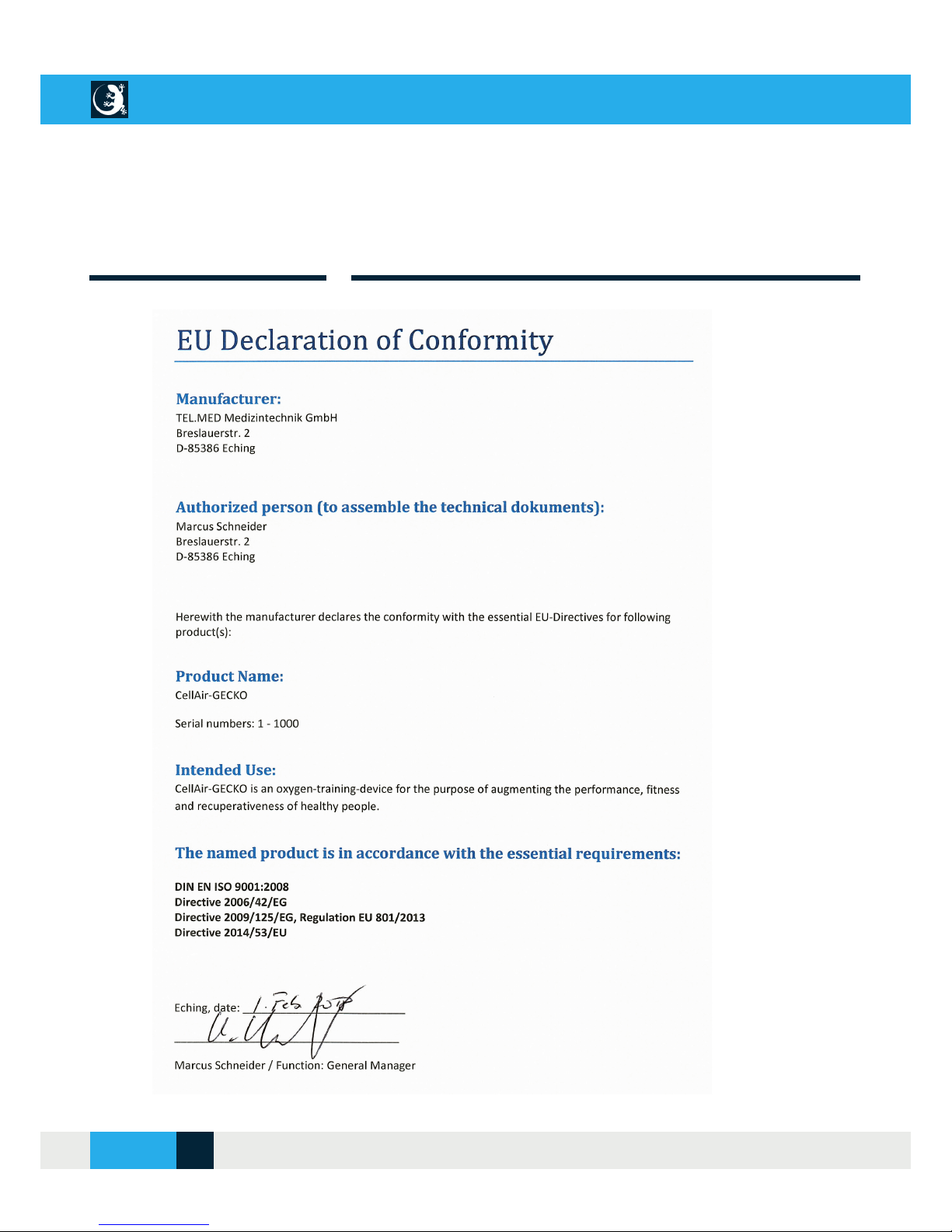
DECLARATION OF CONFORMITY
CELLAIR® GECKO DOCUMENTATION
26SITE
04/2018
Page 27
NOTES
CELLAIR® GECKO DOCUMENTATION
SITE 27
© 2017 - CELLGYM Technologies GmbH
Page 28
Knesebeckstraße 68/69
D-10623 Berlin, Deutschland
Fn +49 30 577095832
Fx +49 30 577095839
[email protected]
www.cellgym.de
CELLGYM Technologies GmbH
 Loading...