

Page 1

T179
User manual
Page 2

www.cellacom.com2
Contents
1 About your Mobile Phone..............................7
1.1 Appearance..............................................7
1.2 Key instructions...................................... 8
1.3 Icons........................................................10
2 Getting started..................................................10
2.1 The Battery............................................10
2.1.1 Install & remove a battery
......
11
2.1.2 Charging
......................................
11
2.2 SIM card installation............................12
2.3 Memory card installation.................... 13
2.4 Storage Management.......................... 14
2.5 Power on and off.................................14
3 Call functions....................................................15
3.1 Makeacall........................................... 15
3.1.1 Make a domestic call
...............
15
3.1.2 Make an extension call
...........
15
3.1.3 Make an international call
.......
16
3.1.4 Make a call from Mobile Phone
book 16
3.1.5 Redial a call by recent call lists
16
3.2 Answer a call........................................16
3.3 Reject a call..........................................17
3.4 Call options............................................17
4 Menu functions................................................ 17
4.1 Messages............................................... 17
Page 3

www.cellacom.com3
4.1.1 Write message
...........................
17
4.1.2 Inbox
.............................................
18
4.1.3 Outbox
..........................................
18
4.1.4 Settings
........................................
18
4.1.5 Memory Status
...........................
19
4.1.6 Voice mail
...................................
19
4.1.7 Broadcast Message
..................
19
4.2 Multimedia..............................................20
4.2.1 FM Radio
....................................
20
4.2.2 Audio player
................................
20
4.3 Organizer................................................21
4.3.1 Calendar
......................................
21
4.3.2 To do list
.....................................
21
4.3.3 Alarm
............................................
21
4.3.4 Calculator
.....................................
22
4.4 Settings...................................................22
4.4.1 Time and Date
...........................
22
4.4.2 Display
.........................................
22
4.4.3 Phone setting
.............................
22
4.4.4 Call settings
................................
23
4.4.5 Network Setting
..........................
25
4.4.6 Network status
...........................
25
4.4.7 Security Setup
............................
25
4.4.8 Set UART
....................................
26
4.4.9 Restore Factory settings
..........
26
4.5 File Manager......................................... 27
4.6 Phonebook............................................. 27
Page 4

www.cellacom.com4
4.6.1 Contacts
.......................................
27
4.6.2 Add new contact
.......................
28
4.6.3 Delete ALL
..................................
28
4.6.4 Copy All
.......................................
28
4.6.5 Owner number
...........................
29
4.6.6 Preferred Storage
......................
29
4.6.7 Memory Status
...........................
29
4.6.8 Speed dial
...................................
29
4.7 Call history.............................................29
4.8 Fun & Game.........................................30
5 Battery information......................................... 30
6 Safety information...........................................31
6.1 Operating environment........................31
6.2 Electronic devices................................ 31
6.2.1 Pacemaker
..................................
31
6.2.2 Hearing aids
...............................
32
6.2.3 Other medical devices
.............
32
6.2.4 Vehicles
.......................................
33
6.3 Potentially dangerous situations....... 33
7 Care and maintenance...................................33
Page 5

www.cellacom.com5
Preface
Thank you very much for your choice of this product
designed by our company
!
Our Mobile Phone complies with the Telecommunication
industries standards of both the People's Republic of China
and Europe
.
The product described in this guide is approved for use on
the GSM networks, and has the GPRS functions.
GSM network is a global cellular communications system of
international standards
.
Allow you to receive an international telephone call used as
in your homeland
.
However,before using these advanced network functions
,
you must firstly apply for these required services
.
In order to better use your mobile phone,we suggest you
to carefully read this statement to know all the functions well.
Note:Due to the cellular network settings and the services
provided,some functions may be unavailable,please query
local service providers.
For your safety
Read these simple guidelines.Breaking the rules may be
dangerous or illegal.Further detailed information is given in
Page 6

www.cellacom.com6
this manual.
ROAD SAFETY
Always keep your hands free to operate the vehicle while
driving.Park the vehicle before using your Mobile Phone
.
SWITCH OFF IN AIRCRAFT
Using of wireless telephones in aircraft may disrupt the
operation of the aircraft.It is dangerous and illegal.Insure
switching off the Mobile Phone before going aboard.
SWITCH OFF IN HOSPITALS
Follow any restrictions or rules.Switch off the Mobile Phone
near medical equipment
.
SWITCH OFF WHEN REFUELING
Switch off the Mobile Phone at a refueling point or any fuel
or chemicals places
.
SWITCH OFF NEAR BLASTING POINT
Don’t use the Mobile Phone where blasting is in progress
.
Observe restrictions,and follow any regulations or rules
.
INTERFERENCE
All wireless Mobile Phones may be susceptible to
interference, which could affect the performance.
USE NORMALLY
Use in the normal position explained in the product
documentation.Don't touch the antenna unnecessarily
.
ENHANCEMENTS AND BATTERIES
Use only the approved enhancements and batteries.Do not
connect incompatible products
.
EMERGENCY CALLS
Page 7
www.cellacom.com7
Ensure the Mobile Phone is switched on and in service.
Enter the emergency number,and then press the
key.It
will give your location.Do not end the call until the
permission.
1
About your Mobile Phone
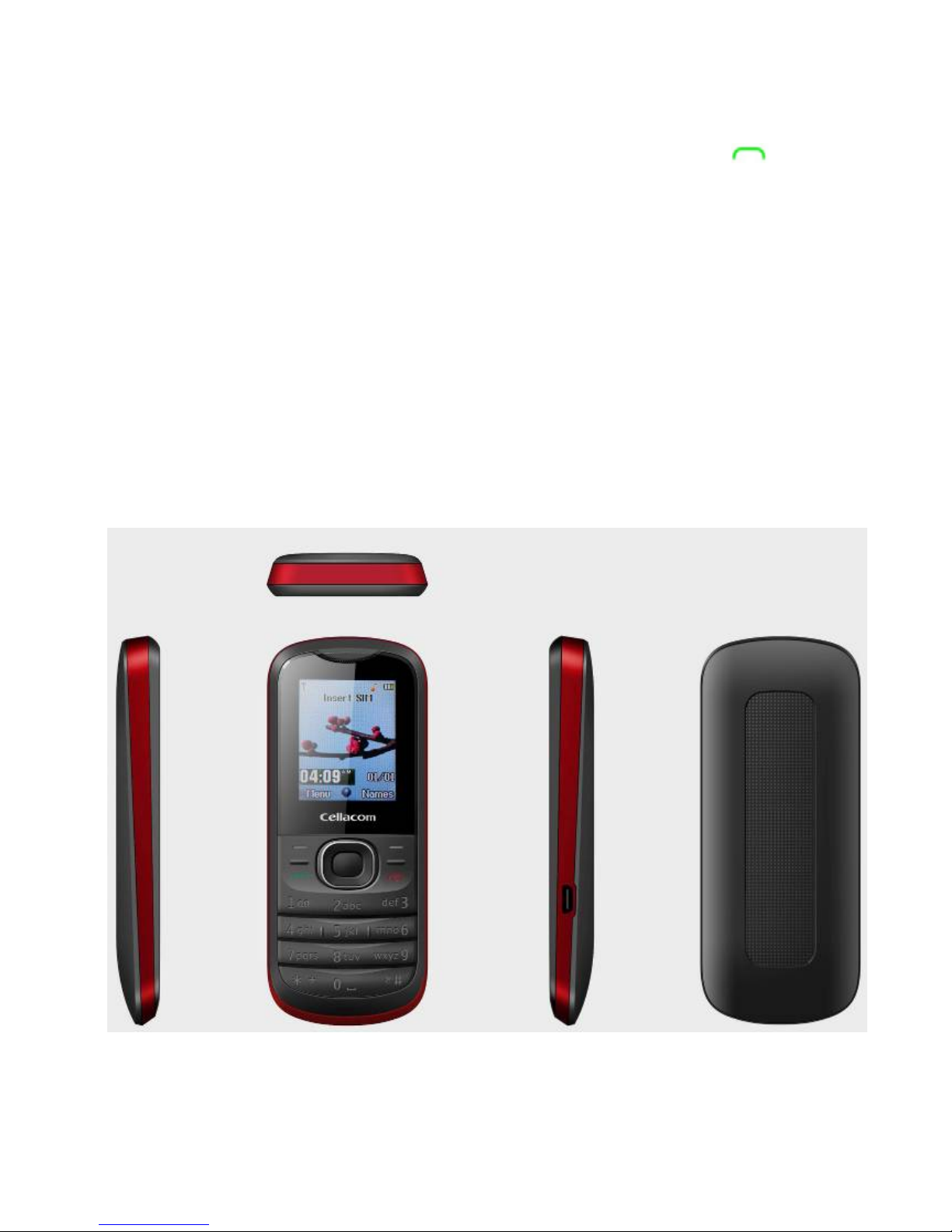
1.1 Appearance
Page 8
www.cellacom.com8
Note:If the specifications subject to change without notice
,
product images only for reference purposes , so please see
the subject produce
.
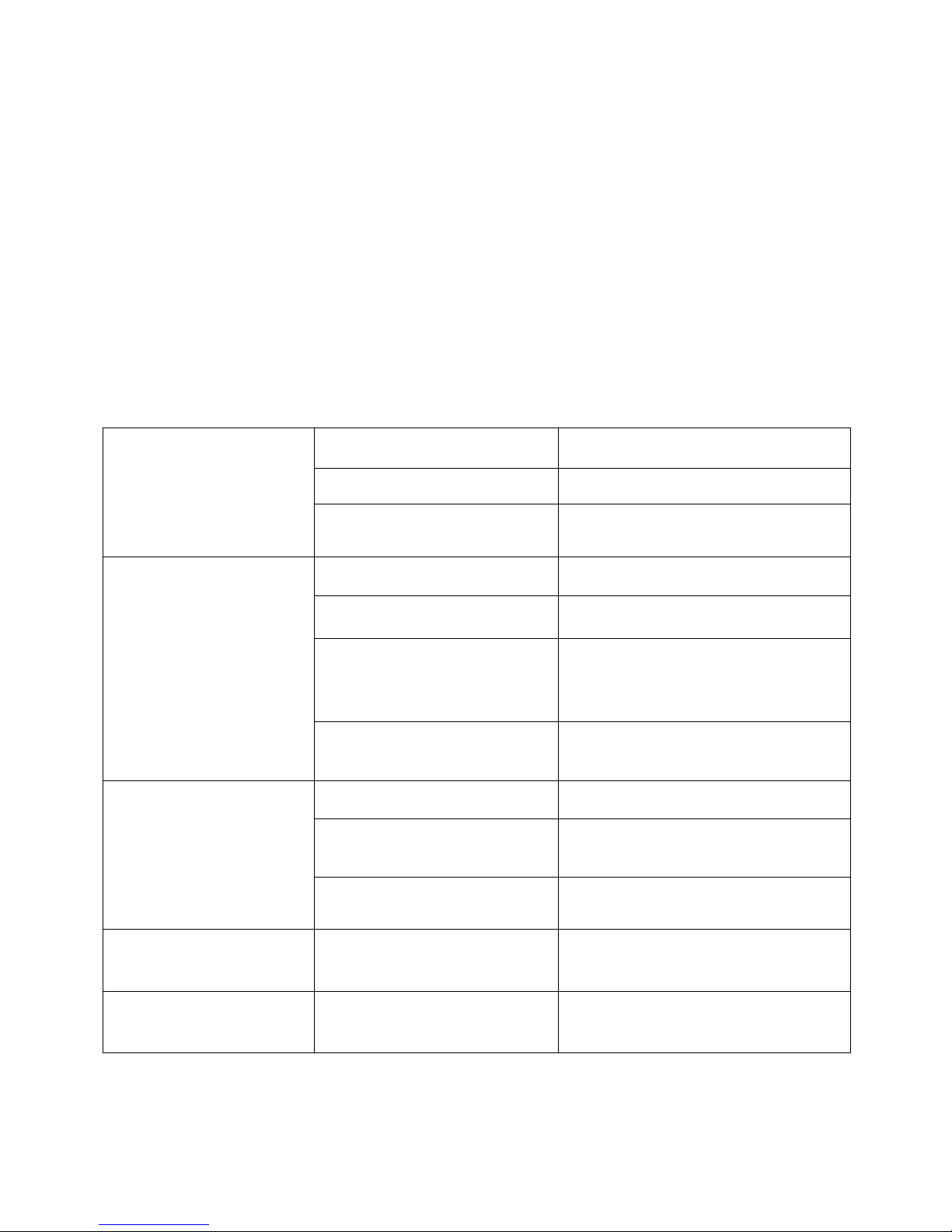
Model T179
Size 109mm *4 7 mm *13 mm
Weight 70g(battery included)
BATTERY Type Li-ion battery
Standard Voltage 3.7 V
Restrict io ns o n
Charging voltage
4.2 V
Rated capacity
BL-5B( 500mAh)
CHARGER Model T179
Input 100- 24 0V
Outpu t DC 5.0V
Earphone cable Specification Stereo earphone
IO Specification Micro USB (5PIN)
Page 9
www.cellacom.com9
1.2 Key instructions
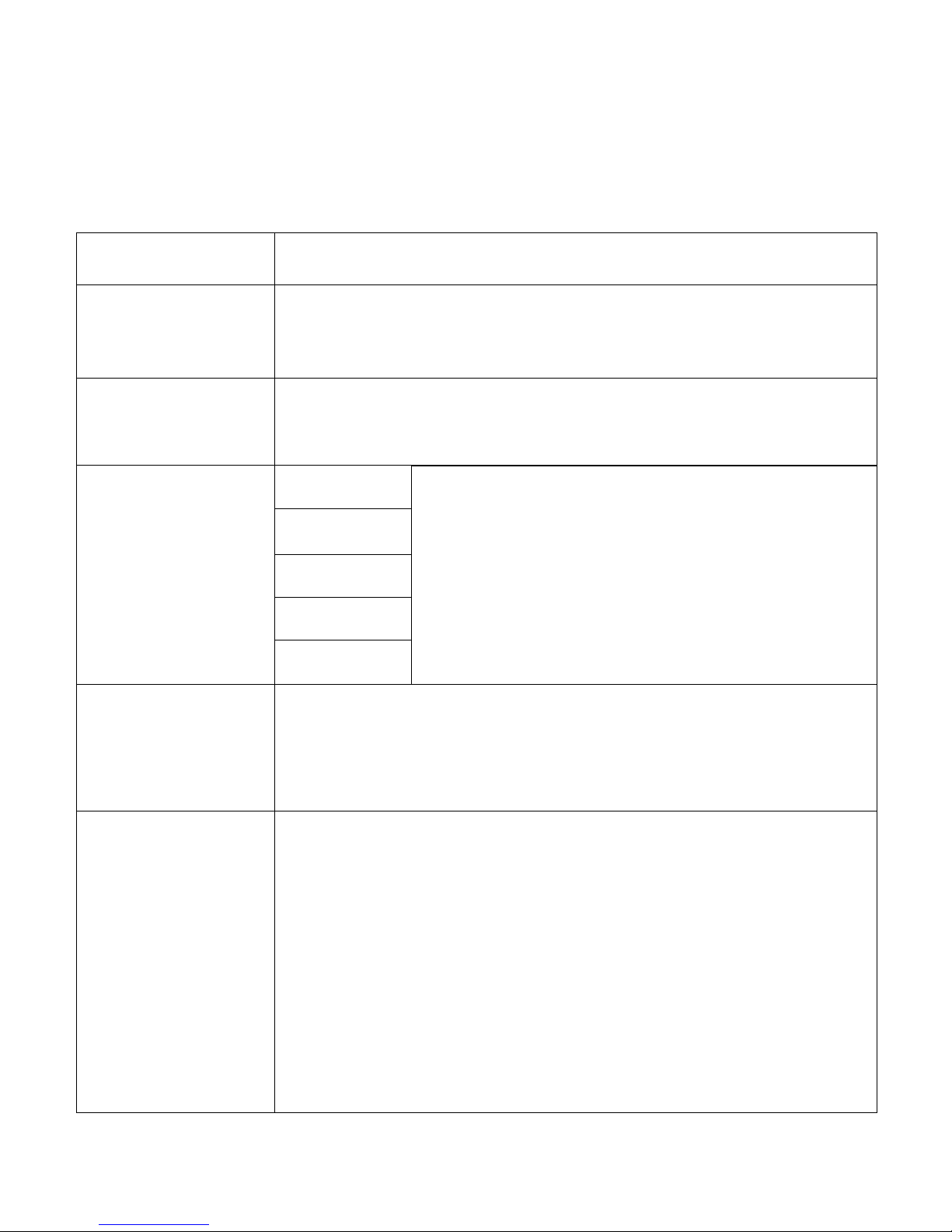
Keypad name Keypad Functi on Int roduce
Left-so ft-key Use the left s oft key to execute to function
s
indicated at the left bottom corner of the screen
Right-soft-key In the stand by mode
Enter into the phone book
Direct ion key
up
It’s used to choos e the all func ti on
down
Left
right
OK
Dial Key
Making or answer ing a call.
In the standby mode, press this key to access th
e
Call Logs.
Electric-key
End an ongoing call.
Press and hold this key to turn on or off the mobil
e
phone .
In the menu mode, press this key to return to th
e
standby mode and cancel current operations.
Pressthiskeytostopthealarmringingonceth
e
alar m ri ng s .
Page 10
www.cellacom.com10
Numb er Key
0, ~9
Type the numeric in standby mode
User can type mani fo ld
denotation in the editor
*
Short press~ Dials the telephone
number by the host card way~
Long press~ Change the phone mode
between General and Meeting mode.
1.3 Icons
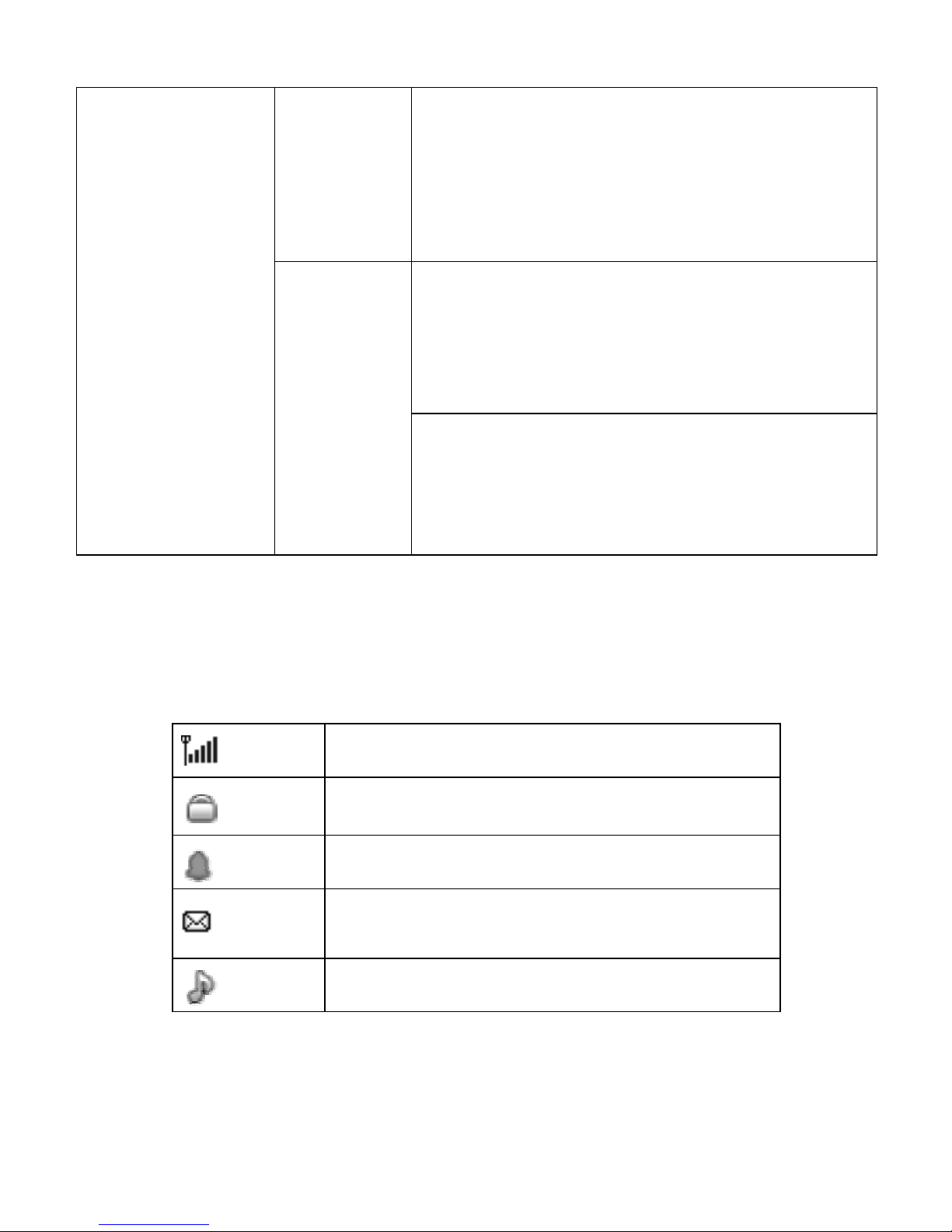
Status Icons
Netw or k Si gn a l
Aut o Ke y p a d Lo ck
Alar m Clo ck is act ivat ed
New Message or Message Memory
Full
Ringi ng
Page 11

www.cellacom.com11
2 Getting started
2.1
The Battery
The Li-ion battery can be charged and discharged hundreds
of times.Please use the approved batteries,and only use
the battery charger approved by the Mobile Phone producer
to charge your battery.
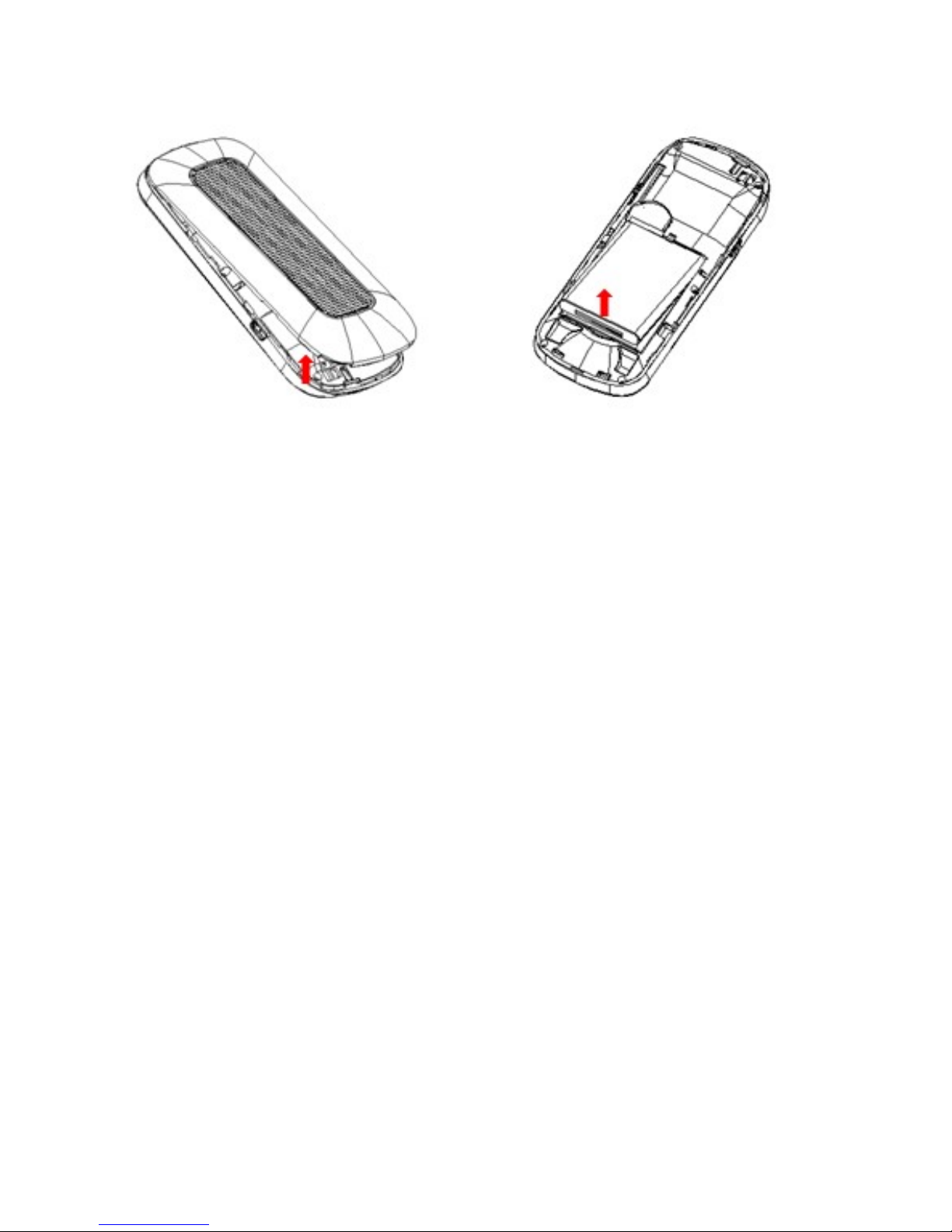
2.1.1 Install & remove a battery
Remove
:
(1)Slide forward the bottom off the back cover to remove.
(2)
Lift the battery from its slot and take it out
.
Install
:
(1)
Place the battery into the battery slot
.
(2)
Slide the back cover toward the top of the Mobile Phone
to lock the cover into its place
.
Page 12
www.cellacom.com12
Warning
:
(1) There may be the risk of explosion if the battery is
replaced by the wrong type
.
(2)
Dispose of used batteries according to the
guidelines
.
2.1.2 Charging
To plug in the power charger,the charger cable plug at the
bottom of the Mobile Phone
Note
:
1.
It is beneficial to the battery to charge it until full at the
first three times
.
2.
When charging,don’t remove or take out off the battery
to avoid the battery circuit to burn out
.
Page 13
www.cellacom.com13
3. While charging, it is normal that the Mobile Phone and
charger will become hot
.
4.
If the battery is completely empty,it may take a period
of time before the charging icon appears on the display.
Warning:Provides charging temperature range
-5
℃ to
55
℃
,
over this range,please do not
use the charging equipment.
Andbesuretouse
the charger provided by the supplier.Use of an
unapproved charger may be dangerous and
breach of warranty of the equipment approval
and terms
.
Notice
:
The socket-outlet shall be installed near the equipment
and shall be easily accessible。
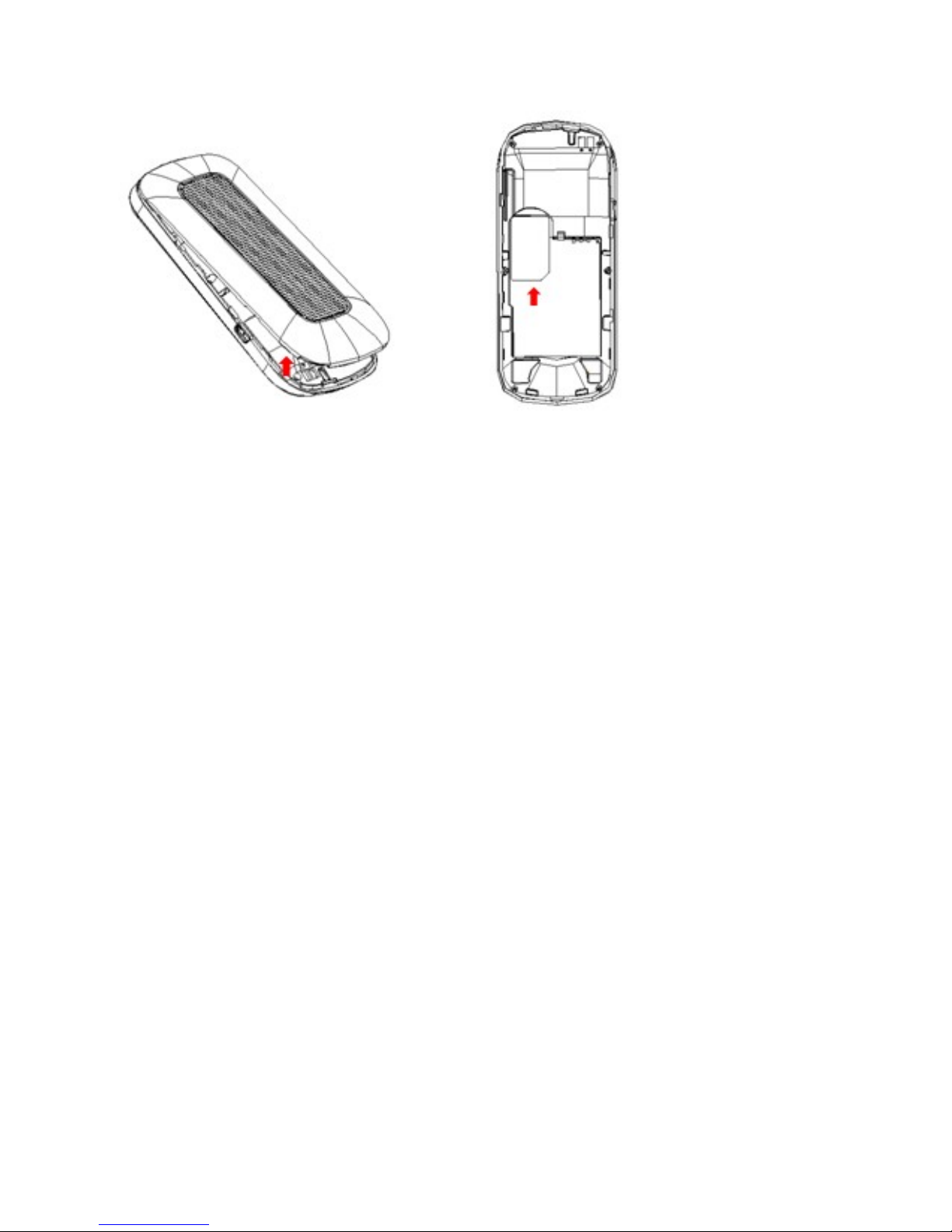
2.2 SIM card installation
Turn off the Mobile Phone,and take out the battery
.
Keep the gold color side of the SIM card downward,and
slide it gently to the right place
.
Page 14
www.cellacom.com14
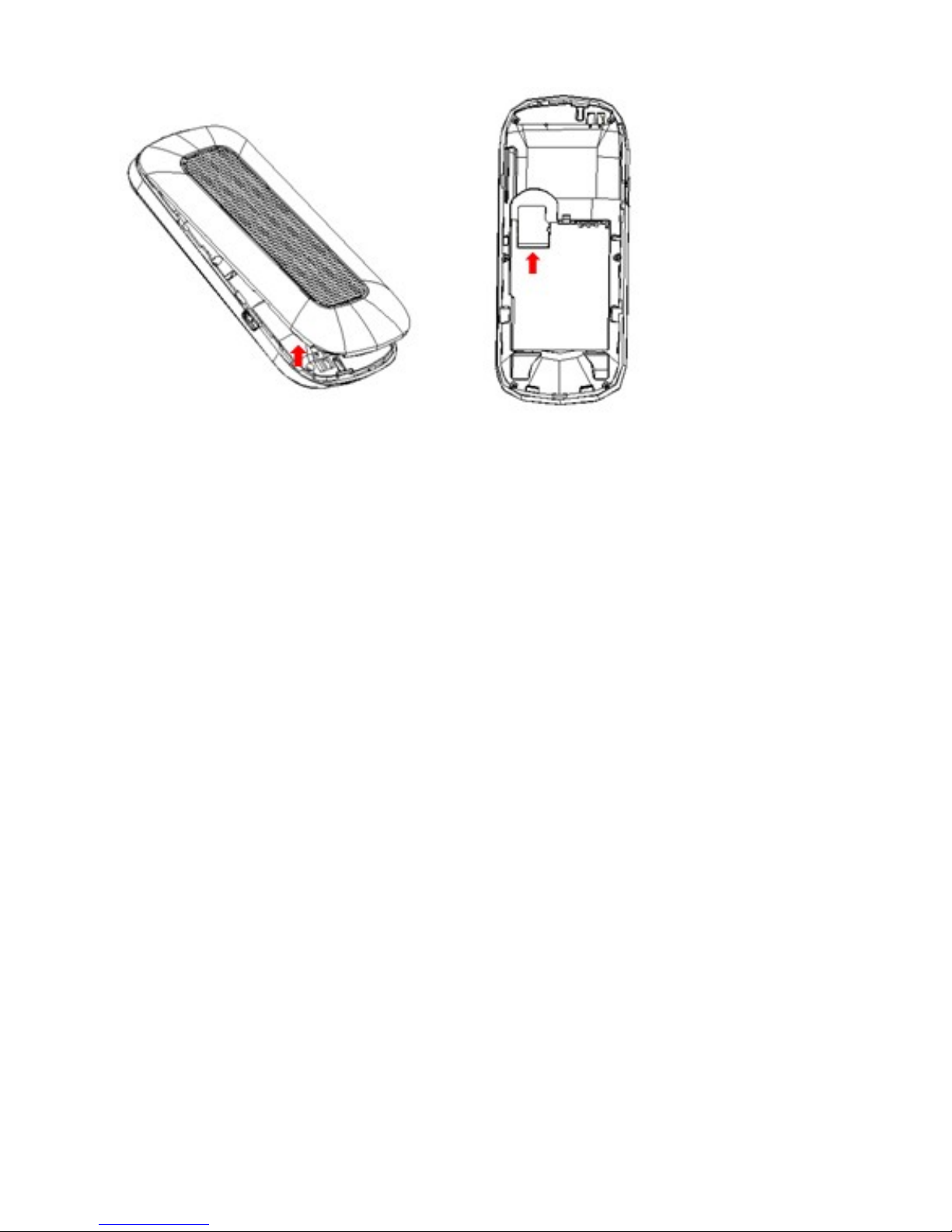
2.3
Memory card installation
Power off the Mobile Phone,and take out the battery or any
other electrical supply
.
Keep the golden color side of the Memory card downward
,
and push it gently to the right place
.
Before take out off the memory card,be sure to Power off
the Mobile Phone and remove the battery first
.
Page 15
www.cellacom.com15
2.4 Storage Management
Manage the memory card storage space
.
1.
The computer and synchronize
Note:This Mobile Phone supports USB boot function;all
operations are on the computer need to use the card reader
.
You can enter after the discovery has a number of preset
folders,for normal use,set the relevant documents were
deposited with the corresponding directory,that is,which
corresponds to MP3folder My music,photos corresponding
album Folder, corresponding folders, pictures corresponding
Images folder.Sound recording,self-Tone Audio
corresponding folder
.
2. Format
If you format the memory card,all files saved in it will be
Page 16

www.cellacom.com16
lost. By two ways you can format your Memory card:
Format by Mobile Phone
:
enter File Manager
—>
select
Memory card
—>
select Format
.
Format by computer: Please complete the format work as
following steps
:
(1)
Right-click"My Computer"and choose"management
",
after entering the option "store"->"Disk Management";
(2)
In the memory card on the disk where the right-click
and choose"format
";
2.5
Power on and off
Press and hold keytoturnon/off the Mobile Phone
.
And if you have set PIN or Mobile Phone code, input it
correctly
.
3
Call functions
3.1 Make a call
When the network supplier's symbol appears when the
display monitors,you might dial or answer the mobile phone
.
Page 17

www.cellacom.com17
Under readiness for action, display monitor top left-hand
corner information strip demonstration network signal
strength(when has
4
information strip expressed signal is
strongest).After the user inserts SIM cards,may realize the
double caliper also to wait for an opportunity
.
3.1.1 Make a domestic call
Enter the Mobile Phone number including the area code
.
Press
Keytomakeacall
.
3.1.2 Make an extension call
When making an extension call, press and hold 0 key to
get“P”that is a prefix of extension numbers.It will dial
automatically in several seconds since you dialed the mobile
phone exchange.
viz
.:
area code—telephone exchange
numbers—P—extension numbers,then press
key
.
3.1.3 Make an international call
Enter the country code,the area code and the Mobile Phone
number, press
key to dial.”+”is needed when input
country code,and it can be got by pressing and holding
0
Page 18

www.cellacom.com18
key. Dial to Hong Kong, Macao and Taiwan Mobile Phone
ibid
.
3.1.4 Make a call from Mobile Phone book
Enter the telephone directory tabulation,the telephone
number which the choice must dial,the pressed key passes
the excessively leftist soft key choice to use the SIM dials.
3.1.5 Redial a call by recent call lists
Press key to find the SIM recent call lists or the recent
call lists,scroll to the number or name,and then press
key to use the SIM dials.
3.2
Answer a call
An incoming call window will be displayed as the Mobile
Phone receives a call. The number will appear on the
window if you have opened this function.Press
key to
answer it
.
If you missed a call, a missed call log will appear after you
return to the start screen
.
Page 19

www.cellacom.com19
3.3
Reject a call
You can press key to reject an incoming call.
3.4
Call options
In the call,press left soft key"options"to enter the call
option, there is OK to answer multi-functional conference
needs to support the network,contact your network vendor
.
4
Menu functions
4.1
Messages
4.1.1 Write message
Access this menu,user can select to write text message
or multimedia message
Access Text Message menu to edit message
,
press
“
option”to do as following
:
-
Send
Select the number from the phonebook and send the text
message to him
Page 20

www.cellacom.com20
-Save
Save the message to draft
-
Writing language
Change the input language
.
4.1.2 Inbox
Access this menu to view the received short Messages
.
Enter it to read the received Messages.Press left soft key
in view Text Message screen to do the following functions
-
Reply
-
Delete
-
Forward
-
Copy to Phone
-
Move to Phone
-
Use number:Extract the number of the message or in
the message.The length of the number is between
3
and
40.
User can call the number directly or save it to
phonebook.
4.1.3 Outbox
Access this menu to view the received short Messages.
Enter it to read the uncompleted short Messages and sent
Messages,drafts.Press left soft key in view Text Message
Page 21

www.cellacom.com21
screen to do the following functions
-
Send from SIM
-
Edit
4.1.4 Settings
Access submenu of Message Settings, user can select SIM
Message settings.Before using message function,you
should do some settings as following
:
-
Profile Settings
Contact with local network provider to get the SC address
.
After entering the submenu,the setting list will be displayed
.
The number of the list is different according to the network
and the type of SIM card,Select the mode and press“edit
”
to set the profile name,SC address,valid period and
message type
.
-
Common settings
Set the delivery report and reply path
.
-Preferred Storage
Select to save in phone or SIM
.
4.1.5 Memory Status
Check memory space of messages in Mobile Phone or SIM
card
.
Page 22

www.cellacom.com22
4.1.6 Voice mail
Edit the number and make the call
.
4.1.7 Broadcast Message
Broadcast public information sent by the network providers
.
Use Cell Broadcast service,you can receive information on
various subjects from network provider. For more available
information,please contact your local network providers
4.2 Multimedia
4.2.1 FM Radio
The headset cable functions as an antenna as well.To
ensure good reception of radio programs,do not disconnect
the headset from the phone or severely bend the headset
cable
.
To use the FM radio,do the following
:
Connect a compatible headset to the phone
.
Select Menu
>
Multimedia
>
FM radio to launch the FM
radio
.
On the FM radio screen,you can do as follows
:
Page 23

www.cellacom.com23
Press left and right key on the direction key to change
the channels
.
Press up and down key on the direction key to adjust
the volume
.
Power on:Plug the earphone and power on the FM
.
Tune:Store the channels
Channel list:it shows the number and name of the channel
stored in the list
.
Preset auto search:Search new channel automatically, and
it will be stored in channel list
.
Loudspeaker:Play the FM radio for loudspeaker
.
Background play:Play the FM radio as background music
.
4.2.2 Audio player
Select Multimedia/Audio player item in main menu to enter
audio player interface.In playing interface,press“option
”
to do Play,Details,Add to ringtones,Refresh List and
Settings
.
To start playing, press
, To pause the playing, press
To adjust the volume level,press up/down key on the
direction key.
To skip to the next song,press
Page 24

www.cellacom.com24
To skip to the previous song, press
To close the audio player menu and to continue the
playback in the background,press the red key on the phone
.
4.3
Organizer
4.3.1 Calendar
Select Organizer/Calendar item in main menu.Press the
direction key to change the date, and the calendar shown
on the screen will be changed accordingly
.
4.3.2 To do list
Add the subject,time and detail for reminding the user for
the tasks
4.3.3 Alarm
Set the alarm time and it will remind you by alert tone or
vibration when the alarm time expires
.
You can set
5
alarms in the Mobile Phone at most
.
Page 25

www.cellacom.com25
4.3.4 Calculator
You can carry on simple arithmetic in the cell-phone through
this function
,
including adding
,
reducing
,
multiplication
,
division and percent operation,etc
.
After entering the calculator interface,use the simulation
keyboard input digit and operation incantation which you
need,can receive the result of calculation according to the
equal sign
.
Note
:
This calculator accuracy is limited
,
will have a
rounding error
4.4 Settings
4.4.1 Time and Date
Set the home city,time and date,time and date’s format
.
4.4.2 Display
This can set up wallpaper,LCD backlight,brightness
.
4.4.3 Phone setting
Language
Page 26

www.cellacom.com26
Change the language of the Mobile Phone.
Shortcuts
Set the shortcuts function for the dedicated key
Schedule power on/off
You can set
4
power on/off schedule,and the Mobile Phone
will power on or power off according to the settings
.
Auto keypad lock
Press left soft key in standby mode and enter Main Menu
,
then press*keytolockthekeypad.If the keypad is locked
,
you can unlock it by pressing left soft key and then
*
key
.
Input method Setting
Select preferred input method
.
4.4.4 Call settings
4.4.4.1
SIM call settings
Call ID
There are these options
:“
Set By Network
”, “
Hide Id
”,
and
“
Send Id
”.
Call waiting
If it is supported by your service provider, call waiting will
notifies you of an incoming call even if you are in a call
.
You can then accept,reject,or ignore the incoming call.To
make this function available,please contact local network
Page 27

www.cellacom.com27
provider.
Call divert
Call diverting is a network services,it tells your network to
divert incoming calls to another number to avoid missing a
call
.
The following is available:divert All Voice Calls,Divert If
Unreachable,Divert If No Answer,Divert If Busy,Divert All
Data Calls,and Cancel All Divert
Call barring
Outgoing calls
Incoming calls
Cancel all
Change barring pwd
Line switching
You can switch between line
1
and line
2.
Note:It depends on the service provider whether line
2
is
available
.
Closed use
r
group
4.4.4.2
Common call settings
Call time reminde
r
There will be a hint sound when the setting time passed
during a call
.
Off:turn off the function
Single
:
Input
1-3000(
second
)
between the random
numeral.
Page 28

www.cellacom.com28
Periodic: Input 30-60(second) between the random
numeral
.
Auto redial
It can dial the same Mobile Phone number automatically
after a failing dial with this function
.
Closed user group
IP numbe
r
You can set the prefix IP number with this function.
In phonebook,you can select one of the phonebook items
,
and select“IP Call”in options,the prefix IP number will
be added automatically to the call number and be sent out.
Answermode
4.4.5 Network Setting
4.4.5.1
Network selection
-
New search
-
Select network
-
Selection mode
Page 29

www.cellacom.com29
4.4.6 Network status
4.4.7 Security Setup
4.4.7.1
SIM security
-
SIM Lock
Set the Mobile Phone to ask for your PIN code each time
you start your Mobile Phone(if this function is supported
by your SIM card
).
Note:After three consecutive incorrect PIN code entries,the
code will be blocked,and you need the PUK code to unblock
it.
The PIN code and PUK code are usually supplied by the
SIM card.If you don’t get them,please contact with the
supplier.The default PIN code is
1234
usually
.
-
Fixed Dial
If your SIM support fixed dial,it can limit you to call fixed
number.When the function is on,it can only call the Mobile
Phone number or Mobile Phone number start by the fixed
dial number.
Note:it needs you to input PIN2code to open or close this
function.You can get the PIN2code from service supplier
.
If the fixed dial is on, the Mobile Phonebook only show the
number of fixed dial
.
Page 30

www.cellacom.com30
-Barred dial
-
Change Password
You can change SIM PIN code password here
.
Note: the three codes are numbers between 4 and 8 digits.
4.4.7.2
Phone security
-
Phone lock
Set the Phone lock on or off
.
Note:The default password is
1122,
please as soon as
possible its change as own establishment password.
-
Chan
g
e password
Input the Mobile phone lock password (1122), then enter
the new password to change
4.4.8 Set UART
UART is abbreviation for Universal Asynchronous
Receiver/Transmitter
.
Dual SIM phone usually need to set
up UART.You can choose Sim1or Sim
2.
4.4.9 Restore Factory settings
You can reset some of the Mobile Phone settings to their
original values by input Mobile Phone lock password
Page 31

www.cellacom.com31
(1122).
4.5
File Manager
It provides you the functions such as browsing files
,
checking storage space and formatting function.
4.6
Phonebook
You can store the information in phonebook like name
,
phone number etc.
The phone number can be stored in Mobile Phone or SIM
card
.
Press right soft key to enter phonebook in standby mode
.
Select a number,then you can use the SIM to play IP Dial
,
Send SMS,view,edit,delete
.
4.6.1 Contacts
You can store the information in contacts like name,phone
number etc. The phone number can be stored in Phone
memory or SIM card
.
Press center key to do the options as follow
:
View:View the contacts
Page 32

www.cellacom.com32
Call: Make a call to the contacts
Add new contact
Send text message:Send SMS to the contacts
Edit:Edit the contacts
Delete:Delete the contacts
Copy: Copy the contacts to phone, SIM cards or to the file
Move:Move the contacts from SIM cards to the phone or
move the contacts from the phone to the SIM
.
Addtospeeddial
Mark several:Mark the contacts then your can delete or
4.6.2 Add new contact
Add a new record to Mobile Phone or SIM cards
If add a new record to Mobile Phone, you can input name,
number,home number,company name,email address
,
office number,fax number and Birthday.Beside these,you
can set items as following
:
-
Associate Sound
From left to right through the Mobile Phone system's built-in
ring tones and document management folder,choose
Individualized or close calls ring(Note:document
management in a document sent to the scene only after the
model can be chosen).
Page 33

www.cellacom.com33
4.6.3 Delete ALL
-
From SIM:Delete all the record from SIM card
.
-
From Mobile Phone:Delete all the record in Mobile
Phone
.
4.6.4 Copy All
-From SIM: Duplicates the SIM numbers to Mobile Phone.
-
From Mobile Phone
:
Duplicates the Mobile Phone
numbers to SIM card
.
the SIM1numbers to Mobile SIM
2.
4.6.5 Owner number
Edit the owner name and number in the phone.
4.6.6 Preferred Storage
Set the storage place for record. User can also set it while
save the record
.
4.6.7 Memory Status
User can query the memory capability and already used
Page 34

www.cellacom.com34
capability in phonebook of Mobile Phone or SIM card.
4.6.8 Speed dial
Speed dials is a shortcut to dial frequently called numbers
.
Set the numbers to speed dials before use it.User can
choose the SIM to call
4.7
Call history
Select call center from main menu,you can view the
information about call history and the general call settings
.
4.8
Fun
&
Game
There are“F1race
”
game in phone.Please refer to help
option of the game for specific operation and instructions
.
Game settings
:
BGM:To turn on/off the game background music
.
Sound effect:To turn on/off the sound effect
.
Vibration:To turn on/off the vibration effect
.
Volume:To set the game sound
.
Page 35

www.cellacom.com35
5 Battery information
Your device is powered by a rechargeable battery
.
The battery can be charged and discharged hundreds of
times but it will eventually wear out.When the talk and
standby times are noticeably shorter than normal,please
buy a new battery
.
Use only the approved batteries,and recharge your battery
only with approved chargers designated for this device
.
Unplug the charger from the electrical plug and the device
when not in use. Do not leave the battery connected to a
charger.Overcharging may shorten its lifetime.If left unused
,
a fully charged battery will lose its charge over time
.
Warning
Do not drop,knock,or shake the device.Rough handling
can shorten the life of the battery
.
Do not make short-circuit occur to the battery
.
The battery put in hot or cold places,such as in a closed
carinsummerorwinter,will reduce the capacity and lifetime
of the battery
.
Do not put the battery near flammable or explosive goods
.
Do not dispose of batteries in a fire
!
Never use any charger or battery that is damaged
.
Use the battery only for its intended purpose
.
Page 36

www.cellacom.com36
Dispose of batteries according to local regulations. Please
recycle when possible.Do not dispose as household waste
.
6
Safety information
6.1
Operating environment
Remember to follow any special regulations in force in any
area and always switch off your device when its use is
prohibited or when it may cause interference or danger.Use
the device only in its normal operating positions.Do not keep
the device near credit cards and other magnetism medium,
some accessories can bring magnetism that may be delete
the data
.
6.2
Electronic devices
Some electronic devices are not adequately shielded from
external RF energy
.
6.2.1 Pacemaker
Pacemaker manufacturers recommend that a minimum
separation of
6
in
(20
cm)should be maintained between
Page 37

www.cellacom.com37
a wireless Mobile Phone and a pacemaker to avoid potential
interference with the pacemaker.These recommendations
are consistent with the independent research by and
recommendations of Wireless Technology Research.To
minimize the potential interference
,
persons with
pacemakers should do as below
:
Always keep the device more than
6
in
(20
cm)from their
pacemaker when the device is switched on
.
Not carry the device in a breast pocket.
Hold the device to the ear opposite the pacemaker
.
If you have any reason to suspect that interference is taking
place,switch off your device immediately
.
6.2.2 Hearing aids
Some digital wireless devices may interfere with some
hearing aids.If interference occurs,consult your service
provider.
6.2.3 Other medical devices
Operation of any radio transmitting equipment, including
wireless Mobile Phones,may interfere with the functionality
of inadequately protected medical devices.Switch off your
Mobile Phone in health care facilities when any regulations
Page 38

www.cellacom.com38
are posted in these areas instructing you to do so.
6.2.4 Vehicles
RF signals may affect improperly installed or inadequately
shielded electronic systems in motor vehicles.For more
information, check with the manufacturer or its
representative of your vehicle or any equipment that has
been added
.
6.3
Potentially dangerous situations
Switch off your device when in any area with a potentially
explosive atmosphere and obey all signs and instructions
.
Sparks in such areas could cause an explosion or fire
resulting in body injury even death
.
Switch off the device at refueling points such as near gas
pumps at service stations.Observe restrictions on the use
of radio equipment in fuel depots,storage,and distribution
areas,chemical plants or where blasting operations are in
progress
.
Areas with a potentially explosive atmosphere are often but
not always clearly marked.They include below deck on
boats,chemical transfer or storage facilities,vehicles using
liquefied petroleum gas (such as propane or butane), and
areas where the air contains chemicals or particles such as
Page 39

www.cellacom.com39
grain, dust or metal powders.
7 Care and maintenance
Your device is a product of superior design and
craftsmanship and should be treated with care
.
The
suggestions below will help you protect your warranty
coverage and enjoy your device for many years
.
Keep your Mobile Phone and all accessories out of the reach
of small children
.
Keep the device dry.
Do not use or store the device in dusty,dirty areas.Its
moving parts and electronic components can be damaged
.
Do not store the device in hot areas.High temperatures can
shorten the life of electronic devices,damage batteries,and
warp or melt certain plastics
.
Do not store the device in cold areas. When the device
returns to its normal temperature,moisture can form inside
the device and damage electronic circuit boards
.
Do not attempt to open the device other than as instructed
in this guide
.
Do not drop,knock,or shake the device.Rough handling
can break internal circuit boards and fine mechanics
.
Do not contact the device by wet hands,the electric current
Page 40

www.cellacom.com40
may strike and damage it.
Precipitation,humidity,and all types of liquids or moisture
can contain minerals that will corrode electronic circuits
.
Do not use harsh chemicals, cleaning solvents, or strong
detergents to clean the device
.
Do not paint the device.Paint can clog the moving parts
and prevent proper operation.
All of the above suggestions apply equally to your device
,
battery,charger,or any enhancement.If any device is not
working properly, take it to the nearest authorized service
facility for service
.
This manual is accurate when issued. The actual specific
content to the mobile phones.
The Company reserves the right to modify technical
specifications without notice.
Some of the contents of the manual may be different with the
phone, according to the software, SIM card and service
provider to decide.
Page 41

FCC RF Exposure Information and Statement
The SAR limit of USA (FCC) is 1.6 W/kg averaged over one gram of tissue.
Device types: T179(FCC ID:A2DA2T179G) has also been tested against this
SAR limit. The highest SAR value reported under this standard during product
certification for use at the ear is 0.649W/kg and when properly worn on the body
is 0.423W/kg. This device was tested for typical body-worn operations with the
back of the handset kept 1.5cm from the body. To maintain compliance with FCC
RF exposure requirements, use accessories that maintain a 1.5cm separation
distance between the user's body and the back of the handset. The use of belt
clips, holsters and similar accessories should not contain metallic components
in its assembly. The use of accessories that do not satisfy these requirements
may not comply with FCC RF exposure requirements, and should be avoided.
This device complies with part 15 of the FCC rules. Operation is subject to the
following two conditions: (1) this device may not cause harmful interference,
and (2) this device must accept any interference received, including
interference that may cause undesired operation.
NOTE: The manufacturer is not responsible for any radio or TV interference
caused by unauthorized modifications to this equipment. Such modifications
could void the user’s authority to operate the equipment.
NOTE: This equipment has been tested and found to comply with the limits for
a Class B digital device, pursuant to part 15 of the FCC Rules. These limits
are designed to provide reasonable protection against harmful interference in
a residential installation. This equipment generates uses and can radiate
radio frequency energy and, if not installed and used in accordance with the
instructions, may cause harmful interference to radio communications.
However, there is no guarantee that interference will not occur in a p
articular
installation.
If this equipment does cause harmful interference to radio or television
reception, which can be determined by turning the equipment off and on, the
user is encouraged to try to correct the interference by one or more of the
following measures:
- Reorient or relocate the receiving antenna.
- Increase the separation between the equipment and receiver.
-Connect the equipment into an outlet on a circuit different from that to which
the receiver is connected.
-Consult the dealer or an experienced radio/TV technician for help.
 Loading...