

Page 1
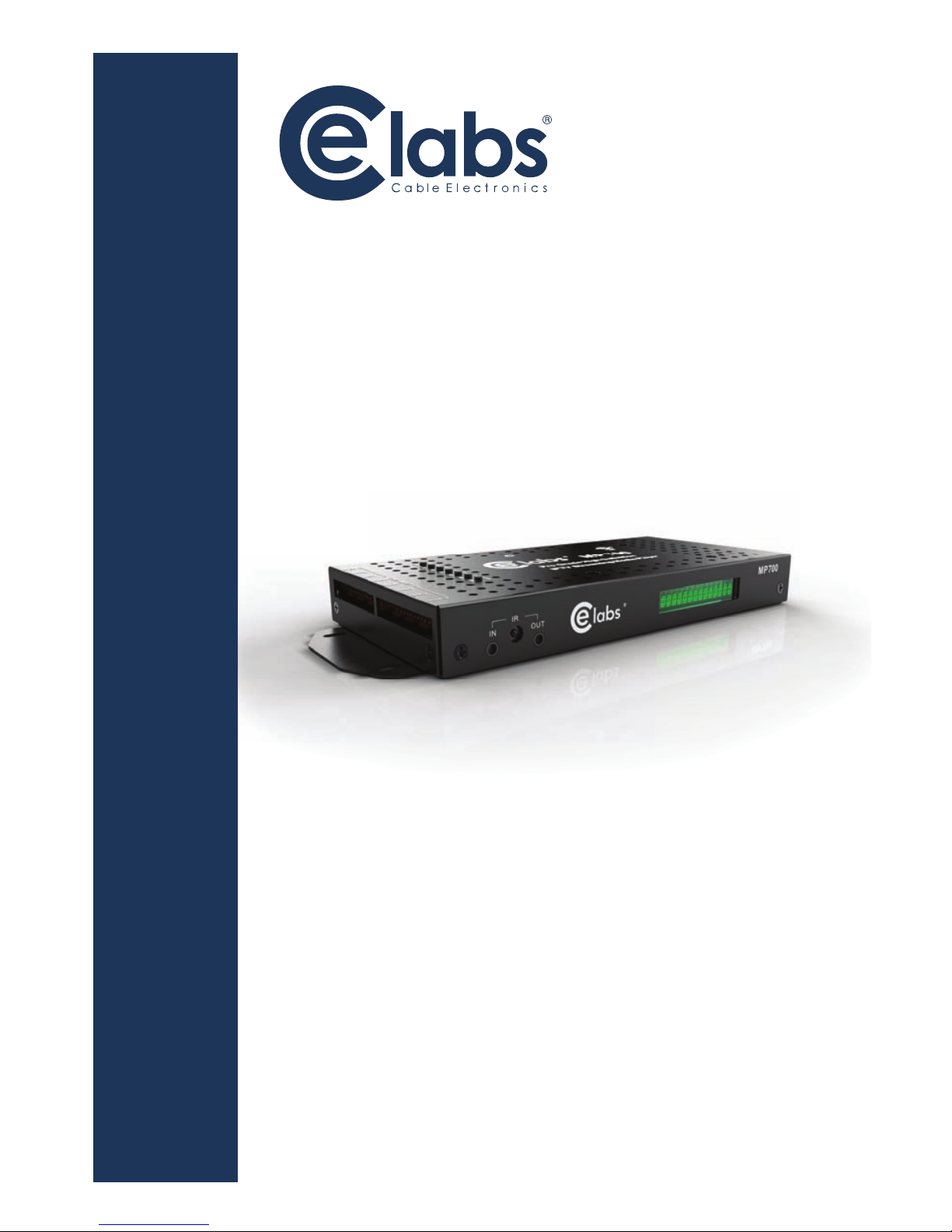
MP700/MP70
Series 7
– Network-ready
Digital Signage Players
LAUNAM NOITCURTSNI
QUICK START STREAMING GUIDE
This guide will explain the basic setup for
streaming video and audio to the MP700 and MP70 HD
media players using the CE labs QuickSign Pro 700 software.
Page 2

THIS PAGE IS LEFT
INTENTIONALLY BLANK
Page 3

1
Before getting started:
You need a fast computer to supply the video stream. For demonstration purposes, you can set up a stream using the VLC program. Listed
below are steps for creating a sample video stream.
1 – Launch VLC
2 – Click on Media and then Stream
3 – Add a fi le
***(The fi le should be less than 1Mb/S for smooth streaming operation)
4 – Click on STREAM and then NEXT
5 – Under Destinations, click on Display Locally and drop down
the File box. Select RTP / MPEG Transport Stream.
6 – Click ADD and put in an URL and Base Port.
An example would be Address: 239.255.42.42 Port: 1234
7 – If you desire to use transcoding, Video – MPEG-2 +MPGA (TS)
is a good choice.
8 – Click STREAM to begin sending out the video stream
Streaming is very bandwidth intensive. Make certain in your application that your network
has suffi cient bandwidth available. Be aware that streaming will consume a very large
percentage of bandwidth and it is a good idea to put it on a separate network, if possible.
Page 4
2
QuickSign Pro 700
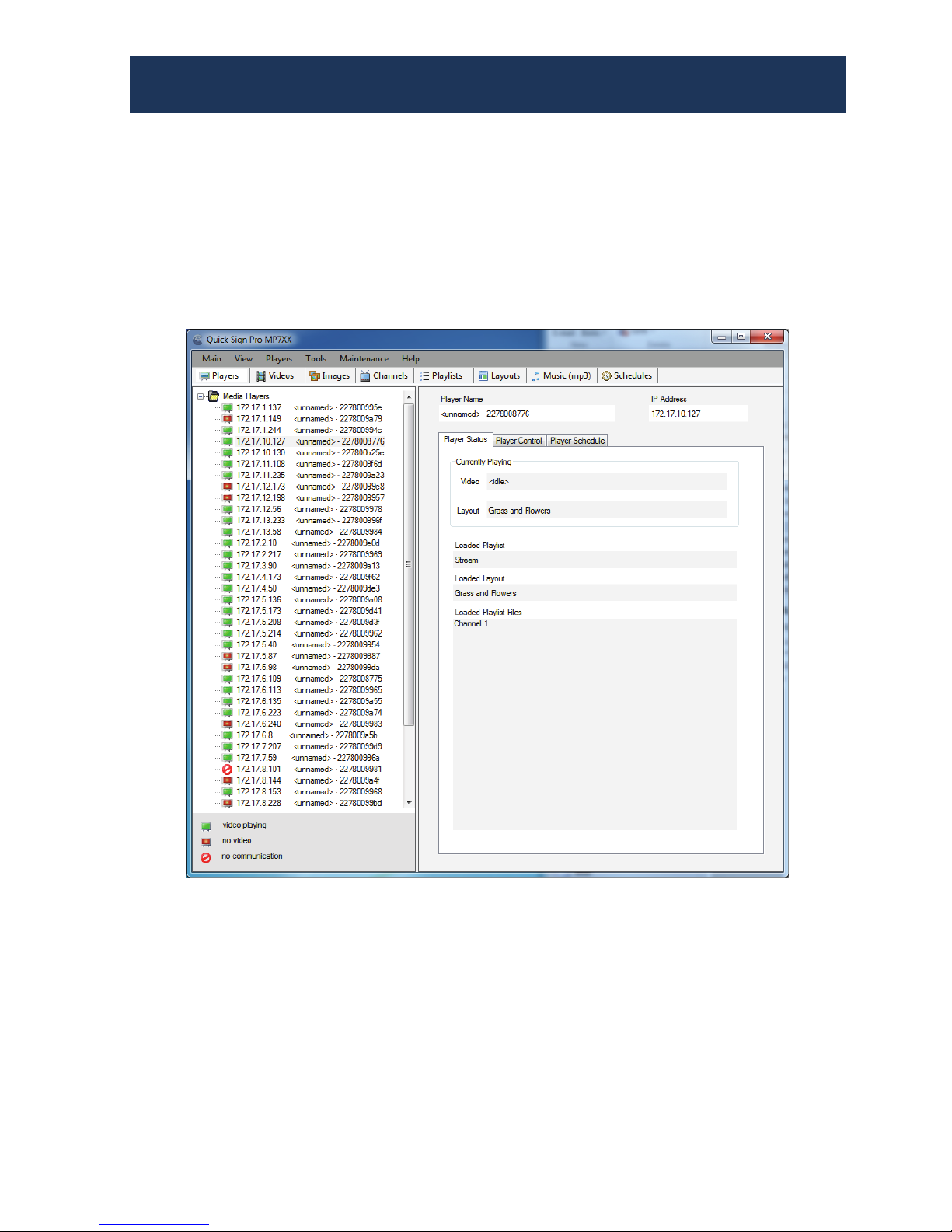
Launch QuickSign Pro 700 and allow it to find the players on your
network. You should see the target player(s) populated in the Media
Player Table in the left column.
Select the desired player from the table.
Page 5
3
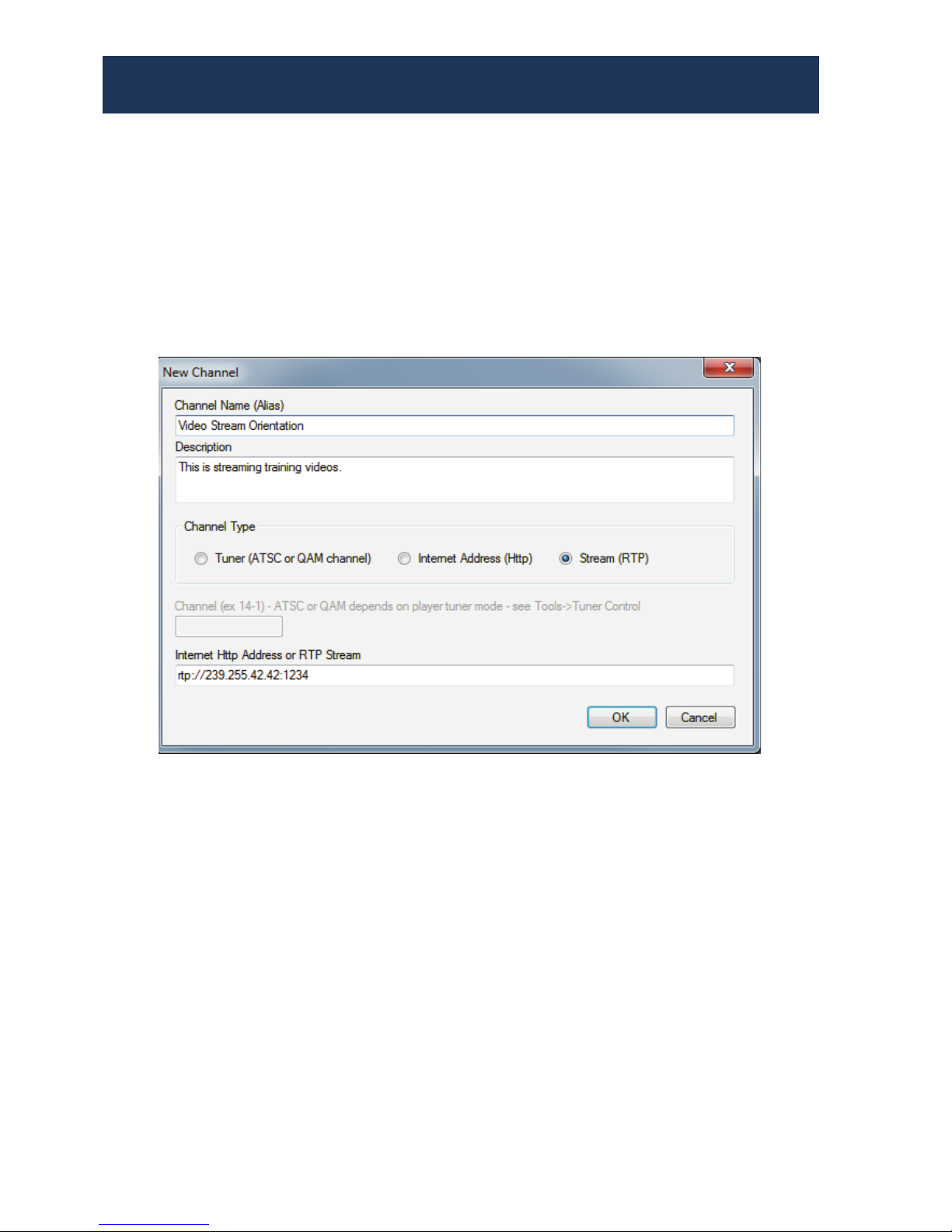
Click on CHANNELS and then on +New Channel. Add the desired
name and description. Click on Stream (RTP) and then type the URL of
the stream you created on your network.
Example:
rtp://239.255.42.42:1234
Click OK to save the new channel.
QuickSign Pro 700
Page 6
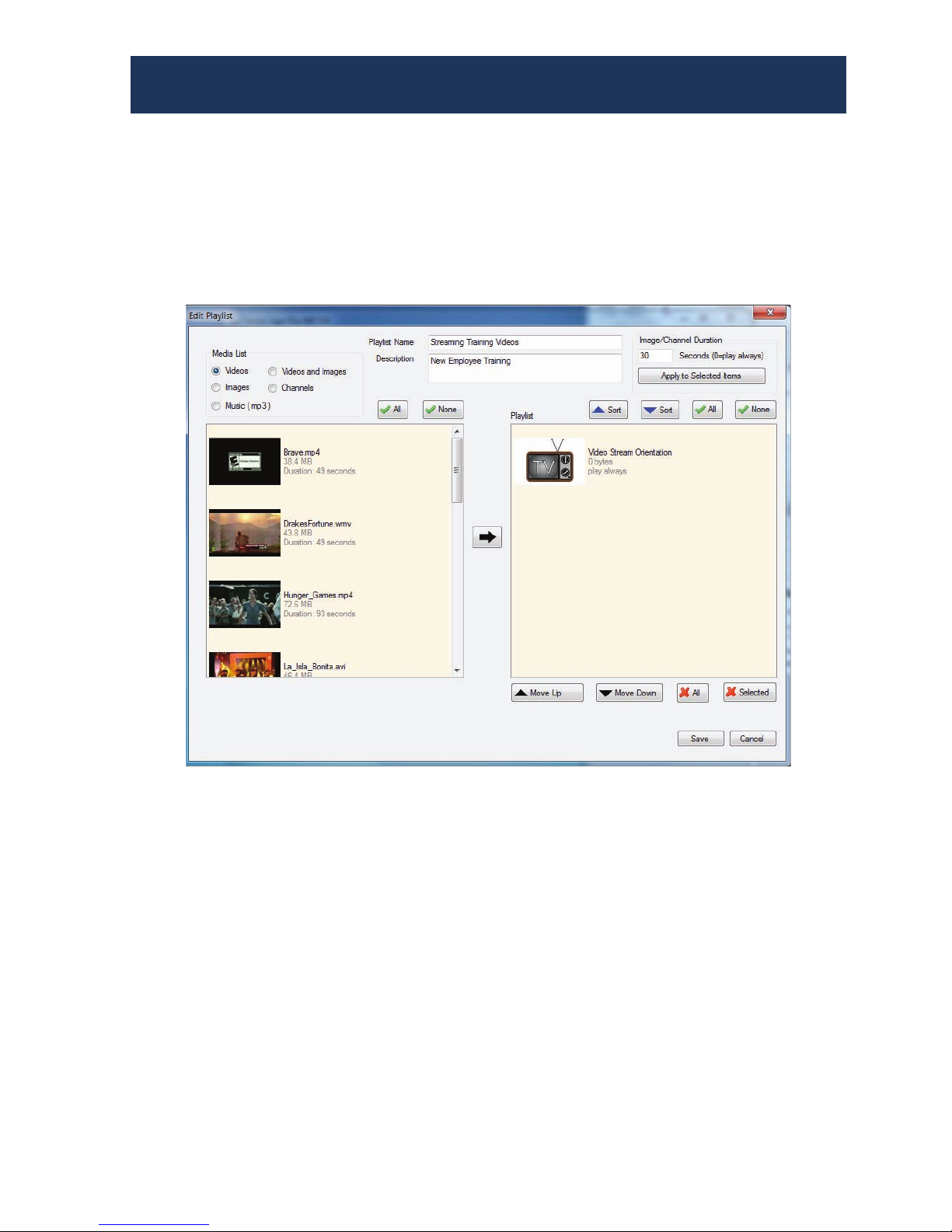
Click on Playlists and then on +New Playlist. Select Channels in the
Media List and move the newly created channel into the playlist box.
Add the desired name and description at the top of this dialog box
and click on SAVE to create the new Playlist.
4
QuickSign Pro 700
Page 7
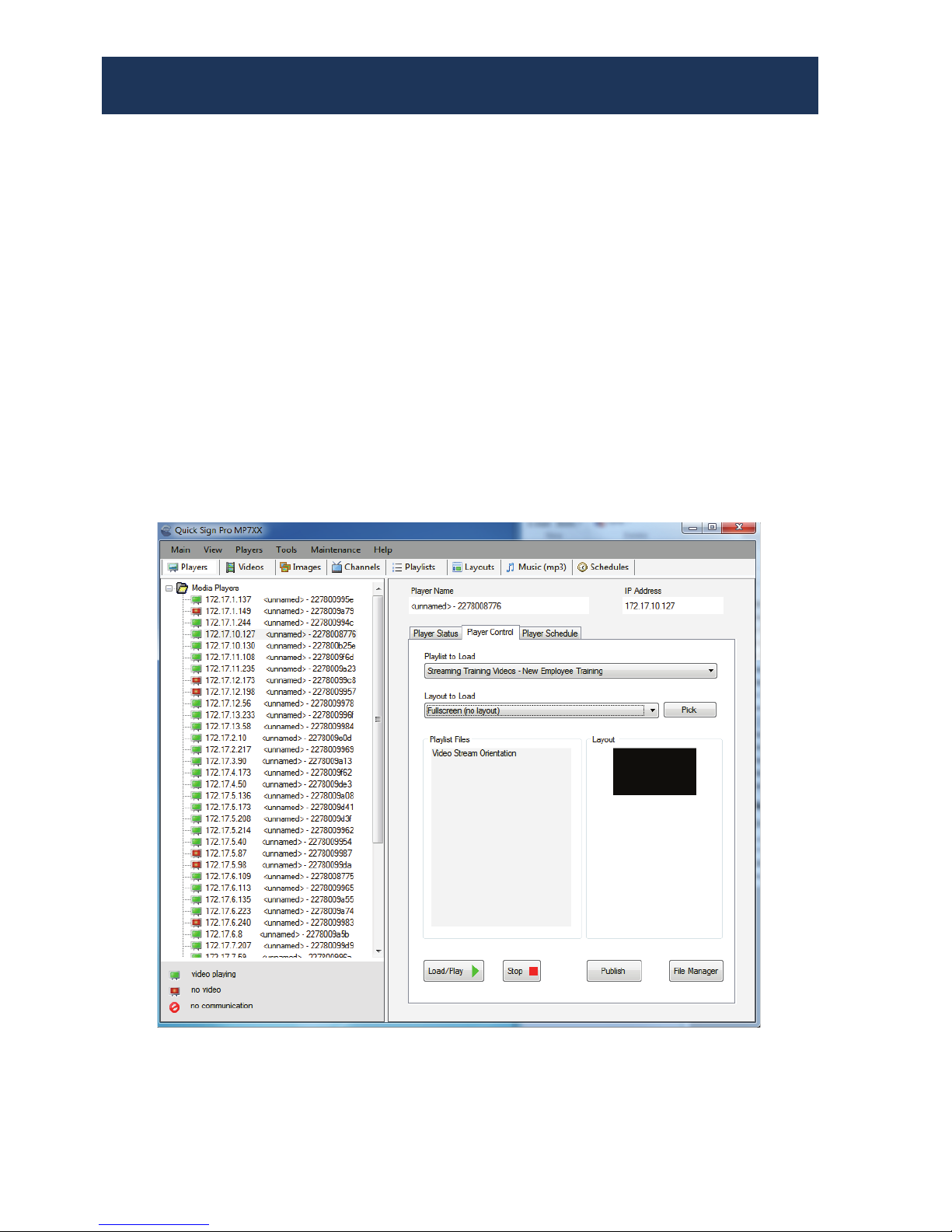
Go back to the main menu by clicking on Players and then select
Player Control tab on the right side.
Click on the Playlist to Load box and select your streaming playlist.
Select a Layout to use with the streaming video or leave it set to No
Layout for full screen streaming video.
Make certain you have the desired player selected in the left column
and press Load / Play to send the Streaming Playlist to the player.
If the Video Stream is active, the video will begin to play on the
MP700/MP70 after about a 15-second buffer period.
5
QuickSign Pro 700
Page 8

6
FAQ/Troubleshooting Tips:
1. I do not see a picture on the MP700. How can I verify the
stream is active?
a. Use another PC that is on the same subnet and open the video
stream in the VLC media player application. If the stream is active,
it should appear on the PC.
b. The video in the stream may not be the correct codec. Do not use
Quick Time movies.
2. The video is breaking up.
a. The video bit rate may be too high.
b. The network may be congested and lack sufficient bandwidth.
3. The MP700 has a frozen picture.
a. The network streaming feed has been interrupted. Either the
network is down or the stream generator has stopped.
4. How do I change video resolution?
a. Remote: Press the TV MODE button on the remote control. This will
cycle through the options.
b. PC: You will need to have the MP700 connected to a computer via
Ethernet. Use the Set Resolution tab under Tools in Quick Sign
Pro 700 to change video output type and resolution. There is
also a button for retrieving the current video setting on the unit.
c. You may also press the Change Resolution button on the top of the
unit if this option is installed.
5. Why does writing files to my player via Quick Sign Pro
700 fail?
a. Verify that the Windows Firewall is OFF.
b. Verify that the write protect tab on the SD card is in the off position.
c. Verify that there are no spaces in the file names. Use underscores
instead of spaces and avoid using unusual punctuation marks.
Page 9

THIS PAGE IS LEFT
INTENTIONALLY BLANK
Page 10

CE labs can support many areas of your audio and video
distribution needs.
We manufacture:
• Digital Signage software and Media Players
• HD Matrix Switchers
• RF amplifiers
• HDMI and Component HD distribution amplifiers
• CAT 5 Signal Extenders
• VGA Extenders and Splitters
• and cables of all types.
See our full product line at
3209 Wood Drive
Garland, TX 75041
Phone: (469) 429-9200
Toll free: (800) 767-6189
Fax: (469) 429-9205
proav.celabs.net
 Loading...