

Page 1
Content
1 Important safety measures
2 About this phone
2.1 Technique Reference
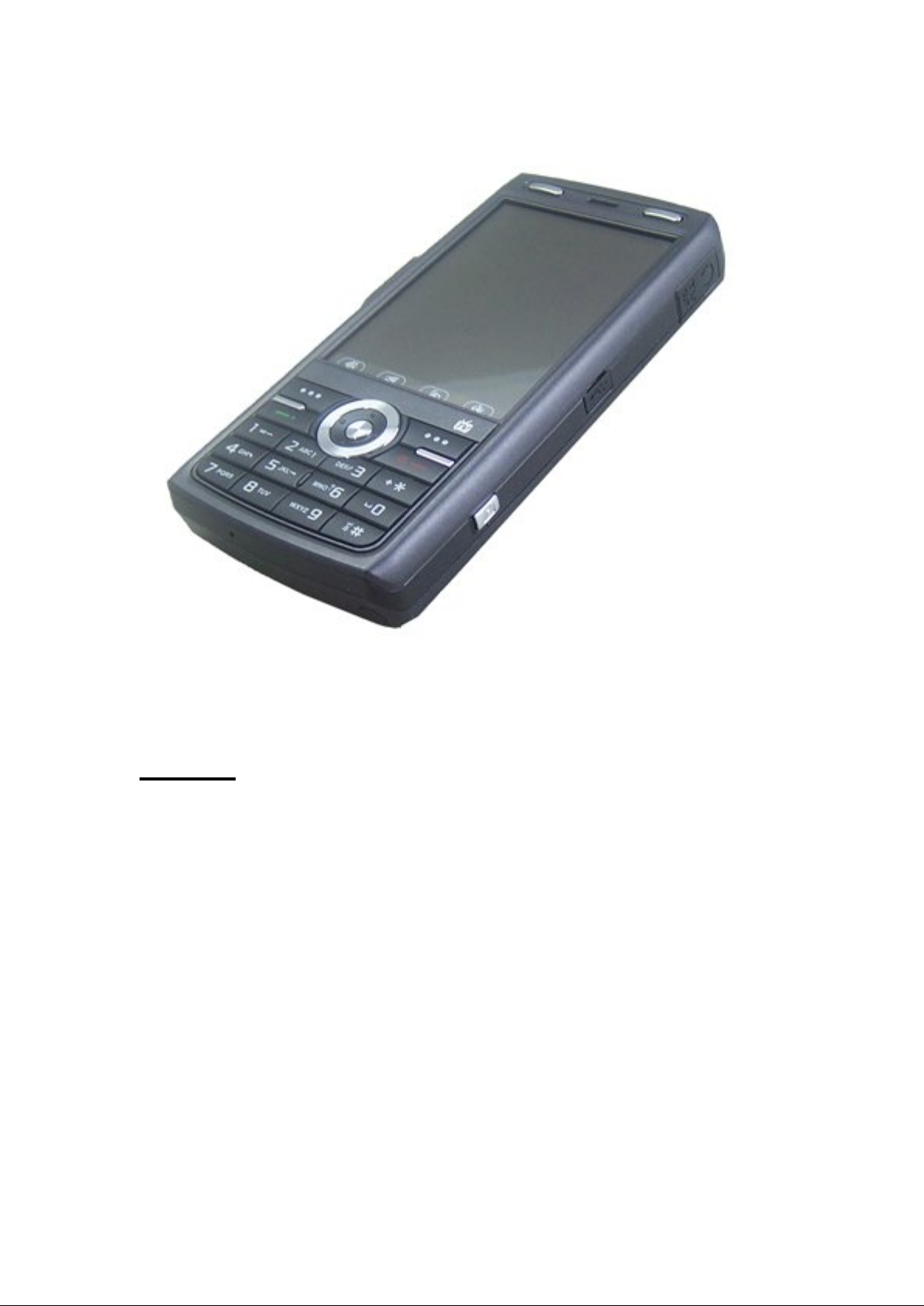
2.2 The parts of the phone
3 User manual
3.1 Phone On/ Off
3.2 Install and pull out the battery
3.3 Install and pull out the SIM card
Page 2

3.4 Install and pull out the SD card
3.5 The use of USB cable
3.6 Network camera
3.7 Charge
3.8 The use of earphone
3.9 Security password
4 User manual
4.1 Call function
4.1.1 Make a Phone Call
4.1.2 Answer a call
4.1.3 Check the miss call
4.1.4 Talking options
4.1.5 Volume
4.2 Phone book
4.2.1 Search the number in the phone book
4.2.2 Phone book option
4.3 input text
5 Function menu
5.1 Message center
5.1.2 Inbox
5.1.3 Sent box
5.1.3 SMS paradise
Page 3

5.1.4 E-mail
5.1.5 Voice mailbox
5.1.6 CBCH
5.2 Call conversation record
5.3 Profiles
5.4 Multimedia use
5.4.1 My file
5.4.2 Music Player
5.4.3 Camera
5.4.4 Videocon Camera
5.4.5 Video player
5.4.6 Album
5.4.7 Photo Artist
5.4.8 Melody Compose
5.4.9 Recorder
5.4.10 Fun and Games
5.5 TV
5.5.1 TV
5.5.2 TV setup
5.5.3 FM receive
5.5 Personal Assistant
5.5.1 Electronic map
Page 4

5.5.2 VIP
5.5.3 Alert Alarm
5.6 Mobile New Space
5.7 System Setting
5.7.1 Save power mode
5.7.2 Phone setup
5.7.3 Call Setup
5.7.4 Network Setup
6 Common problems and resolve ways
7 Reference Information
7.1 visit password
7.12 Health and safety information
1 Important safety measures
Please read all safety information below and operating instructions before
using this phone to avoid danger or breaking the law.
· Please strictly obey the law and regulations of the phone usage in your
place when driving. If you use the phone when driving, please obey the
following regulations:
Concentrate on driving, pay attention to the road conditions; Plug
headphones in prior, use headphones calls; Enable automatic answering
function, calls can be answered automatically; If the phone is a hands-free
function, you can also use this mode for calls; If the driving condition is bad,
stop and then dial or receive calls.
·When get close to the storage place of fuel, chemicals, explosives etc.,
please comply with the laws and regulations or related signs.
·This phone has flight mode, please tune the phone to this mode when you
are on the plane to ensure the phone won’t affect the flight.
Page 5

·Please do not use the phone near the weak signal or precision electronic
equipment such as
may cause equipment mistake or other problems.
·Any phone may be jammed by radio waves.
·Please power off the phone in some places which have special regulations
forbidding use mobile phone.
·Please use the phone carefully in correct position (beside the ears); When
power on, don’t touch the antenna by hand without reason.
·Please keep the phone dry because it has no waterproof function.
·To avoid the harm to your phone, it must be component with fixtures
(battery/charger) specified by our company. Using other battery or charger
may cause overheating、bust-up、fire etc.
·Only the certificated professional serviceman is allowed to demolish or
medical equipment since the radio waves of the phone
mend the phone.
· Put the SIM card、phone、battery and charger to the place that the children
can’t reach in order to avoid harming them. Avoid the children treat the phone
as playthings.
·Keep the screen dry and avoid pressure or sharp objects pressing to the
screen.
2 about this phone
Thanks for choosing this touch screen GSM/GPRS digital mobile phone.
You could completely know this phone through reading this brochure, as well
as its perfect functions and the convenient operations.
This touch screen phone is designed for the GSM/GPRS net environment.
Besides the basic call function, it provides you numerous practical functions to
help your work and leisure activities such as: intelligent Chinese/English input
way、vCard phonebook、characteristic 64 chord call-in melodies、call-in
photos、clock、alarm clock、camera、audio player、video player、U-driver、
T-Flash card、sound recorder、schedule power on/off、to do list、surfing on-line
by GPRS、mms、hands free etc. Moreover, it is designed with personal
Page 6

intelligent interface, whose perfect functions could satisfy your different
requests. This touch screen phone fits the GSM/GPRS tech regulations and is
authenticated by the authority.
Our company keeps the right to change the content of this brochure
without informing.
2.1 Technique Reference
Main frame
Model
Size (length × wide × thickness) 119mm×57mm×17mm
Weight 90g (include the standard battery)
Li polymer battery
Model
Nominal voltage 3.7V
Charging limited voltage 4.2V
Fixed capacity 2800mAh
Tourist charger
Input 110-240V-50/60HZ 0.15A
Output 5.5V/520mA
USB charging cable USB 1.1 HS/FS
Earphones stereophonic earphone
2.2 The parts of the phone
The keys and functions
Key Function
Left soft Enter the main menu
Right soft Enter the phonebook
Dial Answer a call
Dial the phone number
Enter the dialed calls list
Hang-up Press: back to the awaiting interface from any status
Press and hold: Power on/off
Volume Adjust the volume of microphone and music
Camera quick key Press and enter the capture preview
TV/CH Press and hold: enter the TV interface from awaiting
Press: change channel in the TV playing interface
Direction Above Audio player (tacitly agreed, available to
customize)
Below Enter the service interface (tacitly
agreed, available to customize)
Page 7
Left Enter the message interface (tacitly
to customize)
agreed, available
Right Enter the quick way interface (tacitly
agreed, available to customize)
OK Enter the Dsm (tacitly agreed, available
to customize)
Numbers 1 Press and enter the input interface,
meanwhile input 1
0,
2~9
* Press: enter the dial input interface and
# Press: enter the dial input interface and
Attention: 1. Lock/Unlock: left soft key+ #
2. “Press” means loosen it after press the key; “Press and hold”
means press the key and hold it for at least 2 seconds.
Press and enter the input interface,
meanwhile input 0, 2~9
Press and hold: Dial the corresponding
number directly when the quick dial
function is open.
input *
Press and hold: cut and change
inputting * + P W
input #
Press and hold: Open/Close mute
profile
3 User manual
3.1 Phone On/ Off
·Press and hold to toggle on/off the mobile service connection
·If the phone is power on before inserting the SIM card, it will show “insert
SIM card”. The phone will automatically check whether the SIM card is
workable, then the following notes will appear:
“Input the phone lock password”------if you had set the phone lock;
“Input the PIN”-----if you had set the SIM card password;
“112 only”-----means it is registered to other network, 112 is the only number
could be dialed;
“Searching”-----the phone will continue searching till the fitting network is
found.
3.2 Install and pull out the battery
(Please make sure the phone is power off)
When pull out the battery, take out the handwriting pen first and then pull the
Page 8

battery case out, then pull out the battery.
3.3 Install and pull out the SIM card
Be careful to insert and pull out this card; Avoid the scratch and bend of this
card, turn off this phone and take the battery out before installation or pulling
out the SIM card.
Insert the SIM card in the cassette.
Warning: Make sure the phone is power off before taking out the SIM
card. Strictly forbid inserting or taking out SIM card when there is any
power cord connected on the phone, or it will harm the SIM card and
phone.
3.4 Install and pull out the SD card
Turn off this phone and take the battery out
Insert the SD card in the cassette; push the cassette behind to unlock it and
pull the cap up, fix the card in the card slot, then close the cassette cap and
push it to lock it.
Turn off this phone and take the battery out before pulling out the SD card.
3.5 The use of USB cable
Plug one head into a USB socket on the PC, and then plug the other head
into the cable socket on the right side of the phone.
3.6 Network camera
This phone support network camera function. Please install the driver
program of the network camera if the operation system of the PC is WIN98 or
WIN2000. The install method is as follow:
Put the CD driver in the PC, then power off the phone, plug the USB cable
in the cable socket on the right side of the phone, choose the “network
camera” in the USB setup menu, select it and press “next step” in the ”new
hardware guide is found”, choose the tacitly agreed data, then set the specified
position as the CD driver which the installation program is in, then choose
“next” to finish installing.
3.7 Charge
Charging method is as follows:
Insert the charger’s plug into the cable socket on the right side of the
phone.
Connect the charger to the outlet.
Battery indicator icon waves calculatedly when the phone is on; the
charging
Indicator will appear on the screen which suggests the phone is
charging when the phone is power off.
Battery indicator icon stop waving after the device fully charged. It may
Page 9

show “Finished charging” on the screen if the phone is off status. The
charging process lasts over 2.5 hours (we suggest the charging time lasts
12-14 hours for the first three times, this could lengthen the life of the
battery). The battery、phone and charger will get hot when charging, which is
a normal phenomenon.
Cut off the connection between the charger with the phone and the
power.
3.8 The use of earphone
When plug the earphone into the TV-out/Earphone socket, the profile of the
phone will change to earphone profile automatically. Normal earphone can be
used on this phone.
3.9 Security password
PIN code (personal identical number) could prevent others using your
phone without inform you.
PIN2 code
You could check the record of all the call cost till now. It is enclosed with
SIM card. And this function needs network support, please contact your
network supporter.
PUK code (personal unlocking key)
When the locked PIN code needs to be unlocked, input the PUK code.
Phone password
This phone could set phone password protection to avoid illegal use. If you
had chosen this function, you must input the phone password to unlock the
phone so that to use it.
4 User manual
4.1 Call function
You can dial emergency service when you are under the cover of net service,
although there is no SIM card.
4.1.1 Make a Phone Call
When the sign of the network supporter appears on the screen, you could
make or receive a call. On the left above corner, the information stick suggests
the intensity of the network signal (it is strongest when there are 4 information
sticks).
Input the number and dial.
Dial the number in the phone book
Dial the number in the call record
4.1.2 Answer a call
Left soft button accept call, dial
Right soft button refuse call, end
If you use earphone, you can accept calling by earphone; if you set the reply
Page 10

automatically, and plug the earphone, it will accept automatically in 5 seconds.
4.1.3 Check the miss call
4.1.4 Talking options
When you are talking, you can use these function, pause, end, new call,
phone book, message, record, quiet or not, Multi-Tone Multi-Frequency
Attention: Use this function needs support from the network operator
and the PIN2.
4.1.5 Volume
You can press up and down to adjust the volume.
4.2 Phone book
This phone can store 300 phone numbers; the SIM card’s storage is
different because of its different capacity.
4.2.1 Search the number in the phone book
Press right soft button to enter phone book, use up and down button to search,
or fast search function. For example, you can input the character, then search.
4.2.2 Phone book option
You can use the following function to check and edit the phone book content:
add, copy all, delete, calling group, other number, setting, calling display, ring
of calling, film of calling.
4.3 input text
There are 5 input methods: Letters input, digital input, Stroke input,pinyin input,
symbol input. When input, you can press the button on the phone, and hand
write. You can use “#” to shift from one input method to another.
5 Function menus
5.1 Message center
This function contains SMS, MMS, SMS paradise supper QQ, email, voice box,
cell broadcast.
5.1.2 Inbox
- All the messages you received will be stored in the inbox. You can find the
inbox in the message menu.
- Choose one message, click it and then you will see the details of it.
- The phone can offer these options: reply, delete, edit, forward, copy to SIM
card, move to SIM card, delete all, copy all, move all, use the number, use
connect, save.
5.1.3 Sent box
When send message, you can choose save and send, the message you sent
will be saved to the sent box.
5.1.3 SMS paradise
- You could order this service according to your need after you enter the SMS
paradise.
- Please click the catalogue and rate to know some related services and
Page 11

charge a circumstance before you order.
5.1.4 E-mail
E-mail include: send and receive, edit email, inbox, outbox, sent email, draft,
clear mailbox, email setup, eight son menus.
Email function, have to enter email setup first, choose any mode and edit it,
then open and use.
Transfer account must be GPRS2 of GPRS.
Other setup like PC’s outlook.
Send connection port imply as 25, receive connection port imply as
110, can’t be change.
Other functions of email refer to SMS and MMS instruction.
5.1.5 Voice mailbox
This function must be afford by network operate supplier, must set mailbox
number, to receive leave word.
Enter voice mailbox, can do:
Edit: input name and number of voice mailbox.
Connect to voice mailbox: view voice mailbox, receive leave word.
5.1.6 CBCH
Receive mode
Read message
Language
Channel setup
5.2 Call conversation record
Include: Miss Call, Dial call, Received call, Voice call, Delete call record, Call
duration, Call cost, SMS calculator, GPRS calculator.
Call Record
Dialed call, Received call and Miss Call all can support 20 group
records.
Son menu of call record
View
Delete
Save
Dial
Edit
Send message
Voice call
Delete call record
Input VIP password first.
Call duration
Last call duration, received calls duration, dialed calls duration, clear
timers.
Call costs
Last call units, all call units, clear call units, call cost limit, price and
Page 12

Tariff
Message counter
View sent and received message records, can be reset.
GPRS counter: record GPRS flows.
Attention: if you change your SIM card, all above record will be clear.
5.3 Profiles
General Mode
Meeting Mode
Outdoor Mode
Indoor Mode
Headset Mode
Every profile can edit following content:
Ringing
Volume
Ringing ways
Incoming call alert
Alert
Answer mode
Individual setup, choose “On” in “Option”.
5.4 Multimedia use
5.4.1 My file
File manager function include:
On
Setup file folder
Format
Total capacity
Ringing file format include: mp3/midi/amr/wav
Ringing file can send to profile, setup incoming ring, message ring,
alarm ring, can also as MMS or email.
Image file include: BMP, GIF, JPG
Can be send to wall paper, screen protect, on/ off , photo book, can
also as MMS or email.
Video file include: 3GP, MP4.
Can be send to screen protect, on/ off, photo book, can also as MMS
or email.
5.4.2 Music Player
Can do following operation in music screen:
Play/Pause
Stop
Change music
Volume
5.4.3 Camera
Page 13

Include: to photo book, camera setup, photo setup, white balance, profiles,
especially good effect setup, desk frame, storage, revert setup.
5.4.4 Videocon Camera
Include: to player, Videocon camera setup, video setup, especially good effect
setup, storage, revert setup.
5.4.5 Video player
Include: send, play, rename, delete, and delete all files, sort, and storage.
5.4.6 Album
5.4.7 Photo Artist
Enter Auto Resize
Save As
Add Effect
Add Frame
Add Icon
Add Text
Adjustment
Flip
Expand Canvas
Help
Enter Main LCD Clip
5.4.8 Melody Compose
5.4.9 Recorder
You can record, play, attach, rename, delete, delete all, setup and send.
5.4.10 Fun and Games
Games
Games setup
More games
5.5 TV
5.5.1 TV
Use up and down key to change channel.
Use right and left to set bright.
Volume key.
Left soft key.
5.5.2 TV setup
Country or District
Search channel
Signal mark
Signal week reminder
Play mute
Play bright
Revert setup.
Help
5.5.3 FM receiver
It has FM Radio functions; you can receive FM with it.
Page 14

5.5Personal Assistant
5.5.1. Electronic map
You can view the electronic map which had storage in phone or memory card.
5.5.2. VIP
Use this function need PIN password.
5.5.3. Alert Alarm
The system setup three alarm
1. Calendar
2. Memorandum
3. World time
4. stopwatch
5. calculator
6. unit converter
7. currency converter
8. health
9. Reading Room
10.You can read electronic books in here, there have four options: Book set,
Browse setting, History, Help.
11.Weather
12.Invest
13.Music Pub
5.6Mobile New Space
5.7System Setting
5.7.1 Save power mode
There have three modes: Movie mode, Long Time Mode, User saving mode
5.7.2 Phone setup
You can set these functions according to your reference
1. time and date
2. schedule power on /off
3. language
4. preferred input method
5. display setup, include wallpaper, screen saver, power on display, power off
display, themes, show date and time, show owner number, show operate
name, clock type. Show shortcuts, LCD backlight.
6. greeting text
7. Pen calibration
8. dedicated key
9. shortcuts
10.auto update of date and time
11.flight mode
12.handwriting
13.TV out
Page 15

5.7.3 Call Setup
1. caller ID
2. Call wait
3. call divert
4. call barring(outgoing calls, incoming calls, cancel call, changing barring
PW)
5. line switching
6. speed dial
7. Call time reminder
8. Call Time Display
9. Auto Redial.
10.Close User Group
11.IP number
12.Black List
13.In Call Background Sound
Notice: some services need network support. Call barring need local network
and SIM support.
5.7.4 Network Setup
1. Network Selection
2. Preferred Network
3. Band Selection
4. GPRS Connection
Security Setup
You can setup your phone safe options in here, avoid your phone or card used
illegal.
SIM lock
Phone lock
Auto keyboard lock
Fixed dial
Barred dial
Change password
Remote trace
1. Phone number: You must set up a phone number for notification before you
use this function. When the phone turn on which you tracing, the system will
send message to the set phone automatically. To tell you who phone number
using this tracing phone?
2. Open/Close remote trace: you can choose open or close this function
3. The password to enter this interface is: 1122
Remote control
Restore Factory Setting
The factory setting password is: 1122.
Network Service
The function provide by network supplier.
Page 16

WAP: Browse website by WAP
heck if the battery has consume, if so, please charge it
Data Account: can edit GSM data or GPRS information.
6 Common problems and resolve ways
Please refer to the follow ways if there have some special case when you
using this phone, it may save your time to repair or other waste.
Problems Causes and resolution
Unable to boot Check if you have press the boot button for at least 1s
Check if the battery is not touchable to the phone, then
try again
C
Unable to
connect
Bad reception Check the volume is adjusted
Not display
message
when boot
Time of
standby time
become short
SIM wrong SIM mental surface dirt, Wipe SIM contact points with a
Can’t dial Make sure you have press the dial button
Unable to be
called
Weak signal, please try in a strong signal area
Beyond the network cover of the service provider
SIM card is void, please contact your network supplier
Check if you are receiving call in the weak signal area for
example, near the high building or basement where the
signal can’t arrive.
Use the phone in the use peak, such as work time
Check if you have place SIM card correctly
If you set lock automatically, you have to input the phone
password
Input PIN, if you set this function(you will have to input
PIN came with SIM card the first time you use the phone)
Input PUK code, if you input the PUK code for three at a
time, your phone will be locked, and you will need to
contact the network supplier for help
There is relation with the standby time and network
setting. If you are in the weak signal area, it will consume
more battery to search the signal. In this case, please use
the phone in the strong signal area or shutdown at the
moment.
Pease change a new battery.
clean cloth
SIM card is not place correctly
SIM damage. Contact your network supplier
Please check if the call was banned Arrearage
Please check your SIM card is effective
Please check if you have set call berry
Please check if you have set the fixed number dial
Please make sure you have booted the phone, and
connect to the network
Page 17

Please make sure if the call was banned Arrearage
Please check if you have set call berry
Please check if you have set the fixed number dial
Unable to
charge
Unable to set
some
functions
If the instruction can’t help, please note down:
Type of mobile phone and series number
Warranty detail
Problem for detail
Then contact your local supplier.
7 Reference Information
7.1 visit password
The default password of this phone: 1122
7.12 Health and safety information
Please read the following instruction carefully, and comply with these rules for
avoiding any dangerous and breaking the law.
Please turn off your phone when you near the chemical plant, gas station or
some explosives.
Make the phone far away from children
Please use free calls device when you driving, (need to buy it separately), for
make sure the safety.
Strictly prohibited use phone on plane, please turn off the phone before you
boarding.
Please turn off your phone when you in hospital.
Not the initial factory annex and accessories, not eligible warranty
The user can’t demolition the electronics; please contact the supplier if there is
any problem.
Prohibit charging when there is no battery.
Charging must be in the place which Ventilation and Cooling, far away from
explosive articles.
Avoid the phone getting too close to the magnetic objects such as magnetic
card, the radiation wave of the phone may clear up the information in the
Bad connect, check if the battery has connected well
Charging below -40℃ or above 55℃, please change the
charging environment
Network supplier can’t support this function or you
haven’t apply this function
Operate faulty
floppy、cards and credit cards.
Please make sure that this phone doesn’t touch with any liquid, please contact
to supplier if it happened.
Please do not use or put the battery in the sunshine in cool and ventilated
place, or its liquid will flow out and it will overheating, whose performance will
Page 18

be lower and its life will be shortened.
Please don’t clean it with liquid or strong detergent.
The phone have antenna, please don’t close antenna region if your phone turn
on. Avoid influencing the effect of communications.
The phone can take photos, video record and sound record, we are not
responsible for the loss cause by its compliment and software which delete
damage or ruin the photos, recorder.
Inappropriate use take photo, video recorder and sound record these functions
may violations of the rights of copyright owners.
If the user load the virus files when connect it with PC, and lead to the phone
can’t use normal, we aren’t responsible for this.
Strictly prohibit load the picture, ring tone which the data had been damaged.
There may cause risk if you use Non-original batteriesand charger. We will not
responsible any compensation.
Warning: our factory will not responsible for the people who not comply with
the above rules or use this phone incorrectly.
-- End --
 Loading...