

Page 1
TESTED TO
UL1778
Page 2

Page 3
SAFETY INSTRUCTION
CAUTION!
SAVE THESE INSTRUCTION-This manual contains important instructions that
should be followed during installation and maintenance of the UPS and batteries.
Caution -risk of electric shock. The battery circuit is not isolated from the input voltage.
Hazardous voltages may occur between the battery terminals and the ground. Before
touching, please verify that no voltage is present!.
Remove the connection from ground if any part of the battery is determined to be grounded.
When changing batteries, install the same number and same type of batteries..
Do not attempt to dispose of batteries by burning them. This could cause battery explosion.
Do not open or destroy batteries. Escaping electrolyte can cause injury to the skin and eyes.
It may be toxic.
Please replace the fuse or circuit breaker only with the same type and amperage in order to
avoid fire hazards.
Do not dismantle the UPS system, except the specialized technical personnel.
This unit intended for installation in a controlled environment (temperature controlled,
indoor area free of conductive contaminants). Avoid installing the UPS in locations where
there is standing or running water, or excessive humidity.
Do not plug the UPS input into its own output.
Do not attach a power strip or surge suppressor to the UPS.
Do not attach non-computer-related items, such as medical equipment, life-support
equipment, microwave ovens, or vacuum cleaners to UPS.
Do not dispose of batteries in a fire as they may explode.
Batteries may cause electric shock and have a high short-circuit current. Please take the
precautionary measures specified below and any other measures necessary when working
with batteries:
1) Remove wristwatches, rings and other metal objects
2) Use only tools with insulated grips and handles.
3) Wear rubber gloves and boots.
4) Do not lay tools or metal parts on top of batteries.
5) Disconnect charging source and load prior to installing or maintaining the battery.
6) Remove battery grounds during installation and maintenance to reduce likelihood of shock
Internal battery voltage is 12VDC.Sealed, lead-acid, 6-cell battery.
Servicing of batteries should be performed or supervised by personnel knowledgeable of
batteries and the required precautions. Keep unauthorized personnel away from batteries.
Do not open or mutilate the battery or batteries. Release electrolyte is harmful to the skin
and eyes. It may be toxic.
Attention, hazardous through electric shock. Also with dis- connection of this unit from the
mains, hazardous voltage still may be accessible through supply from battery. The battery
supply should be therefore disconnected in the plus and minus pole at the connectors of the
battery when maintenance or service work inside the UPS is necessary.
To reduce the risk of overheating the UPS, do not cover the UPS' cooling vents and avoid
exposing the unit to direct sunlight or installing the unit near heat emitting appliances such
as space heater or furnaces.
Page 4
Unplug the UPS prior to cleaning and do not use liquid or spray detergent.
NOTE: This equipment has been tested and found to comply with the limits for a Class B
digital device, pursuant to Part 15 of the FCC Rules. These limits are designed to provide
reasonable protection against harmful interference in a residential installation. This
equipment generates uses and can radiate radio frequency energy and, if not installed and
used in accordance with the instructions, may cause harmful interference to radio
communications. However, there is no guarantee that interference will not occur in a
particular installation. If this equipment does cause harmful interference to radio or
television reception, which can be determined by turning the equipment off and on, the user
is encouraged to try to correct the interference by one or more of the following measures:
-Reorient or relocate the receiving antenna
-Increase the separation between the equipment and receiver.
-Connect the equipment into an outlet on a circuit different from that to which the receiver is
connected.
-Consult the dealer or an experienced radio/TV technician for help.
WARNING: Changes or modifications not expressly approved by the party responsible for
compliance could void the user's authority to operate the equipment.
Page 5
1. Introduction
This product is an intelligent line interactive UPS (Uninterruptible Power Supply) which
is designed to protect your personal computer or sensitive electronic equipment from
all forms of power interference, including complete power failure.
2. Package Contents
You should have received the following items inside of package:
UPS unit User manual USB cable (option)
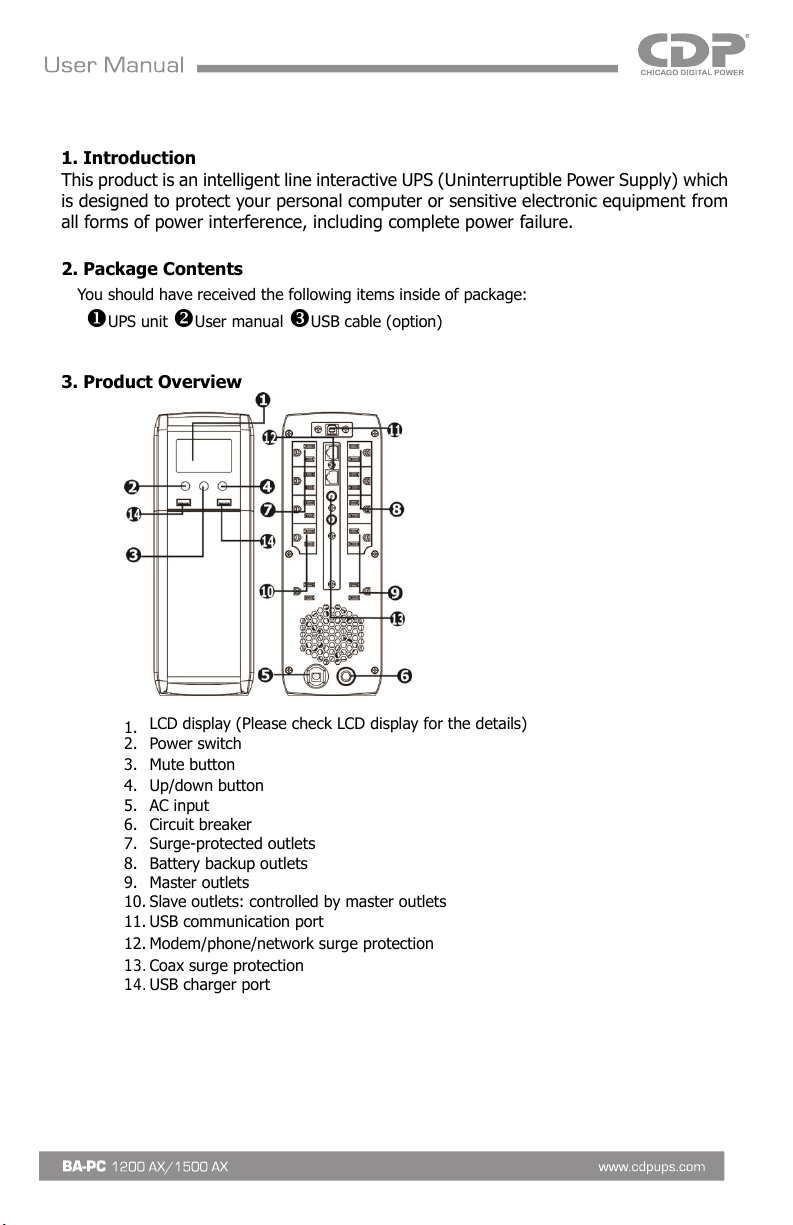
3. Product Overview
1.
LCD display (Please check LCD display for the details)
2. Power switch
3. Mute button
4. Up/down button
5. AC input
6. Circuit breaker
7. Surge-protected outlets
8. Battery backup outlets
9. Master outlets
10. Slave outlets: controlled by master outlets
11. USB communication port
12. Modem/phone/network surge protection
13. Coax surge protection
14. USB charger port
Page 6
6 hours
4. Installation and Operation
NOTE: Before installation, please inspect the unit. Be sure that nothing inside the package is
damaged.
1) Placement & Storage Conditions
Install the UPS in a protected area that is free of excessive dust and has adequate air flow.
Please place the UPS at least 20 cm away from other electronic equipment to avoid
interference. Do NOT operate the UPS where the temperature exceeds 0-40° C and the
humidity is over 0-90 % RH.
2) Connect to Utility and Charge
Plug in the AC input cord to the wall outlet. For the best results, we suggest
charging the battery for at least 6 hours before initial use. The unit charges
its battery when connected to AC power supply.
3) Connect the Loads
Battery Backup Outlets(3)
Connect computer and monitor to the "Battery Backup" outlets. These outlets provide
battery backup, EMI filtering, line conditioning, and surge protection. Battery power is
automatically provided in case of power failure.
Surge-Protected Outlets(3)
Connect a printer, fax machine, or scanner to the “Surge-protected” outlets. These outlets
do not provide power during power failure.
CAUTION: NEVER connect a laser printer or scanner to the battery backup sockets of UPS.
The equipment may draw significantly power to overload the UPS.
Master Outlets(2) & Slave Outlets (2)
Power for Slave outlets is available only when loads are connected to Master outlets. If
detecting no load available in Master outlets, the power on Slave outlets will be cut off.
4) Connect Modem /Phone Line/Network
Connect a single modem or phone line into surge-protected “IN” outlet on the back panel of
the UPS unit. Connect from “OUT” outlet to the computer with another phone line cable.
5) Connect USB Cable
To monitor the UPS status, such as unattended UPS shutdown and start-up, by using bundled
software, please connect the UPS and PC with USB cable included.
Page 7
6) Turn On/Off the Unit
Turn on the UPS unit by pressing the power switch. Turn off the UPS unit by pressing the
power switch again.
7) Software Download & Installation
Please follow steps below to download and install monitoring software:
1. Go to the website http://www.power-software-download.com
2. Click ViewPower software icon and then choose your required OS to download the
software.
3. Follow the on-screen instructions to install the software.
4. When your computer restarts, the monitoring software will appear as an orange plug icon
located in the system tray, near the clock.
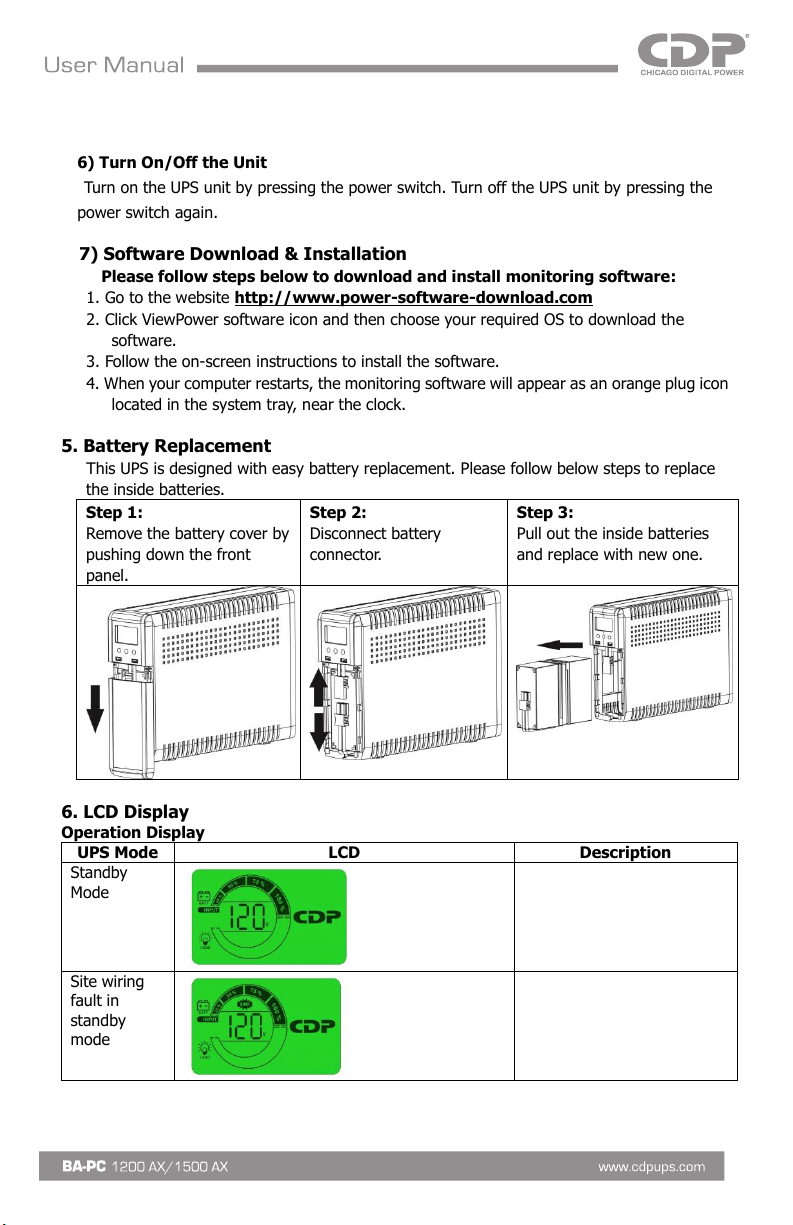
5. Battery Replacement
This UPS is designed with easy battery replacement. Please follow below steps to replace
the inside batteries.
Step 1:
Remove the battery cover by
pushing down the front
panel.
Step 2:
Disconnect battery
connector.
Step 3:
Pull out the inside batteries
and replace with new one.
6. LCD Display
Operation Display
UPS Mode
LCD
Description
Standby
Mode
Site wiring
fault in
standby
mode
Page 8
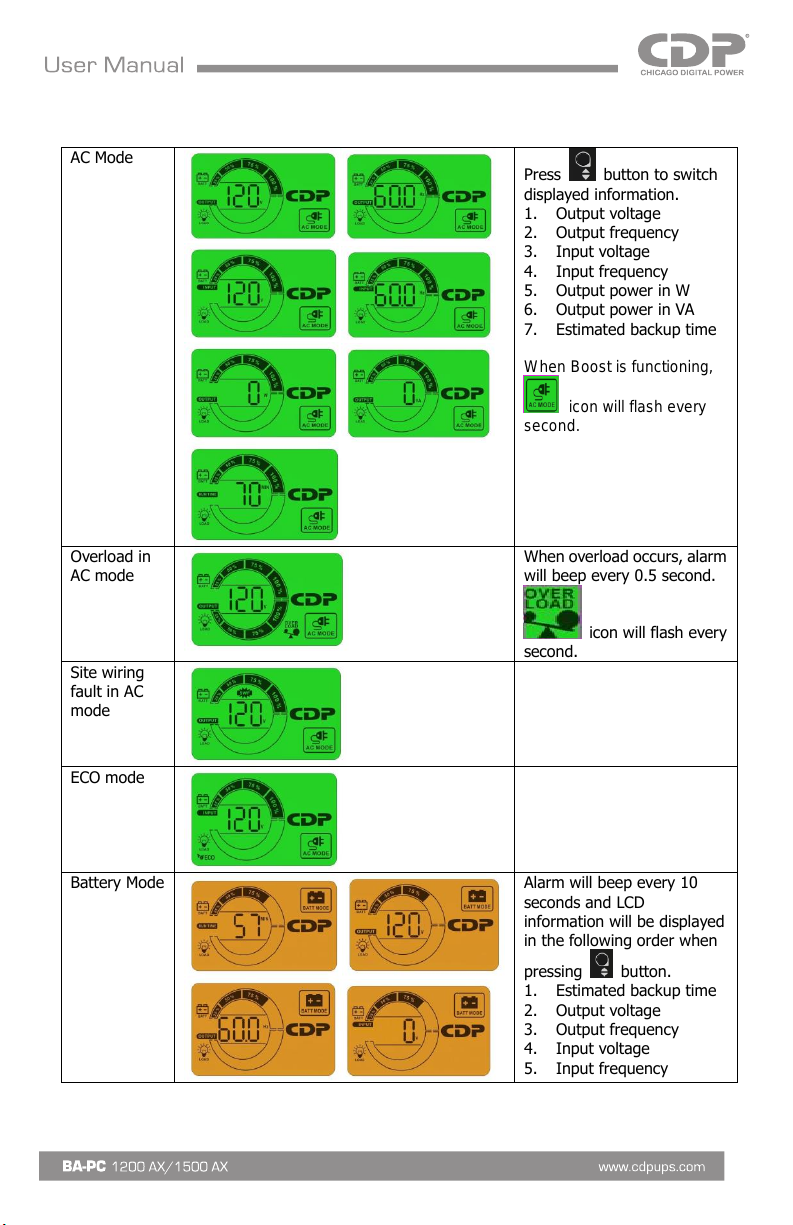
AC Mode
Press button to switch
displayed information.
1. Output voltage
2. Output frequency
3. Input voltage
4. Input frequency
5. Output power in W
6. Output power in VA
7. Estimated backup time
When Boost is functioning,
icon will flash every
second.
Overload in
AC mode
When overload occurs, alarm
will beep every 0.5 second.
icon will flash every
second.
Site wiring
fault in AC
mode
ECO mode
Battery Mode
Alarm will beep every 10
seconds and LCD
information will be displayed
in the following order when
pressing button.
1. Estimated backup time
2. Output voltage
3. Output frequency
4. Input voltage
5. Input frequency
Page 9
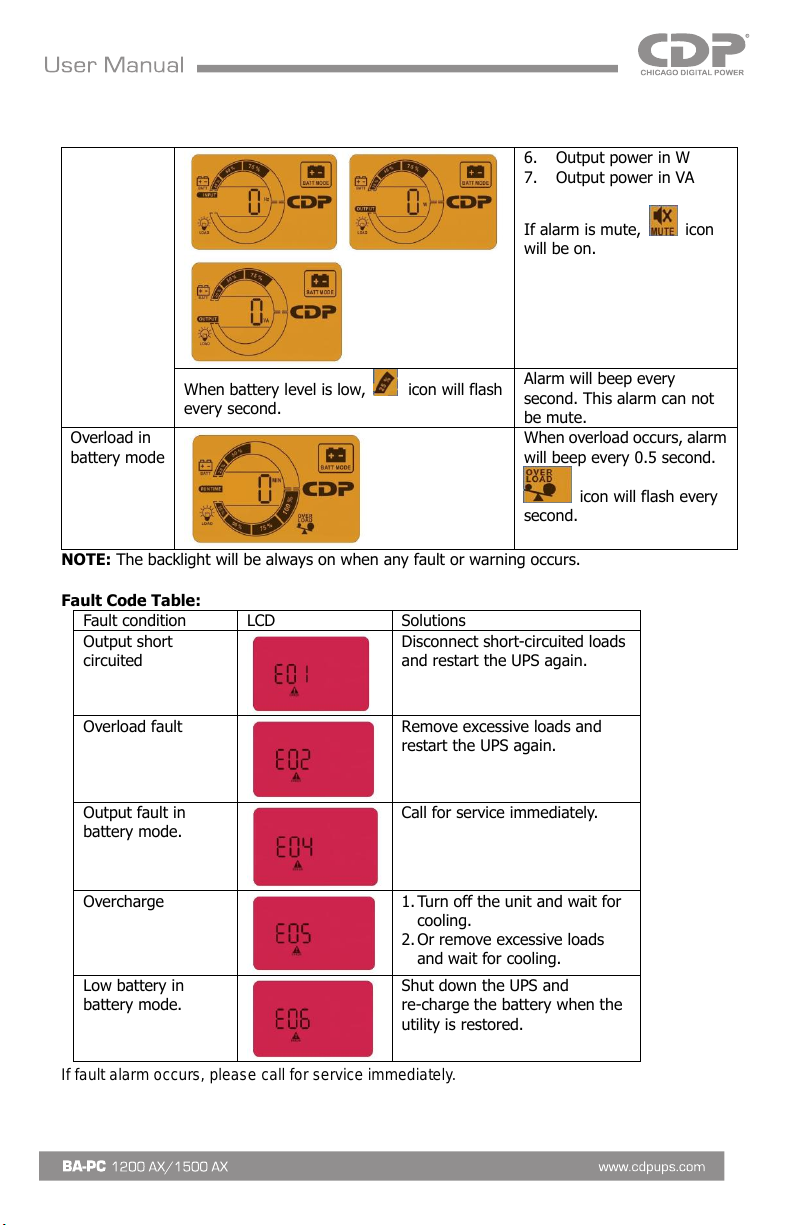
6. Output power in W
7. Output power in VA
If alarm is mute, icon
will be on.
When battery level is low, icon will flash
every second.
Alarm will beep every
second. This alarm can not
be mute.
Overload in
battery mode
When overload occurs, alarm
will beep every 0.5 second.
icon will flash every
second.
NOTE: The backlight will be always on when any fault or warning occurs.
Fault Code Table:
Fault condition
LCD
Solutions
Output short
circuited
Disconnect short-circuited loads
and restart the UPS again.
Overload fault
Remove excessive loads and
restart the UPS again.
Output fault in
battery mode.
Call for service immediately.
Overcharge
1. Turn off the unit and wait for
cooling.
2. Or remove excessive loads
and wait for cooling.
Low battery in
battery mode.
Shut down the UPS and
re-charge the battery when the
utility is restored.
If fault alarm occurs, please call for service immediately.
Page 10
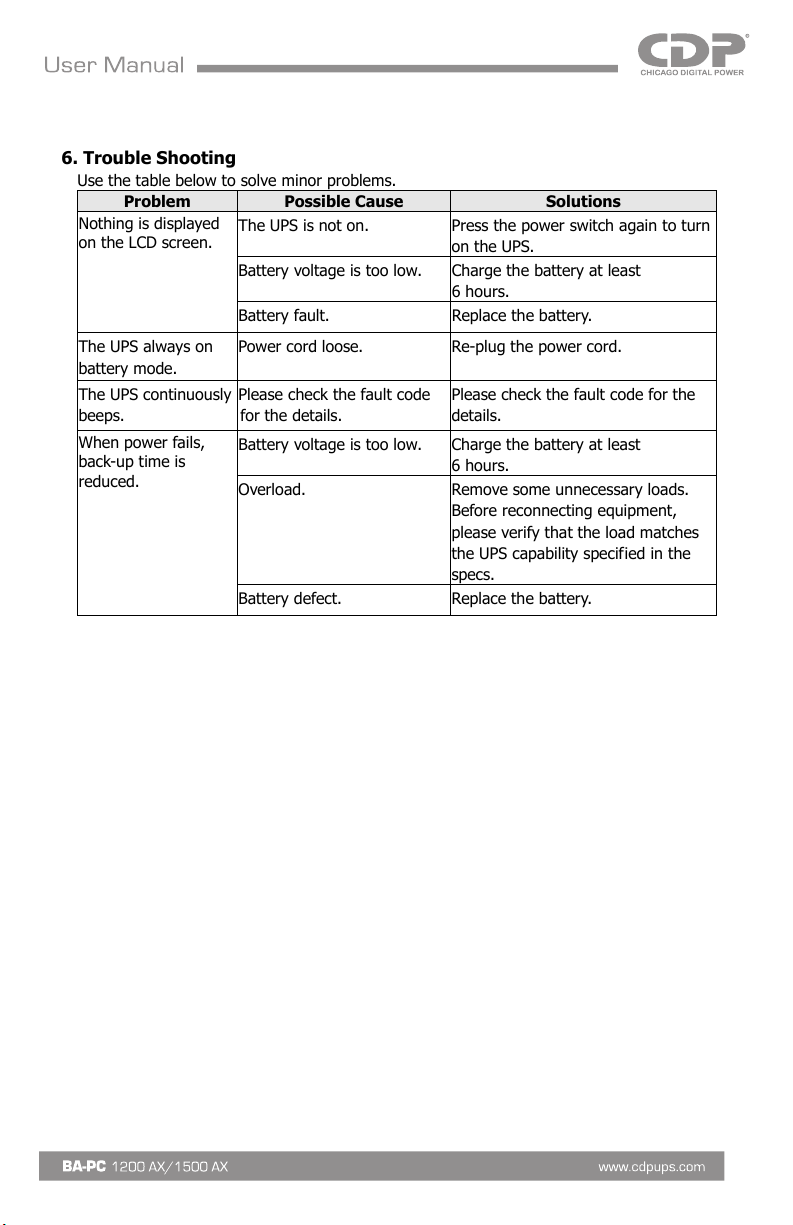
6. Trouble Shooting
Use the table below to solve minor problems.
Problem
Possible Cause
Solutions
Nothing is displayed
on the LCD screen.
The UPS is not on.
Press the power switch again to turn
on the UPS.
Battery voltage is too low.
Charge the battery at least
6 hours.
Battery fault.
Replace the battery.
The UPS always on
battery mode.
Power cord loose.
Re-plug the power cord.
The UPS continuously
beeps.
Please check the fault code
for the details.
Please check the fault code for the
details.
When power fails,
back-up time is
reduced.
Battery voltage is too low.
Charge the battery at least
6 hours.
Overload.
Remove some unnecessary loads.
Before reconnecting equipment,
please verify that the load matches
the UPS capability specified in the
specs.
Battery defect.
Replace the battery.
Page 11
Page 12

Page 13

Page 14
 Loading...