

Page 1
RU6 Portable USB DAC
Headphone Amplifier
Quick Guide
RU6 ポータブルUSB DAC
ヘッドホンアンプ
クイックガイド
Page 2

Thank you for choosing Cayin RU6 Portable USB DAC
Headphone Amplifier. Please read through this Quick
Guide before you start to use the amplifier. Please keep
the Quick Guide accessible for future reference.
Cayin RU6 ポータブル USB DAC ヘッドフォ
ンアンプをお選びいただきありがとうございま
す。本機をご使用を開始する前に、このクイック
ガイドをお読みください。
またいつでもクイックガイドをご覧いただけます
よう、このクイックガイドを保管していただけまし
たら幸いでございます。
Package Contents:
同梱内容:
Cayin RU6 x1
Type-C USB Cable x 1
USB-A Male to USB-C Female Converter x 1
Quick Guide x 1
Cayin RU6 x1
Type-C USBケーブル x 1
USB-A(オス)to USB-C(メス)変換 x 1
クイックガイド(本誌) x 1
Product Features:
製品の特長:
1. USB Audio in supports PCM44.1~384kHz and
DSD64/128/256.
2. Support NOS and OS Mode.
Page 3
3. Switchable between High and Low Gain.
4. Internal Discrete R-2R DAC Circuit.
1. USB AudioはPCM44.1~384kHz、DSD64/128/256に
対応
2. NOS( Non Over Sampling ) モード及びOS( Over
Sampling )モードに対応
3. ゲインはHighとLowの切替可能
4. ディスクリートR-2R DAC回路
Control and Operation:
操作:
RU6 is designed to work with audio devices which
support USB Audio Output function. It will be switched
on and start working automatically once connected to an
audio device such as smartphones, DAPS, tablets and
laptops. Once connected RU6 will be recognized and the
Device Name shown will be Cayin RU6. Screen of RU6 will
display all Operation State Information.
RU6はUSBオーディオ出力機能をサポートする機器でご
使用いただけます。スマートフォン、デジタルオーディオ
プレーヤー、タブレット、PCなどの機器に接続すると自動
的に電源がオンになります。接続デバイスには本機は
「Cayin RU6」と表示されます。
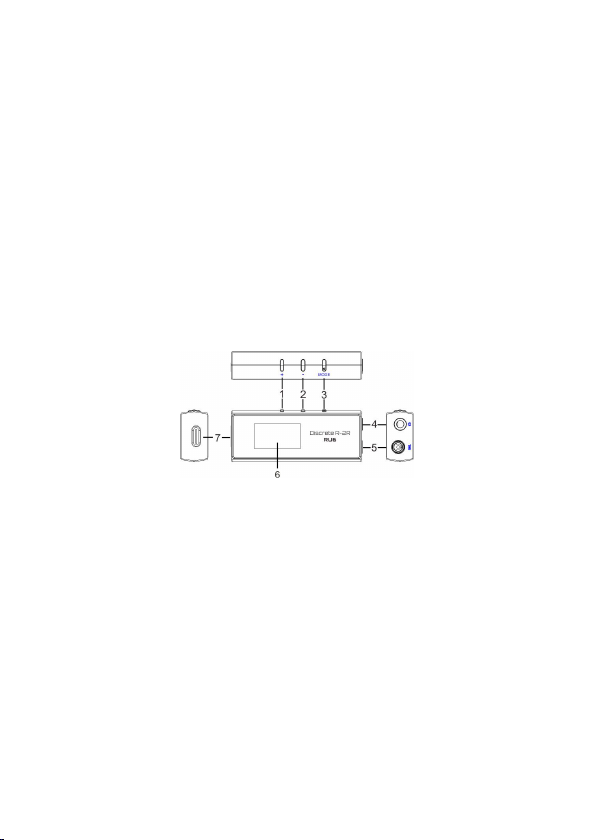
1. Multi-FunctionVol ume Key “+”
1. “+”
:マルチファンクションボリュームキー
Page 4

Volume Key “+” has multi-functions. It allows you to
volume up with short or long press. Under Settings Menu
you can modify the settings.
ボリュームキー“+”は多機能キーです。ボリュームアップ
は短くまたは長押しで行い、設定メニューでは設定の変
更が可能です。
2. Multi-FunctionVol ume Key “-”
2. “-”
:マルチファンクションボリュームキー
Volume Key “-” has multi-functions. It allows you to
volume down with short or long press. Under Settings
Menu you can modify the settings.
ボリュームキー“-”は多機能キーです。ボリュームダウンは
短くまたは長押しで行い、設定メニューでは設定の変更
が可能です。
3. Mode Key
3.モードキー
Switch on or off the screen with short press. Enter into
Settings Menu with long press.
短く押してスクリーン
ューが表示されます。
4. 3.5mm Single-ended Headphone Out: Connected to
3.5 Single-ended Headphone.
4. 3.5mm
グを接続
5. 4.4mm Balanced Headphone Out: Connected to 4.4
Balanced Headphone.
6. 4.4mmバランス出力:4.4mmバランスプラグを接続
7. OLED Display:
7. OLED
Volume, Gain, Sampling Mode, Sampling Rate etc can be
displayed.
ボリューム、ゲイン、サンプリングモード、サンプリングレー
ト、等が表示されます。
ON/OFF
シングルエンド出力:
ディスプレイ
の切替え、長押しで設定メニ
3.5mm
シングルエンドプラ
System Settings:
Page 5

システム設定:
Enter into Settings Menu by pressing MODE key
continuously.
モードキーを長押すると設定メニューが表示されます。
1. Gain: Enter into Settings Menu. Press MODE Key and
Select Gain. Press Key + or Key - to select between H(High
Gain) and L(Low Gain). Please choose the suitable Gain
according to the characteristics of your headphone.
1. ゲイン:設定メニューにて、モードキーを押して「Gain」
を選択します。“+”もしくは“-”キーを押してH(ハイゲイ
ン)またはL(ローゲイン)を選択します。お使いのヘッドフ
ォンに合ったゲイン設定をおすすめいたします。
2. Sampling Mode Selection: Enter into Settings Menu.
Press MODE Key and Select Sampling. Press Key + or Key to select between NOS or OS Mode.
2. サンプリングモードの選択:設定メニューにて、モード
キーを押して「Sampling」を選択します。“+”もしくは“-”キ
ーを押してNOS( Non Over Sampling ) モード及び
OS( Over Sampling )モードを選択します。
3. Backlight: Enter into Settings Menu. Press MODE Key
and Select Backlight. Press Key + or Key - to select among
ON, 10s, 20s, 30s, 40s, 50s, and 60s. I f ON chosen the
display will be always on. If 10s, 20s etc chosen the
display will be switched off automatically in 10s, 20s etc.
3. バックライト:設定メニューにて、モードキーを押して
「Backlight」を選択します。“+”もしくは“-”キーを押して
ON / 10秒 / 20秒 /30秒 /40秒 /50秒 /60秒から選択
します。ONを選択すると起動中は常にバックライトON、
秒を選択すると選択した秒数でバックライトがOFFになり
ます。
If there were no operation in 5 seconds RU6 will exit
Settings Menu.
5秒以上無操作状態が続くと本機は設定メニューを終了
します。
Suggestions: In order to get better sound quality once
connected to the Digital Audio Source such as Players,
Page 6
Mobiles etc please turn the volume of the Digital Audio
Specifications
仕様
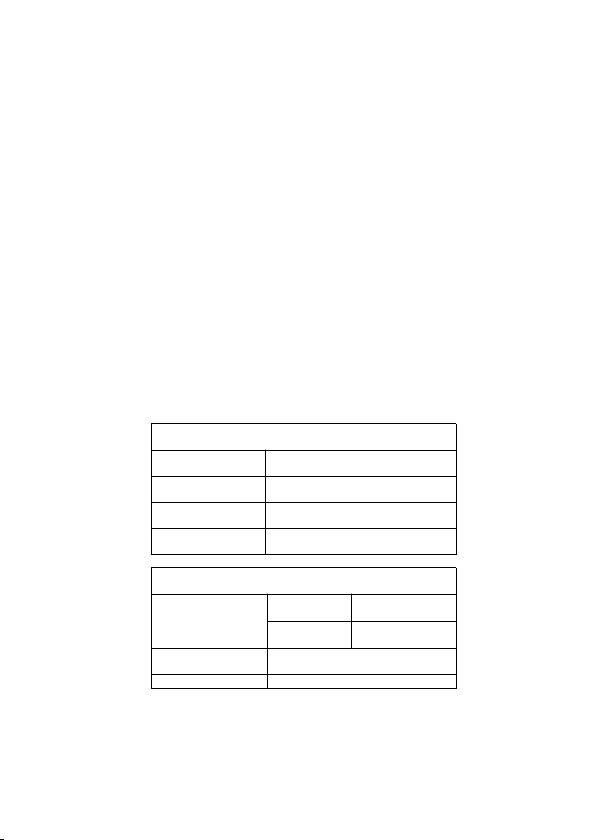
Power Output
Power Output
3.5mm PO
3.5mm PO
125mW@32Ω
125mW@32
Ω
4.4mm PO
4.4mm PO
230mW@32
Ω
230mW@32Ω
THD+N
THD+N
0.01%(@1kHz,RL=32
Ω)
0.01%(@1kHz,RL=32Ω)
S/N Ratio
115dB (20~20kHz, A weighted)
Product Highlights
主な特徴
DAC
DAC
Discrete R-2R
ディスクリート R-2R
Display
ディスプレイ
0.96" OLED, 128*64 Pixels
0.96" OLED, 128*64 Pixels
Size
サイズ
65*25.4*13.7mm
65 x 25.4 x 13.7 mm
Weight重量29g
29g
Source to Maximum and use RU6 to control the vol ume
level for your Headphone.
ご提案:お使いのデバイスのデジタル音源に接続し、の
音質を向上させるためには、デバイス側の音量を最大に
して、本機(RU6)でヘッドホンのボリュームレベルを調整
してください。
Specifications:
仕様:
Page 7

S/N
比
115dB (20~20kHz, A weighted)
Frequency Response
再生周波数帯
20Hz-20kHz(±0.2dB
)
20Hz-20kHz(±0.2dB)
USB Input
USB入力
Supports PCM44.1~384kHz、
DSD64/128/256
PCM44.1~384kHz、DSD64/128/256に
対応
Note: As for devices with Windows Operation System it is
required to install the USB Audio Driver in advance. As for
RU6 we have customized USB Audio Driver and upload
onto our website. Please visit www.cayin.cn for more
information and download the correct USB Audio Driver.
Note: RU6 has no Power Switch. If you do not operate it
please disconnect RU6 and Digital Audio Source
connected such as Players or Mobiles to avoid discharge
of your Digital Audio Source.
注:Windowsオペレーティングシステムを搭載したデバイ
スと接続する際は、事前にUSBオーディオドライバーをイ
ンストールする必要があります。RU6のUSBオーディオド
ライバーはCayin Webサイト(www.cayin.cn)よりUSBオー
ディオドライバーをダウンロードしてください。
注:RU6には電源スイッチがありません。使用しない時
は、RU6と接続デバイスとの接続ケーブルを取り外して、
接続機器への不要な放電を回避してください。
 Loading...