

Page 1
IN001v1 Page 1 of 2
Start Collect and connect the Palm to the SID using the cable provided.
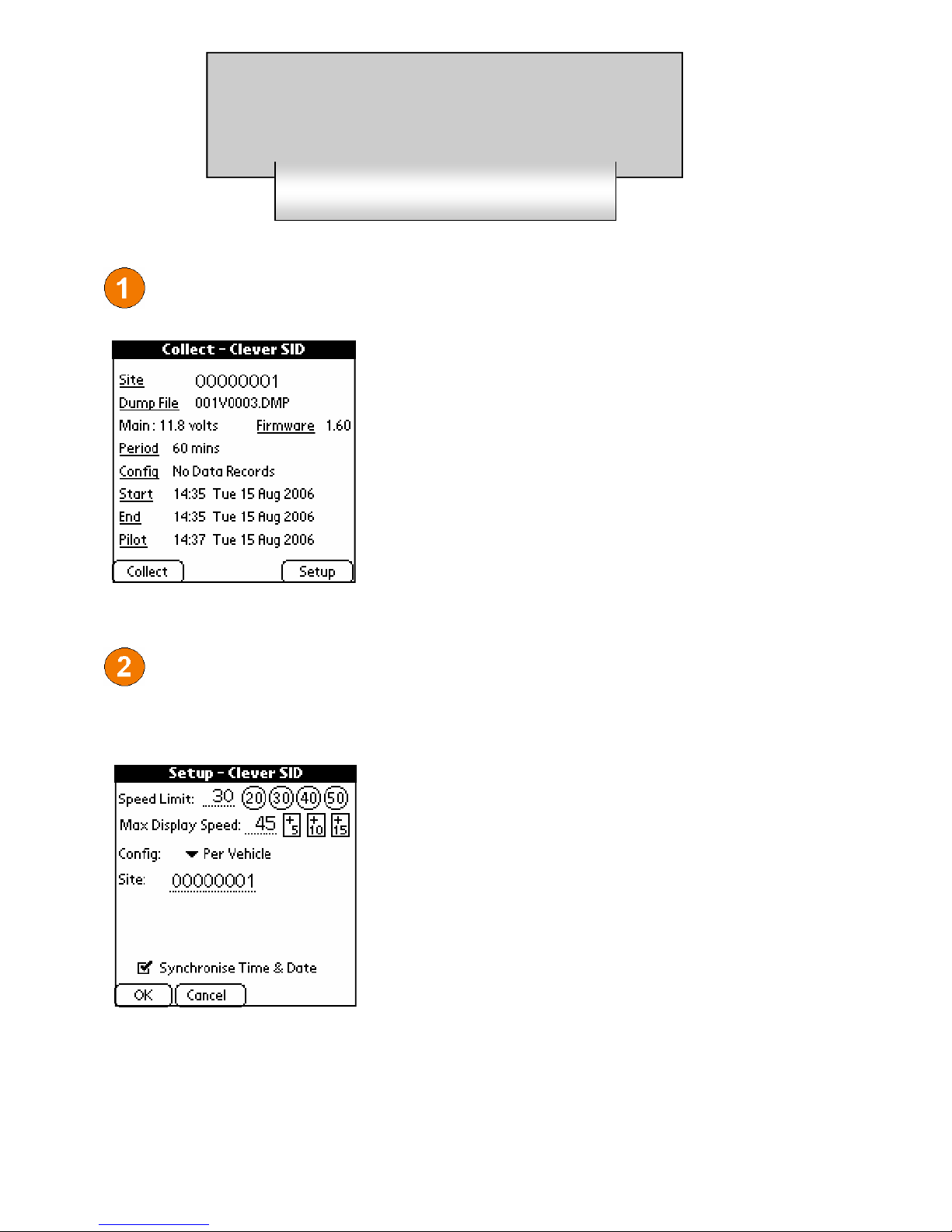
The main screen shows the following information:
Site Site Number
Dump File Name of dmp file to be created
upon Collection
Main Main battery level
Firmware Firmware version
Period Survey binning interval
Config Current survey configuration
Start Start Time/Date of survey
End End Time/Date of survey
Pilot Time on Palm handheld
To Collect the data from the SID, tap Collect.
Tap Setup to enter the setup screen.
Any data on the SID must be collected before entering the set-up menu.
The Speed Limit can be set either by tapping on the dotted line and writing on the graffiti pad, or by tapping on one
of the shortcut icons.
The Max Display Speed is the speed above the Speed
Limit beyond which the SID will display bars and no speed
information. It can be set in the same way as the Speed
Limit.
The Site Number can be set in the same way as the
Speed Limit. Changing the Site Number will not affect
Collected data.
If Synchronise Time & Date is ticked, the time on the SID
will be set to that of the Palm.
The options available in the set-up screen will vary depending on the configuration selected.
The configurations available for the SID, and any additional options, are explained overleaf.
Clever SID
User Guide
Page 2
IN001v1 Page 2 of 2
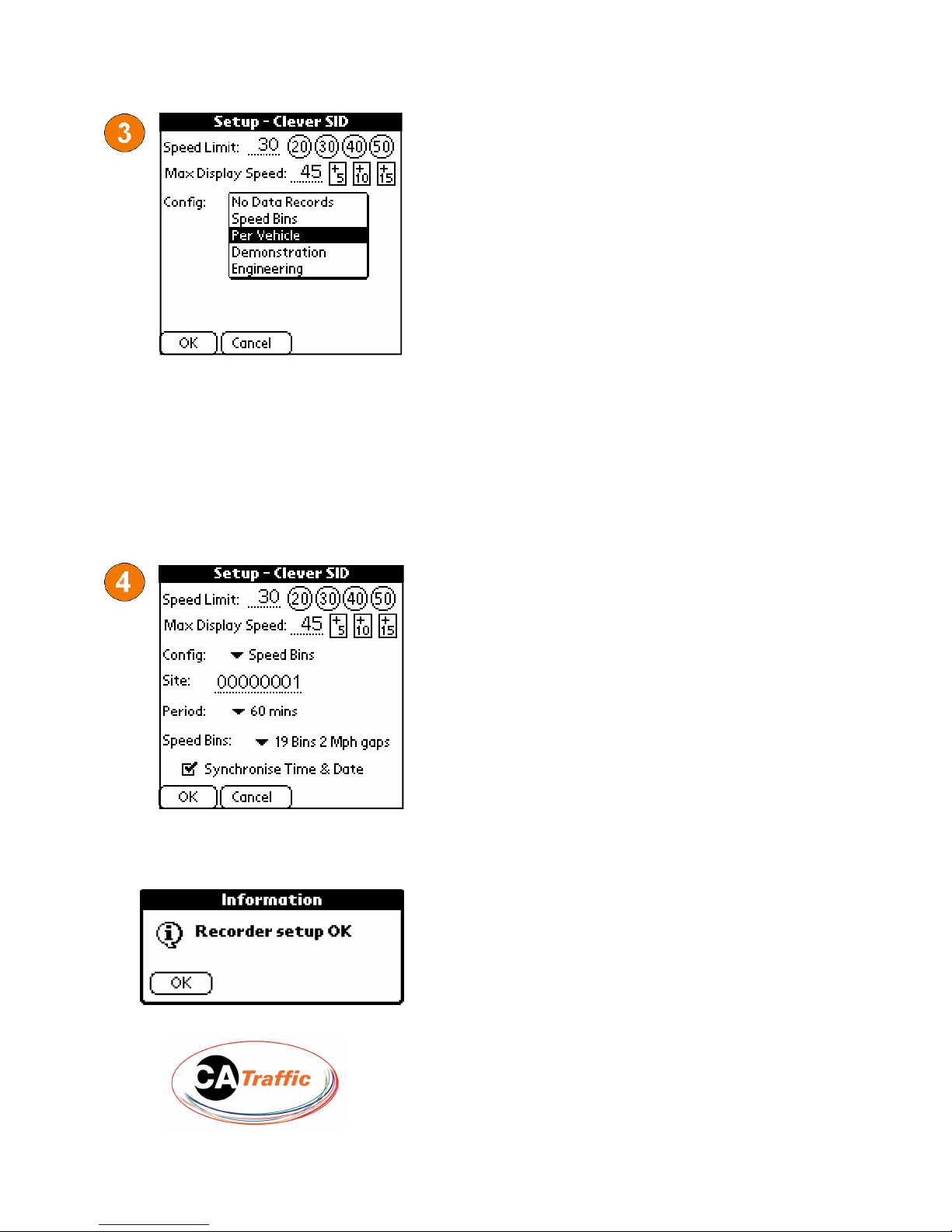
Config displays the kind of the survey the SID will
carry out after the set-up is complete.
Tapping the down arrow brings up the list of available configurations.
No Data Records - No information is stored on the
sign.
Speed Bins - Vehicles are binned by Speed.
Per Vehicle - Data is recorded for every vehicle
counted.
Demonstration - The sign will flash speeds around
the speed limit to demonstrate the different SID
faces.
Engineering - This is used to test the radar head and
should only be used if suggested by C&A.
Additional Options:
Period displays the interval at which data is binned
when carrying out a binning survey. Tapping the
down arrows displays a drop down list of the available intervals.
Speed Bins shows the current bin configuration in a
binning survey. The drop down list displays the configurations available. Tapping on the desired configuration selects it.
Once the settings are configured correctly, tap OK to set the SID up. A confirmation box as
seen below will confirm that the SID was set-up successfully.
The SID will begin the survey as soon as the
set-up process is completed.
CA Traffic Ltd
Griffin Lane, Aylesbury, HP19 8BP
Fax: +44 (0) 1296 333 498
E-mail: [email protected]
Tel: +44 (0) 1296 333 499
Web: www.ca-traffic.com
 Loading...