

Page 1
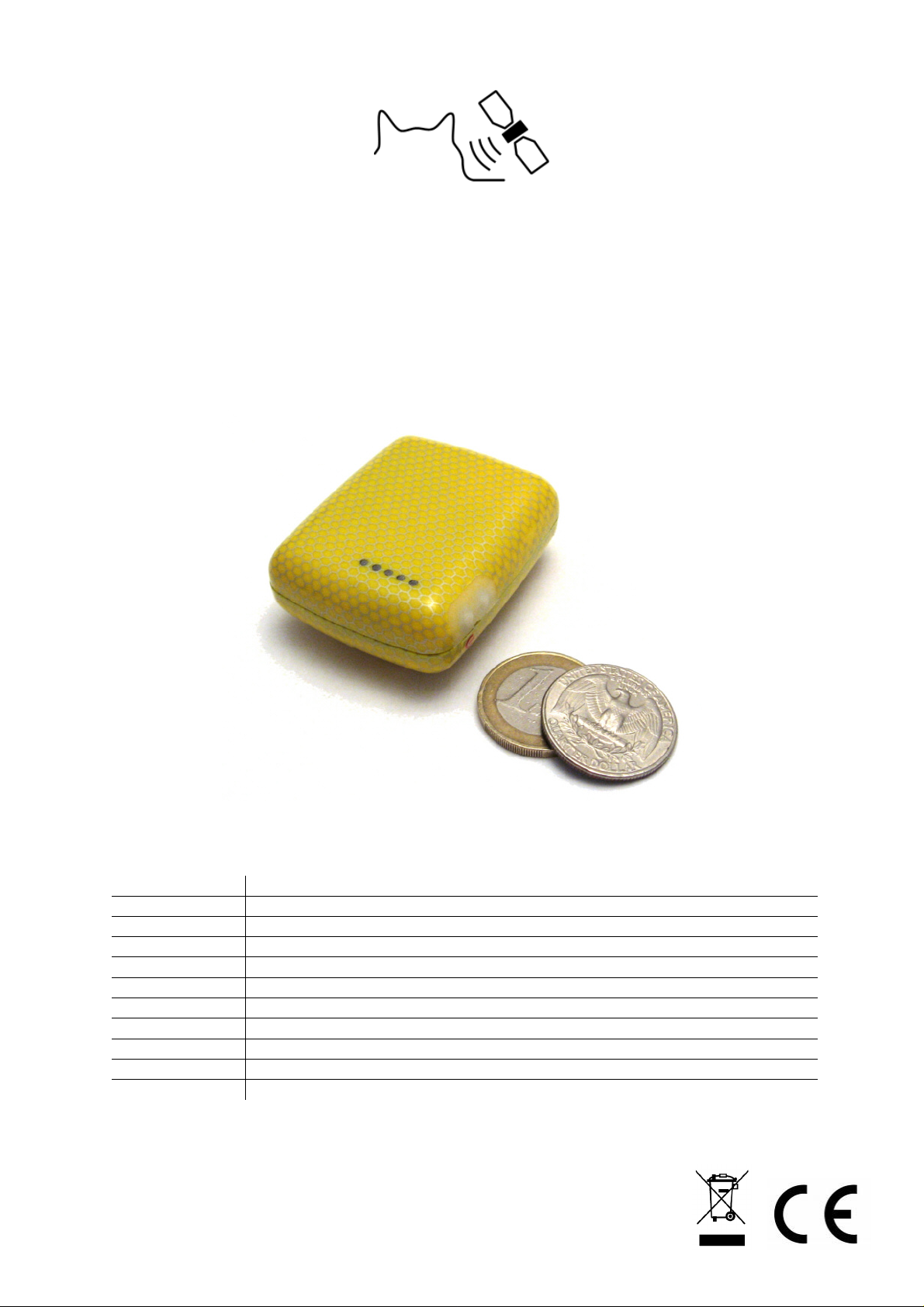
CatTraQ™
CatTraQ™ Live 3 – User Manual
Revision History
Revision Change
V1.0 Initial version for CatTrack Live v3
V1.1 Minor corrections
V1.2 Notes about charge indicator light on docking station
V1.3 Update data of position response
V1.4 Minor changes, removal of authorized numbers
V1.5 Clarification about authorized numbers
V1.6 Correction of password change
V1.7 Added more trouble shooting hints
V1.8 Added notes to time scheduler
V1.9 Added second time window to scheduler
Page 2

CatTraQ Live 3
GPS Tracker
Catnip Technologies, Ltd.
Index
1. Overview ......................................................................................................................... 3
1.1 Specification .............................................................................................................. 4
1.2 Device elements ....................................................................................................... 4
1.3 Accessories ............................................................................................................... 5
2. Startup ............................................................................................................................ 6
2.1 Charging ................................................................................................................... 9
2.2 Harness ..................................................................................................................... 9
3. Functions and Control Commands ............................................................................... 13
3.1 Change Password ................................................................................................... 13
3.2 Reset Device ........................................................................................................... 13
3.3 Authorization ........................................................................................................... 13
3.4 Single Position Request .......................................................................................... 14
3.5 Position Information Using Time Intervals ............................................................... 15
3.6 SMS Format (Link / Text) ........................................................................................ 15
3.7 GPRS Tracking Setup ............................................................................................. 15
3.8 Disable GPRS ......................................................................................................... 16
3.9 Speeding Alarm ...................................................................................................... 16
3.10 Geofence Alarm .................................................................................................... 17
3.11 Spot Alarm ............................................................................................................ 17
3.12 Vibration Alarm ..................................................................................................... 18
3.13 Low Battery Alarm ................................................................................................. 18
3.14 SOS Alarm ............................................................................................................ 18
3.15 Time Zone ............................................................................................................. 18
3.17 SD Memory Card (GPRS) ..................................................................................... 20
4. GPRS Tracking ............................................................................................................. 21
4.1 Login for GPRS Tracking ........................................................................................ 21
5. Troubleshooting ............................................................................................................ 22
6. Support and Help .......................................................................................................... 22
7. Important Safety Notes ................................................................................................. 22
Page 2/23
Page 3

CatTraQ Live 3
GPS Tracker
Catnip Technologies, Ltd.
1. Overview
The device has evolved to version 3 which is now a professional tracking solution for scientific and
private use satisfying a broad range of requirements. CatTraQ Live III is mainly designed for
animal surveillance/observation.
It combines a very small size with a robust watertight enclosure, powerful functions and a very
good performance/cost relation.
The purpose of this device is to determine its position using GPS satellite signals and sending the
position automatically or on request using existing cellular phone networks.
By supporting quad band phone frequencies the device can be used virtually around the globe.
Using the GPRS function an online tracking via the Internet is possible. In this case the position
can be stored on a memory card during times of no available cellular phone network.
To use the device a SIM card (cellular phone service card) is required as well as a mobile phone
that can receive and send SMS text messages. We recommend T-Mobile 2G prepaid (or Ting.com
in the USA).
The GPS tracker can find use on the following applications:
Supervise/locate pets and animals
Security for elderly people and children
Track criminals
Protect property like vehicles, boats and machines
The tracker has the following features:
Miniaturized size
Waterproof design
SMS and GPRS communication
Track on demand
Track by time interval
Geo-fencing control
SOS button for immediate rescue and alarm
Speed limit alarm
Low battery alarm
Vibration alarm
Integrated data logger using Micro SD memory card in case of no GSM network coverage.
Time scheduler to extend runtime
Position response with coordinates or Internet link to Google Maps
Note: In some countries it is not legal to use the device for tracking persons who
have not given their approval of doing so. It is considered as infringing personal
!
rights and may get punished by law.
Page 3/23
Page 4
CatTraQ Live 3
r
GPS Tracker
Catnip Technologies, Ltd.
1.1 Specification
Charging Voltage 4.2-5.5V/400mA (over Mini USB port)
Integrated battery Rechargeable 700mAh
Operation time 96 hours
Dimensions 50 x 40 x 20mm
Weight 50g
Operating temperature range -20°C to 60°C
Acceleration Limit < 4g
GSM frequencies Quad-band GSM (850/900/1800/1900MHz)
GPS chipset SIRF Star III
GPS Sensitivity -159 dB
GPS tracking Channels 20
Position Accuracy < 15m 2D RMS
Velocity Accuracy 0.1 m/s
Altitude Limit Max. 18,000m (60,000 feet)
Velocity Limit Max. 514 m/s (1000 knots)
Memory card size for data logging Max. 2 GB
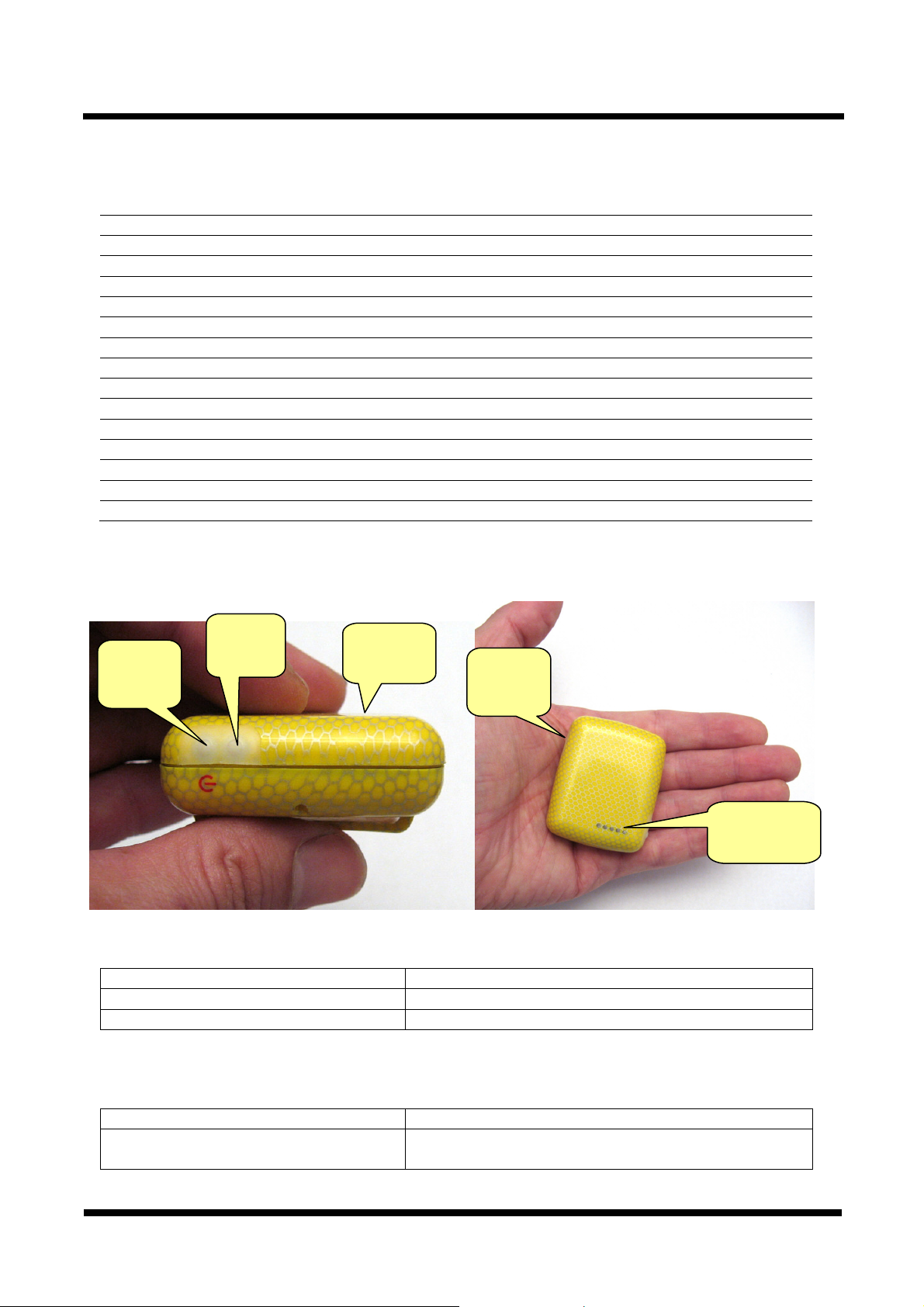
1.2 Device elements
SOS
On/Off
Button
Status Light Signals
Light is 0.5s ON and 0.5s OFF Initializing or low battery voltage
Light is 1s ON and 1s OFF Searching GPS satellite
Light is 1s ON and 3s OFF GPS position acquired (OK state)
Buttons
On/Off Button Press for 3 seconds to turn device ON or OFF
SOS Button Press for 3 seconds to send a SMS message to
Button
GPS
Status
light
Charge
connecto
authorized numbers
Page 4/23
Page 5
CatTraQ Live 3
r
GPS Tracker
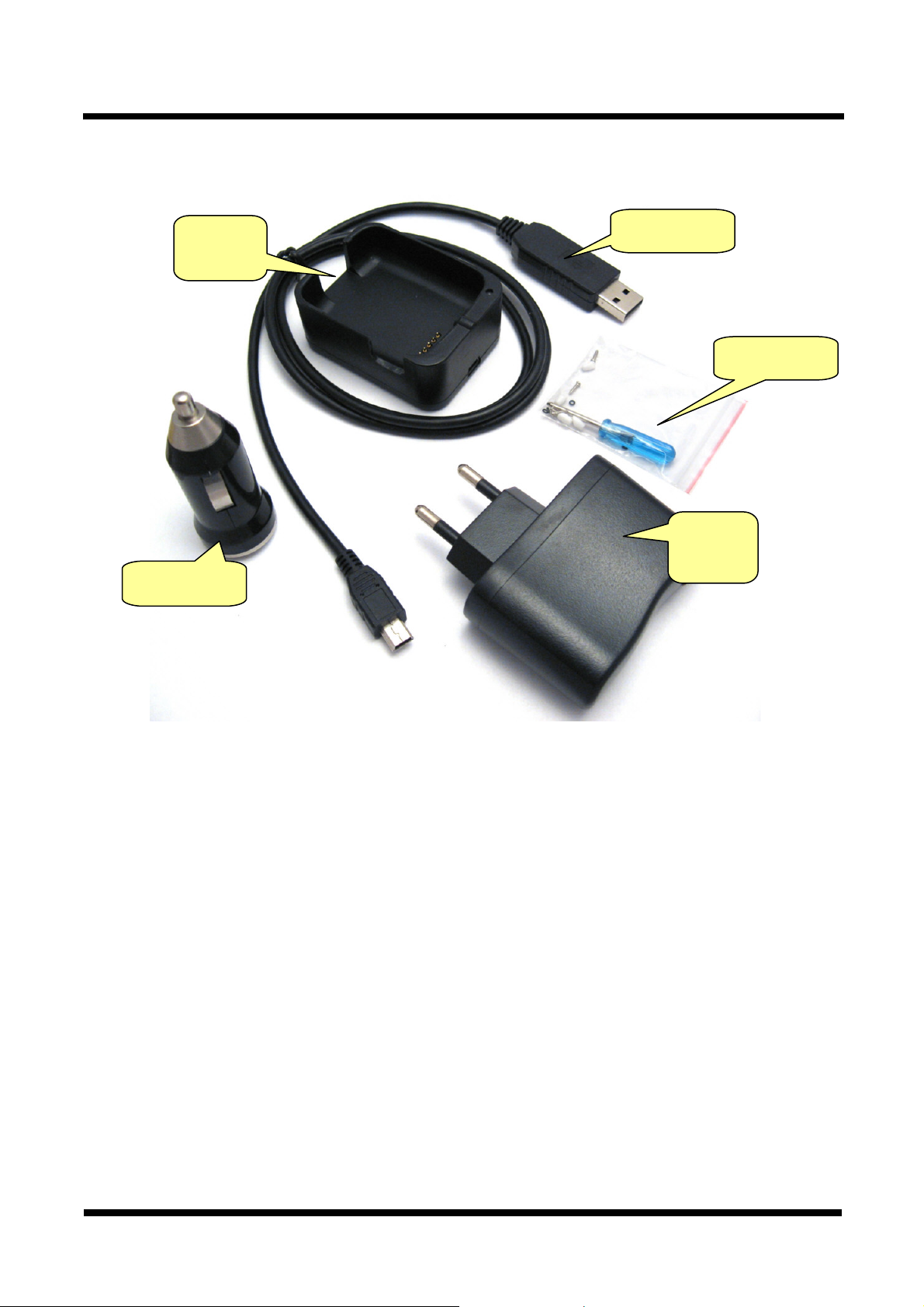
1.3 Accessories
Docking
station
Catnip Technologies, Ltd.
USB cable
Screwdrive
Wall
charger
Car charger
Page 5/23
Page 6
CatTraQ Live 3
GPS Tracker
2. Startup
This chapter guides you step-by-step through the setup of the tracking device. Most steps only
need to be done one time.
The tracker requires a SIM card to be able to communicate via the cellular phone network.
Things to check before you install the SIM card:
SIM card is not locked/passcode protected
SIM card has enough credit left (can receive and send SMS; check with mobile
phone)
SIM card supports displaying of caller ID
SIM card is not bonded to a certain mobile phone (“SIM lock”; if that’s the case you
can go to your dealer and request to change the device bonding. Usually just the
device IMEI is required)
SIM card from prepaid service providers (“pay as you go”) may require special
activation procedure, test with regular mobile phone first.
Once you made sure that your SIM card fulfills these requirements continue with the device setup
steps shown below:
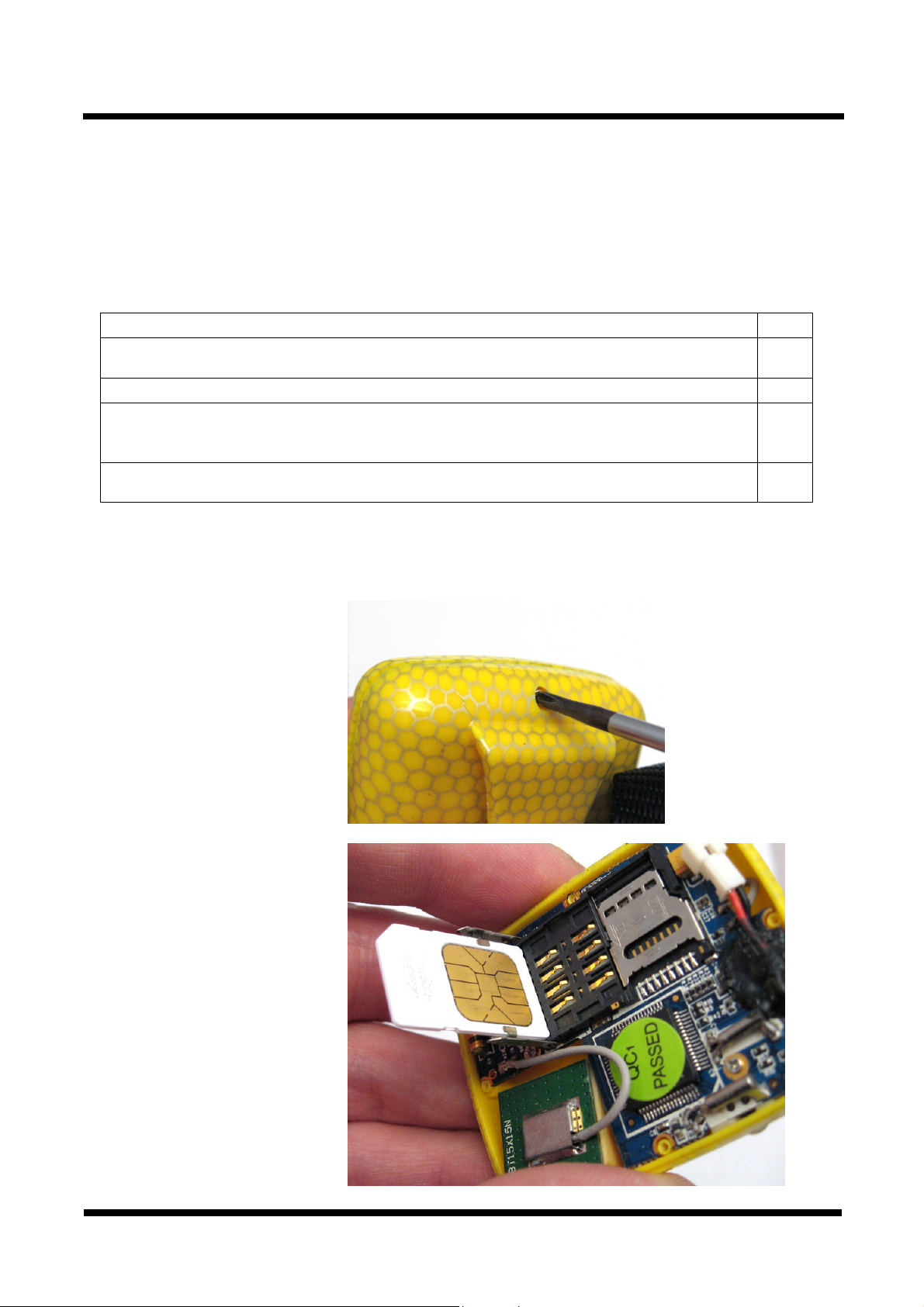
Unscrew the back cover of
the device
Catnip Technologies, Ltd.
Optional: Insert SD memory
card if you want to use data
logging during loss of GSM
network signals
SIM
SIM
Micro
Micro
SD
SD
Page 6/23
Page 7
CatTraQ Live 3
GPS Tracker
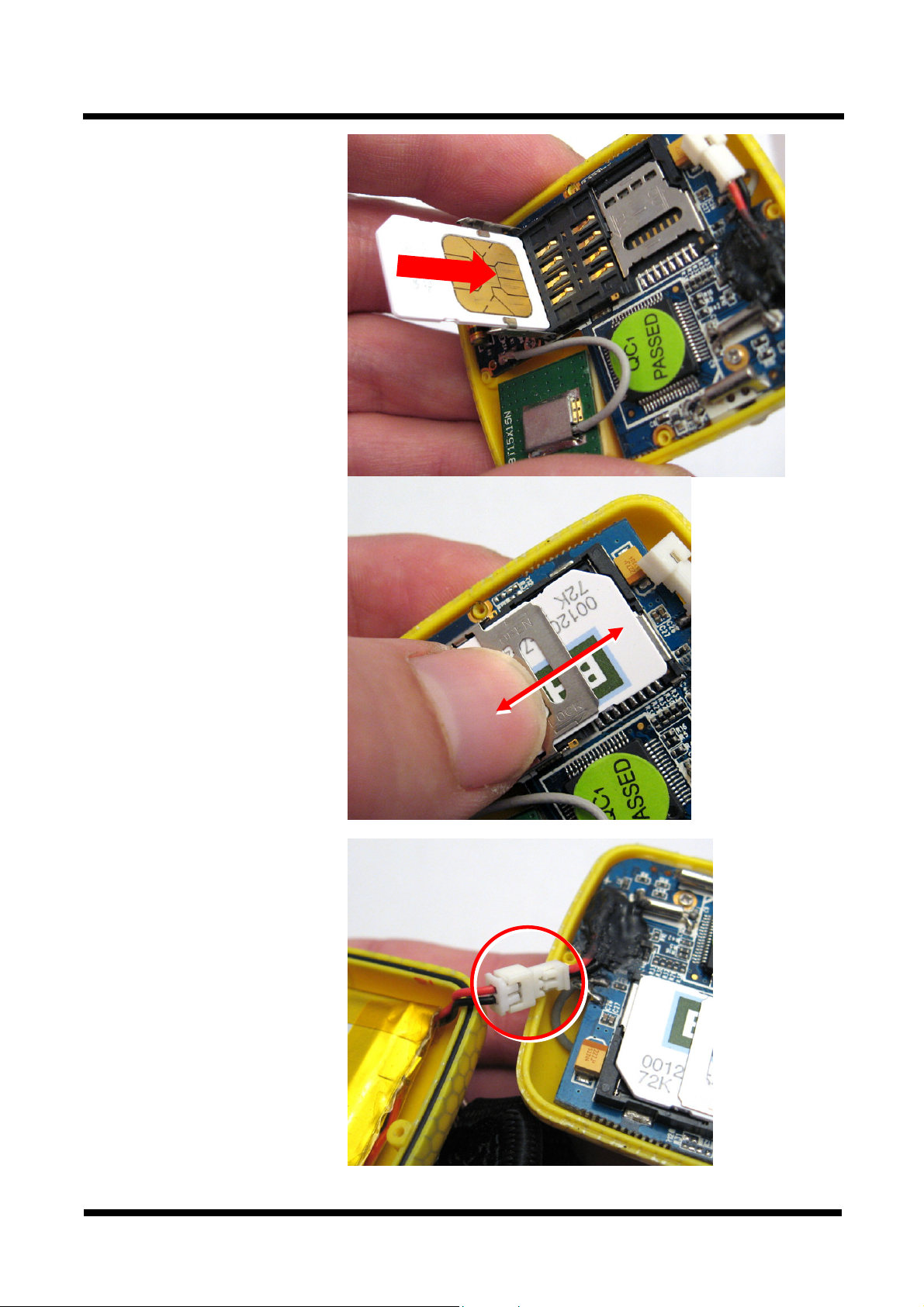
Insert mobile phone SIM
card
Catnip Technologies, Ltd.
Connect battery
close
open
Page 7/23
Page 8

CatTraQ Live 3
GPS Tracker
Close cover (make sure that
gasket is clean)
Fasten screws
Catnip Technologies, Ltd.
Done. You only need to
repeat the setup to exchange
SIM card. For charging the
device stays closed.
Turn on the unit outdoors by pressing the “on/off” button until the indicator light is on.
For first use, please initialize the unit and restore it to default setting (please refer to next section
for instructions).
After about 50 seconds the unit will begin to work and acquire the GSM signals as well as the GPS
signals.
Page 8/23
Page 9

CatTraQ Live 3
GPS Tracker
Catnip Technologies, Ltd.
2.1 Charging
The device is charged using the docking station. An USB interface supplies the docking station
with power. It can get connected to a computer or to an USB charger (car or wall mount charger).
Make sure that the connectors on front of the device are clean. Make also sure that the tracker sits
firmly on the docking station so that good electrical contact can be achieved.
The light on the docking station will shine red while the battery is charging and is green when
battery full or device not connected properly.
Charge
indicator
2.2 Harness
A harness is the optimal choice to attach the tracker to a pet. It ensures that the GPS antenna
points upward to the sky and also prevents that the animal losses the device.
Two key rings are used to make
the connection between the
tracking device and the harness.
Page 9/23
Page 10

CatTraQ Live 3
GPS Tracker
Catnip Technologies, Ltd.
On each side of the enclosure
loop feed in a key ring.
The result looks like this.
Now the device should be
mounted to the top string of the
harness.
Page 10/23
Page 11

CatTraQ Live 3
GPS Tracker
Place the top string over the
enclosures loop. Rotate the key
ring over the string. Make sure
that the end of the ring will go
back under the enclosures loop.
Do the same with the second key
ring.
Catnip Technologies, Ltd.
The picture shows how the two
rings mount the tracking device to
the harness.
Page 11/23
Page 12

CatTraQ Live 3
GPS Tracker
Catnip Technologies, Ltd.
The device is now attached to the
harness.
To put the equipment on your pet,
follow the instructions of the
harness or collar.
On a harness the neck strap “A” is
usually put on first, then the chest
strap “B”.
Make sure that the device is
activated and that the upper side
points toward the sky.
Make also sure that the harness /
collar is not adjusted too tight or
too loose.
Page 12/23
Page 13

CatTraQ Live 3
GPS Tracker
Catnip Technologies, Ltd.
3. Functions and Control Commands
The device is controlled by SMS/text message commands from a mobile phone.
Control and configuration commands are sent as SMS/text message to the tracking device. A
command is consisting out of keyword, password, command and parameters. The keyword is
always the same and signals the device an instruction. Each part of the command is separated by
commas. Do not use spaces after commas.
Keyword Password Command Parameters ;
!
Note: The default password is 123456
3.1 Change Password
facid
Old password = current password (default password is 123456)
New password = new password, up to 9 digits
Example
: facid,123456,password,V=9876;
Old password
password
V=New password
;
3.2 Reset Device
facid
Restores all default settings
Example
: facid,123456,default;
Password
default ;
3.3 Authorization
In order to access the tracker position you need to authorize phone numbers.
facid
You can set 5 different phone numbers which are allowed to request the position. The 5 numbers
are set using the index parameter.
Note: Depending on your phone provider the caller ID may contain or not contain
country code or local numbers. The authorized number setting must be identical to
!
Examples
facid,123456,authorize,1=149178456456;
facid,123456,authorize,1=149178456456,4=149177998899;
the caller ID, otherwise you can communicate with the tracker but will not get a
position.
:
Password
authorize
Index=Phone number
;
Page 13/23
Page 14

CatTraQ Live 3
GPS Tracker
Catnip Technologies, Ltd.
facid,123456,authorize,1=149178456456,2=149177998899,3=186776532123;
Remove authorized numbers:
facid,123456,authorize;
3.4 Single Position Request
Acquire the latest position of the tracker.
facid
The tracker will reply with a SMS text message with the latest location.
Example
Note:
Alternatively if you call the device with an authorized number and hang up, the tracker will report
also the position.
You will receive a SMS looking like this:
Lat:20.54821N Long:101.57936E,SP:0.00,10/10/11 16:27
BAT=13%,SGL:CUR,LowBattery,GPS:06,117.0,460,01,2795,6440
Explanation of data contained in the response:
Lat:20.54821N
Long:101.57936E
SP:0.00
10/10/11 16:27
BAT=13%
SGL:CUR
: facid,123456,sms,fast;
Password
sms fast ;
Latitude of position
Longitude of position
Speed is 0.00km/h
Current GPS date and time
Battery power
Signal:cur = GPS position is fixed when sending data
Signal:last = GPS position is not fixed and the previous
known position is send
LowBattery
GPS:06
117.0
460
00
2795
6440
If you do not want to deal with coordinates and details, use the SMS format command to switch to
an internet link which opens the current position on a map.
Alarm information
Number of GPS satellites visible
Altitude
MCC (Mobile Country Code)
MNC (Mobile Network Code)
LAC (Location Area Code)
Cell ID
Page 14/23
Page 15

CatTraQ Live 3
GPS Tracker
Catnip Technologies, Ltd.
3.5 Position Information Using Time Intervals
The tracker will automatically send out its position in a defined time interval.
facid
Description:
Interval: 0…65535 seconds, 0 is no interval
Times: 0…999, 0 means no data to send, 999 means unlimited times to send position
Distance: 0…65535 meters, sets the minimum distance the position needs to change until the
tracker sends out new data. Prevents that unnecessary data is sent when the position stays the
same.
Example:
phone number every 30 seconds, total 50 locations.
To stop the automatic position reporting:
facid
Example
Note: If the device can not get a GPS fix after 60s it will go into a temporary sleep mode until the
next time interval. If no interval is set a default sleep duration of 10min is applied.
facid,123456,loc,i=30,t=50,L=0; The tracker will send location back to authorized
: facid,123456,loc;
Password
Password
loc i= interval,t=times,L=distance ;
loc ;
3.6 SMS Format (Link / Text)
The SMS text message format of the position information can be switched between coordinates
(described in section “Single Position Request”) and Internet link to Google Maps which simplifies
the graphical display of the current position. In the later case the link just needs to get activated
and you see the reported position on a map (requires internet connection of your cell phone /smart
phone).
facid
Format:
text = default setting, response with latitude and longitude coordinates
link = response with Internet link to Google map.
Example:
facid,123456,sms,link;
facid,123456,sms,text;
Password
sms
Format
;
3.7 GPRS Tracking Setup
The position is send to an internet server instead of a cell phone. You need to set an interval time
as described in section “Position Information Using Time Intervals” for a continuous position
Page 15/23
Page 16

CatTraQ Live 3
GPS Tracker
Catnip Technologies, Ltd.
update. The GRPS function and the SMS text message function are using the same time interval.
If you enable GPRS the SMS function will be disabled automatically.
To enable GPRS Tracking use the following command:
Facid
Description:
IP address: 0…31 chars, IP address of webserver
port number: 0...65535, port number of webserver
user name and password: each 0…31 chars, user name and password are optional (clarify with
network provider). If no username and no password are required, just input APN only.
APN: 0…31 chars, Access Point Name, please contact with your network provider for more
information
identifier: 0…19 chars, identifier of your tracker for the GPRS webserver
mode: 0 or 1, communication mode, 0 means TCP, 1 means UDP
Example:
facid,123456,gprs,addr=113.90.7.193,port=7000,name=,pass=,APN=CMNET,ID=88888,mode=0;
facid,123456,loc,i=30,t=999,l=0;
Tracker will send GPRS data to server every 30 seconds, “t=999” means unlimited times, the
server’s IP is 113.90.7.193, the server’s port is 7000.
Password
gprs
addr=IP address,
port=port number,
name=user name,
pass=password,
APN=APN,
ID=identifier,
mode=mode
;
3.8 Disable GPRS
Closes GPRS connection and turns on SMS mode.
Facid
Example:
facid,123456,gprs;
Password
gprs ;
3.9 Speeding Alarm
When the tracker is moved faster than a certain limit it will send an SMS to authorized phone
numbers or an alarm to the webserver (if GPRS is connected).
facid
Description:
Speed: 0…65535 in km/h. If speed=0 speeding alarm is turned off.
Example:
alarm is sent out.
facid,123456,ov,L=80; When the tracker speed is higher than 80km/h and speeding
Password
ov
L=speed
;
Page 16/23
Page 17

CatTraQ Live 3
GPS Tracker
Catnip Technologies, Ltd.
To turn off speeding alarm, send the following command:
facid,123456,ov;
3.10 Geofence Alarm
If the tracker is moved outside a defined area it will send out an alarm by SMS or GPRS.
facid
Description:
X1=longitude of point 1 [180 (S) to 180 (N)]
Y1=latitude of point 1 [90 (W) to 90 (E)]
X2=longitude of point 2 [180 (S) to 180 (N)]
Y2=latitude of point 2 [90 (W) to 90 (E)]
Example:
facid,123456,geofence,1=114.000000e/22.400000n,2=113.800000e/22.600000n;
To turn off geofence:
Password
facid,123456,geofence;
geofence
1=x1/y1,2=x2/y2
1
;
2
3.11 Spot Alarm
While the Geofence function requires coordinates to be set the Spot Alarm uses the current
position and applies a circular zone around it. When the tracker leaves that spot area it will send
out an alarm by SMS or GPRS.
facid
Password
move
L=radius
;
Radius
Description:
Radius = 0…65535 in meter
Example:
tracker location.
To turn off geofence:
facid,123456,move,L=300; Creates a spot area with 300m radius around the current
facid,123456,move;
Location
during
activation
Page 17/23
Page 18

CatTraQ Live 3
GPS Tracker
Catnip Technologies, Ltd.
3.12 Vibration Alarm
The tracker contains a shock/vibration sensor. If the vibration alarm is enabled and the device
moved and alarm is send out by SMS or GPRS.
facid
Note:
sensitivity=0…10; 0= turn off vibration alarm; 1=lowest sensitivity; 10=highest sensitivity
Example
To turn off vibration alarm:
: facid,123456,vib,L=5;
Password
facid,123456,vib;
vib
L=sensitivity
;
3.13 Low Battery Alarm
When the remaining battery energy gets below 25% the tracker will send a message by SMS or
GPRS.
3.14 SOS Alarm
When the SOS button next to the power button is pressed for 3 seconds the tracker will send out a
message by SMS or GPRS.
3.15 Time Zone
Since the GPS time is independent from the global position, the time zone command matches the
GPS time to the local time.
facid
Note
: value= -15 … 15; time offset relative to GMT
Example
: facid,123456,time zone,v=-6;
Password
time zone
v=value
;
Page 18/23
Page 19

CatTraQ Live 3
GPS Tracker
Catnip Technologies, Ltd.
3.16 Time Scheduler
With the time scheduler the tracker is enabled for a defined time per day. This improves the
operation time since the power consumption in standby mode is very low. Two time windows are
available.
Facid
Note
:
Start time 1 = daily time when the tracker is turned on (00:00 to 23:59).
End time 1= daily time when the tracker is turned off (00:00 to 23:59).
Start time 2 = daily time when the tracker is turned on (00:00 to 23:59). Leave blank if not used.
End time 2= daily time when the tracker is turned off (00:00 to 23:59). Leave blank if not used.
Switch = 0 or 1; 0 means to turn of the time scheduler; 1 enables the time scheduler
Example
will work from 10:50 o’clock to 16 o’clock (4pm) daily.
To turn off scheduler:
: facid,123456,config,poweron1=10:50,poweroff1=16:00,poweren=1; the tracker
Attention: Before the scheduler is enabled the tracker needs to have a GPS
!
!
position to know the present time. Otherwise the tracker will turn OFF and never
turn ON again.
Attention: When the tracker is turned off by the scheduler it can not get accessed
any more until it is enabled again.
Password
facid,123456,config,poweren=0;
config
poweron1=start time 1,
poweroff1=end time 1,
poweron2 = start time 2,
poweroff2 = end time 2,
poweren=switch
;
Page 19/23
Page 20

CatTraQ Live 3
GPS Tracker
Catnip Technologies, Ltd.
3.17 SD Memory Card (GPRS)
When there is no GPRS signal the device can not send data to server. In this case the positions
can be stored on a memory card. When there is GPRS connection present again the data is
transmitted to the server. The maximum memory card size supported is 2 GB.
Test the SD memory card compatibility:
facid
Note: if the SD card works well response is “sdcard ok”.
Example:
Enable/disable logging to the memory card in case of no phone network available:
Note:
switch1= 0 or 1; 1 means enable logging to memory card; 0 means disable logging
Example:
Enable/disable transmission of logged position to web server.
Note:
Switch2= 0 or 1; 1 means to transfer logged positions to webserver once a network is present
again. 0 means disable data transfer.
Example:
server.
facid,123456,sdcard,test;
Facid
facid,123456,sdcard,log=1; turns on logging to memory card.
Facid
facid,123456,sdcard,read=1; turns on transmission of stored positions to web
Password
Password
Password
sdcard
sdcard
sdcard
test
log=switch1
read=switch2
;
;
;
Page 20/23
Page 21

CatTraQ Live 3
GPS Tracker
Catnip Technologies, Ltd.
4. GPRS Tracking
GPRS allows an online tracking of the device over the Internet.
You can log in to the web server and see the position of the device on a map. It is also possible to
see positions from the past. This means that there is a continuous recording.
Please note that the service fees for GPRS may be higher than regular SMS charges. Get in
contact with your communication network provider to find out the costs before you enable GPRS
and running in excessive costs.
4.1 Login for GPRS Tracking
To use the web based GPRS tracking you will need to order the annual service pack. You will
receive login instructions.
Once you are logged in, you can see your device on the map:
Page 21/23
Page 22

CatTraQ Live 3
GPS Tracker
5. Troubleshooting
Commands not recognized:
no space in front.
Device does not turn ON:
have enough energy. In some cases a not supported micro SD memory card may prevent startup.
Device does not reply with SMS message:
If the light flashes in 0.5 seconds interval the tracker tries to connect to the GSM network.
GSM network may be overloaded or not available. Wrong password or wrong SMS format may be
used. Check if SIM card passcode/pin is removed. SIM card may not have sufficient contact in
card holder. SIM card is not 2G GSM type.
No position available/light flashes in one second intervals
signals. Provide clear view to sky. Check battery charge state.
Device fails to connect to GPRS Server:
Check if SIM card supports GPRS function. Check if GPRS function of the unit is turned on.
Check if IP address and Port is set correct. Check if GSM signals are strong enough.
Device gives response but no position:
The authorized number does not match with the number of your cell phone which you are using to
request the position. Check if country code or local code is considered.
Device turns OFF after some time:
If the Tracker cannot get a GPS fix within 60s it will go into sleep mode until the next position
update interval or position request. If no interval time is set it will sleep for 10 minutes. Note: If
tracker cannot get GSM network it will not go to sleep and continuously try to get contact.
6. Support and Help
You can get in contact with the technical support by sending a mail to support@mr-lee-catcam.de
Or visiting the support area of our website: www.mr-lee.com
7. Important Safety Notes
Warning: This device is not suitable for children. It is not a toy. Small parts may
!
break loose and get swallowed. Danger of suffocation !
Warning: This device is not suitable for larger animals like dogs which tend to
!
chew and swallow non-food things. The animal may get hurt.
Warning: Do not expose device to temperatures above 60°C / 140°F. The
!
rechargeable battery may get damaged and catch fire.
Note: To prevent battery damage store device charged and recharge every 6
!
months.
check if the command string you send has a semicolon at the end and
power button needs to get pressed for at least 3 seconds. Battery must
: The tracker does not get valid satellite
Catnip Technologies, Ltd.
Page 22/23
Page 23

CatTraQ Live 3
GPS Tracker
Catnip Technologies, Ltd.
Declaration of Conformity
According to EMC standard 2004/108/EG
The manufacturer
Catnip Technologies Ltd.
P.O. Box 383
Anderson, SC 29621
USA
Declares that the following product:
GPS Tracker CatTrack Live 3
Is in conformity with the provisions of the following EC directives
including all amendments and with national legislation implementing these
directives:
EN55022:2006+A1:2007
EN55024:1998+A1:2001+A2:2003
EN61000-3-2:2006+A1:2009+A2:2009
EN61000-3-3:2008
Anderson, 8.6.2012
_______________________________
Dipl. Ing (FH) J. Perthold
Director of Development
Page 23/23
 Loading...