

Page 1
LI-830 & LI-850 Gas Analyzer Quick Start Guide
This document will help you get started with the LI-830 CO2Gas Analyzer and LI-850 CO2/H2O Gas Analyzer.
Online resources
Go to www.licor.com/env/support for online resources, including:
Software
The application software is available for both Windows® and macOS®. It is used to view readings, configure the instrument, and set up
data logging.
Instruction
Manual
The instruction manual is called Using the LI-830 and LI-850. It provides basic operating and maintenance instructions for the instruments.
Integrator's
Guide
The Integrator's Guide describes how to control the instruments and read data using a terminal program or your own application. It
provides full communication grammar for the instruments.
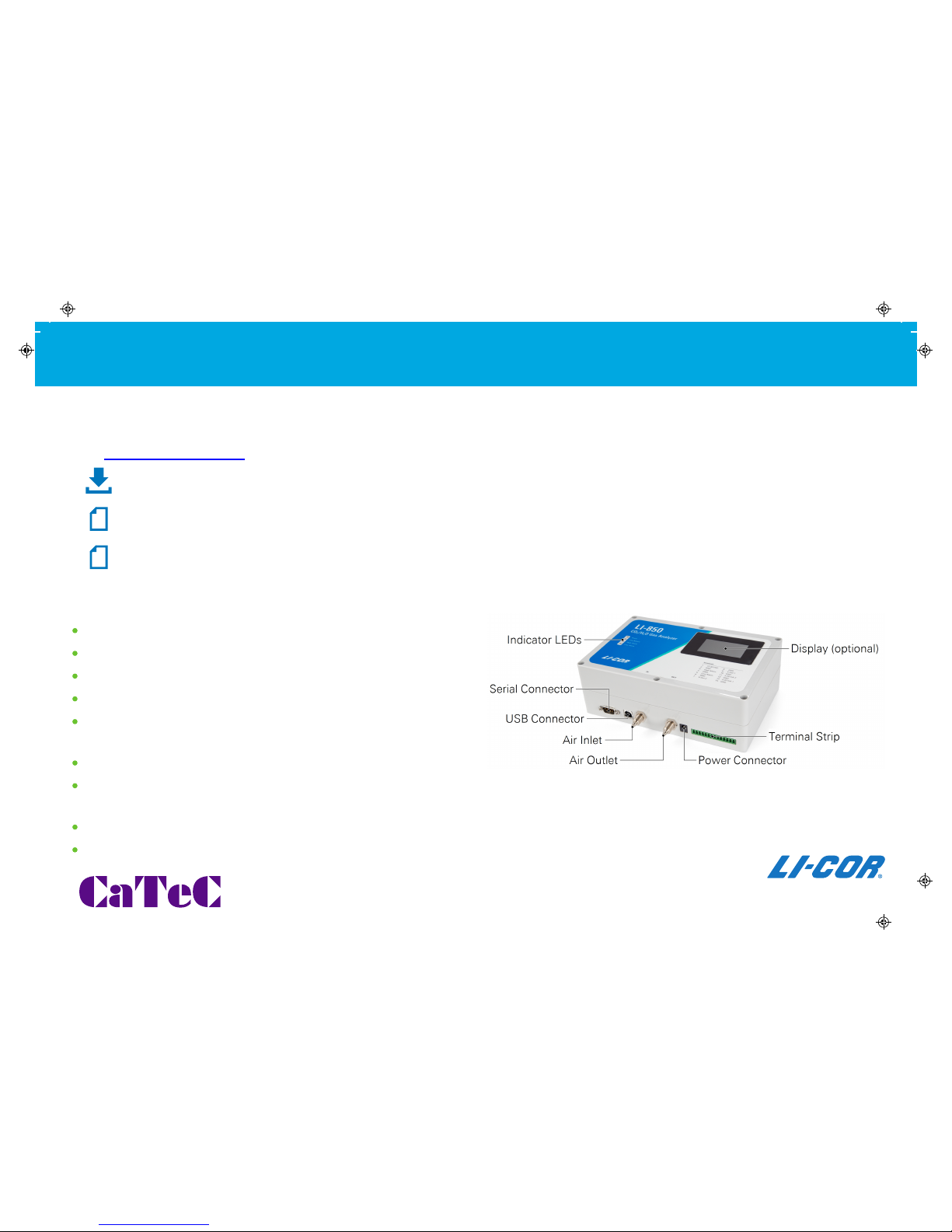
What’s what
Indicator LEDs: Power, low battery, and alarm status indicators.
DB-9 Serial Connector: For an RS-232 serial connection.
USB Connector: For a USB connection with a USB-B to USB-A cable.
Air Inlet: Install a filter before the inlet.
Air Outlet: If your instrument does not have a built-in pump, install a pump
after the air outlet.
Power Connector: Accepts a 12 to 30 VDC power supply, which is included.
Terminal Strip: Provides connections for an alternative power supply, alarms,
and digital-to-analog converter (DAC) outputs.
Display: The display (optional) shows the current readings of gas concentrations, temperature, and pressure.
Pump: An internal pump (optional) flows air at about 0.75 liters per minute.
www.catec.nl
Page 2
Get started
Step 1: Install the software
Go to www.licor.com/env/support, select the LI-830 & LI-850, then select Software. Choose the software for your computer operating system (Windows® or
macOS®), download it, and then install it on your computer.
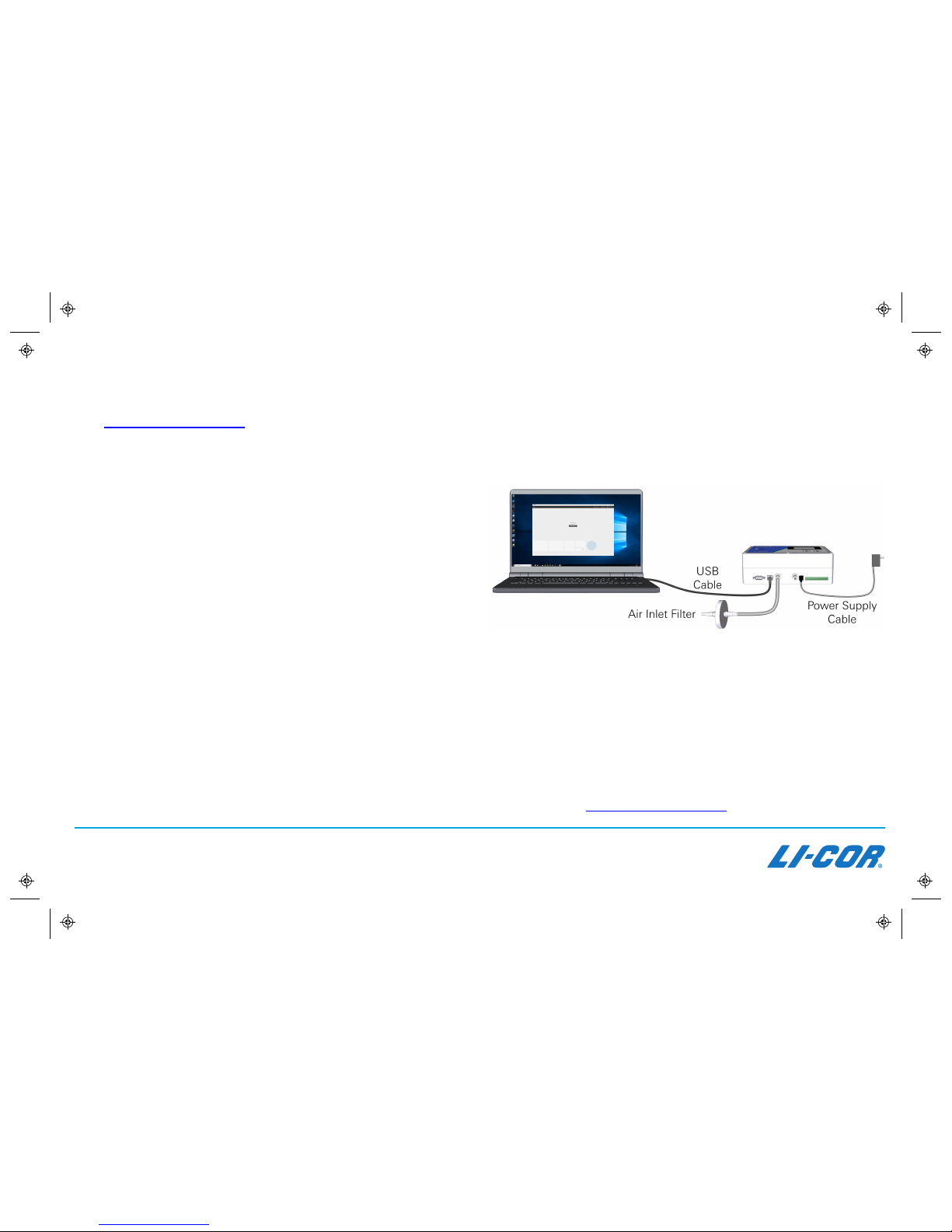
Step 2: Connect the power supply to power on the instrument
Each LI-850 and LI-830 includes a universal power supply, which is compatible
with 100 to 240 VAC, 50 to 60 Hz power. You may need to change the outlet
adapter on the power supply if it will not fit into your electrical outlet. Connect
the universal power supply to a power outlet, then connect it to the power connector on the instrument.
Step 3: Connect the USBcable
Each LI-850 and LI-830 includes a standard 1.8 meter USB-A to USB-B cable. It
connects the USB port on your computer to the USB port on the instrument.
Step 4: Connect to the instrument
Open the LI-830 & LI-850 application software. Click Connect in the center of the software window, and then select your instrument from the list.
Step 5: Configure the instrument
You will see data stream onto the graph. You can configure the alarms, DAC outputs, and other settings in the software. Be sure to install a filter on the air
inlet.
Get support
Looking for the calibration certificate or more documentation? Need technical support? Contact us at www.licor.com/env/support.
GlobalHeadquarters
Lincoln, Nebraska, USA
Intl.: +1-402-467-3576
[email protected]
OutsidetheUnited States– RegionalOffices
andDistributors
www.licor.com/env/ contact
Windows® is a trademark of Microsoft, Inc. macOS ® is a trademark of
Apple, Inc., r egis tered in the US and other countries.
©2018LI-COR, Inc. All rig hts res erved.
984-17217• 01/18
 Loading...