

Page 1
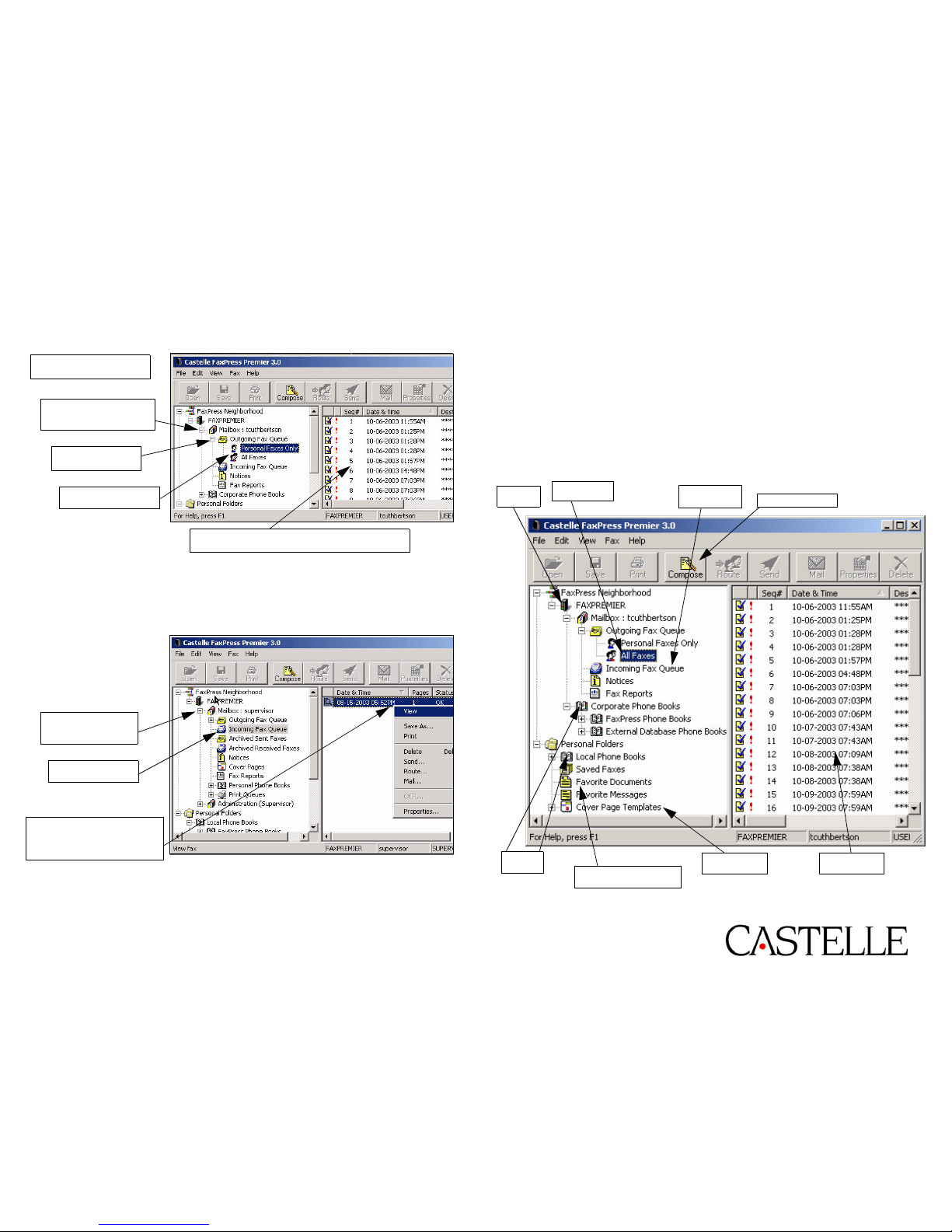
*Viewing Status of Outgoing Faxes*
To monitor the status of faxes you have sent to the FaxPress
Premier server, take the following steps:
*Viewing Incoming Faxes*
To view a list of faxes you have received, take the following steps:
You can also double-click on a fax in the list to view it.
NOTE: If you are using the Web Interface or an e-mail
integration of Premier to send and receive faxes, please refer to
the FaxPress Premier User’s Guide for details.
The Faxes in the Queue are listed. Right-click
on a fax to see the actions you can take on it.
FaxPress
Premier
™
Faxmain
™
QUICK REFERENCE
Premier
Server
Outgoing
Fax Queue
Incoming
Fax Queue
Compose Fax
Phone
Books
Favorite Attachment
Documents
Cover Page
Tem p la t es
List Display
Window
60-0210-001 A
®
1. Log onto the FaxPress
Premier.
2. Click ‘+’ by your
Mailbox to expand the
Faxmain tree.
3. Click ‘+’ by
Outgoing Faxes.
4. Select Personal
Faxes or All Faxes.
1. Click ‘+’ by your
Mailbox to expand
the Faxmain tree.
2. Select Incoming
Fax Queue.
3. Right-click on a fax to see
the actions you can take on
it. Choose View to see the
Fax in the default Viewer.
Page 2
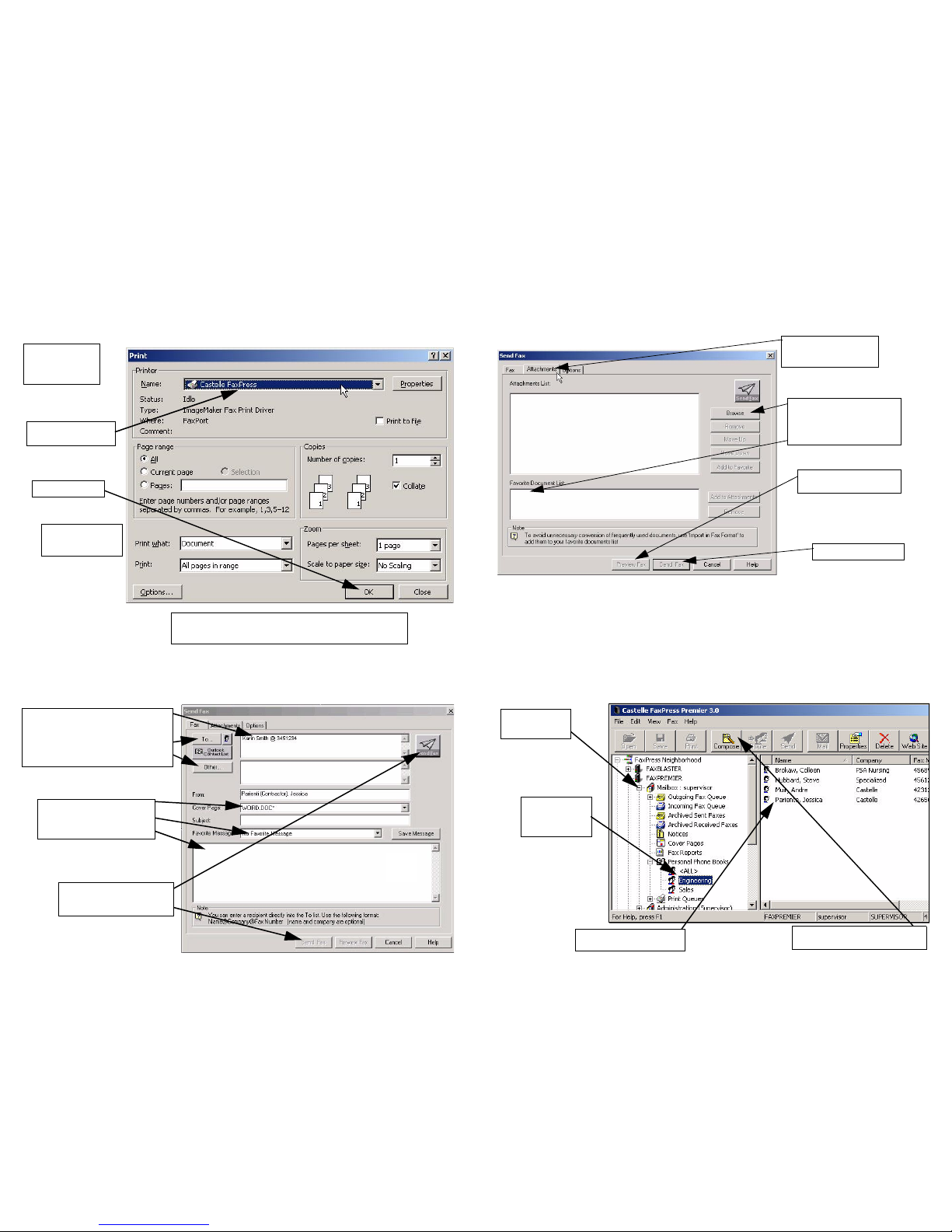
*Sending Faxes from Applications*
Sending faxes from applications is as easy as printing them.
Instead of sending them to a network printer, the Castelle fax
driver sends them to FaxPress Premier.
The FaxPress Premier Send Fax window opens:
Alternatively, if you are using a Microsoft Office
Application, choose Send To from the File menu,
then choose the Castelle FaxPress option
5. Enter adressee as:
recipient name @ fax_number
OR choose from the To list,
OR click Other to see local
users and email recipients.
6. If a Cover Page is
selected, choose a
Favorite Message, OR
create a message here.
7. Click the Send Fax
icon, or click the Send
Fax button.
*Attaching Files*
Use the Attachments tab of the Send Fax window to attach native
documents to an addressed fax. FaxPress Premier automatically
converts the document to fax format.
*Viewing Phone Books*
You can look for recipients in any phone book that is linked to
your FaxPress Premier server, via the FaxPress Neighborhood
tree on the left side of the Faxmain screen.
1. After addressing
the fax, click the
Attachments tab.
2. Click Browse to find
and select files. OR
select files from the
pre-set Favorite
Documents List.
3. Click Preview Fax
to view the fax.
4. Click Send Fax.
1. Click ‘+’ by
Mailbox to
expand tree.
2. Select a
Personal or
Corporate
Phone Book.
3. Select a recipient in
the Phone Book list.
4. Click Compose button to
open Send Fax window.
1. Select Print
from the File
menu in your
Application.
2. Select Castelle
FaxPress.
3. Click OK.
4. A Login box
appears. Log in
to Faxmain.
 Loading...