

Page 1

FaxPress Enterprise
A New Generation of Network Fax Servers
Getting Started Guide
™
Page 2

Page 3

i
IMPORTANT NOTICE
©2007, Castelle®. All Rights Reserved. FaxPress Enterprise Getting Started Guide. PN 61-1344-001
This material is protected by international copyright laws. Reproduction in any form is prohibited without permission.
Castelle is a U.S. Registered Trademark of Castelle. FaxPress Enterprise™ is a trademark of Castelle. Novell®, Netware®,and NDS® are
U.S. Registered Trademarks of Novell, Inc. Microsoft®, Windows Vista®, Windows®, Windows 2000®, Windows NT®, Windows 2003®,
Microsoft Word®, Microsoft Outlook®, Microsoft WordPad®, Microsoft PowerPoint® and Microsoft Excel® are U.S. Registered
Trademarks of Microsoft, Inc. All product names are U.S. Registered Trademarks or trademarks of their respective owners.
CREDIT INFORMATION: This product includes cryptographic software written by Eric A. Young ([email protected]). This product
includes software written by Tim J. Hudson ([email protected]).
LibTIFF decoder software is used in the product software, and the following copyright notices and license are displayed below as required:
Copyright (c) 1988-1997 Sam Leffler
Copyright (c) 1991-1997 Silicon Graphics, Inc.
Permission to use, copy, modify, distribute, and sell this software and its documentation for any purpose is hereby granted without fee,
provided that (i) the above copyright notices and this permission notice appear in all copies of the software and related documentation, and
(ii) the names of Sam Leffler and Silicon Graphics may not be used in any advertising or publicity relating to the software without the specific,
prior written permission of Sam Leffler and Silicon Graphics.
A tree menu written in JavaScript and authorized by Morten Wang and contributors is included in the product software, and the following
copyright notices and legend is displayed below as required:
Copyright (c) 2001-2002, Morten Wang & contributors All rights reserved.
Neither the name "Morten's JavaScript Tree Menu" nor the names of its contributors may be used to endorse or promote products derived from
this software without specific prior written permission.
THIS SOFTWARE IS PROVIDED BY THE COPYRIGHT HOLDERS AND CONTRIBUTORS "AS IS" AND ANY EXPRESS OR
IMPLIED WARRANTIES, INCLUDING, BUT NOT LIMITED TO, THE IMPLIED WARRANTIES OF MERCHANTABILITY AND
FITNESS FOR A PARTICULAR PURPOSE ARE DISCLAIMED. IN NO EVENT SHALL THE REGENTS OR CONTRIBUTORS BE
LIABLE FOR ANY DIRECT, INDIRECT, INCIDENTAL, SPECIAL, EXEMPLARY, OR CONSEQUENTIAL DAMAGES (INCLUDING,
BUT NOT LIMITED TO, PROCUREMENT OF SUBSTITUTE GOODS OR SERVICES; LOSS OF USE, DATA, OR PROFITS; OR
BUSINESS INTERRUPTION) HOWEVER CAUSED AND ON ANY THEORY OF LIABILITY, WHETHER IN CONTRACT, STRICT
LIABILITY, OR TORT (INCLUDING NEGLIGENCE OR OTHERWISE) ARISING IN ANY WAY OUT OF THE USE OF THIS
SOFTWARE, EVEN IF ADVISED OF THE POSSIBILITY OF SUCH DAMAGE.
Castelle makes no representations or warranties with respect to the contents or use of this manual, and specifically disclaims any express or
implied warranties on merchantability or fitness for any particular purpose. Castelle reserves the right to change, without notice, product
offerings or specifications and the information in this document. No publication may be reproduced in any form without written permission
from Castelle. Use, duplication, or disclosure is subject to the restrictions as set forth in the Rights in Technical Data and Computer Software
clause at DFARS 252.227-7013 subparagraph (c)(1)(ii), or the Commercial Computer Software-Restricted Rights at CFR 52.227-19,
subparagraphs (c)(1) and (2), as applicable. If user is a unit or agency of the United States Government, or if a license hereunder is acquired
pursuant to a contract with any such unit or agency, user agrees that the Software and Documentation are provided with Restricted Rights.
Castelle Corporate Headquarters
855 Jarvis Drive, Suite 100
Morgan Hill, CA 95037
www.castelle.com
Toll Free: +1(800) 289-7555
Tel: +1(408) 852-8000
Fax: +1(408) 852-8100
E-mail: [email protected]
Page 4

ii
Page 5

3
Contents
Introducing the FaxPress Enterprise Fax Server _________________________________________ 5
Package Contents _____________________________________________________________ 5
About the FaxPress Plus CD-ROM ________________________________________________ 5
Documentation___________________________________________________________________ 6
Electronic Documentation _______________________________________________________ 6
Printed Documentation _________________________________________________________ 6
About the FaxPress Enterprise Server Setup ___________________________________________ 7
Rack Mounting or Shelf Mounting _________________________________________________ 7
Setup Requirements ___________________________________________________________ 7
T1, E1 ISDN PRI or ISDN BRI Support _____________________________________________ 7
Required Setup Procedures _____________________________________________________ 8
Optional Setup Procedures ______________________________________________________ 9
Important! The FaxPress Enterprise Local Administrator Account ________________________ 9
PBX Integration, DNIS Information and Automatic Routing Requirements _________________ 10
Network Security/Installing Antivirus Software ______________________________________ 10
FaxPress Enterprise Backward Compatibility _______________________________________ 11
Connecting the FaxPress Enterprise to the Network_____________________________________ 13
Powering On the FaxPress Enterprise Server __________________________________________ 14
Powering On in a DHCP Environment_____________________________________________ 14
Powering On in a Static IP Environment ___________________________________________ 14
Assigning a Static IP Address ______________________________________________________ 27
FaxPress Enterprise T1 and T1 CAS and ISDN PRI _____________________________________ 15
FaxPress Enterprise and T1 CAS/RBS Signaling ____________________________________ 15
FaxPress Enterprise and T1 ISDN PRI ____________________________________________ 15
FaxPress Enterprise and Fractional T1____________________________________________ 15
Required T1 Line Carrier Information _____________________________________________ 15
Configuring the FaxPress Enterprise T1 for T1 ISDN PRI _____________________________ 16
FaxPress Enterprise E1 and E1 ISDN PRI (Primary Rate Interface)_________________________ 20
FaxPress Enterprise Board Settings and E1 ISDN PRI (Primary Rate Interface) ____________ 20
About the FaxPress Enterprise and Fractional E1 Lines_______________________________ 20
Required E1 Line Carrier Information _____________________________________________ 20
About the Dialogic Fax Board’s Range of Extensions Settings __________________________ 20
FaxPress Enterprise ISDN and ISDN BRI (Basic Rate Interface) ___________________________ 23
Required ISDN BRI Line Carrier Information________________________________________ 23
About the Dialogic Fax Board’s Range of Extensions Settings __________________________ 23
Page 6

FaxPress Enterprise Getting Started Guide
4
Configuring the FaxPress Enterprise for ISDN BRI ___________________________________ 23
Activating FaxPress Plus, the FaxPress Enterprise Client Software _________________________ 26
Changing the FaxPress Enterprise Server’s IP Address __________________________________ 28
Changing the IP Address Using the LCD Window (Models With 4-key Keypad)_____________ 28
Changing the IP Address Using the LCD Window (Models With 5-key Keypad)_____________ 29
Using Remote Desktop____________________________________________________________ 30
Changing the FaxPress Enterprise’s IP Address Using Remote Desktop__________________ 30
About the FaxPress Enterprise’s File Conversion Service_________________________________ 31
About the FaxPress Enterprise’s File Conversion Service_________________________________ 31
Installing Applications for the File Conversion Service ________________________________ 31
About the File Conversion Service________________________________________________ 31
Castelle Resources ______________________________________________________________ 32
Technical Support ____________________________________________________________ 32
Web Site_______________________________________________________________________ 32
Safety _________________________________________________________________________ 34
FaxPress Enterprise Support Services Agreement ______________________________________ 35
Castelle’s FaxPress Enterprise Support Services Terms and Conditions _____________________ 37
License Agreement_______________________________________________________________ 40
Page 7

5
Introducing the FaxPress Enterprise Fax Server
Introducing the FaxPress Enterprise Fax Server
Congratulations on purchase of your new FaxPress Enterprise fax server. This Getting Started Guide is
provided as a printed introductory supplement to the electronic FaxPress Enterprise Administrator WebHelp
Guide, which can be found on the Castelle website.
The information here is excerpted from the FaxPress Enterprise Administrator WebHelp Guide, and contains
all the information required to get the FaxPress Enterprise up and running on your network. Use this Guide
to get started, then refer as needed to the WebHelp Administrator Guide.
Package Contents
Keep the FaxPress Enterprise’s box and shipping material. Specifically designed to protect the FaxPress
Enterprise server during transport, the FaxPress Enterprise’s packaging should be kept for future shipping
purposes.
The FaxPress Enterprise server shipment should contain the following items:
• A FaxPress Enterprise network fax server
• A Castelle FaxPress Plus CD-ROM
• Two power cables
The FaxPress Enterprise also requires an RJ-45 cable, which should be provided by your digital line carrier.
About the FaxPress Plus CD-ROM
The FaxPress Plus CD-ROM provides:
• Latest version of the FaxPress Plus client for administrators/users
• E-mail integration solutions
• Connectors for Multi Function Printer (MFP) devices
• Various Add-On Products
Page 8

FaxPress Enterprise Getting Started Guide
6
Documentation
Castelle offers both electronic and printed versions of the FaxPress Enterprise documentation.
Electronic Documentation
It is recommended that a workstation connected to the Internet be available during installation, configuration
and use of the FaxPress Enterprise. To access the FaxPress Enterprise WebHelp system, which includes the
Admin, User, and Email Gateways Guides, go to the following URL:
http://www.castelle.com/WebHelp/5_0/fpe/
Other documentation is provided on the Castelle web site at the following URL:
http://www.castelle.com/support/documentation/guides
Printed Documentation
Castelle provides a printed copy of this Getting Started Guide.
1. To print hard copies of all other documentation, use the Castelle WebHelp system available at the
URL shown above.
Page 9

7
About the FaxPress Enterprise Server Setup
About the FaxPress Enterprise Server Setup
Each section in this chapter provides important FaxPress Enterprise setup information.
Rack Mounting or Shelf Mounting
The FaxPress Enterprise fax servers can either be rack-mounted or stationed on a shelf or desktop. FaxPress
Enterprise products are rack-mountable by attaching the two provided mounting brackets. To mount a
FaxPress Enterprise unit on a 19” rack, use the four specific screws provided by the rack vendor. These
special screws are not provided by Castelle.
By attaching the four provided rubber feet to the bottom of the chassis, the FaxPress Enterprise unit can be
stationed on a desktop or shelf. For units stationed on a desktop, the two rack mounting brackets on both sides
of the chassis may be removed.
Setup Requirements
Setting up the FaxPress Enterprise will require:
• T1 line type and configuration parameter information in case the FaxPress Enterprise’s default fax board
settings require modifying.
• DNIS string information.
• PBX programming, in some cases.
• An eight-conductor RJ-45 data cable provided by the telco/line carrier.
• A trained PBX technician present, if the FaxPress Enterprise will be connected to a PBX.
• A CSU, CSU/DSU, or PBX (required only for units interfacing to a T1).
T1, E1 ISDN PRI or ISDN BRI Support
The FaxPress Enterprise comes pre-configured to support one of three basic digital line types: T1, E1 ISDN
PRI or ISDN BRI. Depending on your digital line protocol and range of line extensions, some additional fax
board configuration may be required.
To determine the additional fax board configuration required for your FaxPress Enterprise, see:
• FaxPress Enterprise T1 and T1 CAS and ISDN PRI on page 15 to configure the FaxPress Enterprise
for T1 CAS or T1 ISDN PRI.
• FaxPress Enterprise E1 and E1 ISDN PRI (Primary Rate Interface) on page 20 to configure the
FaxPress Enterprise for an E1 ISDN PRI line.
• FaxPress Enterprise ISDN and ISDN BRI (Basic Rate Interface) on page 23 to configure the FaxPress
Enterprise for ISDN BRI.
Page 10

FaxPress Enterprise Getting Started Guide
8
Required Setup Procedures
Setting up the FaxPress Enterprise server for basic operation involves these required steps:
1. Connecting the FaxPress Enterprise to the network and phone system. (See Connecting the
FaxPress Enterprise to the Network on page 13.)
2. Powering on the Enterprise. (See Powering On the FaxPress Enterprise Server on page 14.)
3. Configuring the FaxPress Enterprise’s fax board. (See FaxPress Enterprise T1 and T1 CAS and
ISDN PRI on page 15, FaxPress Enterprise E1 and E1 ISDN PRI (Primary Rate Interface) on page
20 or FaxPress Enterprise ISDN and ISDN BRI (Basic Rate Interface) on page 23.)
4. Joining the fax server to the network domain. Joining the FaxPress Enterprise to the network domain
is required to import users from Active Directory with the FaxPress Active Directory Synchronizer.
(See
Importing and Mapping Users in the FaxPress Enterprise Administrator Guide.) This procedure
applies only to Microsoft Windows networks.
5. Taking necessary antivirus and security measures. (See Network Security/Installing Antivirus
Software on page 10.)
6. Installing the applications required for attachment conversion. To use the Email Gateways or to use
the Drop Directory for production faxing, you’ll need to install any applications, such as the Microsoft
Office suite, used frequently by your users. See
Installing Applications for the File Conversion
Service on page 31 for details.
7. Installing the FaxPress Plus client on a network workstation. The FaxPress Plus client is the
Windows-based FaxPress Enterprise administration and fax transaction utility. (See
Installing the
Administrator Client
in the Administrator Guide.) Logged on to FaxPress Plus as Administrator,
you’ll use FaxPress Plus to configure the FaxPress Enterprise fax server, and to create and configure
users. If you use the Web Client Interface to configure the fax server and users, installing the FaxPress
Plus client is not immediately required.
8. Activating the FaxPress Plus software with the Software Activation Key. (See Activating FaxPress
Plus, the FaxPress Enterprise Client Software on page 26 in this manual.)
9. Configuring the FaxPress Enterprise Line Settings, Dialing Properties, E-mail settings, and DNIS
settings using FaxPress Plus. (See
Chapter 5, Configuring the FaxPress Enterprise in the
Administrator Guide.)
10. Sending and receiving a test fax using one of the three generic, pre-created user accounts
(Administrator, Guest and Unaddressed) to confirm the FaxPress Enterprise server is operational. (See
Sending a Test Fax in the FaxPress Enterprise Administrator Guide.)
11. Configuring the Email Gateway to e-mail hardware and network connection failure notices to the
Administrator. (See
About the FaxPress Enterprise’s File Conversion Service on page 31.)
Page 11

9
About the FaxPress Enterprise Server Setup
12. Installing the FaxPress Plus client on the user workstations. (See Installing the FaxPress Enterprise
Client
in the Administrator Guide.)
13. Creating and configuring new users. (See Creating and Configuring FaxPress Enterprise User
Accounts
and Importing and Mapping Users in the Administrator Guide.)
14. (Highly Recommended) Activating the Backup service guarantees user files and data are protected
should any unexpected system damage or failure occur. (See the
FaxPress Enterprise Backup and
Restore
chapter in the Administrator Guide.) Castelle cannot take responsibility for any data lost
should system problems occur.
Optional Setup Procedures
After the Enterprise is up and running, you may decide to implement the following optional features:
• The FaxPress Enterprise Archive. (See the Archiving Faxes in the Administrator Guide.)
• The FaxPress Enterprise Email Gateway for network users. (See About the FaxPress Enterprise’s File
Conversion Service on page 31 and the Email Integration chapter in the Administrator Guide.)
Important! The FaxPress Enterprise Local Administrator Account
The default user name for the FaxPress Enterprise’s Windows Server 2003 account is Administrator. The
default password is
castelle, all lower case. If you change this default password, you MUST also change the
password of the local Administrator account used by the FaxPress Enterprise Conversion Service to match.
The Castelle FaxPress Enterprise Conversion Service uses the FaxPress Enterprise’s local Administrator
account to convert files for fax transmission. Changing the default password for the FaxPress Enterprise’s
Windows user account automatically stops the Conversion Service. Stopping the Conversion Service also
stops all outgoing fax transmissions, whether or not the transmissions contain attached files.
To change the password of the Conversion Service’s local Administrator account, follow these steps:
1. Open the Windows Services list.
2. Right-click on the Castelle FaxPress Enterprise Conversion Service and select Properties.
(Start>Settings>Control Panel>Administrative Tools>Services.)
3. With the Logon tab selected, enter the new password for the Conversion Service’s local
Administrator account. This password must match the password assigned to the default Administrator
user for the FaxPress Enterprise’s Windows operating system.
4. Save the settings and restart the Conversion Service.
This same procedure should be used to restore service if fax transmission has been interrupted due to this
Administrator account password issue.
Note: For more information on the FaxPress Enterprise Conversion Service, see About the FaxPress
Enterprise’s File Conversion Service on page 31.
Page 12

FaxPress Enterprise Getting Started Guide
10
PBX Integration, DNIS Information and Automatic Routing Requirements
Configuring the FaxPress Enterprise for automatic inbound routing and PBX integration will require you to
know the DNIS string information coming from the digital line. This information includes number of DNIS
digits, total length of the string including ANI digits (if any), and other characters. Contact your line carrier
for DNIS string information. The FaxPress Enterprise’s dtmf.log file diagnostic tool can also be used to
determine the DNIS string information. The FaxPress Enterprise’s configurable digit filter (see below)
provides advanced parsing capability that allows the FaxPress Enterprise to integrate with most PBX systems.
Note: See Automatic Routing: PBX Integration and Determining the Number of Mailbox ID Digits in
the FaxPress Enterprise Administrator Guide for additional, detailed information on automatic
routing and PBX integration. Also, when connecting the FaxPress Enterprise to a PBX, a trained
PBX technician must be on site.
About the FaxPress Enterprise Configurable Digit Filter
The FaxPress Enterprise configurable digit filter provides advanced digit string parsing capability that allows
the FaxPress Enterprise to integrate easily with most PBX systems. Digit strings are a combination of numeric
and alphanumeric digits generated either by the line carrier or by the PBX system. Digit strings include the
extension-identifying information required for the FaxPress Enterprise user mailbox IDs, but can also include
non-essential or “garbage” information that must be discarded.
The Enterprise’s digit filter can be configured to strip non-essential information and retain the digit
information required to identify the users’ Enterprise mailbox IDs. The FaxPress Enterprise supports up to 7
digits for the mailbox ID, although mailbox IDs are more commonly 3 or 4 digits.
If, as an example, the dialed number is 408-852-7081, the call may be sent as 1188 408 852708199 while
routing through the central office or PBX system. If four digits are required for the FaxPress Enterprise
mailbox ID, the FaxPress Enterprise will parse the unnecessary digits off the number, e.g., xxxxxx7081xx.
See Determining the Number of Mailbox ID Digits in the FaxPress Enterprise Administrator Guide for more
information on FaxPress Enterprise mailbox IDs.
Network Security/Installing Antivirus Software
The Enterprise requires the same kind of standard antivirus protection and security measures used with the
other servers on your network. Castelle strongly recommends that all data files be scanned for possible viruses
before being sent to FaxPress Enterprise for file conversion and fax transmission.
Manage the FaxPress Enterprise the same way you manage the other servers in your environment. The
company policy for hot fixes should also apply to the FaxPress Enterprise. Be aware, however, that some hot
fixes may be incompatible with normal FaxPress Enterprise on a case by case basis. For example, some
security hot fixes may disable network ports needed by the FaxPress Enterprise, or change the system Print
spooler to a setting other than autostart. These specific changes are examples of the kinds of security fixes
incompatible with normal FaxPress Enterprise operation.
Page 13

11
About the FaxPress Enterprise Server Setup
Antivirus Configuration Recommendations
Installing antivirus software on the FaxPress Enterprise server with full file scan enabled will degrade
performance and is not recommended. When configuring antivirus software on the FaxPress Enterprise, be
sure to exclude the following directories from On Access or Real Time scanning:
• Exclude the c:\Castelle directory (and sub-directories) on the Enterprise from On Access or Real Time
scanning. Schedule these directories for a
Periodic scan to be run during off-peak hours.
•Exclude the C:\pagefile.sys paging file from On Access or Real Time scanning. This files is typically
a “hidden,” “protected operating system” file.
Any antivirus software used should also be configured not to disable network ports. The FaxPress Enterprise
uses DCOM, for example, in load balancing configurations. DCOM listens on dynamic ports. The FaxPress
Enterprise listens on the following static ports, which should not be disabled:
• 25 - SMTP (Email Gateways)
• 139 - NetBIOS Session Service (Print Spooler, Drop directory)
• 443 - HTTPS (Web Client Interface, Web Services SDK)
• 445 - SMB (Print spooler, Drop Directory)
Although installing antivirus software is recommended, the FaxPress Enterprise should be closely monitored
for changes in performance after adding the antivirus software. Changes in performance as the result of
running antivirus software on the FaxPress Enterprise include the following:
• CPU Utilization jumps to 100% and stays there. In most cases, this can be resolved by excluding the
c:\Castelle directory (and sub-directories) on the FaxPress Enterprise from On Access or Real Time
scanning, as noted above.
• The FaxPress Enterprise no longer appears in the FaxPress Accounts dialog box of the FaxPress
Enterprise client FaxPress Plus. This is due to a blocked port on the FaxPress Enterprise. This can be
resolved manually by adding the FaxPress Enterprise to the FaxPress Accounts using the
TCP/IP
Advanced
option and specifying the Name/IP addresses of the FaxPress Enterprise server. (See
Locating a Remote Enterprise Server in the Administrator Guide for more information.)
With regard to Microsoft Service Pack updates, Castelle recommends applying the latest Service Packs to
FaxPress Enterprise. Castelle applies the latest Service Pack to the FaxPress Enterprise at the time the HDD
image is created. This means the FaxPress Enterprise server ships with a relatively new Service Pack, but the
Service Pack it ships with may still be behind the most current Microsoft Service Pack release.
FaxPress Enterprise Backward Compatibility
With some restrictions, the FaxPress Enterprise’s FaxPress Plus server software and client software are
compatible with FaxPress server software and with FaxPress Plus server and client software.
Page 14

FaxPress Enterprise Getting Started Guide
12
Backward Compatibility with FaxPress Premier
FaxPress Enterprise servers and FaxPress Premier fax servers can work together on the same network, but
there are some restrictions to keep in mind:
• The FaxPress Enterprise client software, FaxPress Plus, will only support FaxPress Plus servers running
FaxPress Plus 4.x or above server software. The FaxPress Plus client will not support FaxPress Plus
servers running 3.x server software.
• All FaxPress Plus servers (Enterprise Redundant, Enterprise and Premier) must be running version 5.0
server software before upgrading any FaxPress Plus 4.1.1 or older clients to version 5.0.
• Once upgraded to version 5.0, FaxPress Plus servers and clients cannot be reverted to an older version.
• FaxPress Plus 5.0 clients cannot logon to a 4.1.1 or older FaxPress Plus server.
Backward Compatibility with FaxPress Servers
FaxPress Enterprise servers and FaxPress fax servers can work together on the same network, but there are
some restrictions to keep in mind:
• FaxPress client software can only be used to access FaxPress servers; it cannot be used to access the
FaxPress Enterprise. Only the FaxPress Plus client can log into the FaxPress Enterprise.
• Although the FaxPress Plus client can be used to access FaxPress servers, advanced FaxPress Plus client
features designed specifically for use with the FaxPress Enterprise will automatically be disabled when
the FaxPress Plus client is used with the FaxPress servers.
• FaxPress servers running server software versions earlier than 6.x will need to be upgraded to be
compatible with FaxPress Plus client software.
• FaxPress Plus and FaxPress client software cannot be installed on the same client system.
• Before installing a new version of either the FaxPress or FaxPress Plus client software, be sure to
uninstall any existing version of the FaxPress or FaxPress Plus client software.
See http://www.castelle.com/support for more specific information on using FaxPress Enterprise and
FaxPress servers together on the same network.
Page 15

13
Connecting the FaxPress Enterprise to the Network
Connecting the FaxPress Enterprise to the Network
The FaxPress Enterprise requires an eight-conductor RJ-45 data cable. Use the RJ-45 cable provided by your
telco carrier.
To connect the FaxPress Enterprise to your network and T1 line, follow these steps:
1. Connect the network cable to the FaxPress Enterprise server’s network port.
2. Connect the T1, E1 or PBX to the FaxPress Enterprise’s T1/E1 port.
3. Plug the power cable into the FaxPress Enterprise server.
4. Plug the power cable into a power source.
To power on the FaxPress Enterprise, see the next section, Powering On the FaxPress Enterprise Server.
Page 16

FaxPress Enterprise Getting Started Guide
14
Powering On the FaxPress Enterprise Server
Once you’ve connected the FaxPress Enterprise network port to your network and plugged the power cable
into the power source, power on the Enterprise by using the power switch on the front of the unit.
Powering On in a DHCP Environment
By default, the FaxPress Enterprise is DHCP-enabled. If powered on in a DHCP environment, the FaxPress
Enterprise will automatically be assigned an IP address from your network’s DHCP server, but will still need
to be manually joined to the network domain.
Castelle recommends manually assigning a static IP address to the FaxPress Enterprise. To change the
FaxPress Enterprise’s server-assigned IP address to a static IP address, see
Assigning a Static IP Address
on page 27.
Powering On in a Static IP Environment
If the FaxPress Enterprise server is operating in a non-DHCP (static IP) environment, it will automatically
assign itself a randomly generated static IP address. To change the FaxPress Enterprise’s self-assigned IP
address to a static IP address in the range on your network, see
Assigning a Static IP Address on page 27.
Page 17

15
FaxPress Enterprise T1 and T1 CAS and ISDN PRI
FaxPress Enterprise T1 and T1 CAS and ISDN PRI
High-volume digital service in US domestic areas is typically either T1 CAS /RBS (Channel Associated
Signaling/Robbed Bit Signaling) or T1 PRI (Primary Rate Interface), also called T1 ISDN PRI. The T1 CAS/
RBS configuration provides 24 fax channels; the T1 PRI/T1 ISDN PRI configuration provides 23 fax bearer
(B) channels and one data signaling (D) channel.
FaxPress Enterprise and T1 CAS/RBS Signaling
The FaxPress Enterprise T1’s Intel Dialogic board settings are pre-configured to support T1 CAS/Robbed Bit
Signaling, with Line Coding B8ZS, and Framing ESF. For T1 CAS/RBS, with Line Coding B8ZS, and
Framing ESF, no fax board configuration is required.
FaxPress Enterprise and T1 ISDN PRI
The FaxPress Enterprise T1’s default fax board configuration must be modified to support T1 IDSN PRI (also
called T1 PRI). See
Required T1 Line Carrier Information and Configuring the FaxPress Enterprise T1
for T1 ISDN PRI on page 16 for details.
FaxPress Enterprise and Fractional T1
The FaxPress Enterprise Fractional T1 unit will use the first 8 channels of the 24 channels on a T1 line.
Confirm with your T1 carrier that the T1 line they’re providing you has the first 8 channels activated rather
than the last 8 channels or the middle 8 channels.
CSU/DSU Requirements
An FCC part 68 appropriately certified Channel Service Unit (CSU) or Channel Service Unit/Data Service
Unit (CSU/DSU) or PBX must be in place before attaching FaxPress Enterprise to the public T1 line. The
FaxPress Enterprise should not be connected directly to the public telephone T1 network.
CSUs provide line conditioning, loopback and diagnostic capabilities. The signals present on a T1 are
susceptible to distortion as loop length increases and various types of interferences are encountered. The CSU
reinforces these signals, keeps track of errors, and provides test modes to help resolve line issues.
Many CSUs also provide an especially useful "keep alive" feature which will keep the T1 link up even if your
network interface device goes down. Your T1 line’s activation is determined by customer premises
equipment. That is, your carrier will turn off your T1 if the central office detects the network interface
inactivity on your end. Having a CSU in place helps to avoid calls to your carrier to ask them to re-enable a
T1 shutdown when equipment inactivity on your end is detected.
Required T1 Line Carrier Information
T1 line and switch types, signaling protocols, coding and framing can vary. The phone company must provide
the information required for configuring the FaxPress Enterprise. The phone company/line carrier will need
to tell you:
Page 18

FaxPress Enterprise Getting Started Guide
16
• Whether the Signaling Protocol is T1 CAS/Robbed Bit Signaling or T1 ISDN (4ESS or 5ESS or DMS
or NI2.)
• Whether the Line Coding is B8ZS or AMI
• Whether the Framing is ESF or D4 (most T1 ISDN requires ESF)
• The DNIS string configuration, including number of DNIS digits, total length of the string including
ANI digits (if any), and other characters. Configuring the FaxPress Enterprise mailbox IDs for automatic
routing requires knowing the number of digits being passed. FaxPress Enterprise also has a dtmf.log file
diagnostic tool that can determine precise digit string information.
• the DNIS digit/line extension range (e.g. 272-0001 to 272-1000).
For the FaxPress Enterprise to make international and domestic calls at the same time, the T1 carrier's central
office switch must be configured to accept calls where the CalledNumberType value is 'Unknown,' rather than
'International' or 'National.' Most T1 carriers and lines support the 'Unknown' CalledNumberType value, and
use the DNIS dialstring value to determine if the outgoing call is 'International' or 'National.'Very rarely,
however, some carriers will configure the central office switch on their T1 PRI ISDN (4ESS) lines to accept
only 'International' or 'National' CalledNumberType values, and so will not support the 'Unknown'
CalledNumberType value of the FaxPress Enterprise's Intel CPI/2400CT-T1 board. When ordering T1 PRI
ISDN (4ESS) lines, always make sure your carrier's central office switch will accept the FaxPress
Enterprise board's 'Unknown' CalledNumberType value, or the FaxPress Enterprise will be unable to
make international and domestic calls at the same time.
Configuring the FaxPress Enterprise T1 for T1 ISDN PRI
By default, the FaxPress Enterprise supports T1 CAS, with Signaling Protocol CAS E&M, Line Coding
B8ZS, and Framing ESF. If your T1 line configuration matches the FaxPress Enterprise’s default
configuration, you won’t need to change the FaxPress Enterprise’s digital board configuration
If your T1 line configuration is different from the FaxPress Enterprise’s default configuration, however, you
will need to modify the FaxPress Enterprise’s digital board configuration. If, for example, your T1 Signaling
Protocol is ISDN PRI rather than CAS E&M, or if your Line Coding is AMI rather than B8ZS, you’ll need
to follow the procedure described in this section.
Supporting a T1 with ISDN Signaling Protocol will require you to:
• Configure the Enterprise’s fax board to use T1 ISDN protocol, according to the steps described below.
• Disable channel 24 in the Enterprise’s Line Settings. See Chapter 5, Configuring the FaxPress
Enterprise
for details. Since T1 ISDN PRI configuration provides 23 fax bearer (B) channels and one
data signaling (D) channel, the 24th channel must be disabled to accommodate data signaling. The
Enterprise will still display 24 channels in Faxmain, but channel 24 will be disabled.
Note: Implement the following changes very carefully. Incorrect parameter value changes may
compromise fax board function.
Page 19

17
FaxPress Enterprise T1 and T1 CAS and ISDN PRI
To configure the FaxPress Enterprise’s Dialogic fax board to support T1ISDN PRI, follow these steps:
1. Attach a mouse, keyboard, and monitor to the FaxPress Enterprise. Although Remote Desktop can be
used for configuring other aspects of the FaxPress Enterprise system, it can’t be used for this.
2. Power on the FaxPress Enterprise.
3. Log into the FaxPress Enterprise system as Administrator. The default password is castelle. Make
sure
castelle is all lower case.
4. Open the Services tool. (Start>Settings>Control Panel>Administrative Tools>Services.)
5. Stop all Castelle services.
6. Stop the GammaLink System service.
7. Stop the Dialogic System Service.
8. Use Windows Explorer to browse to the C:\Program Files\Dialogic\Data directory.
9. Find the group of three .config, .pcd, and .fcd files that correspond to your T1 line. Start by looking
in the
gdk_T1 T1 list. If your T1 is ISDN, find the group files related to T1 ISDN, and then find the
three
.config, .pcd, and .fcd files that specifically match your T1 ISDN’s configuration.
10. Select the group of three .config, .pcd, and .fcd files that apply to your T1 line and make backup
copies of them.
11. Use Notepad to open the .config file, modify it with your T1’s specific Line Coding and Framing
parameters, and save it.
12. From a command prompt, change directory to C:\Program Files\Dialogic\Bin, and type:
fcdgen c:\program files\dialogic\data\modified_ config_filename.config
where modified_config_filename.config is the one you just modified in step 11.
13. Press Enter to generate a new .fcd file, filename.fcd.
14. Next, navigate to Program Folders\Intel\Dialogic System Software\Configuration Manager- DCM.
15. Right-click on Configured Devices on computer_name and select Restore Device Defaults.
16. The Intel Dialogic Configuration Manager will re-scan the board and let you select the newly
generated
.fcd file from a list.
17. Select the associated .pcd file and click OK to reload the new .pcd file.
18. Next, in the Intel Dialogic Configuration Manager, select the board (for example, GDK_T1 0 or
GDK_T1_ISDN 0) and click the green Start Service button from the menu bar. This starts the
Dialogic System Service you stopped in step
step 7.
19. Navigate to Program Folders\Intel/Dialogic System Software\Configure GDK.
Page 20
FaxPress Enterprise Getting Started Guide
18
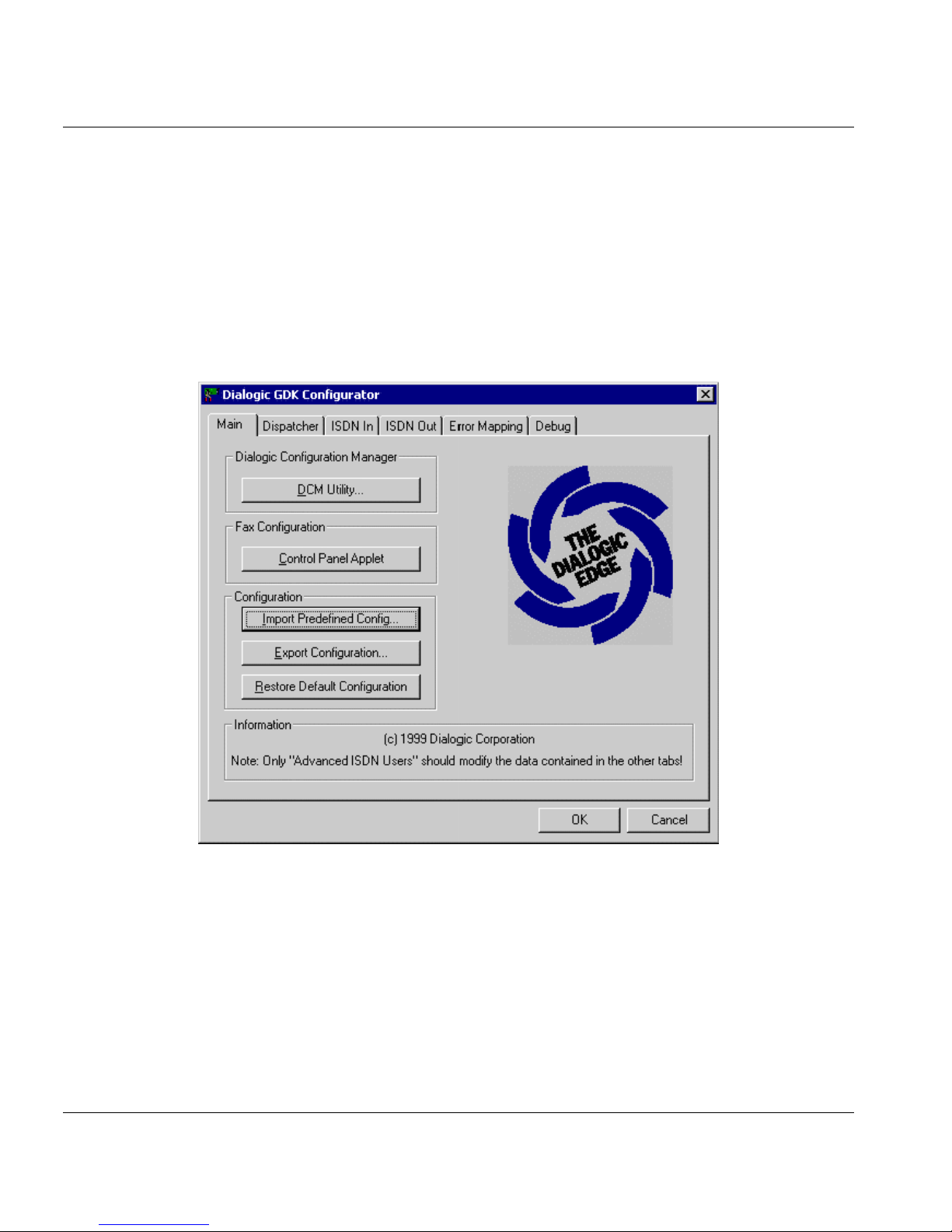
20. In the Dialogic GDK Configurator window, click the Control Panel Applet button.
21. In the Dialogic GammaLink Fax Configuration window, click the Auto Detect button.
22. Click OK to the warning message.
23. Verify the number of fax channels list match the number of fax channels of your FaxPress Enterprise.
24. Click OK to exit Auto detect.
25. Back in the Dialogic GDK Configurator window, click the Import Predefined Config... button.
Page 21
19
FaxPress Enterprise T1 and T1 CAS and ISDN PRI
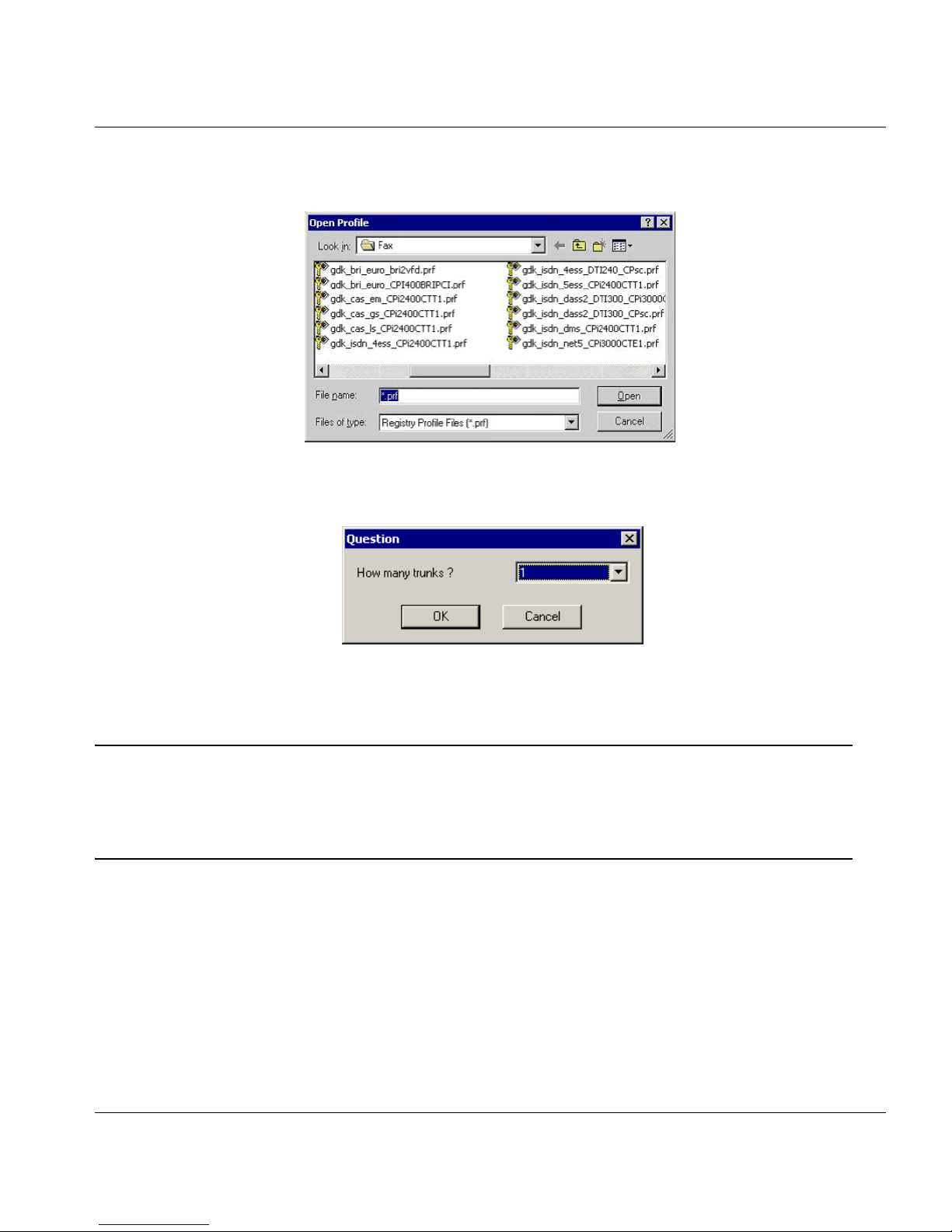
26. Select the .prf file that specifically matches your T1 line, then click Open.
27. Select how many T1 trunks you’re using (the default is 1 for one T1 line) and click OK.
28. Click OK to exit the Dialogic GDK Configurator.
29. Start the GammaLink System Service, start Castelle services.
Note: Very infrequently, the T1 line will not synchronize properly between the FaxPress Enterprise and
the central office. This will cause issues with sending and receiving multiple page faxes. In this
case, the FaxPress Enterprise fax board can be configured to synchronize with the connected T1
line. See
Synchronizing the FaxPress Enterprise Fax Board with the T1 in the Troubleshooting
section of the Administrator Guide.
Page 22

FaxPress Enterprise Getting Started Guide
20
FaxPress Enterprise E1 and E1 ISDN PRI (Primary Rate Interface)
For high-volume faxing in Europe, the FaxPress Enterprise E1 supports E1 ISDN PRI. E1 ISDN PRI provides
30 bearer (B) channels and one data signaling (D) channel.
FaxPress Enterprise Board Settings and E1 ISDN PRI (Primary Rate Interface)
The FaxPress Enterprise E1’s Dialogic board settings are pre-configured to support E1 ISDN PRI. For E1
ISDN PRI, the only fax board setting that may require modifying is the range of line extensions (see
About
the Dialogic Fax Board’s Range of Extensions Settings and Configuring the FaxPress Enterprise for
E1 ISDN PRI in the following sections.)
About the FaxPress Enterprise and Fractional E1 Lines
The FaxPress Enterprise Fractional E1 unit will use the first 8 E1 ISDN PRI channels. Confirm with your
line carrier that the first 8 E1 ISDN PRI channels are activated rather than the last 8 channels or the middle
8 channels.
Required E1 Line Carrier Information
The line carrier must provide the information required for configuring the FaxPress Enterprise. The phone
company/line carrier will need to tell you:
• The switch type (a common example is Euro-ISDN ETSI-DSSI.)
• The DNIS string configuration, including number of DNIS digits, total length of the string including
ANI digits (if any), and other characters. Configuring the FaxPress mailbox IDs requires knowing the
number of digits being passed. FaxPress Enterprise also has a dtmf.log file diagnostic tool that can
determine precise digit string information.
• The DNIS Digit/line extension range (e.g. 272-0001 to 272-1000).
About the Dialogic Fax Board’s Range of Extensions Settings
The Dialogic fax board’s Range of Extensions settings indicate the number of DNIS digits used to identify
line extensions. The default range of extensions is set to 0000 for Lowest Extension and 9999 for Highest
Extension. If your organization uses 3 DNIS digits to identify line extension, you’ll change the settings to 000
for Lowest Extension and 999 for Highest Extension. If your organization uses 5 DNIS digits to identify line
extensions, you’ll change the settings to 00000 for Lowest Extension and 99999 for Highest Extension.
Configuring the FaxPress Enterprise for E1 ISDN PRI
With the FaxPress Enterprise’s Dialogic fax board pre-configured for ISDN PRI, the only other fax board
settings that might require modifying are the range of line extensions and possibly the Interface Type (
Point
to Multiple Point
or Point to Point).
To modify the FaxPress Enterprise E1 ISDN PRI range of line extensions, follow these steps:
1. Attach a mouse, keyboard, and monitor to the Enterprise, or use Remote Desktop.
Page 23
21
FaxPress Enterprise E1 and E1 ISDN PRI (Primary Rate Interface)
2. Power on the FaxPress Enterprise.
3. Log into the FaxPress Enterprise system as Administrator. The default password is castelle. Make
sure
castelle is all lower case. (See Important! The FaxPress Enterprise Local Administrator
Account on page 9 for more information.)
4. Open the Services tool. (Start>Settings>Control Panel>Administrative Tools>Services.)
5. Stop the Castelle FaxPress Eicon Fax Board Driver service.
6. Navigate to All Programs\Diva Server for Windows\Diva Server Configuration Manager.
Page 24

FaxPress Enterprise Getting Started Guide
22
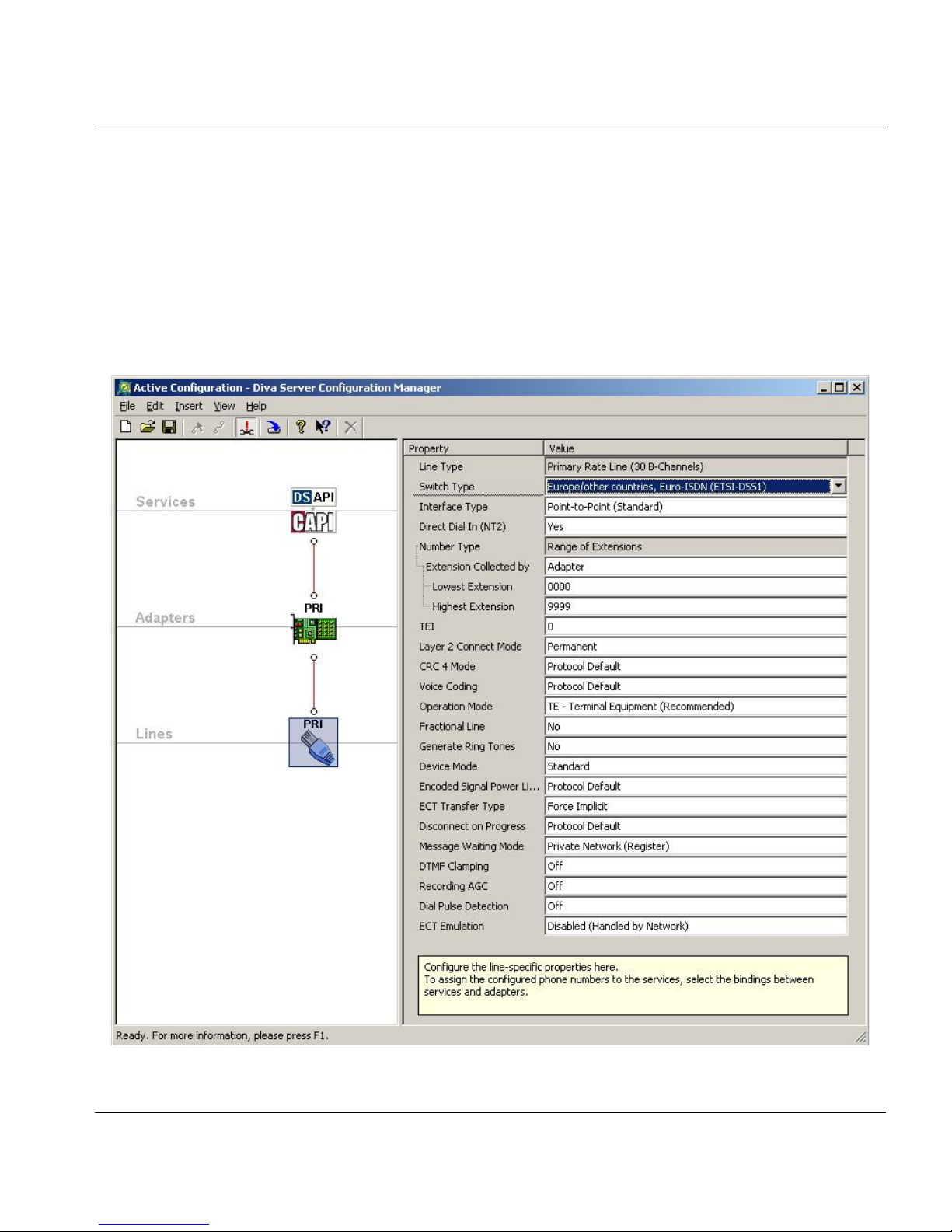
7. Confirm the Line Type field displays Primary Rate Line (30 B-Channels).
8. In the Switch Type field, confirm Europe/other countries, Euro-ISDN ETSI-DSSI is selected.
9. In the Interface Type field, leave the default Point to Point or, if your interface type is Point to
Multipoint,
select Point to Multipoint.
10. Confirm the Dialogic fax board’s Range of Extensions settings correspond to the number of DNIS
digits your organization uses to identify line extensions. The default range of extensions is set to 0000
for Lowest Extension and 9999 for Highest Extension. If your organization uses 4 DNIS digits to
identify line extensions, leave the default at 0000 and 9999. If your organization uses 3 DNIS digits to
identify line extensions, change the settings to 000 for Lowest Extension and 999 for Highest
Extension. If your organization uses 5 DNIS digits to identify line extensions, change the settings to
00000 for Lowest Extension and 99999 for Highest Extension.
11. To implement changes, select File>Activate. The Diva Server Configuration Manager will re-scan
the board and save the new configuration.
12. Reboot the FaxPress Enterprise to restart the Castelle FaxPress Eicon Board Driver service.
Page 25

23
FaxPress Enterprise ISDN and ISDN BRI (Basic Rate Interface)
FaxPress Enterprise ISDN and ISDN BRI (Basic Rate Interface)
For medium-volume faxing in Europe, the ISDN BRI Enterprise unit supports ISDN BRI. ISDN BRI
provides two bearer (B) channels and one data (D) signaling channel, used to carry instructions regarding the
B channels. If you’ve ordered an ISDN BRI Enterprise, the Dialogic fax board will come pre-configured for
ISDN BRI. The only fax board setting that may require modifying is the Interface Type. If your Interface
Type is Point to Point, you’ll need to reconfigure the Dialogic fax board’s default Point to Multipoint setting.
Required ISDN BRI Line Carrier Information
The line carrier must provide the information required for configuring the FaxPress Enterprise. The phone
company/line carrier will need to tell you:
• Switch type (a common example is Euro-ISDN ETSI-DSSI.)
• Interface type (Point to Point or Point to Multipoint.)
• The DNIS string configuration, including number of DNIS digits, total length of the string including
ANI digits (if any), and other characters. Configuring the FaxPress mailbox IDs requires knowing the
number of digits being passed. FaxPress Enterprise also has a dtmf.log file diagnostic tool that can
determine precise digit string information.
• The DNIS Digit/line extension range (e.g. 272-0001 to 272-1000).
About the Dialogic Fax Board’s Range of Extensions Settings
The Dialogic fax board’s Range of Extensions settings indicate the number of DNIS digits used to identify
line extensions. The default range of extensions is set to 0000 for Lowest Extension and 9999 for Highest
Extension. If your organization uses 3 DNIS digits to identify line extension, you’ll change the settings to 000
for Lowest Extension and 999 for Highest Extension. If your organization uses 5 DNIS digits to identify line
extensions, you’ll change the settings to 00000 for Lowest Extension and 99999 for Highest Extension.
Configuring the FaxPress Enterprise for ISDN BRI
Note: The FaxPress Enterprise ISDN BRI is not intended for direct connection to the public switched
network or other exposed plant networks. Always connect this product to such networks through a
certified (by the local, regional or national safety agency and telecommunications authority),
isolating type network terminating device (CSU, DSU, NT1, NCTE, or the like) that provides
overvoltage protection.
With the Dialogic fax board pre-configured for ISDN BRI, the Interface Type and Range of Line Extensions
are the only fax board settings that may require modifying.
If the interface type you use is Point to Point rather than the Dialogic fax board’s default Point to Multipoint,
and/or your range of line extensions is different from the 4-digit default, follow these steps:
1. Attach a mouse, keyboard, and monitor to the Enterprise, or use Remote Desktop.
Page 26
FaxPress Enterprise Getting Started Guide
24
2. Power on the FaxPress Enterprise and log into the FaxPress Enterprise system as Administrator. The
default password is
castelle. Make sure castelle is all lower case. (See Important! The FaxPress
Enterprise Local Administrator Account on page 9 for more information.)
3. Open the Services tool (Start>Settings>Control Panel>Administrative Tools>Services) and stop
the
Castelle FaxPress Eicon Fax Board Driver service.
4. Navigate to All Programs\Diva Server for Windows\Diva Server Configuration Manager. Select
one of the
Lines icons on the left. Each line will need to be configured individually.
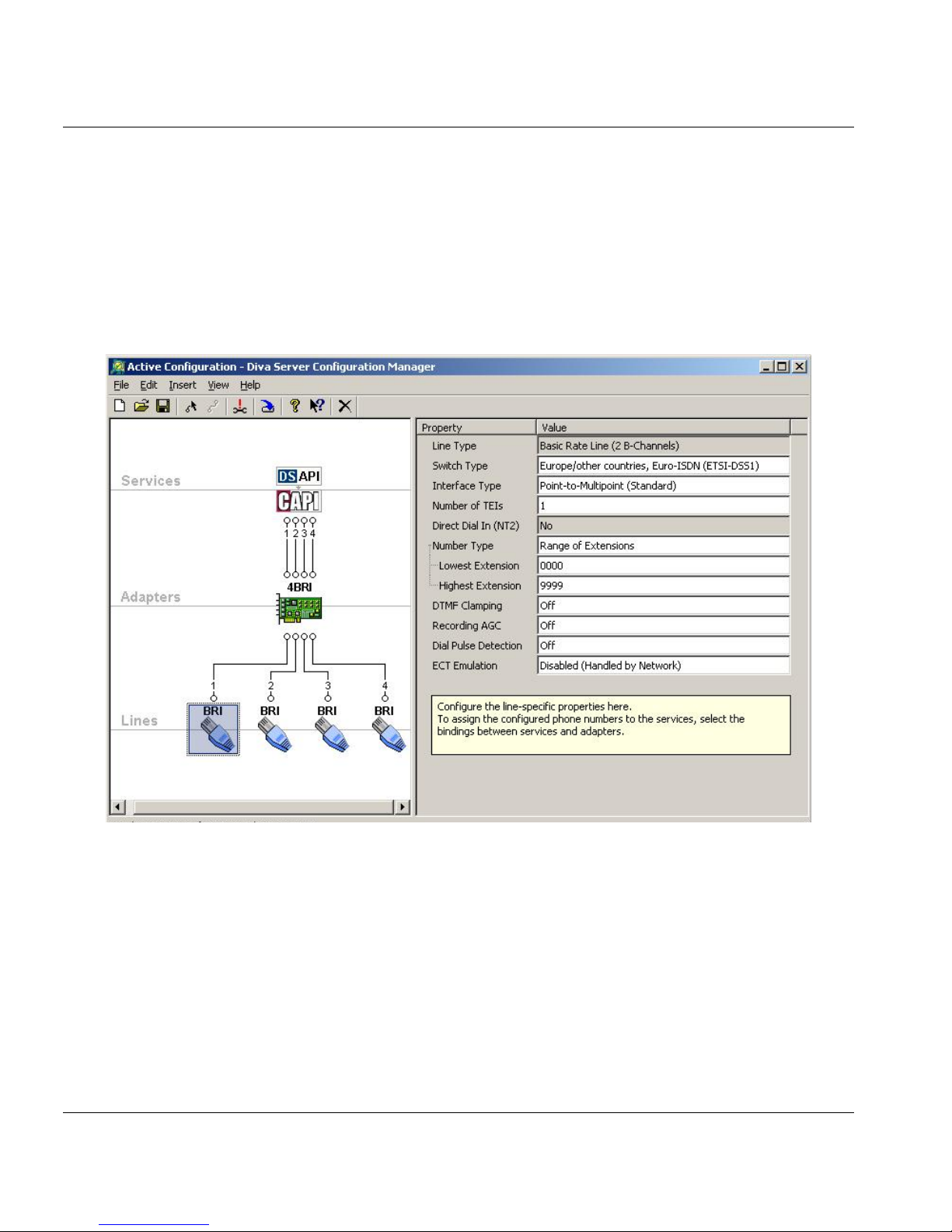
5. Confirm the Line Type field displays Basic Rate Line (2 B-Channels).
6. In the Switch Type field, confirm Europe/other countries, Euro-ISDN ETSI-DSSI is selected.
7. In the Interface Type field, either leave the default Point to Multipoint or select Point to Point to
correspond to your interface type.
8. Confirm the Dialogic fax board’s Range of Extensions settings correspond to the number of DNIS
digits your organization uses to identify line extensions. The default range of extensions is set to 0000
for Lowest Extension and 9999 for Highest Extension. If your organization uses 4 DNIS digits to
identify line extensions, leave the default at 0000 and 9999. If your organization uses 3 DNIS digits to
identify line extensions, change the settings to 000 for Lowest Extension and 999 for Highest
Page 27

25
FaxPress Enterprise ISDN and ISDN BRI (Basic Rate Interface)
Extension. If your organization uses 5 DNIS digits to identify line extensions, change the settings to
00000 for Lowest Extension and 99999 for Highest Extension.
9. To implement changes, select File>Activate. The Diva Server Configuration Manager will re-scan
the board and save the new configuration.
10. Reboot the FaxPress Enterprise to restart the Castelle FaxPress Eicon Board Driver service.
11. Select the next BRI Lines icon on the left and repeat the configuration procedure for each line.
Page 28

FaxPress Enterprise Getting Started Guide
26
Activating FaxPress Plus, the FaxPress Enterprise Client Software
After being installed, the FaxPress Enterprise client software must be activated with a Software Activation
Key, determined by your FaxPress Enterprise unit's serial number, to enable the FaxPress Enterprise client
software and associated FaxPress Enterprise Email Gateways to function.
To use the FaxPress Plus to access Castelle's Activation Key request page and obtain your Software
Activation Key, follow these steps:
1. Log into FaxPress Plus, (Start>Programs>FaxPress Plus>FaxPress Plus), select the
Administration folder view and select Software Activation Key from the list of items on the left.
2. Right-click on FaxPress Plus in the list on the right, and select License.
3. In the License dialog box, use the Obtain Key from Web button to go to Castelle’s Software
Activation Key Request page for your FaxPress Enterprise unit’s Activation Key code.
4. Once you’ve retrieved the Activation Key from the Castelle web site, return to the License dialog box
and select the
License FaxPress Plus radio button if it is not already selected. Enter the 16-digit
Activation Key code in the
License Key field, exactly as given. Include all hyphens, exclude spaces,
then click
Enable. If the Enable 30 days evaluation radio button is not grayed out, you can also click
this option.
Note: The Software Activation Key can be obtained at any time by going directly to the Software
Activation Key Request page on the Castelle web site, at
http://www.castelle.com/cgi-bin/
fpp50keycode.pl.
The 16-digit Software Activation Keycode will then need to be entered as
specified above.
Page 29

27
Assigning a Static IP Address
Assigning a Static IP Address
Castelle recommends manually assigning a static IP address to the FaxPress Enterprise. The FaxPress
Enterprise’s IP address can be set two ways:
• By attaching a monitor, mouse, and keyboard directly to the FaxPress Enterprise, logging in as
administrator with password castelle (all lower case), and then setting the IP addresses the same way
you’d change a Windows 2000 workstation’s IP address: (
Start>Settings>Control Panel>
Administrative Tools>Network and Dialup Connections
>Local Area Connection Properties>
Internet Protocol (TCP/IP) Properties
.)
• Using Remote Desktop. See Using Remote Desktop on page 30 and Changing the FaxPress
Enterprise’s IP Address Using Remote Desktop on page 30.
Page 30

FaxPress Enterprise Getting Started Guide
28
Changing the FaxPress Enterprise Server’s IP Address
The FaxPress Enterprise’s IP address can be set or changed five ways:
• From the front panel’s LCD window. See one of next two sections, Changing the IP Address Using
the LCD Window (Models With 4-key Keypad) or Changing the IP Address Using the LCD Window
(Models With 5-key Keypad), for details.
• By attaching a monitor, mouse, and keyboard directly to the FaxPress Enterprise, logging in as
administrator with password castelle all lower case, and then setting the IP address the same way
you’d change a Windows 2000 workstation’s IP address: (
Start>Settings>Control
Panel>Administrative Tools>Network and Dialup Connections
>Local Area Connection
Properties>Internet Protocol (TCP/IP) Properties
.)
• Through the Web Client Interface. See Using the Web Client Interface in the Administrator Guide for
more information.
• From another network workstation, using Remote Desktop. See Using Remote Desktop on page 30
and Changing the FaxPress Enterprise’s IP Address Using Remote Desktop on page 30.
• Through FaxPress Plus, the FaxPress Enterprise client’s Windows-based administration fax transaction
and administration utility. The FaxPress client software must be installed. See
System & Diagnostics
in the Administrator Guide for details.
Changing the IP Address Using the LCD Window (Models With 4-key Keypad)
To enter a new IP address using the Enterprise’s front panel LCD window, follow these steps:
1. Confirm the LCD window currently displays the Enterprise name and IP address.
2. Press the Esc button to move from the FaxPress name and IP address display to a window displaying
the Enterprise’s IP address only.
3. With the FaxPress Enterprise’s IP address displayed, press the up arrow button to scroll through the
available digits. A dot will also be displayed.
4. Select the first digit.
5. Once you’ve selected the first digit, press Enter to move the cursor to the next digit. Repeat.
Note: If Esc is mistakenly pressed while the new IP address is being entered, press Esc again to return to
the initial FaxPress Enterprise name and IP address display.
6. Enter the the dots between the subnets the same way you entered the numbers.
7. After specifying the last digit, press Enter, then press Enter again.
8. The Accept? screen requires you to either press Esc to return to the original IP address, or Enter to
confirm the new IP address.
Page 31

29
Changing the FaxPress Enterprise Server’s IP Address
Changing the IP Address Using the LCD Window (Models With 5-key Keypad)
1. Confirm the LCD window currently displays the Enterprise name and IP address.
2. Press Enter to enter the ENTER IP ADDRESS screen.
3. Press Up/Down arrows to scroll through 0-9 and DOT.
4. Press Enter to confirm the digit and to move the cursor to the right and the next digit.
5. Press Enter twice to confirm IP ADDRESS.
6. The LCD screen will display ACCEPT? (ESC/Oth) and the IP ADDRESS you entered. Press Enter to
accept the displayed IP ADDRESS. If you need to change the IP ADDRESS, press any of the four
directional keys to re-enter the IP ADDRESS.
Note: After pressing Enter, the Enterprise might take 5-10 seconds to update its IP address on the
network.
7. The Accept? screen requires you to either press any of the four directional keys to return to the
original IP address, or Enter to confirm the new IP address.
Page 32

FaxPress Enterprise Getting Started Guide
30
Using Remote Desktop
Microsoft’s Remote Desktop feature, enabled by default on the FaxPress Enterprise, allows you to access the
Enterprise’s Embedded Windows operating system from any other network workstation with Remote
Desktop installed. The Remote Desktop feature is installed by default on Windows XP machines, and is
optional on other Windows operating systems. See your Microsoft documentation for information on using
Remote Desktop.
The FaxPress Enterprise allows two remote desktop sessions at a time. Only two administration sessions can
be active at the same time.
To use Remote Desktop to access the Enterprise, follow these steps:
1. From any network workstation with Remote Desktop enabled, go to Start>All Programs>
Accessories>Communications> Remote Desktop Connection.
2. In the Remote Desktop Connection Screen, in the Computer field, enter any of the FaxPress
Enterprise’s IP addresses that are accessible from the machine you’re using.
3. Click Connect.
4. Enter Administrator in the Windows screen’s User Name field, and castelle in the Password field.
Make sure
castelle is all lower case.
The monitor, now functioning as a remote terminal for the Enterprise’s system, will display the Enterprise’s
system rather than the local system attached directly to the monitor.
Changing the FaxPress Enterprise’s IP Address Using Remote Desktop
To change the FaxPress Enterprise’s IP address using Remote Desktop, first use Remote Desktop as described
above to connect to the FaxPress Enterprise’s Windows Server, then go to
Start>Settings>Control
Panel>Network and Dialup Connections>Local Area Connection>Properties> Internet Protocol (TCP/
IP) Properties.
Page 33

31
About the FaxPress Enterprise’s File Conversion Service
About the FaxPress Enterprise’s File Conversion Service
The FaxPress Enterprise file conversion service is designed to convert users' source documents to faxable
format, such as TIFF, for the FaxPress Enterprise. For the FaxPress Enterprise to send attachments, attached
files must be converted from their native format to TIFF either on the client or the server. On machines with
FaxPress Plus client installed, file conversion is performed on the client. If FaxPress Enterprise services other
than FaxPress Plus are used to send faxes, file conversion is performed on the FaxPress Enterprise server.
Installing Applications for the File Conversion Service
Castelle recommends keeping the FaxPress Enterprise as dedicated network fax servers, and only installing
applications required to support fax transactions. Server-side file conversion is performed if the following
FaxPress Enterprise services are used:
• E-mail Gateway
• Web Services Interface
• DropFax/Drop Directory
For these services to work, the applications associated with the file formats your organization typically uses
for faxing must be installed on the FaxPress Enterprise. When faxes are sent and received through the E-mail
Gateway, Web Services Interface or DropFax/Drop Directory, the FaxPress Enterprise uses the installed
native applications to support file conversion to and from faxable format.
To use these services, install all applications your organization might fax; for example, Microsoft Office
applications and Adobe Acrobat onto the FaxPress Enterprise. If the application associated with the file type
does not exist on the FaxPress Enterprise, the attached file will not be faxed and a file conversion error will
be generated for that particular job. Applications can be installed by attaching a monitor, mouse, and
keyboard directly to the Enterprise or by using Remote Desktop. See
Using Remote Desktop on page 30.
When installing applications, always log in as Administrator with password castelle, all lower case. This is
the local Administrator account name and password. If the password is changed from the default, the
Conversion Services’s local Administrator account password must also be changed to match, or fax
transmissions will be interrupted. See
Important! The FaxPress Enterprise Local Administrator Account
on page 9 for more information.After installing, open all applications at least once. In the case of Outlook, a
user profile must also be created and configured on the Enterprise.
About the File Conversion Service
FaxPress Enterprise users are responsible for providing the source file name with the correct file extension
(i.e.,
.doc, .pdf, etc.). If the file extension does not match the source file, unexpected fax output or file
conversion errors may occur. Users should NOT submit "non-convertible" source files (
.exe, .bin, etc.) as
attachments for faxing. FaxPress Enterprise will reject the file and generate a file conversion error for that
particular job.
Page 34

FaxPress Enterprise Getting Started Guide
32
Castelle Resources
Castelle Corporate Headquarters
855 Jarvis Drive, Suite 100
Morgan Hill, CA 95037
www.castelle.com
Castelle North America
Toll Free: +1(800) 289-7555
Tel: +1 (408) 852-8000
Fax: +1(408) 852-8100
e-mail: [email protected]
Technical Support
To qualify for tech support, your FaxPress Enterprise fax server must be registered with Castelle. Visit
Castelle's Customer Services web page at:
http://www.castelle.com/support
for more information about product registration.
Technical support is available by mail, fax, e-mail, or phone from 6am to 5PM Pacific Standard Time.
Phone: +1(408) 852-8080
Fax: +1(408) 852-8180
E-mail: [email protected]
For efficient resolution, please be ready to provide the following information to the Castelle technical support
representative who answers your call:
• Company name, phone number, pager/cell phone number, e-mail address & fax number.
• The type and model number of your unit.
• The unit's 8-digit serial number, printed on a label on the bottom of the unit.
• The version number of the FaxPress software you are using.
• The version number of the unit's firmware.
• The version number of the network software you are using (for example, NetWare 3.12).
• The network topology (for example, Ethernet).
• The name and version numbers of the e-mail system and clients you are using.
• A description of the problem and/or its symptoms.
Web Site
The Castelle web site, http://www.castelle.com, provides a point of departure for a variety of information.
Page 35

33
Castelle Resources
Information regarding the following topics is available at http://www.castelle.com/products
• FaxPress Server Hardware and Software
• Sending, Receiving and Managing Faxes
• Castelle Internet Faxing (CIF)
• e-mail Integration
• Network Integration
• Automatic Routing and PBX Integration
• FaxPress Enterprise White Paper
• FaxPress Enterprise Brochure
Page 36

FaxPress Enterprise Getting Started Guide
34
Safety
CAUTION - To reduce the risk of fire, use only No. 26 AWG or larger telecommunication line cord.
ATTENTION - Pour reduire les risques d'incendie, utiliser uniquement des conducteurs de
telecommunications 26 AWG au de section superleure.
Page 37

35
FaxPress Enterprise Support Services Agreement
FaxPress Enterprise Support Services Agreement
Subject to Castelle's Terms and Conditions attached hereto, upon Castelle's receipt of a completed Web-based Product
Registration Form for the FaxPress Enterprise Product, Castelle ("Company") will provide you ("Customer") with the
following support services for the Product at no charge ("Standard Support"):
Standard Support includes the following:
Hardware Warranty
Within the sixty (60) days period following your Product Registration Date, Castelle will replace any defective Component or Device, free of charge to you, as determined by Castelle's Technical Support personnel. If Castelle's Technical
Support personnel determines that the defective Component or Device must be replaced, Castelle has the option to ship
the replacement Component to you, in advance and freight prepaid, within one (1) business day, for you to replace the
defective Component, or request that you return the defective Device to Castelle for repair. If Castelle determines that the
Device must be returned, an equivalent functional Device will be shipped to you, in advance and freight prepaid, within
one (1) business day, to minimize any downtime in your organization. A purchase order or credit card is needed as collat
eral to cover the cost of the Advance Swap. Unless you return the defective Component or Device to Castelle within five
(5) working days after receipt of the Advance Swap, your credit card will be charged or an invoice will be generated
against your purchase order for the Component or Device not returned. You are responsible for one-way shipping charge
of the defective Component or Device to Castelle. You and Castelle agree to make commercially reasonable efforts to
meet all the shipment dates mentioned above.
Castelle warrants the Device for a period of twelve (12) months following your Product Registration Date. Beyond the
sixty (60) days warranty period as described above, and within the twelve (12) month period following your Product Registration Date, Castelle will repair or replace any defective Component or Device within ten (10) working days, after
receipt of your defective Component or Device. Castelle will make commercially reasonable efforts to meet this goal.
You are responsible for one-way shipping charge of the defective Component or Device to Castelle. Castelle is responsible for one-way shipping of an equivalent functional Component or Device back to you.
Software Upgrades
Upgrades and Updates of the Castelle FaxPress Network Fax Software and the Microsoft® embedded operating system
("Software") that are released by Castelle and Microsoft within sixty (60) days of your Product Registration Date (the
"Standard Support Period").
Technical Support
Telephone, electronic mail or facsimile technical support within sixty (60) days of your Product Registration Date. Telephone support is available 6:00 a.m. to 5:00 p.m. (Pacific Standard Time) Monday through Friday, excluding Castelle recognized holidays.
Access to Customer Service Web Site
Castelle will provide access to our Customer Services Web Site at www.castelle.com - access to useful product specific
technical information.
The following additional options are available for a fee for support of Castelle Products:
1. Extended Support Services
You may acquire extended support services ("Extended Support") for the Product pursuant to the below terms and conditions. If you would like to purchase Extended Support, please contact Castelle's sales department at 1-800-289-7555 or 1408-852-8000, for a quote of the applicable support fee (the "Support Fee"). Extended Support is available to you at the
time of original equipment purchase or anytime thereafter. The duration of the Extended Support is twelve (12) months
Page 38

FaxPress Enterprise Getting Started Guide
36
from the date of purchase of the extended services. By agreeing to Extended Support, you acknowledge your acceptance
of all of the terms and conditions as stated below.
Extended Support includes the following:
Hardware Warranty
This Extended Support service provides equivalent Component or Device replacement for a period of twelve (12) months
from the time of purchase of Extended Support. If Castelle's Technical Support personnel determines that the defective
Component or Device must be replaced, Castelle has the option to ship the replacement Component to you, in advance,
within one (1) business day, for you to replace the defective Component, or request that you return the defective Device to
Castelle. If Castelle's Technical Support personnel determines that the defective Device must be returned, Castelle will
ship an equivalent functional Device to you, in advance, within one (1) business day, to minimize downtime in your orga
nization. All repair costs will be waived. A purchase order or credit card is needed as collateral to cover the cost of the
Advance Swap. Unless you return the defective Component or Device to Castelle within five (5) working days after
receipt of the Advance Swap, your credit card will be charged or an invoice will be generated against your purchase order
for the Component or Device not returned. You are responsible for one-way shipping charge of the defective Component
or Device to Castelle. You and Castelle agree to make commercially reasonable efforts to meet all the shipment dates
mentioned above.
Software Upgrades
This Extended Support service provides free software upgrades released for one (1) year from the date of purchase of
Extended Support. Major Upgrades will be proactively sent to you within six (6) weeks of the Upgrade release date.
Release revisions or Updates and service packs are always available for free download via our Web site.
Technical Support
Telephone, electronic mail or facsimile technical support within one (1) year from the date of purchase of Extended Support. Telephone support is available 6:00 a.m. to 5:00 p.m. (Pacific Standard Time) Monday through Friday, excluding
Castelle recognized holidays.
Access to Customer Service Web Site
Castelle will provide access to our Customer Services Web Site at www.castelle.com - access to useful product specific
technical information.
2. Pay Per-Incident Technical Support
If you require additional technical support assistance after the expiration of the Standard Support Period and do not have
Extended Support, Castelle's Technical Support department will provide such assistance for a fee. Pay Per Incident service is delivered on an incident basis, which is a single support issue. Please log on to Castelle's Web site at www.castelle.com/support/program/default.htm or call Castelle's Sales Department at 1-800-289-7555 for the current price of PPI.
The service provided will be charged to your VISA, Master Card, or American Express card. Castelle will use reasonable
commercial efforts to provide support services in a professional manner but does not guarantee that every question or
problem will be resolved to your total satisfaction.
3. Out-of-Warranty Repair
If your Product is out of warranty and requires service, you can call Castelle's Technical Support for a price quote to
repair your defective Product. Castelle warrants the repaired part and labor for a period of ninety (90) days.
Page 39

37
Castelle’s FaxPress Enterprise Support Services Terms and Conditions
Castelle’s FaxPress Enterprise Support Services Terms and Conditions
1. Definitions
"Advance Swap" means equivalent functional Component or Device, shipped to a customer, to replace any defective
Component or Device, before the customer returns the defective Component or Device to Castelle.
"Component" means major replaceable components or hardware provided as part of the Product, including but not limited
to, hard drive, power supply, modem or other communications board.
"Current Release" means the most current release of the Software listed on Castelle's published price list.
"Device" means the entire FaxPress Enterprise hardware unit, excluding software.
"Error" means the failure of the Software to perform substantially in accordance with the Documentation.
"Documentation" means technical manuals and other documentation relating to the use of the Product, which are delivered with the Product.
"Previous Sequential Release" means the release of Software, which has been replaced by the Current Release.
"Product" means Castelle's FaxPress Enterprise product, including Software, which is enclosed herewith and which has
been purchased by Customer.
"Product Registration Date" means the date you contact Castelle to register the Product.
"Software" means the Castelle FaxPress Network Software programs and the Microsoft embedded operating system contained in the Product, including all corrections, modifications, enhancements, Upgrades and Updates to such software,
which may be provided to Customer by Castelle.
"Services" or "Support" means in general the services or support provided by Castelle to Customer pursuant to and under
the terms of this Agreement, whether Standard Support or Extended Support as the case may be.
"Upgrades" means one (1) copy of all major revisions and corrections to the printed Documentation and/or the Software
that are made generally available by Castelle to its customers who are entitled to receive Support Services. A major revision means upgrades from, e.g., 3.X to 4.X.
"Updates" means one (1) copy of minor Software patches that are made generally available by Castelle to its customers
who are entitled to receive Support Services. A minor revision means updates from, e.g., 3.1 to 3.2.
2. Customer Responsibilities
a. Customer will provide Castelle reasonable access to all necessary information, Customer personnel to answer
questions about any problems reported by Customer regarding the Product. Customer also agrees to promptly
implement all Updates and Upgrades provided by Castelle.
b. Customer will ensure that one Extended Support contract is associated only with one registered Product.
c. Products or Services sold by Castelle are not designed, intended or authorized for use: (i) in critical applications in
which the failure of such Products or Services could reasonably be expected to result in personal injury, loss of life
or catastrophic property damage; or, (ii) where customer uses, or sells Products for use not in conformance with
the manufacturer's published specifications for such Products. If customer uses or sells Products for use in any of
the above applications or environments, customer assumes all risk for any claim or damage arising from each use.
3. Exclusions
a. Castelle has no obligation to provide any Support Services relating to problems arising out of: (i) Customer's
failure to implement all Upgrades and Updates provided to Customer; (ii) use of the Software on a CPU other than
the designated CPU for which such Software was designed and licensed for use; (iii) neglect, misuse, or accidental
damage of the Product; (iv) modifications, corrections, or workarounds performed by a person not authorized by
Castelle; and (v) the use of the Product with computer hardware, software, supplies or materials not meeting
Castelle's specifications as provided in the Documentation.
Page 40

FaxPress Enterprise Getting Started Guide
38
b. Castelle has no obligation to repair or replace any Component of any FaxPress Enterprise product model that
Castelle has determined obsolete.
c. Castelle reserves the right to decline support to any Product that has not been on continuous support with Castelle
or has been modified by Customer or a third party without Castelle's prior written consent. If Castelle decides to
support such Product, Customer will be responsible for paying Castelle's then-current standard charges to restore
such Product to a condition or version acceptable to Castelle prior to Castelle starting Support Services.
d. Product Support Services do not include: (i) onsite services and expenses connected with the installation,
configuration, relocation, or reconfiguration of the Product; (ii) the cost of tools, accessories, media or other
expendables required by Castelle to perform any Support Services; or (iii) maintenance or support of operating
system software.
e. Castelle does not support any replacement Components not supplied by or purchased from the Company. Any
installation of such replacement Components from unauthorized sources by Customer voids all Castelle warranty.
Existing Extended Support agreements will be considered null and void. No prorated refund from such unused
portion of the Extended Support agreement will be returned to Customer.
f. Castelle does not provide a Device or Component on loan.
4. Supported Versions of Software
Upon the release of new Software, Castelle will continue to support the two major releases prior to the new release as follows:
a. The release immediately prior to the new release will be supported indefinitely,
b. The release prior to that will be supported for sixty (60) days following the official release of the new release. For
example: When new release Version 3 is released and officially announced on March 1, Version 2 will be
supported indefinitely. Version 1 will be supported through April 30 of the same year.
5. Limited Warranty
CASTELLE WILL PERFORM THE SUPPORT SERVICES WITH REASONABLE EFFORTS AND QUALIFIED
PERSONNEL. IN CONNECTION WITH THE SUPPORT SERVICES RENDERED AND THE COMPUTER SOFTWARE, HARDWARE AND DOCUMENTATION PROVIDED BY CASTELLE IN THE COURSE OF PROVIDING
SUCH SERVICES, CASTELLE MAKES NO OTHER WARRANTY, EXPRESS OR IMPLIED, INCLUDING, WITH
OUT LIMITATION, ANY WARRANTY OF FITNESS FOR A PARTICULAR PURPOSE, MERCHANTABILITY OR
NON-INFRINGEMENT. SOME STATES OR JURISDICTIONS DO NOT ALLOW THE EXCLUSION OF IMPLIED
WARRANTIES, SO THE ABOVE LIMITATION OR EXCLUSION MAY NOT APPLY TO YOU.
6. Limited Liability/Disclaimer of Damages
CASTELLE SHALL NOT BE LIABLE FOR COSTS OF PROCUREMENT OF SUBSTITUTE SERVICES, LOSS OF
PROFITS, INTERRUPTION OF BUSINESS, OR FOR ANY OTHER SPECIAL, CONSEQUENTIAL OR INCIDENTAL DAMAGES, HOWEVER CAUSED, WHETHER FOR BREACH OF WARRANTY, CONTRACT, TORT, NEGLIGENCE, STRICT LIABILITY OR UNDER ANY OTHER THEORY OF LIABILITY, EVEN IF CASTELLE HAS
BEEN ADVISED OF THE POSSIBILITY OF SUCH DAMAGES. SOME STATES OR JURISDICTIONS DO NOT
ALLOW THE EXCLUSION OR LIMITATION OF INCIDENTAL OR CONSEQUENTIAL DAMAGES, SO THE
ABOVE LIMITATION OR EXCLUSION MAY NOT APPLY TO YOU. IN NO EVENT WILL CASTELLE'S TOTAL
LIABILITY UNDER THIS AGREEMENT FOR ALL CLAIMS CUSTOMER OR ANY THIRD PARTY OF WHAT
EVER NATURE EXCEED MONIES PAID BY CUSTOMER TO CASTELLE PURSUANT TO THIS AGREEMENT
DURING THE PRIOR TWELVE MONTH PERIOD PRECEDING THE EVENT GIVING RISE TO LIABILITY,
MINUS ALL CLAIMS PREVIOUSLY PAID HEREUNDER. THIS LIMITATION IS CUMULATIVE FOR ALL
CLAIMS HOWSOEVER ARISING. THE LIMITATIONS ABOVE SHALL APPLY EVEN IF THE REMEDIES PRO
-
VIDED IN THIS AGREEMENT SHALL FAIL OF THEIR ESSENTIAL PURPOSE.
Page 41

39
Castelle’s FaxPress Enterprise Support Services Terms and Conditions
7. Force Majeure
Castelle shall not be liable for any loss, damage, or penalty resulting from delay due to causes beyond its control, including, without limitation, delays by it suppliers or acts of God.
8. No Assignment
Customer shall not assign, delegate, subcontract or transfer any portion of it rights, duties or obligations under these terms
and conditions and any attempt to do so will be void.
9. General
The provision of Support Services by Castelle to Customer will be governed for all purposes by the laws of the State of
California, USA without regard to conflict of laws principles. If any provision of these Terms and Conditions is held by a
court of competent jurisdiction to be unenforceable, the offending provision will be deemed severed and the remaining
provisions will remain in full force and effect. If any provision of these Terms and Conditions is inconsistent with, or
cannot be fully enforced under, the laws of your jurisdiction, such provision will be construed as limited to the extent nec
essary to be consistent with and fully enforceable under such laws. This Agreement is the final, complete and exclusive
agreement between the parties relating to the subject matter hereof, and supersedes all prior or contemporaneous understandings and agreements relating to such subject matter, whether oral or written. The parties agree to the nonexclusive
jurisdiction of the State and Federal Courts in the State of California, U.S.A. for al purposes under this Agreement.
FaxPress Enterprise is a trademark of Castelle. All other products and trademarks are the properties of their
respective owners.
Page 42

FaxPress Enterprise Getting Started Guide
40
License Agreement
Notice to User
This is a legal agreement between you, the end-user, and Castelle ("Agreement"). BY OPENING THIS SEALED PACKAGE, YOU ARE AGREEING TO BE BOUND BY THE TERMS OF THIS AGREEMENT. IF YOU DO NOT AGREE TO
THE TERMS OF THIS AGREEMENT, PROMPTLY RETURN THE UNOPENED
PACKAGE AND ACCOMPANYING ITEMS. (Including written materials, CD-ROM disk and binders or other containers)
TO THE PLACE YOU OBTAINED THEM FOR A REFUND. ANY USE OF THE SOFTWARE OR MICROSOFT®
SOFTWARE, INCLUDING BUT NOT LIMITED TO USE ON THE PRODUCT, WILL CONSTITUTE YOUR AGREE
-
MENTTO THIS AGREEMENT (OR RATIFICATION OF ANY PREVIOUS CONSENT).
CASTELLE FAXPRESS Enterprise™ Network Fax Server Software LICENSE.
1. GRANT OF LICENSE. Castelle grants to you ("Licensee") the right to use one (1) copy of the enclosed Castelle soft-
ware program (the "SOFTWARE") for one (1) FaxPress Enterprise ("Product") in either a Windows, Novell NetWare,
Citrix or Linux network environment.
2. COPYRIGHT AND OTHER INTELLECTUAL PROPERTY RIGHTS. The SOFTWARE is owned by Castelle or
its suppliers and is protected by United States copyright laws and international treaty provisions, and other laws and regulations respecting intellectual property. Therefore, you must treat the SOFTWARE like any other copyrighted or proprietary material (e.g. a book or musical recording) except that you may either (a) make one copy of the SOFTWARE solely
for backup or archival purposes, or (b) transfer the SOFTWARE to a single hard disk provided you keep the original
solely for backup or archival purposes, or (c) copy the licensed SOFTWARE for licensee's internal distribution, installa
-
tion and use. You may not copy the written materials accompanying the SOFTWARE.
3. OTHER RESTRICTIONS. You may not rent or lease the SOFTWARE, but you may transfer the SOFTWARE on a
permanent basis provided you retain no copies and the recipient agrees to the terms of this Agreement. You may not
reverse engineer, de-compile or disassemble the SOFTWARE. The export and re-export of the SOFTWARE is controlled
by the United States Export Administration Regulations and such SOFTWARE may not be exported or re-exported to any
country to which the United States embargoes goods. In addition, the SOFTWARE may not be distributed to persons on
the Table of Denial Orders, the Entity List, or the List of Specially Designated Nationals.
4. MULTIPLE MEDIA SOFTWARE. The SOFTWARE package contains a CD-ROM disk, which you may use only as
stated in this Agreement.
LIMITED WARRANTY.
Castelle warrants that it has the right to license you to use the SOFTWARE. Castelle warrants that the media on which the
SOFTWARE is furnished will be free of defects in materials and workmanship under normal use for a period of two (2) years
from the date of receipt. Some states do not allow limitations on duration of an implied warrant, so the limitations may not
apply to you.
CUSTOMER REMEDIES.
Castelle and its suppliers' entire liability and your exclusive remedy shall be, at Castelle's option, either (a) repair or (b)
replacement of the SOFTWARE if defective. This LIMITED Warranty is void if failure of the SOFTWARE has resulted
from accident, abuse, or misapplication. Any replacement SOFTWARE will be warranted for the remainder of the original
warranty period or thirty (30) days, whichever is longer.
Page 43

41
License Agreement
NOTICE REGARDING LICENSEE DATA.
Before returning any Product or component to Castelle for any reason, including repair or replacement, any and all Licensee
information or data ("Data") therein should be removed by Licensee. Castelle's policy is not to disclose Data, however CASTELLE IS NOT RESPONSIBLE FOR THE PROTECTION OR RETENTION OF DATA, AND CASTELLE HEREBY
DISCLAIMS ANY AND ALL LIABILITY ASSOCIATED THEREWITH.
NO OTHER WARRANTIES
CASTELLE DISCLAIMS ALL OTHER WARRANTIES, WHETHER EXPRESS OR IMPLIED, INCLUDING BUT NOT
LIMITED TO IMPLIED WARRANTIES OF MERCHANTABILITY, NONINFRINGEMENT AND FITNESS FOR A
PARTICULAR PURPOSE, WITH RESPECT TO THE SOFTWARE AND THE ACCOMPANYING MATERIALS. THIS
LIMITED WARRANTY GIVES YOU SPECIFIC LEGAL RIGHTS. YOU MAY HAVE OTHERS, WHICH VARY FROM
STATE TO STATE. Some states or jurisdictions do not allow the exclusion or limitation of incidental or consequential dam
-
ages, so the above limitation or exclusion may not apply to you.
LIMITATION OF LIABILITY.
IN NO EVENT SHALL CASTELLE OR ITS SUPPLIERS BE LIABLE FOR ANY DAMAGES WHATSOEVER
(INCLUDING, WITHOUT LIMITATION, SPECIAL, INDIRECT, CONSEQUENTIAL, DAMAGES FOR LOSS OF
BUSINESS PROFITS, BUSINESS INTERRUPTION, LOSS OR DISCLOSURE OF LICENSEE DATA OR BUSINESS
INFORMATION, OR OTHER PECUNIARY LOSS), WHETHER ARISING OUT OF THE USE OR INABILITY TO USE
THE SOFTWARE OR THE PRODUCT, EVEN IF CASTELLE HAS BEEN ADVISED OF THE POSSIBILITY OF SUCH
DAMAGES. THE LIMITATIONS ABOVE SHALL APPLY EVEN IF THE REMEDIES PROVIDED IN THIS AGREE
MENT SHALL FAIL OF THEIR ESSENTIAL PURPOSE. Some states do not allow the exclusion or limitation of liability
for consequential or incidental damages; the above limitation may not apply to you.
GENERAL.
The SOFTWARE and Documentation are provided with RESTRICTED RIGHTS. Use, duplication, or disclosure by the
Government is subject to restrictions set forth in subparagraph (c) (1) (ii) of the Rights in Technical Data and Computer
SOFTWARE clause of DFARS 252.227-7013 or subparagraphs (c) (1) and (2) of the Commercial computer softwareRestricted Rights at 48 CFR 52.227-19, as applicable. Manufacturer is Castelle, 855 Jarvis Dr., Suite 100, Morgan Hill, CA
95037.
MICROSOFT REQUIRED TERMS: You have acquired a Product that includes MS SOFTWARE licensed by Castelle
from Microsoft Licensing Inc. or its affiliates ("MS"). Those installed MS SOFTWARE products of MS origin, as well as
associated media, printed materials, and "online" or electronic documentation ("MS SOFTWARE") are protected by interna
-
tional intellectual property laws and treaties. The MS SOFTWARE is licensed, not sold. All rights reserved.
GRANT OF MS SOFTWARE LICENSE. This AGREEMENT grants you the following license:
• You may use the MS SOFTWARE only on the Product.
• NOT FAULT TOLERANT. THE MS SOFTWARE IS NOT FAULT TOLERANT. CASTELLE HAS
INDEPENDENTLY DETER-MINED HOW TO USE THE MS SOFTWARE IN THE PROD-UCT, AND MS
HAS RELIED UPON CASTELLE TO CON-DUCT SUFFICIENT TESTING TO DETERMINE THAT THE MS
SOFTWARE IS SUITABLE FOR SUCH USE.
Page 44

FaxPress Enterprise Getting Started Guide
42
• NO WARRANTIES FOR THE MS SOFTWARE. THE MS SOFTWARE IS PROVIDED "AS IS" AND WITH
ALL FAULTS. THE ENTIRE RISK AS TO SATISFACTORY QUALITY, PER-FORMANCE, ACCURACY,
AND EFFORT (INCLUDING LACK OF NEGLIGENCE) IS WITH YOU. ALSO, THERE IS NO WARRANTY
AGAINST INTERFERENCE WITH YOUR ENJOYMENT OF THE MS SOFTWARE OR AGAINST
INFRINGEMENT. IF YOU HAVE RECEIVED ANY WAR-RANTIES REGARDING THE PRODUCT OR THE
MS SOFTWARE, THOSE WARRANTIES DO NOT ORIGINATE FROM, AND ARE NOT BINDING ON, MS.
• Note on Java Support. The MS SOFTWARE may contain support for programs written in Java. Java technology
is not fault tolerant and is not designed, manufactured, or intended for use or resale as online control equipment in
hazardous environments requiring fail-safe performance, such as in the operation of nuclear facilities, aircraft
navigation or communication systems, air traffic control, direct life support machines, or weapons systems, in
which the failure of Java technology could lead directly to death, personal injury, or severe physical or
environmental dam-age. Sun Microsystems, Inc. has contractually obligated MS to make this disclaimer.
• No Liability for Certain Damages. EXCEPT AS PROHIBITED BY LAW, NEITHER MS OR CASTELLE
SHALL HAVE ANY LIABILITY FOR ANY INDIRECT, SPECIAL, CONSEQUENTIAL OR INCIDENTAL
DAMAGES ARISING FROM OR IN CONNECTION WITH THE USE OR PERFORMANCE OF THE MS
SOFTWARE. THIS LIMITATION SHALL APPLY EVEN IF ANY REMEDY FAILS OF ITS ESSENTIAL
PURPOSE. IN NO EVENT SHALL MS OR CASTELLE BE LIABLE FOR ANY AMOUNT IN EXCESS OF U.S.
TWO HUNDRED FIFTY DOLLARS (U.S.$250.00).
• Limitations on Reverse Engineering, Decompilation, and Disassembly. You may not reverse engineer,
decompile, or disassemble the MS SOFTWARE, except and only to the extent that such activity is expressly
permitted by applicable law notwithstanding this limitation.
• You may not install software on the Product which adds functionality in addition to the functionality within the
SOFTWARE and MS SOFTWARE.
• MS SOFTWARE TRANSFER ALLOWED BUT WITH RESTRICTIONS. You may permanently transfer
rights under this AGREEMENT only as part of a permanent sale or transfer of the Product, and only if the recipient
agrees to this AGREEMENT. If the MS SOFTWARE is an upgrade, any transfer must also include all prior versions
of the MS SOFTWARE.
• EXPORT RESTRICTIONS. You acknowledge that MS SOFTWARE is of US-origin. You agree to comply with
all applicable international and national laws that apply to the MS SOFTWARE, including the U.S. Export
Administration Regulations, as well as end-user, end-use and country destination restrictions issued by U.S. and
other governments. For additional information on exporting the MS SOFTWARE, see http://www.microsoft.com/
exporting.
ENTIRE AGREEMENT.
This is the entire agreement between the parties and supercedes all other oral or written agreements, representations or understandings. This Agreement is governed by the laws of the state of California without regard to its conflict of laws principles.
The United Nations Convention on the International Sale of Goods is expressly disclaimed. The parties agree to the nonexclu
sive jurisdiction of the State and Federal Courts in the State of California, U.S.A. for al purposes under this Agreement.
Should you have any questions concerning this Agreement, or if you desire to contact Castelle for any reason, please write or
e-mail to: Castelle Customer Service, 855 Jarvis Drive, Suite 100, Morgan Hill, CA 95037, or to [email protected].
Page 45

43
License Agreement
Page 46

FaxPress Enterprise Getting Started Guide
44
Page 47

45
License Agreement
Page 48

FaxPress Enterprise Getting Started Guide
46
Page 49

47
License Agreement
Page 50

Page 51

Page 52

P/N 61-1344-001
 Loading...