

Page 1
CAS POScale Series
User’s Manual
(English)
Ver. 2004. 01.
Page 2
PRECAUTIONS ……………………………………………..3
PREFACE ……………………………………………………..5
CHANGING THE PRINTER ROLL…………..………….5
NAME AND FUNCTIONS …………………………………6
OPERATIONS ……………………………………………….11
I. SAELS MODE …………………………………………….11
Chapter 1 Basic Operation …………………….14
Chapter 2 Sales for Weighed item……………….21
Chapter 3 Sales for non-weighed item………...22
Chapter 4 Clerk Operation …………………………25
Chapter 5 Discount & Payment…………………..34
Chapter 6 Sales Transactions Simulation……..42
II. PROGRAM MODE …………………………………….48
Chapter 7 PLU Programming ……………………..52
Chapter 8 Report ……………………………………..57
Chapter 9 SET 1 (Discount, Barcode & HW Setting).64
Chapter 10 SET 2 (Date, Time & Default Setting)..…73
Chapter 11 Options (Receipt Formatting)..…..77
Chapter 12 Clerk ……………………………………...84
Chapter 13 Logo …………………………………….…88
Chapter 14 Tax Rate Group …………………….…91
Chapter 15 Test …………………………………….…94
CODE (MS 1252 Window Latin-1) …………………97
ERROR MESSAGES ………………………………………98
SPECIFICATION ………………………….……………...99
TABLE LIST ……………………………………………….100
CASH DRAWER INTERFACE DAWING…………….100
PROGRAM MENU MAP …………….……………….....101
Page 3
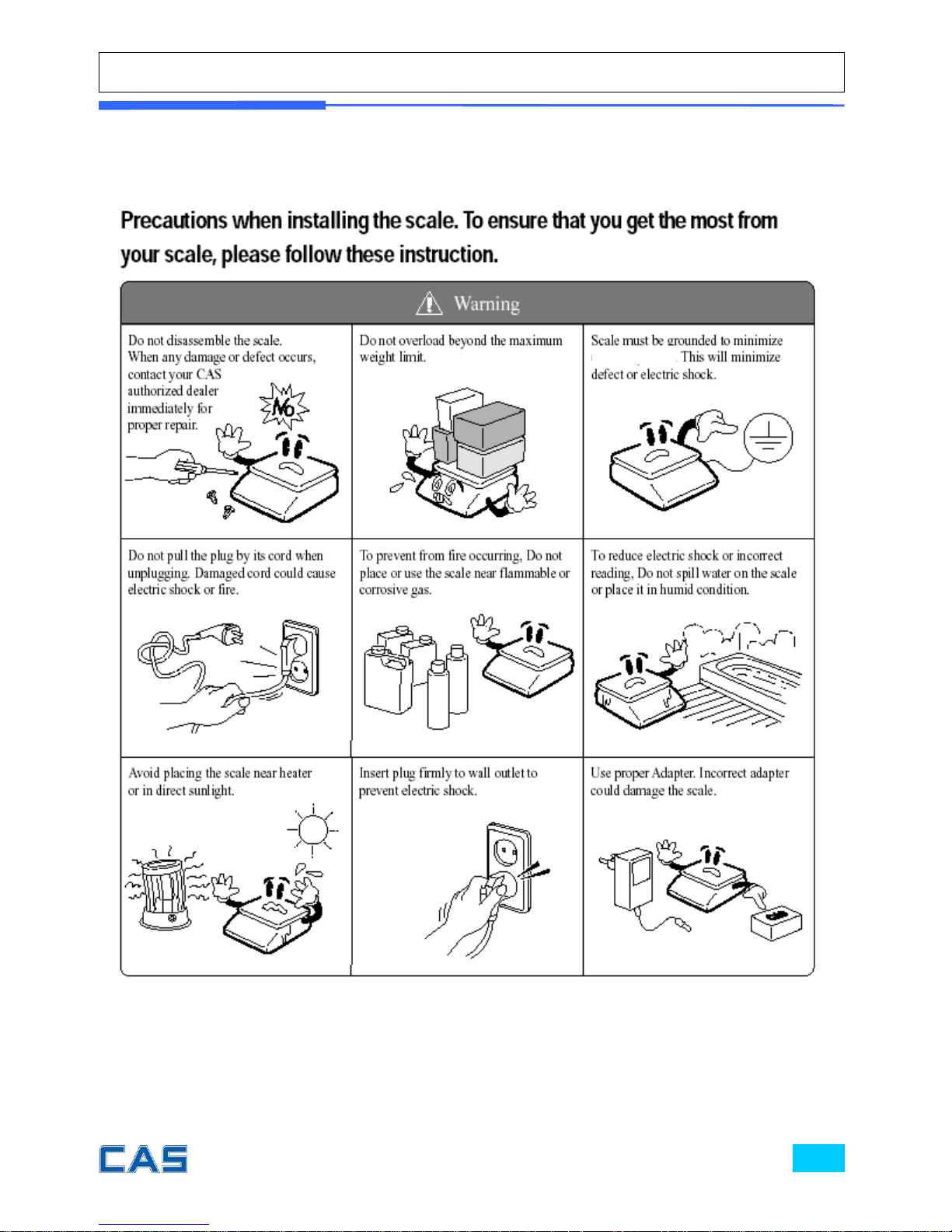
PRECAUTIONS
static electricity.
Page 4

Risk of explosion if battery is replaced by an
incorrect type. Dispose of used batteries
according to the instruction.
Correct type of battery
Page 5
PREFACE
Thank you for the purchasing of CAS POScale series.
This series have been designed with CAS reliability, under rigid quality
control and with outstanding performance. Your specialty departments
can enjoy with CAS product. We hope that CAS product meets your
needs.
The user manual is designed to guide you to understand product
operation and proper care of product.
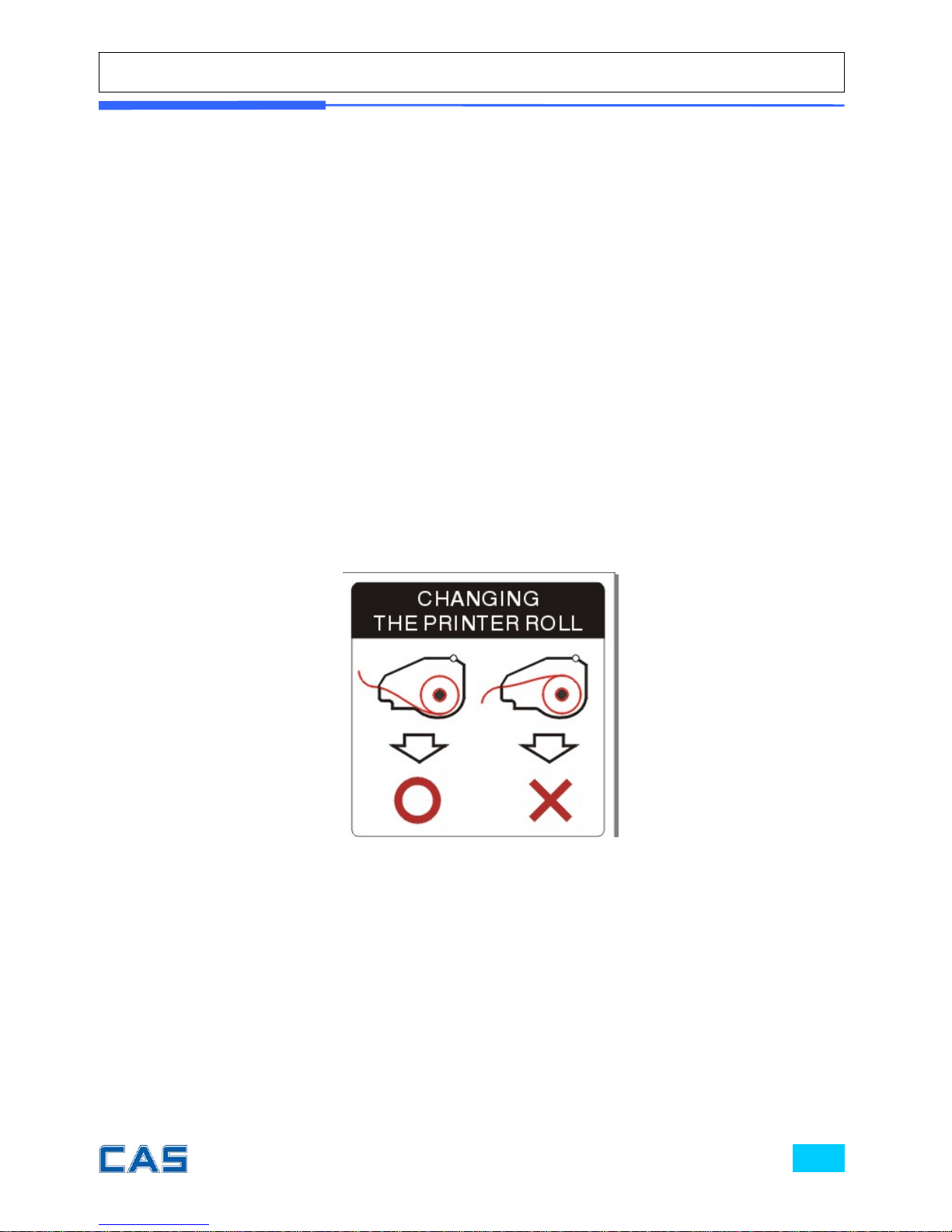
CHANGING THE PRINTER ROLL
Recommended size for thermal paper;
58mm (Width) / 65μm(Thickness) /60mm (Maximum Diameter)
Page 6
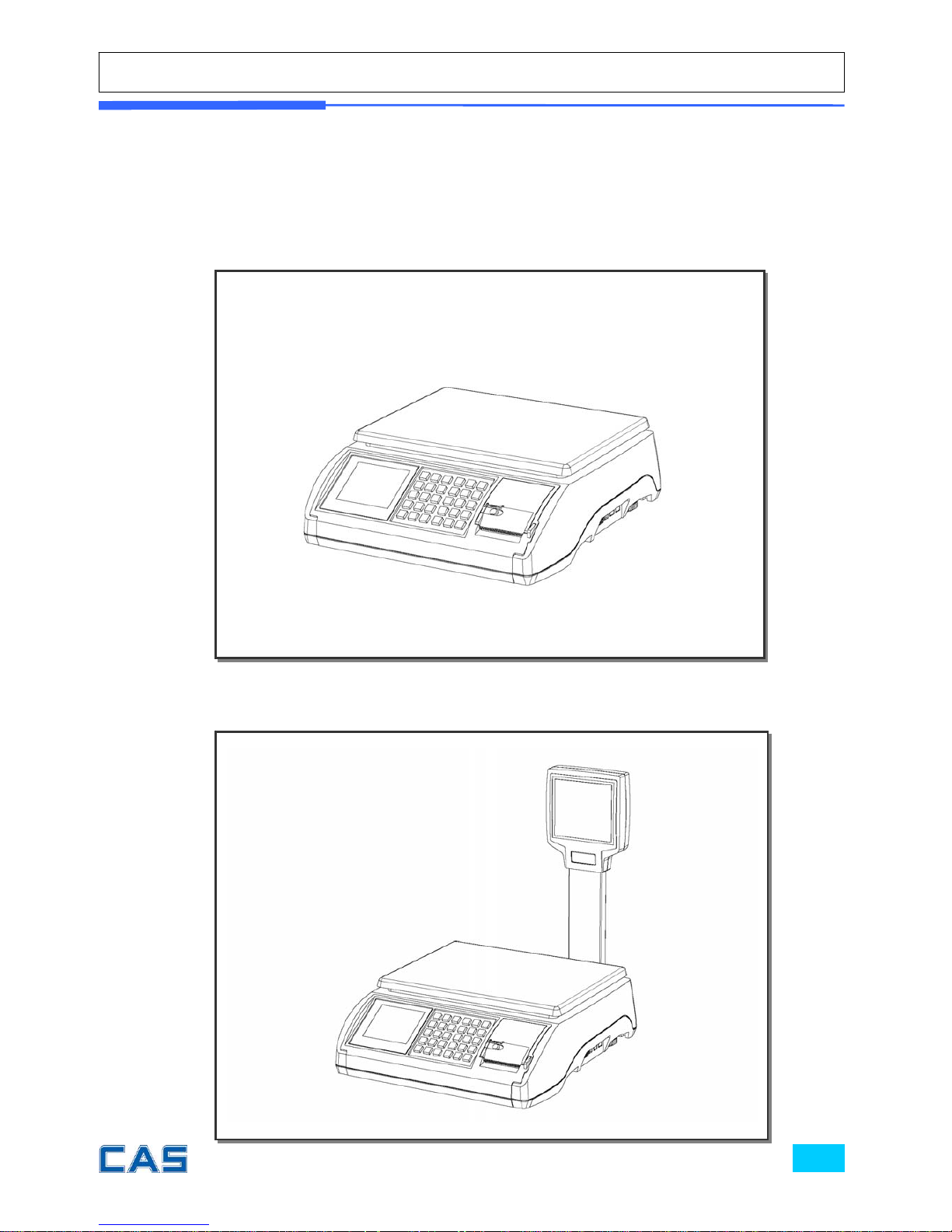
NAME AND FUNCTIONS
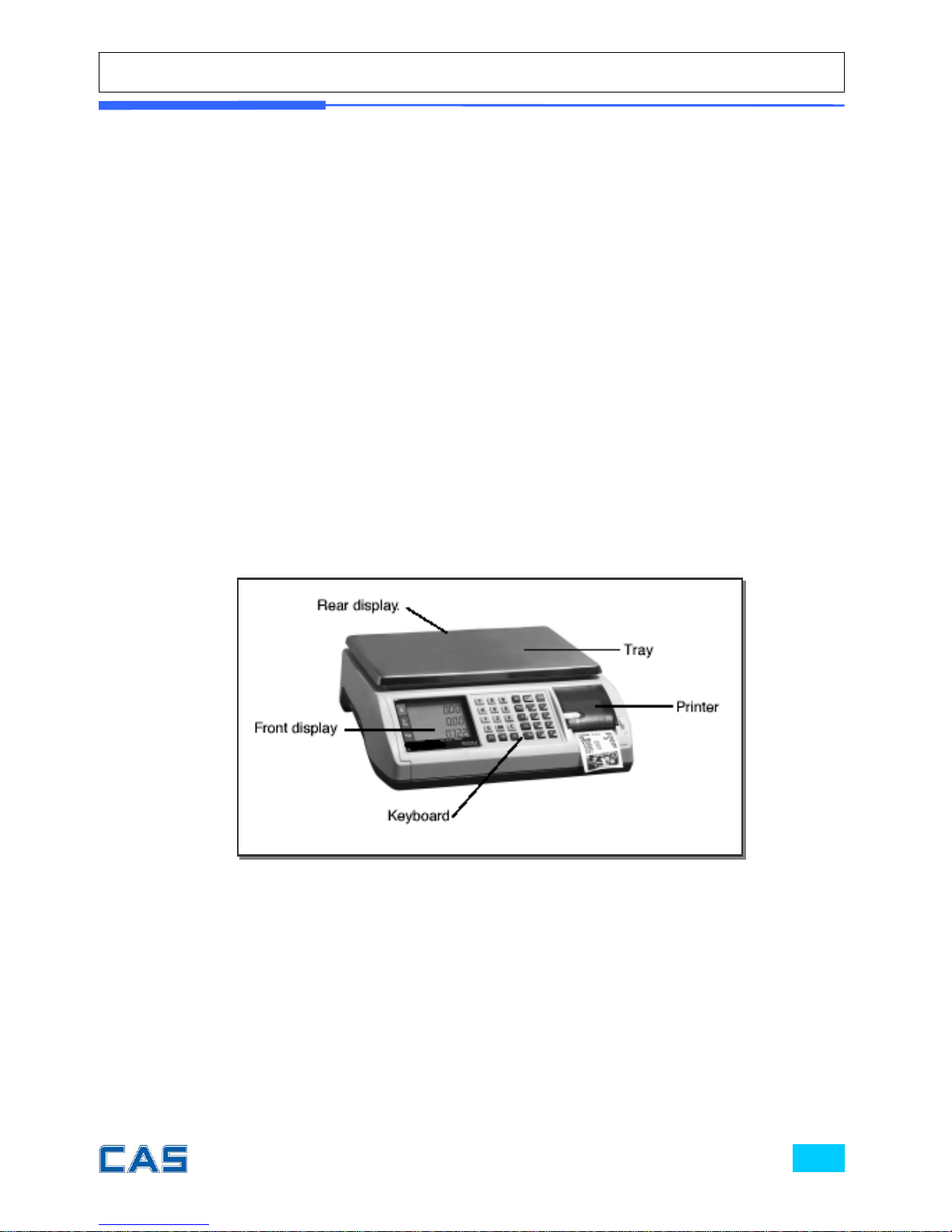
OVERALL VIEW
STANDARD TYPE
;
POLE TYPE
Page 7
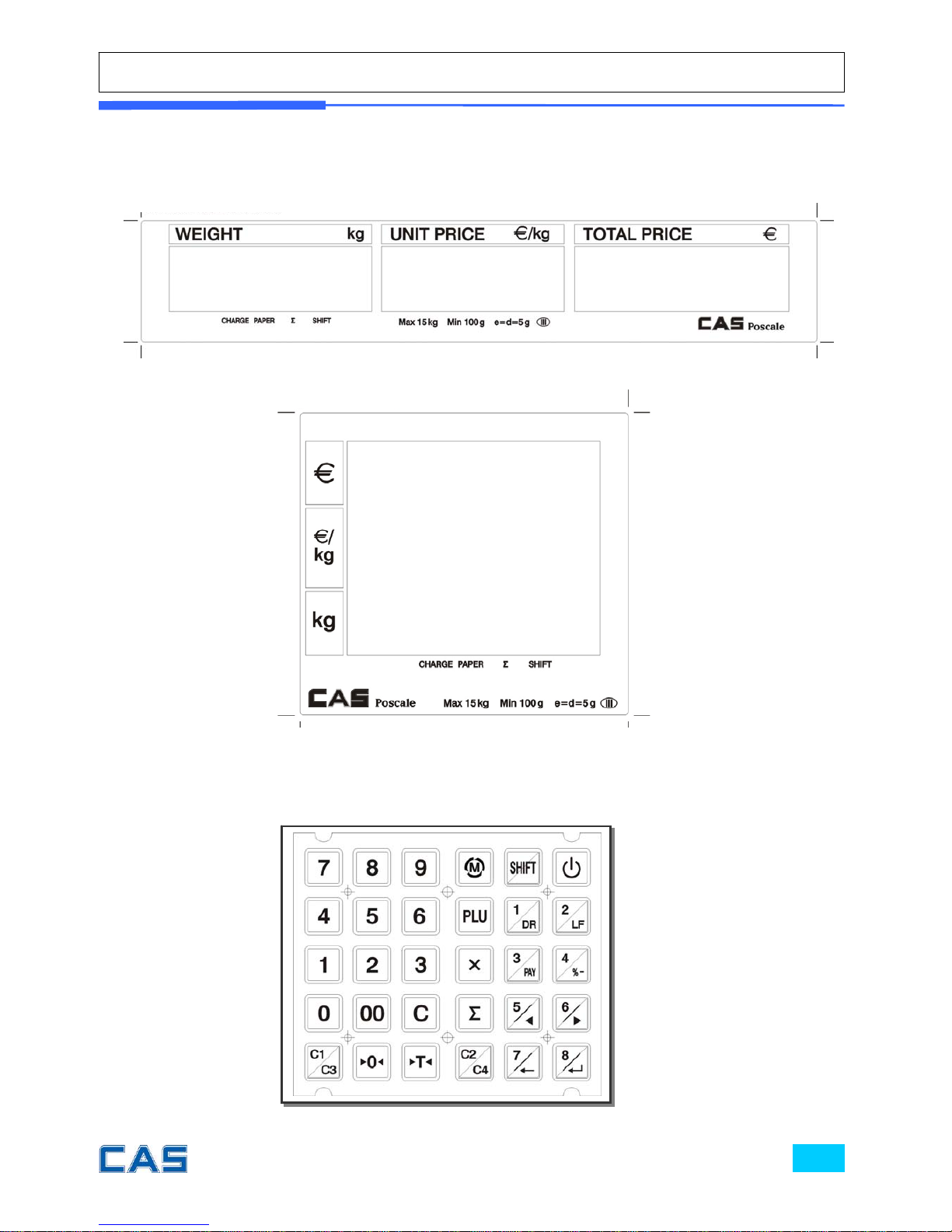
DISPLAY
KEYBAORD
Rear Display (Customer-side display)
Front (Clerk-side display) & Pole Display
Page 8

Table 1: Symbols on Display
SYMBOLS DESCRIPTION
CHARGE ( )
The battery is being charged.
PAPER ( )
When blinks there is some problem with paper roll in
the printer.
∑ ( )
In the subtotal mode
SHIFT ( )
SHIFT key pressed
◀0▶
To adjust the weight to zero.
Stable
NET
Tare o n
MODE
Program mode
Low battery warning when it is below 7.3 voltage
Page 9
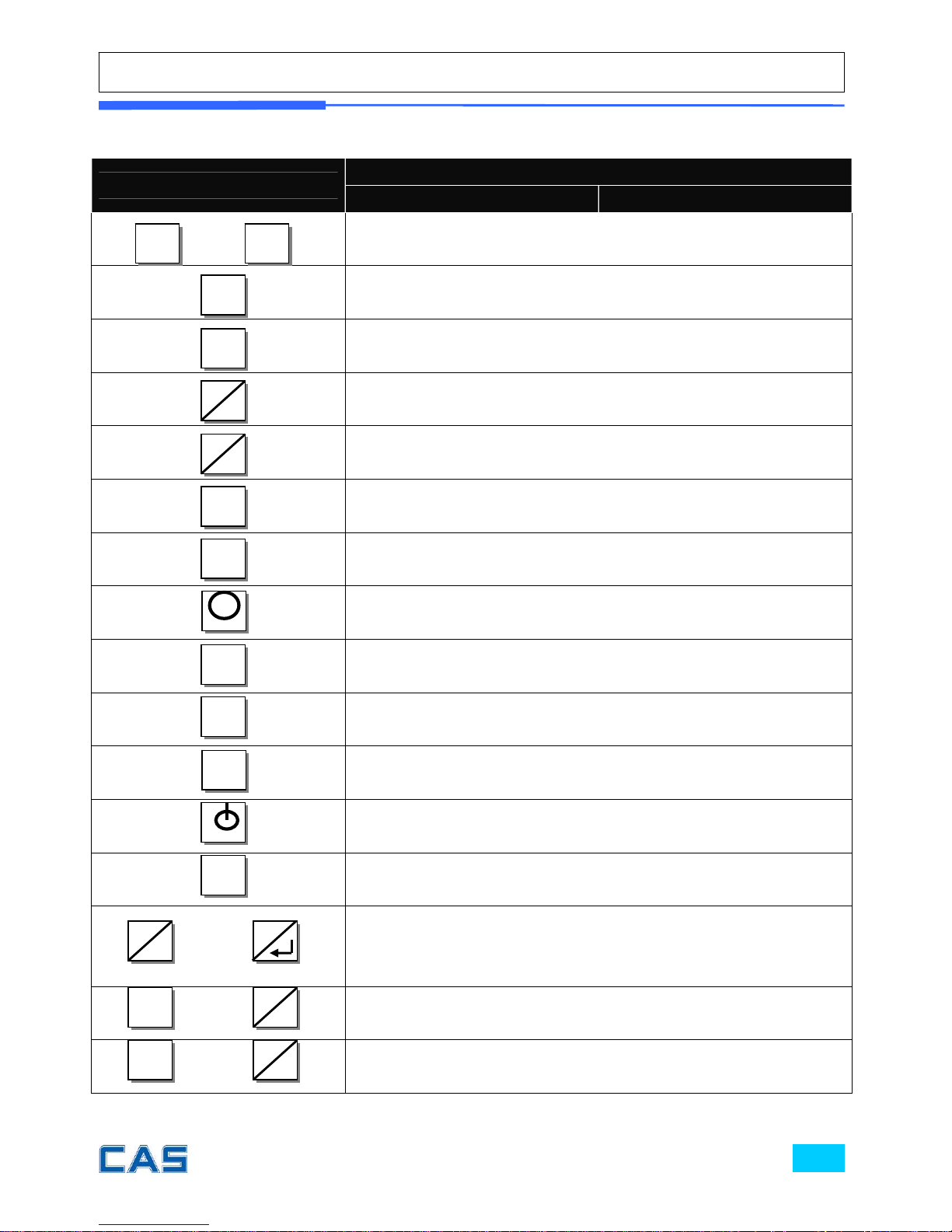
Table 2: Key Functions
KEYS
FUNCTIONS
SALES MODE PROGRAM MODE
~
To input all of numerical data
To input double zero
To clear all of numbers input on the display
To select clerk 1
To select clerk 2
To set zero
To set or clear tare value
To go to program mode
To call up a PLU with numeric key
To input non-weighed item
To alternate key functions
To turn on or off the power / backlight
To show subtotal / total / payment sum
~
Direct PLU keys
* PLU # 1~8 may be used for both of the direct and indirect PLUs.
Most commonly used 8 items are recommended to be used for
direct PLUs at users’ convenience.
+
To select clerk 3
+
To select clerk 4
0 9
00
C
C1
C3
C2
C4
◀0▶
◀T▶
PLU
X
SHIFT
∑
1
D
R
C2
C4
SHIFT
C1
C3
SHIFT
M
8
Page 10
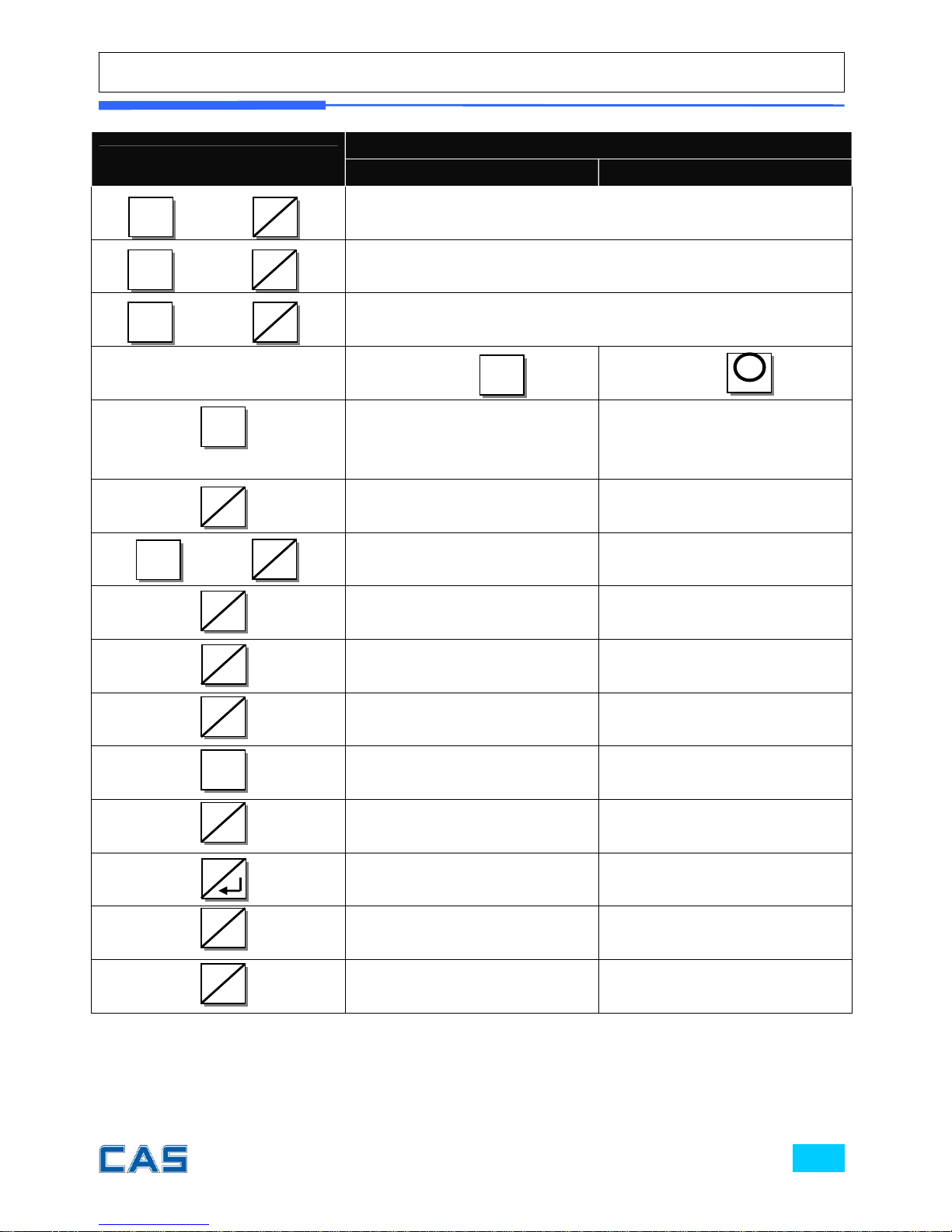
KEYS
FUNCTIONS
SALES MODE PROGRAM MODE
+
To open cash drawer
+
To feed the paper
+
To make discount
After pressing After pressing
To finalize the payment in
cash
To print receipt
To print current data
To pay in c a s h
+
To pay in credit
To make discount for
subtotal
Sales list - To go to the previous menu
Sales list + To go to the next menu
To delete a specific sale in
sales list
To go back to the higher
level of menu
To go into the lower level of
menu
Fast selection of PLU (-) in
the PLU mode
Fast selection of PLU (+)in
the PLU mode
X
∑
∑
3
PAY
3
PA
Y
SHIFT
3
PAY
4
%-
4
%-
1
D
R
SHIFT
SHIFT
2
LF
4
%-
SHIFT
5
◀
6
▶
7
←
8
M
Page 11
OPERATIONS
I. Sales Mode
Chapter 1. Basic Operation
a. Turning the scale or backlight on / off
b. Feeding the paper
c. Opening cash drawer
d. Self-test on printing
e. Zero function
f. Tare function
Chapter 2. Sales for weighed item
a. Sales with free price (hand pricing)
b. PLU sales
Chapter 3. Sales for non-weighed item
a. Sales with free price (hand pricing)
b. PLU sales
Chapter 4. Clerk Operation
a. One clerk selection
b. Void
c. Subtotal
d. Sales list
e. All clerk mode operation
f. Supermarket mode operation
Chapter 5. Discount & Payment
a. Discount for a sales transaction
b. Discount for subtotal
c. Payment
d. Duplicate receipt
Page 12

Chapter 6. Sales Transaction Simulation
Sales with free price
Void
Programmed discount
PLU sales
Non-weighed sales
Subtotal
Discount for subtotal
Sales list viewing
Deleting a specific sale transaction
Payment in credit
Payment in cash
Page 13

Chapter 1.
Basic Operation
Page 14
Chapter 1. Basic Operation
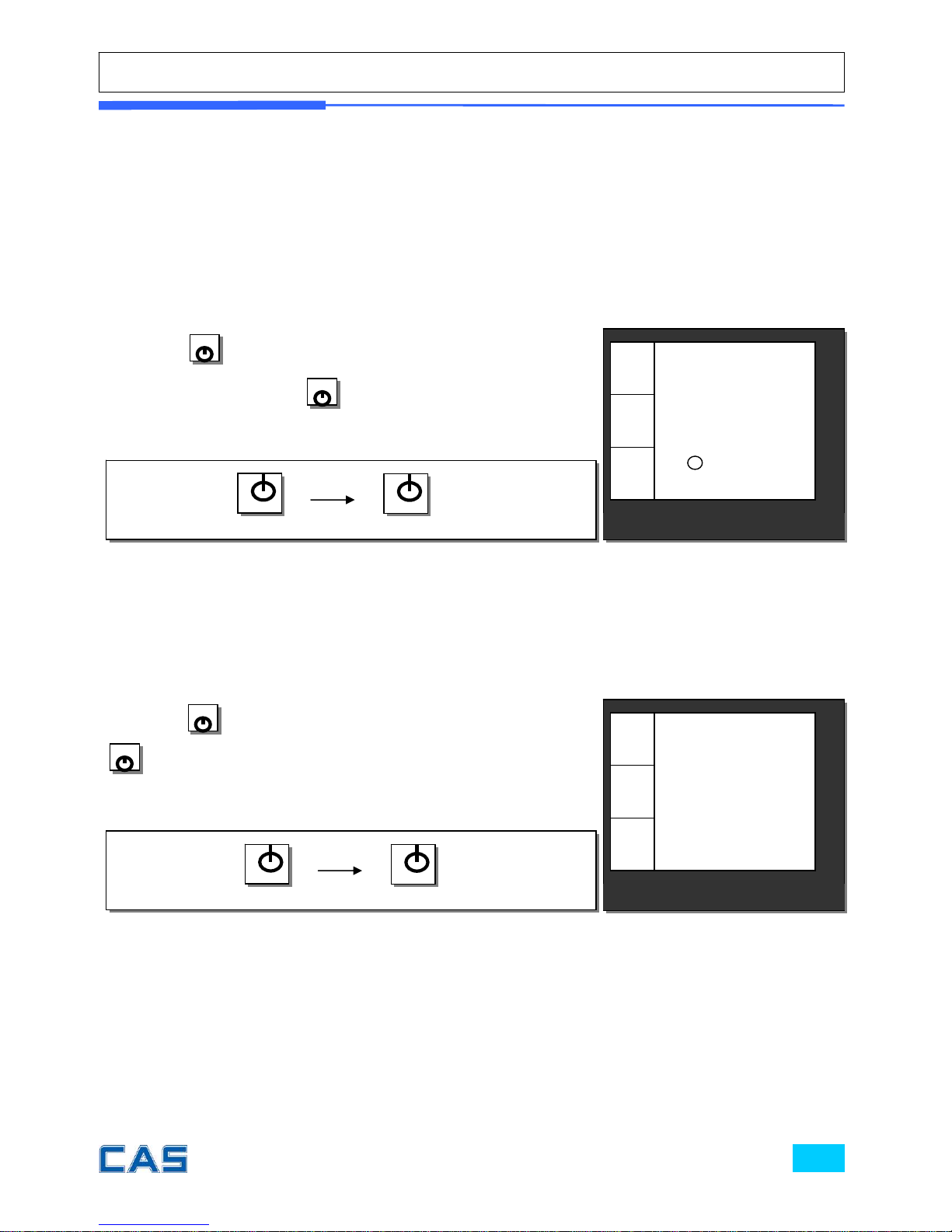
This chapter explains how to turn the scale or backlight on/off, feed the paper, open
cash drawer, and do self-test on printer.
a. Turning the scale or backlight on/off
* Only when user is in battery use the backlight lasts 1 minute and automatically is turned off. Then,
if the scale senses more than minimum weight※ the backlight is automatically turned on.
※ Minimum weight: refer to SPECIFICATION Table on page 99.
① Press
when the scale is turned off, then it starts
counting 0~9. And press
again for a second to turn on
backlight of scale.
② Press
for a second to turn backlight off. And press
and hold it for more than a second to turn the scale off.
CAS POScale
CHARGE PAPER ∑ SHIFT
€/
kg
€
kg
CAS POScale
CHARGE PAPER ∑ SHIFT
€/
kg
0.00
0.00
0.000
€
kg
◀0▶
Page 15
b. Feeding the paper
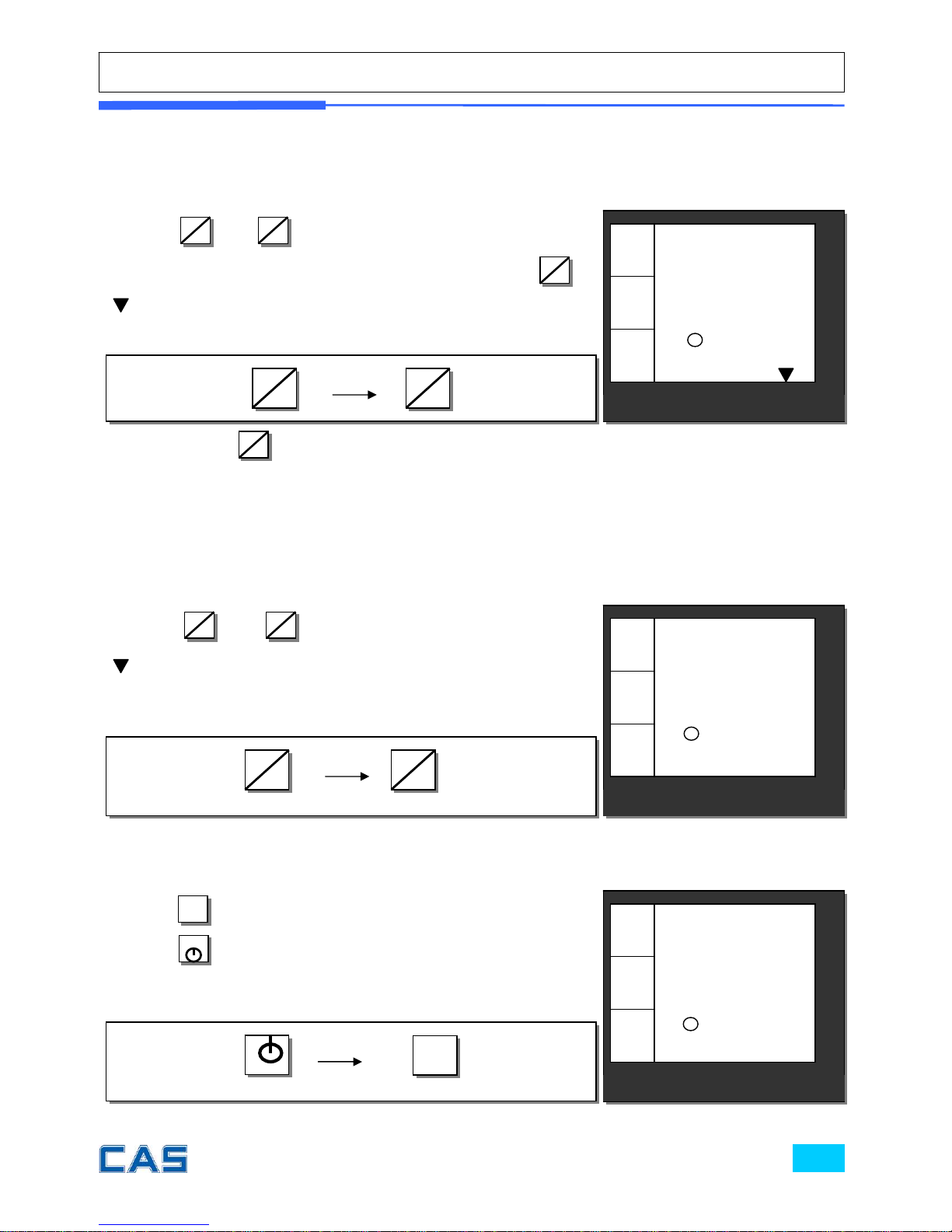
Feeding the paper is to make sure that printer paper is properly set and
operated.
Press
SHIFT
key again to turn off “SHIFT” function.
c. Opening cash drawer
This operation is to use the scale with cash drawer. Cash drawer will be
opened whenever printing receipt.
d. Self-test on printing
* The printing self-test function may be also executed on test mode in “II. Programming mode”.
① Press
SHIFT
and
2
LF
when user needs to feed the paper.
Then, ticket will come out as much as time of pressing
2
LF
.
(Shift) mark will be shown on the bottom of display.
SHIFT
2
LF
① Press
◀T▶
while counting 0~9 after turning on the scale by
pressing
. Then, it automatically prints out the test report.
Please refer to the sample report on page 96.
◀T▶
① Press
SHIFT
and
1
DR
to open cash drawer in time set.
(Shift) mark will be displayed on the bottom of display.
SHIFT
1
DR
CAS POScale
CHARGE PAPER ∑ SHIFT
€/
kg
0.00
0.00
0.000
€
kg
◀0▶
CAS POScale
CHARGE PAPER ∑ SHIFT
€/
kg
0.00
0.00
0.000
€
kg
◀0▶
CAS POScale
CHARGE PAPER ∑ SHIFT
€/
kg
0.00
0.00
0.000
€
kg
◀0▶
Page 16
e. Zero function
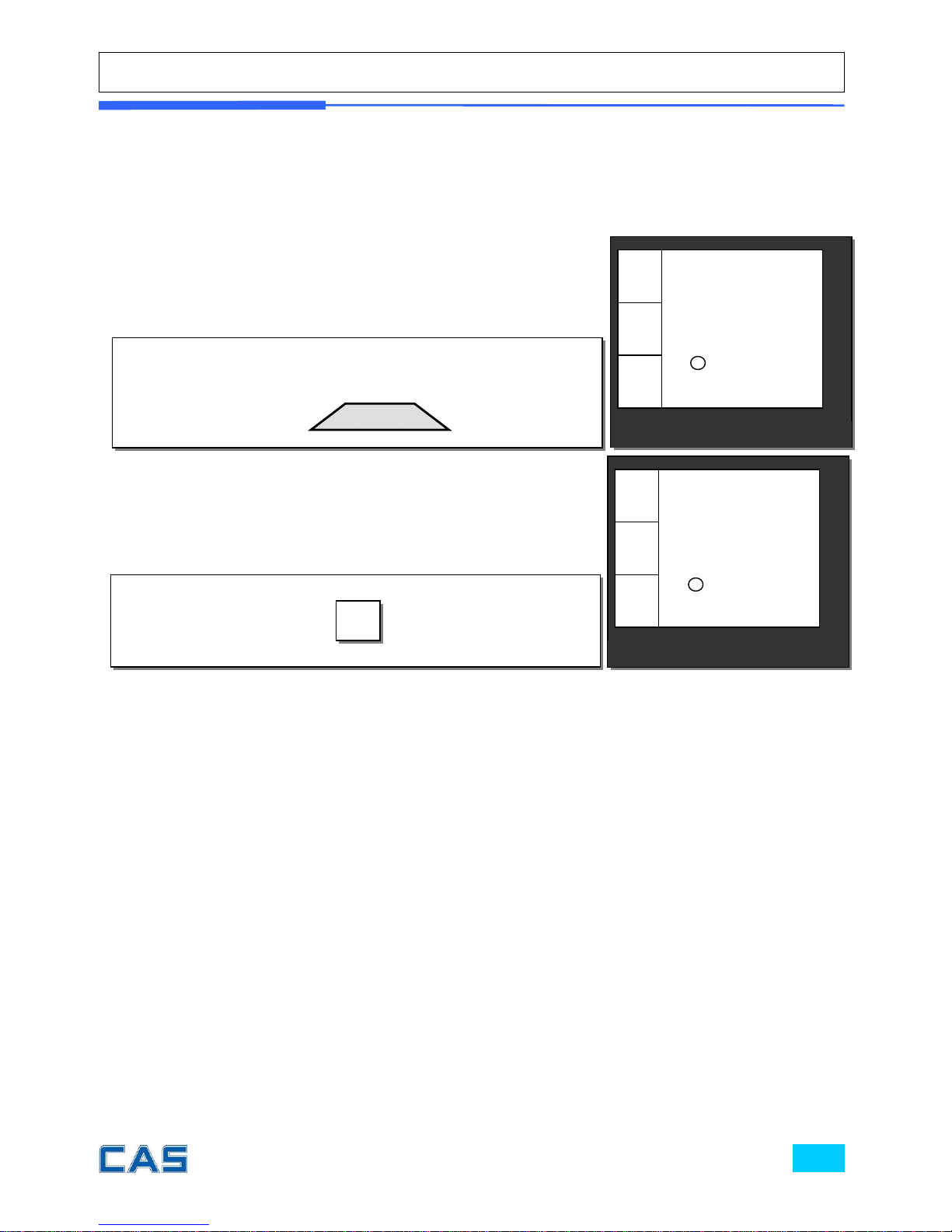
The scale is not in initial zero point when there is(are) any item(s) on the platter
user may need to set zero using “zero” key.
① The scale is not in initial zero point.
② Set zero point. User can set zero only within ±2% of
capacity. For example, the 6 kg POScale model is ±120 g.
CAS POScale
CHARGE PAPER ∑ SHIFT
€/
kg
0.00
0.00
0.010
€
kg
◀0▶
CAS POScale
CHARGE PAPER ∑ SHIFT
€/
kg
0.00
0.00
0.000
€
kg
◀0▶
Page 17
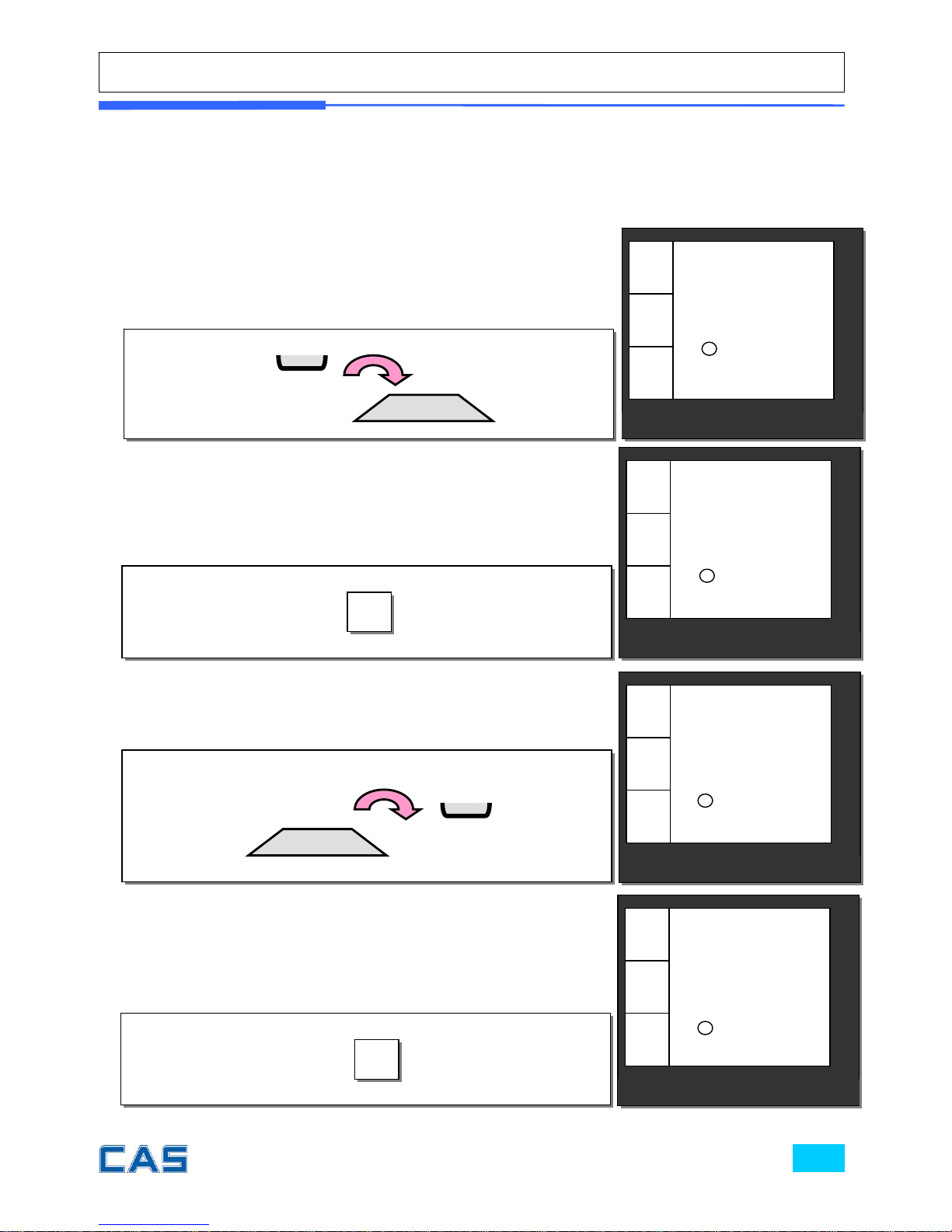
f. Ta r e fu n c t io n
One Time Tare
This function is to subtract the weight of actual tare.
① Place a tare on the platter. For example, 10 g.
③ Remove tare from the platter if user does not need tare
function. At this time the weight shows negative value of tare.
② Subtract the tare weight. After setting the tare user may
place item on the platter, and the scale reads only the weight
of item.
CAS POScale
CHARGE PAPER ∑ SHIFT
€/
kg
0.00
0.00
0.010
€
kg
④ Clear up the tare value, and go back to set zero point.
◀T▶
CAS POScale
CHARGE PAPER ∑ SHIFT
€/
kg
0.00
0.00
0.000
€
kg
◀0▶
◀T▶
CAS POScale
CHARGE PAPER ∑ SHIFT
€/
kg
0.00
0.00
0.000
€
kg
◀0▶
NET
CAS POScale
CHARGE PAPER ∑ SHIFT
€/
kg
0.00
0.00
-0.010
€
kg
◀0▶
NET
Page 18

Successive Tare
This function is to subtract two successive tares.
The successive tare can be set in the cal ibration mod e. Please contact you r dealer if
you want to use “Successive Tare”.
① Place a tare on the platter. For example, 10 g.
② Subtract the tare weight.
CAS POScale
CHARGE PAPER ∑ SHIFT
€/
kg
0.00
0.00
0.010
€
kg
◀T▶
③ Place another tare on the platter. For example, 20g.
④ Add up the weight of tares. After setting the successive
tares user may place item on the platter, and the scale reads
only the weight of item.
◀T▶
CAS POScale
CHARGE PAPER ∑ SHIFT
€/
kg
0.00
0.00
0.020
€
kg
NET
CAS POScale
CHARGE PAPER ∑ SHIFT
€/
kg
0.00
0.00
0.000
€
kg
◀0▶
NET
CAS POScale
CHARGE PAPER ∑ SHIFT
€/
kg
0.00
0.00
0.000
€
kg
◀0▶
NET
Page 19
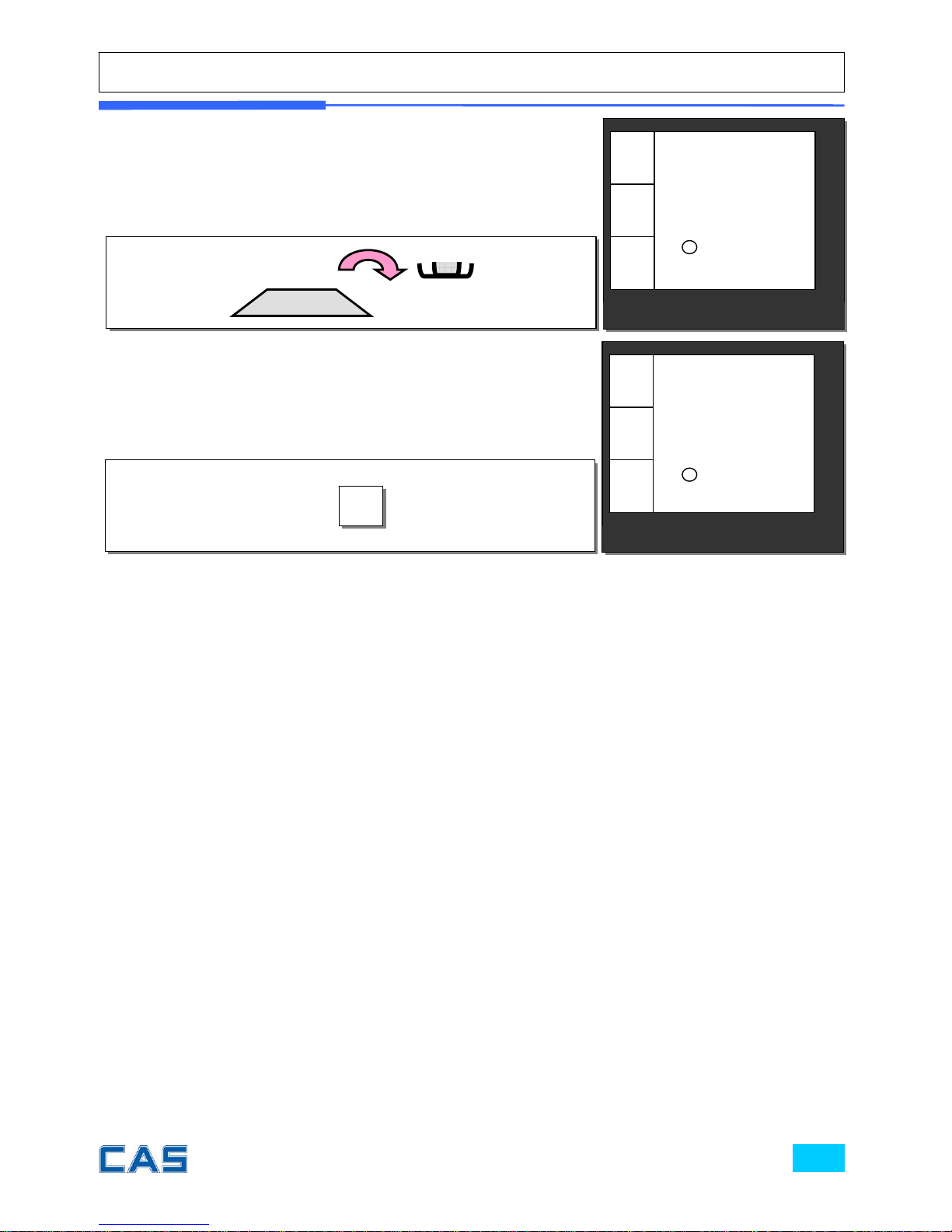
⑤ Remove all weights from platter if user does not need tare
function. At this time the weight shows negative value of tare.
⑥ Clear up the tare value, and go back to set zero point.
◀T▶
CAS POScale
CHARGE PAPER ∑ SHIFT
€/
kg
0.00
0.00
0.000
€
kg
◀0▶
CAS POScale
CHARGE PAPER ∑ SHIFT
€/
kg
0.00
0.00
-0.030
€
kg
◀0▶
NET
Page 20

Next two chapters, chapter 2 & 3, explain how to make sales transactions for
weighed item and for non-weighed item respectively. User may use or not use PLU (Price
Look-Up), which can be pre-programmed into the scales. Let’s look at how to opera te sales
function of CAS POScale.
Chapter 2.
SALES FOR WEIGHED ITEM
Chapter 3.
SALES FOR NON-WEIGHED ITEM
Page 21
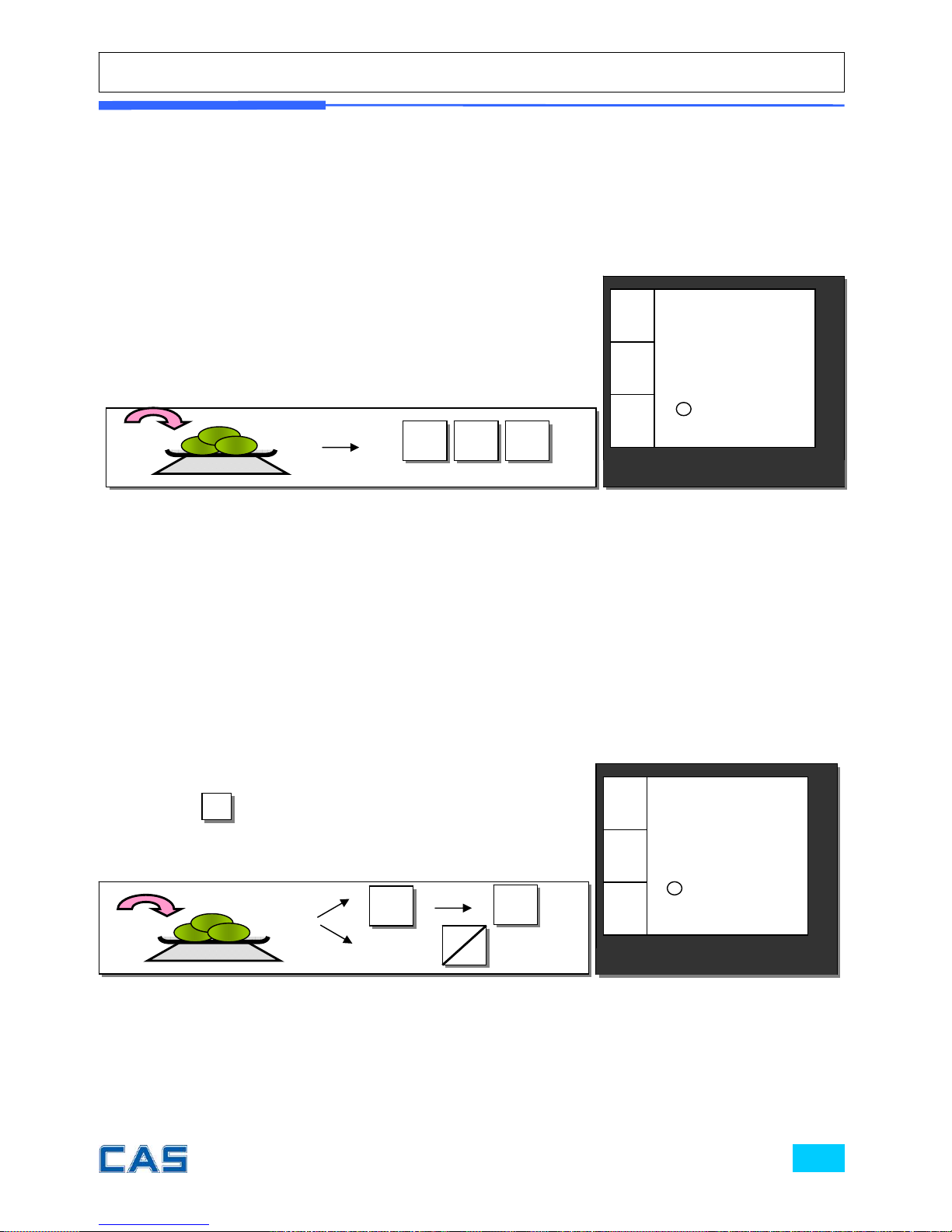
Chapter 2. Sales for weighed item
a. Sales with free price (hand pricing)
b.
c.
b. PLU Sales
PLU means Price Look-Up, which is pre-programmed into the scale for commonly
used unit price and item. It may store such informations as unit price, item’s code,
department, item name, tax rate group, weighed or non-weighed, fixed or non-fixed item,
and printing or non-printing barcode for a PLU.
CAS POScale can store up to 1,800 PLUs in the memory so that it can provide
users as much convenience as it can. Let’s look at how to make sales transaction using PLU.
① Put appropriate item of, for example, 2kg on the platter and
press numeric keys for its unit price in weighing mode.
* All of sales transactions with free price are stored and
accumulated on “PLU 0” for report.
① Put appropriate item on the platter. And press either PLU
number and
PLU
(or direct PLU key between 1~8 which are
preset in the programming mode). For example, let’s put in
“PLU 1(non-fixed PLU)”, which unit price is 2.99.
1 9 9
CAS POScale
CHARGE PAPER ∑ SHIFT
€/
kg
3.98
1.99
2.000
€
kg
CAS POScale
CHARGE PAPER ∑ SHIFT
€/
kg
5.98
2.99
2.000
€
kg
* Direct PLU: user may save one touch direct PLUs for most commonly-used 8 items.
* If user saves indirect PLUs of #1~8 he/she does not need to save direct PLUs of # 1~8
because the indirect PLUs of #1~8 are automatically saved in the direct PLUs of #1~8. Most
commonly used 8 items are recommended to be saved in the direct PLUs for users’ convenience.
1
PLU
( OR )
1
D
R
Page 22
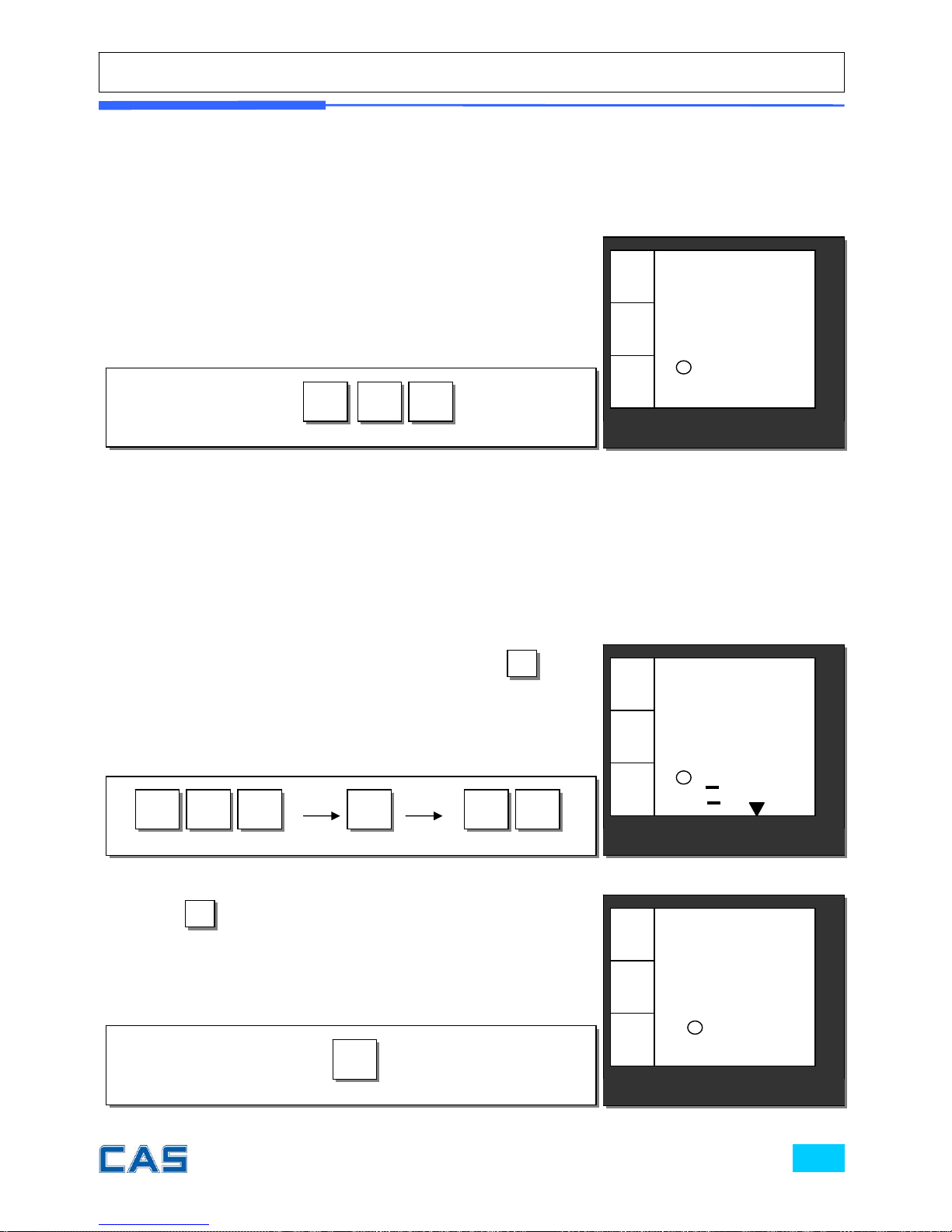
Chapter 3. Sales for non-weighed item
a. Sales with free price (hand pricing)
* If current PLU, 1 has fixed price attribute, which is set in the program mode user cannot
change the unit price for PLU called up. However, if current PLU has non-fixed price attribute
user may change (override) the unit price at his/her sales transaction condition.
② In case of non-fixed priced PLU user may put in (override)
new price for current PLU at sales condition, for example, “last
minute sales” or “10 minutes sales” etc. Let’s try last minute
sales of PLU 1; 1 kg for 1.99.
② Press
C
to clear previous transaction and go back to
initial weighing mode.
9 9 1
① Simply input item’s unit price and press
X
and
quantity. Then display will show total price.
X 1
2
1 9 9
C
CAS POScale
CHARGE PAPER ∑ SHIFT
€/
kg
3.98
1.99
2.000
€
kg
CAS POScale
CHARGE PAPER ∑ SHIFT
€/
kg
0.00
0.00
0.000
€
kg
◀0▶
CAS POScale
CHARGE PAPER ∑ SHIFT
€/
kg
23.88
1.99
12
€
kg
◀0▶
Page 23
b. PLU Sales
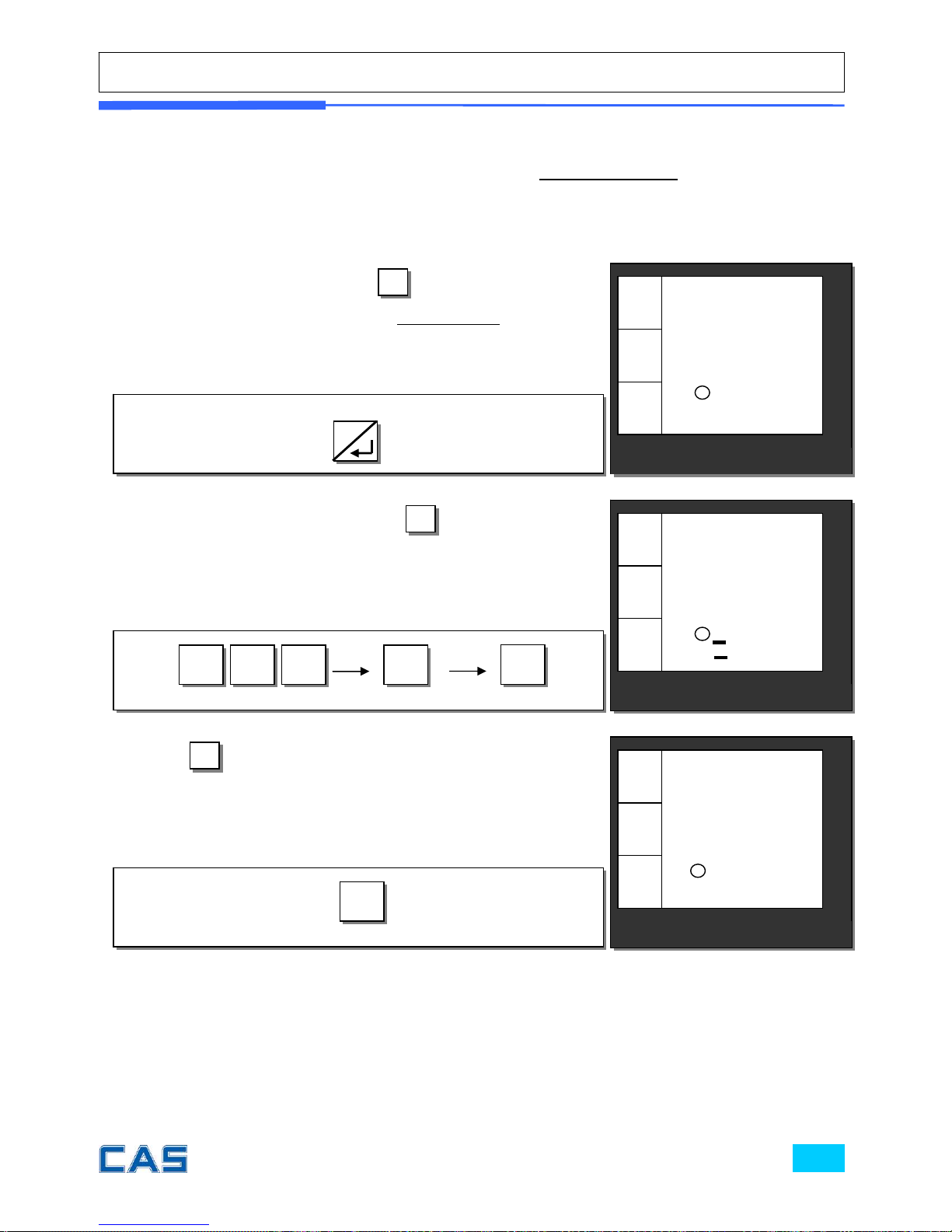
Please make sure current PLU be set with non-fixed price in the PLU program
mode. Otherwise, user cannot change unit price for the PLU called up.
① Press either PLU number and
PLU
(or appropriate direct
PLU key between 1~8). For example, direct “PLU 8”, which unit
price is 3.99.
② Input new price, 3.00. Then, press
X
and the number of
non-weighed item unit, for example, 5 units.
5
0
X 3 0
③ Press
C
to clear previous transaction and go back to
initial weighing mode.
CAS POScale
CHARGE PAPER ∑ SHIFT
€/
kg
0.00
0.00
0.000
€
kg
C
◀0▶
CAS POScale
CHARGE PAPER ∑ SHIFT
€/
kg
0.00
3.99
0.000
€
kg
◀0▶
CAS POScale
CHARGE PAPER ∑ SHIFT
€/
kg
15.00
3.00
5
€
kg
◀0▶
8
Page 24

Chapter4.
CLERK OPERATION
Page 25
Chapter 4. Clerk Operation
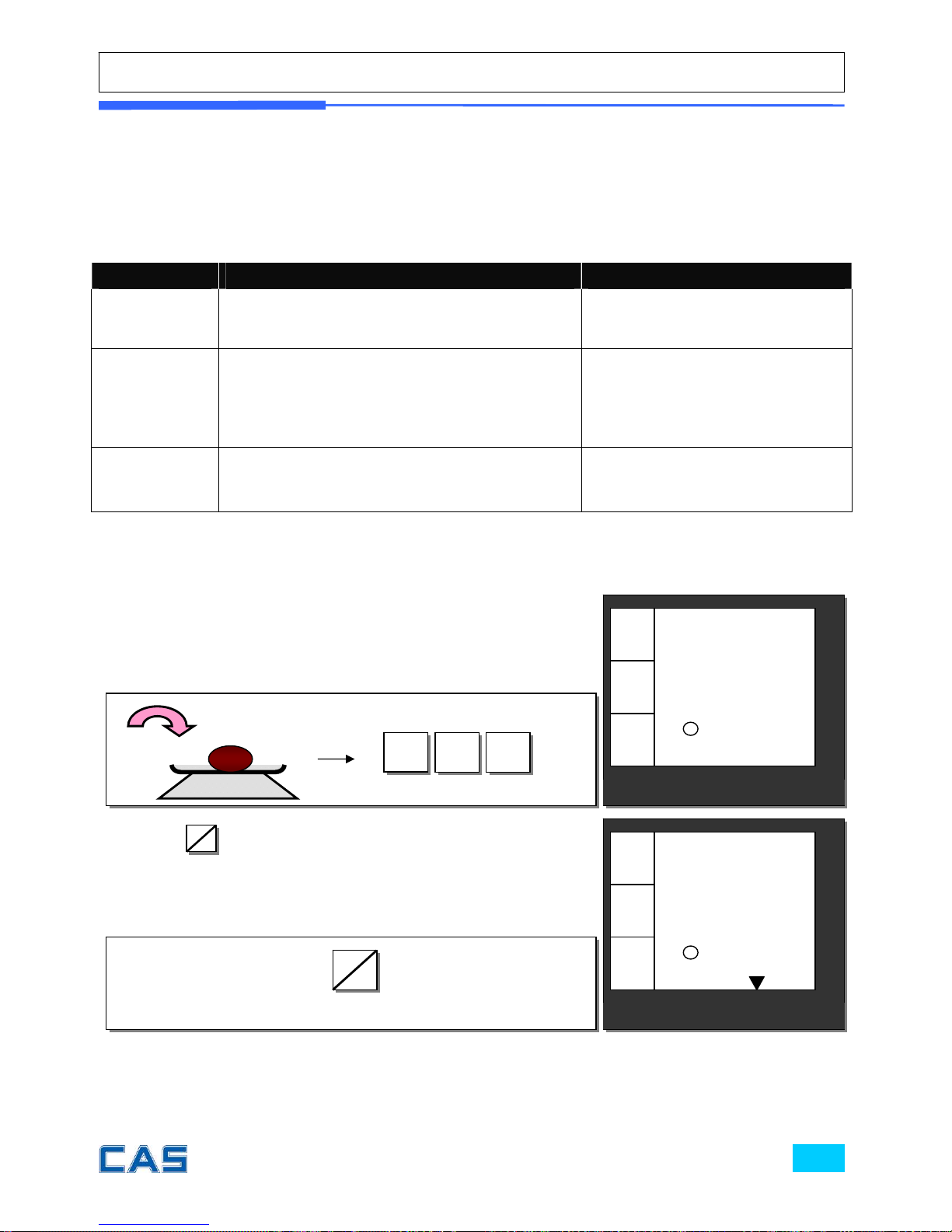
There are three different type of clerk modes.
Table 3: Clerk Mode
Modes Description Receipt Printing
0
All clerks can use the scale for a series of
sales activity.
It prints ticket (receipt)
including each item and total
information.
1
Only one clerk can use the scale for a
series of sales activity.
However, other clerk can use the scale for
other series of sales activities in this
mode.
It prints only part of ticket
(receipt), which a transaction
is made, and prints total
amount after a series of
transactions are completed.
2
(Supermarket
mode)
Only one transaction per clerk at a
moment.
It prints ticket (receipt) only
for one transaction per clerk.
a. One clerk operation
② Press
C1
C3
to select the clerk 1. It automatically prints out
ticket (receipt) for current transaction.
① For example, put 2 kg of item whose unit price is 3.99 and
clerk 1 is making current transaction.
C1
C3
CAS POScale
CHARGE PAPER ∑ SHIFT
€/
kg
0.00
0.00
2.000
€
kg
CAS POScale
CHARGE PAPER ∑ SHIFT
€/
kg
7.98
3.99
2.000
€
kg
3
9 9
Page 26
b. Void
c. Subtotal
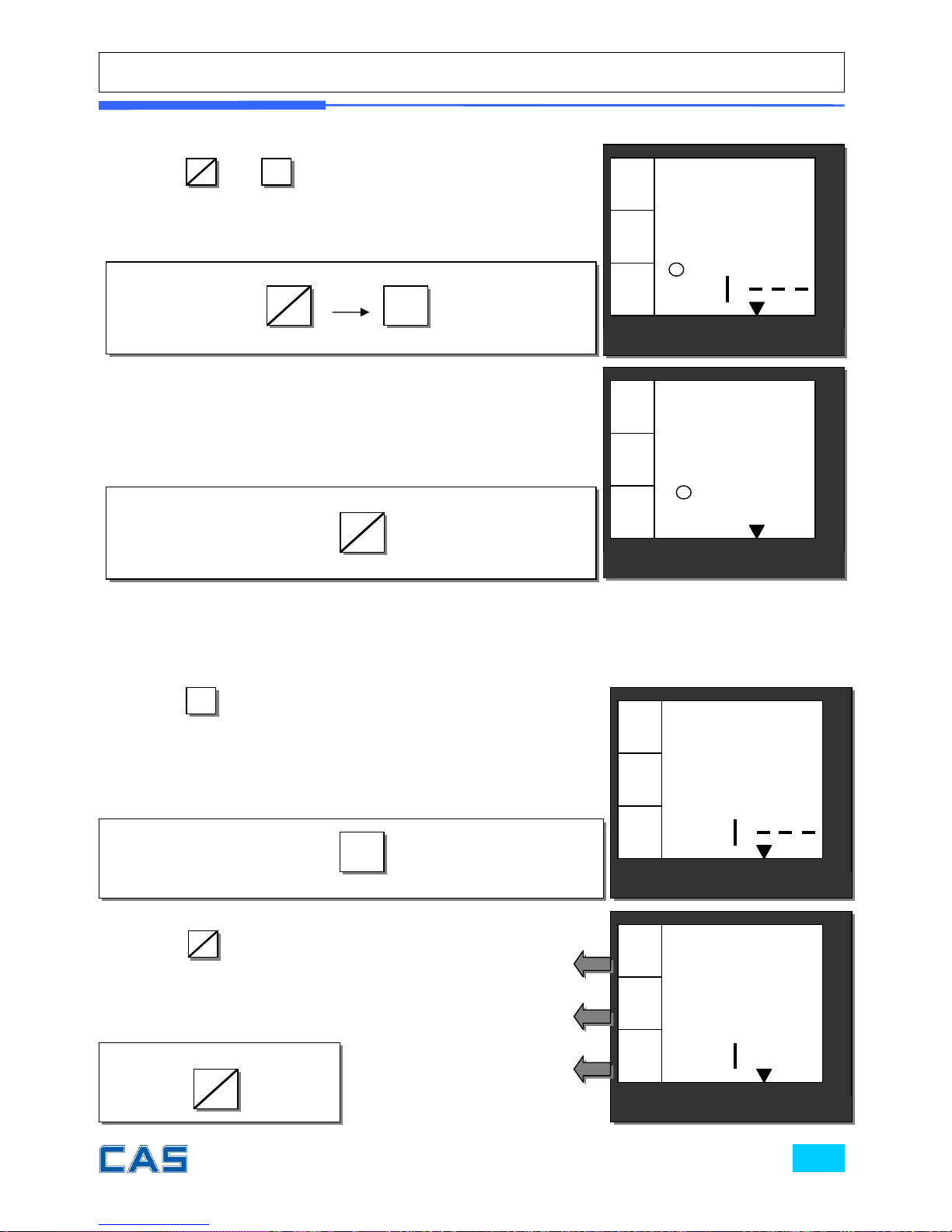
③ Press
SHIFT
and
X
to void (delete) latest transaction.
SHIFT
X
④ Select current clerk, for example, clerk 1 to make sure the
latest transaction is voided (deleted).
C1
C3
CAS POScale
CHARGE PAPER ∑ SHIFT
€/
kg
0.00
0.00
C .
€
kg
CAS POScale
CHARGE PAPER ∑ SHIFT
€/
kg
0.00
0.00
2.000
€
kg
⑥ Press to have subtotal amount and transaction after
previous void transaction.
User must select appropriate clerk if the scale is in the ALL
AT ONCE sales mode of the clerk setting.
∑
∑
⑦ Press
C1
C3
to select the
clerk 1.
C1
C3
Total price through previous
transactions.
The number of transactions.
Current clerk number in
current transactions.
CAS POScale
CHARGE PAPER ∑ SHIFT
€/
kg
S tot
C
€
kg
CAS POScale
CHARGE PAPER ∑ SHIFT
€/
kg
0.00
1
C
€
kg
Page 27
d. Sales List
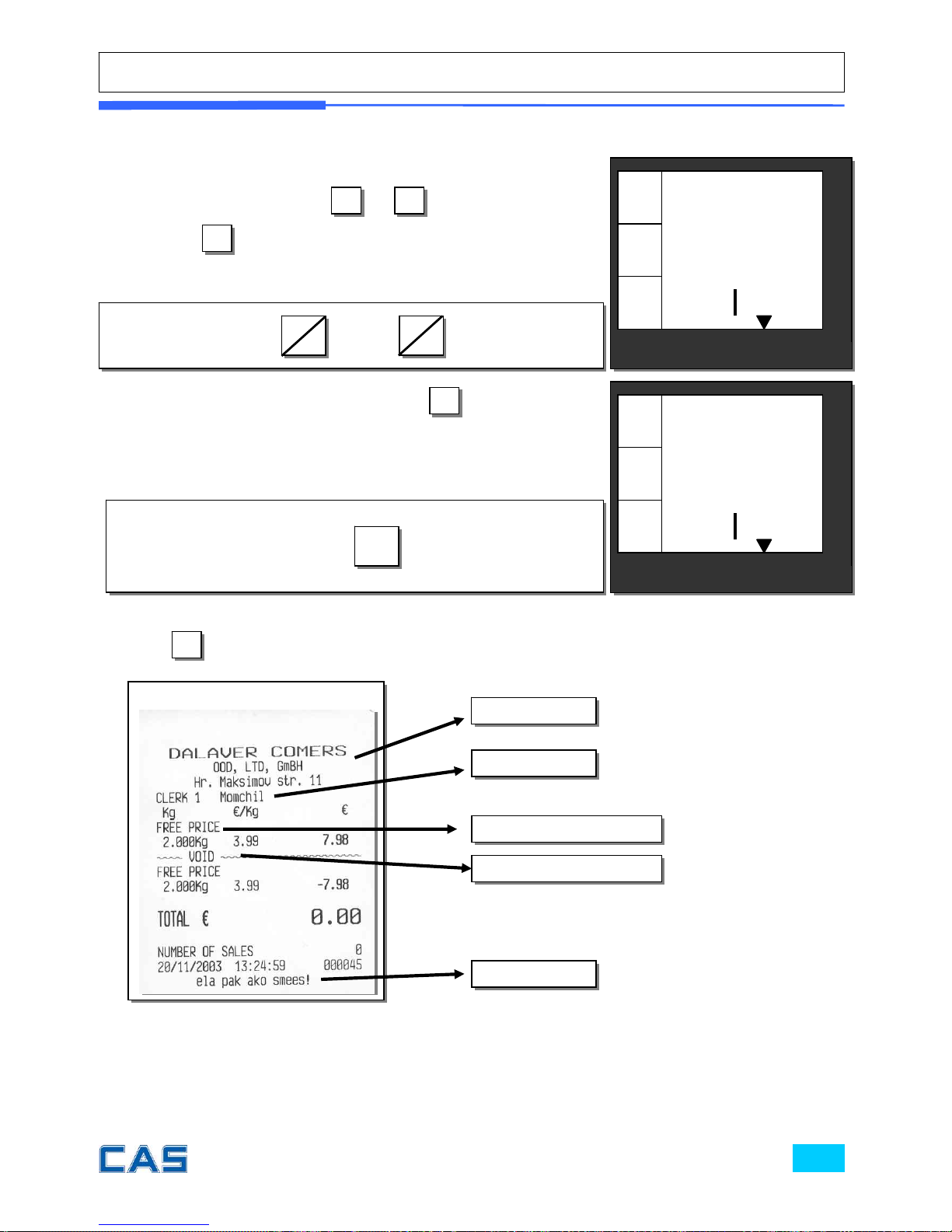
⑩ Press to print the receipt for ①~⑨ steps, and the receipt looks like the following one.
⑧ User may check through previous ①~⑦ transactions (lists)
before printing receipt, using
5
/◀
or
6
/▶
.
Pressing
X
is to delete present transaction made in the
sales list mode.
⑨ User may exit from current by using
C
once for current
clerk’s sales and twice for another transaction.
C
CAS POScale
CHARGE PAPER ∑ SHIFT
€/
kg
7.98
dE
L
C 1
€
kg
CAS POScale
CHARGE PAPER ∑ SHIFT
€/
kg
0.00
1
C
€
kg
∑
Sample Receipt
Header line
Clerk 1
Footer line
VOID transaction
Sales with Free Price
or
5
◀
6
▶
Page 28
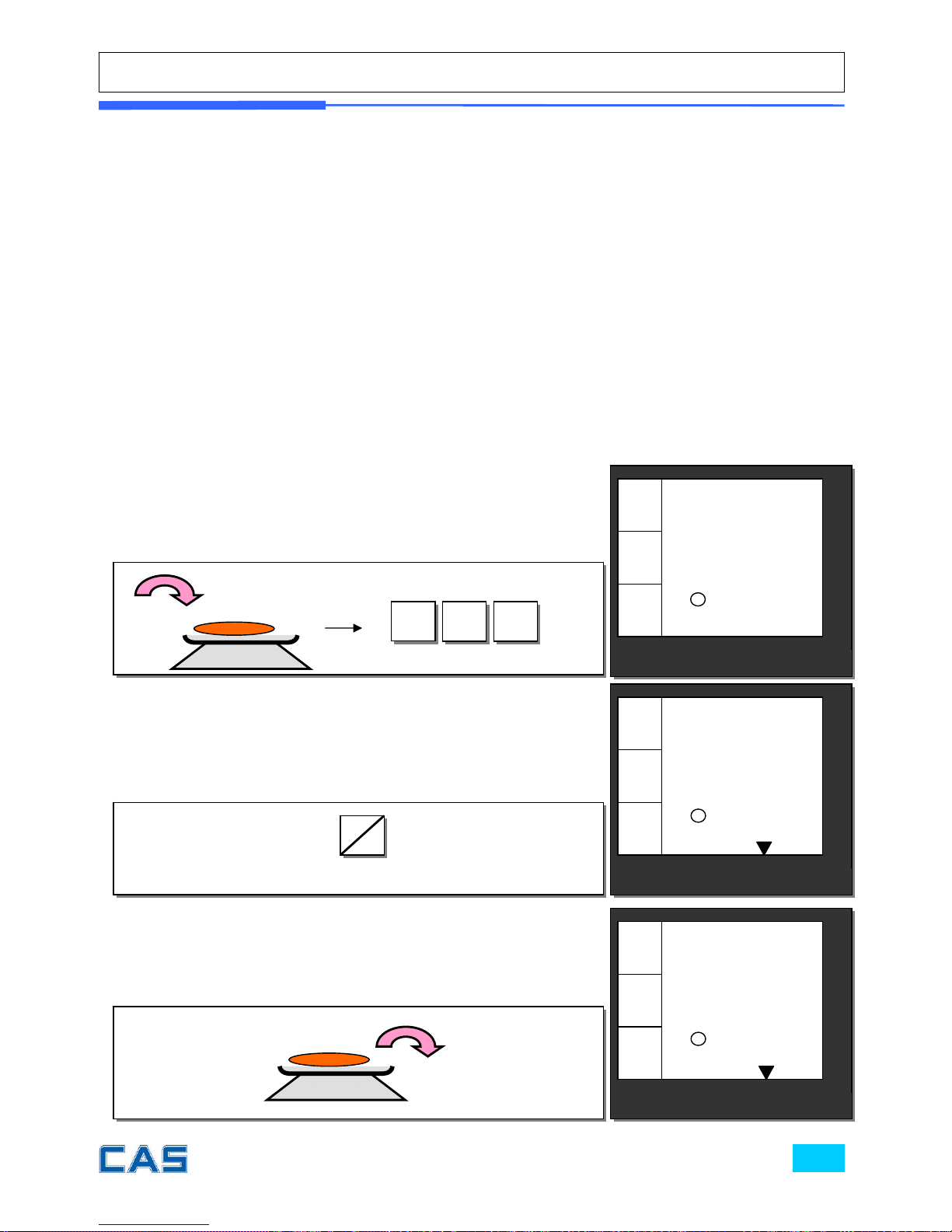
e. All clerk operation
“All clerk (0)” mode (refer to clerk setting on page 84)
All clerks can use the scale for a series of sales activity.
It prints ticket (receipt) including each item and total information.
Assumption:
a) 2 kg of Beef Sirloin (PLU setting # 14, €3.99/kg, No weight; No) for clerk C1.
b) 3 kg of Turkey (PLU setting # 15, €4.99/kg, No weight; No) for clerk C2.
c) 1 kg of Rib Eye (PLU setting # 17, €5.99/kg, No weight; No) for clerk C3.
d) 3 packs of Potato (PLU setting #1, €1.99/pack, No weight; YES) for clerk C1.
e) All of above-mentioned PLUs should have other code number than “code 0”.
② Select the clerk 1.
① Call up PLU of Beef Sirloin, #14 for clerk C1.
C1
C3
CAS POScale
CHARGE PAPER ∑ SHIFT
€/
kg
7.98
3.99
2.000
€
kg
1
4 PLU
CAS POScale
CHARGE PAPER ∑ SHIFT
€/
kg
0.00
0.00
2.000
€
kg
③ Remove Beef Sirloin from the platter.
CAS POScale
CHARGE PAPER ∑ SHIFT
€/
kg
0.00
0.00
0.000
€
kg
◀0▶
Page 29
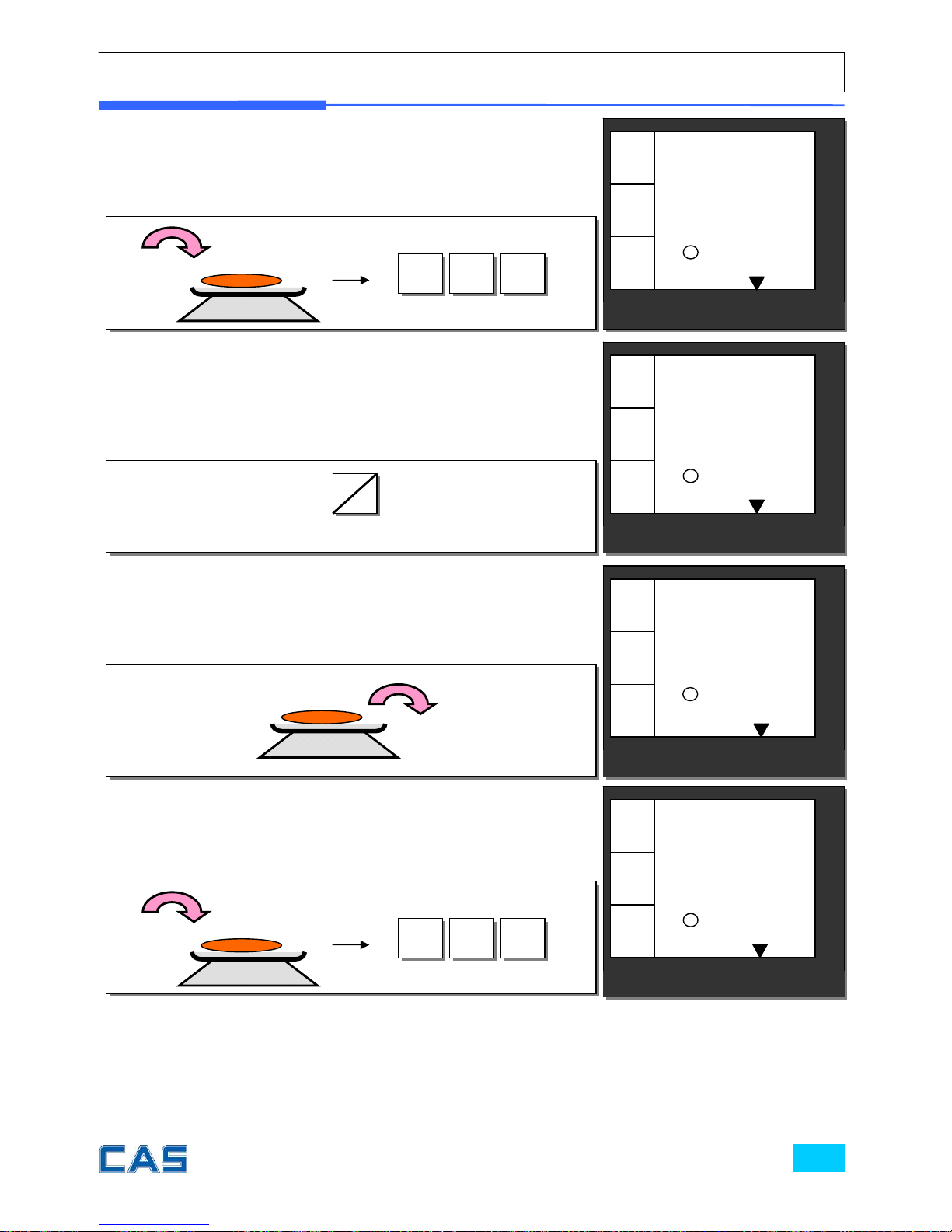
1
5 PLU
⑤ Select the clerk 2.
C2
C4
CAS POScale
CHARGE PAPER ∑ SHIFT
€/
kg
0.00
0.00
3.000
€
kg
⑥ Remove Turkey from the platter.
⑦ Call up PLU of Rib Eye, #17 for clerk C3.
1
7 PLU
CAS POScale
CHARGE PAPER ∑ SHIFT
€/
kg
5.99
5.99
1.000
€
kg
CAS POScale
CHARGE PAPER ∑ SHIFT
€/
kg
0.00
0.00
0.000
€
kg
◀0▶
④ Call up PLU of Turkey, #15 for clerk C2.
CAS POScale
CHARGE PAPER ∑ SHIFT
€/
kg
14.97
4.99
3.000
€
kg
Page 30
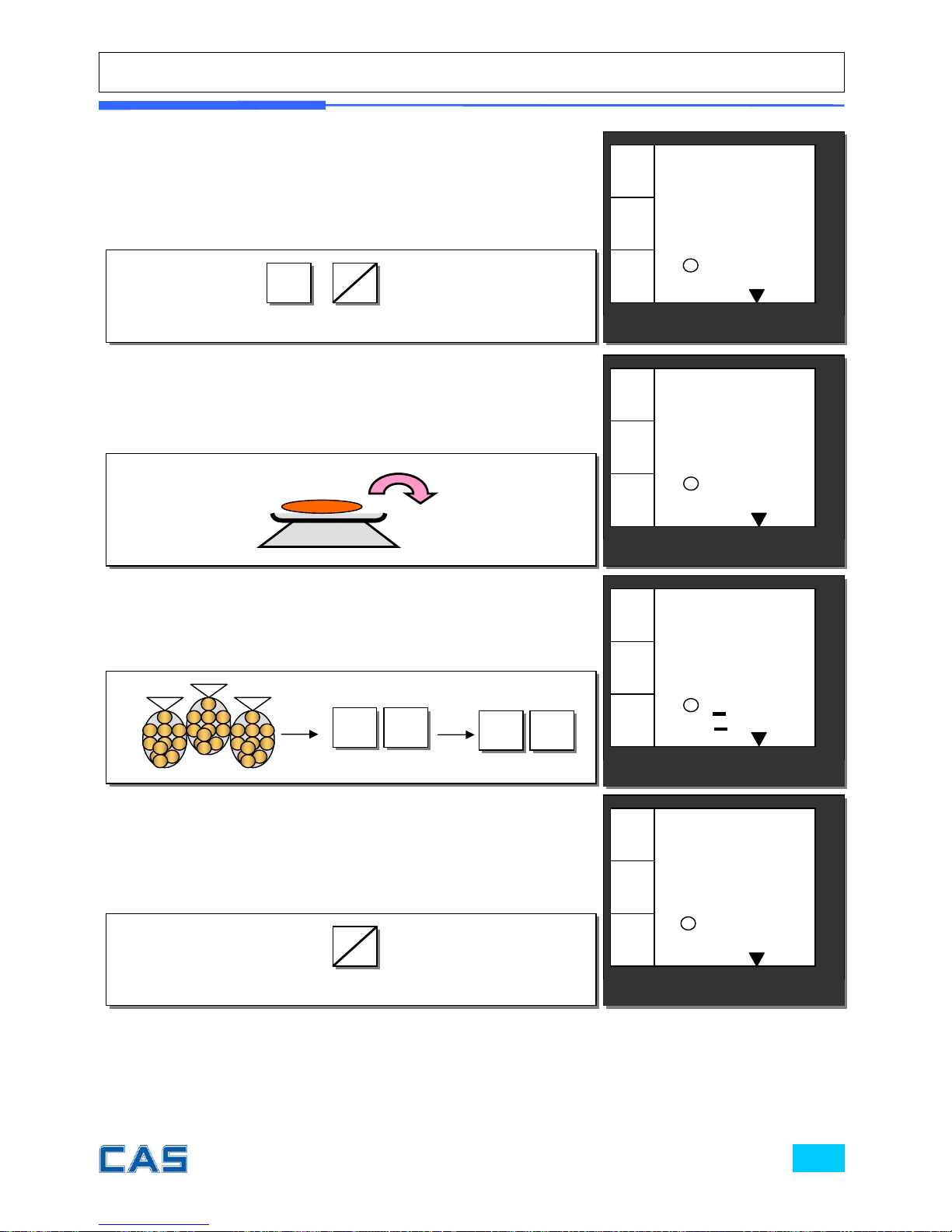
⑨ Remove Rib Eye from the platter.
⑩ Call up PLU of Potato, #1 for clerk C1. Customer purchases
3 packs of Potato.
⑪ Select the clerk 1.
C1
C3
⑧ Select the clerk 3.
CAS POScale
CHARGE PAPER ∑ SHIFT
€/
kg
0.00
0.00
1.000
€
kg
C1
C3
SHIFT
1 PLU
X 3
CAS POScale
CHARGE PAPER ∑ SHIFT
€/
kg
0.00
0.00
0.000
€
kg
◀0▶
CAS POScale
CHARGE PAPER ∑ SHIFT
€/
kg
5.97
1.99
3
€
kg
◀0▶
CAS POScale
CHARGE PAPER ∑ SHIFT
€/
kg
0.00
0.00
0.000
€
kg
◀0▶
Page 31
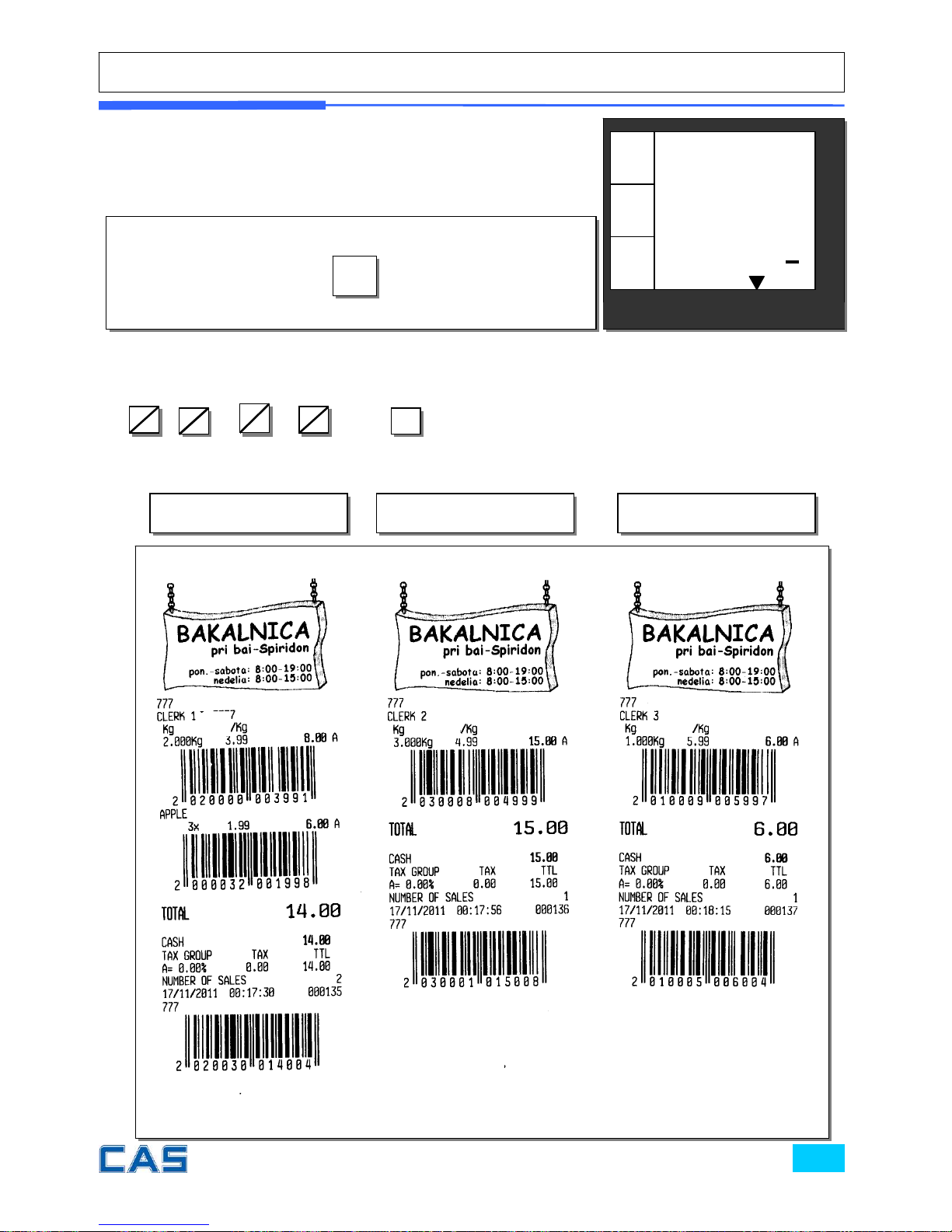
※ User may print out individual clerk’s receipt by pressing individual clerk key (using
C1
C3
, ,
SHIF
T
&
C1
C3
) then key.
⑫ Get subtotal amount.
∑
CAS POScale
CHARGE PAPER ∑ SHIFT
€/
kg
S tot
C123
€
kg
∑
C2
Clerk 1’ Receipt Clerk 2’ Receipt Clerk 3’ Receipt
€
€ €
€
€ € €
€
€
Page 32
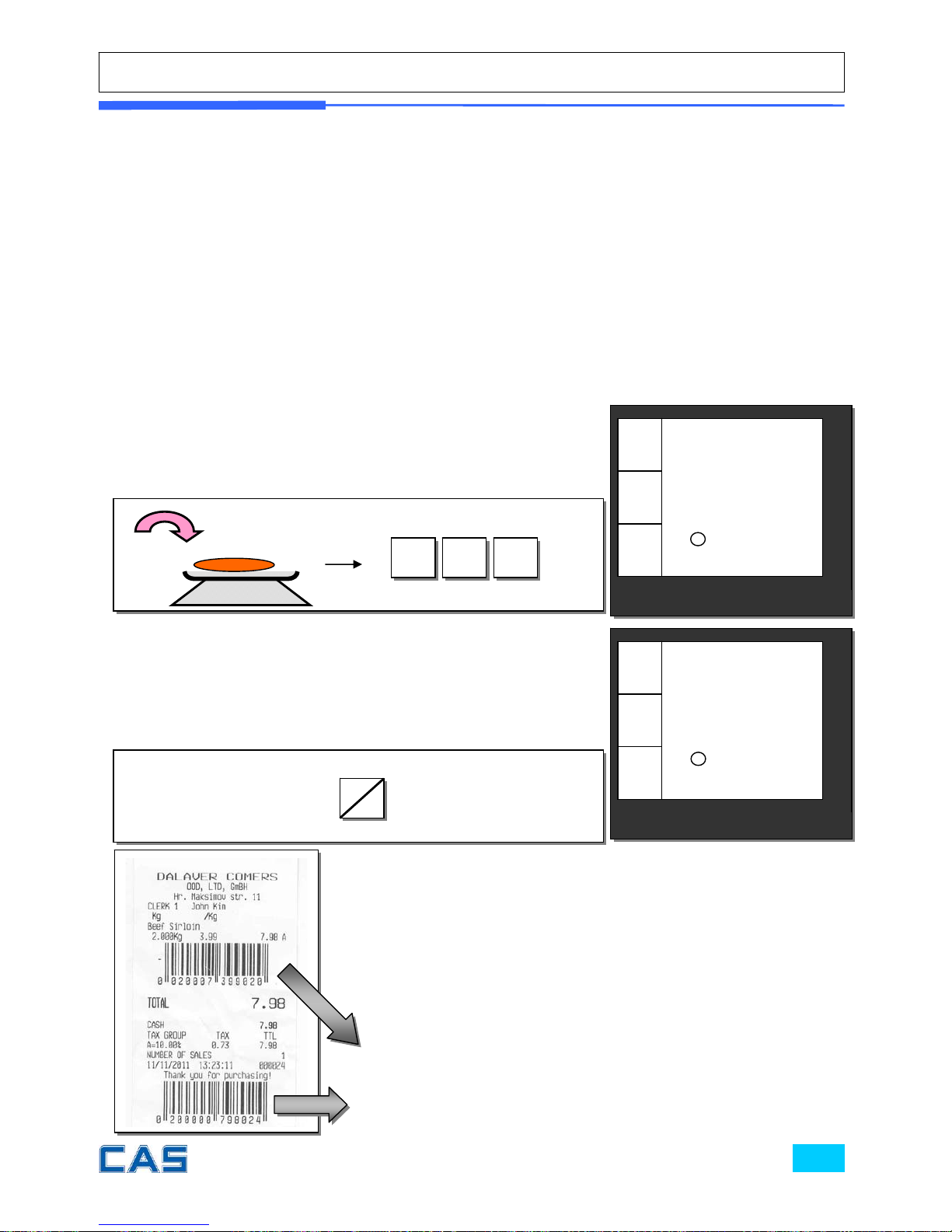
f. Supermarket mode operation
“Supermarket (2)” mode (refer to clerk setting on page 84)
Only one transaction per clerk at a moment.
It prints ticket (receipt) only for one transaction per clerk.
Assumption:
a) Please go to clerk mode and set clerk mode as “2 (supermarket mode)”.
b) 2 kg of Beef Sirloin (PLU setting # 14, €3.99/kg, No weight; No) for clerk C1.
c) 3 kg of Turkey (PLU setting # 15, €4.99/kg, No weight; No) for clerk C2.
d) 1 kg of Rib Eye (PLU setting # 17, €5.99/kg, No weight; No) for clerk C3.
e) 3 packs of Potato (PLU setting #1, €1.99/pack, No weight; YES) for clerk C1.
f) All of above-mentioned PLUs should have other code number than code 0.
② Then, it automatically prints out ticket (receipt) for “a)”
transaction when user selects the clerk.
① Call up PLU of Beef Sirloin, #14 for clerk C1.
C1
C3
CAS POScale
CHARGE PAPER ∑ SHIFT
€/
kg
7.98
3.99
2.000
€
kg
1 4 PLU
CAS POScale
CHARGE PAPER ∑ SHIFT
€/
kg
0.00
0.00
0.000
€
kg
◀0▶
※ The scale prints out ticket (receipt) for each transaction in the
supermarket mode (set “2”) whenever each transaction is
made by a clerk.
※ The scale may also prints out ticket (receipt) for above
“b)”~”d)” transactions as same process as “a)” transaction.
※ For further information please refer to “chapter 11.
Barcode Printing” on page 79.
※ For further information please refer to “chapter 11.
Barcode Printing” on page 79.
€
€
Page 33

Chapter 5.
DISCOUNT & PAYMENT
Page 34
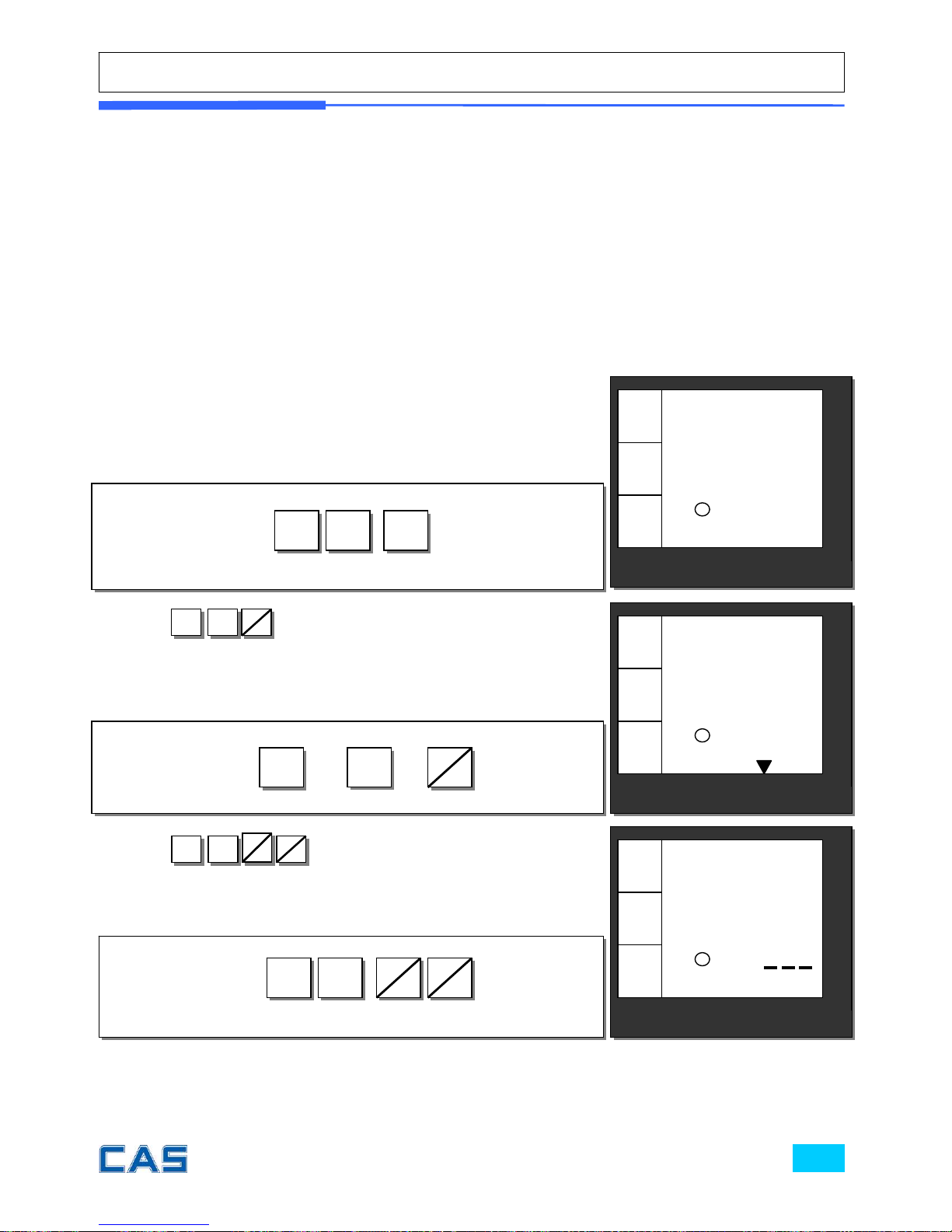
Chapter 5. Discount & Payment
a. Discount for a single of transaction
Instant discount
Assumption
Instant discount rate: 10%
Unit price of a commodity: € 20
② Press
1
X
C1
C3
to make € 20.00 valued sales transaction
for clerk 1.
① A customer purchased
€ 20.00 for a commodity.
2
0
00
C1
C3
1
X
③ Press
1 0
SHIF
T
4
%-
to provide 10% discount for current
single transaction.
1
0
SHIFT
4
%-
CAS POScale
CHARGE PAPER ∑ SHIFT
€/
kg
0.00
20.00
0.000
€
kg
◀0▶
CAS POScale
CHARGE PAPER ∑ SHIFT
€/
kg
0.00
0.00
0.000
€
kg
◀0▶
CAS POScale
CHARGE PAPER ∑ SHIFT
€/
kg
0.00
0.10
C1.
€
kg
◀0▶
Page 35
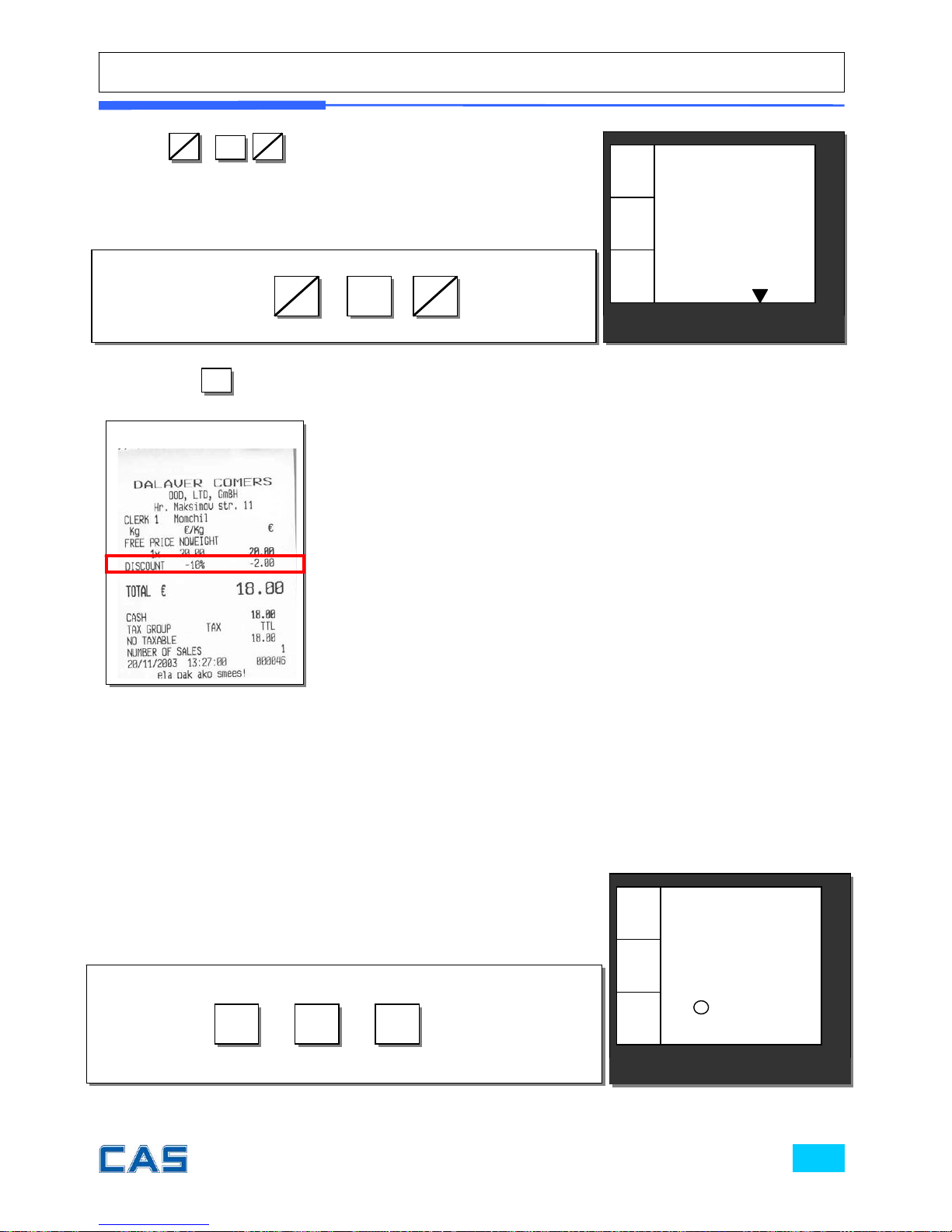
Programmed discount
Assumption
Programmed discount rate: 5%
(Refer to “program mode” -> “SET1” -> “Pr-“ for discount rate setting)
Unit price of a commodity: € 20
Pressing is to finalize the discount for a single transaction and print out the receipt.
∑
∑
C1
C3
C1
C3
④ Press
C1
C3
C1
C3
to have the amount of subtotal after
instant 10% of discount for a single transaction.
∑
CAS POScale
CHARGE PAPER ∑ SHIFT
€/
kg
18.00
1
C1
€
kg
Sample Receipt
① A customer purchased €20.00 for a commodity.
2
0
00
CAS POScale
CHARGE PAPER ∑ SHIFT
€/
kg
0.00
20.00
0.000
€
kg
◀0▶
Page 36
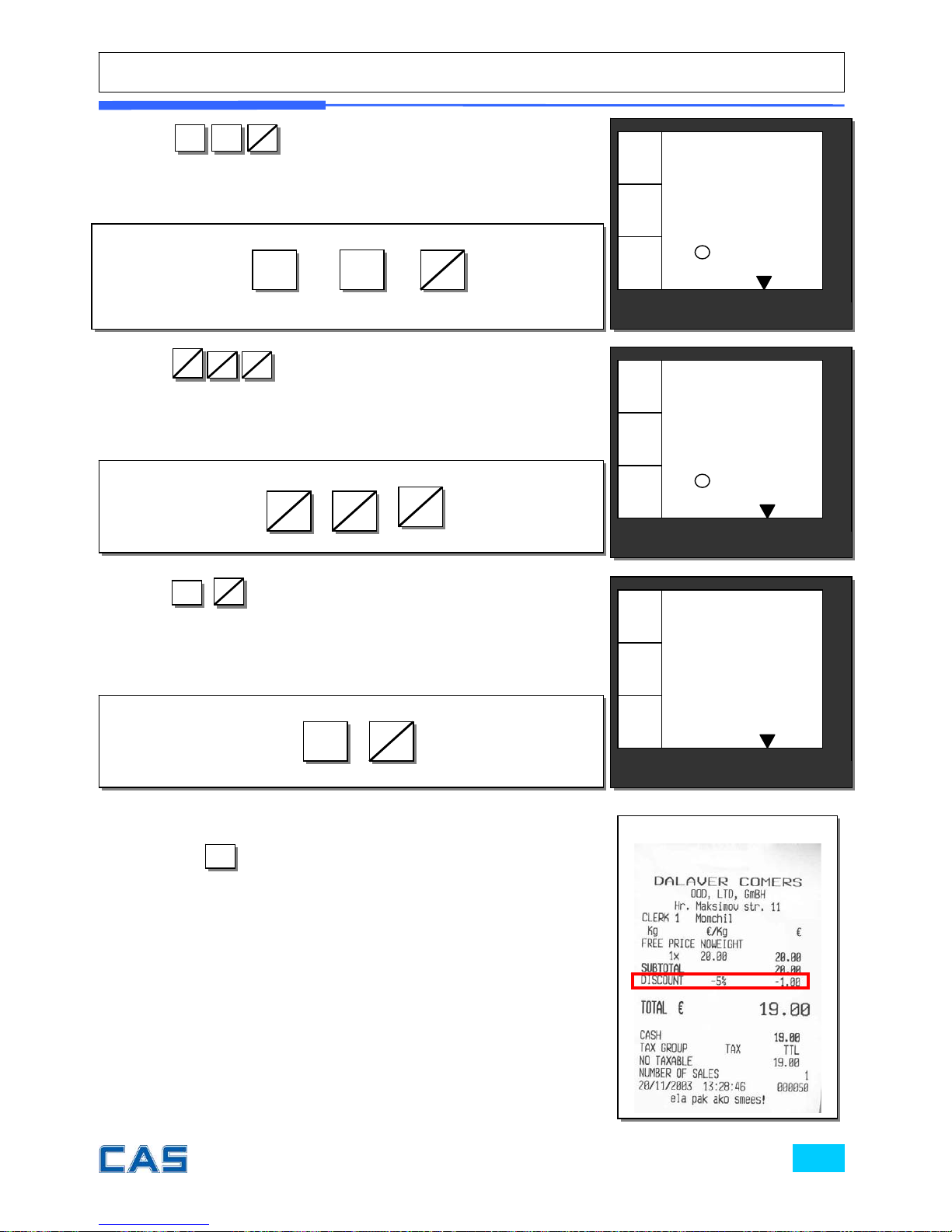
② Press
1
X
C1
C3
to make € 20.00 sales transaction for
clerk 1.
C1
C3
1 X
CAS POScale
CHARGE PAPER ∑ SHIFT
€/
kg
0.00
0.00
0.000
€
kg
◀0▶
③ Press
SHIF
T
4
%-
C1
C3
to provide 5% programmed discount for
current single transaction.
CAS POScale
CHARGE PAPER ∑ SHIFT
€/
kg
0.00
0.00
0.000
€
kg
◀0▶
C1
C3
SHIFT
4
%-
Pressing is to finalize the discount for a single transaction
and print out the receipt.
∑
Sample Receipt
∑
C1
C3
④ Press
C1
C3
to have the amount of subtotal after instant
10% of discount for a single transaction.
∑
CAS POScale
CHARGE PAPER ∑ SHIFT
€/
kg
19.00
1
C1
€
kg
Page 37
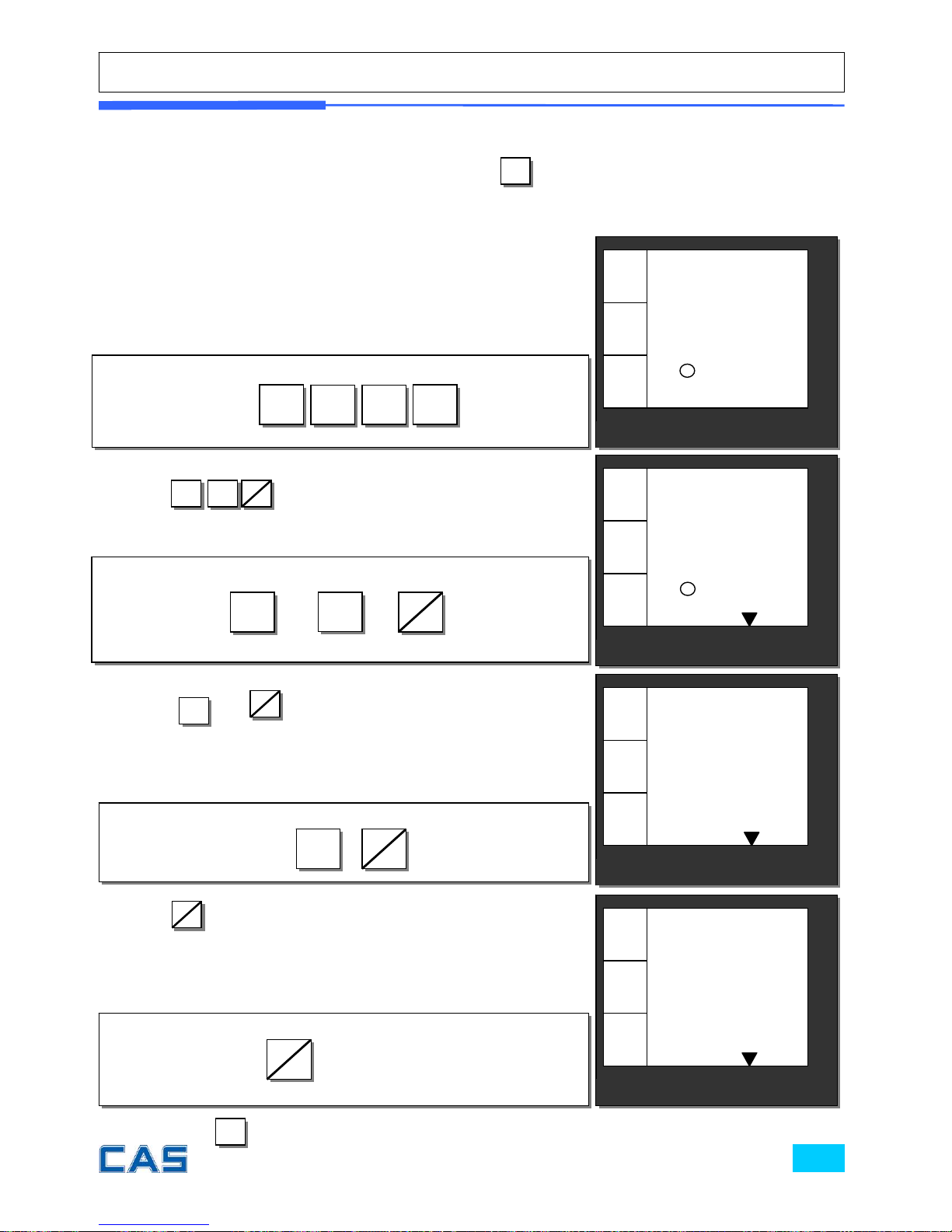
b. Discount from subtotal
When user got subtotal amount by pressing he/she may make some percentage
of discount for the subtotal. Let’s assume to make 6% of programmed discount (refer to
II. program mode, SET1) for purchasing of € 170 valued commodity, for example.
∑
② Press
1
X
C1
C3
to make € 170.00 sales transaction for
clerk 1.
① A customer purchased
€170.00 for a commodity.
1
7 0
00
C1
C3
1 X
③ Press and
C1
C3
to have the amount of subtotal which
clerk 1 made.
∑
∑
C1
C3
④ Press
4
%-
to have the amount of subtotal after programmed
6% of discount transaction.
* You may apply “Instant discount” function to subtotal amount.
4
%-
Pressing is to finalize the discount from subtotal transaction and print out the receipt.
∑
CAS POScale
CHARGE PAPER ∑ SHIFT
€/
kg
0.00
170.00
0.000
€
kg
◀0▶
CAS POScale
CHARGE PAPER ∑ SHIFT
€/
kg
0.00
0.00
0.000
€
kg
◀0▶
CAS POScale
CHARGE PAPER ∑ SHIFT
€/
kg
170.00
1
C1
€
kg
CAS POScale
CHARGE PAPER ∑ SHIFT
€/
kg
159.80
2
C1
€
kg
Page 38
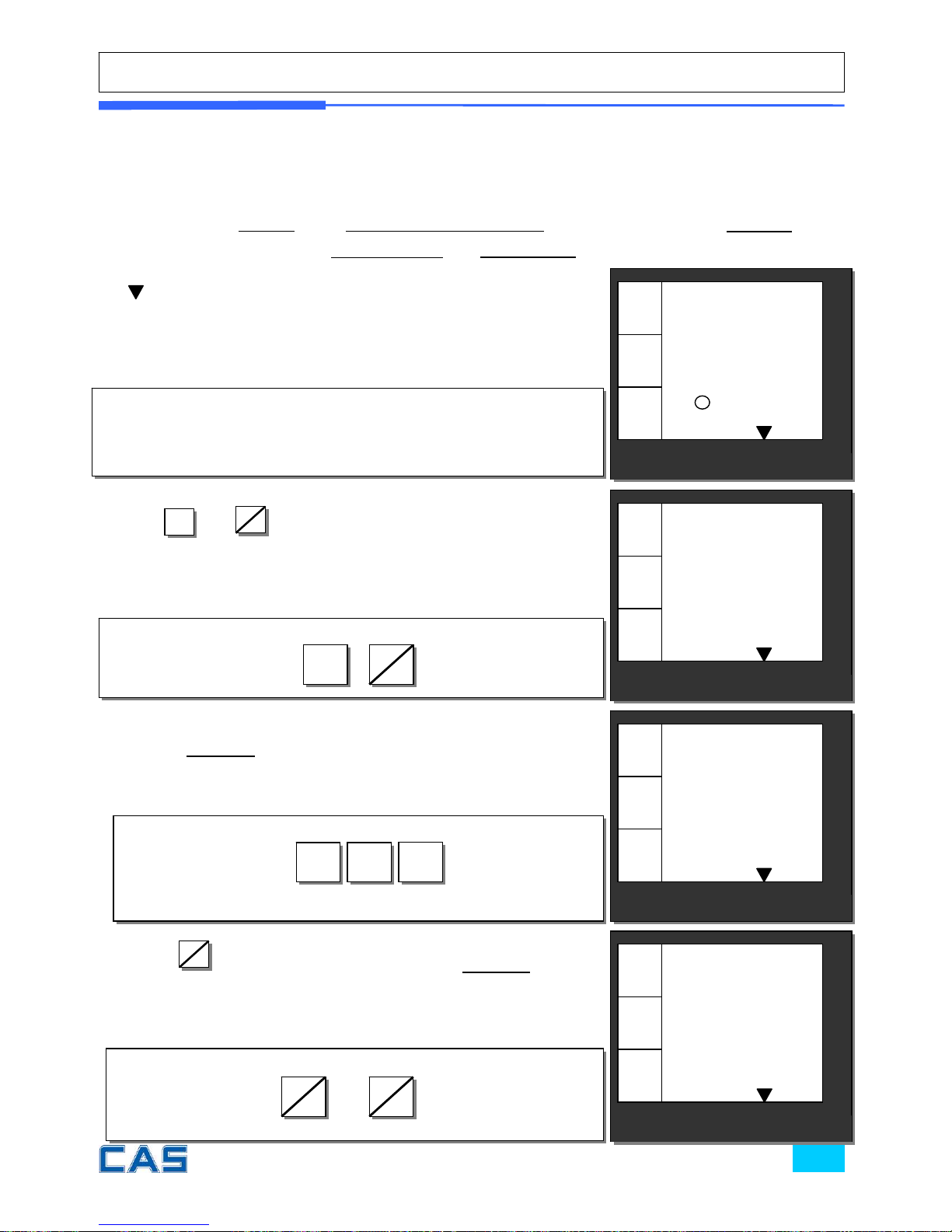
c. Payment
Payment function works only in the subtotal mode.
Assumption: After clerk 1 made three sales transactions the subtotal amount of
€
46.48 comes
up. Customer wants to pay for € 20 in credit and rest in cash.
①
indicates that current display is in subtotal mode as above
assumption.
③ Press appropriate numeric keys to input the amount of
payment in credit.
② Press and
C1
C3
to have the amount of subtotal for clerk
1 as an example.
∑
∑
C1
C3
④ Press
SHIF
T
and “pay” key to make payment in credit.
2 0 00
SHIFT
3
PAY
CAS POScale
CHARGE PAPER ∑ SHIFT
€/
kg
0.00
0.00
0.000
€
kg
◀0▶
CAS POScale
CHARGE PAPER ∑ SHIFT
€/
kg
46.48
3
C1
€
kg
CAS POScale
CHARGE PAPER ∑ SHIFT
€/
kg
46.48
20.00
C1
€
kg
CAS POScale
CHARGE PAPER ∑ SHIFT
€/
kg
26.48
C1
€
kg
Page 39
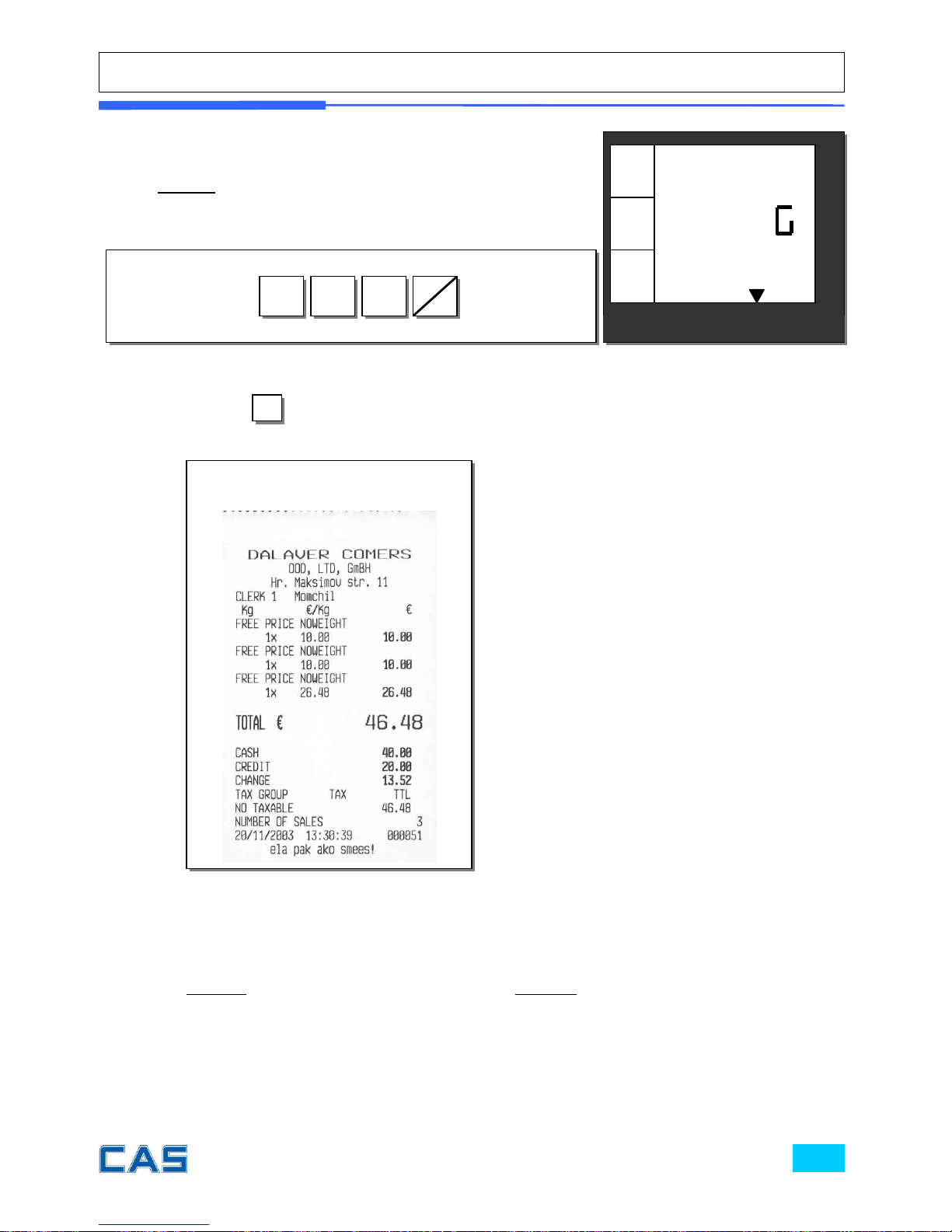
If user is using the scale with cash drawer connected the cash drawer is also
automatically opened as the pulse length of cash drawer set when printing the receipt.
Default for pulse length of cash drawer is 50 m/s (50/1,000 second). Please refer to
page 69 for further detail of “pulse length setting”.
Press to clear and exit to sales mode.
C
⑤ Press appropriate numeric keys to make rest of payment, €
40.00 in cash.
4 0 00
⑥ Then, it automatically prints out receipt.
3
PAY
CAS POScale
CHARGE PAPER ∑ SHIFT
€/
kg
13.52
CHAn E
C1
€
kg
Sample Receipt
Page 40
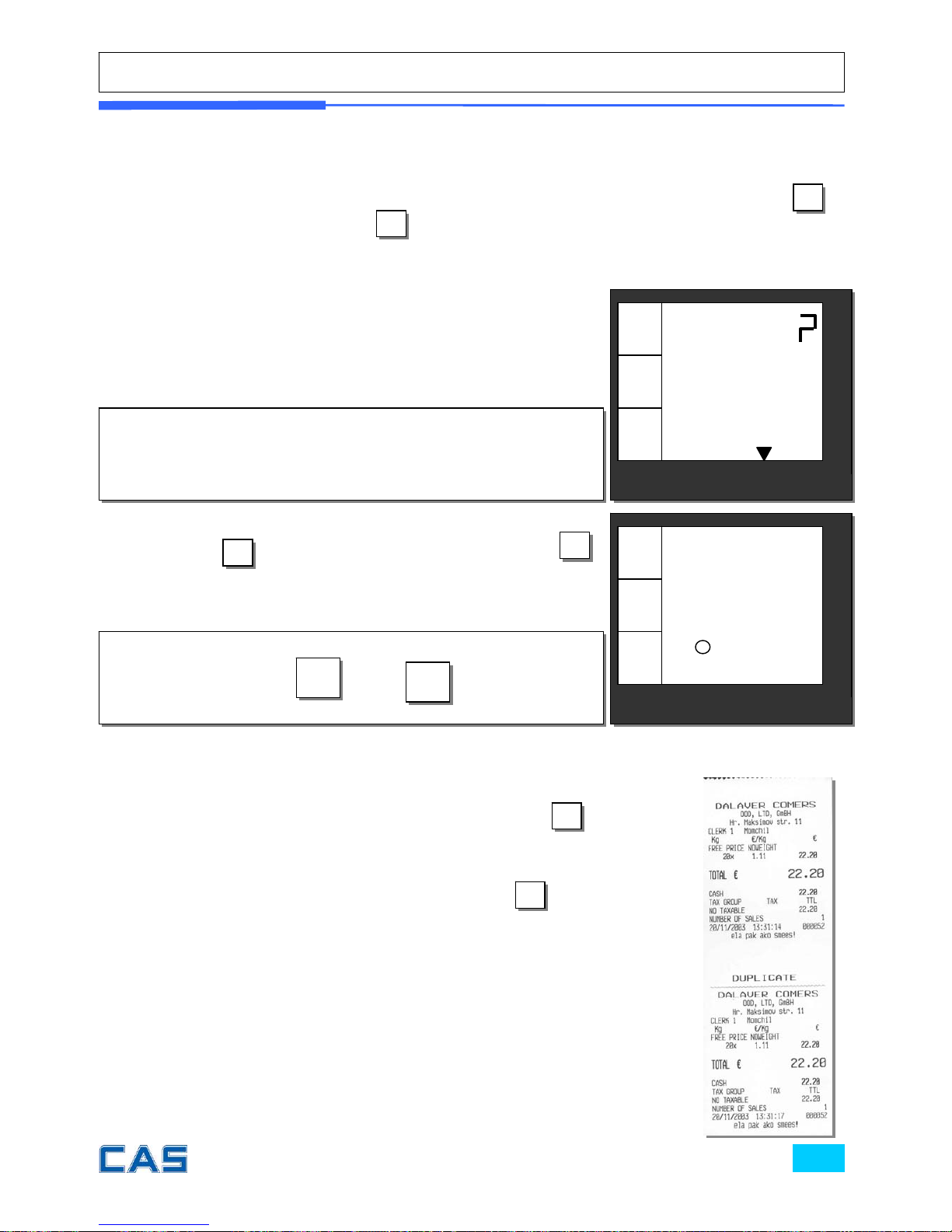
d. Duplicate receipt
If user sets duplicate receipt (“dbL”) as “YES” in the OPTION setting (refer to page on
77) of program mode the scale asks “DUP?” whenever printing receipt by using or
PAY key. If user presses it prints the additional copy of receipt, and if press “C”
key it does not print copy of receipt.
Printing receipt works only in the subtotal mode.
Usually, user can automatically have receipt by using .
However, if “Obligatory Pay” function setting (refer to page on
81) is already set in the OPTION setting the scale does not
automatically print out the receipt by pressing . In this case
user must input the amount of payment more than current total
amount and then he/she can make a payment in cash or credit.
∑
∑
② Press either to print an additional copy of receipt or
C
not to print the copy.
① The scale asks user “dUP?”, duplicate of receipt when he/she
already print out a receipt for current transaction.
∑
C
∑
∑
or
∑
CAS POScale
CHARGE PAPER ∑ SHIFT
€/
kg
0.00
0.00
0.000
€
kg
◀0▶
CAS POScale
CHARGE PAPER ∑ SHIFT
€/
kg
dUP
C1
€
kg
Sample Receipt
Page 41

Chapter 6.
SALES TRANSACTION SIMULATION
Page 42
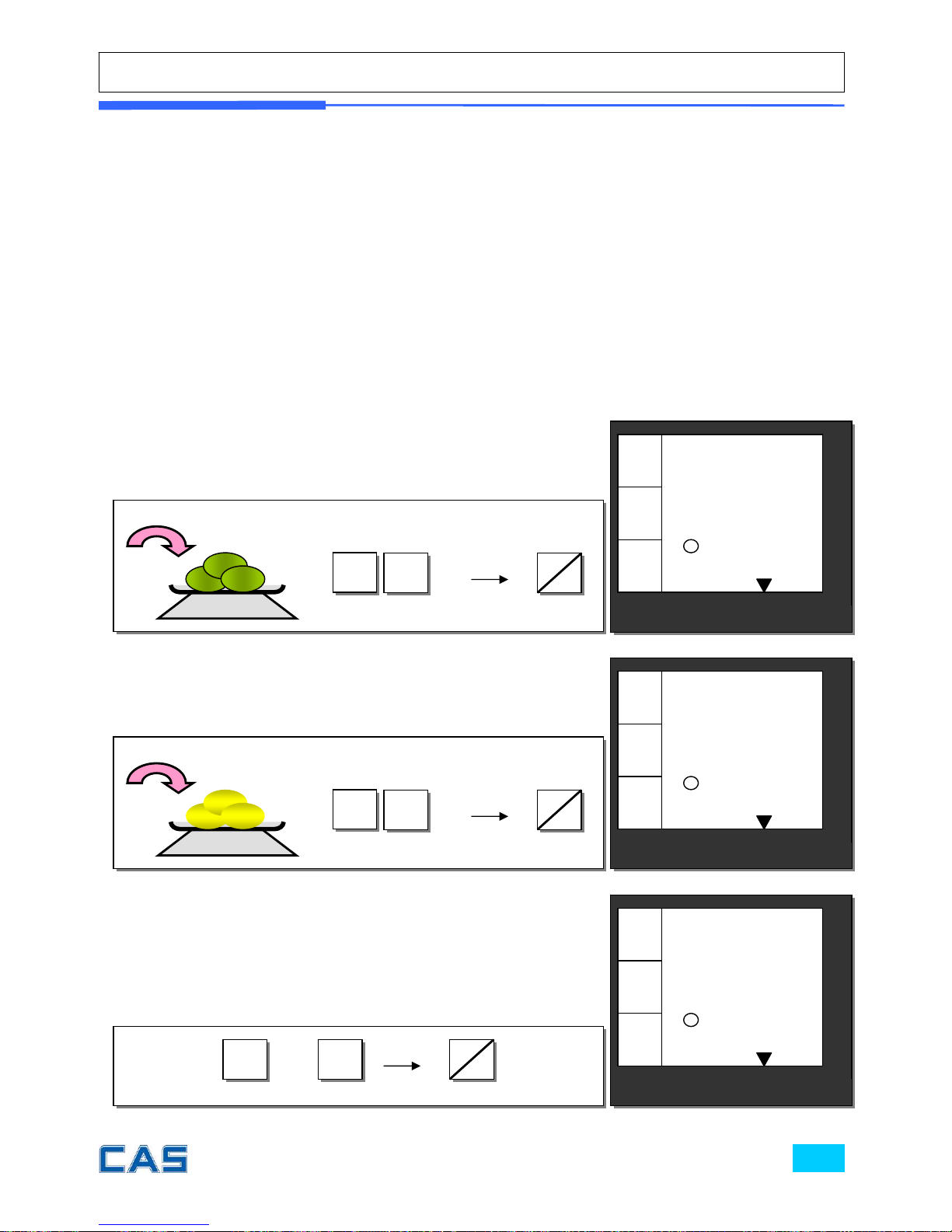
Chapter 6. Sales Transactions Simulation
Assumption:
Clerk sales mode: “0”- All clerks sales mode (Clerk mode on page 84)
Programmed discount: 5% (Discount percentage mode on page 64)
Obligatory payment function: “0”-disabled (Obligatory payment setting on page
81)
Duplicate receipt function: “0”-disabled (Duplicate receipt setting on page 77)
Weight of commodity: 0.500 kg, and 1.000 kg
① Commodity (Kiwi) with free price, €1.00, Weight= 0.500
kg, clerk 1 sales.
00
② Commodity (Melon) with free price, €2.00, Weight= 0.500
kg, clerk 1 sales.
③ Void function
1
C1
C3
00
2
C1
C3
CAS POScale
CHARGE PAPER ∑ SHIFT
€/
kg
0.00
0.00
0.500
€
kg
CAS POScale
CHARGE PAPER ∑ SHIFT
€/
kg
0.00
0.00
0.500
€
kg
CAS POScale
CHARGE PAPER ∑ SHIFT
€/
kg
0.00
0.00
0.500
€
kg
X
SHIFT
C1
C3
Page 43
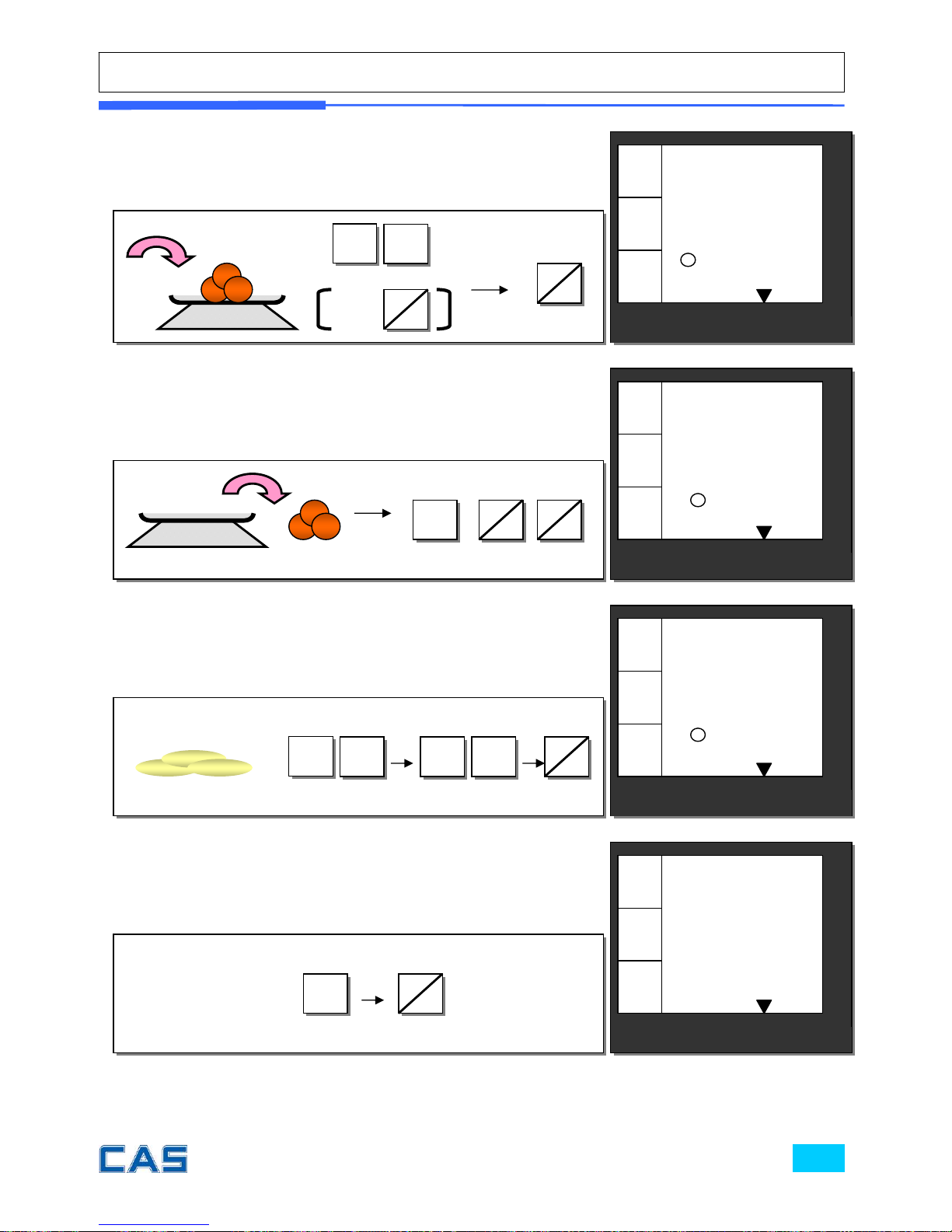
④ PLU 3 commodity (Tomato: €1.99/kg), Weight= 0.500 kg,
clerk 1 sales.
PLU
⑤ Programmed discount (5%) for PLU 3 commodity (Tomato),
Weight= 0.500 kg, clerk 1 sales.
⑥
€5 of Non-weighed commodity (Garlic bread) X 3, clerk 1
sales
3
C1
C3
00
5
X
3
3
PA
Y
OR
C1
C3
⑥ Subtotal, for example, €16.50. Total 4 transactions, and
clerk 1 sales activities are shown on the display.
CAS POScale
CHARGE PAPER ∑ SHIFT
€/
kg
0.00
0.00
0.500
€
kg
SHIFT
4
-%
∑
C1
C3
C1
C3
CAS POScale
CHARGE PAPER ∑ SHIFT
€/
kg
0.00
0.00
0.000
€
kg
◀0▶
CAS POScale
CHARGE PAPER ∑ SHIFT
€/
kg
0.00
0.00
0.000
€
kg
◀0▶
CAS POScale
CHARGE PAPER ∑ SHIFT
€/
kg
16.50
4
C1
€
kg
Page 44
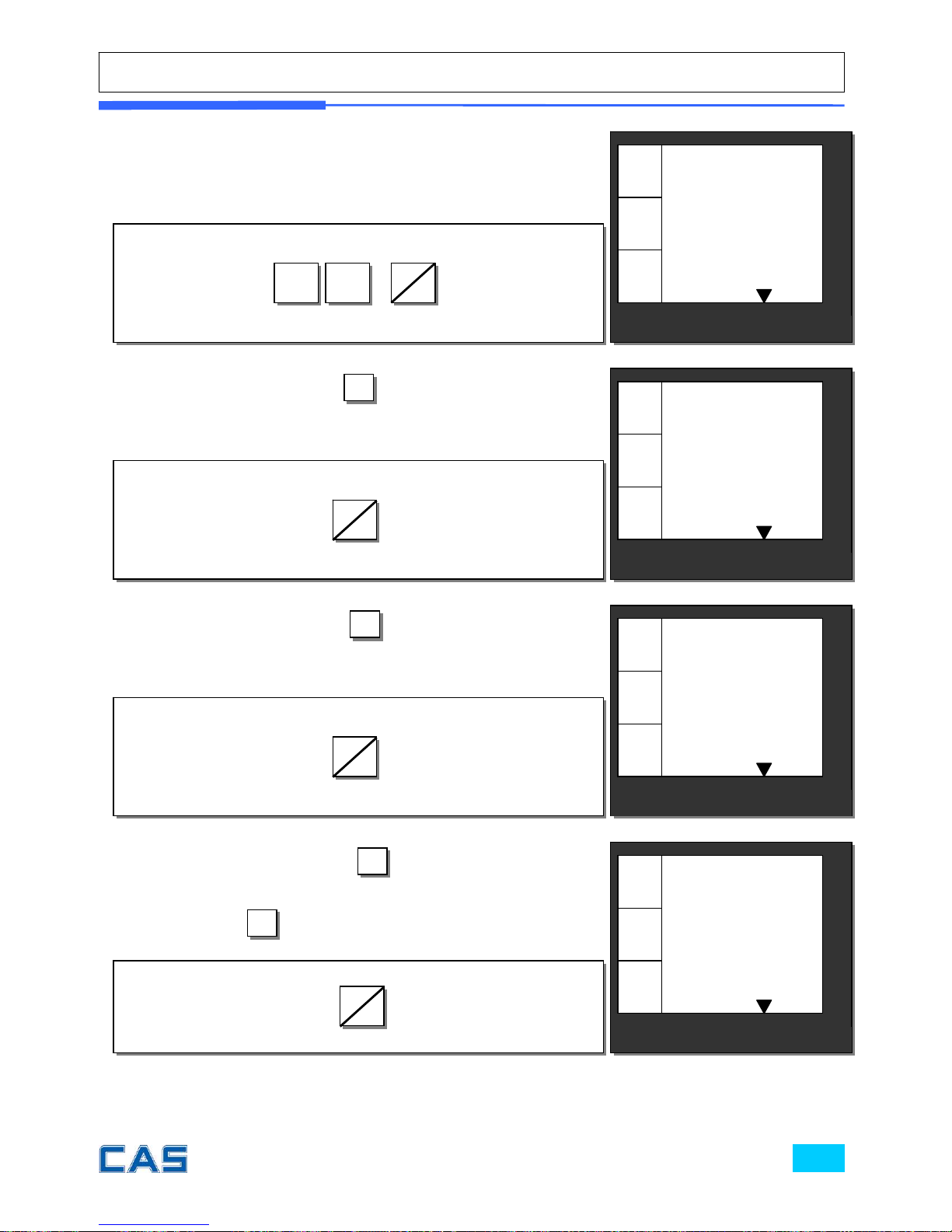
⑦ Discount of 10% for subtotal, €17.34.
0
⑧ To review sales list press
6
/▶
.
⑨ To review sales list press
6
/▶
. “dEL” means VOID function
has deleted the second transaction.
1
4
%-
⑩ To review sales list press
6
/▶
. “P 3” means that PLU 3
transaction has been completed. If user wants to exit from
sales list press
C
.
CAS POScale
CHARGE PAPER ∑ SHIFT
€/
kg
1.00
dE
L
C1 2
€
kg
CAS POScale
CHARGE PAPER ∑ SHIFT
€/
kg
0.50
C1 1
€
kg
CAS POScale
CHARGE PAPER ∑ SHIFT
€/
kg
14.90
5
C1
€
kg
CAS POScale
CHARGE PAPER ∑ SHIFT
€/
kg
1.00
P 3
C1 3
€
kg
6
▶
6
▶
6
▶
Page 45
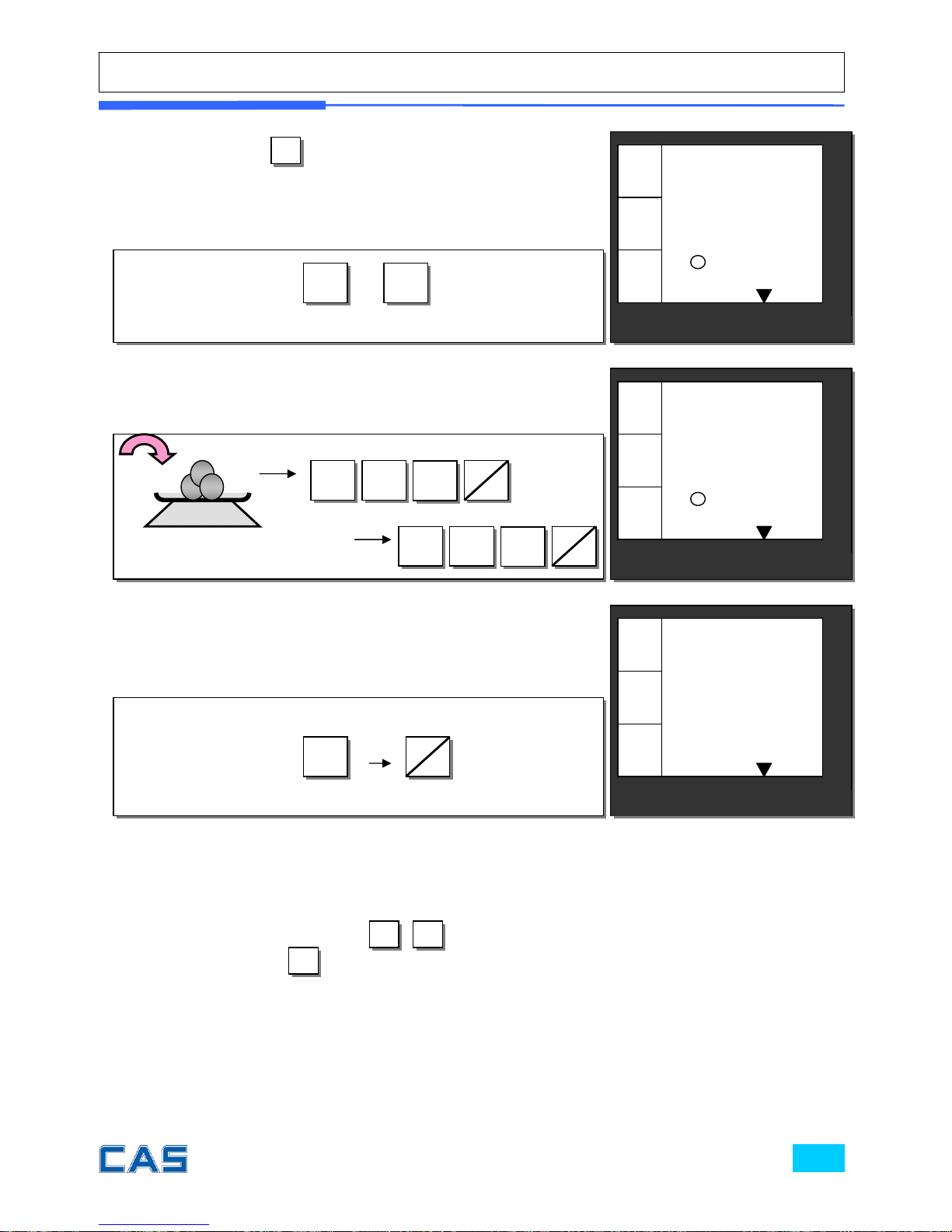
Deleting sales transaction in subtotal
To delete a specific sales transaction user should go to the sales transaction on
the sales list by using key.
Then, press to delete it.
If any discount transaction is done for subtotal the sales included in the subtotal
can not be deleted.
User can not execute Void function of a sales transaction if any discount for
the subtotal is already made.
⑪ If user presses
C
to go back to sales mode the display is
shown as right.
C
⑫ Two sales transactions for PLU 14 (€3.99/kg) and PLU 15 (€
4.99/kg) with weight=0.500 kg, clerk 1 sales activities.
⑬ Subtotal mode. Subtotal is € 22.83, for example.
PLU
1
C1
C3
C1
C3
4
PLU
1 5
6/▶ 5/◀
X
∑
C1
C3
CAS POScale
CHARGE PAPER ∑ SHIFT
€/
kg
19.40
7
C1
€
kg
CAS POScale
CHARGE PAPER ∑ SHIFT
€/
kg
0.00
0.00
0.500
€
kg
CAS POScale
CHARGE PAPER ∑ SHIFT
€/
kg
0.00
0.00
0.000
€
kg
◀0▶
C
Page 46
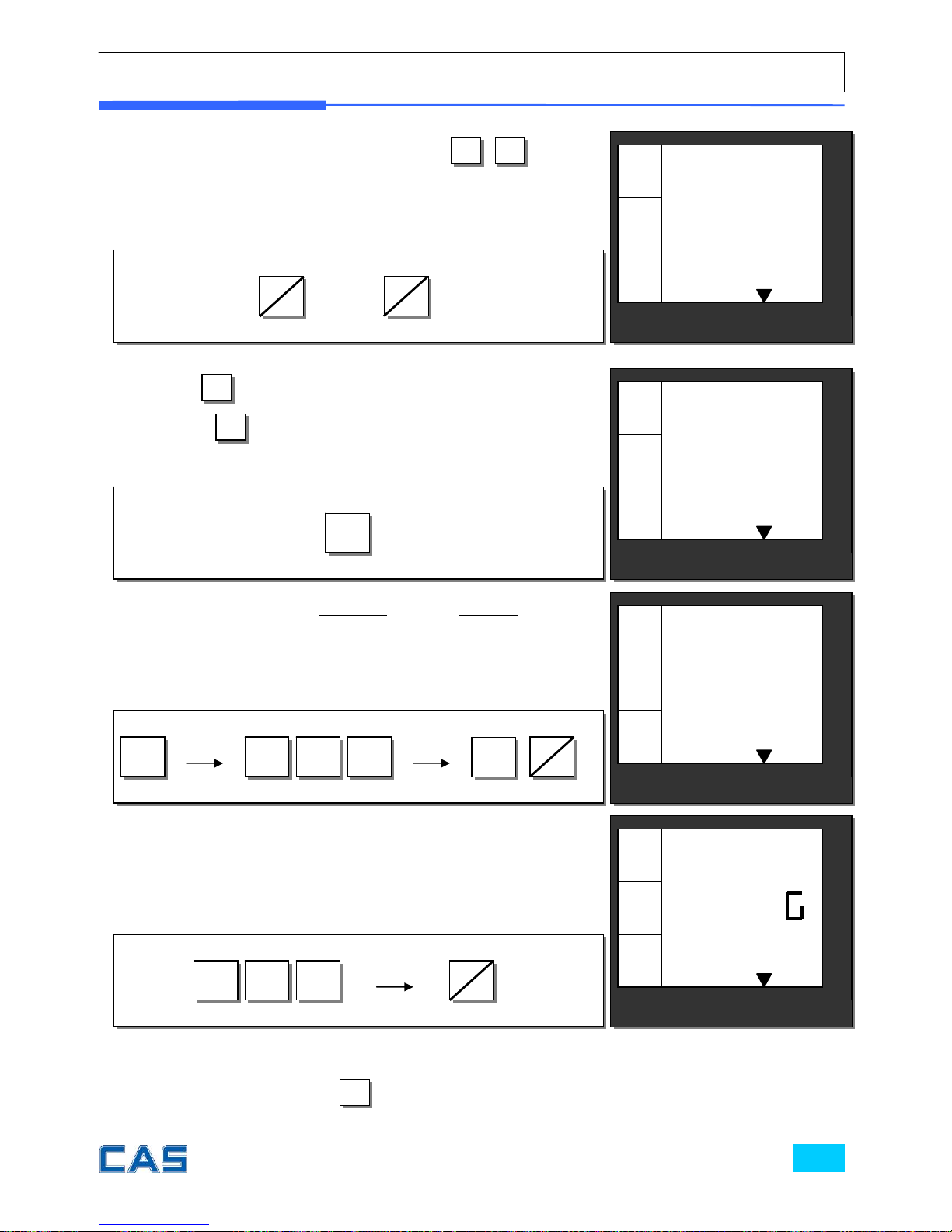
The receipt will be automatically printed and the scale is ready to exit to sales
mode by pressing . If the change is “0.00” the scale automatically exits to
sales mode.
⑭ Go to the 6th sales transaction by using
6
/▶5/◀
to delete
it.
⑮ Press
X
to delete it. User may exit from this mode by
pressing
C
.
16. Payment of € 10.00 in credit and rest in cash for total €
20.18, for example.
Input
€ 10.00 of payment in credit.
17. Input
€ 20.00 to pay for remaining balance in cash.
X
2 0 00
3
PA
Y
C
CAS POScale
CHARGE PAPER ∑ SHIFT
€/
kg
2.00
dE
L
C1 6
€
kg
CAS POScale
CHARGE PAPER ∑ SHIFT
€/
kg
2.00
P 14
C1 6
€
kg
CAS POScale
CHARGE PAPER ∑ SHIFT
€/
kg
7.40
C1
€
kg
CAS POScale
CHARGE PAPER ∑ SHIFT
€/
kg
12.60
CHAn E
C1
€
kg
or
SHIFT
1 0 00
3
PAY
C
6
▶
5
◀
Page 47
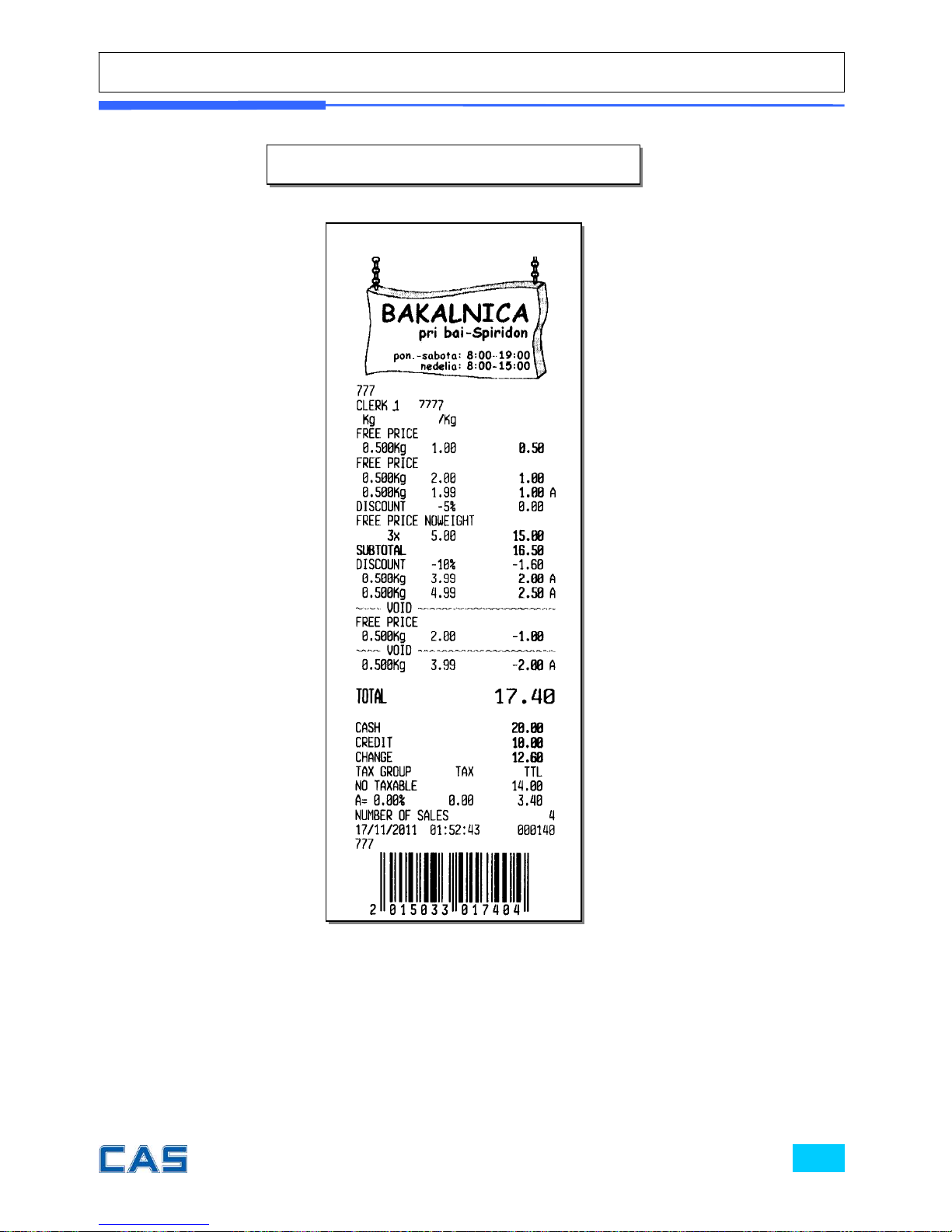
Receipt sample from Sales Simulation
€ €
€
Page 48

II. Program Mode
Chapter 7. PLU Programming
a. Price
Code
Department
Name
b. Tax rate group A~H
Weighed or non-weighed item
Fixed or non-fixed unit price
Printing barcode
c. One touch PLU data Erasing (refer to Chapter 10. SET 2. C. for
more detail)
Chapter 8. Report
a. PLU data list
b. PLU report
c. Clerk report
d. Department report
e. Tax report
f. Hourly sales report
g. Closing Report
Chapter 9. SET 1 (Discount, Barcode formatting & HW setting)
a. Baud rate (bps)
Auto power-off
Discount percentage
b. Formatting barcode for single transaction
c. Formatting barcode for total
d. Pulse length of opening cash drawer
e. Printing darkness
f. Currency symbol or name
Page 49
Chapter 10. SET 2 (Date, Time & Default setting)
a. Date
Time
b. One touch PLU data Erasing
Default setting
Chapter 11. OPTIONS (Receipt Formatting)
a. Printing ticket (receipt)
b. Duplicate receipt
c. Image (graphic logo)
d. Printing barcode for a single transaction
e. Printing barcode for total transaction
f. Obligatory payment
g. Discount
h. Printing PLU code
i. Printing all reports
Chapter 12. Clerk
a. Clerk Mode
b. Name 1, 2, 3, 4
Chapter 13. Logo
a. Header (6) & Footer line (2) setting
Chapter 14. Tax rate group
a. Tax rate group (A~H) setting
Chapter 15. Test
ADC
SPAN
Display
Keyboard
RAM
Printer
Battery voltage
Page 50
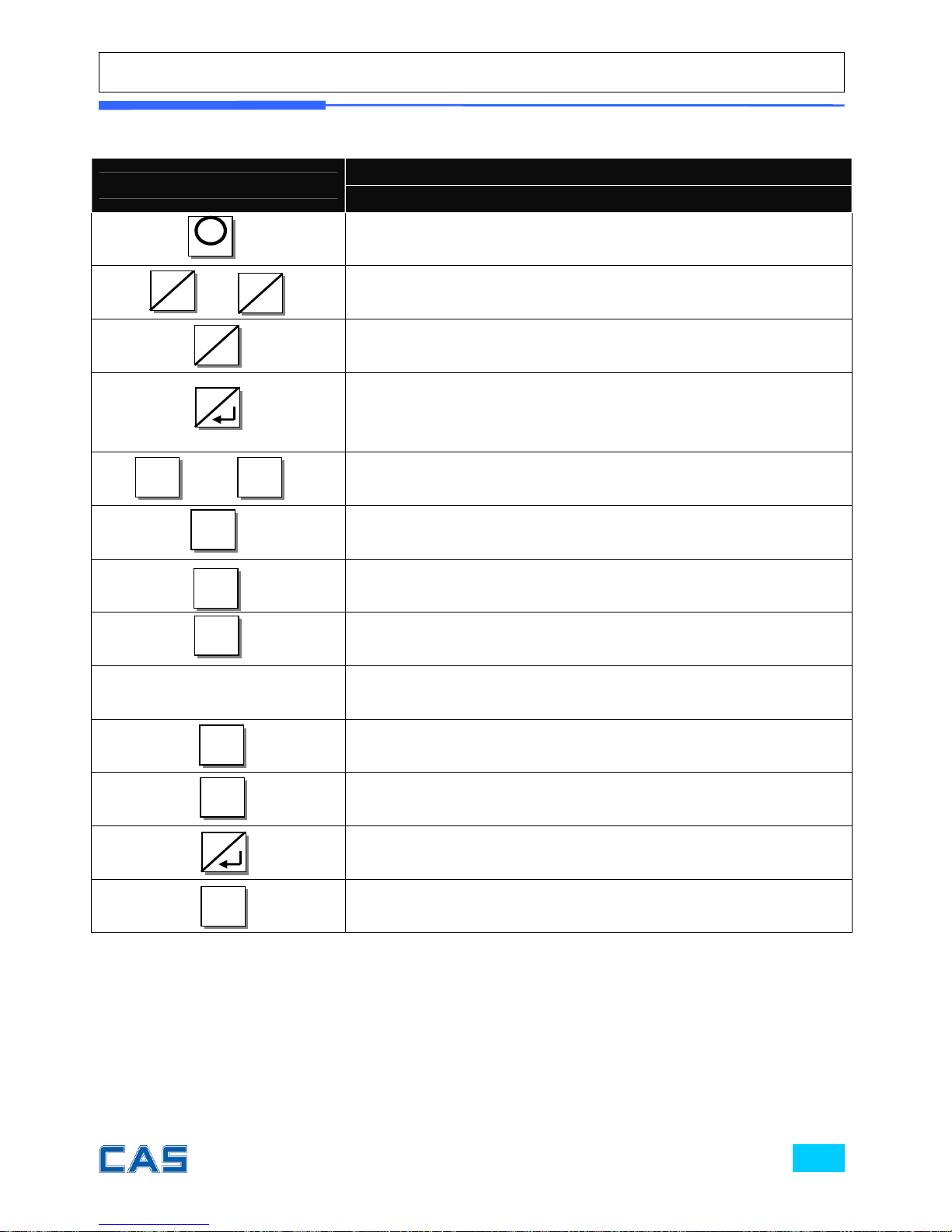
Table 4: Most commonly used keys in program mode
KEYS
FUNCTIONS
PROGRAM MODE
To get into program mode
To choose menu
To move to previous or next character
To go to the higher level of menu
To go to the lower level of menu
To save number
To get into edit mode
~
To input number
To input number from an ASCII code
To clear all text
To delete characters like backspace key
To input and save character in accordance to ASCII
code
Boolean value
To disable
To enable
To save
To clear
∑
X
0 9
C
0
1
C
5
◀
6
▶
7
←
8
M
8
Page 51

Chapter 7.
PLU Programming
Page 52
Chapter 7. PLU Programming
This chapter explains how to input all of PLU-related data into the scale. User can
store such information as price, code, department, name, tax rate group, weighed or non-
weighed, fixed or not-fixed unit price, barcode printing etc. Let’s look at how to input price
information on the scale.
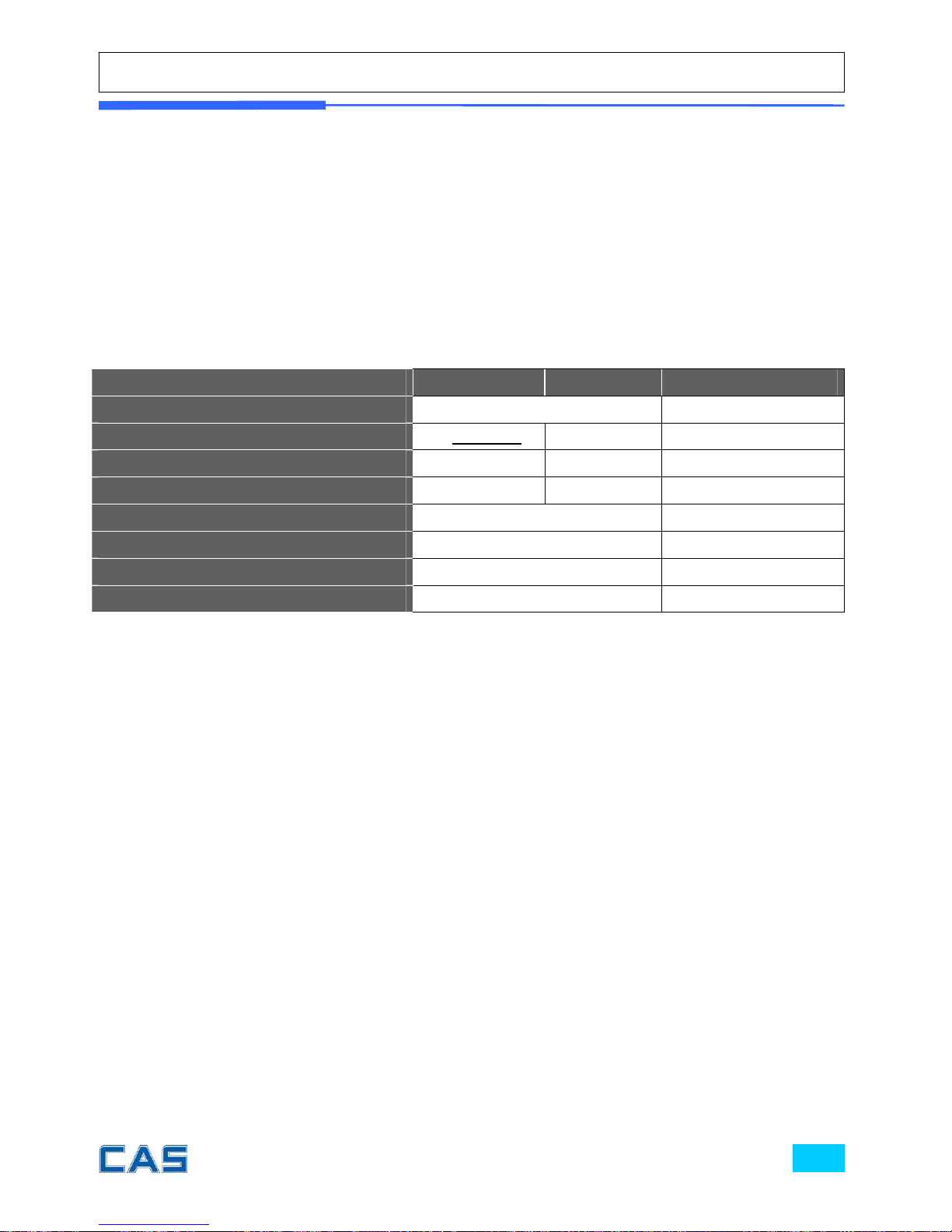
Table 5: PLU programming
PLU Programming Minimum Maximum Remark
Digits for Price 0 ~ 9999.99
Code 0 (disabled) 999999
Department number 0 39
PLU Name (character) 0 32
Tax group A~H
Weighed or non-weighed item Yes or No
Fixed or non-fixed item Yes or No
Barcode printing or not Yes or No
Page 53
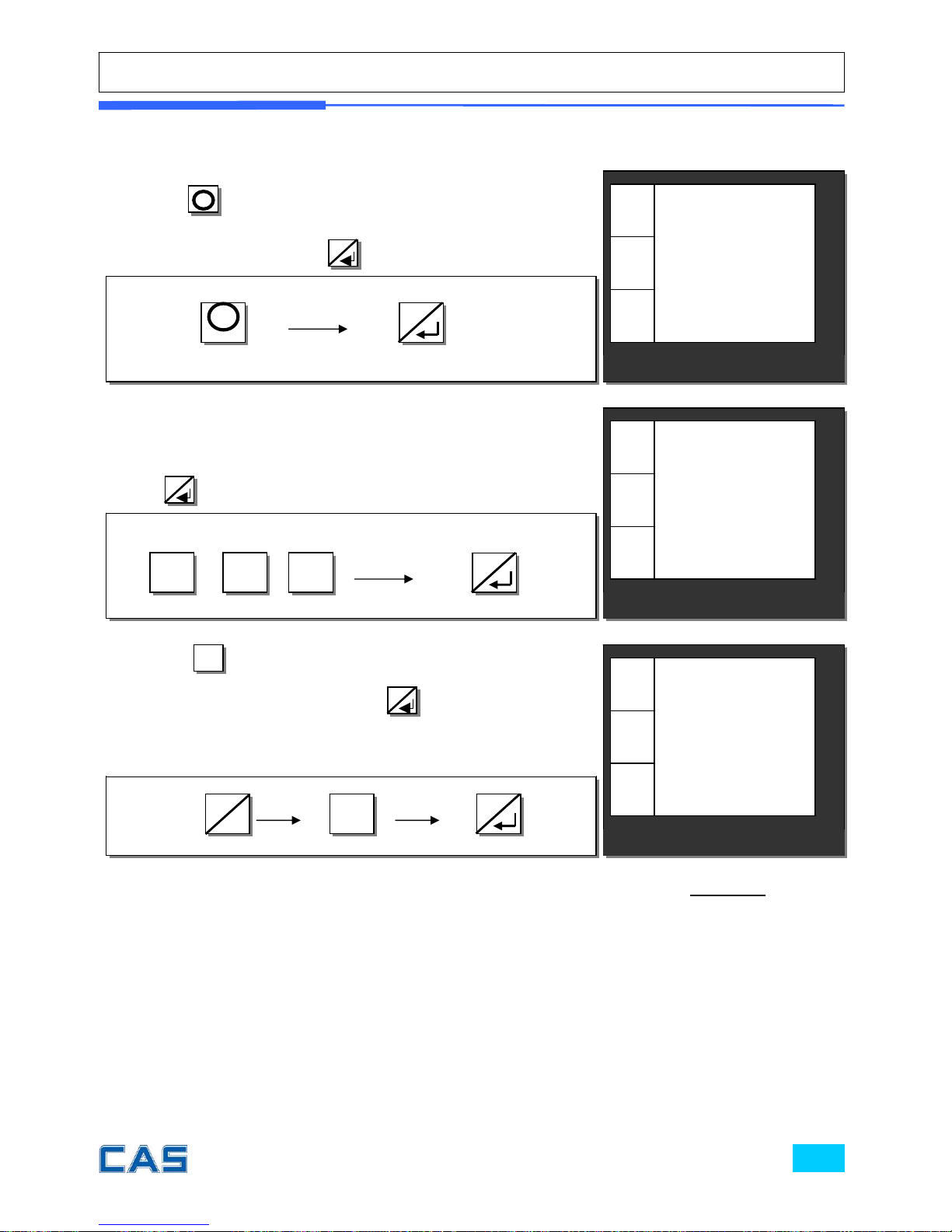
a. Price, Code, Department, and Name
② To input PLU’s unit price press numeric keys you wish. For
example, if you input $1.99 for PLU 1 press 1, 9, and 9 and
p
ress
8
to store.
① press
M
key to get into PLU programming mode from
main menu
,
and then press
8
key.
③ Press to go to input mode, and you can input any
number of 0~999,999. Then, press
8
. For example, input 1
for this PLU.
6/▶
CAS POScale
CHARGE PAPER ∑ SHIFT
€/
kg
1
CodE
P 1
€
kg
MODE
If user inputs “0” in the code for a specific PLU the PLU is disabled.
€/
kg
0.00
Pr iCE
P 1
€
kg
CAS POScale
CHARGE PAPER ∑ SHIFT
MODE
€/
kg
1.99
Pr iCE
P 1
€
kg
CAS POScale
CHARGE PAPER ∑ SHIFT
MODE
8
M
1 9 9
8
1
8
6
▶
Page 54
€/
kg
AP
3 0
P 1
€
kg
CAS POScale
CHARGE PAPER ∑ SHIFT
MODE
CAS POScale
CHARGE PAPER ∑ SHIFT
€/
kg
APPLE
6 0
P 1
€
kg
MODE
€/
kg
1
dEP
P 1
€
kg
CAS POScale
CHARGE PAPER ∑ SHIFT
MODE
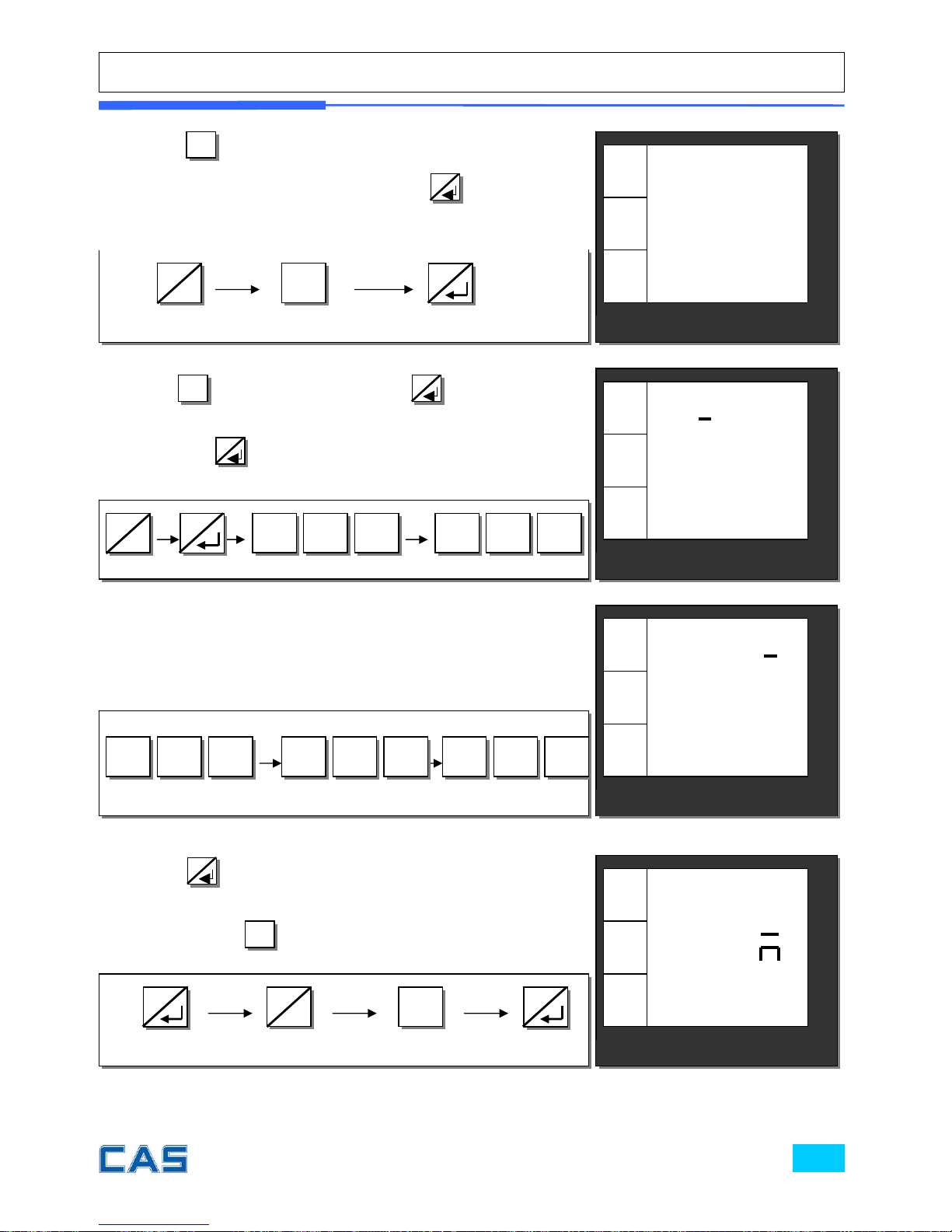
⑥ Press numerical keys as followed.
1
④ Press to go to input department number, and you can
input any number of 0~39, then, press
8
. For example,
input “1” for the department number.
6/▶
⑤ Press
6
/▶
to go to input PLU name,
8
. You can input up
to 32 characters in accordance to Table 8: code on page 97.
Then, press
8
to save the name. For example, input
“APPLE” for PLU 1. Press numerical keys as followed.
⑦ press
8
to save the name input. If user wants to
continue to input other PLU name he/she needs to exit to PLU
mode by pressing and press appropriate numeric keys.
7/←
2
* Maximum number of PLU is up to 1,799.
CAS POScale
CHARGE PAPER ∑ SHIFT
€/
kg
nA E
P 2
€
kg
MODE
6 5 8
0
∑ ∑
8 0 7 6 6
9
∑ ∑ ∑
8
6
▶
8
6
▶
8
8
7
←
Page 55
b. Tax, Non-weighed, fixed PLU price & barcode printing
CAS POScale
CHARGE PAPER ∑ SHIFT
€/
kg
YES
Pr bAr
P 2
€
kg
MODE
€/
kg
YES
no
P 2
€
kg
CAS POScale
CHARGE PAPER ∑ SHIFT
MODE
CAS POScale
CHARGE PAPER ∑ SHIFT
€/
kg
1
t A
P 2
€
kg
MODE
1
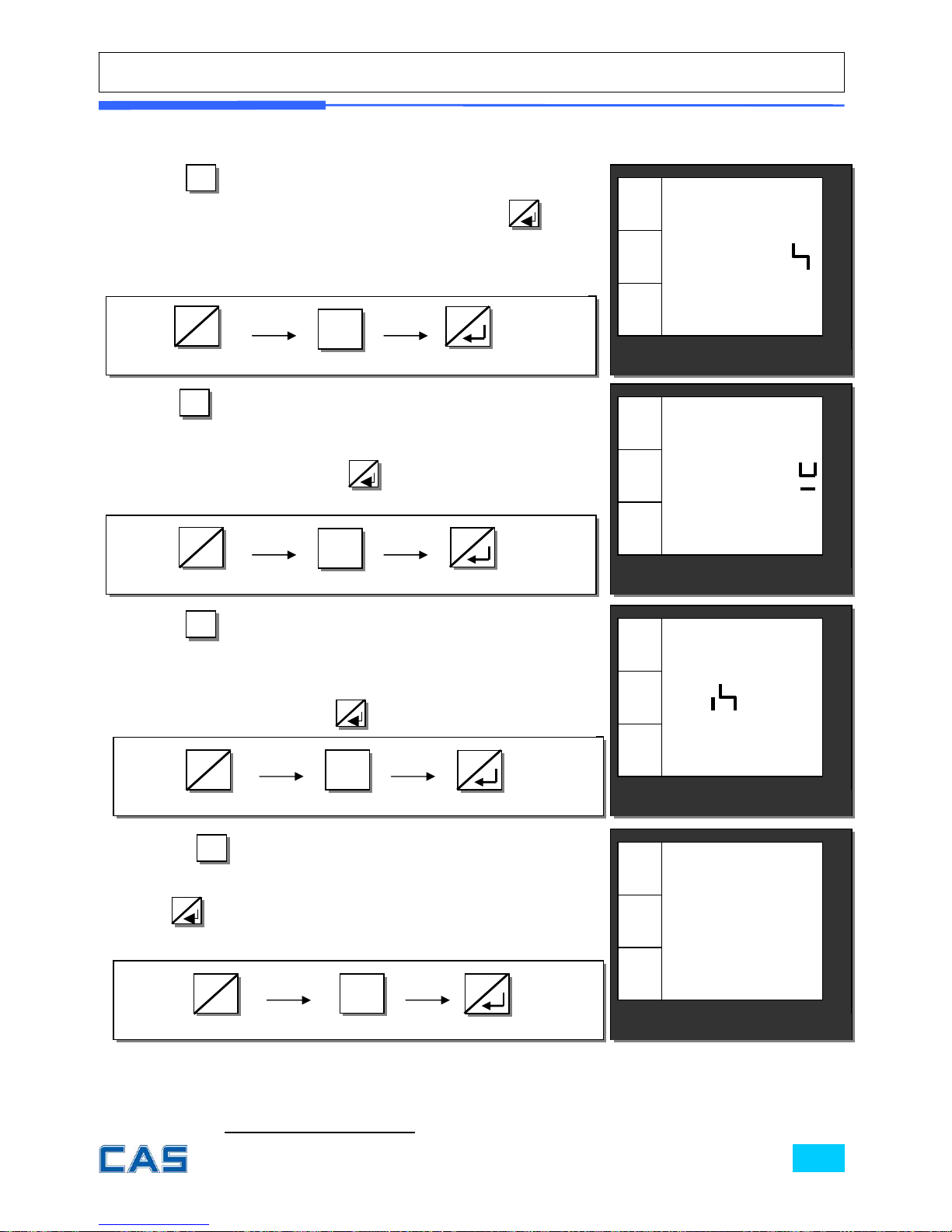
⑧ Press to go to tax group setting mode, and you can
input any one of tax rate groups, A~H, then press
8
. For
example, input tax group 1 for this PLU (please refer to tax
rate setting on page 91).
6/▶
1
⑪ Press
6
/▶
to go to barcode printing mode. User can
select YES or no by pressing “1” or “0” respectively. Then,
press
8
to save it.
1
⑨ Press
6
/▶
to go to “non-weighed” setting mode. This
setting is to select non-weighed or weighed commodity for
current PLU selected. User can select YES or no by pressing “1”
or “0” respectively. Then, press
8
to save it.
0
⑩ Press
6
/▶
to go to fixed PLU price setting mode. This
setting is to select either fixed or non-fixed PLU price. If user
selects fixed PLU price he/she can not change unit price when
called up the PLU. User can select YES or no by pressing “1” or
“0
”
respectively. Then, press
8
to save it.
€/
kg
no
F P
r
P 2
€
kg
CAS POScale
CHARGE PAPER ∑ SHIFT
MODE
C. One touch PLU data Erasing
Please refer to Chapter 10. SET 2. C. for more detail.
8
6
▶
8
6
▶
8
6
▶
8
6
▶
Page 56

Chapter 8.
Report
Page 57
Chapter 8. Report
This chapter explains how to print out all kind of reports in POScale. POScale
provides such reports as PLU data list, PLU, clerk, department, tax, hourly sales reports.
All of report always includes two special PLUs, PLU 0 and PLU 1,800 on top of report.
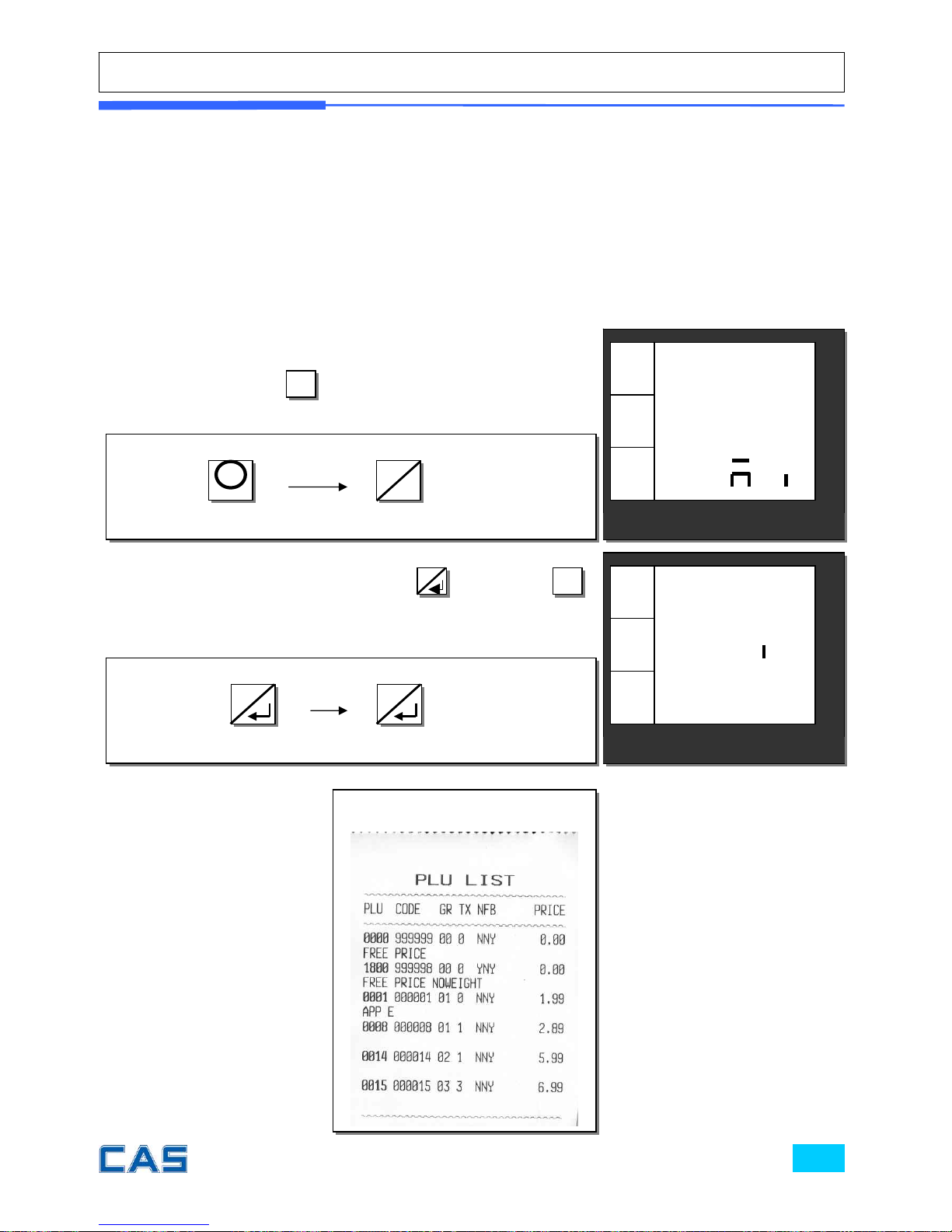
a. PLU data list
€/
kg
r E p or t
A n
€
kg
CAS POScale
CHARGE PAPER ∑ SHIFT
MODE
€/
kg
L St
rEP
€
kg
CAS POScale
CHARGE PAPER ∑ SHIFT
MODE
② To print out list of all PLU data press
8
twice. Press
C
to stop printing of list if user wants.
① press –M- key to go to PLU programming mode from main
menu, and then press
6
/▶
key.
Sample Report
6
▶
8
M
8
Page 58
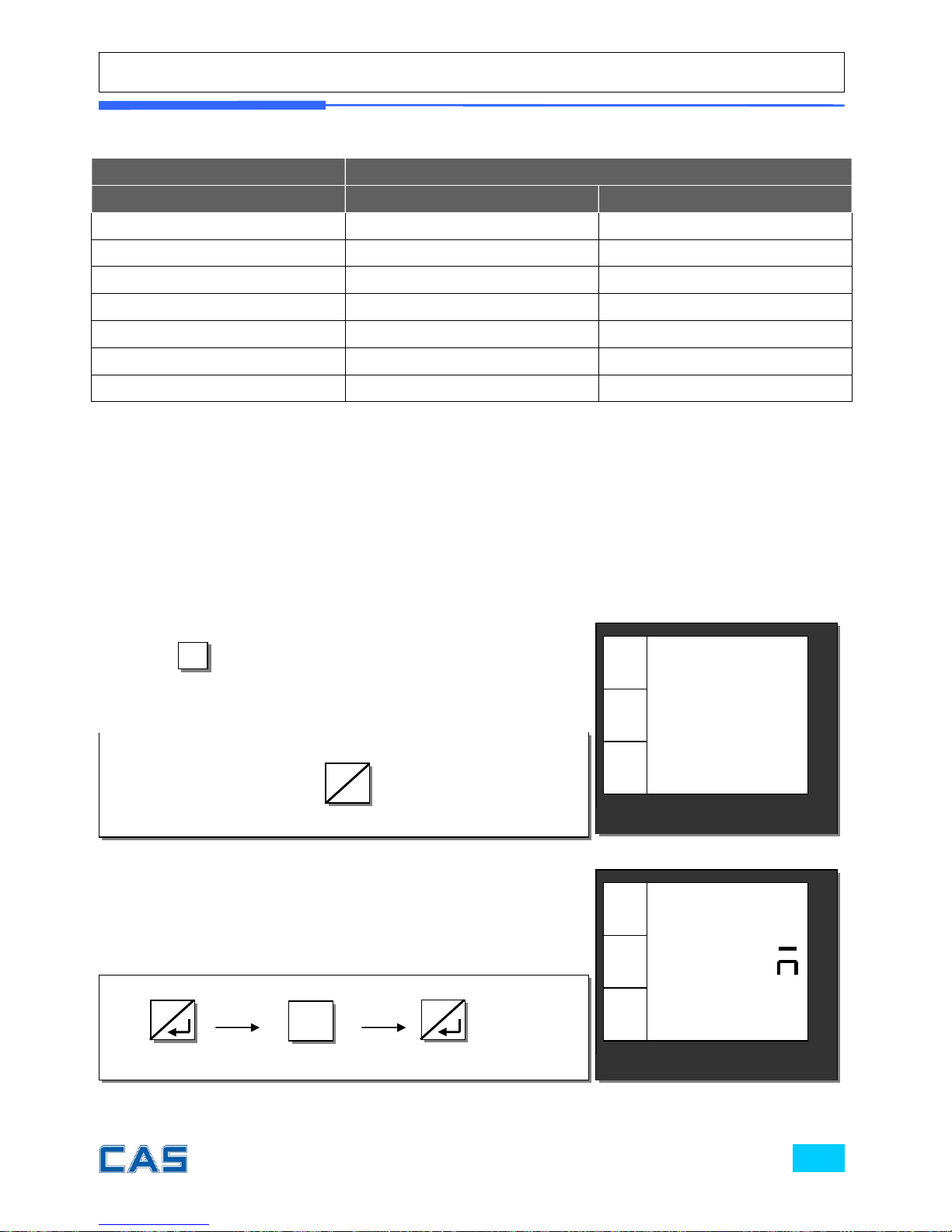
Table 6: “C” key operation while printing
Does “C” (Cancel) key work while printing report?
Report YES NO
PLU data list O
PLU O
Clerk X
Department O
Tax X
Hourly sales X
Closing X
b. PLU report
PLU report always includes two special PLUs, PLU 0 and PLU 1,800.
PLU 0 is the sum of non-PLU transactions and weighed item sales
PLU 1800 is the sum of non-PLU and non-weighed item sales.
① Press
6
/▶
to go to PLU report mode. This mode shows only
PLU items sold and two special PLU items sold on the report.
1
② Users can select any between PLU 1 and 1,799 for setting
report range. For example, select 1~20 for PLU report.
CAS POScale
CHARGE PAPER ∑ SHIFT
€/
kg
PLU
rEP
€
kg
MODE
CAS POScale
CHARGE PAPER ∑ SHIFT
€/
kg
1
Fro
rEP
€
kg
MODE
6
▶
8
8
Page 59
2 0
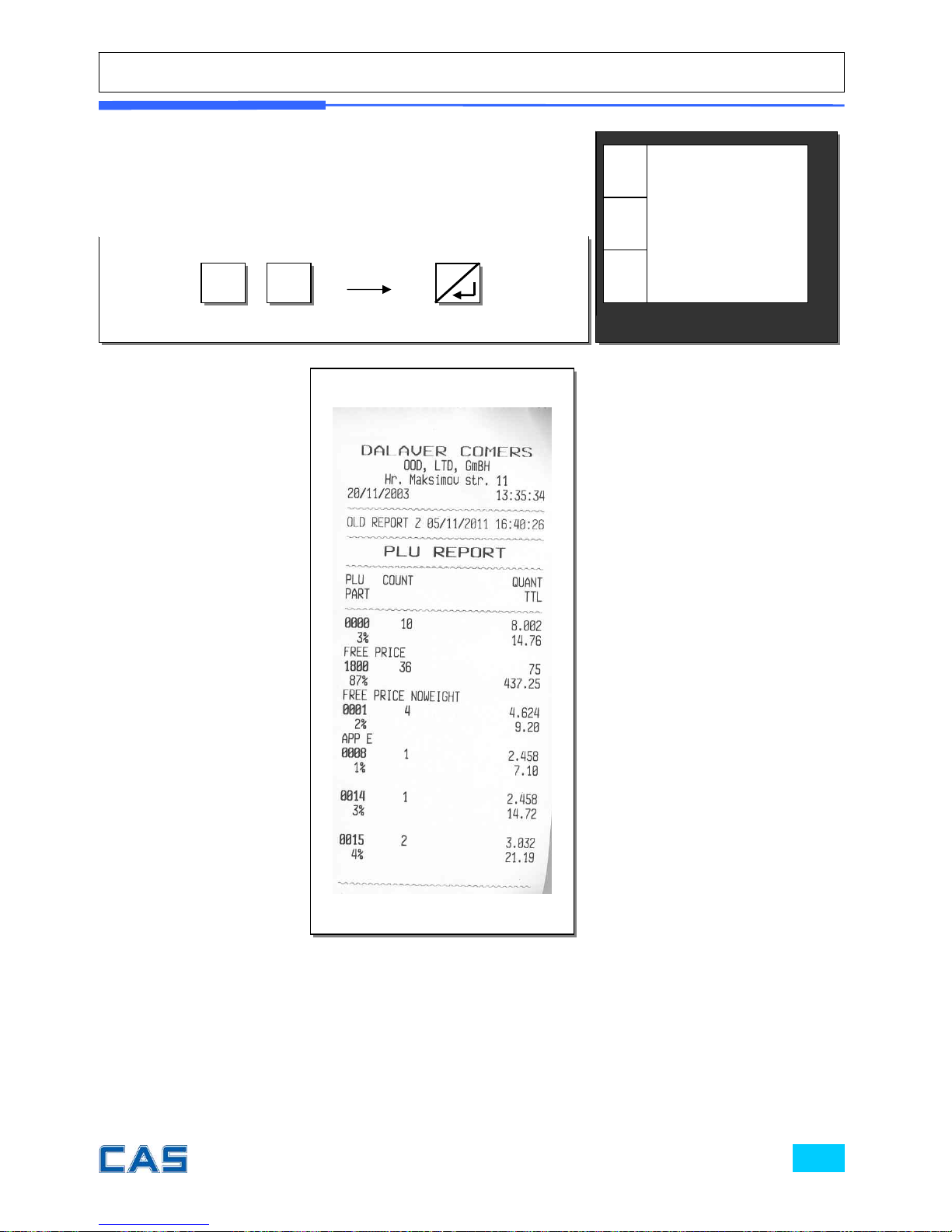
③ Automatically print out the PLU report ranging from 1 to 20,
and two special PLUs.
CAS POScale
CHARGE PAPER ∑ SHIFT
€/
kg
20
to
rEP
€
kg
MODE
Sample Report
8
Page 60
c. Clerk report
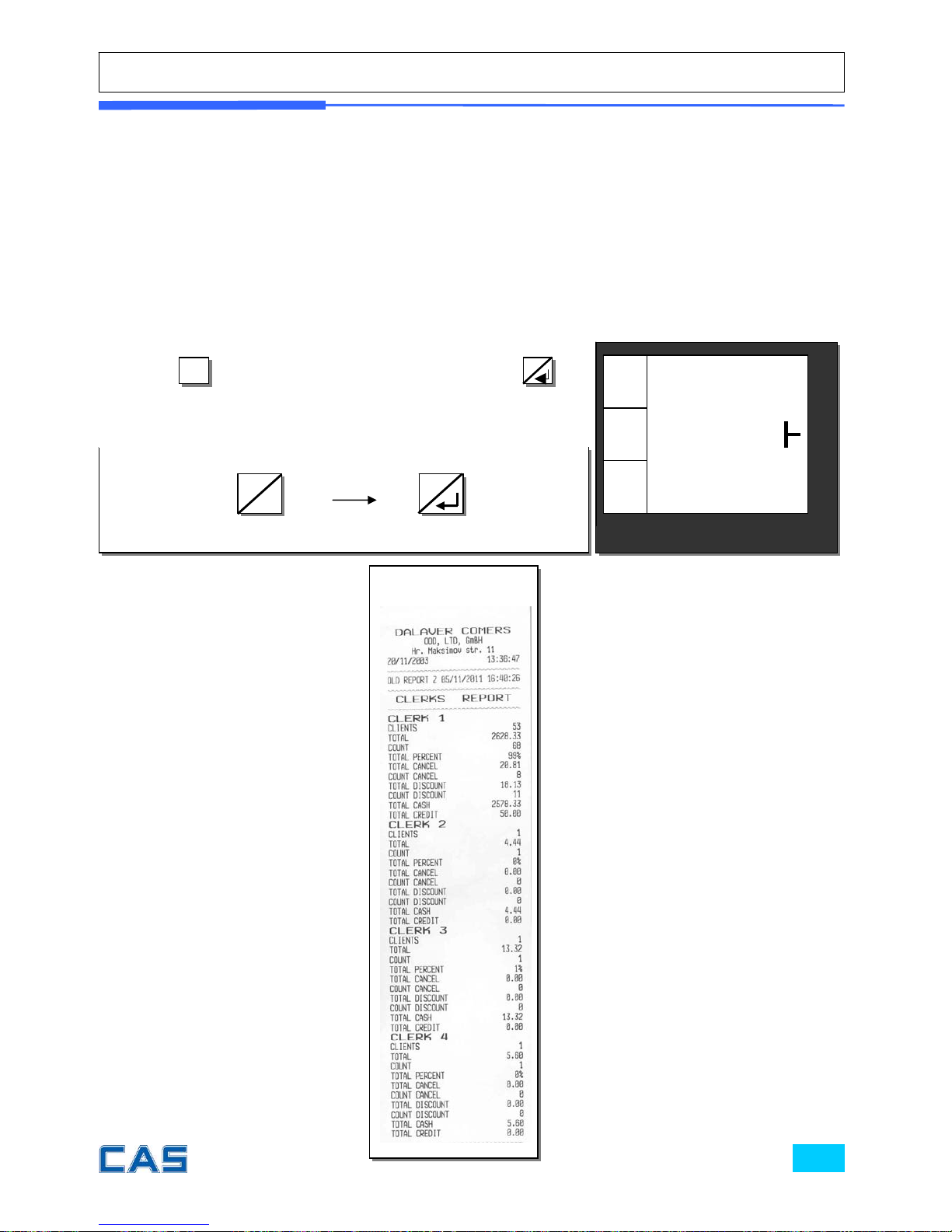
This reports all sales-related activities for four clerks.
This report includes such information as the number of clients (customers),
clerk’s total sales amount, proportional percent of total sales amount,
the amount and number of canceled transaction, the amount and
number of discount, and the amount of sales in cash and credit
respectably.
① Press
6
/▶
to go to clerk report mode, and press
8
to
print out the report.
CAS POScale
CHARGE PAPER ∑ SHIFT
€/
kg
CLEr
rEP
€
kg
MODE
Sample Report
6
▶
8
Page 61
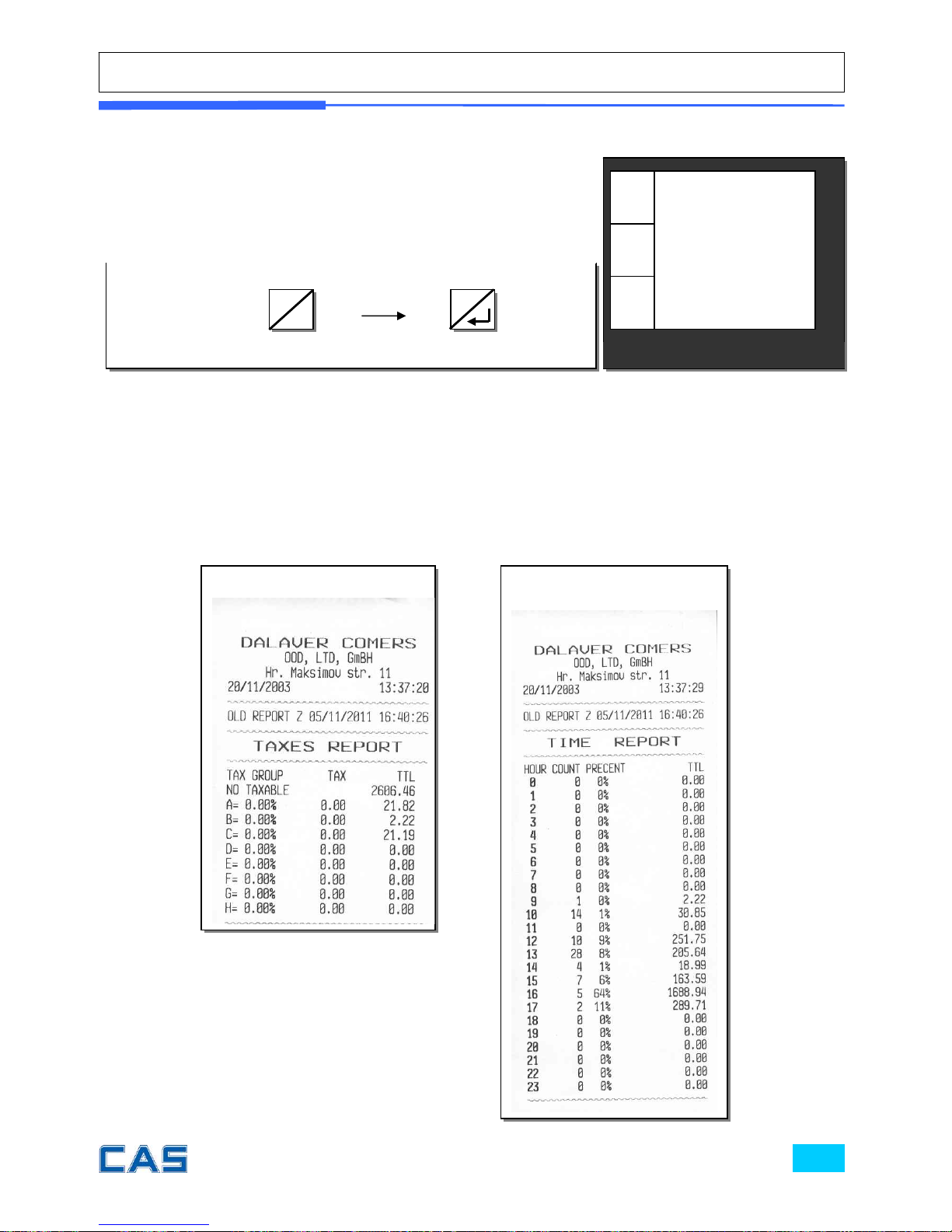
d. Department report
e. Tax report and hourly sales report
The same process as department report.
Tax report: total tax amount and sales amount for each 8 tax groups.
Hourly sales report: hourly sales total amount, count, and percent for a day.
② Go to the department report mode.
CAS POScale
CHARGE PAPER ∑ SHIFT
€/
kg
dEP
rEP
€
kg
MODE
Sample Report Sample Report
6
▶
8
Page 62

f. Closing report
This will set all of accumulated sums zero and close all of daily sales activities by printing
report.
If user already sets “report all” function “YES” in OPTIONS setting of program
mode the scale automatically print all of reports included such as PLU data list,
PLU report, clerk report, department report, tax report, and hourly sales report
by executing.
Page 63

Chapter 9.
SET 1
(Discount, Barcode formatting & HW setting)
Page 64
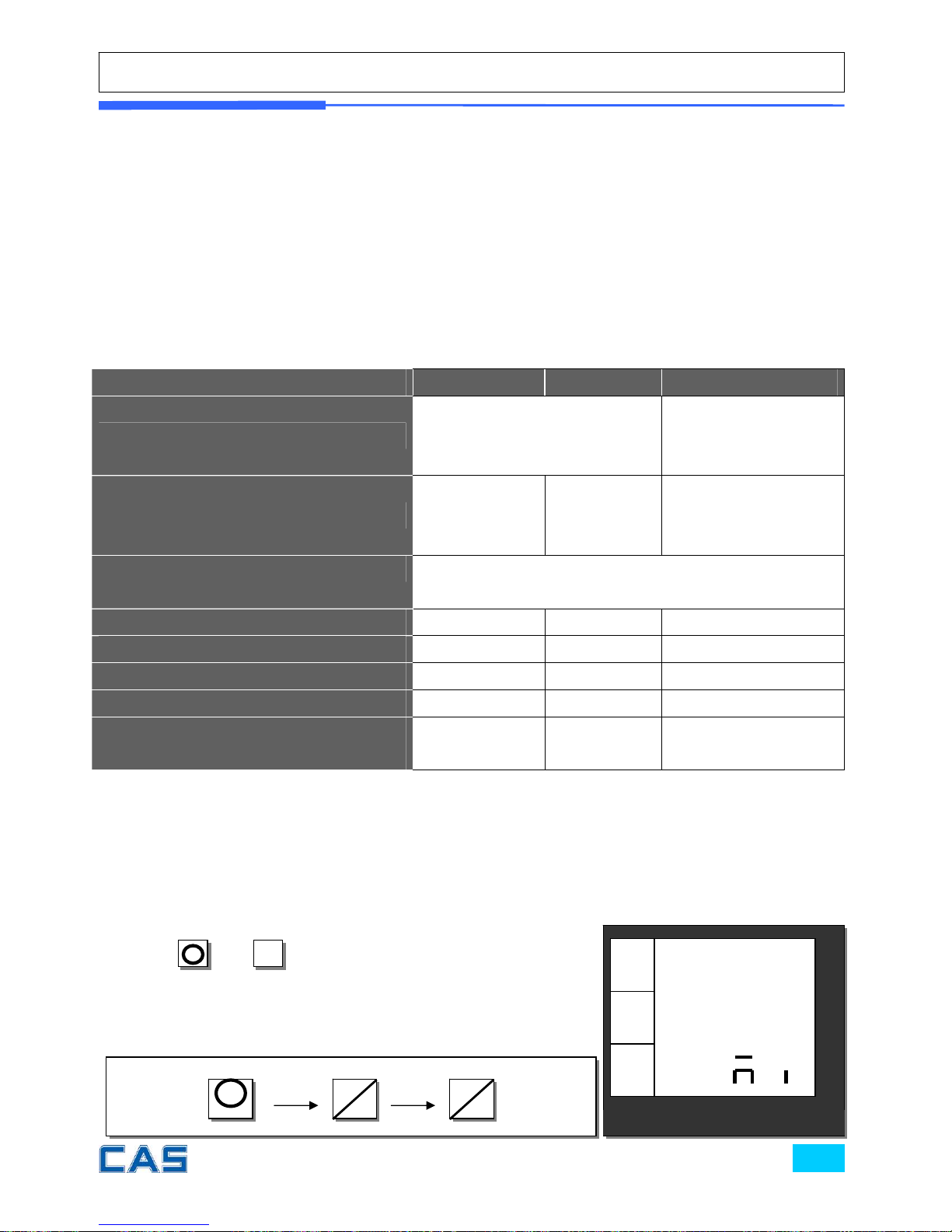
Chapter 9. SET 1 (Discount, Barcode formatting & HW setting)
This chapter explains how to set BAUD rate, auto power-off, LAN number, discount
rate, barcode format for a single or total, and pulse length for opening cash drawer. In
addition to these, it also describes how to set printing darkness and input currency symbol
or name.
Table 7: SET 1
SET 1 Minimum Maximum Remark
BAUD Rate (bps; bit per sec.)
1200, 2400, 4800, 9600,
14400, 19200, 28800, 38400,
57600, 115200
Auto Power-off timing setting (min.)
1 240 0:No Auto Power-off
Auto power-off works
only in battery usage.
LAN number (#)
※ This version of POScale does not support network
function. It will be provided in the future.
Discount Rate (%) 0 99
Barcode Format
Cash Drawer-Opening Pulse (ms.) 1 99
Printing Darkness 1 5 Default: 3
Currency Symbol or Name
(characters)
0 3
a. BAUD rate (bps)
BAUD rate is the data-downloading or uploading speed between the scale and PC. User
may set appropriate one of 10 speed options depending on his/her usage environment.
① Press
M
and
6
/▶
to go to SET 1 mode.
CAS POScale
CHARGE PAPER ∑ SHIFT
€/
kg
Set1
A n
€
kg
MODE
6
▶
6
▶
M
Page 65
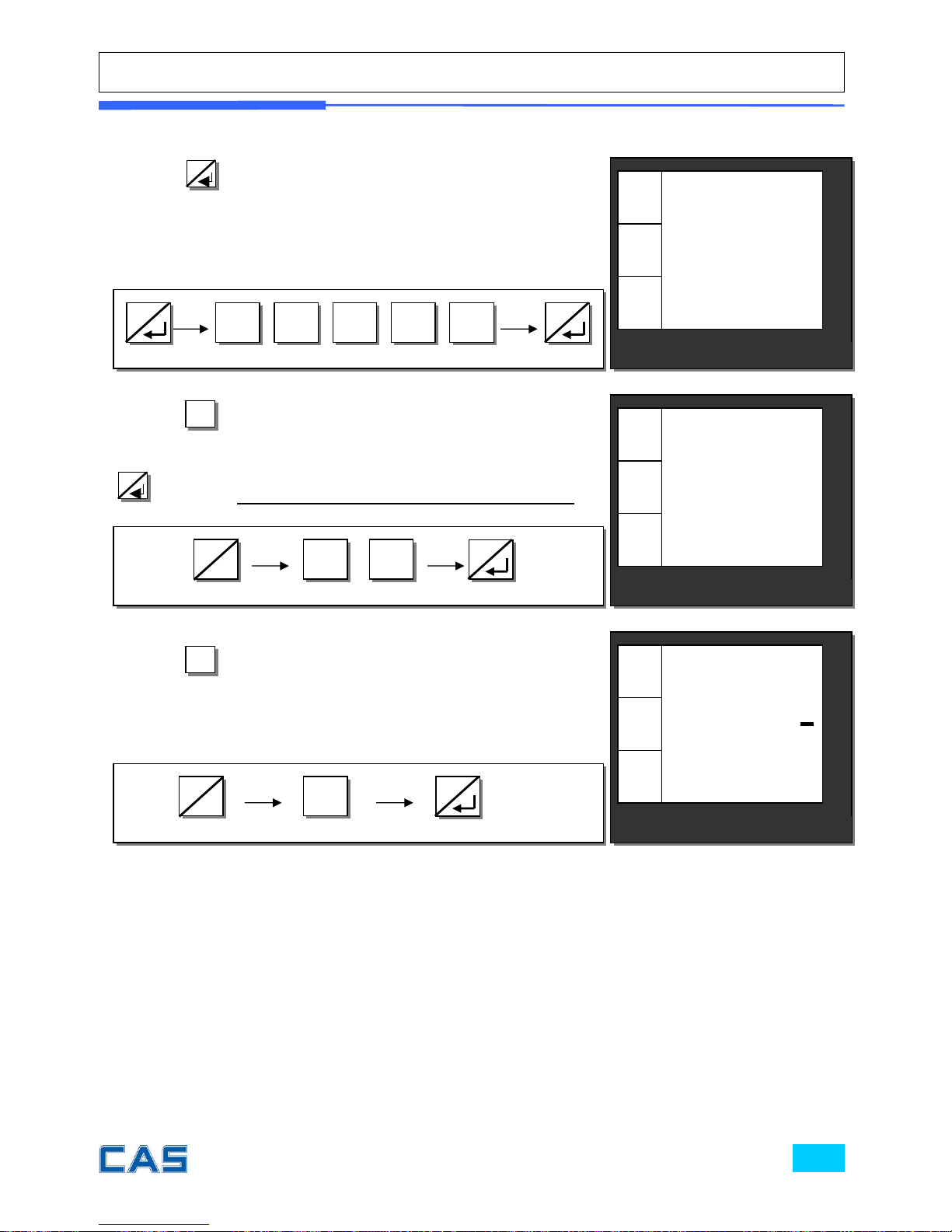
② Press
8
to go to BAUD rate setting mode. User may
input any one of options 1200~115200 to meet best usage
environment. Please refer to “Table 7: SET 1” on page 64 for
speed options. For example, select 57600.
③ Press
6
/▶
to go to Auto Power-Off setting mode. User
may input any minute 0~240 to set power-off, and then, press
8
to save it. Auto power-off works only in battery usage.
0 0 6 7 5
3 0
④ Press
6
/▶
to go to Discount rate setting mode. This is
to set programmed discount rate between 0~99%. For
example, let’s set 5 % of programmed discount rate.
5
€/
kg
30
AUtoo
Set 1
€
kg
CAS POScale
CHARGE PAPER ∑ SHIFT
MODE
€/
kg
5
Pr
Set 1
€
kg
CAS POScale
CHARGE PAPER ∑ SHIFT
MODE
€/
kg
57600
bAUd
Set1
€
kg
MODE
CAS POScale
CHARGE PAPER ∑ SHIFT
6
▶
8
8
6
▶
8
8
Page 66
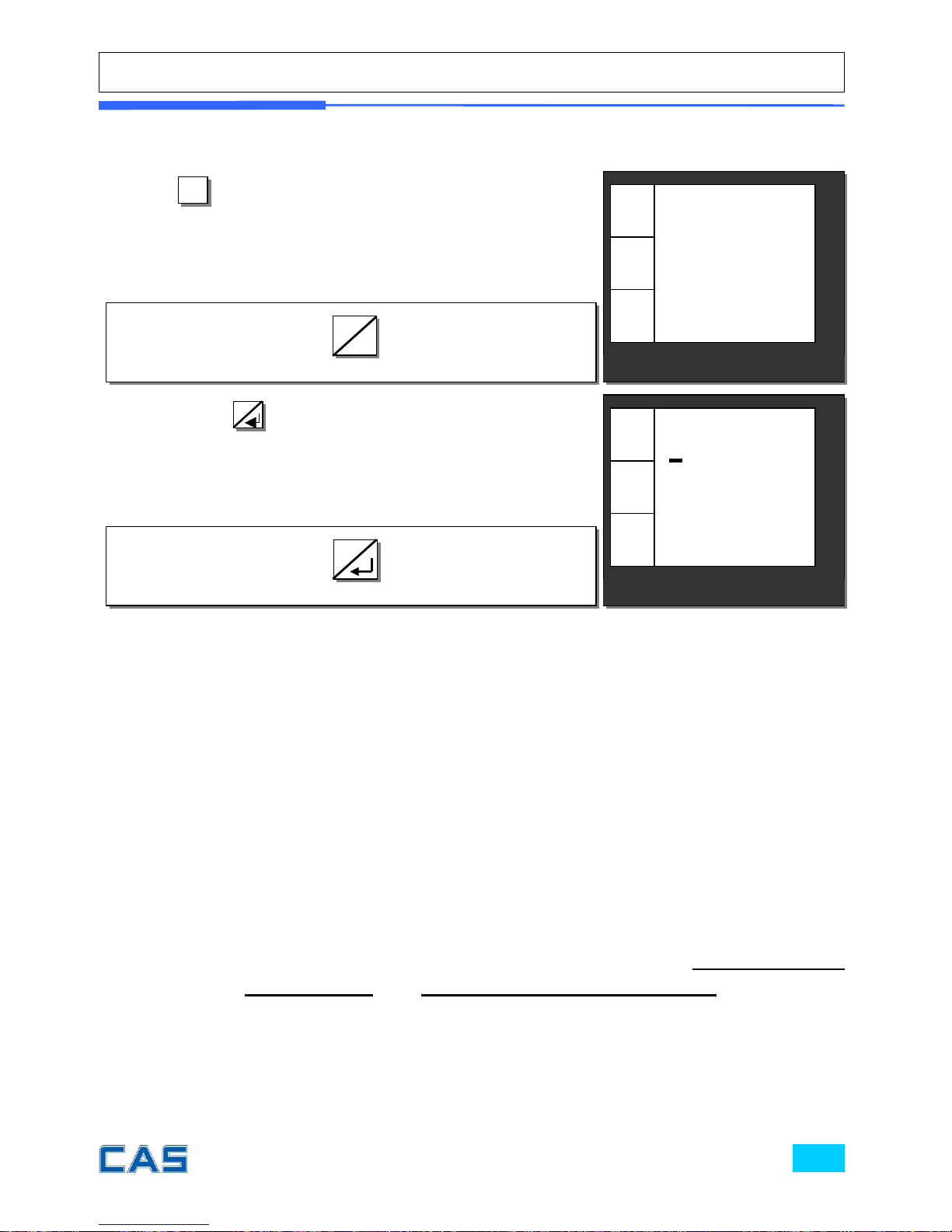
b. Barcode format setting for a single transactions
POScale supports “EAN 13” type of barcode format, which has 12 digits input
and constant 1 digit by itself.
Barcode string: MXNXNMXN….XN
X: The following information can inserted at “X” location.
W: Weight (up to 5 digits due to POScale display)
U: Unit price (up to 6 digits due to POScale display)
P: Total sum (up to 7 digits due to POScale display)
N: Code of PLU
B: Number of receipt
D: Department
C: Clerk (1~4)
V: Price control sum (“V” can be inserted only before “up to 5 digits for
U (unit price)” or “up to 5 digits for P (total sum)” to make sure
price-related information.
M: Number of sales transaction on receipt
N: Number of digit(s)
M: Constant digit(s)
⑤ Press
6
/▶
to go to Barcode format setting for a single
transaction mode.
⑥ Then, press
8
again to get into input barcode string,
using code table on page 97. Now it’s ready to input
appropriate barcode string.
MODE
MODE
6
▶
8
€/
kg
1 0
Set 1
€
kg
CAS POScale
CHARGE PAPER ∑ SHIFT
MODE
€/
kg
bAr S
Set 1
€
kg
CAS POScale
CHARGE PAPER ∑ SHIFT
MODE
Page 67
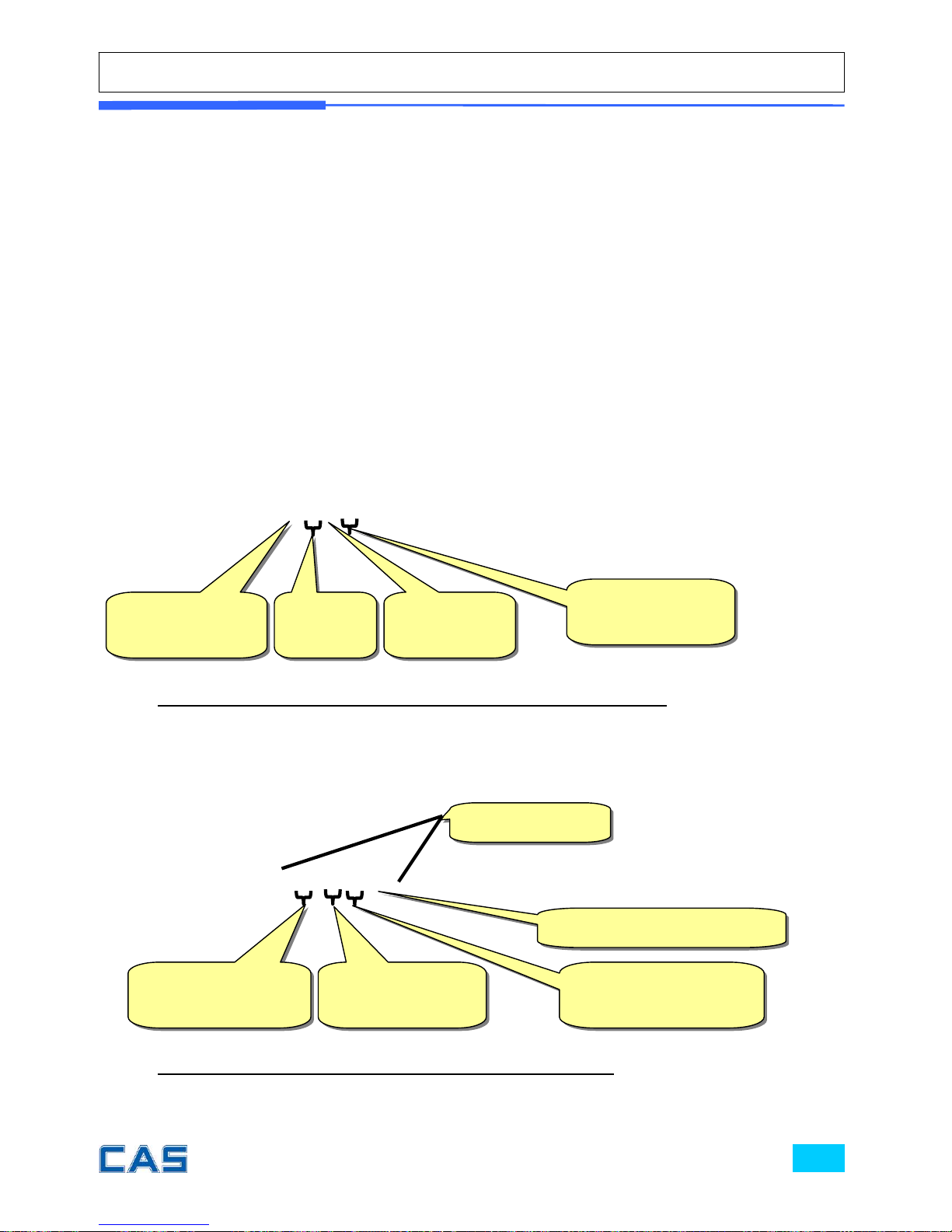
Total number of digits input in the barcode must be exactly 12!
The parameter X specifies what will be printed on receipt. User can choose any
between following parameters and can set the number of digit printed on the
receipt.
Then parameter N right after parameter X is obligatory. It indicates the number
of digits, which will be printed after the digits the parameter X specifies.
The constant digit(s), M is not obligatory and can be inserted anywhere in the
string between group XN. This digit(s) will be printed unconditionally.
After setting barcode in accordance to basic principle, let’s get into some practical cases.
Case 1:
Assumption:
Weight – 1.234
Total price - 4.83
String- “1W5VP5” (total is 12 digits input)
Then,
Barcode -> 101234500483 (total is 12 digits input)
Case 2:
Assumption:
Weight – 9.415
Department-15
Clerk-3
String- 4W562D2C19 (total is 12 digits input)
Then,
Barcode -> 409415621539 (total is 12 digits)
Five digits for
weight
Constant
digit(s): 62
Two digits for
department
Constant digit
One digit for clerk
Constant
digit(s): 1
Five digits
for weight
Five digits for
total price
One digit for
V: price
control sum
Page 68
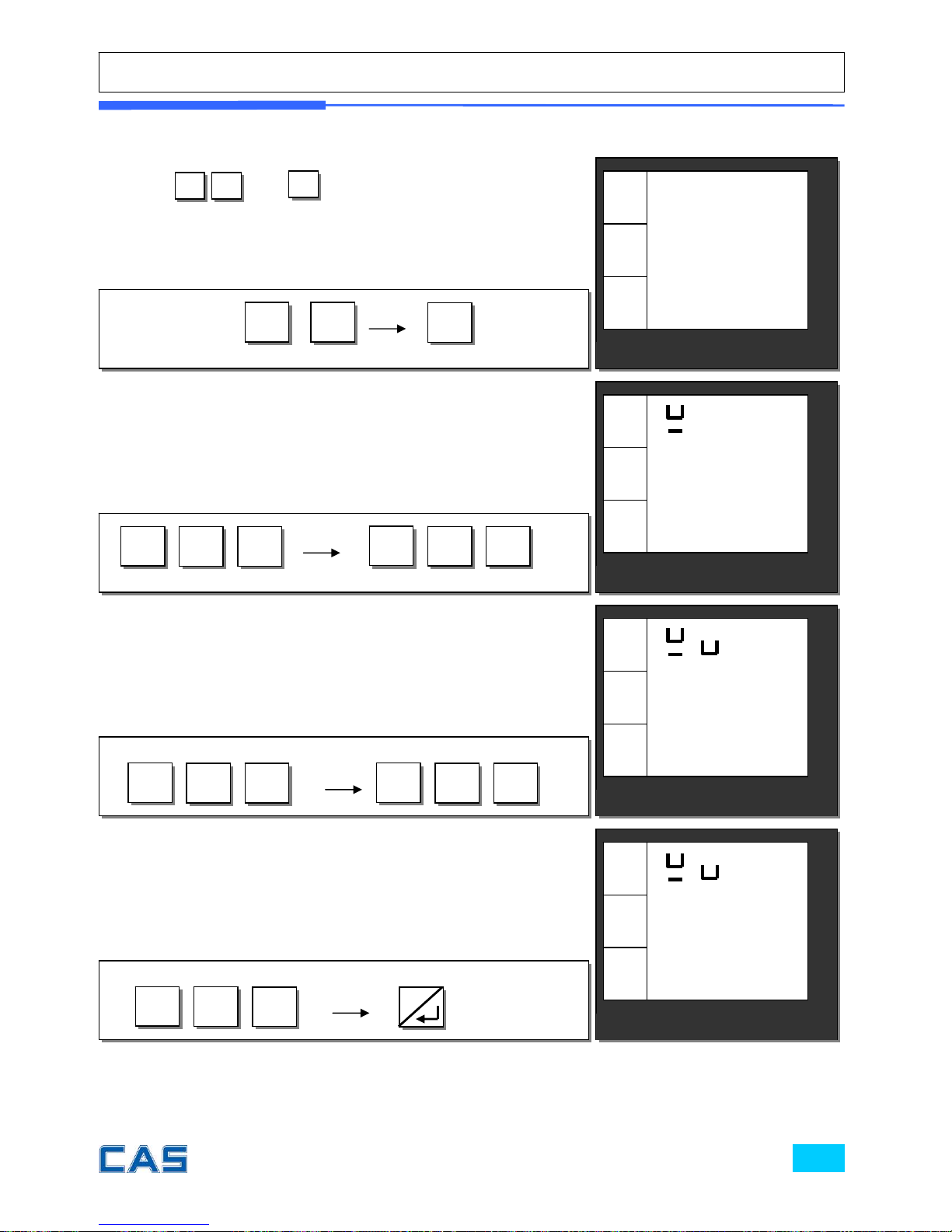
Let’s try to set barcode for above case 1. User should input codes- 49, 87,53, 86, 80, 53-
for barcode string, 1W5VP5.
⑦ Press
4 9
and to input “1”, the first digit of
string in barcode for a single sale setting mode.
4 9
⑧ Press the following keys to continue to input barcode string.
⑨ Press the following keys to continue to input barcode string.
∑
∑
8
7
∑
5
3
8
0
∑
∑
⑩ Press the following keys to continue to input barcode string.
5
3
8
6
∑
∑
€/
kg
1 5
4 0
Set 1
€
kg
MODE
CAS POScale
CHARGE PAPER ∑ SHIFT
€/
kg
1
2 0
Set 1
€
kg
MODE
CAS POScale
CHARGE PAPER ∑ SHIFT
€/
kg
1 5 P
6 0
Set 1
€
kg
MODE
CAS POScale
CHARGE PAPER ∑ SHIFT
€/
kg
1 5 P5
bAr S
Set 1
€
kg
MODE
CAS POScale
CHARGE PAPER ∑ SHIFT
8
Page 69
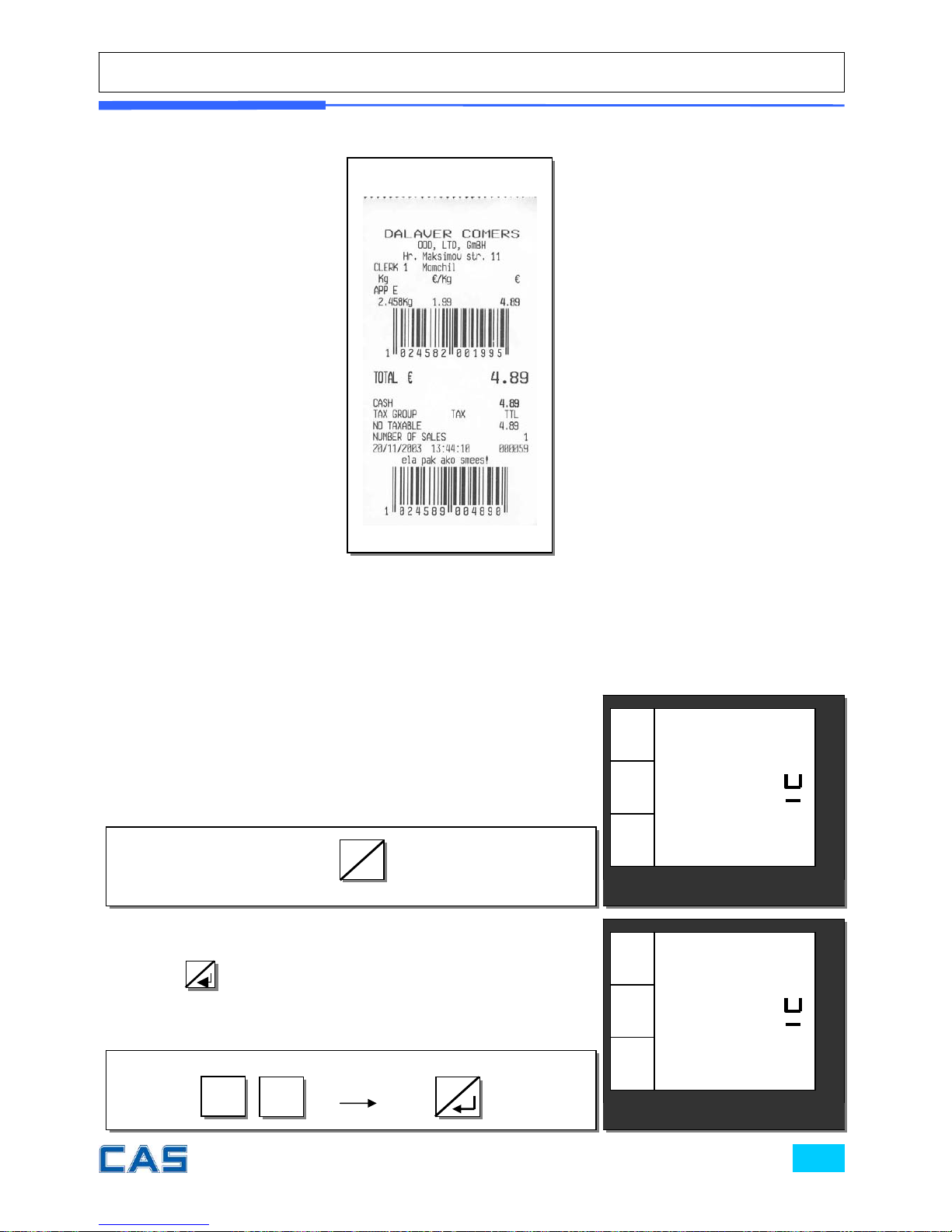
c. Barcode format setting for total
Same method as “b. barcode format setting for a single transaction”.
d. Setting pulse length to open cash drawer
CAS Poscale may be used with cash drawer (6 voltage) at user needs.
Default for pulse length of cash drawer is 50 m/s (50/100 second). However,
user can select any of 1~99 ms, which is best fit for user’s own cash drawer.
① Pulse length setting mode.
② Press appropriate numeric key to set pulse length of 1~99
(ms) and
8
to save it. For example, set 50 ms.
5
0
MODE
MODE
€/
kg
0
dro
Set 1
€
kg
CAS POScale
CHARGE PAPER ∑ SHIFT
MODE
€/
kg
50
dro
Set 1
€
kg
CAS POScale
CHARGE PAPER ∑ SHIFT
MODE
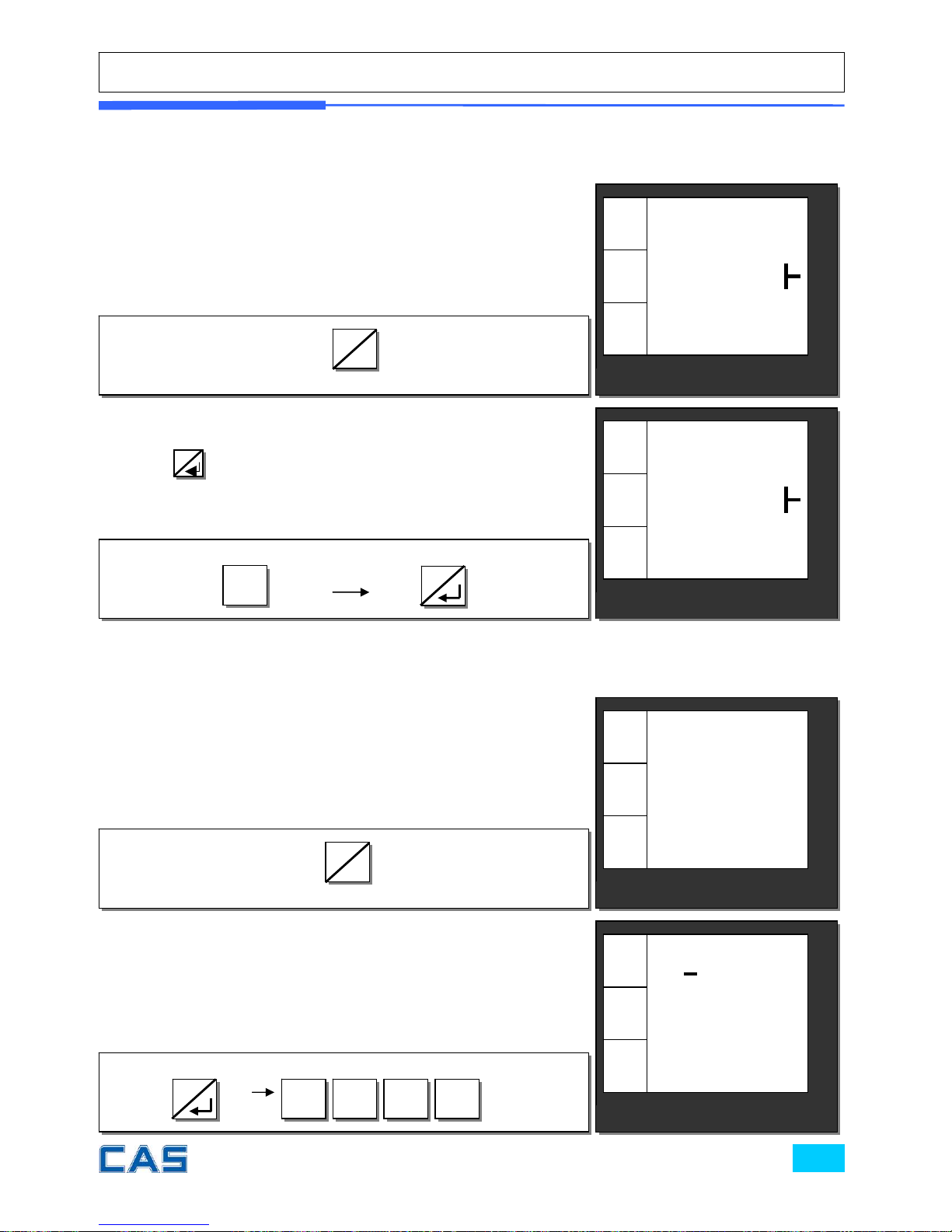
Sample Receipt
6
▶
8
Page 70
e. Printing darkness setting
f. Currency symbol or name
① Printing darkness setting mode. User may set the darkness
1~5 and the default setting is 3.
② Press appropriate numeric key to set printing darkness of
1~5 and
8
to save it. For example, set 2.
2
① Currency symbol or name setting mode. User can input
appropriate characters for currency, using code. Maximum
number of character is 3. Let’s try to input “
€” for Euro.
② Input “128” for € symbol.
2 1
∑
8
MODE
MODE
MODE
MODE
€/
kg
3
dAr
Set 1
€
kg
CAS POScale
CHARGE PAPER ∑ SHIFT
MODE
€/
kg
2
dAr
Set 1
€
kg
CAS POScale
CHARGE PAPER ∑ SHIFT
MODE
€/
kg
Cur
r
Set 1
€
kg
CAS POScale
CHARGE PAPER ∑ SHIFT
MODE
€/
kg
A
2 0
Set 1
€
kg
CAS POScale
CHARGE PAPER ∑ SHIFT
MODE
6
▶
8
6
▶
8
Page 71
③ Press
8
to save it.
MODE
€/
kg
A
CUr
r
Set 1
€
kg
CAS POScale
CHARGE PAPER ∑ SHIFT
MODE
8
Page 72

Chapter 10.
SET 2
(Date, Time & Default setting)
Page 73
Chapter 10. SET 2 (Date, Time & Default setting)
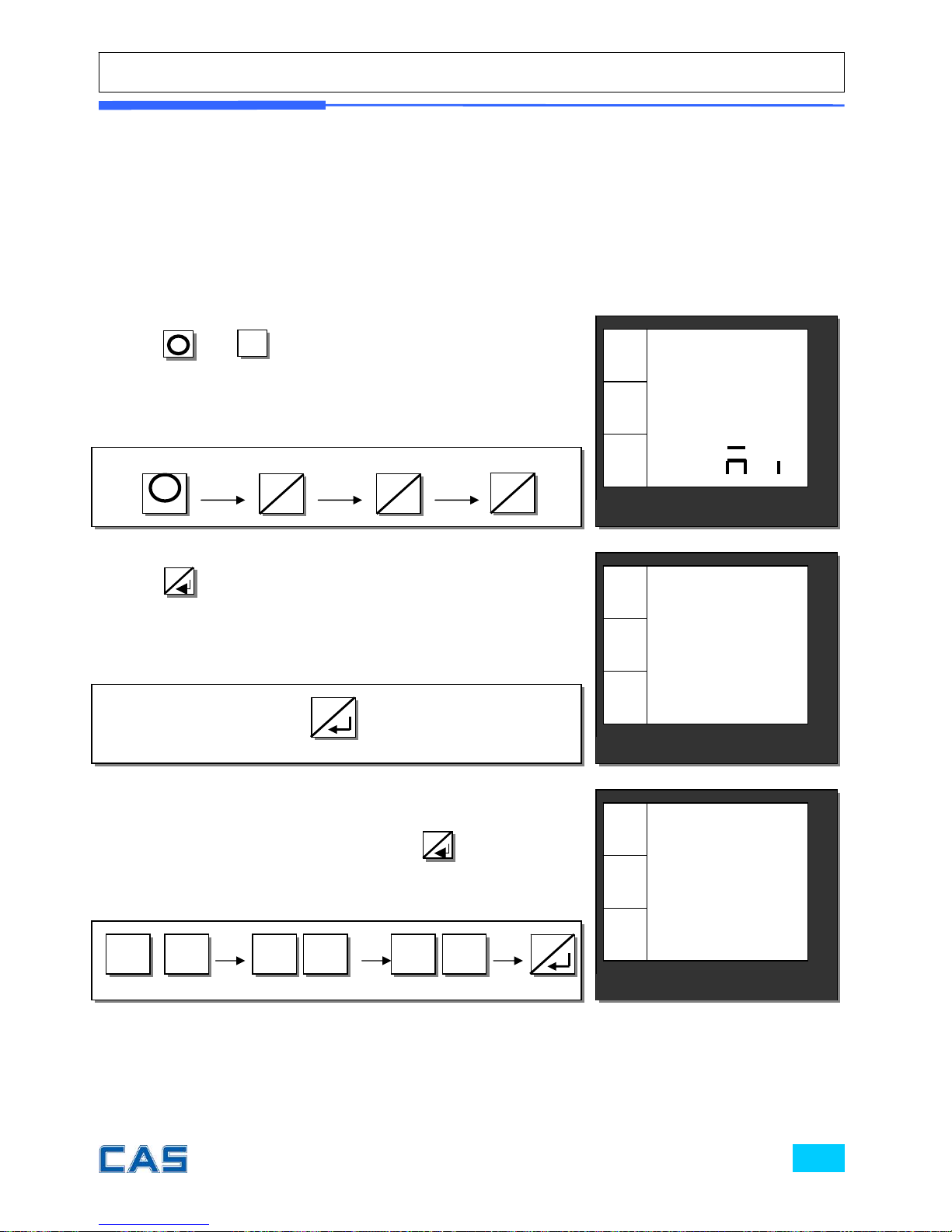
This chapter explains how to set date and time, erase all of PLU data. In addition to
these functions it also shows how to do one-touch default setting.
a. Date & time
③ Press any numerical keys you wish to input. For example,
let’s input “2003/10/10” as date, and press
8
to save date.
① Press
M
and to go to SET 2 mode.
6/▶
② Press
8
to go to date setting mode.
0 3 0 0 1 1
CAS POScale
CHARGE PAPER ∑ SHIFT
€/
kg
SEt2
A n
€
kg
MODE
€/
kg
03.10.10
dAtE
SEt2
€
kg
CAS POScale
CHARGE PAPER ∑ SHIFT
MODE
€/
kg
00.00.00
dAtE
SEt2
€
kg
MODE
CAS POScale
CHARGE PAPER ∑ SHIFT
8
6
▶
M
6
▶
6
▶
8
Page 74
b.
One touch PLU data Erasing & default setting
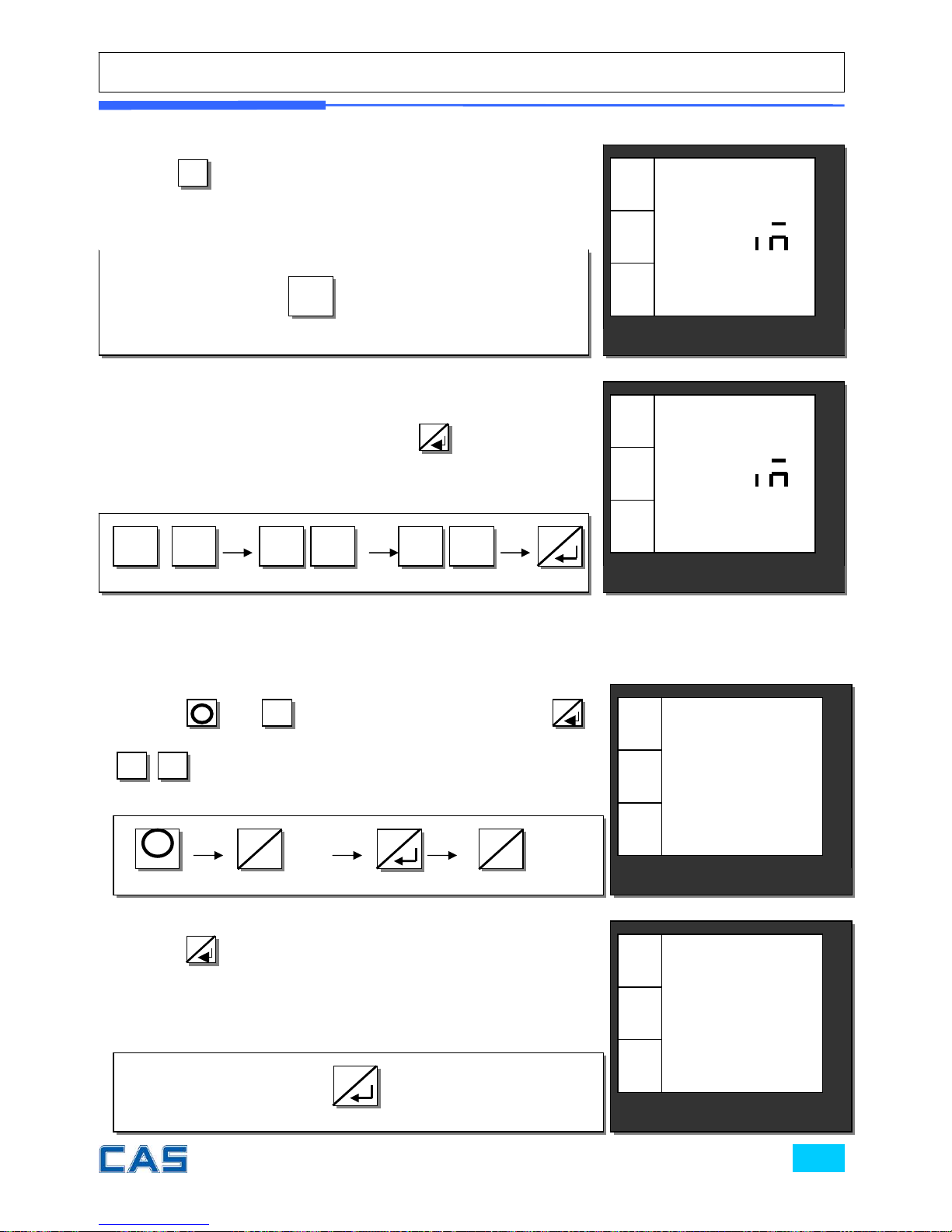
① Using
M
and
6
/▶
go to SET 2 mode. Then, press
8
6
/▶
6
/▶
to get PLU Erasing mode.
CAS POScale
CHARGE PAPER ∑ SHIFT
€/
kg
Er PLU
SEt2
€
kg
MODE
6/▶
④ Press
6
/▶
to go to Time Setting mode.
⑤ Press any numeric keys you wish to input. For example,
let’s input “09:53:00” as time, and press
8
to save time.
0 9 0 3 5 0
€/
kg
Er PLU
SEt2
€
kg
MODE
② Press
8
to erase all of PLUs data if you wish to.
X 3 X 2
CAS POScale
CHARGE PAPER ∑ SHIFT
€/
kg
09.53.00
t E
SEt2
€
kg
MODE
CAS POScale
CHARGE PAPER ∑ SHIFT
€/
kg
00.00.00
t E
SEt2
€
kg
MODE
8
8
8
6
▶
6
▶
M
Page 75
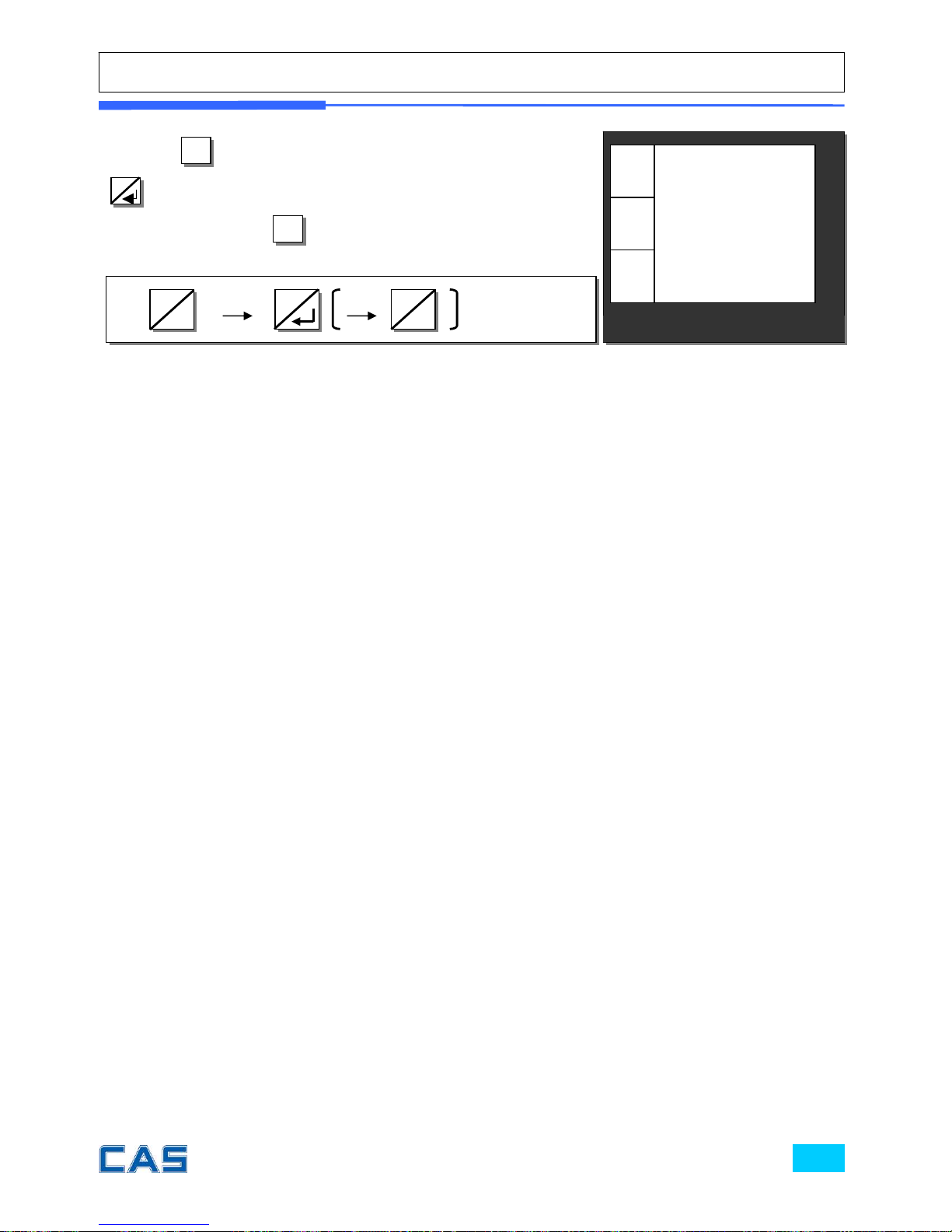
③ Press
6
/▶
to go to default setting mode. Then, press
8
to set default if you wish to (user may exit to normal
weighing mode using
7/←
).
€/
kg
dEFAU
L
SEt2
€
kg
CAS POScale
CHARGE PAPER ∑ SHIFT
MODE
6
▶
8
7
←
Page 76

Chapter 11.
OPTION
Page 77
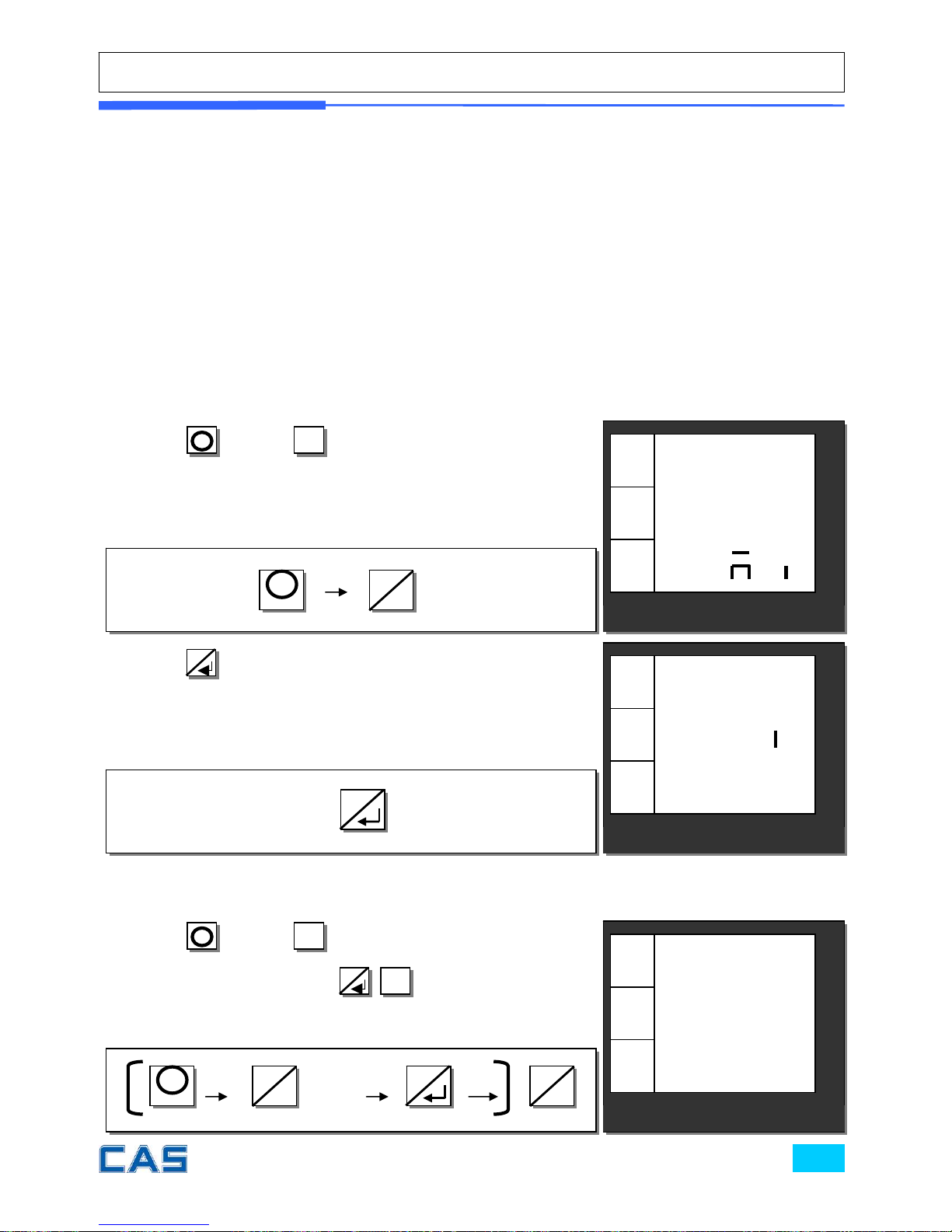
Chapter 11. OPTIONS (Receipt Formatting)
This chapter explains how to enable/disable printing function, duplicate receipt,
printing barcode for a single transaction or total. It also explains how to enable/disable
printing graphic logo on receipt, code of PLU and all of reports in the closing report.
Furthermore, this chapter guides you to set obligatory payment function and discount
function.
The option setting is receipt-formatting functions except obligatory payment and
discount functions.
a. Printing ticket (receipt)
b. Duplicate receipt
€/
kg
YES
Pr nt
oPt
€
kg
CAS POScale
CHARGE PAPER ∑ SHIFT
MODE
② Press
8
to get into printing option mode, the first step
of option setting mode. User may select YES or no by
pressing “1” or “0” respectively.
① Using
M
key and
6
/▶
to get into option setting mode
from main menu.
③ Using
M
key and
6
/▶
go to option setting mode from
main menu. And then press
8
6
/▶
to get into duplicate
ticket printing setting mode.
X 4
X 4
€/
kg
oPt
A n
€
kg
CAS POScale
CHARGE PAPER ∑ SHIFT
MODE
CAS POScale
CHARGE PAPER ∑ SHIFT
€/
kg
no
db
L
oPt
€
kg
MODE
6
▶
8
M
6
▶
8
M
6
▶
Page 78
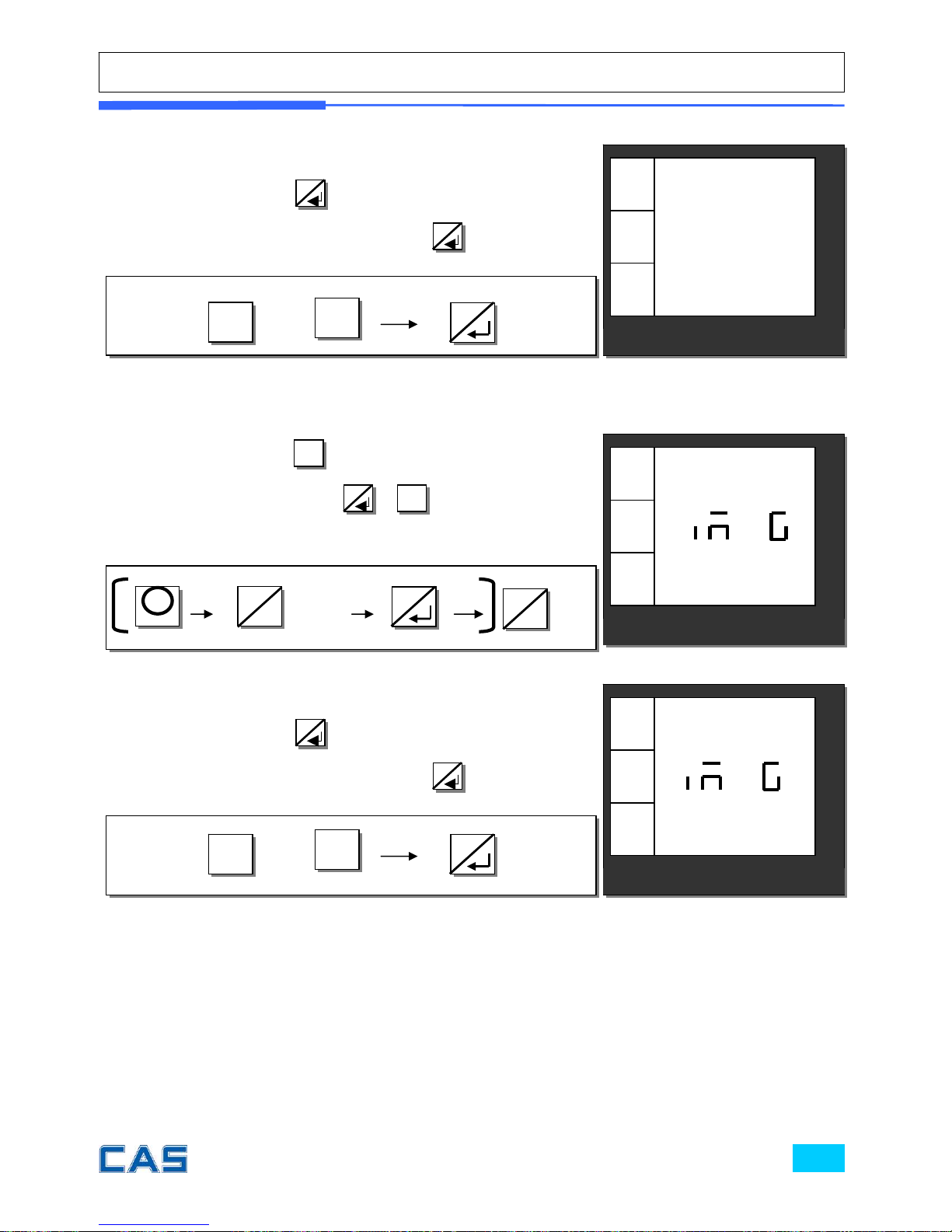
c. Image (graphic logo)
CAS POScale
CHARGE PAPER ∑ SHIFT
€/
kg
no
db
L
oPt
€
kg
MODE
④ User may select YES or no by pressing “1” or “0”
respectively, and press
8
to save it. Use “C” key to change
“1” or “0” input before saving by pressing
8
.
1
0
or
⑤ (Using –M- key and
6
/▶
go to option setting mode from
main menu. And then press
8
)
6
/▶
to get into image
setting mode.
⑥ User may select YES or no by pressing “1” or “0”
respectively, and press
8
to save it. Use “C” key to change
“1” or “0” input before saving by pressing
8
.
1
0
or
CAS POScale
CHARGE PAPER ∑ SHIFT
€/
kg
YES
A E
oPt
€
kg
MODE
CAS POScale
CHARGE PAPER ∑ SHIFT
€/
kg
no
A E
oPt
€
kg
MODE
X 4
X 2
6
▶
8
M
6
▶
8
8
Page 79
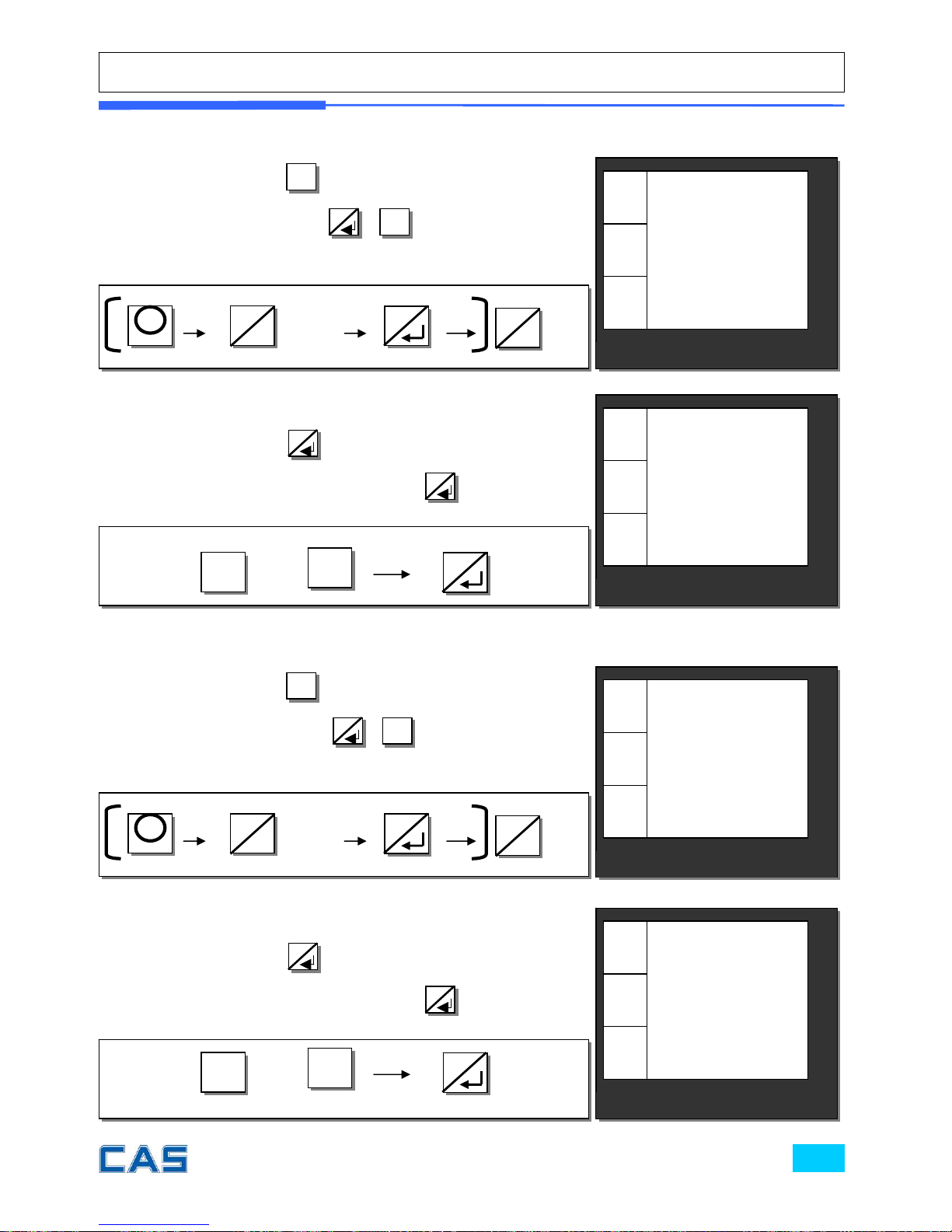
d. Printing barcode for a single of transaction
e. Printing barcode for total transaction
CAS POScale
CHARGE PAPER ∑ SHIFT
€/
kg
no
bAr S
oPt
€
kg
MODE
CAS POScale
CHARGE PAPER ∑ SHIFT
€/
kg
YES
bAr S
oPt
€
kg
MODE
CAS POScale
CHARGE PAPER ∑ SHIFT
€/
kg
no
bAr t
oPt
€
kg
MODE
CAS POScale
CHARGE PAPER ∑ SHIFT
€/
kg
YES
bAr t
oPt
€
kg
MODE
⑦ (Using –M- key and
6
/▶
go to option setting mode from
main menu. And then press
8
)
6
/▶
to get into barcode
printing for a single of transaction setting mode.
⑧ User may select YES or no by pressing “1” or “0”
respectively, and press
8
to save it. Use “C” key to change
“1” or “0” input before saving by pressing
8
.
1
0
or
⑨ (Using –M- key and
6
/▶
go to option setting mode from
main menu. And then press
8
)
6
/▶
to get into barcode
printing for total transaction setting mode.
⑩ User may select YES or no by pressing “1” or “0”
respectively, and press
8
to save it. Use “C” key to change
“1” or “0” input before saving by pressing
8
.
1
0
or
X 4
X 3
6
▶
8
M
6
▶
X 4
X 4
6
▶
8
M
6
▶
8
8
Page 80
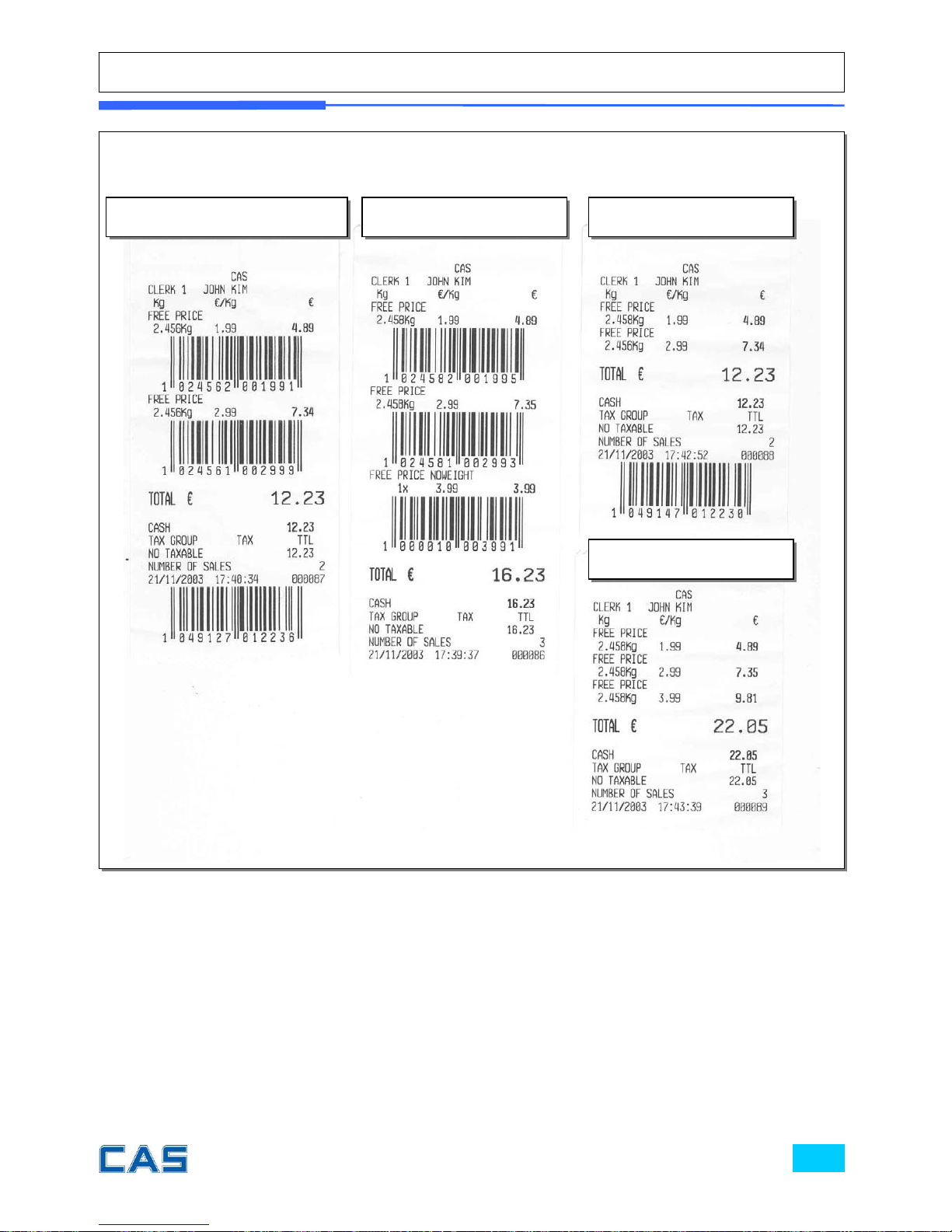
Barcode Printing Sample Receipts
Both of Single & Total Barcode
Single Barcode Only Total Barcode Only
NO Barcode Printing
Page 81
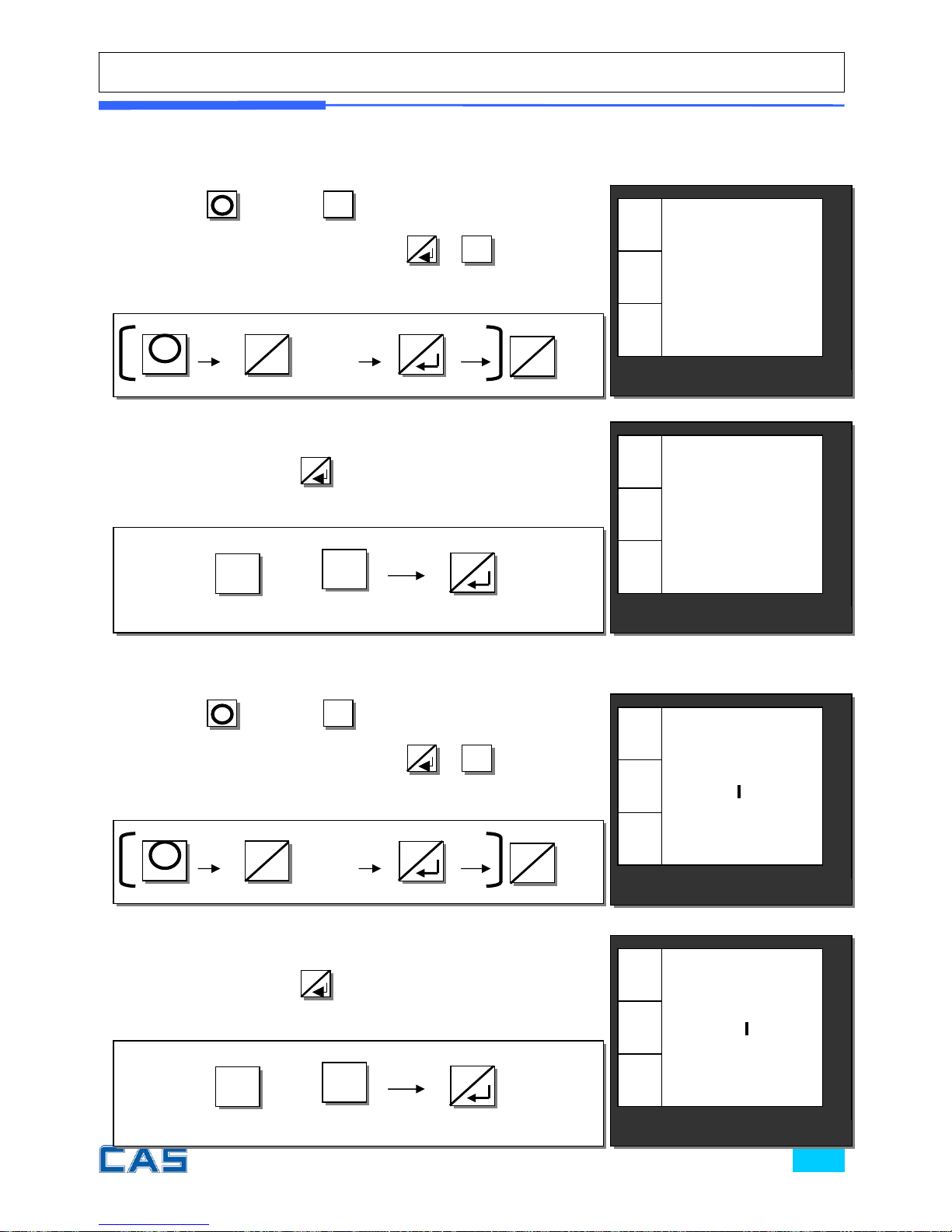
f. Obligatory payment
g. Discount
CAS POScale
CHARGE PAPER ∑ SHIFT
€/
kg
YES
d SCn
oPt
€
kg
MODE
CAS POScale
CHARGE PAPER ∑ SHIFT
€/
kg
no
d SCn
oPt
€
kg
MODE
CAS POScale
CHARGE PAPER ∑ SHIFT
€/
kg
YES
ob PAY
oPt
€
kg
MODE
CAS POScale
CHARGE PAPER ∑ SHIFT
€/
kg
no
ob PAY
oPt
€
kg
MODE
⑪ (Using
M
key and
6
/▶
go to option setting mode
from main menu. And then press
8
)
6
/▶
to get into
Obligatory payment option mode.
⑫ User may select YES or no by pressing “1” or “0”
respectively, and press
8
to save it.
1
0
or
⑬ (Using
M
key and
6
/▶
go to option setting mode
from main menu. And then press
8
)
6
/▶
to get into
discount option mode.
⑭ User may select YES or no by pressing “1” or “0”
respectively, and press
8
to save it.
1
0
or
X 4
X 5
6
▶
8
M
6
▶
X 4
X 6
6
▶
8
M
6
▶
8
8
Page 82
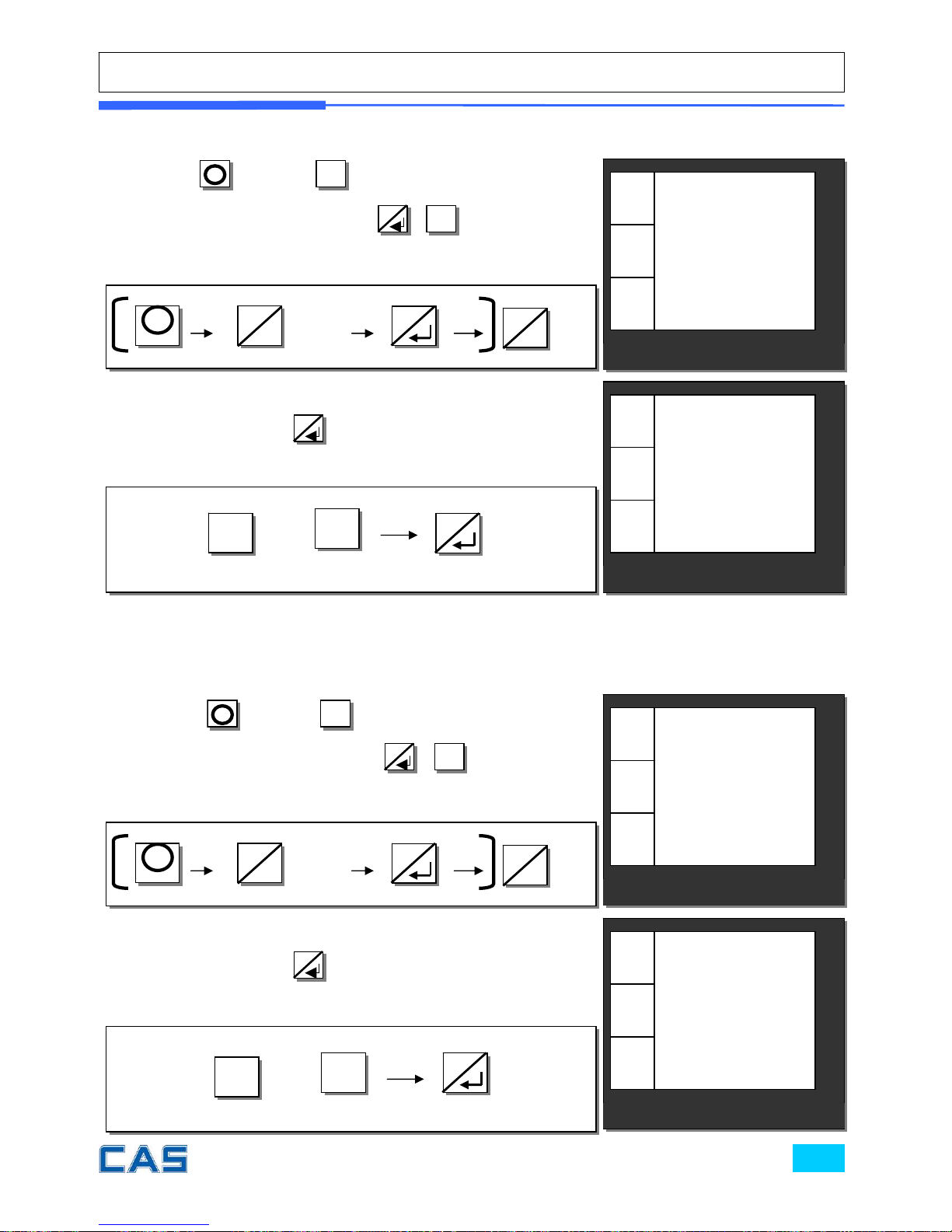
g. PLU code printing
i. Printing all reports
This is to select “YES” for all kind of reports printed or “No” for only closing
without other reports when executing “close”.
CAS POScale
CHARGE PAPER ∑ SHIFT
€/
kg
no
PrCodE
oPt
€
kg
MODE
CAS POScale
CHARGE PAPER ∑ SHIFT
€/
kg
YES
PrCodE
oPt
€
kg
MODE
CAS POScale
CHARGE PAPER ∑ SHIFT
€/
kg
no
rePALL
oPt
€
kg
MODE
CAS POScale
CHARGE PAPER ∑ SHIFT
€/
kg
YES
rePALL
oPt
€
kg
MODE
⑮ (Using
M
key and
6
/▶
go to option setting mode
from main menu. And then press
8
)
6
/▶
to get into PLU
code printing mode.
16. User may select YES or no by pressing “1” or “0”
respectively, and press
8
to save it.
1
0
or
17. (Using
M
key and
6
/▶
go to option setting mode
from main menu. And then press
8
)
6
/▶
to get into all
report printing mode.
18. User may select YES or no by pressing “1” or “0”
respectively, and press
8
to save it.
1
0
or
X 4
X 8
6
▶
8
M
6
▶
X 4
X 7
6
▶
8
M
6
▶
8
8
Page 83

Chapter 12.
CLERK
Page 84
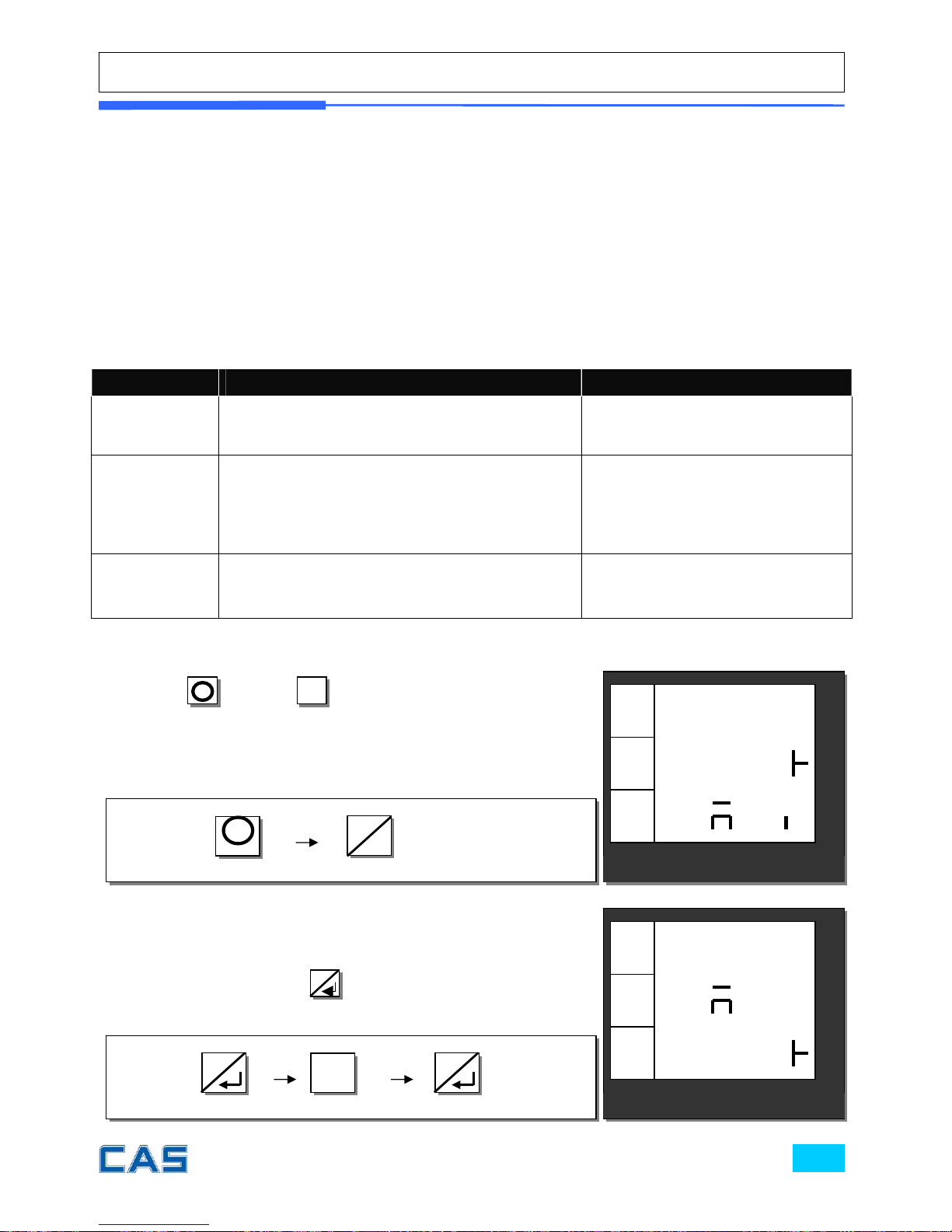
Chapter 12. CLERK
This chapter explains what kind of clerk modes there are and how different they are.
In addition to this, it shows how to input name of clerk 1~4.
a. Clerk mode
There are three different type of clerk modes.
Table 3: Clerk Mode
Modes Description Receipt Printing
0
All clerks can use the scale for a series of
sales activity.
It prints ticket (receipt)
including each item and total
information.
1
Only one clerk can use the scale for a
series of sales activity.
However, other clerk can use the scale for
other series of sales activities in this
mode.
It prints only part of ticket
(receipt), which a transaction
is made, and prints total
amount after a series of
transactions are completed.
2
(Supermarket
mode)
Only one transaction per clerk at a
moment.
It prints ticket (receipt) only
for one transaction per clerk.
€/
kg
CLEr
A n
€
kg
CAS POScale
CHARGE PAPER ∑ SHIFT
MODE
€/
kg
0
odE
CLEr
€
kg
CAS POScale
CHARGE PAPER ∑ SHIFT
MODE
① Using
M
key and
6
/▶
go to clerk setting mode from
main menu.
② User may select one of three clerk mod es, “ 0”, “1 ”, or “ 2” by
inputting appropriate numeric key. For example, “0” here.
Then, save it by pressing
8
.
X 5
0
6
▶
8
M
8
Page 85
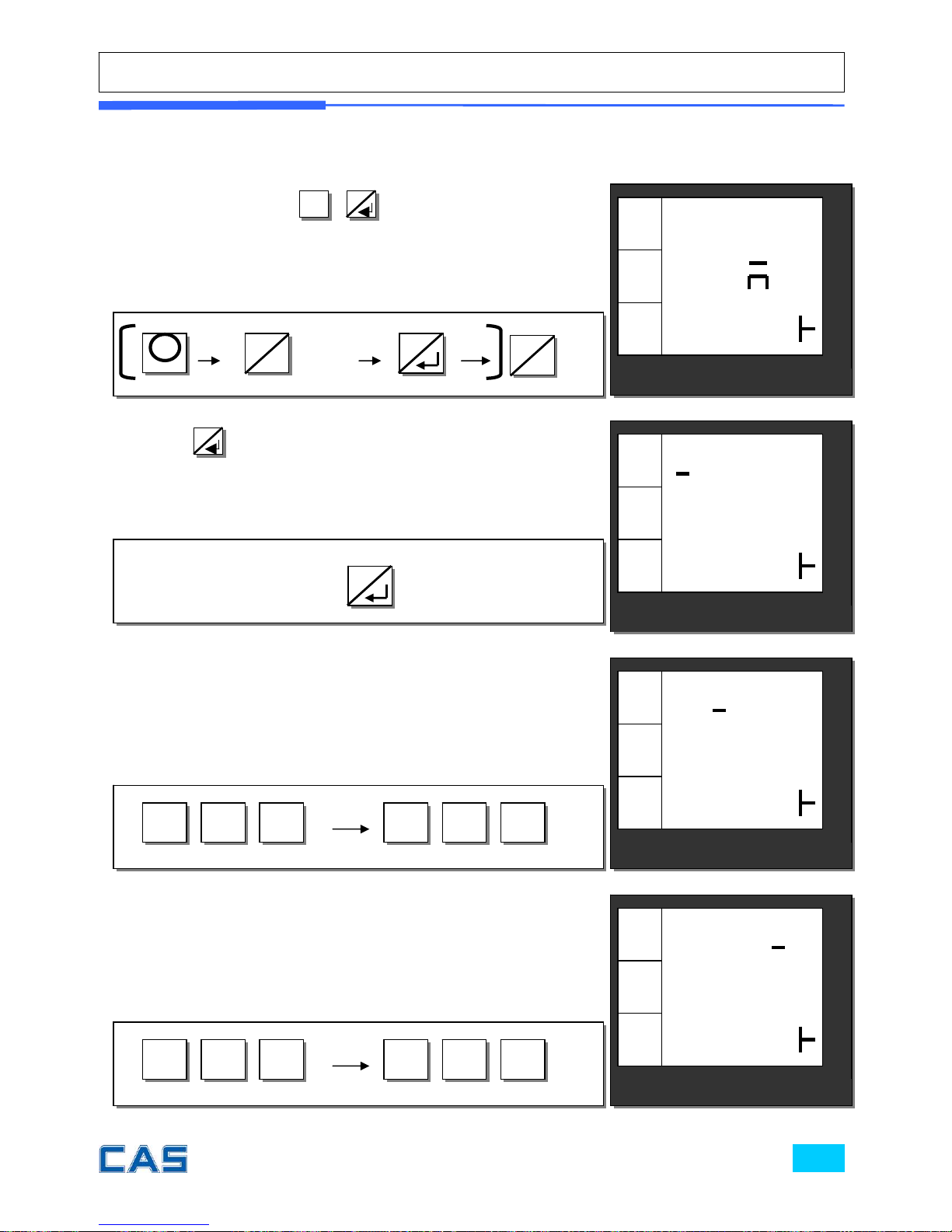
b. Clerk name input: 1~4
€/
kg
1 0
CLEr
€
kg
CAS POScale
CHARGE PAPER ∑ SHIFT
MODE
€/
kg
nA E1
CLEr
€
kg
CAS POScale
CHARGE PAPER ∑ SHIFT
MODE
€/
kg
Jo
3 0
CLEr
€
kg
CAS POScale
CHARGE PAPER ∑ SHIFT
MODE
€/
kg
JoHn
5 0
CLEr
€
kg
CAS POScale
CHARGE PAPER ∑ SHIFT
MODE
① Using –M- key and
6
/▶
,
8
go to clerk name setting
mode from main menu.
② Press
8
to get into clerk name 1 setting mode. User
may input up to 16 characters in accordance to “code table” on
page 97. For example, let’s input “John Kim” as clerk name 1.
③ Input clerk’ name using appropriate numeric keys in
accordance to “code table” on page 97.
∑
7
4
∑
7
9
④ Input clerk’ name using appropriate numeric keys in
accordance to “code table” on page 97.
∑
7
2
∑
7
8
X 5
6
▶
8
M
6
▶
8
Page 86
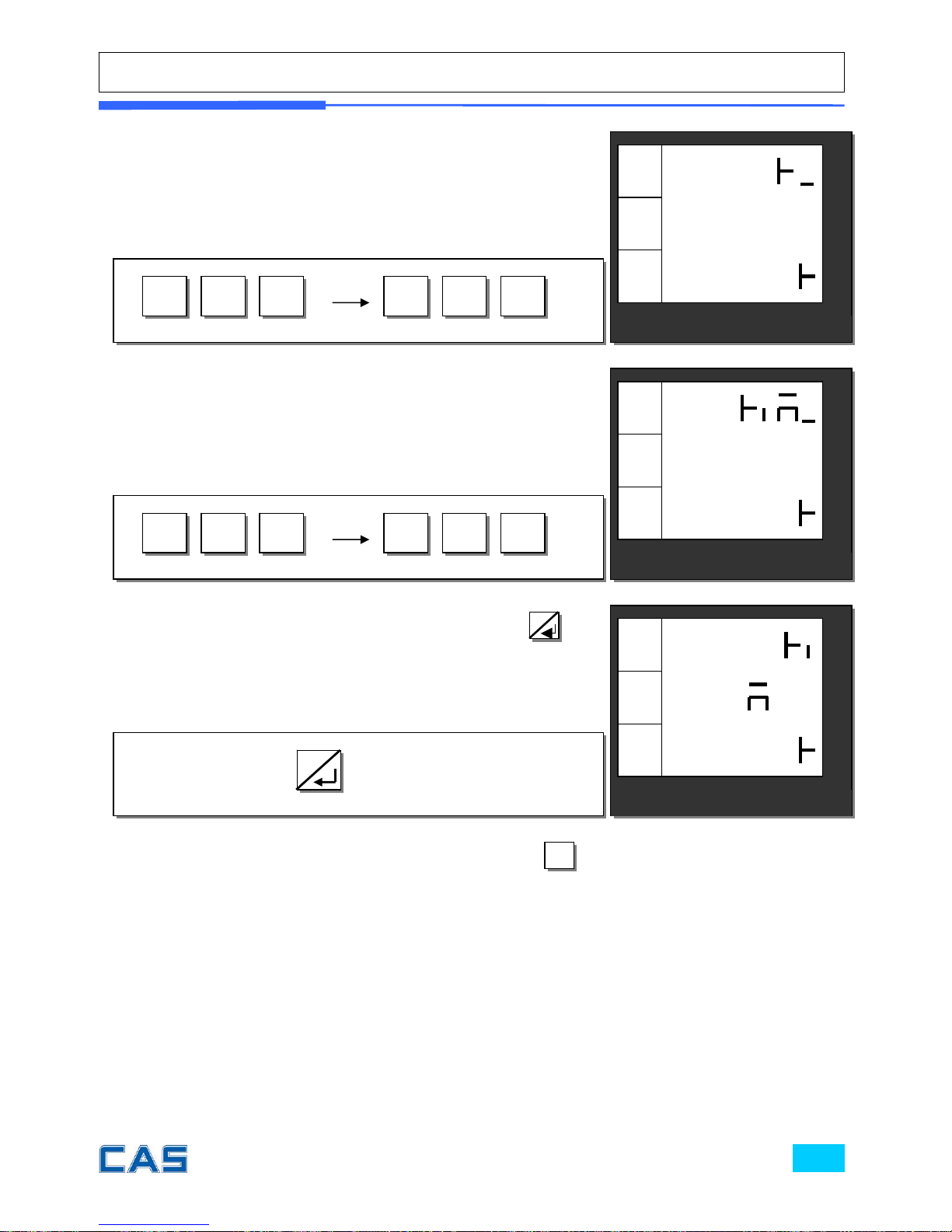
* Whenever user wants to go back to main menu use .
* User may input other clerk names as above process and up to name 4.
⑤ Input clerk’ name using appropriate numeric keys in
accordance to “code table” on page 97.
∑
3
2
∑
7
5
⑥ Input clerk’ name using appropriate numeric keys in
accordance to “code table” on page 97.
∑
7
3
∑
7
7
⑦ After finishing clerk name input save it by pressing
8
.
7/←
€/
kg
JoHn
nA E1
CLEr
€
kg
CAS POScale
CHARGE PAPER ∑ SHIFT
MODE
€/
kg
Hn
9 0
CLEr
€
kg
CAS POScale
CHARGE PAPER ∑ SHIFT
MODE
€/
kg
oHn
7 0
CLEr
€
kg
CAS POScale
CHARGE PAPER ∑ SHIFT
MODE
8
Page 87

Chapter 13.
LOGO
Page 88
Chapter 13. LOGO
This chapter explains how to input header and footer on the ticket (receipt). Users
may input up to 6 header and 2 footer lines, which each line may have up to 32
characters, using “code table” on 97 page.
a. Header & footer setting
ㅋㅋ
€/
kg
16 0
Lo o
€
kg
CAS POScale
CHARGE PAPER ∑ SHIFT
MODE
€/
kg
HL nE1
Lo o
€
kg
CAS POScale
CHARGE PAPER ∑ SHIFT
MODE
€/
kg
Lo o
A n
€
kg
CAS POScale
CHARGE PAPER ∑ SHIFT
MODE
① Using
M
key and
6
/▶
,
8
go to Logo setting mode
from main menu.
② Press
8
to get into Headline 1 setting mode.
③ Press
8
and input appropriate numeric keys to input
codes in the headline 1 (refer to page 97). For example, let’s
input “CAS” at 16
th
space in the first headline.
8
X 6
6
▶
M
8
Page 89
€/
kg
CAS
19 0
Lo o
€
kg
CAS POScale
CHARGE PAPER ∑ SHIFT
MODE
€/
kg
HL nE2
Lo o
€
kg
CAS POScale
CHARGE PAPER ∑ SHIFT
MODE
€/
kg
CA
18 0
Lo o
€
kg
CAS POScale
CHARGE PAPER ∑ SHIFT
MODE
€/
kg
C
17 0
Lo o
€
kg
CAS POScale
CHARGE PAPER ∑ SHIFT
MODE
④ Press appropriate numeric keys.
⑤ Press appropriate numeric keys.
⑥ Press appropriate numeric keys.
⑦ Press
8
to save the first headline. And user may press
6
/▶
to go to input next headline (storable up to 6 header &
2 footer lines), and exit using
7
/←
.
5 6
3 8
∑
∑
7 6
6/▶
∑
8
Page 90

Chapter 14.
TAX RATE GROUP
Page 91
Chapter 14. TAX RATE GROUP
This chapter explains how to set tax rate group. User may set up to 8 different tax
rate groups; A, B, C, D, E, F, G, H, and then store a specific tax group when he/she input
PLU data or whenever he/she needs to use.
€/
kg
tA
A n
€
kg
CAS POScale
CHARGE PAPER ∑ SHIFT
MODE
€/
kg
0.00
tA A
tA
€
kg
CAS POScale
CHARGE PAPER ∑ SHIFT
MODE
€/
kg
0.15
tA A
tA
€
kg
CAS POScale
CHARGE PAPER ∑ SHIFT
MODE
① Using
M
key and
6
/▶
,
8
go to tax rate group
setting mode from main menu.
② Press
8
to get into tax rate group A setting mode.
③ Press appropriate numeric keys (0.00~99.99%) to input tax
rate for group A. For example, press
1
5
input “0.15%”
for tax rate group A, and
8
to save it.
5 1
X 7
6
▶
M
8
8
Page 92
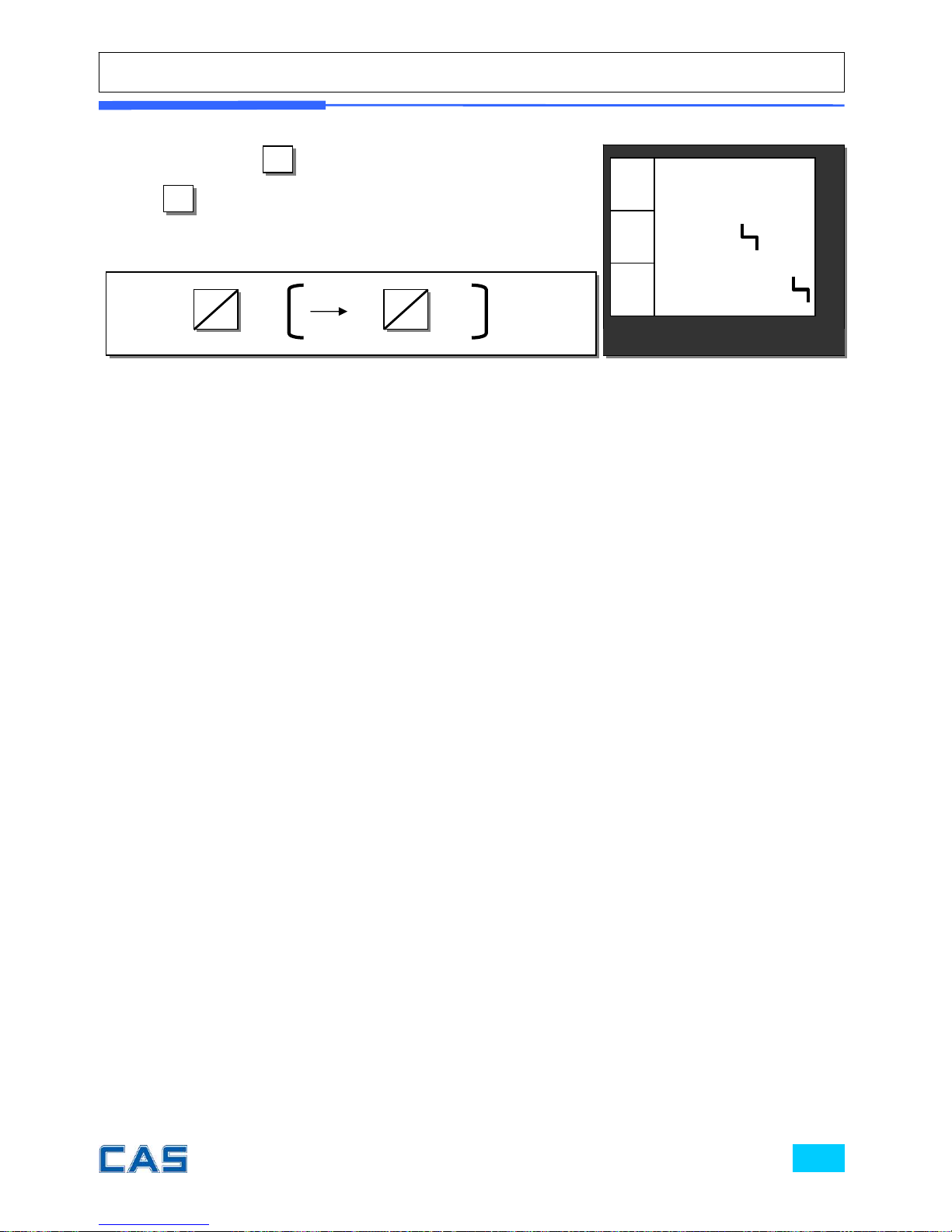
€/
kg
0.00
tA b
tA
€
kg
CAS POScale
CHARGE PAPER ∑ SHIFT
MODE
④ User may press
6
/▶
to go to input next tax rate group, B.
Press
7
/←
if users want to exit.
6
▶
7
←
Page 93

Chapter 15.
TEST
Page 94
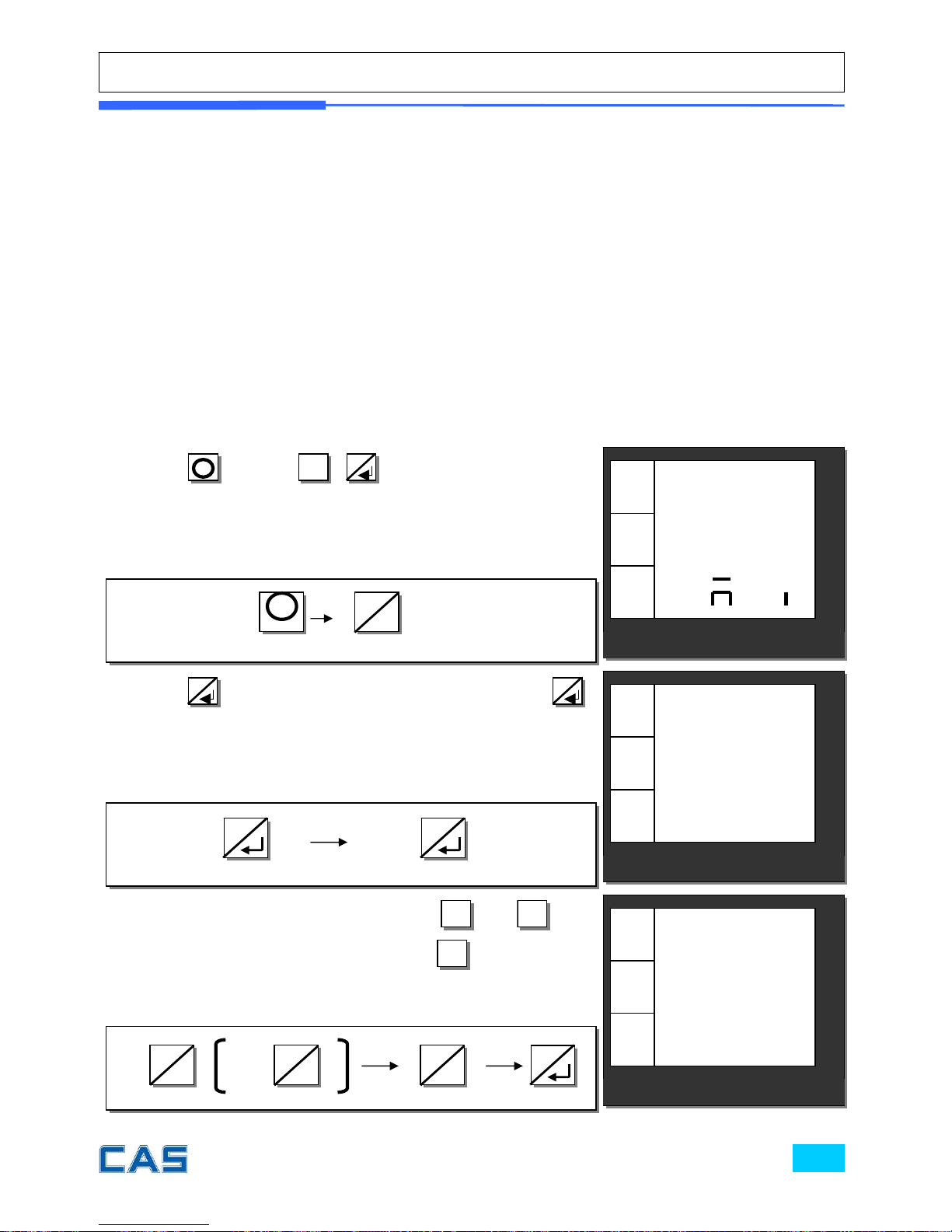
Chapter 15. TEST
This chapter explains how to test hardware in the following aspects.
ADC (Analog Digital Converter): the digital value converted from analog value.
SPAN
Display: self-test for a while
Keyboard
RAM
Printer: printing out by itself
Battery Voltage: tested only in plugged-out condition, showing voltage
value.
① Using
M
key and
6
/▶
,
8
go to test setting mode
from main menu.
② Press
8
to get into ADC test mode. Then press
8
again to show current ADC value.
③ After making sure the ADC value press
7
/←
( or
6
/▶
) to
get back to ADC test mode. Then press
6
/▶
again to go to
next test mode, SPAN test mode.
€/
kg
tESt
A n
€
kg
CAS POScale
CHARGE PAPER ∑ SHIFT
MODE
€/
kg
7122
AdC
tESt
€
kg
CAS POScale
CHARGE PAPER ∑ SHIFT
MODE
€/
kg
1528
SPAn
tESt
€
kg
CAS POScale
CHARGE PAPER ∑ SHIFT
MODE
X 8
6
▶
M
or
6
▶
7
←
8
6
▶
8
8
Page 95
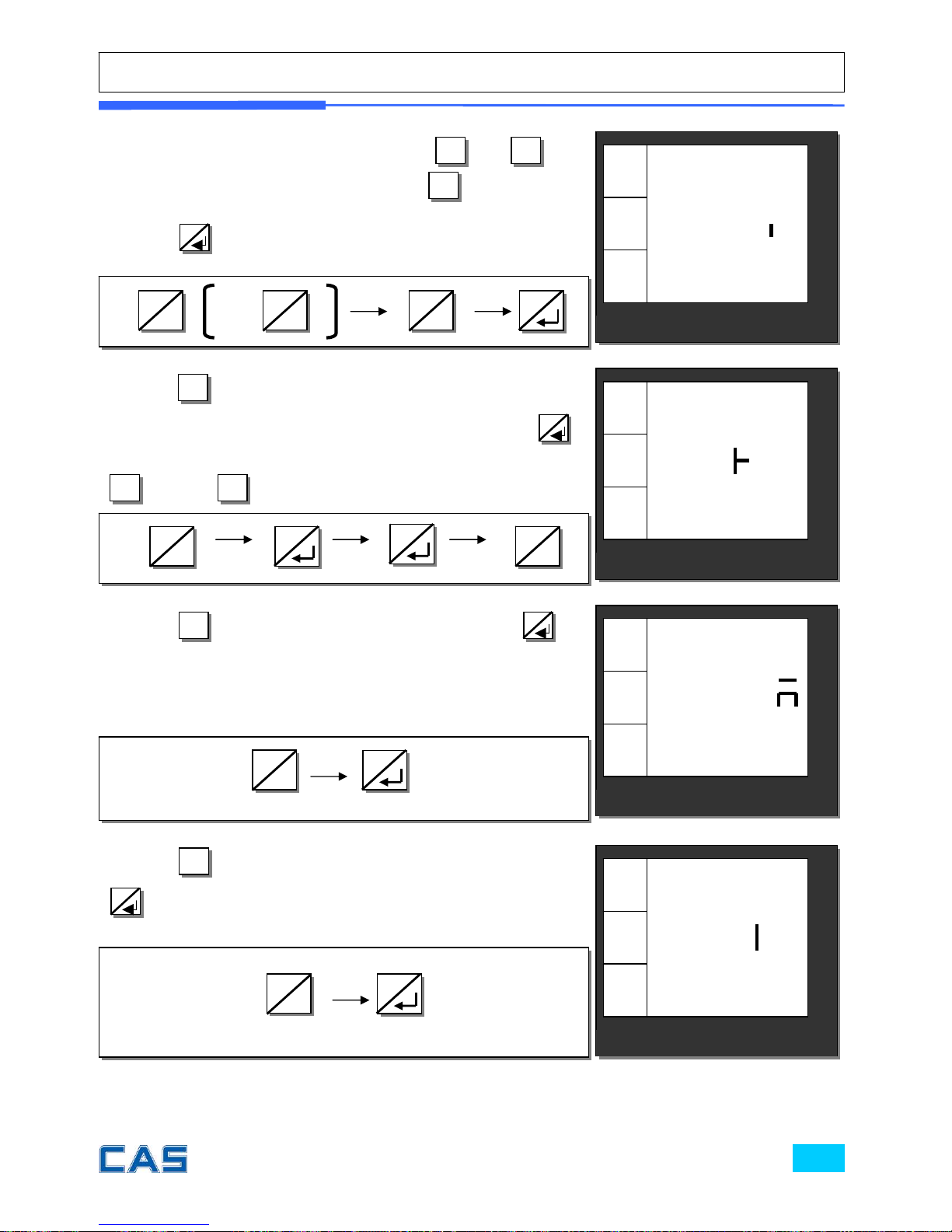
⑤ Press
6
/▶
go to next Keyboard test mode. In this mode
user may press any key and a specific number (ex. 104
8
)
comes up on total price display (first line of display) except
7
/←
because
7
/←
is used for exit out of current mode.
⑥ Press
6
/▶
to go to RAM test mode. Then press
8
to
test it and display will show either “PASS” or “Error” in a few
second. Please refer to “Table 9: Error Message” on page 98
when “Error” comes up.
⑦ Press
6
/▶
to go to Printer self-test mode. Then, press
8
to test the printer and it will show current voltage on the
dis
play
.
④ After making sure the SPAN value press
7
/←
( or
6
/▶
) to
get back to SPAN test mode and press
6
/▶
again to go to
next Display test mode. Then test display automatically by
pressing
8
.
€/
kg
Pr nt
tESt
€
kg
CAS POScale
CHARGE PAPER ∑ SHIFT
MODE
€/
kg
104
EY
tESt
€
kg
CAS POScale
CHARGE PAPER ∑ SHIFT
MODE
€/
kg
d S
tESt
€
kg
CAS POScale
CHARGE PAPER ∑ SHIFT
MODE
€/
kg
PASS
rA
tESt
€
kg
CAS POScale
CHARGE PAPER ∑ SHIFT
MODE
or
6
▶
7
←
8
6
▶
8
8
6
▶
7
←
6
▶
8
6
▶
8
Page 96
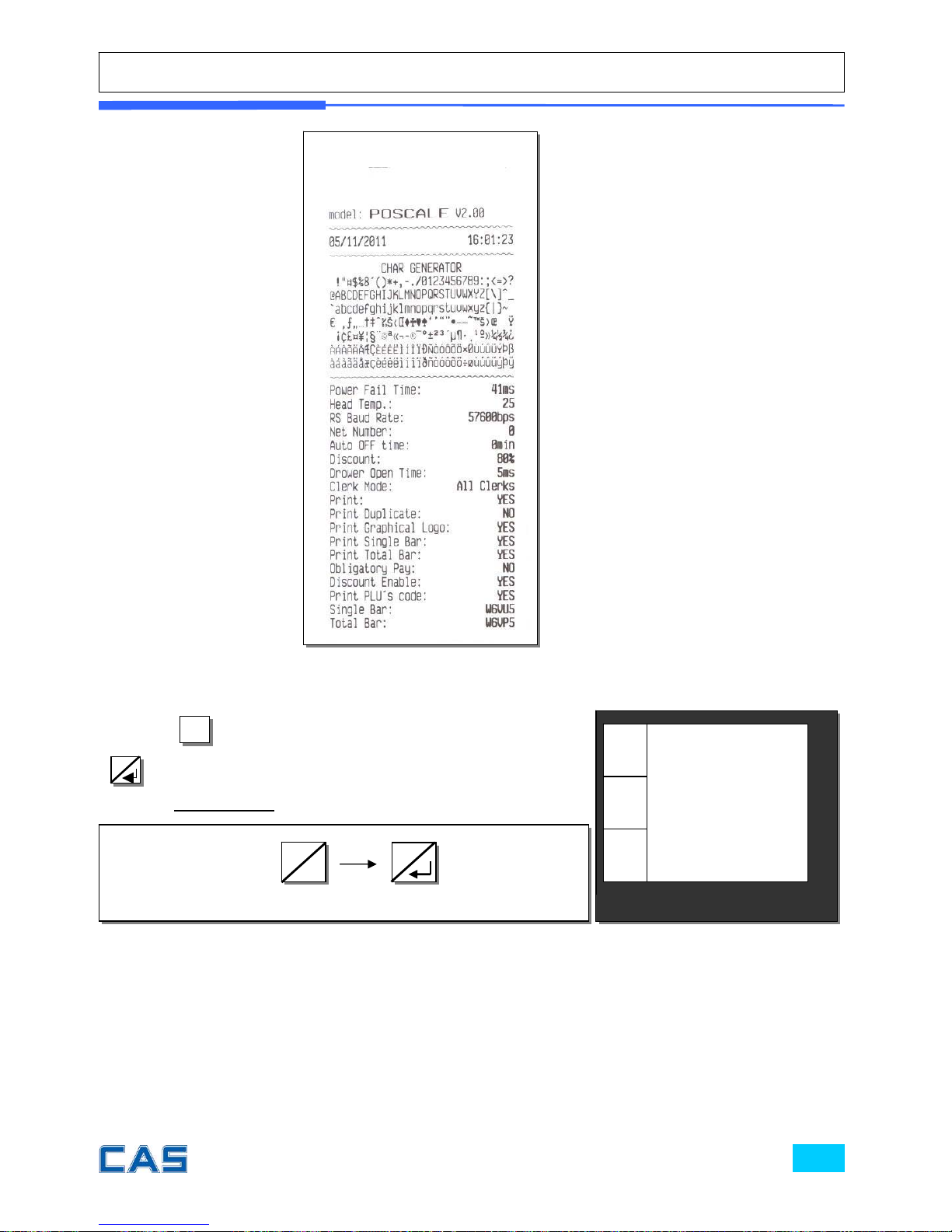
⑧ Press
6
/▶
to go to Battery voltage mode. Then, press
8
to see current voltage. Please keep in mind that the scale
must be plugged-out to show current voltage.
€/
kg
8.3
bAtt
tESt
€
kg
CAS POScale
CHARGE PAPER ∑ SHIFT
MODE
Sample Test Report
8
6
▶
Page 97
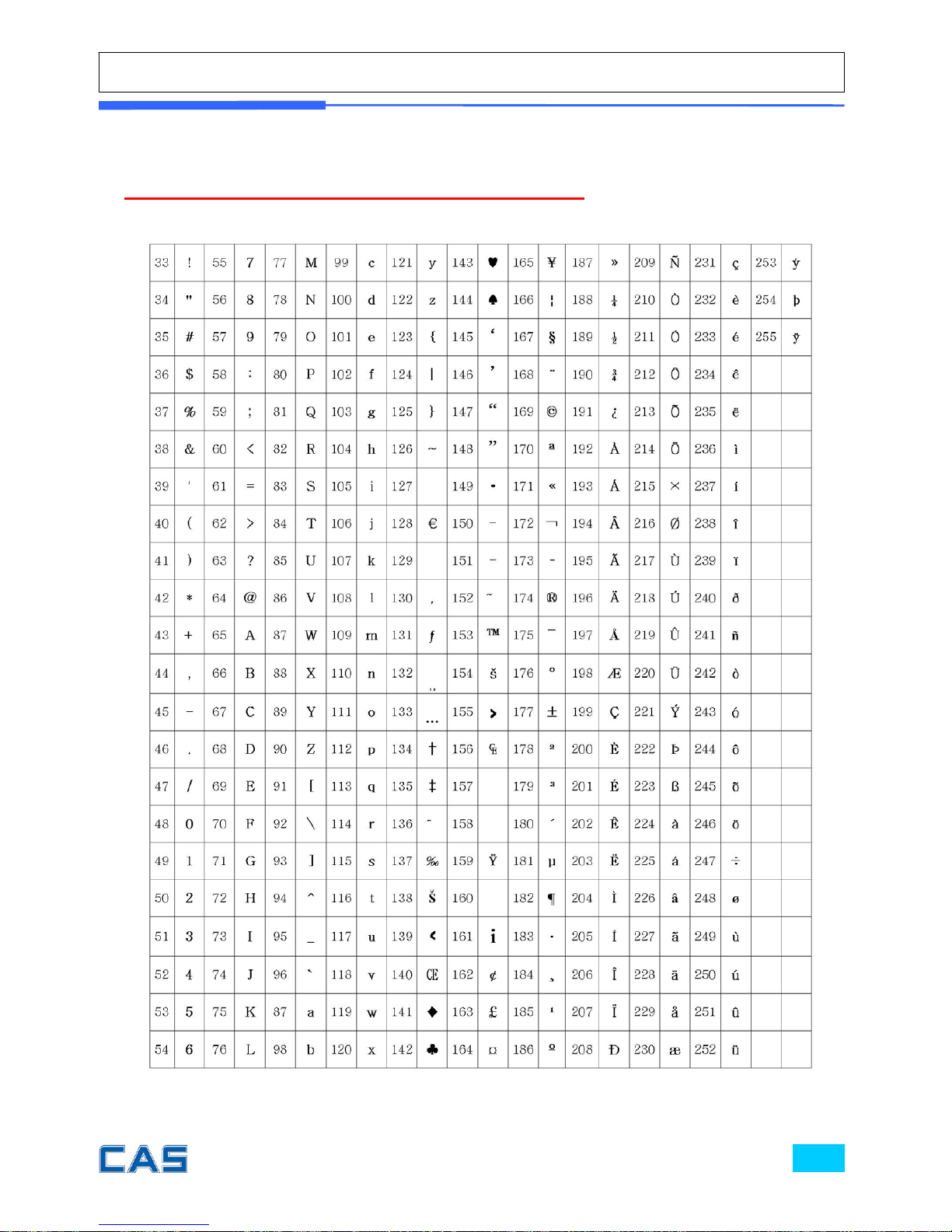
Table 8: Code (MS 1252 Windows Latin-1)
* User must input decimal value of codepoint!!
Page 98
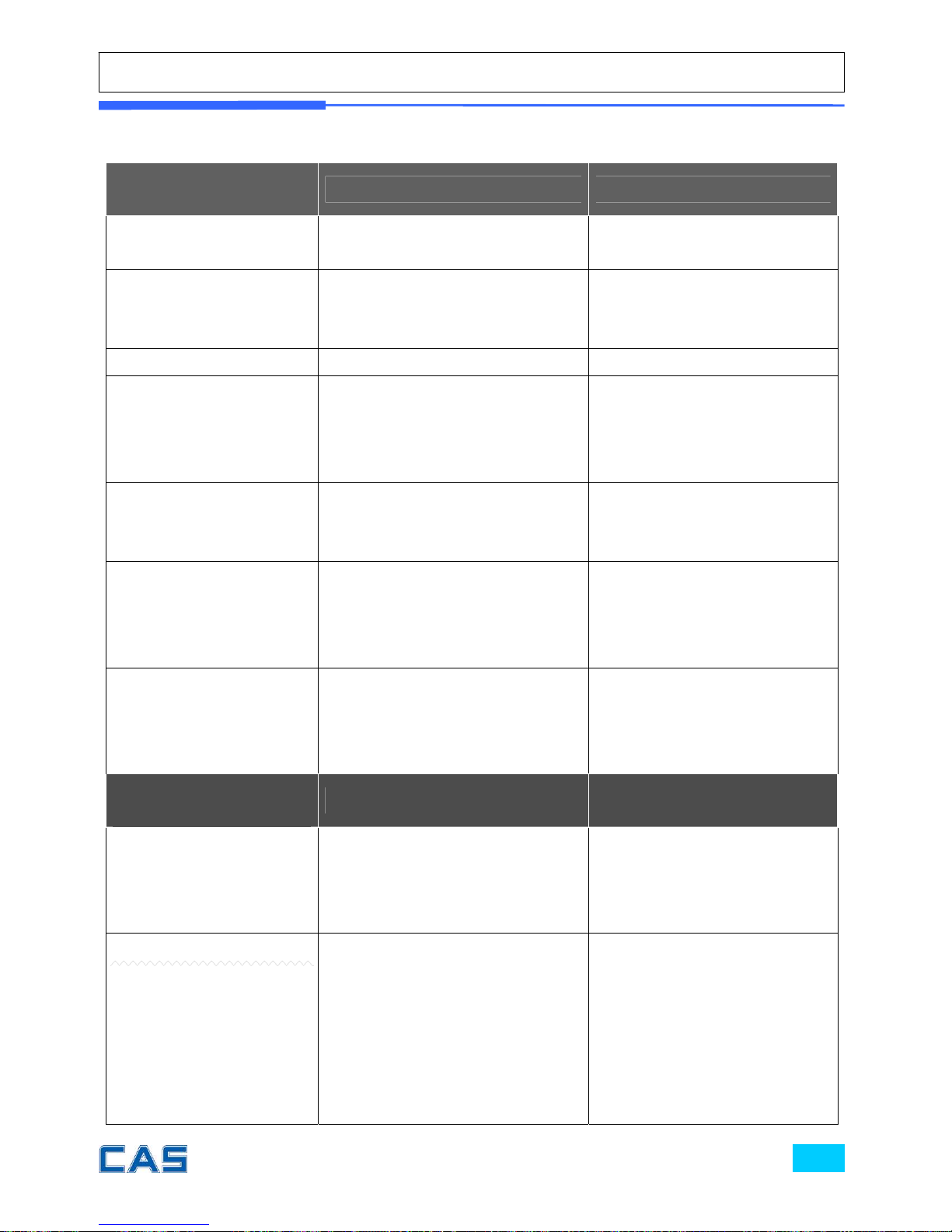
Table 9: Error Message
Error Message
on Display
Description Solution
TOO HOT Printer is overheated.
Please take time to cool off
the printer.
BATTERY
LOW
ERROR
Battery voltage is too low.
Please plug in and recharge
battery
PAPER Problem with ticket paper roll Please check with paper
------
Overloaded
Please remove the item
from the platter and put on
appropriately weighed
item(s) on the platter.
OVER When total price exceeds
9999.99 this message is
displayed with beep
Please input appropriate
number within maximum
capacity on the display.
CAL
ERROR
When turning on the scale this
message may be displayed
with continuous beep and it is
automatically turned off.
Please call your CAS dealer.
INIT
ERROR
Please remove the item
from the platter. and put on
appropriately weighed
item(s) on the platter.
Error Message
on Receipt
Description Solution
CLOCK IS NOT SET
This error may happen in case
of low backup battery or some
hardware error!
Please call your CAS dealer
if the error still exists after
replacing the backup
battery!
ERROR
POSSIBLE RAM DATA
ARE CORRUPTED!
RESETING ALL RAM
DATA…
PLEASE RESTART THE
SCALE
This message is printed when
the control sums of RAM is not
correct.
In such case the processor
clears the RAM automatically.
And all of sums, settings and
PLU are deleted!
Please call your CAS dealer
Page 99
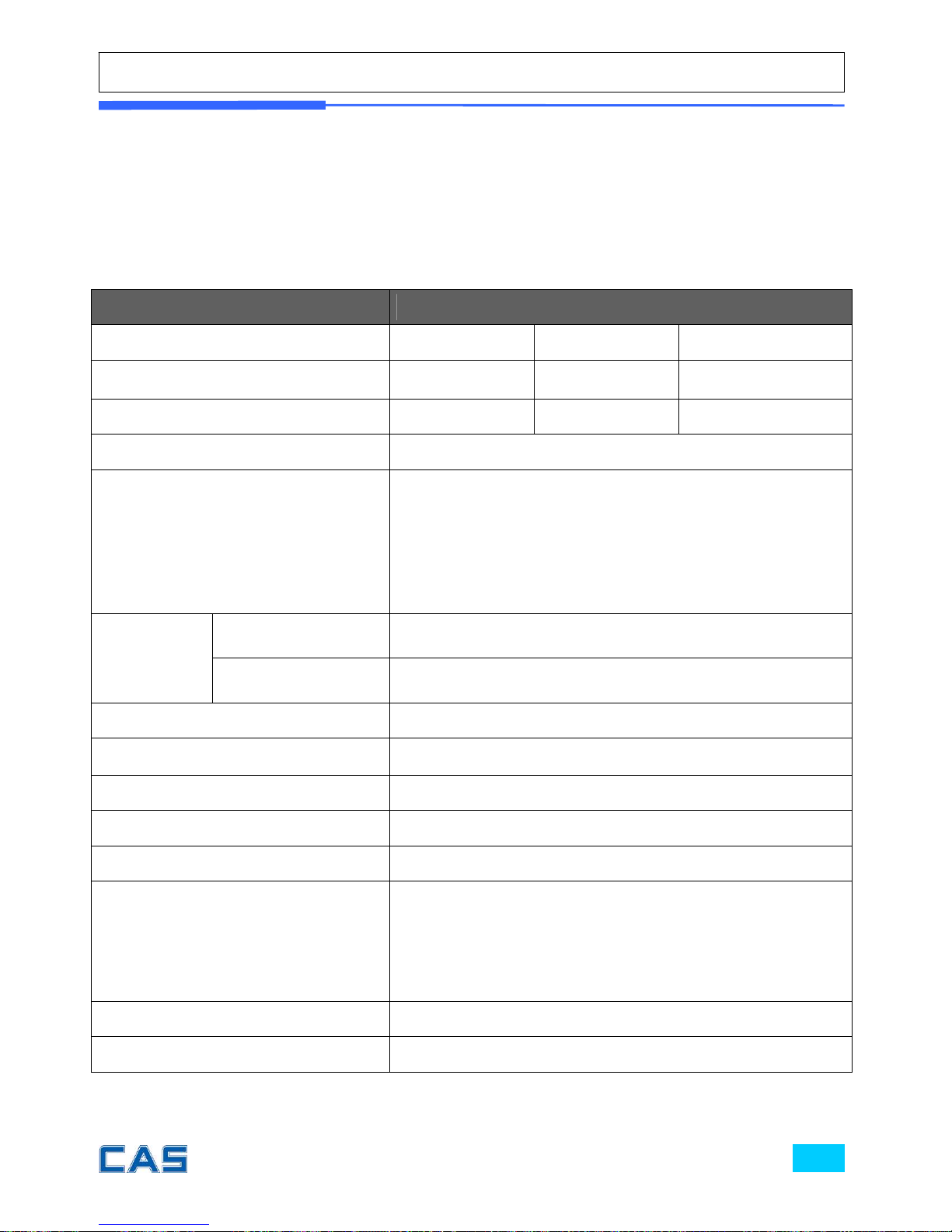
What beep sound means……
Short beep: key is pressed.
Middle length beep: some information event (for example, power on)
Long beep: successive event (for example, adding sale to clerk)
Five times fast short beeps: error! (Wrong key, wrong data input...)
Table 10: SPECIFICATION
Model POScale
CAPACITY 6kg 15kg 30kg
Division, e= 2g 5g 10g
Minimum weight ※
40g 100g 200g
DISPLAY LCD, 6/6/5 (Total price / Unit Price / Weight)
EMBEDED PRINTER INFO.
Thermal printer
32 Characters per line
Printing Speed- 50mm/sec
Recommended size for thermal paper;
58mm (Width) / 65μm(Thickness) /
60mm (Maximum Diameter)
PRINTER
RELIABILITY
HEAD PULSERESISTANCE
100,000,000 pulses or more
HEAD WEARRESISTANCE
50 km or more
PLU MEMORY CAPACITY 8 Direct PLUs, 1,799 Indirect PLUs
POWER AC 230V, 50 ~ 60Hz
OPERATING TEMPERATURE -10`C ~+40`C
EXTERNAL UTILITIES PC, Cash Drawer (12 voltage)
POWER CONSUMPTION Maximum 35W
BATTERY LIFE
Rechargeable Battery (inside): 7.4V 2Ah(Li-ion)
Battery life (continuous usage)
Weighing Mode only: 73mA, 28 hrs
With backlight: 170mA, 12 hrs
With printer: 1300mA, 1.5 hrs
PRODUCT SIZE (mm) 375(W) X 397(D) X 128(H)
PRODUCT WEIGHT 6.8Kg
※ Minimum weight to make a sale transaction
▶ Notice: specifications are subject to change for improvement without notice.
Page 100
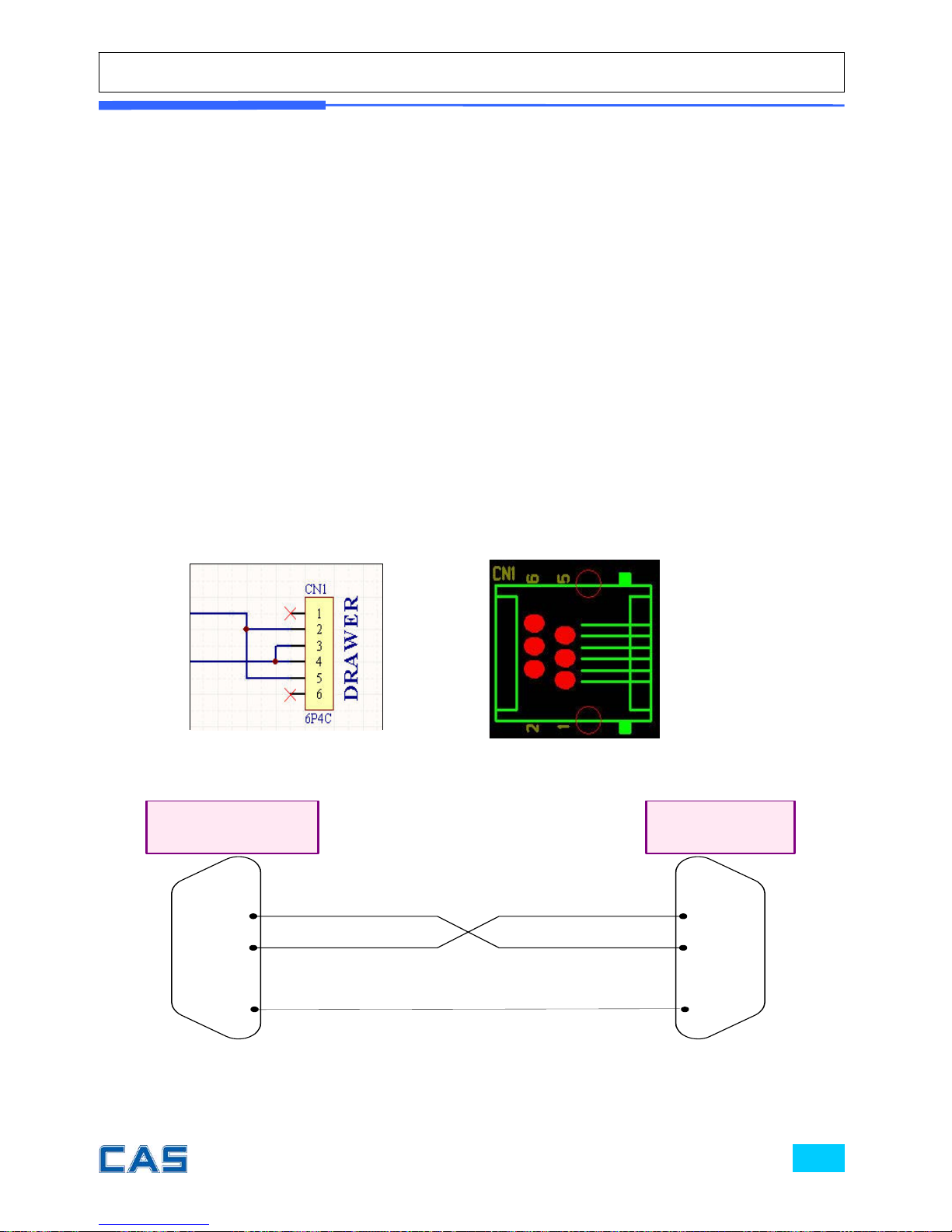
Table List page
Table 1: Symbols on display ………………..………………………………………..8
Table 2: Key Functions …………………………………………………………………..9
Table 3: Clerk Mode …………………………………………….………………25 & 84
Table 4: Most commonly used keys program mode ……………………50
Table 5: PLU Programming …..………………………………………………………52
Table 6: “C” key operation while printing …………………………………….58
Table 7: SET 1………………………………………………………………………………..64
Table 8: Code (MS 1252 Window Latin-1) ……………………………………97
Table 9: Error Messages ……………………………………….……………………….98
Table 10: Specifications ……………………………………….……………………….99
Table 11: Menu Map …………………………………………….……………………….101
Cash Drawer Interface Drawing
POScale may interface only with 12V of cash drawer.
RS232C Interface Drawing
1
6
2
7
3
8
4
9
5
1
6
2
7
3
8
4
9
5
Rx
Tx
Rx
Tx
GND
D-Sub
Connector
(9 pin)
D-Sub
Connector
(9 p in)
PO Scale
PC
GND
 Loading...