

Page 1
Carry Technology ComWi Quick Guide
ComWi (DW06)
Quick Guide
Copyright © 2011, Carry Technology Co., Ltd. All Right Reserved
Page 2

Carry Technology ComWi Quick Guide
1
Table of Content
Chapter 1: Introduction ………………………………..……….2
1.1 Introduction ……..………………………………………………....2
1.2 Hardware Features ……..………………………………………………....3
1.3 Software Features ……..………………………………………………....4
1.4 Package Contents ……..………………………………………………....4
Chapter 2: Hardware Installation ………………………...…….5
2.1 How to install Network function ……………..……..…….……5
2.2 How to start reader and charger function ……………..……..…….……5
2.3 Interface & LED Indicators Description ……………..……..…….……6
Chapter 3: Wireless and Network Setup ……………...………….8
3.1 Default Network setting for ComWi ……………..…………………8
3.2 Configure Network setting for ComWi … … … … … … … … . . … … … … 8
Page 3

Carry Technology ComWi Quick Guide
2
Chapter 1: Introduction
1.1 Introduction
Thank you for purchasing the ComWi for your iPad accessory.
The ComWi Wi-Fi travel router is designed for use with tablets, smart
phones, and handheld electronic wireless devices. The ComWi can be
powered by power adapter of iPad, can conveniently connect to the internet
and share the connection around an average sized room at 150Mbps.The
device’s tiny size makes it ideal for use on the road and is powerful enough
to satisfy almost any basic wireless application requirement. Please refer to
the following main feature for ComWi.
Special design for iPad users to create Wi-Fi hotspot at hotel
Supports power over iPad’s power adapter
Easy to get multiple devices online simultaneously
Compact size convenient for travel
Supports one USB port for power charging
Wireless speed up to 150Mbps
Up to 3 times faster than existing 802.11b/g product
Supports five kinds of operations mode for Router / AP
Page 4

Carry Technology ComWi Quick Guide
3
1.2 Hardware Features
Standard IEEE 802.11b/g/n standards compliant
Wireless LAN 1T1R Mode (150Mbps)
Antenna Internal PIFA 2 dBi antenna
Interface
• USB Type-A Plug for
iPad Power Adapter
• USB Type-A Receptacle for iPad Charger
• RJ45 (WAN Port)
• Reset (3Sec) button
Frequency Range 2.250 ~ 2.4835 GHz (subject to local
regulations)
Number of
Selectable Channels
802.11n 20MHz/25MHz
802.11b/g
USA, Canada (FCC): 11 channels (2.412GHz
~2.462GHz)
Europe (CE): 13 channels (2.41GHz~2.472GHz)
Japan (TELEC): 13channels
(2.41GHz~2.472GHz)
Data Rate 802.11n: up to 150Mbps
802.11g: 6,9,12,18,24,36,48,54Mbps
802.11b: 1,2,5.5,11Mbps
Coverage Area Up to 3 times faster than existing 802.11b/g
product
LED Power LED (Green) / Wi-Fi LED (Red)
Page 5

Carry Technology ComWi Quick Guide
4
1.3 Software Features
WAN
• DHCP Client
• Static IP
• PPPoE (for ADSL…)
• PPTP
• L2TP
Networking
• DHCP Client/Server
• Dynamic DNS
Wi-Fi
• 1 Transmit and 1 Receive paths (1T1R)
• 20MHz/25MHz bandwidth
• Support different SSID
• Support Hidden SSID
• Support WPS
• Support WDS / WiFi Repeater Mode
• High security supported: WEP64/128, WPA,
WPA2 AES, WPA2 Mixed
• Support QoS
1.4 Package Contents
The package contains the following items
1 x ComWi
1 x Quick Guide
Page 6

Carry Technology ComWi Quick Guide
5
Chapter 2: Hardware Installation
2.1 How to install Network function
After you unpack the box, please make sure all the components are
completed.
Follow the below steps to setup the ComWi
:
1.
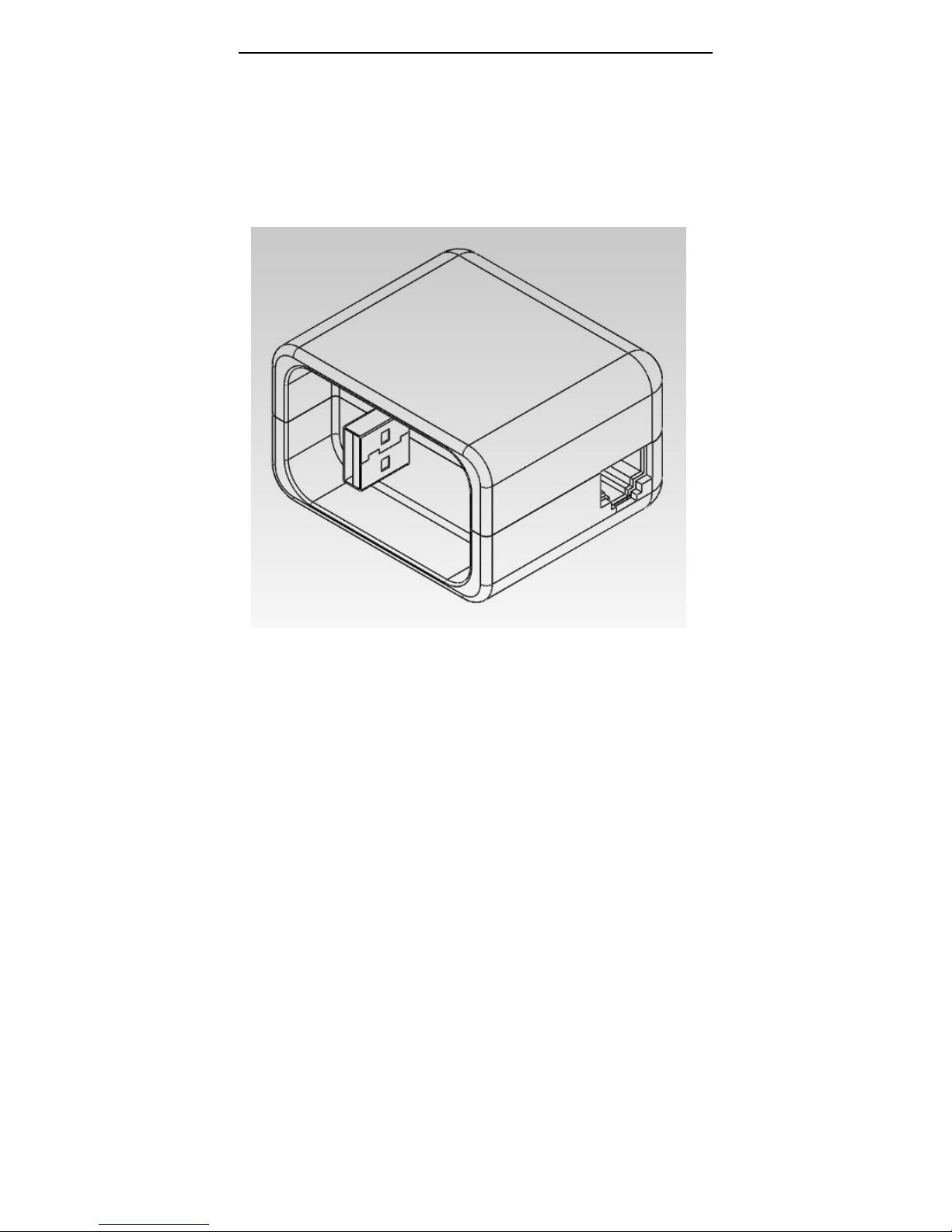
Connect USB Type-A Plug to iPad Power Adapter.
2. Connect the Ethernet cable to the ComWi WAN port
3. Connect the other end of the Ethernet cable to the ADSL
2.2 How to start iPad charger function
Follow the below steps to enable iPad Charger function:
1. Connect the 30-pin connector of Apple cable to your iPad device.
2. Connect the other end (USB Type-A Plug) of Apple cable to ComWi
(USB Type-A Receptacle).
Page 7
Carry Technology ComWi Quick Guide
6
2.3 Interface & LED Indicators Description
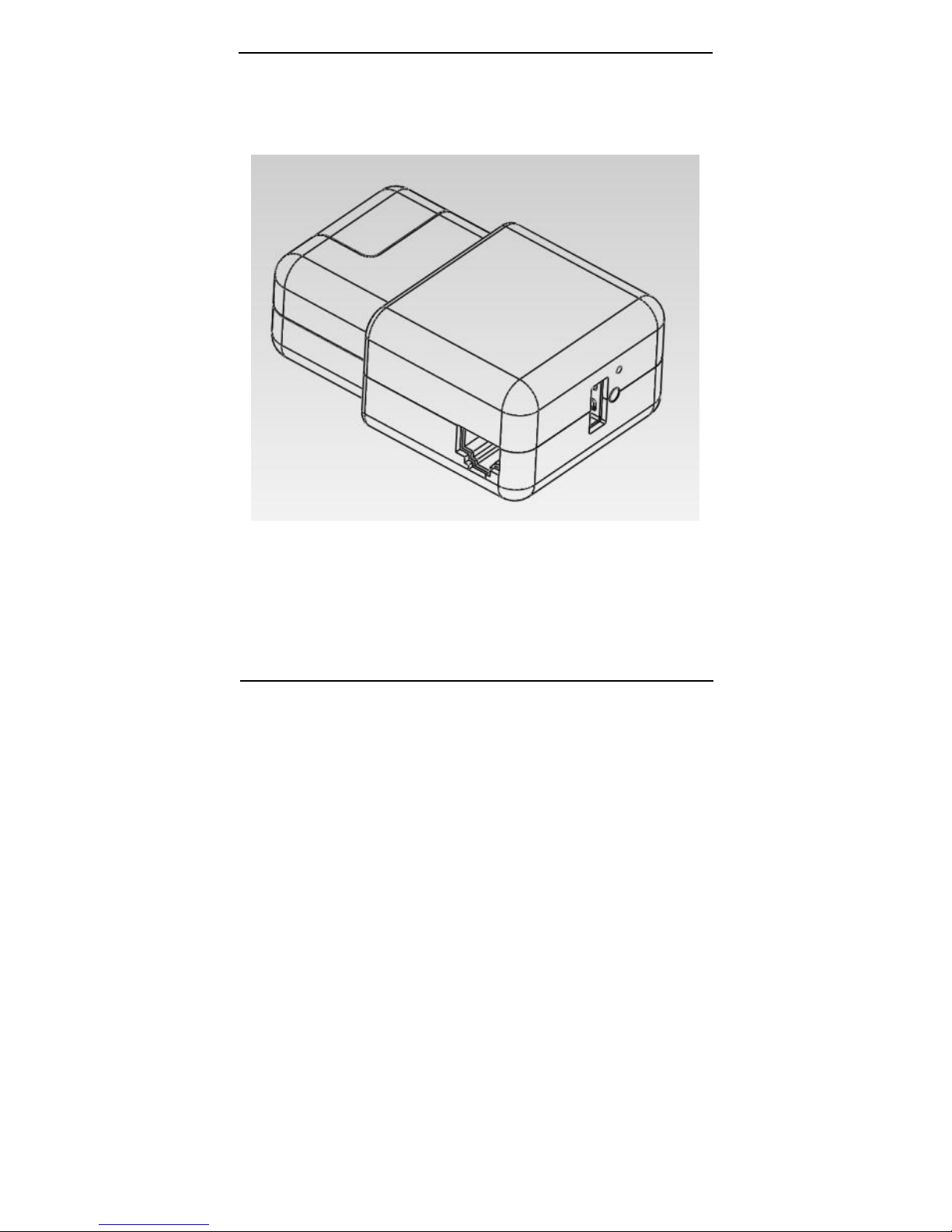
1. PWR LED (Green):
Indicates ComWi is Power On for Wi-Fi mode.
2. Wi-Fi LED (Red):
Indicates the Wireless LAN is keeping in working stage.
WAN
(RJ-45)
iPad
Power
Adapter
USB
Type-A
Receptacle
Hole
LED
Page 8

Carry Technology ComWi Quick Guide
7
3. Reset (3Sec) button under the Hole:
First, please make sure you had powered on the Wi-Reader and
Wi-Fi LED (Red) is keeping in working stage, then you can
use a kit to press the Reset button. After pressing 3 seconds,
you will see Wi-Fi LED (Red) will turn off. Currently, you
can release the button for recovering it to Default Network
setting.
Page 9

Carry Technology ComWi Quick Guide
8
Chapter 3: Wireless and Network Setup
This chapter is to describe how to configure Network of ComWi. If
you don’t want to update any Network setting, please skip this
Chapter (Chapter 3).
3.1 Default Network setting for ComWi
IP address 10.10.1.1
Subnet mask 255.255.255.0
Username OFF
Password OFF
Operation Mode Gateway
DHCP Server Mode
SSID ComWi
Channel Auto
Security OFF
3.2 Configure Network setting for ComWi
The following setup wizard will guide you to configure access point
for first time. Please follow the setup wizard step by step.
1. Power on the ComWi and wait about 25 sec
Page 10
Carry Technology ComWi Quick Guide
9
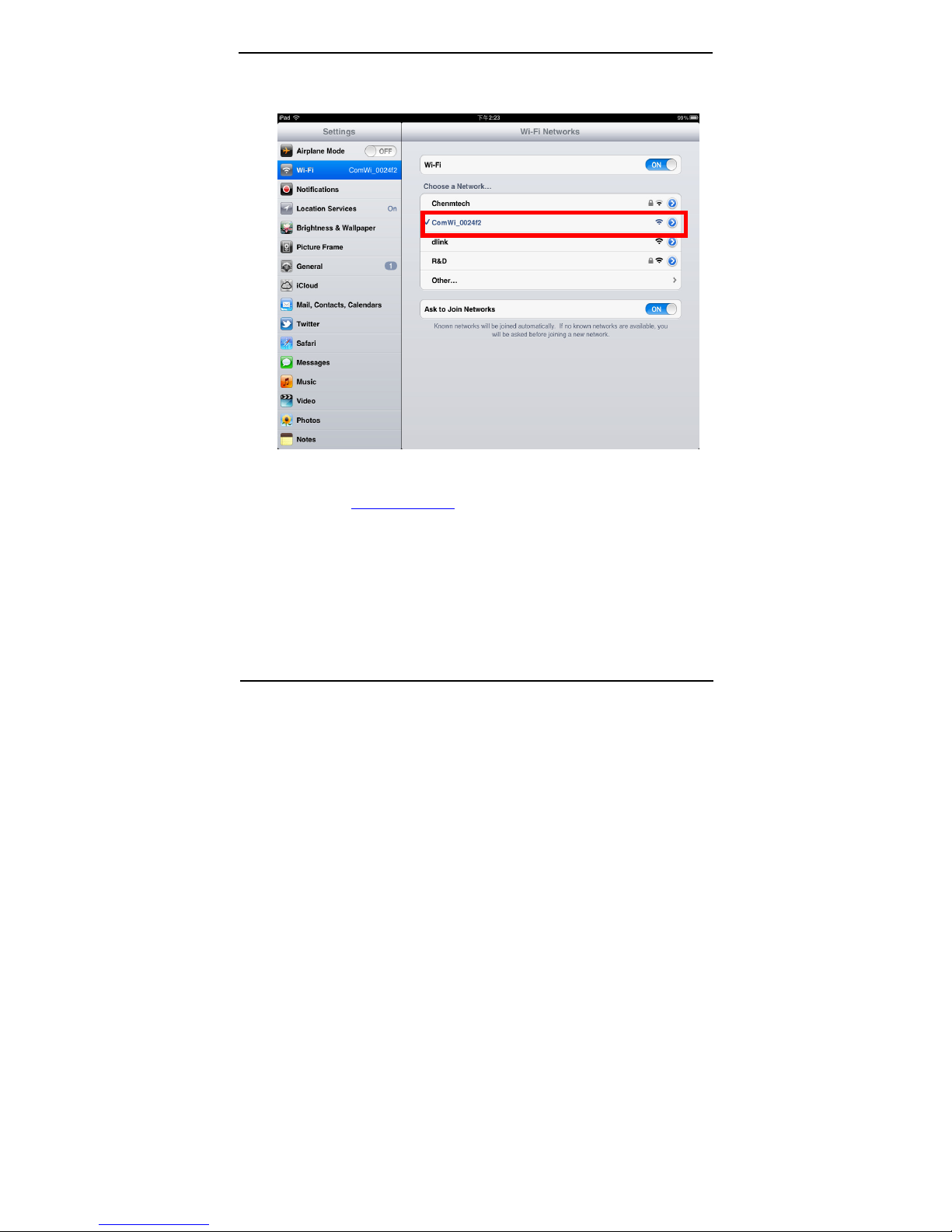
2. Choose a Wi-Fi Network: “ComWi_xxxxxx”
3. Open iPad / iPhone Native Browser – Safari
4. Enter: http://10.10.1.1/ in URL-address
Page 11
Carry Technology ComWi Quick Guide
10
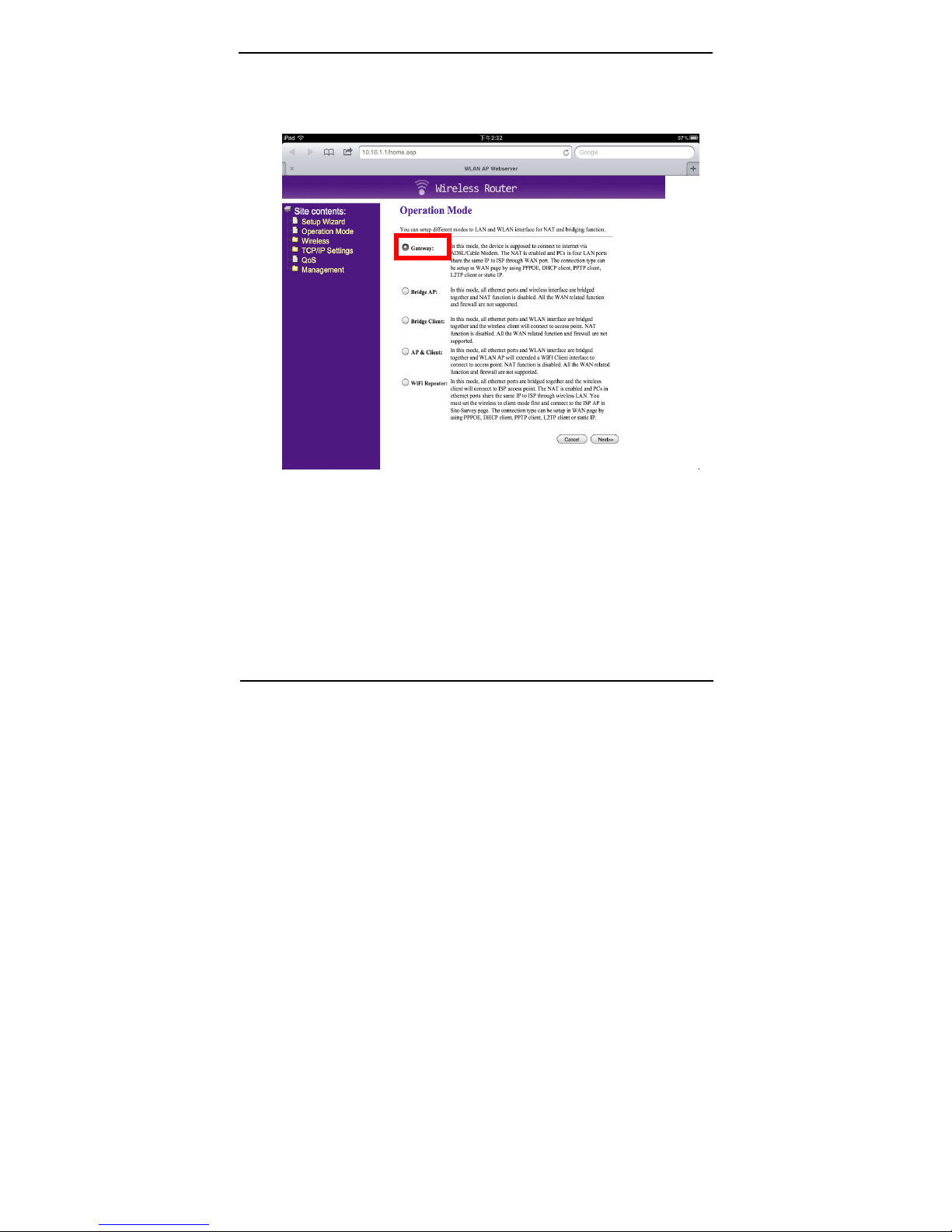
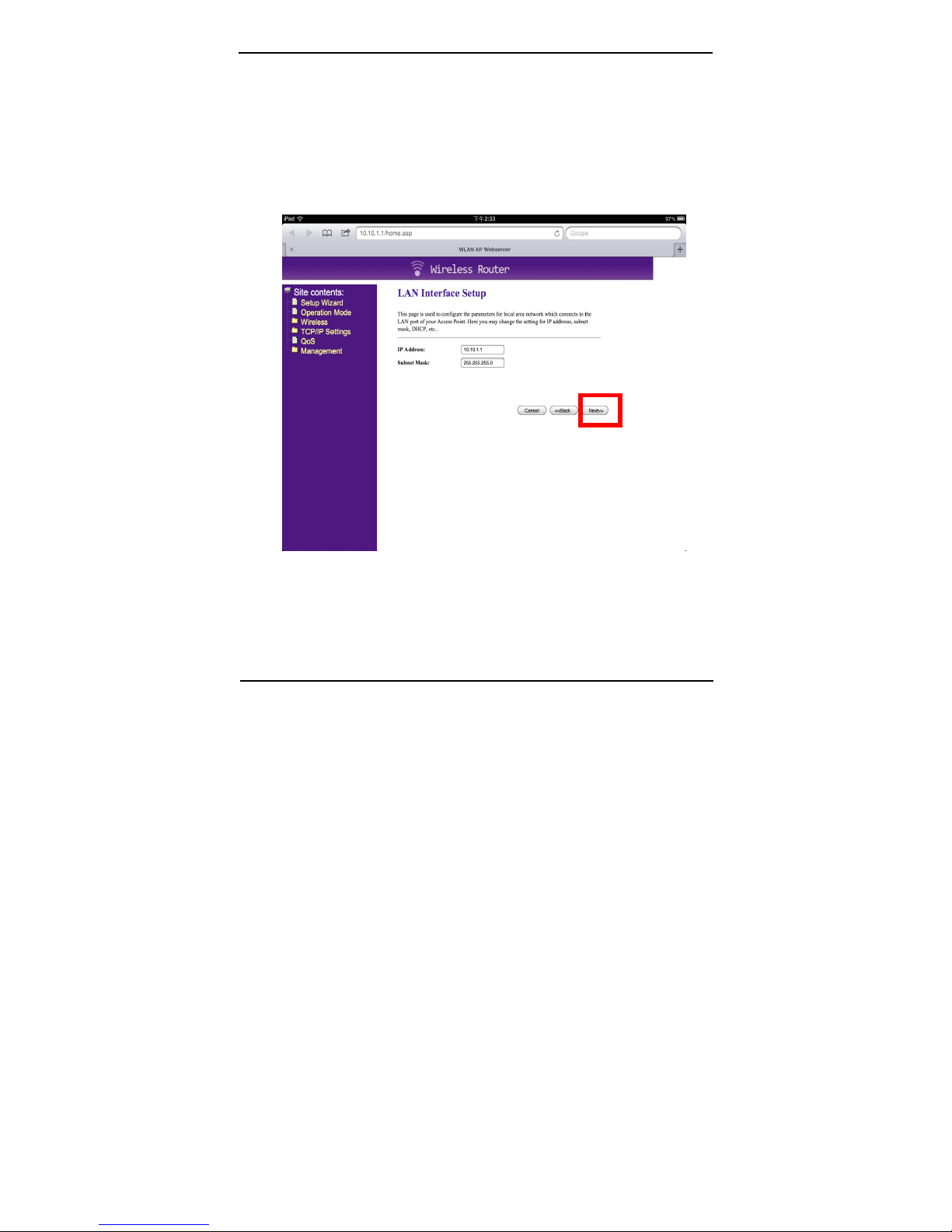
5. Refer to the following Web U/I and click “Next”.
Page 12
Carry Technology ComWi Quick Guide
11
6. LAN Interface Setup
The following figure is to show how to configure the
parameters for local area network connected to the ComWi. If you
don’t want to update LAN Interface Setup, please click “Next”
directly to skip it.
Page 13
Carry Technology ComWi Quick Guide
12
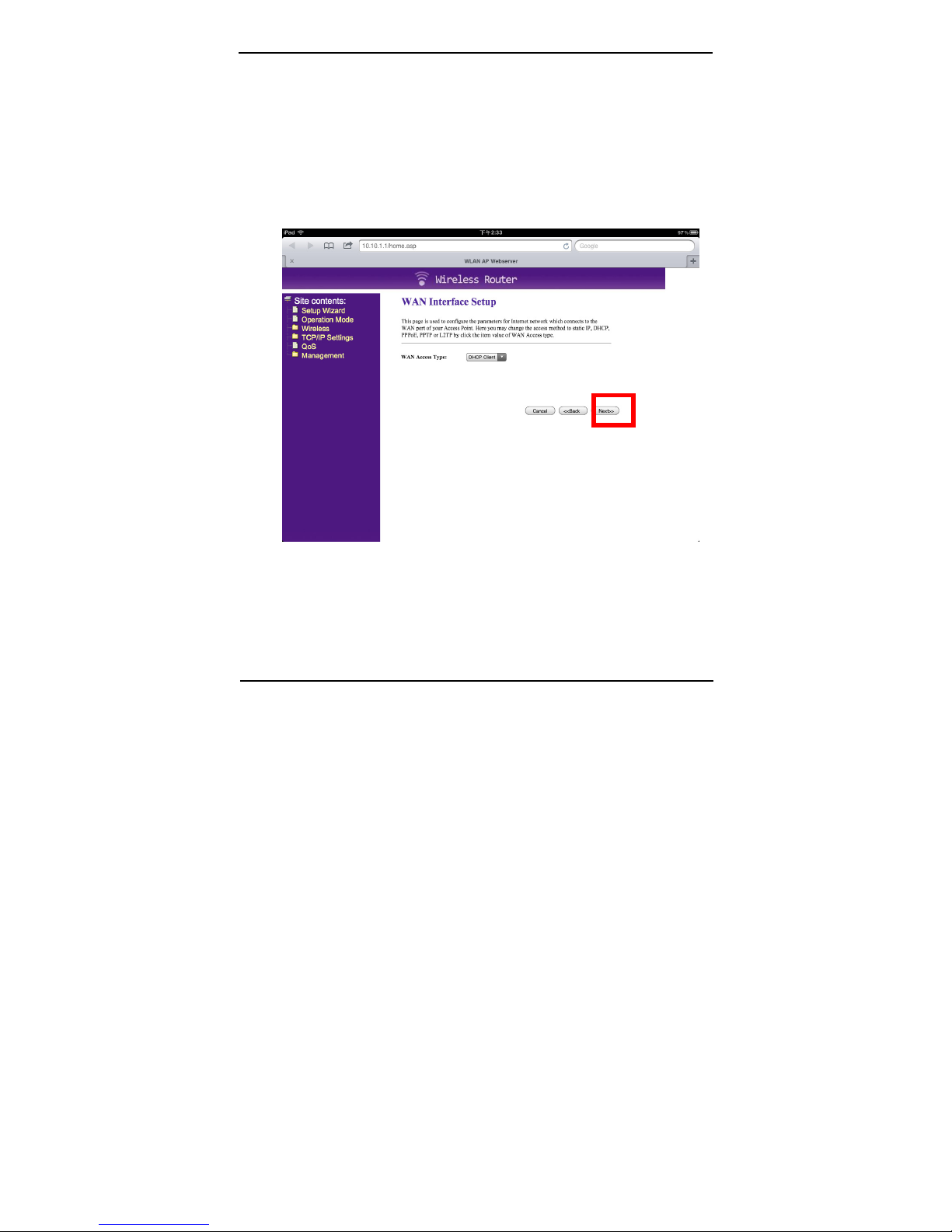
7. WAN Interface Setup
For Example: Select PPPoE for ADSL on WAN interface.
User Name and Password need to be done and click “Next”. If
there is no ADSL network for connecting WAN Port of ComWi,
you can keep it in “DHCP Client” and click “Next” directly to
skip it.
Page 14
Carry Technology ComWi Quick Guide
13
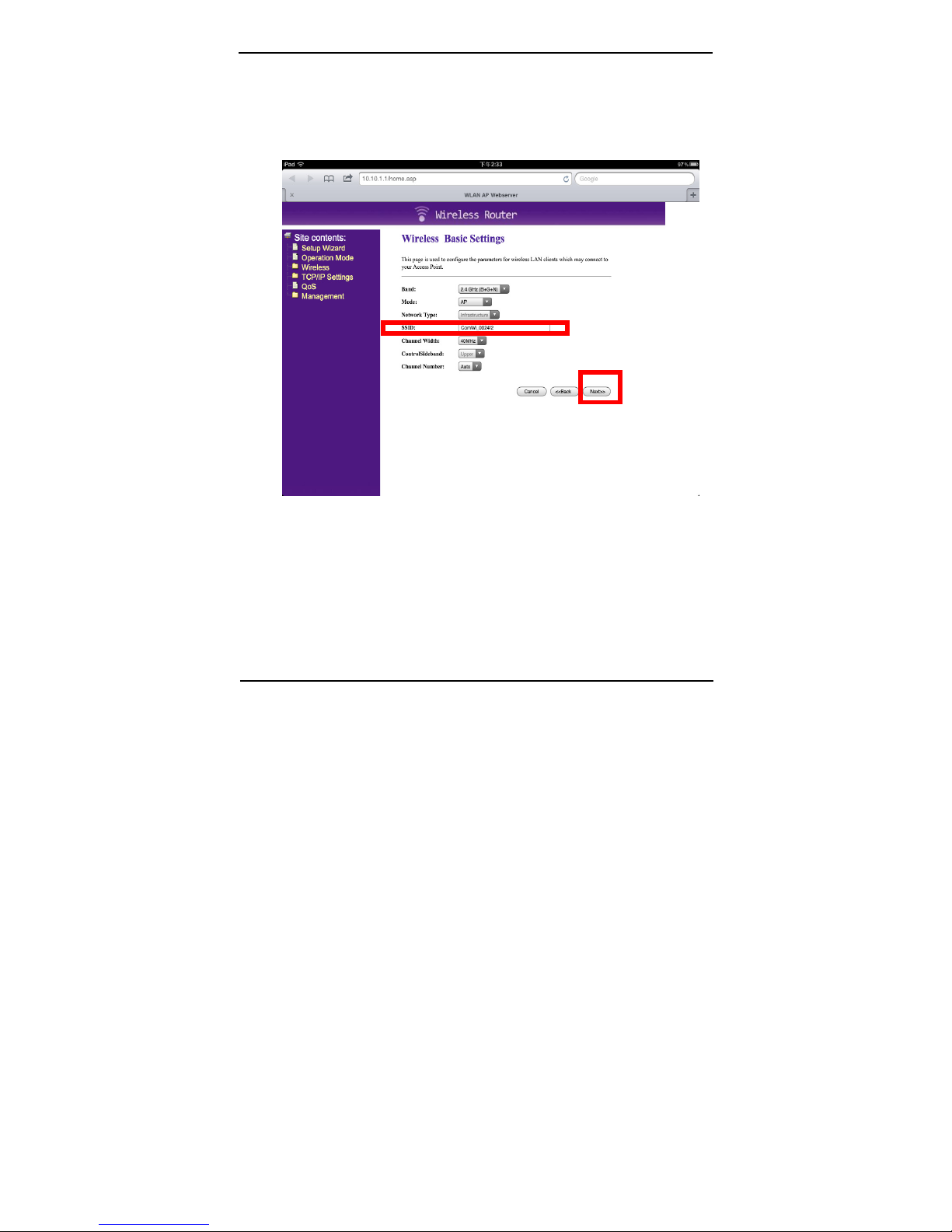
8. Wireless Basic Settings for using different SSID for your
ComWi. After updating it, please click “Next” directly.
Page 15
Carry Technology ComWi Quick Guide
14
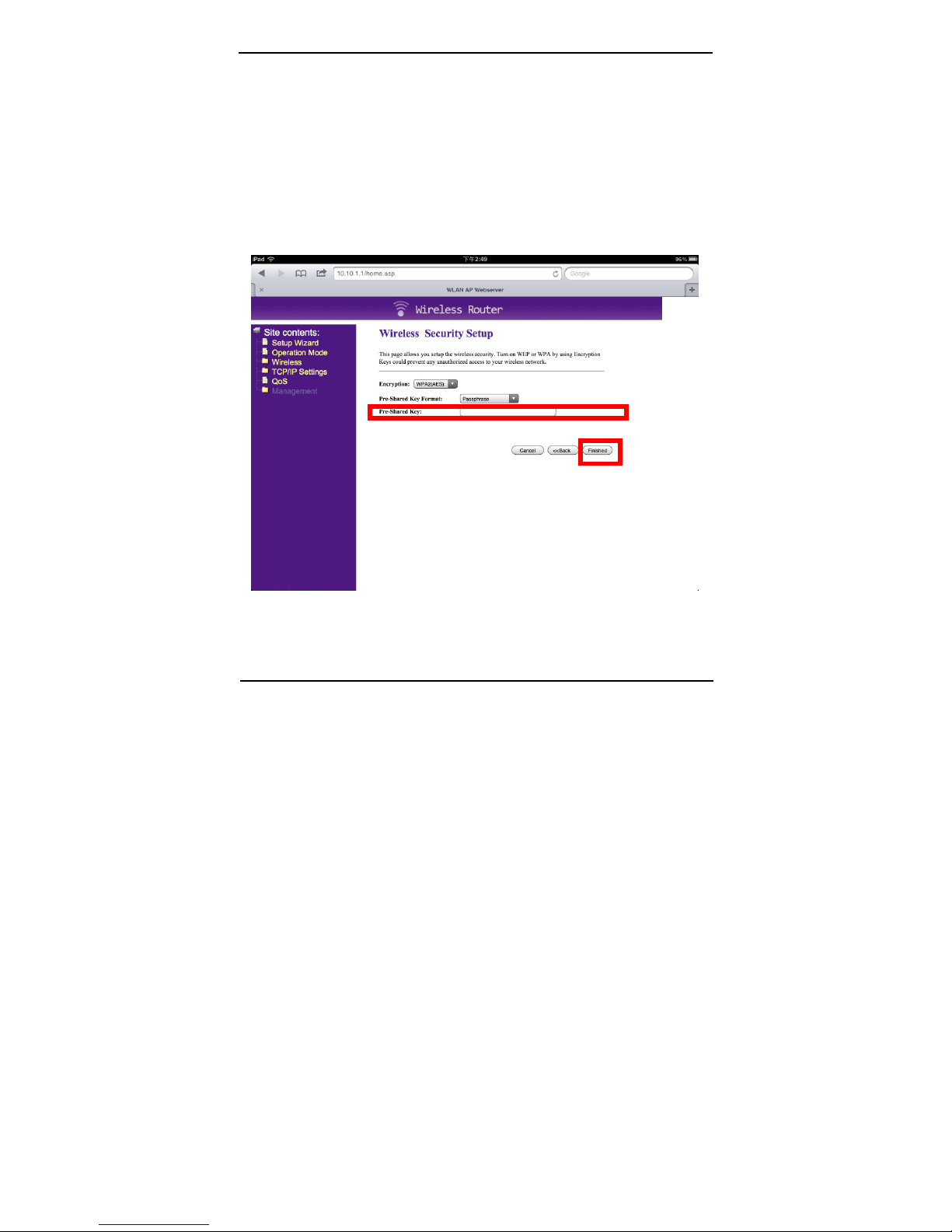
9. Wireless Security Setting
The following figure is to show setting up the security of the
ComWi. Turning on the ComWi security will prevent any
unauthorized access to the wireless network and. After updating it,
please click “Finished” and wait about 20 second for accessing
your New SSID.
Page 16
Carry Technology ComWi Quick Guide
15
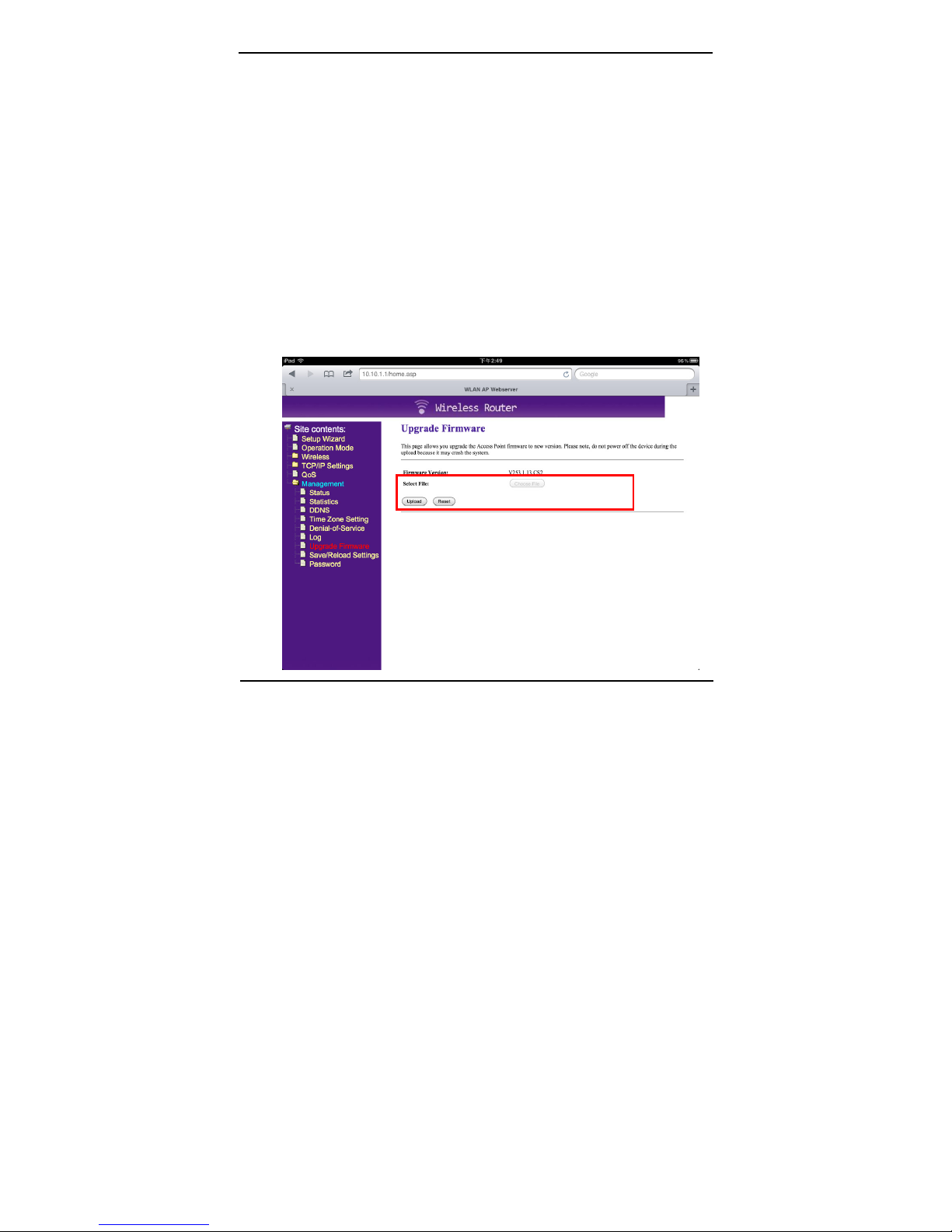
10. Upgrade Firmware
The feature allows ComWi firmware to be upgraded to a new
version. Please refer to the following figure for updating firmware.
It shows the current Firmware version.
Select the latest firmware file from the local system like
PC/Notebook and click “Upload”.
NOTE:
DON’T TURN OFF THE POWER DURING THE UPLOAD
FIRMWARE. FAILURE WILL DAMAGE ComWi.
 Loading...