

Page 1
TECHNICAL
INSTRUCTIONS
.00
EDITION NOVEMBER 2015
ENGLISH
ST
-
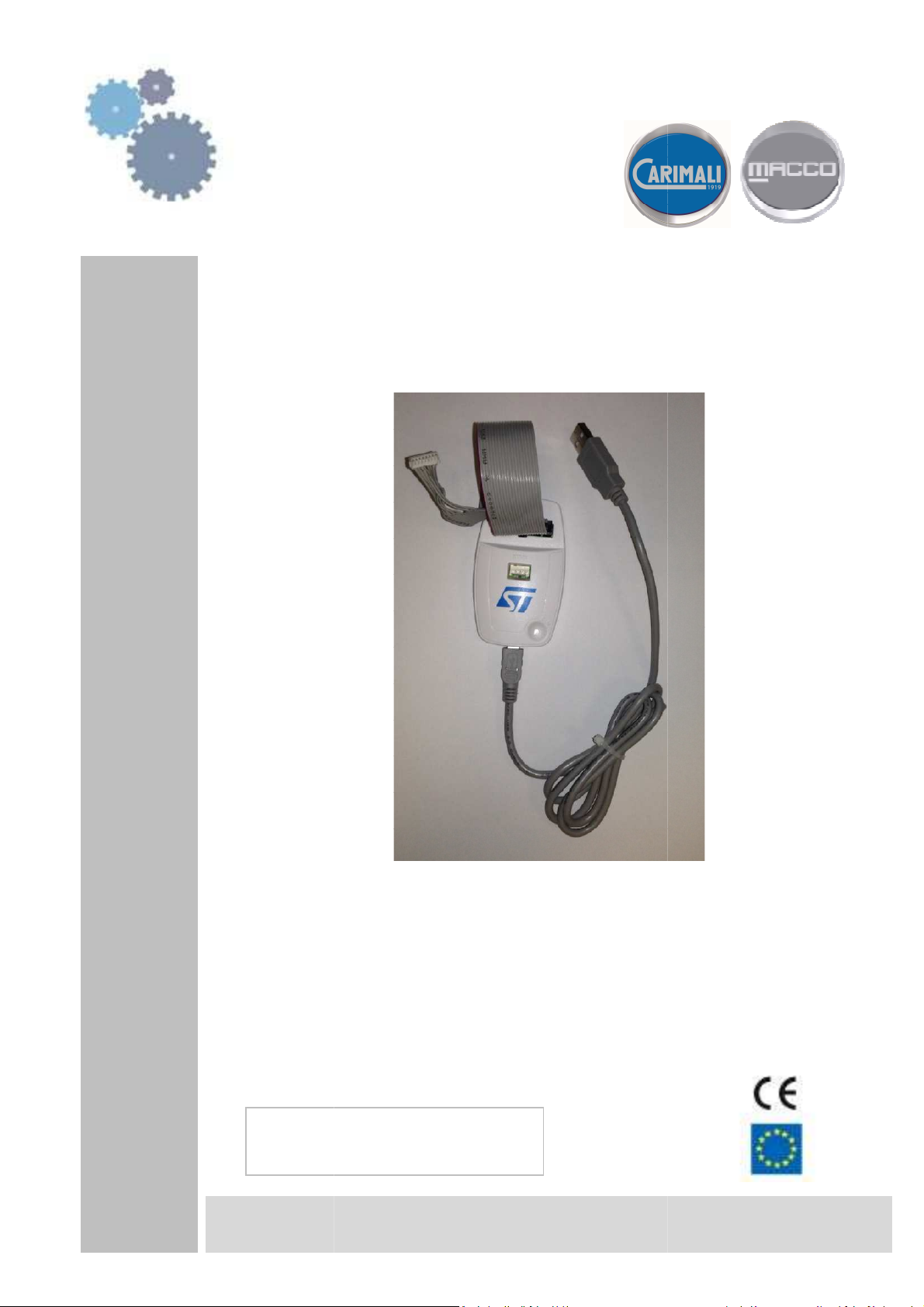
LINK/V2
P
ROGRAMMER
LB.05104.00
EN
LB-05104
1
www.carimali.com
Page 2
LB.05104.00 2
Page 3
Introduction and General instructions
The programmer allows to program the microprocessor on the display-PCB
System Requirements OS:
• Windows NT (x86)
• Windows 2000 (x86)
• Windows XP (x86) with service pack 3 - all editions except Starter Edition
• Windows Vista (x86) with service pack 1 - all editions except Starter Edition
• Windows 7 (x86)
• Windows 7 (x86) Home Premium and Professional Edition
Hardware Requirements:
- Computer that has a 1.0GHz or faster processor
- 512 MB of RAM ( 1 GB recommended)
- 2 GB of available hard disk space
- 1 port USB 2.0
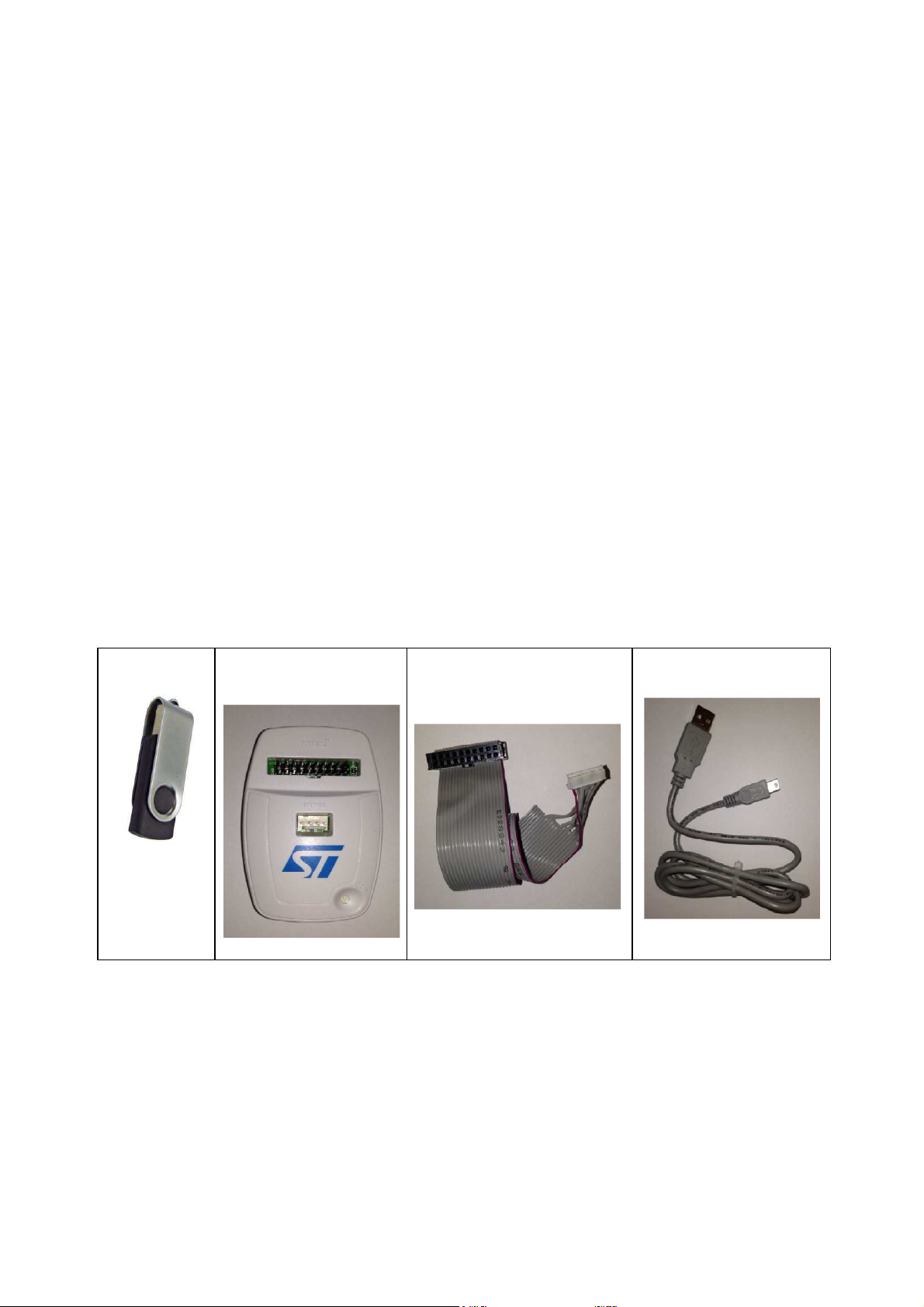
The KIT code 04.05093 includes:
a. USB pen drive containing the installation software on PC: STM32 ST-LINK Utility_v3.5
b. ST-LINK/V2 programmer board
c. Flat cable to connect the programmer to the display-PCB
d. USB cable to connect the programmer to the laptop
e. Technical manual LB.05104
a. b. c. d.
LB.05104.00 3
Page 4
ST-LINK programmer installation
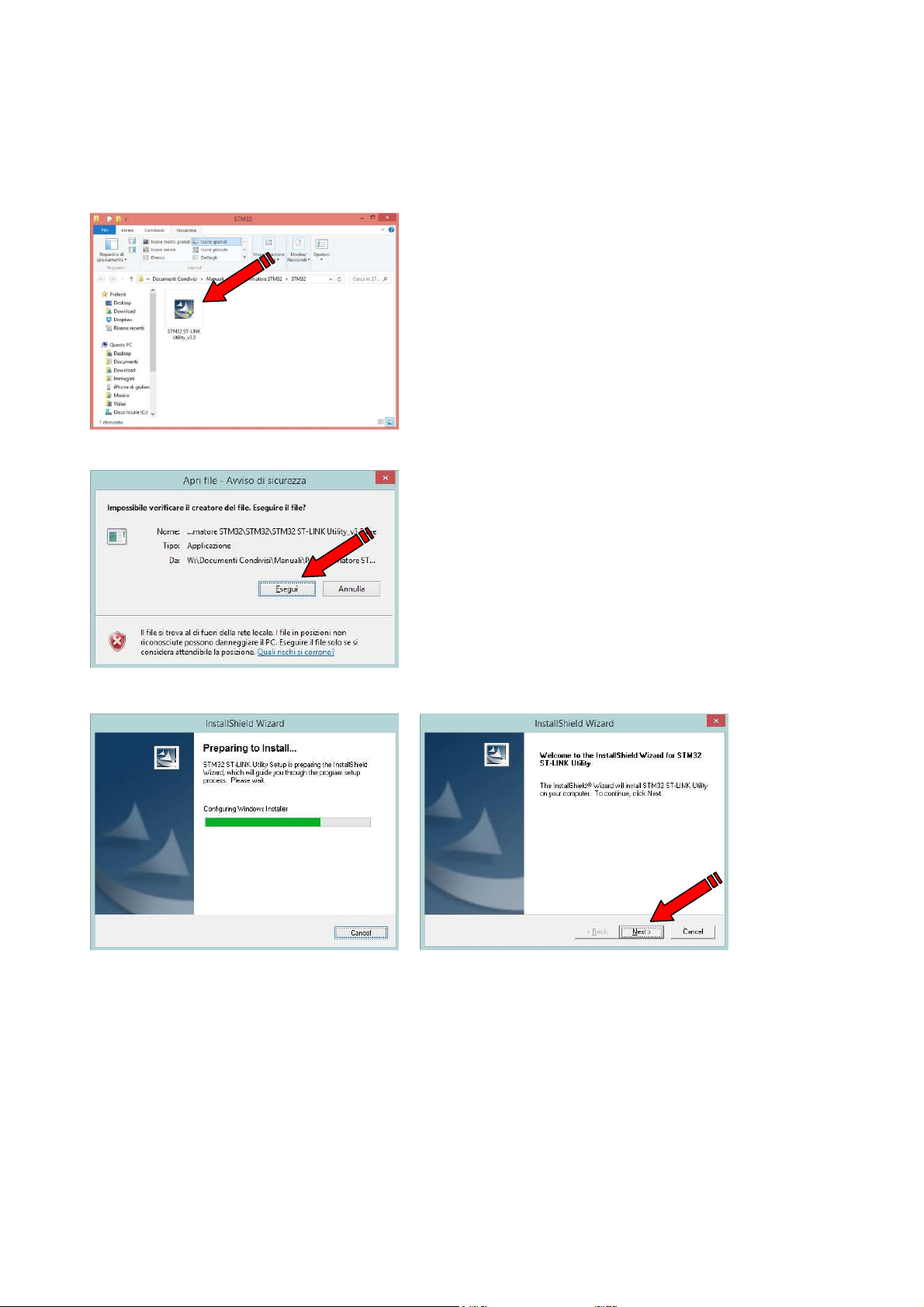
1. Insert the USB pen drive in the PC USB port and open the folder
2. Carry out the STM32 ST-LINK Utility_v3.5 install by clicking twice the icon
3. Confirm the first security advice
4. Wait until the Preparing to Install ends, then click Next
LB.05104.00 4
Page 5
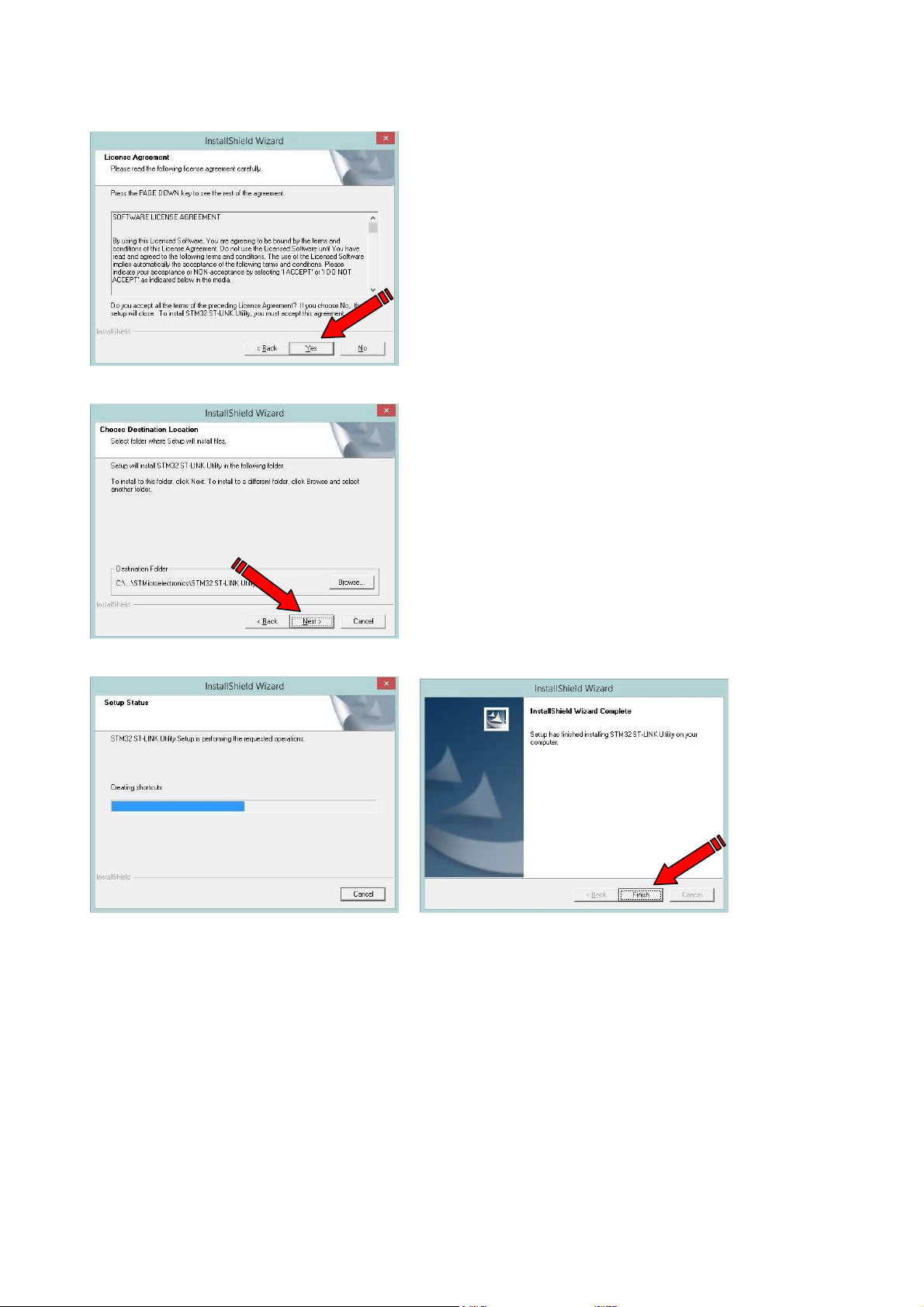
5. Wait until License Agreement page appears, then click Yes
6. Wait until Choose Destination Location page appears, then click Next
7. Wait the instalaltion untill the complete procedure ends, then click Finish
LB.05104.00 5
Page 6
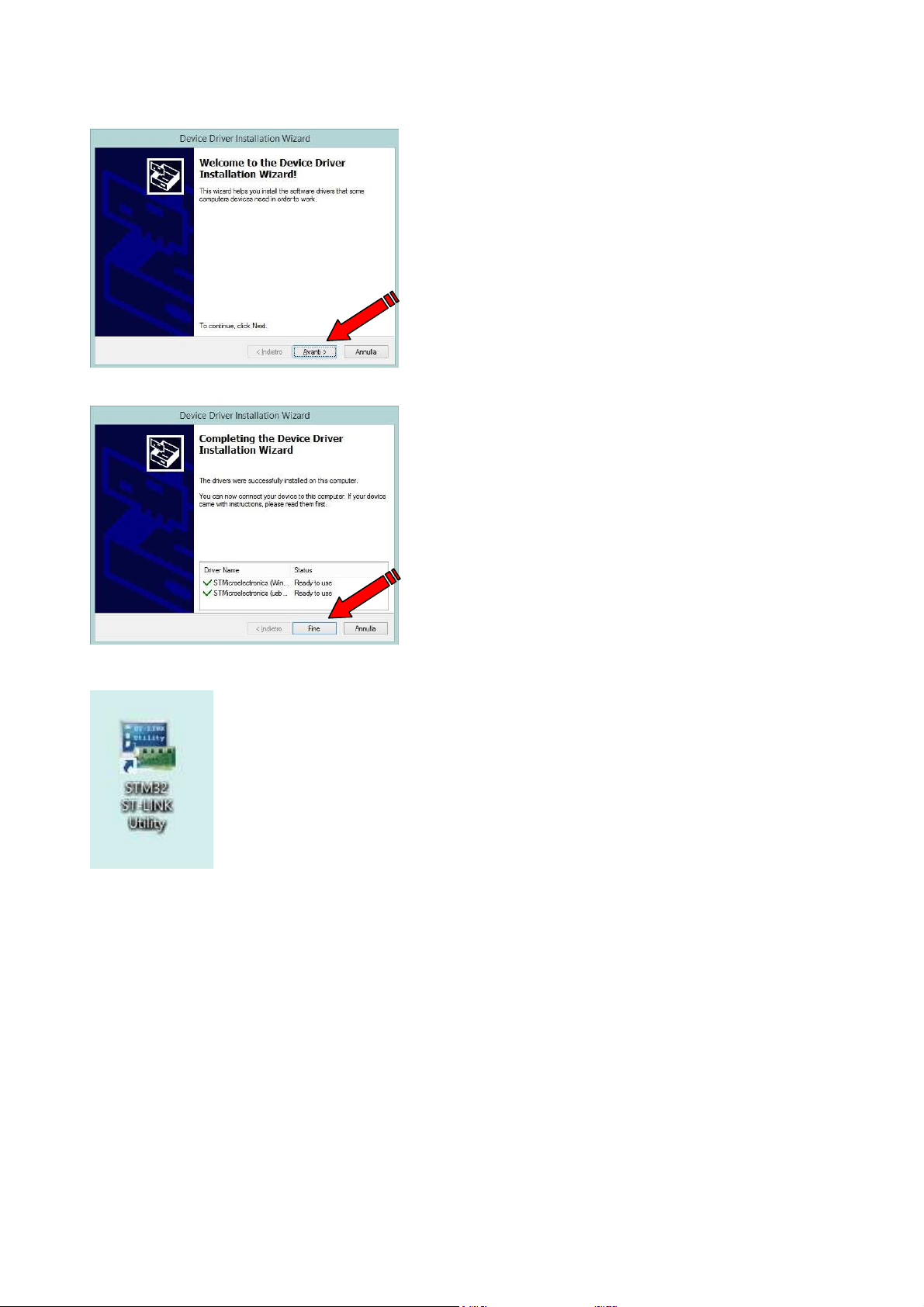
8. Wait Welcome to the Device Driver installation Wizard page appears, then click Next
9. Wait the procedure ends, then click End to exit
1. You will have a new icon on your desktop
LB.05104.00 6
Page 7
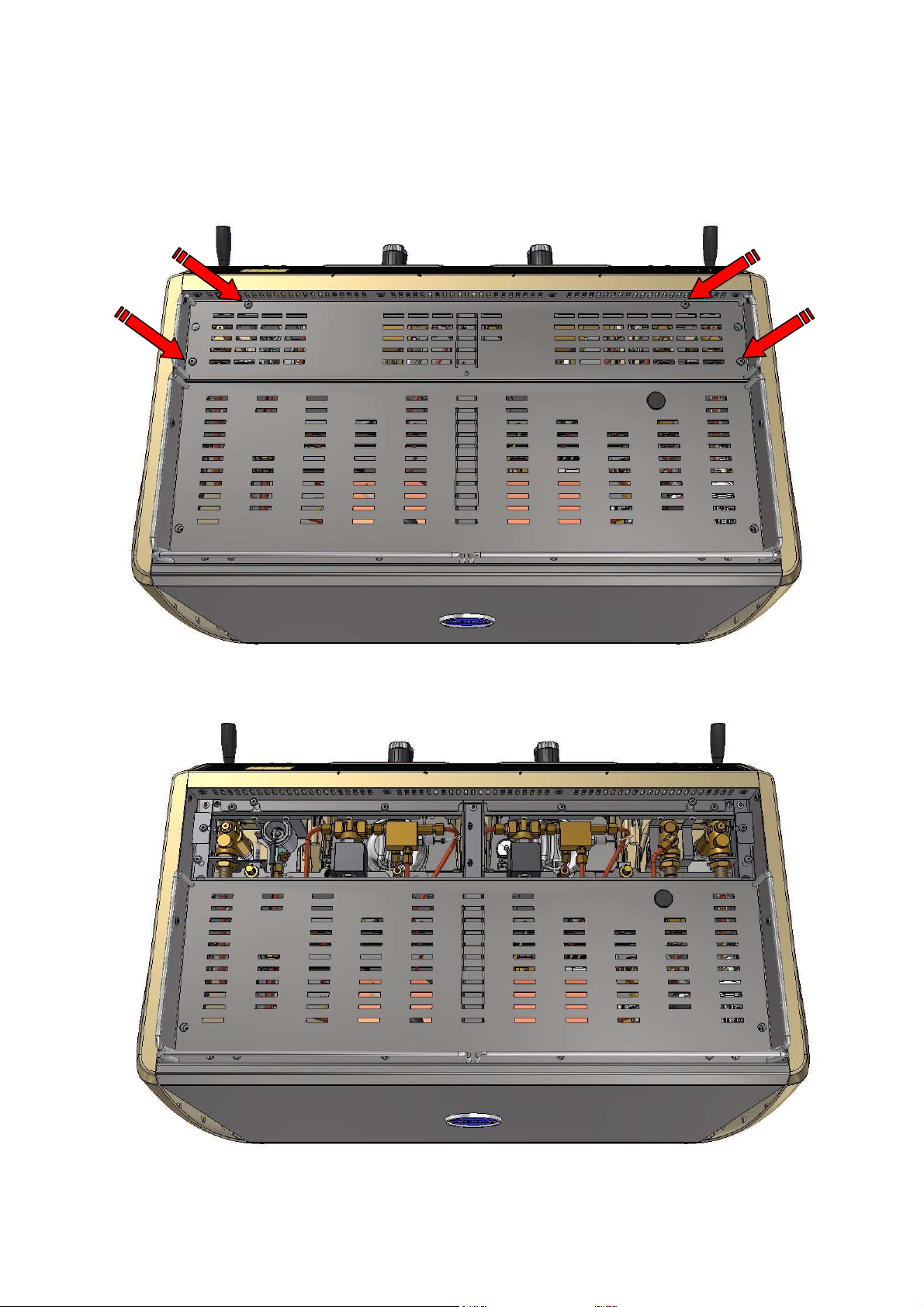
START ST-LINK/V2 programmer
1. Power the machine OFF
2. Remove the front part of the cup tray on top of the machine (3 screws)
LB.05104.00 7
Page 8
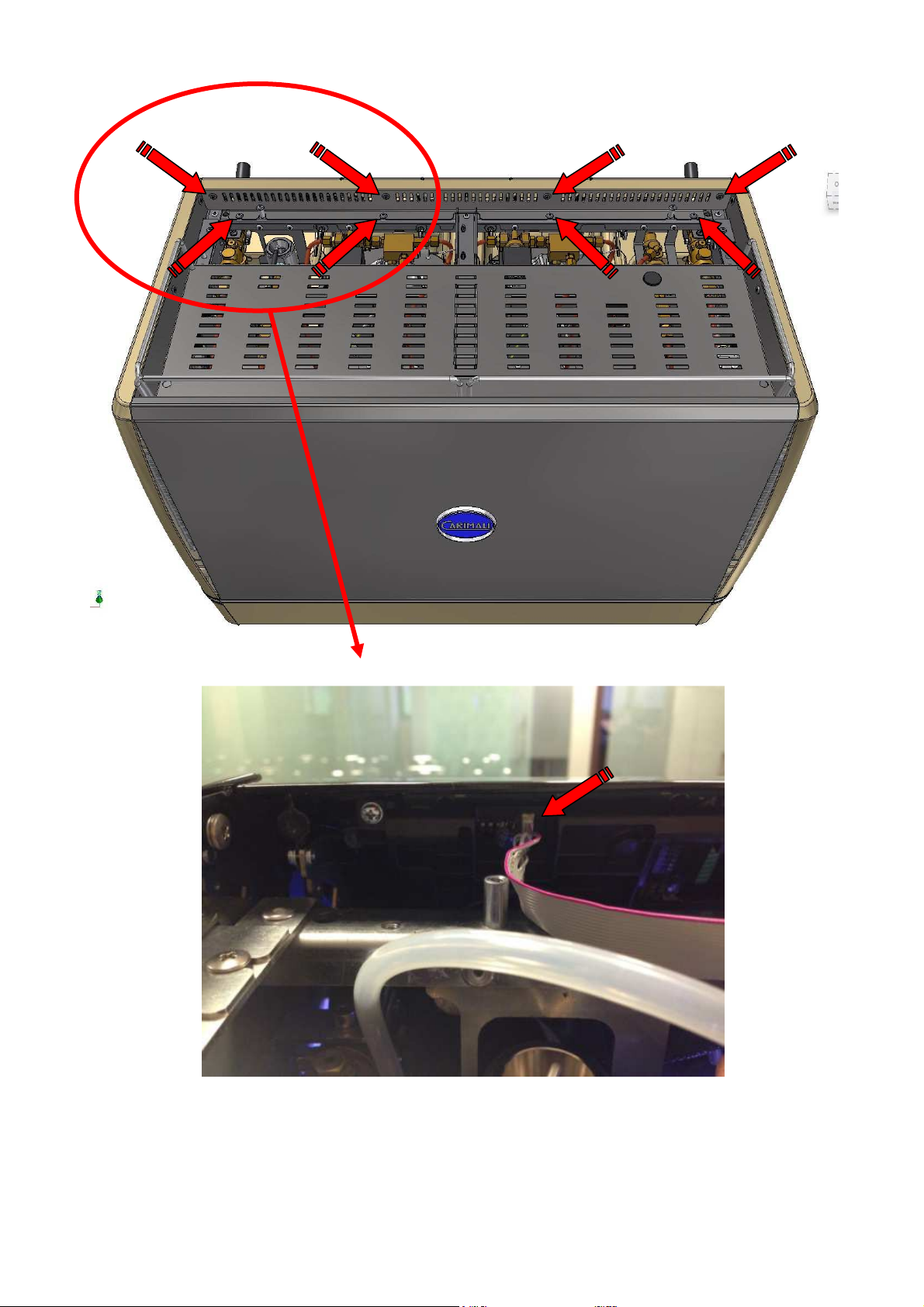
3. Remove the display-PCB protection (8 screws)
4. Connect the programmer to display-PCB connector as shown by the picture
LB.05104.00 8
Page 9
5. Power the machine ON
6. Turn ON your laptop and connect the ST-Link programmer to any USB socket
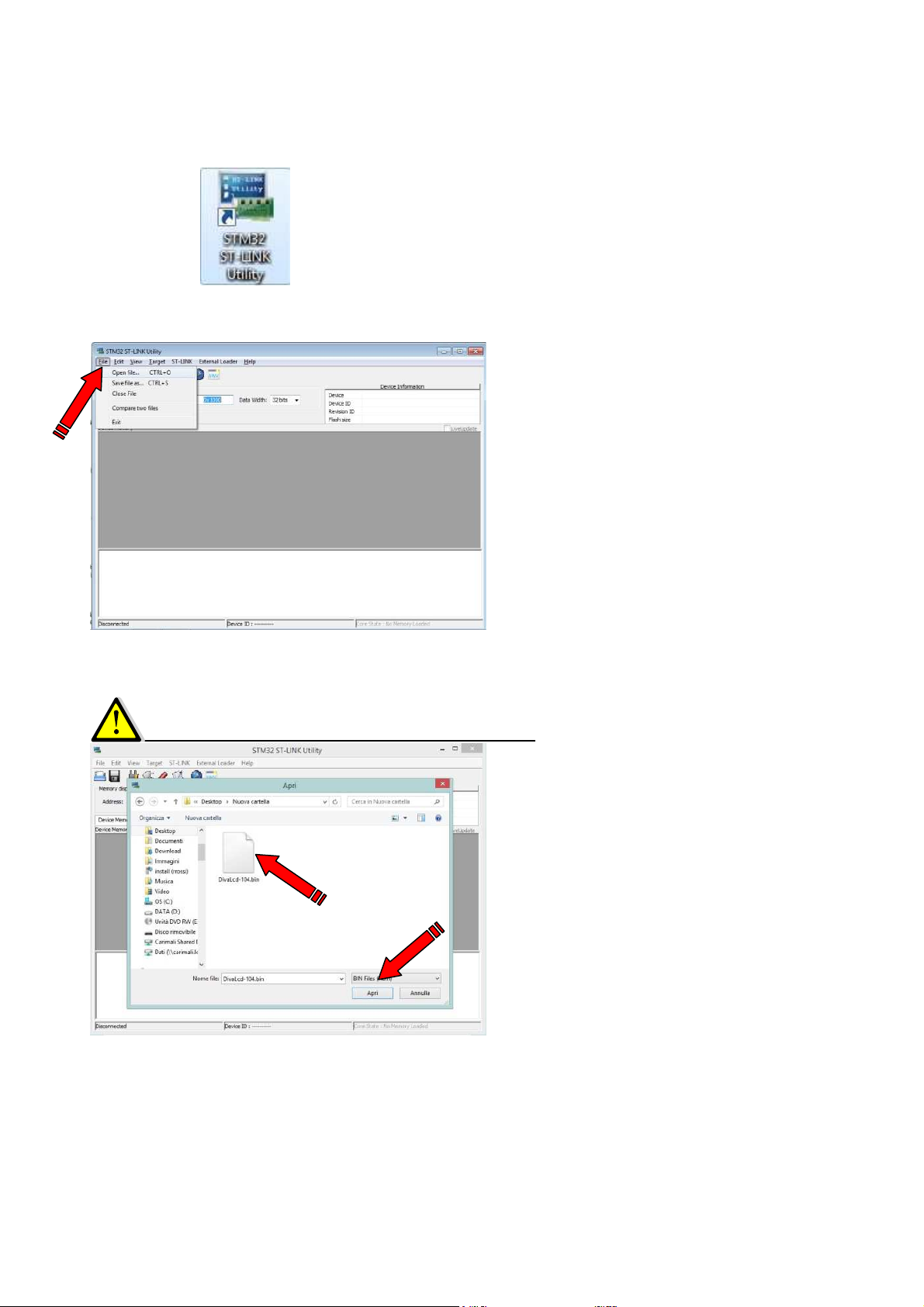
7. To run the programmer click on the new icon you have on your desktop: STM32 ST-LINK Utility
8. On the main pull down menu select File end then Open file
9. Select the firmware to be uploaded on display-PCB, file must be in BIN format, then click Open
Updated software releases can be downloaded directly from the reserved area of our website:
http://www.carimali.com/en/reserved_area/documents
LB.05104.00 9
Page 10
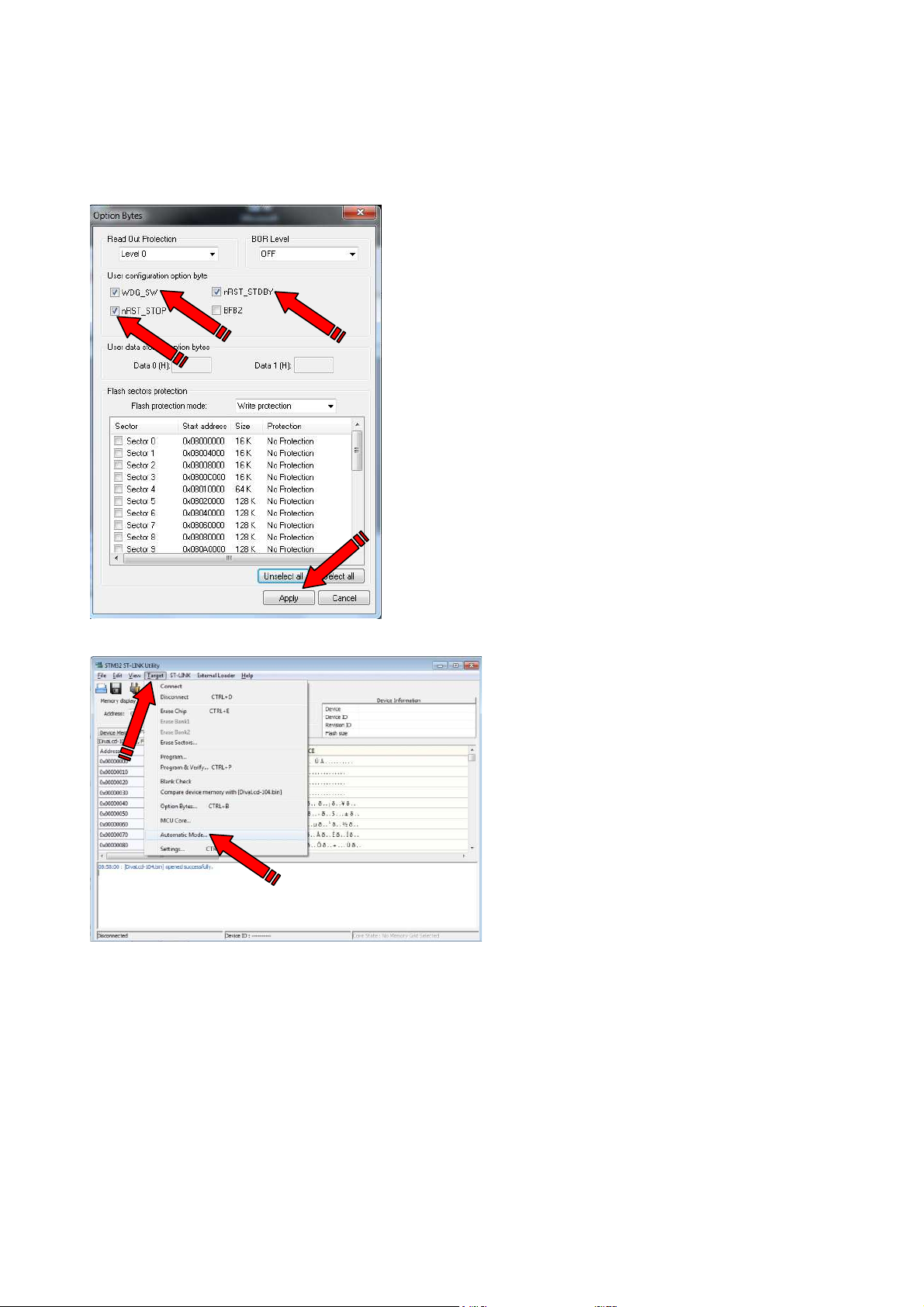
10. On the main pull down menu click Target and then Option Bytes
Select the following User configuration option byte, then confirm by clicking Apply:
- WDG_SW
- nRST_STOP
- nRST_STDBY
11. On the main pull down menu click Target and then Automatic Mode
LB.05104.00 10
Page 11
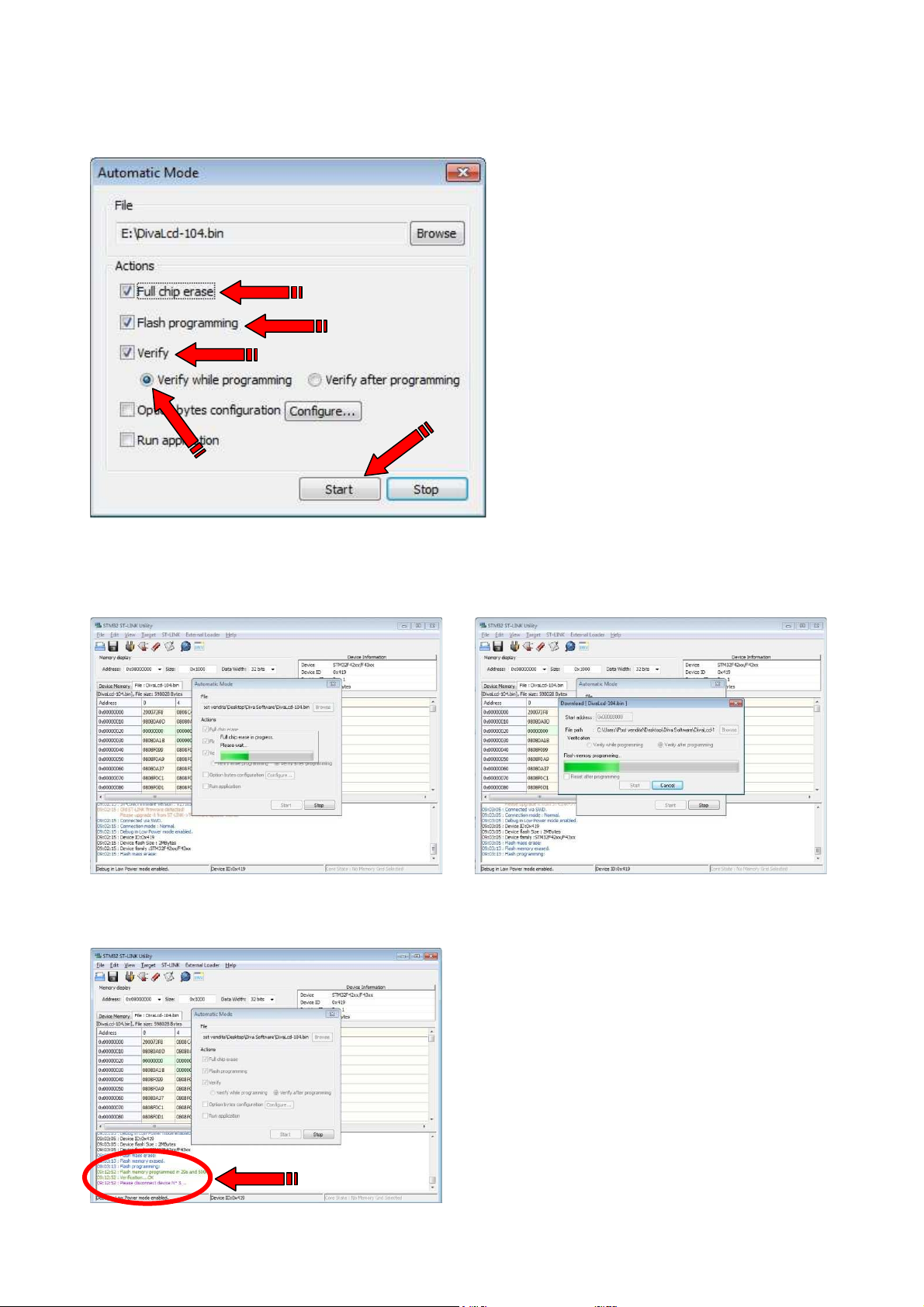
12. Once appears the Automatic Mode window, verify Flash programming have been selected, then
select Verify while programming, finally confirm with Start
13. You may verify the following windows appears:
- Full chip erase in progress…
- Flash memory programming…
14. Once the procedure ends the following window appears. Disconnect the flat cable from display-PCB
and reassemble machine, which is now ready to operate with new software
LB.05104.00 11
Page 12
The Carimali product you have purchased is subject to Directive 2002/96/EC of the European
Parliament and the Council of the European Union on waste electrical and electronic equipment
(WEEE) and, in jurisdictions adopting that Directive, is marked as being put on the market after
August 13, 2005, and should not be disposed of as unsorted municipal waste. For further
information please contact Carimali.
The manufacturer reserves the right to change, without prior notice, the specifications of the
equipment illustrated in this publication; the manufacturer declines all responsibility for any
mistakes due to printing and/or typing errors contained in this publication.
All instructions, drawings, tables and information contained in this publication are reserved and
may not be reproduced entirely or in part or be communicated to a third party without written
authorisation from the manufacturer who holds exclusive rights.
REVISION TABEL DATE NOTE REVISED BY
LB-05104-00 05-11-2015 Prima Versione Giuliano Viola
The manager
Maurizio Boffelli
Firma del Responsabile della Documentazione
LB.05104.00 12
 Loading...