

Page 1
QUICK START
GUIDE
Page 2
1
2hr
3
Reveal® App
Scan.
GETTING STARTED!
Reveal.
Refine.
Welcome to Reveal® analysis
backed by Cargill Forage Lab
precision. This Quick Start Guide
will help you get set up and
connected to Reveal® with easy
to follow step-by-step directions.
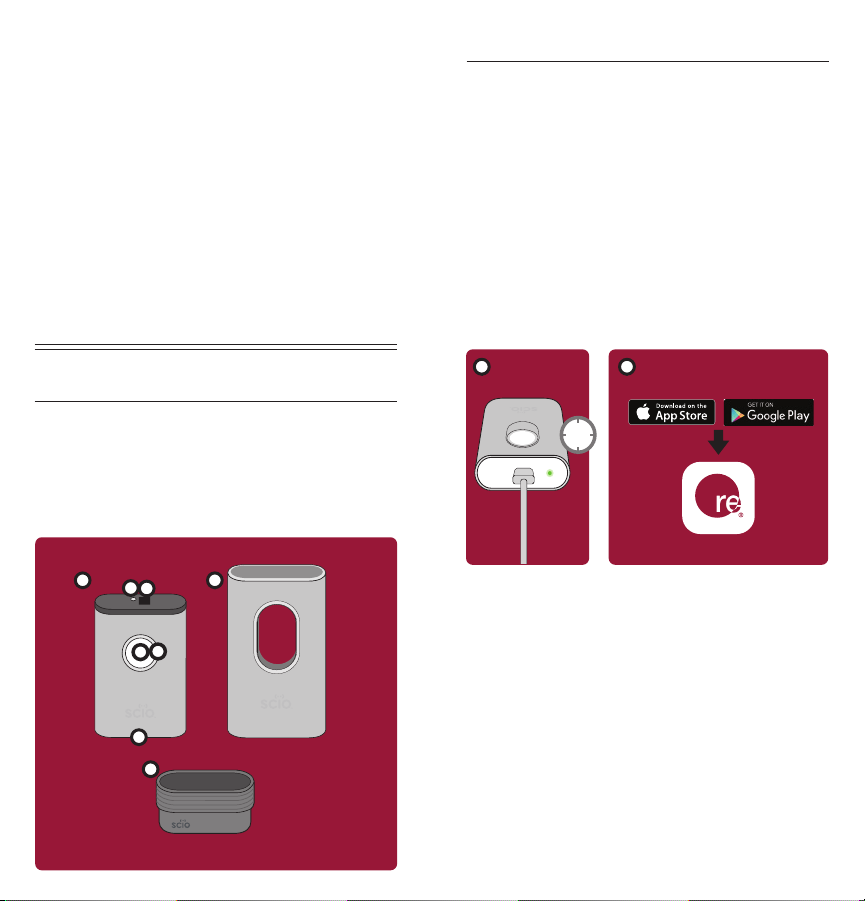
HARDWARE
1. SCiO™ handheld sensor
2. Function button
3. Status ring
4. Molecular sensor
5. LED Illumination source
1
5
4
3
2
6. Charge port and
charge status LED
7. Sensor cover and
calibration device
8. Rubber shade
7
1. Charge the sensor for 2 hours or until
the charge status LED glows green.
2. Ensure your phone’s Bluetooth®
is turned on.
3. Download the Reveal® app from
the App Store or Google Play.
4. Launch the Reveal® app and follow the
in-app instructions to sync the devices.
1
3
2hr
Reveal® App
6
8
Page 3
HOW IT WORKS CALIBRATION
Reveal® analysis is designed to scan your
forage and transmit data to Cargill’s Elk
River Forage Lab calibrations in the cloud.
Direct access to the global Cargill dataset
of feed ingredients, one of the largest
in the world, ensures a high degree of
precision from our proprietary calibrations.
The molecular sensor should be
calibrated daily where scans will be
performed to create the most accurate
results. The calibration device is
embedded within the sensor cover.
Before calibration, make sure the
cover is clean.
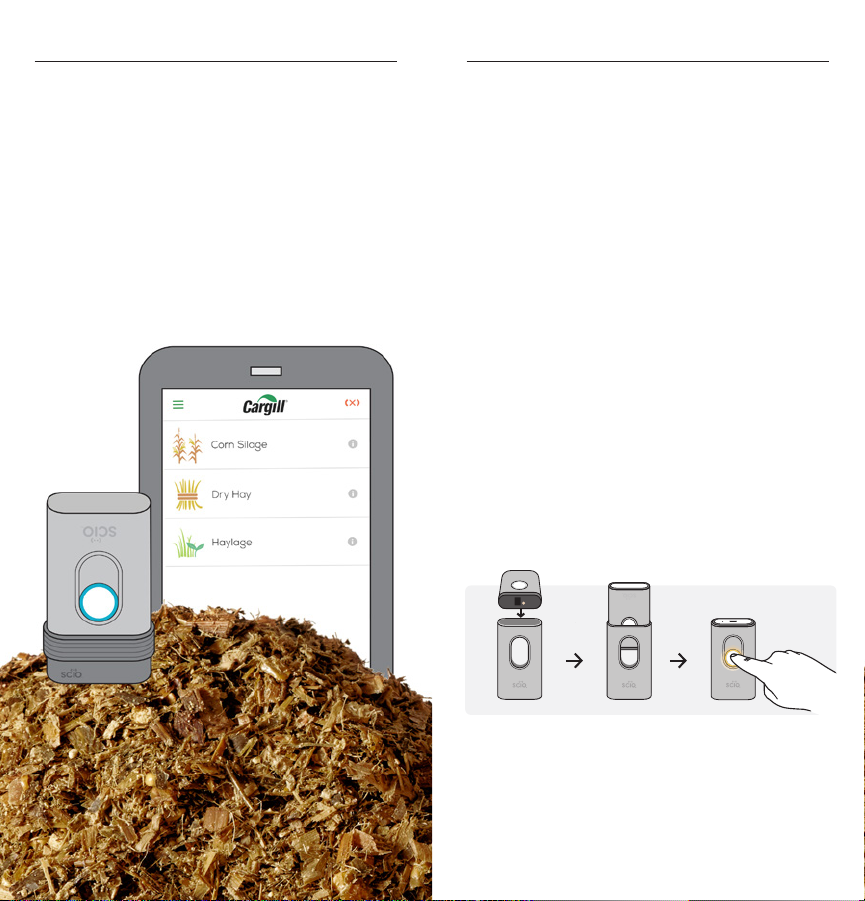
1. In the app menu (upper left corner)
click SCiO settings > calibrate.
2. Place the sensor into the cover with the
optical sensor facing into the cover.
3. Tap calibrate with the app, then click
calibrate again, or click the scanner
function button
4. Click done to save the calibration.
NOTE: Each sensor and sensor cover are custom paired
during production. Make sure your original cover is never
swapped out with any other cover.
Page 4
SCANNING SCANNING FORAGE
Please make sure that the scanned
material is not in direct sunlight or in
a brightly lit environment, which may
interfere with the scan and result in
an error message.
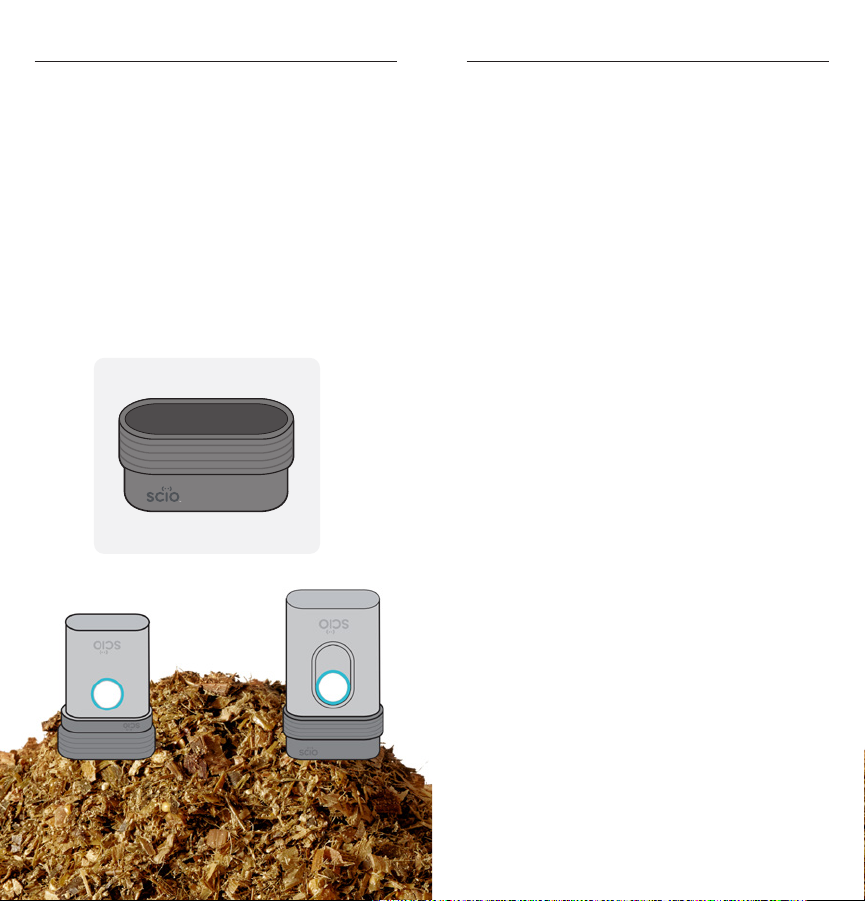
For optimal scanning results, use
the rubber shade. Hold the rubber shade
as close as possible to (touching, but not
pressing in) the forage you are scanning.
The Rubber Shade
Prepare a representative sample.
1. Obtain a fresh sample that’s
representative of the forage to be tested.
2. Mix the forage sample well (using a
separate container is recommended).
3. Calibrate in the app. (We recommend
daily when using Reveal®).
4. Within the app, select the forage
type you want to scan.
5. A screen will appear showing SCAN
1/10 (You must scan the sample
10 times to generate a result).
6. Press the function button to complete
a scan, making sure you move the
SCiO to different parts of the sample
for each scan.
DO NOT PRESS THE SCIO INTO THE SAMPLE.
JUST PLACE IT ON TOP. PRESSING WILL CHANGE
THE PATH LENGTH AND CAUSE A BAD SCAN.
7. Once the 10th scan is complete
you will see the Confirmation Page.
8. If all check marks are green then tap
results to see the dry matter analysis.
If a red check mark appears simply
touch rescan and scan that one again.
9. Add a sample ID and other pertinent
information in the add scan note
section (bunker location,
cutting number, etc.)
Page 5
Scan.
Reveal.
Refine.
The power to analyze forage in the
palm of your hand. The peace of mind
knowing that your cows’ are getting the
consistent intake they need to thrive.
Revolutionize your feed
management with Reveal®.
Get support at: Cargill.com/reveal
Email: [email protected]
©2017 Cargill. A ll righ ts rese rved.
 Loading...