

Page 1
User Manual
___________________________________________________________________________________________
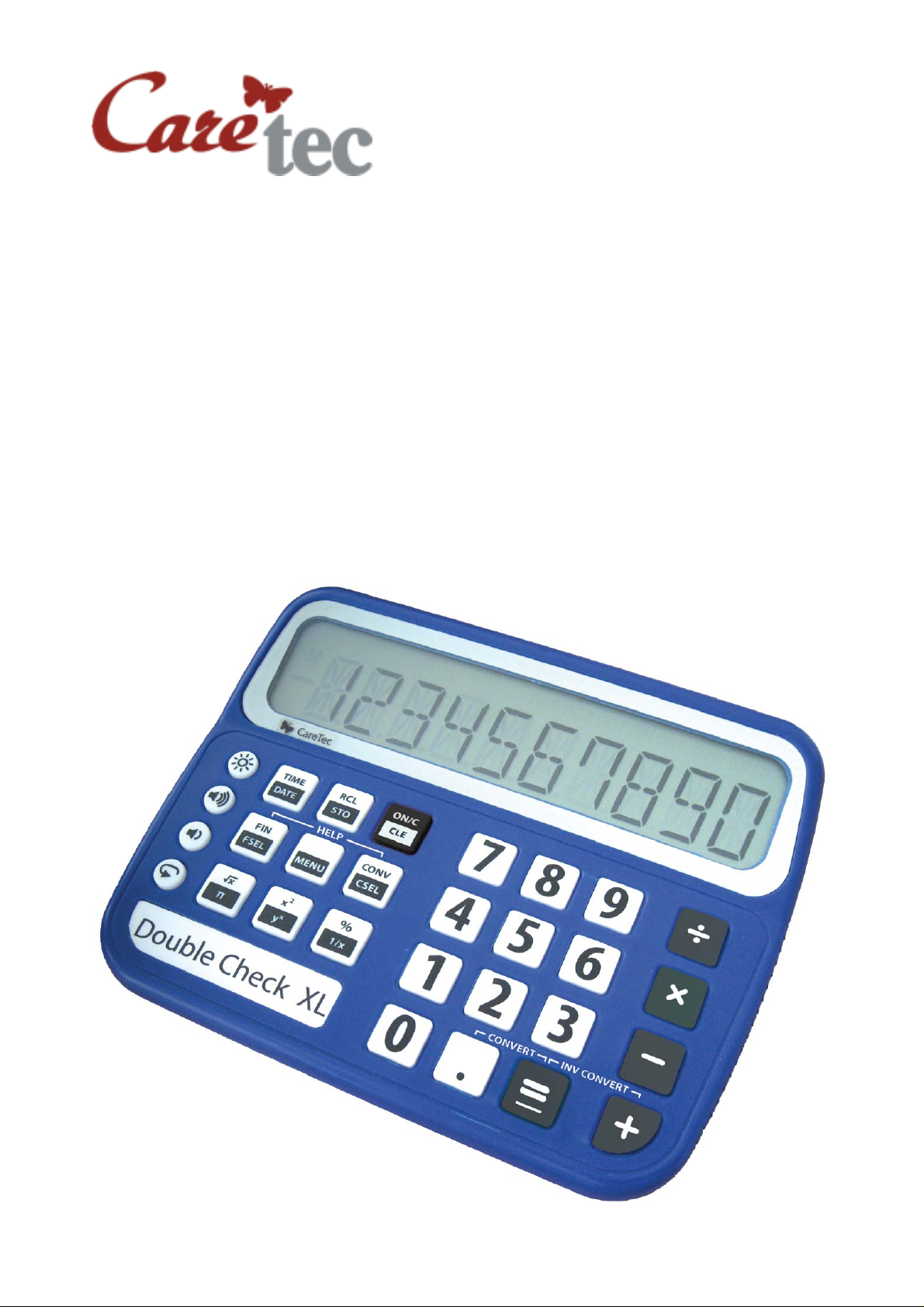
DoubleCheck XL
Commercial Calculator for
Visually Impaired People
Page 2

Table of Contents
1: Introduction page 4
1.1: Quick Overview on the Functions of DoubleCheck XL page 4
1.2: XL Product Series page 4
2: Description and Scope of Delivery page 4
3: Power Supply page 5
4: Keyboard Layout page 5
4.1: The 4 Auxiliary Keys page 6
4.2: 3 x 3 Group (from left to right) page 6
4.3: 4 x 4 Group (from left to right) page 7
4.4: Switch the Device on and off page 7
4.5: Menu Escape Function page 7
4.6: Delete last Digit / delete all page 7
4.7: Keylock page 7
4.8: Volume Control page 7
4.9: Time and Date page 8
4.10: Memory Function page 8
4.10.1: Save Values page 8
4.10.2: Select Stored Values page 8
4.10.3: Delete Stored Values page 8
4.11: Repeat Function page 8
4.12: Backlit Display (option) page 8
5: Arithmetic Procedures page 8
5.1: Standard Arithmetic Functions page 8
5.2: Advanced Arithmetic Functions page 9
5.2.1: Percentages page 9
5.2.2: Square a Given Number page 9
5.2.3: Extract a Square Root page 9
5.2.4: Reciprocal Value page 9
5.2.5: To the Power of page 9
5.2.6: Π (Pi) page 9
5.2.7: Change Sign page 10
5.3: Conversions page 10
5.3.1: Currency Conversion page 10
5.3.2: Custom Conversion page 10
5.4: Commercial Calculator page 10
5.4.1: Compound Interest page 11
5.4.2: Net Present Value page 11
5.4.3: Annuity page 11
5.4.4: Annuity Initial Capital page 12
6: Help Mode page 12
7: Menu page 12
7.1: Number Announcement Format page 12
7.2: Alarm page 13
7.3: Time page 13
7.4: Date page 13
7.5: Rounding page 13
Page 3

7.6: Decimal Places page 13
8: Safety Instructions page 13
9: Cleaning the Device page 14
10: Technical Data page 14
11: Guarantee and Service page 14
12: Disposal page 15
12.1: Disposal of Electronic Devices page 15
12.2: Battery Disposal page 15
13: Manufacturer page 15
Page 4
1: Introduction
DoubleCheck XL is a commercial calculator with extra large buttons and a huge
display with big digits as well. With the backlit display and the speech output as
optional functions, DoubleCheck XL is especially suitable for visually impaired and
blind people.
1.1: Quick Overview on the Functions of DoubleCheck XL
Spoken functions with natural voice
Extra large display with 10 digits of 2.5 cm (1 in) height
Extra large buttons, size: 1.5 x 1.5 cm (0.6 x 0.6 in)
10 memory spaces
Reciprocal value
Percentages
Square, raise to higher power and extract roots
Calculation of compound interest, cash values and annuities
Conversion of currency and physical units
Date and time with alarm clock function
Volume control in 6 steps
1.2: XL Product Series
XL calculators are available in the following versions:
Non talking
Non talking, with backlit display
T alking
Talking and with backlit display
Please note that for non talking and/or backlit display versions
not all keys functions are available.
Consult instructions before use! Do not operate
DoubleCheck XL without reading the instruction manual. Get
acquainted with the device and all the accessories. Keep the
instruction for reference reading and pass it on with the device.
2: Description and Scope of Delivery
Included in the delivery are the commercial calculator DoubleCheck XL, a set of
batteries (4 x 1.5 V AA) and a printed user manual. A power supply unit and
earphones can be ordered optionally.
4
Page 5
Place the device on the 4 rubber bumpers with the keys in front of you and the big
display, which you can feel, behind it.
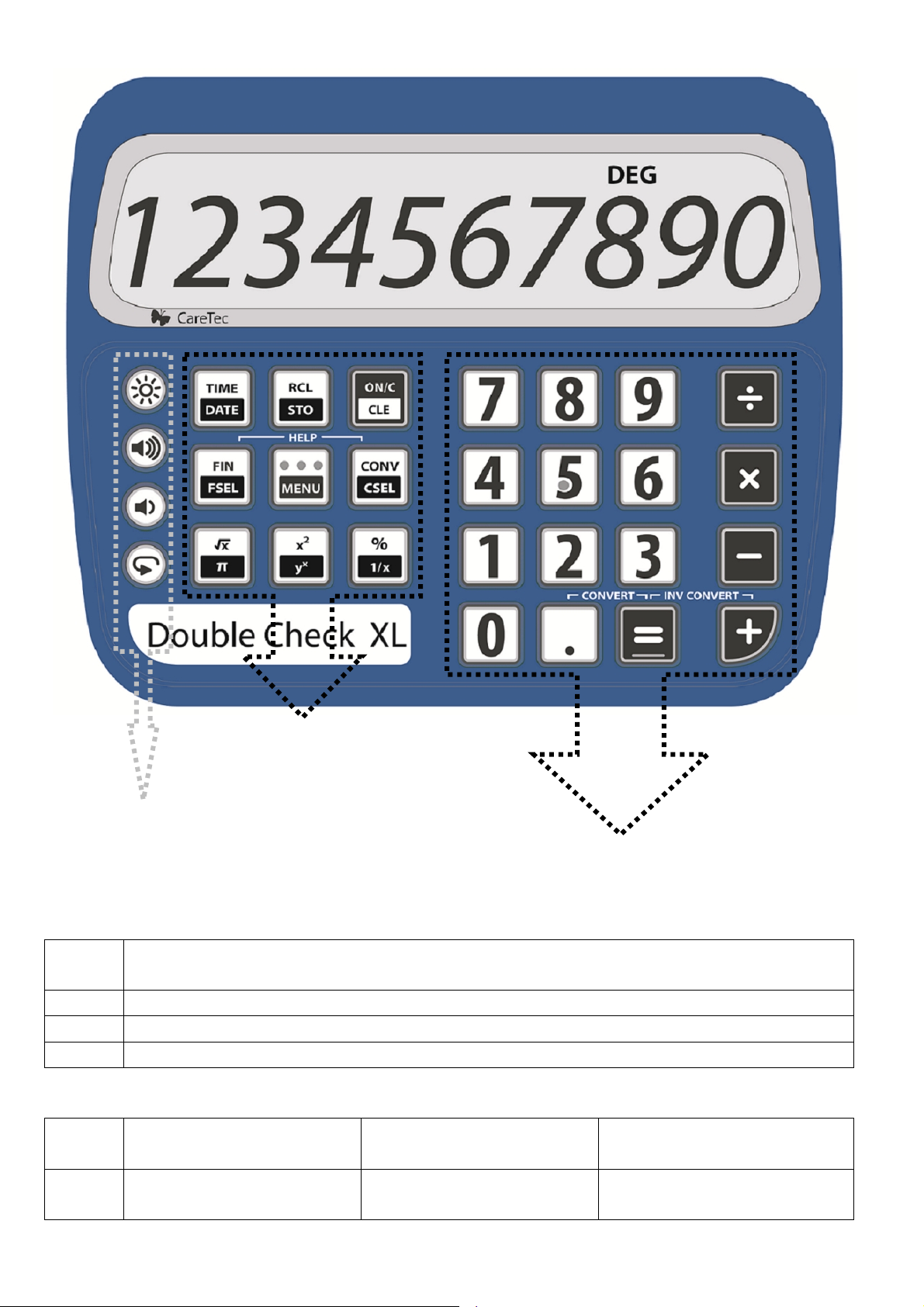
Top: All the keys can be found on the upper side. They can be divided into 3
groups: The first group on the left consists of 4 round keys. The second group, left
from the middle, consists of 3 rows and 3 columns of big square keys. The third
group, to the right, consists of 4 rows and 4 columns
Right side: On the right side of the device, there are three outlets. The one nearest
to you is an earphone socket (earphones are optional and not included). Next to the
display are the other two outlets with the socket for an additional power supply
(optional, not included) is furthest away. The other one is a service outlet for our
technicians.
Bottom side: On the bottom side of the device, you will find 4 rubber bumpers, the
loudspeaker grill and the battery compartment.
3: Power Supply
Batteries: DoubleCheck XL operates with 4 1.5 Volt AA batteries. The battery
compartment is situated on the bottom side of the device. To insert the batteries,
turn over the device with the high position end showing to the right side. In the
middle of the bottom side you can feel a little notch. This is where you can open the
battery compartment. Please note that the lid opens to the right and is not
completely removable! Put the 4 batteries in the compartment with the flat
(negative) end of each battery contacting the spring. Close the lid until it locks in
place.
Caution: Replace the batteries as soon as the device
announces ‘battery weak’.
Power Supply: DoubleCheck XL can also be operated with a power supply unit.
The power supply unit is not included in the delivery and has to be ordered
separately! The socket for the power supply unit is located next to the display: it’s
the front outlet on the right side of the device.
4: Keyboard Layout
The keyboard is divided into 3 groups: To the left there are 4 round keys, which we
call ‘auxiliary keys’. In the middle - next to the ‘auxiliary keys’ - is the ‘3 x 3 group’,
which consists of 3 row and 3 columns. The middle key of this group is the Menukey, which has tactile dots. To the right is the ‘4 x 4 group’, with 4 rows and 4
columns. The Equal-key (row 4, column 3) has a little tactile line.
In the following, we describe each row top down and group to group from left to
right.
5
Page 6
3 x 3 group
4 auxiliary keys
4 x 4 group
4.1: The 4 Auxiliary Keys
row 1 Turn Light on/off (Version with backlit display)
Help mode on/off (Version without backlit display)
row 2 Increase volume
row 3 Decrease volume
row 4 Repeat input
4.2: 3 x 3 Group (from left to right)
row 1 short = time
long = date
row 2 short = recall formula
long = select formula
short = recall memory
long = save value
short = repeat
long = menu
6
short = on / delete
long = delete last digit
short = recall conversion
long = select conversion
Page 7
row 3 short = square root
long = Pi
short = squared
long = to the power of
short = percent
long = reciprocal value
4.3: 4 x 4 Group (from left to right)
row 1 digit 7 digit 8 digit 9 divided by
row 2 digit 4 digit 5 digit 6 times
row 3 digit 1 digit 2 digit 3 minus
row 4 digit 0 short = decimal point
equals plus
long = change sign
4.4: Switch the Device on and off
To switch the device on, press the ON-key (3 x 3 group, top right). The
DoubleCheck XL will automatically switch off after 3 minutes without a keystroke. To
switch it off manually, press and hold all 3 keys of the first row in the 3 x 3 group
until you hear a short jingle.
4.5: Menu Escape Function
To escape the menu, just press the ON-key (3 x 3 group, top right).
4.6: Delete last Digit / delete all
If you have mistyped a number incorrectly, you can always delete the last digit or
the complete number. Press the ON-key short and the complete number will be
deleted, press the On-key long and only the last digit will be deleted.
4.7: Keylock
To activate or de-activate the keylock, keep the 0-key and the PLUS-key pressed
until you hear a the confirmation (4 x 4 group, row 4, left & right key).
4.8: Volume Control
The volume can be set in 7 levels (Only on talking versions), including level 0
(mute). To increase the volume press the auxiliary key in row 2, to decrease press
the auxiliary key in row 3. Another way of changing the volume is by pressing the
MENU key (3 x 3 group, row 2, column2) short together with either the button left of
the menu key (decrease volume) or with the button right of the menu key (increase
volume). DoubleCheck XL will announce the change of the volume.
Caution: The volume level can also be set to 0. DoubleCheck
XL then be silent. The settings will change when power is
removed.
7
Page 8
4.9: Time and Date
DoubleCheck XL offers a built-in clock. The time is announced when the
TIME/DATE key (3 x 3 group, row 1, left key) is pressed. To hear the date, press the
TIME/DATE key long. The Time and Date are also announced in standby mode,
without having to press the ON-key prior to that.
4.10: Memory Function
4.10.1: Save Values
Values can be saved in the memory by a long press of the RCL/STO-key (3 x 3
group, first row, middle key) and a press of a number from 1 to 9. The value is then
saved in the chosen slot. (a letter M is shown on the display).
4.10.2: Select Stored Values
A short press of the RCL/STO-key and a press of a number from 1 to 9 will
recall the memory, which was saved in this slot.
4.10.3: Delete Stored Values
In order to delete a stored value, you save the value „0“ on this slot. (The letter M
will disappear from the display).
Note: The memory will be reset when power is removed.
4.11: Repeat Function
By pressing the Repeat-key (Auxiliary key,row 4) or by pressing the Menu-key short
(3 x 3 group. row 2, column 2) the entire entry will be repeated, even before the
operation is finished.
4.12: Backlit Display (option)
The light on the backlit version can be turned on or off by pressing the Light-key
(Auxiliary key in row 1).
5: Arithmetic Procedures
DoubleCheck XL offers all standard arithmetic functions, as well as the possibility to
calculate percentages, extract square roots or square a given number.
5.1: Standard Arithmetic Functions
The standard arithmetic functions include: to add, to subtract, to multiply and to
divide. To accomplish one of those standard functions, just type in the number
followed by the function (4 x 4 group, the right column, row 1 to 4) and the second
number. To finish the arithmetic procedure, press the Equals-key (4 x 4 group, row
4, column 3). The Equals-key has a short tactile line.
8
Page 9

Every value, every result is announced by the speechoutput. To repeat the result of
the last calculation, press the Equals-key once again. If you accidentally type in a
wrong digit, just press ON-key long (3 x 3 group, row 1, right key) to delete the last
value.
5.2: Advanced Arithmetic Functions
DoubleCheck XL also offers the possibility to calculate percentages, extract square
roots or square a given number.
5.2.1: Percentages
When calculating percentages the following approaches are most common:
Calculation Example Input
Percent How much is 5% of 250? 250 x 5%
Percentage 250 is 5% of how much? 250 / 5%
Surcharges How much is 250 plus a surcharge of 5%? 250 + 5%
Rebate How much is 250 minus a rebate of 5 %? 250 – 5%
To calculate for example, how much are 5% of 250, type 250, shortly press the
multiplication key (4 x 4 group, row 2, right key) followed by the digit 5. Finish the
process by shortly pressing the percent-key (3 x 3 group, row 3, right key).
DoubleCheck XL will then announce the result.
5.2.2: Square a Given Number
To square a given number, type in the value and shortly press the squared-key (3 x
3 group, row 3, middle key) followed by the equals key.
5.2.3: Extract a Square Root
To extract a square root, type in the number and shortly press the square root key
(3 x 3 group, row 3, left key) followed by the equals key.
5.2.4: Reciprocal Value
To calculate the reciprocal value, type in a number and press and hold the percentkey (3 x 3 group, row 3, right key) followed by the equals key.
5.2.5: To the Power of
Type in a number, press and hold the square-key (3 x 3 group, row 3, middle key)
until you hear „to the power of“. Now type in the number needed and finish the
calculation by shortly pressing the equals key (4 x 4 group, row 4, column 3).
5.2.6: Π (Pi)
To calculate with the number Pi, press and hold the square root key (3 x 3 group,
row 3, left key).
9
Page 10

5.2.7: Change Sign
Press and hold the decimal point key (4 x 4 group, row 4, column 2) to change the
sign of the value.
5.3: Conversions
The conversion function enables you to quickly calculate many different
conversions e.g. how many miles 10 kilometers are.
Press the conversion key (3 x 3 group, row 2, right key) long and you hear the
announcement of the conversion which was the last active choice. By shortly
pressing the conversion key again, you can now select the measurement unit you
would like to work with. You can choose between the following units: currency (from
US Dollar to Euro), temperature (from °C to °F), volume (from liters to gallon),
length (from kilometers to miles), weight (from kilogram to pound) and customed
conversion (for your very own conversion rate).
To choose e.g. ‘temperature’, press the Menu-key (3 x 3 group, row 2, middle) and
DoubleCheck XL will once again announce the conversion rate. You can now type
in the number you like to convert, e.g. 30. To convert this number into degree
Fahrenheit, press both the point-key and the equals-key (4 x 4 group, row 4,
columns 2 and 3) and DoubleCheck XL will announce “degrees Celsius equals 86
degrees Fahrenheit”. To re-convert this result to degree Celsius, press both the
equals-key and the plus-key (4 x 4 group, row 4, columns 3 and 4).
5.3.1: Currency Conversion
The default exchange rate (Euro to US Dollar) is set to 1.373, but you can easily
change this. To do so, choose the function ‘currency’ and press the Menu-key (3 x 3
group, row 2, middle key) long. Type in the exchange rate you need and confirm by
shortly pressing the Menu-key again. DoubleCheck XL will now use this new
exchange rate when converting currencies.
5.3.2: Custom Conversion
If the default settings do not offer the conversion you are looking for, you can set
your individual conversion rate by choosing the function ‚custom conversion‘. When
the function is selected, press the Menu-key (3 x 3 group, row 2, middle key) long
and type in the conversion rate you need. Confirm by a short press of the Menukey. You can now calculate with your individual conversion rate.
5.4: Commercial Calculator
As a commercial calculator DoubleCheck XL also offers formulas to calculate
compound interest, net present value or annuities. To activate the formulas, press
FIN-key (3 x 3 group, row 2, left key) and select the formula by a short presses of
either the right or left key of the same row. Confirm your selection with a long press
of the Menu-key (3 x 3 group, row 2, middle key).
10
Page 11

5.4.1: Compound Interest
This formula helps you to calculate an end capital on the basis of a certain initial
capital and a given duration and percentage.
Example: You have a certain amount of money (initial capital) on your savings
account. You know, that your bank offers you a certain interest rate (percent) and
you decide to keep this amount of money on your account for e.g. 5 years
(duration). After typing in all this information DoubleCheck XL will announce how
much money you will have on your savings account after those 5 years including
the interest given by your bank.
After selecting the formula DoubleCheck XL asks you to type in the initial capital.
Do so and confirm with a short press of the Menu-key (3 x 3 group, row 2, middle
key). DoubleCheck XL repeats the value and asks you to type in the percentage.
Do so and confirm again with a short press of the Menu-key. DoubleCheck XL will
repeat the percent and ask you to type the duration. Do so once again and confirm
with a short press of the Menu-key. DoubleCheck XL then will announce the end
capital.
5.4.2: Net Present Value
This formula helps you to calculate the initial capital on the basis of a certain end
capital you wish to have in the near future (including the interest).
Example: You know you will need a certain amount of money in the near future
(end capital) and you know that your bank offers you a certain interest rate
(percent) for a certain duration (for e.g. 5 years). After typing in all this information,
DoubleCheck XL will calculate the net present value. This is the amount of money,
you have to invest in order to reach the desired end capital.
After selecting the function, DoubleCheck XL asks you to type in the end capital you
wish to reach. Do so and confirm with a short press of the Menu-key (3 x 3 group,
row 2, middle key). DoubleCheck XL repeats the value and asks you to type in the
percentage. Key this in and confirm again with a short press of the Menu-key.
DoubleCheck XL will repeat the percentage and ask you to type in the duration. Key
this in and once again confirm with a short press of the Menu-key. DoubleCheck XL
will announce the net present value.
5.4.3: Annuity
The term annuity is used in finance theory to refer to any terminating stream of
regular payments over a specified period of time.
Example: You need a credit from your bank (initial capital), where you pay a
percentage of interest (percent) over a certain (fe. 20 years or 240 months) time
(duration) DoubleCheck XL will calculate the monthly installments you have to pay
in order to repay the credit.
After selecting the function, DoubleCheck XL asks you to type in the initial capital.
Key this in and confirm with a short press of the Menu-key (3 x 3 group, row 2,
11
Page 12

middle key). DoubleCheck XL repeats the value and asks you to type in the
percentage. Input this and confirm again with a short press of the Menu-key.
DoubleCheck XL will repeat the percent and ask you to type in the duration. Do so
once again and confirm with a short press of the Menu-key. DoubleCheck XL will
then announce the regular payment due.
5.4.4: Annuity Initial Capital
This formula offers you the vice versa calculation, that means, you can find out
which credit amount you could afford.
Example: You know how much money you could afford each month to pay
installments (annuity). You know the conditions of your bank, that is the interest
rate (percent) as well as the time (duration). After typing in all this information,
DoubleCheck XL will calculate the credit you could afford to pay back with the
amount monthly available.
After selecting the function, DoubleCheck XL asks you to type in the annuity. Do so
and confirm with a short press of the Menu-key (3 x 3 group, row 2, middle key).
DoubleCheck XL repeats the value and asks you to type in the percentage. Input
this and confirm again with a short press of the Menu-key. DoubleCheck XL will
repeat the percentage and ask you to type in the duration. Do so once more and
confirm with a short press of the Menu-key. DoubleCheck XL then will announce
the initial capital.
6: Help Mode
Pressing the keys FIN and CONV (3 x 3 group, row 2, left and right key) at the
same time activates the help mode. Pressing each key gives you a short
information about this. By pressing FIN and CONV again you leave the help mode.
On Versions without backlit display the Help can be activated with the Light-key
(auxiliary key, row 1)
7: Menu
Here you can set date, time and an alarm, as well as the number announcement
format or the decimal places. To enter the menu, press the Menu-key (3 x 3 group,
row 2, middle key) long until you hear the announcement of a menu function. You
can now browse forward through the menu with a short press of the CONV-key
(backwards with FIN-Key). A short press on the Menu-key will give you the status of
the selected function.With one short press of the CONV-Key you will come to the
first function, the Number Announcement Format.
7.1: Number Announcement Format
The results can be announced as an entire number (e.g. “Threehundredfive”) or in
individual units (e.g. “Three” – “Zero” – “Five”) Select the function with a long press
of the Menu-key, Choose the announcement format – “entire number” or “individual
units” with the FIN or CONV-key – and confirm by pressing the menu key again.
12
Page 13

7.2: Alarm
DoubleCheck XL offers one alarm with up to 10 different jingles. To set the alarm,
select the function as described above. First you can activate or deactivate the
alarm, which you have to confirm with a short press on the MENU-key. If you
deactivate the alarm and confirm this, you will automatically exit the Menu.
Following the activation you have to set the other items (hour, minutes and jingle)
and confirm each setting individually. When completed you will hear the full
settings.
7.3: Time
To set the correct time, select the menu function Time. Change the settings (hour
and minutes individually) with a short press of the FIN or CONV-key (3 x 3 group,
row 2, left or right key) and confirm each setting by a short press of the Menu-key
again.
7.4: Date
To set the correct date, select the menu function Date.Change the settings (Day,
month and year individually) with a short press of the FIN or CONV-key (3 x 3
group, row 2, left or right key ) and confirm each setting by a short press of the
Menu-key again.
7.5: Rounding
DoubleCheck XL offers you the possibility to round a number. This can be helpful
when using big values (e.g. in the millions), as DoubleCheck XL will then
automatically round the value and not announce the entire numbers to the last digit.
The default setting is always the highest possible (= 10).
To change this value, select the menu function and set the preferred number by
using the FIN or CONV-key (3 x 3 group, row 2, left or right key). Confirm the
setting by pressing the Menu- key again.
7.6: Decimal Places
DoubleCheck XL offers the possibility to set the decimal places announced after the
comma The default setting is always the highest possible (= 9 units after the
comma).
To change this value, select the menu function and set the preferred number by
using the FIN or CONV-key (3 x 3 group, row 2, left or right key). Confirm the
setting by pressing the Menu- key again.
8: Safety Instructions
Do not expose the device to extreme humidity, heat, cold, dust or dirt.
When exposed to splash water, wipe the device off. If water enters the device,
remove the batteries and make sure the device is dry.
When not using the device for a longer period, remove the batteries, so they can
not damage the device by leaking.
Make sure the batteries are inserted in the correct way.
13
Page 14
9: Cleaning the Device
To clean the device, use a lightly moistened cloth only!
CAUTION: No liquid should enter the device! Avoid strong acid
or scrubbing cleansers. Do not scrub the surface with rough
sponges, as they could damage the case of the device.
10: Technical Data
Dimensions: Length: 210 mm (8.3 inches)
Width: 170 mm (6.7 inches)
Height: 45 mm (1.8 inches)
Weight: 487 g (1.07 pounds) including batteries
Power Supply: 4 x 1.5 V AA batteries
optional: power supply (not included in delivery!)
Included in Delivery: DoubleCheck XL
4 x 1.5V AA batteries
printed user’s manual
optional: power supply unit
Warranty: 2 years
11: Guarantee and Service
From date of purchase, we issue the following term of guarantee:
twenty four (24) months on the device itself, twelve (12) months on accessories
(e.g. power supply units, earphones etc.), six (6) months on wearing parts (e.g.
rechargeable batteries, hand cuffs, battery lids etc.), no guarantee on external data
mediums (e.g. CDs, memory cards etc.) and batteries.
Under this guarantee, CareTec shall repair a unit that is found to be defective, free
of charge, or, at its option, replace it by a reconditioned one. In no event shall
CareTec be liable for indirect, special or consequential damages. The exposure of
the device to liquids, strong electromagnetic fields, moisture, and heat, as well as a
dropping of the device, or an opening of the case itself, causes a loss of guarantee.
In case of problems please contact CareTec or your local distributor before
returning the device without any apparent reason. We will then inform you about the
necessary procedures. The device may only be opened by authorized technicians!
CareTec reserves the right to make changes and improvements to its products
without further notice.
14
Page 15
12: Disposal
12.1: Disposal of Electronic Devices
This product must be disposed of separately from household
waste at specially designated collection and recycling points.
12.2: Battery Disposal
Please dispose used batteries only at specially designated
collection points, never through regular house garbage!
Pb-Cd-Hg These signs can be found on contaminant-laden batteries.
Pb = containing lead, Cd = containing cadmium, Hg = containing mercury
13: Manufacturer
CareTec International GmbH
Stubenbastei 1, A-1010 Wien, Austria
Phone (+43 1) 513 80 81 0
Fax (+43 1) 513 80 81 9
E-mail: [email protected]
Web: www.CareTec.at
15
Page 16

DoubleCheck XL 12/2011
16
 Loading...