

Page 1
Resetting your Cardnet Terminal
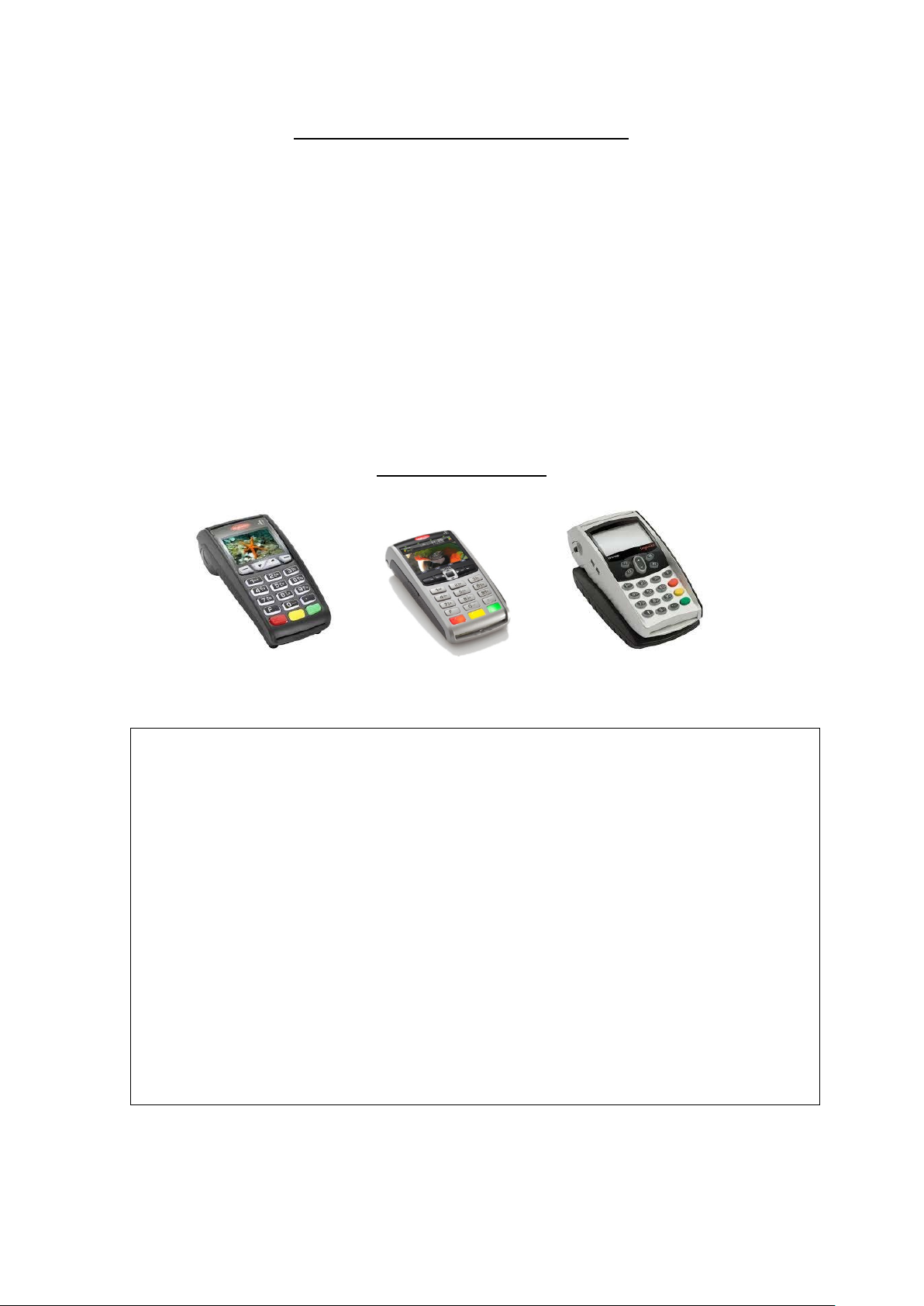
iCT250
iWL250
Please find below instructions to reset your terminal (photos are provided for
simple identification of your terminal). Kindly locate your terminal model and
follow simple instructions below to reset and then logon.
Page 1 – Ingenico Terminals
Page 2 – Spire Terminals
Page 3 – Verifone Terminals
If this does not resolve your terminal issues please contact our Cardnet
Helpdesk on 01268 567 100.
Ingenico Terminals
EFT930
• Press the red “Cancel” button
• Press the “Menu” key twice
• Use arrow keys to scroll down to highlight “Select Function” and press enter
• Type in “32” – then press Enter
• Enter Supervisor Code when requested
• When “Reset Mac Key?” is displayed - Press ‘Enter’ to confirm
• The terminal will produce a print out on completion.
• Press the red “Cancel” button
• Press the “Menu” key twice
• Use arrow keys to scroll down to highlight “Select Function” and press enter
• Type in “75” – then press Enter
• Enter Supervisor Code or swipe supervisor card when requested
• Select Lloyds or Cardnet - Press Enter
• Reset Mac Key – Select Enter to confirm ‘Yes’
• The terminal will produce a print out on completion and then be ready for use.
Page 2
Spire Terminals
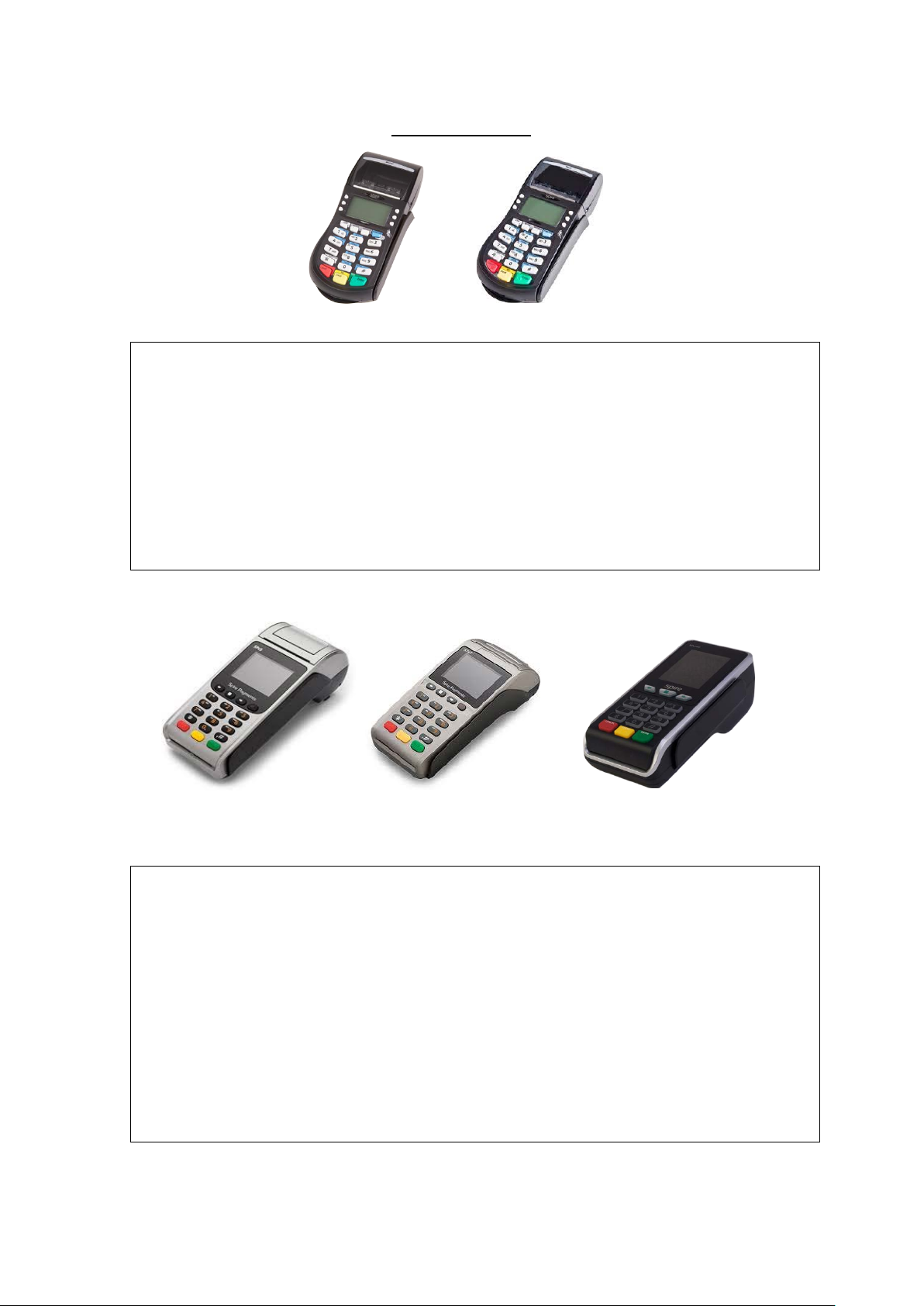
T4220
SPc5
M4230, M4240
• Press the red “Cancel” button
• Press “Function” button
• Type in “78” – then press the green “ENTER” button
• Enter Password (default is 0000 but may have been changed by customer) / Swipe
Supervisor Card
• Select Acquirer “Cardnet” or “Lloyds”
• Select “Delete”
• When prompted “Logon Lloyds” and select “Yes”
• When the message “INIT COMPLETE” appears your machine is ready to use again.
SPg7
• Press the red “Cancel” button
• Select ‘MAIN MENU’ (button with the SQUARE, below the screen)
• Press right arrow (below the screen)
• Select “Function”
• Type in “78” – then press the green “ENTER” button
• Enter Password (default is 0000 but may have been changed by customer) / Swipe
Supervisor Card
• Select Acquirer “Cardnet” or “Lloyds”
• Select “Delete”
• When prompted “Logon Lloyds” and select “Yes”
• When the message “INIT COMPLETE” appears your machine is ready to use again.
SPw60 SPw70
Page 3
Verifone Terminal
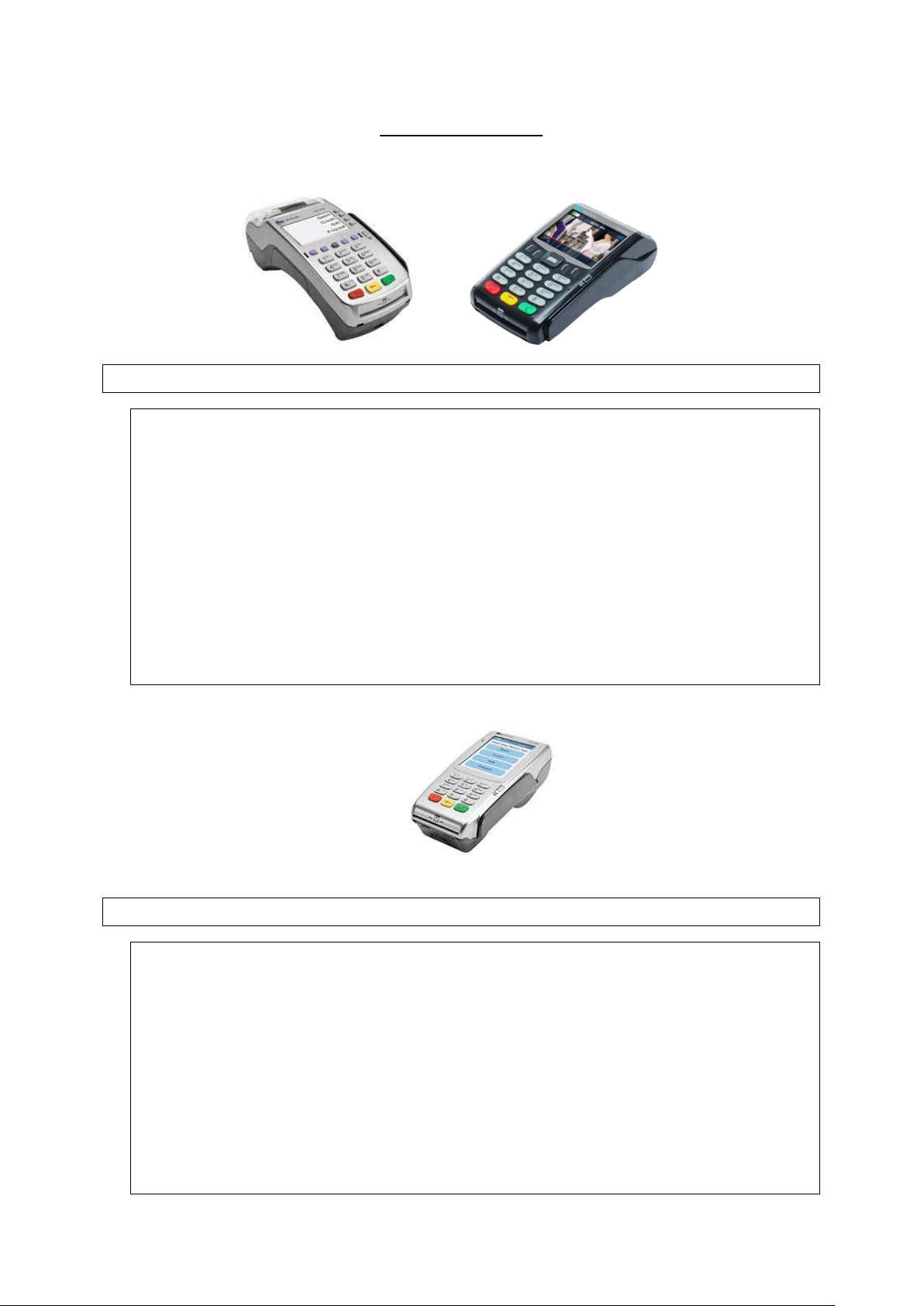
VX520 and VX675
• Press red “Cancel” button
• From Idle screen, scroll down and select “supervisor” – press enter
• Enter supervisor password (default 999999, but may have been changed by customer) and
press enter
• Select “Reset MAC” – press enter
• Select the correct acquirer “Lloyds/Cardnet “
• Press enter to confirm
• After 5 seconds press red “Cancel” button
• Select the fourth key along the bottom of the screen
• If prompted please enter supervisor password
• The terminal will now log on and be ready for use.
VX680
• Press red “Cancel” button
• Scroll down and select “supervisor”
• Enter supervisor password (default 999999, but may have been changed by customer)
• Select “Reset MAC”
• Select the correct acquirer “Lloyds/Cardnet “
• Press enter to confirm
• After 5 seconds press red “Cancel” button
• Select the fourth icon (Log button) on bottom of screen
• If prompted please enter supervisor password
• Terminal will now log on and be ready for use.
 Loading...