

Page 1

User Manual
Page 2

MDLink User Manual
CAUTION
MDLink is intended for use by a Physician or persons licensed by State law.
IMPORTANT
Cardiac Science, Inc. is the owner of all rights, title and interest in the MDLink software. Your use of the MDLink software is subject to and governed by the terms and conditions of that certain Software License Agreement referenced herein. You should review
the terms and conditions of the Software License Agreement carefully prior to using the MDLink software program.
MDLink is manufactured by:
Cardiac Science, Inc.
1900 Main Street, Suite 700
Irvine, CA 92614
Trademark Information
FirstSave, Powerheart, MDLink, Saving Minutes Saving Lives, SmartGauge, STAR, IntelliSense, RescueReady, RescueLink,
RhythmX and Survivalink
and Windows are registered trademarks of Microsoft Corporation. CompactFlash is a trademark of SanDisk Corporation.
are trademarks of Cardiac Science, Inc., registered in the U.S. Patent and Trademark Office. Microsoft
Order Entry
For Order Entry, call:
(800) 991-5465 in the U.S. and Canada
+45 4438 0500 outside the U.S. and Canada
Customer Service
For 24-hour service, contact Customer Service at:
(888) 466-8686 in the U.S. and Canada
+45 4438 0539 outside the U.S. and Canada
There is no charge to the customer for a Customer Service call. Please have the version number of the MDLink software
program ready when contacting Customer Service.
Patents
5,792,190, 5,999,493, 5,402,884, 5,579,919, 5,749,902, 5,645,571, 6,029,085, 5,984,102, 5,919,212, 5,891,172, 5,674,266,
5,700,281, 5,891,173, 5,968,080, 6,263,239, 5,797,969, D402,758, D405,754, 5,909,138, 6,173,203, 6,088,616, 5,897,576,
5,955,956, 6,083,246, 6,064,909, 6,038,473, 5,868,794, 6,115,638, 6,366,809, 5,474,574, 6,246,907, 6,289,243, 6,411,846,
6,480,734, EP00756878. Other U.S. and foreign patents pending.
Notice of Rights
© 2003 Cardiac Science, Inc. All rights reserved. No part of this documentation may be reproduced or transmitted in any form by
any means without the express written permission of Cardiac Science, Inc. Information in this documentation is subject to change
without notice. Names and data used in the examples are fictitious unless otherwise noted.
Page 3

Table of Contents
SECTION 1 INTRODUCTION . . . . . . . . . . . . . . . . . . . . . . . . . . . . . 1
Overview . . . . . . . . . . . . . . . . . . . . . . . . . . . . . . . . . . . . . . . . . . . . . . . . . . . . . 1
Intended Use . . . . . . . . . . . . . . . . . . . . . . . . . . . . . . . . . . . . . . . . . . . . . . . . . . 1
MDLink Options Kit . . . . . . . . . . . . . . . . . . . . . . . . . . . . . . . . . . . . . . . . . . . . . 2
Selectable Options Description . . . . . . . . . . . . . . . . . . . . . . . . . . . . . . . . . 3
AED and Battery Identifiers . . . . . . . . . . . . . . . . . . . . . . . . . . . . . . . . . . . . 5
SECTION 2 INSTALLATION. . . . . . . . . . . . . . . . . . . . . . . . . . . . . . 7
MDLink Installation . . . . . . . . . . . . . . . . . . . . . . . . . . . . . . . . . . . . . . . . . . . . . 7
SECTION 3 USING MDLINK . . . . . . . . . . . . . . . . . . . . . . . . . . . . . 11
Getting Ready . . . . . . . . . . . . . . . . . . . . . . . . . . . . . . . . . . . . . . . . . . . . . . . . . 11
Starting MDLink . . . . . . . . . . . . . . . . . . . . . . . . . . . . . . . . . . . . . . . . . . . . . . . . 12
Connect the AED to the Computer . . . . . . . . . . . . . . . . . . . . . . . . . . . . . . . . . 13
Command Buttons. . . . . . . . . . . . . . . . . . . . . . . . . . . . . . . . . . . . . . . . . . . . . . 15
Set AED Configuration . . . . . . . . . . . . . . . . . . . . . . . . . . . . . . . . . . . . . . . 15
Get AED Configuration . . . . . . . . . . . . . . . . . . . . . . . . . . . . . . . . . . . . . . . 16
Options . . . . . . . . . . . . . . . . . . . . . . . . . . . . . . . . . . . . . . . . . . . . . . . . . . . 18
User Defined Identifiers. . . . . . . . . . . . . . . . . . . . . . . . . . . . . . . . . . . . . . . 20
Exit . . . . . . . . . . . . . . . . . . . . . . . . . . . . . . . . . . . . . . . . . . . . . . . . . . . . . . 23
Selectable Parameters . . . . . . . . . . . . . . . . . . . . . . . . . . . . . . . . . . . . . . . . . . 24
Option Defaults . . . . . . . . . . . . . . . . . . . . . . . . . . . . . . . . . . . . . . . . . . . . . 24
RHYTHMx Detection Rate . . . . . . . . . . . . . . . . . . . . . . . . . . . . . . . . . . . . 25
Shock Energy Protocol . . . . . . . . . . . . . . . . . . . . . . . . . . . . . . . . . . . . . . . 25
Daylight Savings . . . . . . . . . . . . . . . . . . . . . . . . . . . . . . . . . . . . . . . . . . . . 26
ECG Monitoring During CPR . . . . . . . . . . . . . . . . . . . . . . . . . . . . . . . . . . 26
Electrode Test . . . . . . . . . . . . . . . . . . . . . . . . . . . . . . . . . . . . . . . . . . . . . . 27
Same Energy After Conversion. . . . . . . . . . . . . . . . . . . . . . . . . . . . . . . . . 27
CPR Mode. . . . . . . . . . . . . . . . . . . . . . . . . . . . . . . . . . . . . . . . . . . . . . . . . 28
Rescue Data Card Format (optional for models 9210) . . . . . . . . . . . . . . . 28
Maximum Shocks per Rescue . . . . . . . . . . . . . . . . . . . . . . . . . . . . . . . . . 29
CPR Time . . . . . . . . . . . . . . . . . . . . . . . . . . . . . . . . . . . . . . . . . . . . . . . . . 29
Parameter Storage Location . . . . . . . . . . . . . . . . . . . . . . . . . . . . . . . . . . . . . . 30
AED Internal Memory . . . . . . . . . . . . . . . . . . . . . . . . . . . . . . . . . . . . . . . . 31
PC Card (PCMCIA) Socket . . . . . . . . . . . . . . . . . . . . . . . . . . . . . . . . . . . . 32
Transferring the Selected Options. . . . . . . . . . . . . . . . . . . . . . . . . . . . . . . 34
300215-004 Rev. D ©2003 Cardiac Science, Inc. Page i
Page 4

Page ii ©2003 Cardiac Science, Inc. 300215-004 Rev. D
Page 5

SECTION 1 Introduction
Overview
MDLink software enables the Medical Director to modify several
preprogrammed operational parameters and to define User Identifiers for
Cardiac Science Automated External Defibrillators (AEDs) and associated
battery packs.
The term “Cardiac Science AED” refers to FirstSave and Survivalink AED
models 9100/9110/9200/9210/9300C, and Powerheart AED models
9200RD/9210RD and 9300E.
The user may choose from program options that tailor the Cardiac Science
AED to meet the specific needs and requirements of the user. This manual
describes how to install, start, and use MDLink.
Intended Use
MDLink is intended for use by a Physician or persons licensed by State law.
In addition, the MDLink user must be familiar with using computer
®
programs that runs in the Microsoft
Cardiac Science AED and related accessories and documentation.
300215-004 Rev. D ©2003 Cardiac Science, Inc. Page 1
Windows® environment and with the
Page 6
Section 1: Introduction
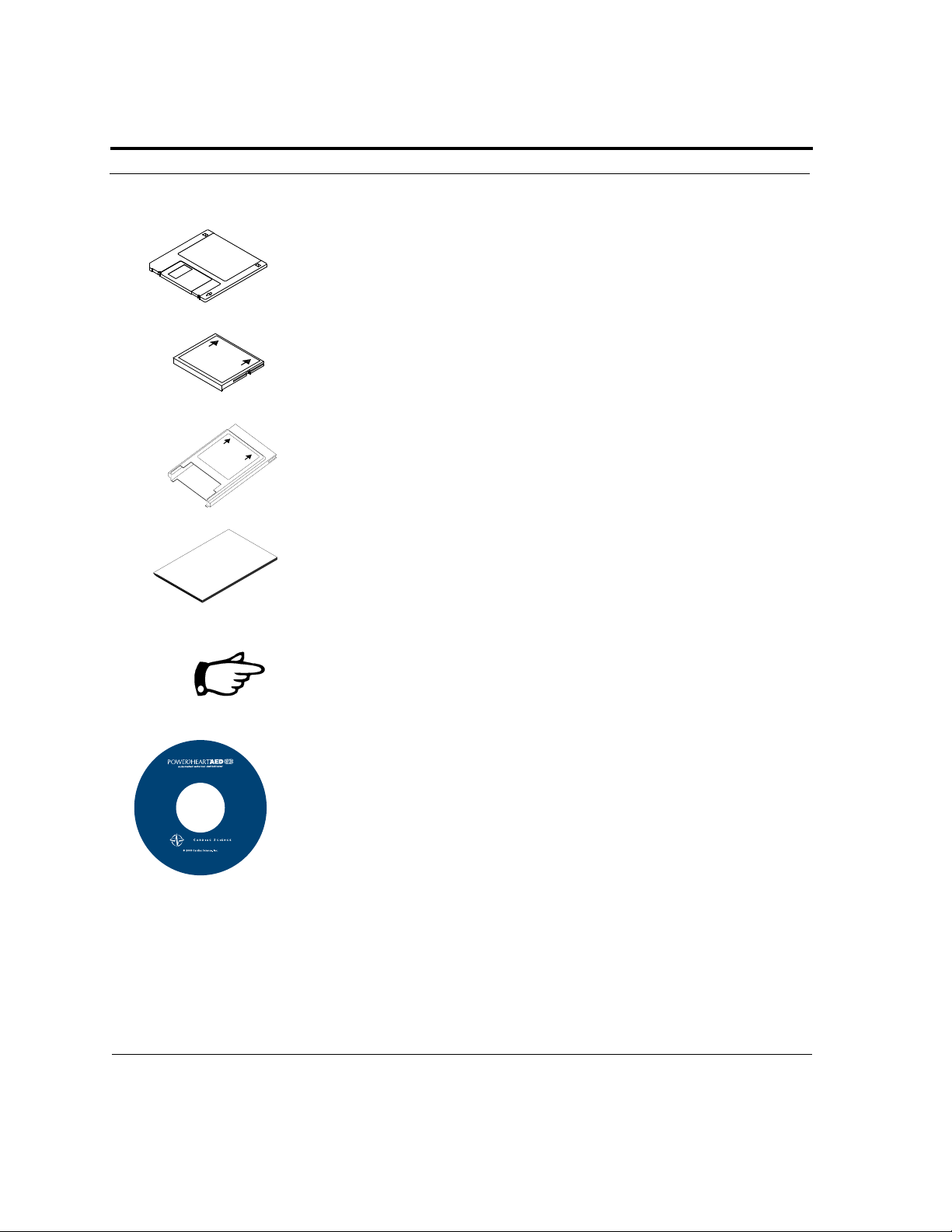
MDLink Options Kit
MDLink Software Program
MDLink Options Card (PCMCIA) (Optional)
PC Card Adapter
MDLink User Manual
PCMCIA is an acronym for Personal Computer Memory Card
International Organization.
Quick Start Tool Kit
Win 95/95/2000/NT4.0/XP
Customer Service:
CONTENTS:
Traini ng Demo
Operation and
Service Manual
RescueLink
MDLink
Warranty
Information
®
Quick Start Tool Kit CD-ROM with MDLink software
Software
®
Software
DIRECT IONS :
Insert this disc into your
CD-ROM drive.
The program will auto
run.
MDLink and RescueReady
Technology are only
applicabl e to the Powerhe art
AED G3. Certai n aspects of
the Operation and Service
Manual as well as this CD
do not apply to the FirstS ave
AED G3. Plea se contact
Customer Service for details:
888-466-8686
888-466-8686 or +45-4438-0500
Page 2 ©2003 Cardiac Science, Inc. 300215-004 Rev. D
Page 7

Section 1: Introduction
Selectable Options Description
The MDLink Options Kit includes the MDLink software program, the
MDLink User’s Manual and the MDLink Options Card (optional, for use
with Model 9210/9210RD) with a PC Card Adapter (optional, for use with
the MDLink Options Card). By using MDLink Software with a PC, the user
may modify the Cardiac Science AED MDLink option parameters listed in
the following table.
TABLE 1. MDLink Option Parameters
Selectable
Option Description Default
VF/VT Rate Selectable for Powerheart AED
9200RD/9210RD/9300E only
Detection Rate for Ventricular
Fibrillation (VF)/Ventricular
Tachycardia (VT) rhythms can be set
between 120 to 240 bpm. All VF/VT
rhythms at or above this rate will be
classified as shockable. All rhythms
below this rate will be classified as nonshockable.
SVT Rate Selectable for Powerheart AED
9200RD/9210RD/9300E only
The user can select the SVT Rate
between 160 to 300 bpm, or “No
Therapy for SVT.” All rhythms with
rates between the VF/VT Rate and SVT
Rate will be screened through a number
of SVT Discrimination criteria to
classify them into VF/VT or SVT.
Rhythms classified as SVT between the
two set rates are not classified
shockable. All rhythms at or above the
SVT Rate are classified shockable. If
“No Therapy for SVT” is selected, the
Powerheart AED will not advise
defibrillation therapy if a SVT rhythm
is present.
160 bpm 120 to 240
200 for
Powerheart
AED
9200RD/
9210RD
No therapy
for SVT for
9300E
Selectable
Option(s)
bpm
160 to 300
bpm, or
No
Therapy
for SVT
300215-004 Rev. D ©2003 Cardiac Science, Inc. Page 3
Page 8

Section 1: Introduction
TABLE 1. MDLink Option Parameters
Selectable
Option Description Default
Shock
Energy
Protocol
The defibrillation shock values in the 3
shock sequence may be programmed
for all Cardiac Science AEDs as
follows:
200VE, 300VE, 300VE (Standard High
Standard
VE 200VE,
300VE,
300VE
VE)
200VE, 200VE, 300VE (Standard Low
VE)
For Powerheart AED, models
9200RD/9210RD and 9300E, the
additional selections are available:
150VE, 200VE, 200VE (Ultra Low
VE)
150VE, 150VE, 200VE (Ultra Low
VE)
200VE, 200VE, 200VE (Nonescalating VE)
(Actual energy output is determined by
patient impedance.)
Second
Shock
FirstSave STAR Monophasic 9100/
9110
300J 200J
The second defibrillation pulse (shock)
value in the 3 shock sequence may be
programmed to 200 or 300 Joules.
Daylight
Savings
The automatic adjustment for Daylight
Savings time can be disabled for those
Enabled Disabled
geographical areas not affected by the
time change.
ECG
Monitoring
During CPR
Electrode
Selectable with Powerheart AED
9200RD/9210RD/9300E
When the ECG monitoring during CPR
feature is enabled, it allows the
Powerheart AED to monitor the
patient’s ECG during CPR mode.
The electrode self-test may be disabled Enabled Disabled
Enabled
for
9200RD/
9210RD
Disabled
for 9300E
Test
Selectable
Option(s)
Standard
Low VE
for all
AEDs;
Ultra
Low,
Standard
or Nonescalating
Low VE
for
Powerheart
AED
Disabled
Page 4 ©2003 Cardiac Science, Inc. 300215-004 Rev. D
Page 9

Section 1: Introduction
TABLE 1. MDLink Option Parameters
Selectable
Option Description Default
Same
Energy
After
Conversion
CPR Mode Allows the user to have No Sound
Rescue Data
Card
Format
(only
available
with Models
9210, 9210D
& 9210RD)
Maximum
Shocks per
Rescue
CPR Time
(Seconds)
Cardiac Science AED delivers the same
energy level as the previous
defibrillation pulse when the patient
assumes (or converts to) a NSR and
then reverts back again to a shockable
cardiac rhythm. Disabling this feature
allows the Cardiac Science AED to
increment the defibrillation pulse
delivered to the next energy level after
conversion.
during CPR, a “Continue CPR” prompt
every 15 seconds, or a beep every 15
seconds during the rescue sequence.
Rescue event data may be stored
externally in one of the following ways:
1) ECG and event data is recorded in
external memory.
2) ECG, event data and voice sound at
the scene of a rescue is recorded in
external memory.
The number of defibrillation pulses per
rescue can be set to any number
between 3 and 99.
The user can set the CPR time to allow
between 60 to 180 seconds of CPR to
be performed if the analysis decision is
non-shockable, or following three
consecutive shockable analysis
decisions.
Enabled Disabled
No Sound Phrase or
ECG and
Event Data
99 3 to 99
60 seconds 60 to 180
Selectable
Option(s)
Beep
ECG,
Event and
Vo ic e
Recording
seconds
The parameters may be stored directly to the Cardiac Science AED or to the
MDLink Options Card. The MDLink Options Card may then be used to
transfer the appropriate parameters to several Cardiac Science AED units,
ensuring that each Cardiac Science AED unit is programmed with the
identical parameters.
AED and Battery Identifiers
In addition to the operational parameters, the user may define identifiers for
the Cardiac Science AED and the currently installed battery.
300215-004 Rev. D ©2003 Cardiac Science, Inc. Page 5
Page 10

Section 1: Introduction
AED User Information
MDLink may be used to define identification information about the AED
that is stored in the internal memory of the Cardiac Science AED. The
identification information is archived with each rescue attempt and is
displayed by RescueLink during rescue data retrieval and display.
Battery Pack Identifier
MDLink may also be used to define a numeric identifier to be stored in the
memory of the current IntelliSense battery pack. The battery identifier is
archived with each rescue attempt and displayed by RescueLink during
rescue data retrieval and display.
Page 6 ©2003 Cardiac Science, Inc. 300215-004 Rev. D
Page 11

SECTION 2 Installation
MDLink Installation
To install MDLink, perform the following steps:
• MDLink is compatible with Windows 95, 98, NT 4.0, 2000, XP:
Floppy Diskette:
To install, select the Run command from the Start menu.
Select or type A:\SETUP (or the appropriate drive letter for your system
floppy disk drive) and click OK.
300215-004 Rev. D ©2003 Cardiac Science, Inc. Page 7
Page 12
Section 2: Installation
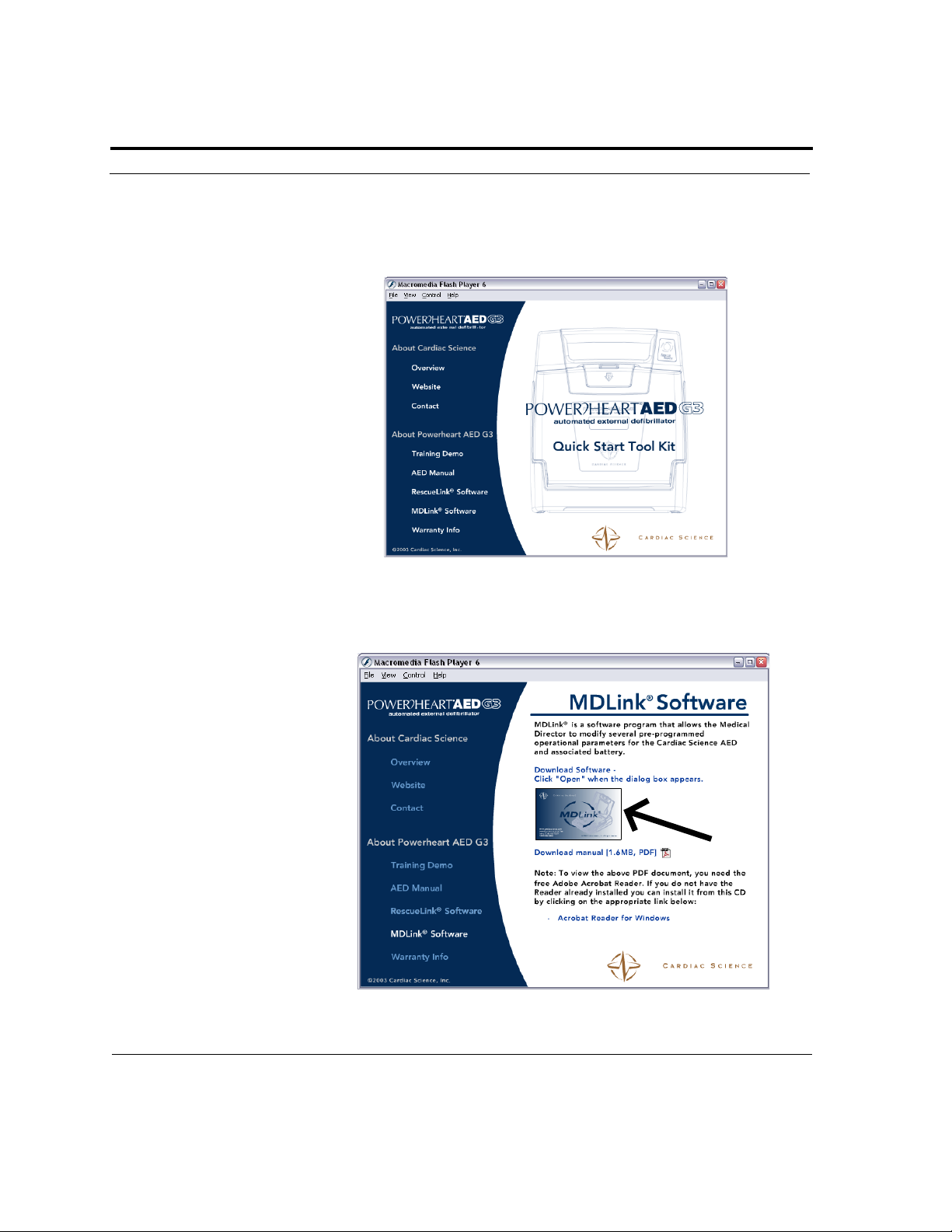
or CD-ROM:
To install, put the QuickStart Tool Kit CD-ROM in the CD drive. The program will Autorun.
Select MDLink by double clicking.
Double click on the application to download.
Page 8 ©2003 Cardiac Science, Inc. 300215-004 Rev. D
Page 13
Section 2: Installation
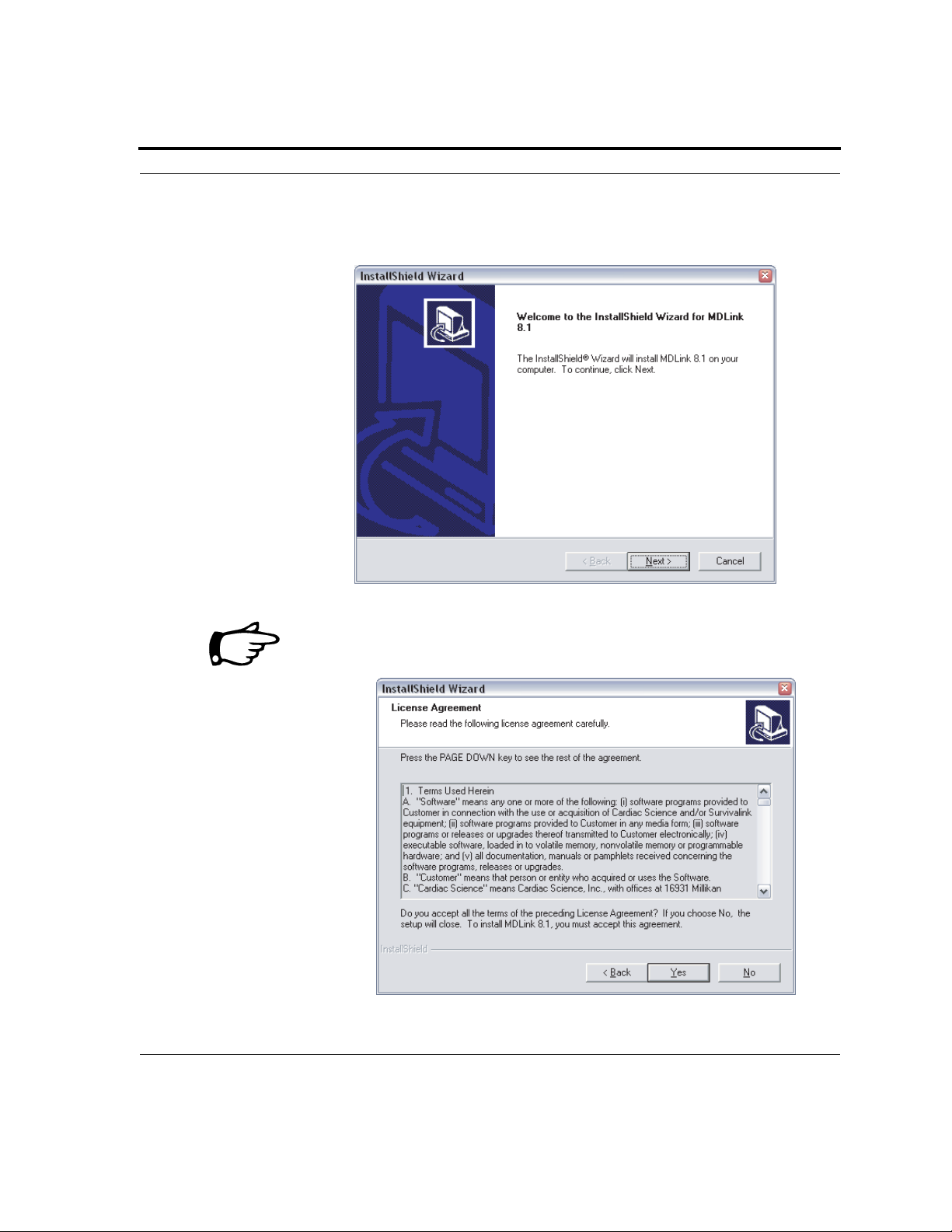
After the MDLink Welcome screen appears, click Next to initiate the
installation process.
Before proceeding with the installation process, you will be asked to
accept the terms and conditions of the Software License Agreement. The
installation process will not proceed until the agreement is accepted.
300215-004 Rev. D ©2003 Cardiac Science, Inc. Page 9
Page 14
Section 2: Installation
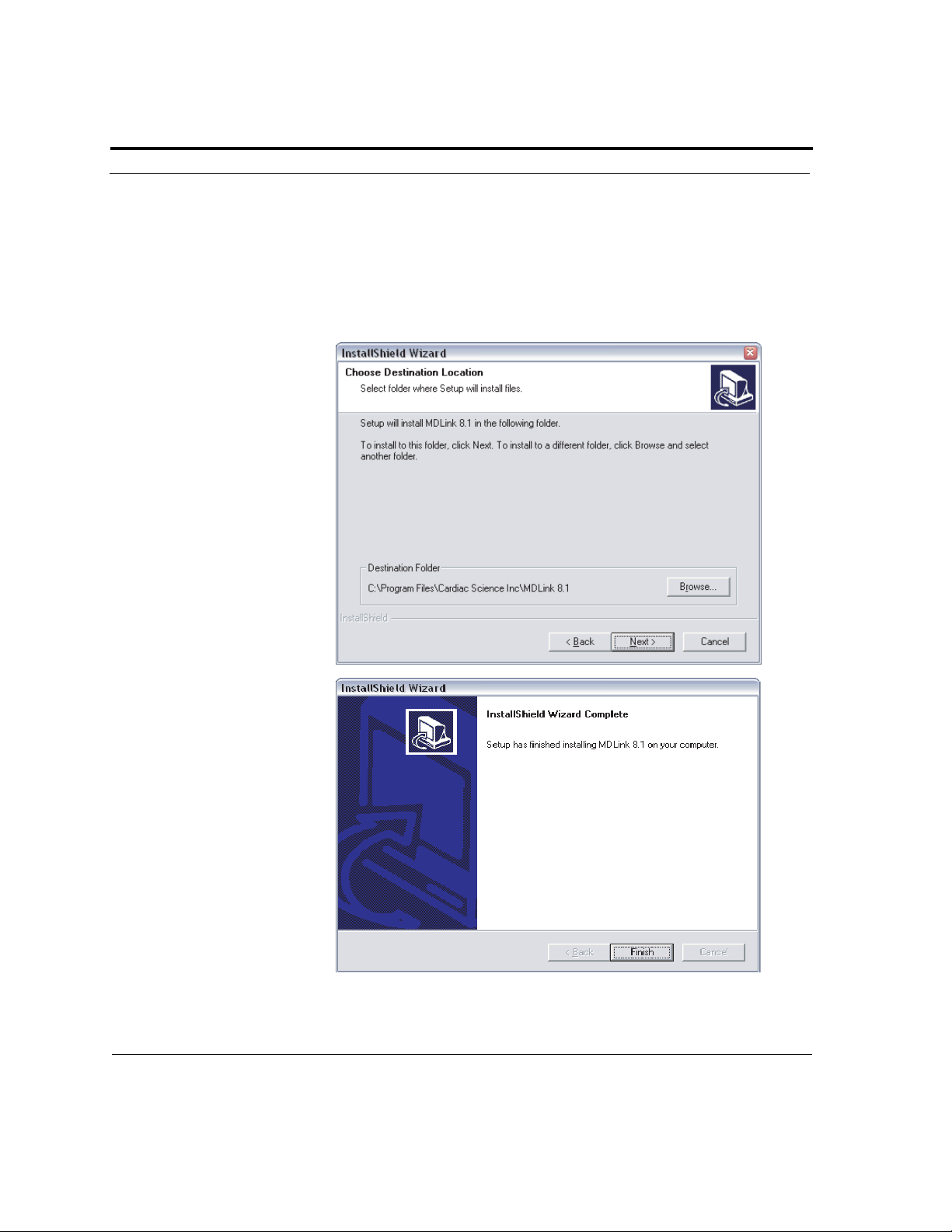
To select the location of the MDLink software program on the PC hard
drive:
• Accept the default directory shown on the Choose Destination Location screen by clicking Next; or
• Click Browse to select a new directory name and click Next.
Click Back to return to the previous screen.
Click Cancel to abort the installation process.
After successful installation, click OK to exit.
Page 10 ©2003 Cardiac Science, Inc. 300215-004 Rev. D
Page 15

SECTION 3 Using MDLink
Getting Ready
Before using MDLink, decide where you want to store the selected
parameters. The parameters may be stored in one of the following
locations:
• Internal memory of the Cardiac Science AED; or
• MDLink Options Card installed in a PC card (PCMCIA) socket of
the PC (optional with 9110 and 9210 models).
300215-004 Rev. D ©2003 Cardiac Science, Inc. Page 11
Page 16
Section 3: Using MDLink
Starting MDLink
To start MDLink:
• Double-click the MDLink icon from the program group; or
• Double-click the MDLink.exe file by using Windows Explorer (Win-
dows 95/98/NT 4.0/2000/XP). The file can be found in the installation
directory specified during the installation process.
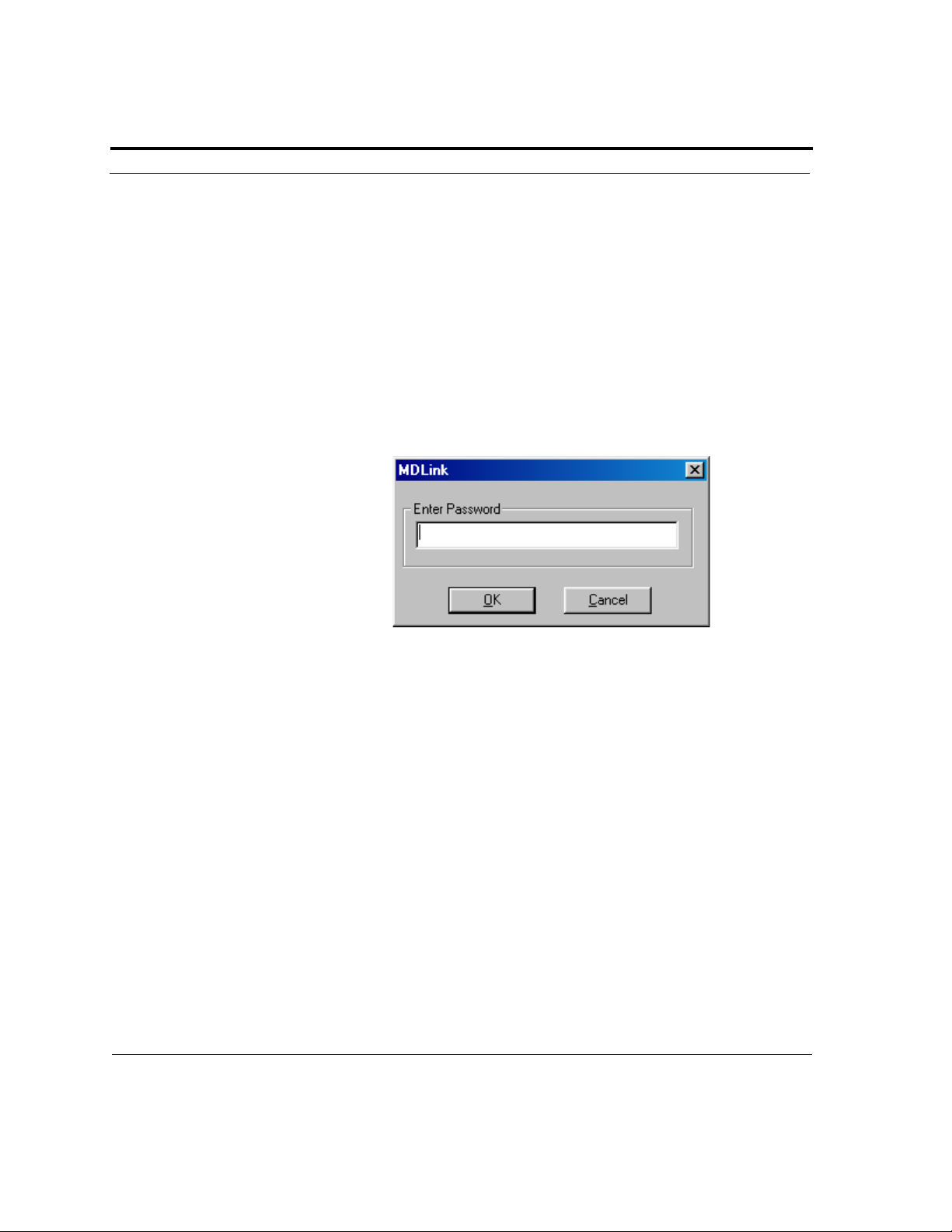
A password is required to use the MDLink software program. The software
requires you to use the preset password, or one you choose, each time
MDLink is run. Type the preset password RESCUE and click OK.
The password may be changed to limit access to the MDLink software.
Change the preset password on the MDLink main screen by using the
Password command button as described in the Command Buttons
section of this chapter.
Page 12 ©2003 Cardiac Science, Inc. 300215-004 Rev. D
Page 17
Section 3: Using MDLink
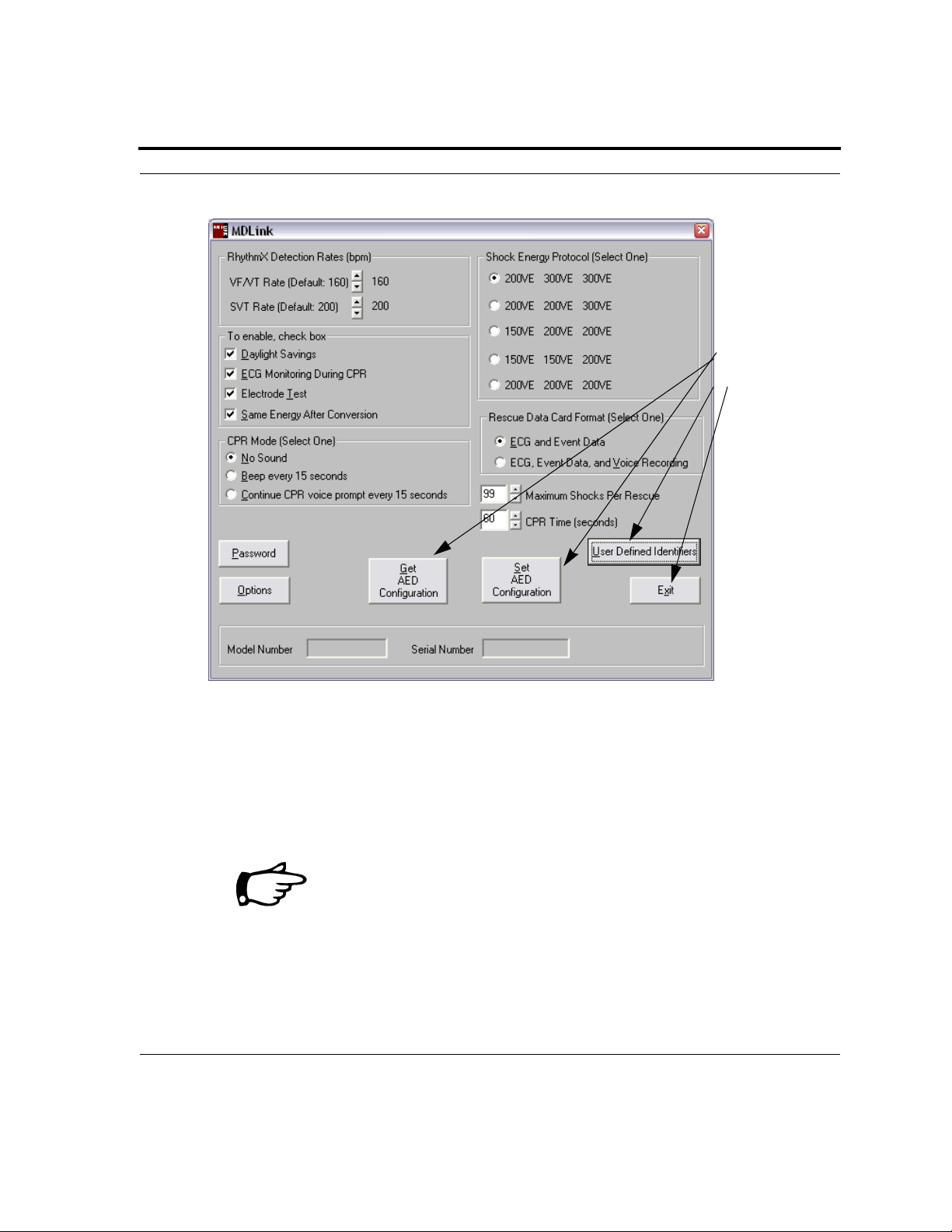
After entering the password, the MDLink screen appears and all
parameters are displayed.
Command
Buttons
Connect the AED to the
Computer
The Cardiac Science AED must be connected to the PC via the Cardiac Science AED serial communication cable (and optional USB serial adapter
cable if needed).
The Cardiac Science AED serial communication cable and optional USB
serial adapter cable can be purchased from Cardiac Science.
Connect one end of the serial communication cable (the RJ-11 end of the
cable) to the Cardiac Science AED serial connector. The Cardiac Science
AED serial connector is located under the AED lid behind the blue rubber
300215-004 Rev D ©2003 Cardiac Science, Inc. Page 13
Page 18
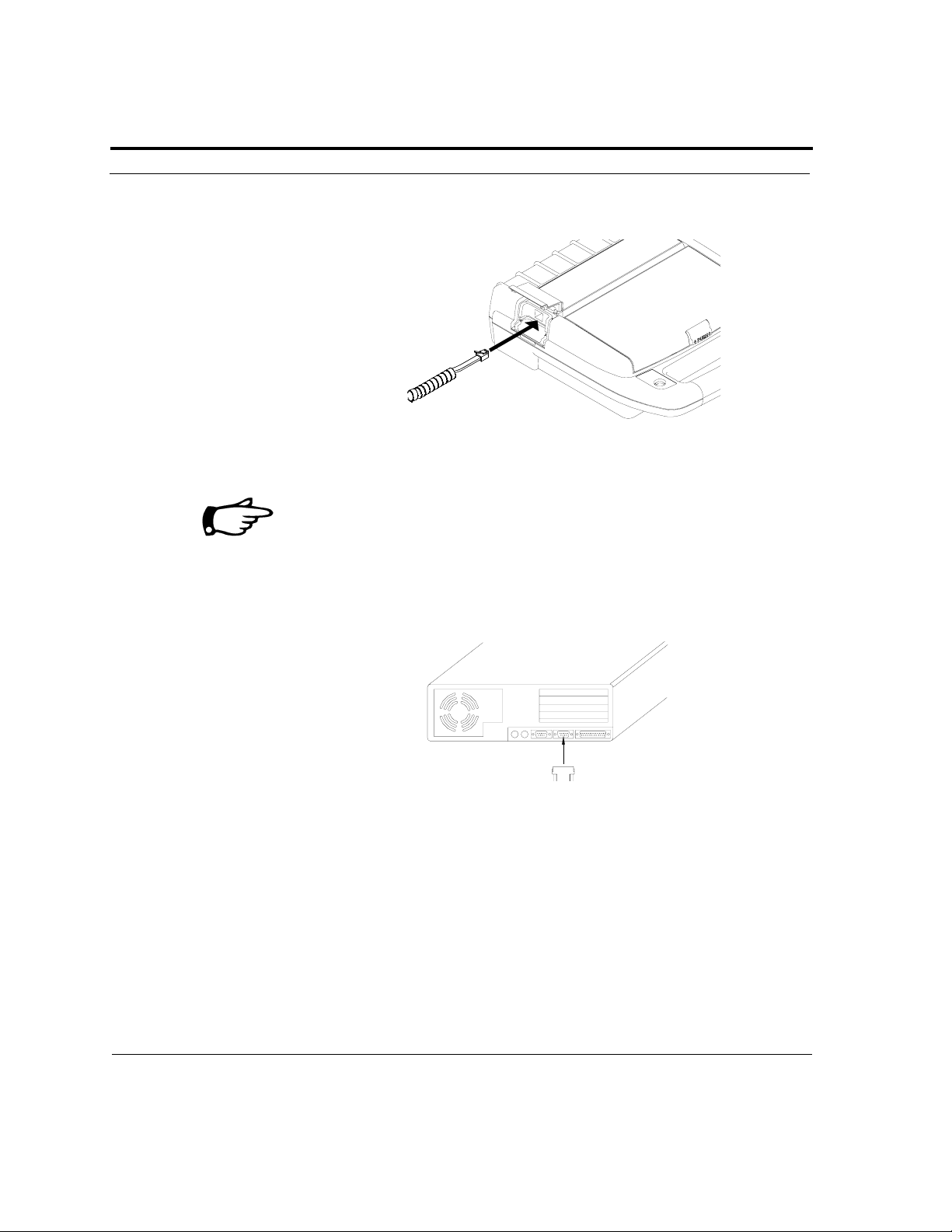
Section 3: Using MDLink
data access door on the 9300E and under the data access door for other
models as shown in the illustration below.
Connect the other end of the serial communication cable (or the USB serial
adapter cable) to the appropriate Com Port on the back of the PC.
The connector on the serial communication cable has a 9-pin connector.
If the Com Port uses a 25-pin connector, attach a 9-pin adapter to the
serial communication cable before connecting it to the PC.
Opening the lid of the Cardiac Science AED allows communication to the
PC through the cable.
Storing Parameters
To store the parameters in the internal memory of the Cardiac Science
AED, connect the Cardiac Science AED to the PC using the serial
communication cable (the USB serial adapter cable can be pluggedinto the
serial communication cable, and connected to the PC via the USB port) as
stated above.
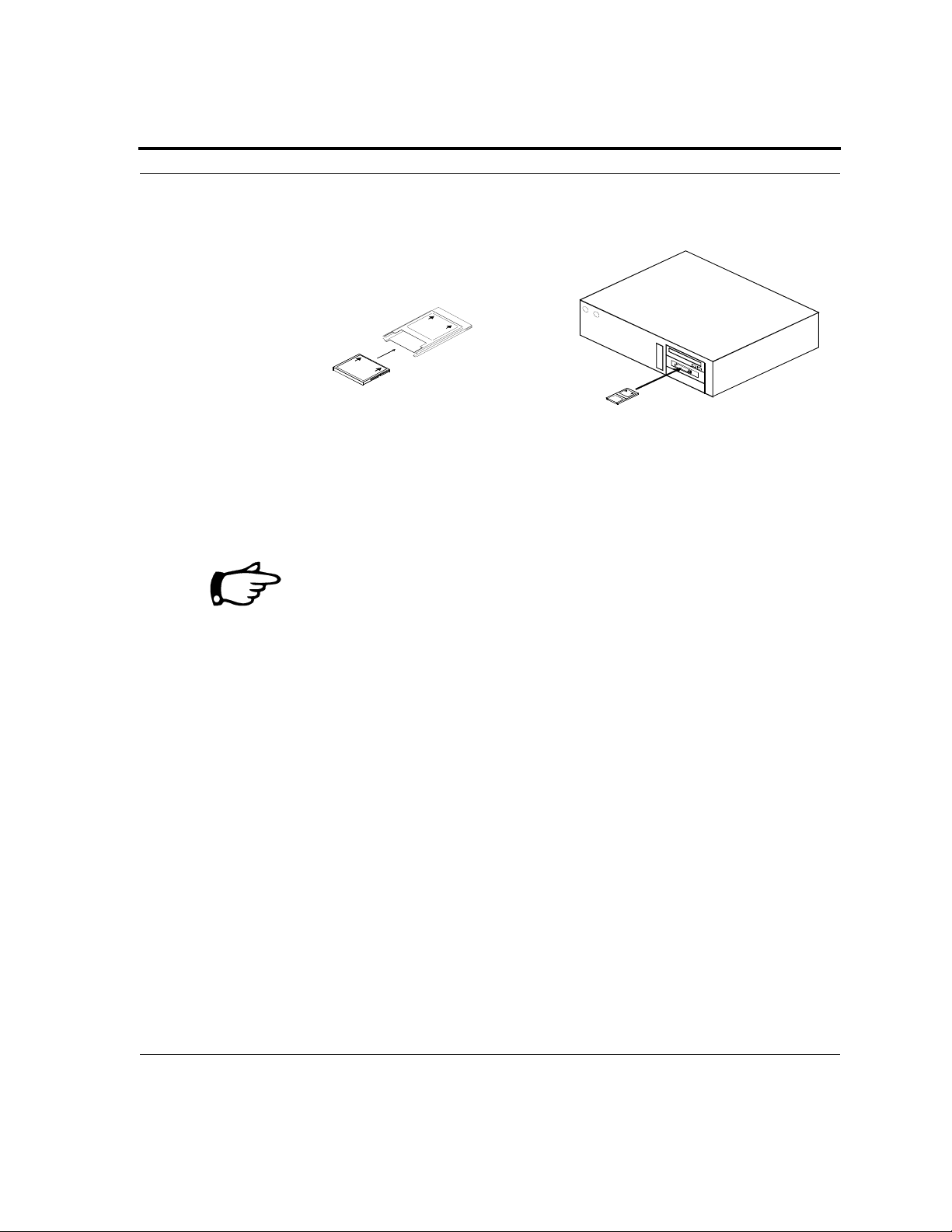
To store the parameters to an MDLink Options Card, install the MDLink
Options Card into PC Card Adapter, and then into the card socket of the PC;
or insert the MDLink options card into your CompactFlash desktop reader.
Page 14 ©2003 Cardiac Science, Inc. 300215-004 Rev. D
Page 19
Section 3: Using MDLink
Connect the AED to the PC using the serial communication cable (and
optional USB serial adapter cable if needed).
The MDLink Options Card is shown inserted into the PC Card Adapter.
The MDLink Options Card may only be inserted into the PC Card Adapter one way. The card
label and the adapter label must both be facing up.
If your PC is not equipped with a CompactFlash port, a PC Card Adapter
must be used when inserting the MDLink Options Card into the PC.
The Cardiac Science AED lid must be opened to transfer the parameters
to the internal memory of the Cardiac Science AED or to a MDLink
Options Card in the card slot of the AED.
Command Buttons
Before selecting the parameter options for the Cardiac Science AED, it is
important to understand the command buttons and their functions.
The command buttons may be selected by:
• Clicking the desired button; or
• Holding down the Alt key and typing the key of the underlined
character in the command name.
Set AED Configuration
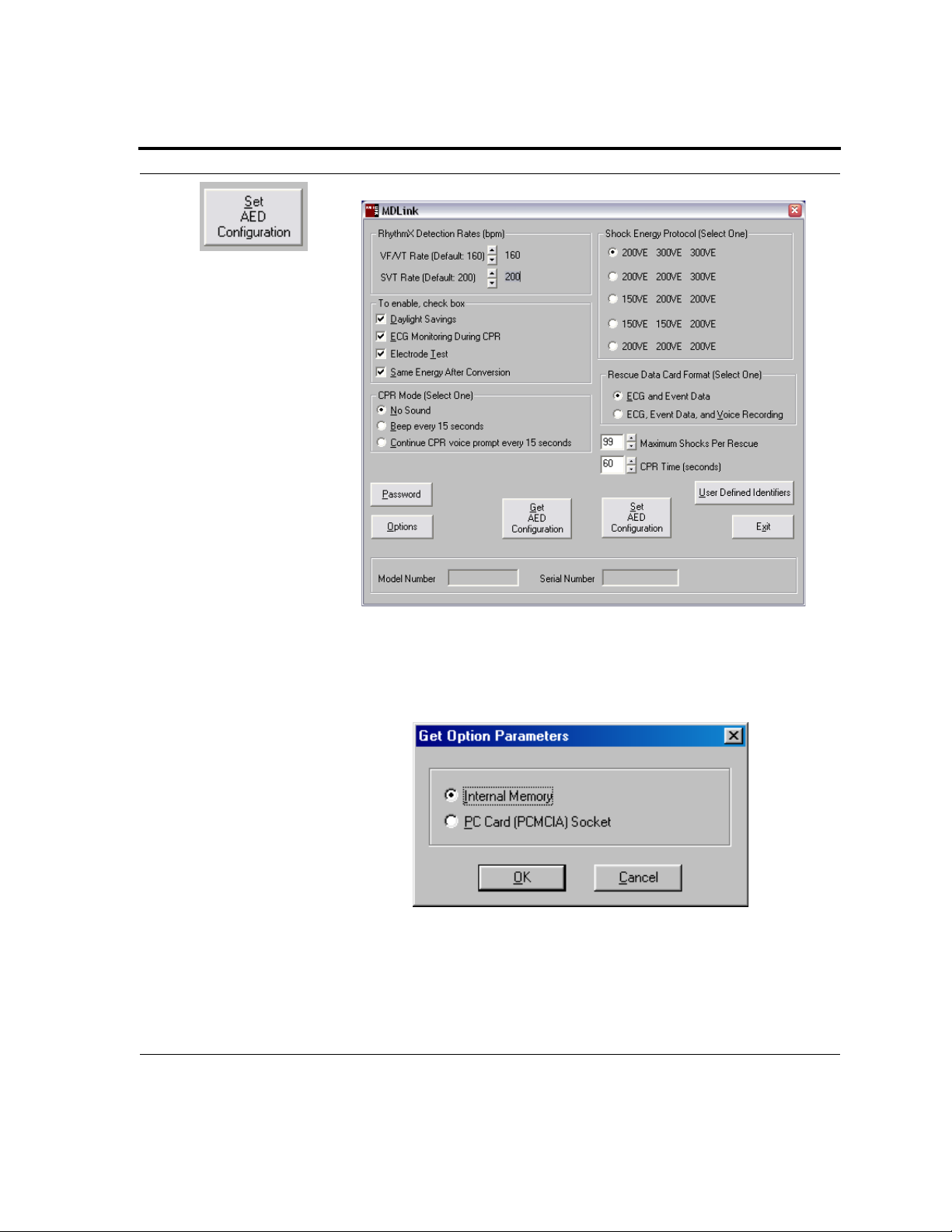
The Set AED Configuration command allows you to store the selected
parameters in:
• The internal memory of the Cardiac Science AED; or
300215-004 Rev D ©2003 Cardiac Science, Inc. Page 15
Page 20
Section 3: Using MDLink
• PC card (PCMCIA) socket: Install the MDLink Options Card into PC
Card Adapter, and then into the card socket of the PC, or insert the
MDLink Options Card into your CompactFlash desktop reader. Connect
the AED to the PC using the serial communication cable (and optional
USB serial adapter if needed).
Set the desired values for all parameters and then click Set to store the
selected parameters to the specified location.
Get AED Configuration
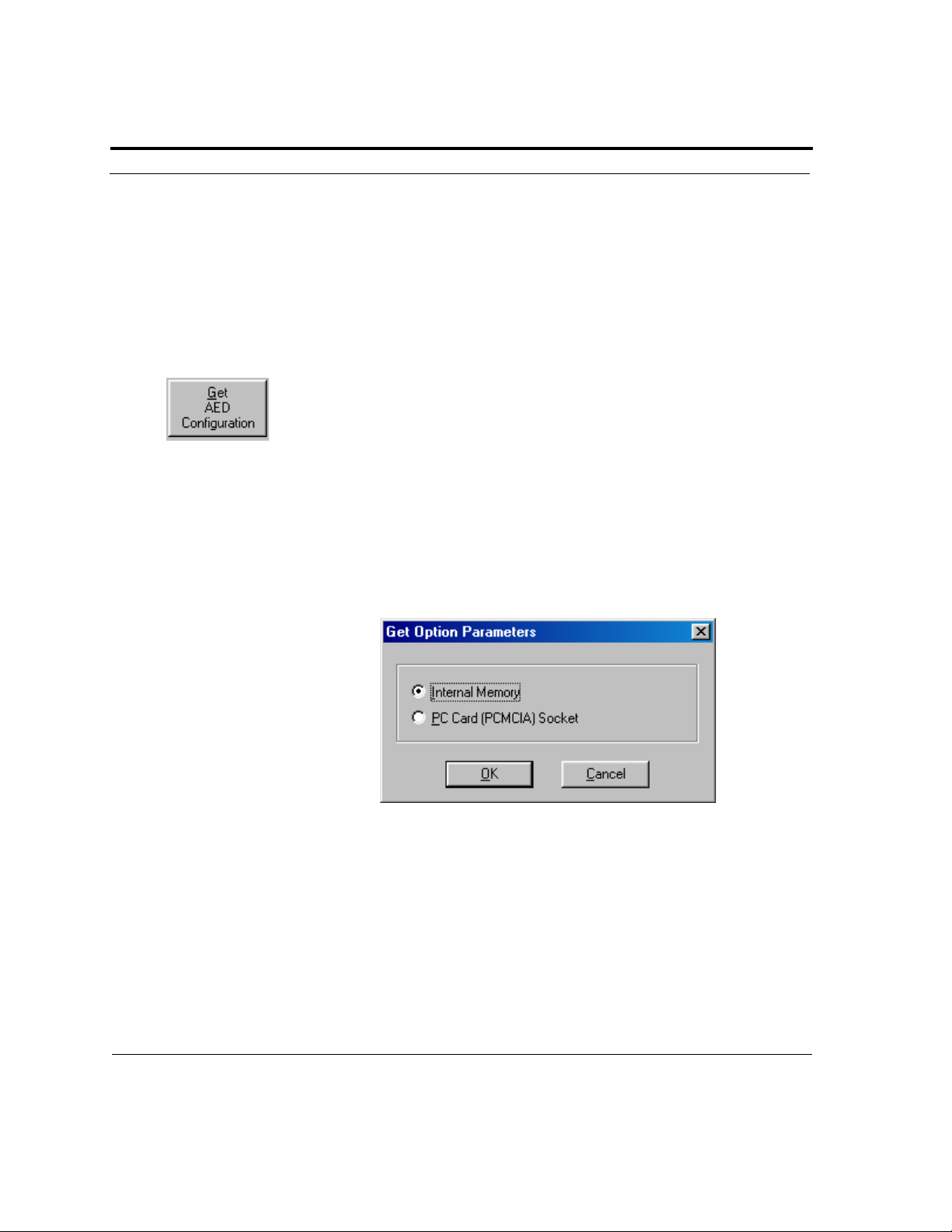
The Get AED Configuration command allows you to retrieve the
parameters from the internal memory of the Cardiac Science AED or the
MDLink Options Card installed in the PC card slot of the PC. The Get
Options Parameters screen will appear when the Get command is
selected.
Cardiac Science AED Internal Memory
When retrieving the parameter from the internal memory of the Cardiac
Science AED, select Internal Memory and click OK.
The internal parameters, model number and serial number of the Cardiac
Science AED will appear on the MDLink screen.
Page 16 ©2003 Cardiac Science, Inc. 300215-004 Rev. D
Page 21
PC Card (PCMCIA) Socket
Section 3: Using MDLink
When retrieving the parameters from a MDLink Options Card, select the
PC Card (PCMCIA) Socket on the Get Options Parameters screen and
click OK.
The parameters from the MDLink Options Card will appear on the
MDLink screen.
300215-004 Rev D ©2003 Cardiac Science, Inc. Page 17
Page 22
Section 3: Using MDLink
Options
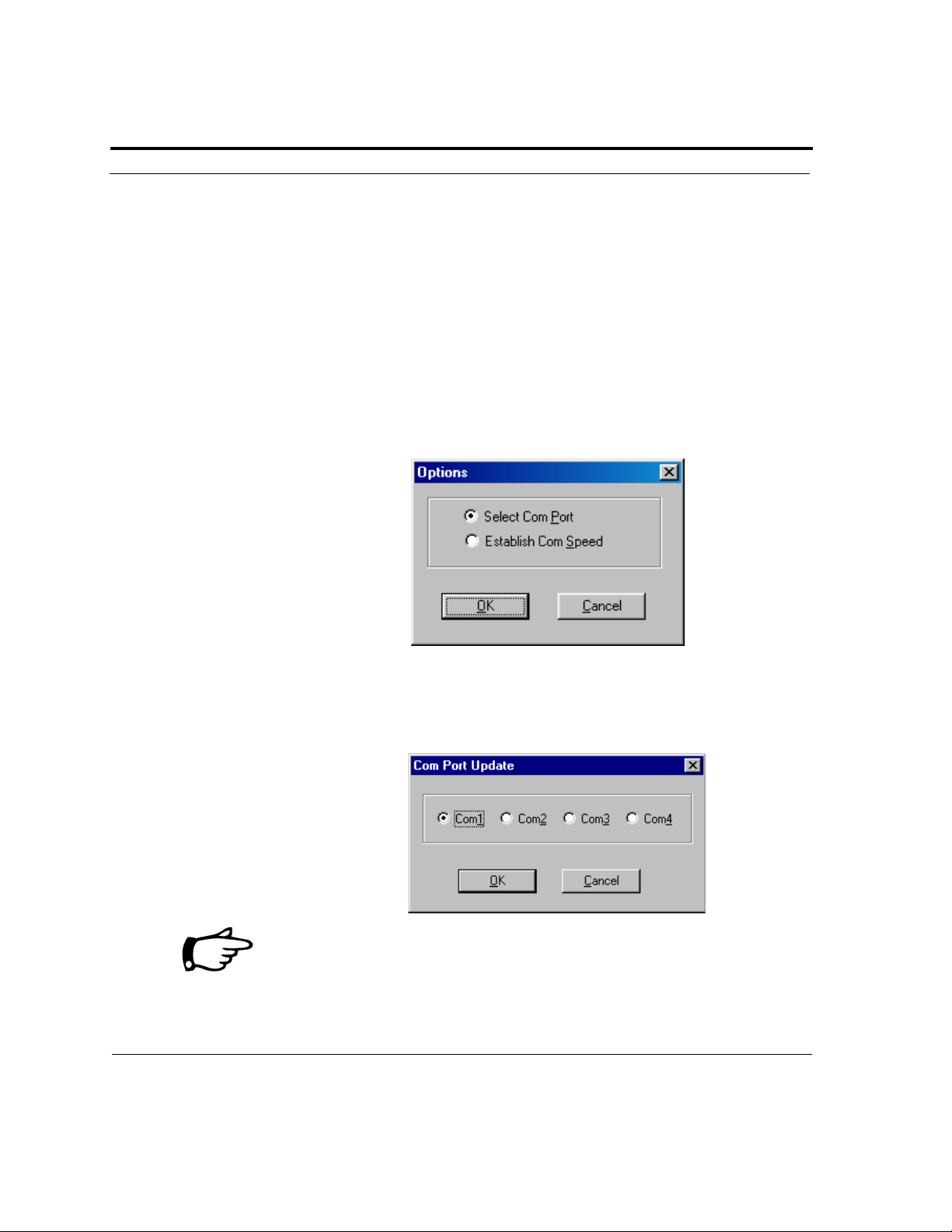
The Options command allows you to:
• Select the communications port; or
• Establish the communication speed.
The Options screen will appear when the Options command is selected.
Select the Communications Port
Select Com Port allows you to change the Com Port selected during
installation. Choose Select Com Port and click OK.
Select the communications port that the PC will be using to transfer data to
or from the Cardiac Science AED. Click OK and MDLink returns to the
MDLink screen.
The Com Port changes affect only the current MDLink session. The
Com Port specified during installation will be used the next time MDLink
is executed.
Page 18 ©2003 Cardiac Science, Inc. 300215-004 Rev. D
Page 23
Section 3: Using MDLink
Establish Communication Speed
The Cardiac Science AED and the PC will automatically find a compatible
data transfer speed the first time MDLink is used. Establish Com Speed
may be used to verify that communications are functioning properly. Use of
this command will be rare. Select Establish Com Speed and click OK.
The data transferal speed between the PC and the Cardiac Science AED is
established and MDLink returns to the MDLink screen.
Password
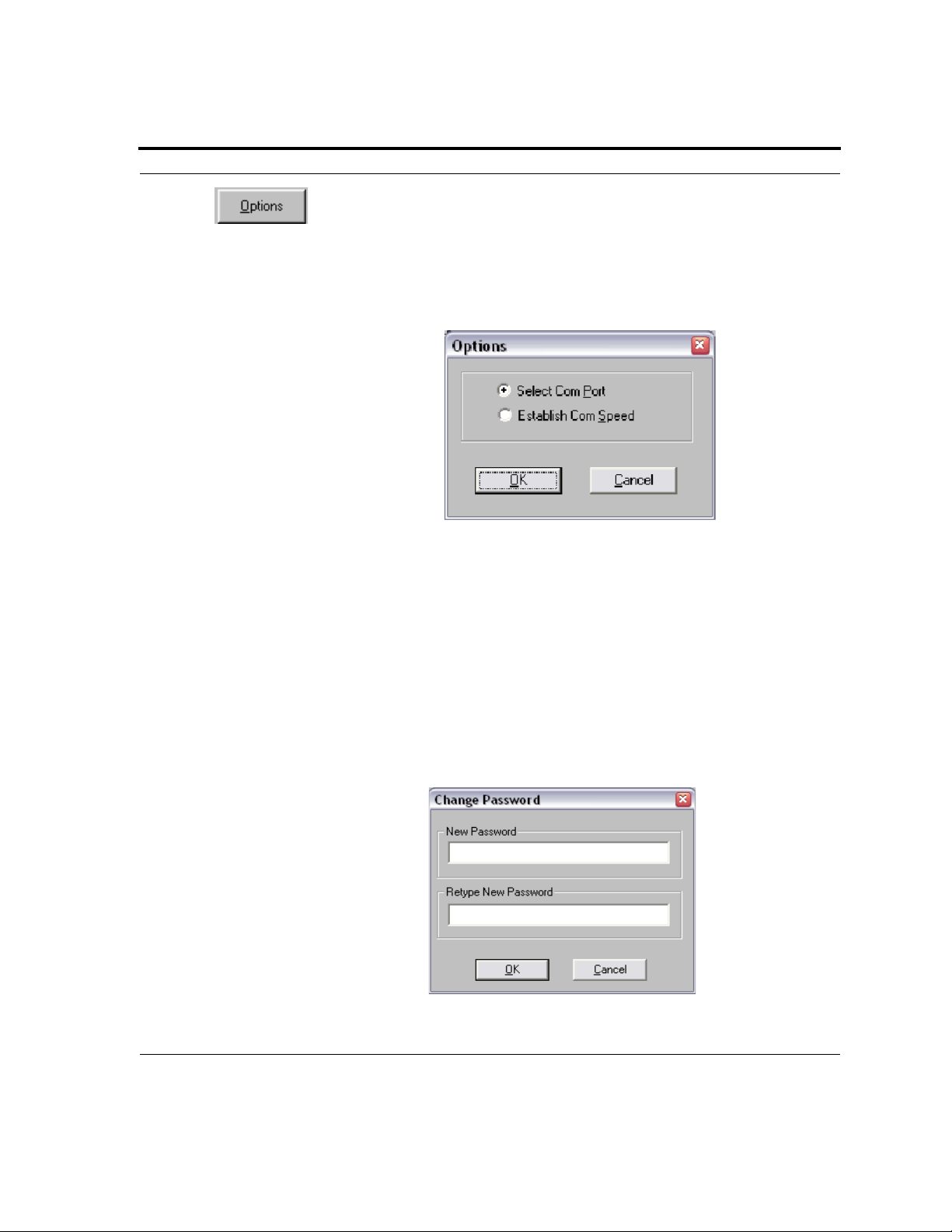
The Password command allows you to change the preset password.
Select the Password command button.
Type in the new password. Any keystroke is a valid password character. As
you type, the characters appear as asterisks (*). To confirm the new
password, re-type the new password and click OK.
300215-004 Rev D ©2003 Cardiac Science, Inc. Page 19
Page 24
Section 3: Using MDLink
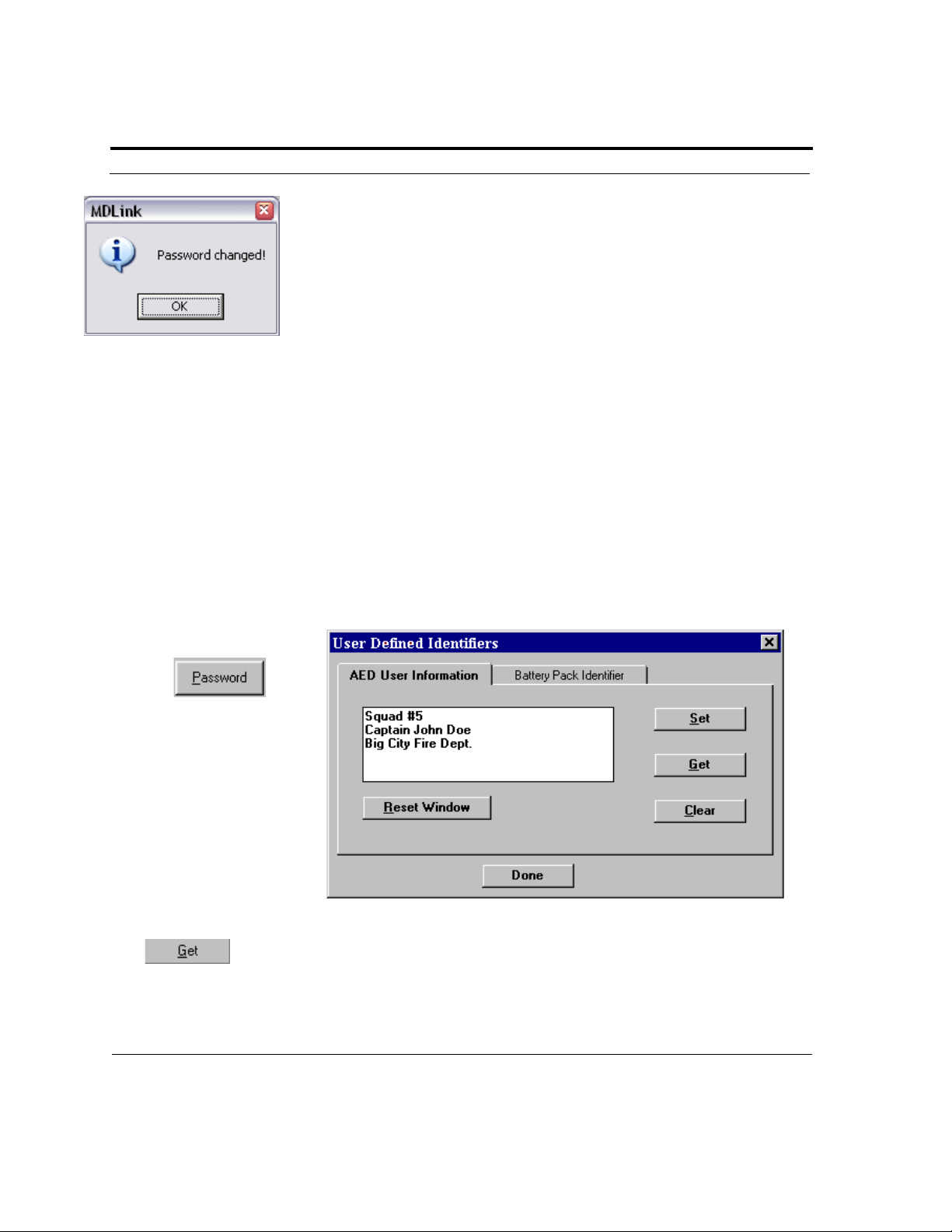
A message will display confirming that the preset password has been
changed. If you did not type the password correctly the second time, you
will be asked to re-enter the password.
User Defined Identifiers
The User Defined Identifiers option allows for the user to define
identification information for the AED or the currently installed battery.
AED User Information
This screen allows the user to define AED identification information. You
may type up to 45 characters of device identification information to be
stored within the internal memory of the Cardiac Science AED. This
information is archived with each rescue attempt and will be displayed with
RescueLink rescue data.
To retrieve identification information from the internal memory of the
Cardiac Science AED, click the Get button and the information will appear
in the screen.
Page 20 ©2003 Cardiac Science, Inc. 300215-004 Rev. D
Page 25
Section 3: Using MDLink
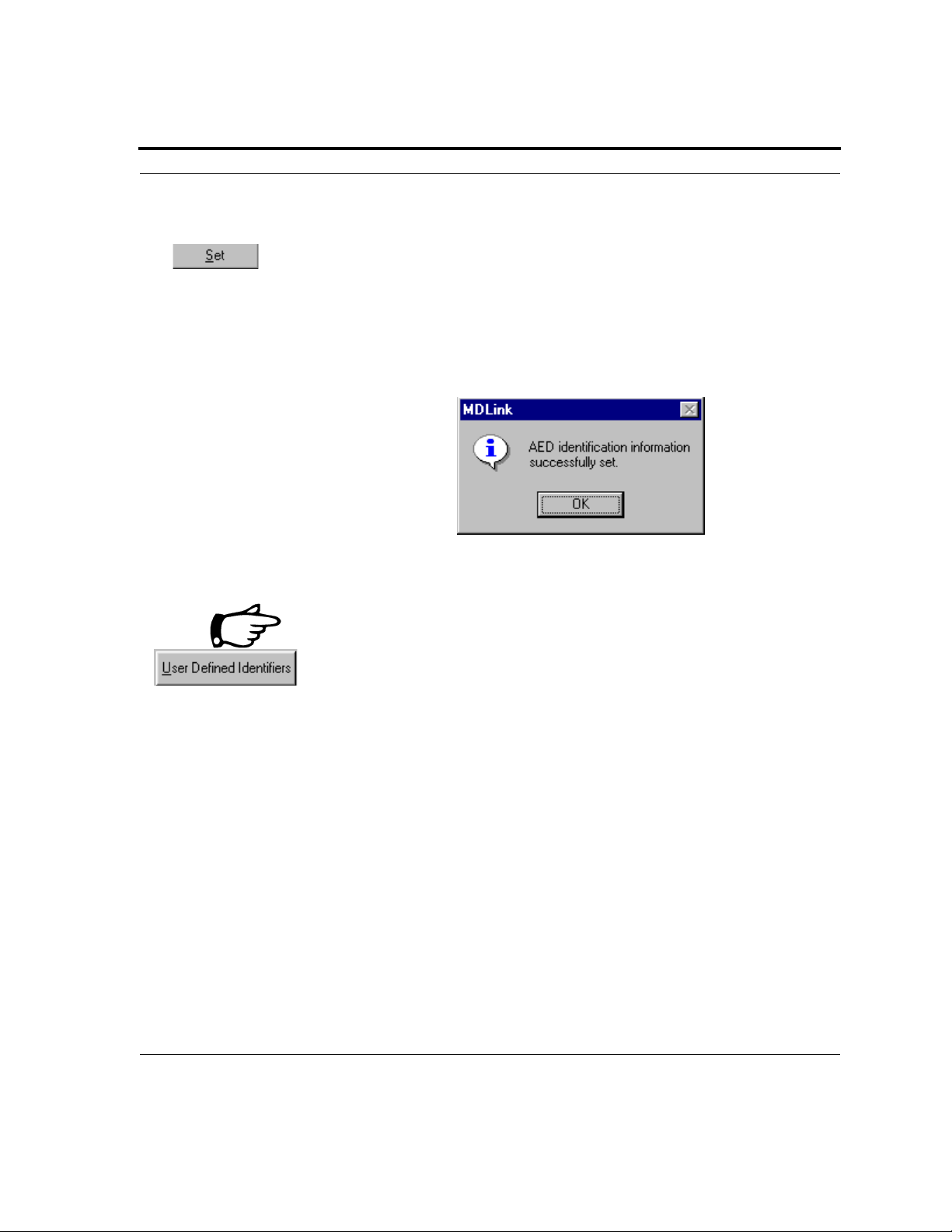
To enter new AED identification information: type the information onto
the screen and click Set to store the information in the internal memory of
the AED.
To change the AED identification information: enter the new
identification information and click Set to store the new information in the
internal memory of the AED.
To erase AED identification information: click on Clear and the
identification information will be erased from within the AED.
Use the Done button to return to the User defined Identifiers screen.
Use the Done Button on the User Defined Identifiers screen to return to the
MDLink screen.
To clear the text box: click the Reset Window button. This does not
affect the information stored in the AED.
300215-004 Rev D ©2003 Cardiac Science, Inc. Page 21
Page 26
Section 3: Using MDLink
Battery Pack Identifier
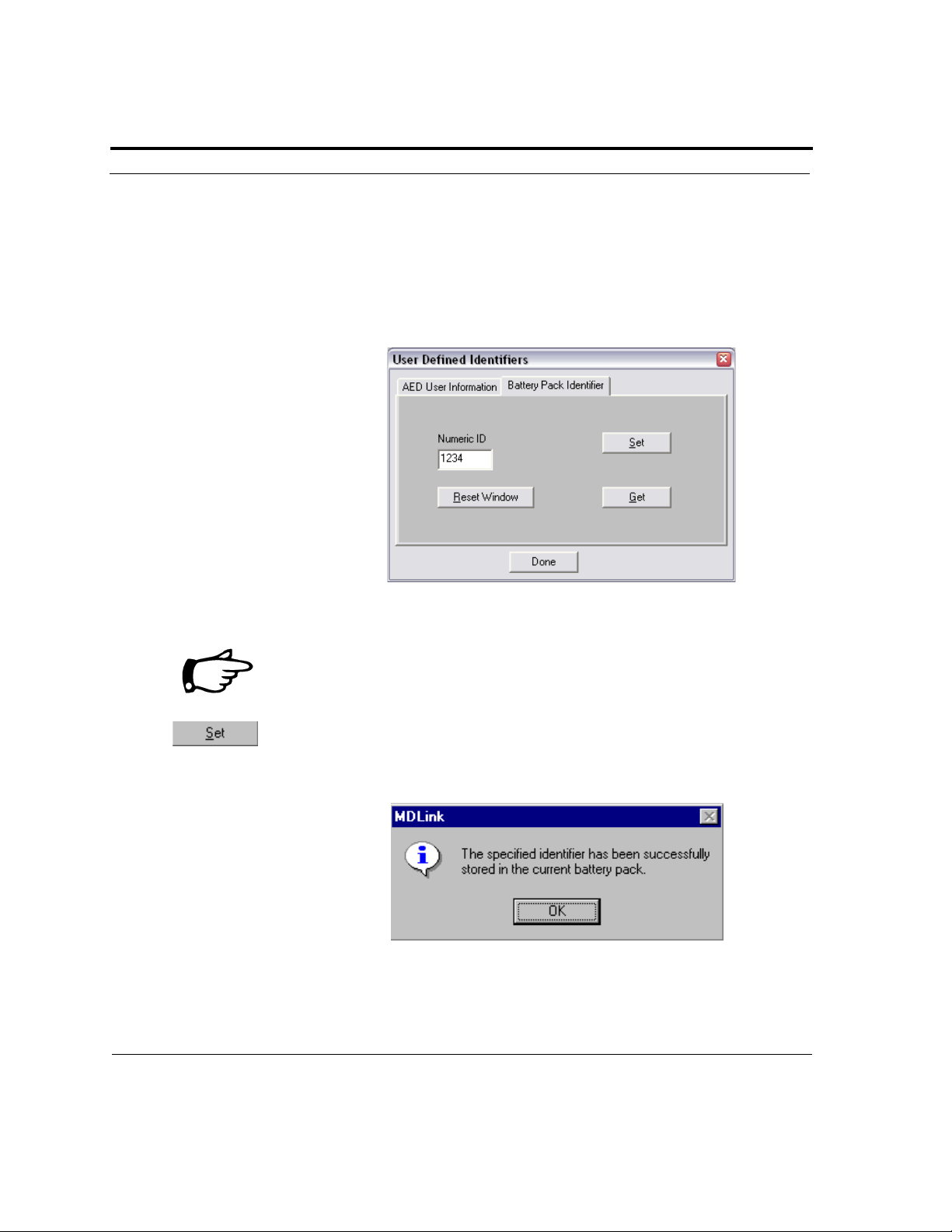
The Battery Pack Identifier screen allows the user to give the
battery an identifier number. Any number from 1 to 65,000 may be entered
and stored within the memory of the IntelliSense battery. This information
is archived with each rescue attempt and will be displayed with RescueLink
rescue data.
To retrieve battery identification information: click on the Get button
and the identification number (if specified) will appear in the screen.
MDLink will prompt you if the battery has not been assigned an
identification number.
To enter a new identification number: type the information onto the
screen and click Set to store the information in the battery memory.
Page 22 ©2003 Cardiac Science, Inc. 300215-004 Rev. D
Page 27

Section 3: Using MDLink
If the battery already contains an identifier, MDLink will allow you to
cancel the Set command or overwrite the current identifier.
To clear the Numeric ID text box: click Reset Window. This does not
affect the information stored in the battery.
Use the Done button to return to the MDLink screen.
You may exit the User Defined Identifiers screen without saving any
changes by selecting the in the upper right hand corner of the screen.
Exit
When you are finished using MDLink, select the Exit command to close the
program.
300215-004 Rev D ©2003 Cardiac Science, Inc. Page 23
Page 28
Section 3: Using MDLink
Selectable Parameters
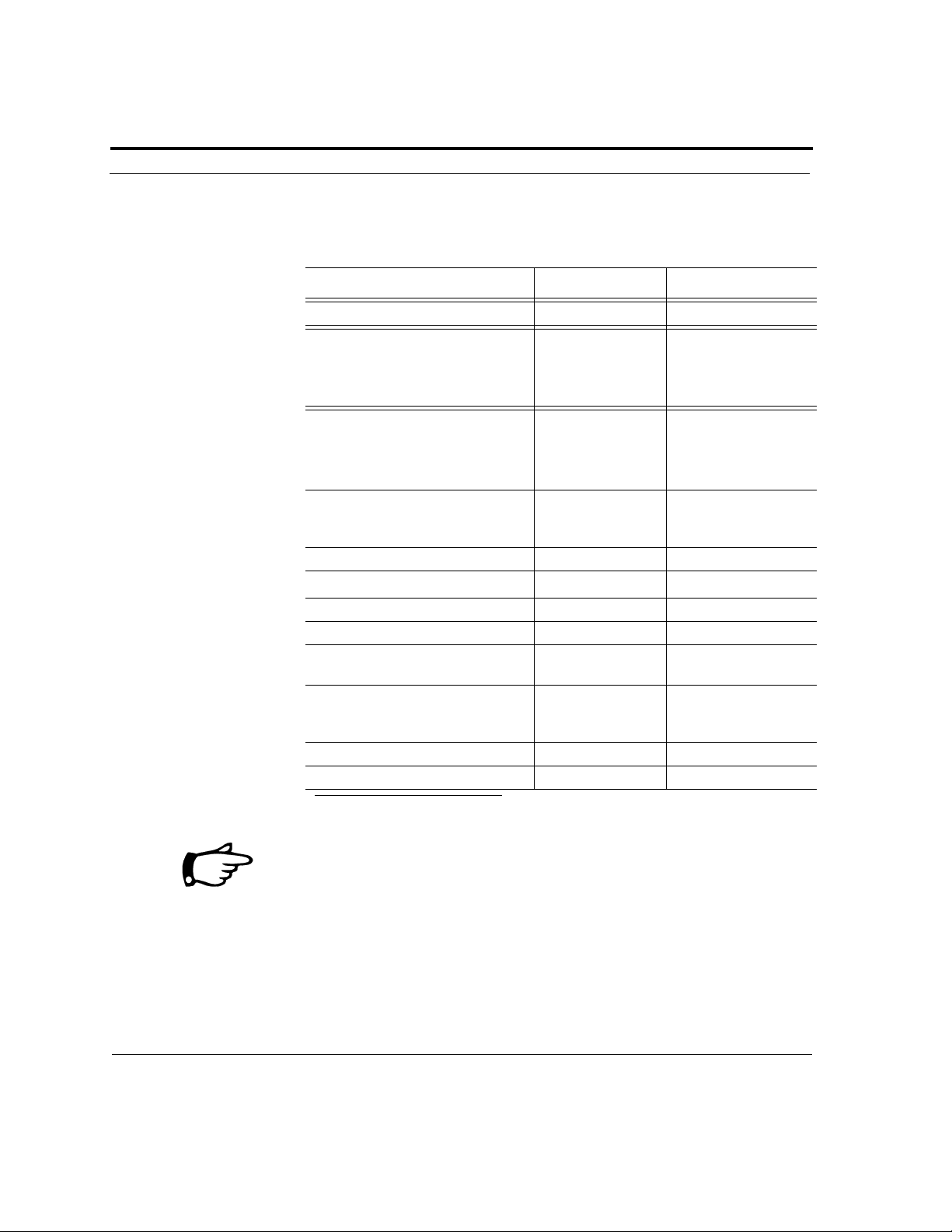
TABLE 1. OPTION DEFAULTS
Function Default Selectable Options
VF/VT Rate
SVT Rate
Shock Energy Protocol
Second Shock (for FirstSave
Monophasic AED 9100/9110 models)
Daylight Savings Enabled Disabled
ECG Monitoring During CPR
Electrode Test Enabled Disabled
Same Energy After Conversion Enabled Disabled
CPR Mode No Sound No Sound; Voice
Rescue Data Card ECG & Event Data ECG & Event Data; or
CPR Time (seconds) 60 60 to 180
Maximum Shocks Per Rescue 99 3 to 99
1
1,2
1,2
160 bpm 120 to 240 bpm
200 bpm for
9200RD/9210RD
No Therapy for
SVT for 9300E
200VE, 300VE,
300VE
300J 200J
Disabled Enabled
160 to 300 bpm; or
No Therapy for SVT
Ultra Low VE
dard (Low or High)
VE; Non-escalating
1
low VE
Prompt; or Beep
ECG, Event Data and
Vo i ce R ec o rd i ng
1
; Stan-
1. Selectable option only available for Powerheart AED models
2. Feature setting varies for Powerheart AED G3 9300E
The settings on your AED may be set at the factory to your specifications, if requested. In this case, the AED default settings will differ from
the default settings shown in the previous table.
Choose all the parameters and then click the Set command to
simultaneously store all of the selected parameters.
Page 24 ©2003 Cardiac Science, Inc. 300215-004 Rev. D
Page 29

Section 3: Using MDLink
RHYTHMx Detection Rates
For Powerheart AED devices only, the Detection Rates for VF/VT and SVT
can be programmed by the Medical Director using the MDLink software.
All rhythms with rates between the VF/VT Rate and SVT Rate will be
screened through SVT discriminator criteria in order to classify the patient’s
rhythm as VF/VT or SVT. Based on the VF/VT Rate setting, all ventricular
fibrillation (VF) and ventricular tachycardia (VT) rhythms at or above the
set rate will be classified as shockable. All rhythms below the set VF/VT
Rate will be classified as non-shockable. The default VF/VT Rate is 160
bpm (beats per minute), with selectable rates between 120 bpm and 240
bpm.
SVT Rate is designed to reduce the risk of shocking a SVT rhythm based on
rate alone, by differentiating between SVT and VT rhythms. The default
SVT Rate is 200 bpm for models 9200RD/9210RD and “No Therapy for
SVT” for model 9300E, with selectable rates between 160 to 300 bpm or
“No Therapy for SVT.” Rhythms at or above the selected SVT Rate will be
classified as shockable. The SVT Rate must be set greater than or equal to
the VF/VT Rate. If “No Therapy for SVT” is selected, the Powerheart AED
will not advise defibrillation therapy if a SVT rhythm is present.
To change the VF/VT Rate or SVT Rate, scroll through the values using the
Up Arrow to increase the value or the Down Arrow to decrease the
value. Click the Set command to execute your selection or choose another
option.
Shock Energy Protocol
The Cardiac Science AED follows guidelines recommended by the
American Heart Association (AHA) and the International Liaison
Committee on Resuscitation (ILCOR). Upon detecting a shockable cardiac
rhythm, the AED advises the user to press the “Shock” button to deliver a
series of up to 3 defibrillation pulses followed by the user performing CPR.
The 3 shocks are delivered in a pre-programmed sequence of escalating
300215-004 Rev D ©2003 Cardiac Science, Inc. Page 25
Page 30

Section 3: Using MDLink
energy. Using the MDLink option, the energy protocol for the Cardiac
Science AED can be programmed with one of the following protocols:
TABLE 3. Cardiac Science AED Shock Energy Protocols
Description 1st Shock 2nd Shock 3rd Shock
Ultra Low Energy A
Ultra Low Energy B
Standard (High - Default
Va l u e)
Standard (Low)
Non-Escalating Low
1,2
Energy
1. Selectable option only available for Powerheart AED
2. Non-escalating Low Energy is the only setting for FirstSave AED G3.
1
1
150 VE 150 VE 200 VE
150 VE 200 VE 300 VE
200 VE 300 VE 300 VE
200 VE 200 VE 300 VE
200 VE 200 VE 200 VE
Daylight Savings
The Cardiac Science AED contains an internal clock that will automatically
adjust for Daylight Savings Time. The internal clock will adjust forward
one hour when Daylight Savings Time becomes effective and backward on
hour when Standard Time becomes effective.
To stop the AED from automatically adjusting its internal clock, click the
box to the left of the Daylight Savings box to remove the check mark and
disable.
Click the Set command to execute your selection or choose another option.
ECG Monitoring During CPR
The Powerheart AED is capable of monitoring the patient’s ECG rhythm
continuously throughout the rescue, including during Charge and CPR
modes. Continuous monitoring will interrupt CPR if a shockable rhythm is
detected. When CPR is interrupted, the prompt, “Do not touch patient.
Analyzing rhythm” will be issued. Only one interruption will be allowed
during a single CPR mode. CPR mode will not be interrupted if preceded by
three consecutive shocks.
Page 26 ©2003 Cardiac Science, Inc. 300215-004 Rev. D
Page 31

Section 3: Using MDLink
The default setting is disabled.
To disable/enable the ECG monitoring during the CPR mode option,
remove the check mark in the ECG Monitoring During CPR box.
Click the Set command to execute your selection or choose another option.
Electrode Test
As part of the daily self-test, the Cardiac Science AED will check for
properly connected electrodes. Only electrodes approved by Cardiac
Science are intended to be used with the Cardiac Science AEDs. Using
MDLink, the electrode self-test may be disabled.
To disable the electrode self-test, click the box to the left of Electrode Te st
to remove the check mark.
Click the Set command to execute your selection or choose another option.
CAUTION: Possible Improper Device Performance
Use of any electrodes other than those approved by Cardiac Science may
cause the Cardiac Science AED to function improperly during a rescue. The
use of other brands of electrodes, other than those approved by Cardiac
Science, may void the Cardiac Science Limited Warranty.
Same Energy After Conversion
The Cardiac Science AED delivers the same energy level as was delivered
in the previous defibrillation pulse after a patient has converted from
ventricular fibrillation (VF) or ventricular tachycardia (VT) to normal sinus
rhythm (NSR) and back again to VF or VT.
To allow the AED to increment the energy level of the defibrillation pulse
delivered after conversion, click the box to the left of the Same Energy
After Conversion to remove the check mark and disable. This does not
apply if the previous defibrillation pulse used is the high variable energy
level (300VE).
Click the Set command to execute your selection or choose another option.
300215-004 Rev D ©2003 Cardiac Science, Inc. Page 27
Page 32

Section 3: Using MDLink
CPR Mode
The user may select a “Continue CPR” verbal prompt or Beep tone to be
repeated at fifteen second intervals while the AED is operating in CPR
mode during a rescue attempt. The default setting is No Sound.
Click on the desired setting to enable the desired CPR Mode prompt. Click
the Set command to execute your selection or choose another option.
Rescue Data Card Format
The Cardiac Science AED has two format options for external memory
storage on a Rescue Data Card (models 9210 and 9210RD only).
ECG and Event Data
When the ECG and Event Data option is selected, the AED will record
ECG and other rescue event data during a rescue attempt.
The MDLink default setting is ECG and Event Data. Click the Set
command to execute your selection or choose another option.
ECG, Event Data and Voice Recording
When ECG, Event Data and Voice Recording is selected, the AED will
record ECG, event data and ambient sound, such as voices, voice prompts,
and background noise at the scene of a rescue.
To enable this option, select the ECG, Event Data and Voice Recording
option. Click the Set command to execute your selection or choose another
option.
Available Storage
The amount of rescue data that may be stored on a Rescue Data Card is
dependent upon the number of megabytes (MB) of storage that are available
on your Rescue Data Card.
Cardiac Science AED models 9210/9210RD come equipped with a Rescue
Data Card slot. Rescue data can be stored on a removable Rescue Data
Page 28 ©2003 Cardiac Science, Inc. 300215-004 Rev. D
Page 33

Section 3: Using MDLink
Card. Upon completing the rescue, the card can be removed for data
retrieval without taking the Cardiac Science AED out of use.
The Rescue Data Card stores ECG and other event data. Using MDLink and
a Rescue Data Card, the Cardiac Science AED can record ECG and event
data, and if desired, the ambient sound at the rescue site. The Rescue Data
Card has 8 megabytes (MB) of storage memory and is capable of recording
ECG and Event Data for up to 10 hours, or one rescue of up to 40 minutes
with ECG, Event Data and Voice Recording.
Maximum Shocks per Rescue
The Cardiac Science AED is capable of delivering up to 99 defibrillation
shocks per rescue attempt (A rescue attempt is defined as the time when the
electrodes are placed on the chest of the patient until the lid is closed and
the device powers down).
To change the maximum number of pulses delivered per rescue, enter the
desired number in the edit box or scroll through using the Up Arrow to
increase the value or the Down Arrow to decrease the value.
Click the Set command to execute your selection or choose another option.
CPR Time
After the delivery of three consecutive defibrillation shocks, or detection of
a non-shockable rhythm, the Cardiac Science AED automatically enters
CPR mode. The Cardiac Science AED default CPR Time setting is 60
seconds. The CPR time setting can be set to a minimum of 60 seconds to a
maximum 180 seconds, in increments of 1 second.
To change the CPR time in seconds, enter the desired number in the edit
box or scroll through the settings using the Up Arrow to increase the
value or the Down Arrow to decrease the value.
Click the Set command to execute your selection or choose another option.
300215-004 Rev D ©2003 Cardiac Science, Inc. Page 29
Page 34
Section 3: Using MDLink
Parameter Storage Location
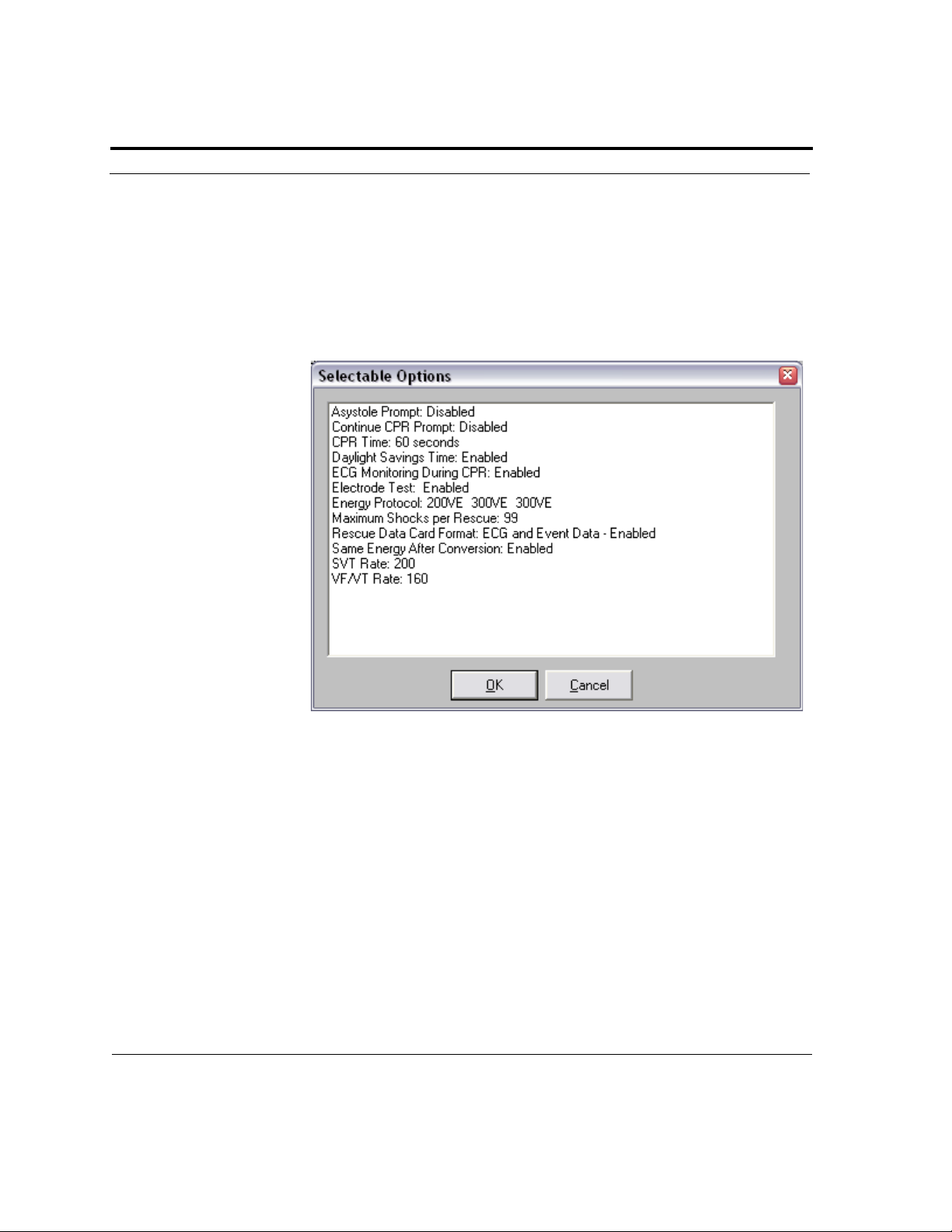
After the parameter options have been selected, click the Set command
button to store the selected parameters. Before the selected parameters are
stored, the Selectable Options screen allows you to review all the
parameters. If the parameters are correct, click OK. Click Cancel to return
to the MDLink screen.
The selected parameters may then be transferred to one of two memory
storage locations as discussed in detail in the next section. The memory
storage locations include:
•AED Internal Memory - the internal memory of the Cardiac Science
AED; or
•PC Card (PCMCIA) Socket - the MDLink Options card that is inserted
into the card socket of the PC.
Page 30 ©2003 Cardiac Science, Inc. 300215-004 Rev. D
Page 35
Section 3: Using MDLink
AED Internal Memory
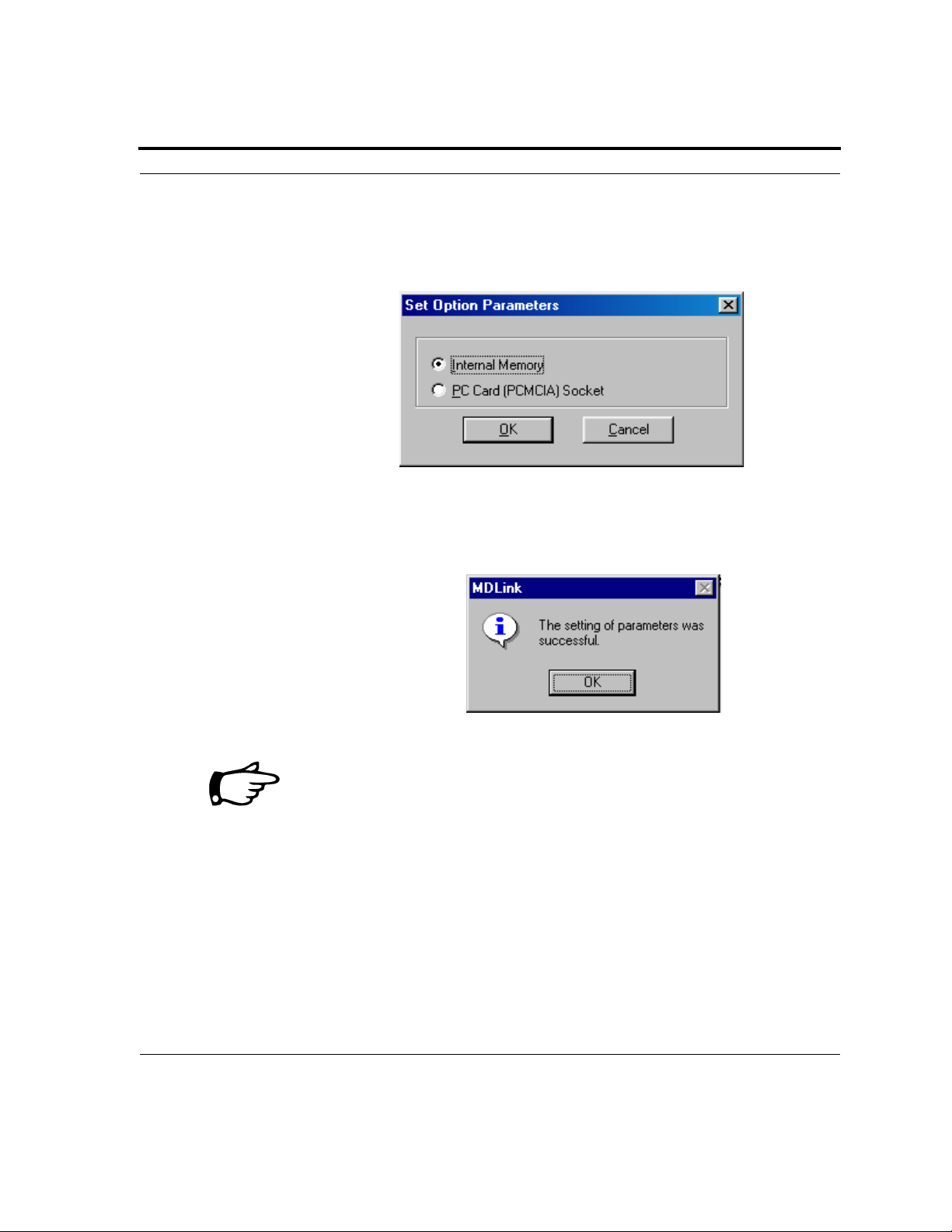
To select the internal memory of the AED as the parameter storage location,
choose Internal Memory and click OK.
After the Internal Memory has been successfully updated with the selected
parameters, click OK to return to the MDLink screen.
An error message will appear if the AED is not connected to the PC with
the serial communication cable or USB serial adapter cable.
300215-004 Rev D ©2003 Cardiac Science, Inc. Page 31
Page 36
Section 3: Using MDLink
PC Card (PCMCIA) Socket
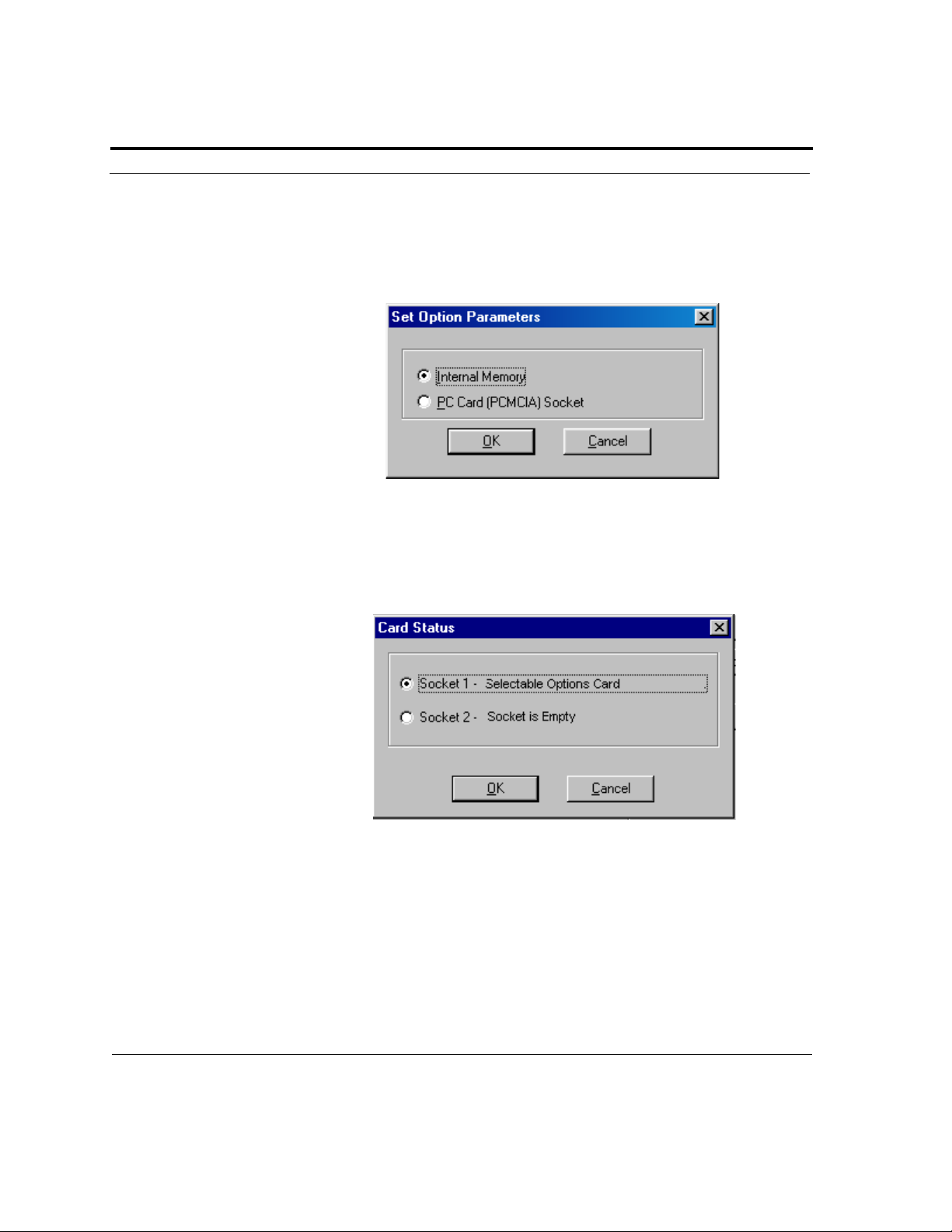
To select the MDLink Options Card (inserted in the PC card socket) as the
parameter storage location, choose PC Card (PCMCIA) Socket and click
OK.
When selecting the PC Card (PCMCIA) Socket as the parameter
storage location, a Card Status box will allow you to choose the socket you
wish to use. Insert the MDLink Options Card; select the appropriate socket
and click OK.
Page 32 ©2003 Cardiac Science, Inc. 300215-004 Rev. D
Page 37
Section 3: Using MDLink
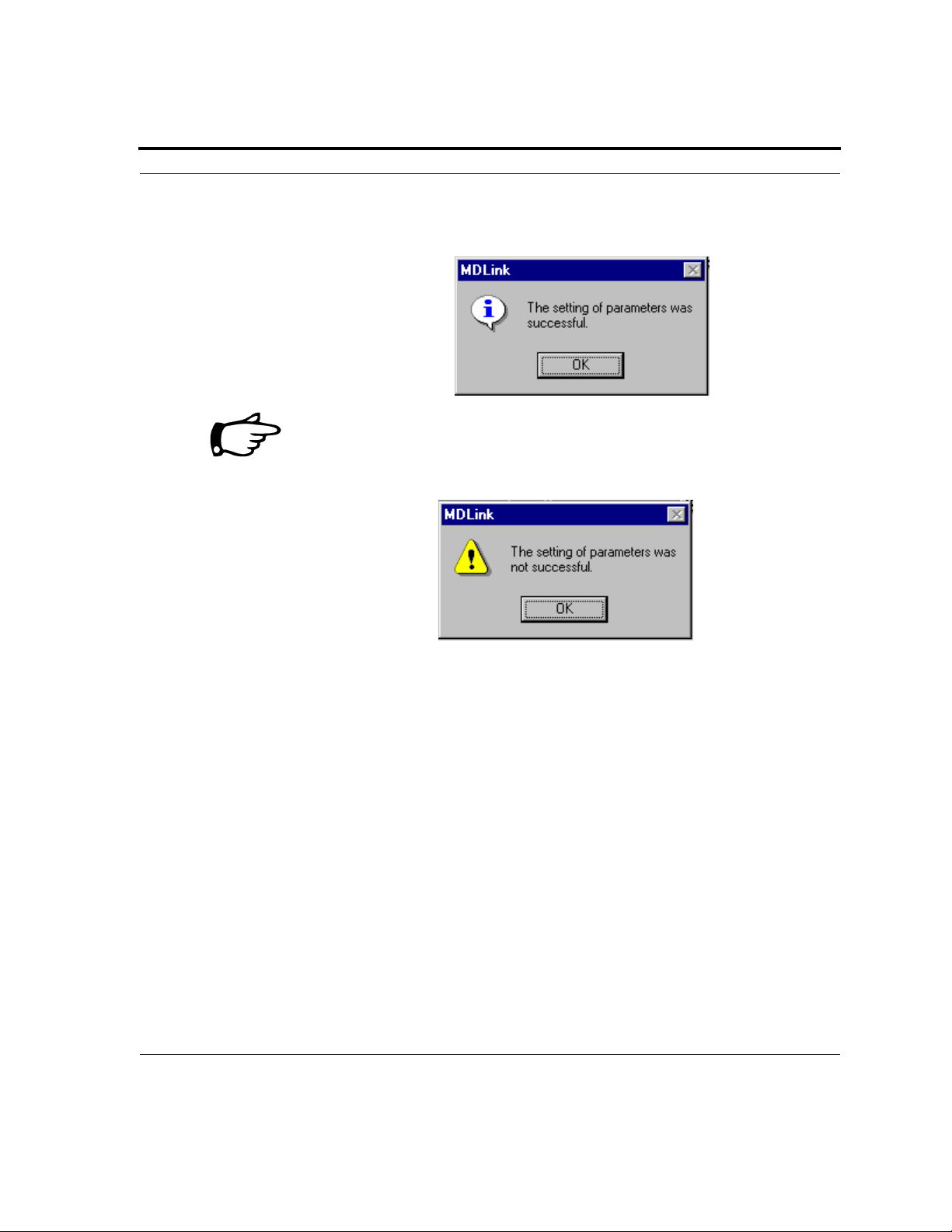
When the PC Card (PCMCIA) Socket has been successfully selected as
the parameter storage location, click OK.
If repeated attempts to select the parameter storage location are
unsuccessful, contact Cardiac Science Customer Service for assistance.
You have now finished the selection of the MDLink optional parameters.
To exit MDLink, click the Exit command button.
300215-004 Rev D ©2003 Cardiac Science, Inc. Page 33
Page 38
Section 3: Using MDLink
Transferring the Selected Options
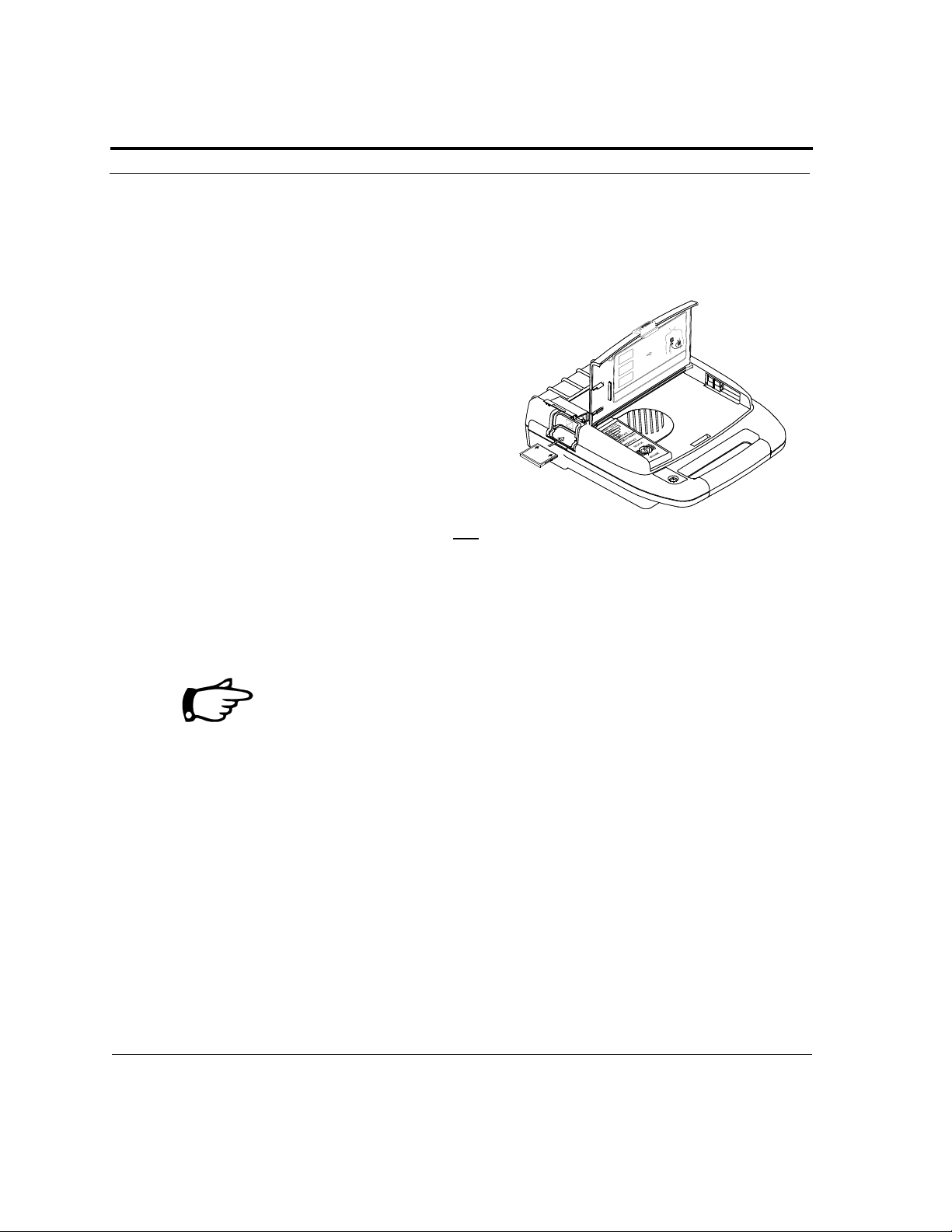
1. To use the MDLink Options card to transfer the selectable parameter
options to the Cardiac Science AED, insert the programmed MDLink
Options card into the card slot of the AED.
The MDLink Options Card may
only be inserted into the
Cardiac Science AED one
way, with the label side up and
the arrows pointing toward the
AED.
2. Open the lid to turn ON
the Cardiac Science AED.
3. When the “Battery Status” indicators begin to rapidly sequence, press
the “Shock/Continue” button. The “Program mode” voice prompt is
heard when the AED begins storing the selected parameters.
4. When the option parameters have been successfully transferred to the
internal memory of the Cardiac Science AED, the voice prompt “Card
full. Storing internally” is heard.
The Cardiac Science AED performs a test to verify that the transfer was
free of errors. When an error is detected, the Cardiac Science AED emits
an audible alert (chirp). If an audible alert is sounded:
Open and close the lid of the Cardiac Science AED. If the chirp stops
and the “Status” indicator is GREEN, then try again to transfer the
parameters to the AED using the MDLink Options Card. If the chirp
reoccurs, contact Cardiac Science Customer Service.
If the audible alert is heard and the Status indicator is RED with a
BLACK X, contact Cardiac Science Customer Service.
5. Close the lid and remove the MDLink Options Card.
Page 34 ©2003 Cardiac Science, Inc. 300215-004 Rev. D
Page 39
Page 40

Page 41

 Loading...