

Page 1
Getting Started.
support.cardconnect.com/bolt
Version: BoltGW
Page 2

Bolt is Best. Welcome.
You now have the tools to integrate seamlessly to simple payment
processing protected by superior security solutions including PCI-
validated point-to-point encryption (P2PE), patented tokenization
and EMV technology, all working to reduce your PCI audit scope.
Bolt P2PE communicates directly with a variety of software
applications to initiate and complete payments via swipe, dip or
keyed entry. This integration means we can easily communicate
system updates without hassle.
With Bolt P2PE, you also have access to our powerful transaction
management portal, CardPointe. Log in at cardpointe.com or
download the app (available for iOS and Android).
What’s Inside the Box.
Bolt P2PE Terminal
Ingenico Multipoint Interface Cable
Ingenico Power Supply Adapter
Stylus (only for iSC Touch models)
Page 3

Getting Set Up.
Connecting the Device
1
Once your equipment is unboxed, plug the power supply
connector into the jack on the Multipoint Interface Cable
2
Connect the Multipoint Interface Cable into the
Multipoint Port on the back of the Bolt P2PE device
3
Connect the other end of the Multipoint Interface Cable
to the desired Ethernet port (POS, PC, modem, etc.)
4
Plug the power supply adapter into an available
power outlet
Page 4
You’re Almost Done.
Confirming Connectivity
[1]
[2]
[3]
[4]
The Bolt P2PE device starts the initiation process when power
is applied to the device
Once the device has successfully established its IP Address, it
will attempt to call the Bolt service
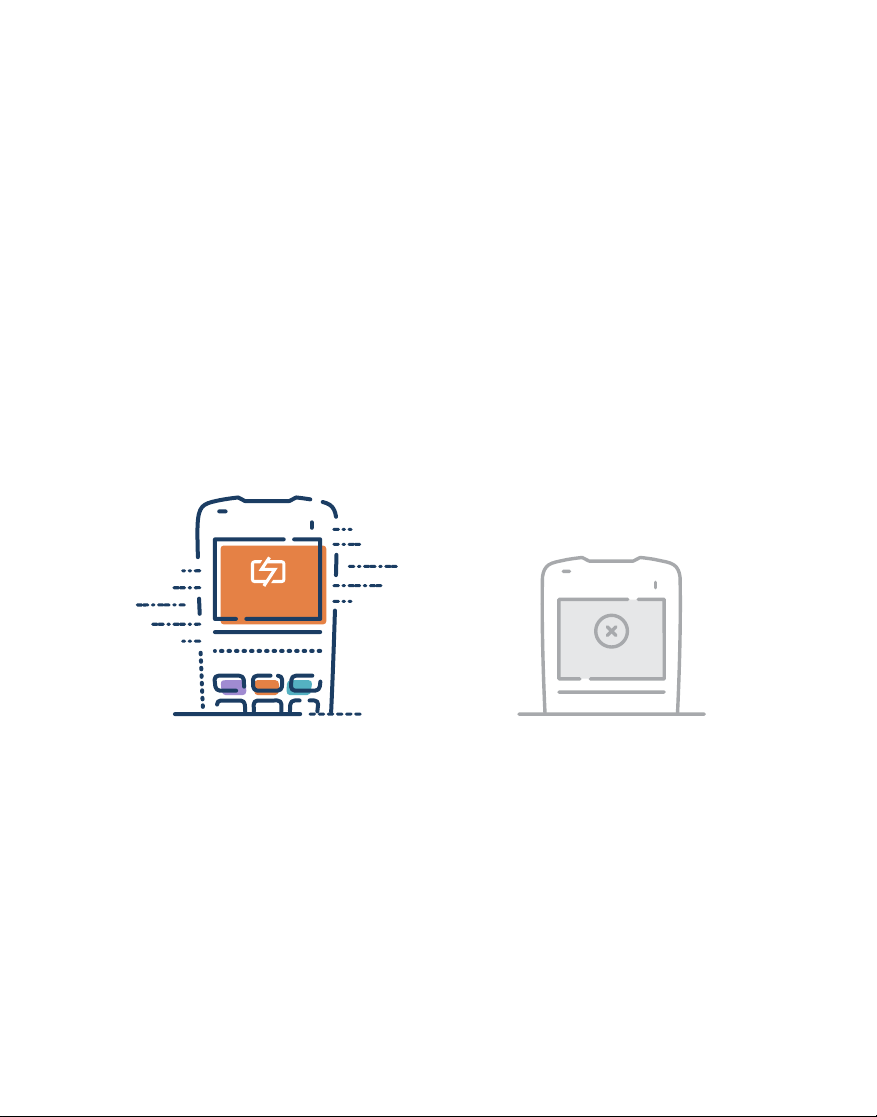
If the connection is
successful, the Bolt P2PE
device will display Bolted
Bolted
Once Bolted, the device is ready for use. The device may be
left on indefinitely or may be discontinued from power as
necessary
If the connection is
unsuccessful, the device will
display Unbolted, at which
point you can reach out to
us for troubleshooting
Unbolted
Restarting the Device
To restart, press [clear] and [-] simultaneously1.
Alternatively, disconnect and reconnect the power supply to power
2.
cycle the device
Page 5
Let’s Talk About Network Whitelisting.
To ensure proper connection to the
CardConnect test and production Gateway
servers, please configure your network and
firewall to allow outgoing traffic to a specific
list of URLs, IP addresses and Ports.
This information can be found at
support.cardconnect.com/bolt. There, you’ll
see two list options. Your device is connected
to the BoltGW version, so please use the URLs,
IP addresses and Ports associated with that list.
Page 6

Get Support.
Our Support team is here to help you with setup and
beyond. If you have questions, but want to find the
answers yourself, visit support.cardconnect.com.
If you can’t find what you’re looking for reach out
to us directly.
877.828.0720 > Option 1 > Option 1
 Loading...