

Page 1
- 0 -
Card Phone
www.card-tec.com
CARDPHONECM1
UserManual
CP1
http://dtechgizmos-pro.weebly.com/
Page 2

- 1 -
Contents
Safety notice .............................................................................................. 6
Maintenance and safety guidelines ........................................................... 8
Introduction to appearance ....................................................................... 11
Screen icons ................................................................................................ 14
Get Started .............................................................................................. 15
1. Switch on the main power .................................................................... 15
2. Installing the SIM card ......................................................................... 16
3. Set up password .................................................................................... 17
4. Phone password .................................................................................... 17
5. PIN code ................................................................................................. 18
6. PIN2 code .............................................................................................. 18
7. PUK code ................................................................................................ 18
8. PUK2 code .............................................................................................. 18
9. Barring code ........................................................................................... 19
10. Connect the network ............................................................................ 19
11. Charge the Battery ............................................................................... 19
12. Switch on/off ........................................................................................ 20
13. Headset ................................................................................................. 20
Page 3

- 2 -
General Function ..................................................................................... 21
1. Dialing calls ............................................................................................ 21
2. Volume control ...................................................................................... 22
3. Answer calls ........................................................................................... 22
4. Calling options ....................................................................................... 22
Input methods ......................................................................................... 22
Introduction to functions ........................................................................ 28
Phonebook ............................................................................................... 28
1. Quick search .......................................................................................... 28
2. Search contact ....................................................................................... 29
3. Add new contact .................................................................................... 29
4. Copy all ................................................................................................... 29
5. Delete ..................................................................................................... 29
6. Caller groups .......................................................................................... 29
7. Extra numbers ....................................................................................... 29
8. Settings .................................................................................................. 29
Messages ................................................................................................. 30
1. Write message ....................................................................................... 30
2. Inbox ...................................................................................................... 30
3. Outbox .................................................................................................... 30
Page 4

- 3 -
4. Templates .............................................................................................. 30
5. SMS settings .......................................................................................... 31
6. Voice mail server ................................................................................... 31
7. Broadcast message ................................................................................ 31
Call Center ............................................................................................... 32
1. Call history .............................................................................................. 32
1.1 Missed calls ........................................................................................... 32
1.2 Dialed calls ............................................................................................ 32
1.3 Received calls ....................................................................................... 32
1.4 Delete call log ....................................................................................... 32
1.5 Call time ................................................................................................ 33
1.6 Call cost ................................................................................................. 32
1.7 SMS counter .......................................................................................... 32
2. General call settings ............................................................................... 33
2.1 Caller ID ................................................................................................ 33
2.2 Call waiting ........................................................................................... 33
2.3 Call divert .............................................................................................. 33
2.4 Call barring ........................................................................................... 34
2.5 Auto redial ............................................................................................ 35
2.6 Speed dial ............................................................................................. 36
2.7 IP Dial ................................................................................................... 36
Page 5

- 4 -
2.8 More ...................................................................................................... 36
Settings .................................................................................................... 37
1. Phone setup ............................................................................................ 37
1.1 Time and Date ...................................................................................... 37
1.2 Schedule power On/Off ....................................................................... 37
1.3 Language .............................................................................................. 37
1.4 Default encoding type .......................................................................... 37
1.5 Dedicated Key ....................................................................................... 37
1.6 Flight mode .................................................................................. 37
2. User profile ............................................................................................. 38
2.1 General ................................................................................................. 38
2.2 Meeting mode ....................................................................................... 38
2.3 Outdoormode ........................................................................................ 38
2.4 Indoor mode ......................................................................................... 38
2.5 Headset mode ....................................................................................... 38
2.6 School silent mode ....................................................................... 39
3. Network Setup ........................................................................................ 39
3.1 Network selection ................................................................................ 39
3.2 Preferred ..................................................................................... 39
Page 6

- 5 -
4. Security setup ......................................................................................... 39
4.1. SIM Lock .............................................................................................. 39
4.2. Phone lock ........................................................................................... 39
4.3. Auto Keypad lock ................................................................................. 39
4.4 Fixed dial ............................................................................................... 40
4.5 Barred dial ............................................................................................ 40
4.6 Change.Password ................................................................................. 40
5. Restore.to.factory.settings .................................................................... 40
Organizer ................................................................................................. 41
1. Alarm ..................................................................................................... 41
2. Time announcer .................................................................................... 41
3. Calendar ............................................................................................... 41
4. Calculator ............................................................................................. 41
5. To do ...................................................................................................... 42
Appendix .................................................................................................. 43
Page 7

- 6 -
Brief Introduction to Card Phone
Thank you for buying Card Phone. This user manual includes all the important
information to operate the phone. Please read carefully before using so as to
achieve maximum efficiency. To avoid any inappropriate operation cause phone
damaged.
Do not try to make any modification that is not specified in this user manual.
If do not abide by the principle, it will lead to loss of warranty rights.
Safety Notice
CAUTION!
• Please switch off power of your mobile phone before boarding.
• Do not hold a mobile phone while driving.
• Please switch off your mobile phone in a potentially explosive area such as
chemical plants, gas stations, or oil deports.
• Please do not use well-moisturized hands to operate the mobile phone, which
may cause serious danger to you or damage on the mobile phone.
NOTE:
• Switch off your phone, should you not require its use for long periods of time.
• Please switch off your phone in places under any specific provisions and
Page 8

- 7 -
regulations. For example: Please do not use the mobile phone in a hospital to
avoid affecting sensitive medical equipment.
• Avoid using your mobile phone under extreme conditions such as rainfall,
thunderstorms, high temperature...etc.
• Not every mobile network provides emergency phone service. Therefore,
please do not rely solely on your phone to dial an emergency call.
• All radio transceivers may obstruct nearby electronic devices. Mobile phones
may cause slight interference to television, radio, and computer.
• Please do not attempt to disassemble your device. In doing so, the warranty is
immediately revoked.
Please read the following notice. Should you not abide by these
regulations, you may violate terms and conditions or cause danger.
Radio waves radiation and electromagnetic energy absorption ratio (SAR)
information:
The CM1device meets guidelines for exposure to radio waves.
It is designed not to exceed the limits for exposure to radio waves recommended
by international guidelines. These guidelines were developed by the independent
scientific organization ICNIRP and include safety margins designed to assure the
protection of all persons, regardless of age and health.
Page 9

- 8 -
The exposure guidelines for mobile devices employ a unit of measurement known
as the Specific Absorption Rate or SAR. The SAR limit stated in the ICNIRP
guidelines is 2.0 (W/kg) 10g.
After the eligible laboratory certification, the SAR measured value under the
ICNIRP guidelines for use of theCM1 devicewas0.519 W/Kg (10g).
When possible, your phone reduces your overall exposure to RF energy.
Please position at least 1.5cm away from the body.
Maintenance and Safety Guidelines
• Do not attempt to open the device other than as instructed in this guide.
• Keep the device dry. Precipitation, humidity, and all types of liquids or moisture
can contain minerals that will corrode electronic circuits.
• Do not use or store the device in dusty, dirty areas. Its moving parts and
electronic components can be damaged.
• Do not store the device in high or cold temperature. High temperatures can
shorten the life of electronic devices, damage batteries, and warp or melt
certain plastics. When the device warms to its normal temperature from a cold
temperature, moisture can form inside the device and damage electronic circuit
boards.
• Do not drop, knock, or shake the device. Rough handling can break internal
Page 10

- 9 -
circuit boards and fine mechanics.
• Do not use harsh chemicals, cleaning solvents or strong detergents to lean the
device. Only use a soft, clean, dry cloth to clean the surface of the device.
• Do not paint the device. Paint can clog the moving parts and prevent proper
operation.
• Use chargers indoors.
• The device may be damaged by exposure to magnetic fields. Do not use
carrying cases or accessories with magnetic closures or allow your phone to
come in contact with magnetic fields for extended periods of time.
Avoid interference with other electronic devices
Your phone emits radio frequency (RF) signals that may interfere with unshielded
or improperly shielded electronic equipment such as pacemakers, hearing aids,
medical devices, and other electronic devices in home or vehicles.
Turn off the phone near medical equipment
Your phone can interfere with medical equipment in hospitals or health care
facilities, and directions form medical personnel.
Road Safety Guidelines
Avoid using your phone while driving and obey all regulations that res
Avoid damage to your hearing
Page 11

- 10 -
Listening to a headset at high volumes can damage your hearing. Use only the
minimum volume setting necessary to hear your conversation or music.
Potentially explosive environments
Do not use your phone at refueling points (service stations) or near fuels or
chemicals. Turn off your phone whenever directed by warning signs or instructions.
Your phone could cause explosions or fire in and around fuel or chemical storage
and transfer areas or blasting areas. Do not store or carry flammable liquids, gases,
or explosive materials in the same compartment as the phone its parts, or
accessories.
In aircraft
• Turnoff your phone before boarding any aircraft.
• Don not uses it on the ground without crew permission.
Children safety
Keep your phone and all accessories out of the reach of small children. Small
parts may cause choking or serious injury if swallowed.
Emergency Call
Emergency calls from your phone may not be possible in some areas or
circumstances. Before travelling in remote or undeveloped areas, plan an alternate
method of contacting emergency services personnel.
Page 12
- 11 -
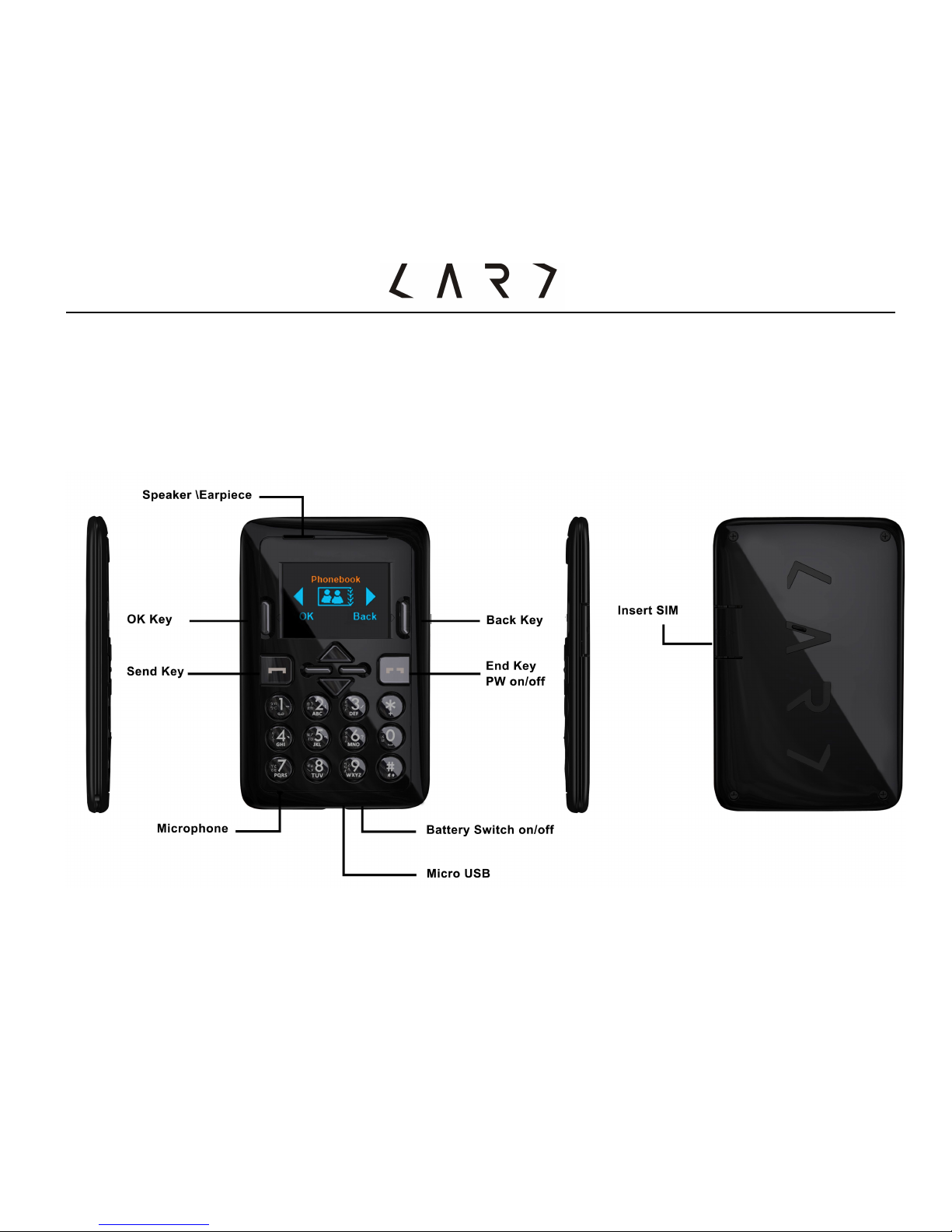
Introduction to Appearance
Phone Overview
Page 13
- 12 -
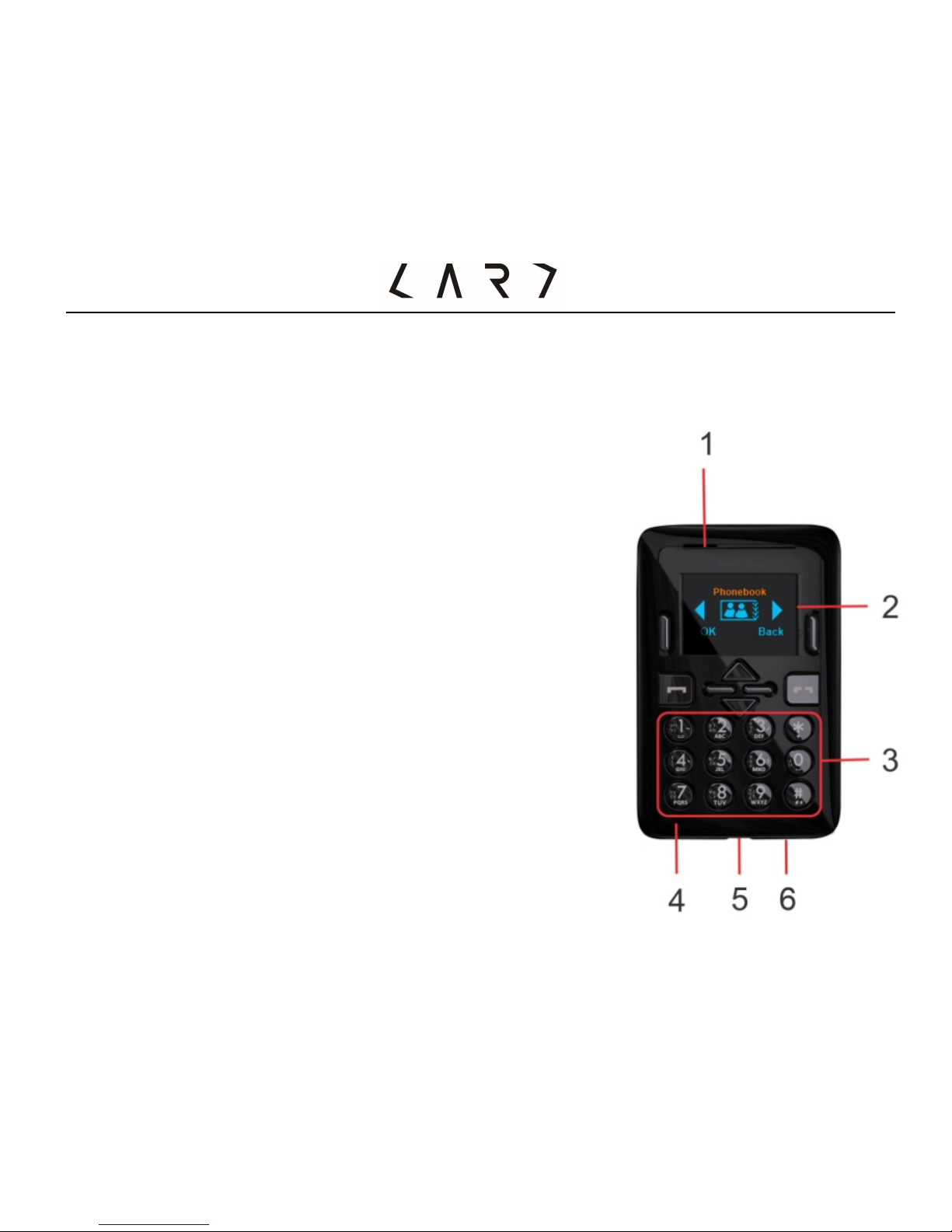
1. Speaker/Receiver
2. Screen
Top: signal strength, battery power lever and other functional
instructions
Bottom: function keys instructions
3. Keypads
Press digit code to call
Press and hold:
!*:for input the symbol” +”,
then you can make an international call.
!1: Call voicemail
!2~9:Speed dial
!#: Silent mode
4. Microphone
5. Headset connected holder and chargers
connected seats
6. Battery switch
!Right: turn on
!Left: turn off
Page 14
- 13 -
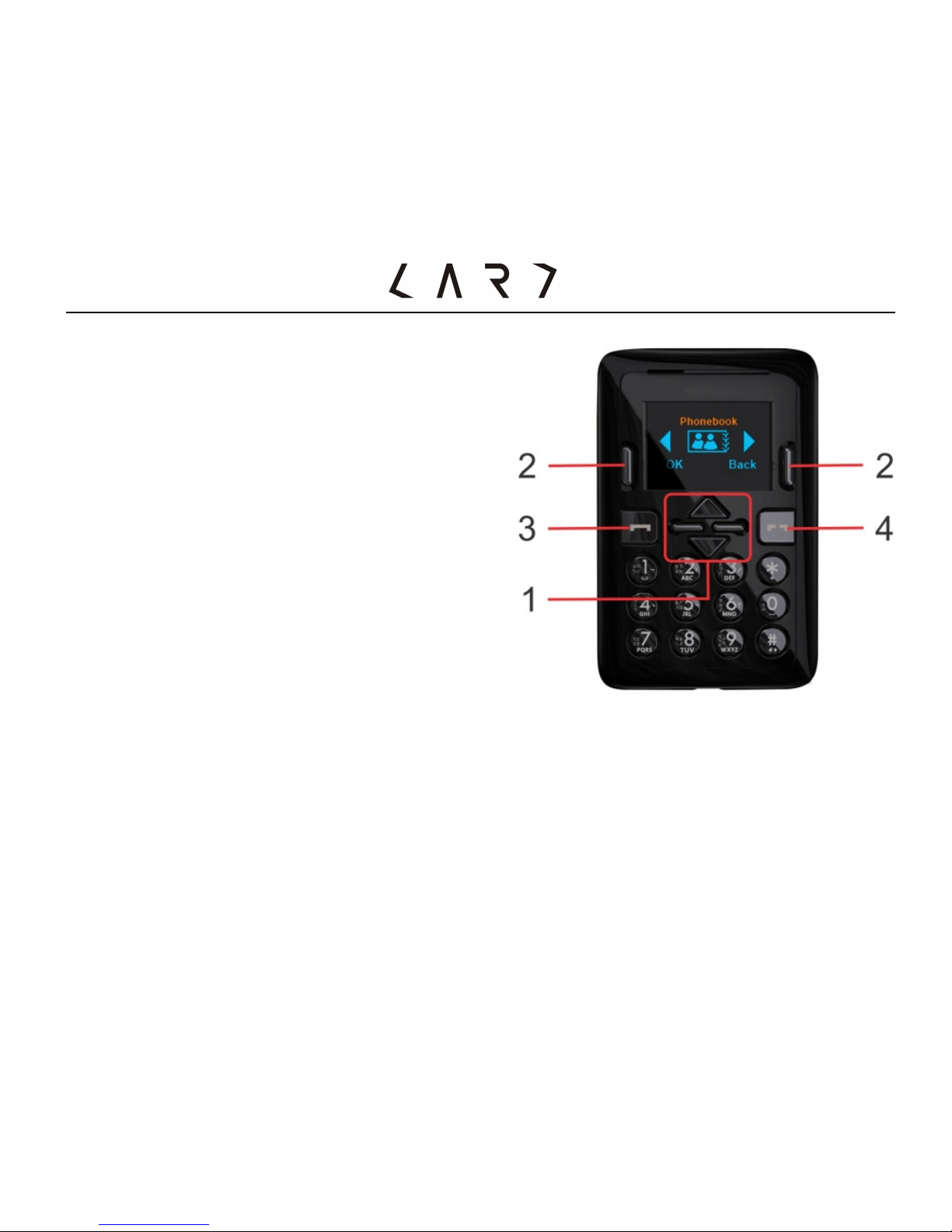
7.
1). Browser Keys
!In Idle Mode:
UP Key: SMS
Down Key: Calculator
Left Key: Calendar
Right Key: Alarm clock
!In main: navigates menus.
2). Function Keys
Left soft Key / Right soft Key
Performs the function indicated at
the bottom of the display.
3). Send Key
• Dials a phone number and answers a call
• In standby mode:
Shows a history of calls made,
received and missed.
4). End Key/ Power Key
• Press and hold to switch on / off phone
• end or reject calls
Page 15
- 14 -
Screen Icons
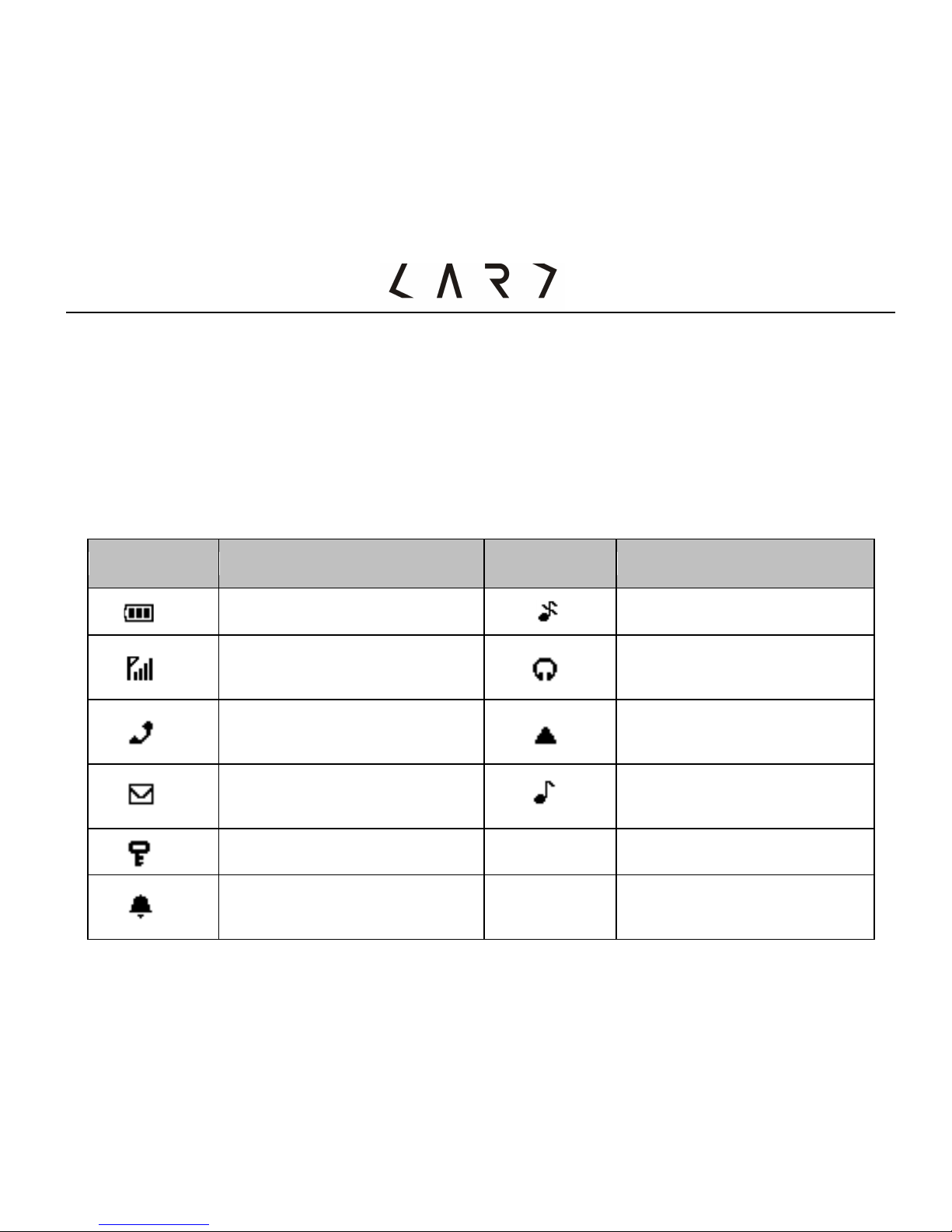
Mobile Phone Screen display area includes three parts:
1) First line: display various ICONS, said receiving signal strength and power
battery remaining such status.
2) Middle line: Display messages, instructions and any information that you
enter, such as number to be dialed.
3) Last line: Shows the functions currently assigned to the two soft keys.
The screen displays several icons. These are described below.
Icons
Meaning
Icons
Meaning
Battery capacity
Silence mode
Tells you the strength of
the network signal
Headset mode
Missed call
Show that you are using a
roaming service
You have received a text
message
Ringing mode
Keypad has been locked
The alarm has been set
and is on.
Page 16
- 15 -
Getting Started
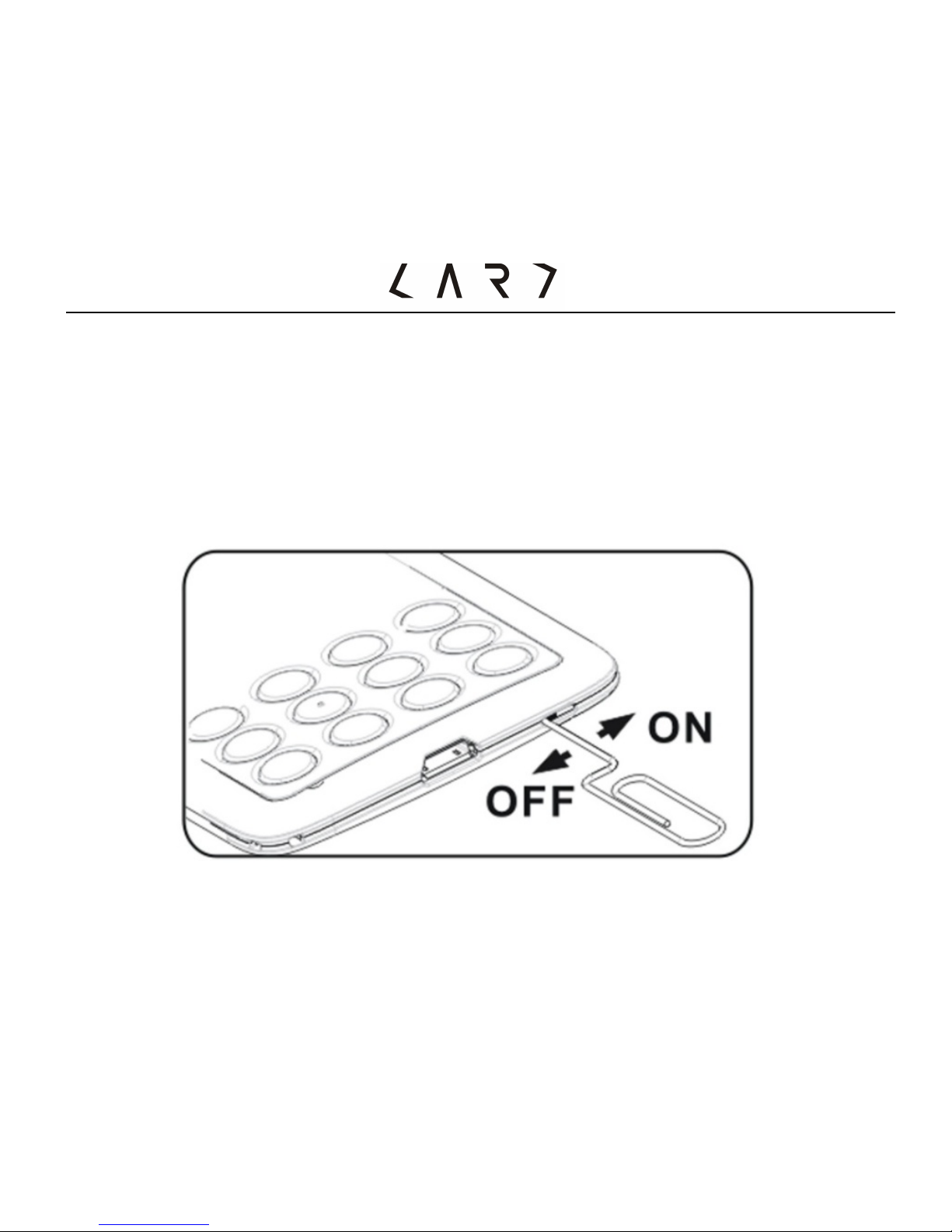
1. Switch on the main power
• Use an Eject Pin to switch on the main power.
• Please switch off the main power while a condition unnecessary to use the
mobile for long-term status.
Page 17
- 16 -
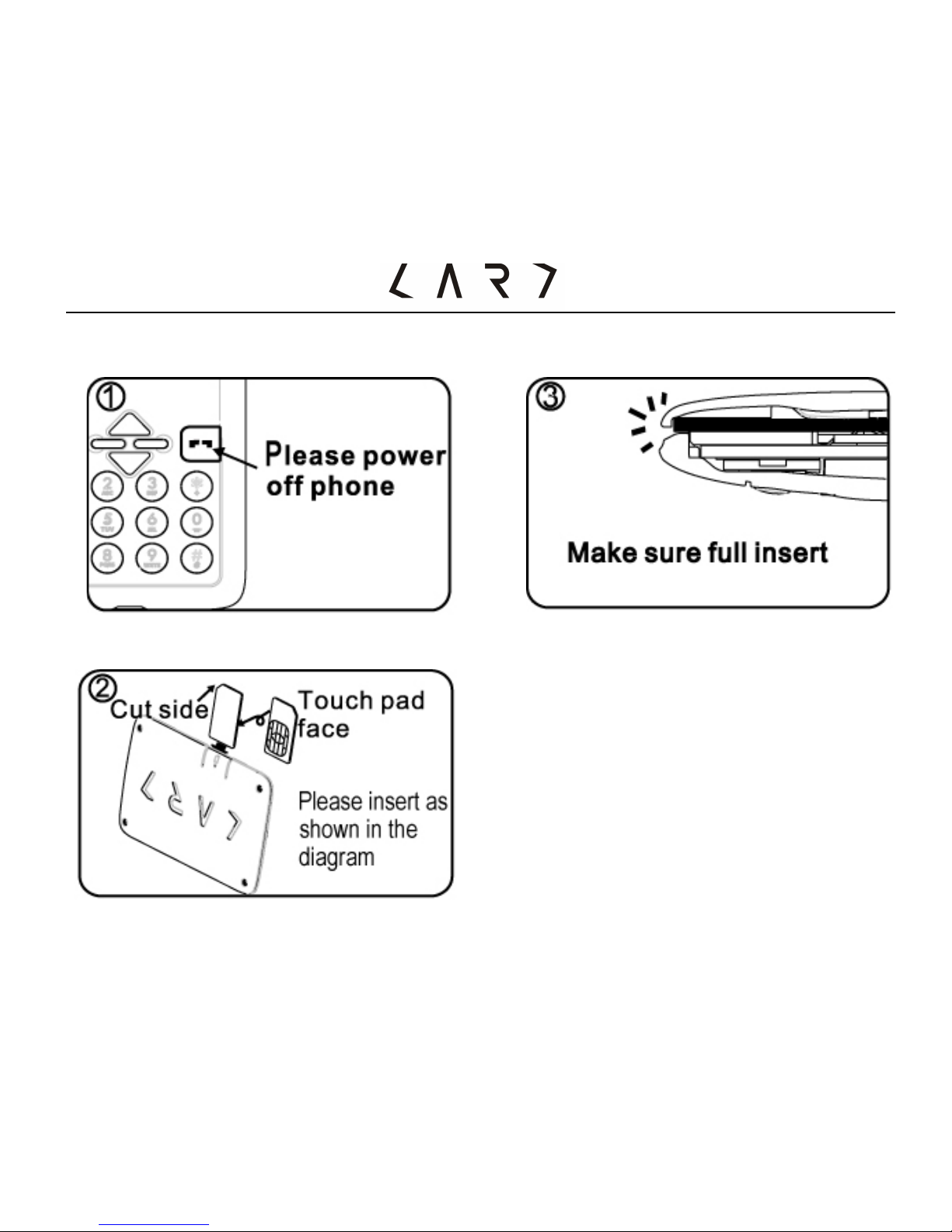
2. Installing the SIM card
Page 18

- 17 -
NOTE:
This phone support 1.8 V and 3V SIM card, do not support 5V SIM card. SIM card
metal contact point easily is scrapped. Please especially careful use SIM card.
Please follow the instructions accompanying SIM card operation.
CAUTION:
If you want to insert/remove SIM card, please turn off your phone first. Otherwise,
the SIM CARDS when the stored data can be damaged.
3. Set up Password
Your mobile phone and the SIM card have a variety of passwords. You can set a
protect code (PIN) to protect your SIM card against unauthorized use. The PIN
code is usually supplied with the SIM card. When the PIN code request is set to on,
your phone will request the PIN code every time it is switched on. When the PIN
code request is set to off, your phone connects to the network directly without the
PIN code. If the input error, please firstly press Right Speed Key to remove the
wrong PIN. Then enter the correct PIN. In the Menu, elect” Settings”" security
Settings" change password "to modify PIN code, PIN2 code and mobile password.
4. Phone Password
The security code prevents unauthorized use of your phone. The default security
Page 19

- 18 -
code is “0000” and the security code is required to delete phone entries and
restore the handset to the factory settings.
5. PIN code (4 to 8 digits)
The PIN (Personal Identification Number) code protects your SIM card against
unauthorized use. The PIN code is usually supplied with the SIM card. When the
PIN code request is set to On, your phone will request the PIN code every time it
is switched on. When the PIN code request is set to off, your phone connects to
the network directly without the PIN code.
6. PIN2 code (4 to 8 digits)
The PIN code, supplied with some SIM cards, is required to access functions such
as Fixed Dial Number. These functions are only available if supported by your SIM
card.
PUK code (4 to 8 digits)
The PUK (PIN Unblocking Key) code is required to unlock a PIN blocked phone.
The PUK code may be supplied with the SIM card. If not contact your network
operator for the code. If you lose the code, also contact your network operator.
8. PUK2 code (4 to 8 digits)
The PUK2 code, supplied with some SIM cards, is required to unlock a blocked
Page 20

- 19 -
PIN2 code. If you lose the code, please contact your network operator.
9. Barring code
If you need to activate the barred dial of functions, it is required the barring code
issued from network operator.
10. Connect the network
After SIM card and phone unlocked, it will auto search the available network. Then
enter the standby screen. You can send or receive a call, or process other function
key:
• Press Left soft key"Manual
• Press Right soft Key"Phonebook
• Press Send Key"Call records
NOTE: If the screen shows “Emergency call only”, at the moment you only can
dial the emergency call.
11. Charge the Battery
• Before using the phone for the first time, you must charge the battery.
• When the battery is fully charged the battery icon on the display is no longer
moving; unplug the travel adapter from the power outlet.
• When your battery is low, the phone will emit a warming tone and a low battery
message. The battery icon will also be empty and blinking. If the Battery level
becomes too low, the phone will automatically power off. Please use the travel
Page 21

- 20 -
adapter to charge your phone.
• Please use specialized Card Power/Card Charger and Micro USB cable. It is a
compact design, especially for travelers.
• Do not attempt to open the phone to take the battery.
NOTE:
If the battery voltage is too low to switch on the phone, it is needed longer time to
charge the battery to wake up the phone.
CAUTION:
Please ensure that the standard voltage and frequency located with your traveling
charger rated voltage and power matching.
12. Switch on / off
• Press and hold the Power Key to switch on the (or switch off).
• Please follow the directives of screen to input the password of mobile / PIN,
then press left soft Key to sure.
• The default password of mobile is "0000". The PIN code is usually supplied with
the SIM card. If you lose the code, also contact your network operator.
• When your phone is registered on the network then you can make or answer
calls.
13. Headset
You can speak and hear a phone call from mobile via your headset once you insert
the headset connector in the micro USB socket.
Page 22

- 21 -
General Function
1. Dialing calls
Press the “Send Key “to talk.
Press the “End Key” to reject.
• International Call:
Press”*”twice to insert the “+”character, enter the complete number you want
to dial (country code, area code, and phone number), and the press “Send Key”
to dial.
• Dial Extension Number:
Press ” *”thrice or four to insert the ”P” or “W” character, enter the extension
number you want to dial, and the press “Send Key” to dial.
• Searching from Phonebook to call:
You can call numbers directly from Phonebook using stored contacts. In idle
mode, press right soft key to enter Phonebook and scroll to the number you
want to dial.
• Redial calls:
Allows you to view dialed call records, make a call, send a message and save the
number in contacts, press “Send Key”.
• Speed dialing:
The mobile offers 8 shortcut keys (2-9) that can be customized to assign
corresponding speed dial numbers. You can make a speed dial call by pressing
Page 23

- 22 -
and holding the number keys (2-9) in idle mode.
Menu"Call center"General call setting"Speed dial
2. Volume Control:
To adjust the volume during a call, press Up Key / Down Key
3. Answer calls
• Receive "Press Send Key or Left soft key
• Hand up "press End Key or Right soft key
NOTE: It can display the caller name and phone number if it has been set in
phonebook. If not so, it will display the phone number. Even during using function
list or phonebook, you can answer a coming call as well.
4. Calling Options
During a call, you can access the “option” menu to choose the different functions.
Press the left soft key to use “hand-fee” function.
Input methods
This mobile phone supports different input methods; you can use the different
input methods as follows.
You can edit texts for phonebook; message etc. by different input methods. You
can also switch the methods quickly by press”#” key and enter symbol input mode
by “*” key.
Page 24

- 23 -
Icon of input method
ABC mode: “ABC”
abc mode:“abc”
Number mode:“123”
Zhuyin:“ 注”
Smart Zhuyin:“zi 注”
Traditional Chinese Stroke:“ 筆”
Pinyin:“拼”
Smart Pinyin: “zi 拼”
Input methods
• Special character input method
press”*”to input symbols
Press browser key to select symbols.
Press left soft key to confirm ”OK”.
• 123Number mode
Type numbers using one keystroke per number.
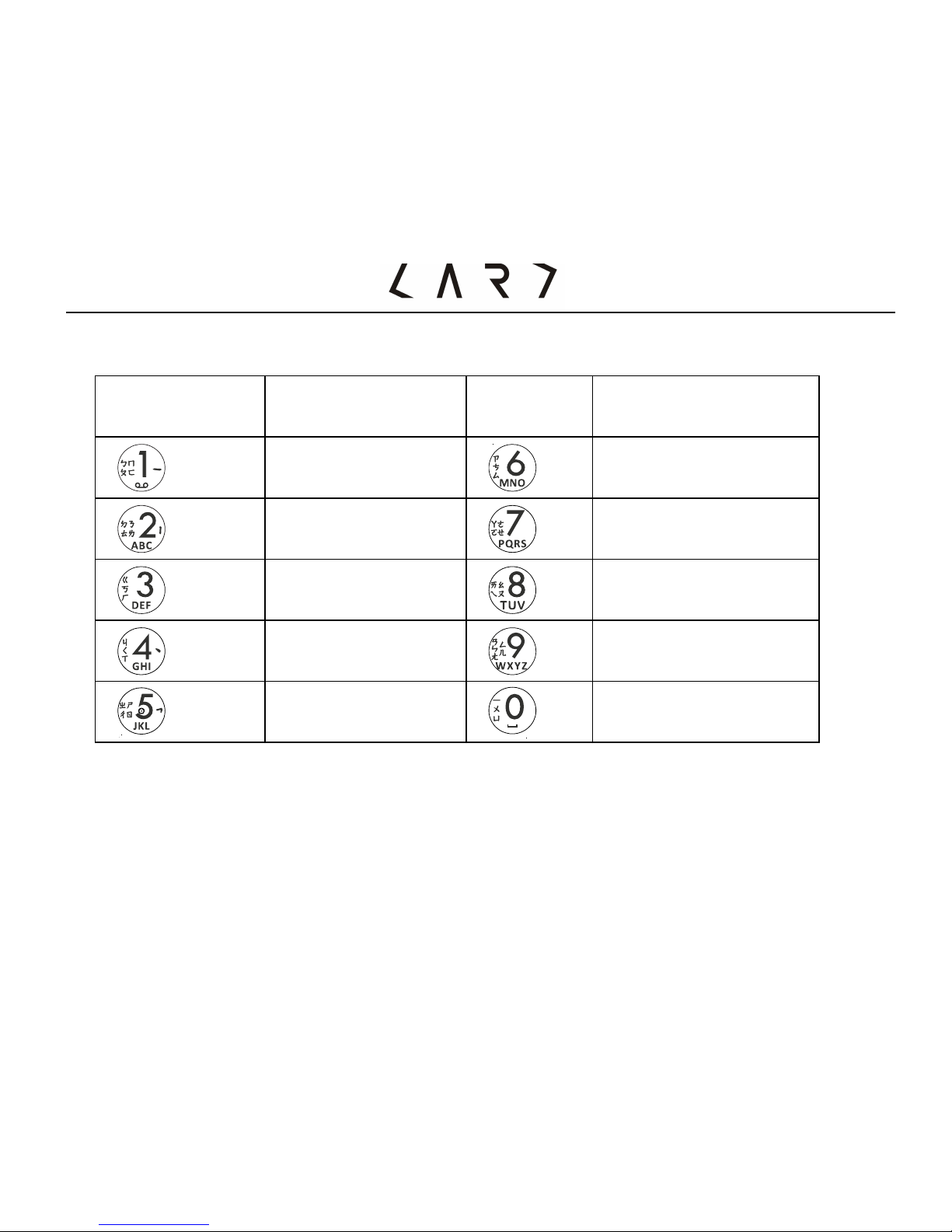
• Zhuyin mode
Page 25
- 24 -
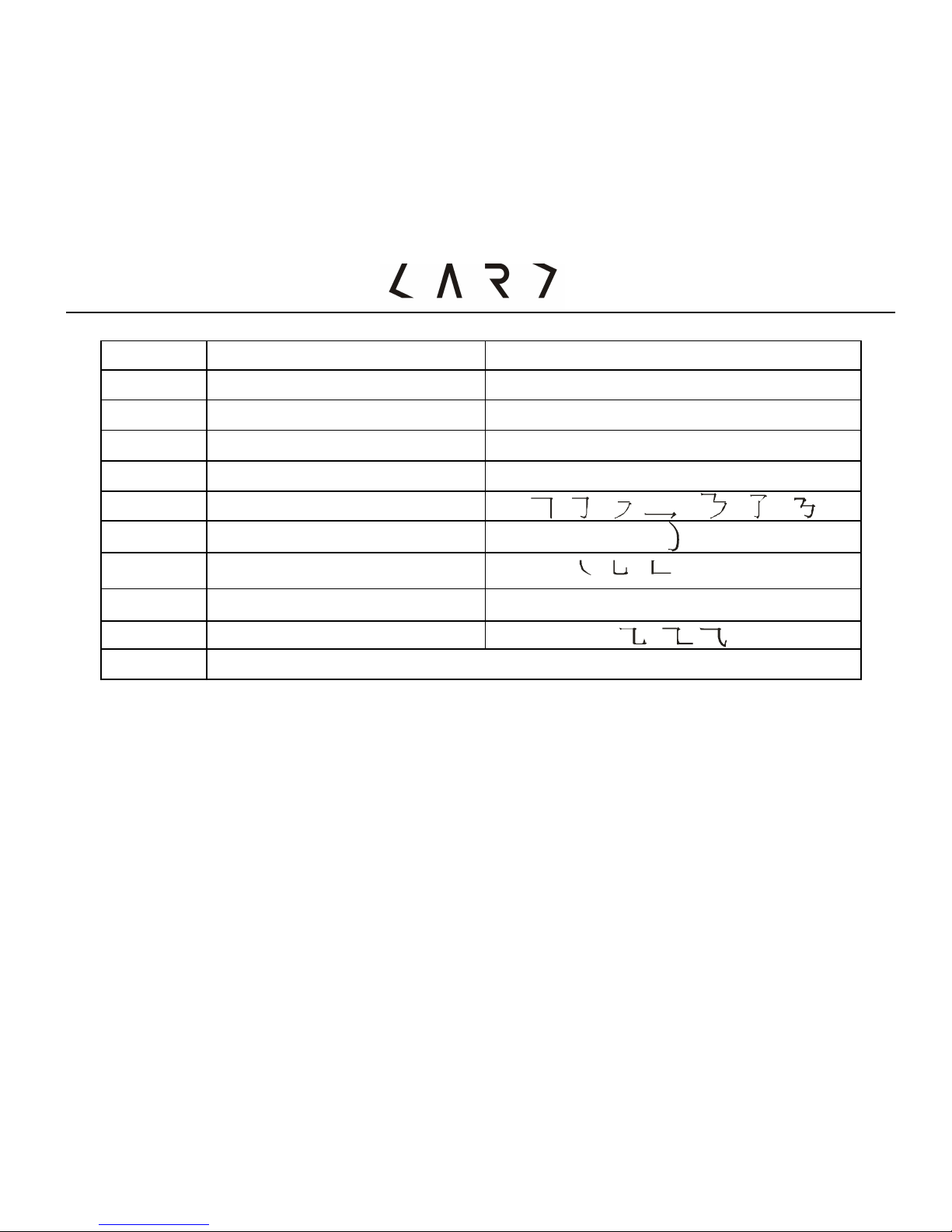
“ㄅㄆㄇㄈ”according to 40 special notes for characters. Please refer to the table
below:
• Pinyin mode
As multiple letters are allocated to each key .You can select letters by pressing
the key for several times continuously. Then press Left key to select.
Keypad
Bo Po Mo
Keypad
Bo Po Mo
ㄅㄆㄇㄈ
ㄗㄘㄙ
ㄉㄊㄋㄌ
ㄚㄛㄜㄝ
ㄍㄎㄏ
ㄞㄟㄠㄡ
ㄐㄑㄒ
ㄢㄣ ㄤㄥㄦ
ㄓㄔㄕㄖ
一ㄨㄩ
Page 26
- 25 -
• Stroke input method
Keypad
CH. definition
Representative stroke
1
Horizontal
ーˊ
2
Vertical
〡亅
3
Iota
丿
4
Dots
ヽ乀
5
Fold
6
Hook
7
Stand fold
ㄣ
ㄅ
8
Universal key
unknow stroke input
9
Cross break hook
#
Input Method Switch Key
You can input the representative stroke then press direction key (L/R move the
cursor)(Up/Down turn pages) to select appointed Chinese word.
Chinese characters can be divided into five basic stroke type: horizontalー, vertical
〡, iota 丿, dotsヽ, fold. These basic stroke were printed on keyboard by digital
keypads (as Chart)
• ABC mode
The phone offers capital and lowercase of the English characters input methods.
Page 27
- 26 -
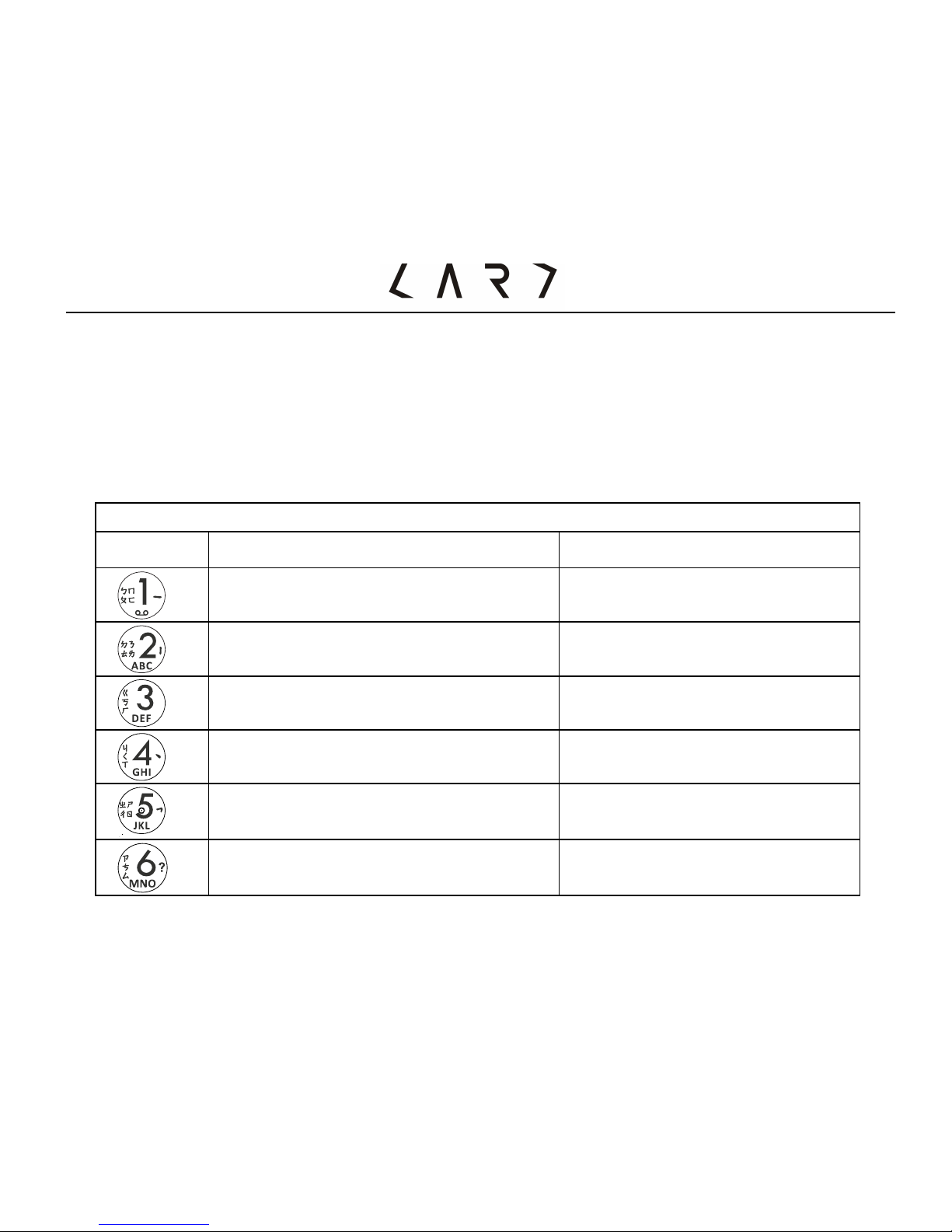
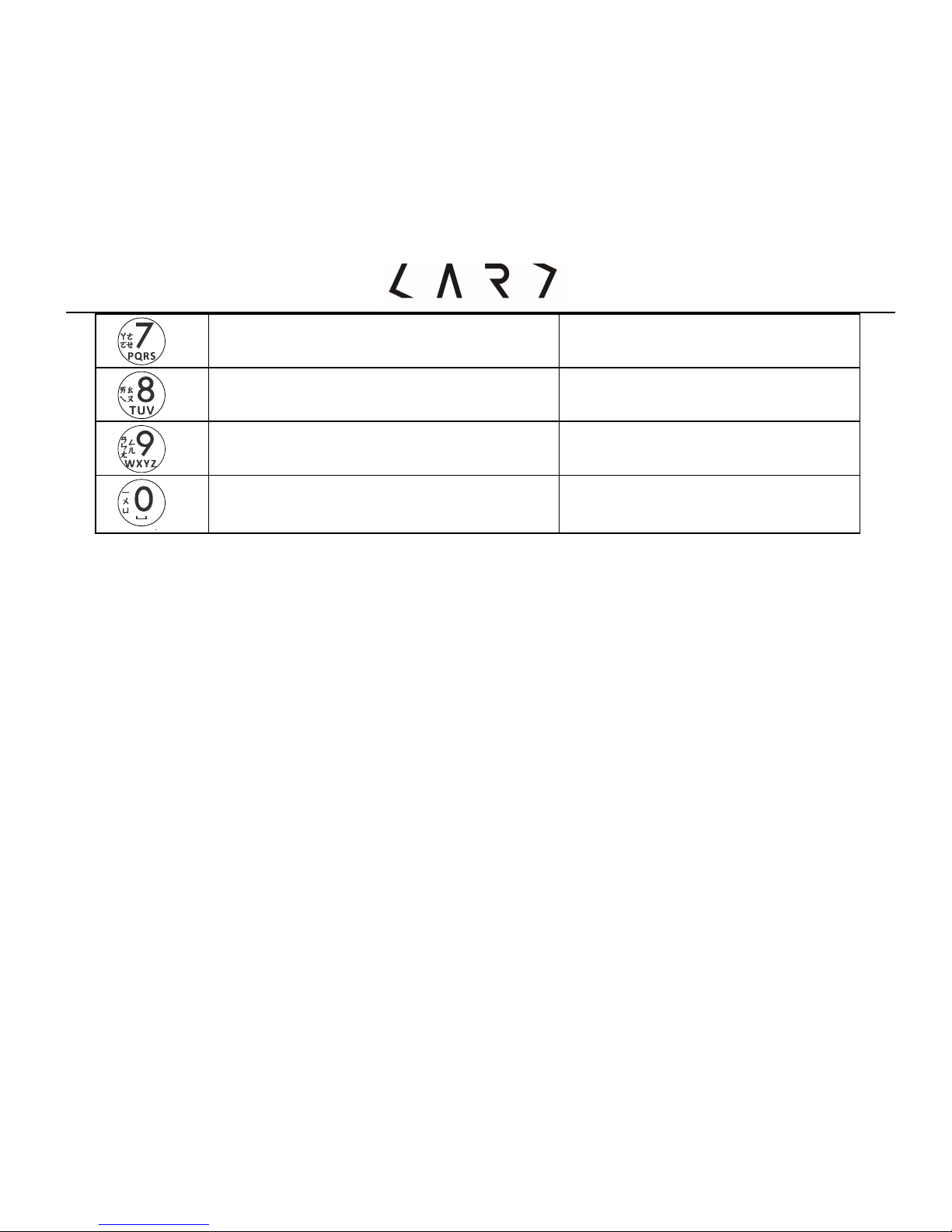
The capital and lowercase input method is different from the intelligent input
mode because it does not have the intelligent association function but allows
multi-press to input the characters you want. Each press inputs a corresponding
character For example, Press 2 to input A, 3 to D, keep pressing 2 to choose “A”,
“B”, “C” or “2”. If need to insert a space, please press “0”key.
Please reference as the table.
characters List in order
keypad
Capital letter
Lowercase letter
,、∕?!-:“1
,、∕?!-:’“1
A B C 2
a b c 2
D E F 3
d e f 3
G H I 4
g h i 4
J K L 5
j k l 5
M N O 6
m n o 6
Page 28
- 27 -
P Q R S 7
p q r s 7
T U V 8
t u v8
W X Y Z9
w x y z 9
(SPACE KEY) 0
(space key)0
Operation of Speed Key
The phone has shortcut key functions. It can access via left/Right soft key. You
can check and modify the specific function setup and operation by each function of
menu. The operation of speed key will be different functions for different
conditions. Its icon of current function will be shown on the bottom of the display.
Page 29

- 28 -
Introduction to Functions
Phonebook
This phone can save the information of contacts including names and telephone
numbers in the phonebook, which can save as much as 500 entries. The storable
entries of SIM card depend on the type of the card.
In the idle mode" press right soft Key"options
For each phone records, you can set the following operations:
• Call
• IP Dialing:When IP dialing Number has been set activated, It will select IP
Dialing code to dial out .You can set IP dialing number in Menus.
• View: check the information of the call
• Edit: setting for the call
• Delete: remove the call record from phonebook
• Copy:You can copy records from SIM to mobile phone or from mobile to SIM.
• Move:Remove the record which in mobile, via this option to move to SIM; vice
versa.
• Duplicate
1. Quick search
Input the first letter, it will be quickly search the name with same letter of
beginning.
Page 30

- 29 -
2. Search Contact
Search for the records complying with conditions exactly from contacts.
3. Add new contact
Add a new phone number record in contacts, and save it in the phone or SIM
card.
4. Copy all
Select to copy all phone number records from the SIM card to the phone or from
the phone to SIM card.
5. Delete
You can select to remove records on by one or all records at a time form the
SIM card or from the phone. To remove all records, you have to enter the
correct PIN or phone code, If set, it’s to proceed. The default password is “0000”.
6. Caller groups
The phone supports five caller groups. You can select the group to view and edit
group information, such as group name, melody and group members.
7. Extra Numbers
You can save your own phone number, service number, and emergency number.
8. Settings
• Memory Status:display its used space and total space of this device’s
phonebook and SIM’s phonebook.
• Preferred storage:Set the new number storage location,
Page 31

- 30 -
choice the default state is to SIM card or to Phone.
• Fields:Adding new number to mobile phone, for select the content it’s
including family phone, company name, E-mail address, telephone and fax
Numbers, ringtones selection, caller groups" press Left speed key to select the
content to add"press Right speed key to complete the setting.
• Name list filter: You can select it appear the contacts of SIM, phone or all.
Messages
1. Write message
Right soft key"Edit message (press”#” for change input method)"Temples
select/edit text, phrases)"insert phone number "insert contact
2. Inbox
You can check and manage f you received in the box.
Press Left soft key to select “option:
Read/ Reply /Edit / Delete / Forward /Delete all / User number
3. Outbox
Read or handle the message saved in this folder.
4. Templates
Page 32

- 31 -
There are I0 pieces phrases can be edited or deleted.
5. SMS settings
• Profile settings:The SMS center number can be stored or modify from
network operators or obtained this number. You also can set up the validity
period and send format.
• Common settings:you can set up the Delivery report / Reply path. If support
the function, it’s related the network operator.
6. Voice mail server
This function used to set the number and answer voicemail message. If you’re
SIM with this service, you will receive the voicemail number issued from service
supplier to your phone.
Menu"Message"Voice mail server"ok
7. Broadcast message:
The network operator allows you to receive various kinds of text messages, such
as the content weather or traffic information. Currently there is few network
operators to launch this service, please consult with network operators about the
related content.
• Receive mode:on/off
• Read message:checking the messages via up/down key
Page 33

- 32 -
• Languages:it is up to network operator.
• Channel settings: Select /Add / Edit (reset) / Delete
Call center
1. Call history
1.1 Missed calls: manage recent 20 missed calls (to delete / save/ dial / edit/
send message)
1.2 Dialed calls: check recent 20 dialed calls (to delete / save/ dial / edit/ send
message)
1.3 Received calls: check recent 20 received calls (to delete / save/ dial / edit/
send message)
1.4 Delete call log
To delete the phone records of missed /received / dialed number
1.5 Call time
To check the last call time / Total sent / Total received /Reset all time
1.6 Call cost
To check last call cost / Total cost / Reset cost (required PIN2) / Max cost
(required PIN2)/ Price per unit (required PIN2)
NOTE: These functions are up to SIM support or not. PIN2 issued by network
operator.
1.7 SMS counter: You can check the quantity of Sent / Received
Page 34

- 33 -
PS: This function is not related with SIM card even you changed another
SIM.
2. General call settings
2.1Caller ID:
Setting: Set by network / Hide ID (not recommend) /Send ID
2.2 Call waiting
• Activate:To start call waiting function
It will give a reminding to you while you are talking but the other coming call is
waiting.
• Deactivate: To stop the call waiting function and no any insert call while you
are talking in phone.
• Query status::To check status via network
2.3Call divert
This function can transfer incoming calls to your designated another phone.
Menu"General Call settings"Call divert"
• Divert all vice calls
• Divert if unreachable
• Divert if no answer
• Diver if busy
Page 35

- 34 -
• Divert all date calls
• Cancel all divert
Activate / Deactivate "To new number / To voice mail"input the phone
number"ok
2.4 Call barring
This function can limit the call. It be required a barring password provided by
network operators. At first, before this function, please contact with your network
supplier. After selected options activate or Deactivate, you will be required to
input the barring password. Wait for a while, the network will respond and inform
the operating results.
2.4.1 Outgoing calls
• All calls; for barring all of calls outgoing
• International calls:for barring international calls outgoing only
• International calls expect to home PLMN: for outgoing calls only be allow
to the local phone or network host country while you are in foreign country.
2.4.2 Incoming calls
• All call:for rejection all of incoming calls
• When roaming: for rejection the incoming call while you are in the out of host
roaming services area.
Page 36

- 35 -
2.4.3 Cancel all: for cancel all of the barring in calls. It is required the Call
barring Password issued by network operator.
2.4.4 Changing barring password:
Call barring is a network service that allows you to restrict the calls that you make
or receive with the device. This service also requires network support. You need
the barring password from your network operator. In this menu, you can set call
barring objects.
2.5 Auto Redial
Choose whether automatic redial will be implemented when the called party is in
the busy or have no response.
2.5.1 Speed dial
• Status: Switch on or off the function of speed dial.
• Set number: The most you can set up 8 speed numbers list (from2 to 9)
2.5.2 IP Dial:
Select to open or close IP dial and edit IP number Choose to activate or inactivate
the SIM1/SIM2 IP dial, and edit the IP number.
2.5.3 Answer SMS: Edit the content and answer automatic.
2.5.4 More
• Call time display: Choose to activate or inactivate the call time display during
Page 37

- 36 -
the calling.
• Call time reminder: Choose display the call time or not when calling(a sound
reminder)
• Auto quick end: Activate or inactivate the function of auto quick end.
2.6 Speed dial
• In Idle screen"Caller center"General call settings"Speed dial"Enable speed
dial"press On
• Setting 9 contacts of phonebook to be Speed dial number with its code number
(2~9).
In idle screen"Pass and hold the number (2~9) on the keypad only"speed dial
2.7 IP dial
General settings"IP dial" Ok "(Options) Activate / Edit" input
• General IP dial: You can set up 3 IP numbers.
• Add area code:It allows to setting up area code (such as 02Taipei). After
activate, it will add automatically in your dialing while you are in roaming.
• Add country code: It allows to setting up country code (such as +886Taiwan).
After activate, it will add automatically in your dialing while you are in roaming.
2.8 More
• Call time display: on/off
Page 38

- 37 -
• Call time reminder: turn off without reminder ring / Single (1~3000 sec)
/Periodic (30~60sec)
• Auto quick end
• Line switching
• Close user group
"Add"input name of group (NOTE: It is supported from network SIM
supplier)
Settings
1. Phone Setup (menu" Settings" phone setup" Time and date /
Schedule power on or off
1.1 Time and date
• Set home city:57 options city of world。
• Set time/ date:to set up the current time / date and Daylight saving
• Set format: Time format 12/24; Date format YYY/MM/DD
It will appear on screen display after changing.
1.2 Schedule power on / off:Check the status (able or disable)
1.3 Language: English / Traditional Chinese/Simplified Chinese
1.4 Default encoding type: BIG5/GB2312
1.5 Dedicated key: Up / Down /Left / Right
Page 39

- 38 -
1.6 Flight mode: signal display :Normal mode / Flight mode
2. User profiles
Options as follows:
2.1 General: Activate / Customize
Customize:
# Tone setup:Incoming call / Alarm / Power on / Power off /Message tone /
Keypad tone
# Volume:Ringtone / Key tone(up :louder or down :lower )
# Ring type:(Single / Repeat / Ascending)
# Extra tone:(Warning / Error / Camp on / Connect )
# Answer mode:Any key
2.2 Meeting mode
Please refer to the 2.1 "General “method of operation.
2.3 Outdoor mode
Please refer to the 2.1 "General “method of operation.
2.4 Indoor mode
Please refer to the 2.1 "General “method of operation.
2.5 Headset mode
Page 40

- 39 -
It starts once the headset inset the phone without activate.
Please refer to the 2.1 "General “method of operation.
2.6 School silent mode
You can set silent mode for any time from Monday to Sunday when you are at
school.
3. Network setup
Please contact with network supplier for the service.
3.1 Network selection:Auto / hand move
3.2 Preferred:the default is current network
4. Security setup
It is related about safety of phone usage.
4.1 SIM lock:
Before the setup, it is required to input PIN code for switch on the phone. After
3 invalid PIN input, you need the PUK (personal unlock key) to unlock and
modify PIN code. If you lose the code, also contact your network operator.
4.2 phone lock:
If this function is enabled, you must enter the phone code upon each startup.
The default password is “0000”.
Page 41

- 40 -
4.3 Auto keypad lock:
Set the automatic keypad lock of your phone, press confirms to enter the setting
screen. Select off (to invalidate keypad lock function), 3sec, 30sec, 60sec, or
4min to lock the keypad when no operation is made on the phone within the
specified time.
4.4 Fixed dial:
It is required press PIN2 code that issued from network operator to turn on this
function. Then this phone only can send calls from the fixed dial list.
NOTE: Input once PIN2 after turn on the phone but do not input PIN2
before turn off the phone. If you don't want others to change state of
fixed dial-up, after setting and then restart, please.
4.5 Barred dial:It is for barring to dial calls which from the Fixed dial list. It is
required input PIN2 code that issued from your network operator to turn on this
function.
4.6 Change password:It is for changing PIN, PIN2 and password.
5. Restore to factory settings
Input the default phone password”0000”. It is for restore the settings to factory
original settings.
Page 42

- 41 -
Organizer
1. Alarm
Please press Left /Right / Up / Down keys to select the options to setup your
alarm clock functions:
• Up / Down"on / off
• Set up alarm time: five alarm clock
• Edit alarm
Snooze (min):1~10 / default
2. Time Announcer
Setting the range and announce the time in sharp.
3. Calendar
Up key / Down key / Left key / Right key "select month / date"
Ok (enter Option):
• View tasks / Add task:View or edit note to remind you.
4. Calculator
This phone provides calculator functions of add, subtract, multiply and divide
Page 43

- 42 -
computation.
• Up, Down, Left, Right : +、-、×、/
• Left soft key: =
• Right soft key: Clear / Back
5. To do
Its memory size is up to the space of phone.
You can view / add / edit / delete the tasks list which you set in calendar.
Page 44
- 43 -
Appendix
Troubleshooting
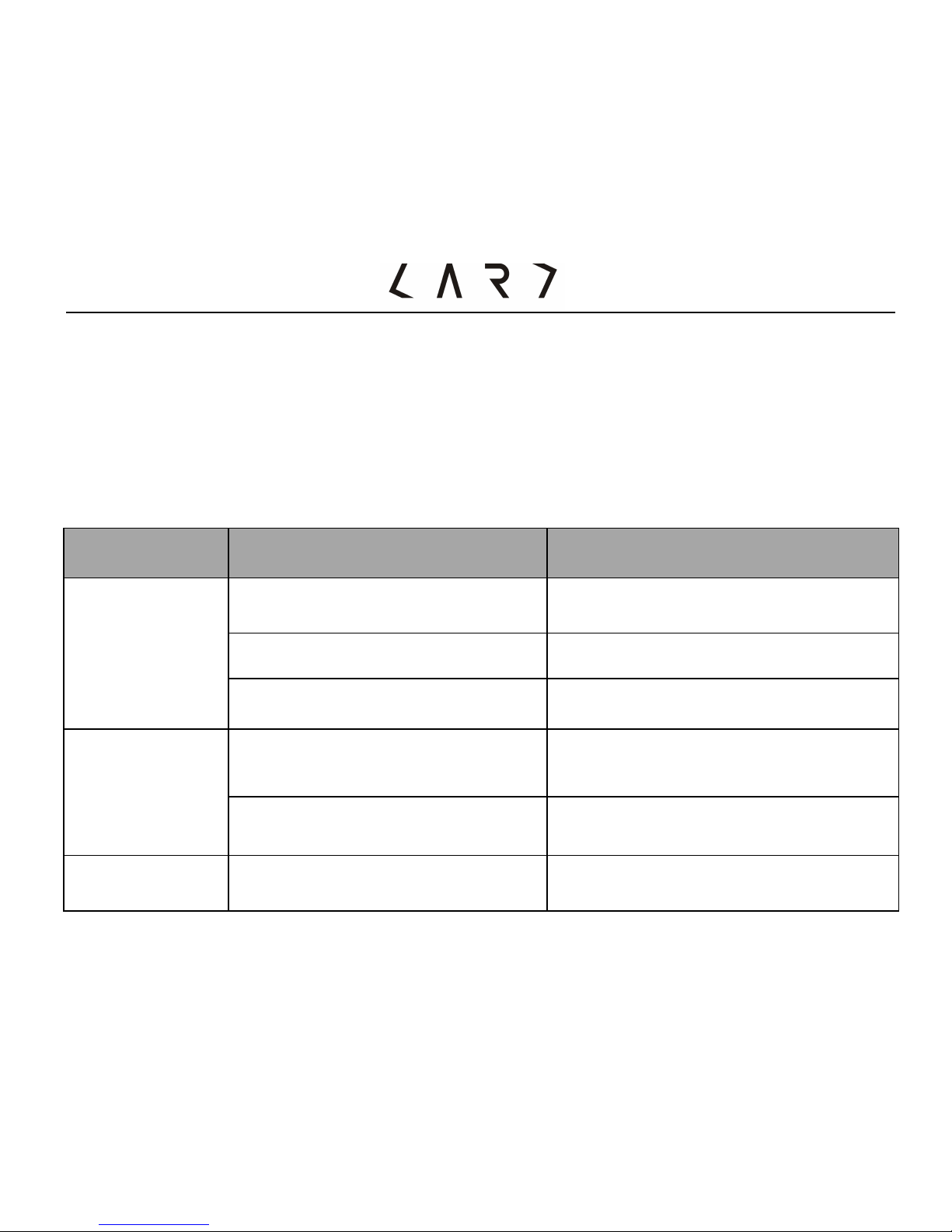
1. If you meet a trouble during operating phone, We suggest you to recover the
factory original default settings and refer to the information below to remove
faults on your device .If faults cannot be removed, please contact your dealer
or maintenance
2.
Frequency Q
Probable cause
Solution
SIM error
SIM card damaged
Please contact with your network
operator.
SIM card not set up
Check SIM card.
SIM card dirty
Wipe SIM with clean soft cloth.
Poor signal
Use phone in undesirable an
area such as basement
Please to be located in signal good
position to answer or to call.
Use phone in a dense period
cause congestion
Please reduce using cell phones in
dense time.
Can’t turn on
Battery power drained
Please charge the battery.
Page 45
- 44 -
Cannot call
Used a Barring dial function
Stop the Barring dial function.
Cannot find a
network
SIM card invalid
Please contact with your network
operator.
In response to the environmental protection policy of energy saving carbon
reduction, Card Phone uses the latest Micro USB socket of EU (European Union)
standard, which can be charged via Micro USB by computer USB holes or USB
transformer. Thus, our phone package will no longer attach the charging cable and
adaptor, so as to reduce unnecessary waste of resources. If you do not have the
devices, you can purchase our Card Charger series or use other standard Micro
USB cable and adaptor.
Cannot find a
network
Beyond the GSM service
area
Please move to internet service
area
Poor signal
Please move to the strong
signal place try again.
Voltage inconsistent with
the charger labeled range
Please use the charger that is
labeled consistent voltage.
Cannot
charge
Use non-standard chargers
Please use the specified
charger.
Loose contact
Check the connection of plug
and cable
 Loading...