

Page 1
User guide
Page 2
EN
Software Version
: CM5
-O-
3.5.9
Verifone Android
Carbon Mobile 5 with Printer
Document Version 6.0
Page 2
User Guide
Terminal usage basics Carbon Mobile 5 with printer
EN
User Guide
Carbon Mobile 5 with printer
2 EN
Page 3
User Guide
Terminal usage basics Carbon Mobile 5 with printer
EN
User Guide
Carbon Mobile 5 with printer
3 EN
User Guide
Carbon Mobile 5 with printer
EN
3
Page 4

User Guide
SIM Setup Carbon Mobile 5 with printer
EN
User Guide
Carbon Mobile 5 with printer
4
EN
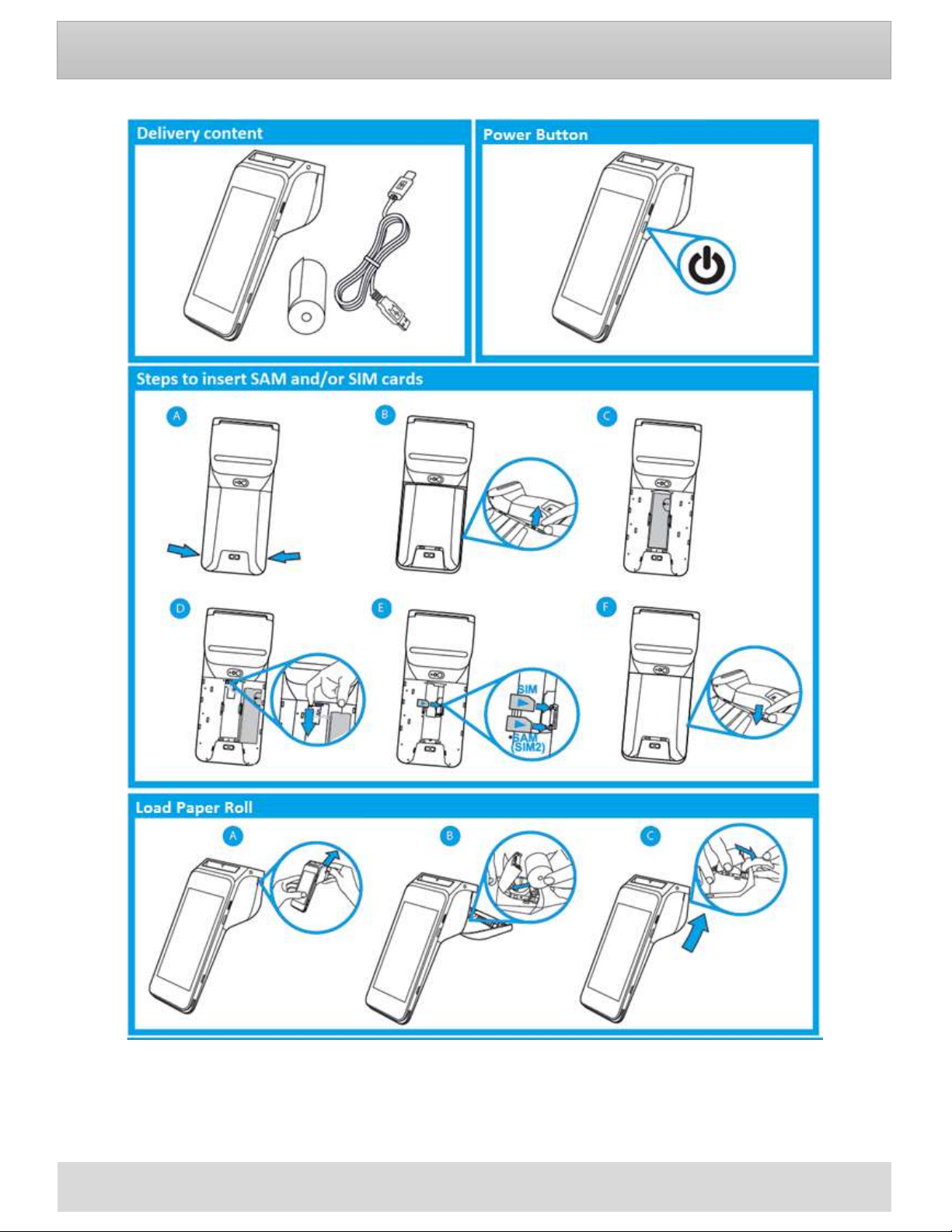
SIM Setup
Description
1 Nano SIM Slot
1 micro SAM or 2nd micro SIM Slot
User action
To Install SIM cards please turn off your device, remove the battery cover then
remove the primary battery from the battery compartment but keep the battery
connected.
Insert a SIM card (with contacts face down) by carefully sliding it into the slot until
the card is fully inserted.
Make sure the card orientation is matching with the icon engraved in the housing.
Place the primary battery then place battery cover.
Note: if the device was powered on during insertion. Please reboot the device after
inserting a SIM
Page 5
Description
Description
Description
User Guide
5
User Guide
Terminal Charge and Power Up Carbon Mobile 5 with printer
EN
EN
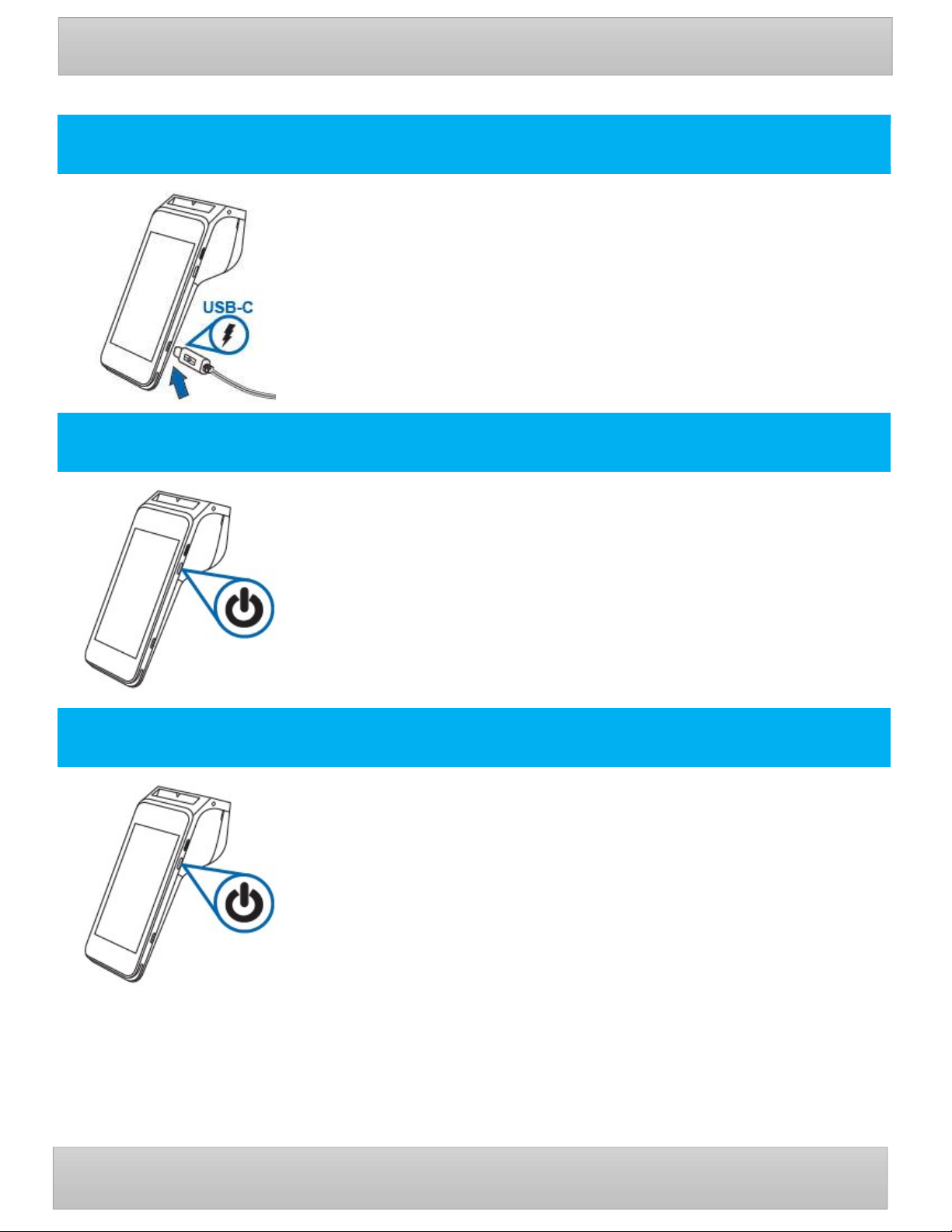
Charging the Battery
To charge the battery.
User action
After unpacking your Verifone Carbon Mobile 5 device, charge the unit for eight
hours or until fully charged.
Manual Start Up
To start up or power on the terminal.
User action
Hold the start/power button for about 3 seconds until the device displays the startup screen.
Manual Shutdown
To shut down or power off the terminal.
User action
Hold the start/power button for about 1 second until the message is displayed on
the screen. Touch the "Power Off" selection to turn off.
Carbon Mobile 5 with printer
Page 6
User Guide
EN
User Guide
EN
6
Out of Box Carbon Mobile 5 with printer
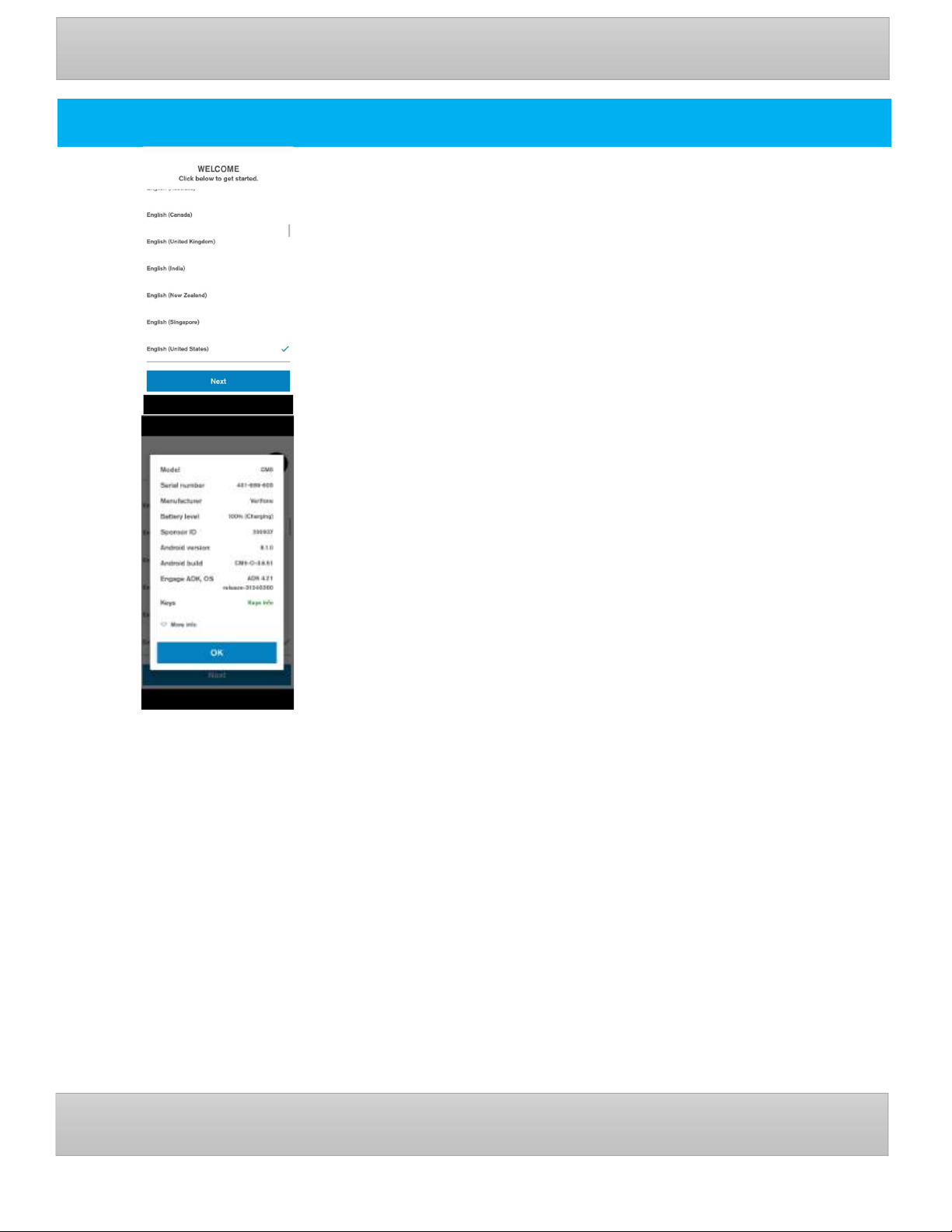
Language selection
Description
Shows the list of supported languages with locales.
User action
Language and Country can be selected here, where they will be applied to
system and all apps which supports the selected language.
Optional Info
It shows a summary about the device, which can be used to validate
software stack before starting the activation process:
Model name
Serial number
Device manufacturer
Battery level
VHQ Customer ID
Certificate Sponsor ID
Android version
Build version
Engage ADK and VOS versions
Information about installed warranty keys
Current connection status
SIM card status
Part number
URL of VHQ server
Heartbeat frequency
Current IP address.
Carbon Mobile 5 with printer
Page 7
User Guide
EN
User Guide
EN
7
Out of Box Carbon Mobile 5 with printer
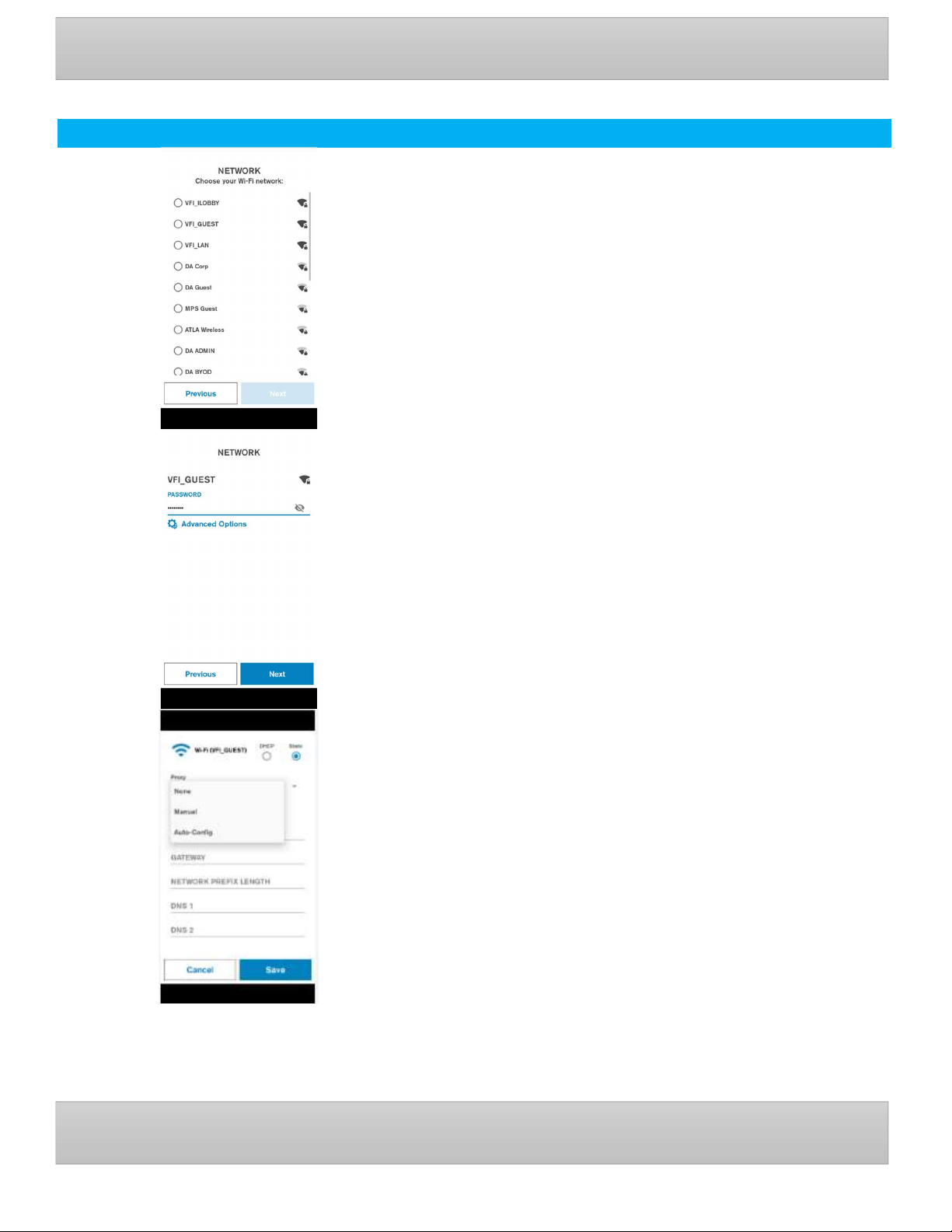
Wi-Fi Setup
Description
Displays list of available Wi-Fi Networks (SSID, strength).
Unsecured or WEP network cannot be selected.
User action
The User can select secured access point and credentials will be
requested. Possible to move to the next screen if Ethernet/Mobile is
connected.
Description
Wi-Fi network credential input. If the password entered is correct a
connection will be established automatically. There is the option to
configure a static connection with help of “Advanced Options”.
User action
Requested to enter network credentials. The User can return to the
previous screen or use the ‘Advanced Options’ to go to Static network
configuration.
Optional Static and/or Proxy configuration
Selecting Advanced Options, the user can enter the static network
configuration information for the selected access point.
Proxy configuration (Manual or Auto-config) can be entered as well.
The same configuration setting options are available for Ethernet
connection types.
Carbon Mobile 5 with printer
Page 8
User Guide
EN
User Guide
EN
8
Out of Box Carbon Mobile 5 with printer
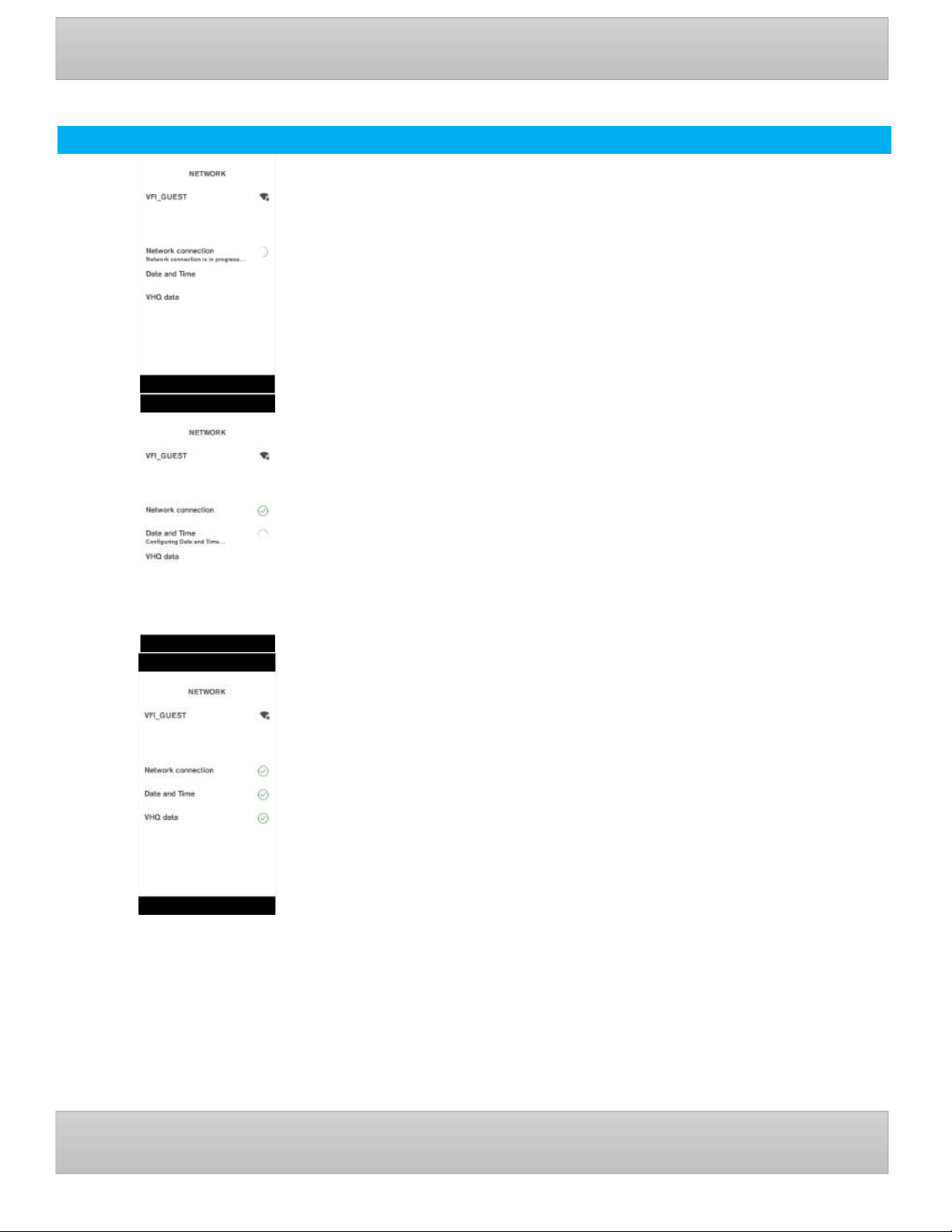
Network Detection
Description
The terminal is checking the internet availability and time configuration, these
settings are used to communicate with the servers.
User action
The user is not required to do any action at this stage.
Carbon Mobile 5 with printer
Page 9
User Guide
EN
User Guide
EN
9
Out of Box Carbon Mobile 5 with printer
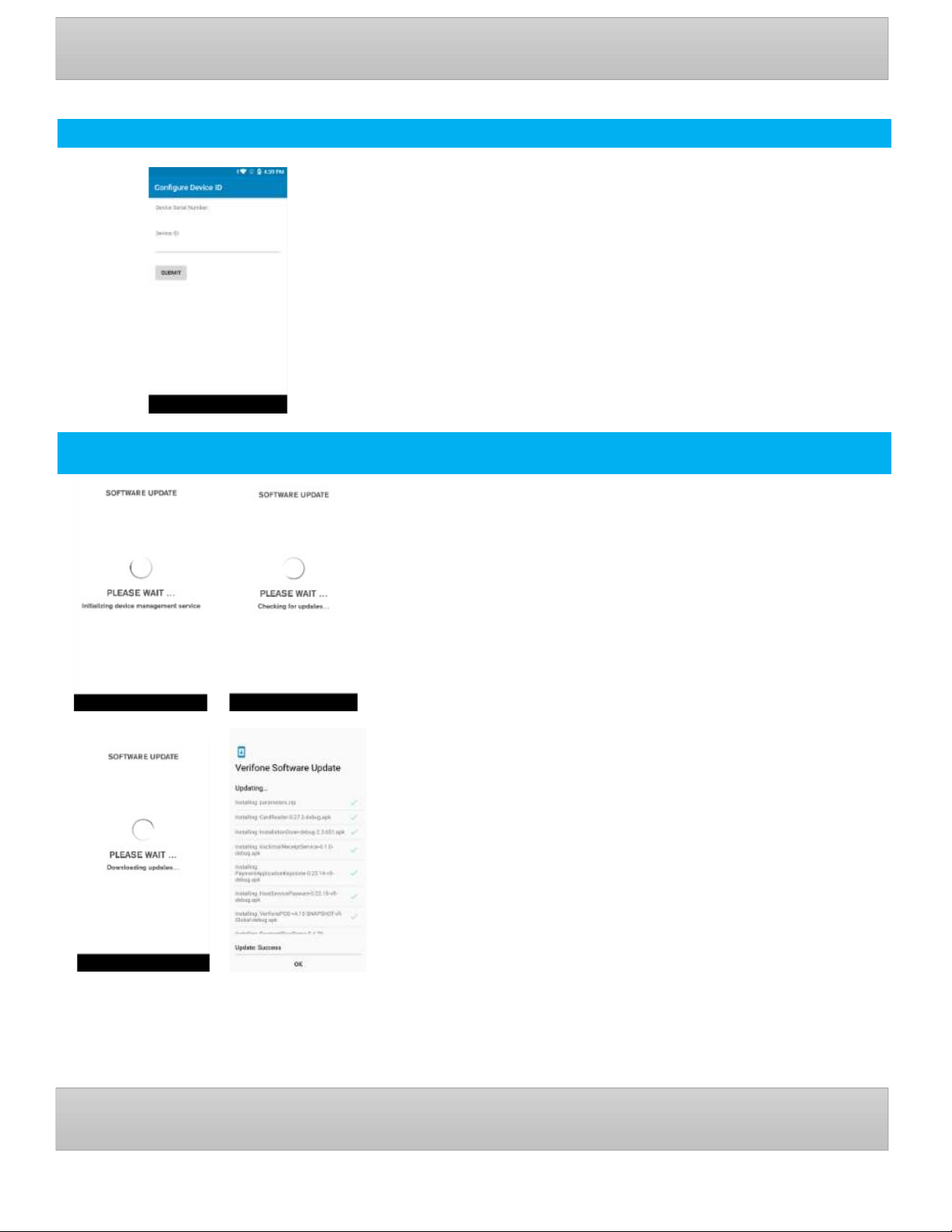
Configure Device ID
Description
Device ID entry.
User action
The user enters the received information Device ID (DID) in the
corresponding field and click submit.
1 2
Software Upgrade
Description
These are the different stages of VHQ update process as well as Software
packages installation.
User action
The user is not required to do any action at this stage and must wait until all
the installation steps are complete.
As soon as the packages are downloaded, the installation will start.
Multiple reboots may occur based on the package types involved.
3 4
Carbon Mobile 5 with printer
Page 10
User Guide
EN
User Guide
EN
10
Out of Box Carbon Mobile 5 with printer
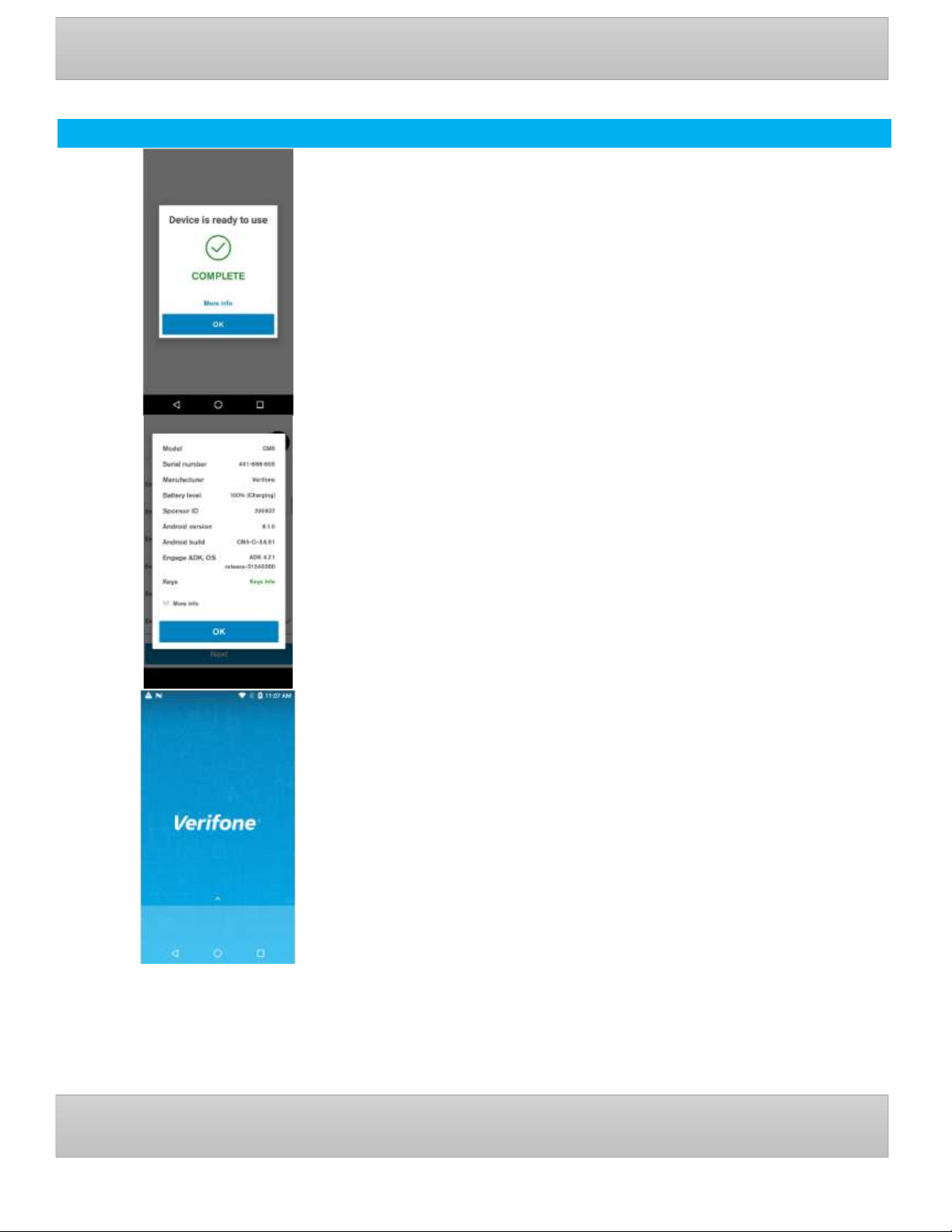
Installation complete
Description
The Device is ready to use.
User action
Click on OK to confirm dialog and Setup Wizard will be completed.
Optional Info
If More info is selected, a pop-up dialog will show a summary about the
device, which can be used to validate software stack after Setup process.
Carbon Mobile 5 with printer
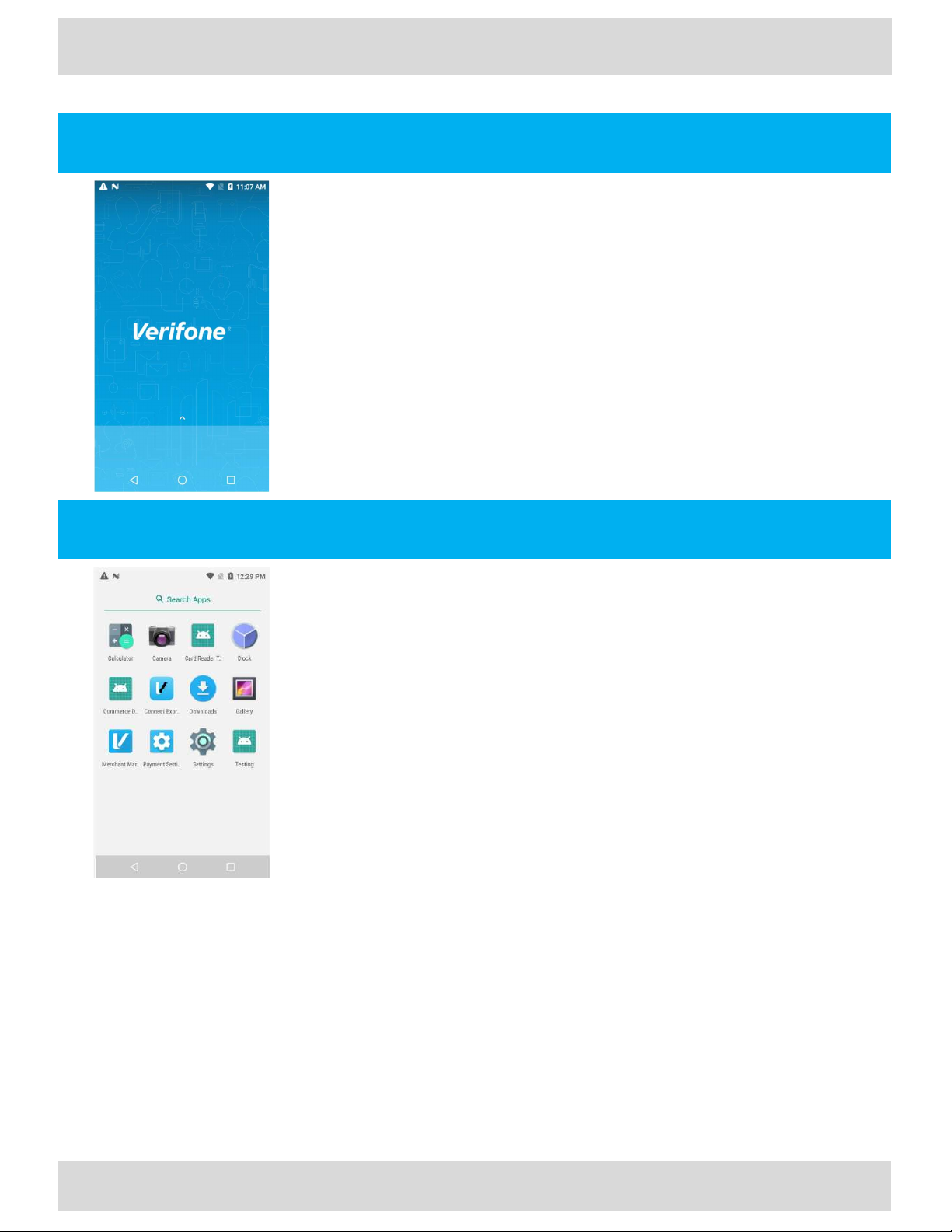
Description
After the setup out of box (OOB) process completes, the user will see the
Standard terminal home screen.
User action
The user has access to the full functionality of the terminal.
Note
Depending on the device operating mode, the terminal may start with a
specific application instead of the blank home screen. This occurs when
device operating mode utilizes POS mode settings.
Page 11
User Guide
Carbon Mobile 5 with printer
11
EN
User Guide
SIM Handling Carbon Mobile 5 with printer
EN
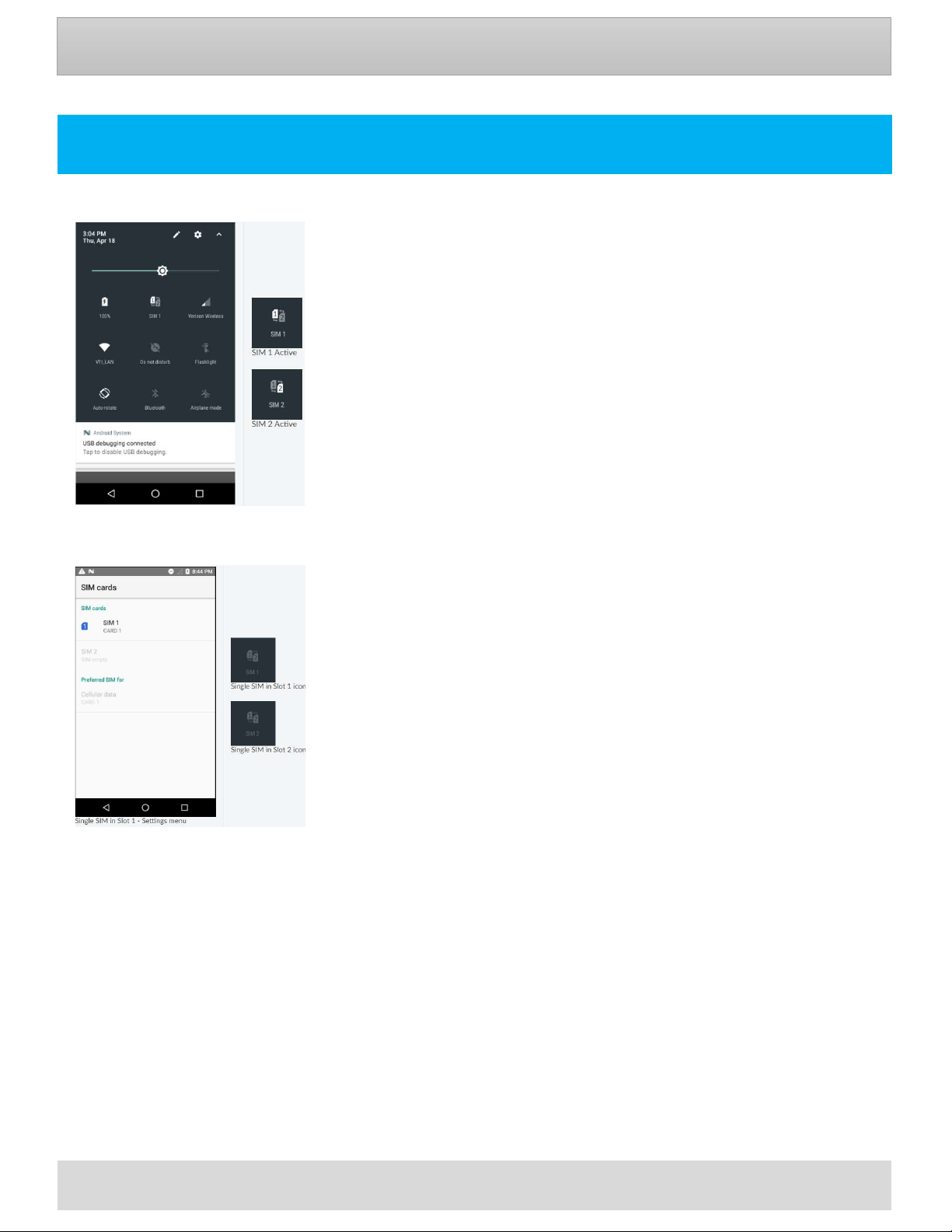
Single SIM Handling
Description
When a single SIM is placed into the device, the CM5P detects which slot is used and
automatically selects that for use.
User action
Pull down the notification curtain on the device to view the ‘Quick Settings’ for your
device. The text under the icon will indicate which slot has a SIM.
A long press on that tile will bring the user to the SIM settings menu.
The SIM settings menu is also accessible by going to Settings -> SIM cards.
Page 12
User Guide
Carbon Mobile 5 with printer
12
EN
User Guide
SIM Handling Carbon Mobile 5 with printer
EN
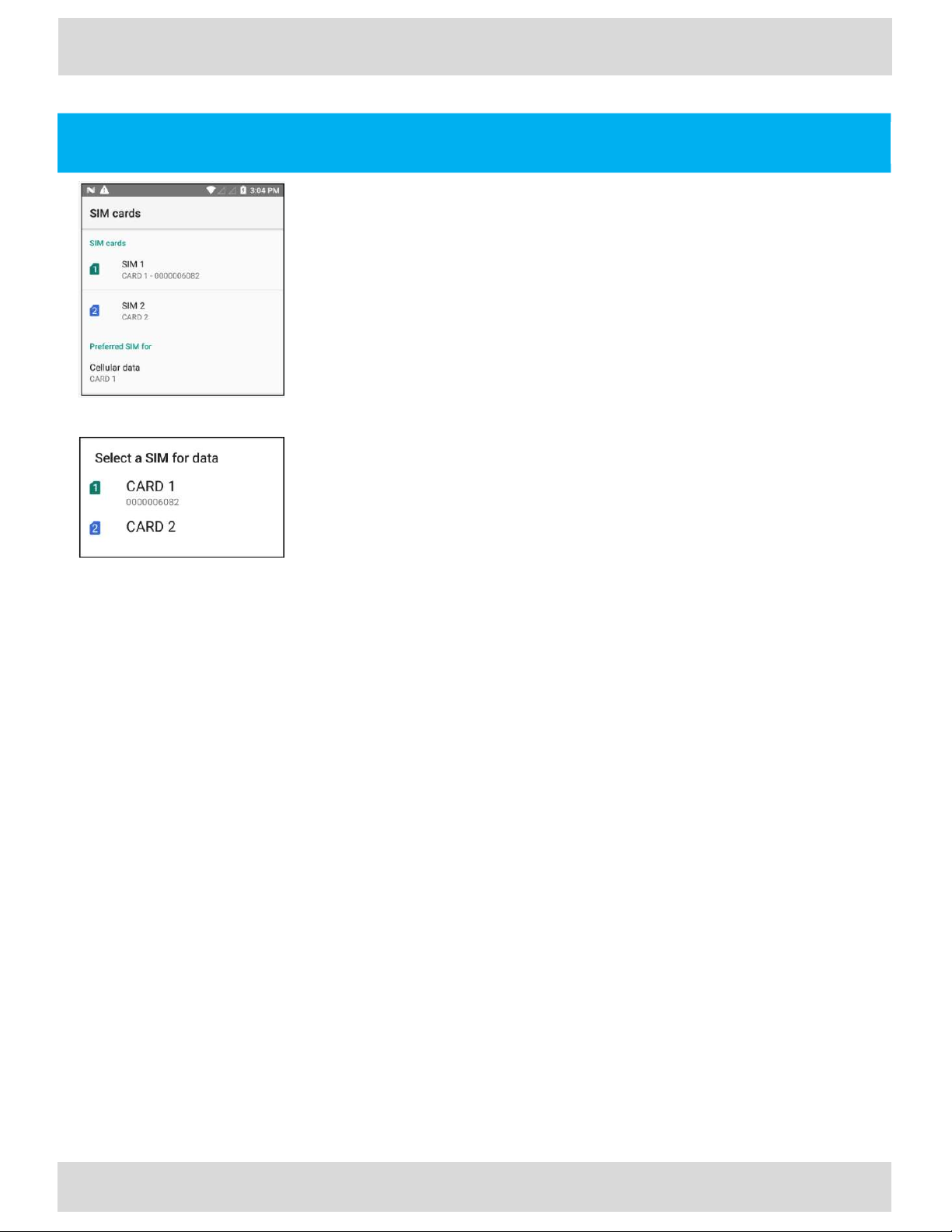
Dual SIM Handling and Switching
Description
There is no active switching between SIMs by the CM5P device software.
Switching between SIMs occurs manually through the user using the Quick Settings
Tile or the Settings menu.
User action
Navigate from the launcher to the Settings app and then select SIM Cards.
Under the “Preferred SIM for” section selecting “Cellular data” will provide
whichever SIM is selected will be used for data.
Page 13
Description
User Guide
Carbon Mobile 5 with printer
13
EN
User Guide
Payment Device Modes Carbon Mobile 5 with printer
EN
Payment Device Modes
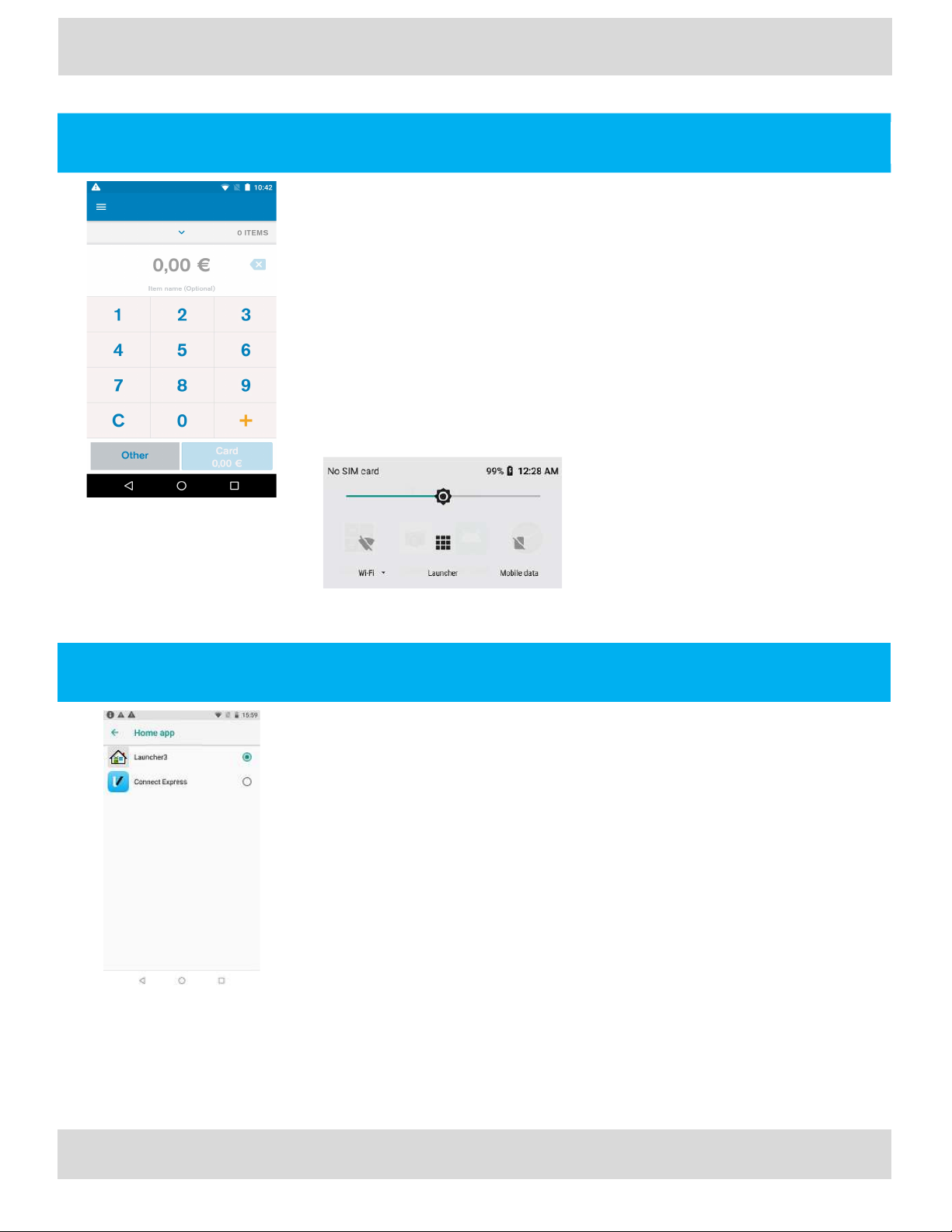
The Device modes allows a User to change the behaviour of the default or home
application of the device, as well as lock the device to a particular application.
Modes of Operation
1) Standard Android Mode
2) POS Mode
Standard Android Mode
Description
Standard Android Mode.
If the device is set to the standard Android mode, then it will boot into the standard
home/launcher application.
User action
The User can decide which application to launch and when.
Page 14
User Guide
Carbon Mobile 5
with printer
14
EN
User Guide
Payment Device Modes Carbon Mobile 5 with printer
EN
POS Mode
Description
POS Mode
If the device is set to POS mode, it will have a default (primary) application for
example ‘Connect Express’, that is started automatically when the device is switched
on and returned to whenever pressing the “home” button.
User action
whenever pressing the “home” button the device will return to the primary
application ‘Connect Express’.
It is still possible to launch applications by having the standard Launcher application
accessible from the notification curtain area.
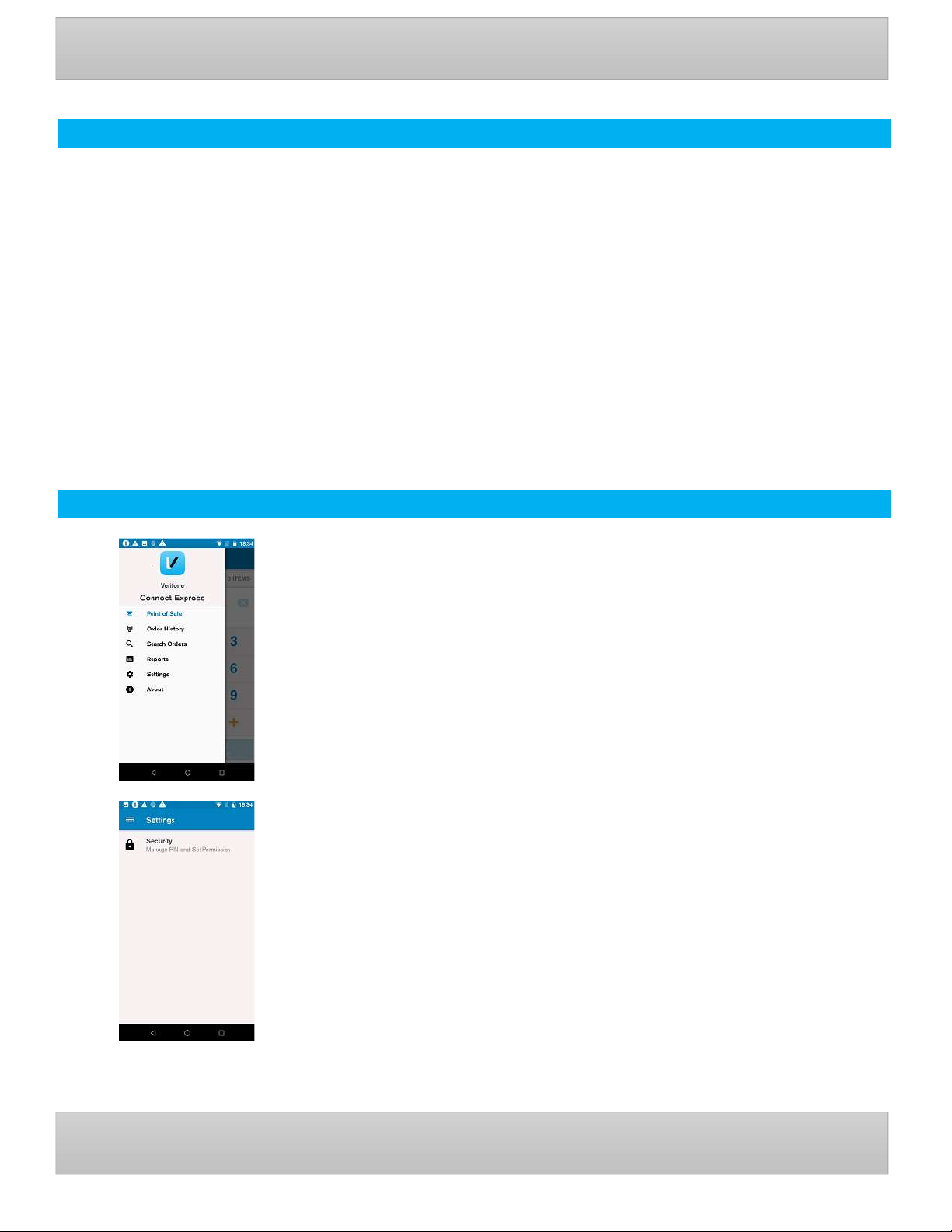
Default Application
Description
To configure Default App.
User action
Go to Settings > Apps & notifications > Advanced > Default apps > Home app.
Select your Home app.
Page 15
Description
User Guide
EN
User Guide
EN
15
User Management Carbon Mobile 5 with printer
User Management
The user management component will require certain functions to request user authentication before proceeding.
There are three defined roles supported. Each role requires a passcode:
The Admin Role
The Admin can authorize the Admin or Manager or Cashier.
The Admin can update the Manager and Cashier passcode.
The Admin passcode will be set by an algorithm.
The algorithm will be known to both help desk and terminal.
The algorithm will incorporate a seed value specific to the acquirer.
The algorithm will act as daily passcode.
The Manager role
The Manager can authorize the Manager and the Cashier.
The Manager can update the Manager and Cashier passcode.
The Cashier role
The Cashier can authorize only the Cashier.
The Cashier cannot update the Cashier passcode.
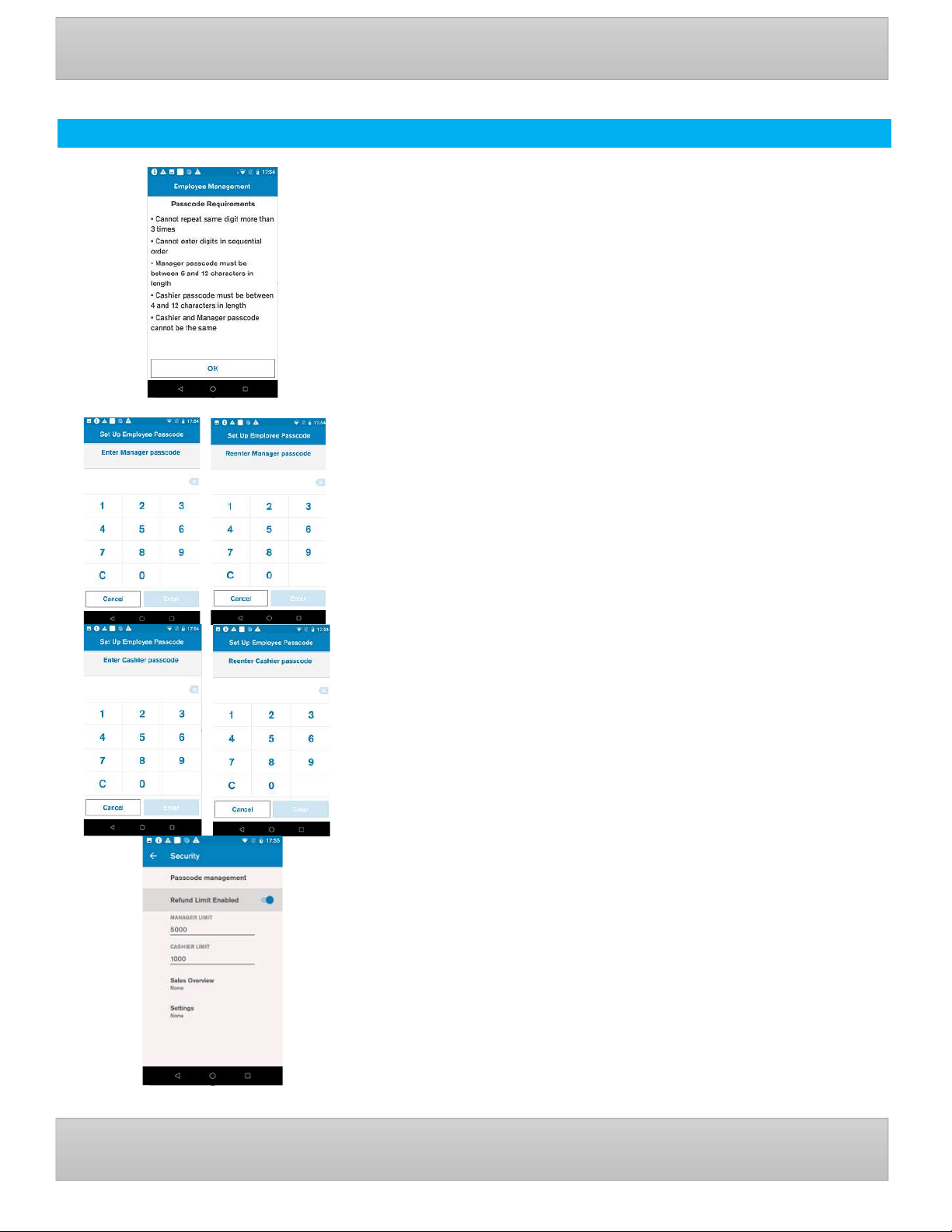
User Authentication Management
Description
Connect Express Menu
User action
Select Settings
Description
The Setting menu allows the merchant to view and change certain settings.
The authentication levels are set within Connect Express ‘Security’.
Carbon Mobile 5 with printer
Page 16
User Guide
EN
User Guide
EN
16
User Management Carbon Mobile 5 with printer
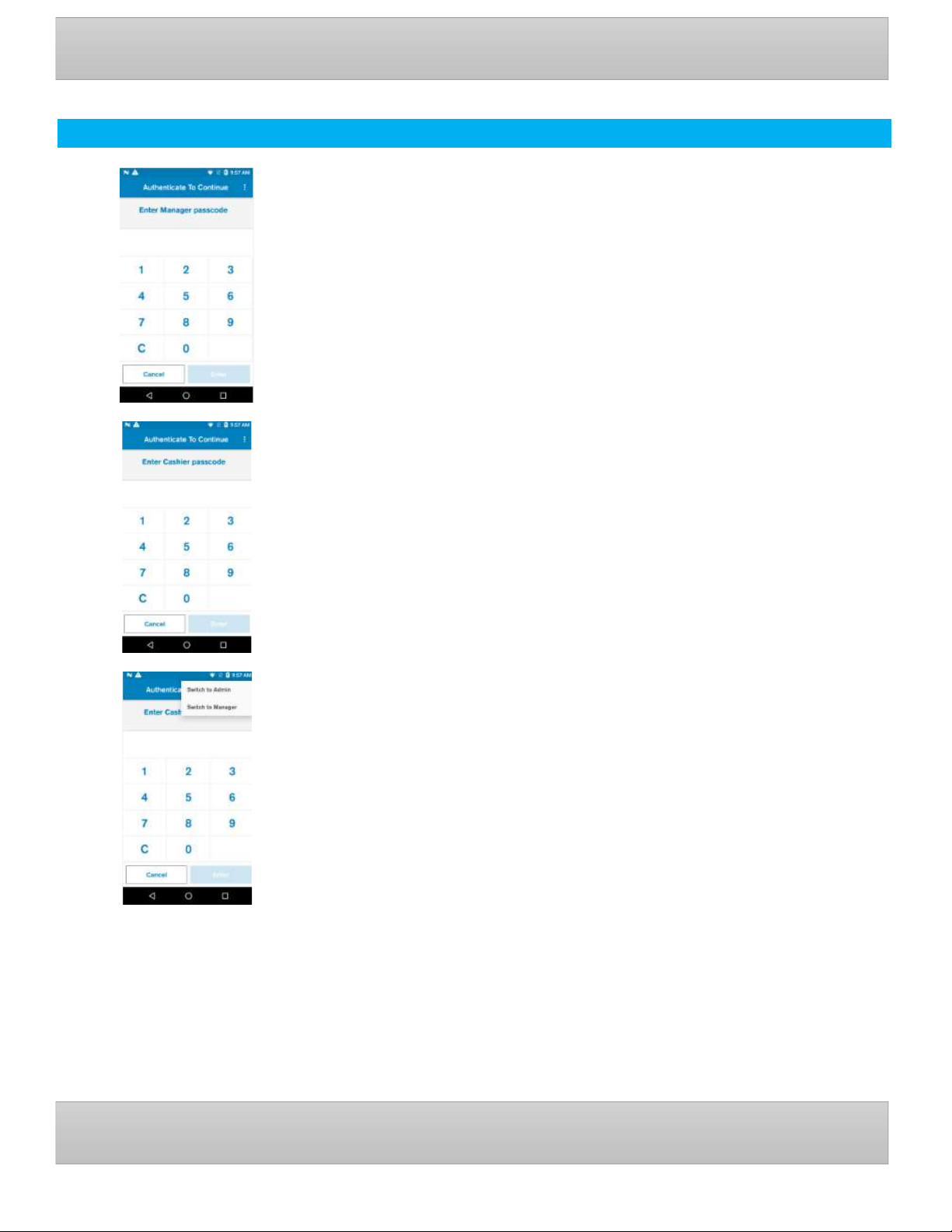
Passcode Set Up
Description
If the passcodes are not set up before the ‘Passcodes Requirements’
information will be displayed.
Cannot repeat same digit more than 3 times
Cannot enter digits in sequential order
Manager passcode must be between 6 and 12 characters in length
Cashier passcode must be between 4 and 12 characters in length
Cashier and Manager passcode cannot be the same
Description
Enter Manager passcode.
Re-enter Manager passcode.
User action
Create passcode for Manager and confirm passcode.
Description
Enter Cashier passcode.
Re-enter Cashier passcode.
User action
Create passcode for Cashier and confirm passcode.
Carbon Mobile 5 with printer
Description
Passcode management
A passcode can be changed on the terminal, if the current passcode is
known. The Manager can change the Cashier passcode
A passcode can also be reset with Admin daily password which is
available via a Help desk.
Sales Overview authentication level - None, Manager, Cashier.
Settings authentication level - None, Manager, Cashier.
Page 17
User Guide
EN
User Guide
EN
17
User Management Carbon Mobile 5 with printer
User Authentication Management
Description
Manager authentication prompt.
User action
Enter Manager passcode on device for authentication.
Description
Cashier authentication prompt.
User action
Enter Cashier passcode on device for authentication.
Description
Select different role at the authentication prompt.
User action
To switch roles, select the three dots at the top right corner at the authentication
prompt.
Carbon Mobile 5 with printer
Page 18
User Guide
Carbon Mobile 5 with printer
18
EN
User Guide
EN
Payment Functions Carbon Mobile 5 with printer
Transaction Selection
The transaction selection step consists of two parts:
Amount Input
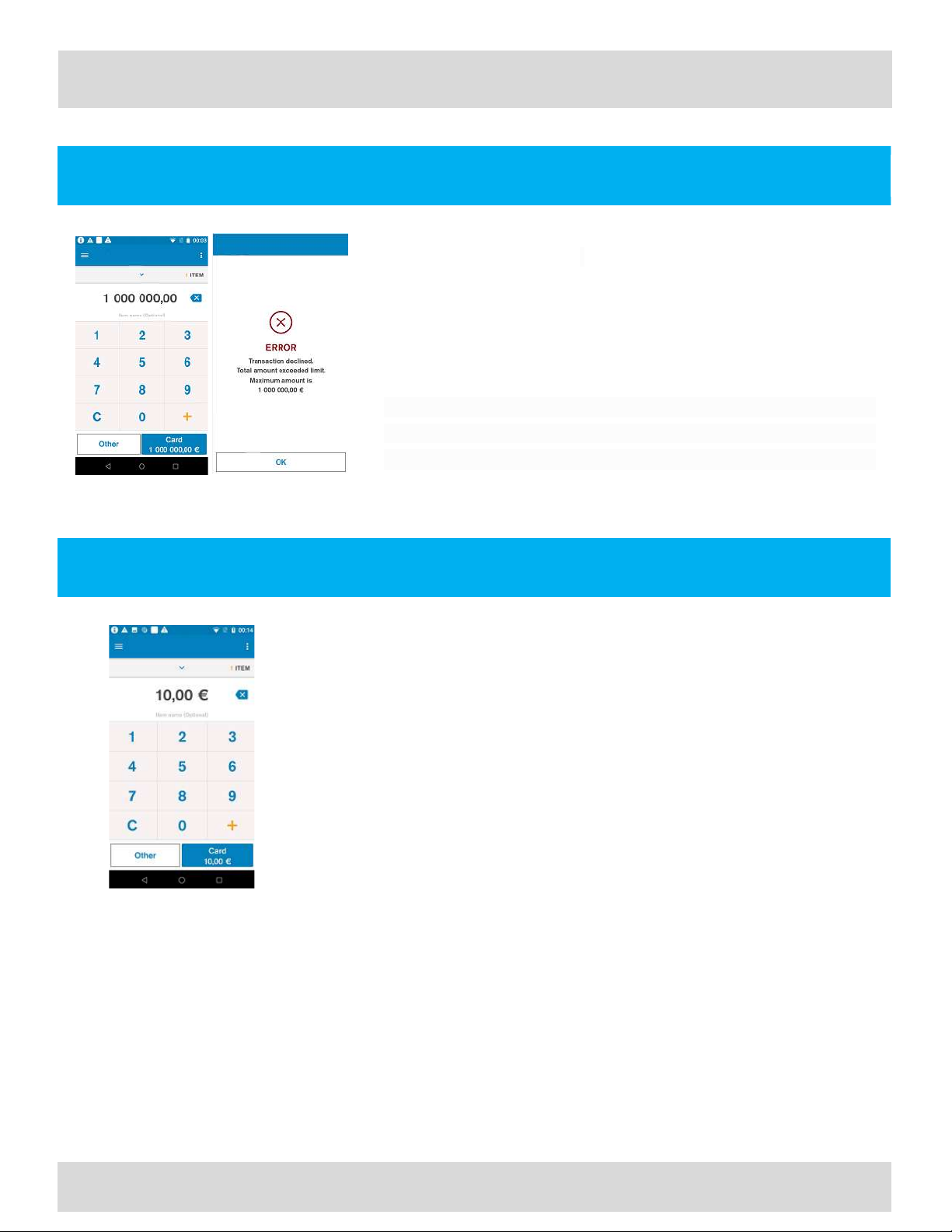
The maximum possible amount value can be configured and by default is
set to €1000000. If the entered amount exceeds the maximum capacity, it
will inform the user and re-prompts for a valid amount.
Transaction Type Selection
The terminal provides the merchant with the option to choose the
transaction type that the merchant wants to proceed with after performing
the required user authentication.
Purchase
Description
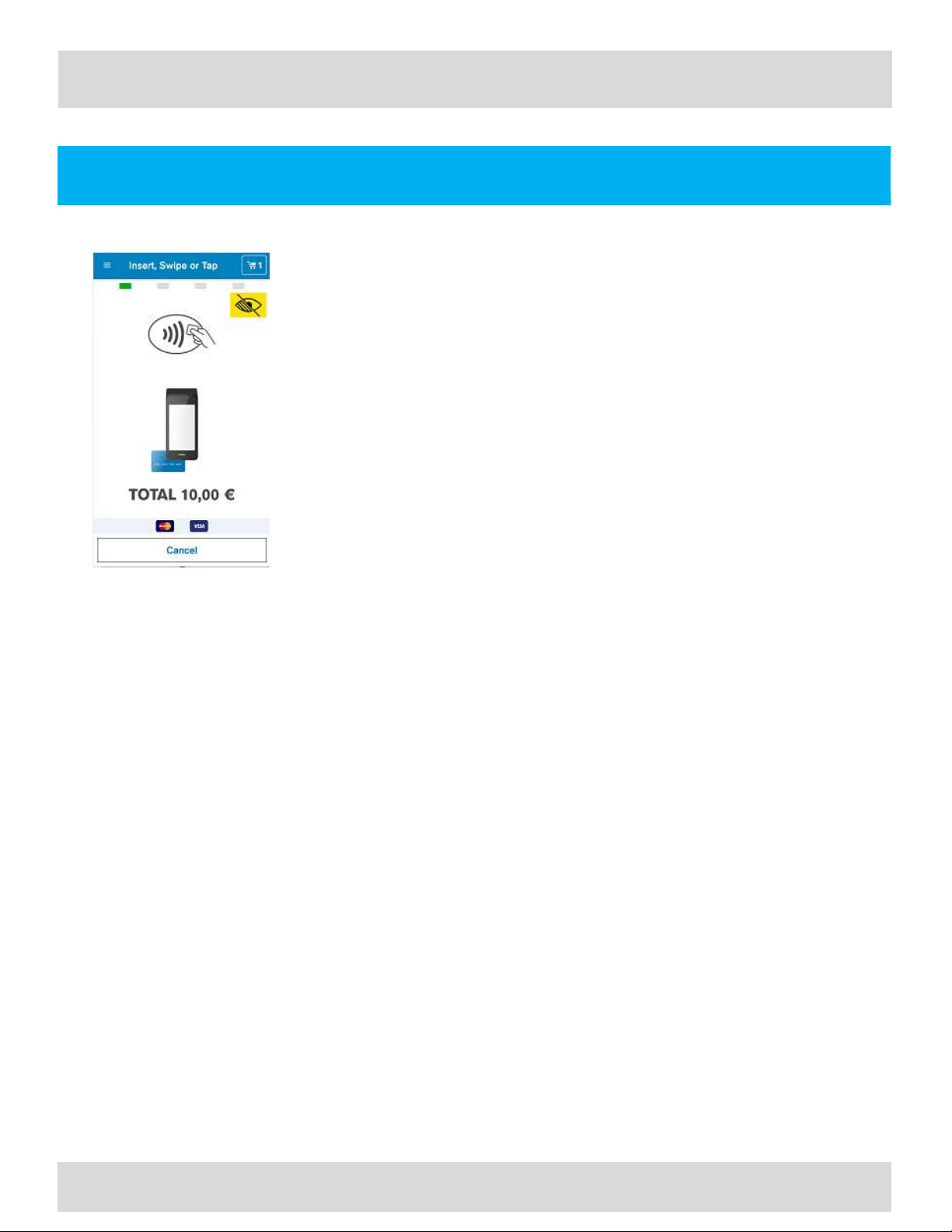
The merchant is prompted to enter the amount of the transaction. The transaction
amount is validated against configuration to make sure that the amount is within the
maximum amount. For purchase, 0 amount is not allowed.
User action
Selecting Card starts the card payment.
Selecting Other prompts, the user for other transaction options such as refund
Page 19
User Guide
Carbon Mobile 5 with printer
19
User Guide
EN
EN
Payment Functions Carbon Mobile 5 with printer
Purchase - Continued
Description
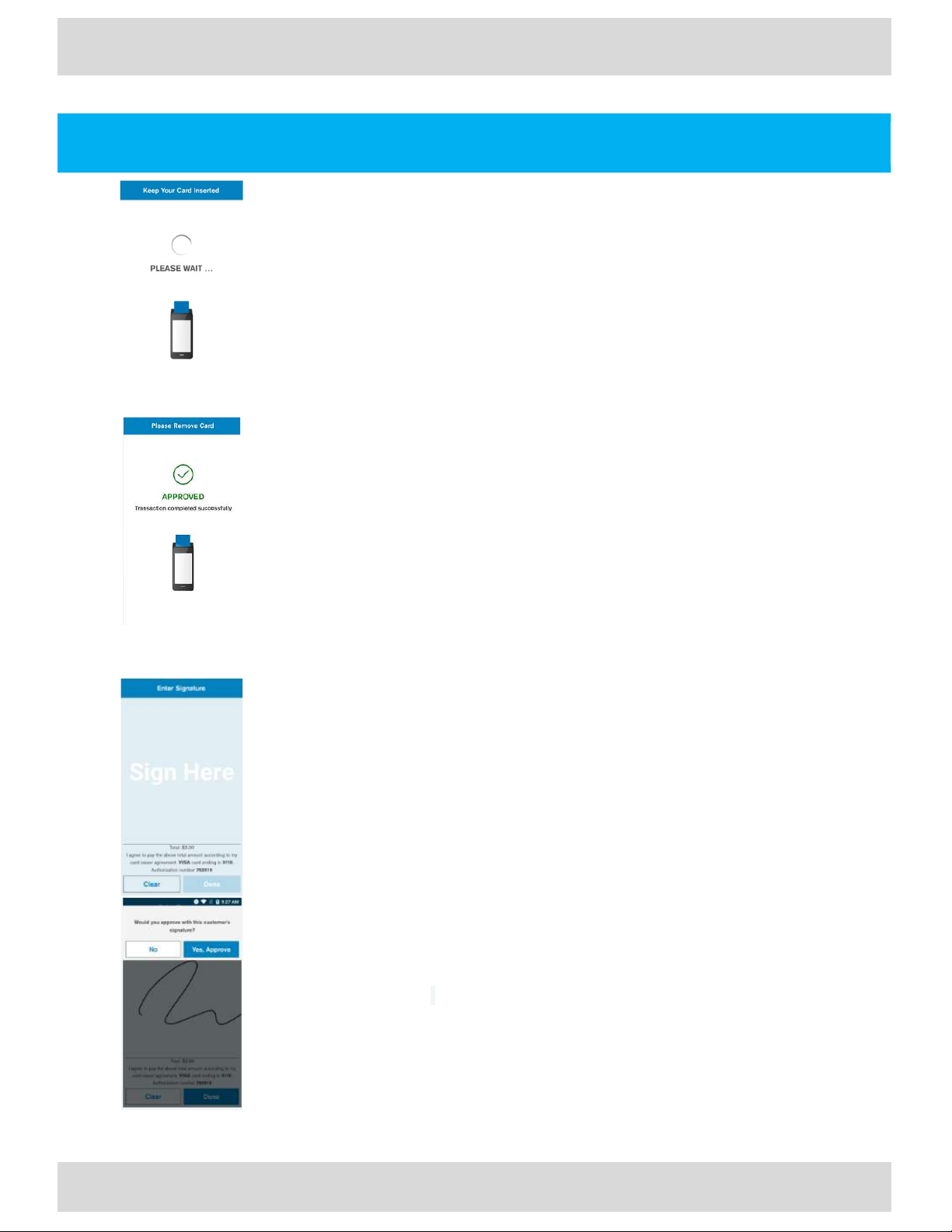
The Customer can insert, tap, or swipe a card. The Customer can view the items
purchased by clicking the Basket icon present at the top right.
For Chip cards
Immediate Fallback to use Card Swipe will be prompt after a single failed
attempt for the following conditions: Card Expiry, EMV Blocked and when
the card type is not supported for chip.
If there is a chip read error, the customer is asked to present the card again.
If fallback is enabled, after the configured number of retries, the customer is
prompted to use Card Swipe.
If the card is declined, the customer is notified that the card is declined and
is asked to remove card.
For Contactless cards
In case of a fallback to use Chip, the customer is asked to insert the card
In case other errors, the customer is asked to try again
If the card is declined, the customer is notified that the card is declined
For MSR (Magnetic Stripe) cards
If there is MSR read error, the customer is asked to present the card
again. If fallback is enabled, after the configured number of retries,
the customer is prompted to use Manual entry for card number.
If the service code indicates a chip is present and the service code
check is enabled, the customer is prompted to insert card
If the card is expired and the expiry check is needed, the card is
declined.
If the customer cancels the transaction, Transaction cancelled message will be shown
If the screen times out, Transaction cancelled, Operation Timeout message will be shown
If the device crashes or reboots while on this screen, when the payment application restarts or device boots up, no
power failure recovery will happen.
If the transaction type is not supported by the card, the transaction is declined. If the transaction is supported by
the card, the transaction is continued.
If the card scheme (Visa, Mastercard…etc) is not supported by the merchant, the transaction is declined
If the Customer is prompted to enter PIN. The PIN entry screen is displayed for online and offline PIN entry.
If PIN bypass is not enabled, the Enter key is not enabled until 4 digits are entered
if the customer enters PIN wrong for offline PIN, the customer is prompted for PIN again
If the customer enters wrong PIN for offline PIN entry and the PIN entry retries are exhausted, the transaction is
declined, and the card is blocked.
If the customer enters wrong PIN for online PIN and if the host requests PIN retry, the customer is prompted for
PIN again
Page 20
Description
Description
Description
User Guide
Carbon Mobile 5 with printer
20
EN
User Guide
Payment Functions Carbon Mobile 5 with printer
EN
Purchase - Continued
This indicates that the device is doing an online authorization.
Error Scenarios
If the customer removes the chip card, the transaction will be cancelled, and
a reversal will be generated.
If the payment application is exited or the device reboots while on this
screen, when the payment application restarts or the device boots up,
power failure recovery will occur, and the transaction will be declined, and a
reversal will be generated.
This informs the customer that the payment is completed successfully. It
prompts the customer to remove the card if it is still inserted. The terminal can
be configured to either play a single beep or to continuously play beeps until the
card is removed.
User action
The customer needs to remove the card. The screen will not timeout as long as the
card is still inserted.
Prompts the user for signature. This is displayed if the card requires signature or if
the host requests signature or PIN entry has been bypassed. For non-chip
transactions, in addition to the above, this is displayed only if the transaction amount
is higher than the Signature Required Min Amount.
User action
Customer enters signature.
Description
Prompts the merchant to verify the signature after the signature is done or the
screen times out.
If the merchant declines the verification, the transaction will be declined,
and a reversal will be sent
Page 21
Description
Description
Description
User Guide
21
EN
User Guide
EN
Payment Functions Carbon Mobile 5 with printer
Purchase - Continued
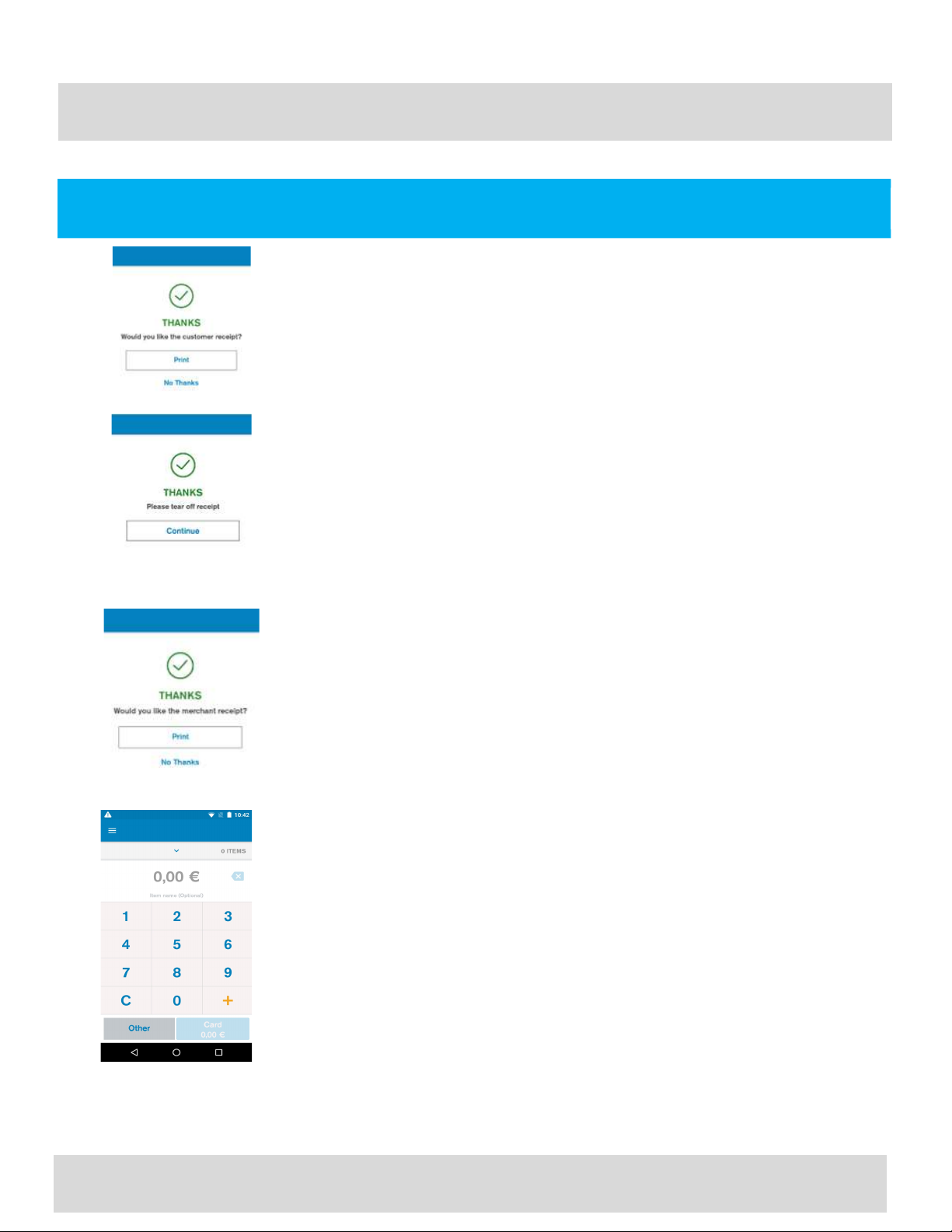
The customer is prompted to select the option for receiving the receipt.
Customer action
The receipt is skipped or printed based on the user selection.
Description
In the event the terminal is configured to print two paper receipts back-to-back, this
prompt will appear. It will give the user time to tear off the receipt, before the next
one is printed.
The User is prompted to decide if they want to print the merchant copy or not.
Error Scenarios
The receipt is skipped or printed based on the user selection.
If the screen times out, the merchant receipt will be printed regardless.
Carbon Mobile 5 with printer
After payment is complete, the screen returns to the default amount entry screen.
Page 22

User Guide
22
User Guide
Payment Functions Carbon Mobile 5 with printer
EN
Refund
Description
The merchant is prompted to enter the transaction amount.
The merchant can bring up multiple items using the + key.
The merchant can reset the current item by pressing the C button.
The top right menu allows the merchant to save or cancel the cart.
The top left menu gives access to administrative functions.
Tapping the Other button will give the various transaction type options such as
refund.
User action
Selecting Other button displays the transaction options to chose from.
Description
The merchant is prompted to select a transaction option.
User action
Select Refund will take the user to the corresponding transaction flow.
Note: If the user authentication feature is enabled, the user is prompted for the
passcode before performing operations.
Description
The User is prompted to select the payment method.
Merchant is prompted to select the refund type. If only card is enabled, this
screen will be skipped. If there are more payment modes , the “Other Payments”
button will display and the remaining payment modes will be displayed on the
screen when “Other Payments” is pressed. Otherwise “Other Payments” will not
be shown.
EN
Carbon Mobile 5 with printer
User action
Selecting Card or Mobile will take the user to Insert, Swipe, or Tap screen.
Page 23
User Guide
23
User Guide
Payment Functions Carbon Mobile 5 with printer
EN
Refund
Description
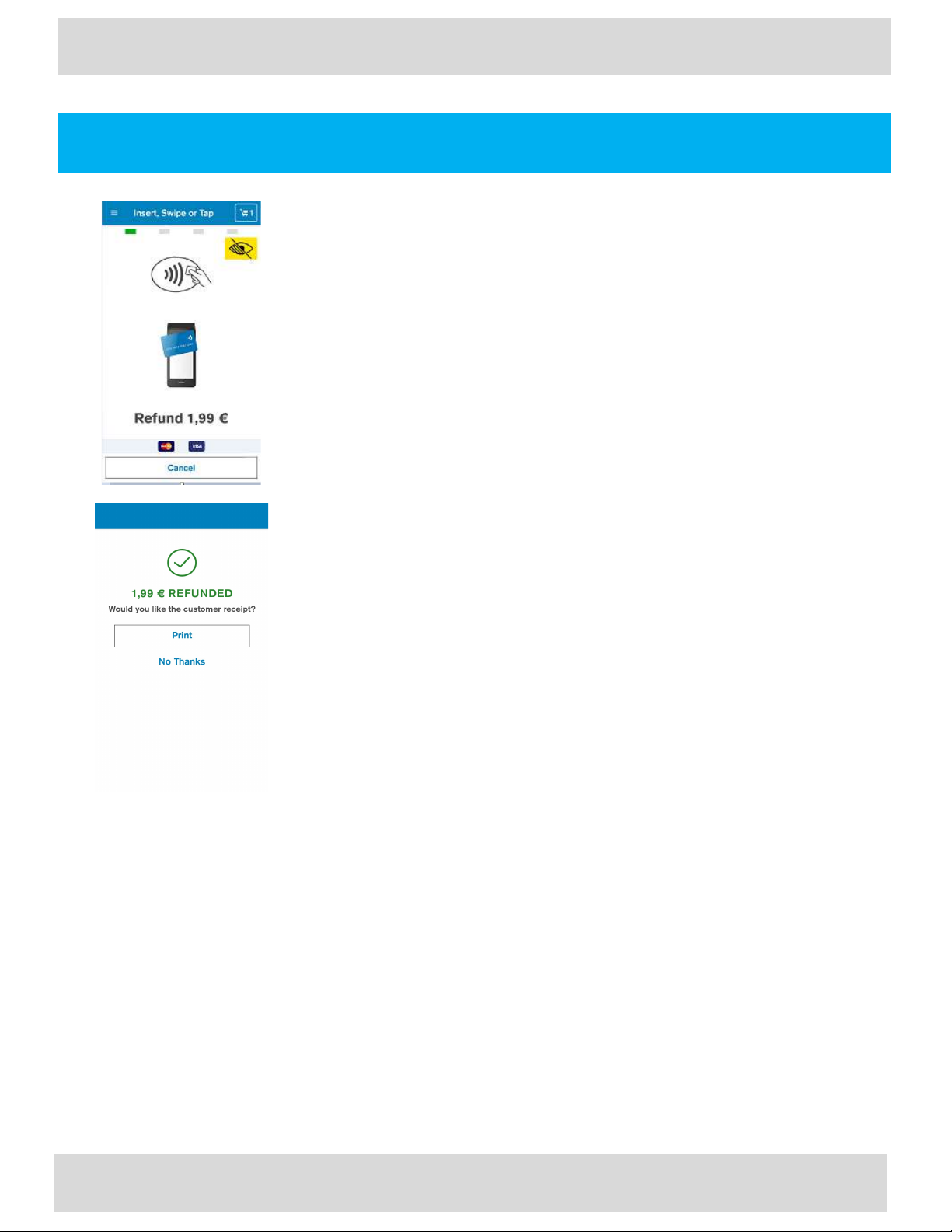
The Customer can insert, tap, or swipe a card. The Customer can view the items
selected for refund by clicking the Basket icon present at the top right.
Note: The transaction flow is the similar to the one described at the purchase flow.
Description
The User is prompted to decide if they want to print the customer copy or not.
Error Scenarios
If the screen times out, the merchant receipt will be printed regardless.
EN
Carbon Mobile 5 with printer
Page 24
User Guide
Carbon Mobile 5 with printer
24
EN
User Guide
Order History Carbon Mobile 5 with printer
EN
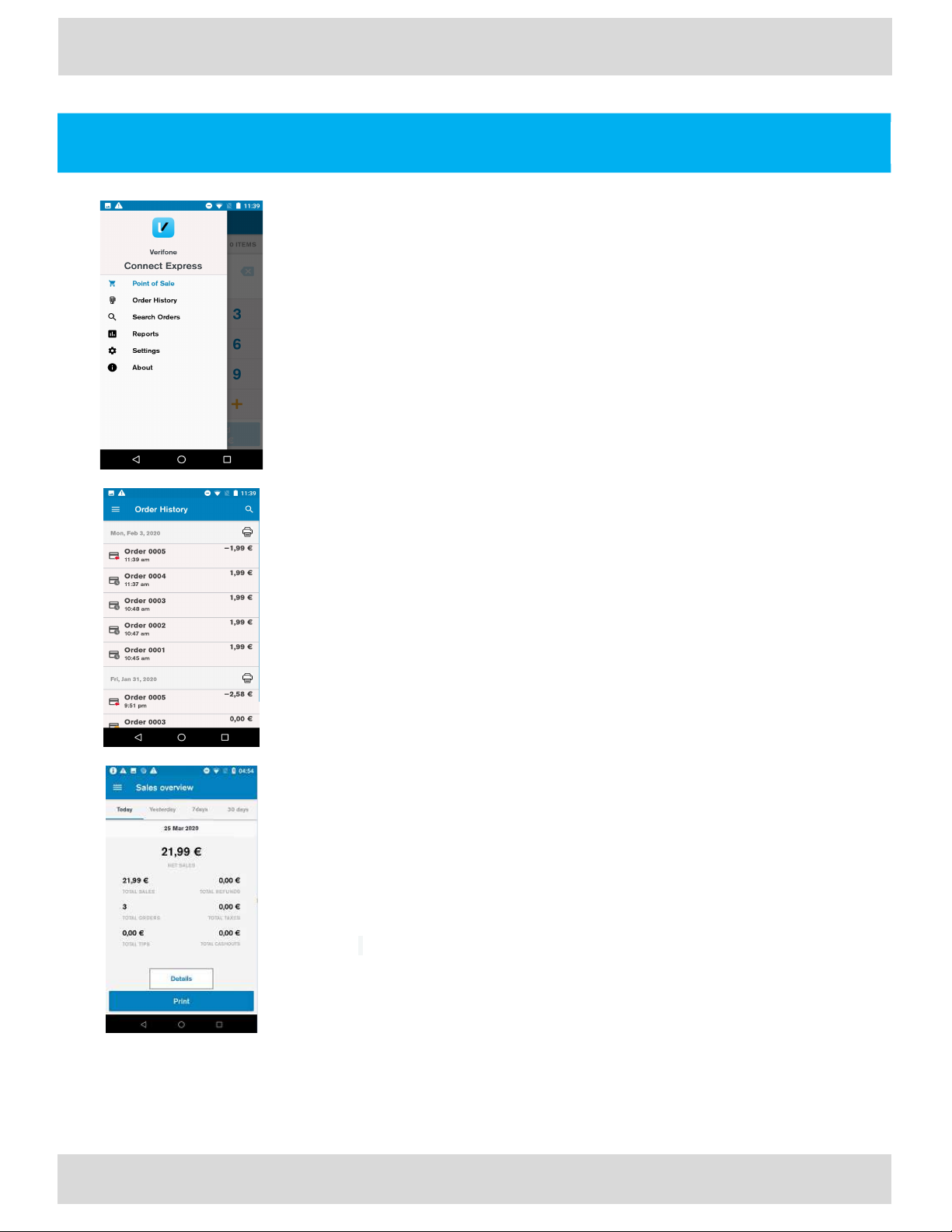
Order History
Administration Menu
The User can access the transaction history, account settings, and view reports
via this menu.
Order History
Displays the transaction history that is saved in the device. The icon next to the
transactions shows the transaction type whether it is a sale, refund or void
transaction.
The transaction history allows the transactions to be searched for using a
different search option.
Use Action
The user can view and print the list of order history per day.
Report - Sales Overview
Provides a summary of the transactions for the following:
Current day, Previous day
Past 7 days, Past 30 days
Total reports are available for print.
Note: If the user authentication feature has been enabled, the user is prompted for
the passcode before performing operations
Page 25
Order Details
User Guide
Carbon Mobile 5 with printer
25
EN
User Guide
Order History Carbon Mobile 5 with printer
EN
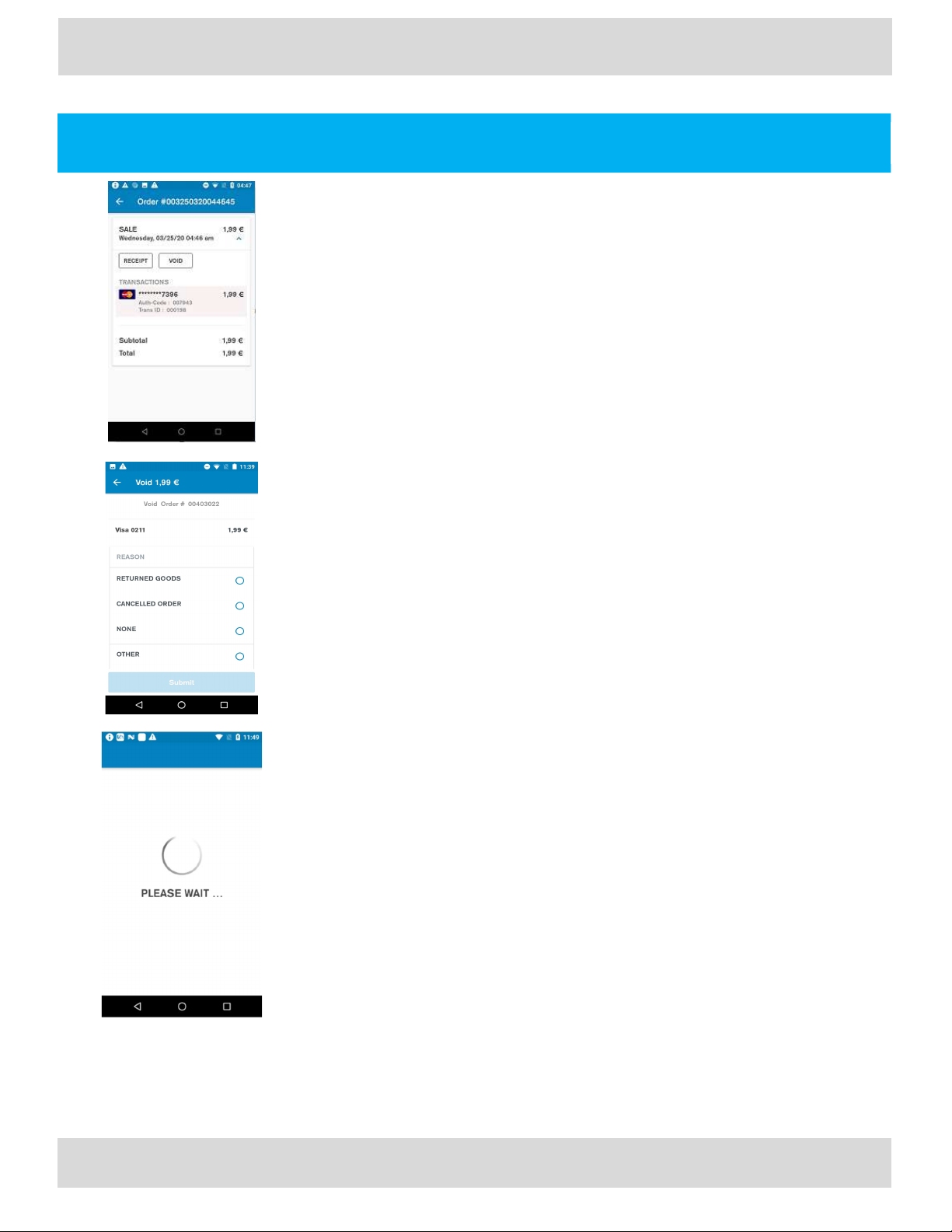
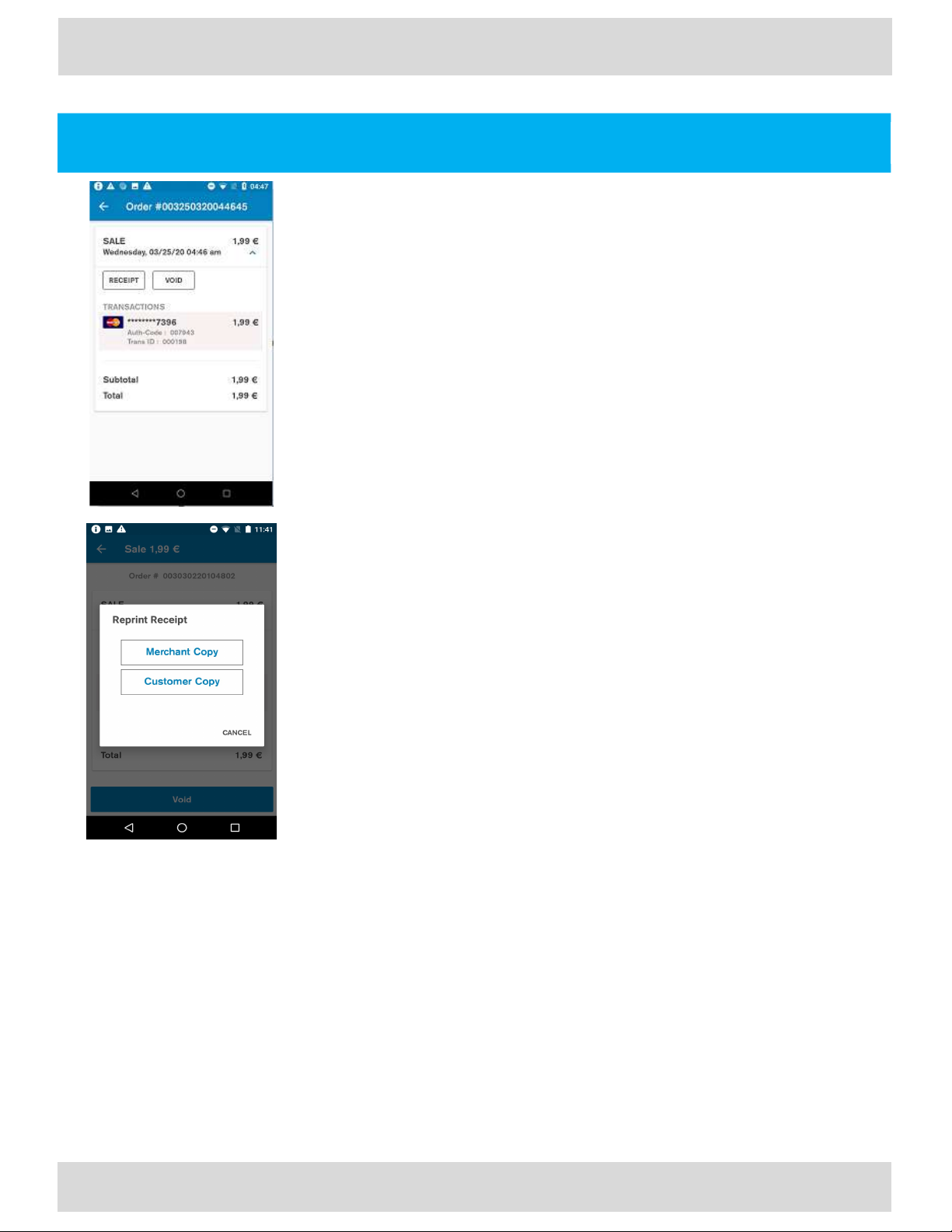
Void
Displays the details of a transaction.
The following operations are allowed, Void transaction and receipt reprint.
Description
Void is selected, and the User is prompted to select a reason for void.
User action
Selecting the reason continues the void processing.
Description
Displays that the device is doing an online authorization by communicating to the
host and completing the transaction successfully.
Page 26
Description
User Guide
Carbon Mobile 5 with printer
26
EN
User Guide
Order History Carbon Mobile 5 with printer
EN
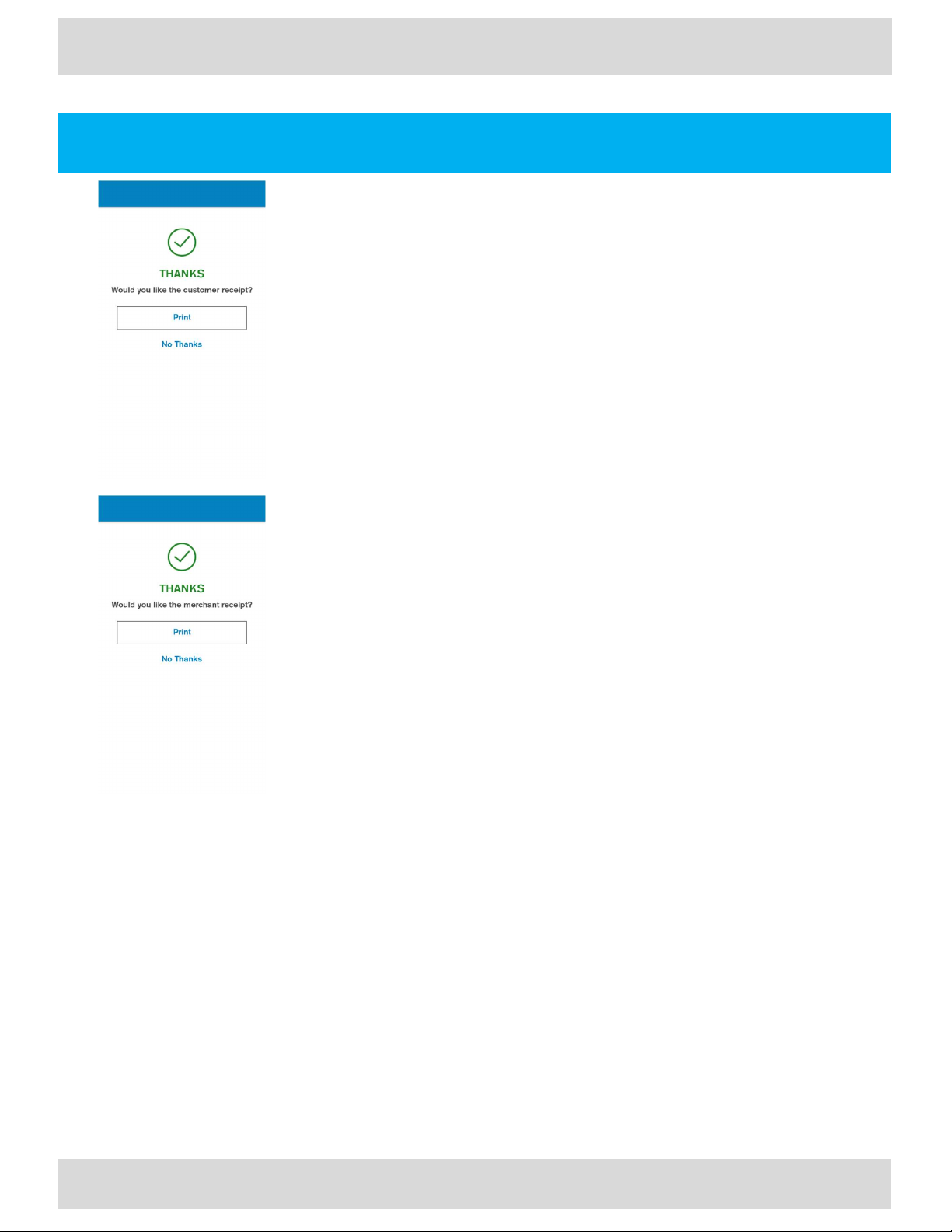
Void - Continued
The User is prompted to select the option for receiving the receipt.
User action
The receipt is skipped or printed based on the User selection.
Description
The User is prompted to decide if they want to print the merchant copy.
User action
The receipt is skipped or printed based on the User selection.
If the screen times out, the merchant receipt will be printed
Page 27
User Guide
Carbon Mobile 5
with printer
27
EN
User Guide
Order History Carbon Mobile 5 with printer
EN
Reprinting Receipts
Description
If the order contains multiple transactions, the User is prompted to select which
transaction the copy of the receipt should be printed for.
User action
The User selects the transaction for printing a receipt copy.
Description
The User is prompted to select the receipt copy - Merchant or Customer.
User action
A copy of the receipt is printed, or skipped, based on the User selection.
Page 28
User Guide
Carbon Mobile 5 with printer
28
EN
User Guide
Software Update Carbon Mobile 5 with printer
EN
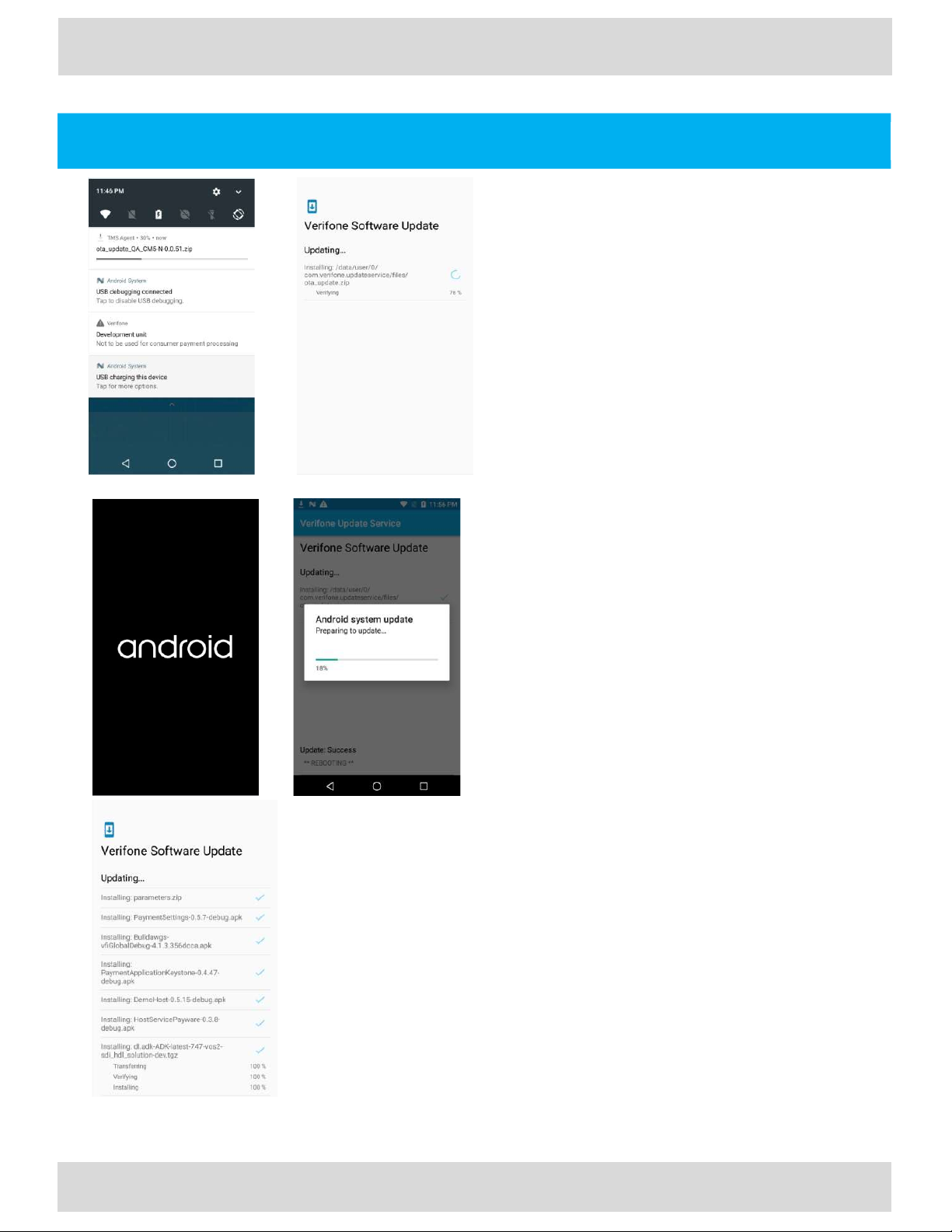
Full Software Update
Description
1) Shows progress of software download.
2) Shows software verification progress
after software download completes.
Successful verification is followed by
device reboot.
Note: This software update cannot be interrupted by
the User. Be ready for a device reboot after the
software update verification completes.
1) 2)
3) 4)
3) The Terminal is rebooting to apply
software update.
4) Shows progress information about the
software update
5) Shows information about software
components being installed on device
after reboot. Shows the update result
success or failure.
Note: Please wait for the software update to
complete. In case of failure contact the Helpdesk.
5)
Page 29
Description
User Guide
Carbon Mobile 5 with printer
29
EN
User Guide
Software Update Carbon Mobile 5 with printer
EN
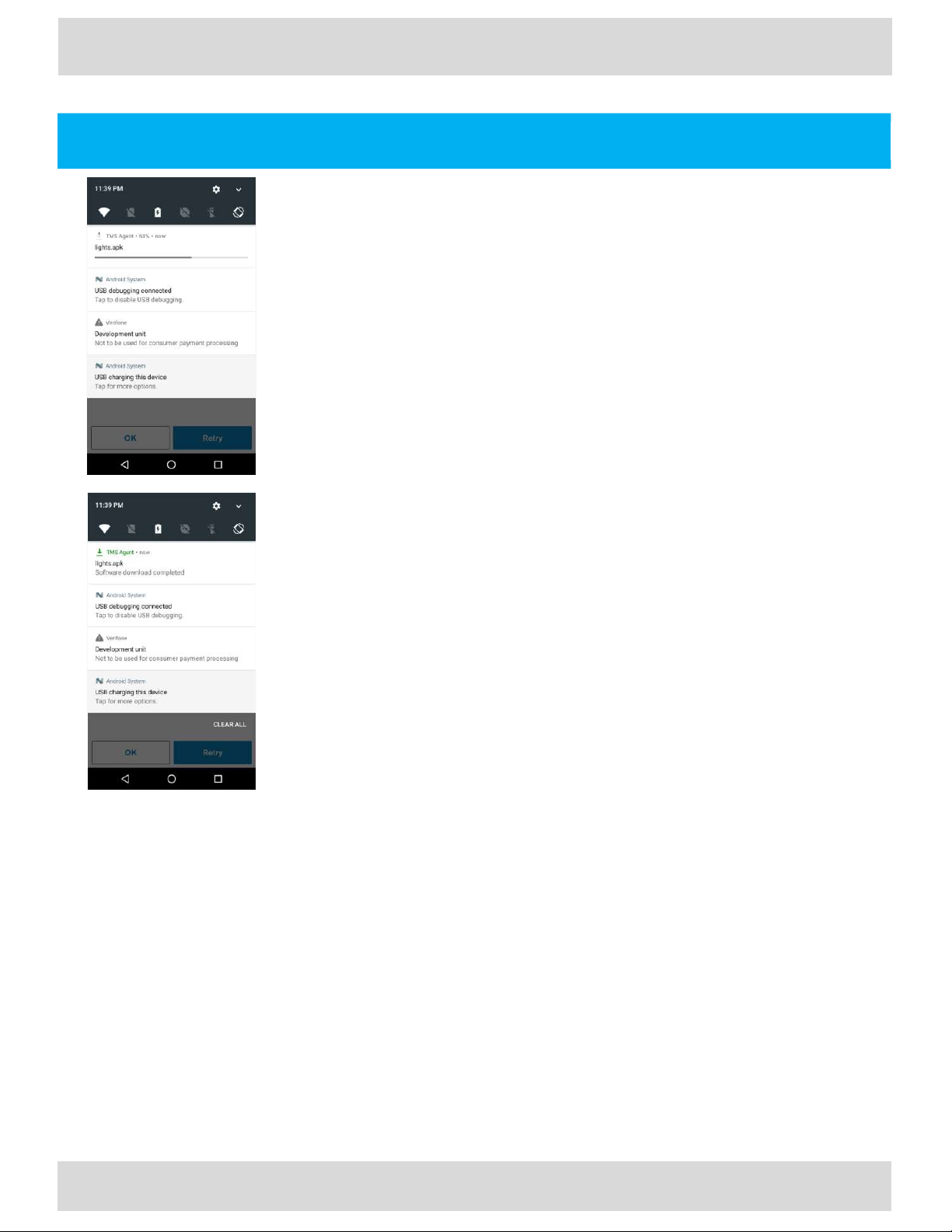
Android Applications Update
Description
Shows the progress of the application download.
Indicates application download has been completed and that it has been installed.
User action
No action is needed. If the updated application needs to be restarted, it will be done
automatically.
Page 30
User Guide
Carbon Mobile 5 with printer
30
EN
User Guide
Software Update Carbon Mobile 5 with printer
EN
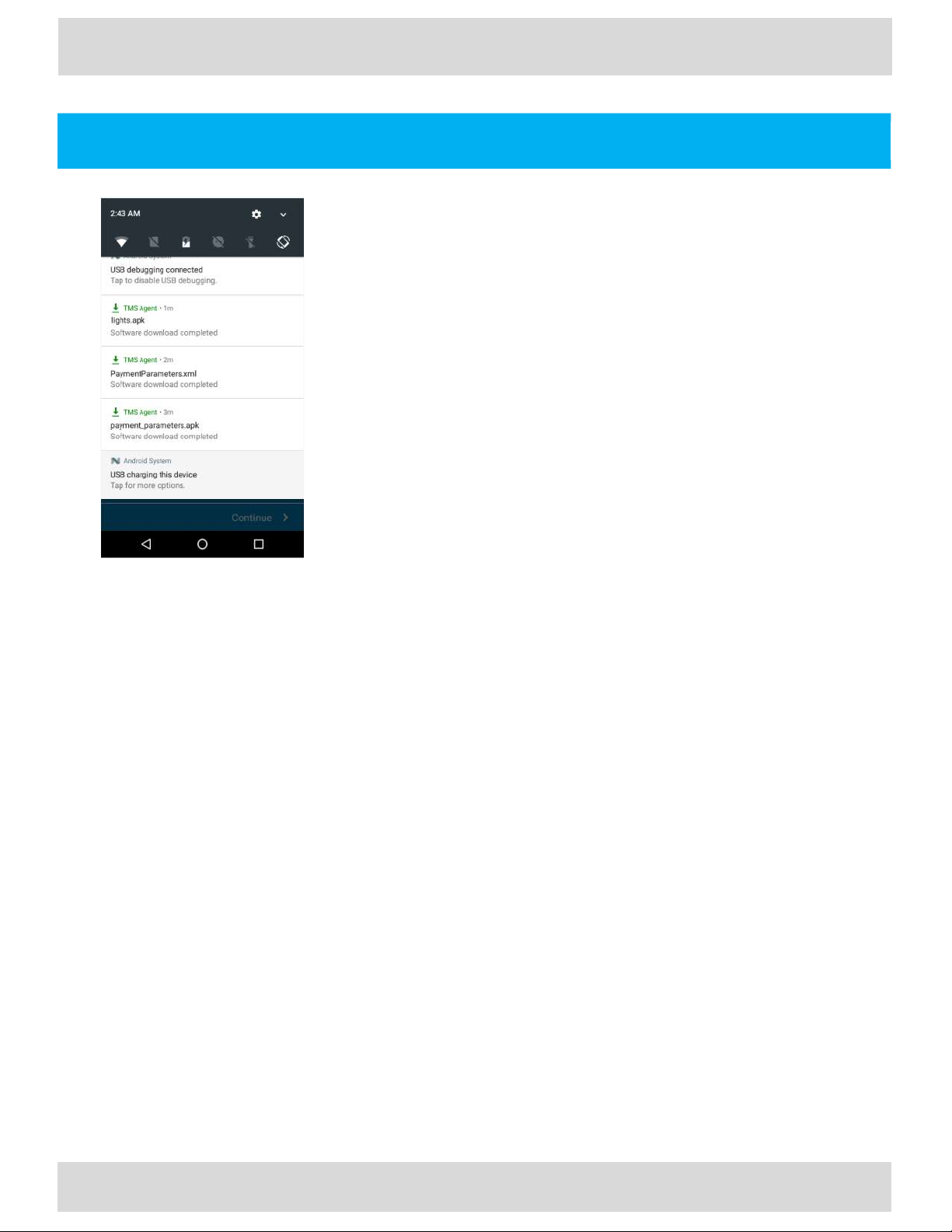
Payment Application Configuration Update
Description
Indicates that a new set of payment parameters has been downloaded. The
update will be applied as soon as the download has completed.
User action
No action is required. If an application restart or device reboot is needed, it
will be done automatically.
Page 31
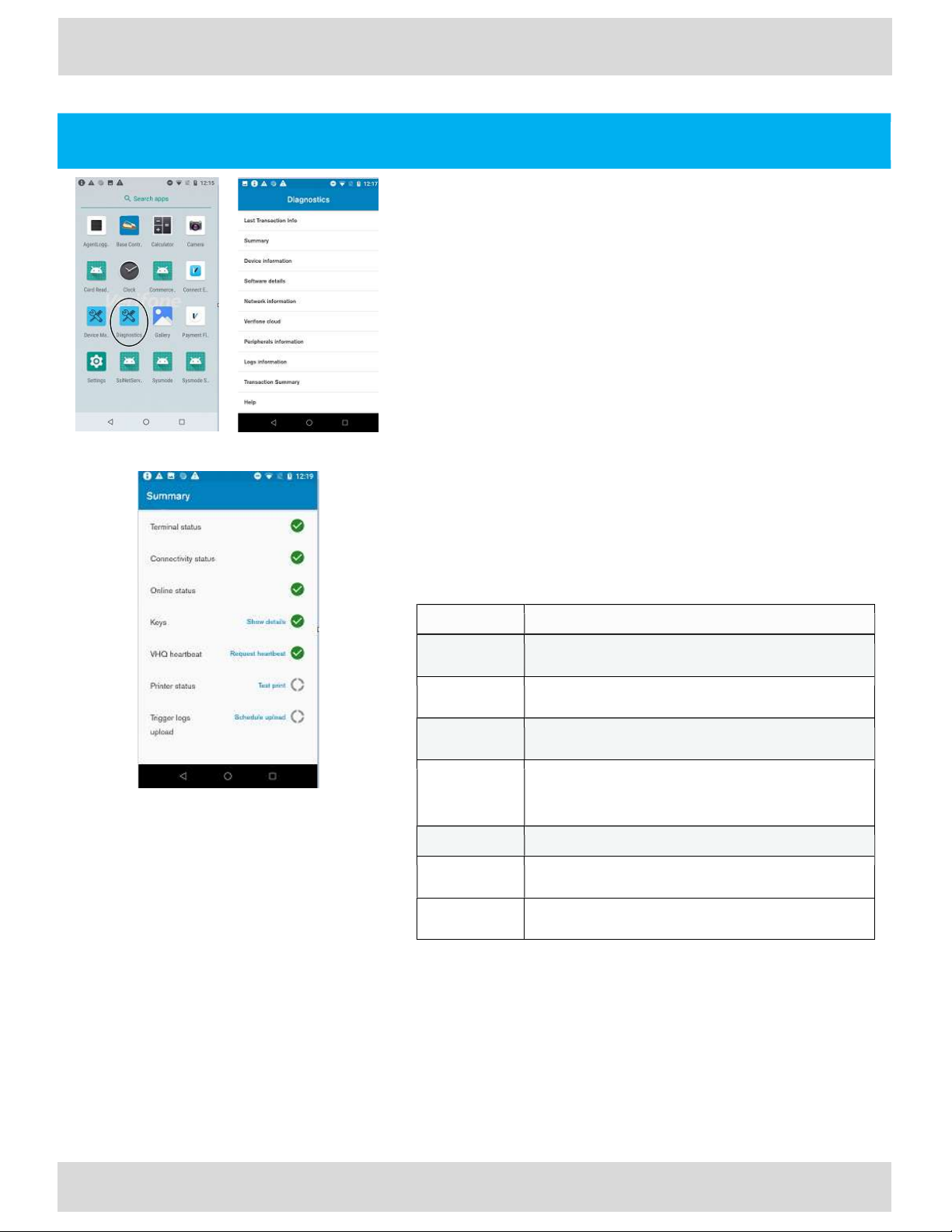
Field Description
status
network has
actual internet connectivity.
VHQ heartbeat
Triggers manual VHQ heartbeat and shows VHQ heartbeat status
works.
User Guide
Carbon Mobile 5 with printer
31
EN
User Guide
Home App Launcher3 Carbon Mobile 5 with printer
EN
Diagnostic App
Description
Open launcher shows all the applications available on the device. The
Diagnostics application will be available here.
User action
Click on the Diagnostics application.
The app will display a list of diagnostic options.
Select any option for further details.
Summary is the first option in the Diagnostics menu.
It shows a general status about the most important device functions.
User action
Pull down the Summary menu. This will update the status of each
item.
Terminal status
Connection
Online status
Keys
Print status
Shows if payment terminal is connected or not. For mobile devices
always true.
Shows if there is network connection (router is connected)
Shows if device can reach external IP address to make sure selected
Shows if expected keys are installed. Pop-up can be opened to see
details about each key status.
Clicking Show details will display the installation status per key,
prompting the missing key(s) in a pop-up window.
Allow to perform test receipt print to validate if printer detected and
Trigger logs
upload
Schedules a manual log upload to a Verifone server.
Page 32
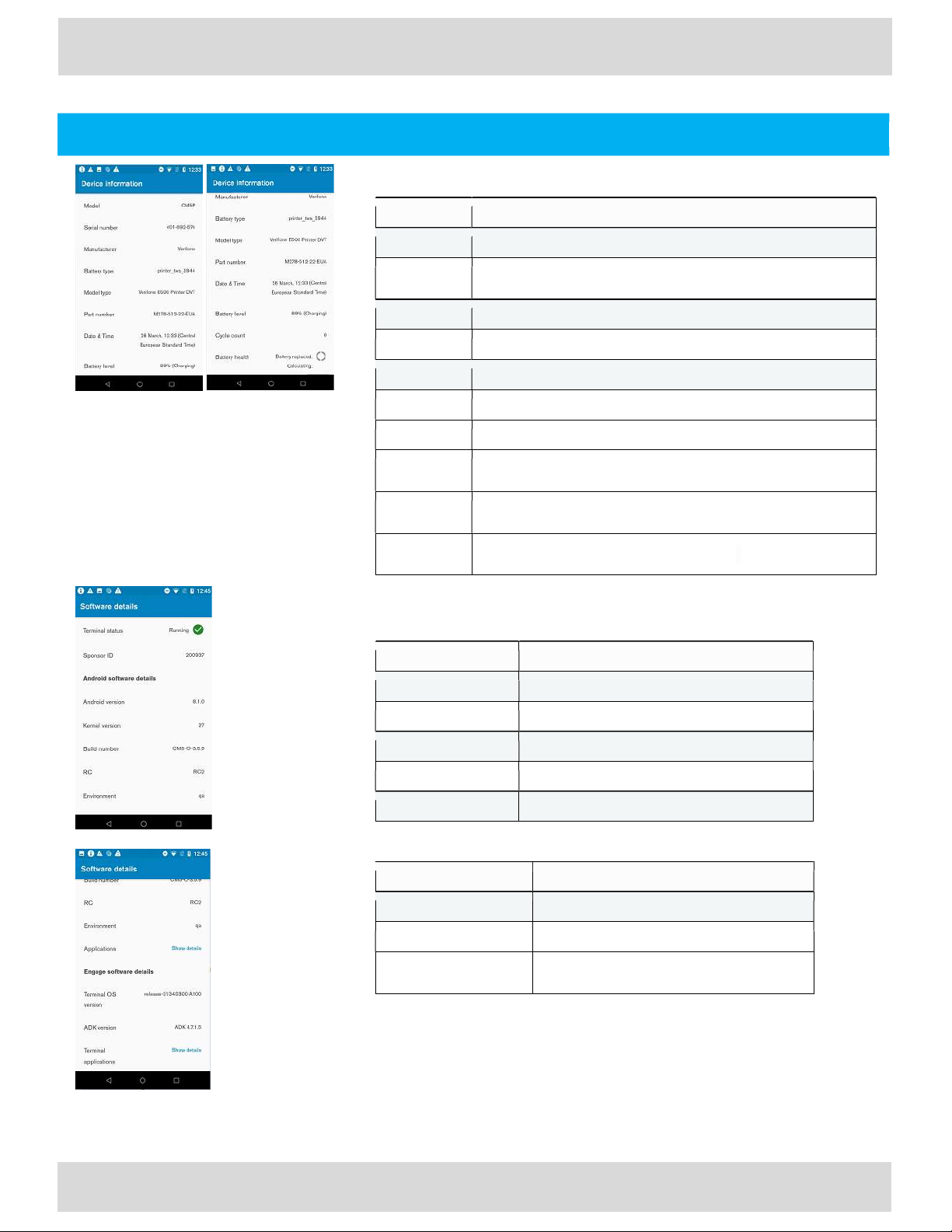
Diagnostic App
-
Continued
Field Description
Manufacturer
Shows the device manufacturer.
Battery type
Shows the battery model information.
Model type
Displays the device model version.
Date &
Time Displays the current date, time, and timezone on the device.
Discharging).
health
Field Description
Kernel version
Android OS API level
Environment
Backend environment which device communicates to.
Applications
Shortcut to open list of installed applications on Android.
Field Description
Terminal OS version
VOS version
installed on the engage chip
version on the engage
User Guide
Home App Launcher3 Carbon Mobile 5 with printer
EN
User Guide
Carbon Mobile 5 with printer
32
EN
Device Information
Model Specifies the device model name.
Serial
number
Shows the device serial number.
Part number Specifies the terminal part number
Battery level
Cycle count
Battery
Software Details
Indicates the battery charging level (in percentage) and status (i.e. Charging or
Counts the number of complete discharge cycles the current battery has
completed.
Reports the current health status of the device battery.
Android Software Details
Android version Android OS version
Build number Android OS Verifone build version
Engage Software Details
ADK version Installed ADK version
Terminal applications
Pop-up with list of all installed bundles and their
Page 33
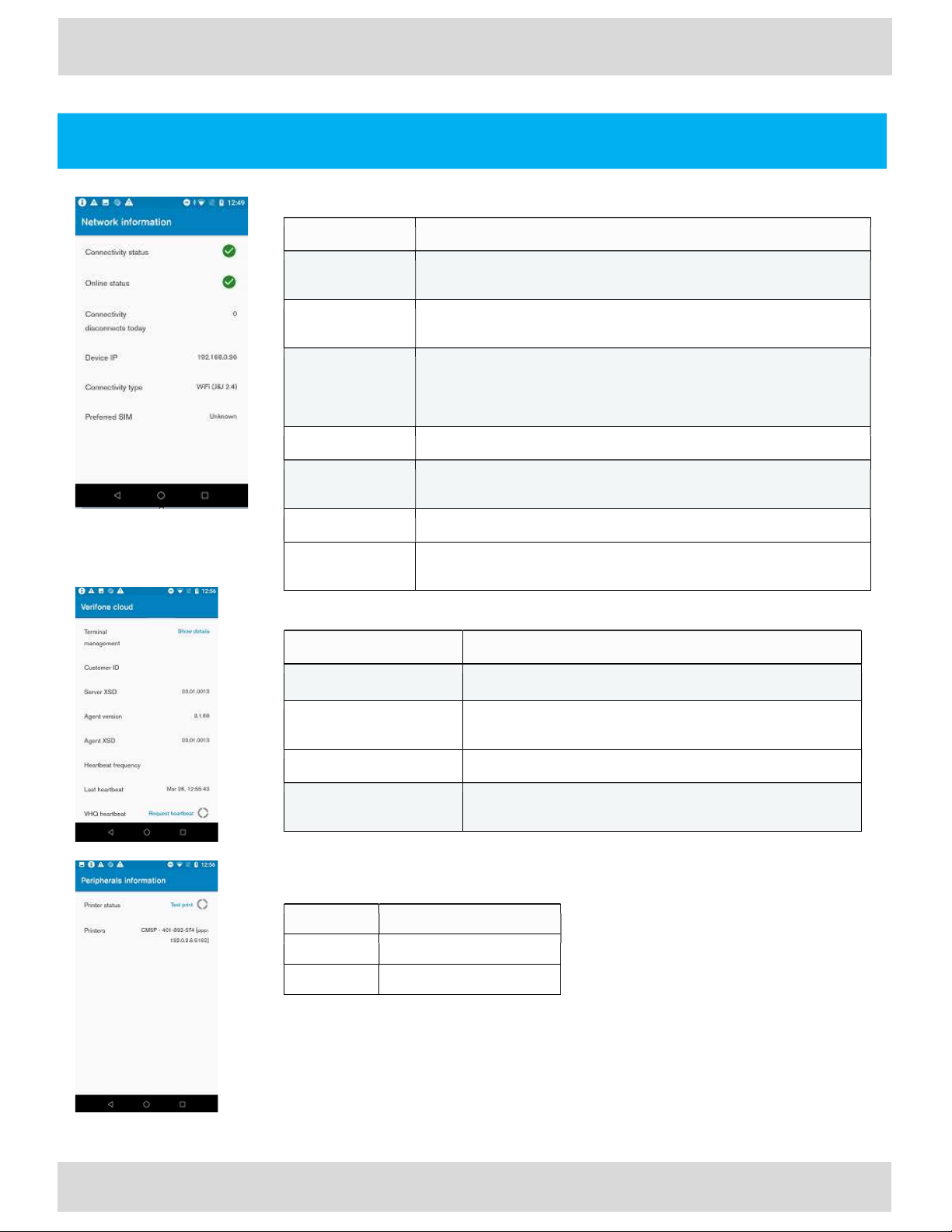
status
network has actual internet connectivity.
connectivity, or switches from wifi to mobile.
Device IP
Current
assigned device IP address
type
Mobile)
Preferred SIM
Network name of preferred SIM card, if in use
status” shows disconnected. QR code links to a Verifone support URL.
used to
identify customer and their devices hierarchy.
Heartbeat frequency
Frequency at which device will communicate with VHQ.
maintenance schedule
Field Description
Printers
List of all known printers.
User Guide
Home App Launcher3 Carbon Mobile 5 with printer
EN
User Guide
Carbon Mobile 5 with
printer
33
EN
Diagnostic App-Continued
Network Information
Field Description
Connection
Online status
Connectivity
disconnects
today
Connectivity
Shows if there is data network connection, such as wifi/ethernet/mobile.
Shows if device can reach external IP address to make sure selected
Count of data connection disconnects since midnight, specified as when
the network state changed from CONNECTED to DISCONNECTED
state. Example would be if the device momentarily loses wifi
Current data connection type (WiFI with access point name / Ethernet /
Need help?
Optional - this will link to a QR code, only available when “Connectivity
VeriFone Cloud
Field Description
Terminal management
Customer ID
VHQ heartbeat
Peripherals
Shows VHQ server URL.
Customer id account on device management server (VHQ),
Allows to trigger VHQ heartbeat. Heartbeat type depends on
Shows information about connected peripherals devices like printer.
Printer status Allows user to perform test print.
Page 34
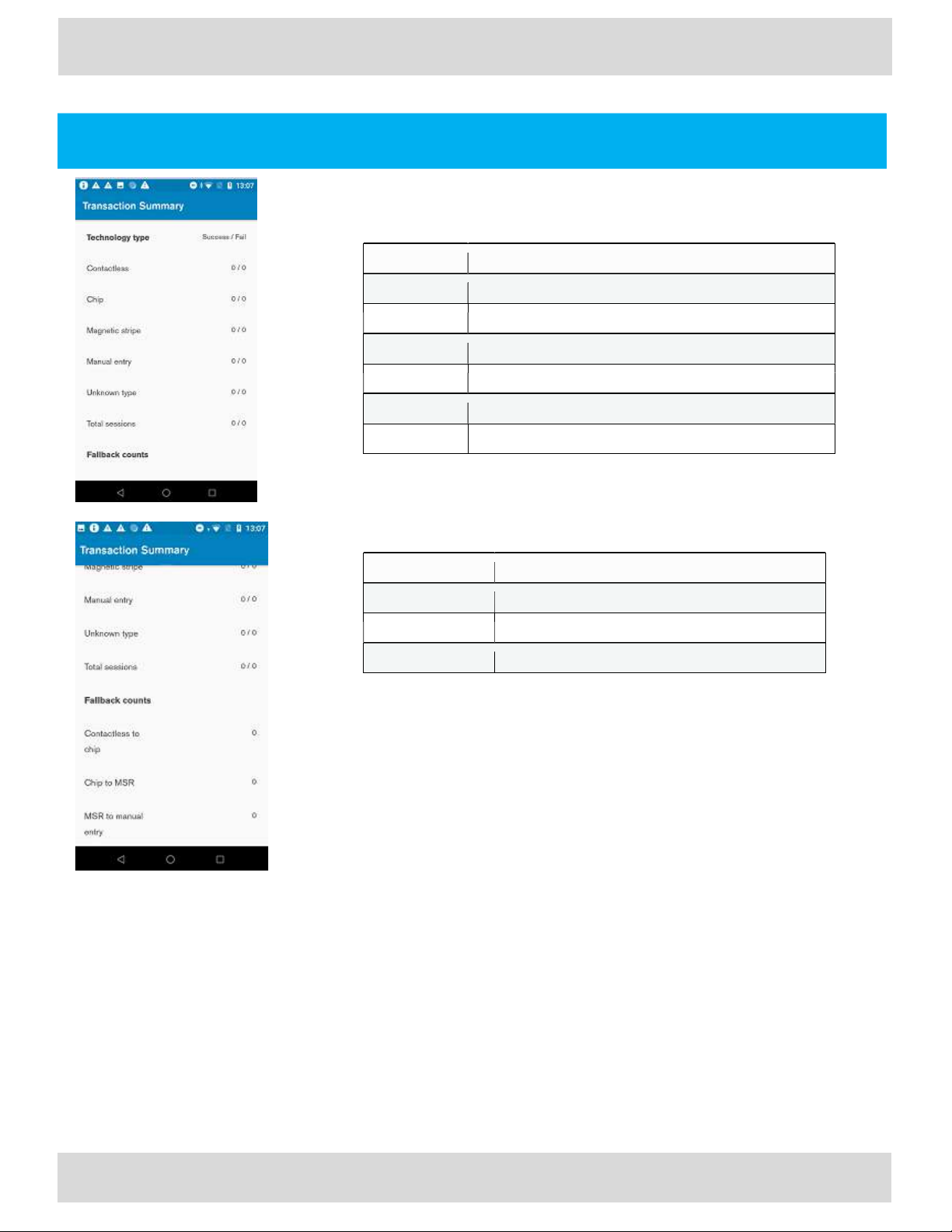
Field Description
Contactless
Number of successful and failed contactless transactions
Chip Number of successful and failed chip transactions
Manual entry
Number of
successful and failed transactions with manual card data entry
Unknown type
Number of successful and failed other transactions
Total sessions
Number of total successful and failed transactions
Field Description
Contactless to chip
Number of fallbacks from contactless to chip requests
Chip to MSR
Number of fallbacks from chip to magnetic stripe request
User Guide
Home App Launcher3 Carbon Mobile 5 with printer
EN
User Guide
Carbon Mobile 5 with printer
34
EN
Diagnostic App-Continued
Transaction Summary
Technology type
Magnetic stripe Number of successful and failed magnetic stripe transactions
Fallback counts
MSR to manual entry Number of fallbacks from magnetic stripe to manual entry request
Page 35
User Guide
Carbon Mobile 5 with printer
35
EN
User Guide
Home App Launcher3 Carbon Mobile 5 with printer
EN
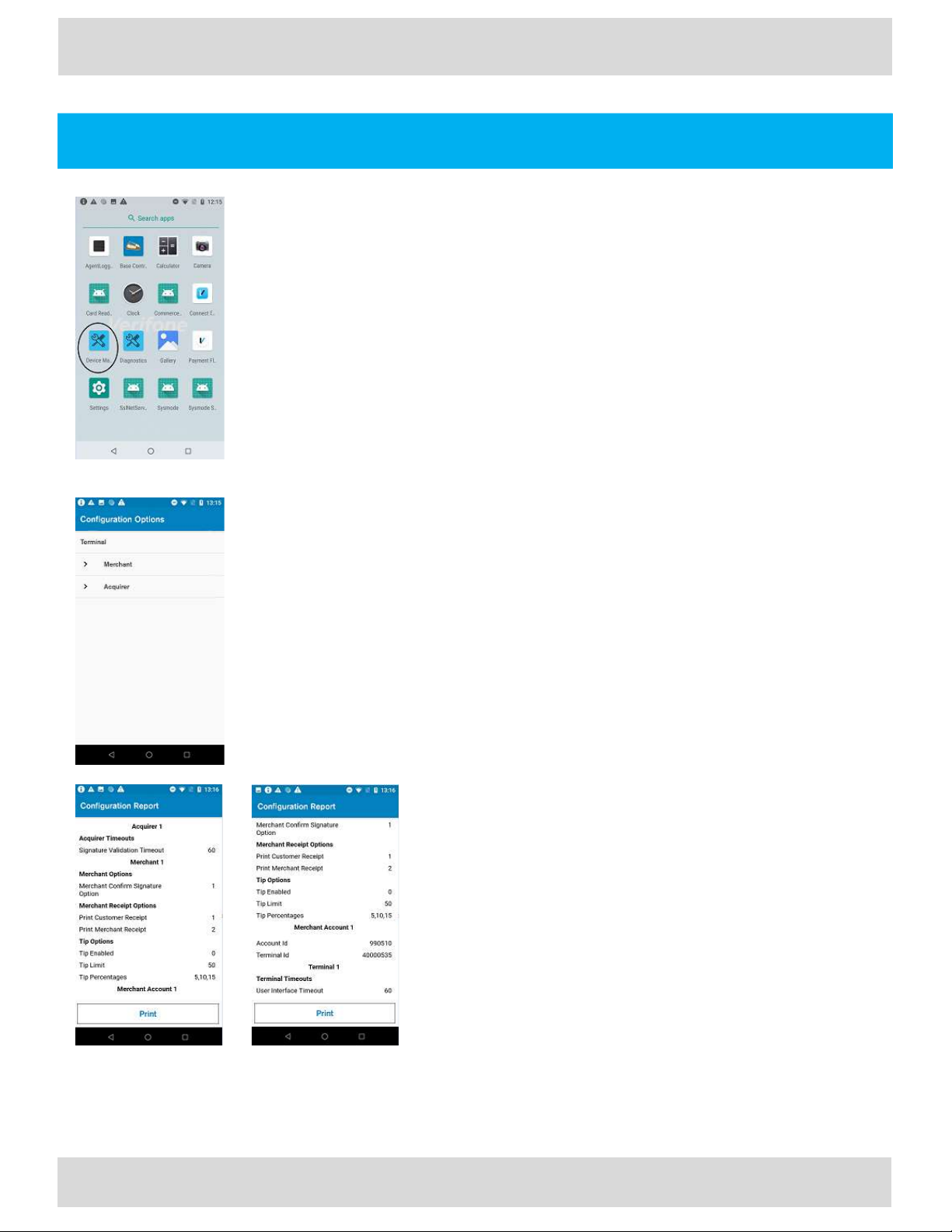
Device Manager App
Description
Open launcher and click on Device Manager application.
User action
click on Device Manager application for further details such as:
Host Param Options
Configuration Options
Configuration Report
Configure Device ID
Description
Configuration options is available via the Device Manager menu.
User action
The User can select the required Terminal configuration option to
view and edit as appropriate.
Description
Configuration Report is available via the Device Manager menu.
User action
The User can view and print the configuration report.
Page 36
User Guide
Carbon Mobile 5 with printer
36
EN
User Guide
Accessibility Carbon Mobile 5 with printer
EN
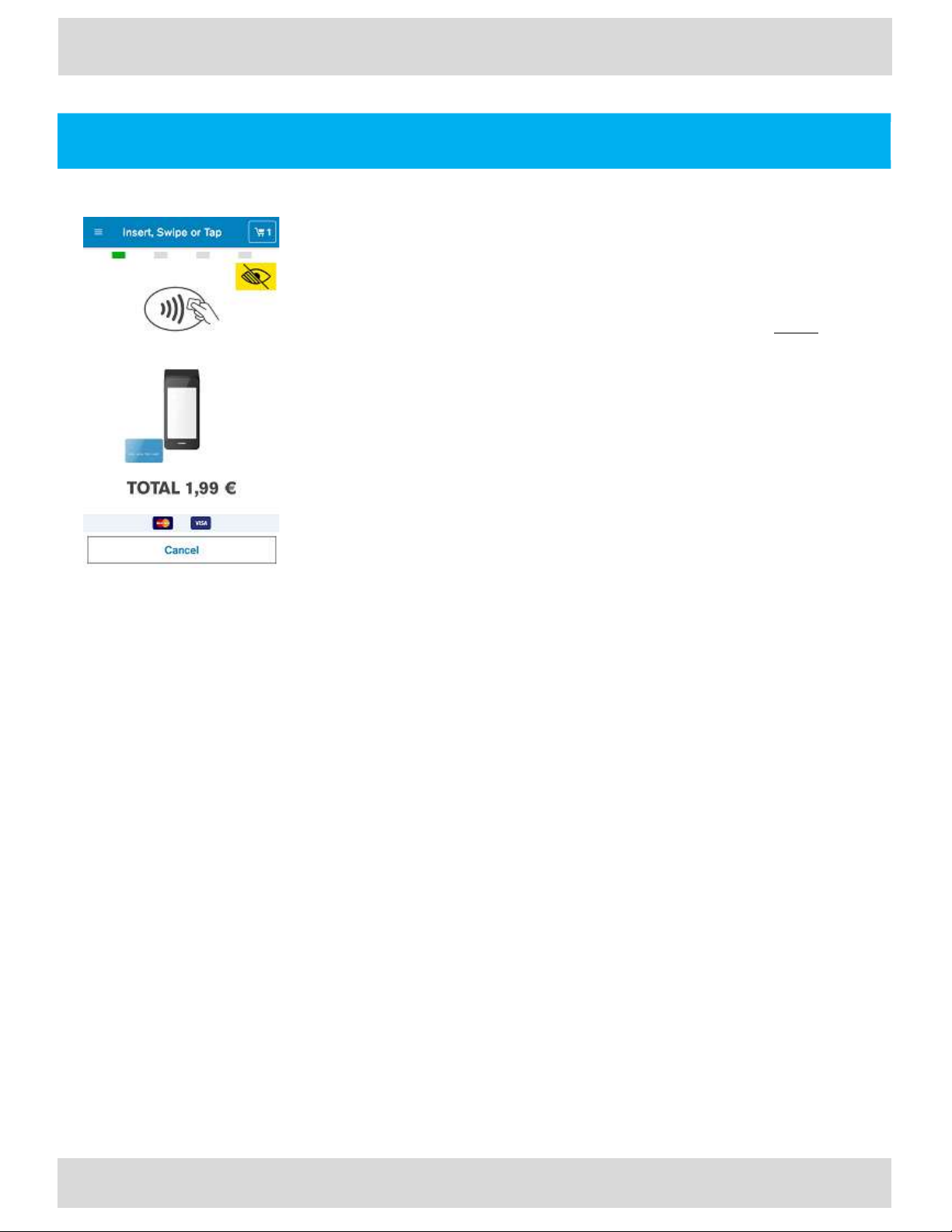
Purchase with Accessibility Option
Accessibility function allows visually-impaired customers to use the payment device
without issues. It supports Assistant PIN Entry, Accessible PIN Entry and the training
exploration.
Description
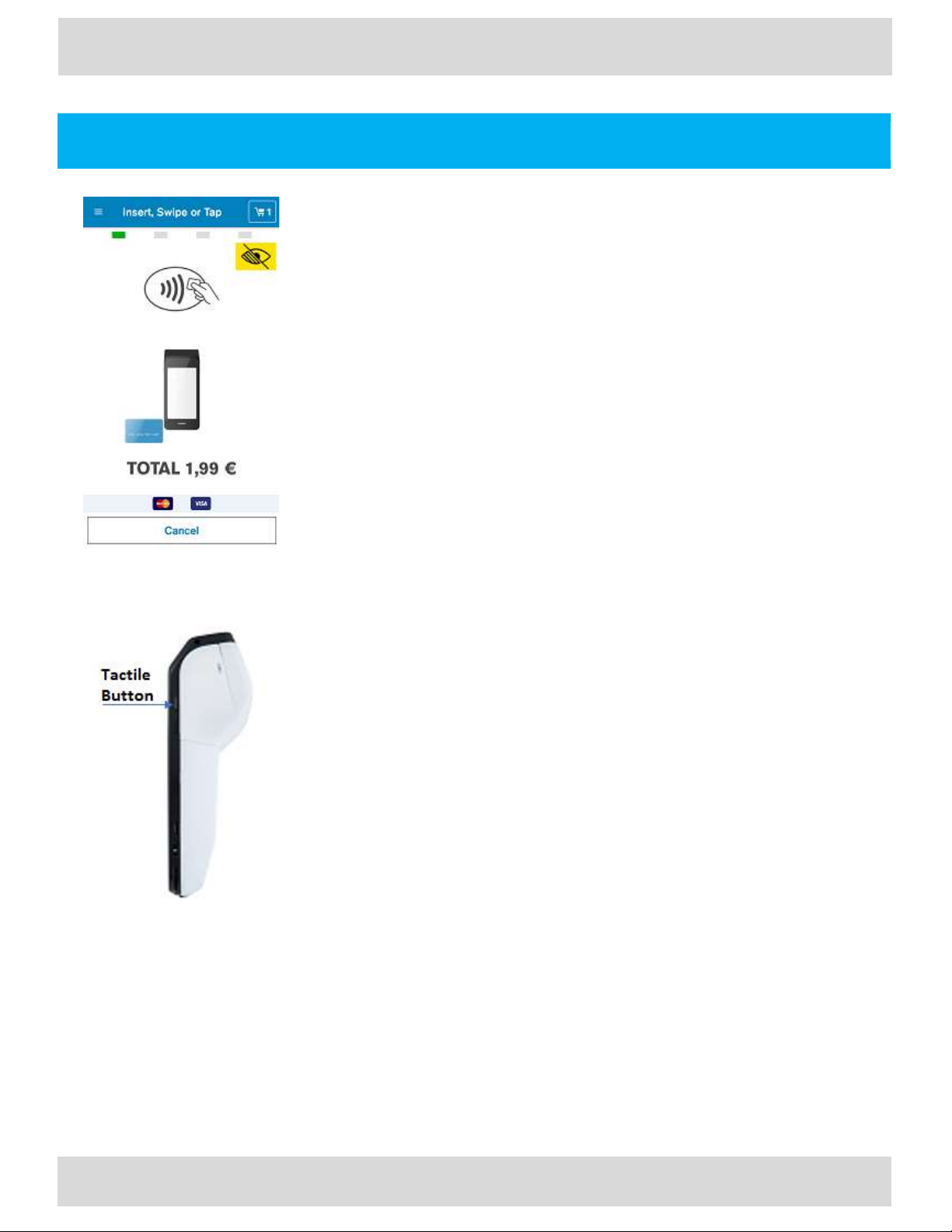
If the accessibility option is enabled in the configuration, the user can double tap
anywhere on the card prompt screen to turn on the accessibility mode.
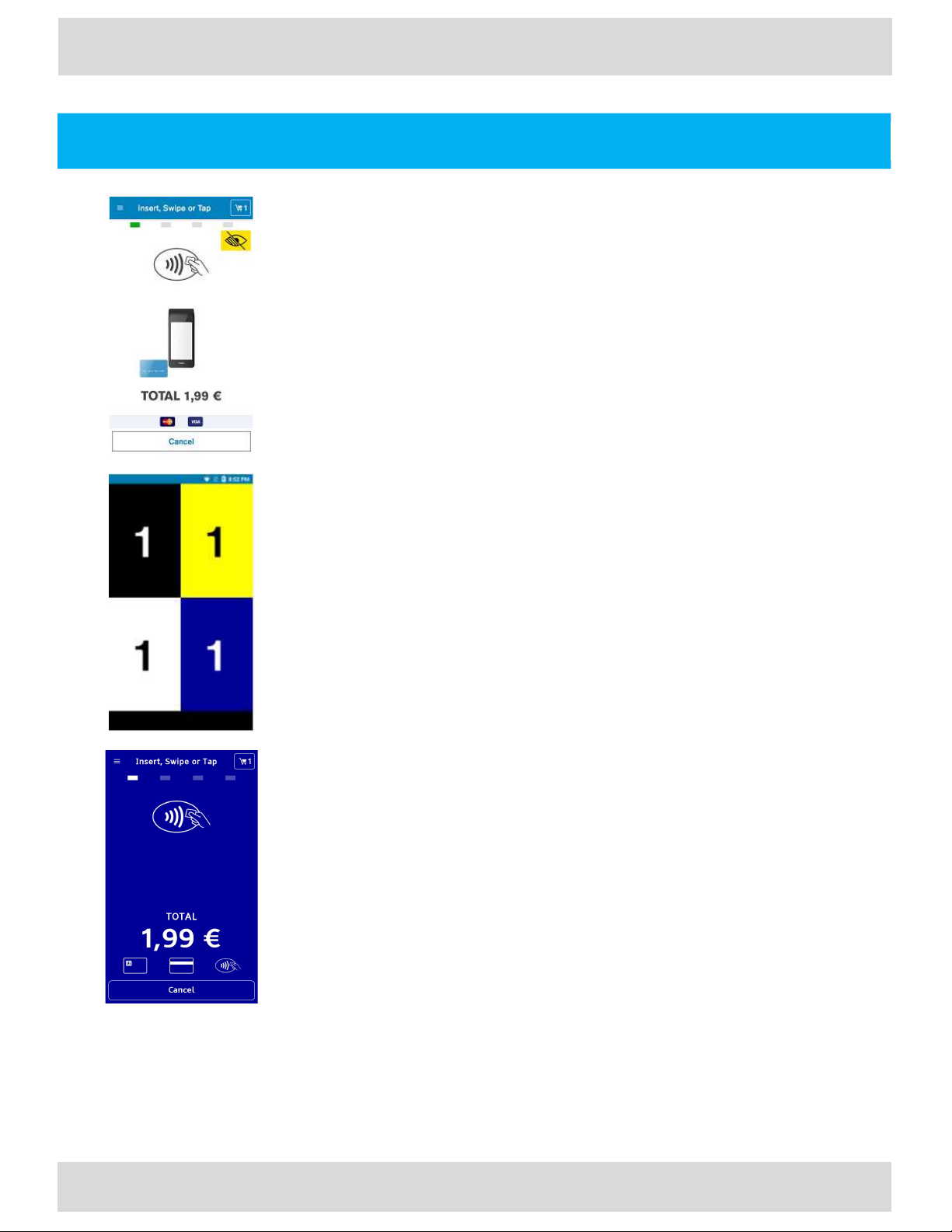
If the assistance option is enabled, the user can tap the visually-impaired yellow
button to choose the best contrast colour for the payment screens. For the
remainder of the transaction, the screens will have the background colour that is
chosen.
Once the accessibility/assistance mode is turned on, the screen prompts will be read
aloud to the user.
Description
Customer is prompted to enter PIN with accessibility feature. The customer can drag
their fingers orienting themselves using the corners of the device.
The screen is laid out as a virtual number pad grid. As the user drags fingers along
each number, a beep is played. The beep is the same regardless of the number that
the finger has dragged on. This will allow the customer to count the number of beeps
heard and using the direction in which the fingers moved, they can decipher the
number their finger is on.
Once the finger is dragged to any button, the customer can select that button, by
double tapping anywhere on the screen.
The accessibility mode must be turned on for each transaction. Once the PIN retries
exceeds the configurable value, the customer will be taken to a short training for PIN
entry in the accessibility mode. Refer to purchase
Merchant/Customer action
User enters the PIN using the accessibility feature.
Page 37
Purchase with Accessibility Option
-
Continued
User Guide
Carbon Mobile 5 with printer
37
EN
User Guide
Accessibility Carbon Mobile 5 with printer
EN
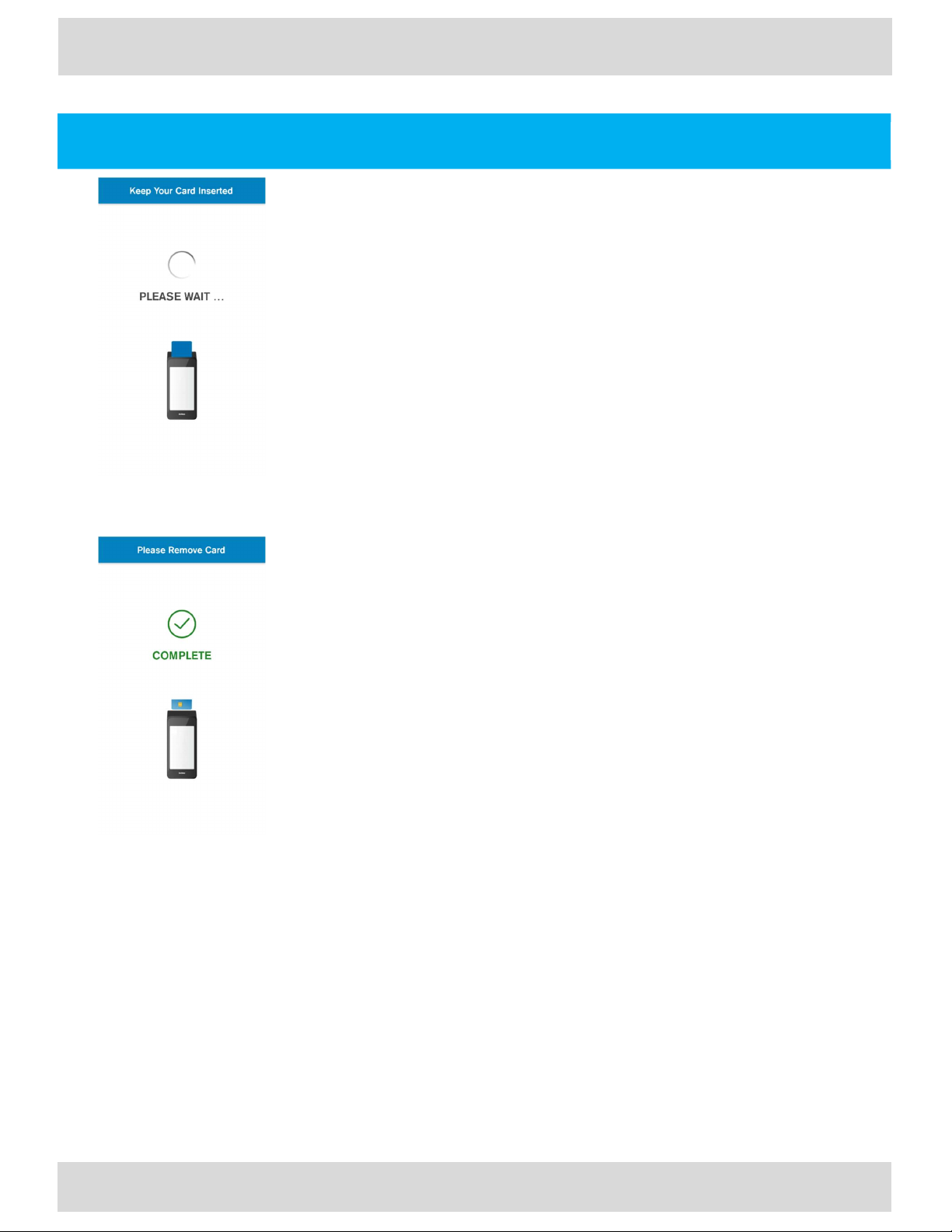
Description
This indicates that the device is doing an online authorization by communicating to
the card acquirer’s host system.
Error Scenarios
If the user removes the chip card, the transaction will be cancelled, and a
reversal will be generated.
If the payment application is exited or the device reboots while on this
screen, when the payment application restarts or the device boots up,
power failure recovery will occur, and the transaction will be declined, and a
reversal will be generated.
Description
This informs the customer that the payment is completed successfully. It prompts
the customer to remove the card if it is still inserted. The terminal can be configured
to either play a single beep or to continuously play beeps until the card is removed.
In accessibility mode, a voice for card removal is prompted.
Customer action
The customer needs to remove the card. The screen will not timeout as long as the
card is still inserted.
Page 38
User Guide
38
User Guide
Accessibility Carbon Mobile 5 with printer
EN
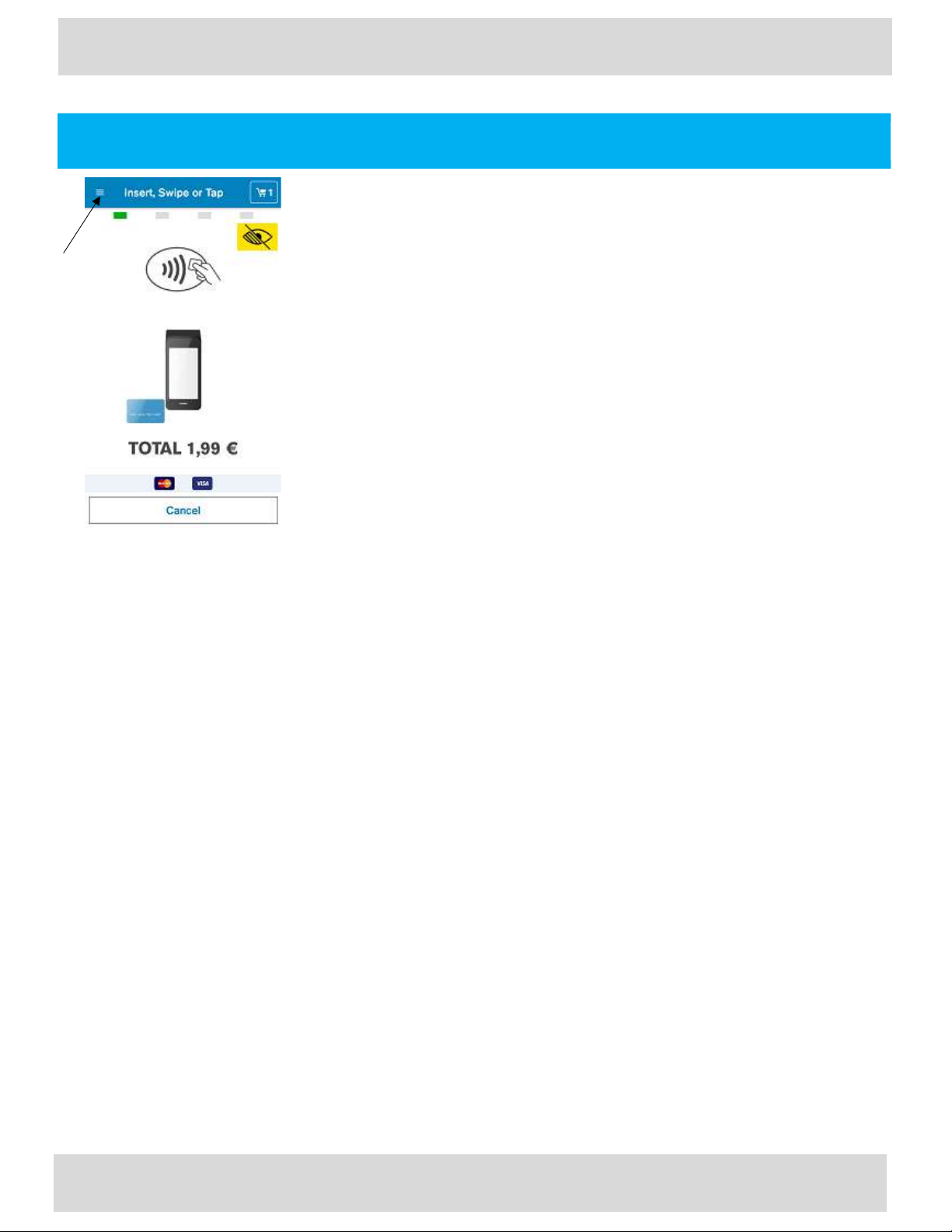
Accessibility Training
On the card prompt screen, the hamburger menu icon has options to launch any of
the below lessons. All the chapters are played automatically.
The Training includes the following lessons:
Exploration: includes Selection (Tactile) button: This is the first chapter
explaining about device and how to use it. The user must touch the device
once to hear next instructions. The user must double tap or press the tactile
button to activate training mode. The customer cannot exit from mode.
Selection (Tactile) button: This chapter lets the customer practice activating
accessibility mode by double tap/press the tactile button on listening to the
chime. The customer cannot exit from this mode.
Training Edges: This chapter guides the customer to use the accessibility
keypad using edges and corners. The customer can select “Cancel” and
double tap/press the tactile button to exit training mode.
Navigate: This chapter lets the customer to practice keypad navigation and
asks the customer to find some random keys. The customer can select
“Cancel” and double tap/press the tactile button to exit training mode.
Submit digit: This chapter asks the customer to find some random keys and
guides with instructions to practice entering digit (double tap/press tactile
button). The customer cannot exit from this mode.
Enter PIN: Keys will not be spoken out in this chapter and guides the
customer to practice entering randomly generated PIN. The customer can
select “Cancel” and double tap/press the tactile button to exit training
mode.
EN
Carbon Mobile 5 with printer
Page 39
User Guide
Carbon Mobile 5 with printer
39
EN
User Guide
Accessibility Carbon Mobile 5 with printer
EN
Accessible PIN Entry
Accessible Pin entry allows blind people to enter PIN themselves without
having to disclosing the PIN to the merchant.
If Accessible function is enabled, a special chime will be played periodically
to inform the user that he or she can invoke the Accessible function. The
user can perform a double-tap anywhere on the device screen or press a
tactile button (the scanner key) to enter Accessible PIN Entry mode. Once
Accessible Entry Mode is activated, the Total amount is vocalized and the
instruction on how to present card is vocalized (“Please present your card”).
Multi-Touch: To give the user a better user experience, the Terminal will
reject the palm touch or multi-touch during Accessible PIN entry.
The Accessible PIN Entry keypad type is a 12pad. The user can navigate
through the keypad. The audio feedback will be played once the user
switches to a different key in the keypad. The user can double tap anywhere
on the Terminal screen or press a tactile button to confirm that key he or she
last navigated to. Once the PIN entry is done, the user can navigate to the OK
button (on the right bottom corner) and double tap anywhere on the screen
or press the tactile button to confirm. For doing cancellation anytime during
the PIN Entry, the customer can navigate to the Cancel button (on the left
bottom corner) and double tap anywhere on the display or press the tactile
button to exit the PIN Entry screen. The customer will also receive audio
feedback if the PIN entered is correct or not.
After two successive unsuccessful PIN tries in Accessibility mode, the user
will be taken to the short training to explore, navigate, and practice digit
entry (double tap/press the tactile button). The training keypad would
behave same as accessibility except that the key digits are spoken out. The
user selects and double tap/press the tactile button on “Cancel” at the
bottom left corner to exit training. On exiting training, the on-going
transaction would be cancelled, and a new transaction has to be started to
do the card and PIN entry.
Once the Accessible function feature is enabled, the terminal works in this
mode for all subsequent transactions until disabled.
Page 40
User Guide
Accessibility Carbon Mobile 5 with printer
EN
User Guide
Carbon Mobile 5 with printer
40
EN
Assistant PIN Entry
Description
Assistant PIN Entry Keypad behaves just like the Standard PIN Entry Keypad
with magnification, colour contrast, and audio feedback.
On the Card prompt screen, the user can choose Assistant mode through an
Assistant visually-impaired yellow button on the screen. There are four
different colour combinations provided and the user can select one of them.
Once that colour is selected, the PIN entry Keypad will be shown in the new
colour combination theme.
colour blind users can select the contrast colour that allows them to see the
screen the best. The background colour of the card prompt screen and the
PIN entry screen will be the colour chosen by the customer. This colour only
applies to the current transaction, the color will be restored to the default
when the next payment starts.
Description
The card prompt screen for color blind customers who can see certain color
contrast better. The color is picked by the customer before entering this screen.
Page 41
Assistant PIN Entry
-
Continued
User Guide
EN
User Guide
Carbon Mobile 5 with printer
41
EN
Accessibility Carbon Mobile 5 with printer
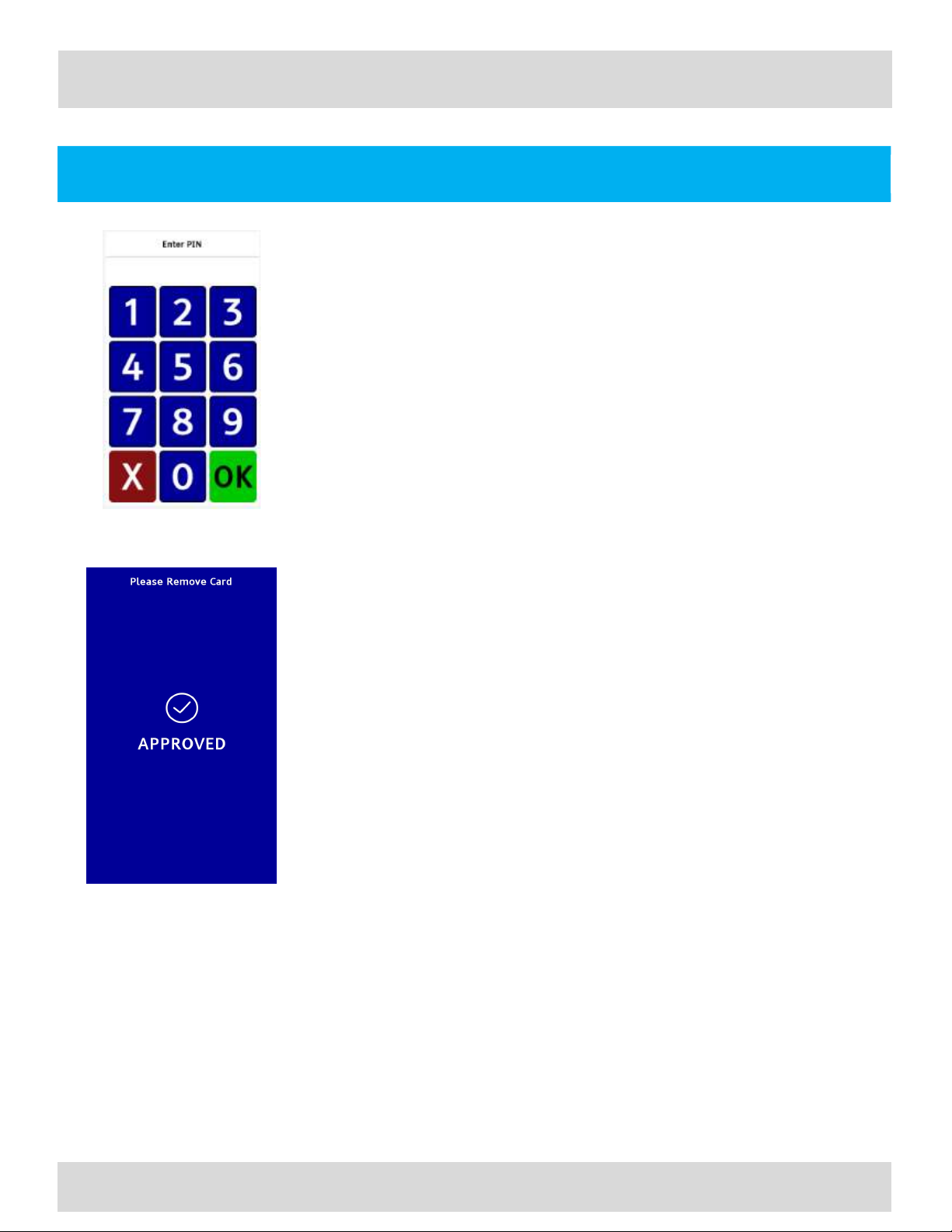
Description
The user is prompted to enter the PIN. The background color is the color chosen
by the customer to give the best contrast earlier in the card prompt screen via
the assistant button. Refer to the purchase flow for PIN entry details
Description
Informs the user that the payment is completed successfully. It prompts the user
to remove the card if it is still inserted. The terminal can be configured to either
play a single beep or to continuously play beeps until the card is removed. The
background color is the color chosen by the customer to give the best contrast
earlier in the card prompt screen via the assistant button.
 Loading...