

Page 1

© 2010 CANON INC.
Canon
Projector WUX10 MarkII
User Commands
Revision 1
Page 2

Projector WUX10 MarkII User Commands
- -
i
Revision History
Revision No. Version Date Page(s) Changes Revised by
1 01.0001 6/23/2009 ---
First release
Page 3

Projector WUX10 MarkII User Commands
- -
ii
Table of Contents
Revision History........................................................................................................................................... i
1. Overview .................................................................................................................1
2. Communication Specifications.................................................................................2
Communication Specifications ................................................................................................................... 2
Communication System (Serial)................................................................................................................. 3
Communication System (LAN)................................................................................................................... 3
Commands................................................................................................................................................... 4
Response ...................................................................................................................................................... 5
Other............................................................................................................................................................ 6
3. Communication Flow...............................................................................................7
Transmission sent ....................................................................................................................................... 7
Transmission received................................................................................................................................. 7
Command/Response .................................................................................................................................... 7
Response Reception Timeout...................................................................................................................... 7
Control Mode ............................................................................................................................................... 7
Other............................................................................................................................................................ 7
4. Command System...................................................................................................8
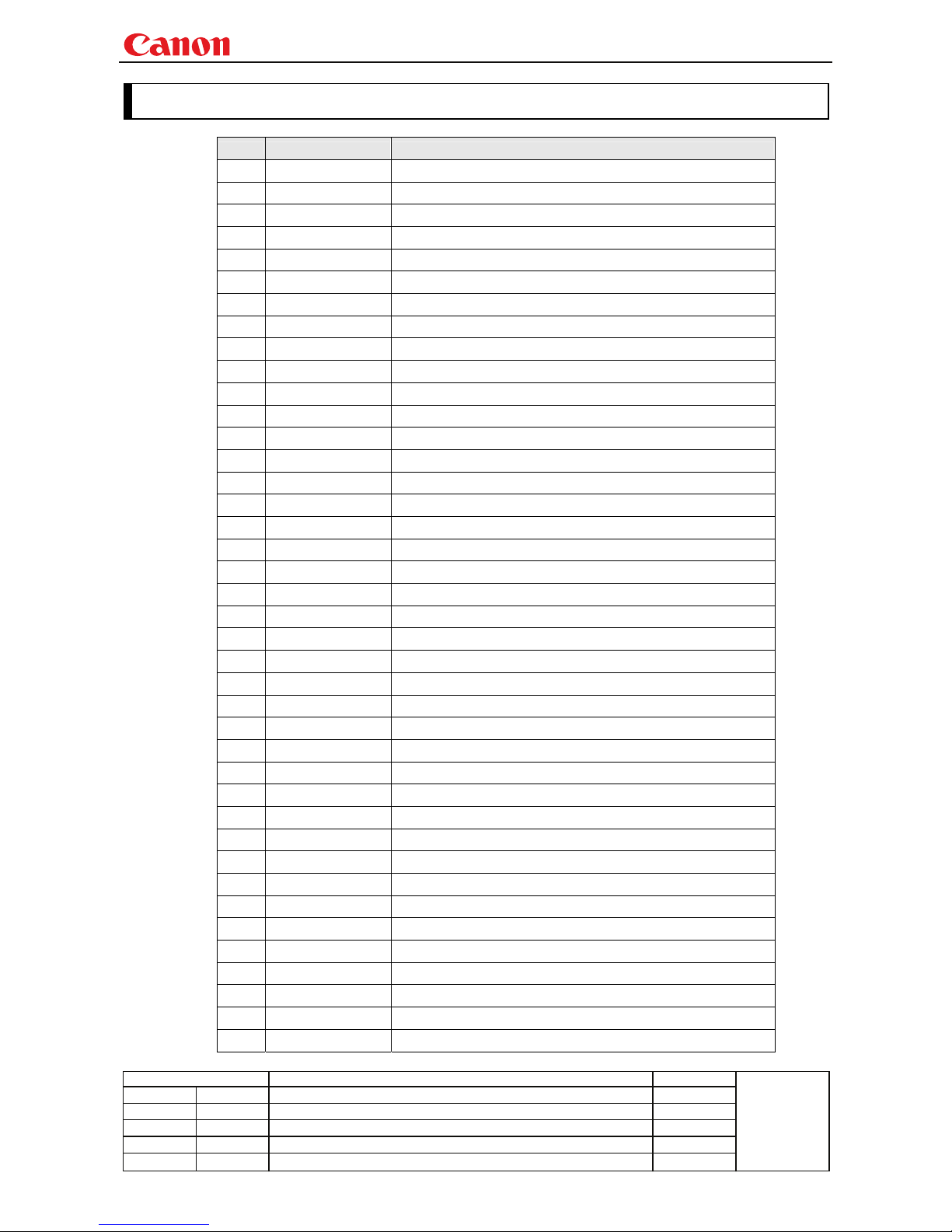
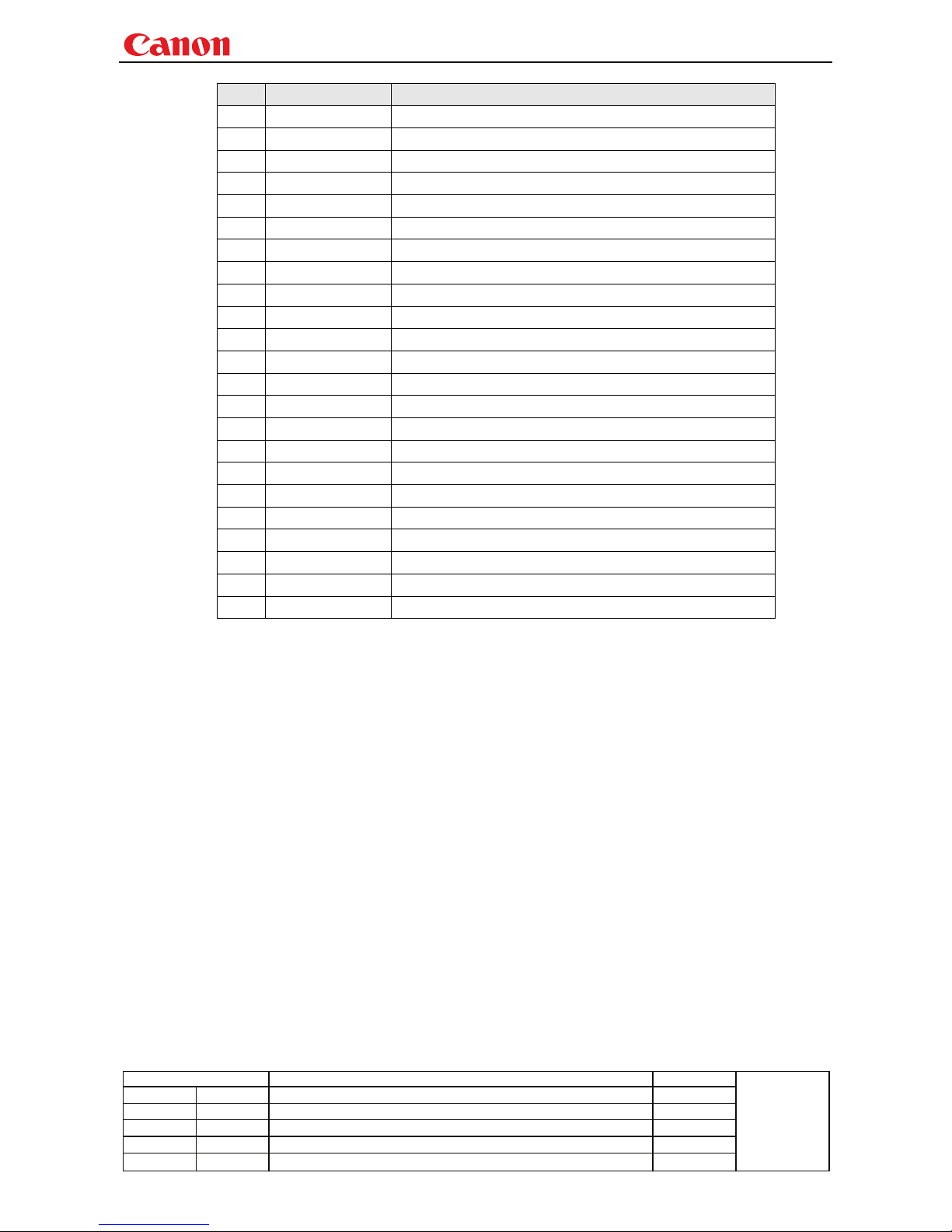
5. Command List .......................................................................................................10
6. Details of Command..............................................................................................12
6AXADJ .................................................................................................................................... 13
6AXR-Y ..................................................................................................................................... 14
ASCOMBO_* ............................................................................................................................ 15
ASPECT.................................................................................................................................... 16
AUTOPC ................................................................................................................................... 18
AUTOSETEXE ......................................................................................................................... 19
AVOL......................................................................................................................................... 20
BLANK ..................................................................................................................................... 21
BLANKCOLOR ........................................................................................................................ 22
BRI ............................................................................................................................................ 23
BVOL ........................................................................................................................................ 24
COMVER .................................................................................................................................. 25
CONT ........................................................................................................................................ 26
DGAMMA ................................................................................................................................. 27
DOTS ........................................................................................................................................ 28
DPON........................................................................................................................................ 29
ERR........................................................................................................................................... 30
FCONTDRV.............................................................................................................................. 31
FREEZE.................................................................................................................................... 32
FSTEPDRV............................................................................................................................... 33
FTONEADJ .............................................................................................................................. 34
Page 4

Projector WUX10 MarkII User Commands
- -
iii
GAMMA.................................................................................................................................... 35
GUIDE ...................................................................................................................................... 36
HPIX/VPIX ............................................................................................................................... 37
HPOS/VPOS ............................................................................................................................. 38
HUE .......................................................................................................................................... 39
IMAGE...................................................................................................................................... 40
IMAGEFLIP ............................................................................................................................. 42
INPUT....................................................................................................................................... 43
KEYLOCK ................................................................................................................................ 44
LAMP........................................................................................................................................ 45
LAMPCOUNTER ..................................................................................................................... 46
LANG ........................................................................................................................................ 47
LEDILLUMINATE................................................................................................................... 48
LMPT ........................................................................................................................................ 49
MAIN ........................................................................................................................................ 50
MODE ....................................................................................................................................... 51
MUTE ....................................................................................................................................... 52
NOSIG ...................................................................................................................................... 53
PJON......................................................................................................................................... 54
PMM.......................................................................................................................................... 55
POWER..................................................................................................................................... 56
PRODCODE ............................................................................................................................. 57
PROG ........................................................................................................................................ 58
RC ............................................................................................................................................. 59
RCCH........................................................................................................................................ 61
RESET ...................................................................................................................................... 62
RGBGAIN................................................................................................................................. 64
RGBOFFSET............................................................................................................................ 65
ROMVER .................................................................................................................................. 66
SAT............................................................................................................................................ 67
SCRNASPECT.......................................................................................................................... 68
SEL ........................................................................................................................................... 69
SHARP...................................................................................................................................... 71
SIGNALSTATUS...................................................................................................................... 72
TEMP........................................................................................................................................ 73
TMPL ........................................................................................................................................ 74
TRACK...................................................................................................................................... 75
VKS ........................................................................................................................................... 76
WB............................................................................................................................................. 77
WBRGB..................................................................................................................................... 78
ZCONTDRV.............................................................................................................................. 79
ZSTEPDRV............................................................................................................................... 80
7. Error List................................................................................................................ 81
8. Error Processing....................................................................................................83
9. Other .....................................................................................................................85
Appendix 1. Reset Items ........................................................................................... 86
Page 5
Projector WUX10 MarkII User Commands
- 1 -
Revision History / Date Changes Revised by
A
pp
roved b
y
1. Overview
These specifications describe the methods of controlling the Projector WUX10 MarkII from the PC over
an RS-232C connection or LAN.
Virtually all operations possible with the remote control can be controlled from the PC.
The following symbols are used in these specifications:
Symbol Description
△
Space with 0 or more characters (20h), Tab (09h), or other separator.
□
Space with 1 or more characters (20h), Tab (09h), or other separator.
▽
Separator between parameters △ , △ | □.
[ ]
Data in [ ] can be omitted.
|
Same as OR.
:=
Definition name is on the left side of this mark, and definition description is on the right side.
Page 6
Projector WUX10 MarkII User Commands
- 2 -
Revision History / Date Changes Revised by
A
pp
roved b
y
2. Communication Specifications
Communication Specifications
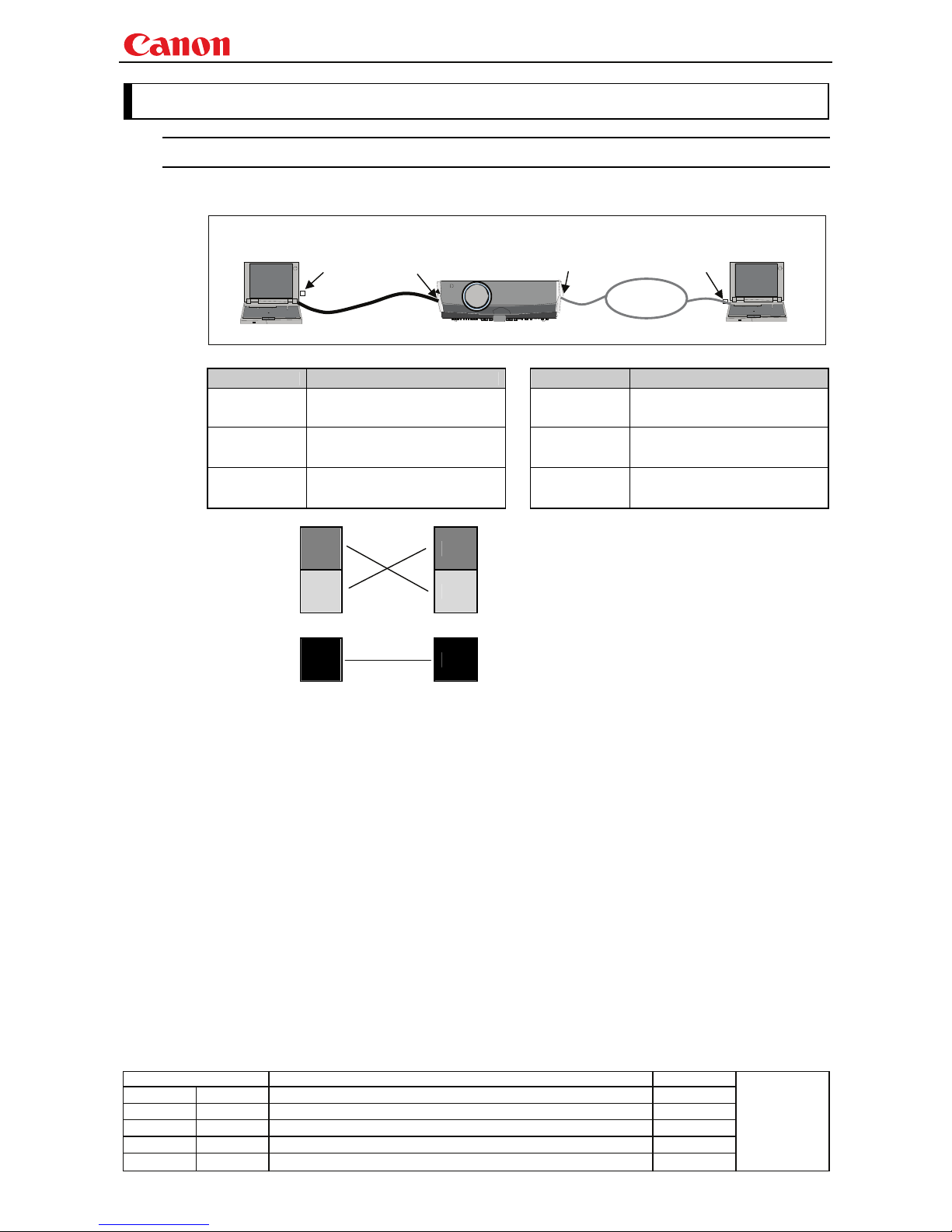
The projector can be controlled via serial or LAN connection.
PC - Projector connection status
Item Specifications Item Specifications
Connection
system
PC and projector connected on
a "1:1" basis
Connection
system
TCP/IP Connection
Connection
signal line
3-line connection of SD,
RD, and SG
Connection
signal line
Straight when connecting via
network
Connection
cable
9pin RS-232C Cable (Cross)
Connection
cable
LAN Cable
Send Data
SD
SD
Send Data
Receive
Data
RD RD
Receive
Data
Signal
Ground
SG
SG
Signal
Ground
* Signal lines other than the three lines of SD, RD and SG are not used in the projector!
* Loop back its own signals at the PC side if necessary.
PC
Projector
Dedicated cable
COM
PORT
SERVICE
PORT
Canon
Network
Connection
PC
LAN
PORT
LAN
PORT
Page 7
Projector WUX10 MarkII User Commands
- 3 -
Revision History / Date Changes Revised by
A
pp
roved b
y
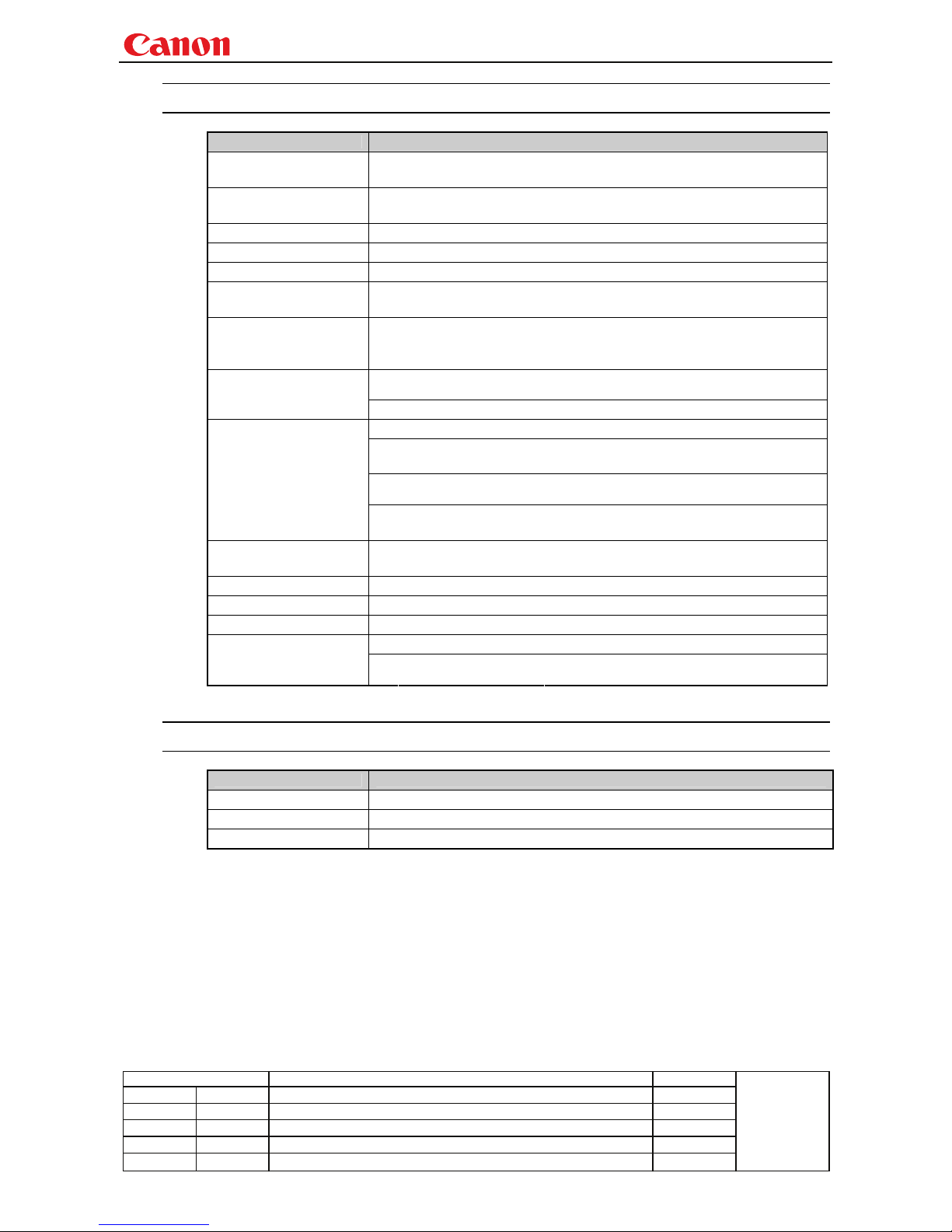
Communication System (Serial)
Item Specifications
Communication system RS-232-C Start-stop synchronization Semi-duplex communication
Transmission speed 19.2 Kbps
Character length 8 bits/character
Stop bit 2 bits
Parity None
Transmission format Variable-length record with terminal as delimiter
Maximum transmission
length
Maximum of 256 characters (bytes) including delimiters.
Delimiters are one of CR, LF, CR+LF, Null (0) (delimiters are identified
automatically).
Delimiters
Response delimiters are identical to command delimiters.
ASCII code (General-purpose characters: 20h to 7Fh), Tab (09h)
(Codes other than those above and delimiters are considered “other
separator codes”)
Uppercase and lowercase of alphabetic characters are considered the same
character.
Transmission codes
Double-byte characters and single-byte characters are not distinguished. All
are considered single-byte characters.
Communication
procedure
No procedure
Flow control None
Error control None
Break signal Not supported
Tc Character: 5s (Timeout between CR and LF is 10ms.)
Time out
Tr
Command/response
interval:
15s
Communication System (LAN)
Item Specifications
Communication system
Transmission speed
Character length
Page 8
Projector WUX10 MarkII User Commands
- 4 -
Revision History / Date Changes Revised by
A
pp
roved b
y
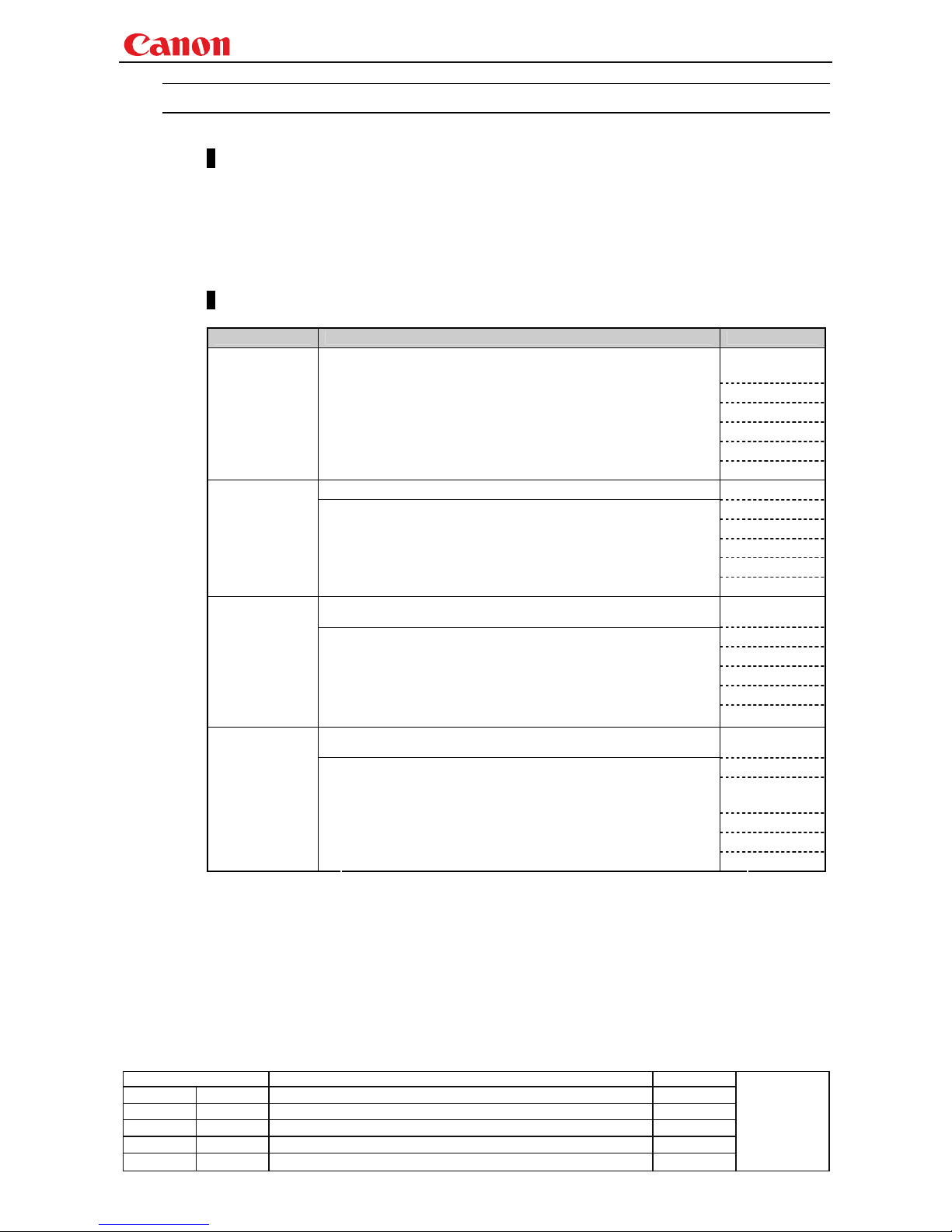
Commands
Request transmissions sent from PC to the projector.
Transmission format
△<Command character strings> △<Delimiters>
<Command character strings>
Character strings consisting of 0 or more alphanumeric characters.
<Delimiters>
One of CR (0Dh), LF (0Ah), CR+LF (0Dh+0Ah), Null (00h)
Type
Type Description Response
Commands with a command character string length of 0. No
command processing is performed.
■
OK
□ BUSY
■ WARN
■ ERR
Null Commands
Character string
<Null command character string>
:= <Character string with length 0>
Projector control command. The format is shown below.
■ OK
■ BUSY
■ WARN
■ ERR
Control
command
Character string
<Control command character string>
:= <Control name>□<Parameter value>
Command that sets values for each parameter. The format is
shown below.
■ OK
■ BUSY
■ WARN
■ ERR
Setting
command
Character string
<Setting command character strings>
:= <Parameter name>△=△<Parameter value>
For the definition of <Parameter value>, refer to "Parameter
definitions.
Requests current value of each parameter. The format is shown
below.
□ OK
■ BUSY
■
WARN
■ ERR
Reference
command
Character string
<Reference command character string>
:=?△<Parameter name> | GET□<Parameter name>
Page 9
Projector WUX10 MarkII User Commands
- 5 -
Revision History / Date Changes Revised by
A
pp
roved b
y
Response
Transmissions sent from Projector to PC in response to commands from PC.
Transmissionformat
<Response character string> <Delimiter>
<Response character string>
Character strings consisting of one or more ASCII characters.
The first two characters are always <one lowercase letter>:
The first character indicates the response type.
Response
type
Meaning Example
i
State response i:OK i:BUSY etc.
w
Warning w:USER_COMMAND..
e
Error e:000B INVALID..
g
Reference command response g:AVOL=10
<Delimiters>
Delimiters for commands sent from PC.
Type
OK response After processing of each command is completed, a response is sent indicating that
the next command can be received.
<OK response character string>:=i:OK
BUSY response This response is sent when a command cannot be received during processing.Wait
for a few moments, and then try sending the command again.
<BUSY response character string>:=i:BUSY
Example:
> IMAGE=STANDARD
< i:BUSY
WARN response This response is sent when warning information is issued.
* that this command cannot be executed.
<Warning response character string>:= w:<Warning description>
Example:
> IMAGE=STANDARD
< w:USER_COMMAND_VERSION_IS_UPDATED
ERR response An error message is output.
<Error response character string>:= e:<Error code>□<Error message>
* <Error code> is expressed as a four-digit hexadecimal number.
* Refer to “Error List”!
Example:
> abcdefg
< e:0002 INVALID_COMMAND
GET response Request response for each parameter.
<GET response character string>:=g<Parameter name>=<Value>
Example:
> GET LANG or ? LANG
< g:LANG=JPN
Page 10

Projector WUX10 MarkII User Commands
- 6 -
Revision History / Date Changes Revised by
A
pp
roved b
y
Other
Transmission recognition
Transmission is recognized when delimiter is received.
Even if a maximum transmission length is received, the entire received transmission will be lost
unless a delimiter is received.
The <Parameter value> is defined as shown below.
<Parameter value> := <Value 1>▽<Value 2> ▽.. ▽ <Value n>
<Value> := <Numerical value> | <ID> | “<Character string>”
<Numerical value> := [<Sign>] <Decimal character string (Min. 1 character to Max. 5 characters)>
* The range of valid values is -32768 to 32767.
<ID> := 1 or more ASCII characters (20h to 7Fh)
<Character string> := 0 or more ASCII characters (20h to 7Fh)
Page 11
Projector WUX10 MarkII User Commands
- 7 -
Revision History / Date Changes Revised by
A
pp
roved b
y
3. Communication Flow
Transmission sent
At the sending side (PC), the transmission is sent within character intervals of Tc (character interval
timeout).
Transmission received
At the receiving side (Projector), data able to be received within the character interval of Tc is held,
and receiving of a delimiter is considered “transmission received”.
If a received character interval exceeds Tc or a delimiter is not received within 256 characters, all data
already received is lost, and the mode is reset to receive standby again.
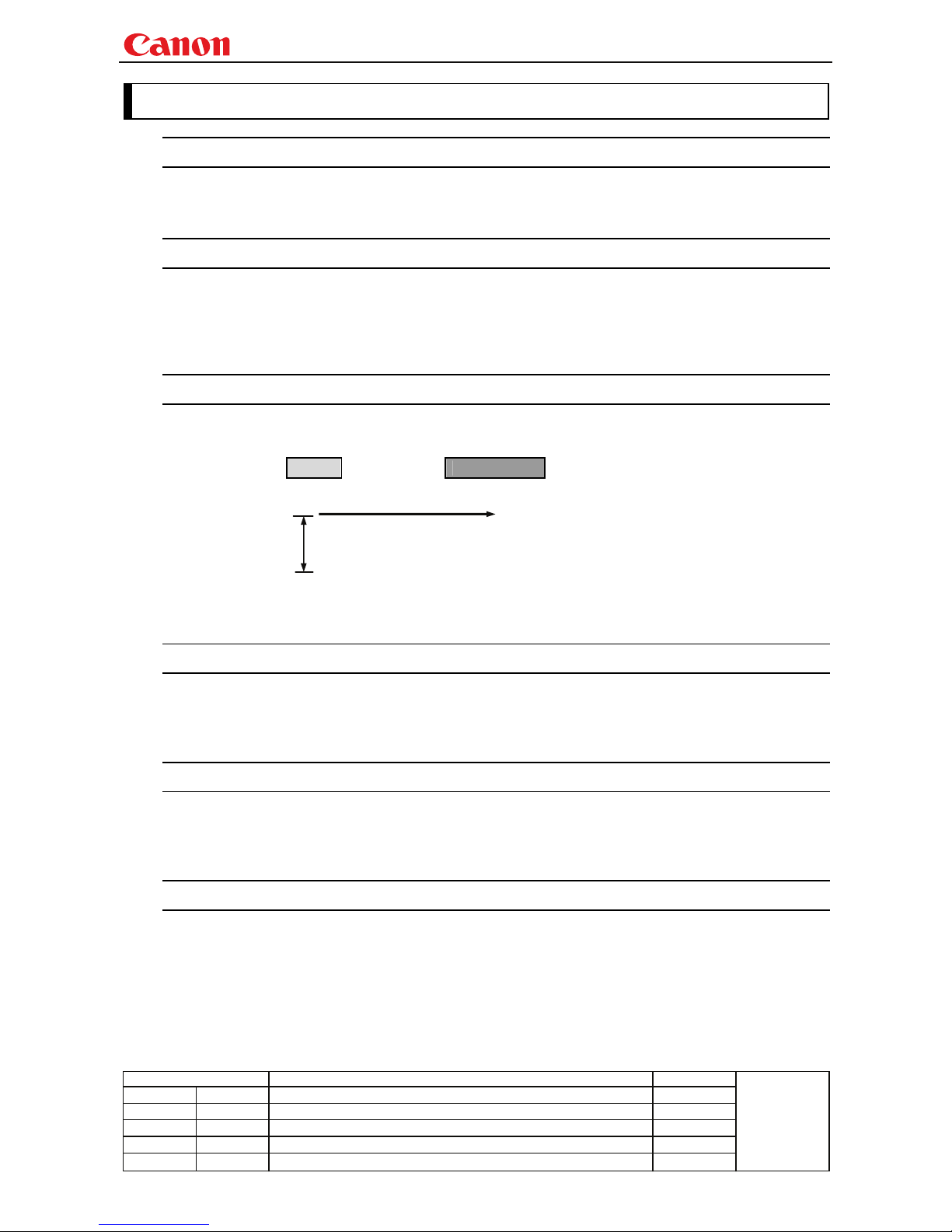
Command/Response
One response is always returned for each command sent from the PC. (However, note that a response
may not be returned when the internal receive buffer overflows due to reception of a large amount of
data.)
PC Projector
Commands
WithinTr
Response
* The timeout interval between command and response (Tr) is 15 seconds.
Response Reception Timeout
If a response is not received within Tr (timeout interval between command and response) while in
response reception standby after sending a command at the PC, resend the command in the “response
reception timeout”.
Control Mode
"LOCAL mode" and "REMOTE mode" on previous models (SX50、SX6、SX60、X600、SX7、X700) have
been removed. You do not need to be aware of which mode it is in (no need to use "REMOTE" and
"LOCAL" commands) to send user commands.
Other
If AC power is supplied to the projector, communication is possible regardless of whether the power is
on or off.
The PC side cannot send a next user command before a response for the first command is returned.
If more than 2 user commands arrive at one port, "BAD_SEQUENCE" will be returned in response to
the second user command.
Response to the first processed user command will not be returned.
If user commands arrive at the LAN and service port simultaneously, both will be processed. It will be
processed individually, and return a response to each command to individual ports.
Page 12
Projector WUX10 MarkII User Commands
- 8 -
Revision History / Date Changes Revised by
A
pp
roved b
y
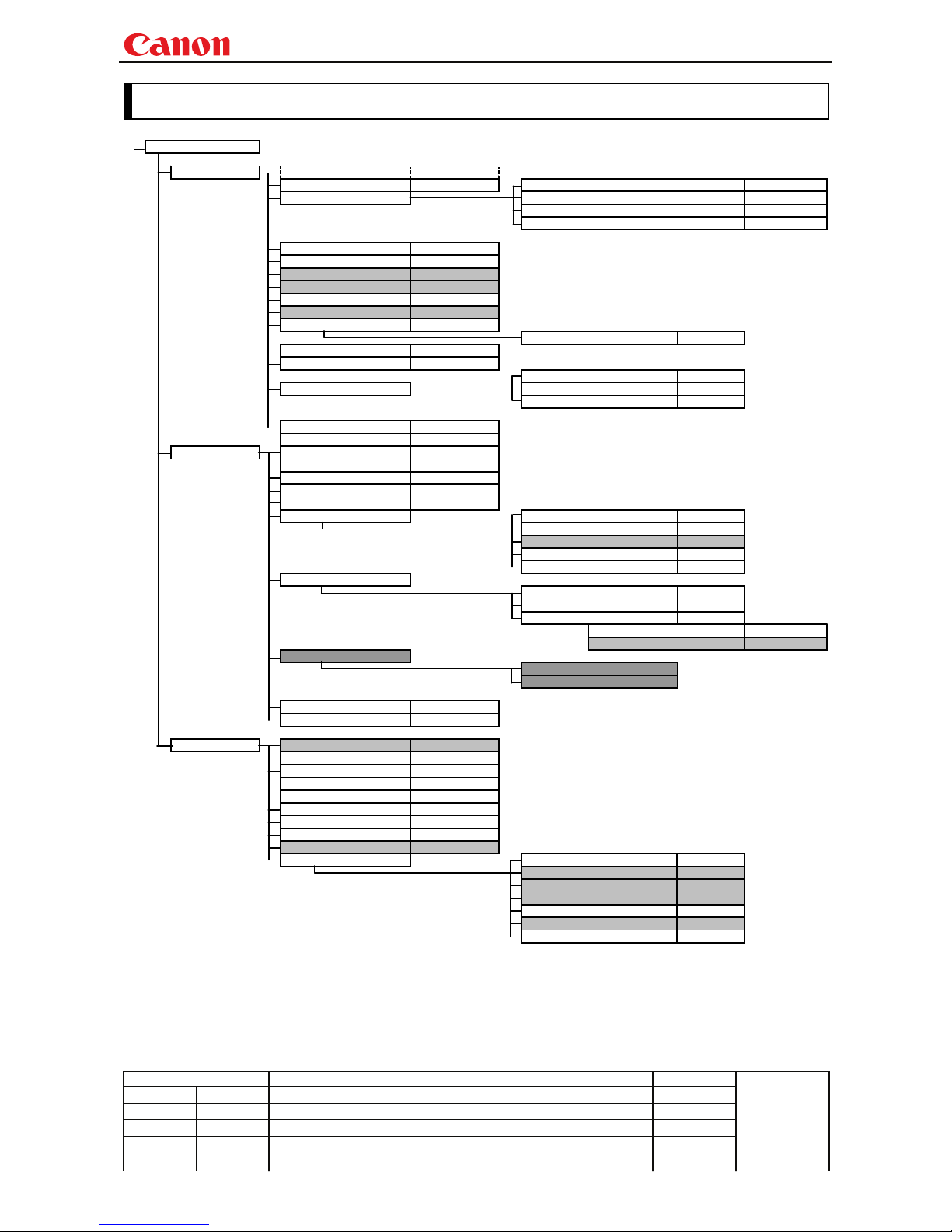
4. Command System
MENU Control
Display Setting Input select
INPUT
Aspect
ASPECT
Total number of dots adjustment
DOTS
Input signal settings Tracking adjustment
TRACK
Horizontal/Vertical position adjustment HPOS/VPOS
Horizontal/Vertical resolution adjustment
HPIX/VPIX
Input signal selection
SEL
*User commands use only automatic selection of input signals.
Auto PC
AUTOPC
*Running of Auto PC will change the values set in “Input signal settings”.
HDMI input level
HDMI overscan
Progressive
PROG
Menu display position setting
Screen color correction
WB
RGB adjustment WBRGB
Flip display
IMAGEFLIP
Progressive
PROG
Screen when no signal NOSIG
User screen setting Screen when blank
BLANKCOLOR
Startup screen
PJON
Screen Aspect
SCRNASPECT
Image adjustment Image quality select
IMAGE
Brightness setting
BRI
Contrast setting
CONT
Sharpness setting
SHARP
Gamma correction
GAMMA
Color adjustment Color saturation setting
SAT
Hue setting
HUE
Color temperature setting
Gain adjustment
RGBGAIN
Offset adjustment
RGBOFFSET
Advanced adjustment
Dynamic gamma
DGAMMA
Flesh color adjustment
FTONEADJ
6-axis color adjustment
6AXADJ
6-axis adjustment
6AXR~Y
Reset
Ambient light
Type
Level
Lamp mode setting
LAMP
Image adjustment reset
RESET
RESET IMAGE
System setting Auto setup
Power management mode
PMM
Direct power-on
DPON
Electronic sound
BVOL
Key lock
KEYLOCK
Language setting
LANG
Guide
GUIDE
LED illumination
LEDILLUMINATE
Slideshow interval
Other settings Remote control setting
RCCH
Menu display time
Password setting
Password registration
Lamp counter reset
RESET
RESET LAMPTIME
Network settings reset
Factory settings
RESET
RESET SYSTEM
Page 13
Projector WUX10 MarkII User Commands
- 9 -
Revision History / Date Changes Revised by
A
pp
roved b
y
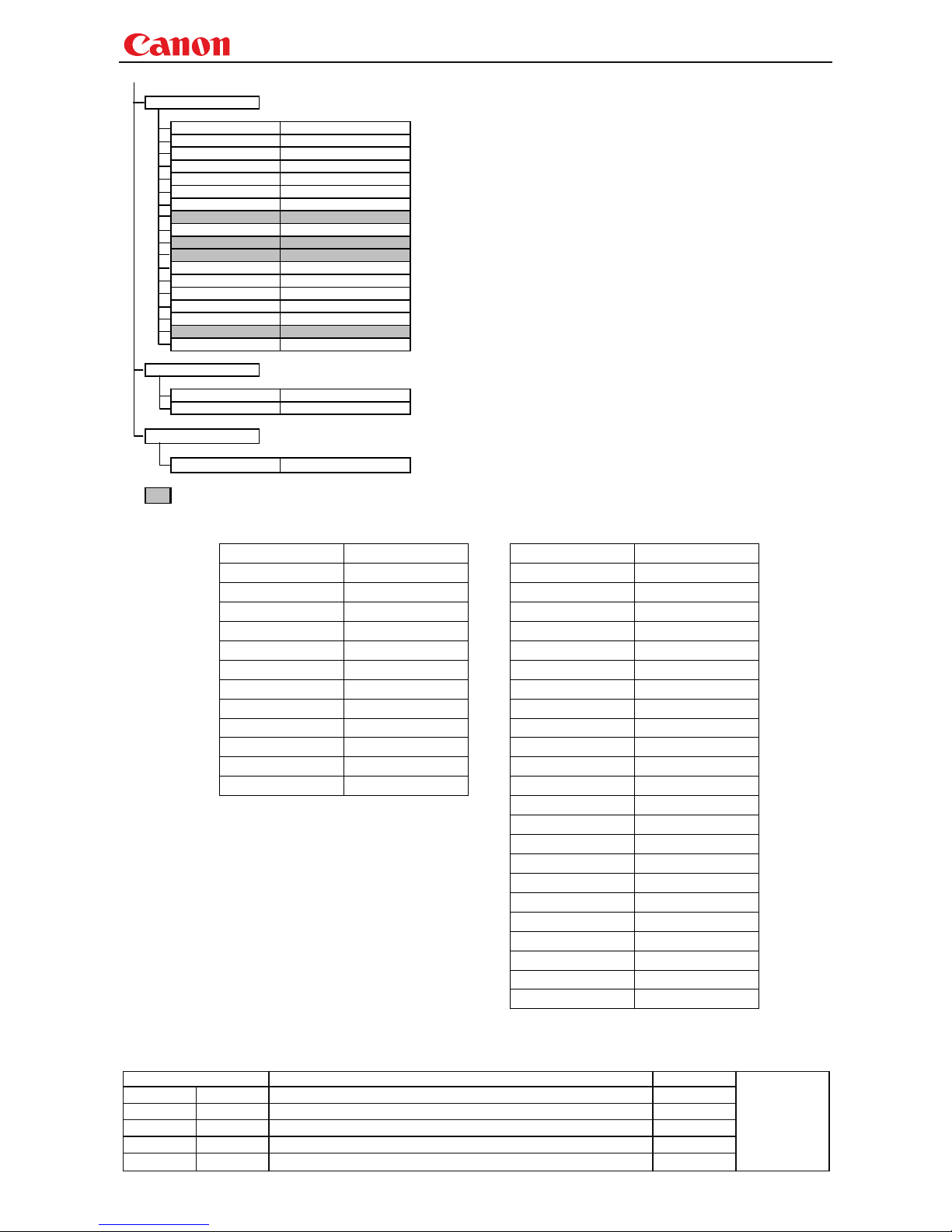
Remote Control/Key
[POWER]
POWER
[AUTO SET]
AUTOSETEXE
[ASPECT]
ASPECT
[INPUT]
INPUT
[AUTO PC]
AUTOPC
*Running of Auto PC will change the values set in “Input signal settings”.
[FOCUS]
FCONTDRV / FSETPDRV
[ZOOM]
ZCONTDRV / ZSETPDRV
[D.SHIFT]
[KEYSTONE]
VKS
[MENU]
[D.ZOOM]
[VOL]
AVOL
[FREEZE]
FREEZE
[BLANK]
BLANK
[MUTE]
MUTE
[IMAGE]
IMAGE
[P-TIMER]
[LAMP]
LAMP
Emulate
Key emulate
MAIN
Remote control emulate
RC
Reference
Retrieve each data
GET *****
※ Indicates functions that are available in the menu but not available in the user commands.
POWER POWER POWER POWER
AUTO SET AUTOSET AUTO SET AUTOSET
MENU MENU MENU MENU
KEYSTONE KEYSTONE KEYSTONE KEYSTONE
FOCUS FOCUS FOCUS FOCUS
ZOOM ZOOM ZOOM ZOOM
INPUT INPUT INPUT INPUT
AUTOPC AUTOPC AUTOPC AUTOPC
↑ UP ASPECT ASPECT
↓ DOWN IMAGE IMAGE
← LEFT BLANK BLANK
→ RIGHT MUTE MUTING
OK OK VOL + VOL+
VOL - VOL-
FREEXE FREEZE
P-TIMER PTIMER
LAMP LAMP
DZOOM + DZOOM+
DZOOM - DZOOM-
↑ UP
↓ DOWN
← LEFT
→ RIGHT
OK OK
Page 14
Projector WUX10 MarkII User Commands
- 10 -
Revision History / Date Changes Revised by
A
pp
roved b
y
5. Command List
Item Commands Description
1
6AXADJ 6-axis adjustment ON/OFF
2
6AXR~Y 6-axis correction R-Y hue/saturation settings
3
ASCOMBO_* Defines auto setup combination
4
ASPECT Screen settings
5
AUTOPC Auto PC
6
AUTOSETEXE Auto setup
7
AVOL Audio volume adjustment
8
BLANK BLANK function
9
BLANKCOLOR Screen when BLANK setting
10
BRI Brightness setting
11
BVOL BEEP sound setting
12
COMVER User command version inquiry
13
CONT Contrast setting
14
DGAMMA Dynamic gamma
15
DOTS Total number of dots adjustment
16
DPON Direct power-on setting
17
ERR Error information inquiry
18
FCONTDRV Focus lens continuous drive control
19
FREEZE Freeze status
20
FSTEPDRV Focus lens step drive control
21
GAMMA Gamma adjustment
22
GUIDE Guide setting
23
HPIX / VPIX Horizontal/Vertical resolution adjustment
24
HPOS / VPOS Horizontal/Vertical position adjustment
25
HUE Hue setting
26
IMAGE Image mode setting
27
IMAGEFLIP Flip display
28
INPUT Input selection
29
KEYLOCK Keylock setting
30
LAMP Lamp output setting
31
LAMPCOUNTER Lamp ON time inquiry
32
LANG Language select
33
LEDILLUMINATE Emotional LED lighting control
34
LMPT Lamp time inquiry
35
MAIN Front panel operation emulation
36
FTONEADJ Flesh tone adjustment
37
MODE Control mode switch
38
MUTE Mute control
39
NOSIG Display screen when no signal setting
40
PJON Display screen at startup setting
Page 15
Projector WUX10 MarkII User Commands
- 11 -
Revision History / Date Changes Revised by
A
pp
roved b
y
Item Commands Description
41
PMM Power management
42
POWER This controls the power supply
43
PRODCODE Product information inquiry
44
PROG Progressive setting
45
RC Remote control operation emulate
46
RCCH Remote control channel setting
47
RESET Reset
48
RGBGAIN RGB gain adjustment
49
RGBOFFSET RGB offset adjustment
50
ROMVER ROM version inquiry
51
SAT Color saturation setting
52
SCRNASPECT Screen aspect setting
53
SEL Input signal selection
54
SHARP Sharpness setting
55
SIGNALSTATUS Signal status inquiry
56
TEMP Temperature inquiry
57
TMPL Temperature limit inquiry
58
TRACK Tracking adjustment
59
VKS Vertical keystone setting
60
WB Screen color correction
61
WBRGB Screen color correction (ADJUST)
62
ZCONTDRV Zoom lens continuous drive control
63
ZSTEPDRV Zoom lens step drive control
Page 16
Projector WUX10 MarkII User Commands
- 12 -
Revision History / Date Changes Revised by
A
pp
roved b
y
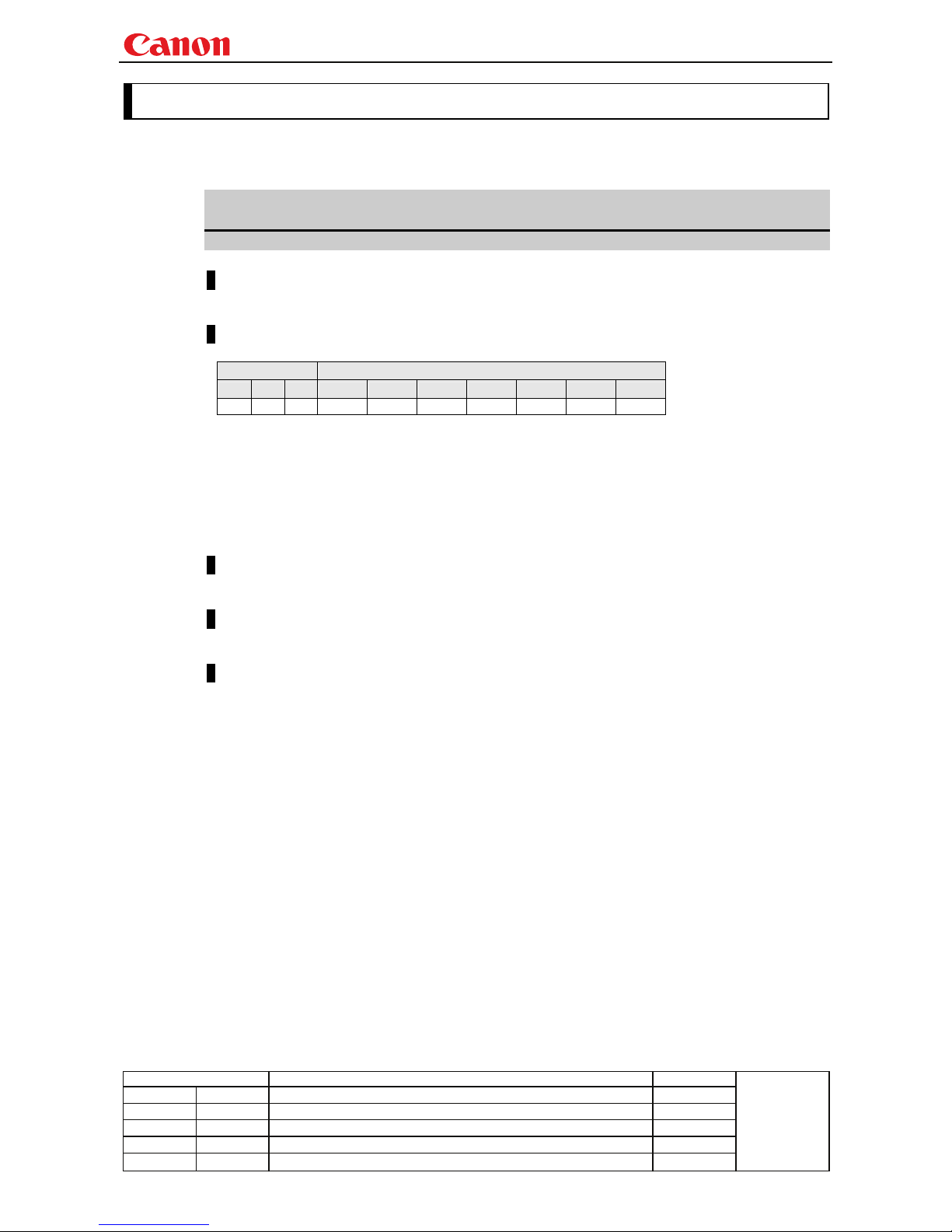
6. Details of Command
Descriptions of each command are provided starting from the next page.
The command descriptions have the format shown below.
Alphabetic command name
This briefly describes the command function.
Format
This indicates the command format.
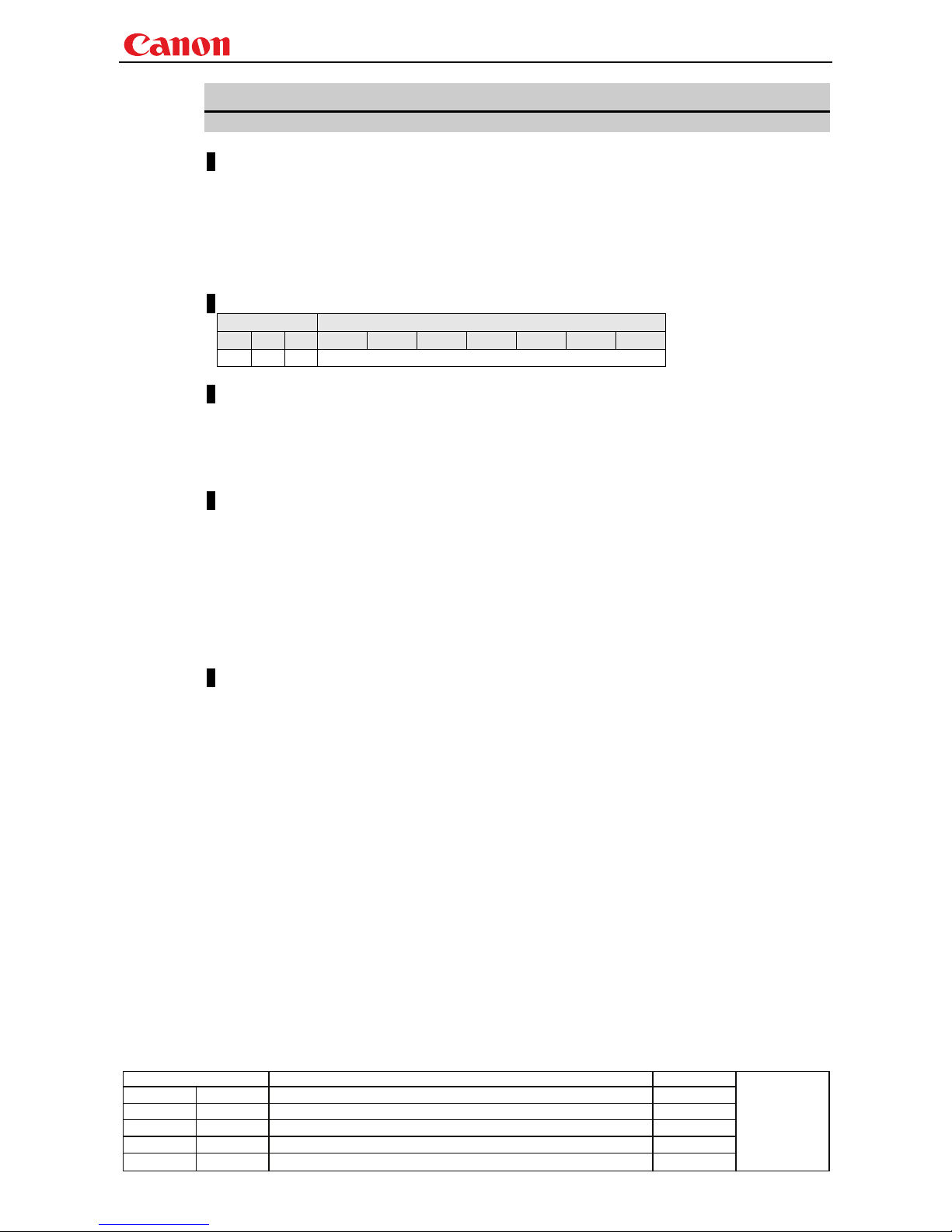
Environment
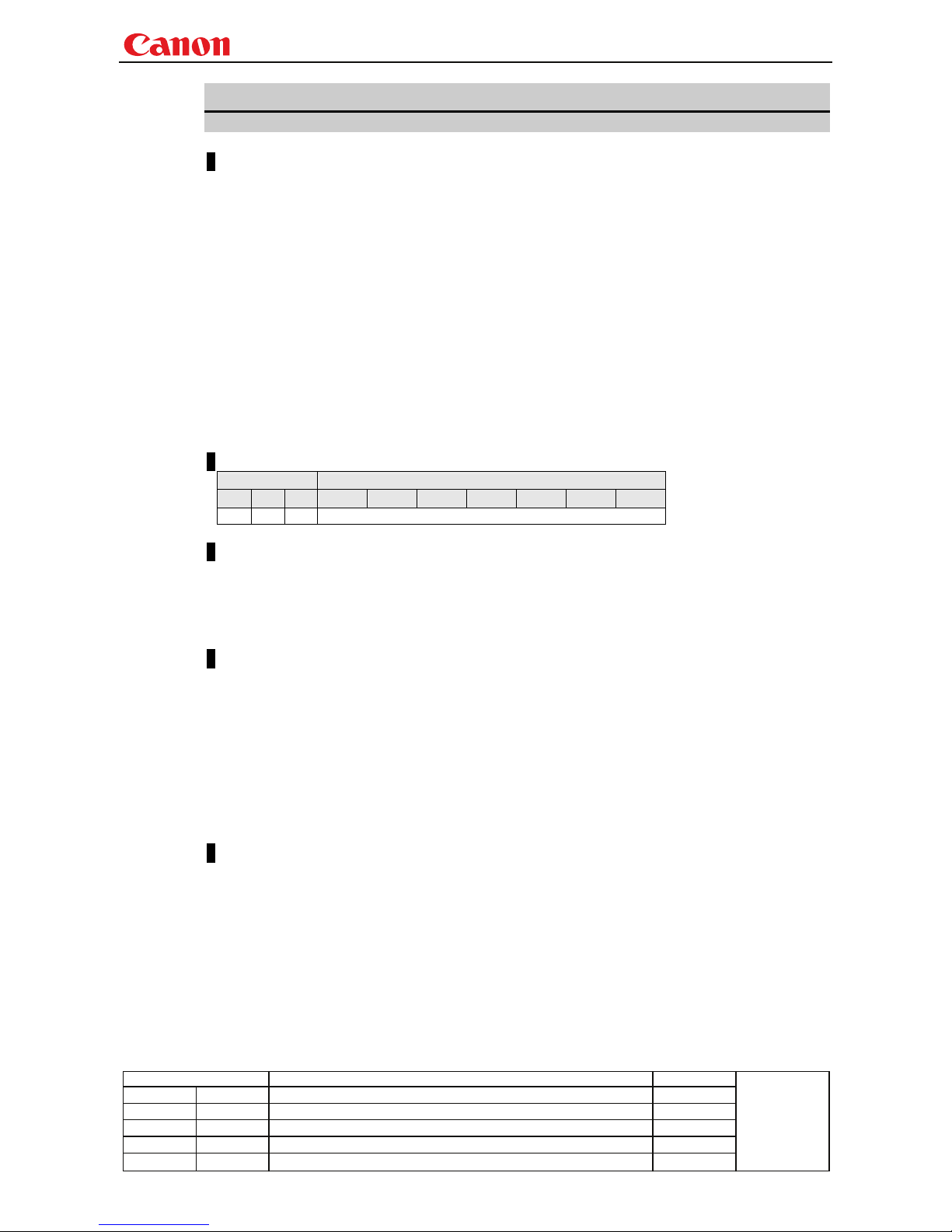
This defines the environments that support the command (power supply state, input signal state).
Power*1 Input
OFF ON PM D-RGB A-RGB1 A-RGB2 COMP VIDEO HDMI None
*2 *3 *4 *5 *5 *5 *5 *5 *5 *6
*1 Power Executable regardless of power supply state when marked by “-“.
*2 OFF “O” when power supply state is OFF.
*3 ON “O” when power supply state is ON.
*4 PM “O” when the power supply state is enabled while power management is in standby.
*5 Input The command is enabled in states marked by “O”.
The command is executable regardless of input when marked by “-“.
*6 None Input signal is required when “X“.
Response
This describes the command response.
Description
This includes the command function, conditions, and notes.
Example
This provides command usage examples.
Page 17
Projector WUX10 MarkII User Commands
- 13 -
Revision History / Date Changes Revised by
A
pp
roved b
y
6AXADJ
6-axis adjustment ON/OFF
Format
6AXADJ=<6-axis adjustment parameter:ID>
GET□6AXADJ / ?△6AXADJ
<6-axis adjustment parameter:ID>
ON This sets the 6-axis adjustment to ON.
OFF This sets the 6-axis adjustment to OFF.
Environment
Power Input
OFF ON PM D-RGB A-RGB1 A-RGB2 COMP VIDEO HDMI None
X O X -
Response
"i:OK" is returned if the parameter was set properly.
For 'GET 6AXADJ' or '?6AXADJ', current 6-axis adjustment state is returned in
'g:6AXADJ=<6-axis adjustment parameter:ID>'
For details on other responses, refer to the "Error List".
Description
(1) This command is used to select ON or OFF for the 6-axis adjustment.
(2) This command functions in the same way as when "Image adjustments" - "Advanced
adjustments" - "6-axis adjustment" are selected on the menu.
(3) In the case of "6-axis adjustment," set the hue and color saturation of each axis using the
6AXR to Y "6-axis correction R to Y hue/color saturation setting" commands.
(4) This sets the currently selected input signal and image mode.
(5) The current 6-axis adjustment setting can be obtained using the GET command. ("
GET
6AXADJ
")
Example
Control
> 6AXADJ=ON The 6-axis adjustment is set to ON.
< i:OK
Reference
> GET 6AXADJ or ?6AXADJ The 6-axis adjustment ON or OFF setting is obtained.
< g:6AXADJ=ON
*Commands are indicated by ">", and responses are indicated by "<".
Page 18
Projector WUX10 MarkII User Commands
- 14 -
Revision History / Date Changes Revised by
A
pp
roved b
y
6AXR-Y
6-axis correction R-Y hue/saturation settings
Format
6AXR=<R hue:Number>▽<R saturation:Number>
6AXG=<G hue:Number>▽<G saturation:Number>
6AXB=<B hue:Number>▽<B saturation:Number>
6AXC=<C hue:Number>▽<C saturation:Number>
6AXM=<M hue:Number>▽<M saturation:Number>
6AXY=<Y hue:Number>▽<Y saturation:Number>
GET□6AXR / ?△6AXR
GET□6AXG / ?△6AXG
GET□6AXB / ?△6AXB
GET□6AXC / ?△6AXC
GET□6AXM / ?△6AXM
GET□6AXY / ?△6AXY
Setting values for <R/G/B/C/M/Y hue:Number> are -20 to 20.
Setting values for <R/G/B/C/M/Y saturation:Number> are -20 to 20.
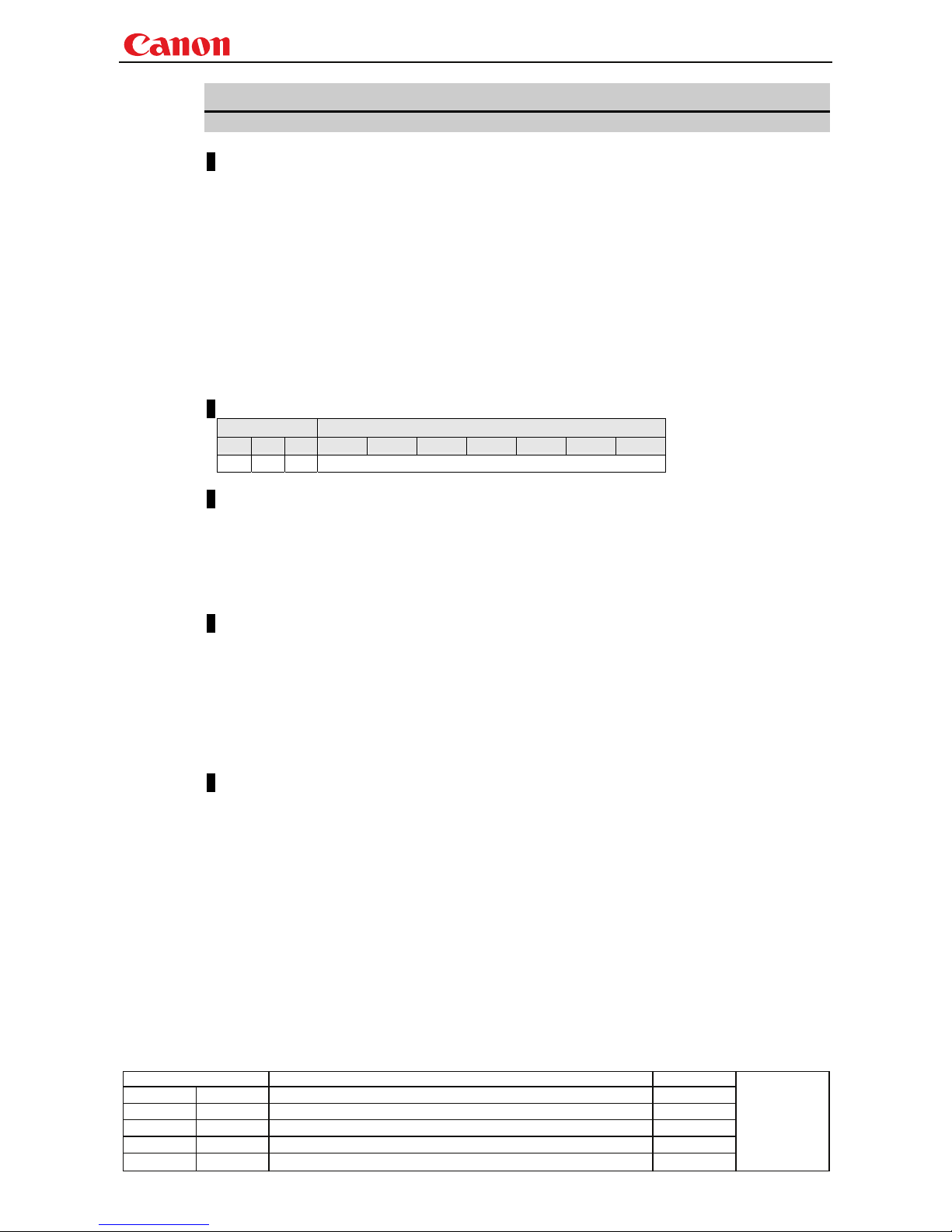
Environment
Power Input
OFF ON PM D-RGB A-RGB1 A-RGB2 COMP VIDEO HDMI None
X O X -
Response
"i:OK" is returned if the parameter was set properly.
For '
GET 6AX*' or '?6AX*', current 6-axis correction R-Y hue/saturation settings are returned as
'
g:6AX*=<*hue: Number>,<*saturation:Number>'
For details on other responses, refer to the "Error List".
Description
(1) This sets the 6-axis correction of the hue and color saturation for R to Y.
(2) This command functions in the same way as when "Image adjustments" - "Advanced
adjustments" - "6-axis color adjustment" are selected on the menu.
(3) If numerical parameters are outside the range, "
e:0801 INVALID_VALUE" is returned.
(4) These commands take effect when they have been set to valid using the 6-axis adjustment
command (6AXADJ), and they can be set separately.
(5) This sets the currently selected input signal and image mode.
(6) The current 6-axis color correction can be obtained using the GET command. ("
GET
6AXR/G/B/C/M/Y
")
Example
Setting
> 6AXR=-8, 5 The R hue is set to –8, and the color saturation is set to 5.
< i:OK
Reference
> GET 6AXR or ?6AXR This retrieves the R hue and color saturation.
< g:6AXR=12, -8
* Commands are indicated by ">", and responses are indicated by "<".
Page 19
Projector WUX10 MarkII User Commands
- 15 -
Revision History / Date Changes Revised by
A
pp
roved b
y
ASCOMBO_*
Defines auto setup combination
Format
ASCOMBO_AF=<Auto set combination parameter:ID>
ASCOMBO_AVK=<Auto set combination parameter:ID>
ASCOMBO_AINP=<Auto set combination parameter:ID>
ASCOMBO_ASC=<Auto set combination parameter:ID>
GET□ASCOMBO_AF / ?ASCOMBO_AF
GET□ASCOMBO_AVK / ?ASCOMBO_AVK
GET□ASCOMBO_AINP / ?ASCOMBO_AINP
GET□ASCOMBO_ASC / ?ASCOMBO_ASC
<Auto set combination parameter:ID>
ON Combine
OFF Do not combine
Environment
Power Input
OFF ON PM D-RGB A-RGB1 A-RGB2 COMP VIDEO HDMI None
X O X -
Response
"i:OK" is returned if automatic setup combination was set properly.
For '
GET ASCOMBO_*' or '? ASCOMBO_*', current auto setup sequence combination is returned as
'
g:ASCOMBO_*=ON' or
'
g:ASCOMBO_*=OFF'
For details on other responses, refer to the "Error List".
Description
(1) This sets whether to combine a sequence in the auto setup.
(2) This command functions in the same way as when "System settings" - "Auto setup" are
selected on the menu.
(3) Even if it has been set using this command, AUTOSETEXE may not be executed depending on
other status of the projector (screen aspect, etc.).
(4) Also refer to the AUTOSETEXE command.
(5) The current auto setup combination can be obtained using the GET command.
Example
Setting
> ASCOMBO_AF=ON Auto focusing is executed during auto setup execution.
< i:OK
Reference
> GET ASCOMBO_AVK or ?ASCOMBO_AVK
Auto focus execution setting in current auto setup is obtained.
< g:ASCOMBO_AVK=ON
* Commands are indicated by ">", and responses are indicated by "<".
Page 20
Projector WUX10 MarkII User Commands
- 16 -
Revision History / Date Changes Revised by
A
pp
roved b
y
ASPECT
Screen settings
Format
ASPECT=<Screen setting parameters:ID>
GET□ASPECT / ?△ASPECT
<Screen setting parameters:ID>
AUTO Auto
4:3 4:3
16:9 16:9
FULL Full screen
ZOOM Zoom
TRUE Real
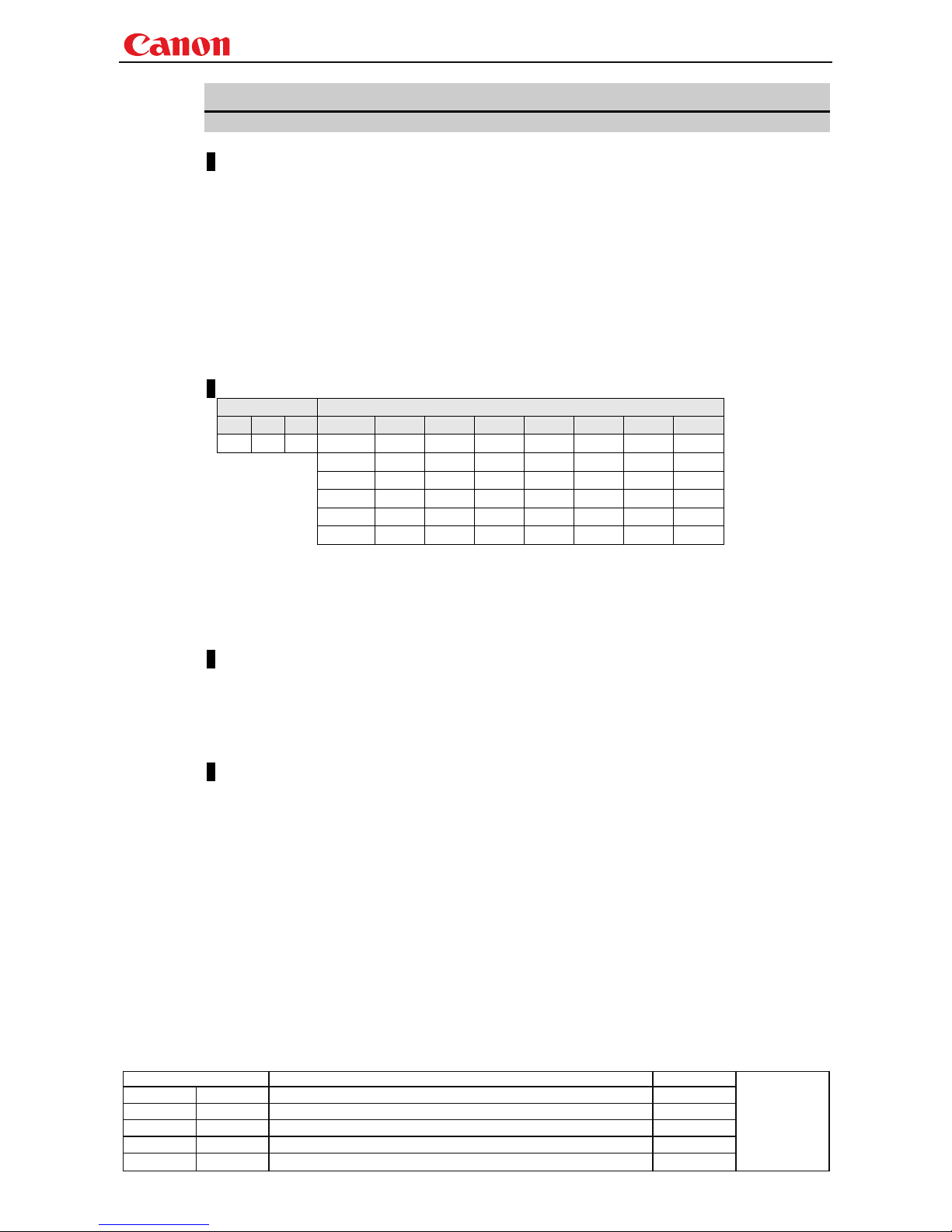
Environment
Power Input
OFF ON PM Parameter D-RGB A-RGB1 A-RGB2 COMP VIDEO HDMI None
X O X AUTO
○ ○ ○ ○ × ○
*4
4:3
○ ○ ○ ○ ○ ○
*4
16:9
○ ○ ○ ○ ○ ○
*4
FULL *5 *5 *5
× × ×
*4
ZOOM
× × ×
*1 *2 *1 *4
TRUE
○ ○ ○
*3
×
*3 *4
*1 Valid when screen aspect (16:9 or 16:9 DIS) and SD signals
*2 Settable when screen aspect (16:9 or 16:9 DIS)
*3 Progressive allowable (however, 1080p is non-allowable)
*4 Allowable/Non-Allowable differs according to selected input signal
*5 Settable when screen aspect (16:10)
Response
"i:OK" is returned if the parameter was set properly.
For 'GET ASPECT' or '?ASPECT', current screen display mode is returned as
'g:ASPECT=<Screen setting parameters:ID>'
For details on other responses, refer to the "Error List".
Description
(1) This sets the screen sizes.
(2) This command functions in the same way as when "Display settings" - "Aspect" are selected on
the menu.
(3) If the command cannot be supported, 'INVALID_SOURCE' is returned as an error response.
(4) If the necessary signals are not input, 'NO_SIGNAL' is returned.
(5) The final screen settings are retained even when the power is turned off. However, the screen
settings may be different if the input terminal or input signal is changed.
(6) The GET command can be used to retrieve the current screen display mode. ("
GET ASPECT")
Page 21

Projector WUX10 MarkII User Commands
- 17 -
Revision History / Date Changes Revised by
A
pp
roved b
y
Example
Setting
> ASPECT=16:9 This sets the screen size to WIDE.
> i:OK
Reference
> GET ASPECT or ?ASPECT This retrieves the screen size.
< g:ASPECT=TRUE
* Commands are indicated by ">", and responses are indicated by "<".
Page 22
Projector WUX10 MarkII User Commands
- 18 -
Revision History / Date Changes Revised by
A
pp
roved b
y
AUTOPC
Auto PC
Format
AUTOPC
Environment
Power Input
OFF ON PM D-RGB A-RGB1 A-RGB2 COMP VIDEO HDMI None
X O X X O O X X X X
Response
"i:OK" is returned if the control was executed properly.
For details on other responses, refer to the "Error List".
Description
(1) This executes Auto PC.
(2) This command is identical to pressing the “AUTOPC” button on the remote control.
(3) If the input is neither "A-RGB1" nor "A-RGB2", 'e:200X INVALID_SOURCE(***)' is returned
as an error response.
(4) If signals are not input, "e:2010 NO_SIGNAL" is returned.
(5) Execution of this command may modify the following setting values.
・Total number of dots
・Tracki ng
・Horizontal/vertical positions
・Number of horizontal/vertical display dots
(6) To confirm modified setting values, use the GET command of the respective parameter.
For details, refer to the GET commands below.
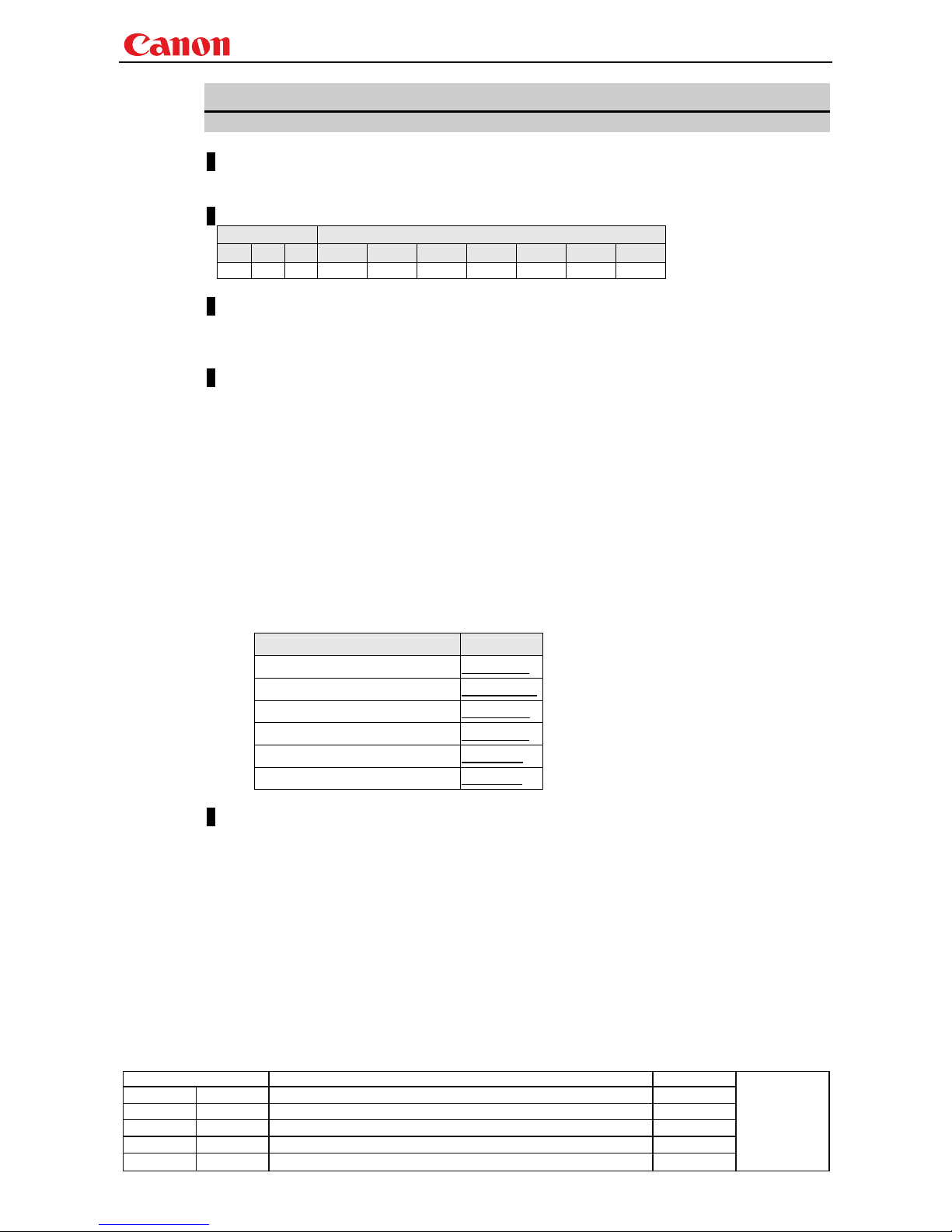
Setting GET
Total number of dots GET DOTS
Tracking GET TRACK
Horizontal position GET HPOS
Vertical position GET VPOS
Number of horizontal display dots GET HPIX
Number of vertical display dots GET VPIX
Example
> AUTOPC
< i:OK
* Commands are indicated by ">", and responses are indicated by "<".
Page 23
Projector WUX10 MarkII User Commands
- 19 -
Revision History / Date Changes Revised by
A
pp
roved b
y
AUTOSETEXE
Auto setup
Format
AUTOSETEXE□<Auto set parameter:ID>
<Auto set parameter:ID>
FOCUS Auto focusing
VKS Auto keystone (vertical) execution
SCRN Automatic screen color correction execution
INPUT Automatic signal sensing execution
Environment
Power Input
OFF ON PM D-RGB A-RGB1 A-RGB2 COMP VIDEO HDMI None
X O X -
Response
“i:OK” is returned when the automatic processing was completed successfully.
For details on other responses, refer to the "Error List".
Description
(1) This command is used to execute auto setup.
(2) One of the following responses is returned if auto setup cannot be executed due to projector
settings.
Type
Projector
settings
FOCUS VKS SCRN INPUT
Error response
BLANK
× ○ × ○
'e:1006 NOW_BLANK'
FREEZE
× × × ×
'e:1009 NOW_FREEZE'
D.ZOOM
× × × ×
'e:100A NOW_D.ZOOM' ○:Executable
DIS*
× × × ○
'e:1008 INVALID_SCREEN_ASPECT' ×:Non-executable
* DIS:Digital Image Shift
(3) One of the following responses is returned if an error has been detected at any part of the auto
setup.
Type Response
FOCUS 'e:F002 SYSTEM (AF)'
VKS 'e:F004 SYSTEM (AK)'
SCRN 'e:F005 SYSTEM (ASC)'
(4) If the input signal cannot be detected using the automatic signal sensing,
'
i:INPUT_NOT_FOUND' is returned.
(5) When automatic screen color correction (SCRN) has been completed successfully, the screen
color correction (WB) is set to "ADJUST".
(6) There are no parameters to be executed together. Execute them separately.
Example
Setting
> AUTOSETEXE FOCUS Auto focusing is executed.
< i:OK
* Commands are indicated by ">", and responses are indicated by "<".
Page 24
Projector WUX10 MarkII User Commands
- 20 -
Revision History / Date Changes Revised by
A
pp
roved b
y
AVOL
Audio volume adjustment
Format
AVOL=<Audio volume level:Number>
GET□AVOL / ?△AVOL
Setting values for <Audio volume level:Number> are 0 to 20.
Environment
Power Input
OFF ON PM D-RGB A-RGB1 A-RGB2 COMP VIDEO HDMI None
X O X -
Response
"i:OK" is returned if the parameter was set properly.
For '
GET AVOL' or '?AVOL', current audio volume level is returned as
'
g:AVOL=<Audio volume level:Number>'
For details on other responses, refer to the "Error List".
Description
(1) This adjusts the volume.
(2) This command is identical to pressing the “VOL+” and "VOL-" button on the remote control or
the "VOL" on the front panel.
(3) If numerical parameters are outside the range, "e:0801 INVALID_VALUE" is returned.
(4) The volume level can be set even while the sound is muted.
(5) The GET command can be used to retrieve the current volume. ("
GET AVOL")
Example
Setting
> AVOL=18 This sets the volume to 18.
< i:OK
Reference
> GET AVOL or ?AVOL This retrieves the volume.
< g:AVOL=18
* Commands are indicated by ">", and responses are indicated by "<".
Page 25
Projector WUX10 MarkII User Commands
- 21 -
Revision History / Date Changes Revised by
A
pp
roved b
y
BLANK
BLANK function
Format
BLANK=<BLANK parameter:ID>
GET□BLANK / ?△BLANK
<BLANK parameter:ID>
ON BLANK ON
OFF BLANK OFF.
Environment
Power Input
OFF ON PM D-RGB A-RGB1 A-RGB2 COMP VIDEO HDMI None
X O X -
Response
"i:OK" is returned if the parameter was set properly.
For '
GET BLANK' or '?BLANK', current BLANK status is returned as
'
g:BLANK=ON'
'
g:BLANK=OFF'
For details on other responses, refer to the "Error List".
Description
(1) This command is used to set the BLANK function.
(2) This command is identical to pressing the “VOL+” and "VOL-" button.
(3) The current BLANK settings can be obtained using the GET command. ("
GET BLANK")
Example
Setting
> BLANK=ON BLANK is set to ON.
< i:OK
Reference
> GET BLANK or ?BLANK The current BLANK status is referenced.
< g:BLANK=ON
* Commands are indicated by ">", and responses are indicated by "<".
Page 26
Projector WUX10 MarkII User Commands
- 22 -
Revision History / Date Changes Revised by
A
pp
roved b
y
BLANKCOLOR
Screen when BLANK setting
Format
BLANKCOLOR=<Screen when BLANK setting parameter:ID>
GET□BLANKCOLOR / ?△BLANKCOLOR
<Screen when BLANK setting parameter:ID>
BLACK Black screen
BLUE Blue screen
Environment
Power Input
OFF ON PM D-RGB A-RGB1 A-RGB2 COMP VIDEO HDMI None
X O X -
Response
"i:OK" is returned if the parameter was set properly.
For '
GET BLANKCOLOR' or '?BLANKCOLOR', current screen when BLANK setting is returned as
'g:BLANKCOLOR=<BLANK display screen setting parameter:ID>'
For details on other responses, refer to the "Error List".
Description
(1) This command is used to set the screen when BLANK.
(2) This command functions in the same way as when "Display settings" - "User screen setting" -
"Screen when blank" are selected on the menu.
(3) The current screen when BLANK setting can be obtained using the GET command. ("
GET
BLANKCOLOR
")
Example
Setting
> BLANKCOLOR=BLACK Set to "Black screen" when screen is BLANK.
< Ok
Reference
> GET BLANKCOLOR or ?BLANKCOLOR Screen when BLANK setting is obtained.
< g:BLANKCOLOR=BLACK
* Commands are indicated by ">", and responses are indicated by "<".
Page 27
Projector WUX10 MarkII User Commands
- 23 -
Revision History / Date Changes Revised by
A
pp
roved b
y
BRI
Brightness setting
Format
BRI=<Brightness setting:Number>
GET□BRI / ?△BRI
Setting values for <Brightness setting:Number> are -20 to 20.
Environment
Power Input
OFF ON PM D-RGB A-RGB1 A-RGB2 COMP VIDEO HDMI None
X O X -
Response
"i:OK" is returned if the parameter was set properly.
For '
GET BRI' or '?BRI', current brightness is returned as
'
g:BRI=<Brightness setting:Number>'
For details on other responses, refer to the "Error List".
Description
(1) This sets the screen brightness.
(2) This command functions in the same way as when "Image adjustments" - "Brightness" are
selected on the menu.
(3) If numerical parameters are outside the range, "e:0801 INVALID_VALUE" is returned.
(4) This sets the currently selected input signal and image mode.
(5) The current brightness can be acquired using the applicable GET command. ("
GET BRI")
Example
Setting
> BRI=-10 This sets the brightness to -10.
< i:OK
Reference
> GET BRI or ?BRI This retrieves the brightness.
< g:BRI=-10
* Commands are indicated by ">", and responses are indicated by "<".
Page 28
Projector WUX10 MarkII User Commands
- 24 -
Revision History / Date Changes Revised by
A
pp
roved b
y
BVOL
BEEP sound setting
Format
BVOL=<Beep sound setting:Number>
GET□BVOL / ?△BVOL
<Beep sound setting:Number>
0 BEEP sound mute
1 BEEP sound output
Environment
Power Input
OFF ON PM D-RGB A-RGB1 A-RGB2 COMP VIDEO HDMI None
X O X -
Response
"i:OK" is returned if the parameter was set properly.
For '
GET BVOL' or '?BVOL', current BEEP sound setting is returned as
'
g:BVOL=<Beep sound setting:Number>'
For details on other responses, refer to the "Error List".
Description
(1) This sets the BEEP sound output.
(2) This command functions in the same way as when "System setting" - "Electronic sound" are
selected on the menu.
(3) The beep sound can be set even while the sound is muted, but it will not sound even if (beep
sound output) has been set.
(4) The current beep sound output status can be acquired using the applicable GET command.
("
GET BVOL")
Example
Setting
> BVOL=0 This mutes the BEEP sound.
< i:OK
Reference
> GET BVOL or ?BVOL This retrieves the BEEP sound output state.
< g:BVOL=1
* Commands are indicated by ">", and responses are indicated by "<".
Page 29
Projector WUX10 MarkII User Commands
- 25 -
Revision History / Date Changes Revised by
A
pp
roved b
y
COMVER
User command version inquiry
Format
GET□COMVER / ?△COMVER
Environment
Power Input
OFF ON PM D-RGB A-RGB1 A-RGB2 COMP VIDEO HDMI None
- -
Response
Returns the user command version as
g:COMVER="<User command version:Character string>"
<User command version>:=99.9999
For details on other responses, refer to the "Error List".
Description
(1) This inquires about the user command version of the projector.
(2) This inquiry can be executed in any status provided that AC power is supplied to the projector.
(3) The user command version consists of a 2-digit number followed by a 4-digit number. Question
marks may appear in place of the numerals if the firmware has not been upgraded correctly.
(Example "??:????")
Example
> GET COMVER or ? COMVER
< g:COMVER="01.0000"
* Commands are indicated by ">", and responses are indicated by "<".
Page 30
Projector WUX10 MarkII User Commands
- 26 -
Revision History / Date Changes Revised by
A
pp
roved b
y
CONT
Contrast setting
Format
CONT=<Contrast setting:Number>
GET□CONT / ?△CONT
Setting values for <Contrast setting:Number> are -20 to 20.
Environment
Power Input
OFF ON PM D-RGB A-RGB1 A-RGB2 COMP VIDEO HDMI None
X O X -
Response
"i:OK" is returned if the parameter was set properly.
For 'GET CONT' or '?CONT', current contrast setting is returned as
'
g:CONT=<Contrast setting:Number>'
For details on other responses, refer to the "Error List".
Description
(1) This sets the screen contrast.
(2) This command functions in the same way as when "Image adjustment" - "Contrast setting"
are selected on the menu.
(3) If numerical parameters are outside the range, "e:0801 INVALID_VALUE" is returned.
(4) This sets the currently selected input signal and image mode.
(5) The current contrast can be acquired using the applicable GET command. ("
GET CONT")
Example
Setting
> CONT=3 This sets the contrast to +3.
< i:OK
Reference
> GET CONT or ?CONT This retrieves the contrast.
< g:CONT=3
* Commands are indicated by ">", and responses are indicated by "<".
Page 31
Projector WUX10 MarkII User Commands
- 27 -
Revision History / Date Changes Revised by
A
pp
roved b
y
DGAMMA
Dynamic gamma
Format
DGAMMA=<Dynamic gamma setting parameter:ID>
GET□DGAMMA / ?△DGAMMA
<Dynamic gamma setting parameter:ID>
OFF Off
WEAK Weak
STRONG Strong
Environment
Power Input
OFF ON PM D-RGB A-RGB1 A-RGB2 COMP VIDEO HDMI None
X O X -
Response
"i:OK" is returned if the parameter was set properly.
For '
GET DGAMMA' or '?DGAMMA', current dynamic gamma setting is returned as
'g:DGAMMA=<Dynamic gamma setting parameter:ID>'
For details on other responses, refer to the "Error List".
Description
(1) The command is used to set the dynamic gamma function.
(2) This command functions in the same way as when "Image adjustment" - "Advanced
adjustment" - "Dynamic gamma" are selected on the menu.
(3) This sets the currently selected input signal and image mode.
(4) The current dynamic gamma function status can be acquired using the applicable GET
command. ("
GET DGAMMA")
Example
Setting
> DGAMMA=WEAK This sets the dynamic gamma function to WEAK.
< i:OK
Reference
> GET DGAMMA or ?DGAMMA This retrieves the dynamic gamma function state.
< g:DGAMMA=WEAK
* Commands are indicated by ">", and responses are indicated by "<".
Page 32
Projector WUX10 MarkII User Commands
- 28 -
Revision History / Date Changes Revised by
A
pp
roved b
y
DOTS
Total number of dots adjustment
Format
DOTS=<Number of dots:Number>
GET□DOTS / ?△DOTS
Environment
Power Input
OFF ON PM D-RGB A-RGB1 A-RGB2 COMP VIDEO HDMI None
X O X X O O X X X X
Response
"i:OK" is returned if the parameter was set properly.
For '
GET DOTS' or '?DOTS', current total number of dots is returned as
'
g:DOTS=<Number of dots:Number>'
For details on other responses, refer to the "Error List".
Description
(1) This designates the total number of dots for one horizontal period.
(2) This command functions in the same way as when "Display setting" - "Input signal settings" -
"Total number of dots" are selected on the menu.
(3) If the input is neither "A-RGB1" nor "A-RGB2", 'e:200X INVALID_SOURCE(***)' is returned
as an error response.
(4) If signals are not input, 'e:2010 NO_SIGNAL' is returned.
(5) Adjustment range is limited. If number is invalid, "e:0801 INVALID_VALUE" is returned.
(6) The GET command can be used to obtain the current total number of dots. ("
GET DOTS")
Example
Setting
> DOTS=1650 The total number of dots is 1650.
< i:OK
Reference
> GET DOTS or ?DOTS This retrieves the total number of dots.
< g:DOTS=1200
* Commands are indicated by ">", and responses are indicated by "<".
Page 33
Projector WUX10 MarkII User Commands
- 29 -
Revision History / Date Changes Revised by
A
pp
roved b
y
DPON
Direct power-on setting
Format
DPON=<Direct power-on setting parameter:ID>
GET□DPON / ?△DPON
<Direct power-on setting parameter:ID>
ON This sets direct power-on to ON.
OFF This sets direct power-on to OFF.
Environment
Power Input
OFF ON PM D-RGB A-RGB1 A-RGB2 COMP VIDEO HDMI None
X O X -
Response
"i:OK" is returned if the parameter was set properly.
For '
GET DPON' or '?DPON', current direct power-on setting is returned as
'g:DPON=<Direct power-on setting parameter:ID>'
For details on other responses, refer to the "Error List".
Description
(1) This command is used to set direct power-on function to ON or OFF.
(2) This command functions in the same way as when "System setting" - "Direct power-on" are
selected on the menu.
(3) Direct power-on cannot be set to ON when "OFF" has been selected as the power management
setting (
PMM=OFF).
("e:1004 POWER_MANAGEMENT_OFF" is returned.)
(4) The current direct power-on setting can be obtained using the GET command. ("
GET DPON")
Example
Setting
> DPON=ON Direct power-on is set to ON.
< i:OK
Reference
> GET DPON on ?DPON The current direct power-on setting is obtained.
< g:DPON=ON
* Commands are indicated by ">", and responses are indicated by "<".
Page 34
Projector WUX10 MarkII User Commands
- 30 -
Revision History / Date Changes Revised by
A
pp
roved b
y
ERR
Error information inquiry
Format
GET□ERR / ?△ERR
Environment
Power Input
OFF ON PM D-RGB A-RGB1 A-RGB2 COMP VIDEO HDMI None
- -
Response
Returns the current error information as
'
g:ERR=<ErrorID:Character string>'
<ErrorID:Character string>
NO_ERROR No error
ABNORMAL_TEMPERATURE Temperature error
FAULTY_LAMP Lamp error
FAULTY_LAMP_COVER Lamp cover error
FAULTY_COOLING_FAN Cooling fan error
FAULTY_POWER_SUPPLY Power supply error
FAULTY_AK AK error
FAULTY_ASC ASC error
FAULTY_AF AF error
FAULTY_POWER_ZOOM Zoom error
FAULTY_POWER_FOCUS Focus error
For details on other responses, refer to the "Error List".
Description
(1) This inquires about the current error information.
(2) This inquiry can be executed in any status provided that AC power is supplied to the projector.
(3) Information when the warning LED of the projector is flashing can be obtained.
"NO_ERROR" is returned when the warning LED is not lighted.
Example
> GET ERR or ? ERR
< g:ERR=FAULTY_LAMP
* Commands are indicated by ">", and responses are indicated by "<".
Page 35
Projector WUX10 MarkII User Commands
- 31 -
Revision History / Date Changes Revised by
A
pp
roved b
y
FCONTDRV
Focus lens continuous drive control
Format
FCONTDRV=<Focus lens continuous control parameter:ID>
<Focus lens continuous control parameter:ID>
STOP This stops the focusing.
FAR This initiates focusing toward the far end.
NEAR This initiates focusing toward the near end.
Environment
Power Input
OFF ON PM D-RGB A-RGB1 A-RGB2 COMP VIDEO HDMI None
X O X -
Response
"i:OK" is returned when the drive was completed successfully.
For details on other responses, refer to the "Error List".
Description
(1) This command is used to drive the focus lens.
(2) This command functions in the same way as when first the "FOCUS" button on the remote
control or main unit panel is pressed and then the "↑" or "↓" button is pressed.
(3) Focus drive is started by specifying "NEAR" or "FAR".
To stop the drive, add the "STOP" parameter and send this command.
If no instruction was given to stop the drive, the drive stops at the drive direction end.
(4) The following commands are acknowledged during focus drive, but focus drive will also stop at
the same time.
a. POWER
b. FCONTDRV=STOP
(5) The following commands are acknowledged during focus drive, and a response is returned
while the drive continues.
a. GET MODE e. GET PRODCODE i. LOCAL
b. GET POWER f. GET ROMVER j. RC
c. GET ERR g. GET COMVER k. MAIN
d. GET LAMPCOUNTER h. REMOTE l. [NULL]
(6) For other commands not included in (4) nor (5), "i:BUSY (FOCUS)" is returned, and focus
drive continues.
(7) There are no GET commands available for this command.
Example
Control
> FCONTDRV=NEAR Control over the focusing to the near end is started.
< i:OK
* Commands are indicated by ">", and responses are indicated by "<".
Page 36
Projector WUX10 MarkII User Commands
- 32 -
Revision History / Date Changes Revised by
A
pp
roved b
y
FREEZE
Freeze status
Format
FREEZE=<FREEZE parameter:ID>
GET□FREEZE / ?△FREEZE
<FREEZE parameter:ID>
ON Image now frozen
OFF Image now not frozen
Environment
Power Input
OFF ON PM D-RGB A-RGB1 A-RGB2 COMP VIDEO HDMI None
X O X -
Response
"i:OK" is returned if the parameter was set properly.
For '
GET FREEZE' or '?FREEZE', current freeze status is returned as
'gFREEZE=ON'
'g:FREEZE=OFF'
For details on other responses, refer to the "Error List".
Description
(1) This command is used to freeze the image.
(2) This command is identical to pressing the “FREEZE” button on the remote control.
(3) The current freeze status can be obtained using the GET command. ("
GET FREEZE")
Example
Setting
> FREEZE=ON Freezes image.
< i:OK
Reference
> GET FREEZE or ?FREEZE The current freeze status is referenced.
< g:FREEZE=ON
* Commands are indicated by ">", and responses are indicated by "<".
Page 37
Projector WUX10 MarkII User Commands
- 33 -
Revision History / Date Changes Revised by
A
pp
roved b
y
FSTEPDRV
Focus lens step drive control
Format
FSTEPDRV=<Focus lens step control parameter:ID>
<Focus lens step control parameter:ID>
FAR This initiates focusing toward the far end.
NEAR This initiates focusing toward the near end.
Environment
Power Input
OFF ON PM D-RGB A-RGB1 A-RGB2 COMP VIDEO HDMI None
X O X -
Response
"i:OK" is returned when focusing was completed successfully after step drive.
For details on other responses, refer to the "Error List".
Description
(1) This command is used to drive the focus lens.
(2) This command functions in the same way as when first the "FOCUS" button on the remote
control or main unit panel is pressed and then the "←" or "→" button is pressed.
(3) The amount by which the lens is focused is constant, and it is fixed for the system.
(4) If a focusing error occurs, step drive cannot be controlled.
(5) There are no GET commands available for this command.
Example
Control
> FSTEPDRV=NEAR 1-step control is exercised over the focus toward the NEAR end.
< I:OK
* Commands are indicated by ">", and responses are indicated by "<"..
Page 38
Projector WUX10 MarkII User Commands
- 34 -
Revision History / Date Changes Revised by
A
pp
roved b
y
FTONEADJ
Flesh tone adjustment
Format
FTONEADJ=<Flesh tone adjustment parameter:ID>
GET□FTONEADJ / ?△FTONEADJ
<Memory color adjustment parameter:ID>
OFF No adjustment
FTONE_L Flesh tone adjustment - light
FTONE_M Flesh tone adjustment - medium
FTONE_H Flesh tone adjustment - heavy
Environment
Power Input
OFF ON PM D-RGB A-RGB1 A-RGB2 COMP VIDEO HDMI None
X O X -
Response
"i:OK" is returned when flesh tone has been adjusted successfully.
For '
GET FTONEADJ' or '?FTONEADJ', current flesh tone adjustment is returned as
'g:FTONEADJ=<Flesh tone adjustment parameter:ID>'
For details on other responses, refer to the "Error List".
Description
(1) This command is used by selecting "No adjustment", "Flesh tone adjustment - light" to "Flesh
tone adjustment - heavy".
(2) This command functions in the same way as when "Image adjustment" - "Advanced
adjustment" - "Flesh tone adjustment" are selected on the menu.
(3) This sets the currently selected input signal and image mode.
(4) The current flesh tone adjustment setting can be obtained using the GET command. ("
GET
FTONEADJ
")
(5) With the WUX10, "Memory color adjustment" function is not available.
Example
Control
> FTONEADJ=FTONE_M This sets the tone adjustment to "Flesh tone adjustment - medium".
< i:OK
Reference
> GET FTONEADJ or ?FTONEADJ This retrieves the flesh tone adjustment level.
< g:FTONEADJ=FTONE_M
* Commands are indicated by ">", and responses are indicated by "<".
Page 39
Projector WUX10 MarkII User Commands
- 35 -
Revision History / Date Changes Revised by
A
pp
roved b
y
GAMMA
Gamma adjustment
Format
GAMMA=<Gamma adjustment:Number>
GET□GAMMA / ?△GAMMA
Setting values for <Gamma adjustment: Number> are -10 to 10.
Environment
Power Input
OFF ON PM D-RGB A-RGB1 A-RGB2 COMP VIDEO HDMI None
X O X -
Response
"i:OK" is returned if the parameter was set properly.
For '
GET GAMMA' or '?GAMMA', current gamma adjustment is returned as
'
g:GAMMA=<Gamma adjustment:Number>'
For details on other responses, refer to the "Error List".
Description
(1) This performs the Gamma adjustment.
(2) This command functions in the same way as when "Image adjustment" - "Gamma adjustment"
are selected on the menu.
(3) If numerical parameters are outside the range, "e:0801 INVALID_VALUE" is returned.
(4) This sets the currently selected input signal and image mode.
(5) The current gamma adjustment can be acquired using the applicable GET command. ("
GET
GAMMA
")
Example
Setting
> GAMMA=-1 This sets the gamma correction to –1.
< i:OK
Reference
> GET GAMMA or ?GAMMA This retrieves the gamma adjustment.
< g:GAMMA=3
* Commands are indicated by ">", and responses are indicated by "<".
Page 40
Projector WUX10 MarkII User Commands
- 36 -
Revision History / Date Changes Revised by
A
pp
roved b
y
GUIDE
Guide setting
Format
GUIDE=<Guide setting parameter:ID>
GET□GUIDE / ?△GUIDE
<Guide setting parameter: ID>
ON Guide display ON
OFF Guide display OFF
Environment
Power Input
OFF ON PM D-RGB A-RGB1 A-RGB2 COMP VIDEO HDMI None
X O X -
Response
"i:OK" is returned if the parameter was set properly.
For '
GET GUIDE' or '?GUIDE', current guide setting is returned as
'g:GUIDE=<Guide setting parameter:ID>'
For details on other responses, refer to the "Error List".
Description
(1) This command is used to set the guide function display to ON or OFF.
(2) This command functions in the same way as when "System setting" - "Guide" are selected on
the menu.
(3) The guide is cleared immediately when "GUIDE=OFF" is received while the guide is
displayed.
(4) The current guide setting can be obtained using the GET command. ("
GET GUIDE")
Example
Setting
> GUIDE=ON The guide display is set to ON.
< i:OK
Reference
> GET GUIDE or ?GUIDE The guide display setting status is obtained.
< g:GUIDE=ON
* Commands are indicated by ">", and responses are indicated by "<".
Page 41
Projector WUX10 MarkII User Commands
- 37 -
Revision History / Date Changes Revised by
A
pp
roved b
y
HPIX/VPIX
Horizontal/Vertical resolution adjustmen
Format
HPIX=<Horizontal resolution:Number>
VPIX=<Vertical resolution:Number>
GET□HPIX / ?△HPIX
GET□VPIX / ?△VPIX
Environment
Power Input
OFF ON PM D-RGB A-RGB1 A-RGB2 COMP VIDEO HDMI None
X O X O O O X X X X
Response
"i:OK" is returned if the parameter was set properly.
For '
GET HPIX' or '?HPIX' ('GET VPIX' or '?VPIX'), current horizontal (vertical) resolution is returned as
'
g:HPIX=<Horizontal resolution:Number>'
('
g:VPIX=<Vertical resolution:Number>')
For details on other responses, refer to the "Error List".
Description
(1) This adjusts the horizontal and vertical resolution (number of dots) on the screen.
(2) This command functions in the same way as when "Display setting" - "Input signal settings" -
"Horizontal resolution adjustment" or "Vertical resolution adjustment" are selected on the
menu.
(3) If the input is neither "A-RGB1" nor "A-RGB2", 'e:200X INVALID_SOURCE(***)' is returned
as an error response.
(4) If signals are not input, 'e:2010 NO_SIGNAL' is returned.
(5) Adjustment range is limited. If number is invalid, "e:0801 INVALID_VALUE" is returned.
(6) The GET command can be used to retrieve the current horizontal and vertical position. ("
GET
HPIX
" "GET VPIX")
Example
Setting
> HPIX=1024 This sets the horizontal resolution to 1024.
< i:OK
Reference
> GET VPIX or ?VPIX This retrieves the vertical resolution.
< g:VPIX= 864
* Commands are indicated by ">", and responses are indicated by "<".
Page 42
Projector WUX10 MarkII User Commands
- 38 -
Revision History / Date Changes Revised by
A
pp
roved b
y
HPOS/VPOS
Horizontal/Vertical position adjustment
Format
HPOS=<Horizontal position:Number>
VPOS=<Vertical position:Number>
GET□HPOS / ?△HPOS
GET□VPOS / ?△VPOS
Environment
Power Input
OFF ON PM D-RGB A-RGB1 A-RGB2 COMP VIDEO HDMI None
X O X X O O X X X X
Response
"i:OK" is returned if the parameter was set properly.
For '
GET HPOS' or '?HPOS' ('GET VPOS' or '?VPOS'), current horizontal (vertical) position is returned as
'g:HPOS=<Horizontal position:Number>'
('g:VPOS=<Vertical position:Number>')
For details on other responses, refer to the "Error List".
Description
(1) This adjusts the horizontal and vertical position on the screen.
(2) This command functions in the same way as when "Display setting" - "Input signal settings" -
"Horizontal position adjustment" or "Vertical position adjustment" are selected on the menu.
(3) If the input is neither "A-RGB1" nor "A-RGB2", 'e:200X INVALID_SOURCE(***)' is returned
as an error response.
(4) If signals are not input, 'e:2010 NO_SIGNAL' is returned.
(5) Adjustment range is limited. If number is invalid, "e:0801 INVALID_VALUE" is returned.
(6) The GET command can be used to retrieve the current horizontal and vertical position. ("
GET
HPOS
" "GET VPOS")
Example
Setting
>HPOS=12 This sets the horizontal position to 12.
<i:OK
Reference
>GET VPOS or ?VPOS This acquires the vertical position.
<g:VPOS=8
* Commands are indicated by ">", and responses are indicated by "<".
Page 43
Projector WUX10 MarkII User Commands
- 39 -
Revision History / Date Changes Revised by
A
pp
roved b
y
HUE
Hue setting
Format
HUE=<Hue setting value:Number>
GET□HUE / ?△HUE
Setting values for <Hue setting value:Number> are -20 to 20.
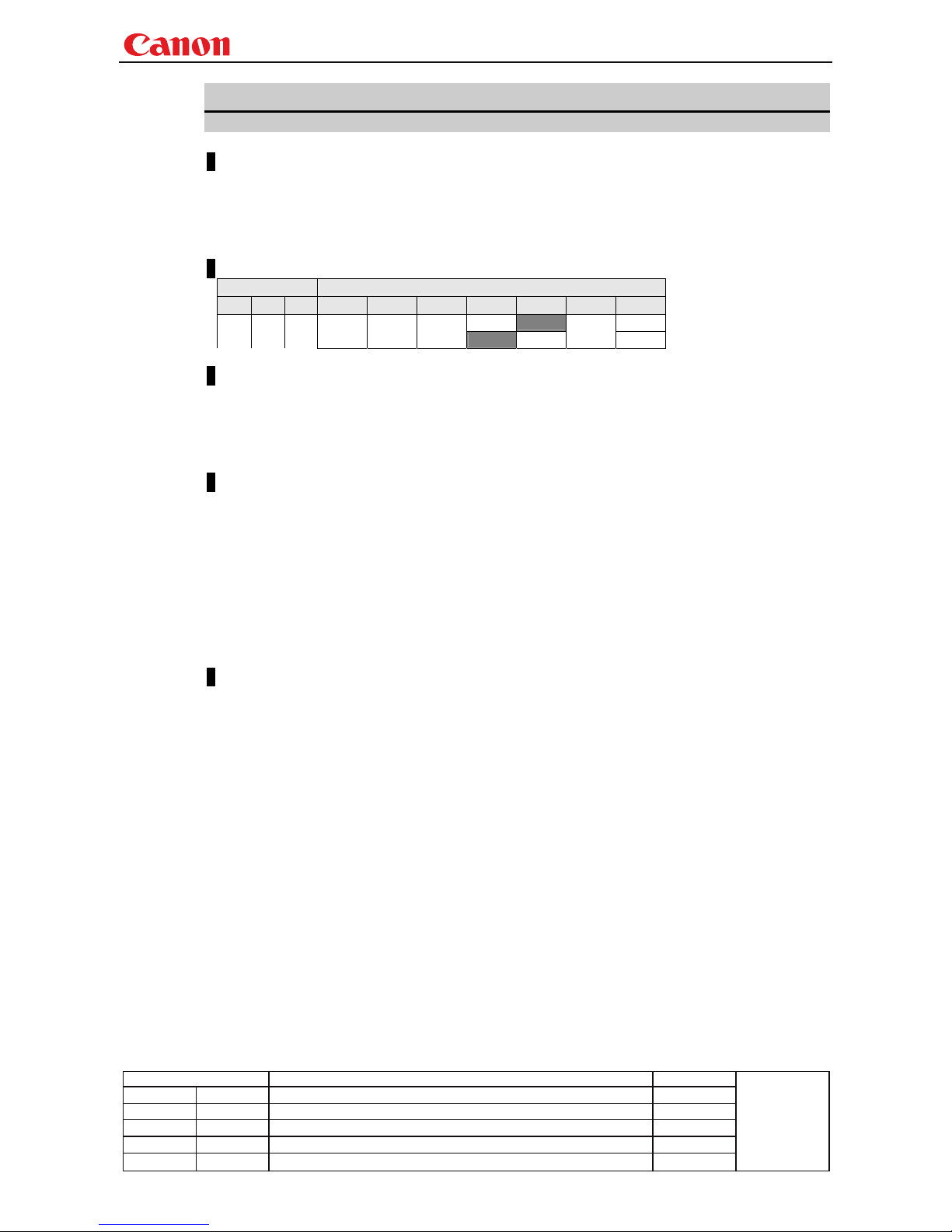
Environment
Power Input
OFF ON PM D-RGB A-RGB1 A-RGB2 COMP VIDEO HDMI None
O O
X O X X X X
O
X
X
Response
"i:OK" is returned if the parameter was set properly.
For '
GET HUE' or '?HUE', current hue setting is returned as
'
g:HUE=<Hue setting value:Number>'
For details on other responses, refer to the "Error List".
Description
(1) This sets the screen hue.
(2) This command functions in the same way as when "Image adjustment" - "Color adjustment" -
"Hue setting" are selected on the menu.
(3) If the input is neither "COMP" nor "VIDEO", 'e:200X INVALID_SOURCE(***)' is returned as
an error response.
(4) When input is "VIDEO" and signals are not input, 'e:2010 NO_SIGNAL' is returned.
(5) If numerical parameters are outside the range, "e:0801 INVALID_VALUE" is returned.
(6) This sets the currently selected input signal and image mode.
(7) The GET command can be used to retrieve the current hue. ("
GET HUE")
Example
Setting
>HUE=8 This sets the hue to +8.
<i:OK
Reference
>GET HUE or ?HUE This retrieves the hue.
<g:HUE=1
* Commands are indicated by ">", and responses are indicated by "<".
Page 44
Projector WUX10 MarkII User Commands
- 40 -
Revision History / Date Changes Revised by
A
pp
roved b
y
IMAGE
Image mode setting
Format
IMAGE=<Image mode setting parameter:ID>
GET□IMAGE / ?△IMAGE
<Image mode setting parameter:ID>
STANDARD Standard
PRESENTATION Presentation
SRGB sRGB
MOVIE Movie
PHOTO Environmental light compatible sRGB
DCM_SIM DICOM monochrome *
* "e:000A INVALID_PARAMETER" is returned if the model is not DICOM compatible
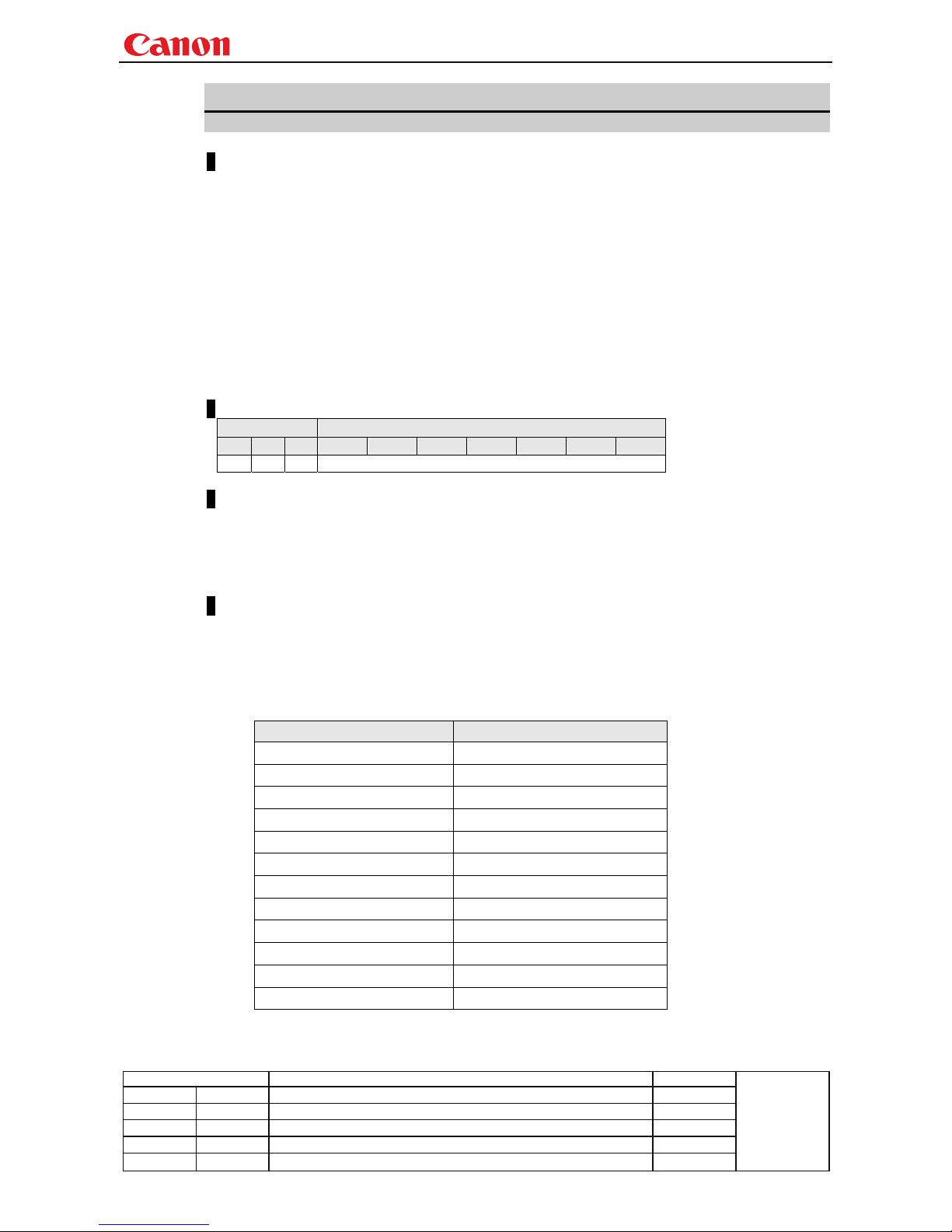
Environment
Power Input
OFF ON PM D-RGB A-RGB1 A-RGB2 COMP VIDEO HDMI None
X O X -
Response
"i:OK" is returned if the parameter was set properly.
For '
GET IMAGE' or '?IMAGE', current image mode is returned as
'g:IMAGE=<Image mode setting parameter:ID>'
For details on other responses, refer to the "Error List".
Description
(1) This sets the image quality.
(2) This command functions in the same way as when "Image adjustment" - "Image mode setting"
are selected on the menu.
(3) The final settings for the image mode are retained even when the power is turned off.
(4) Changing the setting may modify the following setting values.
Setting Commands related to the settings
Brightness BRI
Contrast CONT
Sharpness SHARP
Gamma adjustment GAMMA
Dynamic gamma DGAMMA
Progressive PROG
Saturation/Hue SAT/ HUE
Memory color adjustment MEMCADJ
RGB gain/offset adjustment RGBGAIN/RGBOFFSET
Lamp mode LAMP
6-axis adjustment 6AXADJ
6-axis color correction 6AXR~Y
(5) The current image quality can be acquired using the applicable GET command. ("
GET IMAGE")
Page 45

Projector WUX10 MarkII User Commands
- 41 -
Revision History / Date Changes Revised by
A
pp
roved b
y
Example
Setting
> IMAGE=PRESENTATION This sets the image mode to "Presentation".
< i:OK
Reference
> GET IMAGE or ?IMAGE This references the current image mode.
< g:IMAGE=CINEMA
* Commands are indicated by ">", and responses are indicated by "<".
Page 46
Projector WUX10 MarkII User Commands
- 42 -
Revision History / Date Changes Revised by
A
pp
roved b
y
IMAGEFLIP
Flip display
Format
IMAGEFLIP=<Image flip setting parameters:ID>
GET□IMAGEFLIP / ?△IMAGEFLIP
<Image flip setting parameters:ID>
NONE None
CEILING Ceiling, Flip horizontally
REAR Rear, Flip vertically
REAR_CEILING Rear ceiling, Flip horizontally and vertically
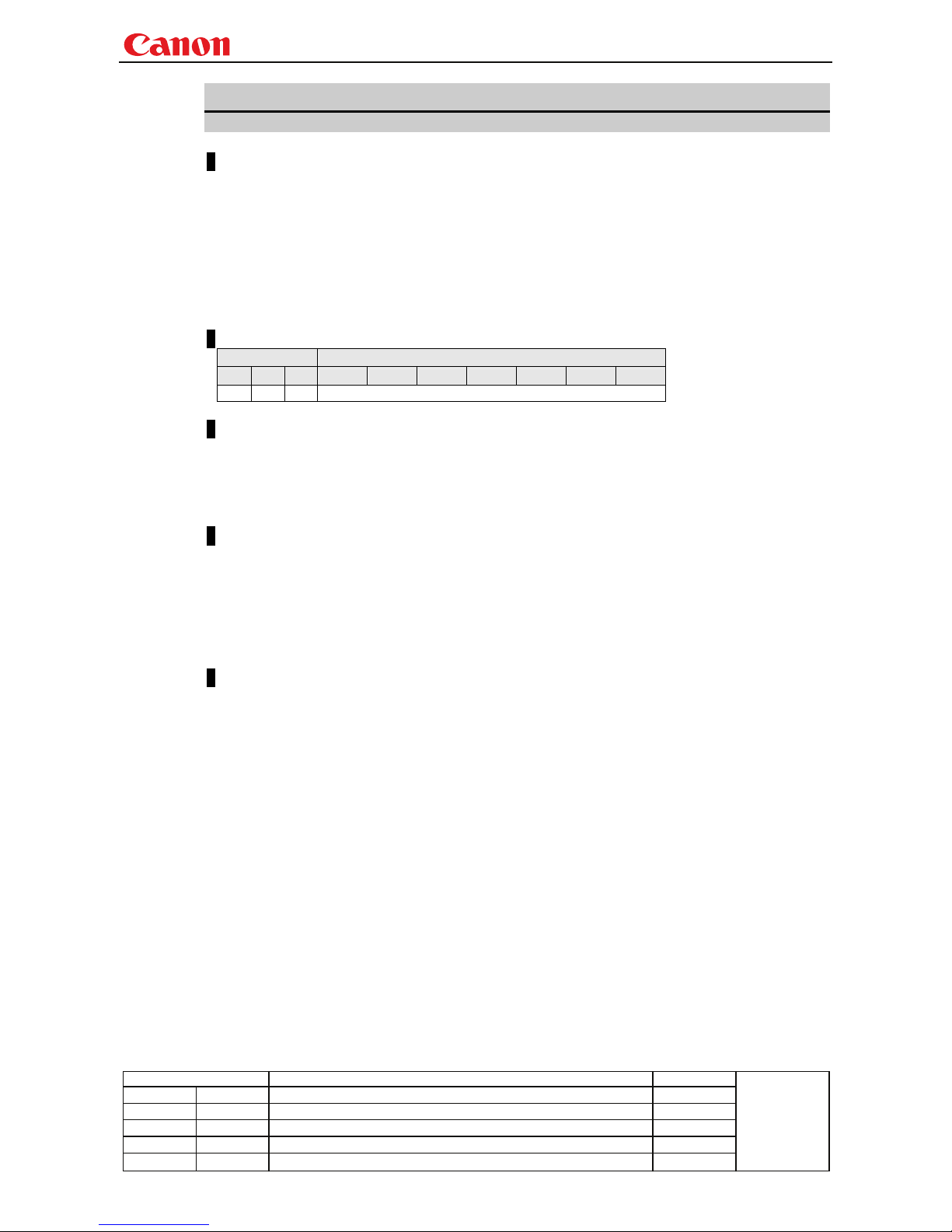
Environment
Power Input
OFF ON PM D-RGB A-RGB1 A-RGB2 COMP VIDEO HDMI None
X O X -
Response
"i:OK" is returned if the parameter was set properly.
For '
GET IMAGEFLIP' or '?IMAGEFLIP', current flip display setting is returned as
'g:IMAGEFLIP=<Image flip setting parameters:ID>'
For details on other responses, refer to the "Error List".
Description
(1) This command is used to flip the screen display in various ways (vertically or horizontally).
(2) This command functions in the same way as when "Display setting" - "Flip display" are
selected on the menu.
(3) When the display is flipped, the "keystone distortion" settings are initialized (set to VKS:0).
(4) The current flip display status can be acquired using the applicable GET command. ("
GET
IMAGEFLIP
")
Example
Setting
> IMAGEFLIP=REAR This displays the image backwards (flip vertically) on the screen.
< i:OK
Reference
> GET IMAGEFLIP or ?IMAGEFLIP This retrieves the flip display state.
< g:IMAGEFLIP=REAR_CEILING
* Commands are indicated by ">", and responses are indicated by "<".
Page 47
Projector WUX10 MarkII User Commands
- 43 -
Revision History / Date Changes Revised by
A
pp
roved b
y
INPUT
Input selection
Format
INPUT=<Input selection parameters:ID>
GET□INPUT / ?△INPUT
<Input selection parameters:ID>
D-RGB D-RGB
A-RGB1 A-RGB1
A-RGB2 A-RGB2
COMP Component
VIDEO Video
HDMI HDMI
Environment
Power Input
OFF ON PM D-RGB A-RGB1 A-RGB2 COMP VIDEO HDMI None
X O X -
Response
"i:OK" is returned if the parameter was set properly.
For '
GET INPUT' or '?INPUT', current input selection is returned as
'g:INPUT=<Input selection parameters:ID>'
For details on other responses, refer to the "Error List".
Description
(1) This controls the input selection.
(2) This command is identical to pressing the “INPUT” button on the remote control.
(3) The input can be selected automatically using the auto setup command
(AUTOSETEXE=INPUT).
(4) The current input can be acquired using the applicable GET command. ("
GET INPUT")
Example
Setting
> INPUT=VIDEO The input is set to VIDEO.
< i:OK
Reference
> GET INPUT or ?INPUT This retrieves the input signal.
< g:INPUT=A-RGB1
* Commands are indicated by ">", and responses are indicated by "<".
Page 48
Projector WUX10 MarkII User Commands
- 44 -
Revision History / Date Changes Revised by
A
pp
roved b
y
KEYLOCK
Keylock setting
Format
KEYLOCK=<Key lock setting parameters:ID>
GET□KEYLOCK / ?△KEYLOCK
<Key lock setting parameters:ID>
OFF No locking (OFF)
MAIN Main key lock
RC Remote control key lock
Environment
Power Input
OFF ON PM D-RGB A-RGB1 A-RGB2 COMP VIDEO HDMI None
X O X -
Response
"i:OK" is returned if the parameter was set properly.
For '
GET KEYLOCK' or '?KEYLOCK', current keylocking setting is returned as
'g:KEYLOCK=<Key lock setting parameters:ID>'
For details on other responses, refer to the "Error List".
Description
(1) This command is used to lock the keys so as to restrict the operations performed using the
remote control or main unit.
(2) This command functions in the same way as when "System setting" - "Key lock" are selected
on the menu.
(3) This command will not affect the emulation function (remote control or main unit commands)
even if the main unit or remote control keys are locked.
(4) The current key lock setting can be acquired using the applicable GET command. ("
GET
KEYLOCK
")
Example
Setting
> KEYLOCK=RC This locks the remote control keys.
< i:OK
Reference
> GET KEYLOCK or ?KEYLOCK This retrieves the key lock state.
< g:KEYLOCK=OFF
* Commands are indicated by ">", and responses are indicated by "<".
Page 49
Projector WUX10 MarkII User Commands
- 45 -
Revision History / Date Changes Revised by
A
pp
roved b
y
LAMP
Lamp output setting
Format
LAMP=<Lamp output setting parameters:ID>
GET□LAMP / ?△LAMP
<Lamp output setting parameters:ID>
NORMAL Normal
SILENT Silent cooling
Environment
Power Input
OFF ON PM D-RGB A-RGB1 A-RGB2 COMP VIDEO HDMI None
X O X -
Response
"i:OK" is returned if the parameter was set properly.
For '
GET LAMP' or '?LAMP', current lamp output is returned as
'g:LAMP=<Lamp output setting parameters:ID>'
For details on other responses, refer to the "Error List".
Description
(1) This command is used to set the light quantity of the lamp to "NORMAL" or "SILENT"
(reduced light quantity appropriate for silent cooling).
(2) This command functions in the same way as when "Image adjustment" - "Lamp mode setting"
are selected on the menu.
(3) This sets the currently selected input signal and image mode.
(4) The current lamp output can be acquired using the applicable GET command. ("
GET LAMP")
Example
Setting
> LAMP=NORMAL The lamp output is set to “NORMAL”.
< i:OK
Reference
> GET LAMP or ?LAMP This retrieves the lamp output.
< g:LAMP=SILENT
* Commands are indicated by ">", and responses are indicated by "<".
Page 50
Projector WUX10 MarkII User Commands
- 46 -
Revision History / Date Changes Revised by
A
pp
roved b
y
LAMPCOUNTER
Lamp ON time inquiry
Format
GET□LAMPCOUNTER / ?△LAMPCOUNTER
Environment
Power Input
OFF ON PM D-RGB A-RGB1 A-RGB2 COMP VIDEO HDMI None
- -
Response
Returns current lamp on time as
'g:LAMPCOUNTER="<Lamp ON time:Character string>"'
For details on other responses, refer to the "Error List".
<Lamp ON time:Character string>
Lamp ON time ON time:H
"[G_______]" 0~ 359
"[GG______]" 360~ 719
"[GGG_____]" 720~ 1079
"[GGGG____]" 1080~1439
"[GGGGG___]" 1440~1799
"[GGGGGY__]" 1800~1899
"[GGGGGYY_]" 1900~1999
"[GGGGGYYR]" 2000~
For all other responses, refer to "Error List."
Description
(1) This inquires about the current lamp ON time.
(2) This inquiry can be executed in any status provided that AC power is supplied to the projector.
Example
> GET LAMPCOUNTER or ? LAMPCOUNTER
< g:LAMPCOUNTER="[GG______]"
* Commands are indicated by ">", and responses are indicated by "<".
Page 51
Projector WUX10 MarkII User Commands
- 47 -
Revision History / Date Changes Revised by
A
pp
roved b
y
LANG
Language select
Format
LANG=<Language selection parameters:ID>
GET□LANG / ?△LANG
<Language selection parameters:ID>
ENG English DUT Dutch NOR Norwegian
FRA French RUS Russian TUR Turkish
GER German CHS Chinese (simplified) POL Polish
ITA Italian CHT Chinese (traditional) HUN Hungarian
SPA Spanish KOR Korean CZE Czech
POR Portuguese JPN Japanese ARA Arabic
SWE Swedish FIN Finnish DAN Danish
Environment
Power Input
OFF ON PM D-RGB A-RGB1 A-RGB2 COMP VIDEO HDMI None
X O X -
Response
"i:OK" is returned if the parameter was set properly.
For '
GET LANG' or '?LANG', current selected language is returned as
'g:LANG=<Language selection parameters:ID>'
For details on other responses, refer to the "Error List".
Description
(1) This switches the screen display language.
(2) This command functions in the same way as when "System setting" - "Languages" are selected
on the menu.
(3) The currently set language can be acquired using the applicable GET command. ("
GET LANG")
Example
Setting
> LANG=SWE This sets the display language to “Swedish”.
< i:OK
Reference
> GET LANG or ?LANG This retrieves the language.
< g:LANG=SWE
* Commands are indicated by ">", and responses are indicated by "<".
Page 52
Projector WUX10 MarkII User Commands
- 48 -
Revision History / Date Changes Revised by
A
pp
roved b
y
LEDILLUMINATE
Emotional LED lighting control
Format
LEDILLUMINATE=<LED lighting control setting parameter:ID>
GET□LEDILLUMINATE / ?△LEDILLUMINATE
<LED lighting control setting parameter:ID>
ON This sets the LED display to ON.
OFF This sets the LED display to OFF.
Environment
Power Input
OFF ON PM D-RGB A-RGB1 A-RGB2 COMP VIDEO HDMI None
X O X -
Response
"i:OK" is returned if the parameter was set properly.
For '
GET LEDILLUMINATE' or '?LEDILLUMINATE', current emotional LED lighting setting is returned as
'g:LEDILLUMINATE=<LED lighting control setting parameter:ID>'
For details on other responses, refer to the "Error List".
Description
(1) This command is used to control the lighting of the emotional LED.
(2) This command functions in the same way as when "System setting" - "LED illumination" are
selected on the menu.
(3) The current LED illumination setting can be obtained using the GET command. ("
GET
LEDILLUMINATE
")
Example
Setting
> LEDILLUMINATE=ON The LED display is set to ON.
< i:OK
Reference
> GET LEDILLUMINATE or ?LEDILLUMINATE
The ON or OFF setting for the LED display is obtained.
< g:LEDILLUMINATE=ON
* Commands are indicated by ">", and responses are indicated by "<".
Page 53
Projector WUX10 MarkII User Commands
- 49 -
Revision History / Date Changes Revised by
A
pp
roved b
y
LMPT
Lamp time inquiry
Format
GET□LMPT / ?△LMPT
LMPT=<hhhh>:<mm>
<hhhh>
Hours 0~65565
<mm>
Minutes 00~59
Environment
Power Input
OFF ON PM D-RGB A-RGB1 A-RGB2 COMP VIDEO HDMI None
X O X -
Response
For 'GET LMPT' or '?LMPT', current lamp time is returned as
'
g:LMPT=<hhhh>:<mm>'
For details on other responses, refer to the "Error List".
Description
(1) This inquires the lamp time. Value of 0h0m to 65565h59m is returned.
(2) Because inner equivalent value is returned, the hour of the lamp is not the same as the actual
hour.
(3) This inquiry can be executed during stand-by.
(4) There are no setting commands available.
Example
Setting
None
Reference
> GET LMPT This retrieves the lamp time.
< g:LMPT=12:34
12 hours 34 minutes
* Commands are indicated by ">", and responses are indicated by "<".
Page 54
Projector WUX10 MarkII User Commands
- 50 -
Revision History / Date Changes Revised by
A
pp
roved b
y
MAIN
Front panel operation emulation
Format
MAIN□<Main unit panel emulation button parameters:ID>
<Main unit panel emulation button parameters:ID>
POWER POWER
POWER_OFF, POWER button pressed twice
MENU MENU
AUTO SET AUTOSET
INPUT INPUT
AUTOPC AUTOPC
KEYSTONE KEYSTONE
UP UP
UP+REP, Button press start
DOWN DOWN
DOWN+REP, Button press start
LEFT LEFT
LEFT+REP, Button press start
RIGHT RIGHT
RIGHT+REP, Button press start
OK OK
FOCUS FOCUS
ZOOM ZOOM
*-REP, Button press end
* Use the application to adjust the time between pressing of keys.
Environment
Power Input
OFF ON PM D-RGB A-RGB1 A-RGB2 COMP VIDEO HDMI None
X O X -
Response
"i:OK" is returned when the button press request has been acknowledged successfully.
(It does not indicate if the operation for the pressed button was executed properly.)
Description
(1) This emulates the pressing of the front panel buttons for controlling the projector.
(2) With the emulation of the front panel operations, the functions of the buttons corresponding to
the parameters cannot necessarily be executed. Emulation simply consists in emulating the
pressing of the buttons.
(3) A parameter with '+REP' signifies "button press start." (This is the same as the status in
which the front panel button is held down.)
Be absolutely sure to send the '*-REP' parameter, and end the button pressing last of all.
The button pressing is ended in the cases below as well.
<1> When a panel or remote control button has been operated
<2> When some command has been received
Example
Setting
> MAIN FOCUS
< i:OK
* Commands are indicated by ">", and responses are indicated by "<".
Page 55
Projector WUX10 MarkII User Commands
- 51 -
Revision History / Date Changes Revised by
A
pp
roved b
y
MODE
Control mode switch
Format
REMOTE
LOCAL
GET□MODE / ?△MODE
Environment
Power Input
OFF ON PM D-RGB A-RGB1 A-RGB2 COMP VIDEO HDMI None
- -
Response
"i:OK" is always returned with the control mode switch setting.
For '
GET MODE' or '?MODE', current control mode is returned as
'g:MODE=REMOTE'
'g:MODE=LOCAL'
For details on other responses, refer to the "Error List".
Description
(1) There are no 'local' and 'remote' control modes with this version of the user commands,
however, this command exists to maintain compatibility with previous versions of the user
commands.
(2) However, differences between previous versions of the user commands are as follows.
<1> Drive will not stop during zoom or focus. (Stopped with previous versions.)
<2> The power management standby status will not change. (Changed to "Power ON" (Lamp
ON) with previous versions.)
<3> The digital zoom will not change. (Cancelled with previous versions.)
<4> The presentation timer display will not change. (Cancelled with previous versions.)
<5> The BLANK status will not change. (Cancelled 'NoShow' with previous versions.)
<6> The FREEZE status will not change. (Cancelled FREEZE with previous versions.)
<7> Process under execution will continue. (Process was interrupted with previous versions.)
(3) The current control mode can be obtained using the GET command. ("
GET MODE")
Example
Mode switch
> REMOTE
< i:OK
Mode reference
> GET MODE or ?MODE
< g:MODE=LOCAL
* Commands are indicated by ">", and responses are indicated by "<".
Page 56
Projector WUX10 MarkII User Commands
- 52 -
Revision History / Date Changes Revised by
A
pp
roved b
y
MUTE
Mute control
Format
MUTE=<Mute control parameter: ID>
GET□MUTE / ?△MUTE
<Mute control parameter: ID>
ON This turns off the audio/beep sound.
OFF This returns the audio/beep sound to its original setting.
Environment
Power Input
OFF ON PM D-RGB A-RGB1 A-RGB2 COMP VIDEO HDMI None
X O X -
Response
"i:OK" is returned if the parameter was set properly.
For '
GET MUTE' or '?MUTE', current mute setting is returned as
'g:MUTE=<Mute control parameter: ID>'
For details on other responses, refer to the "Error List".
Description
(1) This command is used to set the sound output muting to ON or OFF.
(2) Mute control enables simultaneous control of the audio and beep sound.
(3) This command is identical to pressing the MUTE button on the remote control.
(4) The mute setting is always "OFF" when the power has just been turned on.
(5) The volume can be set even when it is on "MUTE".
(6) The current muting status can be acquired using the applicable GET command. ("
GET MUTE")
Example
Setting
> MUTE=ON This mutes the volume.
< i:OK
Reference
> GET MUTE or ?MUTE This retrieves the volume state.
< g:MUTE=ON
* Commands are indicated by ">", and responses are indicated by "<".
Page 57
Projector WUX10 MarkII User Commands
- 53 -
Revision History / Date Changes Revised by
A
pp
roved b
y
NOSIG
Display screen when no signal setting
Format
NOSIG=<Parameters for setting display screen in no-signal mode:ID>
GET□NOSIG / ?△NOSIG
<Parameters for setting display screen in no-signal mode:ID>
BLACK Black screen
BLUE Blue screen
Environment
Power Input
OFF ON PM D-RGB A-RGB1 A-RGB2 COMP VIDEO HDMI None
X O X -
Response
"i:OK" is returned if the parameter was set properly.
For 'GET NOSIG' or '?NOSIG', current display screen when no signal setting is returned as
'g:NOSIG=<Parameters for setting display screen in no-signal mode:ID>'
For details on other responses, refer to the "Error List".
Description
(1) This sets the display screen when no image signals are input.
(2) This command functions in the same way as when "Display setting" - "User screen setting" -
"Screen when no signal" are selected on the menu.
(3) The GET command can be used to obtain the current display screen at no signal. ("
GET NOSIG")
Example
Setting
> NOSIG=BLUE This sets the “Blue” screen when no signals are input.
< i:OK
Reference
> GET NOSIG or ?NOSIG This retrieves the screen when no signals are input.
< g:NOSIG=BLUE
* Commands are indicated by ">", and responses are indicated by "<".
Page 58
Projector WUX10 MarkII User Commands
- 54 -
Revision History / Date Changes Revised by
A
pp
roved b
y
PJON
Display screen at startup setting
Format
PJON=<Parameters for setting display screen at startup:ID>
GET□PJON / ?△PJON
<Parameters for setting display screen at startup:ID>
CANON Canon logo
SKIP No display
Environment
Power Input
OFF ON PM D-RGB A-RGB1 A-RGB2 COMP VIDEO HDMI None
X O X -
Response
"i:OK" is returned if the parameter was set properly.
For '
GET PJON' or '?PJON', current display screen at startup setting is returned as
'g:PJON=<Parameters for setting display screen at startup:ID>'
For details on other responses, refer to the "Error List".
Description
(1) This sets the screen displayed at startup.
(2) This command functions in the same way as when "Display setting" - "User screen setting" -
"Startup screen" are selected on the menu.
(3) The GET command can be used to obtain the current screen displayed at startup. ("
GET PJON")
Example
Setting
> PJON=CANON This sets the startup screen to “Canon logo”.
< i:OK
Reference
> GET PJON or ?PJON This retrieves the startup screen.
< g:PJON=SKIP
* Commands are indicated by ">", and responses are indicated by "<".
Page 59
Projector WUX10 MarkII User Commands
- 55 -
Revision History / Date Changes Revised by
A
pp
roved b
y
PMM
Power management
Format
PMM=<Power management setting parameters:ID>
GET□PMM / ?△PMM
<Power management setting parameters:ID>
OFF OFF
STANDBY Standby mode
EXIT Exit mode
Environment
Power Input
OFF ON PM D-RGB A-RGB1 A-RGB2 COMP VIDEO HDMI None
X O X -
Response
"i:OK" is returned if the parameter was set properly.
For '
GET PMM' or '?PMM', current power management setting is returned as
'g:PMM=<Power management setting parameters:ID>'
For details on other responses, refer to the "Error List".
Description
(1) This sets the power management mode.
(2) This command functions in the same way as when "System setting" - "Power management
mode" are selected on the menu.
(3) Power management cannot be set to OFF if ON has been selected as the direct power-on
setting (DPON=ON).
("
e:1005 DIRECT_POWER_ON" is returned)
(4) The current power management mode can be acquired using the applicable GET command.
("
GET PMM")
Example
Setting
> PMM=STANDBY This sets the power management to "standby".
< i:OK
Reference
> GET PMM or ?PMM This retrieves the power management mode.
< g:PMM=EXIT
* Commands are indicated by ">", and responses are indicated by "<".
Page 60
Projector WUX10 MarkII User Commands
- 56 -
Revision History / Date Changes Revised by
A
pp
roved b
y
POWER
This controls the power supply
Format
POWER□<Parameter:ID>
GET□POWER / ?△POWER
<Parameter:ID>
ON Power ON
OFF Power OFF
Environment
Power Input
OFF ON PM D-RGB A-RGB1 A-RGB2 COMP VIDEO HDMI None
- -
Response
"i:OK" is returned if the parameter was set properly.
For '
GET POWER' or '?POWER', current power supply status is returned as shown in the table below.
Response Status
'g:POWER=OFF' OFF
'g:POWER=OFF2ON' OFF -> ON in transition
'g:POWER=ON' ON
g:POWER=ON2PMM' ON -> Standby in transition
'g:POWER=PMM' Standby
'g:POWER=PMM2ON' Standby -> ON in transition
'g:POWER=ON2OFF' ON -> OFF in transition
For details on other responses, refer to the "Error List".
Description
(1) This performs ON/OFF control of the power supply.
(2) This command is identical to pressing the POWER button on the remote control.
(3) Processing of other commands (including ZOOM/FOCUS) will be interrupted at "POWER
OFF" when the power is ON.
(4) 'i:BUSY' will be returned at "POWER ON" during power OFF transition. For other cases,
'I:OK' will always be returned.
(5) After sending this command, use GET POWER to obtain the power supply state at regular
intervals, and check that it is in the controlled state (off or on).
(6)
The current power supply status can be referenced using the applicable GET command. ("
GET POWER
")
(7) Even when it is powered up by using this command, "Prepare for lamp replacement", "Lamp
replacement warning", "Clean filter warning" will display for 10 seconds as usual.
Example
Control
> POWER ON
< i:OK
Reference
> GET POWER or ?POWER
< g:POWER=OFF
* Commands are indicated by ">", and responses are indicated by "<".
Page 61
Projector WUX10 MarkII User Commands
- 57 -
Revision History / Date Changes Revised by
A
pp
roved b
y
PRODCODE
Product information inquiry
Format
GET□PRODCODE / ?△PRODCODE
Environment
Power Input
OFF ON PM D-RGB A-RGB1 A-RGB2 COMP VIDEO HDMI None
- -
Response
Product name is returned as
g:PRODCODE="<Product name:Character string>"
<Product name:Character string>
WUX10MarkII
WUX10MarkIIM
For details on other responses, refer to the "Error List".
Description
(1) This inquires about the product name of the projector.
(2) This inquiry can be executed in any status provided that AC power is supplied to the projector.
Example
> GET PRODCODE or ? PRODCODE
< g:PRODCODE="WUX10MarkII"
* Commands are indicated by ">", and responses are indicated by "<".
Page 62
Projector WUX10 MarkII User Commands
- 58 -
Revision History / Date Changes Revised by
A
pp
roved b
y
PROG
Progressive setting
Format
PROG=<Progressive conversion setting parameters:ID>
GET□PROG / ?△PROG
<Progressive conversion setting parameters:ID>
0 OFF
1 ON
2 AUTO
Environment
Power Input
OFF ON PM D-RGB A-RGB1 A-RGB2 COMP VIDEO HDMI None
X O X X X X O O O X
Response
"i:OK" is returned if the parameter was set properly.
For '
GET PROG' or '?PROG', progressive conversion setting is returned as
'g:PROG=<Progressive conversion setting parameters:ID>'
For details on other responses, refer to the "Error List".
Description
(1) This command is used to set the progressive conversion processing to ON or OFF.
(2) This command functions in the same way as when "Display setting" - "Progressive" are
selected on the menu.
(3) This sets the currently selected input signal and image mode.
(4) The current value can be acquired using the applicable GET command. ("
GET PROG")
* The menu display statuses are as listed in the table below by model.
Menu display statuses, etc.
When signals from a progressive source are input, the progressive conversion setting
cannot be selected, and the field will be blank on the menu.
Example
Setting
> PROG=0 This sets the progressive conversion setting to OFF.
< i:OK
Reference
> GET PROG or ?PROG This acquires the progressive conversion processing status.
< g:PROG=1
* Commands are indicated by ">", and responses are indicated by "<".
Page 63
Projector WUX10 MarkII User Commands
- 59 -
Revision History / Date Changes Revised by
A
pp
roved b
y
RC
Remote control operation emulate
Format
RC□<Remote control emulation button parameters:ID>
<Remote control emulation button parameters:ID>
POWER POWER
- POWER_OFF, POWER button pressed twice
MENU MENU
AUTO SET AUTOSET
INPUT INPUT
ASPECT ASPECT
AUTOPC AUTOPC
KEYSTONE KEYSTONE
UP UP
UP+REP, Button press start
DOWN DOWN
DOWN+REP, Button press start
LEFT LEFT
LEFT+REP, Button press start
RIGHT RIGHT
RIGHT+REP, Button press start
OK OK
IMAGE IMAGE
FREEZE FREEZE
VOL + VOL_P
VOL_P+REP, Button press start
VOL - VOL_M
VOL_M+REP, Button press start
BLANK BLANK
MUTE MUTE
P-TIMER P_TIMER
LAMP LAMP
DZOOM + DZOOM_P
DZOOM_P+REP, Button press start
DZOOM - DZOOM_M
DZOOM_M+REP, Button press start
FOCUS FOCUS
ZOOM ZOOM
- *-REP, Button press start
* Use the application to adjust the time between pressing of keys.
Environment
Power Input
OFF ON PM D-RGB A-RGB1 A-RGB2 COMP VIDEO HDMI None
- -
Response
"i:OK" is returned when the button press request has been acknowledged successfully.
(It does not indicate if the operation for the pressed button was executed properly.)
Page 64

Projector WUX10 MarkII User Commands
- 60 -
Revision History / Date Changes Revised by
A
pp
roved b
y
Description
(1) This emulates pressing of the remote control buttons for controlling the projector.
(2) With the emulation of the remote control operations, the functions of the buttons
corresponding to the parameters cannot necessarily be executed.
Emulation simply consists in emulating the pressing of the buttons.
(3) Function for transfer to special mode (service mode) is unavailable.
(4) A parameter with '+REP' signifies "button press start". (This is the same as the status in
which the remote control button is held down.)
Be absolutely sure to send the '*-REP' parameter, and end the button pressing last of all.
The button pressing is ended in the cases below as well.
<1> When a panel or remote control button has been operated
<2> When a command has been received
Example
Setting
> RC POWER
< i:OK
* Commands are indicated by ">", and responses are indicated by "<".
Page 65
Projector WUX10 MarkII User Commands
- 61 -
Revision History / Date Changes Revised by
A
pp
roved b
y
RCCH
Remote control channel setting
Format
RCCH=<Remote control setting parameters:ID>
GET□RCCH / ?△RCCH
<Remote control setting parameters:ID>
1 Remote control channel 1
2 Remote control channel 2
Environment
Power Input
OFF ON PM D-RGB A-RGB1 A-RGB2 COMP VIDEO HDMI None
X O X -
Response
"i:OK" is returned if the parameter was set properly.
For '
GET RCCH' or '?RCCH', current remote control channel setting is returned as
'g:RCCH=<Remote control setting parameters:ID>'
For details on other responses, refer to the "Error List".
Description
(1) This command is used to set the channel of the remote control used at the projector end to 1 or
2.
(2) This command functions in the same way as when "System setting" - "Other settings" -
"Remote control setting" are selected on the menu.
(3) The current remote control setting can be acquired using the applicable GET command. ("
GET
RCCH
")
Example
Setting
> RCCH=1 This sets the remote control channel to ch1.
< i:OK
Reference
> GET RCCH or ?RCCH This retrieves the remote control setting state.
< g:RCCH=2
* Commands are indicated by ">", and responses are indicated by "<".
Page 66
Projector WUX10 MarkII User Commands
- 62 -
Revision History / Date Changes Revised by
A
pp
roved b
y
RESET
Reset
Format
RESET□<Reset parameters:ID>
<Reset parameters:ID>
LAMPTIME Lamp on time reset
IMAGE Current image adjustment reset
SYSTEM Initial system settings(same as "Factory settings" in the menu)
ALL Initialize all
Environment
Power Input
OFF ON PM D-RGB A-RGB1 A-RGB2 COMP VIDEO HDMI None
X O X -
Response
"i:OK" is returned if the reset process is successful.
Furthermore, the internal status established when a response other than the normal response
("i:OK") has been returned is indeterminate.
For details on other responses, refer to the "Error List".
Description
(1) This resets the projector settings.
(2) What can be specified by the reset parameters for each "reset type" is provided below.
■ Reset of lamp on time
(a) The counter indicating the lamp replacement period is reset.
(b) This command functions in the same way as when "System setting" - "Lamp counter"
- "Reset" are selected on the menu.
(c) Execute this command after replacing the lamp.
■ Current image adjustment reset
(a) The adjustment settings of the currently-selected image mode are initialized.
(b) This command functions in the same way as when "Image adjustment" - "Image
adjustment reset" are selected on the menu.
* If there is an input signal, the image adjustment items are initialized and then the adjustment
values are optimized for the signal.
■ Reset of system settings
(a) The following items are initialized.
• Image adjustment items (all image modes)
• Initial settings executed
* For details, refer to 'RESET items' at the end of these specifications.
(b) This command functions in the same way as when "System setting" - "Other settings"
- "Factory settings" are selected on the menu.
■ Initialize all
(a) The following items are initialized.
• Image adjustment items (all image modes)
• Initial settings executed
• Input source
• Language
* For details, refer to 'RESET items' at the end of these specifications.
Page 67

Projector WUX10 MarkII User Commands
- 63 -
Revision History / Date Changes Revised by
A
pp
roved b
y
Notes
(a) The power must never be turned off while this command is being executed!
(b) After the 'Factory settings,' be absolutely sure to turn the power off and then restart.
(c) NO_SIGNAL' may be returned as the response to the command after 'Current image adjustment reset' or
'System initial setting' has been executed.
Example
Control
> RESET LAMPTIME This resets the lamp on time.
< i:OK
* Commands are indicated by ">", and responses are indicated by "<".
Page 68
Projector WUX10 MarkII User Commands
- 64 -
Revision History / Date Changes Revised by
A
pp
roved b
y
RGBGAIN
RGB gain adjustment
Format
RGBGAIN=<R gain setting:Number>▽<G gain setting:Number>▽<B gain setting:Number>
GET□RGBGAIN / ?△RGBGAIN
Setting values for <R/G/B gain setting:Number> are -60 to 60.
Environment
Power Input
OFF ON PM D-RGB A-RGB1 A-RGB2 COMP VIDEO HDMI None
X O X -
Response
"i:OK" is returned if the parameter was set properly.
For '
GET RGBGAIN' or '?RGBGAIN', current RGB gain adjustment values are returned as
'
g:RGBGAIN=<R gain setting:Number>,<G gain setting:Number>,<B gain setting:Number>'
For details on other responses, refer to the "Error List".
Description
(1) This command is used to adjust the gain of the R, G and B colors.
(2) This command functions in the same way as when "Image adjustment" - "Color adjustment" -
"Gain adjustment" are selected on the menu.
(3) If numerical parameters are outside the range, "e:0801 INVALID_VALUE" is returned.
(4) This sets the currently selected input signal and image mode.
(5) The current RGB gain values can be obtained using the GET command. ("
GET RGBGAIN")
Example
Setting
> RGBGAIN=10, 11, 12 The R gain is set to 10, G gain to 11 and B gain to 12.
< i:OK
Reference
> GET RGBGAIN or ?RGBGAIN The RGB gain values are obtained.
< g:RGBGAIN=-10, 0, 19
* Commands are indicated by ">", and responses are indicated by "<".
Page 69
Projector WUX10 MarkII User Commands
- 65 -
Revision History / Date Changes Revised by
A
pp
roved b
y
RGBOFFSET
RGB offset adjustment
Format
RGBOFFSET=<R offset setting:Number>▽<G offset setting:Number>▽<B offset setting:Number>
GET□RGBOFFSET / ?△RGBOFFSET
Setting values for <R/G/B offset setting:Number> are -60 to 60.
Environment
Power Input
OFF ON PM D-RGB A-RGB1 A-RGB2 COMP VIDEO HDMI None
X O X -
Response
"i:OK" is returned if the parameter was set properly.
For '
GET RGBOFFSET' or '?RGBOFFSET', current RGB offset adjustment values are returned as
'
g:RGBOFFSET=<R offset setting:Number>,<G offset setting:Number>,<B offset setting:Number>
'
For details on other responses, refer to the "Error List".
Description
(1) This command is used to adjust the offset of the R, G and B colors.
(2) This command functions in the same way as when "Image adjustment" - "Color adjustment" -
"Offset adjustment" are selected on the menu.
(3) If numerical parameters are outside the range, "e:0801 INVALID_VALUE" is returned.
(4) This sets the currently selected input signal and image mode.
(5) The current RGB offset values can be obtained using the GET command. ("
GET RGBOFFSET")
Example
Setting
> RGBOFFSET=10, 11, 12 The R offset is set to 10, G offset to 11 and B offset to 12.
< i:OK
Reference
> GET RGBOFFSET or ?RGBOFFSET The RGB offset values are obtained.
< g:RGBOFFSET=-10, 0, 19
* Commands are indicated by ">", and responses are indicated by "<".
Page 70
Projector WUX10 MarkII User Commands
- 66 -
Revision History / Date Changes Revised by
A
pp
roved b
y
ROMVER
ROM version inquiry
Format
GET□ROMVER / ?△ROMVER
Environment
Power Input
OFF ON PM D-RGB A-RGB1 A-RGB2 COMP VIDEO HDMI None
- -
Response
ROM version of the firmware is returned as
g:ROMVER="<ROM version:Character string>"
<ROM version>:=99.999999
For details on other responses, refer to the "Error List".
Description
(1) This inquires about the version of the firmware.
(2) This inquiry can be executed in any status provided that AC power is supplied to the projector.
Example
> GET ROMVER or ? ROMVER
< g:ROMVER="01.030602"
* Commands are indicated by ">", and responses are indicated by "<".
Page 71
Projector WUX10 MarkII User Commands
- 67 -
Revision History / Date Changes Revised by
A
pp
roved b
y
SAT
Color saturation setting
Format
RGBGAIN=<R gain setting:Number>▽<G gain setting:Number>▽<B gain setting:Number>
GET□RGBGAIN / ?△RGBGAIN
Setting values for <Color saturation setting value:Number> are -20 to 20.
Environment
Power Input
OFF ON PM D-RGB A-RGB1 A-RGB2 COMP VIDEO HDMI None
X O X O O O O O X O
Response
"i:OK" is returned if the parameter was set properly.
For
'GET SAT' or '?SAT', current saturation setting value is returned as
'
g:SAT=<Color saturation setting value:Number>'
For details on other responses, refer to the "Error List".
Description
(1) This sets the screen color saturation.
(2) This command functions in the same way as when "Image adjustment" - "Color adjustment" -
"Color saturation setting" are selected on the menu.
(3) If the input is "HDMI", 'e:200X INVALID_SOURCE(***)' is returned as an error response.
(4) When image mode is not set to "PHOTO", 'e:2020 INVALID_IMAGE_MODE' is returned as an
error response even if the input is "D-RGB", "A-RGB1" or "A-RGB2".
(5) If numerical parameters are outside the range, "e:0801 INVALID_VALUE" is returned.
(6) This sets the currently selected input signal and image mode.
(7) The GET command can be used to retrieve the current color saturation. ("
GET SAT")
Example
Setting
> SAT=-10 This sets the color saturation to –10.
< i:OK
Reference
> GET SAT or ?SAT This retrieves the color saturation.
< g:SAT=1
* Commands are indicated by ">", and responses are indicated by "<".
Page 72
Projector WUX10 MarkII User Commands
- 68 -
Revision History / Date Changes Revised by
A
pp
roved b
y
SCRNASPECT
Screen aspect setting
Format
SCRNASPECT=<Screen aspect setting parameter:ID>
GET□SCRNASPECT / ?△SCRNASPECT
<Screen aspect setting parameter:ID>
4:3 4:3 display
16:9 16:9 display
4:3_DIS 4:3 digital image shift
16:9_DIS 16:9 digital image shift
16:10 16:10 display
Environment
Power Input
OFF ON PM D-RGB A-RGB1 A-RGB2 COMP VIDEO HDMI None
X O X -
Response
"i:OK" is returned if the parameter was set properly.
For 'GET SCRNASPECT' or '?SCRNASPECT', current screen aspect setting is returned as
'g:SCRNASPECT=<Screen aspect setting parameter:ID>'
For details on other responses, refer to the "Error List".
Description
(1) This sets the screen aspect.
(2) This command functions in the same way as when "Display setting" - "Screen aspect" are
selected on the menu.
(3) The GET command can be used to retrieve the current screen aspect. ("
GET SCRNASPECT")
(4) The final screen aspect settings are retained even when the power is turned off.
Example
Setting
> SCRNASPECT=16:9 This sets the screen aspect to 16:9.
> i:OK
Reference
> GET SCRNASPECT or ?SCRNASPECT This retrieves the screen aspect.
< g:SCRNASPECT=4:3
* Commands are indicated by ">", and responses are indicated by "<".
Page 73
Projector WUX10 MarkII User Commands
- 69 -
Revision History / Date Changes Revised by
A
pp
roved b
y
SEL
Input signal selection
Format
SEL=<Input signal selection parameter:ID>
GET□SEL / ?△SEL
<Input signal selection parameter:ID>
AUTO Auto
Environment
Power Input
OFF ON PM D-RGB A-RGB1 A-RGB2 COMP VIDEO HDMI None
X O X X X X O O X X
Response
"i:OK" is returned if the parameter was set properly.
For '
GET SEL' or '?SEL', current input signal is returned as
'g:SEL=<Detected input signal:ID>'
(Refer to "Description".)
For details on other responses, refer to the "Error List".
Description
(1) This selects the input signal.
(2) This command functions in the same way as when "Display setting" - "Input signal selection" -
"AUTO" are selected on the menu.
(3) If the input is neither "COMP", "S-VIDEO" nor "VIDEO", 'e:200X INVALID_SOURCE(***)' is
returned as an error response.
(4) If signals are not input, 'e:2010 NO_SIGNAL' is returned.
(5) The current input signal can be acquired using the applicable GET command. ("
GET SEL")
List of signals which can be detected (1)
Parameter Remarks
PAL Includes PAL-M and PAL-N
SECAM
NTSC Includes NTSC4.43
1080p
1080i Includes 540p (1080i non-interlaced signal)
1035i
List of signals which can be detected (2)
Parameter Remarks
720p
576p
480p
576i Includes 288p (PAL non-interlaced signal)
480i Includes 240p (NTSC non-interlaced signal)
UNKNOWN No-color, 1080p, and other signals
Page 74

Projector WUX10 MarkII User Commands
- 70 -
Revision History / Date Changes Revised by
A
pp
roved b
y
Example
Setting
> SEL=AUTO This sets the input signal selection to “AUTO”.
< i:OK
Reference
> GET SEL or ?SEL This retrieves the input signal.
< g:SEL=575p
* Commands are indicated by ">", and responses are indicated by "<".
Page 75
Projector WUX10 MarkII User Commands
- 71 -
Revision History / Date Changes Revised by
A
pp
roved b
y
SHARP
Sharpness setting
Format
SHARP=<Sharpness setting:Number>
GET□SHARP / ?△SHARP
Setting values for <Sharpness setting:Number> are -10 to 10.
Environment
Power Input
OFF ON PM D-RGB A-RGB1 A-RGB2 COMP VIDEO HDMI None
X O X -
Response
"i:OK" is returned if the parameter was set properly.
For '
GET SHARP' or '?SHARP', current sharpness setting is returned as
'
g:SHARP=<Sharpness setting:Number>'
For details on other responses, refer to the "Error List".
Description
(1) This sets the screen sharpness.
(2) This command functions in the same way as when "Image adjustment" - "Sharpness setting"
are selected on the menu.
(3) If numerical parameters are outside the range, "e:0801 INVALID_VALUE" is returned.
(4) This sets the currently selected input signal and image mode.
(5) The current sharpness can be acquired using the applicable GET command. ("
GET SHARP")
Example
Setting
> SHARP=3 This sets the sharpness to 3.
< i:OK
Reference
> GET SHARP or ?SHARP This retrieves the sharpness.
< g:SHARP=3
* Commands are indicated by ">", and responses are indicated by "<".
Page 76
Projector WUX10 MarkII User Commands
- 72 -
Revision History / Date Changes Revised by
A
pp
roved b
y
SIGNALSTATUS
Signal status inquiry
Format
GET□SIGNALSTATUS / ?△SIGNALSTATUS
Environment
Power Input
OFF ON PM D-RGB A-RGB1 A-RGB2 COMP VIDEO HDMI None
X O X -
Response
Current image signal input status is returned as
'g:SIGNALSTATUS=<Signal status:ID>'
<Signal status:ID>
Signal status Meaning
NO_SIGNAL Signal not detected
DISPLAYING Image now displayed or display enable status
SETTING Signal detection and display preparation in progress
For details on other responses, refer to the "Error List".
Description
(1) This inquires about the current image signal input status.
(2) This returns the signal status of the selected input. Use INPUT command for the input
selection.
(3) "e:1006:NOW_BLANK" is returned during blanking.
Example
> GET SIGNALSTATUS or ? SIGNALSTATUS
< g:SIGNALSTATUS=NO_SIGNAL
* Commands are indicated by ">", and responses are indicated by "<".
Page 77
Projector WUX10 MarkII User Commands
- 73 -
Revision History / Date Changes Revised by
A
pp
roved b
y
TEMP
Temperature inquiry
Format
GET□TEMP
<n>
Number 0 to 255
<v>
Temperature value 0.0 to 127.9 °C
Environment
Power Input
OFF ON PM D-RGB A-RGB1 A-RGB2 COMP VIDEO HDMI None
X O X -
Response
Temperature is returned as 'g:TEMP=<n>{,<v>}'
For details on other responses, refer to the "Error List".
Description
(1) This inquires about the temperature sensor value.
(2) Number of temperature sensors varies according to model.
(3) When returning multiple temperature sensor values, values will be separated with a comma.
There are cases when a number of sensors is 0. In this case, there will not be a comma.
(4) For correspondence of temperature sensor sequence and actual installation location, inquire
separately.
Example
Setting
None
Reference
> GET TEMP This retrieves the temperature sensor values.
< g:TEMP=5,37.1,63.0,38.9,29.7,32.4
* Commands are indicated by ">", and responses are indicated by "<".
Page 78
Projector WUX10 MarkII User Commands
- 74 -
Revision History / Date Changes Revised by
A
pp
roved b
y
TMPL
Temperature limit inquiry
Format
GET□TMPL
<n>
Number 0 to 255
<v>
Temperature value 0.0 to 127.9 °C
Environment
Power Input
OFF ON PM D-RGB A-RGB1 A-RGB2 COMP VIDEO HDMI None
X O X -
Response
Private commands (disclosed upon request)
Temperature limit is returned as '
g:TMPL=<n>{,<v>}'
For details on other responses, refer to the "Error List".
Description
(1) This returns the limit value (of machine-stoppage) of each temperature sensors.
(2) Number of temperature sensors varies according to model.
(3) When returning multiple temperature sensor values, values will be separated with a comma.
There are cases when a number of sensors is 0. In this case, there will not be a comma.
(4) For correspondence of temperature sensor sequence and actual installation location, inquire
separately.
Example
Setting
None
Reference
> GET TMPL This retrieves the temperature sensor limit values.
< g:TMPL=5,71.0,90.0,57.0,44.0,53.0
* Commands are indicated by ">", and responses are indicated by "<".
Page 79
Projector WUX10 MarkII User Commands
- 75 -
Revision History / Date Changes Revised by
A
pp
roved b
y
TRACK
Tracking adjustment
Format
TRACK=<Adjustment value:Number>
GET□TRACK / ?△TRACK
Environment
Power Input
OFF ON PM D-RGB A-RGB1 A-RGB2 COMP VIDEO HDMI None
X O X X O O X X X X
Response
"i:OK" is returned if the parameter was set properly.
For '
GET TRACK' or '?TRACK', current tracking adjustment value is returned as
'
g:TRACK=<Adjustment value:Number>'
For details on other responses, refer to the "Error List".
Description
(1) This is used for adjustment when tracking (synchronization) is out of sync and the screen
flickers.
(2) This command functions in the same way as when "Display setting" - "Input signal selection" -
"Tracking adjustment" are selected on the menu.
(3) If the input is neither "A-RGB1" nor "A-RGB2", 'e:200X INVALID_SOURCE(***)' is returned
as an error response.
(4) If signals are not input, 'e:2010 NO_SIGNAL' is returned.
(5) Adjustment range is limited. If number is invalid, "e:0801 INVALID_VALUE" is returned.
(6) The GET command can be used to retrieve the current tracking adjustment values. ("
GET
TRACK
")
Example
Setting
> TRACK=25 The tracking adjustment value is set to 25.
< i:OK
Reference
> GET TRACK or ?TRACK This retrieves the tracking adjustment setting value.
< g:TRACK=21
* Commands are indicated by ">", and responses are indicated by "<".
Page 80
Projector WUX10 MarkII User Commands
- 76 -
Revision History / Date Changes Revised by
A
pp
roved b
y
VKS
Vertical keystone setting
Format
VKS=<Vertical keystone distortion value:Number>
GET□VKS / ?△VKS
Environment
Power Input
OFF ON PM D-RGB A-RGB1 A-RGB2 COMP VIDEO HDMI None
X O X -
Response
"i:OK" is returned if the parameter was set properly.
For '
GET VKS' or '?VKS', current vertical keystone setting value is returned as
'
g:VKS=<Vertical keystone distortion value:Number>'
For details on other responses, refer to the "Error List".
Description
(1) This sets the vertical keystones.
(2) This command is identical to pressing the “KEYSTONE” button on the remote control.
(3) The settable keystone range varies depending on the input signal, screen size, number of
horizontal and vertical dots, and other factors.
If keystone values are outside the range, "e:0801 INVALID_VALUE" is returned.
(4) The GET command can be used to obtain the current vertical/horizontal keystone value. ("
GET
VKS
")
Example
Setting
> VKS=-23 This sets the vertical keystone to –23.
< i:OK
Reference
> GET VKS or ?VKS This retrieves the vertical keystone.
< g:VKS=-23
* Commands are indicated by ">", and responses are indicated by "<".
Page 81
Projector WUX10 MarkII User Commands
- 77 -
Revision History / Date Changes Revised by
A
pp
roved b
y
WB
Screen color correction
Format
WB=<Screen color correction parameters:ID>
GET□WB / ?△WB
<Screen color correction parameters:ID>
NORMAL Standard
GREENBOARD Blackboard
ADJUST Adjust
Environment
Power Input
OFF ON PM D-RGB A-RGB1 A-RGB2 COMP VIDEO HDMI None
X O X -
Response
"i:OK" is returned if the parameter was set properly.
For '
GET WB' or '?WB', current screen color correction is returned as
'g:WB=<Screen color correction parameters:ID>'
For details on other responses, refer to the "Error List".
Description
(1) The screen color correction is set to “Normal”, “Blackboard”, or “Adjust”.
(2) This command functions in the same way as when "Display setting" - "Screen color correction"
are selected on the menu.
(3) When "ADJUST" has been selected, adjust the RGB adjustment values using the WBRGB
command.
(4) The current screen color correction can be acquired using the applicable GET command. ("
GET
WB
")
Example
Setting
> WB=NORMAL This sets the screen color correction to “Normal”.
< i:OK
Reference
> GET WB or ?WB This retrieves the screen color correction.
< g:WB=GREENBOARD
* Commands are indicated by ">", and responses are indicated by "<".
Page 82
Projector WUX10 MarkII User Commands
- 78 -
Revision History / Date Changes Revised by
A
pp
roved b
y
WBRGB
Screen color correction (ADJUST)
Format
WBRGB=<R adjustment value:Number>▽<G adjustment value:Number>▽<B adjustment value:Number>
GET□WBRGB / ?△WBRGB
Setting values for <R/G/B adjustment value:Number> are -20 to 20.
Environment
Power Input
OFF ON PM D-RGB A-RGB1 A-RGB2 COMP VIDEO HDMI None
X O X -
Response
"i:OK" is returned if the parameter was set properly.
For '
GET WBRGB' or '? WBRGB', current screen color correction (adjustment) value are returned as
'
g:WBRGB=<R adjustment value:Number>,<G adjustment value:Number>,<B adjustment value:Number>
'
For details on other responses, refer to the "Error List".
Description
(1) This sets the RGB adjustment values of the screen color correction.
(2) This command functions in the same way as when "Display setting" - "Screen color correction"
- "RGB adjustment" are selected on the menu.
(3) If numerical parameters are outside the range, "e:0801 INVALID_VALUE" is returned.
(4) Although this setting is enabled when Adjustment (ADJUST) is selected by the screen color
correction command (WB), it can be made independently.
(5) The GET command can be used to retrieve the current RGB adjustment values. ("
GET WBRGB")
Example
Setting
> WBRGB=10, 11, 12 This sets R to 10, G to 11, and B to 12.
< i:OK
Reference
> GET WBRGB or ?WBRGB This retrieves the RGB adjustment values.
< g:WBRGB=-10, 0, 19
* Commands are indicated by ">", and responses are indicated by "<".
Page 83
Projector WUX10 MarkII User Commands
- 79 -
Revision History / Date Changes Revised by
A
pp
roved b
y
ZCONTDRV
Zoom lens continuous drive control
Format
ZCONTDRV=<Zoom lens continuous control parameter:ID>
<Zoom lens continuous control parameter:ID>
STOP This stops the zooming.
WIDE This zooms to the wide-angle end.
TELE This zooms to the telephoto end.
Environment
Power Input
OFF ON PM D-RGB A-RGB1 A-RGB2 COMP VIDEO HDMI None
X O X -
Response
"i:OK" is returned when the drive was completed successfully.
For details on other responses, refer to the "Error List".
Description
(1) This command is used to drive the zoom lens continuously.
(2) This command functions in the same way as when first the "ZOOM" button on the remote
control or main unit panel is pressed and then the "↑" or "↓" button is pressed.
(3) Zoom drive is started by specifying "TELE" or "WIDE".
To stop the drive, send the "ZCONTDRV=STOP" command.
If no instruction was given to stop the drive, the drive stops at the drive direction end.
(4) The following commands are acknowledged during zoom drive, but zoom drive will also stop at
the same time.
a. POWER
b. ZCONTDRV=STOP
(5) The following commands are acknowledged during zoom drive, and a response is returned
while the drive continues.
a. GET MODE e. GET PRODCODE i. LOCAL
b. GET POWER f. GET ROMVER j. RC
c. GET ERR g. GET COMVER k. MAIN
d. GET LAMPCOUNTER h. REMOTE l. [NULL]
(6) There are no GET commands available for this command.
Example
Control
> ZCONTDRV=TELE Control over the zooming to the telephoto end is started.
< I:OK
* Commands are indicated by ">", and responses are indicated by "<".
Page 84
Projector WUX10 MarkII User Commands
- 80 -
Revision History / Date Changes Revised by
A
pp
roved b
y
ZSTEPDRV
Zoom lens step drive control
Format
ZSTEPDRV=<Zoom lens step control parameter:ID>
<Zoom lens step control parameter:ID>
WIDE This zooms to the wide-angle end.
TELE This zooms to the telephoto end.
Environment
Power Input
OFF ON PM D-RGB A-RGB1 A-RGB2 COMP VIDEO HDMI None
X O X -
Response
"i:OK" is returned when zooming was completed successfully after step drive.
For details on other responses, refer to the "Error List".
Description
(1) This command is used to drive the zoom lens.
(2) This command functions in the same way as when first the "ZOOM" button on the remote
control or main unit panel is pressed and then the "←" or "→" button is pressed.
(3) The amount by which the lens is zoomed is constant, and it is fixed in the system.
(4) If a zooming error occurs, step drive cannot be controlled.
(5) There are no GET commands available for this command.
Example
Control
> ZSTEPDRV=TELE 1-step control is exercised over the zoom toward the TELE end.
< I:OK
* Commands are indicated by ">", and responses are indicated by "<".
Page 85
Projector WUX10 MarkII User Commands
- 81 -
Revision History / Date Changes Revised by
A
pp
roved b
y
7. Error List
Item Code TYPE Error character strings Error Remedy
1 0001 e
BAD_SEQUENCE Communication sequence error
Wait until a response is received
before sending the next command.
2 0002 e
INVALID_COMMAND Invalid (undefined) command. Send a valid command.
3 0004 e
INVALID_FORMAT Invalid command format.
Send the command in the valid
format.
4 0005 e
NOT_POWER_SUPPLIED The projector's power is off.
Turn on the power using the
POWER ON command.
5 - i
BUSY (POWER)
The projector is switching power
modes.
Wait until the power mode is ON,
OFF or PMM.
6 000A e
INVALID_PARAMETER
The parameter (type) is invalid
(undefined). Includes cases when
the number of parameters is
incorrect.
Use the correct parameters.
7 000B e
JOB_TIMEOUT
Internal processing in the projector
has timed out.
Resend the command.
i
BUSY (FOCUS) The focus lens is being driven.
Wait until the projector has finished
driving the focus lens.
i
BUSY (ZOOM) The zoom lens is being driven.
Wait until the projector has finished
driving the zoom lens.
i
BUSY (LOGO_CAPTURE)
User image registration is in
progress.
Wait until user image registration is
complete.
i
BUSY (IMAGE)
Image mode switching is in
progress.
Wait until the projector has switched
the image mode.
i
BUSY (NOW_SETTING)
Signal setting (detection) in
progress.
Wait until the processing is
completed.
9 -
i
BUSY
Internal processing in the projector
is in progress.
Wait until the current processing is
complete.
1006 e
NOW_BLANK
Cannot execute command since
blanking operation is in progress.
Resend the command after
canceling the blanking operation.
1009 e
NOW_FREEZE
Cannot execute command since
freeze operation is in progress.
Resend the command after
canceling the freeze operation.
100A e
NOW_D.ZOOM
Cannot execute command since
D. zooming is in progress.
Resend the command after
canceling D. zooming.
10
100B e
NOW_SPECIAL_MENU
Cannot execute command in
current menu mode.
Resend the command after exiting
the current menu mode.
Page 86
Projector WUX10 MarkII User Commands
- 82 -
Revision History / Date Changes Revised by
A
pp
roved b
y
Item Code TYPE Error character strings Error Remedy
F001 e
SYSTEM (UNKNOWN) An internal error has occurred. Resend the command.
F002 e
SYSTEM (AF)
An error occurred at
AUTOSETEXE=FOCUS.
F004 e
SYSTEM (AK)
An error occurred at
AUTOSETEXE=VKS.
11
F005 e
SYSTEM (ASC)
An error occurred at
AUTOSETEXE=SCRN.
Eliminate the cause of the error, and
resend the command.
12 E0XX e
COMMUNICATION_ERROR
A communication protocol violation
has occurred in the projector.
Resend the command.
1008 e
INVALID_SCREEN_ASPECT
Cannot execute command under
current screen aspect ratio setting.
Change the screen aspect ratio
setting.
Cannot execute command with
current input source.
14 200X e
INVALID_SOURCE (****)
Current input source is indicated in
parentheses.
Change the input source.
2010 e
NO_SIGNAL No input signal. Supply the input signal.
Cannot execute command with
current input signal.
15
201X e
INVALID_SIGNAL (****)
Current input signal is indicated in
parentheses.
Change the input signal.
16 2020 e
INVALID_IMAGE_MODE
Cannot execute command with
current image mode.
Change the image mode.
17 0801 e
INVALID_VALUE
Numerical parameters are invalid
or outside the specified range.
Set the parameters in the correct
range.
1003 e
IP_NOT_AVAILABLE IP conversion is not possible. Switch to the correct input signal.
1004 e
POWER_MANAGEMENT_O
FF
DPON=ON cannot be set when
PMM=OFF.
Use a setting other than PMM=OFF.
1005 e
DIRECT_POWER_ON
PMM=OFF cannot be set when
DPON=ON.
Use the DPON=OFF setting.
Invalid input signal resolution.
Additional information is indicated
in parentheses.
203X e
INVALID_RESOLUTION
(***)
■OVER_PANEL_RES: input
signal resolution exceeds panel
resolution.
Switch to an input signal with the
correct resolution.
19 - i
INPUT_NOT_FOUND
Input was not switched since there
is no input signal at
AUTOSETEXE=INPUT.
Notification of status only; no
particular measures needed.
* Error codes are 4-digit hexadecimal strings. X represents any character from 0 to 9 or from A to F.
* Items with lower numbers have a higher priority. (Even when multiple errors have occurred, the error with the highest rank is returned.
However, errors of the same item number are ranked with the same priority.)
Page 87
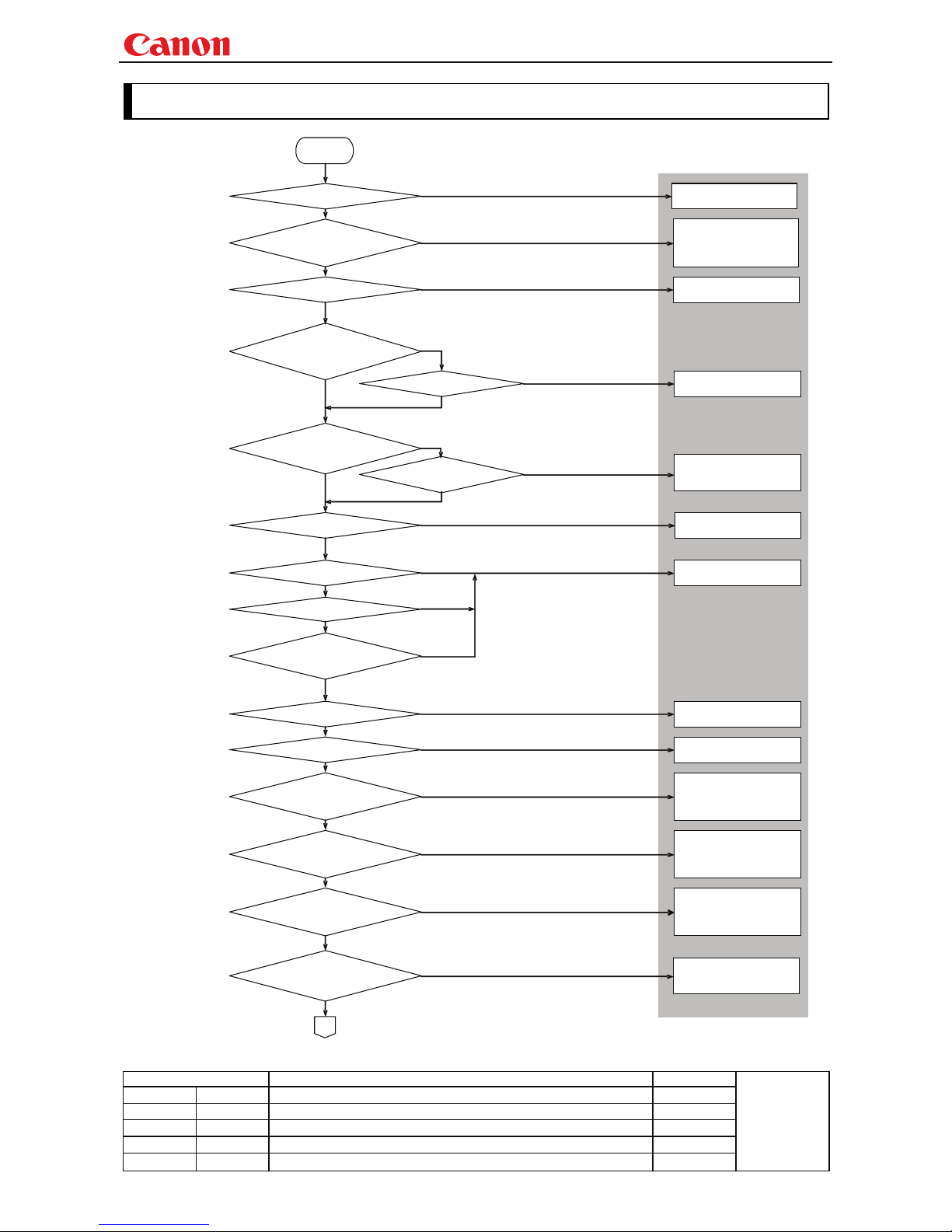
Projector WUX10 MarkII User Commands
- 83 -
Revision History / Date Changes Revised by
A
pp
roved b
y
8. Error Processing
YES
YES
YES
YES
YES
YES
YES
YES
YES
YES
YES
YES
YES
YES
YES
YES
YES
Error judgment
START
Invalid command format?
"INVALID_FORMAT"
Command executable while
power mode is OFF?
Power mode is "OFF"?
"NOT_POWER_SUPPLIED"
Internal processing in
progress?
"BUSY"
Processing user command?
"BAD_SEQUENCE"
Invalid (undefined)
command?
"INVALID_COMMAND"
Focus lens driving?
"BUSY (FOCUS)"
Zoom lens driving?
"BUSY (ZOOM)"
User image registration in
progress?
"BUSY (LOGO_CAPTURE)"
Command executable with
PMM?
Power mode is
"NOT_POWER_SUPPLIED"
Switching power modes?
"BUSY (POWER)"
Image mode switching in
progress?
"BUSY (IMAGE)"
Undefined parameter ID?
Incorrect parameter
number?
"INVALID_PARAMETER"
Invalid parameter type?
Signal setting (detection) in
progress?
"BUSY (NOW_SETTING)"
"PMM"?
Page 88
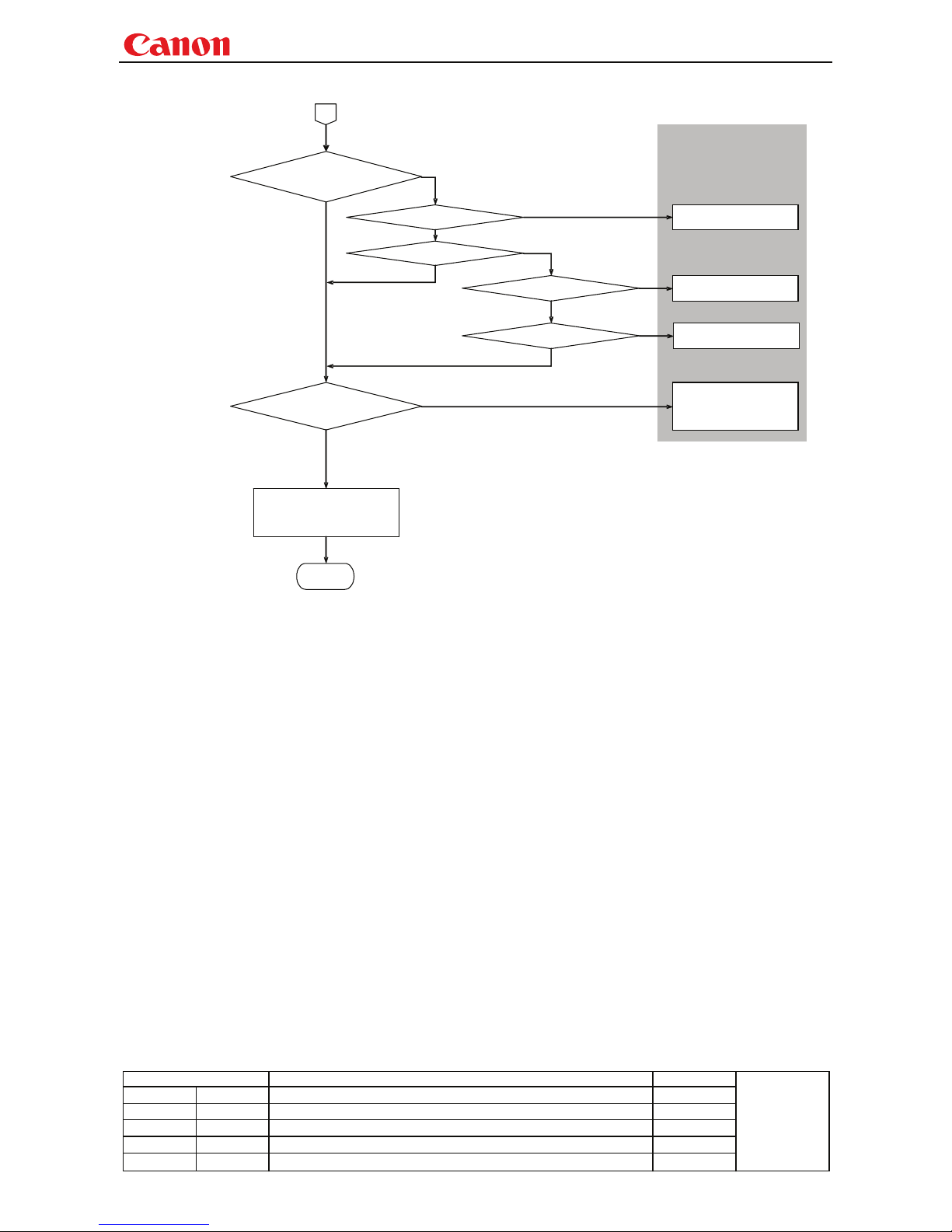
Projector WUX10 MarkII User Commands
- 84 -
Revision History / Date Changes Revised by
A
pp
roved b
y
YES
YES
YES
YES
NO
YES
YES
Incorrect input source?
"INVALID_SOURCE (**)"
Limitations in input source?
Requires input signal?
No input signal?
"NO_SIGNAL"
Numerical parameter
outside the specified range?
"INVALID_VALUE"
User command is executable
FINISHED
Invalid input signal?
"INVALID_SIGNAL (**)"
Page 89
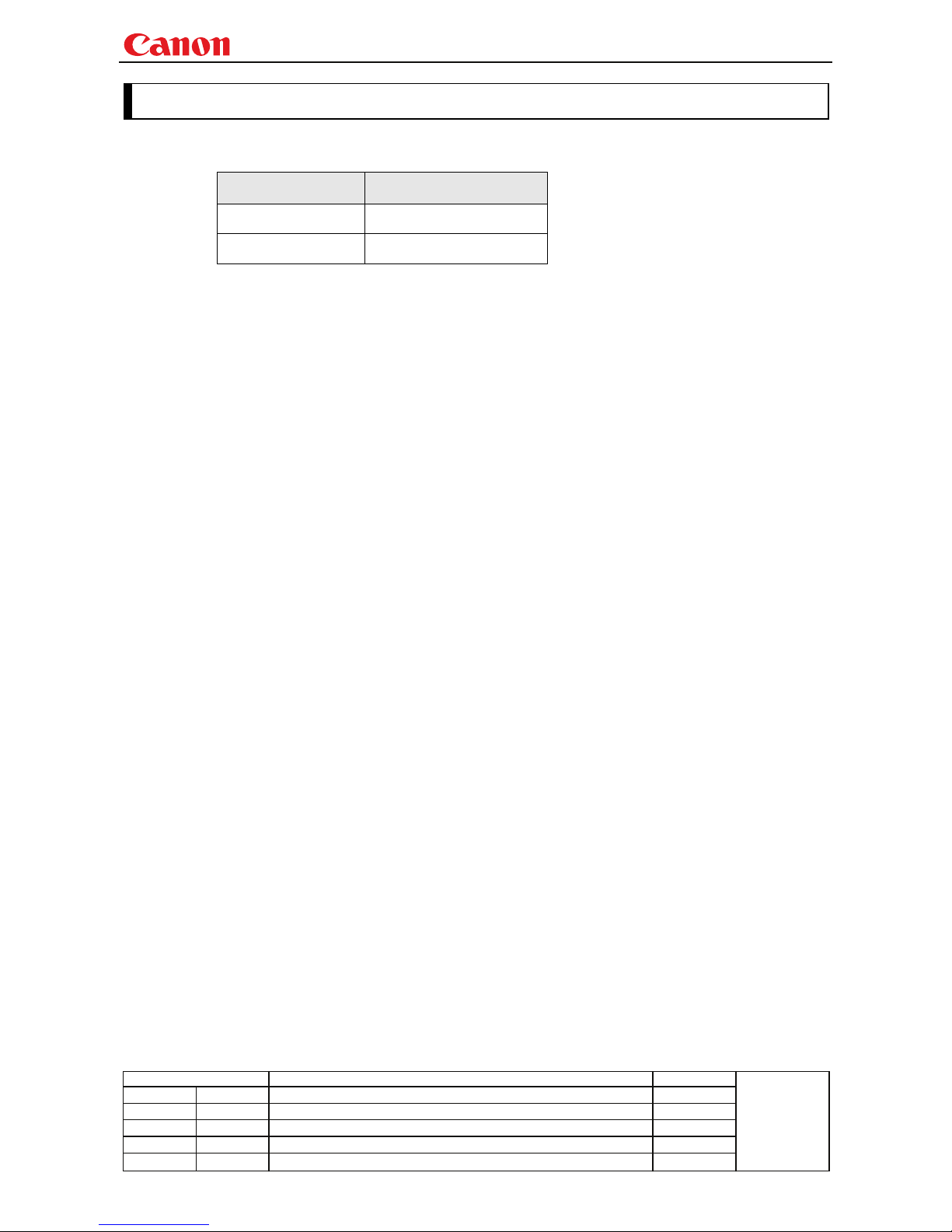
Projector WUX10 MarkII User Commands
- 85 -
Revision History / Date Changes Revised by
A
pp
roved b
y
9. Other
Use the remote control emulation function (RC command) for the following functions.
Function PC command parameter
Digital zoom DZOOM_P, DZOOM_M
Presentation timer P_TIMER
Page 90
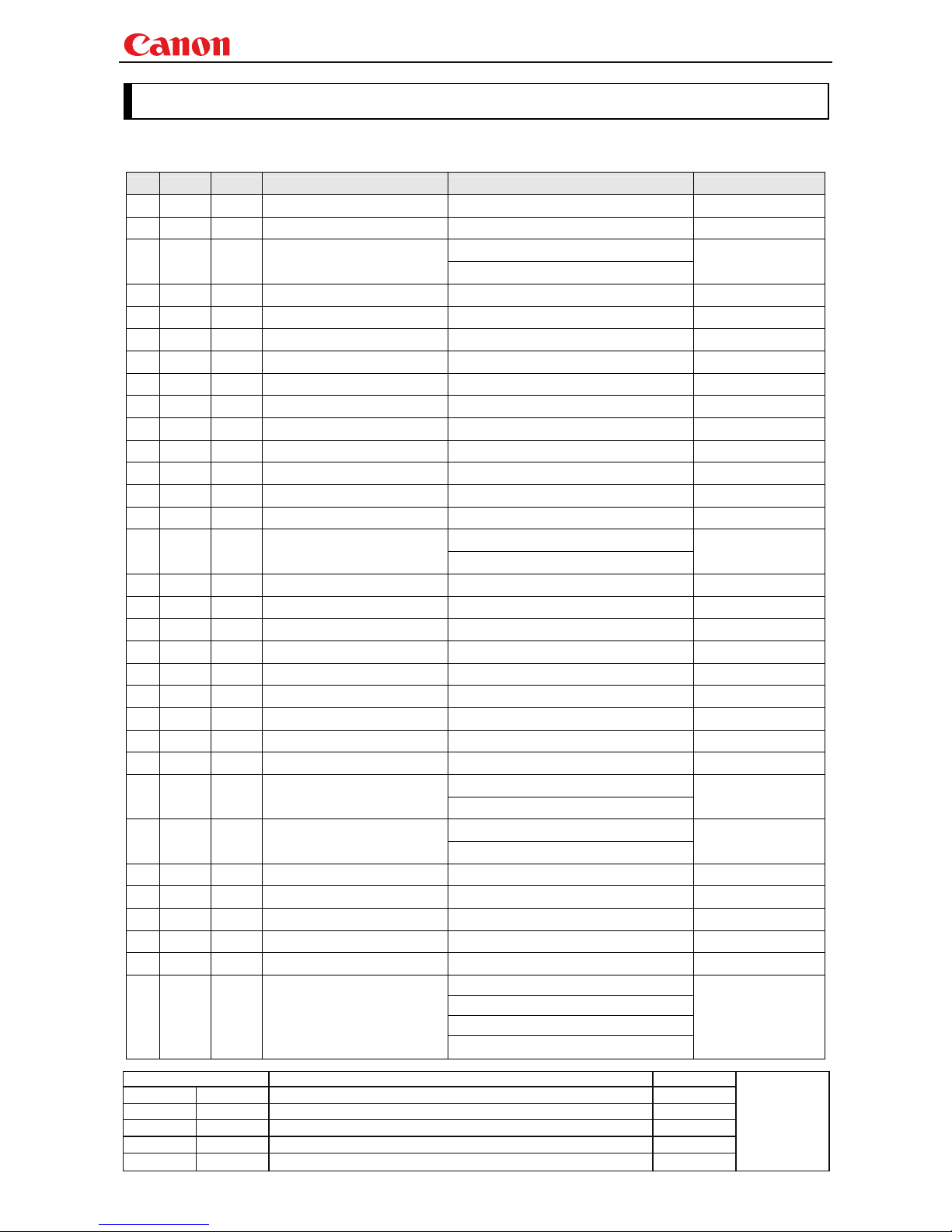
Projector WUX10 MarkII User Commands
- 86 -
Revision History / Date Changes Revised by
A
pp
roved b
y
Appendix 1. Reset Items
What is initialized by the "RESET" command is set forth in the table below.
ALL SYSTEM IMAGE Item Setting Reference command
●
Input source switching A-RGB1 INPUT
● ●
Screen aspect 4:3 SCRNASPECT
Video: 4:3
● ●
Aspect
Other: AUTO
ASPECT
● ●
HDMI overscan ON ------------
● ●
HDMI input level AUTO ------------
● ●
Input signal select AUTO SEL
● ●
Progressive 2 PROG
● ●
Menu display position Center ------------
● ●
Screen color correction NORMAL WB
● ●
〃adjustment values (R,G,B) 0, 0, 0 WBRGB
● ●
Flip display NONE IMAGEFLIP
● ●
No signal screen BLUE NOSIG
● ●
Screen when BLANK BLACK BLANKCOLOR
● ●
Startup screen CANON PJON
DICOM model: DCM_SIM
● ●
Image mode
Other: STANDARD
IMAGE
● ● ●
Brightness 0 BRI
● ● ●
Contrast 0 CONT
● ● ●
Sharpness 0 SHARP
● ● ●
Gamma 0 GAMMA
● ● ●
Saturation 0 SAT
● ● ●
Hue 0 HUE
● ● ●
Color temperature 0 ------------
● ● ●
RGB gain adjustment 0, 0, 0 RGBGAIN
● ● ●
RGB offset adjustment 0, 0, 0 RGBOFFSET
Video: WEAK
● ● ●
Dynamic gamma
Other: OFF
DGAMMA
IMAGE is PHOTO: MEDIUM
● ● ●
Flesh tone adjustment
Other: OFF
FTONEADJ
● ● ●
6-axis adjustment ON/OFF OFF 6AXADJ
● ● ●
6-axis adjustment (SAT, HUE) 0, 0 6AXR~Y
● ● ●
Ambient light type Fluorescent lamp ------------
● ● ●
Ambient light level Medium ------------
● ● ●
Lamp mode NORMAL LAMP
Auto focus: ON
Auto keystone: ON
Auto input: ON
● ●
Auto setup
Automatic screen color correction: OFF
------------
Page 91
Projector WUX10 MarkII User Commands
- 87 -
Revision History / Date Changes Revised by
A
pp
roved b
y
ALL SYSTEM IMAGE Item Setting Reference command
● ●
Power management OFF PMM
● ●
Direct power-on OFF DPON
● ●
BEEP sound 1 BVOL
● ●
Keylock OFF KEYLOCK
●
Language ENG LANG
● ●
Guide ON GUIDE
● ●
LED illumination ON LEDILLUMINATION
●
Remote control 1 RCCH
● ●
Menu display time Normal ------------
● ●
Password setting OFF ------------
● ●
Password character None ------------
●
Network function OFF ------------
● ●
Volume 10 AVOL
● ●
Vertical keystone 0 VKS
● ●
Digital image shift 0 ------------
● ●
Presentation timer OFF ------------
● ●
Mute OFF MUTE
● ●
Lamp ready indicator off flag OFF ------------
 Loading...