

Page 1

SMART HIFI WIRELESS
HEADPHONE WITH
TOUCH CONTROL
Headblue 1 INSTRUCTION
Page 2
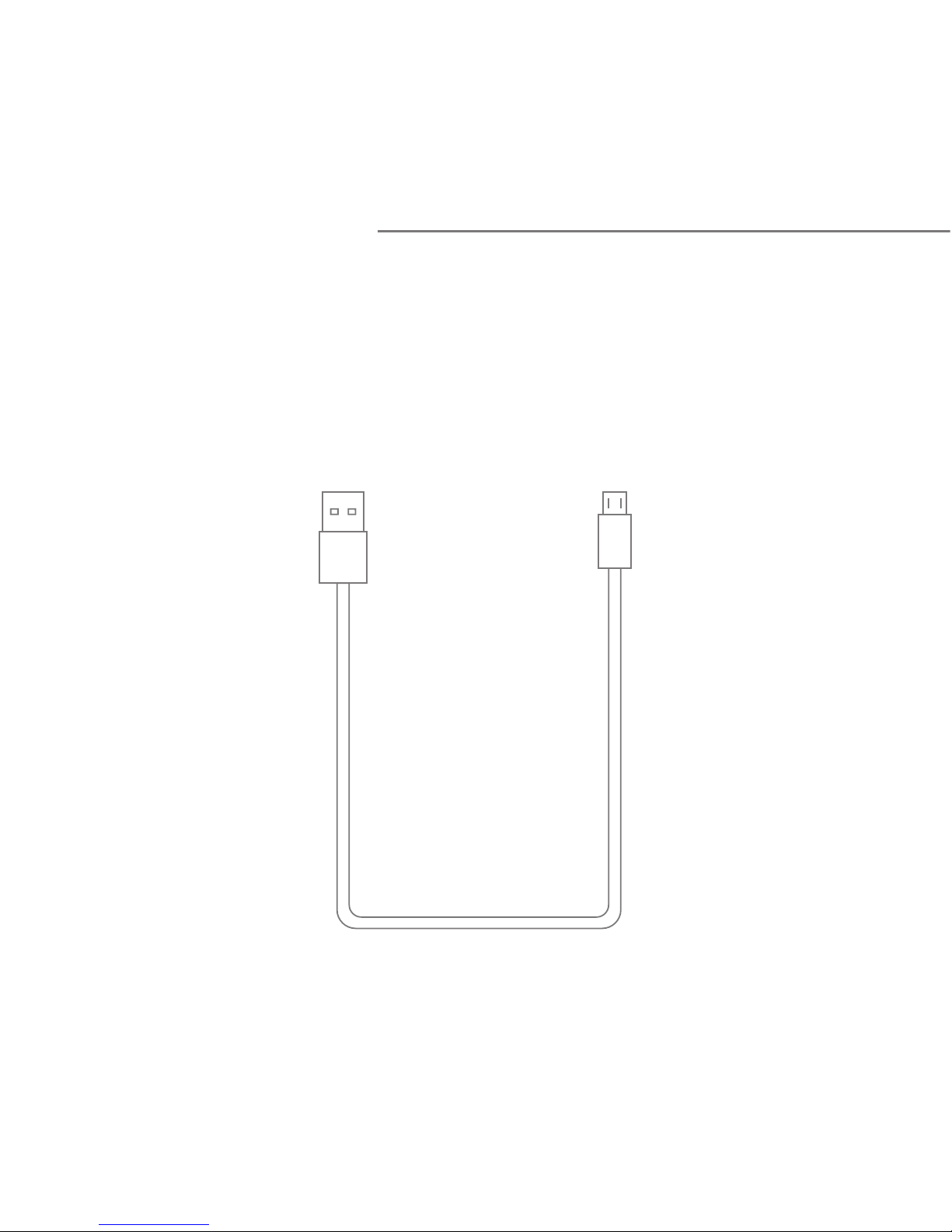
Following items are included
Start here
USB cable
Page 3
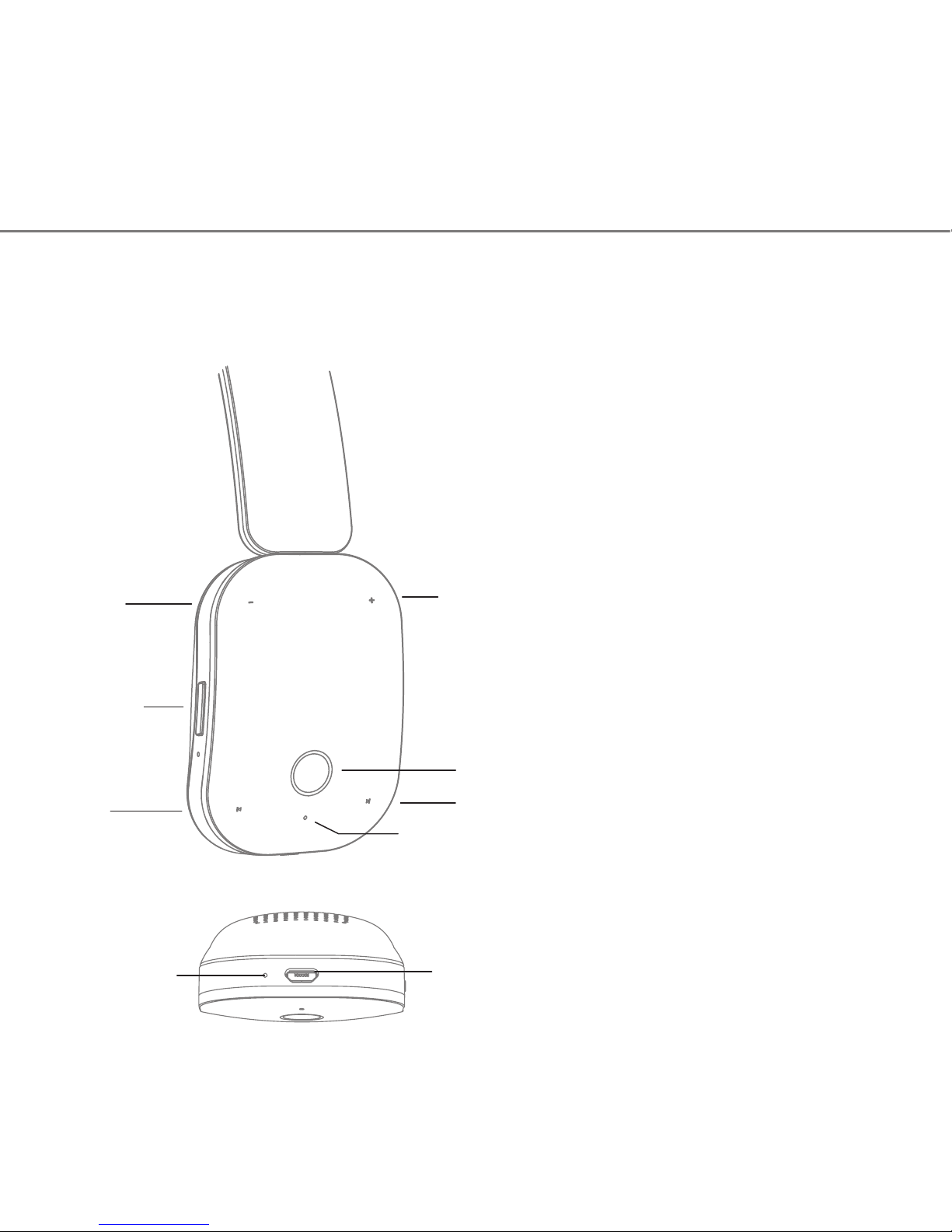
1
2
3
4
5
6
7
8
1.Volume down
2.Volume up
3.EQ button
4.Multifunction button
5.Trackback
6.Trackforward
7.LED indicator
8.Microphone
9.Charger connector
9
Product overview
Page 4

Basic operation
Adjust the volume
LED indicator and voice prompts
Instruction
Power on
Power off
Pairing
Standby
Incoming call
Battery low
LED status
Flashes blue twice
Flashes red once
Flashes red and blue alternately
Flashes blue once every 8 seconds
Flashes blue continuously
Flashes red twice every 2 seconds
Voice prompts
Beep
Tone from high to low
/
Continuous tone
Warning tone
Charging Flashes red while charging
Flashes blue once fully charged
/
Tone from low to high
Press the "+" or "-" button to turn volume up or down, you hear
beep voice prompts once reach the maximum or minimum.
Page 5
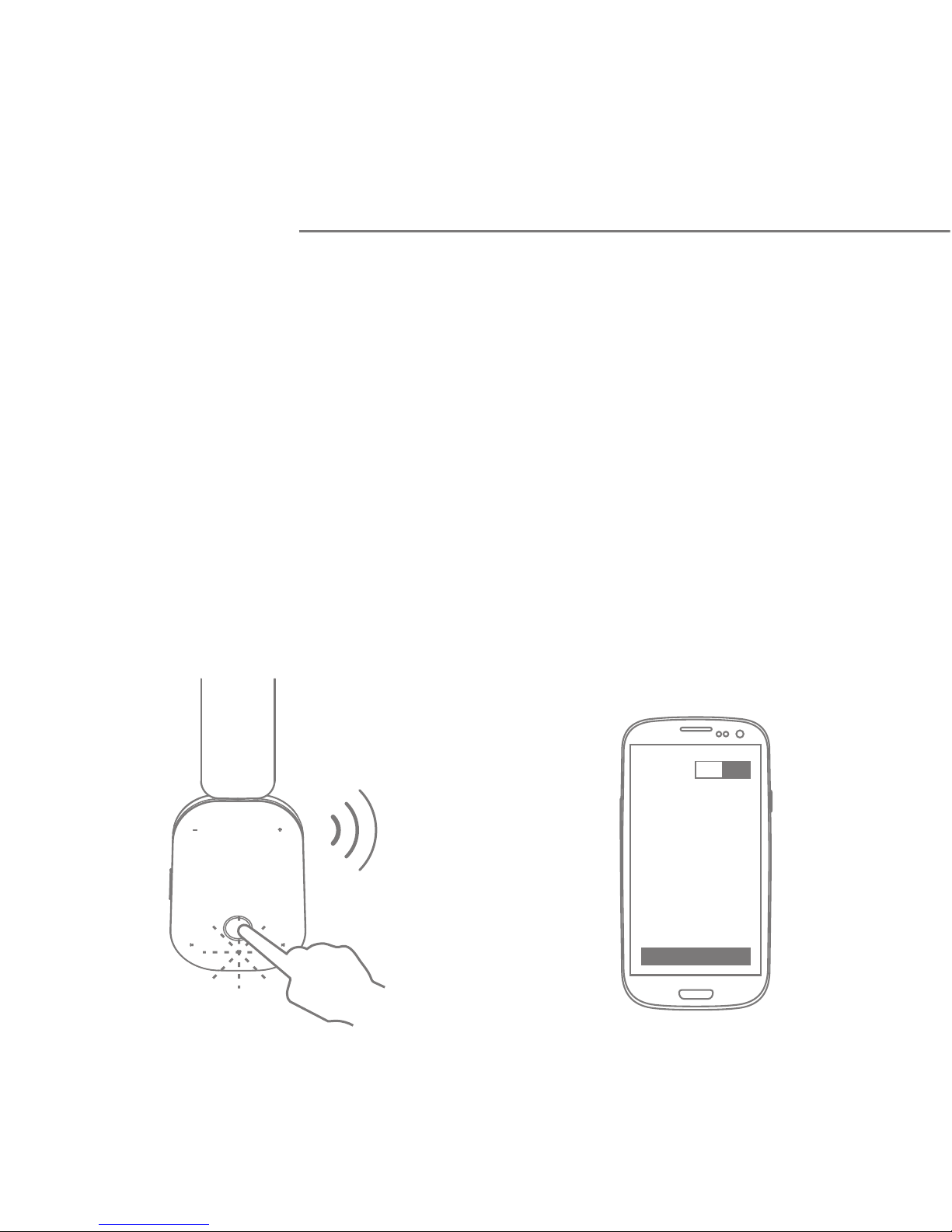
Pair one phone
1. Press and hold the multifunction button for about 5 seconds,
the LED indicator flashes red and blue, you hear voice prompt
tone from low to high.
2. Activate the Bluetooth feature on your phone, and set it to
search for new Bluetooth devices.
Pairing
Bl uet oot h
ON
Se arc h
Page 6
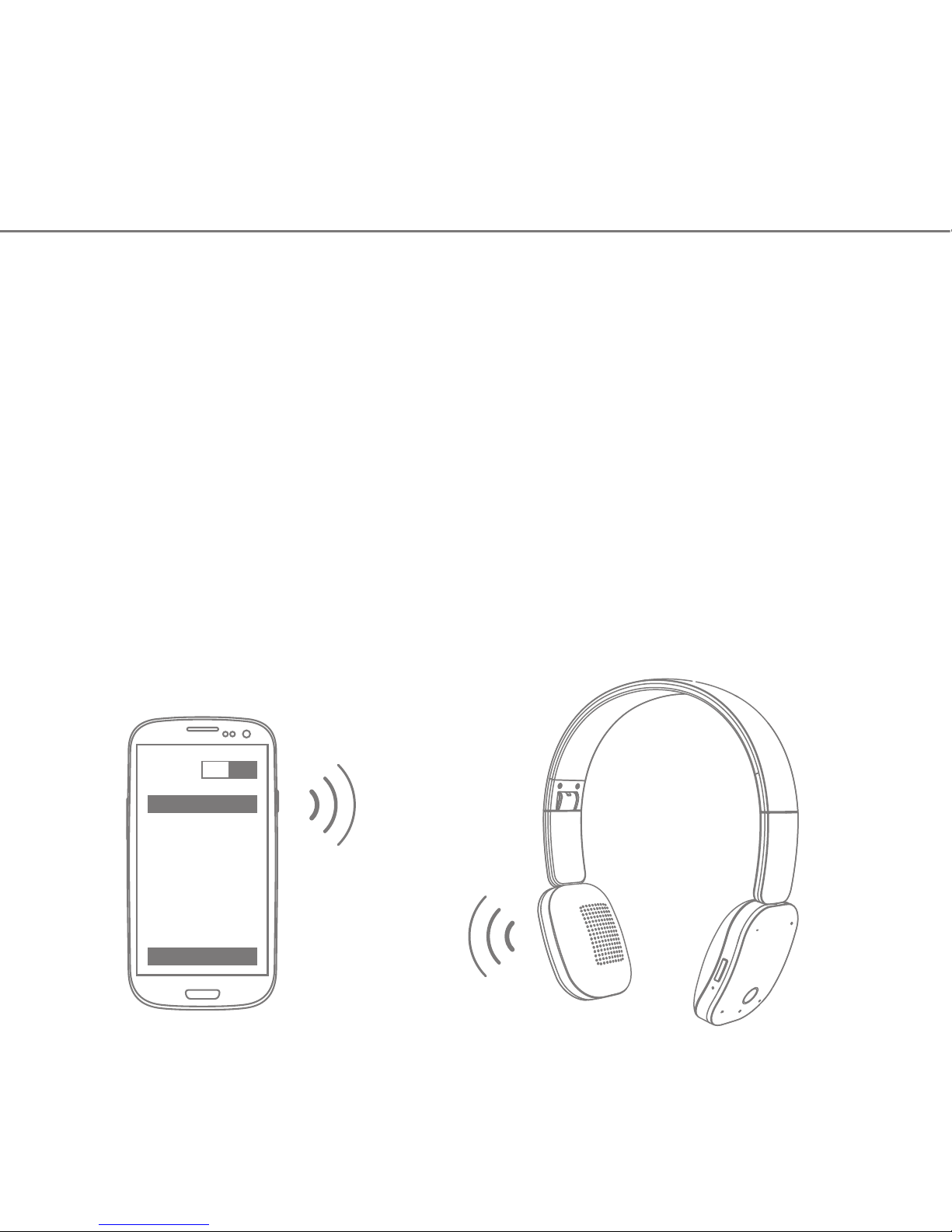
3. Select “Headblue1”. If you phone asks, enter 0000 (four
zeros) for the passcode or accept the connection. The LED
indicator stops flashing red and blue once successfully paired.
Note:When the headphone and phone have been paired once, they will
automatically connect when the headphone is on and Bluetooth is activated on
the phone.
Bl uet oot h
ON
Co nnect
He adblu e1
Page 7
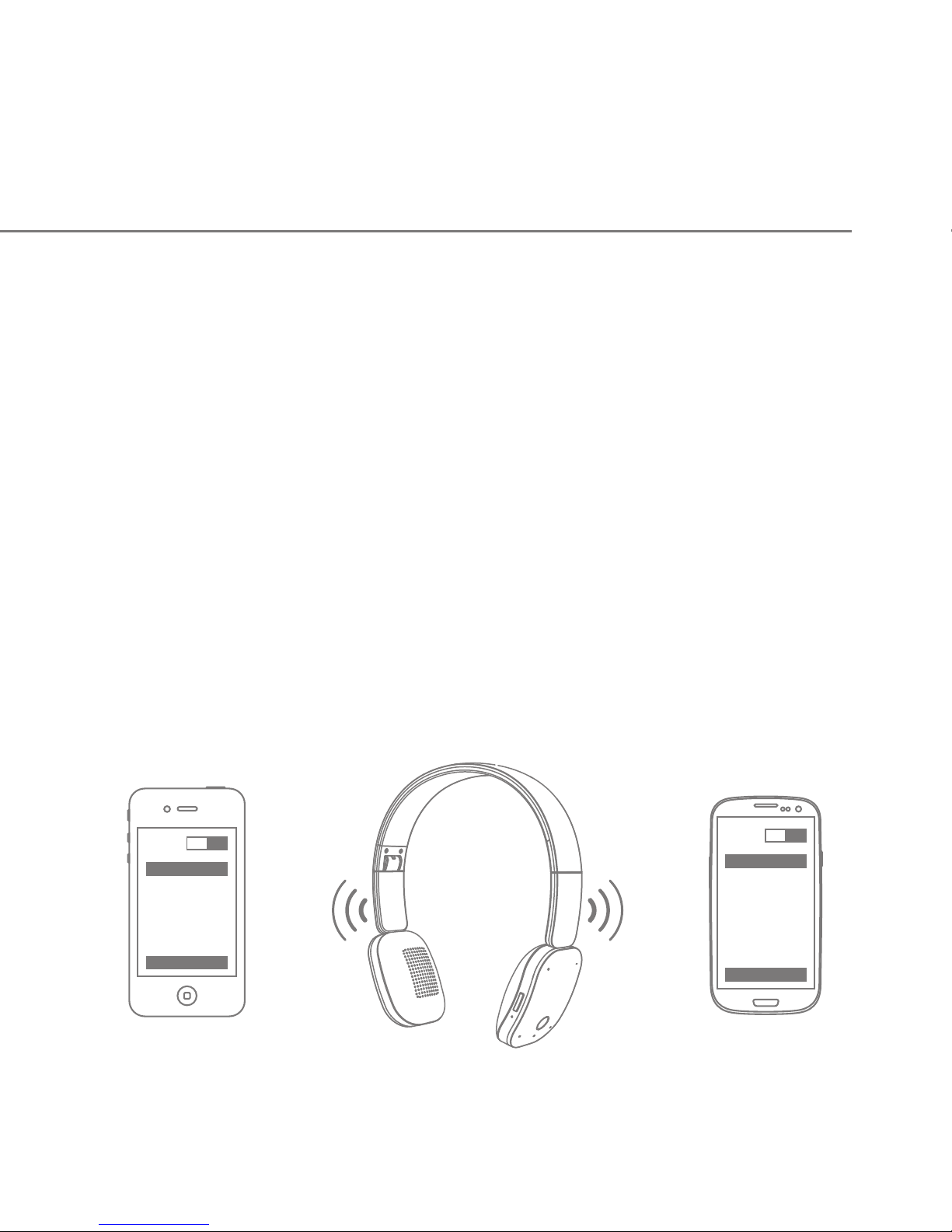
Pair another phone
Multipoint technology enables you to pair another phone and take
a call from either.
To pair with another mobile phone, follow the steps for “Pair One
Phone”. After pairing successfully, restart the headphone to
connect to 2 paired mobile phone automatically.
Bl uetoo th
ON
Co nne ct
He adbl ue1
Bl uetoo th
ON
Co nne ct
He adbl ue1
Page 8

Call
Answer a call
Press the multifunction button once.
When call rings,the LED indicator flashes blue continuously, you
hear voice prompt of continuous tone.
End a call
Press the multifunction button once.
Reject a call
Press the multifunction button for 2 seconds.
When call rings,the LED indicator flashes blue continuously, you
hear voice prompt of continuous tone.
Redial last call
Double-press the multifunction button, and the mobile phone
will redial the last call number.
Switch between the headphone and phone
Press the "<<" button for about 2 seconds to switch between
headphone and phone during a call.
Page 9

(Need media player support)
Music
Music play / pause
Press multifunction button to play / pause music. (Some phones
may require you to start a media player first), you hear "toot"
once.
Trackback
Press "<<" button to skip track backward, you hear "toot" once.
Trackforward
Press ">>" button to skip track forward, you hear "toot" once.
Fast forward
Press and hold “>>” button until fast-forward begins. When
you want to resume normal playback, release the “>>”
button.
Page 10

Rewind
Press and hold “<<” button until begins to rewind. When you
want to resume normal playback, release the “<<” button.
Switch music and calls
When a call rings during a music playing, the music
automatically pauses to allow you to answer or ignore the call.
Once the call is ignored or ends, the music is resumed.
EQ setting
Press the EQ button to cycle through EQ setting: original,
bass, treble, rock, pop.
Note: the default EQ setting is original, the EQ setting will be restored to
default once headphone restart.
Page 11
More features
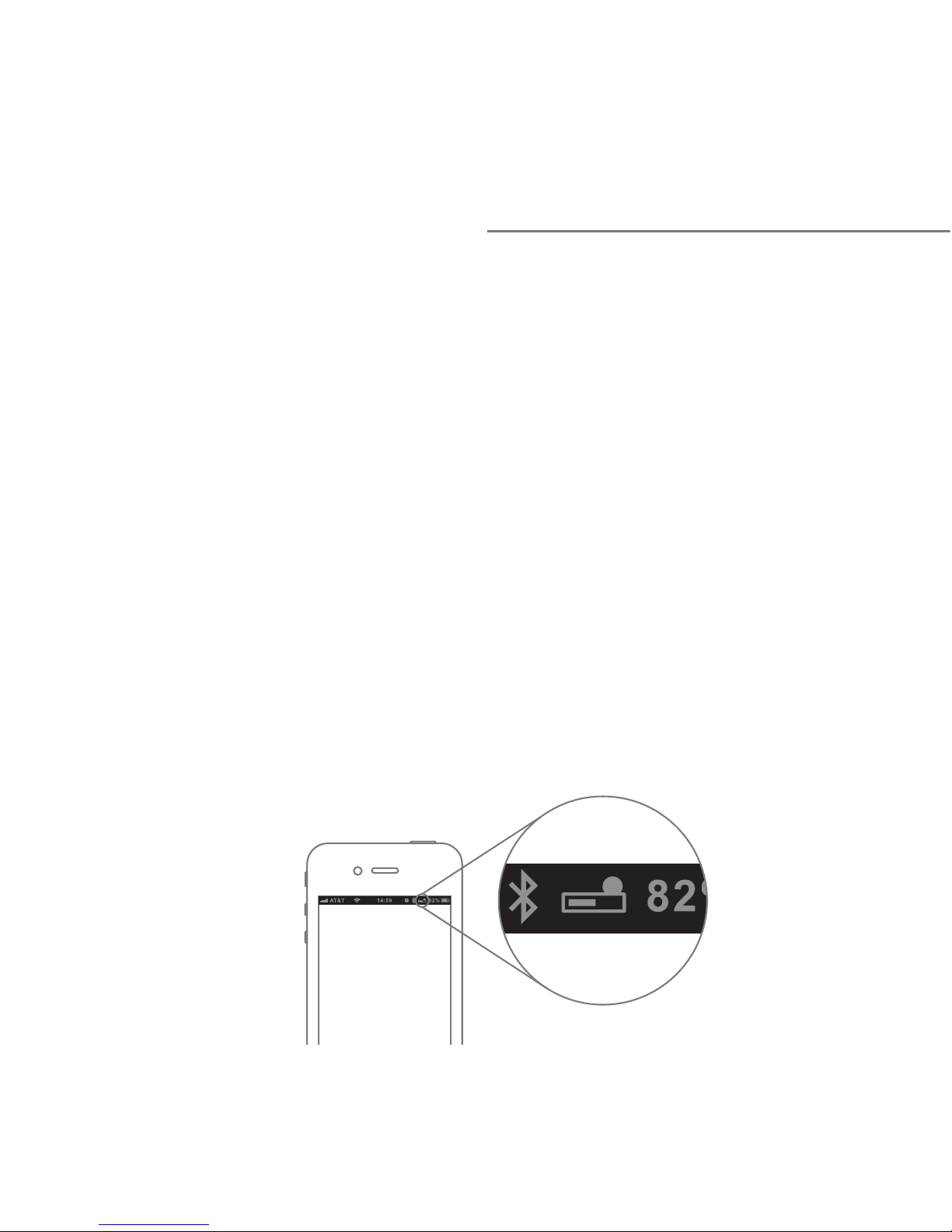
Battery indicator
The current battery status of headphone will be displayed in top
right corner after the headphone connected to iOS devices.
Voice dial (Need phone support.)
Press the multifunction button for 2 seconds, you hear "toot", wait
for phone prompt and then tell the phone to dial the name of a
stored contact.
Page 12
Listen music via USB cable
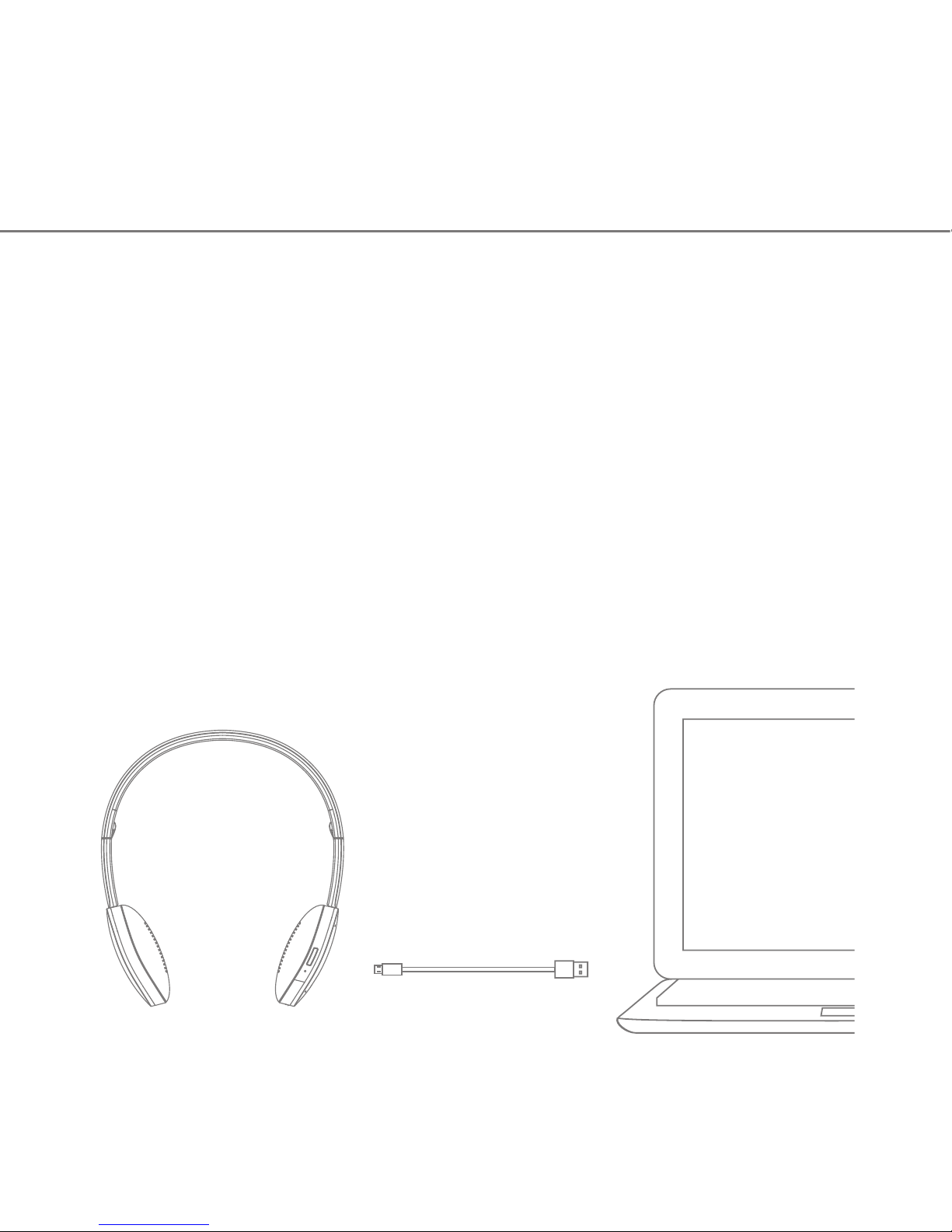
1. Connect the headset to a USB slot of PC using the supplied
micro-USB cable.
2. The driver may need to be installed for the first time, after the
driver installed successfully, sets “headphones CSR8645” as
default playback device (Refer to Computer OS instruction).
3. Turn on the music player on your computer, and then you enjoy
music of computer via your headphone.
(Microphone is disabled in this mode)
Page 13
Charging
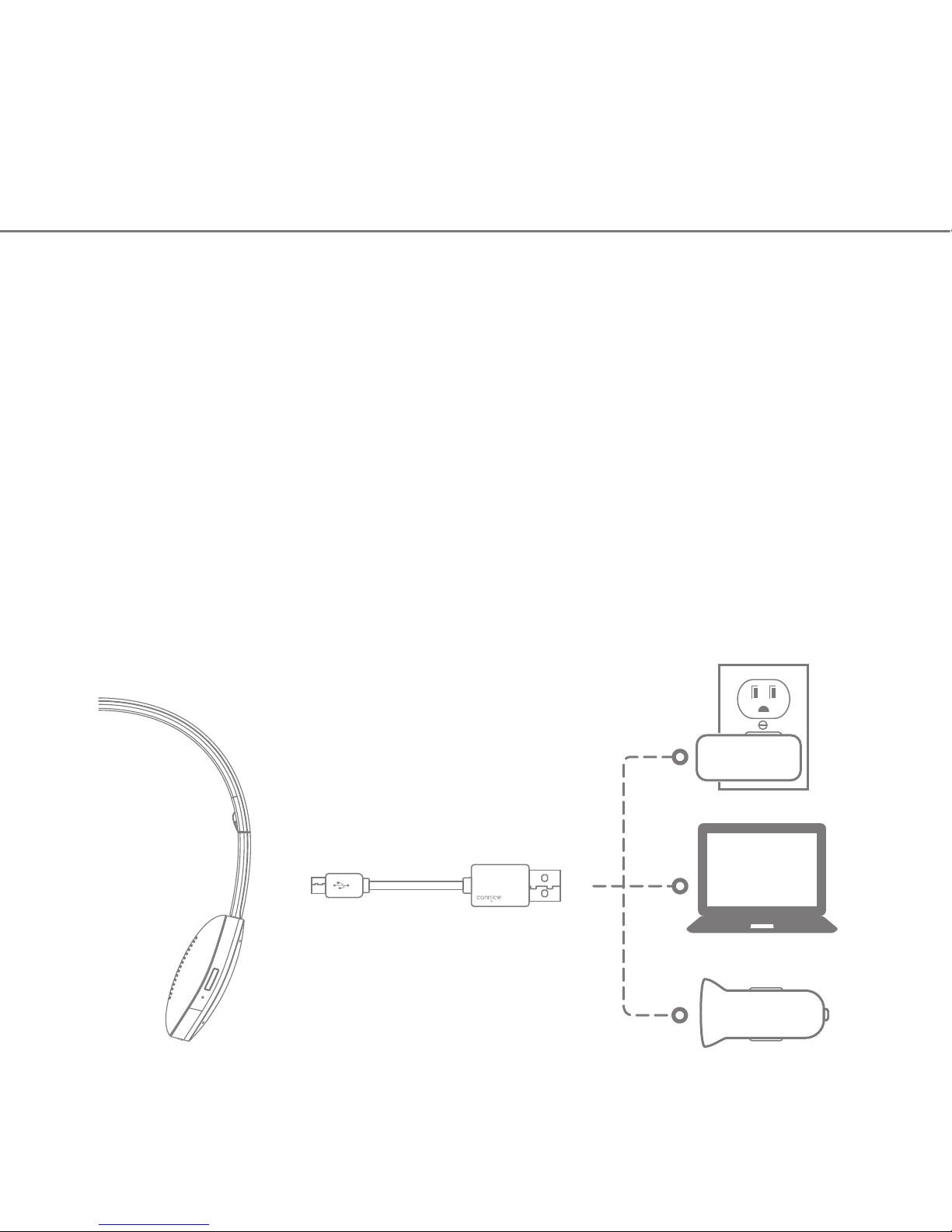
Your new headphone has enough power to pair and make a few
calls.
When battery is low, you will hear the warning tone. It takes 2.5
hours to fully charge the headphone. While charging, the battery
indicator light is red, the indicator light flashes blue once charging
is complete.
Note: The lifetime of the battery will be significantly reduced if your headphone
is left uncharged for a long period. We recommend that recharge your
headphone at least once a month.
Page 14

Clear paired list
Turn off the headphone, press and hold the multifunction button
and EQ button simultaneously, then connect the headphone to a
USB charger or USB port of computer, LED indicator flashes red,
release multifunction button and EQ button after 4 seconds,
paired list is cleared.
Hardware reset
Turn on the headphone, press and hold the multifunction button,
connect the headphone to a USB charger or USB port of
computer, the LED indicator flashes red, hardware reset is done in
about 2 seconds.
 Loading...