

Page 1
BLUE MIRROR
Notice 1
You are cautioned that changes or modications not expressly approved by the
party responsible for compliance could void the us er authority to operate the
equipment.
Notice 2
This equipment has been tested and found to comply with the limits for a Class B
digital device, pursuant to part 15 of the FCC rules. These limits are designed to
provide reasonable protection against harmful interference in a residential instal-
lation. This equipment generates, uses and can radiate radio frequency energy
and, if not installed and used in accordance with the instructions, may cau se
harmful interference to radio communications.
This equipment complies with FCC radiation exposure limits set forth for an un-
controlled environment. End users must follow the specic operating instructions
for satisfying RF exposure compliance. This transmitter must not be co-located or
operating in conjunction with any other antenna or transmitter.
User Manual
Bluetooth Handsfree Car Kit
With Caller ID Display & Phonebook
Installation (Multi-point)
For Model BTHF010D
V4.0
Page 2

Contents
Overview.................................................
Use in car................................................
Detach / Insert the headset.....................
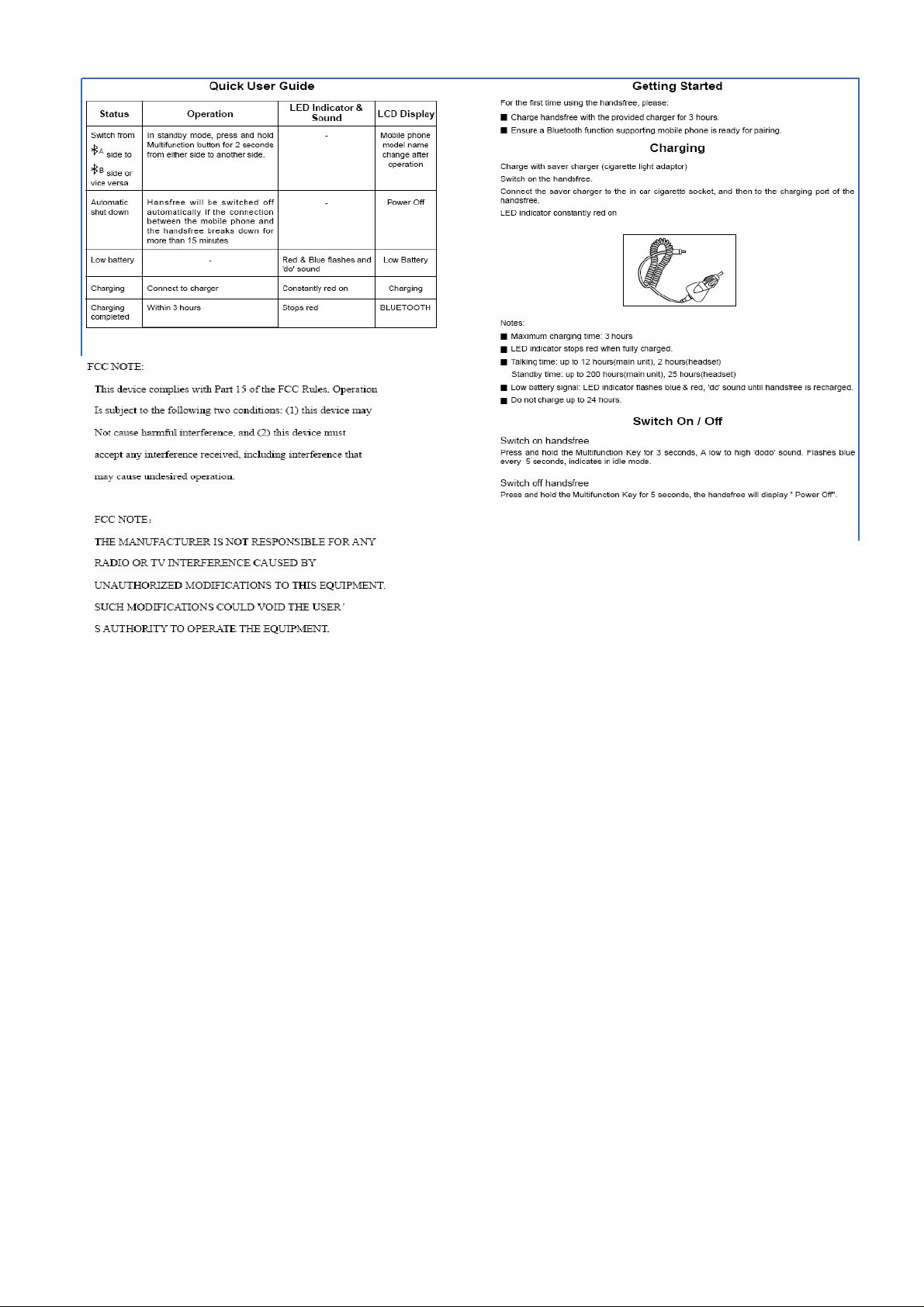
Quick User Guide....................................
Getting Started........................................
Charging..................................................
Switching On / Off....................................
Pairing with a phone................................
Connect / Reconnect to phone................
Handsfree functions................................
Phonebook..............................................
Care and maintenance............................
Specication............................................
FCC Notice..............................................
3
4
5
6-8
9
9
9
10
11
11-12
13-14
15
15
16
Care and Maintenance
g
Check the laws and regulations on the use of mobile phones and handsfree equipment in
the area where you drive.
g
Always give full attention to driving. In some areas, you are required to pull off the road and
park before making or answering a call.
g
Do not expose the handsfree to extreme temperature or direct sunlight.
g
Do not expose it to moisture or humidity. Keep it away from any liquid or chemicals.
g
Do not keep the device in dusty or dirty area. Only use a soft damp cloth to clean it.
g
Do not attempt to disassemble the handsfree and the chargers.
g
Do not try to replace the rechargeable battery inside the handsfree.
g
Charge the handsfree only with the supplied charger.
g
Travel charger can only be used indoor under normal temperature and humidity.
Specication
Bluetooth Specication
Bluetooth Prole Supported
Frequency Range
Working Distance Range
Dimensions (main unit)
Weight
LCD Display
Phonebook
DSP
Pairing
Charging Time
Talking Time
Standby Time
Rechargeable Battery
Battery Protection
Input Current
Input Voltage
Speaker Power
Speaker Impedance
Sensitivity of Microphone
: Version 2.0 compliant
: Headset and Handsfree Proles
: 2.4 GHz spectrum
: 10 Meters (class 2)
: 280(L) x 85(W) x 22(T) mm
: 340 g (main unit), 9.8g (headset)
: Do t matrix rol lin g displa y, bat ter y status ico n,
backlight
: Blue toot h wire less download, stor es up to 250
records.
: Full duplex transmission, noise suppression and
echo cancellation.
: Memorize up to 8 mobile phones simultaneously.
: Within 3 hours
: Up to 12 hours(main unit), 2 hours (headset)
: Up to 200 hours(main unit), 20 hours(headset)
: Lithium-ion, 3.7V, 950 mAh installed(main unit)
Lithium-ion, 3.7V, 90 mAh installed(headset)
: Over charge and over discharge protection
: 400 mA (internal controlled)
: DC 5V
: 2W (max)
: 4 ohm
: -60dB
Page 3
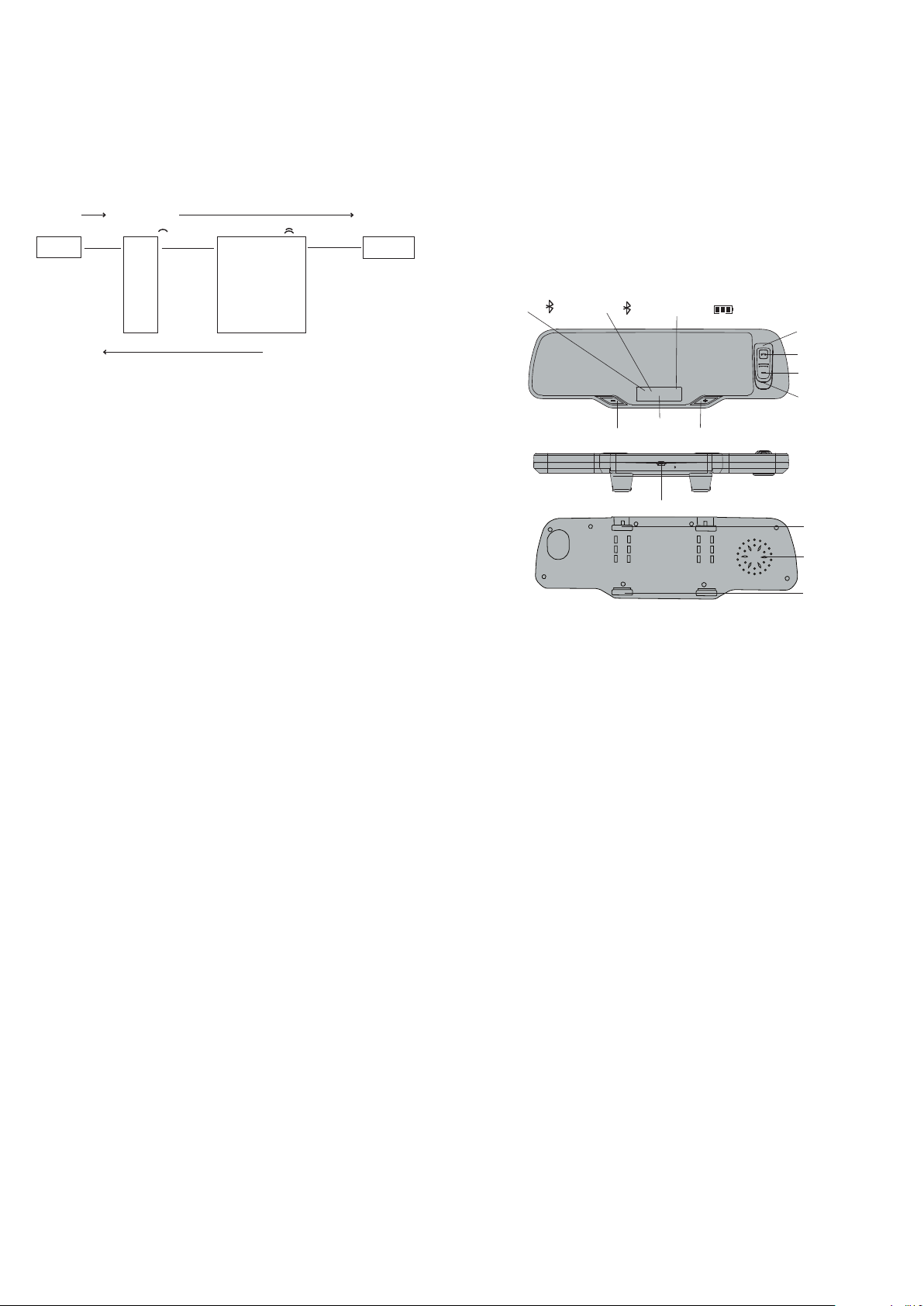
Check records / Dial from phonebook
1. In stand by mode, press & hold ‘Volume -’ button for 2 seconds to enter phonebook menu.
2. LCD displays letter 'A'. Thi s i s t he 1st level of the menu, click ‘Volume +’ or ‘Volume -’ to move
to other letters. T he phoneboo k records of the 1st lett er of the names are list ed from A to Z in
alphabetical order. Other symbols are listed in '['.
3. Click Multifunction Key once to enter the desired letter. This is the 2nd level of the menu. The name
under the letter and the corresponding number will be shown. Click ‘Volume +’ or ‘Volume -’ to move
to other names.
4. Click Multifunction Key once to make a call.
Menu Structure
Press & hold Click Multifunction Key once
Volume for 2 sec.
Bluetooth
st
1
Level 2nd Level
A
B Alex 23456789
C Andy 34567890
D Aron 45678901
. .
. .
Z .
[ Barry 56789012
Double click Multifunction Key
Ada 12345678 Make Call
Exit phonebook
Double click Multifunction Key to go back to the pervious menu level or exit the menu.
(When there is an incoming call or making connection/disconnection with phone, the phone
book menu will be exited automatically.)
Erase all phonebook records
1. Disconnect the phone with BTHF010D.
2. Click together the volume ' + ' and ' - ' bottons once.
3. BTHF010D displays 'Erase?'. Press ' + ' to erase. Press ' - ' to leave.
Overview
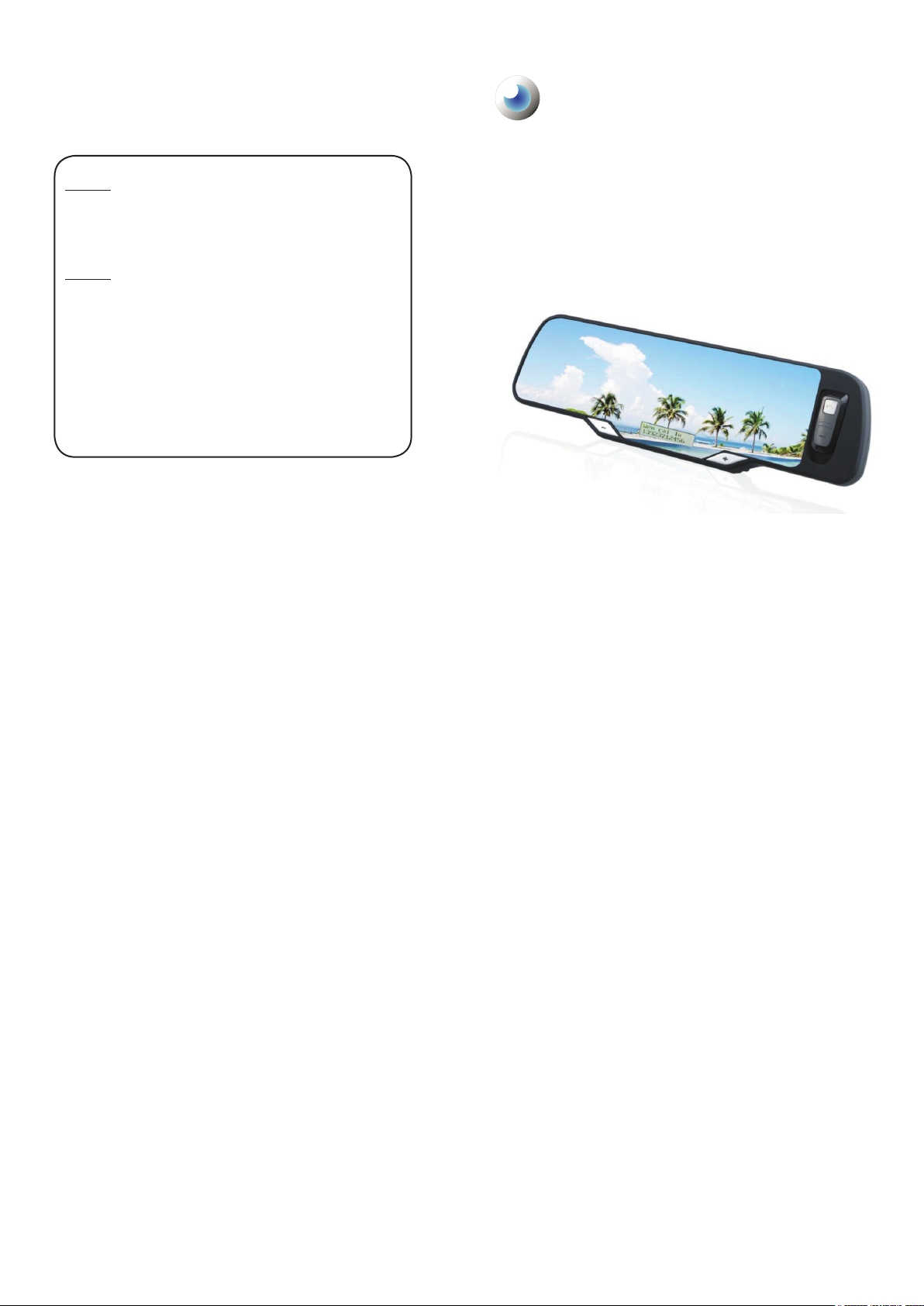
Bluetooth Handsfree Car Kit with Caller ID Display & Phonebook (Multi-point)
Tha nk yo u for sele ct in g BTHF010 D Blue to oth hands fr ee ca r kit. It is a rech argea bl e
speakerphone which is easy to operate in car. It is specially designed for connecting Bluetooth
compatible mobile phones without wires in car. No matter if the car is switched on or not, you
can enjoy the freedom of wireless communication. No power connection or connection to the
mobile phone is required. Using the single-button control of the handsfree, you can make and
answer calls without touching the phone. You can even leave the phone in pocket or anywhere
insi de the car. Wit h bu ilt- in DSP cir cui t, echo and back gro und noise are can cell ed and
suppressed effectively. Thus providing clear sound and high quality conversation even in noisy
environment.
This handsfree car kit is speciall y designed for Bluetooth mobile phones or other Bluetooth
compatible devices that support the Handsfree or Headset proles.
The Bluetooth wireless technology is a worldwide specication for a small form-factor, low-cost
and short-range (about 10 meters) radio solution providing links between mobile computers,
mobile phones, other portable and handheld devices and connectivity to the internet.
Bluetooth icon
A
Bluetooth icon
Model BTHF010D
Battery icon status
B
LCD display
Volume upVolume down
Charging port
Detachable headset
Multifunction Key
LED indicator
microphone
extensible clip
Speaker
inextensible clip
14
3
Page 4
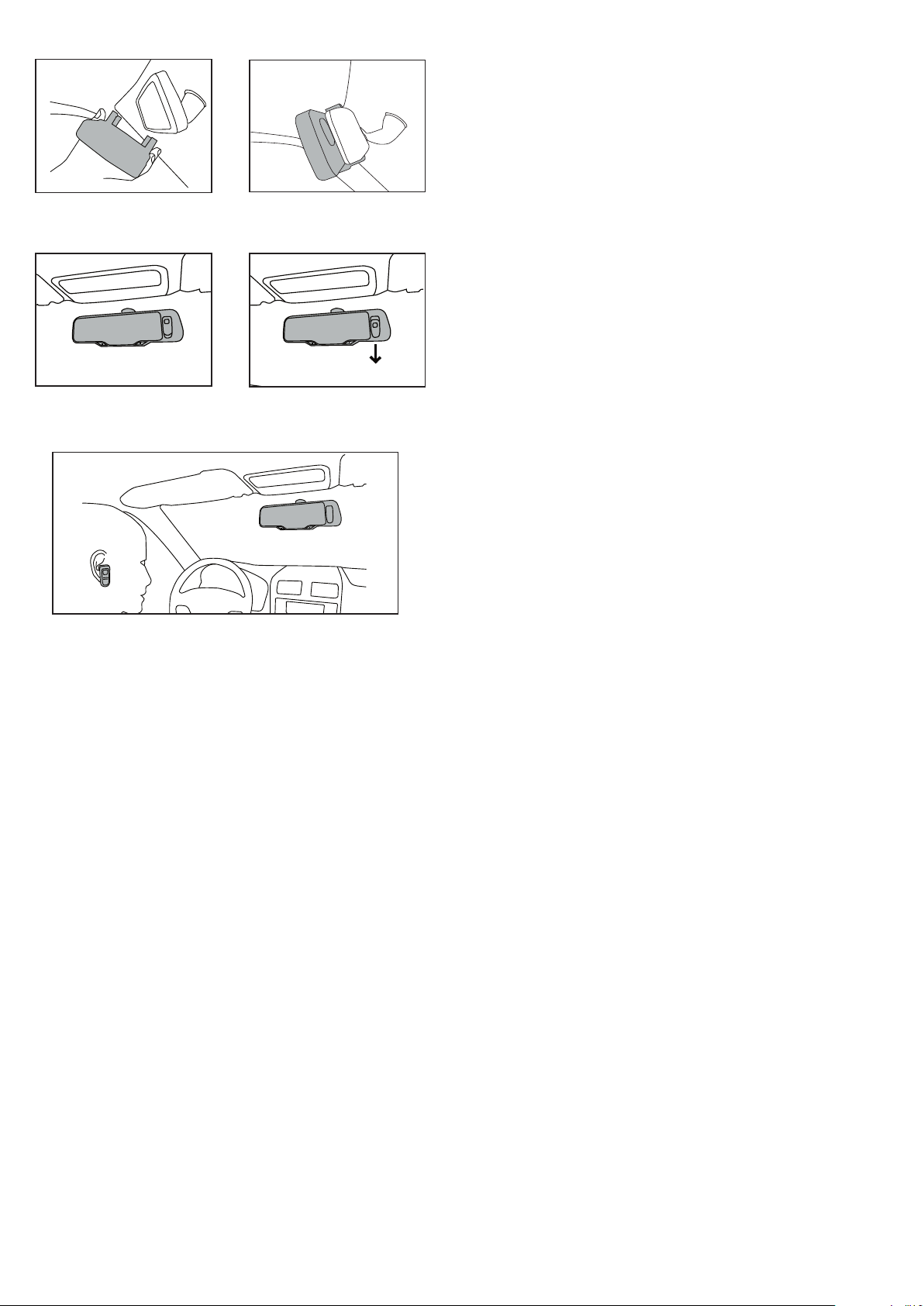
Use in car
1
1. Fix the back of handsfree onto the front
of car rear view mirror as shown.
3
3. Switch on the hand sfree by pressing
and holding Mult ifunc ti on Key for 3
seconds.
2
2. Ma ke su re the han ds fr ee is tigh tl y
attached with the car rear view mirror.
4
4. For private conver sation and headset
usi ng , pull th e head set towar ds the
direction as shown.
Phonebook
You can wirelessl y transfe r your phonebo ok record s from you r ph one to the memo ry of
BTHF010D. In the phonebook menu, you can check the contact name and number and then
dial out directl y. When there is an incoming call and the nu mber matches the ph onebook
record, BTHF010D will show the caller name on the LCD.
Transfer phonebook records
You can transfer a single record or all the records from the phone at one time. Some phone
models support single record transfer only. The following are the general operating steps for
reference. For details, please refer to the user manual of the phone.
Phonebook User Guide
1. Pair and connect BTHF010D with your Bluetooth enabled mobile phone.
2. Disconnect the phone with BTHF010D.
3. Find the target name contact(s) from contact list in your moblie phone.
4. *Select ‘Send Business Card' / 'Send Contact' / Or 'Send All' via Bluetooth.
5. Select HF010D from the Bluetooth device list.
6. BTHF010D will display the name contact(s) you send, and automatically store the
name contact(s) into handsfree memory (If you do not have more name contact(s) to send,
the last send contact name will stay on the screen for 5 seconds then LCD will show
'BLUETOOTH'.
* May various to different model of mobile phones.
Note:
g
When the memory (250 records) is full, BTHF010D will not receive any exceed records.
g
Do not put punctuations for the rst letter of the contact names such as "." ";" "\" because
they would stop the record transfer process.
g
Some phone models do not support transferring records from SIM card directly. In such
case, copy records from SIM card to phone rst.
g
Don't press any button of BTHF010D during the record transfer process. It will cancel the
process.
5
4 13
5. You can now enjoy handsfree conversation both inside and outside the car.
Page 5
Voice dial
Mute microphone
Adjust volume
Privacy
Disconnect with mobile
Shut down automatically
* Functions ‘Re dia l the la st numbe r’ , ‘Call waiti ng’ and ‘Call transfer’ are suppor ted by
Handsfree Prole instead of Headset Prole. For using those functions, please check if the
mobile phone supports Handsfree Prole.
*
Function ‘Volume Level ’ is available if the phone supports ‘Remote Volume Control’.
In standby mode, press Multifunc tion Key once. You will hear a
tone from the handsfree. It indicates the mobile phone is ready to
receive voice tag. Speak the name of the person you wish to call.
Then the mobile starts the voice dial automatically.
(Ensure the mobile phone supports Voice Control Dialing before
use.)
To temporarily mute the microphone, click together the volume ‘+’
and ‘-’ buttons once. This will allow you to hear the other side but
the other side does not hear you. Press ‘+’ and ‘-’ again for un-
mute.
Press ‘+’ or ‘-’ button to control volume up or down. LCD displays
the volume level.
De ta ch t he heads et fro m the car ki t to init iat e the pri va te
conversation function.
In standby mode, press & hold the ‘+’ for 2 seconds. This function
is for connecting the handsfree to another mobile.
To reconnect to the phone, click Multifunction Key once.
Hansfree carkit will be switched off automatically if the connection
between the mobile phone and t he handsfree breaks down for
more than 15 minutes.
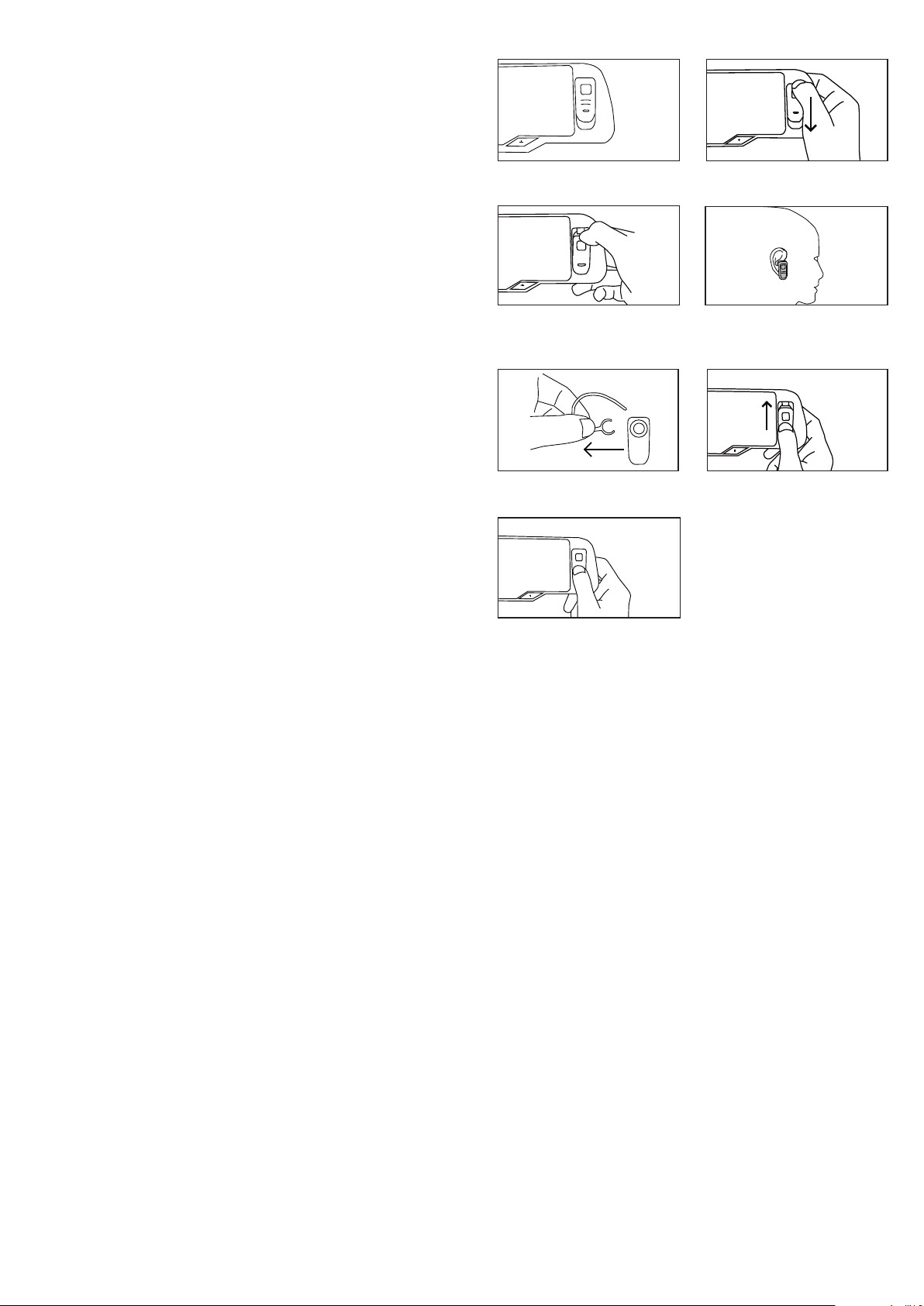
Detach the headset
1 2
1. Headset is connected to handsfree main
unit.
3 4
3. Headset is loosen from handsfree main
unit, LCD display turned off.
Insert the headset
1 2
1. Pull the earhook out from the headset as
shown.
2. Pla ce thumb at the l ocati on as sh own
and pull the head se t in th e dire ct ion
indicated.
4. Att ach the earhook to the headset and
headset can be used.
2. Put heaset in the slot. Place the thumb
at the headset as picture show and push
the direction as indicated
* Afte r taki ng the hea ds et o ut of the
handsfree.Please insert the headset after
10 se co nd s, othe rw is e the ha nd sf re e
12
3. LCD d ispl ay turned on a nd handsfre e
can be used in car.
3
dysfunction and required to be turned off
and on.
5
Page 6

Status Operation
Switch On
Switch Off
Connect /
Reconnect in
A
side
(with paired
phone)
Connect /
Reconnect in
B
side
(with paired
phone)
Pairing
(for the
rst time
using the
handsfree)
Press and hold t he Multif unction
Key for 3 seconds to turn on the
unit.
Press and hold t he Multif unction
Key for 5 seconds.
In idle mode, press Multifunction
Key once
OR
Sel ec t pair ed de vi ce 'H F0 10D '
on mobile phone, and then select
'Connect'.
In idle mode, press Volume Key '-'
twice
OR
Press and hold t he Multif unction
Key for 2 seconds, Ha nd sf re e
di sp la y 'B LUET OO TH '. Sel ec t
paired device 'HF010D' on mobile
phone, and then select 'Connect'.
1. Switch on the handsfree.
2. Enable Bluetooth feature of the
mobile phone.
3. In the Blue tooth menu, select
'add device' or 'search device'.
4. 'HF010D' appears in the device
list, press 'yes'.
5. Ente r fixed pa ss key '000 0'.
Pairing completes.
6. Edit the devic e name if you
would like to personalize it.
Quick User Guide
LED Indicator &
A low to high 'dodo' sou-
nd. Flashe s blue every
5 seconds, indicates in
idle mode.
LED indicator goes off
F l a s h e s b lu e ev er y
5 se con ds in dic ate s
se arc h in g f or p air e d
devices. If connected to
mobile with Hand sfre e
Profile, blue always o n
in dic a tes i n sta ndb y
mode.
Fl a sh e s gr ee n ev ery
5 se con ds in dic ate s
se arc h in g f or p air e d
devices. If connected to
mobile with Hand sfre e
Prof il e, green al wa ys
on indicates in standby
mode.
Fl as he s blu e eve ry 5
seco nd s, indic at es in
idle mode.
I f c o nn e ct e d w i t h
Handsfree P role, blue
alwa ys on i ndic ates in
standby mode.
Sound
LCD Display
HF010D
>
BLUETOOTH
Power Off
BLUETOOTH
>
Connecting
>
Display
A
BLUETOOTH
>
Connecting
>
Display
B
BLUETOOTH
>
Connecting
>
Mobile phone
model name
,
Display
A
Connect / Reconnect to phone
After the handsfree is switched on, it is in idle mode. It is waiting to be paired or connnected by
mobile phone. The LED indicator ashes blue every 5 seconds indicates this mode. When the
handsfree and the device are disconnected, the handsfree will return back to idle mode.
To connect with phone
EITHER
To connect with paired phone or reconnect with previously connected phone, click Multifunction
Key once. The handsfree will search and connect to the phone nearby automatically. (The LED
indicator ashes blue every second indicates the searching mode. The searching may last for
1/2 minute. If no phone can be found, the handsfree will return to idle mode.)
OR
To connect with the handsfree through the phone, in the setting menu of the phone , select
‘HF010D’ from ‘Paired Device’. Select ‘connect’ and the phone will connect to the handsfree.
Handsfree Functions
Receive call
Reject call
End call
Transfer to phone
(call transfer)
Redial the last number
When han dsfr ee is ring ing , press Multifu ncti on Key onc e to
receive the call.
When hand sfree is ringi ng, press Multifunct ion Key twi ce to
reject the call.
During a call, press Multifunction Key once.
During a call, press & hold Multifunction Key for 2 seconds.
To tr ansf er back to handsfr ee, press Multifu ncti on Key for 2
seconds again.
In standby mode, press Multifunction Key twice. The last number
will be redialed.
6
11
Page 7

Pairing with a phone
Before using the handsfree, you must pair it with the mobile phone rst. Once the handsfree
and the phone has paired. they store the ID of each other. Thus they can connect each other
automati cally. You can check, delete or ren ame the paired device in the devices list of the
mobile phone.
1. Place the Bluetooth handsfree and the Bluetooth mobile phone within a distance of 1 meter.
2. Swit ch on the Blueto oth mobile phon e and enable Bluetooth feature.* If the phone has
'Prole' options, you are recommended to select 'Handsfree Pr ole' rather than 'Headset
Prole'
3. Turn on the handsfree. The LED indicator ashes blue every 5 seconds indicates it is in idle
mode.
4. On the Bluetooth mobile, searching for device, 'HF010D' will appear in the device list.
5. Select dev ice 'HF010D ' and enter fixed pass key '0000'. Pairing comp leted. The LED
indi cat or turns bl ue stead ily ind ica tes the handsfree is co nne cte d to t he phone wi th
Handsfree Prole.
6. Make sure the paired mobile has returned to main menu.
7. T he volume is automatically set to middle level. For best performance, press '+' or '-' to
adjust a suitable volume level.
To pair and connect a second mobile phone
With one phone already paired and connected,
1. Press the multi-function button for 2 to 3 seconds until ‘BL UETOOT H’ appea rs on the
display.
2. Search for Bluetooth devices from your second phone.
3. Select ‘HF010D’ from the list.
4. Enter the pairing code 0000 when prompted.
5. You should now be paired and connected. The Bluetooth name of your phone should
appear on the LCD screen. The LED indicator turns green steadily indicates the handsfree
is connected to the phone with Handsfree Prole.
Check if the mo bile displ ays any m essa ge or ico n which ind icate s the conne cting stat us.
After pairing completed, some phones automatically connect to handsfree immediately. Some
phones keep waiting for builting up the connection manually. In this case, press Multifunction
Key once, BTHF010D will connect to the phone. Or you can select 'HF010D' from the "Paired
Device' of the phone. the phone will connect to the handsfree. Please refer to your phone's user
manual.
* ‘Handsfree Profile’ supp orts ‘Voice di al’, ‘Redial the last number’, ‘Call waiting’ and ‘Call
transfer’ functions. If the mobile phone only supports ‘Headset Prole’, those functions are
not available.
10
Status Operation
Pairing for
the second
phone
Receive Call
Reject Call
End Call
Transfer to
phone
Redial last
number
Voice dial
Mute
microphone
Adjust
Volume
Disconnect
with mobile
1 . Pr es s th e m u l ti - f un c t io n
button for 2 to 3 seconds until
‘BLUETOOTH’ appears on the
display.
2. Search for B luet ooth dev ices
from your second phone.
3. Select ‘HF010D’ from the list.
4. Ente r fixed pass key '000 0'.
Pairing completes.
5. Edit the devi ce nam e if yo u
would like to personalize it.
When handsfree is ringing, press
Multifunction Key once.
When handsfree is ringing, press
Multifunction Key twice.
During a call, press Multifun ction
Key once.
Dur i n g a ca ll , pr es s & h o l d
Multifu nction Key for 3 seconds.
To tran sfer back, sele ct function
key on mobile phone.
In st an db y mod e, pres s Mul ti -
function Key twice.
In st an db y mod e, pres s Mul ti -
function Key once.
Dur ing a c all , click togeth er '+ '
and '-' buttons once. Click again
for un-mute.
Click '+' or '-' button to control the
volume up or down.
Pres s & h old '+' for 2 second s.
To re con nec t to ph one , cli ck
Multifunction Key once.
LED Indicator &
Sound
Flash es green every 5
se co nd s, indi ca te s in
idle mode.
I f c o nn e ct e d w i th
H a nd sf re e P r of il e,
g r e e n a l w a y s o n
in dic ate s in st and by
mode.
-
-
-
-
-
A tone from the handsfree indicates the phone
is ready to receive voice
tag.
(You can sti ll hear the
other side.)
-
-
LCD Display
BLUETOOTH
>
Connecting
>
Mobile phone
model name
,
Display
B
A
Call number
>
Active Call
Reject
Mobile phone
model name
-
Redial
>
Dialing
Voice Call
>
Dialing
MUTE MIC /
UNMUTE MIC
VOL
BLUETOOTH
7
Page 8
 Loading...