

Page 1

User%Manual%
Page 2

Camdata&©&(&Version&1.0&
May&11,&2011&
Table of Contents
Page
Front cover 1
Table of Contents 2
1.1 Introduction 3
2.1 Installation 4
3.1 Using the MeLock 4
4.1 Positioning the Devices 4
5.1 Calibration 5
6.1 LED indicator 5
7.1 Diagrams 6
8.1 Specifications 6
9.1 Resetting the device 7
10.1 Troubleshooting 7
11.1 Warranty 8
12.1 Camdata information 8
Page 3
Camdata&©&(&Version&1.0&
May&11,&2011&
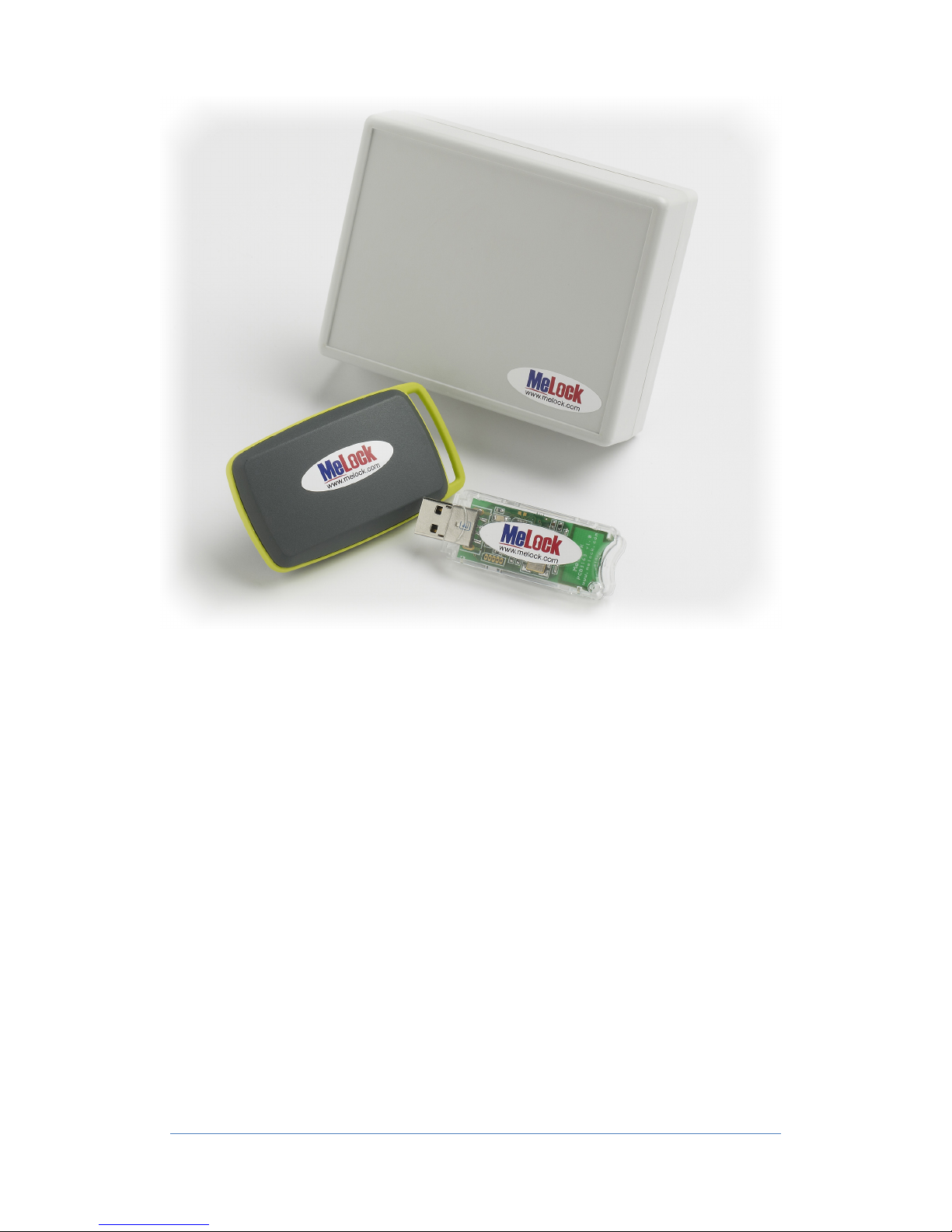
The MeLock is a device, which automatically locks a PC
when the operator moves away from it. It consists of a
USB stick, which is plugged into the PC, and a battery
powered activator which is worn by the operator.
1.1 Introduction
The MeLock USB stick appears to the PC as a USB keyboard.
The MeLock and activator communicate with each other using the 868MHz radio
band, which does not need a license.
When the operator has been sitting at the PC for more than about 30seconds the
MeLock and activator 'Pair' with each other.
If the operator moves away from the PC, the pair is broken and the MeLock will
send the Windows Lock key codes (windows key + L key) to the PC, which causes
the Windows log in screen to be displayed.
Page 4
Camdata&©&(&Version&1.0&
May&11,&2011&
2.1 Installation:
I. Plug the MeLock (figure 3.1) into a free USB port in the workstation.
II. If necessary use the bundled USB extension lead to allow placement of
the MeLock closer to the user. (e.g. by the user's keyboard)
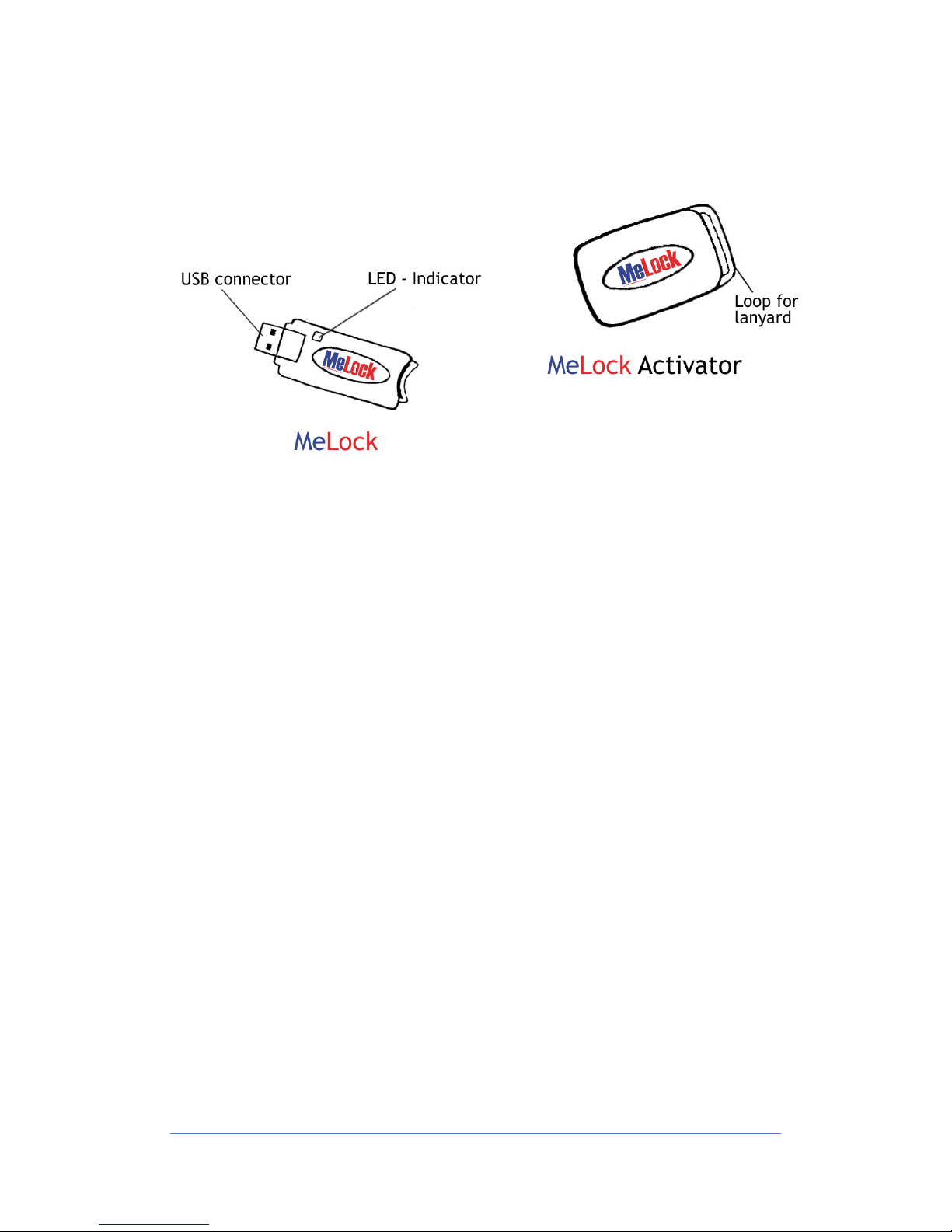
III. Please see the diagrams part 7.1 of the User manual.
3.1 Using MeLock:
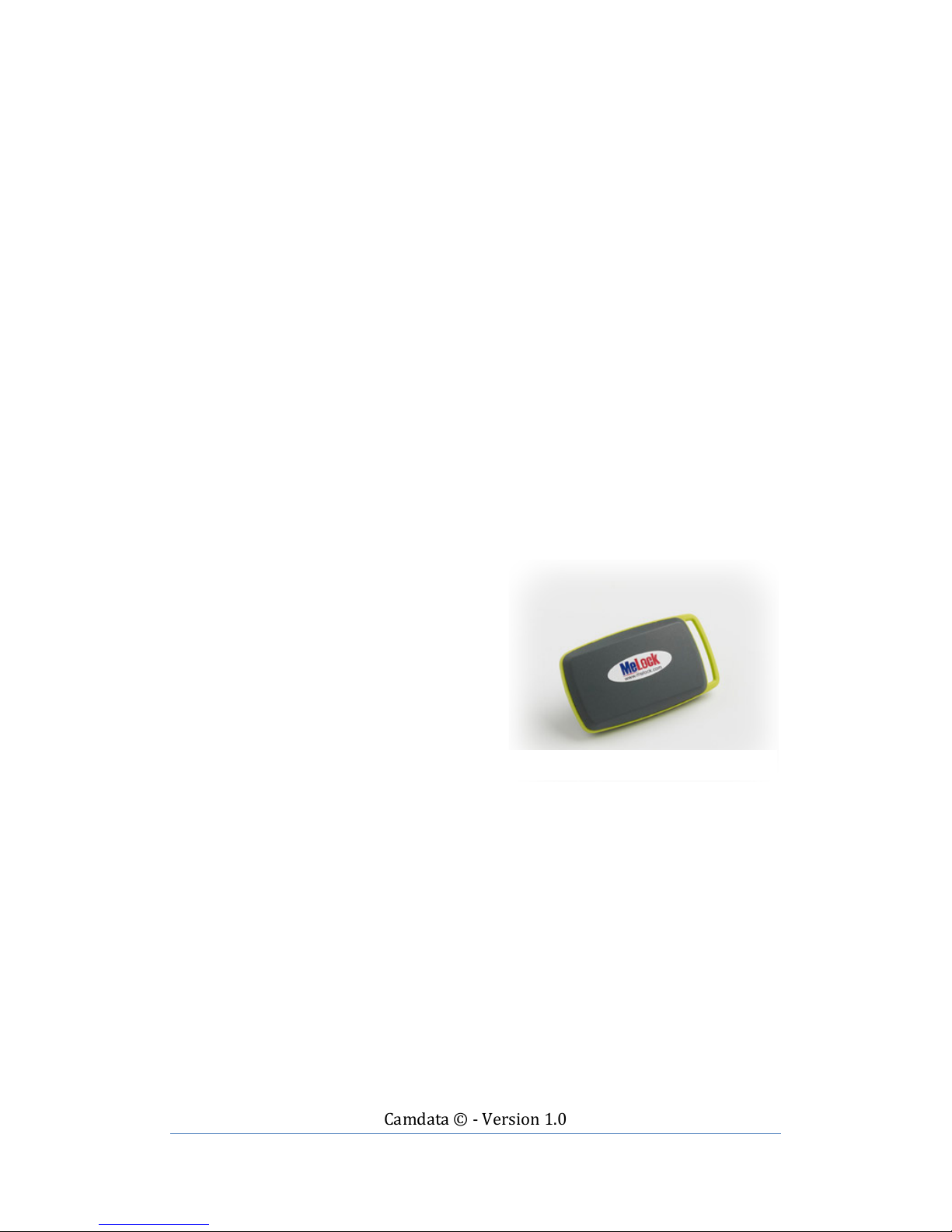
I. Place the Activator (figure 3.2 1) around neck.
II. When the operator has been sitting at the PC for more than about
30seconds the MeLock and activator 'Pair' with each other.
III. If the operator moves away from the PC, the pair is broken and the
MeLock will send the Windows Lock key codes (windows key + L key) to
the PC, which causes the Windows log in screen to be displayed.
IV. When the operator returns they will need to re-enter their password to
use the PC again. The MeLock and activator will re-pair after another
30seconds or so.
V. The MeLock will not pair with an
activator which is moving, or
which is lying horizontally.
VI. Once paired, the MeLock will also
lock the PC if the activator
remains stationary for a while.
The timeout for stationary is 1
minute if the activator is lying
flat, or 6 minutes for any other
orientation. If the activator is
stationary for more than 15
minutes it will enter a sleeping
mode, and may take up to 20s to wake up after being moved.
VII. To instantly lock the computer using MeLock then tap the activator while
moving, e.g. stand up and double tap the activator hanging around your
neck.
4.1 Positioning the MeLock & Activator
I. The MeLock will usually work best when positioned in front of the
operator. This could be fixed to the underside of the desk if desired.
Avoid placing the MeLock where it will be screened by the PC case (or
any other metal object).
II. The activator is best worn round the neck using the lanyard or slipped
into a top pocket.
III. It is advised that you do not place this in your trouser pocket.
IV. The MeLock will not operate properly if left stationary e.g. laying on a
desk or in a drawer.
Figure 3.2 1
Page 5
Camdata&©&(&Version&1.0&
May&11,&2011&
5.1 Calibration
The MeLock contains a feature to allow it to be re-calibrated to suit the situation in which
it is used. The default factory calibration should be suitable for most circumstances,
however if you feel that you have to move too far from the PC before it locks (or not far
enough) the calibration procedure is described below.
The MeLock must be paired with an activator before it can be calibrated.
Once paired (LED will be green) enter calibration mode by double tapping on the back of
the MeLock. The LED should now change to flashing green.
Wearing the activator, work normally (walking around if wanted) in the area where you
would like the MeLock to NOT lock the PC. After about 4 minutes the MeLock has
collected enough calibration data, so it stores the new values and returns to normal
mode. If communication with the activator fails during calibration then the MeLock
restores the factory default settings, and returns to normal operation. To cancel
calibration before it has finished, double tap the back.
To restore the factory settings double tap on the back of the MeLock while it is unpaired
(plug it in and double tap before it has had a chance to pair).
6.1 LED indicator
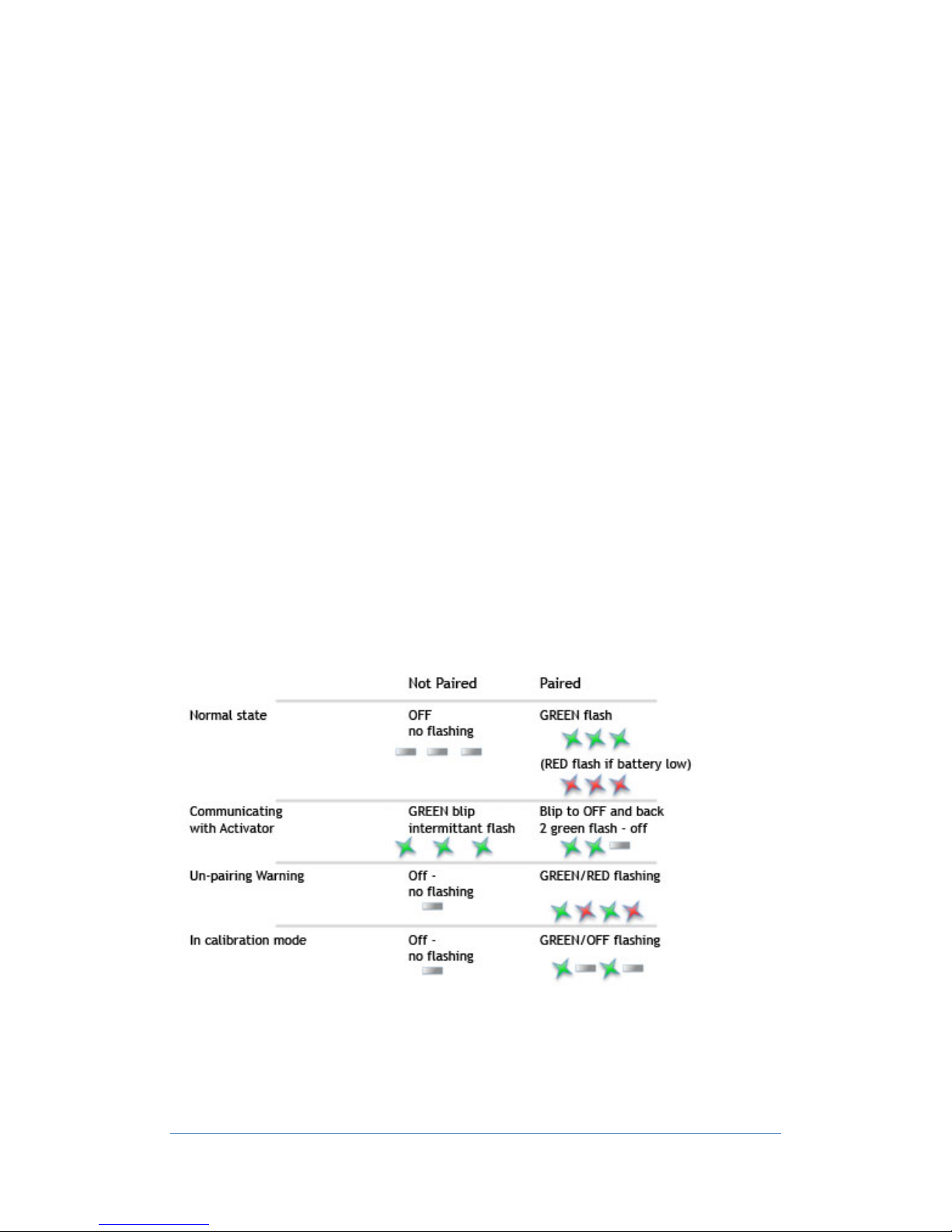
There is a red/green LED indicator on the MeLock USB stick.
When first plugged into the PC the LED will turn RED for about one second.
Otherwise the LED state is given in the following table:
In addition the LED will change from off to green (or on to off) when you
touch the capacitive switch on the back of the MeLock.
The un-pairing warning starts about 10 seconds before a normal un-pairing,
or about 20 seconds before a stationary un-pairing.
Page 6
Camdata&©&(&Version&1.0&
May&11,&2011&
7.1 Diagrams
8.1 Specifications
Frequencies
- We offer 868MHz and 915MHz for the British and American markets.
Range - Up to 10m
Dimensions
MeLock - 23x67x7 mm without cap 11g
Activator - 43x75x12 mm 48g
Sentinel - 85x110x35 mm
Lanyard - Length = 70-80 cm
- Material = Polyester
Cable - 1.8m USB cable supplied
Power - 5V, 30mA for USB stick
- Battery Renata CR2477N (other batteries may not fit properly)
Operational Temperature range 0-50C
Sentinel:
12V dc power supply, 250mA DC SW AC
The Sentinel unit will Beep when an activator is within range.
Sensitivity adjustment by potentiometer on side of the unit.
Page 7

Camdata&©&(&Version&1.0&
May&11,&2011&
9.1 Reset to factory and Calibration
Reset to factory calibration with double tap on the Melock when it is not paired with
an activator.
But I am in the process of changing this –
The calibration feature will be removed.
The user will be able to select one of 4 calibration setting by using a MeLock
configuration program (downloaded from our website?)
The settings will be –
Close range
Medium range
Long range
Custom setting
With the custom setting the user will be able to set the connect and disconnect
thresholds himself
The user will also be able to enable/disable the “Fob double tap to lock the PC”
feature.
The user will also be to enable/disable the “Lock PC on removal” feature (if running
the ”Melock Guard” program).
10.1 Troubleshooting
Problems that may occur:
- Unreliable pairing
- Pairing with the wrong PC
- False Locking
- Having to move too far away before PC locks
Cause:
- Too many MeLocks in close proximity.
- Calibration settings need adjustment
Solution:
- Check that the MeLock is far enough from the MeLock attached to nearby
computers, if necessary then use the USB lead. MeLocks should be distanced
1.5m apart.
- Try repositioning the Melock.
- Try a different calibration setting
- That’s really all you can do.
Page 8

Camdata&©&(&Version&1.0&
May&11,&2011&
11.1 Warranty
Warranty: 24 months
CE certified
12.1 Produced by Camdata
Our strength is the ability to provide a low cost design and small to medium volume
manufacturing service, by using the 180+ core sub-systems that we have implemented in the
last two decades.
We specialise in rugged, fixed and handheld computer equipment and specialised
industrial/retail networking and have very large customer and installed product bases.
PO Box 738
Harston
Cambridge CB22 7WY
 Loading...