

Page 1
User Manual (English)
Page 2

General Safety Information...........................................................................................3
Warning - Volume Levels: Always Protect Your Hearing..........................................4
About Bluetooth® Technology......................................................................................5
Headset Components..................................................................................................6
Mic Alignment................................................................................................................7
Charging.....................................................................................................................8
Turning the Headset On and Off................................................................................10
Pairing the Headset & Auto Pairing.............................................................................11
Disconnecting the Headset........................................................................................12
Reconnecting the Headset.........................................................................................13
Operation.....................................................................................................................14
Adjusting The Earwrap.........................................................................................14
Placing/Answering a Call...................................................................................15
Muting The Microphone....................................................................................15
Ending/Rejecting a Call.......................................................................................15
Adjusting The Speaker Volume..........................................................................15
Advanced Features.....................................................................................................16
Walkie-Talkie Two-Way Communications...............................................................17
Table of Contents
Copyright © 2009. Patents & Trademarks Issued & Pending
callpod
®
1
Page 3

Copyright © 2009. Patents & Trademarks Issued & Pending
callpod
®
2
Technical Specications.............................................................................................18
Care and Maintenance..............................................................................................19
Battery Information......................................................................................................20
Callpod® Limited Warranty..........................................................................................21
Exclusions...............................................................................................................21
Who Is Covered?.................................................................................................23
What Will Callpod Do?......................................................................................23
What Other Limitations Are There?.....................................................................25
Export Law Assurances...............................................................................................26
Approved Accessories................................................................................................26
Notice to International Users.......................................................................................27
Copyright Notice..........................................................................................................27
Product Registration....................................................................................................28
Certication...................................................................................................................29
Table of Contents
Page 4
FOR THE SAFE AND SUCCESSFUL OPERATION AND USE OF THIS PRODUCT, PLEASE
READ AND FOLLOW THE INFORMATION CONTAINED IN THIS USER MANUAL BEFORE
USE.
General Safety Information
callpod
®
3
Copyright © 2009. Patents & Trademarks Issued & Pending
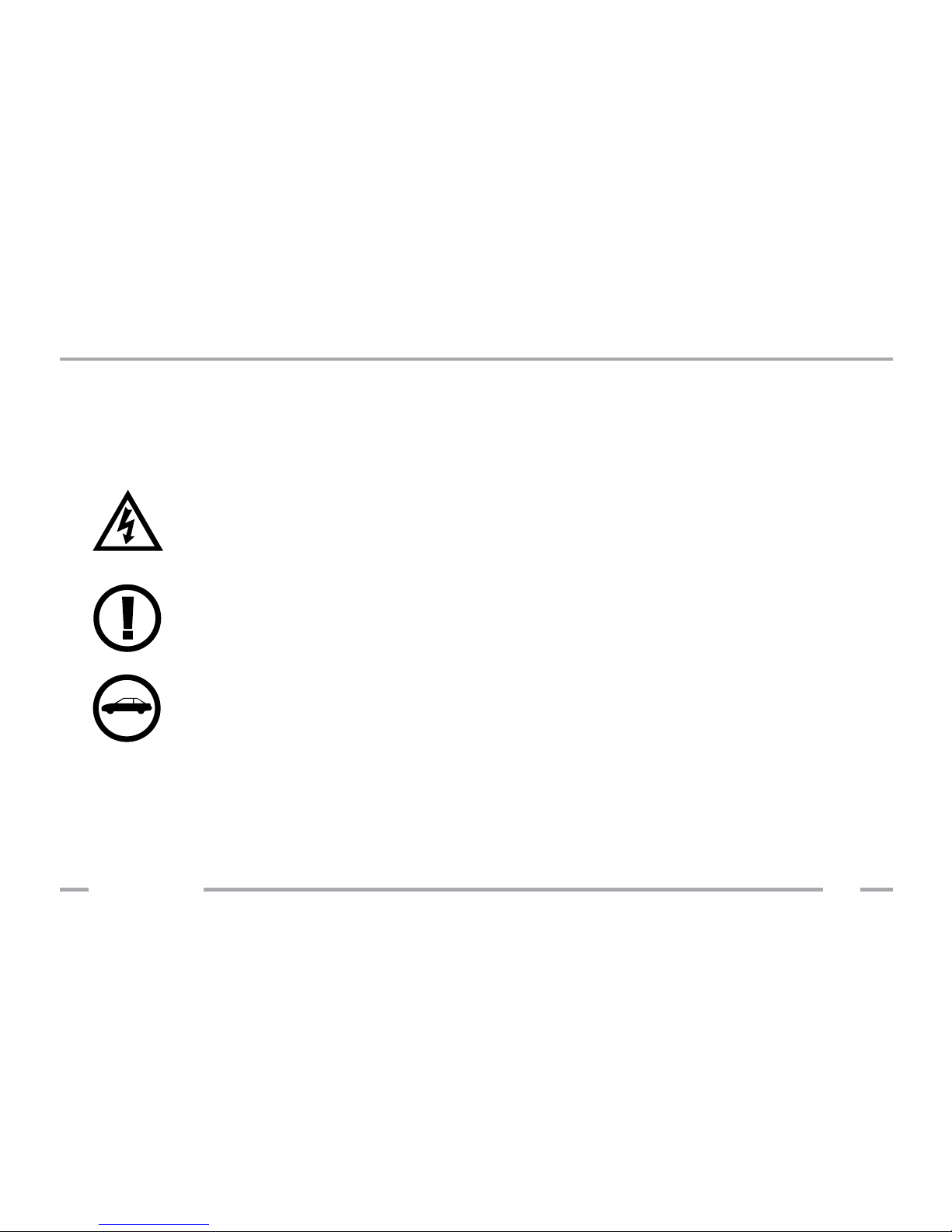
Do not open the Onyx headset as contents may cause electric shock.
Only use approved Callpod® - branded accessories and components
as well as specied compatible electronic devices to ensure proper
operation.
Please use the Onyx headset responsibly while traveling.
Page 5

The successive and long-term use of any headset or speakers at high volumes
can potentially affect a user’s hearing capacity. This can result in Noise Induced
Hearing Loss (“NIHL”). NIHL may occur if a headset is used at maximum or high
volumes for more than ve (5) minutes per day and if medium volumes are used
for more than one (1) hour per day. The human ear will typically adapt to a
constant volume level set on a headset speaker. If this volume is changed to
a higher level, it may, over time, result in damage to the ear even though no
discomfort is felt. Exposure to sound at a close range, even at lower levels, could
potentially result in hearing loss. The Onyx headset can reach a maximum volume
of approximately 100 decibels. This volume is controlled by the user through both
the headset volume control as well as via the mobile device that it is paired to
(e.g. cell phone).
Like stereos and other sound emitting products that use speakers, please exercise
personal care to select a comfortable volume. Please do not use this product at
high volume levels.
WARNING - Volume Levels: Always Protect Your Hearing
callpod
®
4
Copyright © 2009. Patents & Trademarks Issued & Pending
Page 6

Bluetooth® technology allows devices to communicate without wires over a short range. The Onyx
is compliant with Bluetooth® Specication 2.0, which supports the Headset Prole 1.1 and Hands-
free Prole 1.5.
To learn more about Bluetooth® and the applications of the technology, please visit,
www.bluetooth.com
Bluetooth is a registered trademark of Bluetooth SIG, Inc.
About Bluetooth
®
Technology
callpod
®
5
Copyright © 2009. Patents & Trademarks Issued & Pending
Page 7
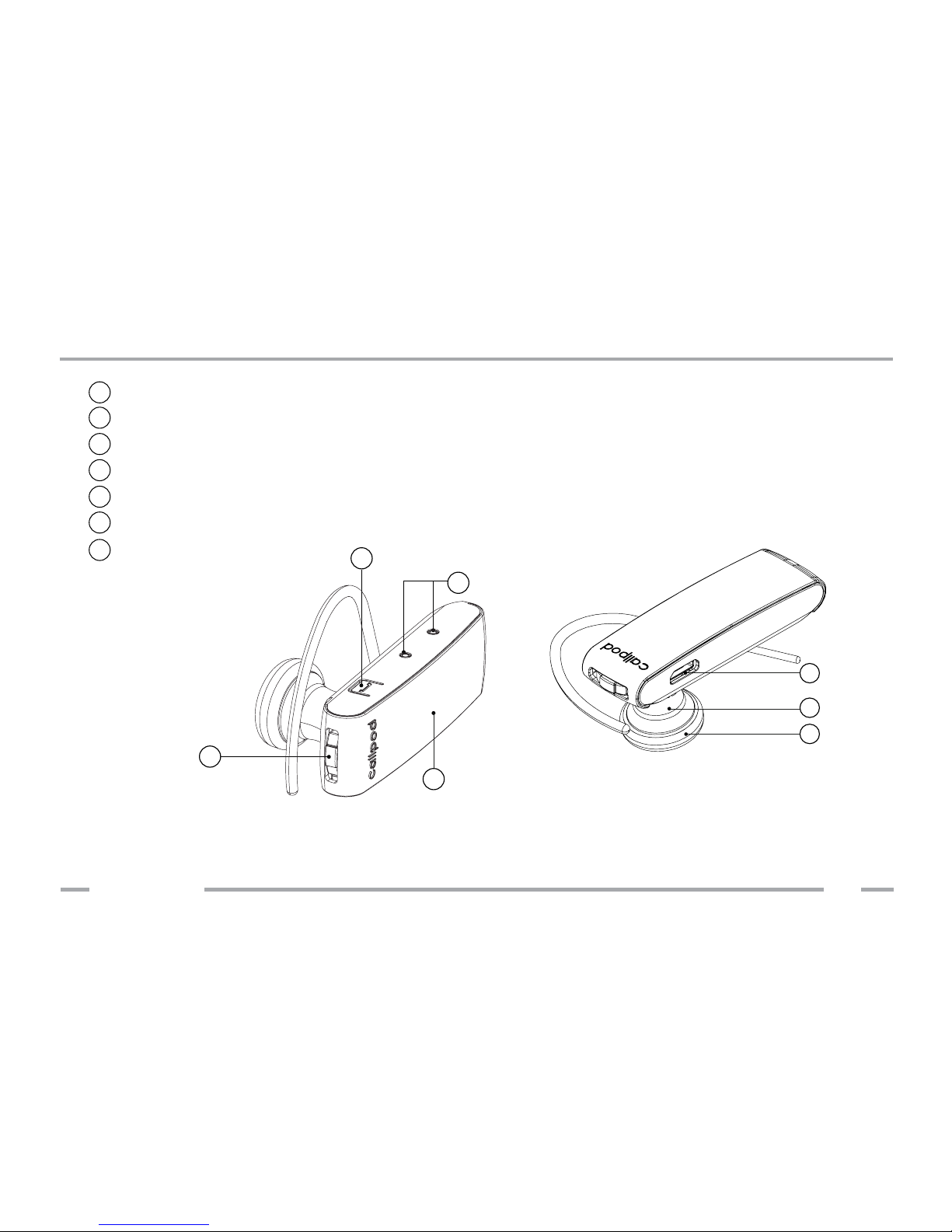
Headset Components
a Power & volume control button
b Dual microphones
c
Multifunction button
d Red & ice blue LED
e
Charging port
Ear bud
g
Speaker
f
g
f
e
a
d
c
b
callpod
®
6
Copyright © 2009. Patents & Trademarks Issued & Pending
Page 8
Mic Alignment
callpod
®
7
Copyright © 2009. Patents & Trademarks Issued & Pending
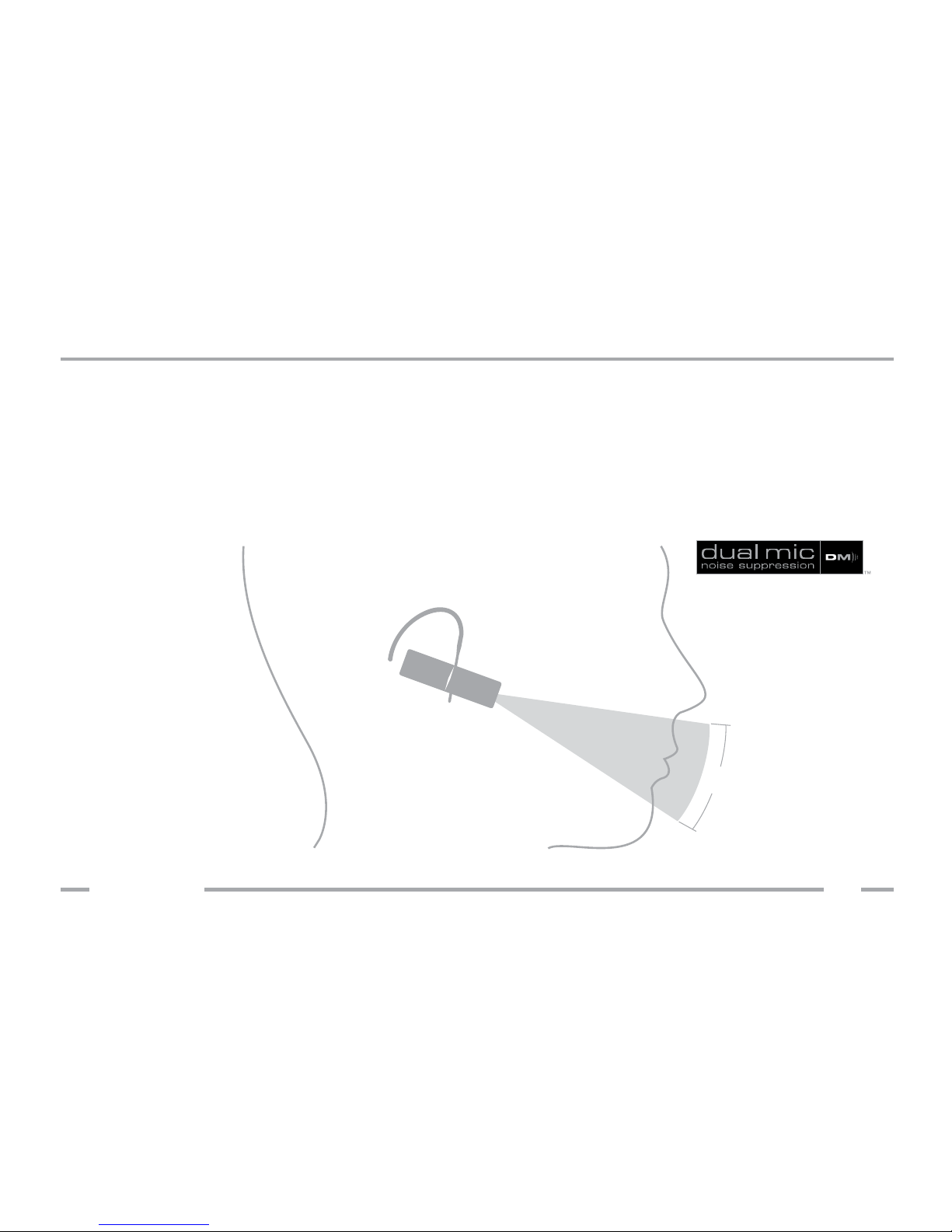
The Onyx uses advanced Dual-mic Noise Suppression™ that is always “ON.” In order
for the headset to function properly, the two microphones must be positioned
towards your mouth. This is easy to do. Once the headset is put on your ear,
simply rotate the headset towards your mouth until the ear bud is compressed
comfortably against your ear. The microphones will align automatically towards
your mouth as shown below:
30°
Page 9

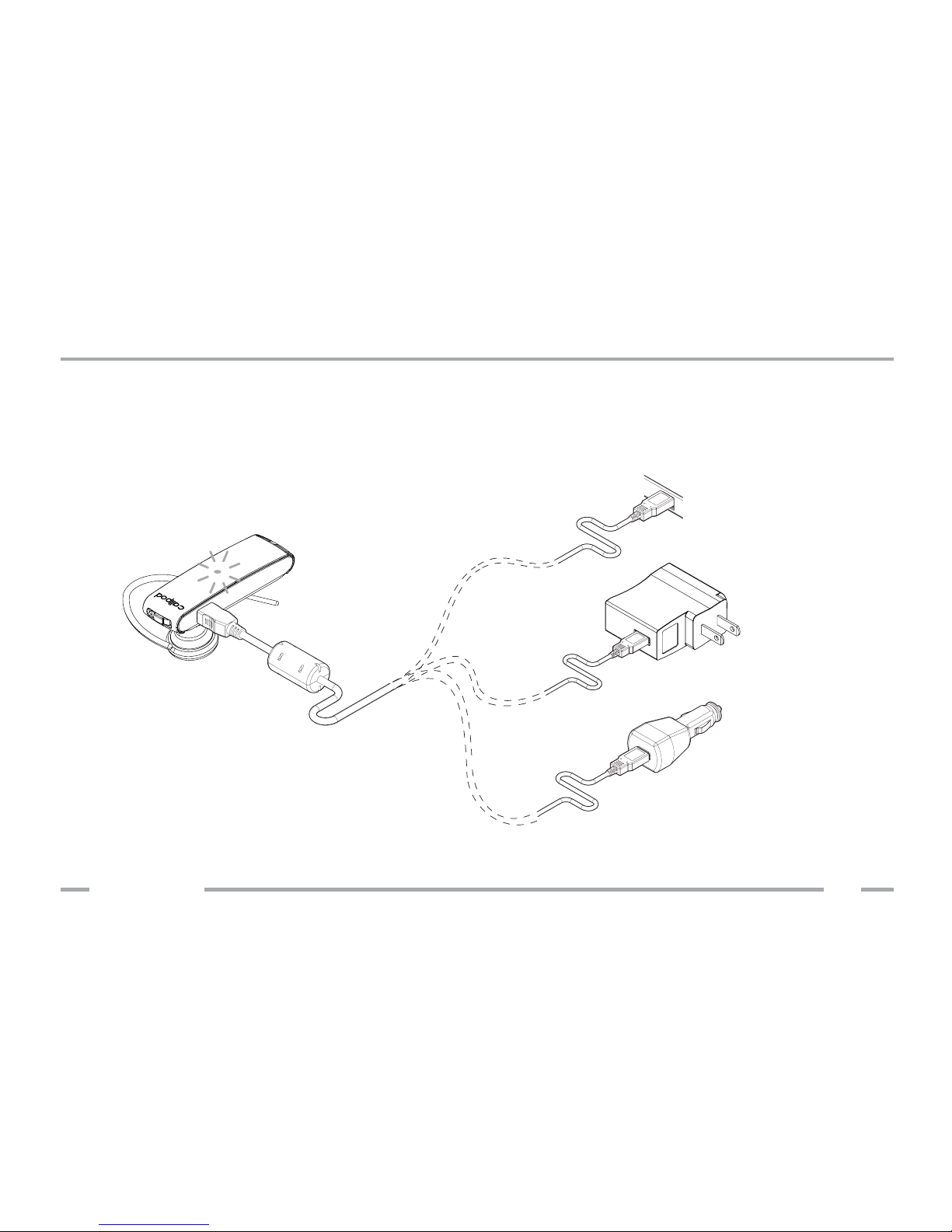
Before using your Callpod® Onyx headset, you must fully charge the headset.
Charge the Onyx using the included wall adapter, car charger (sold separately),
USB cable or with the Chargepod® (sold separately). The Onyx is powered by
an internal lithium-ion rechargeable battery. Please do not attempt to remove
the battery from the case, as damage will occur to the headset and void your
warranty.
The red indicator light will turn on during charging. It may take a moment before
charging starts, and it may take up to 2 hours to fully charge the battery. When
charging is complete, the red LED will turn off.
If the battery becomes low on power while the headset is in use, you will hear a
short beep every 20 seconds.
Charging
callpod
®
8
Copyright © 2009. Patents & Trademarks Issued & Pending
Page 10
Charging
callpod
®
9
The charging components that are included with the Onyx allow you to charge
via USB port on your computer, AC/DC wall adapter or car charger (sold
separately).
Copyright © 2009. Patents & Trademarks Issued & Pending
car charger
AC/DC
wall adapter
computer
Page 11
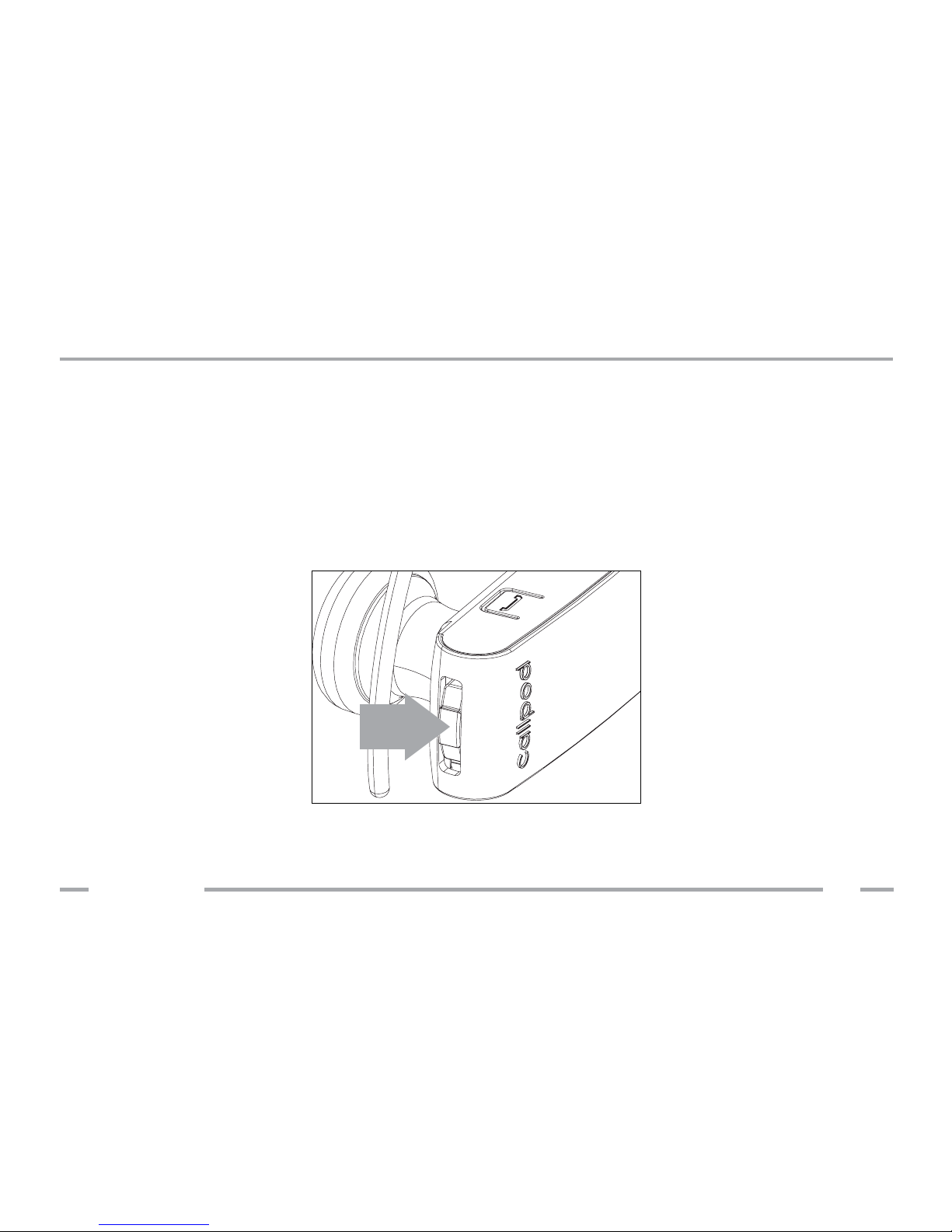
To turn the headset on, press the power & volume control button until the red LED
illuminates. The headset will play an ascending tone and the LED will ash red and
ice blue indicating that it is ready to pair.
To turn the headset off, press and hold the power & volume control button until
the red LED turns off. The headset will play a descending tone and then shut off.
Turning the Headset On and Off
power & volume control button
callpod
®
10
Copyright © 2009. Patents & Trademarks Issued & Pending
Page 12

When the Onyx is powered on, it will rst attempt to reconnect to the last
phone used (if any). If the phone is out of range or not available, the Onyx
will automatically enter a discoverable state. You have 100 seconds to pair
the Onyx to your cell phone or PC before it enters a low power sleep mode. If
the headset is not paired within 100 seconds, simply push the power & volume
control button and it will enter discoverable mode for another 100 seconds.
Search for available Bluetooth® devices from your phone or computer.
Select the “CALLPOD Onyx” headset and enter the pass code “0000” when
prompted.
If necessary, instruct your phone or computer to complete the connection
with the Onyx.
You only need to pair the Onyx with your phone and/or computer once;
simply select the Onyx from the menu when you wish to use it.
Pairing the Headset & Auto Pairing
callpod
®
11
Copyright © 2009. Patents & Trademarks Issued & Pending
Page 13

Pairing a second device. Onyx supports real time switching between two
connected devices. If you are currently connected to a phone, in order to pair
another device you will have to put your Onyx in discoverable mode. To do this,
simply push the power & volume control button once. The ice blue and red LEDs
will ash and you may now begin pairing the Onyx to your second device.
Switching between devices. Onyx will automatically switch between two
connected devices based on which device has requested an active audio
channel.
To disconnect your headset from your current device, you can:
Shut the Onyx off. To turn off the headset, press and hold the power & volume
control button until the red LED turns off.
Clear the pairing memory. To clear the pairing memory of the Onyx, press and
hold the multifunction button until the LED lights ice blue and red at the same
time. The Onyx will then enter a discoverable state.
Pairing and Disconnecting the Headset
callpod
®
12
Copyright © 2009. Patents & Trademarks Issued & Pending
Page 14

When powered on, the Onyx headset will automatically reconnect to the last
connected phone. If the headset is on but not connected to any devices,
pressing the multifunction button will establish a connection to the last connected
phone.
You may have to re-establish the connection from the Bluetooth® menu on your
phone or computer.
If you encounter problems reconnecting:
• Ensure your phone or Computer’s Bluetooth® functionality is enabled.
• Ensure that your Onyx headset is fully charged.
• Clear the pairing memory and re-pair to the device.
• Contact customer service for other inquiries not addressed here.
www.callpod.com/contact
Reconnecting the Headset
callpod
®
13
Copyright © 2009. Patents & Trademarks Issued & Pending
Page 15
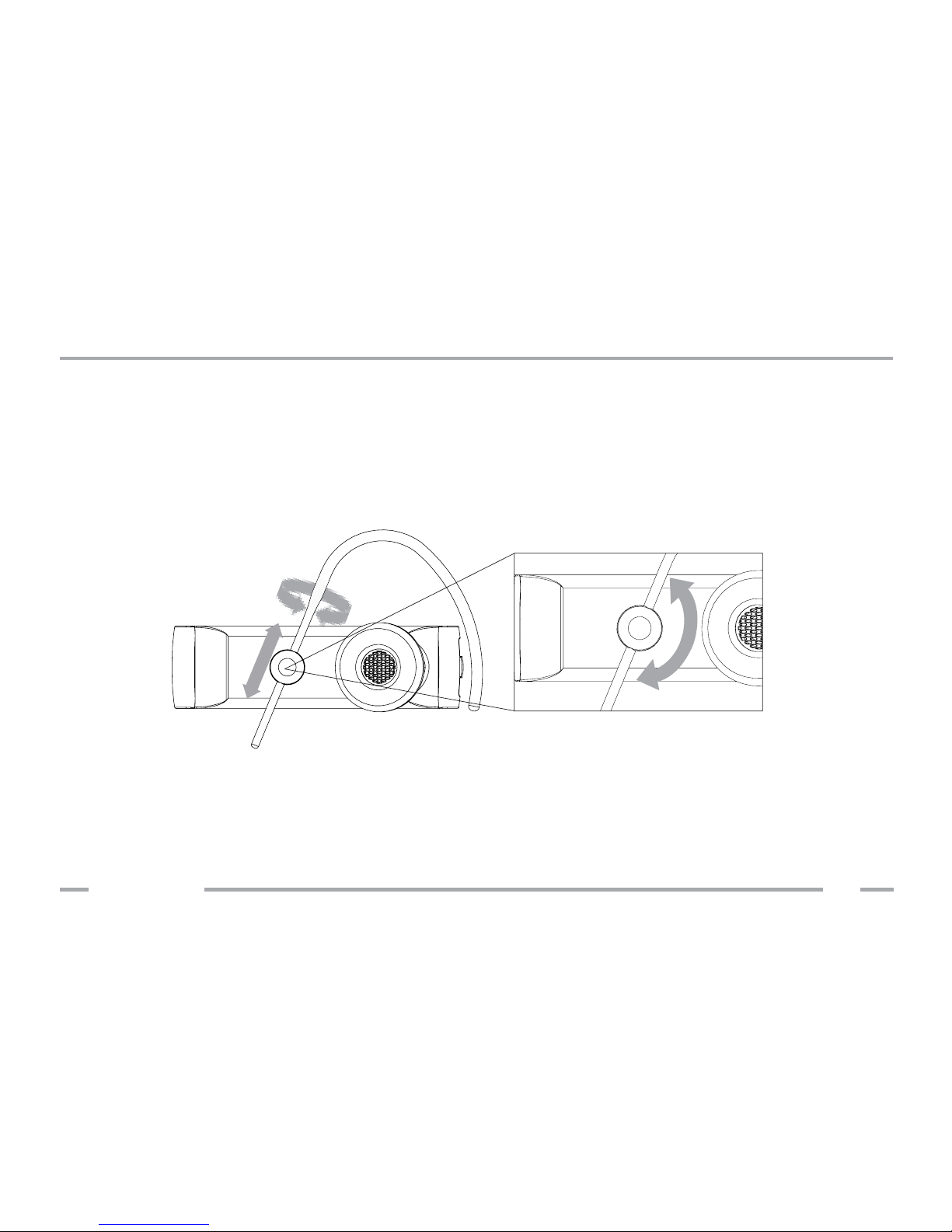
Adjusting the ear wrap. The ear wrap is fully adjustable in that it can slide up or
down, left or right as well as rotate 180 degrees to t most ear sizes on both the
left or right ear. To adjust the headset for a comfortable t, simply slide the ear
wrap up or down and position the body of the headset so that the ear bud ts
comfortably in your ear (as shown below).
Alignment. The two microphone holes on the headset should make a line that
points to your mouth when the Onyx is in use.
Operation
callpod
®
14
Copyright © 2009. Patents & Trademarks Issued & Pending
Page 16

Placing a call with voice dialing (if supported by phone). With no call present,
press the multifunction button and speak the name of the person you want to
call. For the best results, record the voice tags for voice dialing using the Onyx
headset.
Answering/Ending a call. When the headset rings, press the multifunction button
to accept an incoming call. If a call is already present, the rst call will be placed
on hold. The calls can then be swapped by pressing the multifunction button.
While on a single or conference call, press the multifunction button to end the
call.
Muting the microphone. While on a single call, press and hold the multifunction
button to mute your microphone. Press and hold the multifunction button again
to unmute.
Rejecting a call. Pressing and holding the multifunction button on an incoming
call will reject the call. If on a call with a call on hold, pressing and holding the
multifunction button will hang up the active call.
Adjusting the speaker volume. To increase or decrease the speaker volume, press
the power & volume control button up or down. Note: Volume control directions
are opposite when the headset is in the left ear.
Operation
callpod
®
15
Copyright © 2009. Patents & Trademarks Issued & Pending
Page 17

Conference calling. While on a call with a call on hold, tap the power &
volume control button to join the two calls in a conference. Press and hold the
multifunction button to hang up the conference call.
Connecting to a phone and computer (or two phones) simultaneously
The Onyx headset can store pairing information with eight devices without
having to re-pair. Two of those devices may be connected simultaneously to the
headset. For instance, you can connect to your cell phone and to your computer
for accepting Skype™ calls.
When connected to two devices, the Onyx headset is able to control call
handling through the multifunction button. If you are on your cell phone and a
call comes in from your Skype™ account, you can answer the call by pressing
the multifunction button. After the Skype™ call has ended, the headset will
automatically return you to the mobile phone call.
Advanced Features
callpod
®
16
Copyright © 2009. Patents & Trademarks Issued & Pending
Page 18

Connecting Two Callpod® Headsets Together (2-way Communication Mode)
If you have two Callpod Bluetooth headsets, you can communicate headsetto-headset in full duplex up to of 84,000 sq. ft. [7,800 sq. meters] area (in open
spaces). To connect two headsets together:
1. Make sure Headset A is in a discoverable state (ashing red and ice blue LED)
2. Power off Headset B
3. Power on Headset B while holding the multifunction button. The ice blue LED
will ash repeatedly.
After a few moments, Headset B will seek out the other Callpod headset and
automatically establish the connection. When the two Callpod Headsets are
connected, either party can speak in full duplex (at the same time with no voice
cancellation). To open or close the audio channel, press the multifunction button
once (do not hold the button down). By using the multifunction button to open
and close the channel, you will signicantly increase talk time versus having the
audio channel open continuously. Either user can open or close the channel.
Walkie-Talkie 2-Way Communications
callpod
®
17
Copyright © 2009. Patents & Trademarks Issued & Pending
Page 19
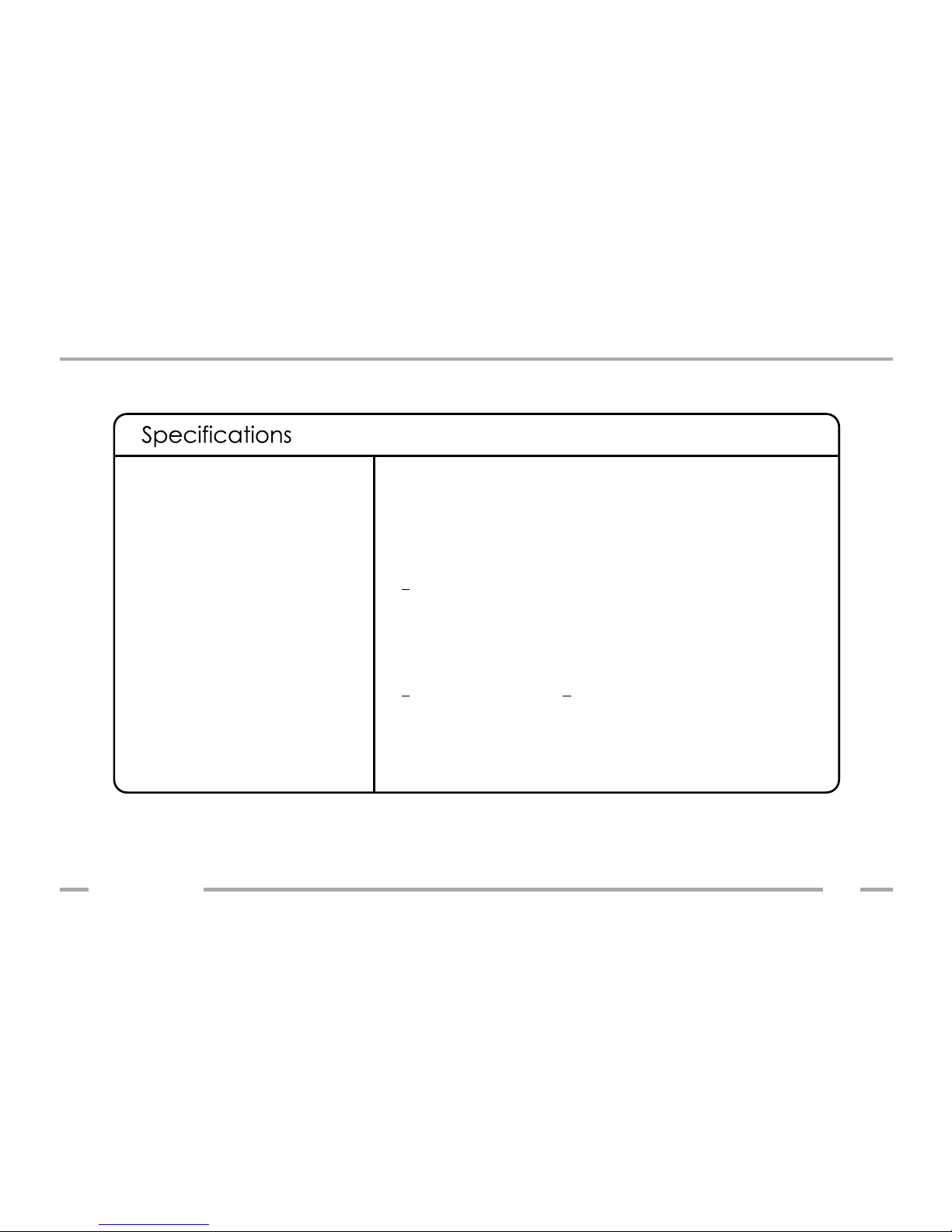
Technical Specications
callpod
®
18
Copyright © 2009. Patents & Trademarks Issued & Pending
Bluetooth® 2.0/AFH
Hands-free & Headset
2.4 - 2.4835 GHz
Class 1
<50m [164 ft.]
3.7 VDC Built-in Lithium-ion Battery
5VDC (via USB port for charging)
0° C to 50° C
<5 hours talk time & <120 hours of standby
0.96” W [24.38mm] × 2.17” L [54.86mm] × 0.63” H
[16mm]
0.3oz [8.51g]
Connectivity
Prole Support
Frequency Band
RF Output
Working Range
Input Power
Operating Temperature
Operating Time
Dimensions
Weight
Page 20

Please keep the headset and all accessories out of the reach of small
children.
Do not to use other manufacturer’s power supplies or adapters with the
headset.
Do not attempt to open the outer casing of the headset.
Do not clean the headset with harsh chemicals, and keep it away from
liquids.
Do not expose the headset to extreme temperatures.
Do not paint or apply coatings or stickers to the headset, as you might
affect moving parts, damage internal components, or block or impede
the microphones.
Care and Maintenance
•
•
•
•
•
•
callpod
®
19
Copyright © 2009. Patents & Trademarks Issued & Pending
Page 21

A rechargeable lithium-ion battery powers the Onyx headset. The full performance
of a new battery is achieved only after two or three complete charge and
discharge cycles. To charge the Onyx headset, use only Callpod® designated
power supplies and adapters.
Unplug the charger from the electrical plug and the device when not in use. Do
not leave a fully charged battery connected to a charger, as overcharging may
shorten the lifetime of the internal battery.
Never use a damaged charger. Leaving a device in hot or cold places, such as
in a closed car in summer or winter conditions, will reduce its battery capacity
and life. A device with a very hot or cold battery may not work temporarily, even
when the battery is fully charged. Battery performance is particularly limited in
temperatures well below freezing. Do not dispose of batteries in a re, as they
may explode. Batteries may also explode if damaged. Dispose of batteries
according to local regulations and recycle when possible.
Battery Information
callpod
®
20
Copyright © 2009. Patents & Trademarks Issued & Pending
Page 22

callpod
®
21
Copyright © 2009. Patents & Trademarks Issued & Pending
Subject to the exclusions contained below, Callpod, Inc. warrants Callpod®branded products to be free from defects in materials and workmanship under
normal consumer usage for the period(s) outlined below. This limited one-year
warranty is a consumer’s exclusive remedy and applies as follows to new Callpod
products and accessories purchased by consumers. This warranty is limited to
one-year from the time of purchase by the original consumer (i.e. rst purchase
date).
EXCLUSIONS
Normal Wear and Tear. Periodic maintenance, repair and replacement of parts
due to normal wear and tear are excluded from coverage.
Abuse & Misuse. Defects or damage that result from: (a) improper operation,
storage, misuse or abuse, accident or neglect, such as physical damage (cracks,
scratches, etc.) to the surface of the product resulting from misuse; (b) contact
with liquid, water, rain, extreme humidity or heavy perspiration, sand, dirt, extreme
heat, or food; (c) use of this product(s) for commercial purposes or subjecting the
product(s) to abnormal usage or conditions; or (d) other defects or damage from
acts that are not the fault of Callpod®, are excluded from coverage.
Callpod Limited Warranty
Page 23

callpod
®
22
Copyright © 2009. Patents & Trademarks Issued & Pending
Use of Non-Callpod Products and Accessories. Defects or damage that result
from the use of non-Callpod-branded or certied products, accessories, software
or other peripheral equipment are excluded from coverage.
Unauthorized Service or Modication. Defects or damages resulting from service,
testing, adjustment, installation, maintenance, alteration, or modication in any
way by someone other than a Callpod® representative or someone from an
authorized service center, are excluded from coverage.
Altered Products. Products or accessories with (a) serial numbers or date tags that
have been removed, altered, or obliterated; (b) broken seals or seals that show
evidence of tampering; (c) mismatched serial numbers; or (d) nonconforming or
non-Callpod housings or components, are excluded from coverage.
Communication Services. Defects, damage, or the failure of products, accessories
or software due to any communication service or signal you may subscribe to or
use with the products, accessories, or software is excluded from coverage.
Callpod Limited Warranty
Page 24

Who is Covered?
This warranty extends only to the rst consumer purchaser and is not
transferable.
What Will Callpod® Do?
Under this warranty, Callpod, at its sole discretion, will at no charge either repair,
replace or refund the purchase price of any covered product, accessory or
software. We may use functionally equivalent reconditioned/refurbished/preowned or new products, accessories or parts.
For additional information, please visit us at:
www.callpod.com
Callpod Limited Warranty
callpod
®
23
Copyright © 2009. Patents & Trademarks Issued & Pending
Page 25

callpod
®
24
Copyright © 2009. Patents & Trademarks Issued & Pending
You will receive instructions on how to ship any products or accessories at your
expense, to a Callpod® authorized repair center. To obtain service, you must
include: (a) a copy of your receipt, bill of sale or other comparable proof of
purchase; (b) a written description of the problem; (c) the name of your service
provider, if applicable; (d) the name and location of the installation facility if
applicable and (e) your mailing address and telephone number.
Some states and jurisdictions do not allow the limitation or exclusion of incidental
or consequential damages, or limitations on the length of an implied warranty, so
the above limitations or exclusions may not apply to you. This warranty may give
you specic legal rights, and you may also have other rights that vary from state
to state or from one jurisdiction to another.
Callpod Limited Warranty
Page 26

What Other Limitations Are There?
ANY IMPLIED WARRANTIES, INCLUDING WITHOUT LIMITATION THE IMPLIED
WARRANTIES OF MERCHANTABILITY AND FITNESS FOR A PARTICULAR PURPOSE,
SHALL BE LIMITED TO THE DURATION OF THIS LIMITED WARRANTY, OTHERWISE THE
REPAIR REPLACEMENT, OR REFUND AS PROVIDED UNDER THIS EXPRESS LIMITED
WARRANTY IS THE EXCLUSIVE REMEDY OF THE CONSUMER, AND IS PROVIDED
IN LIEU OF ALL OTHER WARRANTIES, EXPRESS OR IMPLIED. IN NO EVENT SHALL
CALLPOD BE LIABLE, WHETHER IN CONTRACT OR TORT (INCLUDING NEGLIGENCE)
FOR DAMAGES IN EXCESS OF THE PURCHASE PRICE OF THE PRODUCT, ACCESSORY
OR SOFTWARE, OR FOR ANY INDIRECT, INCIDENTAL, SPECIAL OR CONSEQUENTIAL
DAMAGES OF ANY KIND, OR LOSS OF REVENUE OR PROFITS, LOSS OF BUSINESS, LOSS
OF INFORMATION OR DATA, SOFTWARE OR APPLICATIONS OR OTHER FINANCIAL
LOSS ARISING OUT OF OR IN CONNECTION WITH THE ABILITY OR INABILITY TO USE
THE PRODUCTS, ACCESSORIES OR SOFTWARE TO THE FULL EXTENT THESE DAMAGES
MAY BE DISCLAIMED BY LAW.
Callpod Limited Warranty
callpod
®
25
Copyright © 2009. Patents & Trademarks Issued & Pending
Page 27

It is critical to use Callpod®-branded adapters and power supplies only. Use of
non-approved products may cause safety hazards and damage your personal
electronic devices. Callpod is not responsible for devices damaged while using
non-approved products and or accessories. The use of non-Callpod-branded
accessories (e.g. power adapters and power cables) with your Onyx headset will
void your warranty. For a list of approved Callpod accessories, please visit us at:
www.callpod.com
Approved Accessories
This product is controlled under the export regulations of the United States
of America. The Government of the United States of America may restrict the
exportation or re-exportation of this product to certain destinations. For further
information contact the U.S. Department of Commerce and International Trade
Commission.
Export Law Assurances
callpod
®
26
Copyright © 2009. Patents & Trademarks Issued & Pending
Page 28

Prior to traveling outside of the United States of America, please make sure to
have a compatible plug adapter to use internationally. For a list of universal
outlet adapters for recommendation and purchase, please visit us at:
www.callpod.com
Notice to International Users
All Callpod® products and information shared in this manual are protected
by copyright. Copying, reproducing, reverse engineering or distributing any
information of Callpod-related products hardware or software without a formal
and written authorization and license from Callpod, Inc. is prohibited and may
result in legal action.
Copyright Notice
callpod
®
27
Copyright © 2009. Patents & Trademarks Issued & Pending
Page 29

Register products online at:
www.callpod.com/product/registration
or by phone: 1-800-951-CPOD
Product registration is an important step towards enjoying your new Callpod®
product. Registering helps us facilitate warranty service and permits us to contact
you should your product require an update or other service. Registration is not
required for warranty coverage. Your serial number can be found on the inside of
the back cover of this manual.
Please retain your original dated sales receipt for your records. For warranty
service of your product you will need to provide, at a minimum, a copy of your
dated sales receipt with the specied product to conrm warranty status.
Product Registration
callpod
®
28
Copyright © 2009. Patents & Trademarks Issued & Pending
Page 30

The Onyx is certied by UL, CE, FCC, PSE and Bluetooth® for safety and reliability.
Unauthorized changes or modications to this device may impair your ability to
operate this device and will void the warranty.
This device complies with Part 15 of the FCC Rules. Operation is subject to the
following two conditions: (1) this device may not cause harmful interference, and
(2) this device must accept any interference received, including interference
that may cause undesired operation.
This Class B digital apparatus complies with Canadian ICES-003.
Certication
callpod
®
29
Copyright © 2009. Patents & Trademarks Issued & Pending
 Loading...