

Page 1
Multi-Plex Your Dragon with the Power of 2
Page 2

Page 3

1. Introduction..............................................................................................................2
2. Warning - Volume Levels: Always Protect Your Hearing....................................3
3. Technical Specications........................................................................................4
4. Downloading and Installing 2PLEX.........................................................................5
5. Pairing the Headset.................................................................................................6
6. Placing a Call with Two Headsets..........................................................................7
7. Reconnecting the Headset....................................................................................8
8. Disconnecting the Headset...................................................................................9
9. Operation..............................................................................................................10
10. Mic Alignment........................................................................................................11
11. About Bluetooth® Technology.............................................................................12
12. Copyright Notice...................................................................................................13
13. Certication...........................................................................................................14
Table of Contents
Copyright © 2008 Callpod, Inc. Patents Pending.
callpod
®
1
Page 4

callpod
®
2
Copyright © 2008 Callpod, Inc. Patents Pending.
2PLEX is a rmware upgrade for a Callpod Dragon headset.
This software allows you to join a second Bluetooth headset (any brand) into your
phone call for a private and secure mobile conference.
2PLEX utilizes the Dragon’s 100m (328 ft) range when connected to a second
Callpod Dragon Bluetooth headset or any other class-1 Bluetooth headset. 2PLEX
is a proprietary and unique mobile communication software that was pioneered
by Callpod.
For further help, please contact Callpod by visiting us at:
www.callpod.com or by phone: 1-800-951-CPOD
Introduction
Page 5

callpod
®
3
Copyright © 2008 Callpod, Inc. Patents Pending.
The successive and long-term use of any headset or speakers at high volumes
can potentially affect a user’s hearing capacity. This can result in Noise Induced
Hearing Loss (“NIHL”). NIHL may occur if a headset is used at maximum or high
volumes for more than ve (5) minutes per day and if medium volumes are used
for more than one (1) hour per day. The human ear will typically adapt to a
constant volume level set on a headset speaker. If this volume is changed to
a higher level, it may, over time, result in damage to the ear even though no
discomfort is felt. Exposure to sound at a close range, even at lower levels, could
potentially result in hearing loss. The Dragon headset can reach a maximum
volume of approximately 100 decibels. This volume is controlled by the user
through both the headset volume control as well as via the mobile device that it
is paired to (e.g. cell phone).
Like stereos and other sound emitting products that use speakers, please exercise
personal care to select a comfortable volume. Please do not use this product at
high volume levels.
WARNING - Volume Levels: Always Protect Your Hearing
Page 6

callpod
®
4
Copyright © 2008 Callpod, Inc. Patents Pending.
Technical Specications
Specications
Connectivity
Prole Support
Frequency Band
RF Output
Working Range
Bluetooth® 2.0/AFH
Hands-free
2.4-2.4835 GHz
Class 1
<100m (328ft)
Page 7

callpod
®
5
Copyright © 2008 Callpod, Inc. Patents Pending.
Downloading and Installing 2PLEX
The Dragon’s 2PLEX rmware upgrade must be installed using the Callpod
Updater. The Callpod Updater is available for free download at:
www.callpod.com/download
Once 2PLEX is purchased users will receive an authentication code for use with
the Callpod Updater. This authentication code must be entered when prompted
to ensure correct installation of 2PLEX software.
To install 2PLEX open the Callpod Updater and plug in your Dragon headset (using
the included USB data cable) to any computer/laptop. Select the 2PLEX update
and enter your authentication code when prompted. The Callpod Updater will
then automatically install the latest 2PLEX rmware to your Dragon headset.
computer/laptop
Page 8
callpod
®
6
Copyright © 2008 Callpod, Inc. Patents Pending.
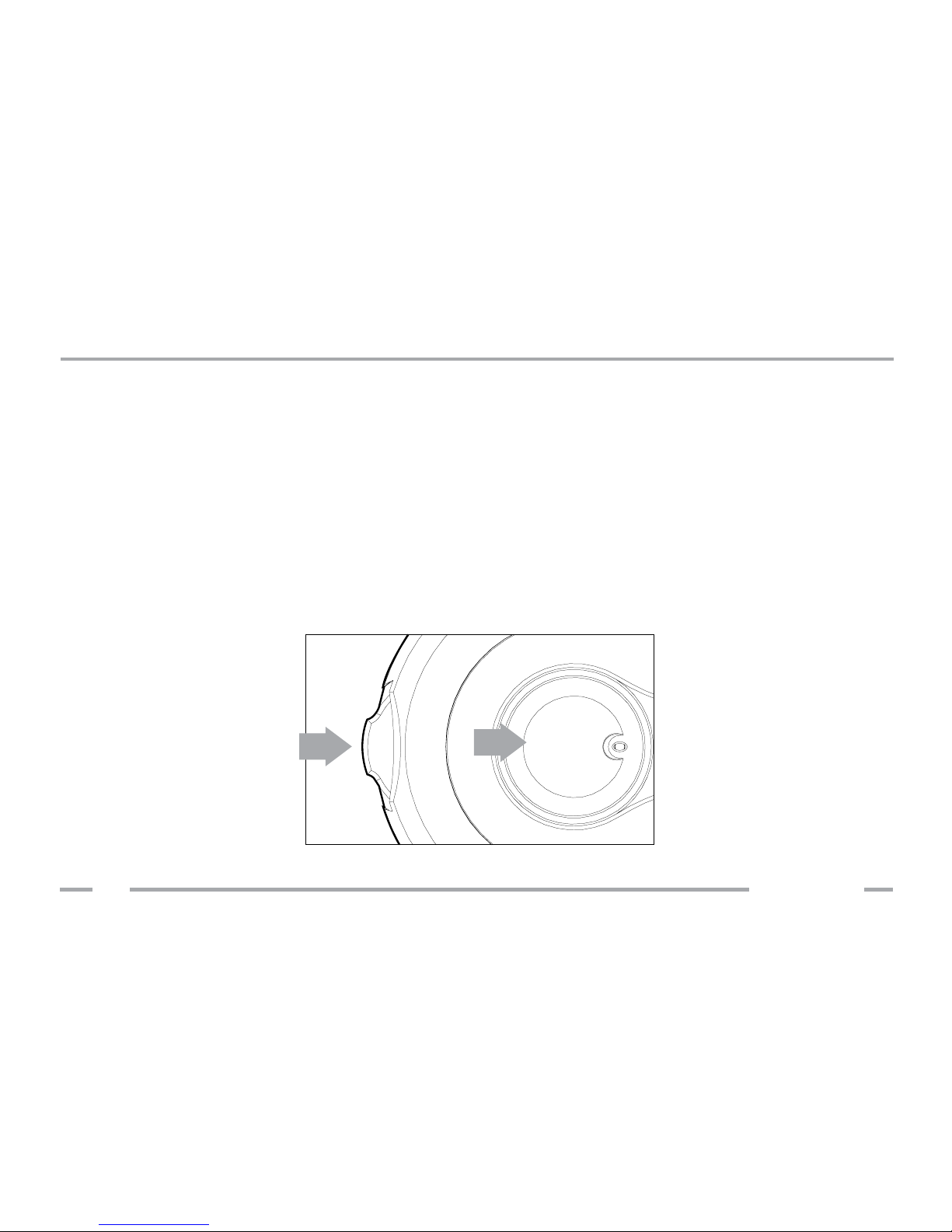
To pair the Dragon to another standard Bluetooth headset of your choice, rst
make sure your Dragon is turned OFF. Next, press the power/volume control
button AND the multifunction button at the same time until the blue LED
illuminates. The headset will play an ascending tone and the LED will quickly ash
blue indicating that it is ready to pair.
Place the 2nd Headset in pairing mode (per manufacturer instructions) and
the Dragon will automatically locate and connect to the 2nd headset. After
a few moments, an open audio connection between both headsets will be
created.
Pairing the Dragon to a 2nd Headset
Page 9

callpod
®
7
Copyright © 2008 Callpod, Inc. Patents Pending.
The Dragon running 2PLEX software can be paired to a Bluetooth-enabled
phone, PC/Mac or Callpod Drone device. To do this, quickly press the power/
volume control button. The Dragon will enter a discoverable mode for 100
seconds.
Search for available Bluetooth® devices from your phone or computer.
Select the “CALLPOD DRAGON” headset and enter the pass code “0000” when
prompted.
If necessary, instruct your phone or computer to complete the connection with
the Dragon.
You only need to pair the Dragon with your phone once; simply select the
Dragon from the menu on your phone when you wish to use it.
Now, when you place a call, both headsets will be able to talk and listen in full
duplex. After the call has ended, the headsets will be placed back in to an open
audio connection.
Placing a Call with Two Headsets
Page 10

callpod
®
8
Copyright © 2008 Callpod, Inc. Patents Pending.
When powered on, the Dragon headset will automatically reconnect to the last
connected headset and phone. If the headset is on but not connected to any
devices, pressing the multifunction button will establish a connection to the last
connected headset and phone.
You may have to re-establish the connection from the Bluetooth® menu on your
phone or computer.
If you encounter problems reconnecting:
• Ensure your phone or computer’s Bluetooth® functionality is enabled.
• Ensure that your 2nd headset is turned on.
• Clear the pairing memory (see page 9) and re-pair to the device.
• Contact customer service for other inquiries not addressed here.
www.callpod.com/contact
Reconnecting the Headset
Page 11

callpod
®
9
Copyright © 2008 Callpod, Inc. Patents Pending.
To disconnect your headset from your current device, you can:
Shut the Dragon off. To turn off the headset, press and hold the power/volume
control button until the red LED turns off.
Clear the pairing memory. To clear the pairing memory of the Dragon, press and
hold the multifunction button until the LED lights blue and red at the same time.
The Dragon will then enter a discoverable state.
Disconnecting the Headset
Page 12

callpod
®
10
Copyright © 2008 Callpod, Inc. Patents Pending.
Placing a call with voice dialing (if supported by phone). With no call present,
press the Dragon’s multifunction button and speak the name of the person you
want to call. For the best results, record the voice tags for voice dialing using the
Dragon headset.
Answering a call. When the headset rings, press the multifunction button to
accept an incoming call. If a call is already present, the rst call will be placed
on hold. The calls can then be swapped by pressing the multifunction button.
Muting the microphone. While on a single call, press the multifunction button to
mute your microphone. Press the multifunction button again to unmute.
Ending/Rejecting a call. While on a single or conference call, press and hold the
multifunction button to end the call. If on a call with a call on hold, pressing
and holding the multifunction button will hang up the active call. Pressing and
holding the multifunction button on an incoming call will reject the call.
Adjusting the speaker volume. To increase or decrease the speaker volume, press
the power/volume control button up or down. Note: Volume control directions
are opposite when the headset is in the left ear.
Operation (Dragon Use Only)
Page 13
Mic Alignment
callpod
®
11
Copyright © 2008 Callpod, Inc. Patents Pending.
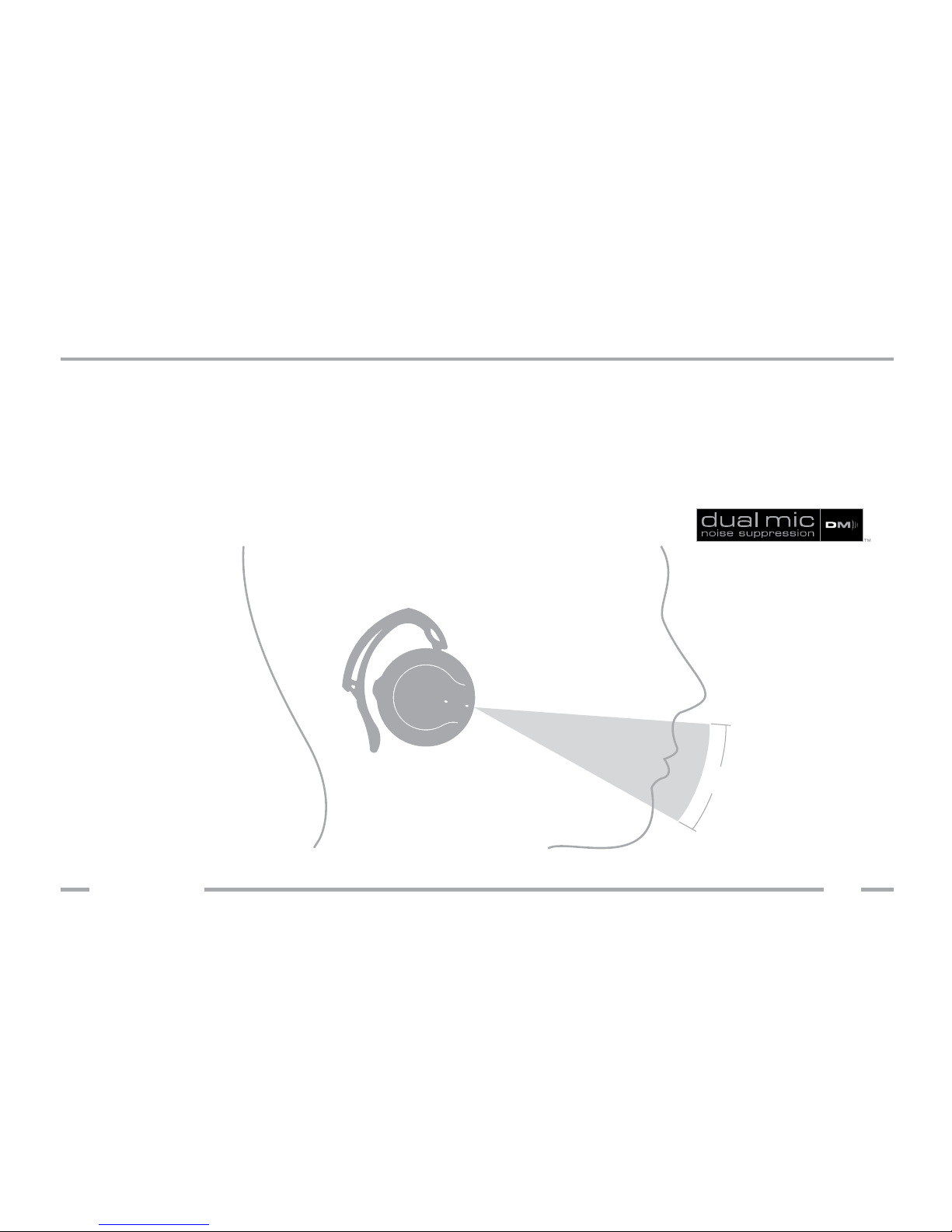
The Dragon uses advanced Dual-mic Noise Suppression™ that is always “ON.”
In order for the headset to function properly, the two microphones must be
positioned towards your mouth. This is easy to do. Once the headset is put on your
ear, simply rotate the headset towards your mouth until the ear bud is compressed
comfortably against your ear. The microphones will align automatically towards
your mouth as shown below:
30°
Page 14

callpod
®
12
Copyright © 2008 Callpod, Inc. Patents Pending.
Bluetooth® technology allows devices to communicate without wires over a short
range. The Dragon is compliant with Bluetooth® Specication 2.0, which supports
the Headset Prole 1.1 and Hands-free Prole 1.5.
To learn more about Bluetooth® and the applications of the technology,
please visit:
www.bluetooth.com
Bluetooth is a registered trademark of Bluetooth SIG, Inc.
About Bluetooth® Technology
Page 15

callpod
®
13
Copyright © 2008 Callpod, Inc. Patents Pending.
All Callpod® products and information shared in this manual are protected
by copyright. Copying, reproducing, reverse engineering or distributing any
information of Callpod-related products hardware or software without a formal
and written authorization and license from Callpod, Inc. is prohibited and may
result in legal action.
Copyright Notice
Page 16

callpod
®
14
Copyright © 2008 Callpod, Inc. Patents Pending.
The Dragon is certied by UL, CE, FCC, PSE and Bluetooth® for safety and reliability.
Unauthorized changes or modications to this device may impair your ability to
operate this device and will void the warranty.
This device complies with Part 15 of the FCC Rules. Operation is subject to the
following two conditions: (1) this device may not cause harmful interference, and
(2) this device must accept any interference received, including interference
that may cause undesired operation.
This Class B digital apparatus complies with Canadian ICES-003.
Cet appareil numérique de la classe B est conforme à la norme NMB-003 du
Canada.
Certication
 Loading...