

Page 1
Quick Start Guide
Charging your Callaway uPro
Press Down
& Slide Open
1) Remove the battery cover on the uPro. While pressing
the upper center portion of the battery cover rmly, slide
the battery cover downward to remove.
2) Insert the Li-Ion rechargeable battery into the battery
compartment. Angle the battery such that the bottom
edge with the three contacts makes contact with the
connector on the uPro rst and then push the top side
of the battery into place. The text on the battery should
be facing up. Handle your Li-Ion battery with care.
See battery warning sheet for additional information.
3) Replace the battery cover.
4) Insert the mini-USB connector of the included USB cable
into the USB connector on the bottom of the uPro.
5) Connect the other end of the USB cable to the included
wall adapter.
6) Plug the wall charger into an AC wall outlet. The uPro’s
red LED will be lit while charging. If the red LED is not lit,
check your connections, and if the problem persists, please
reference the full User Manual at www.callawaygolf.com/
uprogps. The red LED will begin to ash when charging
is completed. Charging the battery completely takes
approximately 3 hours.
®
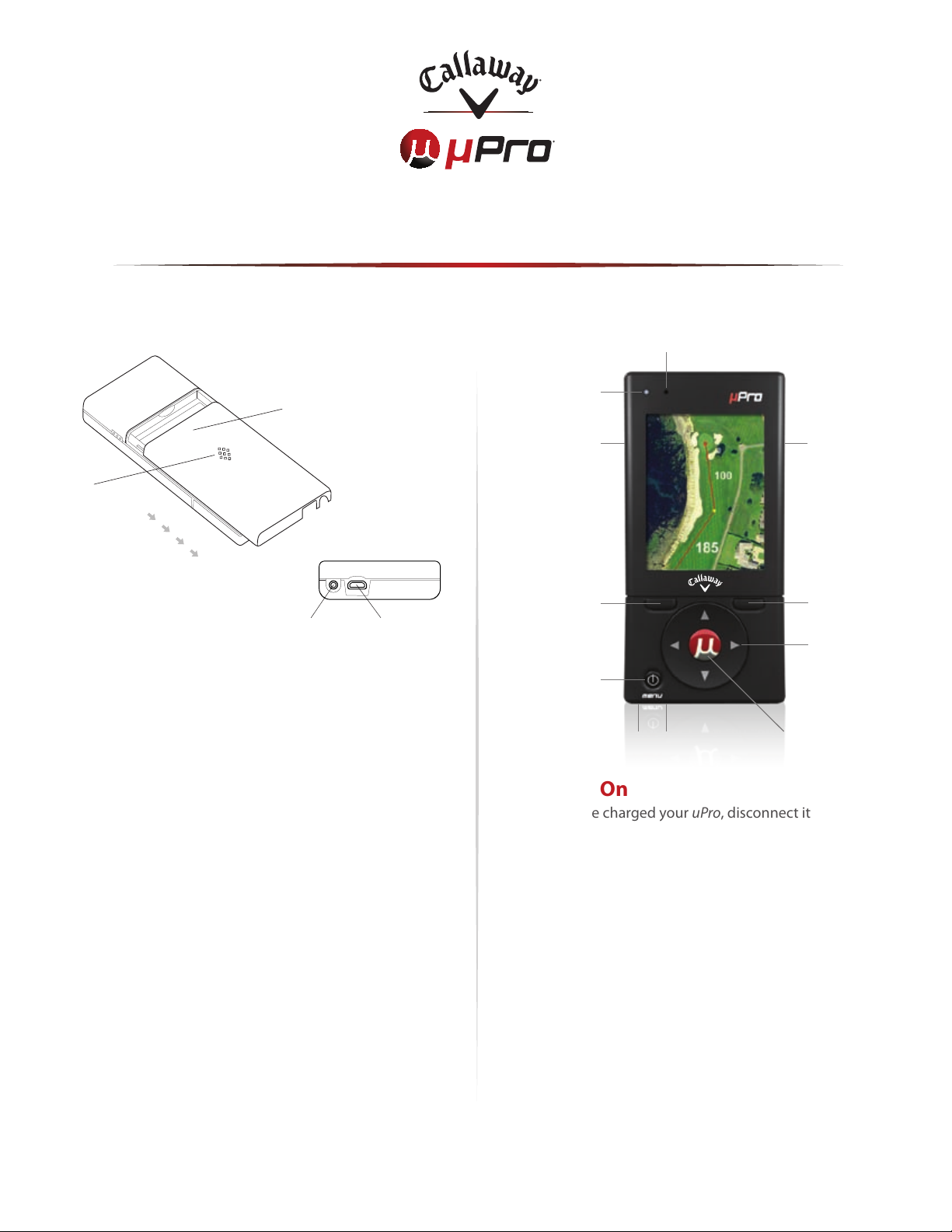
Battery Cover
USB PortHeadphone Jack
Buttons
Microphone
LED Light
Voice
Recognition
Left LCD
Select
Power/Menu
USB Select/EnterHeadphone
ProMode
Button
Right LCD
Select
Directional
Arrows
Powering On
Once you have charged your uPro, disconnect it from
the USB cable and power it on by pressing and holding
the Power/Menu button for at least three seconds (until
the startup screen appears). The startup screen will show
four open dots which will ll-in as the startup progresses,
and then the Main Menu will be displayed.
Registering your Callaway uPro®
In order to use your uPro on the course, you will need
to register your uPro and create a user account online at
our website.
1) Power on the Callaway uPro – Press and hold the power
button for 3 seconds to power on the uPro. Once the startup
screen appears, the uPro is powered on.
2) Connect to a computer – Once the Main Menu is dis-
played on the uPro, connect the USB cable to the uPro. Insert
the mini-USB connector (smaller connector on the cable)
Page 2
into the USB connector on the uPro. Insert the other end of
the USB cable into an available USB port on the computer.
IMPORTANT: Make sure that the uPro is powered on and the
LCD screen displays a message stating “USB Connected” after
connecting to the computer.
Note: If you are using a desktop computer and experience problems using
a USB hub or connecting to front, side or monitor por ts, please attempt
to use a USB port on the back of the computer.
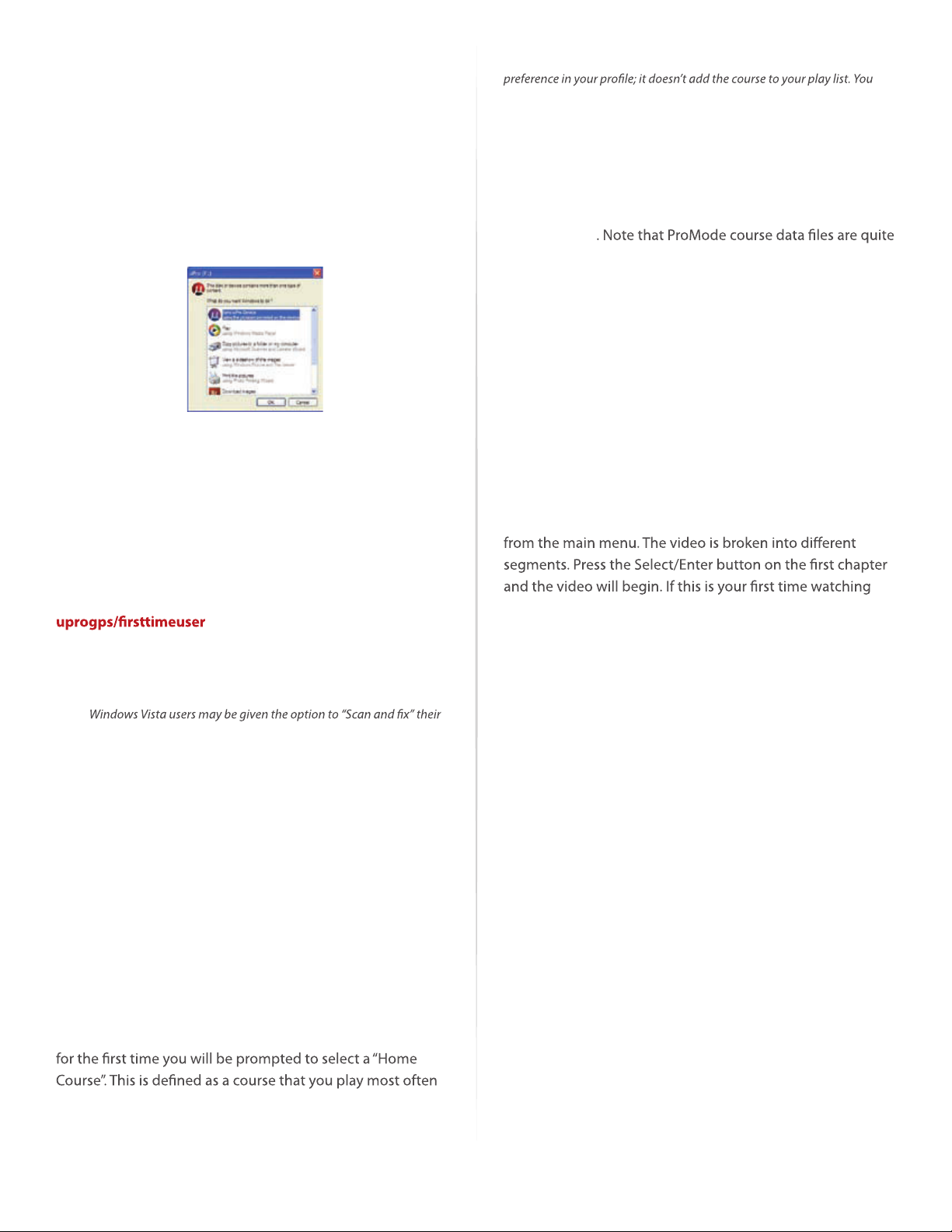
3) Callaway uPro Sync Launch
(a) Windows PC: Once connected, the program launcher
will automatically start. The uPro Sync program should
be already highlighted as shown. Clicking “OK” will start
the Sync program and launch the uPro website. Once the
website loads you will be able to either register your uPro
or log into your account.
Note: Selecting your home course only sets your home course as a
will still need to buy, download, and sync your home course to your uPro.
6) Download Courses – Once your account is created, you
will be able to login, purchase course credits and then start
downloading courses. Detailed instructions for creating
Playlists and “Syncing” your uPro to load courses onto your
uPro are available in the full User Manual at www.callawaygolf.
com/uprogps
large and it may take 10 minutes, or more, to load each purchased ProMode course onto your uPro.
Introductory Video – Learn the Basics
on Using Your Callaway uPro®
1) Power on the uPro – Press and hold the power button
for 3 seconds to power on the uPro. Once the main menu
appears, the uPro is powered on.
2) Connect the Headphone – Find the supplied mono
headphone and connect it to the uPro by inserting its
2.5mm plug into the female headphone jack on the uPro.
3) Start the Video – The introductory video can be accessed
If the program launcher and website do not launch upon
connection of the uPro, please visit www.callawaygolf.com/
. Follow the directions on screen and
download the uPro Finder. This will locate the uPro connected
to your computer and launch the sync program and website
to either register your uPro or log into your account.
Note:
uPro device. Continue with the scanning process using the default options
until the program launcher starts and you see the uPro icon.
Note: Windows users may also be given Windows Alerts/Warnings in the
bottom right hand corner of your screen. These can be ignored.
(b) Macintosh users: Double click to open the uPro device
once it appears on the Desktop, and then run the “MacSync”
program located on the uPro. This will start the sync program
and will launch the uPro website. Once the website loads
you will able to register your uPro or log into your account.
4) Registration Page – The Sync program should launch
your default web browser, connect with the uPro website
and display the registration page. Complete the registration
process to create your account.
the introductory video, we recommend you watch it in
its entirety. The video will stop at the end of each chapter
and go to the list of chapters. The next chapter is already
selected, simply press enter on the selected chapter to begin
watching. Pressing the right LCD select key during playback
exits the playback of that chapter.
Your uPro has a 6 month warranty against manufacturing
defects. To view our full warranty policy, please visit our
website, www.callawaygolf.com/uprogps.
We have many resources available on our website,
www.callawaygolf.com/uprogps, to walk you through
how to use your uPro. Online you can access our uPro
videos, read our FAQs, or download the full User Manual.
If you have any questions or need assistance registering
your uPro, please contact one of our technical support
representatives at 1-888-358-5788 or upro_support@
callawaygolf.com.
5) Login and Home Course Selection – After logging in
within 45 miles of the address you provided during registration.
For more information about Callaway uPro® visit www.callawaygolf.com/uprogps or call 1-888-358-5788.
©2009. Callaway Golf Company. Callaway, Callaway Gol f, the Chevron Device, uPro, the uPro device, uPlay, SmartView, AnyPoint, BasicMode and ProMode are trademarks and/or registered trademards of Callaway Golf Company. 090025
Thank you for purchasing a Callaway uPro®
 Loading...